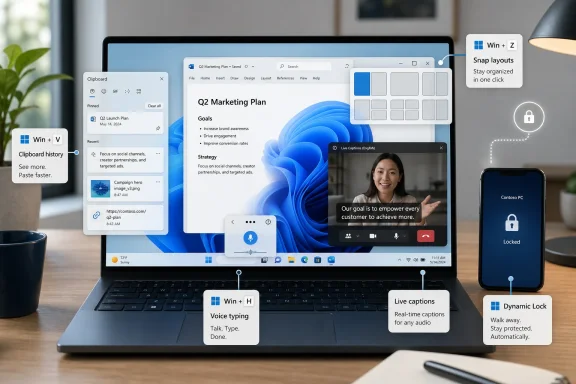
Windows 11 includes several underused built-in features—Clipboard history, voice typing, Snap layouts, live captions, and Dynamic Lock—that can improve everyday PC use today on supported hardware, mostly through keyboard shortcuts and Settings toggles rather than new apps or paid upgrades. That is the useful counterpoint to Microsoft’s louder Windows story. While Copilot, AI branding, and Start menu experiments absorb the oxygen, some of the operating system’s best quality-of-life work is hiding in plain sight.
The irony is that none of these tools is especially exotic. They are not the kind of feature Microsoft can build a keynote around, and they will not sell a new laptop by themselves. But they address the small frictions that shape whether Windows feels like a working environment or a machine you are constantly negotiating with.
The How-To Geek list lands because it describes a version of Windows that many users already own but have not fully met. Clipboard history is not glamorous. Snap layouts are not novel to anyone who remembers tiling window managers or PowerToys FancyZones. Dynamic Lock sounds like a checkbox from a corporate security baseline rather than a personal productivity feature.
Yet this is exactly where Windows tends to be at its strongest. Microsoft’s operating system has always been less a single clean idea than a dense accumulation of tools, behaviors, compatibility layers, shortcuts, and half-discovered affordances. The best Windows features are often the ones that disappear into muscle memory.
That also makes them easy to miss. Microsoft’s modern Windows marketing is increasingly organized around visible novelty: Copilot buttons, AI PCs, generative features, refreshed surfaces, and cloud-connected experiences. The less theatrical features—the ones that save five seconds fifty times a day—rarely receive the same treatment.
This is not simply a consumer discoverability problem. For IT departments, trainers, help desk staff, and power users, it is a reminder that Windows adoption is not just about deploying the latest build. It is about teaching people which parts of the OS are worth trusting.
Windows’ Clipboard history, opened with Win+V, is a small rebellion against that old model. Once enabled, it stores a rolling history of recent copied items, including text and certain images, and lets the user choose what to paste instead of treating the last copy operation as sacred. Microsoft says the history is limited to 25 entries, which is modest by power-user standards but transformative for ordinary workflows.
The feature becomes more interesting when pinned items enter the picture. A pinned email sign-off, boilerplate response, command snippet, address, or support script turns the clipboard from a volatile scratchpad into a tiny personal utility drawer. That is not a replacement for a password manager, documentation system, or code snippet tool, but it covers the many bits of reusable text too trivial to formalize and too annoying to retype.
There is a trust boundary here. Clipboard sync across devices can be convenient, especially for users moving between a desktop and laptop signed in with the same Microsoft account. But enterprise administrators and security-minded users should think carefully about what content belongs in a synced clipboard. Convenience features that touch copied text inevitably brush against sensitive data.
Still, as a default Windows feature, Clipboard history is one of the clearest examples of Microsoft solving a real problem without forcing a new application into the user’s life. It does not require a subscription pitch. It does not need an AI label. It just makes copy and paste less brittle.
The important change is not that voice typing exists. It is that it has become good enough for casual production. Quick messages, notes, first drafts, search queries, and hands-busy replies are now plausible uses rather than theoretical ones. Microsoft’s support materials describe punctuation, editing, and text commands, and newer Windows builds have continued to refine the input experience.
This matters because voice typing changes the economics of short-form writing. A user who would not open a full dictation application might still press Win+H in a text box. A sysadmin documenting an error state, a student capturing a thought, or a user replying while physically unable to type does not need a dedicated workflow. The feature is just there.
There are limits. Voice typing is still hostage to microphone quality, background noise, accents, specialized vocabulary, and application context. It is also not the same thing as full voice control, which belongs more to Windows’ accessibility stack through features such as voice access. Dictating a paragraph and operating a PC hands-free are related but distinct tasks.
The broader point is that Windows is quietly becoming more multimodal even without the Copilot framing. Voice typing is AI-adjacent in the practical sense: recognition has improved, correction has improved, and the feature is easier to reach. But its value is not that it belongs to the AI era. Its value is that it turns speech into text with less ceremony than before.
The real win is not snapping one window to one side. Windows users have been dragging windows to screen edges for years. The advance is that layouts make the intended arrangement explicit, and Snap Assist helps fill the rest of the workspace without turning window management into a series of manual resize operations.
Snap Groups are the more subtle improvement. When Windows treats a set of snapped applications as a group, it acknowledges that the unit of work is not always an app. Sometimes it is a browser beside a document, a terminal beside a dashboard, a Teams call beside notes, or File Explorer beside an editor. Restoring that arrangement matters because context switching is not just about switching programs; it is about restoring shape.
This is where Windows 11’s desktop logic feels more mature than its reputation. The OS often gets criticized, fairly, for pushing users toward Microsoft accounts, cloud services, and new surfaces that not everyone asked for. But Snap layouts show Microsoft doing old-fashioned desktop ergonomics: fewer drags, fewer lost windows, fewer moments spent reconstructing a workspace.
For ultrawide monitors and multi-monitor setups, built-in Snap layouts may still be too basic. PowerToys FancyZones remains the stronger tool for users who want custom zones and persistent window placement rules. But the built-in version hits the mainstream sweet spot, which is usually where Windows’ defaults need to live.
The privacy architecture is an important part of the pitch. Microsoft says audio, voice data, and captions for live captions stay on the device and are not sent to the cloud or shared with Microsoft. That makes the feature more plausible in workplaces and personal contexts where routing audio through an external service would be unacceptable.
There is also a hardware and version divide. Basic live captions arrived for Windows 11 version 22H2 and later, while real-time translation is tied to Copilot+ PCs running Windows 11 version 24H2 or later. That distinction matters because “Windows has live captions” and “Windows can translate live audio in real time” are not the same claim.
Microsoft’s Copilot+ push has sometimes muddied this distinction by wrapping local AI features into a broader marketing category. On-device translation is genuinely impressive, especially if it works across live and prerecorded content in any app. But the base captioning feature is arguably the more important mainstream story because it improves ordinary PCs without requiring a new NPU-class machine.
For users, live captions are useful in mundane ways. They help when speakers mumble, when headphones are inconvenient, when a video has no subtitles, or when a meeting’s audio quality is poor. For IT pros, they are also a reminder that accessibility features are not edge cases; they are productivity features waiting for better distribution.
The idea is simple. Pair a phone over Bluetooth, enable Dynamic Lock under sign-in options, and Windows watches for the paired device to fall out of range. When the signal is gone long enough, the PC locks automatically. Microsoft documents the feature for Windows 10 and Windows 11, including enterprise configuration options.
This is not a perfect security boundary. Bluetooth range varies by device, building materials, radio environment, and driver behavior. There is a delay before locking, and the system does not prove that the person holding the phone is the authorized user. Dynamic Lock should not be sold as a substitute for discipline, endpoint policy, or short inactivity timeouts.
But that critique misses the practical value. Security controls are often most effective when they reduce the penalty for being human. A feature that catches forgotten locks after a user walks away is better than a lecture about perfect behavior. On a laptop in a coffee shop, a shared home office, or a small business front desk, that backup matters.
For administrators, the interesting question is not whether Dynamic Lock is bulletproof. It is whether it can be part of a layered baseline that nudges users toward safer defaults without making the machine irritating. Windows Hello, short lock timers, BitLocker, presence sensing on supported hardware, and Dynamic Lock all belong to that continuum.
Microsoft’s modern onboarding does not solve this. A new Windows 11 user is more likely to encounter Microsoft account prompts, OneDrive nudges, Edge messaging, widgets, Copilot entry points, and personalization flows than a guided tour of Win+V, Win+H, Win+Z, Win+Ctrl+L, and Dynamic Lock. The company is good at promoting strategic features. It is less consistent at teaching operationally useful ones.
This creates a strange inversion. Some of Windows’ most helpful capabilities feel “hidden” not because Microsoft buried them maliciously, but because the OS lacks a coherent way to surface features at the moment they become relevant. A user who copies three things in a row should probably be told about Clipboard history. A user who manually resizes the same two apps every morning should probably be introduced to Snap Groups.
There is a risk in overdoing this, of course. Windows users already complain about prompts, tips, ads, and suggestions. The line between helpful discovery and nagging is thin, and Microsoft has not always stayed on the right side of it. But discoverability does not have to mean pop-ups. It can mean better defaults, smarter Settings search, clearer keyboard shortcut maps, and less promotional clutter around features people actually asked for.
PowerToys is the revealing counterexample. It is explicitly for power users, and Microsoft describes it as a set of free, open-source utilities for getting more out of Windows. In some ways, PowerToys has become the place where Microsoft admits that Windows’ built-in defaults cannot satisfy everyone. The problem is that many mainstream users would benefit from PowerToys-like thinking without ever installing PowerToys.
Clipboard history, Snap layouts, and Dynamic Lock are not strategic in the same way Copilot is strategic. They do not shift platform economics or create a new monetization layer. They are retention features, not transformation features. They make people less annoyed.
That sounds modest, but annoyance is one of the most important currencies in operating systems. A user rarely loves Windows because of a single grand feature. They tolerate or prefer it because the accumulated behaviors align with the way they work. The reverse is also true: small irritations can poison the entire experience.
This is why Microsoft should be careful not to treat these utilities as secondary to the AI narrative. The company’s strongest case for Windows 11 is not that it can put a chatbot near the taskbar. It is that the OS can combine modern security, broad hardware support, decades of app compatibility, and practical improvements that shave friction from everyday work.
The AI features may eventually become essential. Some already show promise, particularly where they run locally and solve specific problems, as with live translation on Copilot+ PCs. But Windows does not need every feature to be a moonshot. Sometimes the operating system wins by remembering the last 25 things you copied.
That history matters because users do not evaluate features in a vacuum. A good hidden tool does not erase frustration with forced changes elsewhere. A better clipboard does not justify every unwanted notification or account prompt. Windows 11’s quality-of-life gains live inside a broader product that still makes controversial choices.
Still, the cumulative productivity case has improved. Snap layouts are better than the old manual routine. Clipboard history should be enabled on almost every personal machine where policy allows it. Voice typing is good enough to become a default fallback. Live captions are a genuine accessibility and comprehension upgrade. Dynamic Lock is a sensible guardrail.
The strongest upgrade argument may not be “Windows 11 is new.” It may be “Windows 11 reduces more small annoyances than you think, if you know where to look.” That is less glamorous than Microsoft’s official message, but it is more credible to users who spend all day inside the OS.
For IT teams, this also suggests a different training posture. Instead of treating Windows feature education as a once-a-year migration deck, organizations could build micro-training around shortcuts and workflows. Five minutes on Clipboard history and Snap layouts may produce more daily benefit than a long presentation about interface changes.
There is also a philosophical lesson here. The best operating system features often do not ask users to change identities. Clipboard history does not turn someone into a “creator.” Snap layouts do not require a productivity methodology. Live captions do not demand that a user identify as needing accessibility. They simply make the machine more forgiving.
This is the version of Windows Microsoft should foreground more often. Not Windows as an AI billboard. Not Windows as a funnel into services. Windows as an adaptable, local, keyboard-friendly, accessibility-aware work surface that rewards users for learning a few shortcuts.
That does not mean ignoring Copilot or the future of AI PCs. It means measuring those additions against the standard set by these quieter tools. Do they remove friction? Do they respect context? Do they work locally when privacy matters? Do they help users who are not trying to participate in a platform strategy?
Microsoft’s challenge is to make this practical Windows easier to find without smothering users in prompts or burying it beneath the next strategic campaign. The company’s challenge is also an opportunity: if Windows 11 is going to keep earning its place on desks long after the novelty of AI branding fades, it will be because features like these make the everyday machine feel less forgetful, less clumsy, and more aware of how people actually work.
The irony is that none of these tools is especially exotic. They are not the kind of feature Microsoft can build a keynote around, and they will not sell a new laptop by themselves. But they address the small frictions that shape whether Windows feels like a working environment or a machine you are constantly negotiating with.
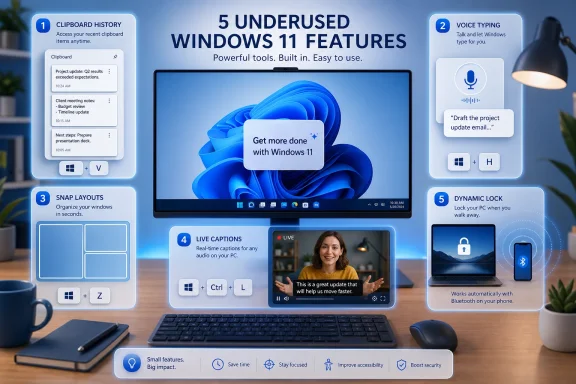 Microsoft’s Quietest Windows Features Are Often Its Most Practical Ones
The How-To Geek list lands because it describes a version of Windows that many users already own but have not fully met. Clipboard history is not glamorous. Snap layouts are not novel to anyone who remembers tiling window managers or PowerToys FancyZones. Dynamic Lock sounds like a checkbox from a corporate security baseline rather than a personal productivity feature.Yet this is exactly where Windows tends to be at its strongest. Microsoft’s operating system has always been less a single clean idea than a dense accumulation of tools, behaviors, compatibility layers, shortcuts, and half-discovered affordances. The best Windows features are often the ones that disappear into muscle memory.
That also makes them easy to miss. Microsoft’s modern Windows marketing is increasingly organized around visible novelty: Copilot buttons, AI PCs, generative features, refreshed surfaces, and cloud-connected experiences. The less theatrical features—the ones that save five seconds fifty times a day—rarely receive the same treatment.
This is not simply a consumer discoverability problem. For IT departments, trainers, help desk staff, and power users, it is a reminder that Windows adoption is not just about deploying the latest build. It is about teaching people which parts of the OS are worth trusting.
Clipboard History Fixes a Decades-Old Mistake Without Asking for Applause
The traditional clipboard is one of those ancient computing abstractions that survived mostly because everyone learned to live around its limitations. Copy one thing, paste one thing, lose the previous thing. For years, that was just how graphical operating systems worked unless you installed a third-party clipboard manager.Windows’ Clipboard history, opened with Win+V, is a small rebellion against that old model. Once enabled, it stores a rolling history of recent copied items, including text and certain images, and lets the user choose what to paste instead of treating the last copy operation as sacred. Microsoft says the history is limited to 25 entries, which is modest by power-user standards but transformative for ordinary workflows.
The feature becomes more interesting when pinned items enter the picture. A pinned email sign-off, boilerplate response, command snippet, address, or support script turns the clipboard from a volatile scratchpad into a tiny personal utility drawer. That is not a replacement for a password manager, documentation system, or code snippet tool, but it covers the many bits of reusable text too trivial to formalize and too annoying to retype.
There is a trust boundary here. Clipboard sync across devices can be convenient, especially for users moving between a desktop and laptop signed in with the same Microsoft account. But enterprise administrators and security-minded users should think carefully about what content belongs in a synced clipboard. Convenience features that touch copied text inevitably brush against sensitive data.
Still, as a default Windows feature, Clipboard history is one of the clearest examples of Microsoft solving a real problem without forcing a new application into the user’s life. It does not require a subscription pitch. It does not need an AI label. It just makes copy and paste less brittle.
Voice Typing Has Moved From Parlor Trick to Useful Input Method
Windows voice input has carried a reputation problem for years. Many users remember dictation as something that required patience, correction, training, and a quiet room. The modern Win+H voice typing experience is not magic, but it is far closer to the kind of feature people can actually use without feeling like they are demoing unfinished software.The important change is not that voice typing exists. It is that it has become good enough for casual production. Quick messages, notes, first drafts, search queries, and hands-busy replies are now plausible uses rather than theoretical ones. Microsoft’s support materials describe punctuation, editing, and text commands, and newer Windows builds have continued to refine the input experience.
This matters because voice typing changes the economics of short-form writing. A user who would not open a full dictation application might still press Win+H in a text box. A sysadmin documenting an error state, a student capturing a thought, or a user replying while physically unable to type does not need a dedicated workflow. The feature is just there.
There are limits. Voice typing is still hostage to microphone quality, background noise, accents, specialized vocabulary, and application context. It is also not the same thing as full voice control, which belongs more to Windows’ accessibility stack through features such as voice access. Dictating a paragraph and operating a PC hands-free are related but distinct tasks.
The broader point is that Windows is quietly becoming more multimodal even without the Copilot framing. Voice typing is AI-adjacent in the practical sense: recognition has improved, correction has improved, and the feature is easier to reach. But its value is not that it belongs to the AI era. Its value is that it turns speech into text with less ceremony than before.
Snap Layouts Are Windows Remembering That Desktops Are Workspaces
Snap layouts may be the most visibly Windows 11 feature in this group, but they still remain underused relative to their usefulness. Hover over a maximize button or press Win+Z, and Windows offers predefined arrangements for placing windows into halves, thirds, quarters, and other screen-dependent layouts. It is a small interface addition with an outsized effect on how quickly a desktop becomes usable.The real win is not snapping one window to one side. Windows users have been dragging windows to screen edges for years. The advance is that layouts make the intended arrangement explicit, and Snap Assist helps fill the rest of the workspace without turning window management into a series of manual resize operations.
Snap Groups are the more subtle improvement. When Windows treats a set of snapped applications as a group, it acknowledges that the unit of work is not always an app. Sometimes it is a browser beside a document, a terminal beside a dashboard, a Teams call beside notes, or File Explorer beside an editor. Restoring that arrangement matters because context switching is not just about switching programs; it is about restoring shape.
This is where Windows 11’s desktop logic feels more mature than its reputation. The OS often gets criticized, fairly, for pushing users toward Microsoft accounts, cloud services, and new surfaces that not everyone asked for. But Snap layouts show Microsoft doing old-fashioned desktop ergonomics: fewer drags, fewer lost windows, fewer moments spent reconstructing a workspace.
For ultrawide monitors and multi-monitor setups, built-in Snap layouts may still be too basic. PowerToys FancyZones remains the stronger tool for users who want custom zones and persistent window placement rules. But the built-in version hits the mainstream sweet spot, which is usually where Windows’ defaults need to live.
Live Captions Turn Accessibility Into a General-Purpose Superpower
Live captions are often described as an accessibility feature, and they are. But like many good accessibility tools, they quickly become useful to people far beyond their original audience. Press Win+Ctrl+L, and Windows can display real-time captions for audio playing on the device, making videos, meetings, lectures, and clips more understandable in imperfect conditions.The privacy architecture is an important part of the pitch. Microsoft says audio, voice data, and captions for live captions stay on the device and are not sent to the cloud or shared with Microsoft. That makes the feature more plausible in workplaces and personal contexts where routing audio through an external service would be unacceptable.
There is also a hardware and version divide. Basic live captions arrived for Windows 11 version 22H2 and later, while real-time translation is tied to Copilot+ PCs running Windows 11 version 24H2 or later. That distinction matters because “Windows has live captions” and “Windows can translate live audio in real time” are not the same claim.
Microsoft’s Copilot+ push has sometimes muddied this distinction by wrapping local AI features into a broader marketing category. On-device translation is genuinely impressive, especially if it works across live and prerecorded content in any app. But the base captioning feature is arguably the more important mainstream story because it improves ordinary PCs without requiring a new NPU-class machine.
For users, live captions are useful in mundane ways. They help when speakers mumble, when headphones are inconvenient, when a video has no subtitles, or when a meeting’s audio quality is poor. For IT pros, they are also a reminder that accessibility features are not edge cases; they are productivity features waiting for better distribution.
Dynamic Lock Is Security for People Who Forget the Shortcut
Every security professional knows the correct answer: press Win+L before walking away. Every real workplace knows the human answer: people forget. Dynamic Lock exists in the space between policy and behavior, using a paired Bluetooth phone as a rough proximity signal to lock the PC when the user moves away.The idea is simple. Pair a phone over Bluetooth, enable Dynamic Lock under sign-in options, and Windows watches for the paired device to fall out of range. When the signal is gone long enough, the PC locks automatically. Microsoft documents the feature for Windows 10 and Windows 11, including enterprise configuration options.
This is not a perfect security boundary. Bluetooth range varies by device, building materials, radio environment, and driver behavior. There is a delay before locking, and the system does not prove that the person holding the phone is the authorized user. Dynamic Lock should not be sold as a substitute for discipline, endpoint policy, or short inactivity timeouts.
But that critique misses the practical value. Security controls are often most effective when they reduce the penalty for being human. A feature that catches forgotten locks after a user walks away is better than a lecture about perfect behavior. On a laptop in a coffee shop, a shared home office, or a small business front desk, that backup matters.
For administrators, the interesting question is not whether Dynamic Lock is bulletproof. It is whether it can be part of a layered baseline that nudges users toward safer defaults without making the machine irritating. Windows Hello, short lock timers, BitLocker, presence sensing on supported hardware, and Dynamic Lock all belong to that continuum.
The Hidden Feature Story Is Really a Discoverability Failure
If these features are so useful, why do so many users miss them? Part of the answer is that Windows has become too large for its own interface. Settings pages, legacy Control Panel remnants, context menus, shortcut keys, taskbar behaviors, accessibility tools, and optional utilities all coexist in a system that cannot possibly expose everything equally.Microsoft’s modern onboarding does not solve this. A new Windows 11 user is more likely to encounter Microsoft account prompts, OneDrive nudges, Edge messaging, widgets, Copilot entry points, and personalization flows than a guided tour of Win+V, Win+H, Win+Z, Win+Ctrl+L, and Dynamic Lock. The company is good at promoting strategic features. It is less consistent at teaching operationally useful ones.
This creates a strange inversion. Some of Windows’ most helpful capabilities feel “hidden” not because Microsoft buried them maliciously, but because the OS lacks a coherent way to surface features at the moment they become relevant. A user who copies three things in a row should probably be told about Clipboard history. A user who manually resizes the same two apps every morning should probably be introduced to Snap Groups.
There is a risk in overdoing this, of course. Windows users already complain about prompts, tips, ads, and suggestions. The line between helpful discovery and nagging is thin, and Microsoft has not always stayed on the right side of it. But discoverability does not have to mean pop-ups. It can mean better defaults, smarter Settings search, clearer keyboard shortcut maps, and less promotional clutter around features people actually asked for.
PowerToys is the revealing counterexample. It is explicitly for power users, and Microsoft describes it as a set of free, open-source utilities for getting more out of Windows. In some ways, PowerToys has become the place where Microsoft admits that Windows’ built-in defaults cannot satisfy everyone. The problem is that many mainstream users would benefit from PowerToys-like thinking without ever installing PowerToys.
Copilot Gets the Billboard, but Workflow Gets the Loyalty
The tension running through these features is the tension running through Windows itself. Microsoft wants Windows to be the front door to its AI strategy, its cloud services, and its hardware ecosystem. Users want their PC to help them finish work with fewer interruptions. Those goals can overlap, but they are not identical.Clipboard history, Snap layouts, and Dynamic Lock are not strategic in the same way Copilot is strategic. They do not shift platform economics or create a new monetization layer. They are retention features, not transformation features. They make people less annoyed.
That sounds modest, but annoyance is one of the most important currencies in operating systems. A user rarely loves Windows because of a single grand feature. They tolerate or prefer it because the accumulated behaviors align with the way they work. The reverse is also true: small irritations can poison the entire experience.
This is why Microsoft should be careful not to treat these utilities as secondary to the AI narrative. The company’s strongest case for Windows 11 is not that it can put a chatbot near the taskbar. It is that the OS can combine modern security, broad hardware support, decades of app compatibility, and practical improvements that shave friction from everyday work.
The AI features may eventually become essential. Some already show promise, particularly where they run locally and solve specific problems, as with live translation on Copilot+ PCs. But Windows does not need every feature to be a moonshot. Sometimes the operating system wins by remembering the last 25 things you copied.
The Upgrade Argument Looks Stronger When It Is About Time Saved
Windows 11 has had an uneven reception among enthusiasts, partly because its visual redesign and hardware requirements arrived before some users felt a compelling need to move. The Start menu lost flexibility. The taskbar shed capabilities before slowly gaining some back. TPM and CPU requirements left older but functional systems outside the official line.That history matters because users do not evaluate features in a vacuum. A good hidden tool does not erase frustration with forced changes elsewhere. A better clipboard does not justify every unwanted notification or account prompt. Windows 11’s quality-of-life gains live inside a broader product that still makes controversial choices.
Still, the cumulative productivity case has improved. Snap layouts are better than the old manual routine. Clipboard history should be enabled on almost every personal machine where policy allows it. Voice typing is good enough to become a default fallback. Live captions are a genuine accessibility and comprehension upgrade. Dynamic Lock is a sensible guardrail.
The strongest upgrade argument may not be “Windows 11 is new.” It may be “Windows 11 reduces more small annoyances than you think, if you know where to look.” That is less glamorous than Microsoft’s official message, but it is more credible to users who spend all day inside the OS.
For IT teams, this also suggests a different training posture. Instead of treating Windows feature education as a once-a-year migration deck, organizations could build micro-training around shortcuts and workflows. Five minutes on Clipboard history and Snap layouts may produce more daily benefit than a long presentation about interface changes.
The Useful Windows Is Still There, Under the Marketing Layer
The five features highlighted by How-To Geek are not obscure registry hacks or enthusiast-only tweaks. They are mainstream Windows capabilities, available through supported settings and shortcuts. That makes their underuse more revealing. Microsoft has built many of the right tools, but it has not always built the right path to them.There is also a philosophical lesson here. The best operating system features often do not ask users to change identities. Clipboard history does not turn someone into a “creator.” Snap layouts do not require a productivity methodology. Live captions do not demand that a user identify as needing accessibility. They simply make the machine more forgiving.
This is the version of Windows Microsoft should foreground more often. Not Windows as an AI billboard. Not Windows as a funnel into services. Windows as an adaptable, local, keyboard-friendly, accessibility-aware work surface that rewards users for learning a few shortcuts.
That does not mean ignoring Copilot or the future of AI PCs. It means measuring those additions against the standard set by these quieter tools. Do they remove friction? Do they respect context? Do they work locally when privacy matters? Do they help users who are not trying to participate in a platform strategy?
Five Shortcuts Say More About Windows Than Another Copilot Demo
The practical lesson is not that every user must enable every feature immediately. It is that Windows still contains a surprising amount of leverage for people willing to spend a few minutes in Settings and memorize a handful of key combinations.- Win+V turns the clipboard into a short-term memory system, especially when pinned items are used for text that comes up repeatedly.
- Win+H makes dictation available anywhere there is a text field, which is useful for drafts, messages, notes, and accessibility needs.
- Win+Z makes window layouts faster to build, while Snap Groups help restore a working arrangement rather than just an individual app.
- Win+Ctrl+L brings live captions to system audio, with translation features reserved for newer Copilot+ PCs on supported Windows 11 releases.
- Dynamic Lock is a backup security measure, not a replacement for Win+L, but it can reduce the risk of a PC staying unlocked after a user walks away.
Microsoft’s challenge is to make this practical Windows easier to find without smothering users in prompts or burying it beneath the next strategic campaign. The company’s challenge is also an opportunity: if Windows 11 is going to keep earning its place on desks long after the novelty of AI branding fades, it will be because features like these make the everyday machine feel less forgetful, less clumsy, and more aware of how people actually work.
References
- Primary source: How-To Geek
Published: Sun, 31 May 2026 18:30:17 GMT
Windows has 5 hidden features that will improve how you use your PC
Microsoft should really advertise these features more. www.howtogeek.com
- Official source: support.microsoft.com
Snap Your Windows | Microsoft Support
Discover the power of the Snap feature in Windows, designed to enhance your multitasking and productivity. The Snap feature allows you to quickly resize and position windows on your screen by dragging them to the edges or corners. With Snap, you can easily organize multiple windows, making it...support.microsoft.com - Official source: learn.microsoft.com
Support snap layouts for desktop apps on Windows 11 - Windows apps | Microsoft Learn
Support the snap layouts menu in your desktop application.learn.microsoft.com - Official source: microsoft.com
How to Use Snap Layouts | Microsoft Windows
Organize your screen with Snap layouts in Windows 11. From multitasking on calls to optimizing research, Snap layouts help make screen time more productive.www.microsoft.com
- Related coverage: techpp.com
How to Use Snap Layouts and Snap Groups in Windows 11 - TechPP
Microsoft offers two new features, Snap Layouts, and Snap Groups, to improve the multitasking experience on Windows 11. Here's a look at both these features and how to use them effectively.techpp.com - Related coverage: tomshardware.com
Windows will now let you swear at it — introduces toggle to disable profanity filter for voice typing | Tom's Hardware
Your PC will take it without any censoring.www.tomshardware.com
- Related coverage: windowscentral.com
Sharing your screen with Copilot on Windows 11 is getting easier | Windows Central
Windows 11 introduces easy Copilot activation directly from the Taskbar for enhanced usabilitywww.windowscentral.com - Official source: news.microsoft.com
- Official source: techcommunity.microsoft.com
Windows 11 Dynamic Lock Unstable | Microsoft Community Hub
Dynamic Lock in Windows 11 is unstable.Even when phone is connected to PC via Bluetooth, Dynamic Lock says it can't detect your phone. This screenshot... techcommunity.microsoft.com
- Related coverage: techradar.com
Microsoft gives you another reason to hook up your Windows 11 PC and Android smartphone - it's a security feature that could come in seriously handy | TechRadar
Phone Link gets a nifty remote lock feature and morewww.techradar.com