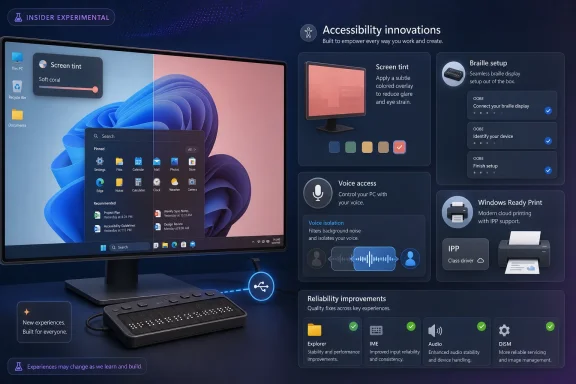
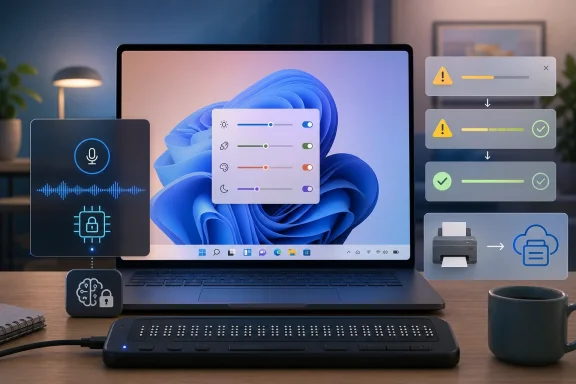
Microsoft released Windows 11 Insider Preview builds on May 22, 2026, adding a Screen Tint accessibility setting in the Experimental channel alongside improved HID braille display support, Magnifier changes, Voice Access voice isolation, and related fixes across Beta and Experimental builds. The headline feature is easy to underestimate because it looks like a display tweak, not an operating-system shift. But Microsoft’s latest accessibility work points to a more important Windows 11 trend: the OS is slowly moving accessibility from a specialist corner into the everyday grammar of using a PC.
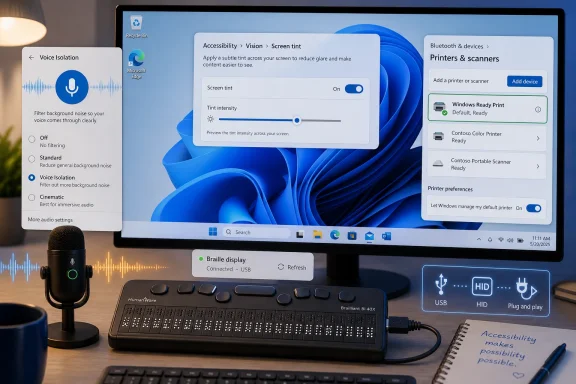
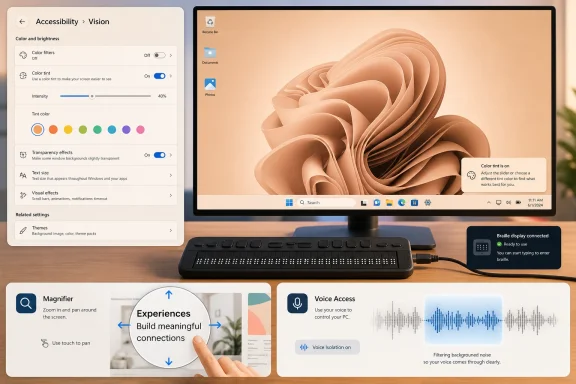
Screen Tint is not a new idea in computing, but its arrival inside Windows 11 matters because of where Microsoft has chosen to put it. This is not a monitor vendor utility, a GPU driver control panel, or a third-party app that sits awkwardly between the user and the desktop. It lives under Accessibility, in the Vision section, which is exactly where it belongs.
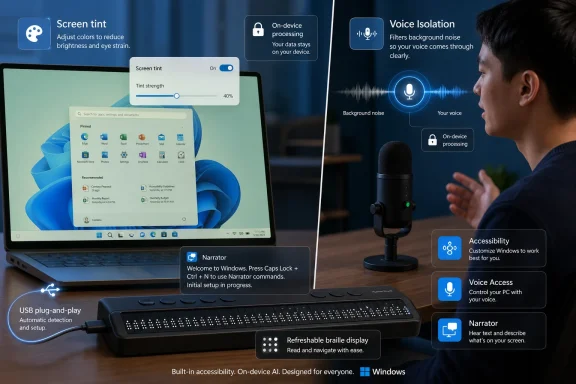
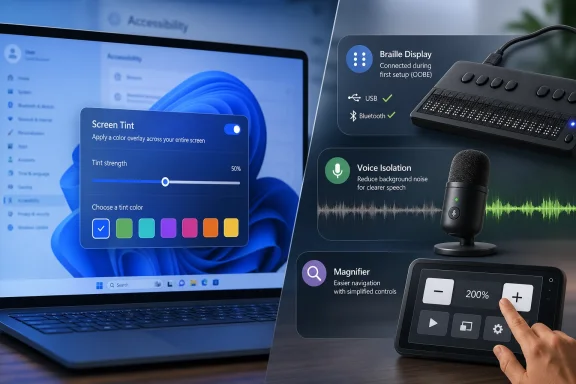
The feature applies a color overlay across the full display, with presets and a strength slider. Microsoft describes it as a way to soften the intensity of bright or saturated screens for users who experience tired or sensitive eyes after long sessions. That framing is notable because it avoids the trap of presenting accessibility as something only a narrow group of users needs.
Windows already has Night Light, and many displays already ship with low-blue-light or reader modes. Screen Tint is different in purpose. Night Light warms the display to reduce blue light that can interfere with sleep; Screen Tint is about reducing perceived intensity and visual harshness during the day. Microsoft says the two can be used together, which is sensible because they are attacking different problems.
The less convenient detail is that Screen Tint and Color Filters are mutually exclusive. If a user depends on Color Filters for color blindness, contrast, or other visual needs, Screen Tint may not be usable without giving something up. That tradeoff does not make the feature bad, but it does show the hard part of accessibility engineering: one accommodation can collide with another.
A tint control sounds minor until you imagine the actual user. The developer with migraines. The analyst staring at white dashboards for eight hours. The student with light sensitivity. The remote worker in a dim room using a display calibrated for a showroom floor. These are not edge cases in any meaningful human sense; they are ordinary computing conditions that operating systems historically treated as somebody else’s problem.
Microsoft’s move also reflects a broader shift away from “one correct display” thinking. For years, the default assumption was that a screen should be bright, sharp, color-accurate, and neutral. That still matters for photo editing and design work, but a general-purpose OS has to serve more than reference-color workflows. Sometimes the best screen is not the most technically accurate one; it is the one a user can tolerate.
There is a practical IT angle here as well. Built-in settings are easier to document, support, and standardize than third-party utilities. They reduce the temptation for users to install unvetted overlay tools, and they give help desks a common vocabulary when someone says the screen is physically uncomfortable to use.
That is the kind of change that sounds mundane only if you have never had to fight assistive hardware during setup. Specialized devices too often require drivers, add-on software, or a sighted assistant before the user can fully control the machine. Microsoft’s notes say HID braille displays can now work during the initial Windows setup experience over USB, which is a crucial distinction. Accessibility after setup is useful; accessibility during setup is autonomy.
The supported examples Microsoft mentions include devices such as the Orbit Reader 20, Orbit Slate 340, Freedom Scientific Focus 40, and APH Mantis Q40. The larger point is the standard, not the product list. HID support means Windows is leaning on a common device model rather than asking every assistive hardware path to be bespoke.
For deaf-blind users in particular, setup independence is not a nicety. It is the difference between a PC being personally usable and merely theoretically accessible. If Windows can present an out-of-box experience that does not assume vision or hearing, it becomes a more credible platform for users who have long had to negotiate around mainstream defaults.
That is a subtle accessibility judgment. Magnification is not merely about making content bigger; it is about managing how much extra UI competes for attention. A screen that is easier to navigate can still be harder to process if it fills with controls the user does not need.
Voice Access is also gaining Voice Isolation, a speech recognition mode designed to focus on the user’s voice when other people or background noise are present. Microsoft says processing happens on device, and setup involves reading a short passage so the system can learn the user’s voice. In the Beta build, Voice Isolation is the major accessibility addition, while Screen Tint and the braille work are listed for the Experimental channel.
The pattern is clear. Microsoft is not shipping one accessibility feature; it is tuning multiple input and output paths at once. Vision, touch, speech, and braille are being treated as first-class ways into the OS. That is what accessibility looks like when it matures from compliance checklist to platform architecture.
That caveat matters more than usual because Microsoft is also transitioning the Windows Insider Program’s channel naming and release-note structure. The May 22 announcement points users to Beta build 26220.8491 and Experimental build 26300.8497, while also listing additional Experimental builds for 26H1 and future platforms. In plain English: the feature pipeline is active, but not everything visible today is promised to land on every Windows 11 PC tomorrow.
For enthusiasts, that uncertainty is part of the fun. For administrators, it is the reason not to build policy around a preview feature too early. Accessibility teams, procurement departments, and assistive-technology specialists should test these builds if the features matter to their users, but they should not assume immediate production availability.
That is especially true for Screen Tint because of its interaction with Color Filters. If Microsoft hears from users who need both, the implementation may need refinement before broad release. The Insider Program is doing its job if it exposes those conflicts before they are locked into a stable build.
Screen Tint could therefore become a practical support feature in schools, call centers, government offices, and any workplace where long screen sessions are normal. It gives IT a low-risk recommendation when users report discomfort, provided those users do not already depend on Color Filters. It also helps standardize a conversation that is often too vague: brightness, contrast, color temperature, tint, and fatigue all get collapsed into “my screen hurts.”
The braille work has a different operational benefit. HID support reduces setup friction and may simplify imaging, device provisioning, and replacement workflows. If a user can plug in a braille display during OOBE and proceed without custom intervention, the deployment process becomes more dignified and less dependent on one-off accommodations.
Voice Isolation introduces another support dimension. Offices are noisy, homes are noisy, and hybrid work has made “quiet speech recognition conditions” a luxury. On-device filtering that improves Voice Access could make voice control more reliable outside ideal test environments. It also gives privacy-conscious organizations a better story than cloud-dependent audio processing, though real-world verification will matter.
That is what mature accessibility work often looks like. A person plugs in a braille display and starts reading. A user with light sensitivity dials down visual intensity without installing an overlay app. Someone using Magnifier gets fewer distractions by default. A Voice Access user in a shared room gets better recognition without sending voice data away for processing.
Microsoft deserves credit for that direction, but not a victory lap. Windows still contains too many inconsistent settings surfaces, too many legacy paths, and too many features that arrive first as experiments and only later become manageable policy. Accessibility is at its best when it is not a scavenger hunt.
The promise of these builds is that Microsoft appears to understand that accessibility is not a mode. It is a set of assumptions baked into how input, output, setup, privacy, and device support work. The more Windows internalizes that, the less users will have to fight the machine before they can use it.
 Microsoft Is Finally Treating Eye Strain as an Operating-System Problem
Screen Tint is not a new idea in computing, but its arrival inside Windows 11 matters because of where Microsoft has chosen to put it. This is not a monitor vendor utility, a GPU driver control panel, or a third-party app that sits awkwardly between the user and the desktop. It lives under Accessibility, in the Vision section, which is exactly where it belongs.The feature applies a color overlay across the full display, with presets and a strength slider. Microsoft describes it as a way to soften the intensity of bright or saturated screens for users who experience tired or sensitive eyes after long sessions. That framing is notable because it avoids the trap of presenting accessibility as something only a narrow group of users needs.
Windows already has Night Light, and many displays already ship with low-blue-light or reader modes. Screen Tint is different in purpose. Night Light warms the display to reduce blue light that can interfere with sleep; Screen Tint is about reducing perceived intensity and visual harshness during the day. Microsoft says the two can be used together, which is sensible because they are attacking different problems.
The less convenient detail is that Screen Tint and Color Filters are mutually exclusive. If a user depends on Color Filters for color blindness, contrast, or other visual needs, Screen Tint may not be usable without giving something up. That tradeoff does not make the feature bad, but it does show the hard part of accessibility engineering: one accommodation can collide with another.
A Small Slider Carries a Bigger Windows 11 Message
Windows 11 has often been judged by its most visible changes: centered taskbar, Start menu revisions, Copilot entry points, ads in system surfaces, and the slow migration away from Control Panel. Accessibility work rarely generates the same heat. Yet it is one of the places where Windows still has to be a serious platform rather than a consumer shell.A tint control sounds minor until you imagine the actual user. The developer with migraines. The analyst staring at white dashboards for eight hours. The student with light sensitivity. The remote worker in a dim room using a display calibrated for a showroom floor. These are not edge cases in any meaningful human sense; they are ordinary computing conditions that operating systems historically treated as somebody else’s problem.
Microsoft’s move also reflects a broader shift away from “one correct display” thinking. For years, the default assumption was that a screen should be bright, sharp, color-accurate, and neutral. That still matters for photo editing and design work, but a general-purpose OS has to serve more than reference-color workflows. Sometimes the best screen is not the most technically accurate one; it is the one a user can tolerate.
There is a practical IT angle here as well. Built-in settings are easier to document, support, and standardize than third-party utilities. They reduce the temptation for users to install unvetted overlay tools, and they give help desks a common vocabulary when someone says the screen is physically uncomfortable to use.
Braille Support Moves Closer to Plug-and-Play Reality
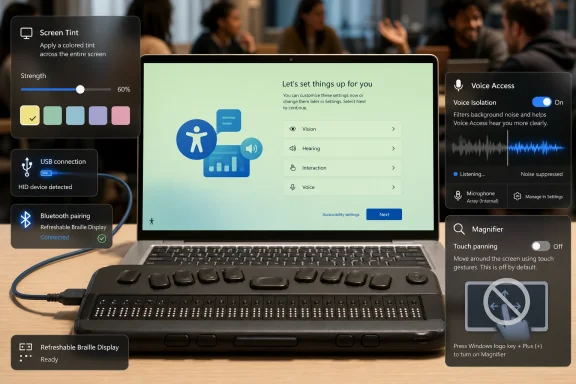
The more consequential accessibility change may be the one that gets fewer mainstream headlines: improved support for refreshable braille displays through the HID standard. In the Experimental build, Narrator can work with HID braille devices over USB without additional setup. Bluetooth pairing is handled through the normal Settings path for Bluetooth devices.That is the kind of change that sounds mundane only if you have never had to fight assistive hardware during setup. Specialized devices too often require drivers, add-on software, or a sighted assistant before the user can fully control the machine. Microsoft’s notes say HID braille displays can now work during the initial Windows setup experience over USB, which is a crucial distinction. Accessibility after setup is useful; accessibility during setup is autonomy.
The supported examples Microsoft mentions include devices such as the Orbit Reader 20, Orbit Slate 340, Freedom Scientific Focus 40, and APH Mantis Q40. The larger point is the standard, not the product list. HID support means Windows is leaning on a common device model rather than asking every assistive hardware path to be bespoke.
For deaf-blind users in particular, setup independence is not a nicety. It is the difference between a PC being personally usable and merely theoretically accessible. If Windows can present an out-of-box experience that does not assume vision or hearing, it becomes a more credible platform for users who have long had to negotiate around mainstream defaults.
Accessibility Is Becoming Infrastructure, Not Decoration
The Screen Tint and braille improvements arrive alongside other changes that reinforce the same theme. Magnifier’s touch panning bars are now off by default, reducing visual clutter in magnified views on touchscreen devices. Users who prefer those bars can turn them back on, but Microsoft’s default is now a cleaner canvas.That is a subtle accessibility judgment. Magnification is not merely about making content bigger; it is about managing how much extra UI competes for attention. A screen that is easier to navigate can still be harder to process if it fills with controls the user does not need.
Voice Access is also gaining Voice Isolation, a speech recognition mode designed to focus on the user’s voice when other people or background noise are present. Microsoft says processing happens on device, and setup involves reading a short passage so the system can learn the user’s voice. In the Beta build, Voice Isolation is the major accessibility addition, while Screen Tint and the braille work are listed for the Experimental channel.
The pattern is clear. Microsoft is not shipping one accessibility feature; it is tuning multiple input and output paths at once. Vision, touch, speech, and braille are being treated as first-class ways into the OS. That is what accessibility looks like when it matures from compliance checklist to platform architecture.
The Insider Channel Split Is a Warning Label, Not a Footnote
There is still a reason to keep expectations grounded. These changes are in Insider builds, and the most eye-catching features are in the Experimental channel. Microsoft explicitly warns that features in these builds may change, disappear, or never reach general release.That caveat matters more than usual because Microsoft is also transitioning the Windows Insider Program’s channel naming and release-note structure. The May 22 announcement points users to Beta build 26220.8491 and Experimental build 26300.8497, while also listing additional Experimental builds for 26H1 and future platforms. In plain English: the feature pipeline is active, but not everything visible today is promised to land on every Windows 11 PC tomorrow.
For enthusiasts, that uncertainty is part of the fun. For administrators, it is the reason not to build policy around a preview feature too early. Accessibility teams, procurement departments, and assistive-technology specialists should test these builds if the features matter to their users, but they should not assume immediate production availability.
That is especially true for Screen Tint because of its interaction with Color Filters. If Microsoft hears from users who need both, the implementation may need refinement before broad release. The Insider Program is doing its job if it exposes those conflicts before they are locked into a stable build.
Where This Helps IT—and Where It Complicates Support
For Windows administrators, the best version of accessibility is predictable. A help desk can support a built-in toggle more confidently than a random tray utility. Documentation can say “press Win + U and look under Vision,” rather than asking users to install a tool from a website whose installer also wants to run at startup.Screen Tint could therefore become a practical support feature in schools, call centers, government offices, and any workplace where long screen sessions are normal. It gives IT a low-risk recommendation when users report discomfort, provided those users do not already depend on Color Filters. It also helps standardize a conversation that is often too vague: brightness, contrast, color temperature, tint, and fatigue all get collapsed into “my screen hurts.”
The braille work has a different operational benefit. HID support reduces setup friction and may simplify imaging, device provisioning, and replacement workflows. If a user can plug in a braille display during OOBE and proceed without custom intervention, the deployment process becomes more dignified and less dependent on one-off accommodations.
Voice Isolation introduces another support dimension. Offices are noisy, homes are noisy, and hybrid work has made “quiet speech recognition conditions” a luxury. On-device filtering that improves Voice Access could make voice control more reliable outside ideal test environments. It also gives privacy-conscious organizations a better story than cloud-dependent audio processing, though real-world verification will matter.
The Best Accessibility Features Disappear Into Daily Use
The most encouraging thing about these Windows 11 changes is that they are not flashy. They do not require a Copilot+ PC branding exercise. They do not ask users to rethink what a computer is. They make existing interactions less painful and less dependent on workaround culture.That is what mature accessibility work often looks like. A person plugs in a braille display and starts reading. A user with light sensitivity dials down visual intensity without installing an overlay app. Someone using Magnifier gets fewer distractions by default. A Voice Access user in a shared room gets better recognition without sending voice data away for processing.
Microsoft deserves credit for that direction, but not a victory lap. Windows still contains too many inconsistent settings surfaces, too many legacy paths, and too many features that arrive first as experiments and only later become manageable policy. Accessibility is at its best when it is not a scavenger hunt.
The promise of these builds is that Microsoft appears to understand that accessibility is not a mode. It is a set of assumptions baked into how input, output, setup, privacy, and device support work. The more Windows internalizes that, the less users will have to fight the machine before they can use it.
The May 22 Builds Put Comfort and Independence on the Same Roadmap
The immediate story is a preview build with a few new switches, but the durable story is that Windows 11 is broadening what “usable by default” is supposed to mean. These features are not equally mature, and not all of them are in the same channel, but they show Microsoft pushing accessibility into the places where it has the most leverage: display rendering, device setup, speech recognition, and magnified navigation.- Screen Tint is being tested in the Experimental channel as a full-display color overlay with presets and a strength slider for users dealing with eye fatigue or light sensitivity.
- Screen Tint is distinct from Night Light because it targets screen intensity rather than sleep-related blue-light exposure, and Microsoft says the two can be used together.
- Screen Tint currently disables Color Filters when enabled, which may limit its usefulness for users who rely on those filters for other visual accommodations.
- Narrator’s new HID braille support is important because compatible USB braille displays can work during the initial Windows setup experience, not merely after Windows is configured.
- Voice Isolation in Voice Access is arriving as an on-device option intended to improve speech recognition when other voices or background noise are present.
- These are Insider features, and Microsoft’s own release-note language leaves room for changes, delays, or removal before any broad Windows 11 rollout.
References
- Primary source: Windows Central
Published: Fri, 22 May 2026 18:01:29 GMT
Windows 11 tests new accessibility upgrades including screen tint and improved Braille support | Windows Central
Microsoft is rolling out new accessibility features for testing, including screen tint, improved Braille display support, and updates to Voice Access.www.windowscentral.com - Independent coverage: Neowin
Published: Fri, 22 May 2026 17:48:45 GMT
Windows 11 is getting Screen Tint feature and other accessibility improvements in new builds - Neowin
Microsoft is improving Windows 11's accessibility with the new Screen Tint feature and other changes in the latest preview builds. www.neowin.net
- Official source: blogs.windows.com
Announcing new builds for 22 May 2026
Hello Windows Insiders, Today, we continue to expand the rollout of the new Windows Insider Program changes to devices in channels already announced. As a reminder, we have not yet begun moving devices in the Canary 29500 Series Channelblogs.windows.com - Related coverage: techradar.com
New screen tint feature discovered in Windows 11 is designed to help with eye strain and even combating migraines | TechRadar
This isn't a substitute for healthy screen habits, mindwww.techradar.com