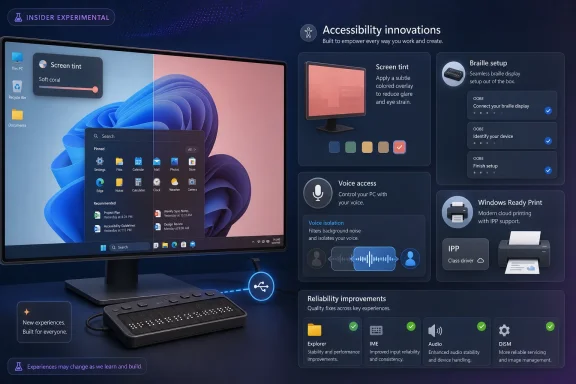
Microsoft released Windows 11 Insider Preview builds on May 22, 2026, adding a Screen Tint accessibility setting in the Experimental channel alongside improved HID braille display support, Magnifier changes, Voice Access voice isolation, and related fixes across Beta and Experimental builds. The headline feature is easy to underestimate because it looks like a display tweak, not an operating-system shift. But Microsoft’s latest accessibility work points to a more important Windows 11 trend: the OS is slowly moving accessibility from a specialist corner into the everyday grammar of using a PC.

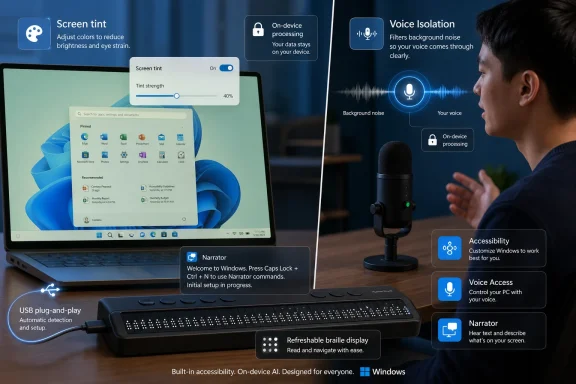
Windows accessibility settings shown on a monitor with voice, magnifier, and braille features.Microsoft Is Finally Treating Eye Strain as an Operating-System Problem​

Screen Tint is not a new idea in computing, but its arrival inside Windows 11 matters because of where Microsoft has chosen to put it. This is not a monitor vendor utility, a GPU driver control panel, or a third-party app that sits awkwardly between the user and the desktop. It lives under Accessibility, in the Vision section, which is exactly where it belongs.
The feature applies a color overlay across the full display, with presets and a strength slider. Microsoft describes it as a way to soften the intensity of bright or saturated screens for users who experience tired or sensitive eyes after long sessions. That framing is notable because it avoids the trap of presenting accessibility as something only a narrow group of users needs.
Windows already has Night Light, and many displays already ship with low-blue-light or reader modes. Screen Tint is different in purpose. Night Light warms the display to reduce blue light that can interfere with sleep; Screen Tint is about reducing perceived intensity and visual harshness during the day. Microsoft says the two can be used together, which is sensible because they are attacking different problems.
The less convenient detail is that Screen Tint and Color Filters are mutually exclusive. If a user depends on Color Filters for color blindness, contrast, or other visual needs, Screen Tint may not be usable without giving something up. That tradeoff does not make the feature bad, but it does show the hard part of accessibility engineering: one accommodation can collide with another.

A Small Slider Carries a Bigger Windows 11 Message​

Windows 11 has often been judged by its most visible changes: centered taskbar, Start menu revisions, Copilot entry points, ads in system surfaces, and the slow migration away from Control Panel. Accessibility work rarely generates the same heat. Yet it is one of the places where Windows still has to be a serious platform rather than a consumer shell.
A tint control sounds minor until you imagine the actual user. The developer with migraines. The analyst staring at white dashboards for eight hours. The student with light sensitivity. The remote worker in a dim room using a display calibrated for a showroom floor. These are not edge cases in any meaningful human sense; they are ordinary computing conditions that operating systems historically treated as somebody else’s problem.
Microsoft’s move also reflects a broader shift away from “one correct display” thinking. For years, the default assumption was that a screen should be bright, sharp, color-accurate, and neutral. That still matters for photo editing and design work, but a general-purpose OS has to serve more than reference-color workflows. Sometimes the best screen is not the most technically accurate one; it is the one a user can tolerate.
There is a practical IT angle here as well. Built-in settings are easier to document, support, and standardize than third-party utilities. They reduce the temptation for users to install unvetted overlay tools, and they give help desks a common vocabulary when someone says the screen is physically uncomfortable to use.

Braille Support Moves Closer to Plug-and-Play Reality​

The more consequential accessibility change may be the one that gets fewer mainstream headlines: improved support for refreshable braille displays through the HID standard. In the Experimental build, Narrator can work with HID braille devices over USB without additional setup. Bluetooth pairing is handled through the normal Settings path for Bluetooth devices.
That is the kind of change that sounds mundane only if you have never had to fight assistive hardware during setup. Specialized devices too often require drivers, add-on software, or a sighted assistant before the user can fully control the machine. Microsoft’s notes say HID braille displays can now work during the initial Windows setup experience over USB, which is a crucial distinction. Accessibility after setup is useful; accessibility during setup is autonomy.
The supported examples Microsoft mentions include devices such as the Orbit Reader 20, Orbit Slate 340, Freedom Scientific Focus 40, and APH Mantis Q40. The larger point is the standard, not the product list. HID support means Windows is leaning on a common device model rather than asking every assistive hardware path to be bespoke.
For deaf-blind users in particular, setup independence is not a nicety. It is the difference between a PC being personally usable and merely theoretically accessible. If Windows can present an out-of-box experience that does not assume vision or hearing, it becomes a more credible platform for users who have long had to negotiate around mainstream defaults.

Accessibility Is Becoming Infrastructure, Not Decoration​

The Screen Tint and braille improvements arrive alongside other changes that reinforce the same theme. Magnifier’s touch panning bars are now off by default, reducing visual clutter in magnified views on touchscreen devices. Users who prefer those bars can turn them back on, but Microsoft’s default is now a cleaner canvas.
That is a subtle accessibility judgment. Magnification is not merely about making content bigger; it is about managing how much extra UI competes for attention. A screen that is easier to navigate can still be harder to process if it fills with controls the user does not need.
Voice Access is also gaining Voice Isolation, a speech recognition mode designed to focus on the user’s voice when other people or background noise are present. Microsoft says processing happens on device, and setup involves reading a short passage so the system can learn the user’s voice. In the Beta build, Voice Isolation is the major accessibility addition, while Screen Tint and the braille work are listed for the Experimental channel.
The pattern is clear. Microsoft is not shipping one accessibility feature; it is tuning multiple input and output paths at once. Vision, touch, speech, and braille are being treated as first-class ways into the OS. That is what accessibility looks like when it matures from compliance checklist to platform architecture.

The Insider Channel Split Is a Warning Label, Not a Footnote​

There is still a reason to keep expectations grounded. These changes are in Insider builds, and the most eye-catching features are in the Experimental channel. Microsoft explicitly warns that features in these builds may change, disappear, or never reach general release.
That caveat matters more than usual because Microsoft is also transitioning the Windows Insider Program’s channel naming and release-note structure. The May 22 announcement points users to Beta build 26220.8491 and Experimental build 26300.8497, while also listing additional Experimental builds for 26H1 and future platforms. In plain English: the feature pipeline is active, but not everything visible today is promised to land on every Windows 11 PC tomorrow.
For enthusiasts, that uncertainty is part of the fun. For administrators, it is the reason not to build policy around a preview feature too early. Accessibility teams, procurement departments, and assistive-technology specialists should test these builds if the features matter to their users, but they should not assume immediate production availability.
That is especially true for Screen Tint because of its interaction with Color Filters. If Microsoft hears from users who need both, the implementation may need refinement before broad release. The Insider Program is doing its job if it exposes those conflicts before they are locked into a stable build.

Where This Helps IT—and Where It Complicates Support​

For Windows administrators, the best version of accessibility is predictable. A help desk can support a built-in toggle more confidently than a random tray utility. Documentation can say “press Win + U and look under Vision,” rather than asking users to install a tool from a website whose installer also wants to run at startup.
Screen Tint could therefore become a practical support feature in schools, call centers, government offices, and any workplace where long screen sessions are normal. It gives IT a low-risk recommendation when users report discomfort, provided those users do not already depend on Color Filters. It also helps standardize a conversation that is often too vague: brightness, contrast, color temperature, tint, and fatigue all get collapsed into “my screen hurts.”
The braille work has a different operational benefit. HID support reduces setup friction and may simplify imaging, device provisioning, and replacement workflows. If a user can plug in a braille display during OOBE and proceed without custom intervention, the deployment process becomes more dignified and less dependent on one-off accommodations.
Voice Isolation introduces another support dimension. Offices are noisy, homes are noisy, and hybrid work has made “quiet speech recognition conditions” a luxury. On-device filtering that improves Voice Access could make voice control more reliable outside ideal test environments. It also gives privacy-conscious organizations a better story than cloud-dependent audio processing, though real-world verification will matter.

The Best Accessibility Features Disappear Into Daily Use​

The most encouraging thing about these Windows 11 changes is that they are not flashy. They do not require a Copilot+ PC branding exercise. They do not ask users to rethink what a computer is. They make existing interactions less painful and less dependent on workaround culture.
That is what mature accessibility work often looks like. A person plugs in a braille display and starts reading. A user with light sensitivity dials down visual intensity without installing an overlay app. Someone using Magnifier gets fewer distractions by default. A Voice Access user in a shared room gets better recognition without sending voice data away for processing.
Microsoft deserves credit for that direction, but not a victory lap. Windows still contains too many inconsistent settings surfaces, too many legacy paths, and too many features that arrive first as experiments and only later become manageable policy. Accessibility is at its best when it is not a scavenger hunt.
The promise of these builds is that Microsoft appears to understand that accessibility is not a mode. It is a set of assumptions baked into how input, output, setup, privacy, and device support work. The more Windows internalizes that, the less users will have to fight the machine before they can use it.
The May 22 Builds Put Comfort and Independence on the Same Roadmap​

The immediate story is a preview build with a few new switches, but the durable story is that Windows 11 is broadening what “usable by default” is supposed to mean. These features are not equally mature, and not all of them are in the same channel, but they show Microsoft pushing accessibility into the places where it has the most leverage: display rendering, device setup, speech recognition, and magnified navigation.
  • Screen Tint is being tested in the Experimental channel as a full-display color overlay with presets and a strength slider for users dealing with eye fatigue or light sensitivity.
  • Screen Tint is distinct from Night Light because it targets screen intensity rather than sleep-related blue-light exposure, and Microsoft says the two can be used together.
  • Screen Tint currently disables Color Filters when enabled, which may limit its usefulness for users who rely on those filters for other visual accommodations.
  • Narrator’s new HID braille support is important because compatible USB braille displays can work during the initial Windows setup experience, not merely after Windows is configured.
  • Voice Isolation in Voice Access is arriving as an on-device option intended to improve speech recognition when other voices or background noise are present.
  • These are Insider features, and Microsoft’s own release-note language leaves room for changes, delays, or removal before any broad Windows 11 rollout.
The next test is not whether Microsoft can add another accessibility toggle to Settings; it is whether Windows can make these accommodations reliable, manageable, and ordinary enough that users stop thinking of them as special cases. If Screen Tint, HID braille setup, cleaner Magnifier defaults, and on-device Voice Access filtering survive the Insider gauntlet, Windows 11 will not suddenly become a perfect accessibility platform. It will, however, move one step closer to the more important goal: a PC that adapts before the user has to ask twice.

References​

  1. Primary source: Windows Central
    Published: Fri, 22 May 2026 18:01:29 GMT
  2. Independent coverage: Neowin
    Published: Fri, 22 May 2026 17:48:45 GMT
  3. Official source: blogs.windows.com
  4. Related coverage: techradar.com
 

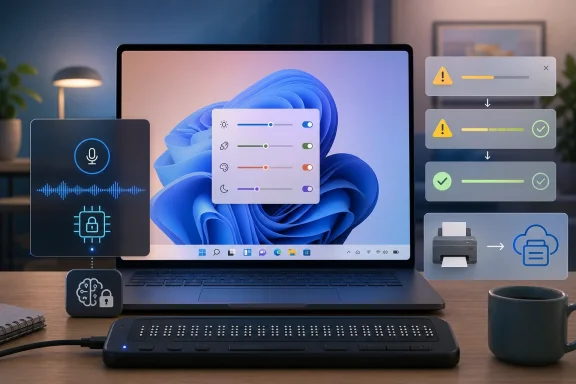
Microsoft made several Windows accessibility features available to testers on May 22, 2026, across its Beta and Experimental Insider channels, including Screen tint for visual comfort, Voice Isolation for Voice Access, and plug-and-play HID braille display support in Narrator. The headline is not that Windows gained another handful of settings. It is that Microsoft is quietly shifting accessibility from a specialized corner of the OS into the same iterative pipeline that now governs taskbar experiments, print plumbing, and voice-driven computing. For Windows users and administrators, that makes accessibility both more visible and more volatile.

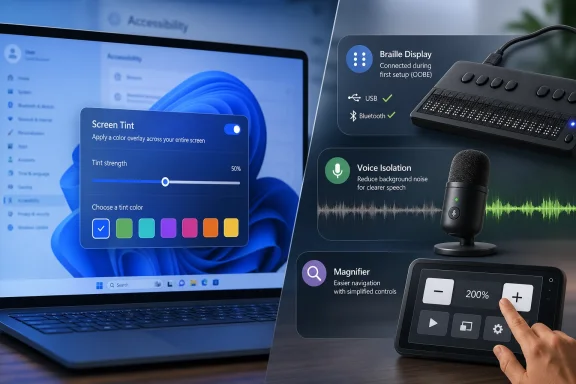
Windows accessibility features shown on a laptop, with voice isolation and screen tint panels beside a microphone.Accessibility Moves From Compliance Checkbox to Insider Feature Factory​

The Windows Insider Program has always been a strange hybrid: part engineering telemetry farm, part enthusiast playground, part early-warning system for enterprise IT. Accessibility has often lived adjacent to that world rather than at its center, arriving as a finished set of accommodations rather than as a set of mainstream features shaped in public.
This week’s builds suggest a different posture. Microsoft is putting accessibility changes directly into the Friday flight cadence, alongside File Explorer fixes, Dev Drive reliability improvements, Windows Ready Print toggles, and the ongoing channel reshuffle. That matters because features that pass through Insider testing are not just evaluated for whether they work, but for whether they belong in the everyday Windows experience.
Screen tint is the clearest example. Microsoft describes it as an accessibility setting, but the problem it addresses is not limited to users with formal accessibility needs. Bright, saturated displays, long work sessions, eye fatigue, and light sensitivity are routine parts of modern PC use. By placing the control in Accessibility rather than Display alone, Microsoft is acknowledging the feature’s roots while also inviting a much broader audience to use it.
Voice Isolation in Voice Access follows the same pattern. Voice Access is explicitly an assistive technology, but the problem of a microphone hearing the wrong person in a noisy room is universal. A feature that lets Windows focus on a single user’s voice could make the difference between voice control being viable in a shared office and being a demo that only works in silence.

Screen Tint Is a Small Toggle With a Large Argument Behind It​

Screen tint arrives in Experimental Build 26300.8497 under the Vision section of Settings > Accessibility. It applies a color overlay across the entire display, includes six preset colors, allows a custom color, and offers a strength slider ranging from subtle to intense. Microsoft says it can be used at the same time as Night light, because the two features target different problems.
That distinction is important. Night light warms the display to reduce blue light, especially for evening use. Screen tint is about reducing overall intensity and improving comfort during the day. The difference sounds minor until you remember how many Windows settings historically conflate “display looks different” with a single bucket of color temperature, brightness, contrast, and filters.
The one catch is also revealing: Screen tint disables color filters, and color filters disable Screen tint. That is the kind of tradeoff that looks harmless in a release note but can matter a great deal to users who already rely on color filters for color vision deficiency or other visual needs. Microsoft is not simply adding a comfort feature; it is negotiating limited display-processing real estate among overlapping accommodations.
For administrators, this is the sort of setting that may eventually require policy thinking. A tint overlay is personal by nature, but PCs are often shared, reimaged, and managed. If Screen tint graduates into a stable Windows release, support teams will need to know whether a “washed out” or “oddly colored” display is a hardware complaint, a driver issue, a user preference, or an accessibility configuration.

Voice Access Gets the Feature It Needed for the Real World​

Voice Isolation may be the more consequential addition because it targets a fundamental weakness of voice-driven computing: the world is noisy. Voice Access already lets users control Windows and dictate text by speaking. But in the real world, people share rooms, keyboards clatter, doors close, TVs run in the background, and colleagues talk over one another.
Microsoft is adding three speech recognition modes in Voice Access settings under Improve speech recognition. Voice Isolation filters other speakers and background noise but requires a one-time setup. A second mode removes non-speech background noise without requiring voice enrollment. A third mode leaves microphone input unfiltered.
The setup flow asks the user to read a short paragraph aloud so Voice Access can learn that person’s voice. Microsoft says the processing happens locally and that the voice data never leaves the device. In 2026, that privacy claim is not decorative. Voice biometrics are sensitive, and accessibility users should not have to trade independence for cloud-based identity risk.
The technical framing also marks a subtle but important divide in Microsoft’s AI era. Much of the company’s current product messaging pushes intelligence into cloud services and Copilot-branded experiences. Voice Isolation in Voice Access, by contrast, is an on-device feature for a practical accessibility problem. That is the right architectural instinct: if the PC is being asked to distinguish its user’s voice for control of the OS, the PC should not need to send that voice elsewhere to do it.

Braille Support Shows Why Standards Matter More Than Demos​

The most important feature in Experimental Build 26300.8497 may be the one least likely to generate mainstream attention: Narrator now supports refreshable braille displays that use the HID standard. Microsoft says compatible displays can connect over USB with no additional setup, and Bluetooth pairing works through the normal Settings > Bluetooth & devices flow.
That sounds like plumbing because it is. But accessibility often lives or dies on plumbing. A feature that works only after driver hunting, vendor utilities, or sighted assistance is not truly accessible at the moment it is most needed. Plug-and-play support is not glamour; it is autonomy.
Microsoft lists devices including the Orbit Reader 20, Orbit Slate 340, Freedom Scientific Focus 40, and APH Mantis Q40 as compatible examples. More importantly, HID braille displays can now work during the initial Windows setup experience over USB. That means deaf-blind users can set up a PC from the first screen rather than waiting until after Windows is configured.
This is the part of the Insider flight that reads least like consumer polish and most like operating-system responsibility. Windows is still the default computing environment in many schools, workplaces, public agencies, and assistive technology contexts. Supporting an open standard for braille displays during setup is exactly the kind of foundation that determines whether accessibility is an add-on or a property of the platform.

Microsoft’s Channel Cleanup Still Leaves Users Reading Tea Leaves​

These accessibility additions arrive during a confusing but significant reshaping of the Windows Insider Program. Microsoft is moving toward Beta and Experimental branding, while old Dev and Canary identities are still visible in places. That means this week’s accessibility story is also a channel story.
Experimental Build 26300.8497 is the big accessibility build. Beta Build 26220.8491 gets Voice Isolation and several bug fixes, but not the full Screen tint and braille package described for the Experimental flight. Experimental (26H1) Build 28020.2149 is more modest, focused on reliability improvements for File Explorer and Dev Drive. The 29595.1000 build for Canary testers moving toward Experimental (Future Platforms) contains platform changes tied to a new active development build rather than user-facing features.
The practical consequence is that “Insider” is no longer enough information. A user asking whether they can try Screen tint, Voice Isolation, or the new braille support needs to know not only that they are in the Insider Program but exactly which branch, build number, and feature rollout state they are on. Controlled Feature Rollout adds another layer, because even users on the same channel may not receive a feature at the same time unless it is explicitly available to all or exposed through feature flags.
Microsoft’s recent channel simplification is supposed to reduce confusion, and in the long run it may. But this transition period is messy. The old Dev Channel is becoming Experimental, Canary 28000-series builds are moving toward Experimental (26H1), and the 29500-series path is becoming Experimental (Future Platforms). That is a lot of renaming for a program whose value depends on users understanding what risk they have accepted.

Beta Is Becoming the More Honest Preview Track​

The Beta build’s inclusion of Voice Isolation is notable because Microsoft has been trying to make Beta feel more predictable. Historically, the Beta Channel was not always as clean as its name implied; feature availability could vary, A/B rollouts could frustrate testers, and the boundary between “nearly ready” and “maybe someday” was not always obvious.
Voice Isolation appearing in Beta suggests Microsoft sees the feature as closer to the mainline Windows experience than some of the more experimental work in Build 26300.8497. It is still a preview, and Microsoft still warns that features in Insider builds can change, disappear, or never ship. But Beta is where a feature begins to feel less like a sketch and more like a candidate.
That has consequences for IT pros who run lab machines on Insider builds to anticipate support calls. Voice Isolation is the kind of feature that can change user behavior quickly. If it improves reliability for voice control, some users will start depending on it. If it later changes or ships with different hardware requirements, that dependence becomes a support issue.
The Beta flight also fixes an explorer.exe crash that could cause blinking or repeated taskbar refreshes, an Energy Saver quick setting duplication, and unexpected audio muting on some devices. Those are not accessibility features, but they matter because assistive technologies often depend on the stability of the shell, audio stack, and input system. A flashy accessibility feature on an unstable desktop is not empowerment; it is another failure mode.

The Experimental Channel Is Where Windows Admits It Is Unfinished​

Experimental Build 26300.8497 is doing several things at once. It previews accessibility features, tweaks Magnifier behavior, adds a Windows Ready Print toggle, fixes input issues, and continues the steady background work of reliability. It is a reminder that Windows is no longer updated as a monolithic product, even when annual version numbers remain.
The Magnifier change is small but telling: touch panning bars are now off by default to provide a cleaner magnified view on touch devices, with an option to turn them back on. That reflects a design tension Microsoft often faces in accessibility: visible controls can make a feature discoverable, but they can also obstruct the very content a user is trying to see. Defaults are editorial decisions in software form.
The Windows Ready Print toggle is another example of Microsoft’s modern Windows strategy. The company wants to move printing toward IPP by default when supported, reducing reliance on third-party drivers and simplifying installation. But after years of Windows printing pain, giving users and administrators a toggle is not just a convenience; it is an admission that modernizing a platform with decades of device history requires escape hatches.
That is why Experimental remains useful despite the chaos. It is the place where Microsoft can expose the compromise before the compromise becomes policy. Accessibility users benefit from that transparency only if Microsoft listens carefully, because a change that looks cleaner in a lab can be worse for a user with a highly specific workflow.

Local Processing Is the Right Privacy Promise, But It Raises the Bar​

Microsoft’s statement that Voice Isolation processing happens locally and that voice data never leaves the device is exactly what users should want to hear. It is also a promise that raises expectations. Once a company says an assistive feature can be powerful, personal, and private on the PC, users will expect more features to meet that standard.
This is especially relevant because accessibility data can be unusually intimate. A PC may reveal how a person sees, hears, types, speaks, moves, reads, or navigates. The more adaptive Windows becomes, the more sensitive its local models and preferences become. Privacy cannot be bolted on after the feature graduates from Insider testing.
On-device processing also has hardware implications. Microsoft did not frame Voice Isolation in these notes as a Copilot+ PC-only feature, which is encouraging. Accessibility improvements should not become premium silicon perks unless there is no alternative. But if future features lean on NPUs or newer processors, Microsoft will need to be explicit about what runs where and why.
For enterprises, local processing is easier to defend than cloud speech analysis, but it is not automatically simple. Voice profiles, microphone behavior, enrollment flows, and user-specific accessibility settings all intersect with device management and privacy policy. The right answer is not to block the feature; it is to understand it before users need it.

Accessibility Is Now Part of the Windows Quality Story​

Microsoft has spent much of the past year talking about Windows quality, Insider feedback, and the need to make previews clearer. Accessibility belongs in that conversation because accessibility failures are quality failures. A bug that breaks Narrator, Voice Access, Magnifier, or braille display support is not a niche regression; it can make a PC unusable.
The new features also show that accessibility quality is not just about avoiding breakage. It is about reducing friction. A braille display that works during setup, a voice feature that ignores the wrong speaker, and a tint option that reduces fatigue all lower the cost of using the PC. That cost is often invisible to users who do not need the feature, but it is very real.
This is where Microsoft deserves some credit. These are not merely “inspirational” accessibility announcements designed for a conference keynote. They are practical, low-level, user-facing changes being put into the messy machinery of Windows testing. That is where real accessibility work has to happen.
But the company also inherits the responsibility that comes with that machinery. If accessibility features are flighted, delayed, hidden behind feature flags, or removed, Microsoft must communicate clearly. The people most affected by these changes are often the least able to treat them as casual experiments.

The Old Windows Problem Has Not Gone Away​

There is an uncomfortable truth beneath the optimism: Windows remains a sprawling platform where every improvement risks interacting badly with some existing workflow. Screen tint disables color filters. Voice Isolation requires enrollment. HID braille support depends on device compatibility. Feature rollouts vary by channel and build.
None of these caveats are disqualifying. They are the reality of changing an operating system used by hundreds of millions of people on hardware that ranges from corporate desktops to aging laptops to specialized assistive setups. But they mean Microsoft cannot treat accessibility previews like cosmetic experiments.
The company’s recent willingness to reintroduce familiar customization, including testing alternative taskbar positions in the Experimental Channel, suggests that user pressure still matters. Accessibility users have long understood this dynamic: when Windows removes a control or changes a behavior, the cost is not nostalgia. It can be productivity, independence, or the ability to use the machine at all.
That is why the Insider Program’s new feature flags could become more important than they first appear. If testers can opt into specific features rather than waiting for opaque A/B assignment, Microsoft gets cleaner feedback and users get more agency. For accessibility features, that agency is not a luxury.

The Accessibility Flight Tells IT Pros Where to Look Next​

For Windows enthusiasts, the obvious move is to install the right build and try the new toggles. For IT pros, the better move is to watch the pattern. Microsoft is not merely adding features; it is turning accessibility into a continuous development stream with privacy, standards, hardware, and management implications.
That means accessibility should be part of every Windows preview evaluation. Lab testing should include Narrator, Magnifier, Voice Access, display filters, audio behavior, setup flows, and peripheral pairing. If that sounds excessive, consider how often organizations claim to support accessibility without validating the actual tools users depend on.
It also means support desks need better vocabulary. “My screen looks tinted,” “Windows is ignoring my voice,” “my braille display does not connect,” and “setup is stuck before I can use my device” are not random edge cases. They are the human interface to platform changes.
The broader lesson is that Windows accessibility is no longer a static checklist buried in Settings. It is becoming a fast-moving part of the OS. That is good news only if Microsoft, testers, and administrators treat it with the seriousness usually reserved for security and compatibility.

The May 22 Builds Put Accessibility on the Main Windows Roadmap​

This flight is worth tracking because it puts practical accessibility improvements into the same preview stream as the rest of Windows development. The details matter more than the branding.
  • Screen tint is available in Experimental Build 26300.8497 under Accessibility > Vision, with presets, custom color support, and a strength slider.
  • Screen tint can work alongside Night light, but it cannot be used at the same time as color filters.
  • Voice Isolation is available in Voice Access in both Experimental Build 26300.8497 and Beta Build 26220.8491, with local processing and a one-time voice setup.
  • Narrator now supports HID refreshable braille displays in the Experimental build, including use during the initial Windows setup experience over USB.
  • The Beta build is mostly about Voice Isolation and fixes, while the Experimental build carries the broader accessibility payload.
  • The ongoing Insider channel transition means build numbers and rollout state matter as much as channel names.
Microsoft’s latest Insider builds do not transform Windows accessibility overnight, but they show the direction of travel: more local intelligence, more standards-based hardware support, more visual comfort controls, and more accessibility work happening in public before it ships. The test for Microsoft now is whether these features survive the Insider pipeline without being diluted, hidden, or tied to unnecessary hardware gates, because the future of Windows usability will be judged not by how many toggles it adds, but by how reliably those toggles give people control over their own PCs.

References​

  1. Primary source: thurrott.com
    Published: Fri, 22 May 2026 18:27:09 GMT
 

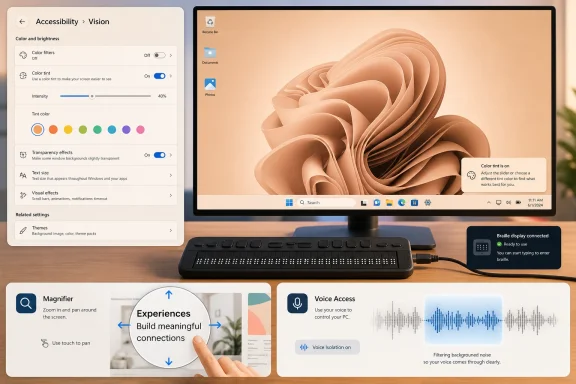
Microsoft released Windows 11 Insider Preview Build 26300.8497 to the Experimental channel on May 22, 2026, alongside Beta Build 26220.8491, bringing a new Screen Tint accessibility setting, HID braille display support, Voice Access voice isolation, Magnifier changes, print setup controls, and multiple reliability fixes. The headline is not that Windows 11 picked up another Settings toggle; it is that Microsoft is using Insider builds to reframe accessibility as a first-run, everyday, system-level concern rather than an add-on for users to discover later. That matters because Windows is no longer just competing on taskbars, Copilot buttons, and file managers. It is also being judged on whether the operating system can adapt to the person in front of it before that person has to fight the machine.

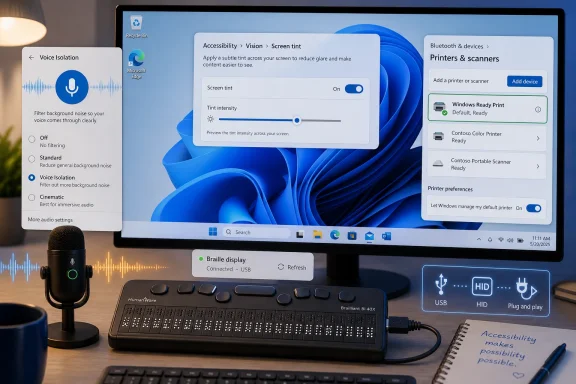
Laptop showing “Screen Tint” settings alongside a Braille display, voice isolation mic, and magnifier control panel.Microsoft Puts Accessibility Back in the Operating System’s Front Row​

Screen Tint is the most immediately visible change in Build 26300.8497, and it is easy to undersell because it sounds like a cousin of Night Light. It is not simply another blue-light reducer. Microsoft describes it as a color overlay across the whole display, with presets, custom tint choices, and strength controls available from Accessibility settings.
That distinction matters. Night Light is framed around time of day and color temperature, while Screen Tint is framed around comfort, sensitivity, and long-session usability. For users with visual stress, migraine sensitivity, dyslexia-related reading comfort needs, or simply a low tolerance for harsh panels, the ability to tint the full display is less a cosmetic flourish than a survival tool.
The key shift is that Microsoft is placing this inside Accessibility rather than burying it as a display preference for hobbyists. That implicitly acknowledges that the modern screen is not neutral. OLED brightness, HDR content, saturated UI design, and all-day hybrid work have made display comfort part of the accessibility conversation.
It is also a reminder that Windows’ accessibility work does not always arrive as one dramatic feature. Sometimes the meaningful change is a setting that removes the need for third-party utilities, registry hacks, or monitor-specific workarounds. When an accommodation becomes part of the platform, it becomes easier to deploy, easier to support, and easier to explain.

Screen Tint Is Small, but the Design Philosophy Is Not​

Screen Tint’s power is in its ordinariness. A full-screen overlay with adjustable intensity is not technically exotic, and that is precisely why it belongs in the OS. The more basic an accessibility need is, the stranger it becomes when Windows cannot address it without outside help.
For years, users have leaned on browser extensions, GPU control panels, app-specific dark modes, and display hardware settings to soften the visual experience. Those tools are fragmented by design. They may not affect UAC prompts, setup screens, legacy apps, remote sessions, or every surface a user encounters during a workday.
A system-level tint changes that equation. It gives Windows a single place to express an accommodation across the desktop, rather than asking each app to understand the user’s needs independently. That is the right abstraction layer for an operating system.
There is also an IT angle here. Administrators do not want to support ten different tinting utilities across a fleet, especially when those utilities can conflict with graphics drivers, color-managed workflows, or endpoint security policies. If Microsoft eventually exposes Screen Tint in a manageable way, it could become one more example of accessibility improving standardization rather than complicating it.
The caveat is that this is still an Insider feature. Experimental channel does not mean “shipping next month,” and Microsoft’s recent Insider language is clear that features can change, disappear, or arrive in public Windows builds only when ready. But the direction is notable: Microsoft is testing comfort as a first-class Windows setting, not a nice-to-have.

Braille Support Moves from Compatibility to Independence​

The braille improvements are arguably more consequential than Screen Tint, even if they will be used by fewer people. Build 26300.8497 adds Narrator support for braille displays that follow the HID standard, enabling plug-and-play use over USB and Bluetooth. Microsoft says compatible devices include models such as the Orbit Reader 20, Orbit Slate 340, Freedom Scientific Focus 40, and APH Mantis Q40.
That sounds like device support housekeeping until you reach the setup detail. HID braille displays now work during the initial Windows setup experience over USB. For deaf-blind users, that means the PC can be configured from the first screen without relying on a sighted assistant or a separate workaround.
This is where accessibility stops being about convenience and becomes about autonomy. Out-of-box setup has long been a revealing weak point for operating systems because it is the moment before the user has installed their preferred tools, signed in, synced settings, or customized anything. If accessibility fails there, the machine is effectively not self-service.
By supporting HID braille hardware during OOBE, Microsoft is acknowledging that the first-run experience is part of the product, not a hurdle before the product begins. That framing is overdue. A Windows PC should not become accessible only after someone else has made it accessible.
The HID standard also matters because it reduces the driver-and-utility tax around assistive hardware. Specialized software will still have a place, especially for advanced workflows, but basic connection should not feel like a scavenger hunt. Plug-and-play is not a luxury when the device is the user’s primary interface.

Voice Access Gets a Noise Filter With a Privacy Argument Attached​

Voice Access is also getting Voice Isolation, a new option intended to help Windows focus on the user’s voice when other people are speaking nearby or when background noise is present. Microsoft says the processing happens locally on the device. That last detail is not decorative; it is the difference between a useful accessibility feature and a privacy fight waiting to happen.
Voice control has always had a practical weakness in shared spaces. Offices, classrooms, clinics, homes, and support desks are rarely acoustically clean. A voice interface that works only in silence is not really a dependable interface.
Voice Isolation tries to close that gap by making Voice Access more resilient in the environments where users actually live. For people who rely on voice input because of mobility, fatigue, injury, or repetitive strain, better recognition in noisy spaces is not merely more convenient. It can determine whether the PC remains usable throughout the day.
The on-device claim is important because voice features sit at the intersection of accessibility and surveillance anxiety. Microsoft has spent the last several years trying to persuade users that AI-infused Windows experiences can be both helpful and private. A local-processing accessibility feature gives the company a cleaner argument than cloud-dependent transcription or assistant workflows.
Still, the feature will need real-world testing. Background noise suppression is notoriously sensitive to microphone quality, room acoustics, accents, speech patterns, and competing voices. If Microsoft wants Voice Isolation to become trusted, it will need to perform well not only in demo conditions but in kitchens, call centers, classrooms, and shared apartments.

Magnifier’s Cleaner Touch Mode Shows Microsoft Is Editing, Not Just Adding​

The Magnifier change in this build is easy to miss: touch panning bars are now disabled by default. Users can turn them back on in Accessibility settings, but the default experience becomes less visually cluttered. That is a design decision, not a feature dump.
Accessibility tools often suffer from a paradox. The interface that helps one user navigate can distract another user from the content they are trying to see. Magnifier has to balance discoverability, control, and the simple need to make the enlarged view feel calm.
Disabling panning bars by default suggests Microsoft is willing to remove visual affordances when they get in the way. That is a healthy instinct. Operating systems age badly when every assistive feature carries forward every visible control forever because someone might need it.
The best accessibility work is often adaptive rather than maximalist. Users who need the panning bars can restore them. Users who found them intrusive get a cleaner magnified view without first becoming Settings archaeologists.
This also fits a broader Windows 11 pattern. Microsoft has been slowly revisiting surfaces that looked modern in screenshots but behaved awkwardly under touch, magnification, or mixed input. Accessibility exposes those problems first because it pushes UI assumptions harder than standard mouse-and-keyboard usage does.

Printing Quietly Continues Its Long March Away from Driver Chaos​

Build 26300.8497 also expands Microsoft’s newer Windows Ready Print work with a dedicated toggle for whether compatible printers should automatically install using IPP by default. That sentence may not thrill anyone, but printing remains one of the most stubborn sources of Windows support pain. Any reduction in driver ambiguity is worth watching.
The industry direction has been clear for some time: move away from vendor-specific third-party print drivers where possible and toward standards-based print paths. IPP is central to that transition. The promise is simpler installation, fewer brittle vendor packages, and a more predictable baseline for modern printers.
The dedicated toggle matters because automation without control can backfire in managed environments. A home user may want Windows to pick the obvious IPP route automatically. An enterprise administrator may need to preserve a certified workflow, a finishing option, a departmental print policy, or a legacy compatibility path.
That is why this small Settings control is more interesting than it first appears. Microsoft is not merely pushing the standard path; it is adding a user-facing decision point around it. The company wants Windows Ready Print to simplify setup without making IT feel ambushed.
Printing is also a reminder that not every Windows improvement is glamorous. The OS wins trust when it makes mundane peripherals less miserable. If Windows 11 can reduce the number of printer installs that end in driver roulette, that may matter to more households and offices than another visual refresh.

The Bug Fixes Tell the Other Half of the Insider Story​

The Beta Build 26220.8491 side of the release brings a bundle of fixes that are less flashy but possibly more important to daily testers. Microsoft says it fixed an explorer.exe crash that could cause taskbars and screens to repeatedly blink or refresh for some users. Anyone who has lived through a shell crash loop knows that “annoying” is too polite a word for it.
Explorer remains the emotional center of Windows stability. Users may tolerate a broken widget, a missing animation, or a preview feature that comes and goes. They are far less forgiving when the taskbar flickers, the desktop refreshes, or the shell behaves like it is fighting the session.
The update also addresses duplicated Energy Saver toggles, broken Win + X behavior, muted audio issues, SSDP notification reliability problems, and DISM restore command reliability. That mix is classic Insider-channel housekeeping: one part user-visible irritation, one part admin-relevant plumbing, one part “how did that get through?”
The DISM angle deserves particular attention for IT pros. Deployment Image Servicing and Management is not a casual-user toy; it is part of the repair and maintenance vocabulary for technicians and administrators. When restore commands are unreliable in a preview build, that affects the people most likely to be testing Windows deeply.
The remaining known issue is also significant. Microsoft says local “Reset this PC” may still get stuck unless users choose the cloud download option. That is not a niche inconvenience for testers who regularly roll builds forward, backward, and sideways. Recovery reliability is a core promise, and a stuck local reset is the kind of bug that can turn experimentation into a reinstall weekend.

The Experimental Channel Is Microsoft’s New Controlled Mess​

This release also lands during Microsoft’s transition to a revised Windows Insider Program channel structure. The company is labeling new release notes under channel names such as Beta and Experimental, while also noting that some Insiders may not yet have been moved to the new experience. In plain English: the naming is changing while the flighting machinery is still settling.
That creates understandable confusion. Dev channel users may see release notes labeled Experimental, and Canary-related tracks now have their own experimental variants tied to different build series and platform work. Microsoft’s goal is to better describe the maturity and intent of each stream, but the transition period is messy by nature.
The practical advice is simple: read the build number before reading the marketing name. Build 26300.8497 is the one carrying the Screen Tint and HID braille work discussed here. Build 26220.8491 is the Beta build with overlapping improvements and fixes. Other Experimental tracks may have different build numbers and different scopes.
For enthusiasts, the channel reshuffle can feel like inside baseball. For administrators testing future Windows behavior, it matters a lot. The channel name influences expectations around stability, supportability, and whether a feature is likely to move toward general release or remain an experiment.
Microsoft’s challenge is that “Experimental” is both honest and vague. It tells users not to assume permanence, but it does not tell them which experiments are strategic. Screen Tint, HID braille support, and Voice Isolation look more strategic than whimsical because they align with Microsoft’s broader accessibility, privacy, and standards-based hardware stories.

Accessibility Is Becoming a Systems Strategy, Not a Side Panel​

The broader pattern in this build is that Microsoft is treating accessibility less like a cluster of niche features and more like a systems strategy. Screen comfort, braille hardware discovery, voice recognition in noisy rooms, touch magnification defaults, and first-run setup all involve different components of Windows. The connective tissue is that the OS is being asked to meet users earlier and more completely.
That is the right direction for Windows 11, which has sometimes struggled to justify itself beyond design polish, security baselines, and hardware requirements. Accessibility is one area where an OS vendor can make changes that individual apps cannot. Only the platform can make setup accessible, tint the whole display consistently, or standardize assistive hardware discovery.
It is also one of the few areas where Microsoft can make Windows feel less like a bundle of features and more like an environment. A user who depends on braille, voice access, or magnification is not interacting with one app at a time. They are interacting with the continuity of the system.
There is a competitive dimension as well. Apple, Google, and Microsoft all now understand that accessibility is part of platform credibility. These features are no longer charitable extras; they are measures of engineering seriousness. A modern OS that fails here looks unfinished.
For WindowsForum readers, the takeaway is not just that new toggles appeared in Settings. It is that Microsoft is slowly moving accommodations down the stack. The closer these features sit to the OS core, the less fragile they become.

Where IT Should Be Interested, and Where It Should Wait​

For administrators, the build is promising but not yet policy. Insider features are not deployment commitments, and the Experimental channel in particular should be treated as a lab, not a roadmap contract. Still, there are signals worth tracking.
Screen Tint could eventually matter for workplace accommodation policies, especially in organizations that standardize Windows accessibility settings across managed devices. If it becomes configurable through enterprise tooling, it may reduce dependence on one-off utilities and user-specific support exceptions. That would be a real operational win.
HID braille support during setup has a different kind of enterprise significance. It touches procurement, onboarding, and device provisioning for users with disabilities. A workplace that can hand a new employee a PC they can set up independently is doing more than improving IT efficiency; it is removing a dignity tax.
Voice Isolation could become important in shared workspaces, but it will require careful evaluation. Local processing is encouraging, yet organizations will still want to understand hardware requirements, microphone behavior, language support, and whether the feature interacts predictably with conferencing tools, dictation workflows, and endpoint policies.
The Windows Ready Print toggle is the most immediately familiar admin story. Printing modernisation is necessary, but printer fleets are messy. IT departments should welcome standards-based defaults while remaining skeptical of any transition that assumes all printers, queues, finishing features, and business processes are interchangeable.

The Build’s Real Message Is Hidden in Its Practicality​

There is a temptation to read every Insider release as a future-version treasure map. Which feature ships? Which build becomes 25H2 or 26H1? Which toggle gets renamed before release? Those questions matter, but they can obscure the more interesting point.
Build 26300.8497 is not built around one moonshot feature. It is built around small frictions: bright screens, braille setup, noisy rooms, cluttered magnification, printer installation, shell crashes, reset reliability. That is where operating systems either earn loyalty or lose it.
Windows 11 has often been criticized for surfacing ambitious ideas before nailing everyday polish. This release leans the other way. It suggests that Microsoft knows the next phase of Windows work cannot be only about AI overlays and visual refreshes; it has to be about reducing the number of moments where the PC refuses to meet the user halfway.
That does not mean the build is boring. It means the excitement is infrastructural. A screen tint slider, a braille device handshake, and a local voice filter are all examples of Windows becoming more adjustable at the point of need.
The best version of this strategy would be a Windows where accessibility settings are not hidden rescue tools but normal expressions of user preference. That is where Microsoft appears to be heading, even if the path runs through the usual Insider turbulence.

The May 22 Flight Gives Testers a More Human Windows to Pressure-Test​

This build is worth installing only if you understand the bargain of Insider testing: new capability in exchange for instability risk. For everyone else, it is worth watching because it shows where Microsoft is spending design attention. The most concrete lessons from this flight are narrow, but they point in a larger direction.
  • Screen Tint gives Windows 11 a system-level way to soften the display with preset or custom color overlays, which is meaningfully different from simply warming the screen at night.
  • HID braille display support in Narrator reduces setup friction, and USB support during OOBE is the feature that turns compatibility into independence.
  • Voice Isolation in Voice Access is promising because it targets real-world noise while keeping processing on the device.
  • Magnifier’s default behavior is being simplified for touch users, showing that Microsoft is willing to remove interface clutter rather than only add controls.
  • Windows Ready Print’s IPP default toggle reflects Microsoft’s slow push toward standards-based printing without completely ignoring user and admin control.
  • The remaining local Reset this PC issue is a reminder that preview builds can still break the very recovery paths testers depend on.
The most persuasive thing about Build 26300.8497 is that its best ideas are not futuristic. They are practical, grounded, and aimed at moments when Windows has historically made users adapt to the machine. If Microsoft can carry these changes from Experimental builds into stable Windows without burying them, breaking them, or overcomplicating them, Windows 11’s accessibility story will become less about special modes and more about a platform that is finally learning to accommodate difference by default.

References​

  1. Primary source: Windows Report
    Published: Fri, 22 May 2026 20:24:04 GMT
  2. Related coverage: windowscentral.com
  3. Official source: blogs.windows.com
  4. Related coverage: pureinfotech.com
  5. Related coverage: windowslatest.com
  6. Official source: learn.microsoft.com
  • Related coverage: windowsforum.com
  • Related coverage: thecommunity.ru
  • Official source: download.microsoft.com
 

Microsoft released Windows 11 Insider Preview Build 26300.8497 to the Experimental channel on May 22, 2026, adding screen tint, plug-and-play HID Braille display support, Voice Access voice isolation, Magnifier changes, Windows Ready Print controls, and reliability fixes for testers on the 25H2 enablement path.
That sounds like a modest Insider flight until you look at the through-line: Microsoft is trying to make Windows less dependent on bolt-on utilities, legacy drivers, and perfect environmental conditions. The build is not a revolution, and Experimental remains the place where good ideas can disappear without ceremony. But this one matters because it shows where Windows 11’s accessibility, input, and device plumbing are being quietly rebuilt around defaults rather than afterthoughts.

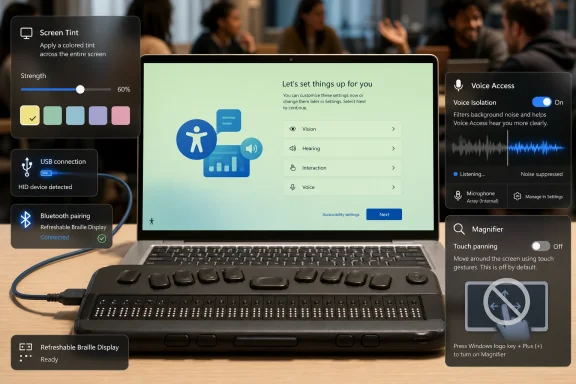
Windows accessibility settings shown on a monitor with voice isolation, printer options, and connected braille display.Microsoft Turns Accessibility From Add-On Into System Behavior​

The most visible new feature is screen tint, a system-wide accessibility option that applies a color overlay across the whole display. Microsoft positions it as a way to soften display intensity for users who experience eye fatigue or light sensitivity during the day, distinct from Night light’s sleep-oriented blue-light reduction.
That distinction is important. Night light has always been a blunt instrument: useful for warming a display in the evening, but not designed for users who need the entire visual output of Windows toned down during normal work hours. Screen tint moves that need into the accessibility stack, where it belongs, rather than leaving users to hunt for monitor presets, GPU utilities, browser extensions, or third-party overlay tools.
The feature offers preset colors, a custom color option, and a strength slider. In practice, that means Microsoft is not just giving users a toggle; it is acknowledging that visual comfort is subjective and often changes with environment, device, and medical need. A laptop used under fluorescent office lights at 2 p.m. is not the same experience as a desktop monitor used in a dark room at midnight.
There is a catch: screen tint and color filters are mutually exclusive. That is not a footnote for people who rely on color filters for color vision differences or contrast-related workflows. It means this build adds a useful accessibility surface while also forcing some users to choose which visual accommodation matters more.
Still, the direction is better than the old model. Windows accessibility has often felt like a parallel control panel for people who already know where to look. Screen tint belongs to a newer philosophy: the operating system should anticipate common sensory and physical barriers and expose practical controls before users are desperate enough to install something dubious.

Braille Support Moves Closer to First-Boot Independence​

The Braille change is less flashy than screen tint but arguably more significant. Narrator now supports refreshable Braille displays that use the HID standard, allowing compatible devices to connect over USB with plug-and-play behavior. Bluetooth pairing is also supported through Windows Settings.
That matters because setup friction is not a minor inconvenience for blind and deaf-blind users. If a user cannot independently get through the first-run Windows experience, the PC is not meaningfully accessible at the point when accessibility is most needed. Microsoft says HID Braille displays can now work during the out-of-box experience over USB, which moves Windows closer to independent setup from the first screen.
The use of HID is the key technical and policy choice. By supporting an industry standard instead of relying primarily on vendor-specific layers, Windows can reduce the odds that accessibility hardware behaves like an exotic peripheral. For IT departments, schools, and public-sector deployments, that matters because procurement and support become less dependent on a fragile chain of device-specific drivers and workarounds.
Microsoft lists examples such as Orbit Reader, Orbit Slate, Freedom Scientific Focus, and APH Mantis devices. The named examples are useful, but the bigger story is standardization. Accessibility hardware should not require a heroic deployment story every time a machine is refreshed.
There is also a quiet dignity in this change. Too many accessibility features are framed as convenience improvements for an abstract user group. Plug-and-play Braille at setup is about autonomy. It says the first user of the PC may be the person who depends on that hardware, not a sighted assistant configuring the machine on their behalf.

Voice Access Learns That Real Rooms Are Noisy​

Voice Access gets a new Voice Isolation mode designed to filter out nearby speech and background noise while keeping processing on the device. The feature requires a short setup step in which the user reads a passage so Windows can learn the speaker’s voice. Microsoft also offers less personalized filtering for non-speech background noise and a no-filtering option.
This is the right problem to solve. Voice control features look impressive in demos because demos are usually staged in clean audio environments. Real homes have children, televisions, fans, barking dogs, mechanical keyboards, and a second person talking from the kitchen. Real offices have open-plan noise, meeting spillover, HVAC rumble, and microphones that were chosen for price rather than clarity.
Voice Access has always lived or died on recognition reliability. A system that misunderstands a command once in a while is annoying; a system that misunderstands commands often enough to make users hesitate is no longer an accessibility tool. It becomes a source of cognitive load, and cognitive load is exactly what assistive technology is supposed to reduce.
The on-device processing claim is also notable. Microsoft has spent years pushing cloud-assisted intelligence across Windows and Microsoft 365, but accessibility input is a place where latency, privacy, and resilience matter. A user controlling a PC by voice should not have to wonder whether background speech is being shipped off-box or whether a network hiccup will degrade basic interaction.
The existence of three recognition modes is also a welcome nod to reality. Some users will want the stronger speaker-specific filter. Others will prefer background-noise removal without a training step. Some will need raw microphone input because their microphone, accent, speech pattern, or assistive workflow interacts poorly with filtering. The best accessibility systems are not paternalistic; they provide choices and let users discover what works.

The Experimental Channel Rename Is More Than Cosmetic​

Build 26300.8497 lands during Microsoft’s transition away from the old Insider channel naming. The channel formerly known as Dev is now Experimental, while Canary has effectively been split into more explicit early-platform tracks, including Experimental 26H1 and Experimental Future Platforms. Microsoft released four Insider flights on May 22: Beta Build 26220.8491, Experimental Build 26300.8497, Experimental 26H1 Build 28020.2149, and Experimental Future Platforms Build 29595.1000.
The rename matters because “Dev Channel” always carried an ambiguity. Was it for developers? Was it for development builds? Was it the place where next-version Windows features would arrive first? The answer changed over time, and the channel’s identity became less useful as Microsoft separated feature delivery from traditional annual versioning.
“Experimental” is more honest. It tells testers that features may change, be delayed, be removed, or never ship. It also helps separate two different jobs that the Insider Program has historically mashed together: validating near-term product work and exploring platform ideas that may not map cleanly to the next public Windows release.
That clarity comes with a cost. Users who treat Insider builds as a way to get tomorrow’s Windows today may find the new structure more confusing at first, especially while devices are still being migrated to updated labels. Some testers may still see older channel names even as release notes use the new branding.
For administrators, the lesson is simple: channel labels are not support contracts. Experimental is not a staging ring for production. It is a feedback surface for Microsoft and a risk surface for everyone else. That distinction becomes more important as Windows ships features through enablement packages, controlled rollouts, and server-side switches rather than neat boxed releases.

Windows Ready Print Shows Microsoft’s Driver Patience Is Running Out​

The Windows Ready Print toggle is easy to overlook beside the accessibility features, but it points to one of Microsoft’s longer-running modernization efforts. In this build, Settings gains a control under Printers & scanners for defaulting supported printer installations to Windows Ready Print. When enabled, Windows uses IPP by default where supported; when disabled, it may use other available installation methods.
Printer drivers are one of the least glamorous parts of Windows, which is exactly why they matter. They sit in the miserable intersection of legacy hardware, vendor utilities, enterprise deployment habits, and security exposure. Microsoft’s move toward a modern print platform is partly about user experience, but it is also about reducing dependence on third-party driver packages that have historically been brittle and difficult to secure.
The toggle is a politically smart compromise. Microsoft can push IPP and a simplified driver model without instantly removing control from users and administrators who still need older install paths. That matters in mixed environments where a printer fleet may include modern networked devices, ancient departmental workhorses, label printers, specialty devices, and software that assumes a particular driver behavior.
But the strategic direction is not subtle. Microsoft wants printing to become more standardized, more predictable, and less dependent on the old driver ecosystem. The presence of a user-facing toggle does not mean the old model has a bright future; it means Microsoft knows the transition will be uneven.
For WindowsForum readers, this is the sort of change worth watching even if it does nothing exciting today. The death of a legacy subsystem rarely arrives as a single funeral. It arrives as a default here, a toggle there, a deprecation timeline in the background, and eventually an enterprise admin wondering why the old installation playbook no longer behaves the way it used to.

Reliability Fixes Are the Price of Admission​

The build also fixes a cyclical explorer.exe crash that caused screens or taskbars to blink and repeatedly refresh for some testers after the previous flight. That is not merely a quality-of-life fix. In Windows, Explorer is the shell, the file manager, and a visible symbol of whether the system is usable at all.
Microsoft also says it fixed duplicated Energy Saver quick settings, a broken Win+X or right-click Start menu path, unexpected audio muting on certain devices, IME candidate window failures for some Japanese and Chinese input users, SSDP notification reliability, and DISM restore health reliability. These are classic Insider fixes: some obscure, some maddening, and some serious enough to make a test machine feel cursed.
The IME fix deserves more attention than it will probably receive. Input method editors are core infrastructure for millions of users, not optional localization polish. When candidate windows fail, the operating system effectively breaks text entry for affected languages. A Windows build that improves flashy AI features while regressing basic multilingual input is not a modern OS success story.
The audio muting fix falls into the same bucket of everyday trust. Users forgive experimental builds for missing features; they are less forgiving when sound randomly disappears across hardware configurations. Reliability is not a separate category from accessibility or productivity. It is the condition that lets those features matter.
The known issue around “Reset this PC” getting stuck when using local reset is also a useful reminder. Microsoft recommends cloud download as the workaround, which is fine for many home users but less ideal for bandwidth-constrained environments or tightly managed test labs. Experimental builds are often where Microsoft’s cloud-first assumptions meet the stubborn reality of local recovery workflows.

Controlled Rollouts Make Insider Builds Harder to Read​

One of the recurring frustrations with Windows Insider coverage is that “released” no longer means “available on every enrolled PC.” Microsoft continues to use controlled feature rollout technology, starting features with subsets of Insiders and expanding availability based on feedback. The company also exposes feature toggles in Windows Update settings for users who want to try certain features earlier.
This is sensible engineering and maddening communication. Controlled rollouts reduce blast radius, giving Microsoft telemetry and feedback before a feature reaches the whole channel. But they also make the Insider experience uneven. Two people can install the same build number and see different Windows.
That matters for journalism, forum support, and administrator testing. A user may claim that screen tint is missing from Build 26300.8497, while another insists it is present. Both can be telling the truth. In the current Windows development model, the build number is only part of the configuration story.
It also changes how enthusiasts should think about enablement tools and registry spelunking. The temptation to force-enable every hidden feature is understandable, especially in a community built around discovery. But when Microsoft is testing staged experiences, forcing a feature can mean bypassing prerequisites, configuration gates, or known-problem exclusions.
The old Insider mental model was simple: install the build, get the bits. The new model is messier: install the build, receive some bits, maybe receive feature flags, and possibly wait for Microsoft to decide your machine is in the next cohort. That is less satisfying, but it is closer to how Windows is actually shipped now.

The Security Subtext Is Hard to Miss​

Notebookcheck’s report notes that this build lands shortly before the first Secure Boot certificate expiration on June 24, 2026, a date that has put Windows security plumbing under closer scrutiny. Build 26300.8497 is not primarily a Secure Boot story, and it would be a mistake to turn every Insider flight into one. Still, the timing reinforces a broader reality: Windows modernization is increasingly about hidden foundations as much as visible features.
The most consequential changes in Windows are often the ones users do not ask for directly. Certificate rotation, driver deprecation, print stack modernization, setup accessibility, on-device speech filtering, and recovery reliability are not the kind of features that dominate marketing pages. They are the plumbing that determines whether Windows can survive another decade of hardware diversity, enterprise policy, and security pressure.
Microsoft’s challenge is that plumbing changes often feel like regressions before they feel like progress. A new print default can break an old workflow. A feature rollout can create inconsistent support cases. A channel rename can confuse testers who thought they understood the Insider Program. A security deadline can expose neglected firmware or deployment assumptions.
That is why this build is more interesting than its size suggests. Screen tint is a visible accessibility feature, but it sits beside changes that reveal Microsoft’s larger priority: reduce dependency on fragile external layers and make Windows more capable at the system level. The company is not always graceful in this work, and Insider builds are where that mess shows.
For security-minded users, the lesson is not that Build 26300.8497 solves anything specific about Secure Boot. The lesson is that Windows is entering a period where long-ignored substrates are being touched. Whenever Microsoft touches substrates, IT pros should read the release notes twice.

The May 22 Flight Tells Testers Where to Look Next​

The most concrete reading of Build 26300.8497 is that Microsoft is using the Experimental channel to test user-facing accessibility features while continuing to modernize old system surfaces. It is not a single-theme release, but its pieces fit together better than they first appear.
  • Windows 11 Build 26300.8497 was released to the Experimental channel on May 22, 2026, and is based on Windows 11 version 25H2 through an enablement package.
  • Screen tint adds a system-wide color overlay for reducing display intensity, but it cannot be used at the same time as color filters.
  • Narrator’s HID Braille support is important because compatible displays can work over USB during initial Windows setup, improving independent access from the first-run experience.
  • Voice Access now offers speaker-focused Voice Isolation, background-noise filtering, and unfiltered input modes, with processing kept on the device.
  • Windows Ready Print gets a Settings toggle as Microsoft continues moving supported printer installs toward IPP and away from legacy driver dependence.
  • The build fixes several real usability regressions, including an explorer.exe crash loop, IME candidate window failures, duplicated quick settings, unexpected audio muting, and Start menu shortcut problems.
The better question for Insiders is not whether this build is worth installing on a daily driver; Experimental builds still answer that with a cautious no for anyone who values predictability. The better question is whether Microsoft’s priorities are becoming clearer. In this flight, they are: accessibility that works earlier, input that survives real-world noise, printing that relies less on legacy baggage, and an Insider Program that is finally labeling experiments as experiments. If Microsoft can carry that discipline from test rings into stable Windows without burying users under inconsistent rollouts, Build 26300.8497 may be remembered less for screen tint itself than for the kind of operating system it hints Windows is trying to become.

References​

  1. Primary source: Notebookcheck
    Published: Mon, 25 May 2026 11:56:00 GMT
  2. Official source: blogs.windows.com
  3. Related coverage: windowsblogitalia.com
  4. Related coverage: pureinfotech.com
  5. Related coverage: windowsforum.com
  6. Related coverage: windowscentral.com
 

Microsoft released Windows 11 Insider Experimental Preview Build 26300.8497 on May 22, 2026, adding Screen Tint, Voice Isolation for Voice Access, plug-and-play HID braille display support in Narrator, Magnifier refinements, printing controls, and reliability fixes for testers in the Experimental channel. The build is not a consumer rollout, and Microsoft is making no promise that every feature will ship unchanged. But it is still a useful signal: accessibility is increasingly becoming part of Windows’ core plumbing rather than an ornamental layer bolted on after the fact.
That matters because the most interesting parts of this build are not flashy. They are small, practical accommodations that remove setup friction, reduce fatigue, or make assistive technology behave more like ordinary hardware. For a platform as old and sprawling as Windows, that is progress of the unglamorous but important kind.

Laptop showing accessibility settings alongside a connected refreshable Braille display on a desk.Microsoft’s Accessibility Work Is Moving Closer to the Metal​

Windows accessibility features have often lived in a strange middle ground. They are essential for the people who need them, useful for many people who do not identify as disabled, and yet too often treated by the industry as a checklist category rather than a design principle. Build 26300.8497 does not solve that problem, but it nudges Windows in the right direction.
The most meaningful change is probably not Screen Tint, even though it is the easiest to explain. It is Narrator’s new support for refreshable braille displays that use the HID open industry standard. In plain terms, certain braille displays can now behave more like keyboards, mice, or headsets: plug them in over USB, and Windows can recognize them without a separate driver hunt.
That sounds mundane until you consider the context. Assistive devices have historically been asked to tolerate more configuration pain than mainstream peripherals, even when their users may be the least able to absorb that friction. A display that works only after setup is complete is not enough if the user needs it during setup.
Microsoft says HID braille displays now work in the Windows out-of-box experience over USB. That means a deaf-blind user with a compatible device can begin setting up a new PC from the first screen, rather than waiting for someone else to get Windows into a usable state. It is a small sentence in release notes and a large shift in agency.

Screen Tint Is a Comfort Feature With an Accessibility Spine​

Screen Tint is the new feature most Windows users will recognize immediately. It applies a color overlay across the entire display, with six presets, a custom color option, and a strength slider that runs from a subtle wash to full intensity. Microsoft positions it as a way to soften a bright or saturated display for people who experience eye strain or light sensitivity.
This is not the same thing as Night Light. Night Light warms the display by reducing blue light, mostly framed around evening use and sleep disruption. Screen Tint is aimed more directly at daytime visual comfort: reducing intensity, not merely changing color temperature.
That distinction is more than marketing taxonomy. Windows already has a pile of display controls, from brightness and HDR settings to Night Light, color calibration, contrast themes, and Color Filters. Adding another control risks confusion unless the purpose is clear. Microsoft’s explanation is unusually direct here: Screen Tint is for reducing the harshness of the screen, not for sleep hygiene.
There is an important limitation. Screen Tint and Color Filters are mutually exclusive; turning on one disables the other. That makes sense technically, because both manipulate the rendered image in ways that could conflict. But it also means users who rely on Color Filters for color blindness or other visual needs should not treat Screen Tint as a harmless add-on.
The broader point is that Microsoft is acknowledging something obvious to anyone who spends long hours in front of a screen: brightness is not the only source of visual discomfort. A display can be technically dim enough and still feel punishing. Saturation, contrast, ambient lighting, panel type, and individual sensitivity all contribute to whether a screen is comfortable for work.

Voice Access Learns That Real Rooms Are Noisy​

Voice Access is also getting a practical upgrade: Voice Isolation. The new mode is designed to help Windows focus on the user’s voice when other people or background noise are present. Microsoft says the processing happens on the device, which is an important privacy claim for a feature built around voice input.
The build adds three speech recognition modes under Voice Access settings. Voice Isolation filters other speakers and background noise after a one-time setup in which the user reads a short paragraph aloud. A second mode removes background noise without the extra speaker-specific setup. A third mode leaves microphone input unfiltered.
The hierarchy is sensible. Not every user needs personalized voice isolation, and not every machine or microphone environment will benefit equally from the same level of processing. By offering separate modes, Microsoft gives users a way to choose between simplicity, noise suppression, and targeted speaker recognition.
This is especially relevant because Voice Access is not a convenience feature in the same way a voice assistant is. For some users, it is a primary input method. If background voices in an office, classroom, shared apartment, or hospital room can derail recognition, then the feature’s reliability becomes a matter of independence.
The on-device processing detail also matters for administrators. Enterprises are increasingly wary of voice data flowing to cloud services, especially in regulated environments. A local model does not automatically eliminate every privacy or compliance concern, but it changes the risk profile in a way IT departments can reason about.

Plug-and-Play Braille Support Is the Build’s Quiet Breakthrough​

The braille display changes deserve more attention than they will probably get. Microsoft says Narrator now supports refreshable braille displays that use the HID standard, with compatible examples including the Orbit Reader 20, Orbit Slate 340, Freedom Scientific Focus 40, and APH Mantis Q40. USB devices should work immediately, while Bluetooth devices can be paired through the normal Bluetooth settings flow.
This is the kind of improvement that can look small from outside the community it serves. It is not a new app, not an AI demo, not a redesigned Start menu. But driverless support for assistive hardware is exactly the type of platform-level work operating systems are supposed to do.
The OOBE support is particularly important. Windows setup has become more networked, more account-driven, and more policy-bound over time. For sighted users, that can already be irritating. For deaf-blind users, the first-run experience can be a wall if assistive output is not available from the start.
A Windows PC should not become accessible only after someone else has made it accessible. That principle sounds obvious, yet it requires deep integration across setup, input, output, drivers, Narrator, and device enumeration. Build 26300.8497 suggests Microsoft is pushing more of that support into the base experience.
There is still a compatibility boundary. The improvement applies to HID-standard braille displays, not every legacy device someone may own. That is the nature of standards adoption: it simplifies the future before it fully cleans up the past. But support for an open industry standard is the right long-term bet.

Magnifier Gets Less Intrusive by Default​

Magnifier changes in this build are smaller but philosophically aligned. Touch bars for panning in Magnifier are now off by default, giving touchscreen users a cleaner magnified view. Users who prefer the on-screen bars can re-enable them in Settings under Accessibility and Magnifier.
This is a subtle usability call. Magnification is about making content easier to see, but assistive overlays can themselves become clutter. The interface that helps you navigate should not constantly compete with the content you are trying to inspect.
Defaults matter because many users never revisit them. A cleaner default reduces visual distraction for users who may already be working with limited screen space. Preserving the option respects users who have built muscle memory around the existing controls.
The change also reflects a broader maturation in accessibility design. Early implementations often emphasized feature availability: can the user technically do the thing? Better implementations ask whether the feature remains comfortable, predictable, and unobtrusive over hours of use.

Printing Sneaks Into the Accessibility Build Because Windows Is Still Windows​

Build 26300.8497 also includes a printing change: a new toggle for Windows Ready Print, Microsoft’s modern print platform. When enabled, Windows installs supported printers using IPP by default. When disabled, Windows may use other available installation methods.
This may feel unrelated to the accessibility theme, but it fits the same larger story of reducing setup friction. Printing remains one of Windows’ most stubbornly unglamorous problem areas, especially in mixed hardware environments. Microsoft has been moving toward a more standardized print model, including a long-term deprecation path for third-party printer drivers.
The new toggle is a concession to reality. Microsoft wants the ecosystem to move toward simpler, more reliable IPP-based installation, but administrators and power users still need control when the default path causes trouble. In the Windows world, “modernization” without a rollback switch is a support-ticket generator.
For home users, this may eventually mean fewer vendor driver packages and fewer mysterious printer utilities. For enterprise IT, the question is whether Microsoft’s print modernization can reduce risk without breaking established deployment workflows. The toggle does not answer that, but it shows Microsoft knows the transition cannot be purely automatic.

The Fix List Tells Its Own Story​

The reliability fixes in this build are not incidental. Microsoft says it has resolved a cyclical explorer.exe crash from the previous flight, which could make the screen or taskbar blink and repeatedly refresh. It also fixed duplicate Energy Saver quick settings, broken Win + X and Start-button right-click behavior, unexpected audio muting on some devices, and an issue affecting Japanese and Chinese IME candidate windows.
There are also improvements to Simple Service Discovery Protocol notification reliability and to the DISM restore health command. Those are the sort of fixes most users will never notice unless they fail. When they do fail, they become the center of the universe.
The explorer.exe crash fix is especially notable because it underscores the tradeoff of Insider builds. Accessibility advances are exciting, but pre-release channels are still pre-release channels. A build that improves braille setup and voice access can also arrive shortly after a flight that made core shell components visibly unstable for some testers.
That is why the Experimental channel should be treated as a lab, not a shortcut to a better daily driver. Microsoft’s channel naming is itself in transition, with the Experimental channel replacing what many users still think of as the Dev Channel. The name is apt: features here are being observed, adjusted, and sometimes discarded.

The Experimental Channel Is a Promise to Test, Not a Promise to Ship​

Microsoft’s release notes are careful to remind Insiders that features in these builds may change, disappear, or never reach general availability. That caveat is boilerplate, but it is not empty. Windows feature development is now heavily mediated by controlled rollouts, enablement packages, hidden flags, and channel-specific experiments.
Build 26300.8497 is based on Windows 11 version 25H2 via an enablement package, but that does not mean every feature in the build is a 25H2 guarantee for the public. Some features are gradually rolled out to subsets of Insiders. Some may be gated behind feature flags. Some may be present in release notes before every tester actually sees them.
That ambiguity can frustrate enthusiasts. It also reflects how Microsoft now ships Windows. The operating system is no longer delivered as a neatly bounded annual bundle where every feature maps cleanly to a version number. It is a continuously serviced platform with marketing versions, servicing baselines, staged features, and policy overlays.
For IT pros, that means build numbers matter, but they are not the whole story. Channel, rollout status, management policy, region, hardware capability, and account state can all determine whether a feature appears. The phrase “in Windows 11” increasingly needs an asterisk.

Accessibility Is Becoming a Mainstream Windows Productivity Story​

The mistake would be to view this build as relevant only to users who already live in the Accessibility section of Settings. Screen Tint will appeal to people with migraines, light sensitivity, post-concussion symptoms, eye strain, or simply long workdays under bad lighting. Voice Isolation will matter to anyone controlling a PC by speech in a noisy room. Cleaner Magnifier defaults help touch users who need more screen clarity, whether temporarily or permanently.
That is the old lesson of accessibility technology: features built for specific needs often become broadly useful. Curb cuts were designed for wheelchairs and help travelers with luggage. Captions serve deaf users and people watching videos in noisy places. Voice input assists people with motor impairments and anyone whose hands are busy or injured.
Windows has a large enough user base that edge cases are not really edges. A feature that helps one percent of Windows users can affect tens of millions of people. That scale should change how Microsoft prioritizes these improvements.
It also changes how administrators should think about them. Accessibility settings are not just accommodations handled after an employee files a request. They are part of the baseline computing environment, and they can affect productivity, onboarding, procurement, and support. A fleet that supports standard braille hardware more cleanly is not merely more inclusive; it is easier to manage when the need arises.

The Real Test Is Whether Settings Becomes Coherent​

There is one looming problem: Windows accessibility settings are getting more capable, but also more crowded. Screen Tint, Night Light, Color Filters, Contrast Themes, Text Size, Magnifier, Narrator, Live Captions, Voice Access, Speech, and hearing-related controls all live in overlapping mental territory for users. Each feature may make sense on its own. Together, they risk becoming a maze.
The Screen Tint and Color Filters conflict illustrates the challenge. A user who turns on Screen Tint and unexpectedly loses Color Filters may not understand why. A user who depends on Color Filters may interpret Screen Tint as a competing feature rather than a complementary one with technical constraints.
Microsoft can mitigate this with good UI copy, clear warnings, and guided setup flows. But the deeper challenge is conceptual. Accessibility is not one category of need; it is a web of interacting visual, auditory, motor, cognitive, sensory, and environmental conditions. Settings pages organized around Microsoft’s internal feature names do not always match how users describe their problems.
The best version of this work would eventually move beyond isolated toggles. Instead of asking users to know whether they need Night Light, Screen Tint, Color Filters, or Contrast Themes, Windows could better guide them from symptoms to settings: light sensitivity, color distinction, glare, small text, motion sensitivity, noisy room, hands-free control, and so on. Build 26300.8497 is not that redesign, but it adds more urgency to the need for one.

Where Testers Should Be Careful​

The known issue in this build is also worth noting: Microsoft says Reset this PC may get stuck when using the local reset option, and recommends cloud download instead. That is exactly the kind of caveat that should make cautious users pause before installing an Experimental build on production hardware.
Insider builds are valuable because they expose real-world bugs before public release. They are risky for the same reason. A user interested in Screen Tint or improved braille support may be tempted to jump in, but the correct environment is a spare device, virtual machine where appropriate, or non-critical test system.
The calculus is different for users who need the new accessibility functionality now. If plug-and-play HID braille support materially improves independent setup or daily use, the risk may be worth evaluating. But even then, users should treat the build as pre-release software and plan accordingly.
Admins should be even more conservative. Experimental channel features can inform future planning, procurement, and accessibility support policies, but they should not be treated as deployable capabilities until Microsoft moves them into stable channels with clear documentation and support boundaries.

This Is the Kind of Windows Work That Should Not Need Applause​

The best accessibility work eventually becomes boring. A braille display works when plugged in. A voice feature understands the person speaking. A screen can be softened without third-party utilities. Magnifier does not clutter the view unless the user asks it to.
That is not faint praise. Boring reliability is the goal. Assistive technology should not require heroic configuration, and comfort features should not require users to install questionable utilities from the web.
Build 26300.8497 shows Microsoft investing in that kind of work. It is not a revolution, and it does not erase Windows 11’s broader frustrations around hardware requirements, Start menu churn, account pressure, ads, and the general sprawl of Settings. But it is a reminder that some of the most consequential platform improvements are quiet.
For WindowsForum readers, the practical takeaway is that this build is worth watching even if it is not worth installing on your main machine. It tells us where Microsoft is spending engineering time: standards-based assistive hardware, local voice processing, visual comfort, simplified printing, and cleanup after rough Insider flights. That mix says more about the future of Windows than another coat of acrylic paint on a dialog box.

Build 26300.8497 Makes Accessibility Look Like Infrastructure​

This flight is less about one headline feature than about Microsoft pushing accessibility deeper into Windows’ default behavior. The details matter because they point toward a system that is easier to set up, easier to tolerate for long sessions, and less dependent on bespoke drivers or perfect environments.
  • Screen Tint adds a full-display color overlay with presets, custom colors, and adjustable strength for users dealing with eye strain or light sensitivity.
  • Screen Tint can work alongside Night Light, but it cannot be enabled at the same time as Color Filters.
  • Narrator now supports compatible HID braille displays as plug-and-play USB devices, with Bluetooth pairing available through normal device settings.
  • HID braille displays can work during the initial Windows setup experience over USB, which is a meaningful independence gain for deaf-blind users.
  • Voice Access now includes Voice Isolation and other speech recognition modes designed to improve reliability in noisy or shared spaces.
  • The build also fixes several rough edges from recent flights, including explorer.exe crashes, broken Win + X behavior, duplicate Energy Saver controls, unexpected audio muting, and DISM reliability.
The lesson of Build 26300.8497 is that Windows accessibility is no longer just about adding more toggles; it is about making the operating system behave correctly before the user has to ask. If Microsoft can carry these changes out of the Experimental channel without burying them in confusing settings or breaking the workflows people already depend on, Windows 11 will become a little less hostile at the exact moments when users most need it to be predictable.

References​

  1. Primary source: gHacks
    Published: Mon, 25 May 2026 12:57:22 GMT
  2. Official source: learn.microsoft.com
  3. Related coverage: notebookcheck.net
  4. Related coverage: windowscentral.com
  5. Related coverage: windowsforum.com
  6. Related coverage: pureinfotech.com
 

Microsoft released Windows 11 Insider Experimental Preview Build 26300.8497 on May 22, 2026, testing Screen tint, improved HID Braille display support, Voice Access voice isolation, Windows Ready Print controls, Magnifier refinements, and reliability fixes for Insiders on the Windows 11 25H2 enablement path. This is not the kind of build that sells a keynote. It is, however, the kind of build that reveals where Microsoft thinks the operating system still needs to become less brittle, less driver-dependent, and more usable for people who do not fit the default desktop-user template.

A computer display and accessibility UI panels showcase screen tint, braille setup, voice access, and reliability features.Microsoft’s Least Flashy Build Is the One That Explains Its Windows Strategy​

Build 26300.8497 lands in the new Experimental branch, the Insider lane Microsoft is using as it reshapes the old Dev Channel model. That matters because the branch is less a promise of what ships next month than a staging area for ideas Microsoft wants exposed to hardware, apps, peripherals, and real user workflows before they reach safer rings.
The headline additions are not Copilot panels, Start menu experiments, or cloud-first subscription hooks. They are screen filters, Braille setup support, printer installation defaults, voice recognition cleanup, and a list of repairs to explorer.exe, IME windows, audio muting, SSDP, DISM, and quick settings. In other words, Microsoft is working on the parts of Windows that users usually notice only when they break.
That makes the build more important than it first appears. Windows 11 is now mature enough that the company’s biggest changes are increasingly about control surfaces: which driver model gets preferred, which accessibility function becomes part of setup, which voice pipeline runs locally, and which feature reaches which testers through Controlled Feature Rollout. The operating system is being tuned not just for new features, but for a more predictable path through hardware chaos.
There is a tension here that has defined Windows for decades. Users want Windows to support everything forever, while Microsoft wants a platform it can secure, update, and explain without carrying every legacy decision into the next decade. Build 26300.8497 is a small but revealing entry in that larger argument.

The Experimental Channel Is Becoming Microsoft’s Pressure Chamber​

Microsoft says the build is based on Windows 11 version 25H2 and delivered through an enablement package. That detail sounds administrative, but it is central to modern Windows development. The company is no longer treating every visible feature as a giant monolithic OS upgrade; increasingly, Windows versions are scaffolding for features that arrive gradually, light up selectively, and move through release rings at different speeds.
Controlled Feature Rollout is the practical expression of that model. Two Insiders on the same build may not see the same features at the same time, which is maddening if you are trying to compare notes in a forum thread and rational if you are Microsoft trying to isolate breakage. The old dream of a build number as a complete map of system behavior is fading.
That shift has consequences for enthusiasts. A user installing 26300.8497 should not assume the absence of Screen tint, Voice Isolation, or a printing toggle means the build installed incorrectly. It may simply mean Microsoft has not enabled that experiment for that device, region, account, or cohort.
For administrators, this is both familiar and uncomfortable. Enterprise IT already lives in a world of staged deployment rings, telemetry gates, policy controls, and app compatibility holds. The Insider program is beginning to look more like that same controlled release culture, only exposed to consumers and testers.
The upside is fewer catastrophic rollouts. The downside is that Windows becomes harder to describe with certainty. A build number tells you the foundation; it no longer guarantees the exact house built on top.

Screen Tint Turns Accessibility Into Display Infrastructure​

The most visible new feature in 26300.8497 is Screen tint, an accessibility setting that applies a color overlay across the entire display. Microsoft distinguishes it from Night Light, and that distinction is important. Night Light changes color temperature, usually pushing the display warmer in the evening; Screen tint is meant to reduce perceived brightness and saturation intensity throughout the day.
That sounds subtle, but it addresses a real gap. Many users with light sensitivity, migraines, visual fatigue, neurological conditions, or simply long workdays in front of high-brightness panels have had to rely on monitor controls, third-party overlays, browser extensions, dark mode, or crude brightness reductions. None of those options is quite the same as an OS-level tint that follows the user through apps, shells, and system surfaces.
This is where accessibility work often becomes mainstream usability work. Curb cuts were built for wheelchairs and became useful for strollers, carts, and travelers with luggage. A screen-tinting feature designed for sensitivity and fatigue may also help office workers stuck under harsh lighting, OLED laptop users who find default color profiles too intense, or anyone who wants something between dark mode and a fully color-shifted display.
Microsoft’s challenge will be making the feature predictable. Screen overlays can interfere with color-sensitive workflows, screenshots, remote sessions, calibration tools, and creative applications if implemented clumsily. The company will need clear controls, obvious status indicators, and sensible interaction with existing display features such as HDR, color filters, Night Light, and vendor utilities.
Even so, the direction is right. Windows has spent years adding accessibility settings that feel like panels bolted onto the side of the OS. Screen tint feels closer to accessibility as display infrastructure, where the system itself accepts that not every pair of eyes experiences a monitor the same way.

Braille Support During Setup Is a Small Change With Outsized Meaning​

The improved Narrator work may be the most consequential part of the build, even if it will affect fewer users than the display tint. Microsoft says refreshable Braille displays using the HID standard should work more easily, including plug-and-play over USB, and that HID Braille displays can now function during the initial Windows setup experience.
That last clause is the one that matters. Accessibility that begins only after a system has already been configured is incomplete accessibility. If a blind or deaf-blind user needs sighted assistance to get through the first screens of a PC setup, the operating system has failed at the first interaction.
Supporting Braille devices during OOBE moves independence earlier in the device lifecycle. It means the setup flow itself becomes part of the accessible computing environment rather than a gate before it. For users who rely on Braille output, that difference is not cosmetic; it changes who controls the machine from the first boot.
The HID angle also matters because standardization is Microsoft’s friend here. The more Braille hardware can behave predictably through common interfaces, the less Windows depends on bespoke drivers, vendor-specific utilities, and fragile installation steps. That does not erase the complexity of assistive hardware, but it reduces one of the recurring sources of friction.
This is also a reminder that operating systems are judged differently by different communities. A Start menu animation might dominate social media, but the ability to set up a PC independently with a Braille display is a much more serious test of platform maturity. Windows is not only a consumer shell; it is infrastructure for work, school, public services, and personal autonomy.

Windows Ready Print Shows the Printer Driver War Is Not Over​

The printer change in Build 26300.8497 looks modest: a setting under Printers & scanners that lets users control whether supported new printers are installed by default through Windows Ready Print. But this is not just a toggle. It is part of Microsoft’s long campaign to move printing away from the old third-party driver sprawl that has haunted Windows for years.
The strategy is built around IPP and the Microsoft IPP Class Driver, already present for Mopria-compatible printers since Windows 10 21H2. The goal is simple in theory: if a printer can work through a modern standardized path, Windows should not need to fetch a vendor-specific driver from Windows Update just to produce a page. Fewer drivers mean fewer compatibility failures, fewer update surprises, and fewer security exposures in a historically messy subsystem.
The reality is more complicated. Printers are the cockroaches of enterprise hardware: ancient, numerous, weirdly configured, and often tied to workflows nobody documented until they stopped working. A monochrome office laser printer may be fine with a class driver, while a label printer, medical device, industrial unit, finishing system, accounting-controlled multifunction device, or color-managed production printer may still need vendor tooling.
Microsoft has already had to clarify that it is not simply killing existing legacy printer support overnight. The more precise shift is about new V3 and V4 driver submissions to Windows Update becoming more restricted, with driver ranking set to move more strongly toward the inbox IPP path in July 2026. Existing working drivers are not supposed to vanish just because the calendar turns.
That distinction will not stop confusion. Users hear “legacy printer drivers” and understandably assume their printer is about to become e-waste. Microsoft hears “driver distribution policy” and assumes everyone appreciates the difference between support, submission, ranking, and inbox class-driver preference.
The Windows Ready Print toggle may be an attempt to make that transition less invisible. Giving users and administrators an obvious preference point is better than silently changing driver selection behind the scenes. But Microsoft should not underestimate how quickly print changes become support incidents, especially in small businesses where the person who buys toner is also the person who “does IT.”

Standardization Is Security Policy Wearing a Compatibility Mask​

The printer transition is not only about convenience. It is also about security. Windows printing became notorious during the PrintNightmare era, when print spooler vulnerabilities forced administrators to choose between disabling a core function and leaving systems exposed. That history still hangs over every attempt to modernize the stack.
Legacy print drivers are powerful because they can do a lot. That is also why they are dangerous. Vendor drivers historically brought kernel-mode components, sprawling installers, updater services, monitoring utilities, and privileges far beyond what should be necessary to print a boarding pass. The industry tolerated this because printing was treated as an unavoidable mess.
Microsoft’s modern print push is an attempt to narrow the blast radius. If more devices work through standardized IPP paths, Windows can rely less on arbitrary vendor packages. If Windows can prefer an inbox class driver when appropriate, the update and security model becomes easier to reason about.
But standardization always creates losers at the edges. The weird printer with custom stapling. The old thermal unit attached to a line-of-business app. The scanner workflow that depends on a vendor utility last updated when Windows 10 was still new. The device that technically prints through IPP but loses the one advanced feature the office depends on.
That is why Build 26300.8497’s printer setting deserves attention from IT pros now, not after the policy shift becomes default behavior. This is the moment to inventory print fleets, identify which devices behave well through IPP, and document which ones still require vendor drivers. Printer modernization is boring until it is urgent; then it becomes an outage.

Voice Isolation Brings Local AI Back to a Practical Job​

Voice Access gets a new Voice Isolation option intended to separate the user’s voice from background noise and other speakers. Microsoft says processing happens locally on the device, which is the key phrase. In a year when every Windows feature risks being interpreted through the lens of cloud AI, this is a case where local processing is not just a technical footnote but a trust boundary.
Voice control is inherently sensitive. A system that listens for commands must process speech from real environments: homes, offices, classrooms, shared workspaces, conference rooms, and accessibility setups where the microphone may be open for long periods. If background filtering required constant cloud analysis, many users and administrators would reasonably object.
Local Voice Isolation is a better fit for the feature’s purpose. It can improve recognition without turning ordinary environmental speech into a cloud dependency. It also fits the broader industry trend of pushing certain AI-assisted tasks onto the device, where latency, privacy, and resilience matter more than raw model scale.
The accessibility angle is again central. Voice Access is not merely a convenience feature for people who want to open apps hands-free. For some users, voice is the primary input method. Better separation of the intended speaker from ambient noise can determine whether the computer is usable in a shared room or only in ideal conditions.
The hard part will be consistency across hardware. Microphone arrays, laptop chassis, headset drivers, audio enhancements, and noise suppression stacks vary wildly. Microsoft can improve the Windows layer, but real-world performance will depend on the entire audio chain. Insiders testing this feature should try it where it matters: near televisions, fans, open offices, family conversations, and cheap microphones, not only in a quiet room.

The Bug Fixes Tell the Same Story as the Features​

The repair list in 26300.8497 is not glamorous, but it is revealing. Microsoft calls out fixes for Japanese and Chinese IME candidate windows, recurring explorer.exe crashes, duplicate Energy Saver quick settings, a broken Win+X menu, unexpected audio device muting, and reliability problems involving SSDP and DISM. These are not side quests; they are the everyday seams where Windows either feels solid or begins to fray.
IME fixes matter because Windows is a global platform. Input methods for Japanese, Chinese, and other languages are not optional extras; they are how millions of users write. A broken candidate window can be more disruptive than a missing visual flourish because it interrupts the act of typing itself.
Explorer crashes are similarly fundamental. The Windows shell is not just a file manager. It is the desktop, taskbar, windowing environment, drag-and-drop surface, and emotional center of the operating system. When explorer.exe becomes unreliable, users experience Windows as unreliable, even if the kernel is perfectly happy underneath.
The Win+X menu fix sits in the same category. Power users and administrators rely on that menu because it is muscle memory for Device Manager, Terminal, Disk Management, Event Viewer, and system settings. When it breaks, Windows feels less like a professional tool and more like a consumer interface with hidden maintenance doors.
Even the duplicate Energy Saver quick setting is meaningful. Quick Settings is supposed to be the low-friction control plane for common actions. Duplicate entries make the OS look careless, and carelessness in small UI surfaces undermines confidence in larger claims about reliability.

Microsoft Is Designing for Rollout, Not Just Features​

A pattern emerges across the build: Microsoft is not merely adding features; it is designing for staged adoption. Screen tint may roll out gradually. Braille support depends on standards and setup integration. Voice Isolation depends on local processing and hardware behavior. Windows Ready Print depends on driver ranking, fleet readiness, and user controls.
This is the Windows 11 model in miniature. Microsoft increasingly treats the OS as a continuously governed platform rather than a static product release. That means features are switched on by cohorts, infrastructure changes are hidden behind settings, and “available” no longer always means “visible today on your machine.”
For enthusiasts, this can be frustrating. The Insider program used to satisfy the desire to see everything first. Now it sometimes asks testers to accept being part of a controlled experiment where not seeing a feature is itself part of the deployment logic.
For Microsoft, the approach is defensible. Windows runs on too many devices, in too many regions, with too many drivers, apps, language packs, policies, assistive tools, and enterprise agents to treat every feature rollout as a single global event. Gradual rollout is not just caution; it is a survival mechanism.
The risk is communication. If Microsoft does not clearly explain what is rolling out, what is gated, what is policy-controlled, and what is missing due to a bug, users will fill the gap with suspicion. Windows has trained its audience to be skeptical, and staged rollouts only work when the company is unusually clear.

The 25H2 Enablement Path Keeps Windows in the Service Era​

Because Build 26300.8497 is tied to Windows 11 25H2 via an enablement package, it also illustrates how Microsoft now thinks about annual Windows versions. The enablement model suggests a shared base where features can be activated or exposed without requiring every device to take a massive platform leap. That is good for servicing, but it also makes version identity fuzzier.
A user may ask whether they are “on 25H2,” but the more useful question becomes which components, features, policies, and enablement states are active. Windows version numbers still matter for support lifecycles and deployment planning. They just matter less as a full description of what the user experiences on screen.
This can be seen as an extension of Windows 10’s servicing philosophy, sharpened for the Windows 11 era. The operating system is less a boxed release than a moving train with scheduled cars, optional cars, and experimental cars attached at different times. Build numbers, cumulative updates, experience packs, Store app updates, and feature flags all contribute to the final system.
That complexity is not going away. If anything, AI features, accessibility improvements, hardware-specific capabilities, and regional compliance requirements will push Microsoft further toward componentized rollout. Build 26300.8497 may be experimental, but the deployment philosophy behind it is mainstream.
Administrators should plan accordingly. Testing Windows now means more than validating one ISO or one cumulative update. It means watching feature exposure, policy defaults, inbox driver behavior, app updates, and backend-controlled rollout states over time.

The Practical Risk Is Not the Experimental Build, but the Assumption It Creates​

No one should install an Experimental build on a primary work machine expecting calm. Microsoft’s own channel structure exists because these builds are meant for testing, not production. The problem is not that 26300.8497 might contain bugs; that is the point of the branch.
The more interesting risk is assumption drift. Users see accessibility, printing, and voice features in an Insider build and assume they are final. Admins see printer modernization language and assume their fleet is safe because nothing broke today. Enthusiasts see a feature mentioned in release notes and assume it should appear immediately.
All three assumptions are dangerous. Insider features can change, vanish, or arrive later in altered form. Printing transitions can work beautifully in a lab and still fail against a decade-old deployment script. Controlled rollout can make a feature real for one tester and nonexistent for another.
That does not make the build unimportant. It makes it a signal rather than a guarantee. Microsoft is showing the direction of travel: more standardized device paths, more local processing for sensitive assistive features, more accessibility integrated into first-run experiences, and more controlled feature exposure.
The best response is not panic or celebration. It is disciplined observation. Test the features if you have the hardware and need. Inventory printers before the July 2026 driver-ranking shift. Watch how Screen tint interacts with display workflows. Try Voice Isolation in noisy rooms. Treat Braille setup support as a serious accessibility milestone, not a line item.

The Real Message Hidden Inside Build 26300.8497​

Build 26300.8497 is easy to underrate because it lacks a single spectacular feature, but its importance lies in how many quiet Windows assumptions it touches at once. It is about who can set up a PC independently, which printer path Windows prefers, how voice control behaves in the real world, and how Microsoft rolls features out when the operating system is too large for one-size-fits-all deployment.
  • Screen tint is an accessibility feature first, but it may become a broadly useful display comfort tool for users who find modern panels too bright or visually intense.
  • HID Braille support during initial setup matters because accessibility that begins after setup is already too late for users who depend on Braille output.
  • Windows Ready Print is part of Microsoft’s gradual move away from legacy driver dependence, not a sudden death sentence for every older printer.
  • Voice Isolation is most notable because Microsoft says it runs locally, which makes voice accessibility more practical without making cloud processing the default trust model.
  • Controlled Feature Rollout means the same build number may not expose the same features to every Insider, so absence is not automatically failure.
  • The bug fixes in explorer.exe, IME windows, audio, DISM, SSDP, and quick settings are as important to daily confidence as the named new features.
The lesson from Build 26300.8497 is that Windows 11’s next phase will not be defined only by visible AI branding or annual version labels. It will be defined by Microsoft’s ability to make the platform less dependent on fragile drivers, more usable before login and during setup, more respectful of local privacy boundaries, and more honest about staged rollout complexity. If the company gets that right, builds like this will be remembered not for spectacle, but for slowly moving Windows toward an operating system that feels less like a museum of compatibility compromises and more like a platform prepared for the next decade.

References​

  1. Primary source: igor´sLAB
    Published: Tue, 26 May 2026 04:00:00 GMT
  2. Related coverage: windowscentral.com
  3. Related coverage: notebookcheck.net
  4. Official source: learn.microsoft.com
  5. Related coverage: windowsnews.ai
  6. Related coverage: windowsforum.com
 

Microsoft released Windows 11 Insider Experimental Preview Build 26300.8497 on May 22, 2026, for testers in the Experimental channel, adding screen tint, HID Braille improvements, Voice Access voice isolation, Windows Ready Print controls, and a batch of reliability fixes. The build is not the kind of release that sells a keynote. It is more interesting than that: it shows Microsoft doing the less glamorous work of turning Windows 11 into a more controlled, standardized, and accessibility-aware platform. For Insiders, the message is clear enough: the future of Windows is being tested in the margins before it shows up in the center.

Illustrated laptop desktop with security icons, upload progress alerts, and protected document printing.Microsoft’s Quiet Build Says More Than Its Feature Count​

Build 26300.8497 arrives in Microsoft’s new Experimental channel, the branch that is gradually taking over the role previously associated with the Dev Channel. That matters because Microsoft is no longer merely shipping “early” Windows code under a familiar label. It is reorganizing how unfinished Windows features are exposed, named, and staged before they reach broader preview rings.
The build is based on Windows 11 version 25H2 and is delivered through an enablement package, which is Microsoft’s modern way of turning on a new release train without pretending every component has been rebuilt from scratch. That approach has become familiar in the Windows 11 era: the operating system is less a sequence of monolithic releases than a platform where features, policy switches, app updates, and servicing changes arrive on overlapping schedules.
This is also why Controlled Feature Rollout remains central to the story. Some Insiders will install the build and not see every feature Microsoft mentions. That can be maddening for testers who want clean cause-and-effect, but it reflects how Windows is actually shipped now: through measured exposure, telemetry, staged activation, and retreat paths when something behaves badly on the wrong driver, language pack, accessibility device, or enterprise image.
The temptation is to dismiss a build like this because it lacks the spectacle of a new AI sidebar or a redesigned Start menu. That would be a mistake. Accessibility, printing, speech recognition, input method editors, setup independence, and system reliability are the places where an operating system either earns trust or quietly loses it.

Screen Tint Is Accessibility, Not Cosmetic Polish​

The most immediately visible addition in Build 26300.8497 is Screen tint, a new accessibility setting that applies a color overlay across the entire display. Microsoft positions it as a way to soften intense, bright, or saturated screens for users who experience eye strain, light sensitivity, or fatigue during long sessions.
That sounds simple, and in a sense it is. But simplicity is part of the point. Windows has long had Night Light, color filters, high contrast modes, dark themes, and display calibration tools, yet none of those quite occupy the same lane. Night Light changes color temperature, usually warming the display in the evening; Screen tint is aimed at perceived intensity throughout the day.
The distinction is important because accessibility needs are rarely solved by a single universal slider. A user with light sensitivity may not want warmer colors. A user working in design may need a predictable display profile but still benefit from a temporary intensity reduction outside color-critical work. A user with migraine triggers may need relief that is not tied to sunset schedules or blue-light marketing.
This is the kind of feature that rarely gets treated as strategic because it does not transform the Windows desktop in screenshots. Yet for people who spend ten hours a day in front of high-brightness panels, or who move between laptop, external monitor, and office lighting conditions, small reductions in visual stress can matter more than a new animation.
It also reflects a broader shift in Windows accessibility design. Microsoft is increasingly building features that are not only for a narrowly defined medical category but are still rooted in accessibility. Screen tint may serve users with specific sensitivities, but it will likely be discovered by many others who simply find modern displays too aggressive.

Braille Support Moves Accessibility Into Setup, Where It Belongs​

The Narrator changes are more consequential than the modest release-note phrasing suggests. Build 26300.8497 improves support for refreshable Braille displays that use the HID standard, allowing supported devices to work more easily over USB and, in supported scenarios, during the initial Windows setup experience.
That last part is the real story. Accessibility that begins only after a user has completed setup is not full accessibility; it is assistance after the hardest gate has already been passed. If a deaf-blind user can connect a HID Braille display at the first screen of out-of-box experience and proceed without depending on another person, Windows becomes meaningfully more independent.
The move toward HID matters as well. Proprietary drivers and fragile setup sequences have historically made assistive technology more complicated than it should be. Open standards do not solve every compatibility problem, but they reduce the number of special cases standing between a user and a working machine.
This is also where Microsoft’s current Windows strategy looks more mature than its marketing. A Copilot feature can be promoted loudly and still be optional. Braille support in setup is quieter, but it touches the moral center of a general-purpose operating system. A PC that cannot be independently set up by the people who rely on it is not truly general purpose.
For IT departments, the practical implications are just as real. Schools, government agencies, accessibility coordinators, and enterprise device teams all benefit when assistive hardware behaves more like a standard peripheral and less like a post-deployment project. That reduces support friction and makes accessibility less dependent on the one technician who knows the old driver stack.

Windows Ready Print Is a Driver Story Disguised as a Settings Toggle​

The printing change in Build 26300.8497 looks modest on the surface: Microsoft is adding a setting that lets users control whether supported new printers are installed by default using Windows Ready Print, built around IPP. In practice, this is another step in Microsoft’s long campaign to reduce dependence on traditional third-party printer drivers.
Printer drivers have been one of Windows’ oldest sources of both convenience and chaos. They made cheap hardware work, enabled vendor-specific features, and allowed businesses to keep fleets of devices alive for years. They also brought brittle installers, outdated components, privilege headaches, inconsistent user experiences, and a security surface nobody in 2026 should feel sentimental about.
Microsoft’s direction has been visible for some time. Mopria-compatible printers have had inbox support through Microsoft’s IPP Class Driver since Windows 10 version 21H2, and Windows 11 has continued to push toward a more standardized print model. Windows Ready Print is the friendlier name for a strategy that is partly about simplification and partly about control.
There is an obvious upside. If Windows can detect and install most modern printers through a consistent IPP-based path, ordinary users get fewer mystery downloads, fewer vendor updaters, and fewer “full solution” driver packages that install three services just to print a boarding pass. Enterprise administrators get a more predictable baseline and fewer legacy components to audit.
But the trade-off should not be ignored. Specialized devices, old multifunction units, label printers, production printers, and hardware with unusual finishing features may not fit neatly into the happy path. Microsoft can say “supported printers” all it wants; the pain will be felt by users whose printer is supported just enough to output pages but not enough to expose every feature they bought.
The new setting is therefore not just a convenience toggle. It is a pressure valve. Microsoft is giving users and admins a way to stay on the modern path by default while acknowledging that Windows printing still lives in the real world, where a fifteen-year-old office device can be more politically important than a brand-new laptop.

Voice Isolation Makes Local Processing the Point​

Voice Access also gains a notable addition: Voice Isolation, a mode intended to help Windows focus on the user’s voice when other people or background noise are present. Microsoft says the processing happens locally on the device, which is not a minor detail.
Voice control has always carried a tension between usefulness and unease. It can be liberating for users who depend on hands-free interaction, convenient for users who dictate or navigate by speech, and deeply uncomfortable when it feels like a microphone is feeding a cloud service by default. Local processing does not erase every concern, but it changes the privacy posture.
For accessibility features, reliability and trust are not optional extras. If Voice Access fails because someone nearby is talking, it becomes less useful in offices, classrooms, homes, and shared care environments. If it only works well through cloud dependence, some users and organizations will turn it off regardless of its benefits.
Voice Isolation therefore sits at the intersection of accessibility, AI-adjacent signal processing, and privacy-sensitive platform design. It is not being sold as a flashy assistant. It is being folded into a feature that helps users operate Windows itself.
That distinction matters. Microsoft has spent years trying to persuade users that voice interfaces, assistants, and AI overlays are natural parts of the PC. The more persuasive case may come not from a chatbot but from features like this: local, specific, assistive, and tied to a concrete task.

The Fix List Is a Reminder That Windows Is Still a Giant Machine​

The build also includes repairs that will sound familiar to anyone who has lived through Insider flights: explorer.exe crashes, input method editor issues for Japanese and Chinese, duplicate Energy Saver quick settings, a broken Win+X menu, unexpected audio muting, SSDP reliability problems, and DISM fixes.
These are not glamorous bugs. They are also not trivial. Explorer crashes break the sense that the desktop is stable. IME candidate window problems can make Windows feel unfinished for users who type in East Asian languages. A broken Win+X menu annoys power users precisely because it interrupts a muscle-memory shortcut. Unexpected audio muting turns a PC into a troubleshooting exercise five minutes before a meeting.
The international input fixes deserve particular attention because they are often undercovered in English-language Windows commentary. A Windows build can look fine to a U.S. reviewer and still be painful for users who depend on IMEs, diacritics, complex scripts, or localized interfaces. Microsoft’s own notes about features not always being fully localized during active development are a reminder that the Insider Program is not a single-language laboratory.
This is the hidden cost of Windows’ scale. Microsoft is not maintaining one desktop experience; it is maintaining thousands of combinations of languages, devices, drivers, enterprise policies, accessibility hardware, input methods, and regional expectations. A bug that affects only one of those combinations may still affect millions of people.
That is also why Experimental builds should be treated as evidence, not as destiny. The presence of a fix signals where Microsoft is applying pressure, but not necessarily when that fix will land for general users. The Insider pipeline is less a road with mile markers than a sorting facility with multiple exits.

The Experimental Channel Is a Warning Label and a Roadmap​

Microsoft’s renaming and restructuring of the Insider channels is more than branding cleanup. The Experimental channel is meant to make clearer that some features are being tested without a guaranteed shipping promise. That is healthier than pretending every preview feature is merely waiting its turn.
Still, the old ambiguity remains. Some Experimental features will show up in stable Windows releases. Some will change shape. Some will vanish. Others will be enabled only on certain devices, markets, languages, or configurations. The user sees a build number; Microsoft sees a matrix.
For enthusiasts, that can be frustrating. Windows watchers like clean narratives: this feature is coming, that feature is dead, this build equals that future release. Microsoft’s current development model resists those tidy conclusions because the operating system is increasingly serviced as a collection of controlled experiences rather than a single artifact.
For administrators, the lesson is simpler. Do not treat Experimental as a planning baseline for production policy. Treat it as a signal feed. It tells you what Microsoft is testing, what areas it considers worth modernizing, and where future compatibility work may be headed.
That is especially true for printing and accessibility hardware. If your organization depends on legacy print drivers, assistive devices, language input, or speech control, this build is a prompt to start testing early. Not because Build 26300.8497 itself belongs on production hardware, but because its direction of travel is unlikely to reverse.

The Most Important Changes Are the Ones That Reduce Exceptions​

The common thread across Screen tint, HID Braille, Windows Ready Print, and Voice Isolation is not novelty. It is exception reduction. Microsoft is trying to make more of Windows behave through standard paths, local processing, and built-in accessibility controls rather than after-the-fact workarounds.
That may sound bureaucratic, but it is the substance of operating system quality. A good OS is not merely one that adds features quickly. It is one that reduces the number of times users must understand the plumbing before they can do ordinary work.
In that sense, Build 26300.8497 is a better Windows story than many larger releases. It does not promise to reinvent computing. It makes the case that Windows 11’s next meaningful improvements may be found in the infrastructure layer: display comfort, setup independence, printer sanity, voice reliability, and fewer shell crashes.
The risk is that Microsoft will undercommunicate these changes because they are not marketable in the same way as AI features. The company’s public Windows narrative often chases the spectacular while its engineers are still doing the unglamorous work that determines whether the platform feels dependable. Users notice the latter more than Microsoft sometimes seems to believe.

The Build’s Real Message for Testers Is Patience With a Purpose​

This release also asks something of the Insider community: patience with partial visibility. Controlled Feature Rollout means two users on the same build may have different experiences, and that makes forum reports messier. One tester may see Screen tint immediately, another may not, and both may be accurately describing the same build.
That can undermine the old rhythm of Windows preview testing, where a build number was expected to define a shared experience. But it also makes the testing model more realistic. Stable Windows users already live in a world of staged rollouts, app-delivered features, regional differences, and server-side switches. The Insider Program is increasingly mirroring that reality rather than hiding it.
The trick is to separate frustration from signal. If a feature is not present on your machine, that does not mean Microsoft’s notes are wrong. If a feature is present and broken, that does not mean it is doomed. If a feature is present and works beautifully, that does not mean it will ship unchanged.
For WindowsForum readers, the useful stance is skeptical curiosity. Install Experimental builds only where failure is acceptable, report bugs with hardware and language details, and pay attention to the areas Microsoft is repeatedly touching. The pattern matters more than the individual toggle.

Build 26300.8497 Draws the Map for Windows 11’s Less Noisy Future​

The practical lessons from this build are not buried in one headline feature. They are spread across the operating system, which is exactly why the release is worth watching.
  • Screen tint is a meaningful accessibility addition because it addresses display intensity directly rather than repackaging Night Light under another name.
  • HID Braille support during setup is a major independence improvement for users who need Braille output before Windows is fully configured.
  • Windows Ready Print continues Microsoft’s push away from fragile legacy printer driver paths and toward standardized IPP-based installation.
  • Voice Isolation is most important because Microsoft says it runs locally, making speech control more usable without turning privacy into an afterthought.
  • The reliability fixes matter because shell crashes, IME bugs, broken shortcuts, and audio problems are the everyday failures that shape whether Windows feels trustworthy.
  • Experimental channel builds should be treated as directional evidence, not as production previews with guaranteed feature parity across every machine.
Build 26300.8497 will not be remembered as a landmark Windows release, and that is fine. Its significance is quieter: Microsoft is sanding down the parts of Windows that users encounter when the marketing ends and the work begins. If these experiments survive the Insider pipeline, Windows 11’s next step forward may not be a louder desktop, but a less fragile one.

References​

  1. Primary source: igor´sLAB
    Published: Tue, 26 May 2026 04:00:00 GMT
  2. Related coverage: windowscentral.com
  3. Official source: learn.microsoft.com
  4. Related coverage: notebookcheck.net
  5. Related coverage: windowsnews.ai
  6. Related coverage: windowsforum.com
 

Back
Top