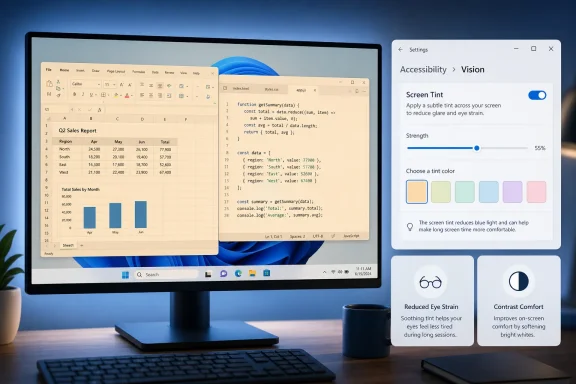
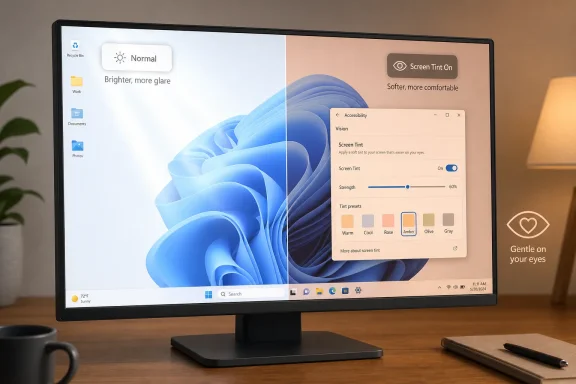
Microsoft is testing Screen Tint for Windows 11 Insiders in Experimental Preview Build 26300.8497, released May 22, 2026, as a system-wide accessibility setting that applies a customizable color overlay across the display to reduce visual intensity during long sessions. It is not Night Light with a new coat of paint. It is Microsoft acknowledging that modern eye strain is not only a bedtime problem, and that the white-hot productivity desktop has become its own ergonomic hazard.
The interesting part is not that Windows can tint a screen. Third-party tools have done variations of that for years, and Windows itself has long offered Night Light and Color Filters. The interesting part is that Microsoft is carving out a middle category: not sleep hygiene, not color-blindness accommodation, but everyday viewing comfort for people who live inside documents, browsers, chats, spreadsheets, IDEs, and meeting windows.
For years, Windows treated display comfort as if the main enemy were the evening. Night Light exists to warm the display after sunset, reducing blue-heavy light late in the day and making the screen feel less clinical at night. It is useful, familiar, and for many people part of the operating system’s nightly rhythm.
Screen Tint is aimed at a different hour and a different discomfort. Its premise is that a display can feel too intense at noon, not because the color temperature is wrong for sleep, but because the whole image is visually exhausting. White backgrounds, fluorescent rooms, high-contrast UI elements, and hours of sustained focus can produce a kind of slow-burn fatigue that Night Light was never designed to address.
That distinction matters because Windows 11 is now full of competing visual systems. There is dark mode, light mode, HDR, adaptive brightness, Night Light, Color Filters, contrast themes, Magnifier settings, and manufacturer display utilities sitting beneath all of it. Screen Tint does not replace those systems. It inserts itself as a broad, blunt, user-controlled layer over the entire desktop.
This is why the feature feels minor at first and more important after a few days. A tint is not a dramatic UI change. It does not rearrange the Start menu, add an AI panel, or redesign File Explorer. But for people whose working day is almost entirely mediated through a monitor, subtle changes in visual load can matter more than another productivity button.
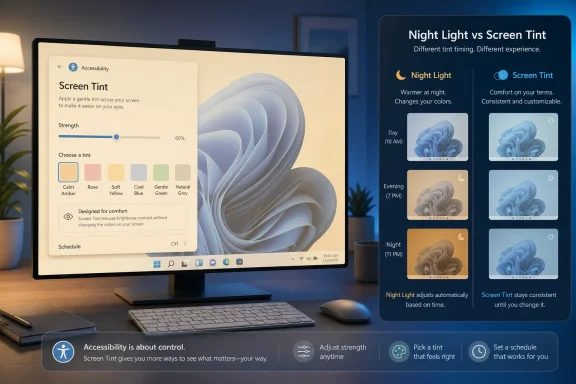
The presets are where Microsoft’s intent becomes clearer. Calm amber is framed for extended screen sessions. Rose tint is aimed at migraine triggers and fluorescent sensitivity. Soft yellow targets reading discomfort. Cool blue is meant for glare in bright environments. Gentle green is designed to soften harsh displays for users with photophobia. Natural grey is there for people who find high-contrast displays tiring.
That is a wider brief than Night Light. Night Light is a scheduling feature built around warmth. Screen Tint is closer to a personal comfort calibration tool, with the operating system admitting that no single “correct” color temperature suits every room, every panel, every eye, or every workload.
The custom color picker is also important, because the effectiveness of tinting is inherently personal. Two users can sit under the same office lighting, on the same hardware, with the same Windows build, and prefer entirely different overlays. Some people will want a faint amber wash that mimics paper. Others will find grey more tolerable for writing. Some migraine-prone users may experiment with rose or green. Microsoft is not prescribing one answer; it is providing a small vocabulary of options.
But the mechanics and the use case diverge. Night Light shifts the display warmer, usually on a schedule. It is part of the post-sunset routine, something many users set once and then forget. Screen Tint is an overlay that can be used during the day, at night, or constantly, with a color choice that is not limited to warmth.
Microsoft says the two can run at the same time because they solve different problems. That is exactly the right framing. Night Light is about the day-to-night transition. Screen Tint is about the working surface itself.
Anyone who spends a full day in Office documents or web apps knows the difference. A harsh white page at 2 PM is not made comfortable merely because the evening schedule has not arrived yet. The problem is not sleep. The problem is sustained luminance, contrast, glare, and the feeling that every blank page is a light box.
Those workarounds can help, but they are fragmented. They often apply only to certain apps, only to certain times, or only to one display profile. They can break screenshots, interfere with color-sensitive work, or become another startup utility that must survive Windows updates and GPU driver changes.
A native Windows feature has a different kind of power. It can apply consistently across apps. It can live in Settings rather than in the system tray. It can become part of the accessibility stack, discoverable to ordinary users rather than passed around as enthusiast advice. That does not make it automatically better than every third-party tool, but it does make it easier to trust for basic comfort.
That is Microsoft’s advantage here. Screen Tint does not need to be the most elaborate display utility ever built. It only needs to be good enough, predictable enough, and integrated enough that users stop reaching for a separate app to solve a basic visibility problem.
Eye comfort sits squarely in that tradition. It affects users with migraines, photophobia, visual stress, and fluorescent-light sensitivity. It also affects office workers, students, developers, writers, accountants, gamers between sessions, and anyone whose job has quietly turned into eight hours of staring into glass.
The risk is that the feature becomes too generic to help the people who need it most. If Screen Tint is marketed merely as a comfort tweak, Microsoft may underplay the accessibility conflict it introduces with Color Filters. If it is marketed only as accessibility, casual users may never find it. The setting has to live in both worlds: serious enough for accessibility, approachable enough for everyday use.
That is why discoverability matters. A buried control is not much of a comfort feature. Microsoft’s current preview placement gives users a route through Accessibility, and some reporting has also described access from display-related Settings surfaces. Before stable release, Microsoft should make the path obvious and consistent, because the people most likely to benefit from Screen Tint may not be the people who read Insider release notes.
That tradeoff deserves more attention than it will probably get. Color Filters are not decoration. They are an accessibility feature for users who need help distinguishing colors or changing the display for visual conditions. If Screen Tint displaces them, then Microsoft is effectively asking some users to choose between two forms of visual assistance.
For many people, this will not matter. If you have never enabled Color Filters, Screen Tint will not disrupt an existing workflow. But for color-blind users or anyone with a carefully configured filter setup, the new feature is not simply additive. It is mutually exclusive.
That does not mean Microsoft made the wrong engineering call. Two system-wide color transformations stacked on top of one another could create unpredictable results, especially across multiple monitors, HDR content, screenshots, remote sessions, and accessibility scenarios. But the UI must be explicit. A user should not discover after the fact that enabling a comfort overlay disabled a filter they depended on.
That is not boilerplate caution. Microsoft’s Insider channels are full of features that evolve in public. Some arrive quickly in stable builds. Others spend months in testing. Some are A/B tested so unevenly that two machines on the same build do not see the same UI. Others are renamed, redesigned, or quietly shelved.
There is also a channel wrinkle. Microsoft has been reshaping the Insider Program, with Experimental replacing the old Dev framing in release notes while some machines and users may still see transitional wording. That means instructions written in May may not map perfectly onto what a user sees in June, especially if feature flags, staged rollouts, or channel eligibility are involved.
The practical advice is simple: do not install an Experimental build on a production machine just to get Screen Tint. If you are already an Insider and comfortable with preview instability, it is worth trying. If you manage workstations, classrooms, labs, or shared devices, wait for clearer deployment controls and stable-channel behavior.
Calm amber speaks to endurance. It is the preset for users who do not necessarily have a specific condition but find long screen sessions draining. That makes it the most obvious default for many office workers, because it resembles the logic people already associate with warmer displays.
Rose tint is more specialized. It gestures toward migraine triggers and sensitivity to fluorescent environments, which are common enough in real offices but rarely acknowledged in mainstream OS design. If Microsoft gets this right, Screen Tint could become a quiet quality-of-life improvement for users who currently solve the problem with physical filters, monitor adjustments, or simply avoidance.
Soft yellow feels aimed at reading. That matters because Windows is no longer just an app launcher; it is the surface on which people read policy documents, PDFs, contracts, browser-based dashboards, support tickets, and AI-generated walls of text. The operating system has to treat reading comfort as a first-class issue.
Cool blue is the odd one out for users trained to think “blue light bad.” But in bright environments, glare and perceived warmth are not always the same problem. Some users may find a cooler overlay more comfortable in well-lit rooms, particularly if amber makes the display feel muddy or dim.
Gentle green and natural grey are perhaps the most interesting. Green has a long association with comfort for certain light-sensitive users, while grey tackles a different problem: contrast fatigue. A neutral overlay can reduce the punch of black-on-white without pushing the whole system into a noticeably warm or stylized color cast.
This is also where Microsoft must avoid the trap of demo-driven design. Features shown in screenshots tend to be exaggerated so readers can see them. Features used for comfort tend to be subtle enough that users forget they are on. Screen Tint succeeds when it disappears into the background.
The best use will probably be conservative. Start with a preset, pull the strength down, and use it through a full work session rather than judging it in the first five seconds. The human visual system adapts quickly, and the immediate reaction to any color overlay can be misleading. What looks “wrong” at first may become neutral after an hour; what looks pleasantly dramatic at first may become intolerable by lunch.
That also means Microsoft should make toggling easy. A global overlay is not appropriate for every task. Designers, photographers, video editors, and anyone doing color-sensitive work will need to turn it off or keep it away from certain workflows. Even ordinary users may want different behavior when watching video, presenting, gaming, or working across mismatched monitors.
A user may report that colors look “washed out.” A remote technician may see a screenshot that does not match the user’s perception. A training room may have machines configured differently. A color-critical department may need the feature disabled. An accessibility team may need it enabled but documented carefully alongside Color Filters.
The Color Filters conflict is the obvious management issue. If an organization supports employees who rely on existing accessibility settings, Screen Tint cannot simply be pushed as a general comfort recommendation without checking for side effects. A well-intentioned “turn this on to reduce eye strain” campaign could accidentally undermine another accommodation.
There are also multi-monitor questions. Users with a laptop panel and an external display may want different tint strengths, especially if one screen is matte and the other glossy, or one is HDR-capable and the other is not. If Screen Tint remains a global overlay with limited per-display nuance, it will be useful but not sufficient for more complex setups.
Microsoft has an opportunity here to do the boring enterprise work early. Group Policy, MDM exposure, clear documentation, and predictable interaction with screenshots, remote desktop sessions, HDR, and Color Filters would make Screen Tint easier to recommend at scale. Without that, it risks becoming another “try it if you like it” setting that support teams must reverse-engineer after users discover it.
A system-wide overlay is a pragmatic answer to that fragmentation. It does not require every app developer to rethink visual comfort. It does not wait for every website to implement better theme support. It does not ask users to install browser extensions or per-app tweaks.
But it is also an indictment. If users need an OS-level tint to make the working day tolerable, that suggests the software stack has optimized for legibility in theory rather than comfort in practice. High contrast is useful until it becomes abrasive. Brightness is useful until it becomes a fatigue engine.
Screen Tint should not let app makers off the hook. It should remind them that visual design does not end with passing contrast checks. A page can be accessible on paper and still exhausting in a real office after six hours.
Screen Tint does not duplicate everything f.lux can do. Third-party tools may still offer deeper automation, richer schedules, location-based behavior, or more opinionated color transitions. Enthusiasts who already have a carefully tuned setup may not abandon it overnight.
But the default recommendation changes once Windows includes a competent native option. Most users do not want a display utility as a hobby. They want the screen to stop bothering them. If Windows can provide a built-in tint that starts reliably, survives updates, respects accessibility settings, and requires no extra install, that will be enough for a large portion of the audience.
That is the recurring pattern in operating-system evolution. A third-party utility proves a need. Power users normalize it. The platform vendor eventually absorbs the basic version. The specialist tool remains for specialists, while everyone else moves on.
The timing is not accidental. The PC is now a meeting room, classroom, entertainment device, coding station, medical portal, banking terminal, and AI front end. The display is not just output; it is the surface through which nearly every task is mediated. The OS vendor that controls that surface has to care about how it feels after hour five.
This is where Screen Tint may prove more consequential than its simplicity suggests. It is not a marquee Windows feature. It will not sell a Copilot+ PC. It will not headline a keynote. But it acknowledges a daily discomfort that many users have normalized because the workaround was always personal and unofficial.
The best Windows features often work that way. They are not spectacular. They remove a small tax from millions of sessions. They make the machine feel less hostile without demanding attention for themselves.
The setup should also warn clearly about Color Filters. Not with a vague note, but with direct language: turning on Screen Tint will disable Color Filters. That matters for trust. Accessibility settings must not surprise users who depend on them.
Microsoft should also consider contextual surfacing. If a user searches Settings for eye strain, glare, migraine, display comfort, blue light, tint, or reading, Screen Tint should appear. If a user is configuring Night Light, Windows could mention that Screen Tint is separate and can run alongside it. If a user enables Color Filters, Windows should explain why Screen Tint is unavailable rather than leaving the relationship mysterious.
There is a fine line between helpful discovery and nagging. Screen Tint should not become another Windows suggestion bubble. But it should be findable by the people who need it, including those who do not know the exact feature name.
A better test is to choose a likely preset, set the strength modestly, and use the machine through a normal work block. Try document editing, web browsing, meetings, and whatever app usually makes your eyes feel tired. Then disable it for a while and see whether the screen feels harsher than before.
The preset choice should follow the workload rather than the color name. Long writing and reading sessions may benefit from amber, yellow, or grey. Bright rooms may make blue worth trying despite the instinct to avoid cooler tones. Users with migraine or light sensitivity may want to test rose or green carefully and slowly.
The important thing is reversibility. Screen Tint is not a diagnosis, not a medical treatment, and not a replacement for breaks, lighting changes, proper brightness, or professional advice for persistent symptoms. It is a software comfort layer. Used that way, it can be useful without being oversold.
The interesting part is not that Windows can tint a screen. Third-party tools have done variations of that for years, and Windows itself has long offered Night Light and Color Filters. The interesting part is that Microsoft is carving out a middle category: not sleep hygiene, not color-blindness accommodation, but everyday viewing comfort for people who live inside documents, browsers, chats, spreadsheets, IDEs, and meeting windows.
 Microsoft Finally Separates Eye Comfort From Bedtime
For years, Windows treated display comfort as if the main enemy were the evening. Night Light exists to warm the display after sunset, reducing blue-heavy light late in the day and making the screen feel less clinical at night. It is useful, familiar, and for many people part of the operating system’s nightly rhythm.Screen Tint is aimed at a different hour and a different discomfort. Its premise is that a display can feel too intense at noon, not because the color temperature is wrong for sleep, but because the whole image is visually exhausting. White backgrounds, fluorescent rooms, high-contrast UI elements, and hours of sustained focus can produce a kind of slow-burn fatigue that Night Light was never designed to address.
That distinction matters because Windows 11 is now full of competing visual systems. There is dark mode, light mode, HDR, adaptive brightness, Night Light, Color Filters, contrast themes, Magnifier settings, and manufacturer display utilities sitting beneath all of it. Screen Tint does not replace those systems. It inserts itself as a broad, blunt, user-controlled layer over the entire desktop.
This is why the feature feels minor at first and more important after a few days. A tint is not a dramatic UI change. It does not rearrange the Start menu, add an AI panel, or redesign File Explorer. But for people whose working day is almost entirely mediated through a monitor, subtle changes in visual load can matter more than another productivity button.
The New Control Is Small, but the Category Is New
Screen Tint applies a color overlay across the full display. Microsoft describes it as a way to soften display intensity so the screen is easier on the eyes throughout the day. The setting includes six presets, a custom color option, and a strength slider that lets users move from a barely visible wash to a much more obvious overlay.The presets are where Microsoft’s intent becomes clearer. Calm amber is framed for extended screen sessions. Rose tint is aimed at migraine triggers and fluorescent sensitivity. Soft yellow targets reading discomfort. Cool blue is meant for glare in bright environments. Gentle green is designed to soften harsh displays for users with photophobia. Natural grey is there for people who find high-contrast displays tiring.
That is a wider brief than Night Light. Night Light is a scheduling feature built around warmth. Screen Tint is closer to a personal comfort calibration tool, with the operating system admitting that no single “correct” color temperature suits every room, every panel, every eye, or every workload.
The custom color picker is also important, because the effectiveness of tinting is inherently personal. Two users can sit under the same office lighting, on the same hardware, with the same Windows build, and prefer entirely different overlays. Some people will want a faint amber wash that mimics paper. Others will find grey more tolerable for writing. Some migraine-prone users may experiment with rose or green. Microsoft is not prescribing one answer; it is providing a small vocabulary of options.
Night Light Was Never Supposed to Fix the 2 PM Spreadsheet
The easiest way to misunderstand Screen Tint is to see it as a duplicate of Night Light. Both change how the display looks. Both can make white backgrounds less aggressive. Both sit in the general mental bucket of “things you turn on when your eyes are tired.”But the mechanics and the use case diverge. Night Light shifts the display warmer, usually on a schedule. It is part of the post-sunset routine, something many users set once and then forget. Screen Tint is an overlay that can be used during the day, at night, or constantly, with a color choice that is not limited to warmth.
Microsoft says the two can run at the same time because they solve different problems. That is exactly the right framing. Night Light is about the day-to-night transition. Screen Tint is about the working surface itself.
Anyone who spends a full day in Office documents or web apps knows the difference. A harsh white page at 2 PM is not made comfortable merely because the evening schedule has not arrived yet. The problem is not sleep. The problem is sustained luminance, contrast, glare, and the feeling that every blank page is a light box.
The Real Rival Is Not Night Light, but the Pile of Display Hacks Around It
Screen Tint also competes with a messy ecosystem of workarounds. Some users lower brightness until the screen becomes dull. Some enable dark mode everywhere, then fight websites and apps that ignore it. Some use browser extensions to recolor pages. Some install third-party utilities such as f.lux. Others adjust monitor RGB values directly and then forget what they changed.Those workarounds can help, but they are fragmented. They often apply only to certain apps, only to certain times, or only to one display profile. They can break screenshots, interfere with color-sensitive work, or become another startup utility that must survive Windows updates and GPU driver changes.
A native Windows feature has a different kind of power. It can apply consistently across apps. It can live in Settings rather than in the system tray. It can become part of the accessibility stack, discoverable to ordinary users rather than passed around as enthusiast advice. That does not make it automatically better than every third-party tool, but it does make it easier to trust for basic comfort.
That is Microsoft’s advantage here. Screen Tint does not need to be the most elaborate display utility ever built. It only needs to be good enough, predictable enough, and integrated enough that users stop reaching for a separate app to solve a basic visibility problem.
The Accessibility Placement Is the Most Honest Part of the Feature
Screen Tint appears under Accessibility, and that is the right place for it. Too often, accessibility settings are treated as features for “someone else,” when they are actually the place where operating systems become more humane for everyone. Captions, text scaling, focus indicators, reduced motion, voice control, high contrast, and display filters all begin as accommodations and end up describing how real people use computers under imperfect conditions.Eye comfort sits squarely in that tradition. It affects users with migraines, photophobia, visual stress, and fluorescent-light sensitivity. It also affects office workers, students, developers, writers, accountants, gamers between sessions, and anyone whose job has quietly turned into eight hours of staring into glass.
The risk is that the feature becomes too generic to help the people who need it most. If Screen Tint is marketed merely as a comfort tweak, Microsoft may underplay the accessibility conflict it introduces with Color Filters. If it is marketed only as accessibility, casual users may never find it. The setting has to live in both worlds: serious enough for accessibility, approachable enough for everyday use.
That is why discoverability matters. A buried control is not much of a comfort feature. Microsoft’s current preview placement gives users a route through Accessibility, and some reporting has also described access from display-related Settings surfaces. Before stable release, Microsoft should make the path obvious and consistent, because the people most likely to benefit from Screen Tint may not be the people who read Insider release notes.
Color Filters Are the Collision Point Microsoft Cannot Hand-Wave Away
The most consequential limitation in the preview is that enabling Screen Tint turns off Color Filters. The two cannot run simultaneously. Microsoft presents this as expected behavior, not a bug, and users who rely on Color Filters may need to keep Screen Tint disabled.That tradeoff deserves more attention than it will probably get. Color Filters are not decoration. They are an accessibility feature for users who need help distinguishing colors or changing the display for visual conditions. If Screen Tint displaces them, then Microsoft is effectively asking some users to choose between two forms of visual assistance.
For many people, this will not matter. If you have never enabled Color Filters, Screen Tint will not disrupt an existing workflow. But for color-blind users or anyone with a carefully configured filter setup, the new feature is not simply additive. It is mutually exclusive.
That does not mean Microsoft made the wrong engineering call. Two system-wide color transformations stacked on top of one another could create unpredictable results, especially across multiple monitors, HDR content, screenshots, remote sessions, and accessibility scenarios. But the UI must be explicit. A user should not discover after the fact that enabling a comfort overlay disabled a filter they depended on.
Insider Features Are Promises Written in Pencil
Screen Tint is currently an Insider feature, and that status should temper the excitement. Build 26300.8497 arrived in the Experimental channel on May 22, 2026. Microsoft has not announced a stable-channel release date. The feature can change, move, gain options, lose options, or disappear before it reaches general availability.That is not boilerplate caution. Microsoft’s Insider channels are full of features that evolve in public. Some arrive quickly in stable builds. Others spend months in testing. Some are A/B tested so unevenly that two machines on the same build do not see the same UI. Others are renamed, redesigned, or quietly shelved.
There is also a channel wrinkle. Microsoft has been reshaping the Insider Program, with Experimental replacing the old Dev framing in release notes while some machines and users may still see transitional wording. That means instructions written in May may not map perfectly onto what a user sees in June, especially if feature flags, staged rollouts, or channel eligibility are involved.
The practical advice is simple: do not install an Experimental build on a production machine just to get Screen Tint. If you are already an Insider and comfortable with preview instability, it is worth trying. If you manage workstations, classrooms, labs, or shared devices, wait for clearer deployment controls and stable-channel behavior.
The Presets Reveal the Workloads Microsoft Is Watching
The six presets are not random color names. They read like a map of modern screen complaints.Calm amber speaks to endurance. It is the preset for users who do not necessarily have a specific condition but find long screen sessions draining. That makes it the most obvious default for many office workers, because it resembles the logic people already associate with warmer displays.
Rose tint is more specialized. It gestures toward migraine triggers and sensitivity to fluorescent environments, which are common enough in real offices but rarely acknowledged in mainstream OS design. If Microsoft gets this right, Screen Tint could become a quiet quality-of-life improvement for users who currently solve the problem with physical filters, monitor adjustments, or simply avoidance.
Soft yellow feels aimed at reading. That matters because Windows is no longer just an app launcher; it is the surface on which people read policy documents, PDFs, contracts, browser-based dashboards, support tickets, and AI-generated walls of text. The operating system has to treat reading comfort as a first-class issue.
Cool blue is the odd one out for users trained to think “blue light bad.” But in bright environments, glare and perceived warmth are not always the same problem. Some users may find a cooler overlay more comfortable in well-lit rooms, particularly if amber makes the display feel muddy or dim.
Gentle green and natural grey are perhaps the most interesting. Green has a long association with comfort for certain light-sensitive users, while grey tackles a different problem: contrast fatigue. A neutral overlay can reduce the punch of black-on-white without pushing the whole system into a noticeably warm or stylized color cast.
The Strength Slider Is Where the Feature Will Live or Die
The strength slider is more important than the preset names. A tint that is too obvious will annoy users and distort work. A tint that is too subtle may not justify its existence. The slider is the difference between a novelty and a setting someone can actually leave on all day.This is also where Microsoft must avoid the trap of demo-driven design. Features shown in screenshots tend to be exaggerated so readers can see them. Features used for comfort tend to be subtle enough that users forget they are on. Screen Tint succeeds when it disappears into the background.
The best use will probably be conservative. Start with a preset, pull the strength down, and use it through a full work session rather than judging it in the first five seconds. The human visual system adapts quickly, and the immediate reaction to any color overlay can be misleading. What looks “wrong” at first may become neutral after an hour; what looks pleasantly dramatic at first may become intolerable by lunch.
That also means Microsoft should make toggling easy. A global overlay is not appropriate for every task. Designers, photographers, video editors, and anyone doing color-sensitive work will need to turn it off or keep it away from certain workflows. Even ordinary users may want different behavior when watching video, presenting, gaming, or working across mismatched monitors.
Enterprise IT Will Care Less About Tint and More About Governance
For consumers, Screen Tint is a comfort setting. For IT departments, it is another Windows experience that may need policy, documentation, and support boundaries. That is not because tinting is dangerous. It is because any system-wide display modification can trigger help desk confusion.A user may report that colors look “washed out.” A remote technician may see a screenshot that does not match the user’s perception. A training room may have machines configured differently. A color-critical department may need the feature disabled. An accessibility team may need it enabled but documented carefully alongside Color Filters.
The Color Filters conflict is the obvious management issue. If an organization supports employees who rely on existing accessibility settings, Screen Tint cannot simply be pushed as a general comfort recommendation without checking for side effects. A well-intentioned “turn this on to reduce eye strain” campaign could accidentally undermine another accommodation.
There are also multi-monitor questions. Users with a laptop panel and an external display may want different tint strengths, especially if one screen is matte and the other glossy, or one is HDR-capable and the other is not. If Screen Tint remains a global overlay with limited per-display nuance, it will be useful but not sufficient for more complex setups.
Microsoft has an opportunity here to do the boring enterprise work early. Group Policy, MDM exposure, clear documentation, and predictable interaction with screenshots, remote desktop sessions, HDR, and Color Filters would make Screen Tint easier to recommend at scale. Without that, it risks becoming another “try it if you like it” setting that support teams must reverse-engineer after users discover it.
The Feature Is Also a Quiet Rebuke to App Design
Screen Tint exists partly because many apps are still too bright, too contrasty, or too indifferent to the conditions in which people use them. Operating systems can offer dark mode, but app ecosystems rarely move in perfect synchrony. Websites ignore preferences. Enterprise apps lag behind. PDF viewers, admin consoles, and line-of-business tools often assume that black text on a bright white canvas is the natural state of computing.A system-wide overlay is a pragmatic answer to that fragmentation. It does not require every app developer to rethink visual comfort. It does not wait for every website to implement better theme support. It does not ask users to install browser extensions or per-app tweaks.
But it is also an indictment. If users need an OS-level tint to make the working day tolerable, that suggests the software stack has optimized for legibility in theory rather than comfort in practice. High contrast is useful until it becomes abrasive. Brightness is useful until it becomes a fatigue engine.
Screen Tint should not let app makers off the hook. It should remind them that visual design does not end with passing contrast checks. A page can be accessible on paper and still exhausting in a real office after six hours.
F.lux Has Not Been Erased, but Its Default Role Is Shrinking
No discussion of screen tinting can avoid f.lux. For years, it was the utility many Windows users installed when the operating system did not provide a good native answer for display warmth. It became one of those small tools that felt obvious once you used it, especially before Night Light matured.Screen Tint does not duplicate everything f.lux can do. Third-party tools may still offer deeper automation, richer schedules, location-based behavior, or more opinionated color transitions. Enthusiasts who already have a carefully tuned setup may not abandon it overnight.
But the default recommendation changes once Windows includes a competent native option. Most users do not want a display utility as a hobby. They want the screen to stop bothering them. If Windows can provide a built-in tint that starts reliably, survives updates, respects accessibility settings, and requires no extra install, that will be enough for a large portion of the audience.
That is the recurring pattern in operating-system evolution. A third-party utility proves a need. Power users normalize it. The platform vendor eventually absorbs the basic version. The specialist tool remains for specialists, while everyone else moves on.
Microsoft’s Display Stack Is Becoming a Comfort Stack
Screen Tint also fits a broader pattern in Windows 11 development. Microsoft has been adding and refining features that treat the PC less like a static workstation and more like an adaptive environment. Accessibility improvements, voice access updates, better Narrator support, Magnifier refinements, and display comfort settings all point in the same direction.The timing is not accidental. The PC is now a meeting room, classroom, entertainment device, coding station, medical portal, banking terminal, and AI front end. The display is not just output; it is the surface through which nearly every task is mediated. The OS vendor that controls that surface has to care about how it feels after hour five.
This is where Screen Tint may prove more consequential than its simplicity suggests. It is not a marquee Windows feature. It will not sell a Copilot+ PC. It will not headline a keynote. But it acknowledges a daily discomfort that many users have normalized because the workaround was always personal and unofficial.
The best Windows features often work that way. They are not spectacular. They remove a small tax from millions of sessions. They make the machine feel less hostile without demanding attention for themselves.
The Setting Deserves a Better On-Ramp Before It Ships
If Screen Tint reaches stable Windows 11, Microsoft should resist the urge to bury it behind a single accessibility page and call the job done. The feature needs a good first-run experience, because tint preference is hard to explain in abstract terms. Users need to see the presets, try the slider, and understand immediately that they can back out.The setup should also warn clearly about Color Filters. Not with a vague note, but with direct language: turning on Screen Tint will disable Color Filters. That matters for trust. Accessibility settings must not surprise users who depend on them.
Microsoft should also consider contextual surfacing. If a user searches Settings for eye strain, glare, migraine, display comfort, blue light, tint, or reading, Screen Tint should appear. If a user is configuring Night Light, Windows could mention that Screen Tint is separate and can run alongside it. If a user enables Color Filters, Windows should explain why Screen Tint is unavailable rather than leaving the relationship mysterious.
There is a fine line between helpful discovery and nagging. Screen Tint should not become another Windows suggestion bubble. But it should be findable by the people who need it, including those who do not know the exact feature name.
The Practical Path for Insiders Is Experiment, Not Conversion
For Insiders already on the right build, Screen Tint is worth testing methodically. The mistake is to enable a vivid overlay, stare at the desktop, decide it looks strange, and turn it off. That is not how comfort features reveal themselves.A better test is to choose a likely preset, set the strength modestly, and use the machine through a normal work block. Try document editing, web browsing, meetings, and whatever app usually makes your eyes feel tired. Then disable it for a while and see whether the screen feels harsher than before.
The preset choice should follow the workload rather than the color name. Long writing and reading sessions may benefit from amber, yellow, or grey. Bright rooms may make blue worth trying despite the instinct to avoid cooler tones. Users with migraine or light sensitivity may want to test rose or green carefully and slowly.
The important thing is reversibility. Screen Tint is not a diagnosis, not a medical treatment, and not a replacement for breaks, lighting changes, proper brightness, or professional advice for persistent symptoms. It is a software comfort layer. Used that way, it can be useful without being oversold.
The Small Overlay That Changes the Windows Comfort Equation
The concrete lesson from Screen Tint is that Microsoft is filling a gap between sleep-focused color temperature and specialized accessibility filters. For users and admins watching the feature’s progress, the useful details are narrow but important.- Screen Tint is currently a Windows 11 Insider feature, with its first documented rollout in Experimental Preview Build 26300.8497 released on May 22, 2026.
- Screen Tint applies a system-wide color overlay with six presets, a custom color option, and a strength slider.
- Screen Tint is separate from Night Light, and Microsoft says the two can run at the same time because they address different display-comfort problems.
- Turning on Screen Tint disables Color Filters, so users who rely on Color Filters should check their accessibility setup before experimenting.
- Screen Tint is not yet a stable-channel Windows 11 feature, and Microsoft has not announced a general availability date.
- The feature is best treated as a subtle, adjustable comfort layer rather than a dramatic visual mode.
References
- Primary source: DigitBin
Published: 2026-06-25T10:10:09.478482
Windows 11 Screen Tint: What It Does and How to Enable It
Windows 11 Screen Tint applies a color overlay to reduce eye strain. Here's how it works, the six presets explained, and how to enable it now on Insider builds.www.digitbin.com - Official source: learn.microsoft.com
Experimental Preview Build 26300.8497 - Windows Insider Program | Microsoft Learn
Release notes for Experimental Preview Build 26300.8497learn.microsoft.com - Related coverage: pccentral.net
Windows 11 Insiders get screen tint and voice isolation
Microsoft released Windows 11 Experimental channel build 26300.8497 with new screen tint, Braille display support, and Voice Access improvements.pccentral.net - Official source: blogs.windows.com
Announcing new builds for 22 May 2026
Hello Windows Insiders, Today, we continue to expand the rollout of the new Windows Insider Program changes to devices in channels already announced. As a reminder, we have not yet begun moving devices in the Canary 29500 Series Channelblogs.windows.com - Related coverage: windowscentral.com
I dug into the Windows 11 features insiders got in May 2026 and here’s what matters most | Windows Central
May 2026 brought a wave of Windows 11 improvements, focusing on accessibility, productivity, personalization, and system modernization.www.windowscentral.com - Related coverage: notebookcheck.net
Windows 11 Insiders get screen tint and voice isolation - Notebookcheck News
Microsoft releases Windows 11 Experimental build 26300.8497 with screen tint, braille display support, and voice isolation improvements for Insiders. www.notebookcheck.net
- Related coverage: windowsforum.com
Windows 11 Insider: Screen Tint, HID Braille Setup, and Voice Isolation Boost Accessibility | Windows Forum
Microsoft released Windows 11 Insider Preview builds on May 22, 2026, adding a Screen Tint accessibility setting in the Experimental channel alongside...windowsforum.com - Related coverage: pureinfotech.com
Build 26300.8497 for Windows 11 26H2 adds new Screen Tint and Voice Isolation features - Pureinfotech
Build 26300.8497 for Windows 11 adds Screen Tint, Voice Isolation, HID Braille support, Windows Ready Print, and several fixes. pureinfotech.com
- Related coverage: windowsreport.com
Windows 11 Gets Screen Tint Setting & More With New Experimental (Dev) Build
In addition to Beta Build 26220.8491, Microsoft has also released the Build 26300.8497 for Windows 11 Insiders in the new Experimental channel. To remind you, all the changes and improvement in this build applies to Dev channel insiders too. Windows 11 gets new screen tint, braille, and voice... windowsreport.com
- Related coverage: techradar.com
New screen tint feature discovered in Windows 11 is designed to help with eye strain and even combating migraines | TechRadar
This isn't a substitute for healthy screen habits, mindwww.techradar.com - Official source: download.microsoft.com
- Related coverage: windowsarchive.orangera.in