

Microsoft released Windows 11 Insider Experimental Preview Build 26300.8553 on May 29, 2026, giving testers new Start menu controls to resize the menu, hide or show Pinned, Recent, and All Apps sections, and remove the account name from the Start surface. The change is not a revolution, but it is a retreat from one of Windows 11’s most stubborn design bets: that Microsoft knew better than users how the Start menu should behave. After nearly five years of complaints from Windows 10 holdouts, enterprise admins, and everyday users who simply wanted less clutter, Redmond is finally treating the Start menu as a user-owned space again.
Windows 11’s original Start menu was a statement of control. Microsoft removed Live Tiles, centered the interface, simplified the layout, and presented a cleaner launcher that looked more like a mobile app drawer than the messy, malleable Windows interface many users had spent decades shaping around their own habits.
That was not inherently wrong. Windows 10’s Start menu had become a strange hybrid of app launcher, widget board, advertising space, and tile garden. A reset made sense. But Windows 11 replaced one kind of excess with another kind of rigidity, and the problem was never just that the new menu looked different.
The problem was that users could not meaningfully negotiate with it. The Recommended area occupied prime real estate even when people did not want recommendations. The All Apps list was tucked behind Microsoft’s preferred flow, then later surfaced more aggressively. The menu’s size adapted to Microsoft’s assumptions, not to the user’s hand, monitor, scaling, or workflow.
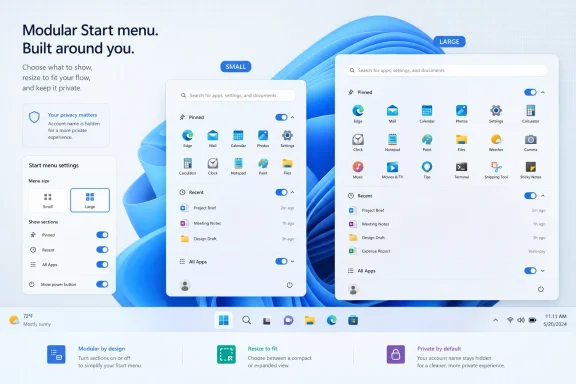
Build 26300.8553 does not fully undo that history. It does, however, acknowledge it. The new options allow users to turn major Start sections on or off, choose a smaller or larger layout, and hide the account name for privacy or presentation scenarios. In Windows terms, that is not merely a settings update. It is a design confession.
Those two visions have been colliding since Windows 8, but Windows 11 made the tension feel especially sharp. The operating system looked calmer than Windows 10, yet it often felt less personal. The centered taskbar could be moved back to the left, but the Start menu itself remained strangely non-negotiable.
This matters because Windows users are not one audience. A home user with a handful of pinned apps, a developer with dozens of tools, a sysadmin jumping between consoles, and a presenter sharing a screen on a call all expect different things from Start. A fixed design turns those differences into irritations.
Microsoft’s new modular approach is the right instinct. Let the Pinned section exist without Recent. Let All Apps exist without recommendations. Let someone build a minimalist launcher, or a dense app board, or a nearly empty menu if that is what they want. A desktop operating system should not be frightened by edge cases.
That sounds absurd, and in one sense it is. A Start menu with no Start menu in it is a very Windows kind of punchline. But it is also evidence that Microsoft is, for once, allowing a configuration because it is possible rather than blocking it because a designer thinks no one should want it.
The more useful version is obvious: a Start menu with pinned apps and nothing else. That has been one of the most common requests since Windows 11 launched. Many users do not want recently opened files, suggested content, recently installed apps, or Microsoft’s interpretation of what might be useful next. They want a clean grid of shortcuts and a search box.
There is a practical wrinkle. If a user hides All Apps, discovering and pinning newly installed programs becomes less obvious. Neowin notes that apps can still be pinned through Windows Search, which is true, but that assumes users already know what they are looking for. For many people, the All Apps list remains the inventory view of the PC.
Still, this is exactly where customization earns its keep. A power user who launches everything from search may not care about All Apps. A kiosk-like setup may want Pinned only. A minimalist user may want almost nothing. The correct answer is not one Microsoft-blessed layout; it is a set of choices that do not punish users for having different habits.
That is progress, but it is not the same as true resizing. Windows 10 allowed the Start menu to behave more like a conventional resizable panel. You could grab an edge or corner and make it fit your screen, your hand, and your tolerance for visual density. Windows 11’s new model is closer to choosing a shirt size: small or large, with Microsoft still deciding the cut.
For many users, that will be enough. The old Windows 11 Start menu could feel comically oversized on some machines and cramped on others, especially when scaling, screen resolution, and the newer category layout interacted badly. A smaller layout gives laptop users relief. A larger layout gives desktop users more visible pins.
But the comparison to Windows 10 will not go away, because Windows users remember when the interface was more physically negotiable. Microsoft’s modern design language prizes consistency and composure. Windows’ long-standing appeal, however, has been its willingness to let users make ugly, efficient, deeply personal choices.
That is the philosophical gap still visible in this preview. Microsoft is offering more control, but within a controlled vocabulary. It is a better Start menu, not yet a truly user-shaped one.
Renaming that area to Recent is a smart move because it is more honest. Users understand recency. A recently opened document, a newly installed app, or a file that was just touched has a clear reason to appear. The label describes a behavior rather than a judgment.
But the trust problem is not solved by vocabulary alone. Windows users have become wary of any surface that seems capable of becoming promotional. The Start menu, Search, Widgets, Edge prompts, Microsoft 365 hooks, and OneDrive messaging have all trained users to ask a simple question: is this here for me, or for Microsoft?
That suspicion is not always fair in the narrow technical sense. Recent files can be genuinely useful. Recently installed apps can help users find something they just added. But the burden is now on Microsoft to keep that space disciplined, predictable, and removable.
The new section toggles help because they make the argument optional. If Recent is useful, users can keep it. If it feels intrusive, they can remove it. The ability to say no is what makes yes meaningful.
In those contexts, the account name can reveal more than intended. It may show a legal name, an internal naming convention, a personal account identity, or simply something the user would rather not broadcast. Hiding it is a small privacy affordance that recognizes Windows is often used in public.
This is the kind of customization Microsoft should be adding everywhere. Not every privacy improvement requires a new security architecture. Sometimes it is enough to remove unnecessary identity exposure from common interface surfaces.
The feature also reflects a broader shift in how Windows is used. The desktop is no longer always private, local, and stationary. It is shared through Teams, streamed through capture tools, mirrored onto conference room displays, and recorded for asynchronous work. Interfaces designed for one person at one desk now routinely appear before many eyes.
Neowin’s example is familiar to anyone who has tested the newer Start layouts. Major third-party apps often fall into “Other” or similarly vague buckets because Windows does not confidently know where they belong. Steam, Slack, WhatsApp, Affinity apps, niche utilities, developer tools, hardware control panels, and legacy Win32 programs do not always map cleanly to Microsoft’s taxonomy.
That turns category view from a navigational aid into a junk drawer. If the system can only categorize Microsoft Store-style apps and a subset of well-known packages, it is not really organizing the PC. It is organizing the part of the PC Microsoft understands.
This is one of the rare places where a lightweight AI-assisted approach might actually make sense, provided it is transparent and local enough to avoid becoming another trust fight. Windows could infer categories from app metadata, executable names, publisher information, Start shortcuts, and user behavior. Better yet, it could let users correct categories manually.
The missing piece is agency. Automatic categories are helpful only if users can override them. Without that, category view risks becoming another example of Microsoft mistaking a demo-friendly interface for a daily-driver feature.
This matters because search has become the fallback for everything Start does not expose cleanly. If All Apps is hidden, users may rely on Search to find and pin programs. If categories misfire, Search becomes the fastest route. If the Pinned grid is kept minimal, Search becomes the command palette Windows still does not quite have.
And yet Windows Search remains one of the operating system’s most uneven experiences. It mixes local apps, settings, documents, web suggestions, cloud content, and occasionally promotional or Bing-adjacent behavior in ways that do not always respect user intent. The technical challenge is hard, but the product problem is simple: users need to know whether they are searching their PC or Microsoft’s ecosystem.
A better Start menu cannot fully compensate for a confused Search experience. In fact, more Start customization may expose Search’s weaknesses more clearly. If users strip Start down to a launcher and rely on search for everything else, search quality becomes central rather than secondary.
Microsoft has spent years trying to make Windows Search more expansive. The more urgent task may be making it more obedient.
The new controls could be good news for enterprise environments if Microsoft exposes them cleanly through policy, provisioning, and deployment tooling. A modular Start menu makes it easier to build a sane baseline: pinned business apps, no Recent section, predictable All Apps access, and less personal information visible during screen sharing. That is the kind of practical flexibility IT teams have wanted since Windows 11 arrived.
The concern is timing and stability. These changes are in an Insider Experimental build, not a broadly deployed production release. Microsoft’s new preview channel language also signals that the company is still reshaping how it tests and labels work-in-progress features. Admins should pay attention, but not build policy around screenshots from an experimental channel.
There is also a broader lifecycle issue. Windows 10 support pressure continues to push organizations toward Windows 11, and interface regressions have been one of the soft blockers for reluctant users. A better Start menu will not decide an enterprise migration by itself, but it removes one more source of daily friction.
For IT, the ideal outcome is not maximum personalization on every managed machine. It is predictable optionality: enough controls for administrators to define the experience, enough flexibility for users where appropriate, and enough documentation that settings do not become another archeological dig through policy catalogs.
Microsoft has gradually walked back some of the sharpest edges. Taskbar features have returned in stages. Context menu behavior has improved. File Explorer has gained tabs and visual changes while still provoking its own debates. Now Start is getting the kind of customization that should arguably have shipped much earlier.
This is the pattern of modern Windows development: remove or redesign aggressively, absorb years of complaints, then reintroduce parts of the old flexibility under a new design system. It produces cleaner interfaces at launch, but it also burns user goodwill. People do not enjoy waiting half a decade for a setting that feels obvious.
The charitable reading is that Microsoft is listening. The less charitable reading is that Microsoft is rediscovering old lessons under market pressure. Both can be true. Windows 11 is maturing, and maturity in Windows often means restoring the knobs that earlier design waves removed.
For users still clinging to Windows 10, these Start changes may not be enough to inspire affection. But they do make Windows 11 a little less alien. Sometimes that is the difference between an upgrade that feels imposed and one that feels survivable.
But the blank menu is not the point. The point is that Windows is again allowing configurations that Microsoft does not need to endorse as mainstream. That is healthy. A platform with hundreds of millions of users should not pretend there is one correct way to open an app.
The better measure of this update will be how well it handles ordinary preferences. Can a user keep only pinned apps? Can a developer maintain a dense launcher without category clutter? Can a presenter hide identity details quickly? Can a laptop user shrink the menu without registry hacks or third-party mods? Can a desktop user make better use of a large monitor?
If the answer is yes, then Build 26300.8553 marks a meaningful course correction. Not because every option is perfect, but because the direction is finally aligned with Windows’ historic strength: adaptation.
For now, the concrete picture is encouraging:
 Microsoft Rediscovers the Radical Idea of Letting Users Choose
Windows 11’s original Start menu was a statement of control. Microsoft removed Live Tiles, centered the interface, simplified the layout, and presented a cleaner launcher that looked more like a mobile app drawer than the messy, malleable Windows interface many users had spent decades shaping around their own habits.That was not inherently wrong. Windows 10’s Start menu had become a strange hybrid of app launcher, widget board, advertising space, and tile garden. A reset made sense. But Windows 11 replaced one kind of excess with another kind of rigidity, and the problem was never just that the new menu looked different.
The problem was that users could not meaningfully negotiate with it. The Recommended area occupied prime real estate even when people did not want recommendations. The All Apps list was tucked behind Microsoft’s preferred flow, then later surfaced more aggressively. The menu’s size adapted to Microsoft’s assumptions, not to the user’s hand, monitor, scaling, or workflow.
Build 26300.8553 does not fully undo that history. It does, however, acknowledge it. The new options allow users to turn major Start sections on or off, choose a smaller or larger layout, and hide the account name for privacy or presentation scenarios. In Windows terms, that is not merely a settings update. It is a design confession.
The Start Menu Was Never Just an App Launcher
The Start menu is Windows’ front door, and that is why every change to it becomes political. Microsoft sees it as a navigation surface, a discovery surface, a cloud surface, and occasionally a promotional surface. Users see it as the place where they go to open the things they already chose to install.Those two visions have been colliding since Windows 8, but Windows 11 made the tension feel especially sharp. The operating system looked calmer than Windows 10, yet it often felt less personal. The centered taskbar could be moved back to the left, but the Start menu itself remained strangely non-negotiable.
This matters because Windows users are not one audience. A home user with a handful of pinned apps, a developer with dozens of tools, a sysadmin jumping between consoles, and a presenter sharing a screen on a call all expect different things from Start. A fixed design turns those differences into irritations.
Microsoft’s new modular approach is the right instinct. Let the Pinned section exist without Recent. Let All Apps exist without recommendations. Let someone build a minimalist launcher, or a dense app board, or a nearly empty menu if that is what they want. A desktop operating system should not be frightened by edge cases.
The New Modular Menu Is a Small Break With Windows 11 Dogma
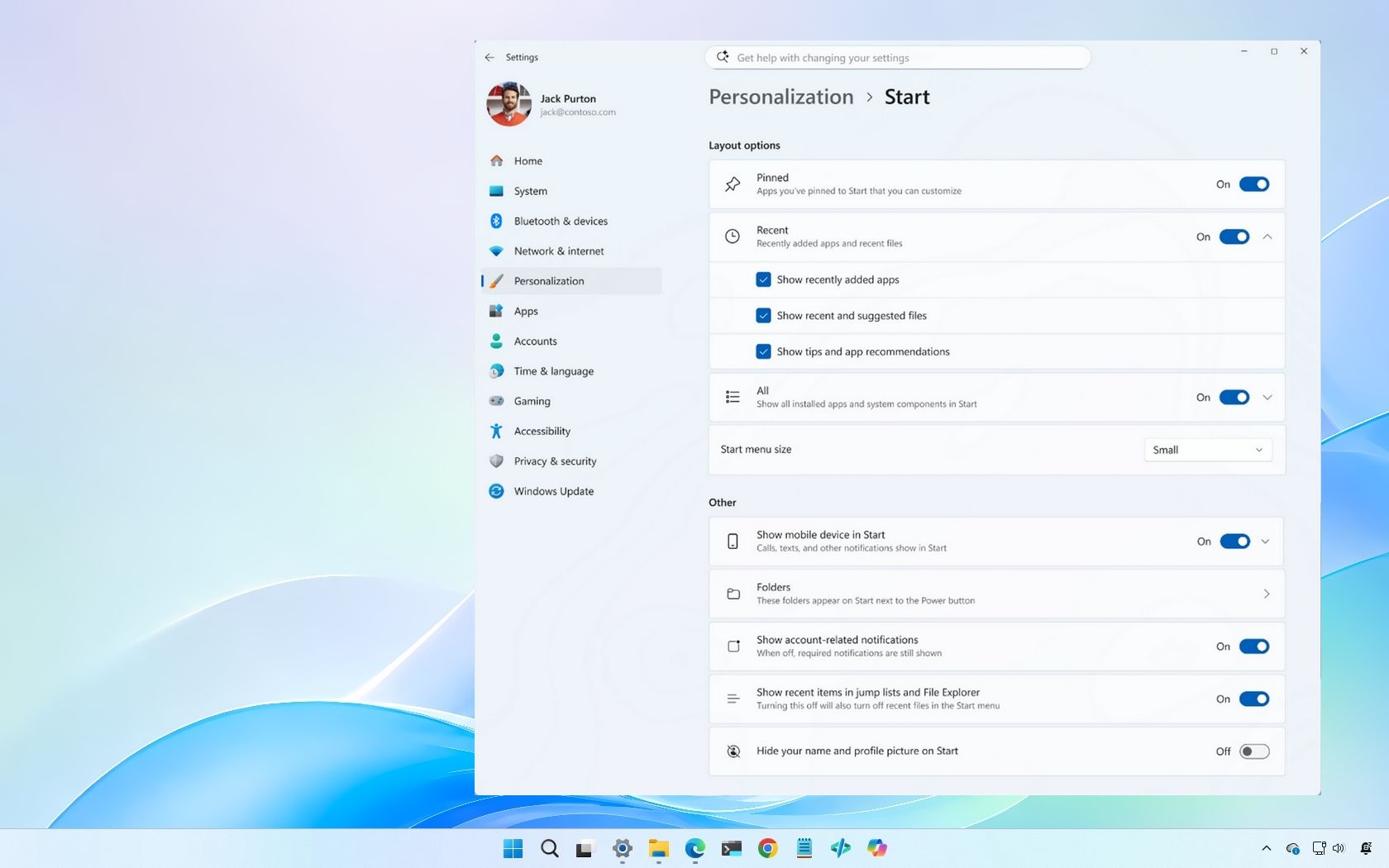
The most important change in the preview build is the ability to independently show or hide Start menu sections. Users can toggle Pinned apps, the renamed Recent section, and the All Apps list. Taken to its logical extreme, the system even permits a Start menu with every visible section disabled, at which point Windows shows a message saying all Start menu sections are off and points users back to settings.That sounds absurd, and in one sense it is. A Start menu with no Start menu in it is a very Windows kind of punchline. But it is also evidence that Microsoft is, for once, allowing a configuration because it is possible rather than blocking it because a designer thinks no one should want it.
The more useful version is obvious: a Start menu with pinned apps and nothing else. That has been one of the most common requests since Windows 11 launched. Many users do not want recently opened files, suggested content, recently installed apps, or Microsoft’s interpretation of what might be useful next. They want a clean grid of shortcuts and a search box.
There is a practical wrinkle. If a user hides All Apps, discovering and pinning newly installed programs becomes less obvious. Neowin notes that apps can still be pinned through Windows Search, which is true, but that assumes users already know what they are looking for. For many people, the All Apps list remains the inventory view of the PC.
Still, this is exactly where customization earns its keep. A power user who launches everything from search may not care about All Apps. A kiosk-like setup may want Pinned only. A minimalist user may want almost nothing. The correct answer is not one Microsoft-blessed layout; it is a set of choices that do not punish users for having different habits.
Resizing Arrives, But Windows 10 Still Haunts the Room
The second headline feature is Start menu sizing. In Build 26300.8553, users can choose between small and large layouts, with the larger version showing more columns of apps and categories. According to hands-on reports, the large layout supports eight columns of pinned apps and four category columns, while the smaller layout drops to six app columns and three category columns.That is progress, but it is not the same as true resizing. Windows 10 allowed the Start menu to behave more like a conventional resizable panel. You could grab an edge or corner and make it fit your screen, your hand, and your tolerance for visual density. Windows 11’s new model is closer to choosing a shirt size: small or large, with Microsoft still deciding the cut.
For many users, that will be enough. The old Windows 11 Start menu could feel comically oversized on some machines and cramped on others, especially when scaling, screen resolution, and the newer category layout interacted badly. A smaller layout gives laptop users relief. A larger layout gives desktop users more visible pins.
But the comparison to Windows 10 will not go away, because Windows users remember when the interface was more physically negotiable. Microsoft’s modern design language prizes consistency and composure. Windows’ long-standing appeal, however, has been its willingness to let users make ugly, efficient, deeply personal choices.
That is the philosophical gap still visible in this preview. Microsoft is offering more control, but within a controlled vocabulary. It is a better Start menu, not yet a truly user-shaped one.
Renaming Recommended to Recent Fixes the Label, Not the Trust Problem
The Recommended section has long been a source of irritation because the word carried baggage. “Recommended” sounded like Microsoft was deciding what belonged in front of you. It also blurred together recent files, recently installed apps, and content that could feel less like utility and more like nudging.Renaming that area to Recent is a smart move because it is more honest. Users understand recency. A recently opened document, a newly installed app, or a file that was just touched has a clear reason to appear. The label describes a behavior rather than a judgment.
But the trust problem is not solved by vocabulary alone. Windows users have become wary of any surface that seems capable of becoming promotional. The Start menu, Search, Widgets, Edge prompts, Microsoft 365 hooks, and OneDrive messaging have all trained users to ask a simple question: is this here for me, or for Microsoft?
That suspicion is not always fair in the narrow technical sense. Recent files can be genuinely useful. Recently installed apps can help users find something they just added. But the burden is now on Microsoft to keep that space disciplined, predictable, and removable.
The new section toggles help because they make the argument optional. If Recent is useful, users can keep it. If it feels intrusive, they can remove it. The ability to say no is what makes yes meaningful.
Hiding the Account Name Is a Minor Feature With Real-World Uses
The option to hide the username in Start will not dominate release notes, but it is more practical than it first appears. Screen sharing is now an ordinary part of work, not a special event. People record tutorials, join support calls, stream workflows, and present from personal or mixed-use machines all the time.In those contexts, the account name can reveal more than intended. It may show a legal name, an internal naming convention, a personal account identity, or simply something the user would rather not broadcast. Hiding it is a small privacy affordance that recognizes Windows is often used in public.
This is the kind of customization Microsoft should be adding everywhere. Not every privacy improvement requires a new security architecture. Sometimes it is enough to remove unnecessary identity exposure from common interface surfaces.
The feature also reflects a broader shift in how Windows is used. The desktop is no longer always private, local, and stationary. It is shared through Teams, streamed through capture tools, mirrored onto conference room displays, and recorded for asynchronous work. Interfaces designed for one person at one desk now routinely appear before many eyes.
The Category View Still Looks Like an Unfinished Bet
The weakest part of the modern Start menu remains the category view. The idea is sound: group installed apps into recognizable buckets so the menu feels less like an alphabetical filing cabinet. On a phone, this kind of clustering can work well. On a Windows PC, with decades of software naming habits and installer behavior behind it, the result is far messier.Neowin’s example is familiar to anyone who has tested the newer Start layouts. Major third-party apps often fall into “Other” or similarly vague buckets because Windows does not confidently know where they belong. Steam, Slack, WhatsApp, Affinity apps, niche utilities, developer tools, hardware control panels, and legacy Win32 programs do not always map cleanly to Microsoft’s taxonomy.
That turns category view from a navigational aid into a junk drawer. If the system can only categorize Microsoft Store-style apps and a subset of well-known packages, it is not really organizing the PC. It is organizing the part of the PC Microsoft understands.
This is one of the rare places where a lightweight AI-assisted approach might actually make sense, provided it is transparent and local enough to avoid becoming another trust fight. Windows could infer categories from app metadata, executable names, publisher information, Start shortcuts, and user behavior. Better yet, it could let users correct categories manually.
The missing piece is agency. Automatic categories are helpful only if users can override them. Without that, category view risks becoming another example of Microsoft mistaking a demo-friendly interface for a daily-driver feature.
Search Remains the Awkward Door Inside the Door
Start and Search have been intertwined for years, but Windows 11 still makes the relationship feel clumsy. Clicking the search field in Start can move the user into a different search interface, creating a visual and behavioral jump. It is not catastrophic, but it breaks the illusion that Start is a coherent place.This matters because search has become the fallback for everything Start does not expose cleanly. If All Apps is hidden, users may rely on Search to find and pin programs. If categories misfire, Search becomes the fastest route. If the Pinned grid is kept minimal, Search becomes the command palette Windows still does not quite have.
And yet Windows Search remains one of the operating system’s most uneven experiences. It mixes local apps, settings, documents, web suggestions, cloud content, and occasionally promotional or Bing-adjacent behavior in ways that do not always respect user intent. The technical challenge is hard, but the product problem is simple: users need to know whether they are searching their PC or Microsoft’s ecosystem.
A better Start menu cannot fully compensate for a confused Search experience. In fact, more Start customization may expose Search’s weaknesses more clearly. If users strip Start down to a launcher and rely on search for everything else, search quality becomes central rather than secondary.
Microsoft has spent years trying to make Windows Search more expansive. The more urgent task may be making it more obedient.
Enterprise IT Will Like the Direction and Fear the Drift
For administrators, Start menu customization is never just aesthetic. It affects onboarding, support scripts, screenshots in documentation, training materials, kiosk scenarios, VDI images, and the muscle memory of entire departments. A Start menu that changes unpredictably can become a support ticket factory.The new controls could be good news for enterprise environments if Microsoft exposes them cleanly through policy, provisioning, and deployment tooling. A modular Start menu makes it easier to build a sane baseline: pinned business apps, no Recent section, predictable All Apps access, and less personal information visible during screen sharing. That is the kind of practical flexibility IT teams have wanted since Windows 11 arrived.
The concern is timing and stability. These changes are in an Insider Experimental build, not a broadly deployed production release. Microsoft’s new preview channel language also signals that the company is still reshaping how it tests and labels work-in-progress features. Admins should pay attention, but not build policy around screenshots from an experimental channel.
There is also a broader lifecycle issue. Windows 10 support pressure continues to push organizations toward Windows 11, and interface regressions have been one of the soft blockers for reluctant users. A better Start menu will not decide an enterprise migration by itself, but it removes one more source of daily friction.
For IT, the ideal outcome is not maximum personalization on every managed machine. It is predictable optionality: enough controls for administrators to define the experience, enough flexibility for users where appropriate, and enough documentation that settings do not become another archeological dig through policy catalogs.
This Is Also About Windows 10 Users Running Out of Road
The timing is hard to ignore. Windows 11 has spent years living in Windows 10’s shadow, not because Windows 10 was perfect, but because it remained familiar, flexible, and good enough. Many of the loudest Windows 11 complaints have centered on the places users touch constantly: the taskbar, the context menu, File Explorer, and Start.Microsoft has gradually walked back some of the sharpest edges. Taskbar features have returned in stages. Context menu behavior has improved. File Explorer has gained tabs and visual changes while still provoking its own debates. Now Start is getting the kind of customization that should arguably have shipped much earlier.
This is the pattern of modern Windows development: remove or redesign aggressively, absorb years of complaints, then reintroduce parts of the old flexibility under a new design system. It produces cleaner interfaces at launch, but it also burns user goodwill. People do not enjoy waiting half a decade for a setting that feels obvious.
The charitable reading is that Microsoft is listening. The less charitable reading is that Microsoft is rediscovering old lessons under market pressure. Both can be true. Windows 11 is maturing, and maturity in Windows often means restoring the knobs that earlier design waves removed.
For users still clinging to Windows 10, these Start changes may not be enough to inspire affection. But they do make Windows 11 a little less alien. Sometimes that is the difference between an upgrade that feels imposed and one that feels survivable.
The Real Win Is Not the Blank Start Menu
The funniest screenshot from this change will be the empty Start menu. Turn everything off, remove the pins, and Windows becomes a minimalist art project with a Start button that opens a void. It is easy to mock, and many people will.But the blank menu is not the point. The point is that Windows is again allowing configurations that Microsoft does not need to endorse as mainstream. That is healthy. A platform with hundreds of millions of users should not pretend there is one correct way to open an app.
The better measure of this update will be how well it handles ordinary preferences. Can a user keep only pinned apps? Can a developer maintain a dense launcher without category clutter? Can a presenter hide identity details quickly? Can a laptop user shrink the menu without registry hacks or third-party mods? Can a desktop user make better use of a large monitor?
If the answer is yes, then Build 26300.8553 marks a meaningful course correction. Not because every option is perfect, but because the direction is finally aligned with Windows’ historic strength: adaptation.
The Start Menu Fight Narrows to the Details Microsoft Still Controls
The new preview build gives Windows 11 users more authority over Start, but it does not end the argument over who the interface serves. Microsoft still controls the available sizes. It still defines the category logic. It still routes search through a separate experience that can feel disconnected. It still has to prove that “Recent” will remain a utility area rather than a new name for old annoyances.For now, the concrete picture is encouraging:
- Windows 11 Insider Experimental Preview Build 26300.8553 adds section-level Start menu controls for Pinned, Recent, and All Apps.
- The Start menu can now be set to smaller or larger layouts, though it still does not offer freeform Windows 10-style resizing.
- The old Recommended label is being replaced with Recent, a clearer name for files and activity surfaced by the menu.
- Users can hide their account name from the Start menu, which is useful for screen sharing, recording, and privacy-sensitive workflows.
- The category view remains limited by Microsoft’s ability to classify third-party apps accurately.
- The changes are promising, but they are still preview-channel work and should not be treated as guaranteed production behavior until Microsoft ships them broadly.
References
- Primary source: Neowin
Published: Mon, 01 Jun 2026 00:46:00 GMT

Windows 11 is getting new Start menu customizations, here is a closer look
Windows 11's Start menu is getting a bunch of long-requested features, which are already available for testing. Here is a closer look. www.neowin.net
- Related coverage: windowscentral.com
“A cleaner, more useful Start menu” — Windows 11 is getting 4 upgrades soon
Microsoft is finally fixing some of the biggest frustrations with the Windows 11 Start menu, including resizing and better customization controls. www.windowscentral.com
- Related coverage: notebookcheck.net

Windows 11 Insider Build 26300.8553 finally lets you customize the Start menu
Windows 11 Insider Preview Build 26300.8553 brings a modular Start menu with Small, Large, and Automatic size presets and new privacy tools to the Experimental channel. www.notebookcheck.net
- Official source: learn.microsoft.com
Windows 11 Insider Experimental Preview Build 26300.8553 - Windows Insider Program
Release notes for Windows 11 Insider Experimental Preview Build 26300.8553learn.microsoft.com - Related coverage: windowslatest.com

Tested: Windows 11's new Start menu lets you fully customize it, and it works surprisingly well
Windows 11’s new Start menu finally adds smaller layouts, removable sections, and deeper customization after years of user complaints. www.windowslatest.com
- Related coverage: fdaytalk.com

Windows 11 Finally Lets You Resize the Start Menu
Windows 11 build 26300.8553 adds a modular Start menu with section toggles, resize options, and profile hiding. See every change in the May 2026 Insider builds. www.fdaytalk.com
- Related coverage: pureinfotech.com
Windows 11 build 26300.8553 adds major Start menu upgrades and Search changes
Builds 26300.8553 and 26220.8544 for Windows 11 add Start menu resizing, smarter Search, taskbar fixes, and new loading animations. pureinfotech.com
- Official source: microsoft.com
Start Menu | Microsoft Windows
Get the most out of your Windows 11 experience with the Start menu. With the Start menu, you can save time, and find it faster with enhanced search. Find apps, settings, recommended files, and more.www.microsoft.com
- Related coverage: windowsforum.com

Windows 11 Start Menu Gets New Controls in Experimental Build 26300.8553
Microsoft made its latest Windows 11 Start menu personalization changes available to Insiders on May 29, 2026, through Experimental build 26300.8553, adding new size controls, section-level visibility toggles, a renamed “Recent” area, and privacy options for hiding account identity in Start. The... windowsforum.com
- Related coverage: windowsreport.com
- Related coverage: techradar.com
- Related coverage: scscc.club
