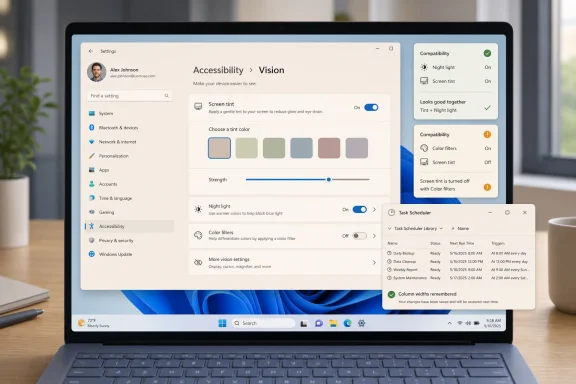
Microsoft released Windows 11 Insider Preview builds 26220.8680 for the Beta Channel and 28020.2298 for 26H1 testing on June 12, 2026, adding quieter Widgets defaults, a new Screen Tint accessibility feature, Magnifier improvements, File Explorer fixes, and update reliability changes. The headline is not that Windows 11 has gained another grab bag of small features. It is that Microsoft is slowly admitting that parts of the Windows 11 experience have been too noisy, too eager, and too willing to interrupt the user. This build is a useful snapshot of Windows development in 2026: less about one blockbuster feature, more about Microsoft sanding down the friction created by years of service-driven UI expansion.
Widgets have always carried a contradiction inside Windows 11. Microsoft presents them as glanceable, ambient, personalized information; many users experience them as a panel of prompts, badges, news cards, weather nudges, and engagement hooks. Build 26220.8680 is notable because Microsoft is not merely adding another widget or another feed option. It is changing the default posture of the feature.
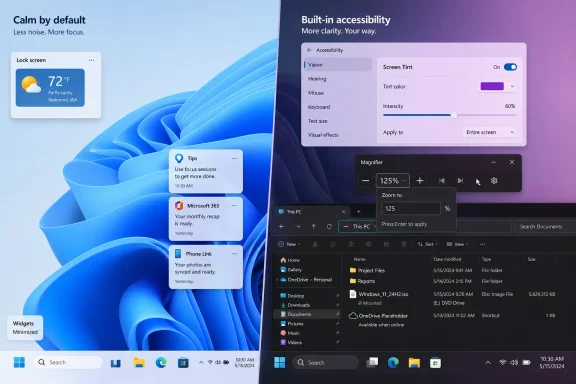
The new defaults make Widgets quiet by default. Open-on-hover is disabled, taskbar badging is turned off, Weather becomes the only default lock screen widget, and taskbar alerts are restricted. Microsoft is also limiting some alerts until the user has actually opened and engaged with the Widgets experience.
That sounds like a small configuration shift, but defaults matter more than settings pages. Most Windows users never fine-tune every corner of the shell; they live with whatever Microsoft ships. By making Widgets less aggressive out of the box, Microsoft is acknowledging that an attention surface in the taskbar must earn its place rather than assume it.
The change also separates passive utility from active interruption. Weather on the lock screen is low-stakes and familiar. A taskbar badge, especially a red one, implies something urgent. Microsoft’s decision to make badge color follow the Windows accent color instead of always using red is a minor visual tweak with a larger behavioral point: not every update from a widget deserves the psychological treatment of a security alert.
Microsoft’s latest change does not remove Widgets or concede that the feature was a mistake. Instead, it reframes Widgets as something closer to an optional dashboard than a taskbar companion constantly seeking engagement. Badges still exist, but Microsoft is moving more of the notification logic inside the Widgets navigation bar, where missed alerts can be attached to specific dashboards and clear when the user leaves that dashboard.
That is a healthier model. It keeps state inside the application experience instead of using the taskbar as a billboard. The practical difference is simple: the user should see Widgets information when they are in Widgets, not feel chased by Widgets when they are doing something else.
There is also an adaptive element. Microsoft says it will quiet the experience based on engagement patterns, reducing taskbar badging for users who barely interact with Widgets while preserving existing behavior for heavier users whose settings may already match their preferences. That is the sort of telemetry-driven adjustment that can either feel considerate or creepy depending on execution, but the intent is directionally right.
The risk, as always, is that Microsoft treats “quiet by default” as a temporary reset rather than a durable principle. Windows has a long memory of features that begin humbly, gather engagement targets, and return with more prompts later. For now, however, this build marks one of the more user-friendly turns in the Widgets story.
A lot of people do not think of eye strain, light sensitivity, migraines, or sensory fatigue as “accessibility” needs until software gives them a control that helps. Screen Tint offers six preset colors, a custom color option, and a strength slider that can range from a subtle wash to a much heavier overlay. It is simple, understandable, and exactly the kind of operating-system-level control that should not require third-party utilities.
The distinction from Night Light matters. Night Light warms the display to reduce blue light in the evening, mainly targeting sleep disruption. Screen Tint is about reducing overall intensity and easing daytime visual fatigue. Microsoft says the two can be used together, which is important because they solve related but different problems.
There is one limitation administrators and accessibility users should notice immediately: Screen Tint and Color Filters are mutually exclusive. Turning on one disables the other. That is understandable from a rendering and user-experience standpoint, but it means users who rely on Color Filters for color blindness or other visual needs may not be able to adopt Screen Tint without giving up a more essential accommodation.
This is where Microsoft’s accessibility work often becomes most interesting. The company has moved well beyond merely adding checkboxes for regulatory needs. Features like Screen Tint, better Magnifier controls, live captions, voice access, and improved narrator behavior reflect a more nuanced understanding that accessibility is not a separate mode for a small audience. It is a continuum of human comfort, endurance, and control.
Accessibility software lives or dies on repeatability. A user who needs 135 percent magnification should not have to fight a crude slider or cycle through increments that never land quite right. Exact values matter because accessibility is often about reducing cognitive and physical overhead across an entire workday.
The preset increments also make sense for shared and managed environments. Support staff can tell a user to try a specific magnification level. Trainers can document a workflow. Users can move between devices with less guesswork. A small toolbar improvement becomes a real operational improvement when it makes a tool more predictable.
Windows has accumulated decades of accessibility features, but some of them still carry the feel of legacy utilities rather than first-class system experiences. This Magnifier change suggests Microsoft is continuing to modernize the fit and finish of tools that many users depend on daily. In a build full of interface tweaks, that may be one of the most concrete quality-of-life wins.
The address bar now better handles paths containing double backslashes and quotation marks. That may sound obscure until you spend time with scripts, copied paths, command-line output, network locations, or support instructions pasted from documentation. File Explorer should be forgiving about common path formats, especially when users are moving between GUI and terminal workflows.
Microsoft also says it improved performance when mounting large ISO files by preventing Explorer from becoming unresponsive during SmartScreen checks. That is a classic Windows pain point: security scanning is necessary, but when the shell appears frozen, the user has no useful distinction between protection and failure. For IT pros working with deployment images, installers, lab media, or archived software, ISO handling is not a niche concern.
The address bar suggestion dropdown should now close reliably after an item is selected, and File Explorer Home should no longer show duplicated OneDrive files in Favorites. These are not architectural transformations. They are polish items, but polish in Explorer has unusually high value because the app is both a file manager and a system surface.
Rename behavior also gets attention. Microsoft says the update fixes repeated text selection during rename operations and ensures case-only name changes appear correctly in folder views for local and cloud-backed items. Anyone who has renamed files in bulk or cleaned up cloud-synced project folders knows how irritating small inconsistencies here can become.
Microsoft’s challenge is not simply to make Explorer faster. It has to make Explorer trustworthy. When a user renames a file, the new name should appear. When a favorite appears, it should not duplicate. When an ISO mounts, the shell should not hang in a way that makes the system feel unstable.
These are the kinds of fixes that rarely sell a Windows release but deeply shape perception. Windows users tend to forgive a missing experimental feature faster than they forgive the file manager misbehaving. Explorer is one of the few Windows components that almost every user touches, from home users dragging photos to administrators staging deployment files.
The Beta Channel is the right place for this work. Feature experiments can come and go, but File Explorer regressions need long exposure across varied hardware, storage backends, and enterprise configurations. The fact that Microsoft is spending Insider build space on these issues is encouraging, even if it also underscores how much complexity Explorer is carrying.
The emoji panel is no longer just a character picker. For many users, Windows key plus period is also a lightweight expression and sharing surface. GIF search depends on a provider, a content index, moderation choices, regional behavior, network reliability, and licensing arrangements. When Microsoft swaps providers, the user sees a different set of results even if the keyboard shortcut stays the same.
There is nothing inherently wrong with this. GIPHY is a well-known GIF platform, and users expect rich media search in modern messaging workflows. But it reinforces the service-ification of Windows, where parts of the operating system are not static features so much as clients for cloud-backed content.
For enterprises, the immediate concern is smaller: whether such features are manageable, blockable, or acceptable under internal policy. Consumer expression features can look harmless until they intersect with compliance, logging, content filtering, or regulated communications. Microsoft rarely frames emoji-panel changes in those terms, but administrators often have to.
WinRE has become more visible in recent years because recovery partitions, servicing failures, and security updates have repeatedly reminded administrators that the recovery environment is not an afterthought. If a device cannot recover cleanly, reset securely, or be serviced reliably, the elegance of the running OS matters less.
Extending remote management capabilities through MDM fits the direction of Windows administration. Microsoft wants more management to flow through cloud-based controls rather than legacy domain-era tooling. The hard part is ensuring that recovery operations remain reliable when devices are remote, intermittently connected, encrypted, user-held, or already in a degraded state.
This is not the sort of feature most users will ever open. But it belongs in the same story as the File Explorer and Windows Update fixes: Microsoft is still trying to make Windows 11 less brittle around the edges. The operating system’s modern management story is only as strong as its behavior when something goes wrong.
For Insiders, update errors are part of the bargain. Preview builds are not supposed to be production-stable. But the Beta Channel carries a different expectation than the wilder Canary or Experimental tracks. Many users treat Beta as a near-future preview of what ordinary Windows 11 systems may eventually receive.
That makes update reliability especially important. A flashy build that cannot install cleanly is not a successful build. A modest build that fixes installation failures earns more trust than a feature-heavy one that strands testers behind an error code.
The presence of both 26220.8680 and 28020.2298 also reflects the increasingly layered nature of Windows Insider testing. Microsoft is juggling current Windows 11 servicing, enablement-package tracks, and 26H1 development in parallel. For enthusiasts, that creates a steady stream of build numbers. For administrators, it creates a need to read release notes carefully instead of assuming all Insider channels represent the same future.
That Task Scheduler tweak is tiny but telling. Persisting column widths is the sort of behavior users assume software should already handle. When it does not, it gives old Windows utilities the feeling of being neglected. Fixing it will not trend on social media, but it matters to administrators who live in these tools.
The 26H1 label also invites speculation, but this build does not justify grand conclusions about the next major Windows release. Microsoft’s development model has blurred the old boundaries between annual releases, feature drops, enablement packages, and app-delivered updates. Features can appear in one channel, move sideways, disappear temporarily, or arrive through Store-delivered components.
That ambiguity is frustrating, but it is now part of Windows reality. The responsible reading of this build is not “this is what 26H1 will be.” It is that Microsoft is using overlapping Insider paths to stage refinements that may reach different users at different times. The more practical question is not which marketing version gets credit, but whether the changes survive testing and become broadly available.
That matters because Windows 11 has often felt like an operating system pulled between two identities. One is the workstation platform people rely on for serious, sometimes boring work. The other is a modern engagement surface full of feeds, cloud tie-ins, recommendations, alerts, and cross-device prompts. The best Windows builds are the ones where the first identity clearly governs the second.
The Widgets changes are the clearest example. Microsoft did not need to remove the feature to improve it. It needed to stop treating attention as an entitlement. A dashboard that waits for the user is more defensible than a dashboard that hovers, badges, and nags by default.
Screen Tint follows the same philosophy from a different direction. It gives control back to the user’s body rather than assuming one display profile fits every person for every hour of the day. In the long history of Windows features, that is a small addition. In the daily experience of someone with eye strain or light sensitivity, it may be the difference between tolerating and trusting the machine.
 Microsoft Finally Turns Down the Volume on Widgets
Widgets have always carried a contradiction inside Windows 11. Microsoft presents them as glanceable, ambient, personalized information; many users experience them as a panel of prompts, badges, news cards, weather nudges, and engagement hooks. Build 26220.8680 is notable because Microsoft is not merely adding another widget or another feed option. It is changing the default posture of the feature.The new defaults make Widgets quiet by default. Open-on-hover is disabled, taskbar badging is turned off, Weather becomes the only default lock screen widget, and taskbar alerts are restricted. Microsoft is also limiting some alerts until the user has actually opened and engaged with the Widgets experience.
That sounds like a small configuration shift, but defaults matter more than settings pages. Most Windows users never fine-tune every corner of the shell; they live with whatever Microsoft ships. By making Widgets less aggressive out of the box, Microsoft is acknowledging that an attention surface in the taskbar must earn its place rather than assume it.
The change also separates passive utility from active interruption. Weather on the lock screen is low-stakes and familiar. A taskbar badge, especially a red one, implies something urgent. Microsoft’s decision to make badge color follow the Windows accent color instead of always using red is a minor visual tweak with a larger behavioral point: not every update from a widget deserves the psychological treatment of a security alert.
The Badge Was the Product Strategy
Windows users have complained about Widgets for years not only because of what they show, but because of how they ask to be noticed. The taskbar is sacred territory in Windows. It is where running work lives, where pinned tools live, and where system state is communicated. Putting a feed-adjacent product there was always going to be contentious.Microsoft’s latest change does not remove Widgets or concede that the feature was a mistake. Instead, it reframes Widgets as something closer to an optional dashboard than a taskbar companion constantly seeking engagement. Badges still exist, but Microsoft is moving more of the notification logic inside the Widgets navigation bar, where missed alerts can be attached to specific dashboards and clear when the user leaves that dashboard.
That is a healthier model. It keeps state inside the application experience instead of using the taskbar as a billboard. The practical difference is simple: the user should see Widgets information when they are in Widgets, not feel chased by Widgets when they are doing something else.
There is also an adaptive element. Microsoft says it will quiet the experience based on engagement patterns, reducing taskbar badging for users who barely interact with Widgets while preserving existing behavior for heavier users whose settings may already match their preferences. That is the sort of telemetry-driven adjustment that can either feel considerate or creepy depending on execution, but the intent is directionally right.
The risk, as always, is that Microsoft treats “quiet by default” as a temporary reset rather than a durable principle. Windows has a long memory of features that begin humbly, gather engagement targets, and return with more prompts later. For now, however, this build marks one of the more user-friendly turns in the Widgets story.
Screen Tint Extends Accessibility Beyond Compliance
The new Screen Tint setting is the most broadly useful feature in this release. It applies a color overlay across the entire display, letting users soften screen intensity during long sessions. Microsoft positions it under Accessibility’s Vision section, but the audience is wider than the traditional accessibility framing suggests.A lot of people do not think of eye strain, light sensitivity, migraines, or sensory fatigue as “accessibility” needs until software gives them a control that helps. Screen Tint offers six preset colors, a custom color option, and a strength slider that can range from a subtle wash to a much heavier overlay. It is simple, understandable, and exactly the kind of operating-system-level control that should not require third-party utilities.
The distinction from Night Light matters. Night Light warms the display to reduce blue light in the evening, mainly targeting sleep disruption. Screen Tint is about reducing overall intensity and easing daytime visual fatigue. Microsoft says the two can be used together, which is important because they solve related but different problems.
There is one limitation administrators and accessibility users should notice immediately: Screen Tint and Color Filters are mutually exclusive. Turning on one disables the other. That is understandable from a rendering and user-experience standpoint, but it means users who rely on Color Filters for color blindness or other visual needs may not be able to adopt Screen Tint without giving up a more essential accommodation.
This is where Microsoft’s accessibility work often becomes most interesting. The company has moved well beyond merely adding checkboxes for regulatory needs. Features like Screen Tint, better Magnifier controls, live captions, voice access, and improved narrator behavior reflect a more nuanced understanding that accessibility is not a separate mode for a small audience. It is a continuum of human comfort, endurance, and control.
Magnifier Gets the Kind of Precision Windows Should Have Had Already
Magnifier also receives a practical upgrade in this build. Users can now type an exact zoom percentage directly into the toolbar, and Microsoft has added preset step increments ranging from 5 percent to 400 percent. This is not glamorous work, but it is the kind of refinement that determines whether an assistive tool feels professional or improvised.Accessibility software lives or dies on repeatability. A user who needs 135 percent magnification should not have to fight a crude slider or cycle through increments that never land quite right. Exact values matter because accessibility is often about reducing cognitive and physical overhead across an entire workday.
The preset increments also make sense for shared and managed environments. Support staff can tell a user to try a specific magnification level. Trainers can document a workflow. Users can move between devices with less guesswork. A small toolbar improvement becomes a real operational improvement when it makes a tool more predictable.
Windows has accumulated decades of accessibility features, but some of them still carry the feel of legacy utilities rather than first-class system experiences. This Magnifier change suggests Microsoft is continuing to modernize the fit and finish of tools that many users depend on daily. In a build full of interface tweaks, that may be one of the most concrete quality-of-life wins.
File Explorer Receives the Boring Fixes That Actually Matter
File Explorer changes rarely dominate a Windows Insider release, but they are often the updates that matter most to people who use Windows professionally. This build includes several Explorer fixes that target reliability and edge cases rather than visual redesign. That is good news, because Explorer’s problem in recent Windows 11 builds has not been a lack of ambition. It has been consistency.The address bar now better handles paths containing double backslashes and quotation marks. That may sound obscure until you spend time with scripts, copied paths, command-line output, network locations, or support instructions pasted from documentation. File Explorer should be forgiving about common path formats, especially when users are moving between GUI and terminal workflows.
Microsoft also says it improved performance when mounting large ISO files by preventing Explorer from becoming unresponsive during SmartScreen checks. That is a classic Windows pain point: security scanning is necessary, but when the shell appears frozen, the user has no useful distinction between protection and failure. For IT pros working with deployment images, installers, lab media, or archived software, ISO handling is not a niche concern.
The address bar suggestion dropdown should now close reliably after an item is selected, and File Explorer Home should no longer show duplicated OneDrive files in Favorites. These are not architectural transformations. They are polish items, but polish in Explorer has unusually high value because the app is both a file manager and a system surface.
Rename behavior also gets attention. Microsoft says the update fixes repeated text selection during rename operations and ensures case-only name changes appear correctly in folder views for local and cloud-backed items. Anyone who has renamed files in bulk or cleaned up cloud-synced project folders knows how irritating small inconsistencies here can become.
The Cloud Has Made Explorer’s Old Assumptions Fragile
The OneDrive and rename fixes point to a broader truth about File Explorer: it is now expected to present local files, cloud placeholders, synced folders, search-backed views, compressed archives, removable media, and mounted disk images as if they all behave the same way. They do not. Windows 11 often asks Explorer to hide that complexity, and the cracks show up as duplicate entries, stale names, delayed updates, and odd context behavior.Microsoft’s challenge is not simply to make Explorer faster. It has to make Explorer trustworthy. When a user renames a file, the new name should appear. When a favorite appears, it should not duplicate. When an ISO mounts, the shell should not hang in a way that makes the system feel unstable.
These are the kinds of fixes that rarely sell a Windows release but deeply shape perception. Windows users tend to forgive a missing experimental feature faster than they forgive the file manager misbehaving. Explorer is one of the few Windows components that almost every user touches, from home users dragging photos to administrators staging deployment files.
The Beta Channel is the right place for this work. Feature experiments can come and go, but File Explorer regressions need long exposure across varied hardware, storage backends, and enterprise configurations. The fact that Microsoft is spending Insider build space on these issues is encouraging, even if it also underscores how much complexity Explorer is carrying.
Emoji, GIFs, and the Quiet Politics of Provider Swaps
The emoji panel now uses GIPHY as its GIF provider following the deprecation of Tenor. On paper, this is a small input feature update. In practice, it is a reminder that modern operating systems increasingly depend on service relationships that can change underneath familiar UI.The emoji panel is no longer just a character picker. For many users, Windows key plus period is also a lightweight expression and sharing surface. GIF search depends on a provider, a content index, moderation choices, regional behavior, network reliability, and licensing arrangements. When Microsoft swaps providers, the user sees a different set of results even if the keyboard shortcut stays the same.
There is nothing inherently wrong with this. GIPHY is a well-known GIF platform, and users expect rich media search in modern messaging workflows. But it reinforces the service-ification of Windows, where parts of the operating system are not static features so much as clients for cloud-backed content.
For enterprises, the immediate concern is smaller: whether such features are manageable, blockable, or acceptable under internal policy. Consumer expression features can look harmless until they intersect with compliance, logging, content filtering, or regulated communications. Microsoft rarely frames emoji-panel changes in those terms, but administrators often have to.
Recovery Management Moves Toward the MDM Era
The release also adds a recovery remote management plug-in for extending Windows Recovery Environment management capabilities for MDM providers. That line will not excite consumers, but it may be one of the more strategically important items in the build for managed fleets.WinRE has become more visible in recent years because recovery partitions, servicing failures, and security updates have repeatedly reminded administrators that the recovery environment is not an afterthought. If a device cannot recover cleanly, reset securely, or be serviced reliably, the elegance of the running OS matters less.
Extending remote management capabilities through MDM fits the direction of Windows administration. Microsoft wants more management to flow through cloud-based controls rather than legacy domain-era tooling. The hard part is ensuring that recovery operations remain reliable when devices are remote, intermittently connected, encrypted, user-held, or already in a degraded state.
This is not the sort of feature most users will ever open. But it belongs in the same story as the File Explorer and Windows Update fixes: Microsoft is still trying to make Windows 11 less brittle around the edges. The operating system’s modern management story is only as strong as its behavior when something goes wrong.
Windows Update Gets a Reminder That Reliability Is a Feature
Microsoft says the update resolves error 0x800f0843 for users who saw it while attempting to install the previous update. That is a single bug fix, but it lands in a sensitive place. Windows Update failures are among the most frustrating problems in the ecosystem because they leave users between states: not fully broken, not fully current, and often unsure whether retrying will help.For Insiders, update errors are part of the bargain. Preview builds are not supposed to be production-stable. But the Beta Channel carries a different expectation than the wilder Canary or Experimental tracks. Many users treat Beta as a near-future preview of what ordinary Windows 11 systems may eventually receive.
That makes update reliability especially important. A flashy build that cannot install cleanly is not a successful build. A modest build that fixes installation failures earns more trust than a feature-heavy one that strands testers behind an error code.
The presence of both 26220.8680 and 28020.2298 also reflects the increasingly layered nature of Windows Insider testing. Microsoft is juggling current Windows 11 servicing, enablement-package tracks, and 26H1 development in parallel. For enthusiasts, that creates a steady stream of build numbers. For administrators, it creates a need to read release notes carefully instead of assuming all Insider channels represent the same future.
26H1 Is Present, but Not Yet the Main Character
Build 28020.2298 carries the 26H1 label, while build 26220.8680 sits in the Beta Channel stream. Some features, including Screen Tint, appear in both. Other changes are specifically marked as 26H1-only, such as Task Scheduler persisting column width adjustments in task list view across sessions.That Task Scheduler tweak is tiny but telling. Persisting column widths is the sort of behavior users assume software should already handle. When it does not, it gives old Windows utilities the feeling of being neglected. Fixing it will not trend on social media, but it matters to administrators who live in these tools.
The 26H1 label also invites speculation, but this build does not justify grand conclusions about the next major Windows release. Microsoft’s development model has blurred the old boundaries between annual releases, feature drops, enablement packages, and app-delivered updates. Features can appear in one channel, move sideways, disappear temporarily, or arrive through Store-delivered components.
That ambiguity is frustrating, but it is now part of Windows reality. The responsible reading of this build is not “this is what 26H1 will be.” It is that Microsoft is using overlapping Insider paths to stage refinements that may reach different users at different times. The more practical question is not which marketing version gets credit, but whether the changes survive testing and become broadly available.
The Real Story Is a Less Needy Windows
Taken together, the build’s changes share a theme: Windows is becoming slightly less needy. Widgets interrupt less. Screen Tint gives the user more control over visual intensity. Magnifier accepts precise input. Explorer handles more cases without stumbling. Windows Update fixes an install blocker. These are not revolutionary additions; they are acts of restraint and repair.That matters because Windows 11 has often felt like an operating system pulled between two identities. One is the workstation platform people rely on for serious, sometimes boring work. The other is a modern engagement surface full of feeds, cloud tie-ins, recommendations, alerts, and cross-device prompts. The best Windows builds are the ones where the first identity clearly governs the second.
The Widgets changes are the clearest example. Microsoft did not need to remove the feature to improve it. It needed to stop treating attention as an entitlement. A dashboard that waits for the user is more defensible than a dashboard that hovers, badges, and nags by default.
Screen Tint follows the same philosophy from a different direction. It gives control back to the user’s body rather than assuming one display profile fits every person for every hour of the day. In the long history of Windows features, that is a small addition. In the daily experience of someone with eye strain or light sensitivity, it may be the difference between tolerating and trusting the machine.
The Most Important Changes Are the Ones Users Stop Noticing
The concrete lesson from build 26220.8680 and 28020.2298 is that Microsoft’s Windows work is increasingly about reducing accumulated annoyance rather than inventing entirely new categories of desktop computing. That may disappoint anyone waiting for a dramatic Windows renaissance. It should reassure users who mostly want the OS to stay out of the way.- Windows Widgets are being reconfigured to be quieter by default, with fewer taskbar interruptions and less urgent visual badging.
- Screen Tint adds a system-level color overlay for users who need reduced display intensity during long sessions.
- Magnifier now supports exact zoom percentages and useful preset increments, making it more predictable for accessibility workflows.
- File Explorer receives practical fixes for path handling, ISO mounting, OneDrive duplication, address bar behavior, and rename reliability.
- Windows Update should no longer hit error 0x800f0843 when installing the previous Beta update.
- The 26H1 build includes smaller management and utility refinements, but the build should be read as preview plumbing rather than a full picture of the next Windows release.
References
- Primary source: Neowin
Published: Fri, 12 Jun 2026 17:33:00 GMT
Windows 11 gets better widgets, new Screen Tint feature, and more in the latest build - Neowin
Two new Windows 11 Beta builds are now out, and they are full of new features, including some long-requested improvements. www.neowin.net
- Official source: blogs.windows.com
Announcing new builds for 22 May 2026
Hello Windows Insiders, Today, we continue to expand the rollout of the new Windows Insider Program changes to devices in channels already announced. As a reminder, we have not yet begun moving devices in the Canary 29500 Series Channelblogs.windows.com - Related coverage: windowscentral.com
New Windows 11 Insider build adds surprising features | Windows Central
Windows 11’s December Insider update adds new features — and some unexpected AI magicwww.windowscentral.com - Official source: learn.microsoft.com
Flight Hub - Windows Insider Program | Microsoft Learn
Flight schedules and status for Windows Insider Programlearn.microsoft.com - Related coverage: betawiki.net
- Related coverage: computerworld.com
Windows 11 Insider Previews: What’s in the latest build? – Computerworld
Get the latest info on new preview builds of Windows 11 as they roll out to Windows Insiders. Now updated for the June 26, 2026 releases for the Beta, Beta 26H1, Experimental, Experimental 26H1, and Experimental Future Platforms Channels. www.computerworld.com