

Microsoft released Windows 11 Insider Experimental (Future Platforms) Preview Build 29617.1000 on June 26, 2026, for Windows Insiders in the Canary 29600 series, and its most consequential change is a new unified update model intended to reduce monthly restarts. The build is not a consumer milestone, and Microsoft is careful to say these features are not tied to a specific Windows release. But buried inside this experimental flight is a serious admission: the Windows update experience has become too fragmented, too noisy, and too disruptive. If Microsoft can make one monthly reboot the norm rather than the exception, this could matter more to everyday users than another Start menu redesign ever would.
For years, Windows users have learned to treat update restarts as part of the operating system’s background weather. Sometimes the restart is for Windows itself. Sometimes it is for a driver, firmware package, .NET update, or security fix that arrives adjacent to, but not quite inside, the familiar monthly rhythm.
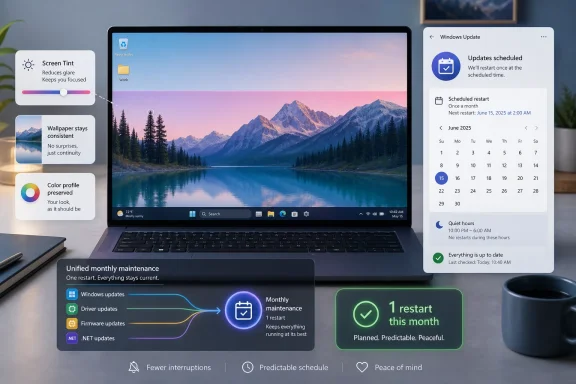
Build 29617.1000 points at a different future. Microsoft says it is beginning to coordinate driver, .NET, and firmware updates with the monthly quality update, with the goal of reducing the experience to a single monthly restart. That sounds modest until you remember how much of Windows annoyance is not caused by one dramatic failure, but by small interruptions repeated over time.
This is the sort of plumbing change that rarely gets a launch video but often determines whether a platform feels mature. Windows 11 has spent much of its life trying to look calmer than Windows 10, with softer visuals, centered icons, and a more curated Settings app. Yet the servicing layer underneath has often felt like the same restless machine, interrupting users at moments that make the operating system feel less like a tool and more like a tenant.
The new unified update experience is Microsoft trying to align the emotional reality of Windows with the engineering reality of Windows. The company cannot eliminate patching, especially not in a world where firmware, drivers, runtimes, browsers, and app frameworks all carry security risk. But it can make the interruption feel scheduled, legible, and finite.
Users tolerate maintenance when they understand the bargain. Smartphones update overnight. Browsers patch silently. Game consoles demand a wait, but usually at a predictable point in the interaction. Windows, by contrast, still carries the reputation of an operating system that asks for attention when the user has already moved on to something else.
That reputation is not always fair to modern Windows. Active hours, restart scheduling, improved notification controls, and cumulative updates have made the platform less chaotic than it once was. But the lived experience of many PCs is still messier than Microsoft’s servicing diagrams suggest, especially on machines with OEM firmware utilities, peripheral drivers, graphics stacks, and enterprise management agents all pulling in slightly different directions.
The unified update effort is important because it acknowledges that the restart is the part users remember. They do not care whether the culprit was a firmware capsule or a .NET runtime. They remember that the machine wanted to reboot again.
For IT administrators, the promise matters in a different way. A predictable monthly servicing window is easier to communicate, easier to test, and easier to defend. Every additional restart carries an operational cost, whether that cost is a failed kiosk session, a remote worker delaying a reboot for a week, or a help desk ticket from someone who thinks their laptop is “stuck updating.”
That disclaimer matters, but it should not cause us to dismiss the change. The Windows Insider Program has always been part preview channel, part telemetry machine, and part public negotiation. Microsoft uses these builds not only to test code, but to test whether a concept survives contact with real hardware, real drivers, and real user impatience.
The update unification effort is especially suited to that environment because the risk is not just whether a UI toggle works. The question is whether Microsoft can coordinate update classes that historically have different owners, cadences, and failure modes. Firmware updates are not desktop wallpaper packs. Driver updates can be surprisingly hardware-specific. .NET servicing touches application compatibility. Windows quality updates carry the monthly burden of security and reliability.
Getting all of that to behave as one coherent maintenance event is less a feature than an operating discipline. The experimental channel gives Microsoft a place to find out whether that discipline holds.
That sprawl is why users can see multiple update prompts in a month even when Microsoft’s official quality update cycle is predictable. A PC is not just a Windows installation; it is a motherboard firmware version, a GPU driver, a Bluetooth stack, an audio endpoint, a camera driver, a storage controller, and a collection of Microsoft and third-party runtimes. Each has its own servicing pressure.
The optimistic reading of Build 29617.1000 is that Microsoft is finally treating this as a whole-system experience. The pessimistic reading is that Microsoft is consolidating complexity behind a nicer message. Both can be true at once.
A single monthly restart is only a win if it does not become a single monthly failure point. When more update types are coordinated together, the user may get fewer interruptions, but the servicing event itself becomes more important. If a driver update fails, if firmware installation stalls, or if a .NET update creates compatibility trouble, administrators will want clear logs, rollback behavior, and policy controls that match the ambition of the new model.
Microsoft’s modern Windows strategy often rests on this tradeoff: reduce visible complexity for ordinary users while giving IT enough control to avoid being trapped by the simplification. The success of unified updates will depend on whether both halves of that sentence survive.
Screen Tint is not Night Light with a new coat of paint. Night Light warms the display, primarily to reduce blue light exposure in the evening. Screen Tint is aimed at reducing overall screen intensity during the day, especially for users who experience eye strain, light sensitivity, or discomfort from bright and saturated displays.
The distinction matters because screen comfort is not one problem. Some users want warmer color temperature at night. Others need the display to feel less harsh at 10 a.m. under office lighting. Some users rely on color filters for visibility or color perception reasons. Microsoft says Screen Tint and Color Filters cannot be enabled simultaneously, which is a practical limitation that accessibility users will need to test carefully.
The feature includes six preset colors, a custom color option, and a strength slider. That last piece is important because accessibility settings fail when they assume a universal threshold. The difference between a helpful tint and an unusable wash can be personal, display-specific, and environment-dependent.
Magnifier now allows users to type an exact zoom percentage directly into the toolbar. It also adds preset increments including 5, 10, 25, 50, 100, 150, 200, and 400 percent. That sounds minor unless you rely on Magnifier daily, in which case repeated clicking and imprecise scaling are not minor at all.
Voice Access expands language support to Portuguese for Portugal, Portuguese for Brazil, and Korean for South Korea. That expansion is part of a slow but important shift in Windows accessibility from “available in principle” to usable across more of the world. Voice-driven control is only as inclusive as its language coverage, recognition quality, and command consistency.
Audio settings also continue their migration out of the old Control Panel. In this build, Microsoft has adjusted descriptions for audio device controls and moved “Listen to this device” into modern Settings. That migration has been painfully gradual, but every relocated option reduces the number of times users must spelunk through a legacy interface that feels increasingly out of place in Windows 11.
This is the Windows 11 cleanup project in miniature. The operating system is not only being modernized by adding new surfaces, but by sanding down the edges where old Windows and new Windows still collide.
Audio has long been one of the areas where modern Settings felt incomplete. Users could change basic output and input choices, but advanced behaviors often sent them back to legacy sound dialogs. “Listen to this device” is a perfect example: not glamorous, not widely discussed, but important to people routing audio from microphones, capture devices, line-in sources, or unusual hardware setups.
Moving that option into Settings is a small declaration that the modern app is supposed to be a complete administrative surface, not a decorative front end. That is the right direction, though Microsoft still has work to do before power users stop treating Settings as a waiting room for the real controls.
The danger is that the migration can flatten nuance. Legacy Windows dialogs are often ugly, inconsistent, and intimidating, but they also expose dense controls that experienced users know how to manipulate. Modern Settings must not become a place where advanced functionality is hidden, simplified into uselessness, or scattered across search results.
If Microsoft wants users to trust Settings, it must make it both approachable and complete. Build 29617.1000 suggests progress, but the larger war is still unfinished.
Dev Drive is meant for development workloads, where large repositories, package caches, build outputs, and virtual environments can create messy storage patterns. Asking users to think in megabytes for modern volume sizing is the kind of design mismatch that makes a feature feel unfinished. Gigabytes are the natural unit for the task.
This is a good example of Microsoft correcting a usability papercut before it hardens into institutional weirdness. Windows has accumulated many such papercuts over decades, often because engineering-valid choices escaped into user-facing workflows. A storage dialog that accepts GB is not revolutionary. It is simply the software meeting the user at the scale of the job.
That matters for Windows as a developer platform. Microsoft spends heavily to court developers through Windows Subsystem for Linux, Dev Home, winget, Dev Drive, and improved terminal tooling. But developers are unusually sensitive to workflow friction because they repeat small operations constantly. A minor annoyance in a setup path becomes part of the platform’s reputation.
Polish debt is what accumulates when an operating system mostly works but occasionally embarrasses itself. A wallpaper reverting to a flat color is not a catastrophic bug. A mismatched accent color is not a security incident. But together, these things make Windows feel less reliable, less premium, and less under control.
The same is true for display color profile persistence. For casual users, color profiles may be invisible. For photographers, designers, video editors, and anyone with calibrated monitors, unreliable profile handling can be more than an annoyance. It can undermine confidence in the machine as a professional tool.
Windows has always had to serve wildly different audiences on wildly different hardware. That breadth is its strength and its curse. A gaming desktop, a school laptop, a CAD workstation, and a call-center thin client all run under the same brand. Reliability improvements in personalization and color management help Microsoft maintain the illusion that one operating system can feel coherent across all of them.
The lesson is that polish is not superficial. It is how users infer whether deeper things are trustworthy.
On macOS and many Linux desktop environments, workspace switching is a core part of the user’s spatial model. On Windows, virtual desktops arrived later and have steadily improved, but they can still feel like a layer placed on top of the shell rather than a principle built into it. Explorer instability during desktop switching undermines that illusion.
This matters more as multitasking patterns change. Remote work, ultrawide monitors, docking stations, virtual machines, and browser-heavy workflows all encourage users to separate contexts rather than merely stack windows. A reliable desktop switch is not eye candy; it is part of how modern knowledge workers keep tasks mentally organized.
Explorer remains one of the most consequential processes in Windows because it is not merely a file manager. It is the shell, the taskbar’s neighbor, the desktop’s caretaker, and the surface through which users judge system responsiveness. Reliability fixes here carry more weight than their release-note brevity suggests.
That may sound like inside baseball, but channel naming affects how people interpret risk. “Canary” has long implied early, unstable, don’t-put-this-on-your-work-machine software. “Experimental (Future Platforms)” is arguably clearer in one sense because it says the quiet part out loud: these builds are not necessarily previews of the next Windows release. They are a proving ground.
The problem is that Windows watchers naturally want to map every build to a product timeline. Is this 26H1? Is it Windows 12 groundwork? Is it a future Windows 11 feature drop? Microsoft’s answer, effectively, is that the platform work is not matched to a specific release. That answer is responsible, but it also makes coverage messier.
For users, the practical rule is simple: do not install this build because you want the new update model on your daily PC. Install it only if you accept the bargain of early platform testing. For administrators, the build is more useful as a signal than as a deployment target.
The signal is that Microsoft’s servicing, accessibility, and Settings modernization work is moving in a particular direction. The shipping vehicle remains uncertain.
Controlled rollouts let Microsoft catch regressions before they affect the entire Insider population. They also let the company compare feedback across cohorts, adjust server-side enablement, and reduce the blast radius of broken experiences. For a platform as broad as Windows, that caution is defensible.
But it creates a strange social reality. Two users can compare the same build number and see different operating systems. One has Screen Tint; another does not. One sees a setting; another assumes the article was wrong. This ambiguity erodes the old certainty that a build number was a complete description of the software.
Windows is increasingly a serviced product rather than a fixed artifact. That has been true for years, but controlled rollouts make it visible. The OS on your PC is not merely the build you installed; it is the build plus feature flags, rollout eligibility, hardware conditions, region, language, policy, and sometimes Microsoft’s confidence level.
For enthusiasts, that is annoying. For enterprise IT, it is a governance issue. Predictability is not just about code quality; it is about knowing what is present, what is coming, and what can be controlled.
If Microsoft coordinates more update types into one monthly event, administrators will ask obvious questions. Which drivers are included? How are firmware updates staged? Can organizations opt out of certain categories while keeping the unified cadence? What happens when a firmware update requires vendor-specific behavior? How does this interact with Windows Update for Business, Autopatch, Intune, Configuration Manager, and OEM tooling?
Those answers are not fully contained in Build 29617.1000, and it would be premature to pretend otherwise. The experimental build is a direction marker, not an enterprise deployment guide. Still, the direction is significant because it aligns with what administrators have wanted for years: fewer random-seeming interruptions and a more coherent servicing calendar.
There is a risk, however, that “fewer restarts” becomes a consumer slogan while enterprise reality remains complicated. A fleet with specialized hardware, strict uptime requirements, or regulated validation procedures may not benefit from consolidation unless Microsoft exposes the right controls. If the new model hides too much, it could trade visible annoyance for invisible risk.
The best version of this idea gives home users simplicity and gives IT professionals knobs. Windows has often struggled when it tries to give both audiences the same interface.
For most users, the issue has never been that Windows updates exist. Security-minded users understand patching. Administrators certainly understand patching. The issue is that Windows updates have too often felt like a series of uncoordinated demands from different parts of the same machine.
That feeling is corrosive. It trains users to postpone restarts, ignore prompts, disable mechanisms they should leave alone, or treat every update as a threat to productivity. In the worst cases, annoyance becomes a security problem because a user who distrusts the update process delays the update itself.
Microsoft’s challenge is to make the secure path the least irritating path. A single monthly restart is not just a quality-of-life improvement; it is a behavioral intervention. If users believe the machine will ask once, at a predictable time, they are more likely to comply.
The company has spent years telling users that Windows is modern, intelligent, and cloud-connected. Now it has to make the maintenance experience feel that way.
The most encouraging thing about Build 29617.1000 is also the least glamorous: it treats friction as a first-class bug. If Microsoft can carry that philosophy from the Experimental channel into mainstream Windows, the next meaningful Windows improvement may not be something users notice on day one. It may be something they stop noticing altogether — the extra reboot that never comes, the wallpaper that does not vanish, the audio setting that is finally where it belongs, and the monthly maintenance ritual that feels less like an ambush and more like a schedule.
 Microsoft Is Treating Reboots as a Product Problem, Not Just a Servicing Detail
For years, Windows users have learned to treat update restarts as part of the operating system’s background weather. Sometimes the restart is for Windows itself. Sometimes it is for a driver, firmware package, .NET update, or security fix that arrives adjacent to, but not quite inside, the familiar monthly rhythm.Build 29617.1000 points at a different future. Microsoft says it is beginning to coordinate driver, .NET, and firmware updates with the monthly quality update, with the goal of reducing the experience to a single monthly restart. That sounds modest until you remember how much of Windows annoyance is not caused by one dramatic failure, but by small interruptions repeated over time.
This is the sort of plumbing change that rarely gets a launch video but often determines whether a platform feels mature. Windows 11 has spent much of its life trying to look calmer than Windows 10, with softer visuals, centered icons, and a more curated Settings app. Yet the servicing layer underneath has often felt like the same restless machine, interrupting users at moments that make the operating system feel less like a tool and more like a tenant.
The new unified update experience is Microsoft trying to align the emotional reality of Windows with the engineering reality of Windows. The company cannot eliminate patching, especially not in a world where firmware, drivers, runtimes, browsers, and app frameworks all carry security risk. But it can make the interruption feel scheduled, legible, and finite.
The One-Restart Promise Is Really About Trust
The phrase “one monthly restart” does a lot of work here. It is not simply a convenience claim. It is a trust claim.Users tolerate maintenance when they understand the bargain. Smartphones update overnight. Browsers patch silently. Game consoles demand a wait, but usually at a predictable point in the interaction. Windows, by contrast, still carries the reputation of an operating system that asks for attention when the user has already moved on to something else.
That reputation is not always fair to modern Windows. Active hours, restart scheduling, improved notification controls, and cumulative updates have made the platform less chaotic than it once was. But the lived experience of many PCs is still messier than Microsoft’s servicing diagrams suggest, especially on machines with OEM firmware utilities, peripheral drivers, graphics stacks, and enterprise management agents all pulling in slightly different directions.
The unified update effort is important because it acknowledges that the restart is the part users remember. They do not care whether the culprit was a firmware capsule or a .NET runtime. They remember that the machine wanted to reboot again.
For IT administrators, the promise matters in a different way. A predictable monthly servicing window is easier to communicate, easier to test, and easier to defend. Every additional restart carries an operational cost, whether that cost is a failed kiosk session, a remote worker delaying a reboot for a week, or a help desk ticket from someone who thinks their laptop is “stuck updating.”
Experimental Builds Are Where Microsoft Floats the Uncomfortable Ideas
The awkward caveat is that Build 29617.1000 sits in the Experimental (Future Platforms) lane, mapped to the Canary 29600 series during Microsoft’s transition to a restructured Windows Insider Program. That means this is not a promise for next month’s Patch Tuesday, nor a guaranteed Windows 11 feature update. Microsoft explicitly frames these builds as early platform work that may change, disappear, or never ship outside the Insider population.That disclaimer matters, but it should not cause us to dismiss the change. The Windows Insider Program has always been part preview channel, part telemetry machine, and part public negotiation. Microsoft uses these builds not only to test code, but to test whether a concept survives contact with real hardware, real drivers, and real user impatience.
The update unification effort is especially suited to that environment because the risk is not just whether a UI toggle works. The question is whether Microsoft can coordinate update classes that historically have different owners, cadences, and failure modes. Firmware updates are not desktop wallpaper packs. Driver updates can be surprisingly hardware-specific. .NET servicing touches application compatibility. Windows quality updates carry the monthly burden of security and reliability.
Getting all of that to behave as one coherent maintenance event is less a feature than an operating discipline. The experimental channel gives Microsoft a place to find out whether that discipline holds.
Windows Update Has Been Carrying Too Many Jobs
Windows Update is no longer just Windows Update. It is the channel through which Microsoft repairs the OS, services runtimes, delivers drivers, stages enablement packages, updates components, and coordinates with OEM firmware mechanisms. The branding stayed simple while the job grew sprawling.That sprawl is why users can see multiple update prompts in a month even when Microsoft’s official quality update cycle is predictable. A PC is not just a Windows installation; it is a motherboard firmware version, a GPU driver, a Bluetooth stack, an audio endpoint, a camera driver, a storage controller, and a collection of Microsoft and third-party runtimes. Each has its own servicing pressure.
The optimistic reading of Build 29617.1000 is that Microsoft is finally treating this as a whole-system experience. The pessimistic reading is that Microsoft is consolidating complexity behind a nicer message. Both can be true at once.
A single monthly restart is only a win if it does not become a single monthly failure point. When more update types are coordinated together, the user may get fewer interruptions, but the servicing event itself becomes more important. If a driver update fails, if firmware installation stalls, or if a .NET update creates compatibility trouble, administrators will want clear logs, rollback behavior, and policy controls that match the ambition of the new model.
Microsoft’s modern Windows strategy often rests on this tradeoff: reduce visible complexity for ordinary users while giving IT enough control to avoid being trapped by the simplification. The success of unified updates will depend on whether both halves of that sentence survive.
The Accessibility Story Is More Than a Sidecar Feature
The other major addition in Build 29617.1000 is Screen Tint, a new accessibility setting that overlays a customizable color tint across the entire display. It is easy to file that under “nice to have,” but that would miss why the feature fits this build’s larger theme. Microsoft is trying to make Windows less physically irritating.Screen Tint is not Night Light with a new coat of paint. Night Light warms the display, primarily to reduce blue light exposure in the evening. Screen Tint is aimed at reducing overall screen intensity during the day, especially for users who experience eye strain, light sensitivity, or discomfort from bright and saturated displays.
The distinction matters because screen comfort is not one problem. Some users want warmer color temperature at night. Others need the display to feel less harsh at 10 a.m. under office lighting. Some users rely on color filters for visibility or color perception reasons. Microsoft says Screen Tint and Color Filters cannot be enabled simultaneously, which is a practical limitation that accessibility users will need to test carefully.
The feature includes six preset colors, a custom color option, and a strength slider. That last piece is important because accessibility settings fail when they assume a universal threshold. The difference between a helpful tint and an unusable wash can be personal, display-specific, and environment-dependent.
Microsoft’s Best Windows Work Is Happening in the Margins
Build 29617.1000 is not a flashy release, and that is precisely why it is interesting. The most meaningful Windows improvements now often arrive as friction reducers rather than headline features. They are small changes to Magnifier, Sound Settings, storage dialogs, wallpaper handling, and color profile persistence.Magnifier now allows users to type an exact zoom percentage directly into the toolbar. It also adds preset increments including 5, 10, 25, 50, 100, 150, 200, and 400 percent. That sounds minor unless you rely on Magnifier daily, in which case repeated clicking and imprecise scaling are not minor at all.
Voice Access expands language support to Portuguese for Portugal, Portuguese for Brazil, and Korean for South Korea. That expansion is part of a slow but important shift in Windows accessibility from “available in principle” to usable across more of the world. Voice-driven control is only as inclusive as its language coverage, recognition quality, and command consistency.
Audio settings also continue their migration out of the old Control Panel. In this build, Microsoft has adjusted descriptions for audio device controls and moved “Listen to this device” into modern Settings. That migration has been painfully gradual, but every relocated option reduces the number of times users must spelunk through a legacy interface that feels increasingly out of place in Windows 11.
This is the Windows 11 cleanup project in miniature. The operating system is not only being modernized by adding new surfaces, but by sanding down the edges where old Windows and new Windows still collide.
The Control Panel Is Losing by Attrition
Microsoft has been trying to move Windows away from Control Panel for so long that the process itself has become a running joke. But the reality is less dramatic and more relentless. Control Panel is not being killed in one theatrical act. It is being made less necessary one setting at a time.Audio has long been one of the areas where modern Settings felt incomplete. Users could change basic output and input choices, but advanced behaviors often sent them back to legacy sound dialogs. “Listen to this device” is a perfect example: not glamorous, not widely discussed, but important to people routing audio from microphones, capture devices, line-in sources, or unusual hardware setups.
Moving that option into Settings is a small declaration that the modern app is supposed to be a complete administrative surface, not a decorative front end. That is the right direction, though Microsoft still has work to do before power users stop treating Settings as a waiting room for the real controls.
The danger is that the migration can flatten nuance. Legacy Windows dialogs are often ugly, inconsistent, and intimidating, but they also expose dense controls that experienced users know how to manipulate. Modern Settings must not become a place where advanced functionality is hidden, simplified into uselessness, or scattered across search results.
If Microsoft wants users to trust Settings, it must make it both approachable and complete. Build 29617.1000 suggests progress, but the larger war is still unfinished.
Developers Get a Small Fix That Says Microsoft Is Listening
The Dev Drive change in this build is almost comically practical: Windows now supports specifying storage sizes in gigabytes rather than only megabytes when creating a Dev Drive or changing volume sizes in Settings. Nobody is going to buy a Copilot+ PC because of that. Developers, however, will immediately understand why it matters.Dev Drive is meant for development workloads, where large repositories, package caches, build outputs, and virtual environments can create messy storage patterns. Asking users to think in megabytes for modern volume sizing is the kind of design mismatch that makes a feature feel unfinished. Gigabytes are the natural unit for the task.
This is a good example of Microsoft correcting a usability papercut before it hardens into institutional weirdness. Windows has accumulated many such papercuts over decades, often because engineering-valid choices escaped into user-facing workflows. A storage dialog that accepts GB is not revolutionary. It is simply the software meeting the user at the scale of the job.
That matters for Windows as a developer platform. Microsoft spends heavily to court developers through Windows Subsystem for Linux, Dev Home, winget, Dev Drive, and improved terminal tooling. But developers are unusually sensitive to workflow friction because they repeat small operations constantly. A minor annoyance in a setup path becomes part of the platform’s reputation.
Personalization Fixes Reveal the Cost of Polish Debt
The build also improves automatic accent color selection, wallpaper persistence after restarts and upgrades, support for large-resolution wallpapers, and scenarios where Windows falls back to a solid color background. These are not strategic features. They are polish debt repayments.Polish debt is what accumulates when an operating system mostly works but occasionally embarrasses itself. A wallpaper reverting to a flat color is not a catastrophic bug. A mismatched accent color is not a security incident. But together, these things make Windows feel less reliable, less premium, and less under control.
The same is true for display color profile persistence. For casual users, color profiles may be invisible. For photographers, designers, video editors, and anyone with calibrated monitors, unreliable profile handling can be more than an annoyance. It can undermine confidence in the machine as a professional tool.
Windows has always had to serve wildly different audiences on wildly different hardware. That breadth is its strength and its curse. A gaming desktop, a school laptop, a CAD workstation, and a call-center thin client all run under the same brand. Reliability improvements in personalization and color management help Microsoft maintain the illusion that one operating system can feel coherent across all of them.
The lesson is that polish is not superficial. It is how users infer whether deeper things are trustworthy.
Virtual Desktops Still Need to Feel Native
Microsoft says Build 29617.1000 improves Explorer reliability when switching between multiple desktops. That line will not dominate coverage, but it touches another long-running Windows tension: virtual desktops are now expected behavior, yet they have not always felt as deeply integrated as they should.On macOS and many Linux desktop environments, workspace switching is a core part of the user’s spatial model. On Windows, virtual desktops arrived later and have steadily improved, but they can still feel like a layer placed on top of the shell rather than a principle built into it. Explorer instability during desktop switching undermines that illusion.
This matters more as multitasking patterns change. Remote work, ultrawide monitors, docking stations, virtual machines, and browser-heavy workflows all encourage users to separate contexts rather than merely stack windows. A reliable desktop switch is not eye candy; it is part of how modern knowledge workers keep tasks mentally organized.
Explorer remains one of the most consequential processes in Windows because it is not merely a file manager. It is the shell, the taskbar’s neighbor, the desktop’s caretaker, and the surface through which users judge system responsiveness. Reliability fixes here carry more weight than their release-note brevity suggests.
The Insider Program Reboot Makes the Build Harder to Read
One reason this release may confuse casual observers is Microsoft’s ongoing restructuring of the Windows Insider Program. The build notes are labeled under the new Experimental (Future Platforms) naming, while Microsoft acknowledges that Insiders in the Canary 29600 series may not yet see themselves fully transitioned to that branding.That may sound like inside baseball, but channel naming affects how people interpret risk. “Canary” has long implied early, unstable, don’t-put-this-on-your-work-machine software. “Experimental (Future Platforms)” is arguably clearer in one sense because it says the quiet part out loud: these builds are not necessarily previews of the next Windows release. They are a proving ground.
The problem is that Windows watchers naturally want to map every build to a product timeline. Is this 26H1? Is it Windows 12 groundwork? Is it a future Windows 11 feature drop? Microsoft’s answer, effectively, is that the platform work is not matched to a specific release. That answer is responsible, but it also makes coverage messier.
For users, the practical rule is simple: do not install this build because you want the new update model on your daily PC. Install it only if you accept the bargain of early platform testing. For administrators, the build is more useful as a signal than as a deployment target.
The signal is that Microsoft’s servicing, accessibility, and Settings modernization work is moving in a particular direction. The shipping vehicle remains uncertain.
Controlled Rollouts Make Windows Feel Less Like a Single Product
Microsoft also reminds Insiders that many features are released through Controlled Feature Rollout technology. In plain English, not everyone on the same build necessarily sees the same features at the same time. This is sensible from an engineering perspective and maddening from a community perspective.Controlled rollouts let Microsoft catch regressions before they affect the entire Insider population. They also let the company compare feedback across cohorts, adjust server-side enablement, and reduce the blast radius of broken experiences. For a platform as broad as Windows, that caution is defensible.
But it creates a strange social reality. Two users can compare the same build number and see different operating systems. One has Screen Tint; another does not. One sees a setting; another assumes the article was wrong. This ambiguity erodes the old certainty that a build number was a complete description of the software.
Windows is increasingly a serviced product rather than a fixed artifact. That has been true for years, but controlled rollouts make it visible. The OS on your PC is not merely the build you installed; it is the build plus feature flags, rollout eligibility, hardware conditions, region, language, policy, and sometimes Microsoft’s confidence level.
For enthusiasts, that is annoying. For enterprise IT, it is a governance issue. Predictability is not just about code quality; it is about knowing what is present, what is coming, and what can be controlled.
The Real Test Will Be Enterprise Policy
The unified update experience sounds consumer-friendly, but its hardest exam will be in managed environments. Enterprises do not simply want fewer restarts. They want restarts that happen inside maintenance windows, with reporting, rollback, deferral policies, compliance visibility, and minimal surprise.If Microsoft coordinates more update types into one monthly event, administrators will ask obvious questions. Which drivers are included? How are firmware updates staged? Can organizations opt out of certain categories while keeping the unified cadence? What happens when a firmware update requires vendor-specific behavior? How does this interact with Windows Update for Business, Autopatch, Intune, Configuration Manager, and OEM tooling?
Those answers are not fully contained in Build 29617.1000, and it would be premature to pretend otherwise. The experimental build is a direction marker, not an enterprise deployment guide. Still, the direction is significant because it aligns with what administrators have wanted for years: fewer random-seeming interruptions and a more coherent servicing calendar.
There is a risk, however, that “fewer restarts” becomes a consumer slogan while enterprise reality remains complicated. A fleet with specialized hardware, strict uptime requirements, or regulated validation procedures may not benefit from consolidation unless Microsoft exposes the right controls. If the new model hides too much, it could trade visible annoyance for invisible risk.
The best version of this idea gives home users simplicity and gives IT professionals knobs. Windows has often struggled when it tries to give both audiences the same interface.
The Frustration Microsoft Is Finally Naming
The headline feature in this build is not Screen Tint, Magnifier precision, Dev Drive sizing, or modern audio controls. It is Microsoft naming update fatigue as a solvable Windows problem. That is a meaningful shift.For most users, the issue has never been that Windows updates exist. Security-minded users understand patching. Administrators certainly understand patching. The issue is that Windows updates have too often felt like a series of uncoordinated demands from different parts of the same machine.
That feeling is corrosive. It trains users to postpone restarts, ignore prompts, disable mechanisms they should leave alone, or treat every update as a threat to productivity. In the worst cases, annoyance becomes a security problem because a user who distrusts the update process delays the update itself.
Microsoft’s challenge is to make the secure path the least irritating path. A single monthly restart is not just a quality-of-life improvement; it is a behavioral intervention. If users believe the machine will ask once, at a predictable time, they are more likely to comply.
The company has spent years telling users that Windows is modern, intelligent, and cloud-connected. Now it has to make the maintenance experience feel that way.
Where This Build Actually Moves the Needle
The clearest lesson from Build 29617.1000 is that Windows 11’s future is being shaped less by grand redesigns and more by the accumulation of operational fixes. The build is a bundle of small answers to old complaints, with one big servicing idea holding the package together.- Microsoft is testing a unified monthly update experience that coordinates Windows, driver, firmware, and .NET updates to reduce restart disruption.
- Screen Tint gives users a new way to reduce display intensity during the day, while remaining distinct from Night Light and incompatible with Color Filters when enabled.
- Magnifier becomes more precise by allowing exact zoom percentages and quick preset jumps from 5 percent through 400 percent.
- Voice Access expands to Portuguese in Portugal, Portuguese in Brazil, and Korean in South Korea, continuing Microsoft’s slow internationalization of hands-free control.
- Modern Settings absorbs more legacy audio functionality, including “Listen to this device,” as the Control Panel loses ground by attrition.
- Dev Drive, wallpaper persistence, accent color accuracy, display color profiles, and multiple desktop reliability all receive the kind of polish fixes that make Windows feel less brittle.
The most encouraging thing about Build 29617.1000 is also the least glamorous: it treats friction as a first-class bug. If Microsoft can carry that philosophy from the Experimental channel into mainstream Windows, the next meaningful Windows improvement may not be something users notice on day one. It may be something they stop noticing altogether — the extra reboot that never comes, the wallpaper that does not vanish, the audio setting that is finally where it belongs, and the monthly maintenance ritual that feels less like an ambush and more like a schedule.
References
- Primary source: thewincentral.com
Published: 2026-06-27T06:10:11.977850
Windows 11 Update Brings Fewer Reboots, Screen Tint, Better Magnifier and More - WinCentral
Microsoft is introducing a smarter Windows 11 update experience that reduces monthly restarts, alongside the new Screen Tint accessibility feature, Magnifier improvements, better audio controls, Dev Drive enhancements, and more. - Read in Windows 11 News on WinCentral thewincentral.com
- Official source: learn.microsoft.com
Windows 11 Insider Experimental (Future Platforms) Preview Build 29617.1000 - Windows Insider Program | Microsoft Learn
Release notes for Windows 11 Insider Experimental (Future Platforms) Preview Build 29617.1000learn.microsoft.com - Related coverage: allthings.how
Windows 11 Build 29617 Brings One Monthly Restart and Screen Tint (Future Platforms)
The Experimental (Future Platforms) flight bundles fewer reboots, a new Screen tint overlay, and sharper Magnifier zoom controls.allthings.how - Official source: blogs.windows.com
Announcing new builds for 26 June 2026, retail launch of new WIP improvements
Hello Windows Insiders, We have new releases today with builds across Beta and Experimental, and are excited to begin rolling out the new Windows Insider experience to retail Windows 11 builds this week! New Windows Insider Program changesblogs.windows.com - Related coverage: windowscentral.com
Windows Insiders get first crack at a less annoying Windows 11 update process | Windows Central
Microsoft is laying the groundwork to bundle driver, .NET, and firmware updates together so you only have to reboot your PC once a month.www.windowscentral.com
