

Microsoft has pushed two small-but-meaningful Windows 11 Insider updates to the Dev and Beta Channels today, delivering visual polish and a set of targeted fixes that smooth everyday flows — notably tidier context menus, redesigned device/spec cards in Settings, improved taskbar animations, and a handful of reliability fixes that are currently split between the Dev and Beta builds. These updates are rolling out as Build 26300.7877 (Dev) and Build 26220.7872 (Beta) on February 20, 2026, and they continue Microsoft’s measured approach of using Controlled Feature Rollout to gate changes while testing telemetry and feedback.
Windows 11’s development cadence has increasingly emphasized incremental user-experience improvements and iterative polish rather than large, sweeping feature dumps. The latest Insider drops are a textbook example: the visible changes are small on the surface — an icon tweak in a context menu, a refined device card on Settings Home, a smoother taskbar hover animation — but they target high-frequency interactions where tiny improvements yield outsized usability gains for power users and everyday consumers alike. The updates are delivered as enablement packages for Windows 11, version 25H2, and Microsoft is ramping the features via the Insider toggle that opts devices into receiving the newest updates as soon as they arrive.
These builds follow the company’s long-running practice of shipping changes to a subset of Insiders first, monitoring telemetry and feedback, and then increasing distribution as stability and user satisfaction metrics permit. That model matters: it reduces the blast radius for any regressions while still allowing feature teams to collect real-world signals from a diverse set of devices. If you’re an Insider and you want to see these refinements now, make sure you have the “Get the latest updates as they are available” toggle switched on under Settings > Windows Update.
Why this matters: icons are cognitive shortcuts. When users scan a list of actions in a busy context menu, a correctly matched icon reduces the chance of misclicks and speeds decision-making. The tweak is especially appreciated on machines used for development, scripting, or troubleshooting, where .bat and .cmd files are common and the cost of opening the wrong handler can be tangible. Independent coverage of the change confirms both the behavior and Microsoft’s intent to improve clarity.
On the About page, the update restores prominent placement for the most important hardware details at the top of the page and consolidates additional system details — graphics, storage, and more — into a single Device information section with easy copy/paste support. That makes it simpler to capture system information for support and troubleshooting scenarios without hunting through multiple dialogs. The blog explicitly calls out the team’s intent to iterate on contextual help (FAQ-style tips) separately, which means the visible card is a stepping stone to a richer, data-driven support surface in Settings.
Animations are an under-appreciated part of OS polish: when motion is inconsistent or stutters, it amplifies the perception of sluggishness even if underlying performance is fine. Tightening these micro-interactions often improves perceived responsiveness and satisfaction, particularly for users who already expect a highly responsive desktop. Independent reports corroborate that the change is primarily aesthetic and focused on user comfort.
Nearby Sharing reliability has been a periodic pain point for users relying on peer-to-peer transfers, especially when transfers move beyond a few hundred megabytes. Microsoft’s notes are deliberately conservative — “improved reliability” rather than a full rewrite — so expect gradual improvements rather than a dramatic, binary fix. If you rely on Nearby Sharing for frequent large-file transfer, continue to validate on your hardware and report issues via Feedback Hub.
Practical takeaway for Insiders and admins: CFR reduces visibility but increases stability. If you want the absolute earliest preview of behavior and are comfortable with occasional regressions, enable the toggle. If you are using managed devices or rely on predictable behavior for work, it’s safer to wait until the controlled rollout expands or until the changes land in Release Preview / general releases.
From a testing and adoption perspective, Microsoft’s continued reliance on Controlled Feature Rollout is both sensible and limiting: it controls risk while making it harder for a single tester to assert that a fix has fully landed across the board. For enterprise teams and power users, the recommended approach remains conservative validation via pilot rings and careful feedback to ensure the improvements behave consistently on your hardware and management stack.
Windows 11 may no longer chase large, monolithic updates as frequently as in years past, but this cadence of incremental polish is exactly what helps a mature desktop platform stay productive and pleasant to use. If you’re an Insider, enable the toggle and try the changes; if you’re an admin, stage and validate before wider rollout — and, in both cases, file clear Feedback Hub reports when you encounter problems so Microsoft can iterate quickly.
Source: Neowin Windows 11 gets improved context menus, better spec cards, and more in new builds
 Background / Overview
Windows 11’s development cadence has increasingly emphasized incremental user-experience improvements and iterative polish rather than large, sweeping feature dumps. The latest Insider drops are a textbook example: the visible changes are small on the surface — an icon tweak in a context menu, a refined device card on Settings Home, a smoother taskbar hover animation — but they target high-frequency interactions where tiny improvements yield outsized usability gains for power users and everyday consumers alike. The updates are delivered as enablement packages for Windows 11, version 25H2, and Microsoft is ramping the features via the Insider toggle that opts devices into receiving the newest updates as soon as they arrive.These builds follow the company’s long-running practice of shipping changes to a subset of Insiders first, monitoring telemetry and feedback, and then increasing distribution as stability and user satisfaction metrics permit. That model matters: it reduces the blast radius for any regressions while still allowing feature teams to collect real-world signals from a diverse set of devices. If you’re an Insider and you want to see these refinements now, make sure you have the “Get the latest updates as they are available” toggle switched on under Settings > Windows Update.
What changed in these builds
Context menu: icons that actually help you scan options
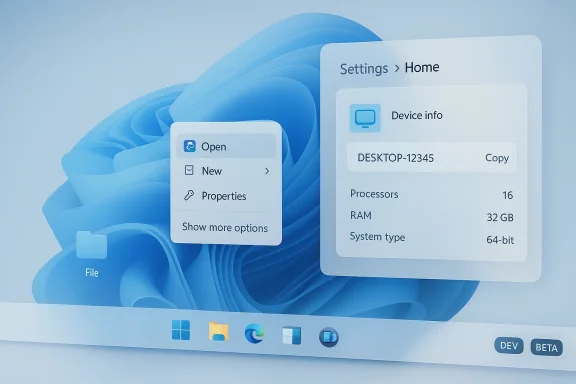
When you right-click an executable or script file (.exe, .bat, .cmd), the “Open” verb in the context menu will now display the icon associated with the file’s default app. It’s a small visual alignment — the icon next to the “Open” verb now matches what the system would use to open that file — but it’s a focused usability improvement that helps users scan choices faster and reduces ambiguity when multiple handlers exist. This change is present in both the Dev and Beta builds.Why this matters: icons are cognitive shortcuts. When users scan a list of actions in a busy context menu, a correctly matched icon reduces the chance of misclicks and speeds decision-making. The tweak is especially appreciated on machines used for development, scripting, or troubleshooting, where .bat and .cmd files are common and the cost of opening the wrong handler can be tangible. Independent coverage of the change confirms both the behavior and Microsoft’s intent to improve clarity.
Settings: refined device cards and clearer About page spec cards
Microsoft introduced a “Device info” (or “Your device info”) card to the Settings Home in mid-2025 as an experiment to make key hardware specs more discoverable. The new builds refine that experience further. The card now simplifies and standardizes the presentation of processor, RAM, storage, and graphics information, and it ties the Home card more consistently to Settings > System > About so that the path from glanceable info to full device details is predictable. The consumer-facing rollout is currently scoped to Insiders in the United States; enterprise-managed devices will see a different device card variant tailored for IT contexts.On the About page, the update restores prominent placement for the most important hardware details at the top of the page and consolidates additional system details — graphics, storage, and more — into a single Device information section with easy copy/paste support. That makes it simpler to capture system information for support and troubleshooting scenarios without hunting through multiple dialogs. The blog explicitly calls out the team’s intent to iterate on contextual help (FAQ-style tips) separately, which means the visible card is a stepping stone to a richer, data-driven support surface in Settings.
Taskbar & System Tray: smoother hover animations and reliability fixes
Both updates improve the taskbar hover animations when mousing over grouped app thumbnails. The animation refresh aims to make transitions feel snappier and less jarring, addressing a long-standing request for polished visual motion in Windows 11’s taskbar flows. In the Dev build only, Microsoft also notes improved reliability for showing app icons in the system tray when the taskbar is set to autohide — a fix for a specific visual/visibility regression that affected some users.Animations are an under-appreciated part of OS polish: when motion is inconsistent or stutters, it amplifies the perception of sluggishness even if underlying performance is fine. Tightening these micro-interactions often improves perceived responsiveness and satisfaction, particularly for users who already expect a highly responsive desktop. Independent reports corroborate that the change is primarily aesthetic and focused on user comfort.
File Explorer glitch and Nearby Sharing reliability
The Dev build addresses an odd File Explorer regression where all open Explorer windows and tabs might unexpectedly jump to Desktop or Home. That bug — disruptive for people who keep multiple Explorer windows/tabs open — has been fixed in the Dev fly. Additionally, Dev branch testers will see improved reliability when sending larger files via Nearby Sharing, addressing intermittent failures that could occur on long transfers. Both fixes are currently listed in the Dev changelog; the Beta changelog includes the context-menu, Settings, and taskbar animation items.Nearby Sharing reliability has been a periodic pain point for users relying on peer-to-peer transfers, especially when transfers move beyond a few hundred megabytes. Microsoft’s notes are deliberately conservative — “improved reliability” rather than a full rewrite — so expect gradual improvements rather than a dramatic, binary fix. If you rely on Nearby Sharing for frequent large-file transfer, continue to validate on your hardware and report issues via Feedback Hub.
Dev-only extras and app updates
Because the Dev Channel is the more experimental branch, Build 26300.7877 includes a couple of additional items that the Beta build doesn’t: the File Explorer jumping fix and the Nearby Sharing reliability improvements discussed above. The Dev changelog also calls out a Paint app update (version 11.2601.391.0) that introduces freeform rotate, a user-visible enhancement for rotating shapes, text, and selections to any angle — useful for casual image edits and quick creative tasks. These app-level updates are being rolled via the Microsoft Store packaging model.What Microsoft is saying about rollout and eligibility
Microsoft’s announcements reiterate that many of these items are being released via Controlled Feature Rollout (CFR), meaning features may appear on some devices and not others while the company observes telemetry and feedback. The announcements are explicit: rolling out via a toggle in Settings > Windows Update will make you among the first to get these updates, but the broader distribution will expand only as telemetry supports it. The builds themselves are tied to Windows 11, version 25H2 via enablement packages (i.e., small enablement toggles rather than full OS reinstallation).Practical takeaway for Insiders and admins: CFR reduces visibility but increases stability. If you want the absolute earliest preview of behavior and are comfortable with occasional regressions, enable the toggle. If you are using managed devices or rely on predictable behavior for work, it’s safer to wait until the controlled rollout expands or until the changes land in Release Preview / general releases.
Deconstructing the UX impact — small changes, measurable gains
Why a context-menu icon alignment matters
At first glance, changing the icon next to the “Open” verb seems trivial. In practice, though, it’s a classic example of micro-UX refinement that reduces cognitive friction. When users scan a context menu, they rely on visual cues as much as text. In mixed-environment setups where both packaged/Win32 apps and alternative handlers (for example, different script runners) exist, a matching icon improves confidence about which handler will launch. That reduces mistakes in workflows where clicking the wrong handler might execute a script or launch the wrong environment.Device cards: better for support and consumer transparency
Consolidating hardware specs into a friendly, glanceable card is a long overdue convenience for non-technical users who need to check RAM, graphics, or storage quickly. The addition of copy/paste for full device info on the About page is smart: support interactions — whether internal helpdesks or community support forums — now become faster because users can capture system info without multiple screenshots or manual transcription. The risk to watch for is over-crowding the Settings Home with promotional cards; Microsoft has experimented with service-promotional content in Settings before, and user feedback will determine how much spec information stays front-and-center versus being drowned out by commerce-driven cards.Taskbar smoothing: perceptual performance counts
Perceived performance is driven heavily by animation smoothness and responsiveness. The taskbar hover animation change is emblematic of low-risk, high-impact polish: it doesn’t materially alter functionality, but a smoother animation yields a platform that feels faster and more refined. For accessibility and for users sensitive to motion, Microsoft should continue to expose settings that let people reduce motion or disable non-essential animations. The blog notes do not explicitly call out accessibility toggles for these particular animations, so keep an eye on Feedback Hub threads if you have specific needs.Enterprise considerations and admin guidance
- Controlled Feature Rollout and enablement packages mean IT teams will not see a wholesale platform change all at once; instead, features will gate to subsets of devices. That’s good for staged test plans, but it complicates fleet-wide verification because feature presence may be non-deterministic depending on Microsoft’s rollout buckets.
- The Device info card has an enterprise variant for IT-managed PCs. If you manage devices centrally, test to confirm what device card variant your provisioning policies trigger and whether any telemetry or MDM policies influence the card’s information fidelity.
- Autohide taskbar reliability fixes may reduce helpdesk tickets from users who lost sight of tray icons intermittently. Nonetheless, IT teams should continue to monitor driver-related tray issues, since problems with GPU drivers or shell extensions can still generate similar symptoms.
- Pick a pilot group with representative hardware and the “Get the latest updates as they are available” toggle enabled.
- Validate the Device card and About page copy/paste behavior across managed and unmanaged configurations.
- Test Nearby Sharing and large-file transfer reliability on wireless and Ethernet networks that mirror your environment.
- Record and file Feedback Hub reports with reproducible steps if you see regressions; include system info captured from the Settings > System > About page to speed triage.
Risks, unknowns, and what to watch for
- Rollout variance: Because these features are gated via CFR, you won’t necessarily see everything even if your machine is on the Beta or Dev Channel. Expect staggered availability and possible feature flag flips.
- Regression risk in experimental branches: The Dev Channel remains the testbed for riskier fixes; the Dev changelog includes fixes (File Explorer, Nearby Sharing) that haven’t been listed in the Beta build. If you require high stability, prefer Beta or Release Preview.
- Localization and accessibility: The blog explicitly notes some features may not be fully localized or accessible initially; if your organization relies on non-English language builds or accessibility tooling, confirm that localized text and assistive behavior meet your standards before broad deployment.
- Lack of detail for “improved reliability”: Microsoft’s changelogs often use conservative language (“improved reliability”) without providing engineering details. That’s standard practice, but it means users should validate scenarios rather than assuming a full fix. For example, Nearby Sharing improvements may reduce failure rates but might not address underlying wireless driver issues.
How to test and provide useful feedback
Testing is most effective when you provide clear, reproducible feedback. Use these guidelines when filing reports:- Reproduce the issue consistently and capture exact steps.
- Note the build number (e.g., 26300.7877 or 26220.7872) and whether your device is enrolled in the “Get the latest updates as they are available” toggle. Precise dates and build numbers matter for triage.
- When reporting UI issues (context menu icons, taskbar animations), include:
- A short screen recording or a sequence of screenshots showing before/after behavior.
- The default app set for the file type in question (e.g., which app opens .cmd files).
- Any third-party shell extensions or context-menu utilities installed.
- For device card validation:
- Report whether your device is Azure AD-joined, MDM-managed (and which MDM), and whether the card shows the consumer or enterprise variant.
- If copy/paste of the full device data fails, include the exact error and the contents of the About page at the time of the attempt.
- For Nearby Sharing and File Explorer reliability:
- Test across Wi‑Fi, Bluetooth, and Ethernet where applicable.
- Note file sizes that fail and whether transfers restart or error out.
- Submit feedback through Feedback Hub and tag it under relevant categories (File Explorer, Settings, Taskbar & System Tray, Nearby Sharing) so Microsoft engineers can route it appropriately.
Final assessment — incremental, practical, and welcome
This week’s Insider builds are a reminder that meaningful product progress doesn't always arrive as headline features. Instead, value can be delivered as a steady cadence of micro-improvements that remove friction from frequent tasks. The context menu icon alignment, the refined Device info/spec cards, and the taskbar animation polish are all pragmatic changes that will make Windows 11 feel more coherent and easier to use for many people.From a testing and adoption perspective, Microsoft’s continued reliance on Controlled Feature Rollout is both sensible and limiting: it controls risk while making it harder for a single tester to assert that a fix has fully landed across the board. For enterprise teams and power users, the recommended approach remains conservative validation via pilot rings and careful feedback to ensure the improvements behave consistently on your hardware and management stack.
Windows 11 may no longer chase large, monolithic updates as frequently as in years past, but this cadence of incremental polish is exactly what helps a mature desktop platform stay productive and pleasant to use. If you’re an Insider, enable the toggle and try the changes; if you’re an admin, stage and validate before wider rollout — and, in both cases, file clear Feedback Hub reports when you encounter problems so Microsoft can iterate quickly.
Source: Neowin Windows 11 gets improved context menus, better spec cards, and more in new builds
