

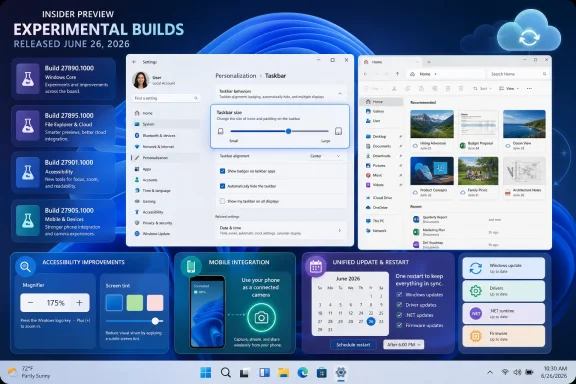
Microsoft released Windows 11 Insider builds 26300.8758, 28120.2374, and 29617.1000 on June 26, 2026, across its Experimental tracks, adding a dedicated Taskbar Size setting, File Explorer reliability fixes, mobile-device controls, recovery-management hooks, accessibility updates, and a more coordinated Windows Update restart model. The headline change is small enough to fit in a Settings screenshot, but it points to a bigger course correction. After years of asking users to accept Windows 11’s simplified shell on Microsoft’s terms, Redmond is slowly conceding that the taskbar is not decoration. It is infrastructure.
Windows 11 launched with a cleaner, centered, more touch-friendly taskbar, and with it came one of the operating system’s most stubborn tradeoffs: fewer knobs for the people who actually cared about knobs. The taskbar could look modern, but it could not behave like the flexible command strip many Windows users had built muscle memory around for decades.
The new Taskbar Size setting in build 26300.8758 does not restore every old behavior, and Microsoft is not pretending that it does. What it does is more revealing: it takes a customization path that previously felt experimental, scattered, or hidden and promotes it into a first-class Settings control. That is Microsoft admitting that discoverability matters almost as much as the feature itself.
This is the difference between a hack and a product decision. A small taskbar option tucked behind an obscure toggle is an experiment. A dedicated Taskbar Size setting is a promise that Microsoft wants normal users, not just registry explorers and Insider obsessives, to understand the control exists.
The refinement of transitions between taskbar sizes matters for the same reason. Microsoft is not merely exposing a switch; it is trying to make the switch feel native. That is the Windows 11 bargain in miniature: users get back flexibility, but Microsoft keeps the choreography.
The company’s framing is careful. It is not saying Windows 10 was right and Windows 11 was wrong. It is saying Windows 11 can be made more personal without abandoning its design system, which is a softer way of admitting that the original reset removed too much too quickly.
That matters because the taskbar is the one part of Windows that both casual users and professionals touch constantly. A browser redesign can be ignored. A widget panel can be disabled. But the taskbar is the operating system’s handshake, and every rough edge in that handshake becomes a daily irritation.
For IT departments, these changes are less about nostalgia than consistency. Training materials, support scripts, accessibility accommodations, and user expectations all converge at the taskbar. When Microsoft changes the shell too aggressively, the cost is not just annoyance; it is operational drag.
That sounds modest until you consider how central cloud-backed files have become to Windows’ default experience. OneDrive is no longer an optional add-on for many users; it is woven through Explorer, Office, backup prompts, and account setup. If cloud thumbnails fail or metadata feels unreliable, File Explorer stops feeling like a local file manager and starts feeling like a web app with latency problems.
The fix for the OneDrive shortcut breaking when File Explorer runs in administrative mode is similarly practical. Admin elevation remains a common workflow for technicians, developers, and power users. A shell integration that works only until the user crosses a privilege boundary is exactly the kind of bug that makes Windows feel inconsistent.
The Recycle Bin dialog fix is even more revealing. Showing an internal file name instead of the original file name during permanent deletion is not just cosmetic; it undermines user confidence at the moment the user is making an irreversible decision. File deletion dialogs should be boring, literal, and trustworthy.
Dark mode began as a visual preference, then became an accessibility tool, then became a system identity. If the visual layer says “low glare” while the audio layer still feels sharp or bright, the experience is not fully coherent. Microsoft appears to be treating sound as part of theming rather than as a leftover asset folder.
This is the kind of refinement that rarely sells an upgrade, but it contributes to the feeling that a platform is being tended. Windows has often suffered from mismatched eras of design living side by side: modern Settings pages beside Control Panel relics, Fluent icons beside ancient dialogs, new sounds beside old workflows. Every small alignment reduces the sense that Windows is a museum with Wi-Fi.
The important caveat is that polish cannot substitute for control. Users who disliked Windows 11 did not primarily complain that its animations were insufficiently smooth. They complained that familiar options vanished. Microsoft’s best current work is happening when it combines polish with returned agency.
This is Microsoft continuing to blur the line between PC and phone without owning the dominant phone platform. Windows Phone is long gone, but Windows still needs to behave as though the user’s phone is part of the desktop environment. The practical route is not a Microsoft handset; it is deeper integration with Android and iOS-era workflows.
The connected-camera scenario is especially relevant in a world where laptop webcams remain wildly inconsistent. Many users already know their phone camera is better than their PC camera. The operating system-level question is whether Windows can make that handoff feel dependable rather than improvised.
The File Explorer phone-access angle is just as important. If Windows can expose phone files in a way that feels predictable, it reduces the friction that sends users to cloud sync workarounds, messaging apps, or third-party transfer tools. Again, the strategic theme is not novelty; it is reducing the number of times users have to leave Windows to get ordinary work done.
That sentence will not thrill consumers, but administrators should pay attention. Recovery is one of the places where modern management often meets old assumptions. A device can be cloud-managed, policy-driven, and enrolled in a modern MDM stack, but when it fails badly enough, the recovery path can still feel like a trip back to sneaker-net support.
Extending WinRE management capabilities is part of a broader industry shift: the PC is expected to be recoverable without being physically touched by a specialist. That expectation intensified as hybrid work normalized. A laptop in an employee’s kitchen is still corporate infrastructure, and recovery workflows need to reflect that.
The challenge for Microsoft is trust. Remote recovery features must be powerful enough for administrators and constrained enough to avoid becoming a new risk surface. The best version of this work is invisible to end users: a broken device gets recovered faster, with fewer desperate support calls and fewer reimaging rituals.
Operating systems increasingly depend on services they do not fully control, or at least services that behave like moving targets. A GIF provider changes APIs, a cloud endpoint shifts behavior, an authentication flow gets revised, and suddenly a tiny corner of the OS needs a backend adjustment. Windows is no longer a static thing installed on a disk; it is a client for a web of services.
For users, the practical impact is simple: GIF search should continue working more smoothly. For Microsoft, the lesson is that even playful features become maintenance commitments once they ship inside the OS. A dead integration in a third-party app is forgettable; a dead integration in Windows looks like Windows is broken.
This is why the small stuff matters. The emoji panel is not mission-critical, but it is part of how many people communicate. If Microsoft puts a feature in the system tray of daily life, it inherits responsibility for keeping the supply chain alive.
This is one of those Windows ideas that sounds obvious only after years of users living with the alternative. Reboots are not just downtime; they are a breach of trust when they arrive unpredictably or in clusters. If Windows can make servicing feel more like a scheduled maintenance window and less like a series of ambushes, it improves the OS without changing a single icon.
The hard part is coordination. Drivers, firmware, .NET updates, and quality fixes do not all come from the same pipeline or carry the same risk profile. Aligning them may reduce visible disruption, but it also increases the importance of testing and rollback behavior.
For enterprises, a single monthly restart is attractive only if it remains manageable. Admins will want clarity on policy controls, deferral behavior, reporting, and failure states. A smoother consumer update story cannot come at the expense of predictable fleet servicing.
The new screen tint feature is more interesting because it sits between accessibility, comfort, and personalization. Microsoft describes it as a color overlay across the whole display, with presets, custom colors, and a strength slider. Unlike Night light, which warms the display to reduce blue light near bedtime, screen tint is designed to reduce overall intensity and ease light sensitivity during the day.
The distinction matters. Windows already has color filters, high contrast modes, scaling, Night light, and display calibration features, but they solve different problems. Screen tint acknowledges that eye fatigue is not always about color temperature or color differentiation; sometimes it is about saturation and intensity.
There is an important limitation: screen tint and color filters cannot be used simultaneously. That is understandable from an implementation standpoint, but it creates a tradeoff for users who already rely on color filters. Microsoft will need to be careful not to present screen tint as a universal improvement when it may be incompatible with existing accessibility workflows.
Voice control is one of the places where localization is technically and culturally demanding. Speech recognition has to cope with accents, grammar, command structures, regional vocabulary, and the difference between dictation and system control. Adding languages is not just translating menu strings; it is extending who can use the computer hands-free with confidence.
For accessibility users, language support can be the difference between a feature that exists in marketing and a feature that exists in life. A voice interface that works only in a user’s second language is a compromised interface. It may be usable, but it is not equal.
Microsoft’s long-term advantage here is that Windows still reaches a vast global hardware base. If Voice Access becomes robust across more languages, it can serve users far beyond the premium-device segment where many accessibility innovations first appear.
This is exactly how Control Panel should disappear: not by breaking workflows, but by absorbing them. Microsoft has sometimes been too eager to present Settings as the modern answer while leaving crucial controls behind in older dialogs. That creates a two-class interface where casual settings are modern and serious settings are archaeological.
Updating the description text for the Allow option in audio device properties is also more meaningful than it sounds. Permissions and device states can be confusing, especially when the same panel mixes hardware status, privacy expectations, app access, and troubleshooting. Clearer text reduces the chance that users misinterpret whether a device is enabled, blocked, muted, or simply unavailable.
The broader lesson is that Windows modernization succeeds when it respects workflow completeness. Users do not care whether a feature lives in Settings because it satisfies a design roadmap. They care whether they can find it, understand it, and trust that it does what the label says.
Developers and administrators think about storage in gigabytes and terabytes, not in long strings of megabytes. Forcing users to translate units in a modern storage workflow is needless friction. It is the kind of papercut that makes a polished settings surface feel unfinished.
The color and personalization fixes are similarly practical. Microsoft says automatic accent color selection should more accurately match wallpaper, and wallpaper persistence should be more reliable across restarts and upgrades, including large-resolution wallpapers and scenarios that previously fell back to a solid color.
That fallback problem is more than aesthetic for some users. In managed, branded, multi-monitor, or accessibility-sensitive environments, wallpaper behavior can be part of identity, orientation, or policy. A random solid-color fallback after an upgrade makes Windows feel careless.
Color profile reliability also matters to creative professionals, photographers, video editors, and anyone using calibrated displays. Windows has long had a complicated relationship with color management, especially as HDR, wide-gamut panels, multi-monitor setups, and app-specific rendering paths collide. Better persistence is not glamorous, but it is essential for trust.
Virtual desktops are one of those Windows features that should be central to modern productivity, yet often feel less celebrated than they are useful. People who use them rely on fast context switching: one desktop for communication, one for development, one for research, one for remote sessions. When Explorer stumbles during that switch, the whole illusion of separate workspaces breaks.
The fact that Explorer remains involved reminds us that the Windows shell is not a thin visual layer. It is the broker for taskbar state, windows, desktop surfaces, file interactions, and much of what users perceive as system responsiveness. Reliability here is not merely about preventing crashes; it is about preserving spatial memory.
Microsoft has been talking more openly about Windows quality, and this is where that promise is tested. A new AI panel can be impressive in a demo, but a reliable desktop switch after eight hours of real work is what makes users believe the OS is improving.
For years, Insider builds have lived in a strange space between public roadmap, engineering test bed, and enthusiast playground. Features appear, vanish, roll out gradually, or depend on server-side enablement. The result is that a build number alone often does not guarantee a feature will appear on every machine.
Microsoft’s current approach makes that complexity more explicit. There are builds tied to Windows 11 26H2, builds tied to 26H1, and builds aimed at future platforms, including Canary-series work. That segmentation may frustrate casual observers, but it is more honest than pretending all preview users are testing the same future.
The risk is fragmentation of expectations. An enthusiast reading about taskbar improvements in one branch may expect them in another. An admin evaluating a recovery feature may need to understand whether it applies to a near-term Windows release or a platform generation still taking shape.
The opportunity is better signal. If Microsoft uses these channels carefully, it can separate polish headed toward mainstream Windows from deeper platform work that needs longer incubation. That would make Insider participation more useful and less like reading tea leaves in build numbers.
That may sound obvious, but it has not always been the company’s center of gravity. Windows 11’s public story has often been dominated by design refreshes, hardware requirements, Copilot integration, Widgets, Store changes, and AI branding. Those things matter, but they do not replace the humble reliability of the shell.
The most encouraging part of this batch is that Microsoft appears to be investing in both ends of the spectrum. It is improving visible controls like taskbar size while also working on behind-the-scenes management and update mechanics. That combination is what Windows needs: fewer grand gestures, more competence.
The least encouraging part is timing. Many of these features are still in Experimental builds, often gradually rolled out, and not guaranteed to reach stable users in the same form or on a predictable schedule. Windows users have learned the hard way that preview features are not promises.
 Microsoft’s Taskbar Retreat Is Now a Product Strategy
Windows 11 launched with a cleaner, centered, more touch-friendly taskbar, and with it came one of the operating system’s most stubborn tradeoffs: fewer knobs for the people who actually cared about knobs. The taskbar could look modern, but it could not behave like the flexible command strip many Windows users had built muscle memory around for decades.The new Taskbar Size setting in build 26300.8758 does not restore every old behavior, and Microsoft is not pretending that it does. What it does is more revealing: it takes a customization path that previously felt experimental, scattered, or hidden and promotes it into a first-class Settings control. That is Microsoft admitting that discoverability matters almost as much as the feature itself.
This is the difference between a hack and a product decision. A small taskbar option tucked behind an obscure toggle is an experiment. A dedicated Taskbar Size setting is a promise that Microsoft wants normal users, not just registry explorers and Insider obsessives, to understand the control exists.
The refinement of transitions between taskbar sizes matters for the same reason. Microsoft is not merely exposing a switch; it is trying to make the switch feel native. That is the Windows 11 bargain in miniature: users get back flexibility, but Microsoft keeps the choreography.
The Shell Is Being Rebuilt Around the Complaints Microsoft Could Not Ignore
The broader arc is not hard to see. Recent Windows 11 preview builds have been filled with changes to Start, taskbar behavior, badging, positioning, sizing, and core shell polish. Microsoft spent the early Windows 11 era defending a simplified desktop model; it is now spending the middle era repairing the parts of that model that made power users feel fenced in.The company’s framing is careful. It is not saying Windows 10 was right and Windows 11 was wrong. It is saying Windows 11 can be made more personal without abandoning its design system, which is a softer way of admitting that the original reset removed too much too quickly.
That matters because the taskbar is the one part of Windows that both casual users and professionals touch constantly. A browser redesign can be ignored. A widget panel can be disabled. But the taskbar is the operating system’s handshake, and every rough edge in that handshake becomes a daily irritation.
For IT departments, these changes are less about nostalgia than consistency. Training materials, support scripts, accessibility accommodations, and user expectations all converge at the taskbar. When Microsoft changes the shell too aggressively, the cost is not just annoyance; it is operational drag.
File Explorer Gets the Boring Fixes That Actually Count
The File Explorer changes in build 26300.8758 are not flashy, but they address the sort of daily reliability problems that shape whether an OS feels polished. Microsoft says it has improved thumbnail previews for cloud files in the Details pane and reorganized that pane so properties are easier to scan.That sounds modest until you consider how central cloud-backed files have become to Windows’ default experience. OneDrive is no longer an optional add-on for many users; it is woven through Explorer, Office, backup prompts, and account setup. If cloud thumbnails fail or metadata feels unreliable, File Explorer stops feeling like a local file manager and starts feeling like a web app with latency problems.
The fix for the OneDrive shortcut breaking when File Explorer runs in administrative mode is similarly practical. Admin elevation remains a common workflow for technicians, developers, and power users. A shell integration that works only until the user crosses a privilege boundary is exactly the kind of bug that makes Windows feel inconsistent.
The Recycle Bin dialog fix is even more revealing. Showing an internal file name instead of the original file name during permanent deletion is not just cosmetic; it undermines user confidence at the moment the user is making an irreversible decision. File deletion dialogs should be boring, literal, and trustworthy.
Dark Mode Sounds Are a Reminder That Polish Is Not Just Pixels
Microsoft also says it improved system sounds when using Windows in dark mode. That may sound like a punchline, but it reflects an increasingly important part of platform design: sensory coherence.Dark mode began as a visual preference, then became an accessibility tool, then became a system identity. If the visual layer says “low glare” while the audio layer still feels sharp or bright, the experience is not fully coherent. Microsoft appears to be treating sound as part of theming rather than as a leftover asset folder.
This is the kind of refinement that rarely sells an upgrade, but it contributes to the feeling that a platform is being tended. Windows has often suffered from mismatched eras of design living side by side: modern Settings pages beside Control Panel relics, Fluent icons beside ancient dialogs, new sounds beside old workflows. Every small alignment reduces the sense that Windows is a museum with Wi-Fi.
The important caveat is that polish cannot substitute for control. Users who disliked Windows 11 did not primarily complain that its animations were insufficiently smooth. They complained that familiar options vanished. Microsoft’s best current work is happening when it combines polish with returned agency.
The 26H1 Build Is About Device Plumbing, Not Desktop Drama
Build 28120.2374 is a quieter release, but it hints at the platform work underneath Windows’ visible surface. The Mobile Devices page under Bluetooth & Devices now lets users add and manage connected phones, including features such as using a device as a connected camera or accessing phone files from File Explorer.This is Microsoft continuing to blur the line between PC and phone without owning the dominant phone platform. Windows Phone is long gone, but Windows still needs to behave as though the user’s phone is part of the desktop environment. The practical route is not a Microsoft handset; it is deeper integration with Android and iOS-era workflows.
The connected-camera scenario is especially relevant in a world where laptop webcams remain wildly inconsistent. Many users already know their phone camera is better than their PC camera. The operating system-level question is whether Windows can make that handoff feel dependable rather than improvised.
The File Explorer phone-access angle is just as important. If Windows can expose phone files in a way that feels predictable, it reduces the friction that sends users to cloud sync workarounds, messaging apps, or third-party transfer tools. Again, the strategic theme is not novelty; it is reducing the number of times users have to leave Windows to get ordinary work done.
Recovery Management Moves Closer to the MDM Reality
The Remote Recovery Management addition in build 28120.2374 is aimed squarely at managed environments. Microsoft says it has added a recovery remote management plug-in to extend Windows Recovery Environment management capabilities for MDM providers.That sentence will not thrill consumers, but administrators should pay attention. Recovery is one of the places where modern management often meets old assumptions. A device can be cloud-managed, policy-driven, and enrolled in a modern MDM stack, but when it fails badly enough, the recovery path can still feel like a trip back to sneaker-net support.
Extending WinRE management capabilities is part of a broader industry shift: the PC is expected to be recoverable without being physically touched by a specialist. That expectation intensified as hybrid work normalized. A laptop in an employee’s kitchen is still corporate infrastructure, and recovery workflows need to reflect that.
The challenge for Microsoft is trust. Remote recovery features must be powerful enough for administrators and constrained enough to avoid becoming a new risk surface. The best version of this work is invisible to end users: a broken device gets recovered faster, with fewer desperate support calls and fewer reimaging rituals.
Emoji GIFs Become a Small Lesson in Dependency Risk
The emoji panel change is almost comically consumer-facing by comparison: Windows key + period now uses GIPHY as the GIF provider after the deprecation of the Tenor API. It is a small feature, but it illustrates a very modern Windows problem.Operating systems increasingly depend on services they do not fully control, or at least services that behave like moving targets. A GIF provider changes APIs, a cloud endpoint shifts behavior, an authentication flow gets revised, and suddenly a tiny corner of the OS needs a backend adjustment. Windows is no longer a static thing installed on a disk; it is a client for a web of services.
For users, the practical impact is simple: GIF search should continue working more smoothly. For Microsoft, the lesson is that even playful features become maintenance commitments once they ship inside the OS. A dead integration in a third-party app is forgettable; a dead integration in Windows looks like Windows is broken.
This is why the small stuff matters. The emoji panel is not mission-critical, but it is part of how many people communicate. If Microsoft puts a feature in the system tray of daily life, it inherits responsibility for keeping the supply chain alive.
Future Platform Builds Show Where Microsoft Wants Windows to Feel Less Interruptive
Build 29617.1000 carries the most ambitious systems-level change in this batch: a unified update experience designed to reduce the number of monthly reboots. Microsoft says it is starting by coordinating driver, .NET, and firmware updates with the monthly quality update, aiming to compress the experience into a single monthly restart.This is one of those Windows ideas that sounds obvious only after years of users living with the alternative. Reboots are not just downtime; they are a breach of trust when they arrive unpredictably or in clusters. If Windows can make servicing feel more like a scheduled maintenance window and less like a series of ambushes, it improves the OS without changing a single icon.
The hard part is coordination. Drivers, firmware, .NET updates, and quality fixes do not all come from the same pipeline or carry the same risk profile. Aligning them may reduce visible disruption, but it also increases the importance of testing and rollback behavior.
For enterprises, a single monthly restart is attractive only if it remains manageable. Admins will want clarity on policy controls, deferral behavior, reporting, and failure states. A smoother consumer update story cannot come at the expense of predictable fleet servicing.
Accessibility Changes Are Becoming Mainstream Windows Features
The Magnifier improvements in build 29617.1000 are refreshingly direct. Users can type an exact zoom percentage into the Magnifier toolbar and choose preset increments ranging from subtle changes to dramatic zoom levels. That is the sort of precision accessibility users have every right to expect.The new screen tint feature is more interesting because it sits between accessibility, comfort, and personalization. Microsoft describes it as a color overlay across the whole display, with presets, custom colors, and a strength slider. Unlike Night light, which warms the display to reduce blue light near bedtime, screen tint is designed to reduce overall intensity and ease light sensitivity during the day.
The distinction matters. Windows already has color filters, high contrast modes, scaling, Night light, and display calibration features, but they solve different problems. Screen tint acknowledges that eye fatigue is not always about color temperature or color differentiation; sometimes it is about saturation and intensity.
There is an important limitation: screen tint and color filters cannot be used simultaneously. That is understandable from an implementation standpoint, but it creates a tradeoff for users who already rely on color filters. Microsoft will need to be careful not to present screen tint as a universal improvement when it may be incompatible with existing accessibility workflows.
Voice Access Expands, and the Geography of Inclusion Matters
Voice Access now supports Portuguese for Portugal, Portuguese for Brazil, and Korean for South Korea. Language expansion rarely gets the attention it deserves, partly because English-language tech coverage treats localization as a checkbox. It is not.Voice control is one of the places where localization is technically and culturally demanding. Speech recognition has to cope with accents, grammar, command structures, regional vocabulary, and the difference between dictation and system control. Adding languages is not just translating menu strings; it is extending who can use the computer hands-free with confidence.
For accessibility users, language support can be the difference between a feature that exists in marketing and a feature that exists in life. A voice interface that works only in a user’s second language is a compromised interface. It may be usable, but it is not equal.
Microsoft’s long-term advantage here is that Windows still reaches a vast global hardware base. If Voice Access becomes robust across more languages, it can serve users far beyond the premium-device segment where many accessibility innovations first appear.
Settings Keeps Eating Control Panel, One Audio Toggle at a Time
The audio updates in build 29617.1000 continue one of Windows 11’s longest migrations: moving old Control Panel capabilities into Settings. The “Listen to this device” option is now available in properties for audio devices, meaning users no longer need to dig into legacy Control Panel paths for that functionality.This is exactly how Control Panel should disappear: not by breaking workflows, but by absorbing them. Microsoft has sometimes been too eager to present Settings as the modern answer while leaving crucial controls behind in older dialogs. That creates a two-class interface where casual settings are modern and serious settings are archaeological.
Updating the description text for the Allow option in audio device properties is also more meaningful than it sounds. Permissions and device states can be confusing, especially when the same panel mixes hardware status, privacy expectations, app access, and troubleshooting. Clearer text reduces the chance that users misinterpret whether a device is enabled, blocked, muted, or simply unavailable.
The broader lesson is that Windows modernization succeeds when it respects workflow completeness. Users do not care whether a feature lives in Settings because it satisfies a design roadmap. They care whether they can find it, understand it, and trust that it does what the label says.
Storage, Color, and Wallpaper Fixes Aim at the Friction Professionals Notice
The Dev Drive dialog now supports specifying size in gigabytes instead of only megabytes, and the same improvement appears when changing volume sizes under Settings > System > Storage. This is a small usability fix with a strong smell of real-world feedback.Developers and administrators think about storage in gigabytes and terabytes, not in long strings of megabytes. Forcing users to translate units in a modern storage workflow is needless friction. It is the kind of papercut that makes a polished settings surface feel unfinished.
The color and personalization fixes are similarly practical. Microsoft says automatic accent color selection should more accurately match wallpaper, and wallpaper persistence should be more reliable across restarts and upgrades, including large-resolution wallpapers and scenarios that previously fell back to a solid color.
That fallback problem is more than aesthetic for some users. In managed, branded, multi-monitor, or accessibility-sensitive environments, wallpaper behavior can be part of identity, orientation, or policy. A random solid-color fallback after an upgrade makes Windows feel careless.
Color profile reliability also matters to creative professionals, photographers, video editors, and anyone using calibrated displays. Windows has long had a complicated relationship with color management, especially as HDR, wide-gamut panels, multi-monitor setups, and app-specific rendering paths collide. Better persistence is not glamorous, but it is essential for trust.
Multiple Desktops Still Need to Feel Like a First-Class Workspace
Microsoft says build 29617.1000 improves Explorer reliability when switching between multiple desktops. That phrasing is brief, but the feature area deserves attention.Virtual desktops are one of those Windows features that should be central to modern productivity, yet often feel less celebrated than they are useful. People who use them rely on fast context switching: one desktop for communication, one for development, one for research, one for remote sessions. When Explorer stumbles during that switch, the whole illusion of separate workspaces breaks.
The fact that Explorer remains involved reminds us that the Windows shell is not a thin visual layer. It is the broker for taskbar state, windows, desktop surfaces, file interactions, and much of what users perceive as system responsiveness. Reliability here is not merely about preventing crashes; it is about preserving spatial memory.
Microsoft has been talking more openly about Windows quality, and this is where that promise is tested. A new AI panel can be impressive in a demo, but a reliable desktop switch after eight hours of real work is what makes users believe the OS is improving.
The Insider Program Itself Is Becoming Part of the Product
These builds also arrive amid Microsoft’s revamped Windows Insider channel structure, including Experimental tracks for current and future platform work. That structure matters because it changes how users interpret preview features.For years, Insider builds have lived in a strange space between public roadmap, engineering test bed, and enthusiast playground. Features appear, vanish, roll out gradually, or depend on server-side enablement. The result is that a build number alone often does not guarantee a feature will appear on every machine.
Microsoft’s current approach makes that complexity more explicit. There are builds tied to Windows 11 26H2, builds tied to 26H1, and builds aimed at future platforms, including Canary-series work. That segmentation may frustrate casual observers, but it is more honest than pretending all preview users are testing the same future.
The risk is fragmentation of expectations. An enthusiast reading about taskbar improvements in one branch may expect them in another. An admin evaluating a recovery feature may need to understand whether it applies to a near-term Windows release or a platform generation still taking shape.
The opportunity is better signal. If Microsoft uses these channels carefully, it can separate polish headed toward mainstream Windows from deeper platform work that needs longer incubation. That would make Insider participation more useful and less like reading tea leaves in build numbers.
Microsoft Is Fixing Windows 11 by Admitting the Desktop Still Matters
The pattern across these builds is not random. Taskbar sizing, File Explorer cloud thumbnails, audio settings migration, storage unit cleanup, wallpaper persistence, color profiles, Magnifier precision, screen tint, voice language support, mobile devices, recovery management, and update reboot coordination all point in the same direction: Microsoft is working on the lived Windows experience.That may sound obvious, but it has not always been the company’s center of gravity. Windows 11’s public story has often been dominated by design refreshes, hardware requirements, Copilot integration, Widgets, Store changes, and AI branding. Those things matter, but they do not replace the humble reliability of the shell.
The most encouraging part of this batch is that Microsoft appears to be investing in both ends of the spectrum. It is improving visible controls like taskbar size while also working on behind-the-scenes management and update mechanics. That combination is what Windows needs: fewer grand gestures, more competence.
The least encouraging part is timing. Many of these features are still in Experimental builds, often gradually rolled out, and not guaranteed to reach stable users in the same form or on a predictable schedule. Windows users have learned the hard way that preview features are not promises.
The June Builds Draw a Map of the Windows 11 Repair Job
These releases are best read not as three separate changelogs, but as a status report on Microsoft’s Windows priorities. The company is trying to make Windows 11 more customizable, less disruptive, more accessible, easier to manage, and less dependent on legacy settings surfaces.- Microsoft is turning taskbar customization from an enthusiast complaint into a visible Settings experience, starting with a dedicated Taskbar Size control in build 26300.8758.
- File Explorer is getting reliability work where modern Windows needs it most: cloud files, OneDrive integration, deletion confidence, and shell consistency.
- The 26H1 build focuses on connective tissue, including mobile-device management, connected-camera scenarios, phone files in Explorer, MDM recovery extensions, and a new GIF provider.
- The future-platform build shows Microsoft trying to reduce update fatigue by coordinating driver, .NET, firmware, and quality updates around one monthly restart.
- Accessibility improvements are expanding beyond traditional categories, with precise Magnifier zoom, screen tint for light sensitivity, and new Voice Access languages.
- Settings continues to absorb legacy Control Panel functions, but the migration only works when Microsoft brings over the full workflow rather than the easy half.
References
- Primary source: Neowin
Published: 2026-06-26T18:22:09.684409
Microsoft further improving Windows 11 Taskbar with latest builds - Neowin
Microsoft has released new Windows 11 Experimental channel builds under 26300.8758, 28120.2374, and 29617.1000. They bring new features and improvements. www.neowin.net
- Related coverage: windowscentral.com
Windows 11 is finally rethinking the Start menu and Taskbar, and it might win back people who gave up on it | Windows Central
Microsoft rebalances Windows 11, adding more flexibility to the Taskbar and Start menu.www.windowscentral.com - Related coverage: bleepingcomputer.com
Microsoft testing adjustable taskbar, Start menu in Windows 11
Microsoft has finally brought back the resizable taskbar and Start menu to Windows 11 in the latest preview version rolling out to Insiders in the Experimental channel.www.bleepingcomputer.com
- Related coverage: techradar.com
Microsoft continues the good work on Windows 11, with tweaks to 'quiet' ads — and that big taskbar change is 'coming soon' | TechRadar
Useful changes for the widgets panel are in testingwww.techradar.com - Related coverage: pcgamer.com
Microsoft announces plans to give you more control over the Windows 11 taskbar and Start menu | PC Gamer
Top, bottom, left and right.www.pcgamer.com - Related coverage: thewincentral.com
Windows 11 Build 26300.8697 Improves File Explorer, Start Menu and Taskbar - WinCentral
Windows 11 Insider Build 26300.8697 brings File Explorer dark mode improvements, Start menu reliability enhancements, Taskbar fixes, and introduces version 26H2 branding. - Read in Windows 11 News on WinCentral thewincentral.com
- Related coverage: windowsreport.com
Taskbar Repositioning Option Now Live With New Windows 11 Experimental (Dev) Build
Microsoft’s latest Experimental build adds movable Taskbar support, smaller Taskbar buttons, improved Search, updated widgets, and more. windowsreport.com
- Related coverage: windowslatest.com
KB5055625 tests Windows 11's Show smaller taskbar buttons feature
Windows 11's Show smaller taskbar buttons is rolling out and you can find it under Settings > System > Taskbar > Taskbar behaviour. www.windowslatest.com
- Official source: learn.microsoft.com
Taskbar icon size - Microsoft Q&A
When I first upgraded to Windows 11, the one problem I had was the size of the icons in the Taskbar. Being visually changed, they were just too small. After some digging, I found a YouTube video by Kevin Stratvert (…learn.microsoft.com - Official source: support.microsoft.com
Customize the Taskbar in Windows | Microsoft Support
Learn how to use the taskbar features in Windows. Hide the taskbar, pin an app, change the location, and more with taskbar settings.support.microsoft.com - Related coverage: fdaytalk.com
Windows 11 Finally Lets You Resize the Start Menu
Windows 11 build 26300.8553 adds a modular Start menu with section toggles, resize options, and profile hiding. See every change in the May 2026 Insider builds.www.fdaytalk.com - Official source: blogs.windows.com
Announcing new builds for 26 June 2026, retail launch of new WIP improvements
Hello Windows Insiders, We have new releases today with builds across Beta and Experimental, and are excited to begin rolling out the new Windows Insider experience to retail Windows 11 builds this week! New Windows Insider Program changesblogs.windows.com
