

Microsoft released Windows 11 Insider Experimental Preview Build 26300.8497 on May 22, 2026, for testers in the Experimental channel, adding screen tint, HID Braille improvements, Voice Access voice isolation, Windows Ready Print controls, and a batch of reliability fixes. The build is not the kind of release that sells a keynote. It is more interesting than that: it shows Microsoft doing the less glamorous work of turning Windows 11 into a more controlled, standardized, and accessibility-aware platform. For Insiders, the message is clear enough: the future of Windows is being tested in the margins before it shows up in the center.
Build 26300.8497 arrives in Microsoft’s new Experimental channel, the branch that is gradually taking over the role previously associated with the Dev Channel. That matters because Microsoft is no longer merely shipping “early” Windows code under a familiar label. It is reorganizing how unfinished Windows features are exposed, named, and staged before they reach broader preview rings.
The build is based on Windows 11 version 25H2 and is delivered through an enablement package, which is Microsoft’s modern way of turning on a new release train without pretending every component has been rebuilt from scratch. That approach has become familiar in the Windows 11 era: the operating system is less a sequence of monolithic releases than a platform where features, policy switches, app updates, and servicing changes arrive on overlapping schedules.
This is also why Controlled Feature Rollout remains central to the story. Some Insiders will install the build and not see every feature Microsoft mentions. That can be maddening for testers who want clean cause-and-effect, but it reflects how Windows is actually shipped now: through measured exposure, telemetry, staged activation, and retreat paths when something behaves badly on the wrong driver, language pack, accessibility device, or enterprise image.
The temptation is to dismiss a build like this because it lacks the spectacle of a new AI sidebar or a redesigned Start menu. That would be a mistake. Accessibility, printing, speech recognition, input method editors, setup independence, and system reliability are the places where an operating system either earns trust or quietly loses it.
That sounds simple, and in a sense it is. But simplicity is part of the point. Windows has long had Night Light, color filters, high contrast modes, dark themes, and display calibration tools, yet none of those quite occupy the same lane. Night Light changes color temperature, usually warming the display in the evening; Screen tint is aimed at perceived intensity throughout the day.
The distinction is important because accessibility needs are rarely solved by a single universal slider. A user with light sensitivity may not want warmer colors. A user working in design may need a predictable display profile but still benefit from a temporary intensity reduction outside color-critical work. A user with migraine triggers may need relief that is not tied to sunset schedules or blue-light marketing.
This is the kind of feature that rarely gets treated as strategic because it does not transform the Windows desktop in screenshots. Yet for people who spend ten hours a day in front of high-brightness panels, or who move between laptop, external monitor, and office lighting conditions, small reductions in visual stress can matter more than a new animation.
It also reflects a broader shift in Windows accessibility design. Microsoft is increasingly building features that are not only for a narrowly defined medical category but are still rooted in accessibility. Screen tint may serve users with specific sensitivities, but it will likely be discovered by many others who simply find modern displays too aggressive.
That last part is the real story. Accessibility that begins only after a user has completed setup is not full accessibility; it is assistance after the hardest gate has already been passed. If a deaf-blind user can connect a HID Braille display at the first screen of out-of-box experience and proceed without depending on another person, Windows becomes meaningfully more independent.
The move toward HID matters as well. Proprietary drivers and fragile setup sequences have historically made assistive technology more complicated than it should be. Open standards do not solve every compatibility problem, but they reduce the number of special cases standing between a user and a working machine.
This is also where Microsoft’s current Windows strategy looks more mature than its marketing. A Copilot feature can be promoted loudly and still be optional. Braille support in setup is quieter, but it touches the moral center of a general-purpose operating system. A PC that cannot be independently set up by the people who rely on it is not truly general purpose.
For IT departments, the practical implications are just as real. Schools, government agencies, accessibility coordinators, and enterprise device teams all benefit when assistive hardware behaves more like a standard peripheral and less like a post-deployment project. That reduces support friction and makes accessibility less dependent on the one technician who knows the old driver stack.
Printer drivers have been one of Windows’ oldest sources of both convenience and chaos. They made cheap hardware work, enabled vendor-specific features, and allowed businesses to keep fleets of devices alive for years. They also brought brittle installers, outdated components, privilege headaches, inconsistent user experiences, and a security surface nobody in 2026 should feel sentimental about.
Microsoft’s direction has been visible for some time. Mopria-compatible printers have had inbox support through Microsoft’s IPP Class Driver since Windows 10 version 21H2, and Windows 11 has continued to push toward a more standardized print model. Windows Ready Print is the friendlier name for a strategy that is partly about simplification and partly about control.
There is an obvious upside. If Windows can detect and install most modern printers through a consistent IPP-based path, ordinary users get fewer mystery downloads, fewer vendor updaters, and fewer “full solution” driver packages that install three services just to print a boarding pass. Enterprise administrators get a more predictable baseline and fewer legacy components to audit.
But the trade-off should not be ignored. Specialized devices, old multifunction units, label printers, production printers, and hardware with unusual finishing features may not fit neatly into the happy path. Microsoft can say “supported printers” all it wants; the pain will be felt by users whose printer is supported just enough to output pages but not enough to expose every feature they bought.
The new setting is therefore not just a convenience toggle. It is a pressure valve. Microsoft is giving users and admins a way to stay on the modern path by default while acknowledging that Windows printing still lives in the real world, where a fifteen-year-old office device can be more politically important than a brand-new laptop.
Voice control has always carried a tension between usefulness and unease. It can be liberating for users who depend on hands-free interaction, convenient for users who dictate or navigate by speech, and deeply uncomfortable when it feels like a microphone is feeding a cloud service by default. Local processing does not erase every concern, but it changes the privacy posture.
For accessibility features, reliability and trust are not optional extras. If Voice Access fails because someone nearby is talking, it becomes less useful in offices, classrooms, homes, and shared care environments. If it only works well through cloud dependence, some users and organizations will turn it off regardless of its benefits.
Voice Isolation therefore sits at the intersection of accessibility, AI-adjacent signal processing, and privacy-sensitive platform design. It is not being sold as a flashy assistant. It is being folded into a feature that helps users operate Windows itself.
That distinction matters. Microsoft has spent years trying to persuade users that voice interfaces, assistants, and AI overlays are natural parts of the PC. The more persuasive case may come not from a chatbot but from features like this: local, specific, assistive, and tied to a concrete task.
These are not glamorous bugs. They are also not trivial. Explorer crashes break the sense that the desktop is stable. IME candidate window problems can make Windows feel unfinished for users who type in East Asian languages. A broken Win+X menu annoys power users precisely because it interrupts a muscle-memory shortcut. Unexpected audio muting turns a PC into a troubleshooting exercise five minutes before a meeting.
The international input fixes deserve particular attention because they are often undercovered in English-language Windows commentary. A Windows build can look fine to a U.S. reviewer and still be painful for users who depend on IMEs, diacritics, complex scripts, or localized interfaces. Microsoft’s own notes about features not always being fully localized during active development are a reminder that the Insider Program is not a single-language laboratory.
This is the hidden cost of Windows’ scale. Microsoft is not maintaining one desktop experience; it is maintaining thousands of combinations of languages, devices, drivers, enterprise policies, accessibility hardware, input methods, and regional expectations. A bug that affects only one of those combinations may still affect millions of people.
That is also why Experimental builds should be treated as evidence, not as destiny. The presence of a fix signals where Microsoft is applying pressure, but not necessarily when that fix will land for general users. The Insider pipeline is less a road with mile markers than a sorting facility with multiple exits.
Still, the old ambiguity remains. Some Experimental features will show up in stable Windows releases. Some will change shape. Some will vanish. Others will be enabled only on certain devices, markets, languages, or configurations. The user sees a build number; Microsoft sees a matrix.
For enthusiasts, that can be frustrating. Windows watchers like clean narratives: this feature is coming, that feature is dead, this build equals that future release. Microsoft’s current development model resists those tidy conclusions because the operating system is increasingly serviced as a collection of controlled experiences rather than a single artifact.
For administrators, the lesson is simpler. Do not treat Experimental as a planning baseline for production policy. Treat it as a signal feed. It tells you what Microsoft is testing, what areas it considers worth modernizing, and where future compatibility work may be headed.
That is especially true for printing and accessibility hardware. If your organization depends on legacy print drivers, assistive devices, language input, or speech control, this build is a prompt to start testing early. Not because Build 26300.8497 itself belongs on production hardware, but because its direction of travel is unlikely to reverse.
That may sound bureaucratic, but it is the substance of operating system quality. A good OS is not merely one that adds features quickly. It is one that reduces the number of times users must understand the plumbing before they can do ordinary work.
In that sense, Build 26300.8497 is a better Windows story than many larger releases. It does not promise to reinvent computing. It makes the case that Windows 11’s next meaningful improvements may be found in the infrastructure layer: display comfort, setup independence, printer sanity, voice reliability, and fewer shell crashes.
The risk is that Microsoft will undercommunicate these changes because they are not marketable in the same way as AI features. The company’s public Windows narrative often chases the spectacular while its engineers are still doing the unglamorous work that determines whether the platform feels dependable. Users notice the latter more than Microsoft sometimes seems to believe.
That can undermine the old rhythm of Windows preview testing, where a build number was expected to define a shared experience. But it also makes the testing model more realistic. Stable Windows users already live in a world of staged rollouts, app-delivered features, regional differences, and server-side switches. The Insider Program is increasingly mirroring that reality rather than hiding it.
The trick is to separate frustration from signal. If a feature is not present on your machine, that does not mean Microsoft’s notes are wrong. If a feature is present and broken, that does not mean it is doomed. If a feature is present and works beautifully, that does not mean it will ship unchanged.
For WindowsForum readers, the useful stance is skeptical curiosity. Install Experimental builds only where failure is acceptable, report bugs with hardware and language details, and pay attention to the areas Microsoft is repeatedly touching. The pattern matters more than the individual toggle.
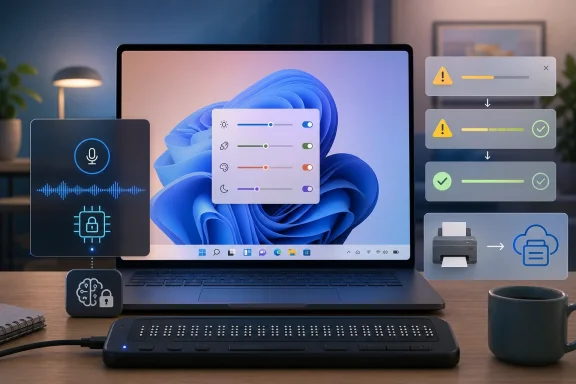 Microsoft’s Quiet Build Says More Than Its Feature Count
Build 26300.8497 arrives in Microsoft’s new Experimental channel, the branch that is gradually taking over the role previously associated with the Dev Channel. That matters because Microsoft is no longer merely shipping “early” Windows code under a familiar label. It is reorganizing how unfinished Windows features are exposed, named, and staged before they reach broader preview rings.The build is based on Windows 11 version 25H2 and is delivered through an enablement package, which is Microsoft’s modern way of turning on a new release train without pretending every component has been rebuilt from scratch. That approach has become familiar in the Windows 11 era: the operating system is less a sequence of monolithic releases than a platform where features, policy switches, app updates, and servicing changes arrive on overlapping schedules.
This is also why Controlled Feature Rollout remains central to the story. Some Insiders will install the build and not see every feature Microsoft mentions. That can be maddening for testers who want clean cause-and-effect, but it reflects how Windows is actually shipped now: through measured exposure, telemetry, staged activation, and retreat paths when something behaves badly on the wrong driver, language pack, accessibility device, or enterprise image.
The temptation is to dismiss a build like this because it lacks the spectacle of a new AI sidebar or a redesigned Start menu. That would be a mistake. Accessibility, printing, speech recognition, input method editors, setup independence, and system reliability are the places where an operating system either earns trust or quietly loses it.
Screen Tint Is Accessibility, Not Cosmetic Polish
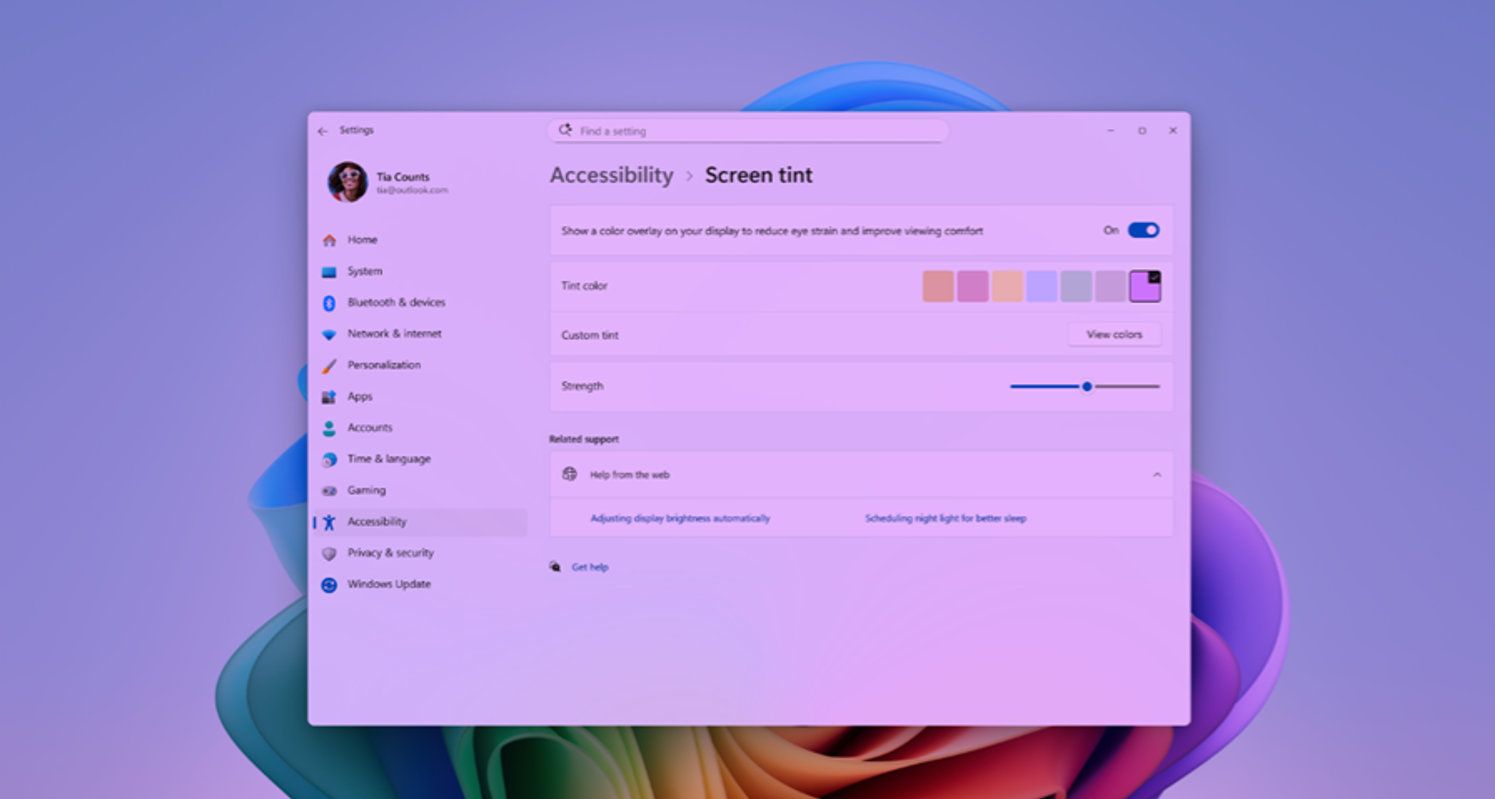
The most immediately visible addition in Build 26300.8497 is Screen tint, a new accessibility setting that applies a color overlay across the entire display. Microsoft positions it as a way to soften intense, bright, or saturated screens for users who experience eye strain, light sensitivity, or fatigue during long sessions.That sounds simple, and in a sense it is. But simplicity is part of the point. Windows has long had Night Light, color filters, high contrast modes, dark themes, and display calibration tools, yet none of those quite occupy the same lane. Night Light changes color temperature, usually warming the display in the evening; Screen tint is aimed at perceived intensity throughout the day.
The distinction is important because accessibility needs are rarely solved by a single universal slider. A user with light sensitivity may not want warmer colors. A user working in design may need a predictable display profile but still benefit from a temporary intensity reduction outside color-critical work. A user with migraine triggers may need relief that is not tied to sunset schedules or blue-light marketing.
This is the kind of feature that rarely gets treated as strategic because it does not transform the Windows desktop in screenshots. Yet for people who spend ten hours a day in front of high-brightness panels, or who move between laptop, external monitor, and office lighting conditions, small reductions in visual stress can matter more than a new animation.
It also reflects a broader shift in Windows accessibility design. Microsoft is increasingly building features that are not only for a narrowly defined medical category but are still rooted in accessibility. Screen tint may serve users with specific sensitivities, but it will likely be discovered by many others who simply find modern displays too aggressive.
Braille Support Moves Accessibility Into Setup, Where It Belongs
The Narrator changes are more consequential than the modest release-note phrasing suggests. Build 26300.8497 improves support for refreshable Braille displays that use the HID standard, allowing supported devices to work more easily over USB and, in supported scenarios, during the initial Windows setup experience.That last part is the real story. Accessibility that begins only after a user has completed setup is not full accessibility; it is assistance after the hardest gate has already been passed. If a deaf-blind user can connect a HID Braille display at the first screen of out-of-box experience and proceed without depending on another person, Windows becomes meaningfully more independent.
The move toward HID matters as well. Proprietary drivers and fragile setup sequences have historically made assistive technology more complicated than it should be. Open standards do not solve every compatibility problem, but they reduce the number of special cases standing between a user and a working machine.
This is also where Microsoft’s current Windows strategy looks more mature than its marketing. A Copilot feature can be promoted loudly and still be optional. Braille support in setup is quieter, but it touches the moral center of a general-purpose operating system. A PC that cannot be independently set up by the people who rely on it is not truly general purpose.
For IT departments, the practical implications are just as real. Schools, government agencies, accessibility coordinators, and enterprise device teams all benefit when assistive hardware behaves more like a standard peripheral and less like a post-deployment project. That reduces support friction and makes accessibility less dependent on the one technician who knows the old driver stack.
Windows Ready Print Is a Driver Story Disguised as a Settings Toggle
The printing change in Build 26300.8497 looks modest on the surface: Microsoft is adding a setting that lets users control whether supported new printers are installed by default using Windows Ready Print, built around IPP. In practice, this is another step in Microsoft’s long campaign to reduce dependence on traditional third-party printer drivers.Printer drivers have been one of Windows’ oldest sources of both convenience and chaos. They made cheap hardware work, enabled vendor-specific features, and allowed businesses to keep fleets of devices alive for years. They also brought brittle installers, outdated components, privilege headaches, inconsistent user experiences, and a security surface nobody in 2026 should feel sentimental about.
Microsoft’s direction has been visible for some time. Mopria-compatible printers have had inbox support through Microsoft’s IPP Class Driver since Windows 10 version 21H2, and Windows 11 has continued to push toward a more standardized print model. Windows Ready Print is the friendlier name for a strategy that is partly about simplification and partly about control.
There is an obvious upside. If Windows can detect and install most modern printers through a consistent IPP-based path, ordinary users get fewer mystery downloads, fewer vendor updaters, and fewer “full solution” driver packages that install three services just to print a boarding pass. Enterprise administrators get a more predictable baseline and fewer legacy components to audit.
But the trade-off should not be ignored. Specialized devices, old multifunction units, label printers, production printers, and hardware with unusual finishing features may not fit neatly into the happy path. Microsoft can say “supported printers” all it wants; the pain will be felt by users whose printer is supported just enough to output pages but not enough to expose every feature they bought.
The new setting is therefore not just a convenience toggle. It is a pressure valve. Microsoft is giving users and admins a way to stay on the modern path by default while acknowledging that Windows printing still lives in the real world, where a fifteen-year-old office device can be more politically important than a brand-new laptop.
Voice Isolation Makes Local Processing the Point
Voice Access also gains a notable addition: Voice Isolation, a mode intended to help Windows focus on the user’s voice when other people or background noise are present. Microsoft says the processing happens locally on the device, which is not a minor detail.Voice control has always carried a tension between usefulness and unease. It can be liberating for users who depend on hands-free interaction, convenient for users who dictate or navigate by speech, and deeply uncomfortable when it feels like a microphone is feeding a cloud service by default. Local processing does not erase every concern, but it changes the privacy posture.
For accessibility features, reliability and trust are not optional extras. If Voice Access fails because someone nearby is talking, it becomes less useful in offices, classrooms, homes, and shared care environments. If it only works well through cloud dependence, some users and organizations will turn it off regardless of its benefits.
Voice Isolation therefore sits at the intersection of accessibility, AI-adjacent signal processing, and privacy-sensitive platform design. It is not being sold as a flashy assistant. It is being folded into a feature that helps users operate Windows itself.
That distinction matters. Microsoft has spent years trying to persuade users that voice interfaces, assistants, and AI overlays are natural parts of the PC. The more persuasive case may come not from a chatbot but from features like this: local, specific, assistive, and tied to a concrete task.
The Fix List Is a Reminder That Windows Is Still a Giant Machine
The build also includes repairs that will sound familiar to anyone who has lived through Insider flights: explorer.exe crashes, input method editor issues for Japanese and Chinese, duplicate Energy Saver quick settings, a broken Win+X menu, unexpected audio muting, SSDP reliability problems, and DISM fixes.These are not glamorous bugs. They are also not trivial. Explorer crashes break the sense that the desktop is stable. IME candidate window problems can make Windows feel unfinished for users who type in East Asian languages. A broken Win+X menu annoys power users precisely because it interrupts a muscle-memory shortcut. Unexpected audio muting turns a PC into a troubleshooting exercise five minutes before a meeting.
The international input fixes deserve particular attention because they are often undercovered in English-language Windows commentary. A Windows build can look fine to a U.S. reviewer and still be painful for users who depend on IMEs, diacritics, complex scripts, or localized interfaces. Microsoft’s own notes about features not always being fully localized during active development are a reminder that the Insider Program is not a single-language laboratory.
This is the hidden cost of Windows’ scale. Microsoft is not maintaining one desktop experience; it is maintaining thousands of combinations of languages, devices, drivers, enterprise policies, accessibility hardware, input methods, and regional expectations. A bug that affects only one of those combinations may still affect millions of people.
That is also why Experimental builds should be treated as evidence, not as destiny. The presence of a fix signals where Microsoft is applying pressure, but not necessarily when that fix will land for general users. The Insider pipeline is less a road with mile markers than a sorting facility with multiple exits.
The Experimental Channel Is a Warning Label and a Roadmap
Microsoft’s renaming and restructuring of the Insider channels is more than branding cleanup. The Experimental channel is meant to make clearer that some features are being tested without a guaranteed shipping promise. That is healthier than pretending every preview feature is merely waiting its turn.Still, the old ambiguity remains. Some Experimental features will show up in stable Windows releases. Some will change shape. Some will vanish. Others will be enabled only on certain devices, markets, languages, or configurations. The user sees a build number; Microsoft sees a matrix.
For enthusiasts, that can be frustrating. Windows watchers like clean narratives: this feature is coming, that feature is dead, this build equals that future release. Microsoft’s current development model resists those tidy conclusions because the operating system is increasingly serviced as a collection of controlled experiences rather than a single artifact.
For administrators, the lesson is simpler. Do not treat Experimental as a planning baseline for production policy. Treat it as a signal feed. It tells you what Microsoft is testing, what areas it considers worth modernizing, and where future compatibility work may be headed.
That is especially true for printing and accessibility hardware. If your organization depends on legacy print drivers, assistive devices, language input, or speech control, this build is a prompt to start testing early. Not because Build 26300.8497 itself belongs on production hardware, but because its direction of travel is unlikely to reverse.
The Most Important Changes Are the Ones That Reduce Exceptions
The common thread across Screen tint, HID Braille, Windows Ready Print, and Voice Isolation is not novelty. It is exception reduction. Microsoft is trying to make more of Windows behave through standard paths, local processing, and built-in accessibility controls rather than after-the-fact workarounds.That may sound bureaucratic, but it is the substance of operating system quality. A good OS is not merely one that adds features quickly. It is one that reduces the number of times users must understand the plumbing before they can do ordinary work.
In that sense, Build 26300.8497 is a better Windows story than many larger releases. It does not promise to reinvent computing. It makes the case that Windows 11’s next meaningful improvements may be found in the infrastructure layer: display comfort, setup independence, printer sanity, voice reliability, and fewer shell crashes.
The risk is that Microsoft will undercommunicate these changes because they are not marketable in the same way as AI features. The company’s public Windows narrative often chases the spectacular while its engineers are still doing the unglamorous work that determines whether the platform feels dependable. Users notice the latter more than Microsoft sometimes seems to believe.
The Build’s Real Message for Testers Is Patience With a Purpose
This release also asks something of the Insider community: patience with partial visibility. Controlled Feature Rollout means two users on the same build may have different experiences, and that makes forum reports messier. One tester may see Screen tint immediately, another may not, and both may be accurately describing the same build.That can undermine the old rhythm of Windows preview testing, where a build number was expected to define a shared experience. But it also makes the testing model more realistic. Stable Windows users already live in a world of staged rollouts, app-delivered features, regional differences, and server-side switches. The Insider Program is increasingly mirroring that reality rather than hiding it.
The trick is to separate frustration from signal. If a feature is not present on your machine, that does not mean Microsoft’s notes are wrong. If a feature is present and broken, that does not mean it is doomed. If a feature is present and works beautifully, that does not mean it will ship unchanged.
For WindowsForum readers, the useful stance is skeptical curiosity. Install Experimental builds only where failure is acceptable, report bugs with hardware and language details, and pay attention to the areas Microsoft is repeatedly touching. The pattern matters more than the individual toggle.
Build 26300.8497 Draws the Map for Windows 11’s Less Noisy Future
The practical lessons from this build are not buried in one headline feature. They are spread across the operating system, which is exactly why the release is worth watching.- Screen tint is a meaningful accessibility addition because it addresses display intensity directly rather than repackaging Night Light under another name.
- HID Braille support during setup is a major independence improvement for users who need Braille output before Windows is fully configured.
- Windows Ready Print continues Microsoft’s push away from fragile legacy printer driver paths and toward standardized IPP-based installation.
- Voice Isolation is most important because Microsoft says it runs locally, making speech control more usable without turning privacy into an afterthought.
- The reliability fixes matter because shell crashes, IME bugs, broken shortcuts, and audio problems are the everyday failures that shape whether Windows feels trustworthy.
- Experimental channel builds should be treated as directional evidence, not as production previews with guaranteed feature parity across every machine.
References
- Primary source: igor´sLAB
Published: Tue, 26 May 2026 04:00:00 GMT

Windows 11 Build 26300.8497: Microsoft tests accessibility features, …
Microsoft has released Experimental Preview Build 26300.8497 for Windows Insiders. www.igorslab.de
- Related coverage: windowscentral.com
Windows 11 tests new accessibility features that are easy on the eyes (literally)
Screen tint, better Braille support, and Voice Access upgrades are now in testing among Windows Insiders. www.windowscentral.com
- Official source: learn.microsoft.com

Experimental Preview Build 26300.8497 - Windows Insider Program
Release notes for Experimental Preview Build 26300.8497learn.microsoft.com - Related coverage: notebookcheck.net

Windows 11 Insiders get screen tint and voice isolation
Microsoft releases Windows 11 Experimental build 26300.8497 with screen tint, braille display support, and voice isolation improvements for Insiders. www.notebookcheck.net
- Related coverage: windowsnews.ai
Windows 11 Insider Build 26300.8497 Brings Screen Tint, Braille HID, and Voice Isolation to Experimental Channel
Microsoft rolls out Windows 11 Insider Build 26300.8497 with screen tint, plug-and-play HID Braille displays, and Voice Access voice isolation. Experimental...windowsnews.ai
- Related coverage: windowsforum.com

Windows 11 Insider Build 26300.8497: Screen tint, Braille setup, Voice Isolation
Microsoft released Windows 11 Insider Experimental Preview Build 26300.8497 on May 22, 2026, testing Screen tint, improved HID Braille display support, Voice Access voice isolation, Windows Ready Print controls, Magnifier refinements, and reliability fixes for Insiders on the Windows 11 25H2... windowsforum.com
- Related coverage: technine.be
Windows 11 Insider Experimental Preview Build 26300.8497
Share this post:Share this post: www.technine.be
- Related coverage: pureinfotech.com
Windows 11 build 26300.8497 drops brand new display mode and smart audio filters
Build 26300.8497 for Windows 11 adds Screen Tint, Voice Isolation, HID Braille support, Windows Ready Print, and several fixes. pureinfotech.com
- Official source: download.microsoft.com
