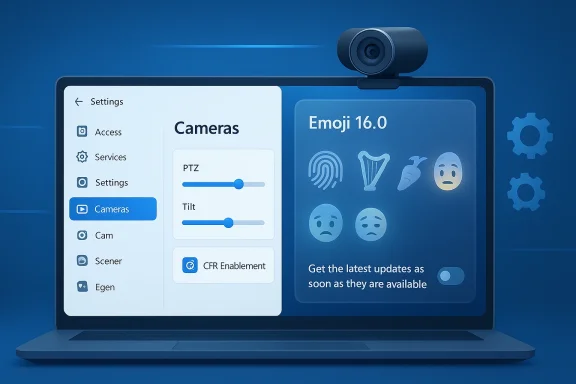
Microsoft’s latest Insider flights continue to nudge Windows 11 toward a more modern, media-friendly desktop: this week’s Dev and Beta Channel builds introduce native webcam controls that finally give users granular access to camera behavior, and they also expand emoji support with a staged rollout of Emoji 16.0—but both changes arrive under Microsoft’s careful enablement-and-gating model, so what you see will depend on which build you installed and whether the server-side flags have been flipped for your device. ndows Insiders have long been the proving ground for Microsoft’s most iterative changes to the OS. Over the past 18 months Microsoft has shifted from throwing big, visible features into the wild to a two-part delivery model: the core binaries are shipped in cumulative updates, while small “enablement” packages and server-side flags determine whether and when individual features become visible to a given device. That approach reduces install overhead and gives Microsoft more control over staged rollouts, but it also adds a layer of uncertainty for testers and administrators who expect a 1:1 relationship between the build number and feature set. This enablement-plus-CFR (Controlled Feature Rollout) pattern is explicitly referenced in Insider communications and is now central to interpreting what these new webcam and emoji additions actually mean for users.
Why this matters: changes that touch cameras and text input affect privacy, accessibility, and the day-to-day experience of remote work. The practical upshot is that users and IT teams must treat Insider builds as experiments—useful previews, not guarantees—and be ready to verify whether server-side gating has enabled a feature on a fleet of devices before it’s treated as production-ready.
A few technical facts to keep in mind:
If you’re an Insider curious to try these features now, check Settings for the new camera options and test emoji rendering in both apps and the emoji panel. If you’re responsible for a fleet, treat these builds as planning signals rather than deployment-ready features—verify, document, and engage with vendors and Microsoft feedback channels to smooth the path to a stable, production-quality rollout.
In short: the functionality arriving in today’s preview builds addresses meaningful, long-standing user needs, but real-world benefits will depend on vendor support, Microsoft’s staged enablement cadence, and careful testing by both consumers and enterprise teams.
Source: Neowin Fresh Windows 11 update bring new webcam settings, emoji 16.0 support, and more
Source: Thurrott.com Microsoft Releases Dev and Beta Builds to Insiders With a Few New Features
Why this matters: changes that touch cameras and text input affect privacy, accessibility, and the day-to-day experience of remote work. The practical upshot is that users and IT teams must treat Insider builds as experiments—useful previews, not guarantees—and be ready to verify whether server-side gating has enabled a feature on a fleet of devices before it’s treated as production-ready.
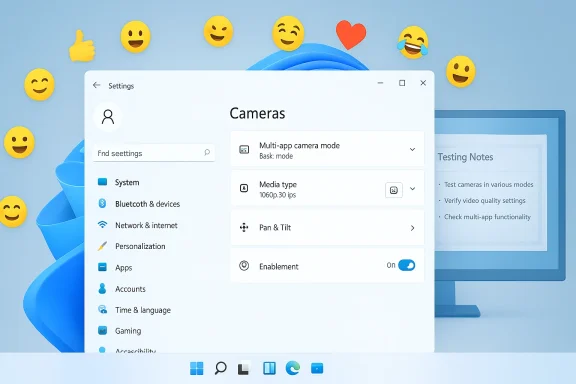 What Microsoft shipped this week — the headlines
- Native webcam controls in Settings: a new advanced camera options page that exposes two operational modes and, where supported, media type selections such as resolution and frame rate. This includes a multi-app mode designed to allow a single camera feed to be shared concurrently by multiple applications and a basic mode that simplifies streaming for troubleshooting. These options appear under Settings > Bluetooth & devices > Cameras when the feature is enabled.
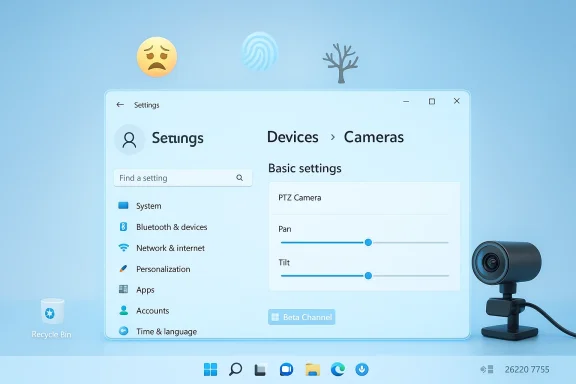
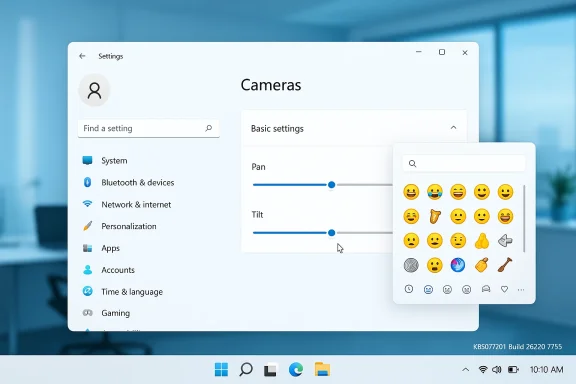
- Camera: for cameras that expose pan/tilt axes, the Settings app now surfaces controls that let you move the camera from the OS directly, rather than relying on app-specific or vendor tools. Expect these to be visible only on supported hardware and only when the CFR gates have opened for your device.
- Emoji 16.0 support (staged): Microsoft is rolling out the Unicode Emoji 16.0 set incrementally. Some emojis are already present in certain system contexts and applications, but full Emoji Panel integration may lag behind due to the phased deployment approach. The rollout has been observed in both 24H2/25H2 Insider builds and the Release Preview channel in earlier preview updates, but not every Insider sees full Emoji Panel availability immediately.
- Small quality and UX fixes across the OS: fixes that reduce taskbar flicker when auto-hide is enabled, improvements to Storage and File Explorer behavior, and refinements to Windows Security credential interactions have been included as part of the cumulative update packages carrying these features.
Deep dive: the new webcam settings
What’s new, in plain terms
Microsoft has been expanding camera management inside Windows for several releases. The latest additions consolidate control in Settings and add features that remove the need for vendor-specific utilities for common tasks:- Multi-app Camera Mode — lets more than one application request and receive the camera feed at the same time. This addresses a longstanding limitation that forced users to choose a single process for camera access, which hindered workflows such as simultaneous conferencing and streaming.
- Basic Mode — a stripped-down fallback that turns on minimal streaming capabilities for troubleshooting. If an app can’t see the camera in normal mode, switching to Basic can help isolate driver or permission issues.
- Media Types / Resolution & Frame Rate — in supported builds there is a “media type” option that ct the optimal resolution automatically or lets power users manually set resolution and frame rate per camera. That exposes control over quality versus bandwidth/performance trade-offs from a single place in Settings. Early sightings of this option came from Canary/Dev Channel discoveries and community testing using tools like ViVeTool to flip experimental flags.
- Pan & Tilt Controls — for PTZ (pan/tilt/zoom) capable devices the OS now offers native controls to move the camera axes, making hardware that supports these axes more usable across apps without vendor software. Again, this is hardware-dependent.
Why this is significant
- Simplifies workflows: users who previously relied on multiple third-party utilities can now standardize on built-in Settings controls for basic camera management.
- Empowers accessibility: multi-app support can help people who use assistive technologies that need simultaneous access to camera feeds in multiple apps (for example, speech-to-text + live captioning alongside a conference call).
- Improves developer and testing scenarios: developere applications can test multi-client scenarios natively without complex workarounds.
Implementation notes and caveats
- Hardware & driver support matter: many webcams expose only a limited set of controls via UVC (USB Video Class) or vendor drivers. If a device doesn’t implement media types or PTZ controls, the OS cannot conjure them. Expect vendor driver updates for full parity on higher-end webcams.
- Enablement & CFR: installing the cumulative update that contains the binaries does not guarantee immediate exposure of settings. Microsoft is sending small enablement packages and flipping server-side flags for cohorts; some Insiders will see features earlier than others. That behavior is by design.
- Third-party apps may still override behavior: apps that request specific camera formats or claim exclusive access can still affect how streams are negotiated. Multi-app mode mitigates but does not necessarily eliminate app-specific behavior.
Emoji 16.0: what’s present and what’s missing
Microsoft is bringing Emoji 16.0 into Windows, but the deployment is not instantaneous across the entire system.- Partial availability: several outlets have observed Emoji 16.0 glyphs appearing inside some first-party apps (like Word or select UWP apps) and in text rendering contexts after the relevant preview updates. However, the Emoji Panel—the system UX you open with WIN + .—may not yet show the full set for every Insider because that UI is still subject to staged rollouts.
- Flag omissions remain: Microsoft historically omits certain geographic flag emojis from the system palette; Emoji 16.0 includes a small set of new glyphs and Microsoft appears to be selective about which geographic flags (if any) appear. That behavior is consistent with prior releases.
- Why the slow rollout? Changing the emoji set requires touching multiple rendering stacks (DirectWrite, font formats like COLRv1, and the emoji panel UI). Microsoft’s phased approach allows them to observe rendering and compatibility issues before flipping the panel for everyone.
The build-and-deploy context: Dev, Beta, RK numbers, and enablement packages
Insider channels have different goals: Dev is about experimentation and platform plumbing; Beta is about a more stable preview of what will ship to broader audiences. Recently Microsoft has been releasing ased cumulative binaries to both Dev and Beta channels and using enablement packages/server-side logic to control experience parity. That’s why, in some windows of time, Dev and Beta can receive identical builds and Microsoft even allows a short window to move between channels before a Dev jump occurs.A few technical facts to keep in mind:
- The cumulative update contains the on-disk binaries (the heavy lifting).
- Enablement packages flip features on at a higher level and are tiny.
- Controlled Feature Rollouts gate features server-side, independently of whether the enablement package is present on disk.
Practical guidance for Insiders, enthusiasts, and IT teams
For Insiders and power users
- If you want to experiment with camera resolution or media types in Canary/Dev builds, be aware that some hidden flags are discoverable and can be toggled with third-party tools such as ViVeTool. Using these methods is strictly at your own risk—ViVeTool is not supported by Microsoft and enabling unreleased features can produce instability. Community write-ups detail the commands and experimental IDs used to surface the options, but proceed with caution.
- To check for new camera options: open Settings > Bluetooth & devices > Cameras, select your camera, and look for an Edit or Advanced options button. If it’s not present, your device either hasn’t received the enablement flag or the camera doesn’t expose the required capabilities.
- Emoji visibility: test by inserting a recently announced Emoji 16 character in a first-party app (for example, Word) and by opening the emoji panel with WIN + . to see if it’s available in that UI. If emojis render in some apps but not the panel, Microsoft has likely staged the emoji panel update separately.
For IT administrators
- Don’t treat Insider features as production features. Insiders are experiments; gatekeepers and policies should be set accordingly.
- Validate driver support before broad rollout. Multi-app sharing and media-type selection depend on bera driver capability.
- Watch for permission and privacy settings changes. New camera controls interact with Windows’ privacy model—verify camera access settings and group policy behavior across test devices.
- Use telemetry and Feedback Hub. When you test a new feature across devices, collect reproducible bugs and send them with logs to the Feedback Hub so Microsoft can triage fleet-level problems quickly.
Security, privacy, and stability considerations
The camera is a sensitive peripheral. Adding more ways to expose and share its feed raises a few non-trivial concerns.- Privacy surfaces: multi-app camera access increases the number of processes that can see a live feed. While Microsoft’s permission model still applies—apps must request camera access—admins should review which UWP and Win32 apps are permitted in managed environments. Consider restricting camera access to only known, vetted applications for high-security environments.
- Driver and firmware vulnerabilities: expanding feature support can expose interactions with vendor drivers that previously lay dormant. That can reveal stability issues (applications crashing, driver resets) and occasionally security exposures. Always test thoroughly on representative hardware.
- Inconsistent UX across apps: because not all applications use the same media stacks, users may find that a chosen resolution or frame rate doesn’t propagate into every app—somformats directly or rely on older APIs. Document any gaps and provide user guidance where necessary.
- Enabling features with third-party tools: using ViVeTool or similar to flip hidden feature flags is common in the community, but it increases risk. Unintended consequences include system instability and loss of supportability in official channels. Back up and test thoroughly.
What’s missing, and what to expect next
- Broader emoji-panel coverage: Microsoft still needs to flip the Emoji Panel update broadly. Past releases suggest a delay between glyph availability and panel integration, so expect a progressive rollout over weeks rather than an instant flip.
- More advanced camera controls: Microsoft has hinted at additional media-type options (additional frame-rate control, automatic selection heuristics), and community explorations suggest further integration with Windows Studio Effects on Copilot+ PCs to apply AI-powered enhancements to external webcams. Those features will land in phases and will likely remain limited to supported Copilot+ hardware at first.
- Vendor uptake: many benefits—PTZ support, consistent exposure control at high-res frame rates—require vendor cooperation. Expect subsequent driver updates from major webcam manufacturers as features become final.
Strengths, weaknesses, and the overall verdict
Strengths
- Unified control: centralizing camera controls in Settings is a real usability win. It reduces reliance on vendor software and produces a predictable place to troubleshoot camera issues.
- Multi-app support solves real pain points: streamers, developers, and power users who needed parallel camera access will find this particularly us
- Emoji updates keep Windows current: Unicode emoji releases are cultural events; supporting Emoji 16.0 keeps Windows consistent with other platforms and improves cross-platform messaging.
Weaknesses and risks
- Fragmented rollout causes confusion: because enablement packages and server-side CFR determine exposure, Insiders and admins may reasonably expect or assume features are present after installing a build when they aren't. That mismatch will seed confusion and inconsistent test results.
- Hardware dependence: the promise of resolution and PTZ controls hinges on vendor drivers and device capabilities; lower-end webcams will see little benefit.
- Privacy and security implications: more processes with camera access and deeper OS-level camera control require careful governance, especially in corporate environments where video feeds can leak sensitive information.
How to test this safely (recommended quick checklist)
- Create a test image: join a video meeting, open two video apps (e.g., a browser-based call + a UWP test app), and verify camera visibility in both to confirm multi-app behavior.
- Check Settings: Settings > Bluetooth & devices > Cameras → Edit/Advanced options. Note which options are present.
- Test resolution changes: set an explicit resolution + frame rate (if available), then record with a known app to confirm the negotiated stream metadata matches your selection. Document any app that ignores or re-negotiates the format.
- Verify driver and firmware versions: capture driver package versions before and after testing to help report reproducible issues.
- Log and report: use Feedback Hub and, where applicable, enterprise logging to capture telemetry and reproduce bugs for Microsoft and vendors.
Final thoughts
Microsoft’s incremental enhancements to camera control and emoji support reflect the company’s pragmatic approach to modern desktop needs: they’re focusing on user-facing pain points—multiple apps fighting for the camera, inflexible default resolutions, and lagging emoji sets—while deploying those fixes through a controlled, signal-driven pipeline. That approach keeps update sizes small and reduces blast radius but requires an adjustment in expectations. Insiders, enthusiasts, and IT admins should test deliberately, verify feature exposure after installing cumulative updates, and prepare for driver/firmware coordination with hardware vendors.If you’re an Insider curious to try these features now, check Settings for the new camera options and test emoji rendering in both apps and the emoji panel. If you’re responsible for a fleet, treat these builds as planning signals rather than deployment-ready features—verify, document, and engage with vendors and Microsoft feedback channels to smooth the path to a stable, production-quality rollout.
In short: the functionality arriving in today’s preview builds addresses meaningful, long-standing user needs, but real-world benefits will depend on vendor support, Microsoft’s staged enablement cadence, and careful testing by both consumers and enterprise teams.
Source: Neowin Fresh Windows 11 update bring new webcam settings, emoji 16.0 support, and more
Source: Thurrott.com Microsoft Releases Dev and Beta Builds to Insiders With a Few New Features

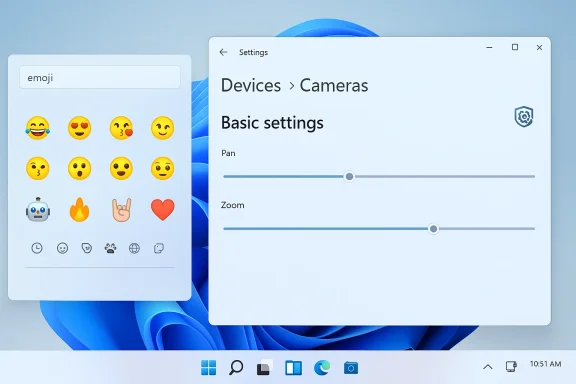
 so users can easily insert emoji into text fields.