• Thread Author
Microsoft’s latest Insider flights continue to nudge Windows 11 toward a more modern, media-friendly desktop: this week’s Dev and Beta Channel builds introduce native webcam controls that finally give users granular access to camera behavior, and they also expand emoji support with a staged rollout of Emoji 16.0—but both changes arrive under Microsoft’s careful enablement-and-gating model, so what you see will depend on which build you installed and whether the server-side flags have been flipped for your device. ndows Insiders have long been the proving ground for Microsoft’s most iterative changes to the OS. Over the past 18 months Microsoft has shifted from throwing big, visible features into the wild to a two-part delivery model: the core binaries are shipped in cumulative updates, while small “enablement” packages and server-side flags determine whether and when individual features become visible to a given device. That approach reduces install overhead and gives Microsoft more control over staged rollouts, but it also adds a layer of uncertainty for testers and administrators who expect a 1:1 relationship between the build number and feature set. This enablement-plus-CFR (Controlled Feature Rollout) pattern is explicitly referenced in Insider communications and is now central to interpreting what these new webcam and emoji additions actually mean for users.
Why this matters: changes that touch cameras and text input affect privacy, accessibility, and the day-to-day experience of remote work. The practical upshot is that users and IT teams must treat Insider builds as experiments—useful previews, not guarantees—and be ready to verify whether server-side gating has enabled a feature on a fleet of devices before it’s treated as production-ready.
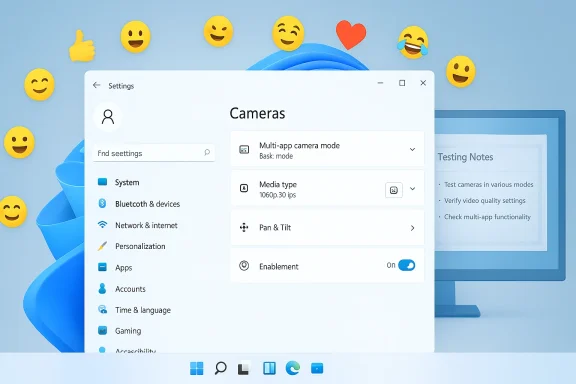
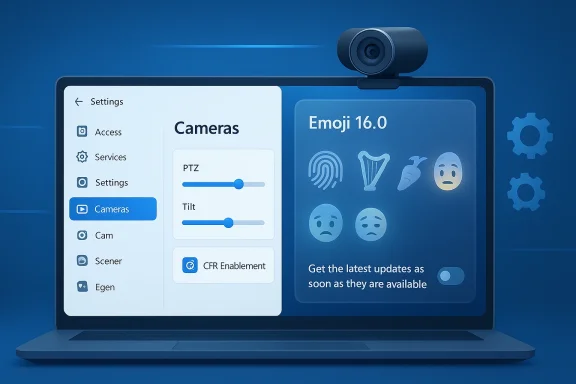
Windows 11 Settings screen showing Cameras options, surrounded by emoji icons on a blue backdrop.What Microsoft shipped this week — the headlines​

  • Native webcam controls in Settings: a new advanced camera options page that exposes two operational modes and, where supported, media type selections such as resolution and frame rate. This includes a multi-app mode designed to allow a single camera feed to be shared concurrently by multiple applications and a basic mode that simplifies streaming for troubleshooting. These options appear under Settings > Bluetooth & devices > Cameras when the feature is enabled.
  • Camera: for cameras that expose pan/tilt axes, the Settings app now surfaces controls that let you move the camera from the OS directly, rather than relying on app-specific or vendor tools. Expect these to be visible only on supported hardware and only when the CFR gates have opened for your device.
  • Emoji 16.0 support (staged): Microsoft is rolling out the Unicode Emoji 16.0 set incrementally. Some emojis are already present in certain system contexts and applications, but full Emoji Panel integration may lag behind due to the phased deployment approach. The rollout has been observed in both 24H2/25H2 Insider builds and the Release Preview channel in earlier preview updates, but not every Insider sees full Emoji Panel availability immediately.
  • Small quality and UX fixes across the OS: fixes that reduce taskbar flicker when auto-hide is enabled, improvements to Storage and File Explorer behavior, and refinements to Windows Security credential interactions have been included as part of the cumulative update packages carrying these features.

Deep dive: the new webcam settings​

What’s new, in plain terms​

Microsoft has been expanding camera management inside Windows for several releases. The latest additions consolidate control in Settings and add features that remove the need for vendor-specific utilities for common tasks:
  • Multi-app Camera Mode — lets more than one application request and receive the camera feed at the same time. This addresses a longstanding limitation that forced users to choose a single process for camera access, which hindered workflows such as simultaneous conferencing and streaming.
  • Basic Mode — a stripped-down fallback that turns on minimal streaming capabilities for troubleshooting. If an app can’t see the camera in normal mode, switching to Basic can help isolate driver or permission issues.
  • Media Types / Resolution & Frame Rate — in supported builds there is a “media type” option that ct the optimal resolution automatically or lets power users manually set resolution and frame rate per camera. That exposes control over quality versus bandwidth/performance trade-offs from a single place in Settings. Early sightings of this option came from Canary/Dev Channel discoveries and community testing using tools like ViVeTool to flip experimental flags.
  • Pan & Tilt Controls — for PTZ (pan/tilt/zoom) capable devices the OS now offers native controls to move the camera axes, making hardware that supports these axes more usable across apps without vendor software. Again, this is hardware-dependent.

Why this is significant​

  • Simplifies workflows: users who previously relied on multiple third-party utilities can now standardize on built-in Settings controls for basic camera management.
  • Empowers accessibility: multi-app support can help people who use assistive technologies that need simultaneous access to camera feeds in multiple apps (for example, speech-to-text + live captioning alongside a conference call).
  • Improves developer and testing scenarios: developere applications can test multi-client scenarios natively without complex workarounds.

Implementation notes and caveats​

  • Hardware & driver support matter: many webcams expose only a limited set of controls via UVC (USB Video Class) or vendor drivers. If a device doesn’t implement media types or PTZ controls, the OS cannot conjure them. Expect vendor driver updates for full parity on higher-end webcams.
  • Enablement & CFR: installing the cumulative update that contains the binaries does not guarantee immediate exposure of settings. Microsoft is sending small enablement packages and flipping server-side flags for cohorts; some Insiders will see features earlier than others. That behavior is by design.
  • Third-party apps may still override behavior: apps that request specific camera formats or claim exclusive access can still affect how streams are negotiated. Multi-app mode mitigates but does not necessarily eliminate app-specific behavior.

Emoji 16.0: what’s present and what’s missing​

Microsoft is bringing Emoji 16.0 into Windows, but the deployment is not instantaneous across the entire system.
  • Partial availability: several outlets have observed Emoji 16.0 glyphs appearing inside some first-party apps (like Word or select UWP apps) and in text rendering contexts after the relevant preview updates. However, the Emoji Panel—the system UX you open with WIN + .—may not yet show the full set for every Insider because that UI is still subject to staged rollouts.
  • Flag omissions remain: Microsoft historically omits certain geographic flag emojis from the system palette; Emoji 16.0 includes a small set of new glyphs and Microsoft appears to be selective about which geographic flags (if any) appear. That behavior is consistent with prior releases.
  • Why the slow rollout? Changing the emoji set requires touching multiple rendering stacks (DirectWrite, font formats like COLRv1, and the emoji panel UI). Microsoft’s phased approach allows them to observe rendering and compatibility issues before flipping the panel for everyone.

The build-and-deploy context: Dev, Beta, RK numbers, and enablement packages​

Insider channels have different goals: Dev is about experimentation and platform plumbing; Beta is about a more stable preview of what will ship to broader audiences. Recently Microsoft has been releasing ased cumulative binaries to both Dev and Beta channels and using enablement packages/server-side logic to control experience parity. That’s why, in some windows of time, Dev and Beta can receive identical builds and Microsoft even allows a short window to move between channels before a Dev jump occurs.
A few technical facts to keep in mind:
  • The cumulative update contains the on-disk binaries (the heavy lifting).
  • Enablement packages flip features on at a higher level and are tiny.
  • Controlled Feature Rollouts gate features server-side, independently of whether the enablement package is present on disk.
This model benefits Microsoft operationally but requires Insiders and IT admins to verify feature exposure rather than assume it after installing a build. Official Insider posts about these updates make that explicit.

Practical guidance for Insiders, enthusiasts, and IT teams​

For Insiders and power users​

  • If you want to experiment with camera resolution or media types in Canary/Dev builds, be aware that some hidden flags are discoverable and can be toggled with third-party tools such as ViVeTool. Using these methods is strictly at your own risk—ViVeTool is not supported by Microsoft and enabling unreleased features can produce instability. Community write-ups detail the commands and experimental IDs used to surface the options, but proceed with caution.
  • To check for new camera options: open Settings > Bluetooth & devices > Cameras, select your camera, and look for an Edit or Advanced options button. If it’s not present, your device either hasn’t received the enablement flag or the camera doesn’t expose the required capabilities.
  • Emoji visibility: test by inserting a recently announced Emoji 16 character in a first-party app (for example, Word) and by opening the emoji panel with WIN + . to see if it’s available in that UI. If emojis render in some apps but not the panel, Microsoft has likely staged the emoji panel update separately.

For IT administrators​

  • Don’t treat Insider features as production features. Insiders are experiments; gatekeepers and policies should be set accordingly.
  • Validate driver support before broad rollout. Multi-app sharing and media-type selection depend on bera driver capability.
  • Watch for permission and privacy settings changes. New camera controls interact with Windows’ privacy model—verify camera access settings and group policy behavior across test devices.
  • Use telemetry and Feedback Hub. When you test a new feature across devices, collect reproducible bugs and send them with logs to the Feedback Hub so Microsoft can triage fleet-level problems quickly.

Security, privacy, and stability considerations​

The camera is a sensitive peripheral. Adding more ways to expose and share its feed raises a few non-trivial concerns.
  • Privacy surfaces: multi-app camera access increases the number of processes that can see a live feed. While Microsoft’s permission model still applies—apps must request camera access—admins should review which UWP and Win32 apps are permitted in managed environments. Consider restricting camera access to only known, vetted applications for high-security environments.
  • Driver and firmware vulnerabilities: expanding feature support can expose interactions with vendor drivers that previously lay dormant. That can reveal stability issues (applications crashing, driver resets) and occasionally security exposures. Always test thoroughly on representative hardware.
  • Inconsistent UX across apps: because not all applications use the same media stacks, users may find that a chosen resolution or frame rate doesn’t propagate into every app—somformats directly or rely on older APIs. Document any gaps and provide user guidance where necessary.
  • Enabling features with third-party tools: using ViVeTool or similar to flip hidden feature flags is common in the community, but it increases risk. Unintended consequences include system instability and loss of supportability in official channels. Back up and test thoroughly.

What’s missing, and what to expect next​

  • Broader emoji-panel coverage: Microsoft still needs to flip the Emoji Panel update broadly. Past releases suggest a delay between glyph availability and panel integration, so expect a progressive rollout over weeks rather than an instant flip.
  • More advanced camera controls: Microsoft has hinted at additional media-type options (additional frame-rate control, automatic selection heuristics), and community explorations suggest further integration with Windows Studio Effects on Copilot+ PCs to apply AI-powered enhancements to external webcams. Those features will land in phases and will likely remain limited to supported Copilot+ hardware at first.
  • Vendor uptake: many benefits—PTZ support, consistent exposure control at high-res frame rates—require vendor cooperation. Expect subsequent driver updates from major webcam manufacturers as features become final.

Strengths, weaknesses, and the overall verdict​

Strengths​

  • Unified control: centralizing camera controls in Settings is a real usability win. It reduces reliance on vendor software and produces a predictable place to troubleshoot camera issues.
  • Multi-app support solves real pain points: streamers, developers, and power users who needed parallel camera access will find this particularly us
  • Emoji updates keep Windows current: Unicode emoji releases are cultural events; supporting Emoji 16.0 keeps Windows consistent with other platforms and improves cross-platform messaging.

Weaknesses and risks​

  • Fragmented rollout causes confusion: because enablement packages and server-side CFR determine exposure, Insiders and admins may reasonably expect or assume features are present after installing a build when they aren't. That mismatch will seed confusion and inconsistent test results.
  • Hardware dependence: the promise of resolution and PTZ controls hinges on vendor drivers and device capabilities; lower-end webcams will see little benefit.
  • Privacy and security implications: more processes with camera access and deeper OS-level camera control require careful governance, especially in corporate environments where video feeds can leak sensitive information.

How to test this safely (recommended quick checklist)​

  • Create a test image: join a video meeting, open two video apps (e.g., a browser-based call + a UWP test app), and verify camera visibility in both to confirm multi-app behavior.
  • Check Settings: Settings > Bluetooth & devices > Cameras → Edit/Advanced options. Note which options are present.
  • Test resolution changes: set an explicit resolution + frame rate (if available), then record with a known app to confirm the negotiated stream metadata matches your selection. Document any app that ignores or re-negotiates the format.
  • Verify driver and firmware versions: capture driver package versions before and after testing to help report reproducible issues.
  • Log and report: use Feedback Hub and, where applicable, enterprise logging to capture telemetry and reproduce bugs for Microsoft and vendors.

Final thoughts​

Microsoft’s incremental enhancements to camera control and emoji support reflect the company’s pragmatic approach to modern desktop needs: they’re focusing on user-facing pain points—multiple apps fighting for the camera, inflexible default resolutions, and lagging emoji sets—while deploying those fixes through a controlled, signal-driven pipeline. That approach keeps update sizes small and reduces blast radius but requires an adjustment in expectations. Insiders, enthusiasts, and IT admins should test deliberately, verify feature exposure after installing cumulative updates, and prepare for driver/firmware coordination with hardware vendors.
If you’re an Insider curious to try these features now, check Settings for the new camera options and test emoji rendering in both apps and the emoji panel. If you’re responsible for a fleet, treat these builds as planning signals rather than deployment-ready features—verify, document, and engage with vendors and Microsoft feedback channels to smooth the path to a stable, production-quality rollout.
In short: the functionality arriving in today’s preview builds addresses meaningful, long-standing user needs, but real-world benefits will depend on vendor support, Microsoft’s staged enablement cadence, and careful testing by both consumers and enterprise teams.

Source: Neowin Fresh Windows 11 update bring new webcam settings, emoji 16.0 support, and more
Source: Thurrott.com Microsoft Releases Dev and Beta Builds to Insiders With a Few New Features
 

Microsoft has begun rolling Windows 11 Insider Preview Build 26220.7755 (KB5077201) into the Beta Channel, delivering a compact set of usability fixes and a couple of small but noticeable user-facing rollouts — most prominently the reintroduction of Emoji 16.0 into the Emoji Panel for Insiders and new pan/tilt camera controls exposed in Settings — while continuing to rely on the enablement‑package + Controlled Feature Rollout model that has defined the 25H2 preview stream. ://www.reddit.com/r/Windows11/comments/1r0i5sm/announcing_windows_11_insider_preview_build/)

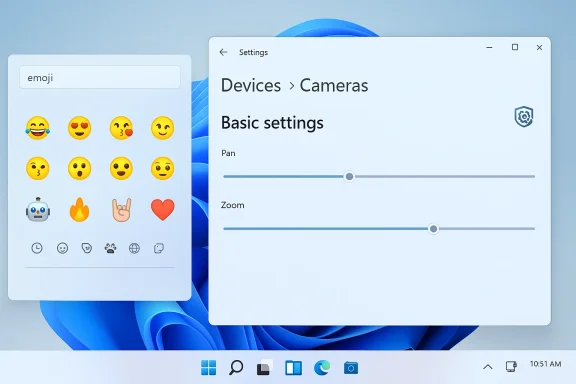
Windows desktop showing an emoji picker beside a Cameras settings panel.Background / Overview​

What this build is, and how it’s delivered​

Build 26220.7755 is part of the 26220.* family associated with Windows 11, version 25H2, and is distributed as an enablement package (a small package that flips features that have already been shipped in dormant form in prior cumulative updates). That delivery model means the package itself is lightweight, but feature visibility remains gated: Microsoft uses server-side flags and telemetry‑driven Controlled Feature Rollout (CFR) to decide which machines see which featurwhy two PCs on the same build can look different.
Insiders in the Beta Channel who want earlier visibility are encouraged to enable the Settings → Windows Update toggle to “Get the latest updates as soon as they are available.” With that toggle on, Microsoft gradually ramps new experiences to a subset of tnds availability as telemetry and Feedback Hub responses permit. If you leave the toggle off, the same features typically arrive later, once Microsoft widens the rollout.

Why this matters now​

The 26220 series is a near‑final preview track for 25H2 work and represents Microsoft’s current strategy to ship platform plumbing early and then selectively enable experiences. The practical upshot for Insiders and IT teams is twofold: faster installs and lower per‑dks to the enablement package model, but more variability and gating complexity when validating features or preparing documentation and support flows.

Quick summary of what’s new in Build 26220.7755​

  • Emoji 16.0 is being rolled back into Insiders via the Emoji panel — a small curated set of new emoji glyphs has been added to the picker for supported devices.
  • Settings now exposes direct pan and tilt controls for supported cameras under Settings → Devices & drivers → Cameras → Basic settings. This provides a native, system‑level way to reposition compatible webcams without third‑party camera utilities.
  • A set of general improvements and reliability fixes are being rolled out — including taskbar autohide behavior fixes (visual jank at the bottom of the screen), resolving desktop icons unexpectedly flashing, and addressing Windows Security credential pop‑up issues that affected some workflows.
Each of the above items is being deployed under Microsoft’s usual staged model: some are visible only to Insiders who enabled the “get latest updates” toggle, while others will appear more broadly as the rollout expands.

Deep dive: Emoji 16.0 — what returned, what still matters​

What Microsoft shipped to Insiders​

Microsoft states it is “starting to roll Emoji 16.0 back to Insiders” and that the build includes a small, thoughtfully curated set — described as “one from each major category” — available through the system emoji panel. For users who regularly use the picker (WIN + .), this restores new glyphs that had been staged in earlier 25H2 previews and optional updates.

Independent corroboration and caveats​

Independent coverage from community and editorial outlets shows that Emoji 16.0 has been partially present in Windows for several months, but with uneven integration across rendering contexts and the emoji panel itself. Reporting last year documented that while Segoe UI Emoji and first‑party apps (Word, Notepad, OneNote) could render new Unicode glyphs after certain updates, the Emoji Panel and some legacy surfaces lagged behind because of differences in rendering stacks (GDI/Win32 vs DirectWrite / modern XAML). That inconsistent behavior explains why Microsoft treats panel availability as a staged rollout rather than a universal flip.

What to expect as the rollout continues​

  • If you see the new emoji in the panel, they should render across modern, DirectWrite‑based surfaces; legacy Win32 surfaces or apps that embed their own emoji fonts may still render fallback squares or alternative glyphs.
  • Regional and app‑level differences are common: some web apps and cross‑platform apps ship their own emoji fonts and rendering, so your mileage will vary.

Practical testing checklist for power users​

  • Verify the panel: press WIN + . and look for the newly added glyphs.
  • Paste the emoji into first‑party apps (Notepad, Word) and legacy apps (classic Notepad titlebar, Explorer UI) to see rendering differences.
  • If emoji don’t display in an app, check whether the appnt or an older rendering stack; file a Feedback Hub report describing the rendering surface and steps to reproduce.

Deep dive: Camera pan & tilt controls in Settings​

What changed​

For supported cameras (hardware that exposes PTZ controls), Windows now surfaces pan and tilt sliders or controls directly inside Settings → Devices & drivers → Cameras → Basic settings. This formalizes control that previously required vendor utilities, UVC camera apps, or third‑party webcam control software. Microsoft positions this as a convenience and a means to standardize camera behavior across devices.

Why this is useful​

  • It reduces dependence on OEM software and simplifies basic camera adjustments for users who simply want to center themselves during video calls.
  • Enterprise deployments benefit because helpdesk scripts no longer need to instruct users to install vendor control panels for simple repositioning tasks.
  • It is consistent with Windows’ broader aim to centralize device controls (see the ongoing “Devices & drivers” work across recent 26220 builds).

Limitations and compatibility caveats​

  • This functionality depends entirely on hardware exposing controllable PTZ endpoints (commonly via USB Video Class (UVC) extensions or vendor drivers). Many built‑in laptop webcams and inexpensive webcams do not provide pan/tilt APIs; in those cases, Settings will not show these controls.
  • Advanced camera features (zoom presets, face‑tracking, firmware‑level privacy shutters) remain vendor‑specific for now.
  • If you manage a fleet, expect uneven availability across models and driver versions — verify on representative devices before relying on the feature in support documentation.

How to test it​

  • Open Settings → Devices & drivers → Cameras and select your camera.
  • Look under “Basic settings” for pan and tilt controls; try small adjustments and verify behavior in a calling app (Teams, Zoom, Meet).
  • If the controls are absent, check Device Manager for driver updates and whether the camera reports PTZ capabilities.

The reliability and polish fixes: small changes, outsized effects​

Microsoft’s notes call out a handful of targeted fixes that, while modest individually, improve daily experience: taskbar autohide visual issues (especially near the bottom of the screen), resolving desktop icons flashing and resulting stutters while interacting with the desktop, and fixing Windows Security credential prompts in scenarios where they previously opened incorrectly. These are quality‑of‑life improvements that reduce friction for users who encounter the specific regressions.
Why these matter:
  • Taskbar autohide problems and unexpected credential prompts are highs — they break muscle memory and can interrupt workflows unexpectedly.
  • Fixing desktop icon flashing correlates with responsiveness gains on some systems, because the symptom is often linked to inefficient redrawing or shell interactions.

The enablement package + Controlled Feature Rollout model — practical implications​

How the enablement package works​

Windows 11, version 25H2 is delivered largely via an enablement package: the binaries have been shipped earlier in dormant form and the eKB flips those features on. That allows small, fast installs for most up‑to‑date devices. Microsoft’s documentation and Insider posts repe installing the KB is necessary but not always sufficient to see every feature — server-side flags, hardware entitlements, and regional gating determine exposure.

Controlled Feature Rollout (CFR)​

CFR means Microsoft can:
  • Gate femetry, or hardware class (for example, Copilot+ NPUs).
  • Expand rollouts as telemetry looks healthy.
  • Pull or pause rollouts if a regression is detected.
For testers and support teams, CFR introduces variability: the same build on two machines may behave differently, complicating reproducibility for bug reports and RPA/UI automation.

Operational guided users​

  • Treat 26220 builds as preview; pilot on representative devices before broad deployment.
  • Record exact build numbers (winver) and KB identifiers (for example KB5077201 for 26220.7755) when filing Feedback Hub reports to expedite triage.
  • If you want the earliest exposure to staged experiences, enable Settings → Windows Update → Get the latest updates as soon as they’re available, but only on test or non-critical devices.
  • Use safeguards: maintain recovery images, validate WinRE and Quick Machine Recovery flows, and test common enterprise apps before upgrading production endpoints.

Risks, unknowns, and what to watch for​

Feature availability vs. visibility​

Because the build simply packages platform changes while gating their activation, you may install the update and still not see the new features. That’s by design, but it leads to confusion among Insiders and admins who expect consistency. Microsoft reiterates this in each Insider posting for the 26220 family.

Localization and accessibility​

Microsoft warns that features previewed with Insiders may not be fully localized or accessible in early stages. Expect missing translations or incomplete screen‑reader labeling until features reach broader availability. Flag localization and accessibility issues early via Feedback Hub so engineering can prioritize fixes.

Hardware and driver dependency​

  • Camera pan/tilt controls require camera drivers or hardware support; many devices will not show these controls.
  • Emoji rendering depends on rendering stacks and font fallbacks; legacy surfaces (Win32 title bars, some legacy dialogs) may continue to show fallback glyphs until underlying rendering code is modernized.

Potential for regressions​

Even small fixes can introduce side effects — historically, some Insider builds have produced secondary‑monitor black screens or game‑related regressions on a small subset of hardware. For mission‑critical systems, wait for the feature to reach broader Beta/Release Preview before deploying.

How to validate and report issues effectively (practical steps)​

  • Capture the environment
  • Record OS build (winver) and the KB package identifier. This is essential for triage. - Reduce variables: disable third‑party shell extensions and test on a clean profile where possible.
  • Collect diagnostics
  • Use Event Viewer, Reliability Monitor, and performance traces if a UI jank or flashing issue appears.
  • File actionable Feedback Hub reports
  • Use precise categories (Input & Language → Emoji panel for emoji issues; Devices and Drivers → Device Camera or Webcams for camera controls).
  • Attach repro steps, screenshots, and a short video when a visual glitch or camera movement problem is present.
  • Monitor Flight Hub and the official Windows Insider blog for known issues and rollout notes, then correlate your repros with posted known issues.

How this fits into Micro 11 roadmap​

Build 26220.* represents Microsoft’s strategy to evolve Windows incrementally while building more advanced Copilot/AI surfaces and platform plumbing. The enablement model lets Microsoft prepare larger features in the background and flip them on when ready. That approach lowers install friction for users and reduces the risk of broad regressions, but it also raises complexity for testing and support. Recent 26220 builds have also introduced UI modernizations (WinUI dialogs), .webp wallpaper support, Copilot integrations, and recovery flow tweaks — placing the ly in a pattern of polish, minor feature additions, and staged AI integration.

Final assessment: strengths, trade‑offs, and recommendations​

Notable strengths​

  • The build focuses on practical quality improvements that make everyday interactions smoother (taskbar autohide fixes, desktop icon stability, credential prompt behavior).
  • Native camera pan/tilt controls and Emoji 16.0 inience wins* that reduce dependency on vendor apps and bring Windows’ emoji experience closer to parity with other modern platforms.
  • The enablement package model keeps installs small and fast for up‑to‑date devices, lowering friction for Insiders who want to test 25H2 flows.

Potential risks and trade‑offs​

  • The CFR approach means inconsistent experiences across devices and regions, complicating testing, documentation, and support
  • Hardware and driver gating can lead to feature fragmentation: some users will see camera controls, others won’t, even on identical builds.
  • Emoji and rendering inconsistencies remain a cross‑stack challenge until legacy Win32/GDI surfaces are modernized across the entire OS and key apps.

Actionable recommendations​

  • Insiders: Turn the “Get the latest updates as soon as they’re available” toggle on only on test devices if you want earlier access to staged features; file focused Feedback Hub reports with precise repro steps when you hit issues.
  • IT teams: Pilot this build on representative hardware sets (including webcams) and run key automation scripts to detect breakage from UI modernization (WinUI dialogs, control hierarchies).
  • Developers: If your app interacts with camera APIs or relies on UI automation against Settings or dialogs, validate against the latest 26220 build series and prepare for possible control hierarchy changes.

Windows 11 Insider Preview Build 26220.7755 is a compact, practical iteration — not a headline‑making overhaul — but it demonstrates the steady, incremental approach Microsoft is using to modernize and polish the OS: small conveniences (emoji panel updates, camera pan/tilt), stability fixes that reduce daily friction, and continued reliance on the enablement package + Controlled Feature Rollout model to reduce update impact while finely tuning feature exposure. For testers and IT professionals the immediate work remains the same: verify behavior on representative devices, file clear Feedback Hub reports when needed, and remember that visibility is governed by server flags as much as by the local KB install.

Source: Microsoft - Windows Insiders Blog Announcing Windows 11 Insider Preview Build 26220.7755 (Beta Channel)
 

Microsoft has begun rolling out Windows 11 Insider Preview Build 26220.7755 (KB5077201) to the Beta Channel, bringing a compact set of Emoji 16.0 additions and a highly practical system-level option to control pan and tilt on supported cameras directly from Settings — changes that are small on paper but meaningful in day-to-day use for testers and early adopters.

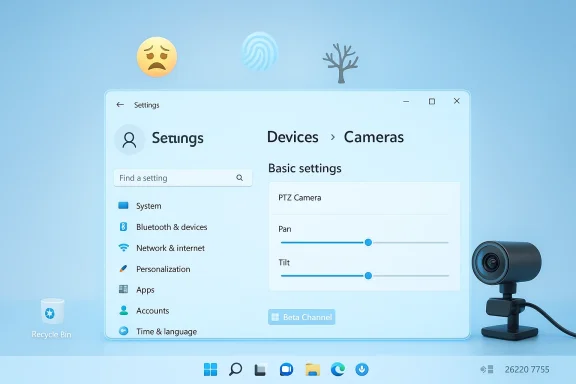
Blue Windows Settings screen with Camera controls (Pan/Tilt) and a 3D camera on the right.Background: what this build is and how it reaches testers​

Microsoft published the official announcement for Build 26220.7755 on February 9, 2026, labeling the update as a Beta Channel release and tying it to Windows 11 version 25H2 via an enablement package. That means the bits behind 25H2 are present and this package acts as a fast “master switch” to activate those features where applicable. The Insider blog lays out the controlled, staged approach Microsoft uses: features are delivered in two buckets — those being gradually rolled out to Insiders who enable the “get the latest updates as they are available” toggle, and features that will roll out to everyone in the Beta Channel over time.
This division matters: not every Beta tester will see the new emoji set or camera controls immediately. Microsoft uses a Controlled Feature Rollout to sample the experience on a subset of devices, monitor telemetry and feedback, and then expand or pull back as needed. If you want the earliest access, you must explicitly enable the optional toggle in Settings > Windows Update; otherwise, the new features will appear only after Microsoft ramps them up.

What’s new, in plain terms​

Emoji 16.0 returns to Windows 11​

Microsoft says it is “starting to roll Emoji 16.0 back to Insiders,” shipping a curated set of seven new glyphs — one chosen from each major emoji category — that will appear in the Windows emoji panel once they land on your device. The specific entries listed by Microsoft are: Face with Bags Under Eyes, Fingerprint, Root Vegetable, Leafless Tree, Harp, Shovel, and Splatter. Testers are encouraged to report issues via Feedback Hub under Input and Language > Emoji panel.
This is a soft Emoji 16.0 rollout: the set is intentionally small and Microsoft has been explicit that the emoji panel integration may reach users at different times. Past telemetry shows that Windows can present emoji in some contexts (for example, in apps using DirectWrite) before the system picker is fully patched — a fragmentation that has caused confusion in earlier rollouts. Independent reporting from Windows-focused outlets documented those differences during prior emoji rollouts, noting that some apps and UI surfaces may continue to show empty rectangles or fall back to app-specific emoji until integration is finalized.

New pan and tilt controls for supported cameras​

Arguably the more practical feature for many users is the new ability to control pan and tilt for supported webcams directly within Settings. Microsoft locates these controls at: Settings > Devices & drivers > Cameras, inside the Basic settings for a selected camera. The aim is to provide simple, manufacturer-independent positioning controls for cameras that already expose pan/tilt capability — removing the dependency on vendor utilities for routine adjustments. Feedback is requested in Feedback Hub under Devices and Drivers > Device Camera or Webcams.
Under the hood this functionality only matters if the camera exposes PTZ (pan-tilt-zoom) controls through standard interfaces. Many modern conference and PTZ cameras expose those controls via the USB Video Class (UVC) extensions or vendor drivers and can be managed without additional SDKs; however, support in the wild remains inconsistent. In practice, some pro and enterprise PTZ devices have long supported PTZ over UVC, while commodity consumer webcams rarely include mechanical pan/tilt hardware and instead rely on digital panning or software cropping.

Why these two seemingly small features matter​

1) The emoji story: cultural, technical, and UX continuity​

Emoji are now a ubiquitous communication tool across messaging, collaboration, and content creation. For Microsoft, adding Emoji 16.0 is both a cultural signal — keeping Windows visually current with other platforms — and a technical one: it exercises the OS font and rendering chains across many legacy and modern graphics stacks inside Windows.
That is the crux of the problem Microsoft faces. Windows doesn’t have a single emoji rendering pipeline: modern apps using DirectWrite and the updated Segoe UI Emoji font will render the new glyphs more reliably, while legacy Win32/GDI surfaces, title bars, and some system chrome still rely on older APIs that historically lag behind on emoji updates. The result is mixed experiences where an emoji selected from the panel may display properly inside Word or Notepad but appear as an empty box in older UI surfaces. Past reporting has documented these inconsistencies, so seeing Emoji 16.0 in the panel doesn't guarantee flawless, system-wide behavior until broader integration is completed.
Microsoft’s staged reintroduction makes sense from an engineering standpoint: it allows the company to monitor rendering regressions, compatibility with input and search in the picker, and the effect of new glyphs on layout and performance across thousands of permutations of apps and driver stacks. But for users, the asymmetry can be jarring — especially when an emoji appears in one app and not another. That inconsistency is worth emphasizing for readers who expect a single, uniform emoji experience across all UI surfaces.

2) Camera controls: practical UX gains and ecosystem implications​

Putting pan/tilt controls in the Settings app is a UI win for users who want a centralized place to manage basic camera behavior without hunting for vendor software. It reduces friction for remote workers, streamers, and conference-room operators who frequently tweak camera aim and angle.
However, this isn’t a one-size-fits-all fix. The new Settings controls rely on camera hardware and drivers exposing pan/tilt interfaces — commonly via the UVC standard or vendor-specific extensions. Professional PTZ cameras marketed to AV and conference environments typically expose comprehensive PTZ controls (pan range, tilt range, speeds, presets) and are compatible with standard interfaces; many consumer webcams, by contrast, lack physical pan mechanisms altogether. That means the Settings control is mainly a convenience feature for supported devices; it won’t magically add pan/tilt where hardware doesn’t exist.
From an ecosystem viewpoint, this change nudges hardware vendors to adopt or document standard camera control interfaces so their devices work seamlessly with Windows’ native controls. It also opens the door to a better out-of-the-box experience for AV integrators and end users who have long relied on third-party control software and drivers.

A deeper technical look: rendering chains, UVC, and enablement packages​

Emoji rendering across Windows’ graphics stack​

Windows uses several subsystems for text and glyph rendering. Key distinctions that affect emoji behavior are:
  • DirectWrite (used by modern apps and many UWP/WinUI apps) — has stronger, more modern font rendering and is typically the first to pick up new Segoe UI Emoji font updates.
  • GDI/Win32 surfaces (used by legacy desktop components, some title bars, older apps) — may not use the modern font plumbing and historically appears later in emoji rollouts.
  • App-specific emoji sets (for example, web apps that embed Google or Apple emoji fonts) — may render emojis independently of the OS font, leading to cross-platform design differences.
Because of these divergent rendering chains, adding emoji to the Segoe UI Emoji font — and to the emoji panel — is necessary but not sufficient for consistent system-wide emoji behavior. Microsoft’s staged approach and telemetry collection help it identify where glyphs are still falling through the cracks. WindowsLatest and other outlets have previously documented these rendering discrepancies during the Emoji 16.0 rollout, illustrating why Microsoft is moving cautiously.

UVC and how Windows talks to PTZ cameras​

PTZ-enabled cameras typically expose control points through industry standards like UVC (USB Video Class) and sometimes through IP-level protocols (ONVIF, VISCA over IP) or vendor drivers. Applications and system components use these interfaces to change camera position, zoom, focus, and other parameters.
  • Cameras that support UVC PTZ expose standard control properties that Windows can query and adjust without vendor SDKs.
  • More sophisticated camera features (presets, auto-tracking, advanced image tuning) still often require manufacturer utilities or management software.
Microsoft’s addition of pan/tilt sliders to Settings suggests Windows now has a UI hook that will call into the standard camera control APIs when the hardware indicates it supports those controls. Tools like duvc-ctl on GitHub already demonstrate that Windows APIs and user-space tools can enumerate and command UVC camera properties programmatically, which corroborates Microsoft’s approach to a standardized control surface. Still, the real-world experience will vary by camera model and driver quality.

Enablement packages: how 25H2 gets delivered​

Windows 11 version 25H2 is being distributed in many cases as an enablement package — a very small update that unlocks features already present in the installed build of Windows. The Microsoft Support entry for the 25H2 enablement package explains that devices running 24H2 already have the 25H2 bits dormant in the system; the enablement package flips a bit to activate them. This is a fast path for feature updates because it avoids large downloads for the entire OS image. Microsoft’s Insider blog again reiterates that Build 26220.7755 is based on Windows 11, version 25H2, and delivered via an enablement package. That technical detail matters because some features are present but intentionally blocked until Microsoft chooses to enable them broadly or via controlled rollout.

What testers should watch for and how to provide useful feedback​

If you’re a Windows Insider on the Beta Channel (or plan to join), here are practical steps and what to look for:
  • Turn on the toggle in Settings > Windows Update if you want the earliest controlled-rollout features. This increases your chance of seeing Emoji 16.0 and the new camera controls sooner.
  • Verify the build and update KB: after installing, confirm you are on Build 26220.7755 (KB5077201). This provides context when reporting issues.
  • Test emoji rendering across apps:
  • Open the emoji panel and insert the new Emoji 16.0 icons into modern apps (Word, Notepad with DirectWrite, Teams) and legacy surfaces (title bars, File Explorer name fields) to surface inconsistencies. Report rendering issues under Input and Language > Emoji panel in Feedback Hub.
  • Test camera pan/tilt:
  • If you have a PTZ camera, open Settings > Devices & drivers > Cameras and look for Basic settings where pan/tilt controls should appear. Try small adjustments and note whether they are persistent across app launches and reboots. If your camera lacks physical PTZ, the controls will not appear — that is expected. Report functional or driver-related problems under Devices and Drivers > Device Camera or Webcams.
  • Log performance and UI regressions:
  • Microsoft cites smoother visuals and better behavior for scenarios like an auto-hiding taskbar, desktop icon flashing, and Windows Security credential prompts. If you notice improved or worsened behavior, collect repro steps and file them — those telemetry signals drive whether changes are rolled out further.
When filing Feedback Hub reports, include precise repro steps, the app or surface showing the problem, and whether the issue appears consistently after a reboot. Screenshots and short screen recordings (where privacy permits) help engineers triage issues quickly.

Strengths: why this update is a pragmatic step forward​

  • User-focused polish: The build prioritizes small but high-impact ergonomics: emoji completeness in the picker and native camera position controls reduce friction for content creators and remote workers.
  • Centralized controls: Camera pan/tilt in Settings removes friction stemming from fragmented vendor utilities and consolidates basic camera management into the OS.
  • Controlled rollout discipline: Microsoft’s staged deployment reduces blast radius for regressions and lets Microsoft iterate quickly based on telemetry and Feedback Hub reports.
  • Enablement package model: By shipping 25H2 as an enablement package, Microsoft reduces the overhead for feature activation and keeps the update experience fast for those on 24H2 with recent cumulative updates.

Risks, caveats, and unanswered questions​

  • Fragmented emoji experience persists: Until Windows’ varied rendering surfaces converge on a single update path (which would likely require coordinated changes across legacy APIs), some apps will show new emoji while others do not. Users should expect uneven behavior during the rollout and may find the inconsistency confusing. Independent reporting has documented these exact discrepancies in prior Emoji updates.
  • Hardware dependency for camera features: The Settings pan/tilt UI is a front-end; it depends entirely on camera hardware and driver support. Users with commodity webcams or integrated laptop cameras (which rarely have mechanical PTZ hardware) will not benefit. Likewise, vendor drivers that expose non-standard controls may not integrate cleanly with the Settings UI. Expect a mixed vendor landscape.
  • Security and privacy surface area: Exposing PTZ controls at the OS level has potential privacy implications. Malicious software that already has camera access could more easily manipulate camera position if it can call into the same APIs that the Settings UI uses. Windows already offers granular camera permissions and device-level toggles, but the reality is that desktop application permissions are coarser than Microsoft Store app permissions. Users should audit which apps have camera access and keep drivers and the OS patched. Cybersecurity write-ups and guides emphasize that webcams have historically been targeted for covert surveillance and that physical covers and careful permission management remain prudent defenses.
  • Localization and UI completeness: Microsoft explicitly warns that localization may be incomplete for some previewed features. Beta testers in non-English locales may encounter untranslated strings or incomplete language packs until the feature is finalized. This is typical in staged feature rollouts but bears noting for testers validating language-specific UI flows.
  • Feature permanence is not guaranteed: As with any Insider preview, features seen in Beta may change, be removed, or never ship to the broader Windows population. Reported user telemetry could steer Microsoft away from public release if the feature doesn’t land as intended.

Practical recommendations for admins and everyday users​

  • For IT administrators: treat Beta Channel builds as testing ground, not production. If you manage fleets, do not deploy Beta builds broadly; instead, use pilot rings and test devices to validate application and driver compatibility — especially for conferencing hardware where PTZ is critical. Confirm vendor support matrices for PTZ cameras and test with official drivers.
  • For power users and content creators: if you rely on a PTZ camera, test the new Settings controls but keep vendor utilities installed until you confirm full parity in features like presets and auto-tracking. Vendor software will still be necessary for advanced workflows even if Settings handles simple adjustments.
  • For privacy-minded users: review Camera permissions in Settings > Privacy & security and consider using a physical webcam cover or the master camera toggle when the device is not in use. Monitor which apps have recently accessed the camera and disable “Let desktop apps access your camera” if you only need camera functionality from Store apps.

Broader implications: what Microsoft’s choices signal​

Microsoft’s small but targeted additions in Build 26220.7755 illustrate a couple of broader trends for Windows in 2026:
  • The company continues to favor incremental polish over sweeping rewrites. The enablement package + controlled rollout model lets Microsoft ship features more like a continuous platform than a once-a-year monolith.
  • Microsoft is pushing the OS to be a more capable device control surface for peripherals (cameras, audio, haptics), not merely a platform where vendors supply all configuration UX. That centralization can improve usability but will create friction unless vendors adopt shared APIs and drivers cooperate.
  • The emoji rollout underscores the long tail of compatibility work that remains in the OS: modern UI frameworks are updated more quickly than long-standing Win32 surfaces, so parity takes time and deliberate engineering effort.
Taken together, these moves suggest Microsoft is tuning Windows for a world where video collaboration, visual communication, and consistent cross-application UX matter more than ever. But they also remind us that the OS still carries decades of legacy code paths that require measured, telemetry-driven change.

Final verdict​

Build 26220.7755 is a practical, conservative update that prioritizes user-facing polish and convenience. The return of Emoji 16.0 and the new pan and tilt camera controls are welcome additions for Insiders who care about expressive communication and easier camera setup. Microsoft’s measured rollout approach — via an enablement package and Controlled Feature Rollout — is the right play for minimizing regressions while gathering real-world feedback.
At the same time, the update exposes the fundamental constraints Windows still bears: rendering fragmentation that complicates emoji consistency, hardware and driver variability that limits camera control promises, and the perennial privacy surface area that grows whenever deeper device control is built into the OS. Testers and administrators should therefore treat these features as preview-quality conveniences: useful, but dependent on wider ecosystem cooperation and subject to change.
If you’re a Windows Insider on the Beta Channel, enable the latest updates toggle to try these features early, test thoroughly, and report detailed feedback in the Feedback Hub so Microsoft can iterate. If you’re an IT pro or privacy-conscious user, view this build as another reminder to vet hardware drivers, enforce sensible camera permissions, and keep critical systems on production-grade releases rather than preview channels.

Source: gHacks Technology News Windows 11 Beta Update Adds Emoji 16.0 and New Camera Controls - gHacks Tech News
 

Today’s Windows 11 Beta update, released as KB5077201 (Build 26220.7755) to the Beta Channel, quietly restores a trimmed selection of Emoji 16.0 and adds new pan and tilt camera controls in Settings — two seemingly small changes that matter to millions of everyday users and IT pros alike. This preview build is being delivered via a controlled feature rollout, so only a subset of Insiders will see the new emoji and camera controls right away; the rest will get them gradually as Microsoft monitors feedback and telemetry.

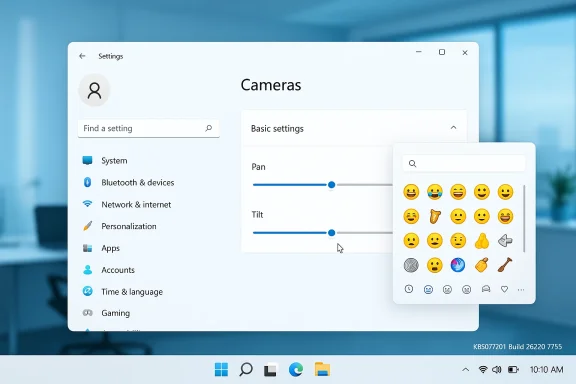
Windows 11 Settings: Cameras page with pan/tilt sliders and an emoji picker overlay.Background​

Microsoft is continuing its iterative path for Windows 11 development through the Windows Insider Program. Updates to the Beta Channel are often delivered as enablement packages on top of the current public servicing baseline — in this case Windows 11, version 25H2 — and are identified both by a build number and a Knowledge Base (KB) package. KB5077201 corresponds to Build 26220.7755 and is listed as a Beta Channel release, meaning it’s intended for testers who want a stable preview of upcoming consumer features without the higher volatility of the Dev Channel.
The two headline items in this release are straightforward but carry broader implications:
  • Emoji 16.0: a curated set of new emoji characters pushed back into the emoji panel for Insiders who have opted into immediate feature updates.
  • Camera settings – pan and tilt: direct, granular control of pan and tilt for supported cameras from the Settings app.
Both features are being rolled out using Microsoft’s controlled feature rollout system (the “toggle” option in Settings > Windows Update), so availability will vary across devices and over time.

What’s in KB5077201 (Build 26220.7755)​

New and returning features​

  • Emoji 16.0 — A subset of Unicode Emoji 16.0 symbols have been reintroduced to the Windows emoji panel. Microsoft’s release notes call out examples such as Face with Bags Under Eyes, Fingerprint, Root Vegetable, Leafless Tree, Harp, Shovel, and Splatter.
  • Camera pan and tilt controls — A new section under Settings > Devices & drivers > Cameras shows “Basic settings” for supported cameras and exposes on‑device pan and tilt controls so users can reposition a compatible webcam without vendor software.

Quality and performance improvements​

The build also includes a grab-bag of improvements targeting visual fidelity and responsiveness, including fixes for:
  • Autohide taskbar visual issues
  • Desktop icon flashing and related performance degradation
  • Windows Security credential pop‑up visual quirks
Because this is a Beta Channel build, Microsoft is explicit that features may be rolled out in stages, may change or be removed based on feedback, and aren’t guaranteed to ship to all users.

Emoji 16.0: what changed, and why it matters​

The reality behind emoji support​

Emoji are a deceptively complex element of modern OS UX. Support for a new Unicode emoji set requires three pieces to fall into place:
  • A mapping of new Unicode codepoints to glyphs in the system emoji font (Windows typically uses a color font such as Segoe UI Emoji).
  • Integration with the OS-level emoji panel (invoked with WIN + . or WIN + ;) so users can easily insert emoji into text fields.
  • App-level rendering support — an app must use system text layout and font fallback, or ship its own emoji glyph rendering, to display the new glyphs.
When Microsoft says “we’re starting to roll Emoji 16.0 back to Insiders,” it is specifically referring to the OS-level glyph and emoji-panel support. Whether every app you use will display these new emoji correctly is a separate matter. In practice, you may see the new emoji in some Microsoft apps (Notepad, OneNote, Word) and not in others (certain web contexts, browsers, or third‑party clients) until those apps adopt updated font rendering or the platforms they run atop update their own rendering paths.

Why Microsoft is rolling emoji back gradually​

The controlled rollout approach is conservative: emoji appear innocuous, but new color fonts and glyph changes touch fundamental text rendering subsystems. Incremental rollouts let Microsoft watch for rendering regressions, font fallback failures, or unexpected compatibility problems — especially in enterprise environments where specialized applications may rely on precise glyph metrics.
This staged approach also aligns with recent history. When Emoji 16.0 first began appearing in Windows 11 builds, some users and third‑party apps reported inconsistent rendering: some environments displayed the new glyphs correctly, while others showed missing-square placeholders. That patchwork compatibility is often caused by timing — apps, browsers, and services need to be updated to prefer the OS’ new emoji font or to fall back gracefully.

Practical implications for users and admins​

  • End users: Expect to gain access to a handful of new emoji in the emoji panel if your device is part of the staged rollout. Try WIN + . to open the panel after the update; if you don’t see the new glyphs, your system might not be included in the early wave yet.
  • App developers: Test emoji rendering across your app’s UI. If you render text with custom font stacks or use in‑app emoji libraries, validate that new Unicode 16 glyphs fail gracefully (fallback glyph or alternative text) rather than producing blank boxes.
  • IT administrators: Understand that emoji rollouts can interact with font substitution, remote application rendering, and content-management workflows. In managed environments, test visually sensitive apps (helpdesk consoles, CRM screens, POS systems) before approving wide deployment.

Camera pan and tilt: real control in Settings​

What’s new​

KB5077201 adds a pan and tilt control to the Camera settings page under Settings > Devices & drivers > Cameras for cameras that support those axes of movement. The aim is simple: let users reposition a compatible webcam directly from the built‑in Settings interface instead of relying on vendor utilities or manual adjustment.

Technical snapshot: how pan and tilt are exposed​

Most consumer PTZ (pan-tilt-zoom) webcams expose movement controls via UVC (USB Video Class) extension controls or vendor drivers that surface APIs to the OS. When a camera reports its capability to the system, Windows can present UI controls and issue standard commands to move the sensor or servo mechanisms.
Two practical points:
  • Not all cameras will support pan and tilt. Traditional fixed webcams have no motorized movement to control, and some PTZ cameras require vendor software or proprietary drivers.
  • The Settings UI offers basic controls; it’s not intended to replicate the full feature set of dedicated camera utilities (presets, advanced PTZ automation, or scripting). It simplifies access for ordinary users who want to center themselves in the frame or expand the view without additional software.

Benefits​

  • Simplicity: No extra vendor apps or driver UIs required for basic repositioning.
  • Consistency: Standardized settings location inside Windows makes it easier for users to find controls.
  • Accessibility: Users who cannot physically adjust a camera (e.g., when it’s ceiling-mounted) gain software-based adjustment methods.

Potential limitations and caveats​

  • Driver dependency: The feature depends on camera drivers that correctly advertise pan/tilt controls. In some cases, older drivers may not expose these capabilities to the OS even when the hardware supports them.
  • Security and privacy: Adding a programmatic way to move cameras raises privacy considerations. Malware or poorly scoped apps with camera permissions could potentially reposition a camera without explicit user action, so camera permission management and camera-indicator policies remain crucial.
  • Enterprise device management: IT policies and MDM profiles might need updating to permit or restrict camera movement features in controlled environments (meeting rooms, kiosks, surveillance scenarios).

Controlled feature rollouts: the toggle, the risks, and how to manage them​

How Microsoft distributes these features​

Microsoft uses a controlled feature rollout model for many Windows 11 enhancements. In the Beta Channel, Insiders can opt into a faster cadence by toggling “Get the latest updates as they are available” in Settings > Windows Update. This toggle makes your device eligible to receive features that are still being validated at scale.
The important practical consequences:
  • Not everyone receives new features immediately — the rollout is gradual.
  • Features can be changed or removed during the preview cycle if telemetry and feedback indicate problems.
  • Availability can vary by device based on hardware, drivers, and other signals.

Managing risk in business environments​

For organizations evaluating Beta Channel releases, treat Beta builds as preview-only for testing and validation workstations, not production endpoints. Key steps:
  • Evaluate new builds in a controlled pilot group before any broader rollout.
  • Check compatibility for mission-critical applications that rely on text rendering or camera input.
  • Use configuration management and MDM to prevent unmanaged toggles on corporate devices.
  • Maintain rollback plans (system restore points, backup images, or update uninstall processes) in case a specific preview build causes operational issues.

Privacy and security considerations​

Camera controls raise a new attack surface​

Motorized camera control is a convenience, but it expands the attack surface in two ways:
  • New control paths: A benign Settings slider could be invoked programmatically by apps that have camera access. Combined with permissive camera permissions, this could let an app change what’s being captured without explicit user intent.
  • Driver trust: The reliability and security of vendor drivers are critical. Vulnerable or signed-but‑flawed drivers that expose device control may be exploited to gain elevated privileges or to bypass user consent.
Mitigations:
  • Keep camera drivers up to date. Vendor updates often include fixes for command sanitization and privilege issues.
  • Review app permissions in Settings > Privacy & security > Camera and revoke camera access for apps that don’t need it.
  • For organizations, use group policy or MDM controls to limit which apps can access cameras and whether camera movement controls are allowed.

Emoji updates: small changes, low security risk but high operational impact​

New emoji glyphs themselves do not introduce direct security risks, but they can affect usability in surprising ways:
  • Poor rendering of new glyphs can break UI layouts or create confusing blank boxes in messaging or reporting tools.
  • In regulated environments, visual symbols used in official communications (tickets, logs, legal copies) may be misinterpreted if an emoji renders differently across platforms.
Mitigations:
  • Test cross-platform rendering of emoji in business-critical communication tools.
  • Use plain text or standardized icons when exact interpretation is important.

How to get KB5077201 and what to check after installation​

For Insiders who want the update now​

  • Open Settings > Windows Update.
  • Turn on the toggle for Get the latest updates as they are available if you want to be in the early controlled rollout.
  • Check for updates and install the available Beta Channel update (Build 26220.7755 / KB5077201).
  • After install, reboot if prompted.

Verify the new features​

  • Emoji: Open the emoji panel with WIN + . and search for the newly listed glyphs (Fingerprint, Shovel, etc.). If you don’t see them, your device might not be in the early wave yet.
  • Camera: Go to Settings > Devices & drivers > Cameras, select your camera, and look under Basic settings for pan and tilt sliders. If no controls are present, your camera likely doesn’t expose pan/tilt via its driver.

How to report issues​

  • Use Feedback Hub (press WIN + F) to file bugs and provide telemetry context:
  • For emoji rendering issues: Input and Language > Emoji panel.
  • For camera controls: Devices and Drivers > Device Camera or Webcams.

Rolling back or uninstalling the update​

  • If the Beta build causes problems, you can uninstall recent quality updates via Settings > Windows Update > Update history > Uninstall updates or use System Restore if you created a restore point before installing.
  • In enterprise settings, use your standard image and update management process to revert affected machines.

Deeper analysis: why Microsoft is shipping these features now​

From a product strategy perspective, the changes in KB5077201 are modest but tell a consistent story about how Microsoft is balancing user-facing polish with platform stability.
  • Emoji 16.0 is largely a cosmetic and cultural update that keeps Windows visually current with other major platforms. By shipping emoji gradually, Microsoft avoids a mass-breaking scenario where poorly tested font changes ripple into many apps and services.
  • Native pan/tilt camera controls are about reducing friction. As hybrid work persists and webcams remain central to everyday computing, convenience features like built-in camera movement controls deliver real user value — particularly for non-technical users who don’t want vendor bloatware.
The controlled rollout model is a pragmatic middle ground: it lets Microsoft gather real-world signals quickly while retaining the ability to pull or tweak features before a broader release. For IT pros and large organizations, however, this approach reinforces the need to isolate preview channels from production and to maintain robust test plans.

Strengths and notable improvements​

  • User convenience: Exposing pan and tilt in Settings removes dependence on third-party utilities and simplifies the user experience for common webcam adjustments.
  • Cultural parity: Rolling Emoji 16.0 forward helps Windows keep pace with cross-platform social and communications norms.
  • Safety-first rollout: The staged approach reduces the chance that a font or rendering change will cause wide-scale compatibility problems.
  • Bug remediation: The build includes several quality-of-life visual and performance fixes that address long-standing annoyances (autohide taskbar oddities, desktop icon flashing).

Risks, unknowns, and what to watch​

  • App compatibility for new emoji: Not all apps will display new Unicode glyphs correctly right away. Expect fragmentation until major apps adopt updated rendering paths or font fallback behaviors.
  • Driver and hardware variability: Camera pan/tilt controls will be incredibly dependent on the quality and openness of vendor drivers. Users with older or proprietary cameras may not benefit.
  • Privacy considerations: Programmatic camera movement increases the importance of strict camera permission management to prevent surreptitious repositioning.
  • Preview volatility: Beta Channel builds are safer than Dev builds but still intended for testing. New regressions remain possible; IT teams should not deploy Beta Channel devices into production without proper validation.

Recommendations for readers​

  • If you’re an enthusiast or a tester: Opt into the Beta Channel toggle if you want to try Emoji 16.0 and the camera controls early, but back up your system or use a secondary test device.
  • If you’re an IT pro: Treat KB5077201 as a candidate for pilot testing, not as a production update. Validate font rendering and camera workflows in your environment, then expand to targeted user groups once results are satisfactory.
  • If you rely on consistent rendering (publishing, reporting, legal communications): Avoid depending on newly added emoji for important content until cross‑platform rendering stabilizes.
  • If you have motorized PTZ cameras in shared spaces: Review camera permissions and management policies to ensure camera movement can’t be abused by apps without explicit, auditable consent.

Final thoughts​

KB5077201 (Build 26220.7755) is emblematic of the current Windows release philosophy: ship small but meaningful features, monitor them closely, and iterate based on real usage. Reintroducing a selective set of Emoji 16.0 glyphs keeps Windows visually modern, while adding pan and tilt controls into Settings reduces friction for everyday webcam users. Both changes are incremental, but they address real, tangible user needs.
That said, the controlled rollout underscores a persistent truth about modern platform development: even seemingly minor changes can have outsized ripple effects across applications, device drivers, and enterprise workflows. If you care about stability, compatibility, or privacy in your environment, treat this Beta release as a preview to test and understand — not a cue to flip your fleet onto the fastest update track. Test, validate, and use the Feedback Hub: when you do, your reports help shape the final release that will reach the broader Windows ecosystem.

Source: Windows Report https://windowsreport.com/windows-1...01-brings-emoji-16-0-and-camera-improvements/
 

Laptop screen showing camera settings and Emoji 16.0 panel in blue UI.
Microsoft has begun rolling a Windows 11 preview update that quietly delivers two small-but-significant usability improvements: native webcam pan/tilt controls surfaced in Settings, and a staged return of Emoji 16.0 to Insiders—both delivered via the enablement/CFR model Microsoft now favors for 25H2 preview builds. ]

Background / Overview​

Windows Insider previews are increasingly split into two technical steps: the heavy binary work is shipped in cumulative updates, while small enablement packages flip dormant features on top of that baseline. Microsoft then uses server-side flags and a Controlled Feature Rollout (CFR) to decide which devices actually see a new experience when the enablement package is present. The February 2026 preview flights that include Build 2632) and Build 26220.7755 (Beta, KB5077201) follow that pattern.
That delivery model means installing the KB does not guarantee immediate access to the features; you must usually enable the insider toggle “Get the latest updates as they are available” in Settings to increase the chade your device in the staged cohort. For enterprises and administrators, that heterogeneity creates testing and documentation challenges that are worth planning for.

What the update actually adds​

Emoji 16.0 — small set, wide implications​

Microsoft is rolling a curated subset of Emoji 16.0 into the emoji panel: one representative emoji from each major category. The set shown in the preview includes Face with Bags Under Eyes, Fingerprint, Root Vegetable (raree, Harp, Shovel, and Splatter. This is the same seven-symbol subset mentioned in Microsoft's Insider release notes and observed by testers.
Unicode’s official 16.0 release indeed added seven new emoji characters as part of a broader character set update, so Microsoft’s pickup of those glyphs is a platform-level alignment with the Unicode Standard. However, platform adoption is only one of three pieces required for consistent, cross-app rendering: (1) the system emoji font must include glyphs for the new code points, (2) the emoji panel must surface them d (3) individual applications must render the glyphs using system fonts or updated rendering paths. Microsoft’s staged rollout targets primarily the first two items; app-level rendering parity will follow as apps adopt modern rendering stacks.
Why this matterrt of modern messaging and collaboration UX. Even a small set of additions can affect how people express tone and intent, and inconsistent rendering across apps or platforms creates confusion. Expect to see the new glyphs in many modern Microsoft apps quickly, while legacy apps or some browser contexts may lag.

Webcam pan & tilt controls — granular, hardware-dependent​

The preview surfaces pan and tilt controls for supported webcams directly in the Settings app, under Settings > Bluetooth & devices >& drivers > Cameras depending on build messaging). The UI exposes those axes as sliders or controls in the camera “Basic settings” for cameras that report PTZ (pan/tilt/zoom) endpoints to Windows. This moves basic camera positioning out of vendor utilities and into a centralized OS surface. ([blogs.windows.com](https://blogs.windows.com/windows-insider/2026/02/09/announcing-windows-11-insider-preview-build-26300-7760-dev-channel/?utm_sourc’indicate broader camera improvements: a multi‑app mode that allows multiple processes to simultaneously access a single camera feed, a basic troubleshooting mode, and options exposing media types (frame rate and resolution) when hardware supports those enumerations. These additions were first spotted by community testers and have begun appearing in Insiders who are within theant caveat: all of these camera features are hardware and driver dependent. If a webcam does not expose PTZ controls via UVC extensions or vendor drivers, Settings cannot invent pan/tilt endpoints. Expect vendor driver updates or higher-end webcams to show the full experience; many integrated laptop cameras and budget USB webcams will not present pan/tilt controls.

Technical verification and cross-checks​

  • Microsoft’s official Windows Insider blog lists Build 26300.7760 (KB5077202) for Dev and Build 26220.7755 (KB5077201) for Beta and explicitly names Emoji 16.0 and the camera pan/tilt controls in the “new features gradually being rolled out” sections. That post is the authoritative confirmation of what Microsoft is enabling in these preview flights.
  • Unicode’s documentation confirms a 16.0 release that added a set of new characters, including seven emoji entries; the mapping between Unicode code points and glyphs is part of Unicns Microsoft’s claim that it is restoring Emoji 16.0 to Insiders.
  • Independent press and community reporting (Windows Central, Emojiall, and multiple community threads and posts) observe that Microsoft has historically staged emoji rollouts and sometimes omits certain emoji (e.g., flag glyphs) at vendor discretion. Those reports line up with what Insiders are seeing: a conservative, curated rollout aimed at minimizing regressions.
Because emoji rendering involves the OS font stack and application rendering engines, cross‑referencing both Microsoft’s blog and Unicode’s release notes provides a two-source verification of the key claims (what Unicode added, and what Microsoft intends to enable). For camera controls, the Windows Insider blog combined with community testing reports gives us a strong picture of the user experience and hardware dependencies.

Deep dive: what to expect when you install the preview​

How features are delivered​

  1. Install the cumulative update (the heavy binaries).
  2. Install the tiny enablement package (KB5077201 or KB5077202).
  3. Microsoft may flip server-side CFR flags that determine whether the emoji or camera UI is visible on your device.
If a feature is present in the enablement package but not visible in Settings or the emoji panel, check that you have toggled “Get the latest updates as soon as they are available” in Settings > Windows Update; that increases your chance of being included in the staged rollout. Even then, it’s not guaranteed—CFR sampling may still exclude your device until Microsoft broadens the roll.

How to check for Emoji 16.0 on your PC​

  • Confirm you are on tecking the build number (Settings > System > About) and the installed KB.
  • Press WIN + . (period) or WIN + ; (semicolon) to open the Emoji Panel and search for the new glyph names (for example “fingerprint” or “harp”).
  • Paste the new emoji into modern apps (Word, Outlook, Notepad with DirectWrite) to verify rendering; then test the same text in legacy surfaces like File Explorer rename boxes to see whether legacy rendering stacks show fallback glyphs.
If you see a glyph in the emoji panel but some apps render a missing-glyph box, that’s expected until those apps adopt system text rendering or updated font fallback paths. File a focused Feedback Hub report with repro steps under Input and Language > Emoji panel if you encounter rendering inconsistencies.

How to check and test camera pan & tilt​

  • Have a PTZ-capable webcam connected (Logitech BRIO and several pro webcams are common test devices).
  • Open Settings > Bluetooth & devices > Cameras (or Devices & drivers > Cameras).
  • Select the camera and look under Basic settings for pan/tilt sliders or controls; try small adjustments and verify movement is reflected immediately.
  • Test multi-app accerencing app and a capture/streaming app at the same time to confirm multi-app mode behavior.
  • If controls are missing, verify device driver versions and UVC/PTZ capability—many webcams simply don’t expose those axes.
When testing in enterprise contexts, pilot on representative hae vendor drivers in the validation matrix; do not assume feature parity across models or driver versions.

Strengths — why this matters for users and admins​

  • Centralization of device controls: Moving pan/tilt into Settings reduces dependency on multiple vimplifies support scripts for help desks. A single UI surface is easier to document and test across an organization.
  • Small, user-focused wins: Emoji additions and basic camera positioning are low-risk changes that deliver tangible day‑to‑day benefits for remote work, content creators, and power users. These are the kinds oUX without needing sweeping platform changes.
  • Enablement + CFR reduces blast radius: Microsoft’s staged rollout mitigates regressions by only exposing new experiences to a subset of devices while telemetry is monitored. That’s operationally prudent for an OS with Windows’ diversivers.

Risks and limitations — what to watch for​

  • Hardware and driver fragmentation: The camera controls are useful only when hardware exposes the right endpoints. Integrated laptop cameras and low-cost webcams commonly lack PTZ. Admins must validate expected behavior on each target model before dep.
  • Inconsistent emoji rendering across apps: Because apps use different text rendering stacks, you may see the new Emoji 16.0 glyphs in some apps but not others until those apps are updated. This can be confusing in collaboration scenarios where emojis are used for quick responses.
  • CFR-induced heterogeneity: Two identical devices with the differently if Microsoft’s server-side flags differ. That complicates documentation, support, and automated testing. For larger deployments, that unpredictability must be managed through pilot rings and strict update policies.
  • Accessibility a: Preview features sometimes ship with incomplete localization or screen‑reader labeling. If you or your users rely on assistive technologies, validate the experience and file feedback when you encounter regressions. Microsoft’s notes explicitly call out accessibility checks, but regressions can ature permanence is not guaranteed: As with any Insider preview, Microsoft may modify or remove features before final release based on telemetry and feedback. Treat these features as preview-quality conveniences, not production guarantees.

Practical recommendationd enthusiasts​

  • Turn on the “Get the latest updates as soon as they are available” toggle in Settings > Windows Update only on test devices if you want early access to CFR-scoped features; this increases the chance your device is included.
  • When testing Emoji 16.0, try rendering across a mix of modern and legacy apps and include web browser contexts; document which surfaces display the glyphs correctly. File Feedback Hub reports with screenshots and reproducible steps for apps that fail to render new emoji.
  • For camera testing, validate on representative hardware (including conference room PTZ cams, content-creator webcams such as the Logitech BRIO, and integrated laptop cameras). Keep vendor utilities installed until you confirm paritys like presets and tracking.

For IT admins and help desks​

  1. Run pilot rings that include all critical webcam models used in your organization.
  2. Verify vendor driver versions and test basic pan/tilt controls in Settings on each model.
  3. Update internal documentation and support scripts to gs location for camera controls.
  4. Keep the CFR toggle off on production machines until you’ve validated behavior and have a rollback plan.

For developers and app maintainers​

  • If your app consumes camera feeds or automates Settings dialogs, test agaiv builds and inspect control hierarchies for potential changes in UI automation paths. Camera multi‑app mode may alter expected access semantics for your code.
  • For text input and rendering, ensure your app uses modern text layout and font fallback where possible to benefit from system emoji updates. If you ship embedded fonts or custom glyph rendering, plan a migration path to avoid inconsistent emoji behavior.

Broader implications​

Microsoft’s two-step delivery model (binary + enablement) and CFR approach reflect an operational shift: Windows behaves more like a continuously updated platform with features gated server-side. That model reduces install friction and lets Microsoft test with real-world telemetry, but it increases variability for testers and admins. The camera work signals an intent to centralize peripheral control inside the OS, which is beneficial for standardization—but it will only pay off if vendors adopt common driver behaviors and APIs. The emoji rollout underscores that even small UX elements remain complex because of legacy rendering paths across the Windows ecosystem.

Conclusion​

This Windows 11 preview update is a pragmatic, low‑noise step in Windows’ ongoing modernization: Emoji 16.0 restores a small but meaningful set of expressive glyphs to Insiders, and the native camera pan/tilt controls give users basic, standardized ways to position PTZ-capable webcams without vendor utilities. Both changes are conservative by design—delivered as enablement packages and gated by Controlled Feature Rollout to limit regression risk. That conservatism is welcome, but it leaves important caveats in place: hardware and driver variability will determine who actually benefits, and cross‑app emoji rendering will remain uneven until app stacks modernize.
If you’re an Insider who wants to try these features, test on non-critical devices, enable the staged rollout toggle, and file focused Feedback Hub reports when you find inconsistencies. If you’re an IT pro, treat these builds as pilot material: validate oms, update support documentation, and keep production fleets on stable channels until you’ve completed thorough testing. The changes are small but practical—useful previews of the direction Microsoft is taking toward a more centralized device control surface and a more complete emoji palette—just don’t mistake a preview toggle for a production-ready guarantee.

Source: PCWorld Windows 11 preview update adds new emojis and webcam features
 

Back
Top