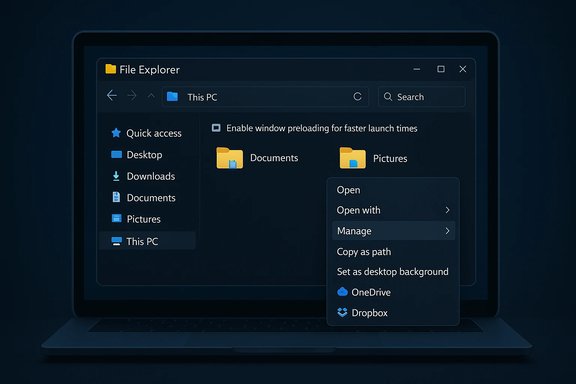
Microsoft has pushed the first public preview build of Windows 11 for 2026 into the Insider channels, and at its centre is a focused set of fixes and experiments for File Explorer — including an optional background preload and a reorganized right‑click menu — alongside a handful of other quality and usability tweaks that signal Microsoft is reprioritizing everyday performance and polish.
Windows’ File Explorer is one of the operating system’s most visible and frequently used surfaces. Over multiple Windows 11 development cycles it accumulated new capabilities (tabs, richer cloud integration, WinUI styling) while inheriting new pain points: a persistent “cold‑start” pause when opening Explorer, a tall and cluttered context menu, and occasional responsiveness regressions that affected daily productivity. Microsoft’s engineering response in the current Insider preview is deliberately incremental — move work out of the click path, tighten the menu surface, and gather telemetry before any broad consumer rollout. This preview flight is distributed as Windows 11 Insider Preview Build 26220.7271 (KB5070307) to Dev and Beta channel Insiders. Microsoft labels the Explorer changes as explorations, meaning they’re experimental and subject to change based on telemetry and Feedback Hub input. That staged, opt‑in evaluation pattern is consistent with how Microsoft has handled subtle UX and performance modernizations in recent years.
Decluttering the context menu addresses a separate but equally common complaint: as cloud features and third‑party shell extensions piled into Explorer, the vertical menu grew long and hard to scan. Grouping infrequent items reduces pointer travel and makes the top level easier to use on laptops and tablets where a long menu can occupy most of a screen. Both changes target very high‑frequency interactions and therefore have outsized effect when they work well.
For now the changes live behind an Insider gate and an opt‑out toggle so Microsoft can validate benefits and surface any regressions before a wider rollout. Organizations and enthusiasts should test carefully, report findings, and weigh the benefits against the resource cost on their hardware. If the telemetry is positive and Microsoft tunes the features responsibly, millions of day‑to‑day Explorer interactions could become noticeably smoother — but until then, the preview is best treated as an invitation to evaluate, measure, and feed disciplined feedback into the process.
Source: Neowin https://www.neowin.net/news/first-p...is-out-with-fixes-for-file-explorer-and-more/
 Background
Windows’ File Explorer is one of the operating system’s most visible and frequently used surfaces. Over multiple Windows 11 development cycles it accumulated new capabilities (tabs, richer cloud integration, WinUI styling) while inheriting new pain points: a persistent “cold‑start” pause when opening Explorer, a tall and cluttered context menu, and occasional responsiveness regressions that affected daily productivity. Microsoft’s engineering response in the current Insider preview is deliberately incremental — move work out of the click path, tighten the menu surface, and gather telemetry before any broad consumer rollout. This preview flight is distributed as Windows 11 Insider Preview Build 26220.7271 (KB5070307) to Dev and Beta channel Insiders. Microsoft labels the Explorer changes as explorations, meaning they’re experimental and subject to change based on telemetry and Feedback Hub input. That staged, opt‑in evaluation pattern is consistent with how Microsoft has handled subtle UX and performance modernizations in recent years. What arrived in the preview: headline changes
File Explorer preloading (experimental)
- An optional setting called Enable window preloading for faster launch times appears in File Explorer → View → Options → Folder Options → View.
- When enabled, Windows keeps a lightweight portion of Explorer warmed in the background (during idle time) so the first visible window paints and becomes interactive faster. The feature is enabled by default for Insiders who receive the experiment, but it can be toggled off.
Context‑menu reorganization
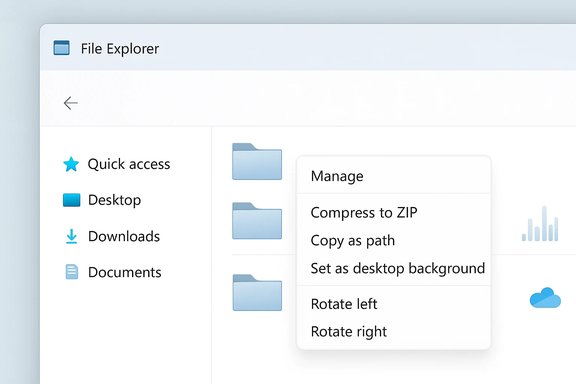
- Several less‑frequent commands (for example, Compress to ZIP, Copy as path, Set as desktop background, Rotate left/right) are grouped into a new Manage file flyout to shorten the top‑level menu.
- Cloud provider sync options (OneDrive and third‑party providers) are moved into provider‑specific submenus; device/cloud actions like Send to My Phone are repositioned for logical grouping.
- Microsoft treats the wording and grouping as provisional and may rename the flyout or shuffle items during testing.
Other items in the same preview
- The build bundles several unrelated previews and quality improvements, including an Xbox Full Screen Experience on more PC form factors, the ability to uninstall Store‑managed apps from the Library page, and platform or reliability fixes across the shell. Those items are part of the broader KB5070307 flight and are being evaluated in parallel with the Explorer experiments.
Why these changes matter
File Explorer is opened dozens of times a day by many users; even a half‑second per open adds up into tangible time loss and a perception of slowness. Microsoft’s engineering insight here is straightforward and pragmatic: improve perceived responsiveness by warming only the parts of Explorer necessary for the initial UI paint rather than attempting an immediate, risky rearchitecture of enumeration, thumbnailing or preview handlers. That pattern mirrors previous approaches such as Edge’s Startup Boost and Office’s scheduled prelaunch experiments.Decluttering the context menu addresses a separate but equally common complaint: as cloud features and third‑party shell extensions piled into Explorer, the vertical menu grew long and hard to scan. Grouping infrequent items reduces pointer travel and makes the top level easier to use on laptops and tablets where a long menu can occupy most of a screen. Both changes target very high‑frequency interactions and therefore have outsized effect when they work well.
Technical sketch: what preloading likely does (and does not)
Microsoft’s public notes are intentionally high level. Hands‑on reporting and community testing point to the following likely scope for the background preload:- What it likely warms:
- The UI skeleton (address bar, command bar, toolbar controls) and common controls so the first paint completes quickly.
- Small caches and shell wiring commonly needed for the initial view.
- Registration of a small, controlled subset of preview/thumbnail handlers to avoid UI thread stalls on first open.
- What it does NOT aim to change:
- It’s not a rewrite of the enumeration engine: scanning network shares and deep folder trees, resolving OneDrive placeholder metadata, or expensive thumbnail generation are still done on demand.
- It doesn’t alter third‑party shell extension APIs; poorly implemented handlers can still delay certain operations until they’re loaded.
Trade‑offs and real‑world impacts
Memory and battery
Preloading increases resident memory usage by keeping Explorer components resident. Early tests and independent reporting show measurable memory increases on low‑RAM systems; one hands‑on analysis reported Explorer’s working set roughly doubling under the experiment on constrained devices, with only modest improvement in perceived speed in some scenarios. That means small or HDD‑backed PCs may see limited net gain and a non‑trivial memory cost. Administrators should weigh this trade‑off for managed fleets and low‑end hardware.Boot time and idle behaviour
Because preloading occurs during idle time, machines that regularly suspend or have short idle windows may not benefit as much. There’s also a theoretical risk that aggressive preloading could extend boot‑time I/O or slightly alter battery drain during the first session; Microsoft’s staged rollout and the toggle are designed to catch and mitigate such regressions before a broad consumer push.Third‑party shell extensions
A persistent complicating factor for Explorer performance is synchronous third‑party shell extensions that execute on the UI thread. Preloading can hide some of that latency for the first open, but it doesn’t eliminate the fundamental issue: badly implemented extensions will still block certain operations or cause instability. Power users and enterprises should continue to audit shell extensions if they see hangs or crashes.Discoverability and muscle memory
Power users who relied on top‑level advanced commands will need to adjust to the new groupings. While grouping improves scanability for most people, it adds a click for users who frequently used those commands — a short–term productivity cost that Microsoft appears willing to accept for net long‑term benefit. The company’s willingness to iterate wording and arrangement during Insider testing should help reduce friction.How to enable, disable, and test the feature
- Open File Explorer.
- Select the View menu → Options → Folder Options → View tab.
- Locate Enable window preloading for faster launch times and check or uncheck the box to enable or disable the experiment.
- If you see unexpected behavior after enabling, toggle the setting off, restart Explorer (or sign out/sign in), and report the issue using Feedback Hub under Files, Folders and Online Storage → File Explorer Performance.
- Pilot the change in a representative ring that includes low‑RAM devices and machines with common third‑party shell extensions.
- Verify boot, sign‑in, and battery metrics on test devices.
- If the preload causes unintended side effects, use the toggle to opt test devices out while providing precise telemetry and repro steps to Microsoft via Feedback Hub.
Deeper look at the context‑menu reorganization
The context menu rework focuses on reducing vertical clutter and improving scanability:- Top level retains core verbs (Open, Cut/Copy, Rename, Delete) and common actions.
- Manage file flyout nests:
- Compress to ZIP
- Copy as path
- Set as desktop background
- Rotate left/right
- Cloud provider submenus contain provider‑specific sync actions such as Always keep on this device and Free up space, making provider actions discoverable under their related headings rather than interleaved at the top level.
Other notable items in the build — quick summary
- Xbox Full Screen Experience: Microsoft continues expanding a console‑like FSE for certain PC form factors, improving controller and UI behaviour for gaming sessions.
- Store Library uninstall: testers saw the ability to uninstall Store‑managed apps directly from the Library page — a small but useful management improvement for app lifecycle control.
- Quality and reliability fixes: the flight includes numerous bug fixes across thumbnailing, dark‑mode rendering, and shell stability from previous preview cycles; these incremental fixes are the practical foundation that makes UI experiments safe to test.
Cross‑verification and fact‑checking
Key technical claims and changelog items have been corroborated across multiple independent outlets and community mirrors:- The build number and KB (Build 26220.7271 / KB5070307) and the Dev/Beta distribution are consistently reported across coverage and community posts.
- The Folder Options toggle text Enable window preloading for faster launch times and the presence of a Manage file flyout are reproduced in hands‑on previews and forum posts.
- Early, device‑level testing that measures memory impact and limited speed gains on constrained hardware has been published by independent sites; those reports highlight the trade‑offs and encourage measured testing before any enterprise deployment.
Critical analysis — strengths, risks, and what to watch
Strengths
- Pragmatic engineering: Microsoft targets high‑frequency pain points with low‑risk timing changes. Preloading the UI skeleton is a focused optimization that can yield perceptible gains without deep compatibility work.
- User control and staged testing: The visible toggle and Insiders‑first rollout give users and admins agency to opt out while Microsoft collects telemetry. That reduces risk for managed deployments.
- Improved scanability: A shorter top‑level context menu will make everyday file operations faster for most users, especially on compact screens.
Risks and limitations
- RAM and battery trade‑offs: On low‑RAM systems the preload increases memory pressure and may deliver diminishing returns. Early reports show only modest speedups in some scenarios while doubling Explorer’s working set on constrained devices. That memory pressure can exacerbate paging and reduce overall responsiveness on old hardware.
- Third‑party compatibility: The change doesn’t eliminate synchronous shell extension hazards; badly written extensions remain a source of hangs and regressions. Enterprises should continue to monitor and catalogue shell extensions in use.
- Hidden complexity for power users: Grouping advanced verbs one click deeper imposes a short‑term cost on workflows that relied on single‑click access to those actions. Microsoft will need to balance discoverability and efficiency as the experiment evolves.
What to watch next
- Does Microsoft widen the experiment to more Insiders or to a limited public rollout in early 2026? Early reporting suggests an early‑2026 staged rollout is plausible but not guaranteed; treat any date expectations as provisional until Microsoft publishes formal guidance.
- Will telemetry show consistent gains across hardware classes, or will benefits concentrate only on mid‑range and higher systems?
- Will Microsoft add fine‑grained controls (for example, only preload on AC power or only on devices with ≥X GB RAM) to avoid penalizing constrained devices?
Practical recommendations
- Insiders and enthusiasts: install the preview to test on personal hardware, toggle the preload on and off, and measure perceived responsiveness versus memory use. Submit Feedback Hub reports with repro steps if you encounter regressions.
- Power users: try the new context menu layout in a lab environment first. Map the frequently used commands and consider keyboard shortcuts or Quick Access items if the extra click slows your workflow.
- IT administrators: pilot the build in a representative ring that includes devices with low RAM, HDD storage, and common third‑party shell integrations. Confirm that the preload behavior doesn’t conflict with boot, sign‑in, or power policies before broad deployment.
Conclusion
This first Windows 11 preview build of 2026 places a pragmatic bet: small, reversible changes that shave friction from daily workflows will matter more to most users than sweeping architectural rewrites. The optional File Explorer preload is a low‑risk experiment to make the shell feel faster by shifting initialization into idle time, and the reorganized context menu trims everyday visual clutter. Both moves reflect a sensible, telemetry‑driven approach — but they carry trade‑offs that matter in constrained environments, especially around memory use and third‑party behavior.For now the changes live behind an Insider gate and an opt‑out toggle so Microsoft can validate benefits and surface any regressions before a wider rollout. Organizations and enthusiasts should test carefully, report findings, and weigh the benefits against the resource cost on their hardware. If the telemetry is positive and Microsoft tunes the features responsibly, millions of day‑to‑day Explorer interactions could become noticeably smoother — but until then, the preview is best treated as an invitation to evaluate, measure, and feed disciplined feedback into the process.
Source: Neowin https://www.neowin.net/news/first-p...is-out-with-fixes-for-file-explorer-and-more/