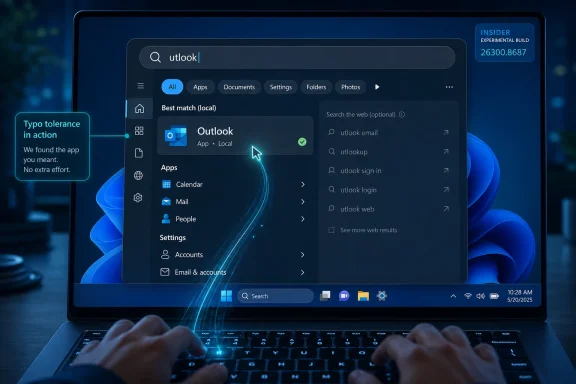
Microsoft is testing Windows 11 search improvements that let the Start and taskbar search experience find installed apps even when users mistype names, while also refining Settings results and fixing several taskbar and system tray reliability problems in Insider preview builds. The work is not the kind of Windows change that sells a keynote, but it is exactly the kind that determines whether people trust the shell they use hundreds of times a day. Windows 11 has spent years trying to look modern; Microsoft is now spending more energy making the modern shell feel less brittle. That is the more important upgrade.
The most interesting thing about this Windows 11 preview is not that Search can now forgive a missing letter in “Outlook.” It is that Microsoft appears to be treating ordinary desktop friction as product debt worth paying down. After years in which Windows 11’s biggest headlines were about AI, rounded corners, Copilot, widgets, and the slow migration away from legacy Control Panel surfaces, the company is also returning to the basic muscle memory of using a PC.
That matters because Search and the taskbar are not secondary features. They are the operating system’s front counter. If Search misses the app you obviously meant, or the system tray loads inconsistently, the user does not experience that as a minor bug in a component; they experience it as Windows being unreliable.
The new typo-tolerant app discovery is therefore more than a convenience feature. It acknowledges a simple truth that web search engines learned decades ago and mobile launchers have mostly internalized: users should not have to spell perfectly to be understood. A desktop operating system that already knows which apps are installed should not act baffled when “utlook” appears in the search box.
The taskbar fixes live in the same category. A tooltip appearing in the wrong place or a tray icon failing to load may sound trivial in isolation, but the shell is cumulative. A desktop that is 99 percent polished and 1 percent glitchy still teaches users to expect the glitch.
The preview change attacks one of the most common failure modes: small mistakes. Missing characters, extra characters, incomplete words, and typos should no longer derail app discovery as easily. In practical terms, typing a mangled approximation of an app name can still surface the installed application the user meant.
This is the kind of feature that becomes invisible if it works well. Nobody praises an operating system for finding Outlook when they type “utlook”; they simply launch Outlook and move on. But that invisibility is the point. A mature shell should absorb ordinary human error.
The stakes are higher than they look because Windows Search has long carried baggage. It has been asked to do local app launching, file indexing, settings discovery, web search, cloud search, enterprise search, and promotional surface area, sometimes all from the same small box. Users have noticed when that ambition comes at the expense of predictable local results.
A more forgiving local app search does not solve every Windows Search complaint. It does, however, move the experience in the right direction: away from making the user accommodate the machine, and toward making the machine infer what the user meant.
The problem is not only whether a setting exists. It is whether the user can find it at the moment they need it. Display scaling, Bluetooth, privacy permissions, startup apps, default apps, taskbar behaviors, storage cleanup, and power options all live in places that make sense once learned but can feel arbitrary when approached cold.
Search is supposed to flatten that learning curve. If ranking improves, the right setting appears higher, the wrong detours appear lower, and the user spends less time spelunking through categories. That makes Windows feel faster even if no benchmark changes.
The important distinction is between availability and findability. Microsoft has often shipped options and controls while forcing users to memorize where they live. A better Settings search ranking system admits that discoverability is part of the feature, not a layer added afterward.
For IT pros, this has a secondary benefit. Help desk instructions increasingly begin with “open Settings and search for…” rather than a long path through nested menus. If the same query reliably surfaces the same control, support gets easier. If it does not, Search becomes another variable in an already messy troubleshooting session.
That history makes every taskbar reliability fix read differently. A system tray loading improvement is not merely a bug fix; it is part of a longer trust-repair project. When the taskbar is the place users check network status, battery, sound, Teams presence, background utilities, sync clients, VPNs, and security tools, reliability is not cosmetic.
The system tray is especially important for power users and administrators. It is where endpoint security agents, backup clients, OneDrive, remote access tools, printer utilities, and hardware control panels quietly report their state. If that area loads late, inconsistently, or with visual artifacts, users may not know whether a tool is running or simply hidden behind shell weirdness.
The preview also addresses tooltip behavior around the Start button, particularly with alternative taskbar positions. That detail matters because Microsoft has been testing more flexible taskbar placement again. Once the taskbar can live on more than one edge of the display, every flyout, tooltip, menu, animation, and hit target has to understand geography instead of assuming the bottom of the screen.
Small taskbar icon polish sits in the same bucket. Users who choose smaller icons usually care about density, screen real estate, or old-school desktop efficiency. They are also the users most likely to notice alignment problems. If Microsoft is going to restore or expand customization, it has to make the customized states feel first-class rather than tolerated.
That is why shell reliability has a multiplier effect. A bug in a niche app may annoy a subset of users. A bug in the taskbar greets everyone. A search ranking failure is not just a search failure; it interrupts the fastest path to almost everything else.
Microsoft appears to understand this more explicitly now. Its recent Windows messaging has emphasized quality, consistency, and reliability across the operating system, including Search, Start, the taskbar, drivers, updates, and core user experiences. That framing is notable because it shifts the Windows conversation away from “what new capability did we add?” toward “what daily annoyance did we remove?”
The latter is a harder story to market. Nobody buys a new PC because tooltips no longer overlap the Start icon. But people keep using an operating system because it stops getting in their way. In a mature platform, polish is not a luxury; it is the product.
This is also where Windows differs from many modern consumer platforms. Microsoft has to serve casual users, gamers, developers, regulated enterprises, kiosk deployments, schools, and enthusiasts who still remember exactly how Windows 7 behaved. Every shell change risks angering some part of that coalition. Reliability work is one of the few areas where the value proposition is nearly universal.
That is not a contradiction. It is a hierarchy. AI features may expand what Windows can do, but the shell determines whether users believe Windows can be trusted with simple intent. If the basic launcher feels unreliable, the assistant layered above it inherits that skepticism.
A forgiving app search also reflects a broader design principle that AI has made harder to ignore: users communicate imprecisely. They use partial words, old names, nicknames, acronyms, typos, and muscle memory. A system that demands exactness in low-stakes contexts feels increasingly archaic.
The difference is that this feature does not require a grand AI narrative. Fuzzy matching, ranking improvements, and intent-aware search can be practical without being theatrical. In some ways, that makes them more valuable. They improve the PC without asking the user to adopt a new mental model.
Microsoft’s challenge is to keep those layers aligned. Search should be fast, local, predictable, and forgiving. Copilot can be expansive, conversational, and cloud-connected. Confusing the two risks making both worse.
That caveat is especially important for administrators. Insider builds are useful for planning and validation, but they are not production baselines. IT teams should watch the trajectory, test the behaviors in lab environments when available, and wait for stable channel documentation before changing support scripts or user guidance.
For everyday users, the lesson is simpler. These changes are likely to arrive as part of the rolling, cumulative nature of modern Windows rather than as one dramatic release moment. Windows 11 no longer evolves only through big annual upgrades; it changes through a steady drip of feature enablement, app updates, and servicing improvements.
That model has advantages and frustrations. Improvements can reach users faster, but tracking what is available on which PC becomes harder. Two machines can both be “Windows 11” and still differ in search behavior, taskbar options, or shell polish depending on build, channel, region, hardware, and rollout status.
The Insider program is where that complexity becomes visible first. It gives Microsoft telemetry and feedback, but it also turns Windows development into a public negotiation. Users see ideas before they are finished, and sometimes they judge them as if they were final. Microsoft, to its credit, has been more willing recently to adjust shell decisions after feedback than it was at Windows 11’s launch.
That is particularly useful for Office and Microsoft 365 apps, where names are familiar but not always typed carefully. Outlook, OneNote, Teams, PowerPoint, and OneDrive are common enough that Windows should be able to infer intent from imperfect input. The same logic applies to third-party apps, utilities, and line-of-business software with long or awkward names.
It also helps users who are not confident spellers, users working in a second language, and users on compact keyboards or touch devices. Accessibility is not only about screen readers and contrast settings. Sometimes it is about reducing the penalty for ordinary mistakes.
Settings ranking improvements likewise reduce cognitive load. Instead of remembering whether a control is under System, Personalization, Apps, Privacy & security, or Bluetooth & devices, the user can search for the outcome they want. The operating system then has to earn its keep by interpreting that intent well.
The taskbar changes round out the same theme. A reliable shell lets users stay oriented. The best version of Windows 11 is not the one that calls attention to every animation and surface; it is the one that lets the user forget the shell is there until they need it.
A better Settings search experience can also reduce the gap between documentation and reality. Modern support instructions often assume users can search for a setting by name. When ranking is poor, the instruction fails even if the setting exists. That turns a two-line help desk answer into a remote session.
The system tray reliability work is particularly relevant in managed environments. Many endpoint tools live there as user-visible reassurance that a background service is active. If the tray is inconsistent, administrators lose a small but important signaling mechanism.
At the same time, enterprises should be cautious about celebrating any preview feature too early. Search behavior changes can affect training materials, internal documentation, and user expectations. Taskbar changes tied to alternative positions or small icons may interact with policies, accessibility preferences, and multi-monitor setups.
The right enterprise posture is neither excitement nor dismissal. It is observation. These are the kinds of changes that rarely justify a migration plan by themselves but can materially improve the support texture of Windows 11 over time.
The current wave of shell work feels different. It is less about declaring a new direction and more about sanding down the rough edges left by the last one. That is a healthier posture for a mature desktop platform.
A more forgiving Search experience also fits the way people actually use Windows today. The Start menu is no longer just a menu. It is a launcher, a search surface, a recommendation panel, a settings gateway, and, depending on configuration, a web entry point. If Microsoft wants that surface to carry so many jobs, it has to make the first interaction unusually reliable.
The taskbar, meanwhile, remains the visible contract between Windows and the user. It tells you what is open, what is running, what needs attention, and where to begin. Any instability there undermines the whole desktop, no matter how stable the kernel or app platform may be underneath.
This is why practical improvements can matter more than flashy ones. A user may never describe typo-tolerant search as a “major upgrade,” but they will feel the absence of friction. Over time, that feeling becomes the difference between an operating system that seems polished and one that seems perpetually unfinished.
 Microsoft’s Small Fixes Are Starting to Look Like a Strategy
The most interesting thing about this Windows 11 preview is not that Search can now forgive a missing letter in “Outlook.” It is that Microsoft appears to be treating ordinary desktop friction as product debt worth paying down. After years in which Windows 11’s biggest headlines were about AI, rounded corners, Copilot, widgets, and the slow migration away from legacy Control Panel surfaces, the company is also returning to the basic muscle memory of using a PC.That matters because Search and the taskbar are not secondary features. They are the operating system’s front counter. If Search misses the app you obviously meant, or the system tray loads inconsistently, the user does not experience that as a minor bug in a component; they experience it as Windows being unreliable.
The new typo-tolerant app discovery is therefore more than a convenience feature. It acknowledges a simple truth that web search engines learned decades ago and mobile launchers have mostly internalized: users should not have to spell perfectly to be understood. A desktop operating system that already knows which apps are installed should not act baffled when “utlook” appears in the search box.
The taskbar fixes live in the same category. A tooltip appearing in the wrong place or a tray icon failing to load may sound trivial in isolation, but the shell is cumulative. A desktop that is 99 percent polished and 1 percent glitchy still teaches users to expect the glitch.
Search Was Supposed to Be the Shortcut, Not Another Place to Fail
Windows users increasingly treat Search as the fastest path through the operating system. They press the Windows key, type a few characters, and expect the correct app, setting, file, or web result to appear. That workflow bypasses the Start menu’s visual hierarchy and the Settings app’s maze of pages, but it only works when Search behaves as an intent engine rather than a literal string matcher.The preview change attacks one of the most common failure modes: small mistakes. Missing characters, extra characters, incomplete words, and typos should no longer derail app discovery as easily. In practical terms, typing a mangled approximation of an app name can still surface the installed application the user meant.
This is the kind of feature that becomes invisible if it works well. Nobody praises an operating system for finding Outlook when they type “utlook”; they simply launch Outlook and move on. But that invisibility is the point. A mature shell should absorb ordinary human error.
The stakes are higher than they look because Windows Search has long carried baggage. It has been asked to do local app launching, file indexing, settings discovery, web search, cloud search, enterprise search, and promotional surface area, sometimes all from the same small box. Users have noticed when that ambition comes at the expense of predictable local results.
A more forgiving local app search does not solve every Windows Search complaint. It does, however, move the experience in the right direction: away from making the user accommodate the machine, and toward making the machine infer what the user meant.
Settings Search Is Where Windows 11 Still Has to Earn Trust
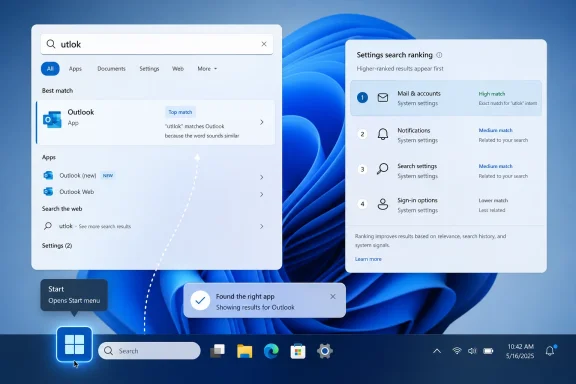
The second piece of the preview is improved ranking for Settings results. That may sound less exciting than typo handling, but for many users it will matter just as much. Windows 11’s Settings app is cleaner than the old Control Panel in many places, yet it is also sprawling, reorganized, and still full of transitional seams.The problem is not only whether a setting exists. It is whether the user can find it at the moment they need it. Display scaling, Bluetooth, privacy permissions, startup apps, default apps, taskbar behaviors, storage cleanup, and power options all live in places that make sense once learned but can feel arbitrary when approached cold.
Search is supposed to flatten that learning curve. If ranking improves, the right setting appears higher, the wrong detours appear lower, and the user spends less time spelunking through categories. That makes Windows feel faster even if no benchmark changes.
The important distinction is between availability and findability. Microsoft has often shipped options and controls while forcing users to memorize where they live. A better Settings search ranking system admits that discoverability is part of the feature, not a layer added afterward.
For IT pros, this has a secondary benefit. Help desk instructions increasingly begin with “open Settings and search for…” rather than a long path through nested menus. If the same query reliably surfaces the same control, support gets easier. If it does not, Search becomes another variable in an already messy troubleshooting session.
The Taskbar Remains Windows 11’s Most Sensitive Surface
The taskbar changes are less dramatic but perhaps more politically loaded. Since Windows 11 launched, the taskbar has been one of its most criticized components, not because it was ugly, but because it broke expectations. Users lost behaviors they had internalized for years, and Microsoft has been rebuilding portions of that flexibility in stages.That history makes every taskbar reliability fix read differently. A system tray loading improvement is not merely a bug fix; it is part of a longer trust-repair project. When the taskbar is the place users check network status, battery, sound, Teams presence, background utilities, sync clients, VPNs, and security tools, reliability is not cosmetic.
The system tray is especially important for power users and administrators. It is where endpoint security agents, backup clients, OneDrive, remote access tools, printer utilities, and hardware control panels quietly report their state. If that area loads late, inconsistently, or with visual artifacts, users may not know whether a tool is running or simply hidden behind shell weirdness.
The preview also addresses tooltip behavior around the Start button, particularly with alternative taskbar positions. That detail matters because Microsoft has been testing more flexible taskbar placement again. Once the taskbar can live on more than one edge of the display, every flyout, tooltip, menu, animation, and hit target has to understand geography instead of assuming the bottom of the screen.
Small taskbar icon polish sits in the same bucket. Users who choose smaller icons usually care about density, screen real estate, or old-school desktop efficiency. They are also the users most likely to notice alignment problems. If Microsoft is going to restore or expand customization, it has to make the customized states feel first-class rather than tolerated.
The Desktop Shell Is a Reliability Product
Operating systems are often judged by features, but they are lived through rhythms. Press Start, type, launch. Glance at the tray. Hover, click, switch, minimize, restore. These gestures become so automatic that any stumble feels larger than the code change behind it.That is why shell reliability has a multiplier effect. A bug in a niche app may annoy a subset of users. A bug in the taskbar greets everyone. A search ranking failure is not just a search failure; it interrupts the fastest path to almost everything else.
Microsoft appears to understand this more explicitly now. Its recent Windows messaging has emphasized quality, consistency, and reliability across the operating system, including Search, Start, the taskbar, drivers, updates, and core user experiences. That framing is notable because it shifts the Windows conversation away from “what new capability did we add?” toward “what daily annoyance did we remove?”
The latter is a harder story to market. Nobody buys a new PC because tooltips no longer overlap the Start icon. But people keep using an operating system because it stops getting in their way. In a mature platform, polish is not a luxury; it is the product.
This is also where Windows differs from many modern consumer platforms. Microsoft has to serve casual users, gamers, developers, regulated enterprises, kiosk deployments, schools, and enthusiasts who still remember exactly how Windows 7 behaved. Every shell change risks angering some part of that coalition. Reliability work is one of the few areas where the value proposition is nearly universal.
The AI Era Still Needs a Search Box That Spells Forgiveness
There is an irony in watching Microsoft pour resources into Copilot while also improving basic typo handling in Windows Search. The company is trying to convince users that Windows can reason over documents, summarize content, automate workflows, and act as an AI-assisted productivity layer. Yet many people still judge the system by whether typing a broken app name gets the expected result.That is not a contradiction. It is a hierarchy. AI features may expand what Windows can do, but the shell determines whether users believe Windows can be trusted with simple intent. If the basic launcher feels unreliable, the assistant layered above it inherits that skepticism.
A forgiving app search also reflects a broader design principle that AI has made harder to ignore: users communicate imprecisely. They use partial words, old names, nicknames, acronyms, typos, and muscle memory. A system that demands exactness in low-stakes contexts feels increasingly archaic.
The difference is that this feature does not require a grand AI narrative. Fuzzy matching, ranking improvements, and intent-aware search can be practical without being theatrical. In some ways, that makes them more valuable. They improve the PC without asking the user to adopt a new mental model.
Microsoft’s challenge is to keep those layers aligned. Search should be fast, local, predictable, and forgiving. Copilot can be expansive, conversational, and cloud-connected. Confusing the two risks making both worse.
Insiders Get the Future First, Along With the Caveats
Because these changes are in Insider preview builds, they should be treated as a preview rather than a promise to every production PC on a fixed date. Microsoft routinely tests features with subsets of Insiders, rolls them out gradually, holds them back, changes behavior based on telemetry, or moves fixes into servicing updates later. A feature appearing in a preview channel is evidence of direction, not a shipping guarantee.That caveat is especially important for administrators. Insider builds are useful for planning and validation, but they are not production baselines. IT teams should watch the trajectory, test the behaviors in lab environments when available, and wait for stable channel documentation before changing support scripts or user guidance.
For everyday users, the lesson is simpler. These changes are likely to arrive as part of the rolling, cumulative nature of modern Windows rather than as one dramatic release moment. Windows 11 no longer evolves only through big annual upgrades; it changes through a steady drip of feature enablement, app updates, and servicing improvements.
That model has advantages and frustrations. Improvements can reach users faster, but tracking what is available on which PC becomes harder. Two machines can both be “Windows 11” and still differ in search behavior, taskbar options, or shell polish depending on build, channel, region, hardware, and rollout status.
The Insider program is where that complexity becomes visible first. It gives Microsoft telemetry and feedback, but it also turns Windows development into a public negotiation. Users see ideas before they are finished, and sometimes they judge them as if they were final. Microsoft, to its credit, has been more willing recently to adjust shell decisions after feedback than it was at Windows 11’s launch.
Everyday Users Win When Windows Stops Being Pedantic
The most practical benefit of typo-tolerant app search is speed. A user who launches apps from the keyboard does not want to edit a query like a database command. They want to type enough of a word, hit Enter, and trust the machine to do the obvious thing.That is particularly useful for Office and Microsoft 365 apps, where names are familiar but not always typed carefully. Outlook, OneNote, Teams, PowerPoint, and OneDrive are common enough that Windows should be able to infer intent from imperfect input. The same logic applies to third-party apps, utilities, and line-of-business software with long or awkward names.
It also helps users who are not confident spellers, users working in a second language, and users on compact keyboards or touch devices. Accessibility is not only about screen readers and contrast settings. Sometimes it is about reducing the penalty for ordinary mistakes.
Settings ranking improvements likewise reduce cognitive load. Instead of remembering whether a control is under System, Personalization, Apps, Privacy & security, or Bluetooth & devices, the user can search for the outcome they want. The operating system then has to earn its keep by interpreting that intent well.
The taskbar changes round out the same theme. A reliable shell lets users stay oriented. The best version of Windows 11 is not the one that calls attention to every animation and surface; it is the one that lets the user forget the shell is there until they need it.
Enterprises Should Read This as a Support Story
For enterprise IT, these changes look small but map directly to support volume. Search failures create tickets, chats, hallway questions, and workaround culture. Taskbar inconsistencies create screenshots with missing tray icons and vague reports that “the VPN disappeared” or “security isn’t running.”A better Settings search experience can also reduce the gap between documentation and reality. Modern support instructions often assume users can search for a setting by name. When ranking is poor, the instruction fails even if the setting exists. That turns a two-line help desk answer into a remote session.
The system tray reliability work is particularly relevant in managed environments. Many endpoint tools live there as user-visible reassurance that a background service is active. If the tray is inconsistent, administrators lose a small but important signaling mechanism.
At the same time, enterprises should be cautious about celebrating any preview feature too early. Search behavior changes can affect training materials, internal documentation, and user expectations. Taskbar changes tied to alternative positions or small icons may interact with policies, accessibility preferences, and multi-monitor setups.
The right enterprise posture is neither excitement nor dismissal. It is observation. These are the kinds of changes that rarely justify a migration plan by themselves but can materially improve the support texture of Windows 11 over time.
Microsoft Is Quietly Rebuilding the Case for Windows 11
Windows 11’s early reputation was shaped by a familiar Microsoft problem: the company changed visible things before it had fully restored the capabilities many users cared about. The centered taskbar, redesigned Start menu, stricter hardware requirements, and slow return of missing taskbar behaviors gave the operating system an air of forced modernization. Even users who liked the design could see the trade-offs.The current wave of shell work feels different. It is less about declaring a new direction and more about sanding down the rough edges left by the last one. That is a healthier posture for a mature desktop platform.
A more forgiving Search experience also fits the way people actually use Windows today. The Start menu is no longer just a menu. It is a launcher, a search surface, a recommendation panel, a settings gateway, and, depending on configuration, a web entry point. If Microsoft wants that surface to carry so many jobs, it has to make the first interaction unusually reliable.
The taskbar, meanwhile, remains the visible contract between Windows and the user. It tells you what is open, what is running, what needs attention, and where to begin. Any instability there undermines the whole desktop, no matter how stable the kernel or app platform may be underneath.
This is why practical improvements can matter more than flashy ones. A user may never describe typo-tolerant search as a “major upgrade,” but they will feel the absence of friction. Over time, that feeling becomes the difference between an operating system that seems polished and one that seems perpetually unfinished.
The Real Upgrade Is Lowering the Cost of Being Human
The clearest takeaway from this preview is that Microsoft is improving Windows 11 where users touch it most often. The company is not merely adding another surface; it is making existing surfaces more tolerant, predictable, and consistent. That is the right kind of work for an operating system that has already had its visual redesign and now needs to win on daily use.- Windows Search is being tested with better app discovery that can tolerate typos, missing letters, extra characters, and incomplete words.
- Settings search ranking is being refined so relevant controls should appear higher and require less manual navigation.
- Taskbar and system tray reliability fixes matter because those areas are used constantly and serve as status indicators for both consumers and managed PCs.
- Alternative taskbar positions and small-icon modes increase the need for careful polish because every flyout, tooltip, and alignment rule has to adapt.
- Insider availability means users should treat these changes as directionally important but not assume immediate arrival on every stable Windows 11 device.
- The broader story is Microsoft’s renewed emphasis on Windows quality, where removing small annoyances may do more for user trust than adding another headline feature.
References
- Primary source: thewincentral.com
Published: 2026-06-14T05:03:19.718077
Microsoft enhances Windows 11 Search & Taskbar experience in the Latest Build- WinCentral
Microsoft is improving Windows 11 Search with typo-tolerant app discovery and better Settings results, while the Taskbar receives reliability and visual fixes in the latest Insider build. - Read in Windows 11 News on WinCentral thewincentral.com
- Official source: blogs.windows.com
Announcing Windows 11 Insider Preview Build 26120.3291 (Dev and Beta Channels)
Hello Windows Insiders, today we are releasing Windows 11 Insider Preview Build 26120.3291 (KB5052080) to the Dev and Beta Channels. The update includes two improvements for Windows Insiders onblogs.windows.com - Related coverage: windowscentral.com
I tested Windows 11’s return of taskbar positioning and resizing, and it’s not the classic Windows 10 experience | Windows Central
Windows 11 finally brings back classic Taskbar features, but the experience still falls short of Windows 10.www.windowscentral.com - Related coverage: pcgamer.com