• Thread Author
Microsoft pushed a focused Release Preview package on December 1, 2025 — KB5070311 — that updates Windows 11 on both the 24H2 and 25H2 servicing tracks (OS Builds 26100.7309 and 26200.7309) and pairs modest but widely useful UI polish with device‑gated Copilot+ improvements and an important non‑security stability fix for LSASS.

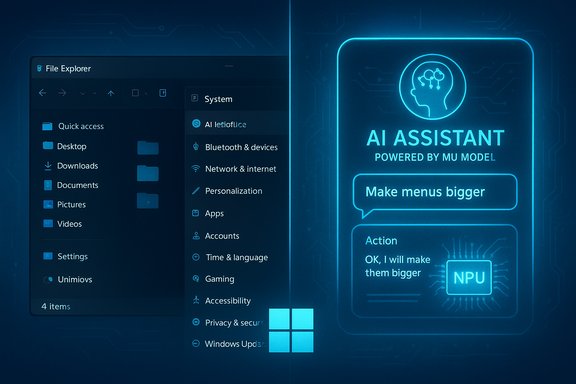
Dark Windows desktop with File Explorer open and widget panels beside a webcam.Background / Overview​

Microsoft is shipping KB5070311 as a Release Preview cumulative: the package contains binaries that are broadly distributed to Insider devices, but many of the visible experiences are staged — enabled progressively through server‑side flags, hardware entitlements (notably Copilot+ NPU requirements), and OEM driver support. That means installing the update will deliver reliability fixes and platform binaries immediately, but some features may remain hidden until Microsoft flips the feature gates or device vendors update drivers. Why this matters: Release Preview is intended for validation and pilot testing, not immediate mass deployment. Enterprises and power users should treat KB5070311 as a test candidate: install in pilot rings, validate authentication paths (because of an LSASS fix), and confirm OEM driver compatibility for Copilot+ camera and peripheral improvements.

What KB5070311 delivers — at a glance​

The preview bundles a mix of user‑facing polish and device‑specific enhancements:
  • File Explorer dark‑mode polish — copy/move/confirm/delete dialogs, progress UI, thumbnail fixes and other surfaces now respect Dark theme more consistently.
  • Drag Tray improvements + supported toggle — multi‑file sharing, smarter suggested targets, easier folder drops, and a new on/off control in Settings > System > Nearby sharing to disable the Drag Tray for users who prefer not to use it. Availability is staged.
  • Copilot+ / Windows Studio Effects — Windows Studio Effects (on‑device camera AI processing) can be applied to secondary cameras (external USB webcams or rear laptop cameras) on supported Copilot+ devices that have the required NPU and OEM driver stack. This is hardware‑gated.
  • Keyboard backlight and HID improvements — smarter backlight adjustment logic and clearer low‑light illumination on supported HID‑compliant keyboards.
  • Windows Hello Enhanced Sign‑in Security (ESS) — expanded support for external fingerprint sensors in Sign‑in options on devices where ESS is enabled.
  • Quick Machine Recovery and Widgets tweaks, Settings migrations (some Control Panel items into Settings), a Device Card on Settings home (U.S., Microsoft account), and assorted bug fixes.
  • LSASS stability fix — a non‑security remediation targeting an LSASS access‑violation condition that could affect sign‑in reliability; this is one of the higher‑priority reliability items in the package.
These items are intentionally pragmatic: a series of small, high‑value UX improvements plus device‑gated AI capabilities.

Deep dives: notable features and technical specifics​

File Explorer: dark mode, thumbnails, and dialog polish​

File Explorer sees multiple small but visible improvements that reduce jarring white flashes in dark theme and correct long‑standing visual inconsistencies:
  • More dialog surfaces (copy/move/confirm/replace, progress and error panels) now honor Dark mode color schemes.
  • Thumbnail rendering for certain video files with specific EXIF metadata has been improved.
  • A legacy white toolbar that sometimes appeared unexpectedly has been removed.
This is primarily a visual quality‑of‑life update, but it has outsized day‑to‑day impact for dark‑theme users. Because the changes are UI‑level, they do not require Copilot+ hardware entitlements; they appear as soon as the device receives the preview binaries (subject to Microsoft rollout policy).

Drag Tray / Nearby Sharing: multi‑file support and an official opt‑out​

The Drag Tray — the drag‑to‑share top‑of‑screen experience introduced in prior previews — is updated with:
  • Multi‑file sharing support.
  • Smarter ranking of suggested targets (apps and folders).
  • A supported toggle under Settings > System > Nearby sharing to disable the Drag Tray entirely.
This matters because some professional workflows (for example, photo editors, CAD users, and media producers) found the Drag Tray intrusive. The inclusion of a supported toggle is a practical response that avoids registry hacks or third‑party tools. Availability is staged and controlled by Microsoft, so you may need to wait for your device to be flagged.

Copilot+ cameras and Windows Studio Effects on secondary cameras​

The most consequential Copilot+ change is the ability to apply Windows Studio Effects to alternate cameras on Copilot+‑qualified hardware. Practically:
  • External USB webcams and rear laptop/outward‑facing cameras are supported when the device has a compatible Neural Processing Unit (NPU) and OEM drivers that expose the required runtime.
  • The UI path is Settings > Bluetooth & devices > Cameras → Advanced camera options → Use Windows Studio Effects (on devices where the feature is unlocked).
This expands real‑world scenarios such as docked setups, multi‑camera streaming, and hybrid meeting rooms. However, on‑device inference consumes compute and power; performance, battery, and thermal characteristics must be validated on representative hardware. Because the feature is hardware‑gated, it will not appear on machines lacking the NPU/driver stack.

LSASS stability remediation — why IT teams should care​

An LSASS (Local Security Authority Subsystem Service) access‑violation condition that could affect sign‑in reliability is addressed in this preview. LSASS issues are high‑impact because they can break authentication, cause event log noise, and — in worst‑case scenarios — induce system instability.
Administrators should prioritize validation of sign‑in flows (local sign‑in, domain logon, Windows Hello ESS, Smart Card authentication, Remote Credential Guard) when testing KB5070311 in pilot rings. Confirm that event logs no longer reflect the prior LSASS error pattern and run sign‑in stress tests on domain‑joined hardware.

Installation and servicing notes — how Microsoft packages KB5070311​

Microsoft distributes this preview as one or more MSU files via the Microsoft Update Catalog. The KB includes two documented installation approaches:
Method 1 — Install all MSU files together (recommended for manual offline installs):
  • Download the MSU files and place them in the same folder (for example, C:\Packages).
  • Use DISM to let the tool discover and install prerequisite MSUs automatically:
  • From an elevated Command Prompt:
  • DISM /Online /Add‑Package /PackagePath:c:\packages\Windows11.0‑KB5070311‑x64.msu
  • Or the equivalent PowerShell command:
  • Add‑WindowsPackage ‑Online ‑PackagePath "c:\packages\Windows11.0‑KB5070311‑x64.msu"
Method 2 — Install each MSU individually in specified order:
  • When a package requires strict sequencing, download and install the MSU files in the order Microsoft lists. For KB5070311 the published order historically includes a prior LCU MSU (for example, windows11.0‑kb5043080‑x64.msu) followed by the target MSU. Confirm the exact filenames in the Update Catalog before installing.
To service offline images, use DISM /Image:mountdir /Add‑Package /PackagePath:Windows11.0‑KB5070311‑x64.msu or the PowerShell Add‑WindowsPackage ‑Path <offline path> ‑PackagePath <msu> ‑PreventPending. Also follow Microsoft’s guidance for pairing Dynamic Update packages (SafeOS/Setup) with the same month’s LCU where possible.
Important operational notes:
  • The package can be installed with WSUS/Windows Update for Business when Microsoft pushes the preview to those channels.
  • If you need to remove the LCU after installing the combined SSU+LCU package, use the DISM /Remove‑Package option with the LCU package name — but confirm the exact removal guidance for your OS SKU.

Known issues and community reports — what testers are seeing​

Community and forum reports have surfaced a small set of high‑visibility problems tied to KB5070311:
  • Some users report blue screens or stability problems when certain GPU drivers (notably Intel Arc variants) are installed after KB5070311. These reports include devices becoming unusable until an earlier driver is restored, and in some cases difficulties uninstalling the update. Treat these as early, device‑specific compatibility issues; they underscore the need for pilot testing.
  • A subset of Insiders have encountered uninstall failures (for example, 0x800F0825) when trying to roll back the preview in certain states. If you expect to test the preview, ensure robust recovery options (full disk images, bootable rescue media) are available.
  • Because feature visibility is gated, testers often see different behaviors across otherwise similar machines — that complicates triage and knowledge‑base creation for help desks. Microsoft’s staged rollout model is intentional but increases variability for support staff.
These community signals are early indicators rather than systemic conclusions. They should prompt immediate test coverage in pilot rings and coordination with OEMs for driver updates where appropriate.

Risk assessment — strengths and potential hazards​

Strengths
  • High perceived user value: Dark‑mode consistency and dialog polish are small changes that deliver a disproportionate improvement in daily UX.
  • User choice and remediation: Adding a supported toggle for Drag Tray reduces friction for advanced workflows and removes the need for registry hacks.
  • Targeted stability fix: The LSASS remediation is a meaningful reliability improvement that justifies pilot testing and prioritized validation.
Limitations and hazards
  • Hardware and driver dependencies: Copilot+ features depend on NPUs and OEM drivers. Device inventories that lack these components will see limited benefit.
  • Fragmented visibility: Staged rollouts cause inconsistent user experiences across identically configured machines, complicating help‑desk workflows.
  • Preview nature and rollback friction: Preview packages can trigger unexpected regressions; some users report uninstall or rollback errors and driver incompatibilities. Have restore/rollback plans in place.

Deployment guidance: recommended plan for IT and power users​

Treat KB5070311 as a pilot candidate. Recommended steps:
  • Build a test matrix that includes:
  • Representative hardware profiles (Copilot+ NPUs, external webcams, USB fingerprint readers).
  • Authentication configurations (domain‑joined, Windows Hello ESS, Smart Card).
  • GPU driver variants (NVIDIA, AMD, Intel Arc).
  • Image or snapshot test devices so you can quickly roll back.
  • Validate critical flows:
  • Local and domain sign‑in, Remote Credential Guard, Smart Card authentication.
  • File Explorer operations in Dark theme (copy/move/replace/confirm).
  • Drag Tray behavior and Nearby Sharing toggle.
  • Windows Studio Effects on primary and secondary cameras (on Copilot+ hardware).
  • Run performance and battery tests on Copilot+ devices while Studio Effects are active to evaluate thermal and power impact.
  • Monitor event logs for LSASS‑related errors and authentication failures.
  • Coordinate with OEMs for driver releases that support the updated Studio Effects and external fingerprint sensor behavior.
  • Only after successful pilot validation, schedule a phased rollout across production rings.
Additional checklist (quick):
  • Ensure recovery images/ISOs are available.
  • Confirm WSUS/Update Catalog targeting if installing manually.
  • Have a communication plan for end users explaining the Drag Tray toggle and Copilot+ expectations.
  • Document known uninstall steps and fallback driver versions if necessary.

OEM and developer implications​

  • OEMs must prioritize updated Studio Effects drivers and NPU firmware to unlock secondary‑camera processing across Copilot+ SKUs.
  • Peripheral vendors shipping fingerprint readers should validate Windows Hello ESS behavior with the new external sensor support.
  • Independent software vendors should test UI automation and accessibility paths that interact with File Explorer dialogs, as dark mode changes could surface layout regressions.
Coordination between IT, OEMs, and software vendors will be essential to ensure consistent experience as features are gated and device drivers roll out.

Cross‑verification, caveats, and unverifiable claims​

Cross‑verification:
  • Microsoft’s Release Preview announcement confirms the builds and the staged rollout approach.
  • Independent reporting and hands‑on coverage corroborate the File Explorer dark‑mode work, Drag Tray toggle, keyboard backlight tweaks, and the LSASS stability fix.
  • Community threads and forum analyses provide practical testing guidance and capture early device‑specific problems and pilot tips.
Caveats and unverifiable items:
  • Server‑side gating means the exact feature set visible on any particular machine cannot be predicted solely from the package contents; that visibility is determined by Microsoft flips and device entitlements. If you read references to a specific UI appearing on someone else’s device, treat that as conditional until you can reproduce it on your test hardware.
  • Some community reports (for example GPU driver BSODs tied to KB5070311) describe isolated compatibility problems that require additional telemetry and vendor confirmation before declaring them systemic. Flag such reports as early warnings and validate them in your environment.

Practical recommendations (concise checklist)​

  • Back up or image all pilot machines before installing KB5070311.
  • Prioritize sign‑in and authentication testing (LSASS / Windows Hello / Smart Card).
  • Test GPU drivers and external peripherals; hold off on mass deployment if critical apps or drivers are unstable.
  • For users who dislike Drag Tray, document the supported toggle path: Settings > System > Nearby sharing.
  • For Copilot+ testers, inventory NPU‑capable devices and coordinate with OEMs for Studio Effects driver updates.
  • Monitor Feedback Hub reports and vendor driver updates during pilot to determine when to proceed to broader rollouts.

Conclusion​

KB5070311 (Builds 26100.7309 and 26200.7309) is a deliberate, incremental preview update: it packages tangible quality‑of‑life improvements (notably File Explorer dark‑mode fixes and Drag Tray control), extends Copilot+ camera workflows to secondary cameras on supported hardware, and delivers an important LSASS stability fix that should be validated by IT teams. Because Microsoft separates binary distribution from feature gating, expect variation in what each device shows after the update; pilot testing, OEM coordination, and a solid rollback plan remain the prudent path forward. For administrators and power users, the immediate task is simple: test broadly, validate authentication and driver compatibility, and use the new Settings toggle to opt out of the Drag Tray where it interferes with production workflows.


Source: Microsoft Support December 1, 2025—KB5070311 (OS Builds 26200.7309 and 26100.7309) Preview - Microsoft Support
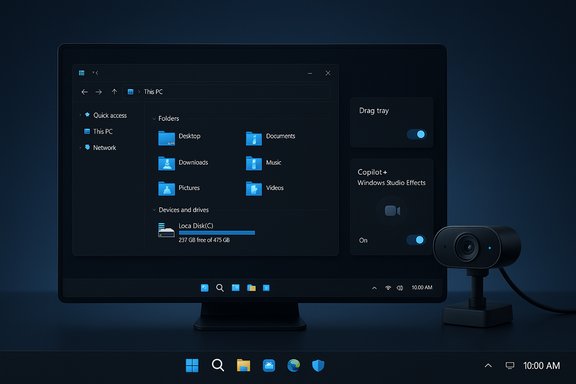
 

Blue-tinted three-monitor workstation displaying system UI and file tools.
Microsoft’s newest Release Preview cumulative for Windows 11, KB5070311, is rolling out to the 25H2 and 24H2 servicing tracks and pairs a focused set of UI polish, hardware‑gated Copilot+ refinements, and an operationally important LSASS stability fix — and Microsoft has made offline .msu installers available for administrators and power users who prefer manual deployment.

Background / Overview​

Windows 11 KB5070311 is published as a non‑security, optional preview update that updates 25H2 machines to Build 26200.7309 and 24H2 machines to Build 26100.7309. The package is being released through Release Preview channels and the Microsoft Update Catalog; Microsoft notes that some visible experiences are staged and will appear progressively via server‑side feature flags and device entitlements. This release is typical of Microsoft’s 2025 approach: ship binaries broadly, but gate certain features (notably Copilot+ and Windows Studio Effects) behind hardware requirements, OEM drivers, or regional/account entitlements. That means installing the MSU gives you the fixes and binaries immediately, but you may not see every advertised UI tweak or Copilot+ behavior until Microsoft enables it for your device.

What’s new in KB5070311 (Build 26200.7309 / 26100.7309)​

The headline items (quick summary)​

  • Dark mode extends into legacy File Explorer dialogs — copy/move progress, delete confirmations, Empty Recycle Bin prompts, file‑in‑use and related operation dialogs now receive a dark treatment to reduce jarring white flashes.
  • Drag Tray / Nearby Sharing — Drag Tray gains multi‑file support and smarter suggested targets, plus a supported toggle under Settings > System > Nearby sharing to disable the top‑screen drag share tray.
  • Copilot+ / Windows Studio Effects — On Copilot+ capable devices with supported NPUs and OEM drivers, Studio Effects can now be applied to alternate cameras (external USB webcams or rear laptop cameras). Hardware and driver support is required.
  • Settings / Control Panel consolidations — Additional legacy settings move into Settings (e.g., keyboard repeat and cursor blink rate), and a new Device Card may appear on Settings home for Microsoft‑signed devices in select markets.
  • LSASS stability fix — a non‑security remediation targeting an LSASS access‑violation crash scenario that could affect sign‑in reliability; IT teams should validate sign‑in flows.

Dark mode for File Explorer dialogs — why it matters​

Dark mode in Windows has long been fragmented: modern UI elements follow the system theme, but many Win32 dialogs (copy/move confirmations, progress windows, and some legacy prompts) stayed stubbornly light, producing noticeable white flashes during routine file operations — especially on OLED and high‑contrast displays. KB5070311 addresses those high‑frequency surfaces so the shell feels visually consistent for dark‑theme users. Early hands‑on reports and Microsoft’s release notes confirm the extension of dark palettes to these dialog surfaces, though some accent‑color behavior may be intentionally constrained in early staged rollouts.

Context menu simplification and Explorer fixes​

Microsoft is simplifying context menu items by grouping actions such as Share, Copy and Move into a more compact menu on some devices (a staged rollout). The update also fixes a handful of Explorer bugs: thumbnail generation for certain video files with unusual EXIF metadata, an intermittent legacy white toolbar display, and incorrect app icons in the “Open” entry. These are pragmatic quality‑of‑life fixes that improve daily usability.

Copilot+ features — constrained by hardware and drivers​

KB5070311 expands the Copilot+ device experience, but most of those items are device‑gated. Windows Studio Effects on secondary cameras, Click‑to‑Do improvements, and agent‑driven Settings refinements will only surface on machines that include the required NPU capabilities and OEM Studio Effects drivers. In short: the capability may be present in the binaries you install, but it won’t be visible until the device has the correct hardware, drivers, and any server entitlements.

The offline installer: .msu downloads, sizes, and how to apply them​

Microsoft has surfaced offline installers in the Microsoft Update Catalog for KB5070311, allowing IT and imaging teams to download the packages as .msu files for x64 and ARM64. Community and catalog listings report the packaged sizes as roughly 4.2 GB for x64 and ~3.9 GB for Arm64 for combined LCU+SSU catalog downloads — numbers you should plan for when staging images or moving files across WAN links. Practical installation options:
  • For online or single‑system installs, use Settings → Windows Update and install the optional preview (if it is offered). This is the simplest method and will use differential/express delivery where available.
  • For offline or scripted installs, download the MSU(s) for your architecture from the Microsoft Update Catalog and use DISM or wusa. Microsoft and deployment guides recommend the DISM folder approach when multiple MSUs (checkpoint + LCU) are involved so dependencies are resolved automatically. Example DISM command:
    DISM /Online /Add‑Package /PackagePath:C:\Packages\Windows11.0‑KB5070311‑x64.msu.
Important install notes and cautions:
  • Some combined catalog packages include a Servicing Stack Update (SSU); once an SSU is installed it cannot be removed by wusa.exe uninstalling the combined package. Plan your rollback strategy accordingly (image restore or golden media).
  • When multiple MSUs are listed by the catalog, either place them all in a single folder and let DISM discover prerequisites, or install them in the order Microsoft documents. The folder/DISM method is safer for mass or offline installs.
  • Typical install time on test VMs: teams report ~20 minutes to download and install the combined package and finish with a single reboot in many cases, but real‑world times vary by device, storage, and network. Treat this as an estimate, not a guaranteed number.

Deployment guidance — who should install, and how to pilot​

Recommended rollout model (short)​

    1. Add KB5070311 to a controlled pilot ring that mirrors the diversity of your fleet (different OEMs, GPU families, Copilot+ vs non‑Copilot hardware).
    1. Validate authentication flows (Windows Hello, Smart Card, and especially sign‑in reliability) because the update includes an LSASS stability remediation. Confirm AD/SSO behavior and test domain join scenarios.
    1. Confirm OEM driver compatibility for camera and HID improvements before exposing Copilot+ features broadly. Coordinate with your OEMs if you rely on camera effects or keyboard backlight behavior.
    1. Monitor telemetry and helpdesk volumes for 7–14 days after pilot installs, and preserve rollback images.

Why preview packages belong in pilot rings​

Preview LCUs are meant for validation: they are optional and purposely used to identify regressions before features and fixes are folded into mainstream Patch Tuesday releases. Because KB5070311 includes staged UI enablement and hardware‑gated features, broad deployment without a pilot phase invites inconsistent user experiences and support confusion: “Did you install the update?” no longer guarantees the same visible result on every device.

Technical verification and cross‑checks​

Several of the update’s most visible claims were validated across independent sources and Microsoft communications:
  • Build numbers and channel: Microsoft’s Windows Insider blog confirms the Release Preview rollouts for Builds 26100.7309 and 26200.7309 and explicitly lists the update as KB5070311.
  • Dark mode extension details: industry reporting and community hands‑on summaries show copy/move/delete dialogs and progress UIs are receiving dark theme treatments; The Verge and PureInfotech independently reported and illustrated the same scope of work. This confirms the UI change is broadly tested and being rolled out, not simply community rumor.
  • .msu sizes and catalog behavior: catalog listings and deployment guidance from deployment community threads corroborate the approximate file sizes (4.2 GB x64, ~3.9 GB Arm64) and recommend DISM folder installs when multiple MSUs are present. That guidance matches Microsoft’s documented practice for catalog packages that contain checkpoint SSUs and LCUs.
If any claim in the preview notes cannot be reproduced on a given device, remember that the rollout model intentionally gates features: missing behavior may be due to server‑side flags, hardware entitlements, or OEM driver absence rather than a failed install.

Risks, reports from the field, and mitigations​

Known / observed issues in community testing​

Community forums and social channels have reported device‑specific issues after applying preview packages. A small number of users reported crashes or instability tied to certain GPU drivers and specific hardware combinations after KB5070311 installs; some affected users found success by rolling back graphics drivers or removing recently installed features (e.g., Windows Sandbox) to allow uninstall. These are anecdotal, but they underscore the preview nature of the package and the need to pilot before wide deployment.

Key risks for IT teams​

  • Staged visibility vs. real expectations: Features are gated — an installed MSU doesn’t guarantee visible functionality. This mismatch can lead to support churn. Plan documentation and helpdesk scripts to explain gating.
  • SSU and SafeOS permanence: SSUs included in combined packages are not easily removable; they become part of the servicing stack and recovery images. Keep golden media and test SafeOS updates for recovery scenarios.
  • Driver/firmware mismatches: Copilot+ camera and HID improvements depend on OEM drivers. Test those hardware paths before enabling Copilot+ experiences broadly.
  • Rollback complexity: Offline MSUs that include SSUs can complicate uninstalls; maintain validated image restores and a rollback playbook rather than relying on wusa uninstall.

Practical mitigations​

  • Maintain up‑to‑date device driver inventories and coordinate with OEM partners on expected driver updates timed to your pilot window.
  • Use the DISM folder method for offline installs so dependency order is resolved automatically and to reduce human error in ordering MSUs.
  • For consumer and home users: wait for the mainstream cumulative if you prefer a lower‑risk path; the preview is optional and intended for testing or early adoption.

Step‑by‑step: downloading and applying KB5070311 offline (.msu) — recommended approach​

  1. Visit the Microsoft Update Catalog and identify the KB5070311 entries that match your OS version (25H2/24H2) and architecture (x64/arm64). Download all listed MSUs referenced by the KB into a single folder.
  2. Verify SHA‑256 hashes (catalog provides file hashes) to ensure integrity.
  3. From an elevated command prompt, run:
    DISM /Online /Add‑Package /PackagePath:C:\Packages\Windows11.0‑KB5070311‑x64.msu
    (If multiple MSUs are present, DISM will detect and install prerequisites from the same folder.
  4. Reboot when the installer requests it. Most test systems complete with a single reboot, but plan for additional reboots if SafeOS updates are involved.
  5. Validate key scenarios: Win+R, File Explorer operations (copy/move/delete), sign‑in flows (Windows Hello, Smart Card), camera Studio Effects (on Copilot+ hardware), and any enterprise agent/EDR interactions.

Critical analysis — strengths, limitations, and what to watch next​

Strengths​

  • Tangible daily UX wins: Extending dark mode into frequently encountered File Explorer dialogs addresses a long‑running annoyance and improves perceived polish. The Drag Tray toggle acknowledges and answers real user feedback.
  • Targeted reliability work: Fixing an LSASS instability is operationally meaningful for enterprises where sign‑in reliability is critical; that alone is a strong reason for cautious testing.
  • Sensible packaging for mass deployers: Offering offline MSUs and documented DISM workflows is a practical nod to admins who need control over image updates and air‑gapped environments.

Limitations and cautionary points​

  • Staged and gated features create support complexity; an installed binary does not guarantee visible behavior, which complicates troubleshooting.
  • Potential device‑specific regressions have been reported in community threads; that’s intrinsic to preview builds. Pilot and observe helpdesk trends before broad rollout.
  • SSU permanence and recovery implications require disciplined image management and tested recovery media; SSU injection into SafeOS can change recovery behavior.

What to watch in the coming weeks​

  • Microsoft’s official KB support page and Update Catalog listings for KB5070311 will remain authoritative and may be augmented with formal file lists and known issue notes; monitor those and OEM driver updates that unlock Copilot+ experiences.
  • Community reports of regressions (graphics, drivers, uninstallability) often surface early; track vendor forums, OEM advisories, and major community hubs to spot patterns before they affect your fleet.

Conclusion​

KB5070311 is a compact but practical preview cumulative: it packages meaningful quality‑of‑life improvements (notably dark‑mode coverage in File Explorer and usability tweaks to sharing), a device‑gated expansion of Copilot+ camera capabilities, and an important LSASS stability fix that merits careful validation. The availability of direct .msu installers makes it straightforward for administrators and imaging teams to test and stage the update, but the preview nature — combined with staged enablement and dependency on OEM drivers — means the sensible path for most organizations is a disciplined, pilot‑first rollout with validated rollback plans and close monitoring.
For enthusiasts and Release Preview testers, the update already delivers visible polish and a flatter, more consistent dark experience in day‑to‑day file operations. For enterprises, the work is managerial: inventory Copilot‑capable hardware, coordinate with OEMs, test sign‑in reliability, and treat KB5070311 as a release candidate rather than a production push.

Source: Windows Latest Windows 11 KB5070311 25H2 upgrades dark mode, direct download links for .msu (offline installer)
 

Microsoft’s optional November 2025 C‑release for Windows 11 — delivered as KB5070311 — is a broad preview package that mixes visible UI polish, device‑gated Copilot+ AI enhancements, and an important non‑security reliability fix; the update is available for Windows 11 versions 25H2 and 24H2 as builds 26200.7309 and 26100.7309 and was published to Release Preview on December 1, 2025.

Futuristic neon-blue UI showing File Explorer and a Windows Studio webcam.Background​

Microsoft now separates the distribution of preview binaries from the staged enabling of features: KB5070311 is shipped broadly to Release Preview devices, but many of the user‑facing experiences are being turned on progressively by server‑side flags, device entitlements, and OEM driver support. That means installing the package applies the fixes and new binaries immediately, but visibility of Copilot+ or other hardware‑dependent features depends on whether the device meets prerequisites and whether Microsoft has enabled the feature for that device. This C‑release follows Microsoft’s established preview cadence: optional, non‑security “C” updates land in Release Preview to let enthusiasts and IT pilots validate changes before they fold into the mainstream Patch Tuesday rollouts. Administrators should treat KB5070311 as a test candidate and follow standard pilot‑ring discipline rather than pushing it straight into production.

At a glance: what KB5070311 delivers​

  • Builds and channels: KB5070311 updates Windows 11, version 25H2 to Build 26200.7309 and version 24H2 to Build 26100.7309, with the preview record published December 1, 2025.
  • Two parallel tracks in the notes: gradual rollout (features gated by Microsoft or hardware) and normal rollout (quality and reliability fixes broadly available).
  • Headline themes:
  • Copilot+ PC enhancements and on‑device AI refinements (Windows Studio Effects, Click to Do, agentic Settings integrations).
  • File Explorer and Settings UI polish (notably extended dark mode and context menu simplification).
  • Drag Tray (Nearby sharing) usability improvements plus an official on/off toggle.
  • A high‑priority non‑security fix targeting an LSASS access‑violation instability that could impact sign‑in reliability.
These are the most load‑bearing facts users and IT teams should confirm when planning deployment: the exact build numbers, the presence of Copilot+ hardware gating, and the LSASS reliability correction. Microsoft’s Support page and the Windows Insider blog give authoritative details and deployment guidance.

Deep dive: Copilot+ PC experiences​

Windows Studio Effects on additional cameras​

KB5070311 expands Windows Studio Effects so, on supported Copilot+ devices, users can enable AI camera enhancements on secondary cameras — for example, external USB webcams or a laptop’s rear camera — from Settings > Bluetooth & devices > Cameras. The change addresses a long‑standing limitation where some on‑device effects were restricted to the built‑in front camera. Availability is hardware and driver dependent: an on‑device NPU and vendor Studio Effects driver are prerequisites. Why this matters:
  • Hybrid workers who use docking stations and external webcams can now get on‑device background blur, eye‑contact correction, and voice focus without routing video through cloud services, reducing latency and aligning with privacy‑minimizing workflows.
  • Creators and multi‑camera setups gain parity between internal and external inputs, removing an awkward UX gap where the “better” external camera could not access the same AI filters.
Caveats and risk:
  • On‑device inference consumes NPU cycles and battery; expect measurable power and thermal impacts when high‑fidelity effects are active.
  • OEM driver cadence controls availability. If manufacturer drivers are not present, the UI will not present the Studio Effects toggle even after the update is applied.

Click to Do, Agents in Settings, and Copilot integration​

KB5070311 continues refinement of selection‑to‑action flows. The Click to Do context menu is streamlined (Copy, Save, Share, Open prioritized), and the system can auto‑open contextual actions when it detects a large image or table on screen. Separately, “Agents in Settings” expands Settings search results, shows inline recommended settings for quick changes, and will display explanatory dialogs when a setting cannot be adjusted further. These are explicitly noted as Copilot+ experiences and will vary by device and market. Implications for privacy and governance:
  • Copilot Vision and agentic features that analyze on‑screen content should be evaluated against organizational DLP and privacy policies. Administrators need to verify whether corporate controls can prevent or audit any automated sharing or analysis.
  • For environments requiring strict data separation, administrators must confirm that policies and Intune/MDM options exist to restrict Copilot Vision, window sharing, or agentic execution. Several of the Copilot‑adjacent capabilities are server‑gated and subject to account entitlements.

File Explorer, dark mode, and context menus​

A more consistent dark mode​

One of the most visible user changes in KB5070311 is the extension of dark theme to previously light Win32 dialog surfaces inside File Explorer — copy/move progress, confirmation dialogs, error popups, and progress bars now follow the dark palette more consistently. The change reduces jarring white flashes on OLED and other dark‑theme setups and is a practical quality‑of‑life win for frequent file operators. Known issue and real‑world notes:
  • Microsoft documents a known issue where File Explorer may briefly flash a white screen in dark mode after this update; the Support page lists the symptoms and indicates Microsoft is investigating. This demonstrates the tradeoffs of extending dark styling to legacy surfaces—the visual consistency improvement also risks regressions on some configurations. Administrators should test File Explorer behavior, particularly in multi‑monitor, high‑DPI, and mixed‑theme environments.

Simplified context menus​

The update moves common actions like Share, Copy, and Move into a single, simplified File Explorer context menu for some devices as part of a staged experiment. This reorganization is intended to reduce clutter and improve accessibility, but Microsoft will evaluate the rollout and adjust based on telemetries and feedback. The change is staged and will appear on a subset of devices while Microsoft collects data.

Drag Tray and Nearby Sharing: feature polish and an opt‑out​

The Drag Tray (the top‑of‑screen drag‑to‑share surface) receives practical usability improvements: multi‑file sharing, smarter suggestion ranking for targets (apps/folders), and direct folder drops. Crucially, Microsoft has added a supported toggle under Settings > System > Nearby sharing that allows users and administrators to disable the Drag Tray without registry edits. This opt‑out responds to user feedback, and makes the behavior manageable in enterprise deployments where the overlay may conflict with productivity workflows. Operational advice:
  • For organizations concerned about accidental sharing or UI interference, deploy a pilot and then use MDM to configure Nearby sharing and the Drag Tray toggle centrally.
  • Check known‑good test images to confirm the toggle behaves as expected before broad deployment; the staged rollout means some devices may see different default behaviors.

Important reliability fix: LSASS access‑violation remediation​

KB5070311 includes a non‑security fix addressing an LSASS (Local Security Authority Subsystem Service) access‑violation condition that could cause crashes and affect sign‑in reliability. Given LSASS’s central role in authentication and policy enforcement, this repair is operationally significant and should be validated in pilot rings before wider rollout. Recommended validation steps:
  • Test account sign‑in flows (local, domain, Azure AD) on representative hardware.
  • Validate smart card and Windows Hello paths (especially ECC smart card logon scenarios noted in the update).
  • Monitor event logs for LSASS exceptions and related credential provider errors during pilot deployments.

Platform, compatibility, and Prism (WoA emulation)​

KB5070311 extends emulation support on Windows on ARM devices to include AVX and AVX2 and related instruction extensions (BMI, FMA, F16C). This broadens compatibility for x86/x64 applications compiled with these vector extensions, improving the usefulness of WoA platforms for more workloads. Availability and performance will vary by device and the quality of the emulation implementation. Caveat:
  • Emulation improves compatibility but does not guarantee identical performance; AVX/AVX2 codepaths are often performance sensitive and may run noticeably slower under emulation than on native silicon. Validate critical workloads and set expectations accordingly.

Other notable changes​

  • Virtual Workspaces: a new toggle appears in Settings > System > Advanced to enable or disable virtual environments such as Hyper‑V and Windows Sandbox, consolidating controls in a supported Settings location.
  • Pens and input: haptic feedback for supported pens, and keyboard backlight improvements on HID‑compliant keyboards.
  • Settings consolidations: keyboard repeat and cursor blink moved from Control Panel into Settings > Accessibility to improve discoverability. A refreshed About layout and a Device Card may appear for Microsoft‑signed devices in select markets.
  • Widgets, OneDrive icon updates, Quick Machine Recovery tweaks, and fixes for smart cards and lock/sign‑in performance.

Deployment guidance and a practical checklist​

KB5070311 is optional and preview‑quality. Apply the following checklist before broad deployment:
  • Inventory Copilot+ capable devices (identify models with NPUs, vendor Studio Effects drivers, or official Copilot+ certification).
  • Pilot the update in a controlled ring (10–50 devices, representative hardware, local apps, and authentication scenarios).
  • Test sign‑in and authentication scenarios thoroughly (local users, domain, Azure AD, smart cards, Windows Hello ESS). Confirm LSASS stability in production‑like conditions.
  • Validate File Explorer dark mode and known issue workarounds (monitor for the white‑flash symptom Microsoft documented).
  • Coordinate with OEMs for Studio Effects drivers; without vendor updates, Copilot+ camera improvements will remain hidden.
  • If Drag Tray or on‑screen sharing features are undesired, use Settings or MDM to disable Nearby sharing and the Drag Tray toggle prior to mass rollout.
  • Maintain rollback and recovery plans: know how to remove the LCU package or recover images if a pilot reveals regressions. Microsoft documents removal procedures and SSU considerations on the Support page.

Risks, early reports, and things to watch​

  • Known File Explorer dark‑mode flicker: Microsoft lists a File Explorer white‑flash issue after install and is investigating; plan verification accordingly.
  • Community reports of driver and stability conflicts: early Release Preview and forum reports indicate some users experienced display driver or BSOD issues after combining KB5070311 with certain GPU driver versions. These are anecdotal but worth monitoring via vendor advisories and community threads. When testing, include systems with third‑party driver stacks and non‑standard software to expose potential conflicts.
  • Copilot+ gating and inconsistent visibility: because of server‑side feature gating and OEM dependencies, the full Copilot+ experience will be uneven across a fleet. This increases support load for helpdesks fielding “I don’t have X” queries after an update. Document expected availability and include a simple script or help document to confirm whether a device meets Copilot+ prerequisites.
Unverifiable or conditional claims (flagged):
  • Any claim that “all Copilot+ devices will receive Studio Effects on external cameras immediately” is conditional and should be treated as not verified for every device. Visibility depends on OEM drivers and Microsoft’s staged rollout. If either vendor drivers or Microsoft entitlements are absent, the capability will not be visible. This conditionality is explicitly called out in Microsoft’s notes.

Admin Q&A (concise)​

  • Should production fleets install KB5070311 now? No — treat it as a preview family update. Pilot it on non‑critical devices, validate the LSASS fix and File Explorer behavior, and wait for the mainstream cumulative (Patch Tuesday) if conservative stability is a priority.
  • How to disable Drag Tray for users? Use Settings > System > Nearby sharing on a device, or configure the equivalent MDM policy at scale once the setting is visible in your tenant.
  • Will Copilot+ features work on older PCs? No — many Copilot+ experiences require on‑device NPU capabilities and vendor drivers; older hardware without those capabilities will not show the features even after installing the update.

Conclusion​

KB5070311 is a classic mid‑cycle preview cumulative: a mixture of visible UX polish, incremental Settings migrations, and device‑gated AI features designed to showcase what Copilot+ hardware can do — balanced by a practical LSASS stability remediation that justifies early pilot testing. The most immediate wins for everyday users are the File Explorer dark‑mode consistency and the simplified context menus, while Copilot+ camera and Click to Do improvements are meaningful for users on supported devices but will appear unevenly because they are gated by hardware, OEM drivers, and Microsoft’s staged rollout. Administrators should pilot the update, validate authentication and driver interactions, and use the new on/off toggles (Nearby sharing/Drag Tray) and MDM controls to manage user experience and governance. For those who want the features now: install KB5070311 on a non‑critical test device, update OEM drivers, and confirm Studio Effects and Click to Do are visible. For production fleets seeking maximum stability, wait for the mainstream cumulative after Microsoft completes the staged rollout and OEMs publish updated drivers.

Source: Neowin KB5070311 optional Windows 11 November 2025 update brings long list of new features
 

Microsoft ha reso disponibile un nuovo aggiornamento cumulativo opzionale per Windows 11: il pacchetto identificato come KB5070311 porta i sistemi su Build 26200.7309 (per la track 25H2) e Build 26100.7309 (per la track 24H2) e combina un insieme di visual polish, miglioramenti per dispositivi Copilot+ e una correzione di stabilità operativa per LSASS; la distribuzione è stata pubblicata come Preview il 1 dicembre 2025.

Futuristic Windows UI featuring Copilot+ and a dark File Explorer window.Overview: che cos’è KB5070311 e perché conta​

KB5070311 è un aggiornamento non‑security, rilasciato come pacchetto di anteprima (Preview / C‑release) destinato alla verifica pre‑produzione e alla convalida da parte di tester e amministratori. Il pacchetto contiene sia correzioni generali e miglioramenti di qualità che binari con funzionalità che Microsoft abiliterà progressivamente tramite flag server‑side e requisiti hardware (in particolare per le esperienze denominate Copilot+). L’aggiornamento è disponibile tramite Windows Update (selezionando gli aggiornamenti opzionali per Release Preview) e tramite file .msu per installazioni manuali. Il rilascio va letto come una combinazione di due percorsi:
  • Normal rollout: correzioni di qualità e stabilità che verranno applicate in modo ampio ai dispositivi che installano il pacchetto.
  • Gradual rollout / staged features: nuove esperienze utente (soprattutto quelle basate su Copilot+ o su driver OEM) che sono abilitate in modo progressivo e condizionato.

Novità principali (sintesi tecnica)​

Le aree tematiche principali toccate da KB5070311 sono:
  • File Explorer: estensione del supporto Dark Mode per dialoghi storici (copy/move/confirm/delete/progress), riducendo i “white flashes” nelle operazioni di file.
  • Drag Tray / Nearby Sharing: supporto multi‑file, suggerimenti target più intelligenti e — soprattutto — una opzione ufficiale per disattivare il Drag Tray (Settings > System > Nearby sharing). La funzionalità è gradualmente distribuita.
  • Copilot+ / Windows Studio Effects: estensione di Studio Effects a secondary cameras (per es. webcam USB o fotocamere posteriori) su dispositivi Copilot+ che hanno un NPU e driver OEM compatibili. Funzionalità hardware‑gated.
  • Agent & Click to Do: rifiniture all’esperienza agente in Settings e al menu contestuale “Click to Do” (maggiori risultati di ricerca, azioni inline, menu contestuali più puliti su Copilot+). Disponibilità condizionata.
  • Stabilità / LSASS: correzione non‑security per una condizione di access violation che poteva causare instabilità in LSASS (Local Security Authority Subsystem Service), potenzialmente impattando i flussi di sign‑in. Questo elemento è operativo e di interesse per gli amministratori.
  • Distribuzione offline: Microsoft ha reso disponibili gli .msu per chi preferisce l’installazione manuale (Update Catalog), con pacchetti che arrivano a ~4.2 GB su x64 e ~3.9 GB su Arm64 per la 25H2 (valori riportati dai test di terze parti). Verificare l’architettura e la dimensione prima del deploy.

Background tecnico: build, canali e modalità di rollout​

KB5070311 è etichettato come la Preview del 1 dicembre 2025 e aggiorna le due track seguite da Microsoft: 25H2 → 26200.7309 e 24H2 → 26100.7309. Il pacchetto è opzionale (non viene scaricato/instllato automaticamente a meno che non si abiliti la ricezione anticipata di aggiornamenti) e viene usato come banco di prova per le modifiche che, se validate, confluiranno nelle successive cumulative mensili. Importante: Microsoft continua ad applicare il modello che separa la distribuzione dei binari dall’abilitazione delle funzionalità. Ciò significa che l’installazione del pacchetto fornisce le correzioni e i file binari, ma alcune esperienze utente verranno mostrate solo dopo che Microsoft avrà attivato i feature flag o quando il dispositivo soddisferà requisiti hardware/driver. Questa distinzione complica previsioni e troubleshooting.

Analisi dettagliata delle nuove funzionalità e delle correzioni​

File Explorer: dark mode, contesti e usabilità​

La modifica più percepibile per gli utenti è l’estensione del dark mode a dialoghi storici che rimanevano in tema chiaro. L’obiettivo è ridurre il “white flash” quando si eseguono operazioni comuni (copia, sposta, elimina) e rendere coerente la UX per chi usa il tema scuro.
  • Perché è importante: migliora la leggibilità su display OLED e riduce distrazioni visive nelle operazioni quotidiane.
  • Limiti tecnici: alcune superfici legacy sono ancora di tipo Win32 e la copertura completa può dipendere da ulteriori patch nel futuro. Microsoft ha elencato anche alcuni fix su thumbnails e toolbar che completano la pulizia visiva.

Drag Tray / Nearby Sharing: multi‑file + opt‑out​

Il Drag Tray (barra superiore che facilita lo sharing tramite drag‑and‑drop) riceve miglioramenti pratici e — crucialmente — una opzione per disattivarlo via Settings, rispondendo al feedback degli utenti contrari a quella UI persistente.
  • Vantaggi: consente multi‑file sharing e suggerimenti più intelligenti per destinazioni; la presenza del toggle rende l’esperienza gestibile anche in contesti aziendali.
  • Rischi: l’introduzione di nuove superfici di condivisione aumenta la superficie d’attacco dal punto di vista dell’endpoint se non si controllano policy e permessi; le organizzazioni dovrebbero valutare la disattivazione dove opportuno. (Nota: la disponibilità del drag tray è limitata in alcune regioni, es. assenza nella EEA per determinate funzioni.

Copilot+ e Windows Studio Effects: cosa può (e non può) fare​

KB5070311 amplia l’uso di Windows Studio Effects ai dispositivi Copilot+ su secondary cameras. Questo significa che — su dispositivi con NPU e driver vendor‑specific — si possono applicare effetti on‑device (blur, correzione sguardo, miglioramento voce) anche a webcam esterne.
  • Requisiti: dispositivo Copilot+ (NPU), driver Studio Effects del vendor e abilitazione tramite feature flag. Senza questi la funzionalità non sarà visibile.
  • Implicazioni privacy/performance: gli effetti on‑device riducono latenza e dipendenza dal cloud, ma aumentano l’utilizzo di risorse locali (NPU/CPU/batteria). Testare l’impatto su batterie e carichi termici è imprescindibile prima del roll‑out aziendale.

Agent in Settings & Click to Do: passi verso UI agentica​

KB5070311 prosegue l’integrazione di “agent‑style” UX: il pannello di Settings mostra più risultati, suggerimenti inline e dialoghi esplicativi; Click to Do apre automaticamente il menu contestuale per immagini/tabelle grandi. Queste ottimizzazioni sono pensate per rendere più dirette le azioni suggerite da Copilot.
  • Nota pratica: molte di queste modifiche sono gated sui Copilot+ PCs e non saranno presenti su macchine non idonee anche dopo l’installazione del pacchetto.

LSASS: la correzione operativa​

La release include una correzione non‑security per una condizione di access violation in LSASS che poteva causare instabilità nello stack di autenticazione. Per le organizzazioni, questo rappresenta una motivazione concreta per testare il pacchetto su dispositivi pilota, verificando i flussi di sign‑in, Windows Hello, Smart Card e la resilienza del domain logon.

Problemi noti e limitazioni (da verificare)​

Microsoft elenca un problema noto con questo pacchetto: in alcuni casi File Explorer può mostrare un brief white flash in dark mode dopo l’installazione; la casa invita a attendere un fix. Questo è un esempio di regressione visiva che merita attenzione in ambienti dove l’esperienza utente è sensibile. Inoltre, poiché molte feature sono abilitate tramite feature flags server‑side, non è possibile verificare a priori quali dispositivi riceveranno immediatamente le nuove esperienze: la presenza di una funzionalità su un PC di test non garantisce la stessa presenza su altri PC apparentemente identici. Questo è un punto critico per il troubleshooting e l’assistenza.
Comunità e test early‑adopter hanno riportato casi isolati di regressioni (es. problemi grafici o compatibilità driver) dopo l’installazione di preview; tali segnalazioni sono spesso specifiche all’hardware/driver e devono essere considerate come segnali iniziali, non come pattern definitivi senza ulteriori conferme vendor. Flaggare questi report come early warnings e non generalizzare frettolosamente.

Dimensioni pacchetto, installazione e rollback​

Windows Latest e test indipendenti riportano le dimensioni approssimative degli .msu della 25H2: ~4.2 GB su x64 e ~3.9 GB su Arm64; questi pacchetti sono disponibili sull’Update Catalog per download manuale. L’installazione via Windows Update è opzionale e richiede un riavvio singolo nella maggior parte dei casi. Se si decide di rimuovere l’LCU combinata dopo l’installazione, Microsoft specifica l’utilizzo di DISM /Remove‑Package con il nome del pacchetto. Attenzione: il pacchetto combinato contiene anche l’SSU (Servicing Stack Update), che non è rimovibile tramite wusa.exe /uninstall; le implicazioni sul recovery media e sul SafeOS vanno verificate prima di un’immagine di produzione.

Raccomandazioni pratiche per amministratori e utenti avanzati​

KB5070311 è una anteprima: va trattata come software sotto test. Ecco una lista operativa, ordinata per priorità, per chi gestisce dispositivi Windows 11 in ambienti domestici, SMB o enterprise.
  • Eseguire backup completi o creare immagini dei sistemi prima dell’applicazione del pacchetto.
  • Applicare KB5070311 solo a un gruppo pilota rappresentativo (diverse OEM, GPU, periferiche esterne).
  • Testare i flussi di autenticazione: login locale, domain logon, Windows Hello, Smart Card; verificare eventuali regressioni legate a LSASS.
  • Verificare driver grafici e firmware OEM (specialmente se la macchina è Copilot+). Raccogliere crash dump e telemetria su eventuali BSOD o regressioni grafiche.
  • Per i dispositivi che non devono presentare il Drag Tray, documentare e testare la procedura: Settings > System > Nearby sharing → turn Drag Tray off.
  • Per i dispositivi Copilot+: coordinare con i vendor OEM per l’installazione dei driver Studio Effects necessari e verificare l’abilitazione dell’NPU.
  • Se si utilizza l’installazione offline (.msu), seguire l’ordine corretto di SSU/LCU e aggiornare i media immagine (WIM) con le ultime SSU/LCU per evitare problemi durante la distribuzione.

Checklist rapida per test (per ogni macchina pilota)​

  • Backup / immagine completa.
  • Applicare KB5070311 sull’ultima Servicing Stack Update (SSU) consigliata.
  • Validare login e smart card; riprodurre scenari di accesso utente.
  • Eseguire test di File Explorer in dark mode (creazione di file, copie complesse, apertura di cartelle con molte thumbnail).
  • Testare Drag Tray: drag & drop su più file, comportamento del toggle.
  • Se Copilot+ device: verificare Windows Studio Effects su camera secondaria e misurare CPU/NPU/battery.
  • Controllare i log di Event Viewer per errori LSASS/winlogon dopo l’aggiornamento.
  • Valutare tempi di rollback e aggiornare documentazione di recovery.

Valutazione dei rischi e considerazioni sulla sicurezza​

  • LSASS fix è positivo dal punto di vista della stabilità dei processi di autenticazione; tuttavia, ogni aggiornamento che tocca componenti di sicurezza deve essere validato in scenari reali. Il fatto che la correzione sia non‑security non riduce l’importanza del test.
  • Le feature Copilot+ implicano requisiti hardware e driver; tentativi di abilitazione forzata senza driver ufficiali possono causare regressioni. Coordinare con OEM.
  • Le novità UI come Drag Tray espandono i canali di condivisione: le policy aziendali su data sharing devono essere riesaminate per evitare perdite involontarie di dati.

Cosa dice la documentazione ufficiale e la stampa specializzata​

La pagina ufficiale di Microsoft Support (KB5070311 — December 1, 2025) conferma build, data di rilascio, principali highlight e il known issue legato a File Explorer in dark mode. L’entry evidenzia la natura gradual vs normal rollout e rimanda a Windows release health per aggiornamenti. Report indipendenti e hands‑on (Thurrott e Windows Latest) confermano le stesse aree funzionali — dark mode, Drag Tray toggle, Studio Effects su camera secondaria — e riportano dettagli pratici come le dimensioni degli .msu e le modalità di installazione offline, offrendo riscontri di test sul campo. Queste fonti aiutano a corroborare i punti più rilevanti per amministratori e power user. Nota: molte testate e community evidenziano la natura staged delle funzionalità; qualsiasi segnalazione di feature visibili in alcuni dispositivi ma non presenti su altri è coerente con il modello di rollout descritto da Microsoft.

Conclusione e raccomandazione editoriale​

KB5070311 è un aggiornamento anteprima che merita attenzione ma non panico: combina miglioramenti visibili (File Explorer dark mode, Drag Tray gestibile) con funzionalità strategiche legate ai dispositivi Copilot+ e con una correzione operativa di LSASS che giustifica test mirati. Per gli appassionati e i tester, l’update offre interessanti perfezionamenti di UX; per le aziende è un candidato naturale per i pilot ring con checklist precisa e rollback plan pronto.
Linee guida riassuntive:
  • Trattare KB5070311 come software under test: non forzare l’installazione su tutti i dispositivi di produzione.
  • Dare priorità al test dei flussi di autenticazione e alle compatibilità driver (GPU, webcam esterne, driver Studio Effects OEM).
  • Utilizzare gli .msu se si gestiscono immagini offline, ma rispettare l’ordine SSU/LCU e aggiornare recovery media.
  • Monitorare Feedback Hub, forum vendor e i canali ufficiali di Microsoft per segnalazioni di regressioni o per la pubblicazione di hotfix successivi.
KB5070311 dimostra la direzione pragmatica di Microsoft: piccoli ma significativi miglioramenti di UX, ampliamento controllato delle funzionalità AI on‑device e attenzione alla stabilità operativa. L’approccio più saggio rimane la convalida su hardware rappresentativo e la cautela prima della distribuzione di massa.
Source: Plaffo Disponibile un nuovo aggiornamento cumulativo dedicato a Windows 11, ecco le novità | KB5070311 - Plaffo
 

Microsoft’s December preview (KB5070311) promises a more consistent dark mode across File Explorer, but it shipped with a glaring regression: a brief, full‑window white flash whenever File Explorer opens in dark mode, a problem Microsoft has acknowledged and labeled a known issue while it works on a fix.

Dim laptop screen showing Windows file explorer with a glowing progress dialog.Background​

Microsoft released the preview update identified as KB5070311 (OS Builds 26200.7309 and 26100.7309) on December 1, 2025, as part of its Windows 11 servicing cadence. The update bundles a number of UI polish items, security‑adjacent fixes, and quality‑of‑life changes intended for Windows 11 versions 25H2 and 24H2. The servicing stack update included in the package is KB5071142 (SSU version 26100.7295). These exact build and KB numbers are published in Microsoft's release notes for the release. What Microsoft advertises as the headline experience in this preview is an incremental but visible push toward a truly consistent dark mode. That means previously light dialog surfaces — copy/move progress, confirmation dialogs, error popups, progress bars, and chart views within File Explorer — are now styled to follow the system dark theme rather than falling back to bright, legacy white windows. For many users who rely on dark themes to reduce eye strain, this addresses a long‑standing inconsistency.

What happened: the white flash regression​

The symptom​

After installing KB5070311, some users see File Explorer briefly display a full white, blank window before the Explorer UI paints in dark colors. The flash happens when:
  • Opening File Explorer while the system theme is set to dark,
  • Creating a new tab,
  • Switching to or from Home or Gallery,
  • Toggling the Details pane,
  • Clicking “More details” during file copy/move operations.
Microsoft documents these exact reproduce points in its known issues list. The white screen appears for milliseconds but is intense enough to be described by users as a "flash bang" — especially jarring in low light.

How Microsoft describes it​

Microsoft classifies the issue as a known regression introduced with the preview LCU (KB5070311) and has confirmed it is investigating and developing a fix. The vendor’s guidance currently lists the symptom and offers no permanent workaround in the release notes other than stating that more information will be provided. That official acknowledgement makes this issue part of the supported record for the package.

Why the regression likely happened​

Dark theme is not just CSS — it's legacy compatibility​

Windows has decades of UI baggage. Many system surfaces remain implemented as older Win32 dialogs or mixed XAML/Win32 composites. Styling those legacy surfaces to match modern Fluent design and dark themes is more than swapping colors — it can change window creation timing, composition layers, and when the UI is painted to the screen.
Extending dark styling to previously white-only surfaces often forces the system to change the order and method by which Explorer creates and paints windows. Those timing changes can cause a frame where the default background is white to be exposed while the new themed content is still initializing. The result: a brief white flash. Microsoft’s release notes and community debugging patterns imply exactly this tradeoff — better long‑term visual consistency at the cost of unexpected short‑term regressions on some configurations.

Interaction with drivers, compositors, and third‑party mods​

Early community reports suggest the flash is most noticeable on certain hardware and driver combinations and in systems running third‑party UI injectors or custom themes. Third‑party tools that hook into Explorer’s rendering pipeline (for example, Start menu or theme injectors) can exacerbate race conditions or change paint timings. Some users report reduced symptoms with specific tool combinations or by rolling back graphics drivers, though those reports are anecdotal and not formally verified by Microsoft. Treat such reports as community troubleshooting rather than vendor guidance.

Independent verification and reporting​

Multiple independent outlets and community channels reproduced or reported the same white flash symptom shortly after the preview’s release. Major technology outlets summarized the Microsoft release notes and documented the real‑world user reaction, while community posts and Reddit threads captured firsthand experiences and informal workarounds. These cross‑checks make the regression verifiable beyond Microsoft’s own advisory.

The user impact: why this matters​

Usability and accessibility​

A millisecond white flash might seem trivial, but for many users — particularly those working in dim environments or with light sensitivity — a sudden bright flash can cause discomfort and disorientation. Accessibility guidelines emphasize predictability and low visual disruption; an unexpected full‑screen white flash runs counter to those principles.

Enterprise risk​

For IT administrators managing large fleets, the risk profile is different. The update is a preview (non‑security, optional) release intended for testing and early feedback. However, preview packages can still be picked up by devices that subscribe to early channels or have automatic update policies. The regression can increase helpdesk tickets and may be disruptive in controlled environments (e.g., control rooms, healthcare settings) where sudden visual changes are problematic. Administrators should treat this package as a pilot candidate and validate on representative hardware sets before broad deployment. Microsoft’s release notes explicitly list the bug in the Known Issues section, enabling administrators to make informed decisions.

Workarounds and mitigations​

Microsoft’s official guidance right now is to wait for an update that resolves the regression, but community users have shared several short‑term mitigations and workarounds. These are practical, not endorsed by Microsoft, and in some cases involve third‑party software that injects into system processes — carry elevated risk and require caution.
  • Disable the preview update (uninstall KB5070311) — the safest, most conservative option for users who need predictable behavior immediately. Use Windows Update > Update history > Uninstall updates, or DISM/wusa workflows in managed environments.
  • Roll back to light mode until Microsoft issues a fix — switching the system theme to light avoids the dark‑mode painting path that triggers the white flash. This is a blunt workaround for users who can tolerate the light theme temporarily.
  • Use third‑party theme tools or explorer mods (community workaround) — a popular modding framework, Windhawk, has community themes or tweaks that some report can smooth Explorer’s dark styling behavior and avoid the flash. These require installing a process‑injecting mod manager and applying community mods, which raises security, stability, and support considerations. Proceed only with awareness of the risks and after backing up the system.
  • Test GPU driver rollback — several anecdotal threads indicate specific GPU driver versions interact poorly with the new painting order. If the flash coincides with other graphics anomalies, testing a driver rollback or update may reduce the symptom. This is environment‑specific and must be validated before broad application.

Guidance for IT administrators​

Recommended immediate steps​

  • Treat KB5070311 as a preview release and pilot it, don’t push it broadly to production machines until Microsoft confirms a fix for the white flash regression. Use ringed deployments or group policy to control exposure.
  • Update your test matrix to include:
  • Multi‑monitor setups (different primary/secondary themes),
  • High‑DPI and scaling configurations,
  • Devices with third‑party UI customizers (Start menu, theme injectors),
  • Mixed GPU vendor setups (Intel/AMD/NVIDIA) and varying driver versions.
  • Establish a roll‑back plan and be ready to uninstall the preview update on affected endpoints should user disruption escalate. Provide helpdesk guidance explaining the known issue and temporary mitigation steps.

Communication template (concise)​

  • Acknowledge the update was applied to pilot devices,
  • Describe the symptom (brief white flash in File Explorer while dark mode is enabled),
  • Explain the status (Microsoft investigating; fix in progress),
  • Provide mitigations (uninstall preview, switch to light theme, or delay rollout),
  • Ask users to collect logs/screenshots and report details to the IT team to aid diagnosis.

Why Microsoft’s QA model matters here​

Microsoft intentionally gates feature rollouts and uses flighting to broaden coverage gradually. Preview packages like KB5070311 are designed for early testing; they include both bug fixes and feature experiments that aren’t guaranteed to be perfect on day one. The company’s public acknowledgment of the white flash shows the benefit of flighting — issues are caught in early waves rather than only after full deployment — but it also highlights shortcomings in catching regressions that are highly visible to end users.
The gap that led to this regression likely comes from interactions between legacy Win32 surfaces and modern rendering pipelines. Modernizing a deeply backwards‑compatible OS is iterative and sometimes exposes race conditions that are tricky to replicate across hardware and vendor drivers. That’s the practical reality of maintaining an operating system that must run on millions of different configurations.

The tradeoffs: visual consistency vs. stability​

Microsoft’s stated goal — a consistent dark mode across Windows — is ergonomically sound; users expect a unified visual language. However, pushing dark styling into legacy dialog code paths imposes a compatibility tax:
  • Benefit: Reduced jarring UX transitions, improved low‑light readability, and a modernized aesthetic.
  • Risk: Unintended rendering timing regressions, driver incompatibilities, and unexpected visibility issues in third‑party tools.
This release exemplifies that exact tradeoff: the same changes that remove abrupt white dialogs in some scenarios cause a white flash in others. For Windows as a platform, the path to a genuinely cohesive dark mode will likely involve several iterative updates, close cooperation with GPU vendors, and continued community testing.

Community response and the role of mods​

The immediate social media and forum reaction was sharp and vocal. Threads in subreddits and Windows communities captured both annoyance and practical tips. Some users advocated rolling back the update entirely, while others pointed to third‑party tools like Windhawk or StartAllBack as interim cosmetic workarounds.
Important caveat: third‑party mods that inject into system processes can improve appearance but may reduce stability or conflict with future updates. Organizations should not deploy these tools on managed or secure endpoints without a formal risk assessment. For individual power users, mods can be acceptable but still require caution, antivirus checks, and a restore point.

What to expect next​

Microsoft has stated it is working on a fix and will update the release notes when a resolution is available. Given the public acknowledgement and the strong user feedback, a corrective patch — either an out‑of‑band fix or as part of the next monthly servicing update — is likely to follow. Until then, conservative deployment and pilot testing are the appropriate strategies for both consumers and IT administrators.

Technical checklist: verify before you deploy​

  • Confirm which channel the devices are subscribed to (Release Preview / Beta / Production).
  • Verify build and KB numbers on test devices: ensure presence of KB5070311 and matching OS builds (26200.7309 / 26100.7309) and KB5071142 SSU where applicable.
  • Reproduce the File Explorer scenario in test environment with dark theme enabled:
  • Open Explorer, create new tabs, toggle Details pane, open Home/Gallery, and perform copy operations to confirm whether the white flash appears.
  • Collect logs and reproduce steps for vendor support if needed (Event Viewer, reliability monitor, graphics driver logs).
  • If the white flash is unacceptable, remove the preview LCU and/or revert to light theme until Microsoft releases a corrected package.

Final analysis: strengths, risks, and the road ahead​

KB5070311 shows Microsoft continuing to invest in Windows 11 polish — notably a long‑overdue effort to fix inconsistent dark mode behavior that has bothered power users for years. The feature is meaningful: when implemented cleanly, consistent dark mode reduces eye strain, modernizes the visual experience, and eliminates jarring white dialogs that break immersion.
Yet this rollout also demonstrates a recurring reality of modern OS maintenance: visual improvements that touch legacy code paths can introduce timing and composition regressions across diverse hardware and third‑party ecosystems. The white flash is illustrative of the risk of regression that accompanies wide‑scope UI changes. The incident underscores why staged rollouts, detailed QA on mixed configurations, and rapid, transparent vendor communication are essential.
Practical takeaway for Windows users and administrators: treat preview releases as what they are — test vehicles. Validate on representative hardware, avoid broad distribution for optional preview LCUs in production, and use official Microsoft guidance for mitigations. If you’re a power user tempted to apply community fixes, weigh the immediate visual benefit against the long‑term stability and security implications.
Microsoft has acknowledged the issue and is working on a fix; until that arrives, the safest paths are to delay exposure or to roll back the preview. For those who must test now, document your findings and share reproducible steps so the vendor can prioritize a robust resolution.

Appendix: quick reference​

  • Update: KB5070311 (Preview) — OS Builds 26200.7309 and 26100.7309.
  • Servicing stack: KB5071142 — SSU version 26100.7295.
  • Known issue: File Explorer may flash a white screen briefly when opened in dark mode; Microsoft investigating.
  • Short‑term mitigations: uninstall preview, switch to light theme, or (for advanced users only) apply third‑party mods (e.g., Windhawk) with caution.
The evolution of dark mode in Windows is a welcome step, but this release is a reminder that visual refinements require rigorous cross‑platform testing — especially when the change involves legacy APIs and the complex rendering stacks of modern GPUs and compositors.

Source: The Verge Microsoft’s latest Windows 11 update improves and breaks dark mode
 

Microsoft’s latest Release Preview flight, packaged as KB5070311, lands as a compact but consequential preview for Windows 11—delivering visible UI polish, a set of Copilot+ device refinements, and at least one operationally important reliability fix that enterprises should validate before broad deployment.

Windows 11 Release Preview displayed on a monitor beside a webcam-equipped laptop under blue ambient lighting.Background​

Microsoft released KB5070311 to Release Preview as an optional, non‑security (preview/C‑release) update that updates Windows 11 on the 25H2 and 24H2 servicing tracks. On systems where the package is installed, the OS build strings move to Build 26200.7309 for 25H2 and Build 26100.7309 for 24H2, with earlier flight numbers referenced in Insider notes during staged rollout. This update follows Microsoft’s modern “enablement + staged rollout” model: the binary package is delivered broadly to Release Preview / Insider devices, but many user‑facing experiences are server‑side gated and hardware‑entitled, meaning you may not see every advertised feature immediately even after installing the update. Copilot+ experiences in particular depend on device capabilities (NPUs and vendor drivers), account/region entitlements, and staged enablement.

What KB5070311 Actually Changes — Quick Summary​

  • Copilot+ PC experiences: Agent in Settings enhancements, a redesigned Click to Do context experience, and expanded Windows Studio Effects support to additional cameras on Copilot+ devices.
  • File Explorer and system UI polish: expanded dark‑mode coverage across common dialogs (copy/move/delete/progress), simplified context menus, and updated search placeholder messaging.
  • Windows Search: semantic search improvements that can surface AI‑categorized photos from the Microsoft Photos app using natural language queries.
  • Stability and reliability: a non‑security fix addressing an LSASS access‑violation instability that could affect sign‑in reliability—this is a high‑priority item for administrators.
  • Distribution notes: the update is optional (preview) and available via Windows Update (Optional updates), Microsoft Update Catalog (.msu offline installers), and Release Preview channels. The package includes a servicing stack update (SSU) component and contains binaries that are not always immediately visible as user features.
These highlights reflect Microsoft’s official release notes for KB5070311 and independent hands‑on coverage; they show a mix of UX polish plus device‑gated AI feature expansion rather than sweeping architectural change.

Deep Dive: Copilot+ PC Enhancements​

Agent in Settings: search, recommendations, and transparency​

KB5070311 improves the Settings experience where Microsoft’s agent-driven enhancements are beginning to appear. Key changes:
  • Expanded search results menu in Settings with a scroll bar so more items are visible without extra navigation.
  • Inline agent prompts in the Recommended Settings panel that present quick‑change options based on recently modified settings.
  • Explanatory dialog when a setting cannot be adjusted further, telling users why a given change is limited and suggesting alternatives.
These are small but useful ergonomics wins: they reduce cognitive friction when the system suggests or attempts automated adjustments, and they add a measure of transparency about limits and constraints. Note that Microsoft explicitly flags these items as Copilot+ experiences in the release notes, and availability will vary by device and market.

Click to Do: proactive context actions​

The Click to Do context menu receives its most visible refresh in this preview. Changes include:
  • A streamlined layout prioritizing high‑frequency actions such as Copy, Save, Share, and Open.
  • Automatic invocation of the menu when the system detects a large image or table on the screen, enabling one‑click access to actions and agent results without manual triggering.
The design push is clearly toward making Copilot feel more proactive—the system attempts to reduce steps between suggestion and effect. This improves efficiency for content extraction and quick sharing, but it also raises practical questions about accidental invocations and user control (addressed partly by the staged rollout and availability toggles).

Windows Studio Effects on more cameras​

One of the most practical user-facing changes in KB5070311 is expanded support for Windows Studio Effects. On eligible Copilot+ devices, you can enable AI‑powered camera enhancements (background blur, eye contact correction, voice focus) on additional cameras, such as USB webcams and rear laptop cameras, from Settings > Bluetooth & devices > Cameras. Effects can also be adjusted from the camera settings page or via Quick Settings. Important caveats:
  • Studio Effects require appropriate NPU capability and vendor driver support; not all external webcams or systems will qualify.
  • The experience is device‑ and driver‑dependent, so administrators should coordinate with OEMs for driver updates if they plan to enable these features fleet‑wide.

File Explorer, Windows Search, and Dark Mode Polish​

File Explorer: consistent dark mode and UI simplification​

KB5070311 extends dark mode treatment to legacy Explorer dialogs (copy/move/delete/progress) and adjusts confirmation and error dialogs to be visually consistent with system theme preferences. The update also includes context menu simplification and the promise of a more uniform visual experience. However, independent reporting and early testers have reported a notable regression: in some cases, opening File Explorer in dark mode produces a brief but disruptive white flash before the darker UI renders. Microsoft acknowledged the issue in a known‑issues advisory and is working on a fix. This regression is an example of how theme‑level changes can produce unexpected visual artifacts—especially on machines with certain drivers or display pipelines.

Windows Search and semantic search for photos​

Search in File Explorer and Windows Search gains semantic enhancements. Notably, KB5070311 allows users to find AI‑categorized Photos app content using natural language rather than relying solely on filenames or folder paths. This is an incremental but meaningful step toward contextual, multimodal search in Windows. Availability will vary by device and region.

Stability & Security: LSASS Fix and Operational Impact​

The update includes a non‑security correction for an LSASS (Local Security Authority Subsystem Service) access‑violation that could affect sign‑in reliability. This fix is listed in the normal rollout (i.e., broadly applied) rather than the device‑gated Copilot+ features, making it a prime reason for enterprises to treat this preview as a test candidate in pilot rings. Why LSASS matters:
  • LSASS is central to authentication; regressions here can produce user sign‑in failures or elevated helpdesk tickets.
  • Enterprises should validate sign‑in flows (Windows Hello, smart cards, domain logons, remote sign‑on scenarios) after installing preview LCUs that alter authentication‑adjacent code paths.

Rollout, Installation, and Uninstall Notes​

  • KB5070311 is distributed to Release Preview / Insider channels and offered as an optional update via Windows Update. To install, users must select Optional updates or enable “Get the latest updates as soon as they’re available.” Offline .msu installers are available in the Microsoft Update Catalog for manual or air‑gapped deployment.
  • The package includes a Servicing Stack Update (SSU). If you install the combined SSU + LCU package, be aware that the SSU is persistent — the combined package cannot be fully removed using wusa.exe /uninstall because the SSU becomes part of the servicing stack. Microsoft documents using DISM /online /get-packages and DISM /online /Remove-Package with the LCU package name to remove the LCU if necessary. Enterprises should follow established imaging guidance and test recovery media after SSU injection.
  • Download sizes reported by independent testers vary by architecture (x64 vs. arm64) and by build; third‑party hands‑on tests measured multi‑gigabyte downloads for the complete package, so allow adequate bandwidth and a maintenance window for installs. These figures are approximate and will vary per environment.

Practical Risks, Tradeoffs, and Governance Considerations​

1) Staged enablement complicates support​

Because Microsoft separates binary distribution from server‑side feature gating, two otherwise identical machines may behave differently post‑installation. This increases troubleshooting complexity for helpdesks and complicates change control. IT teams must document both “feature‑on” and “feature‑off” behaviors.

2) Hardware and driver dependencies for Copilot+ features​

Many Copilot+ upgrades require an on‑device NPU and vendor‑supplied Studio Effects drivers. Deploying KB5070311 without verifying OEM driver support can lead to inconsistent UX or missing features. Coordinate with hardware vendors and schedule driver updates alongside OS pilots.

3) Privacy & data‑handling concerns for agentic features​

Agentic experiences (Click to Do, Copilot Vision, Copilot Actions) raise legitimate privacy questions: what data the agents can access, whether visual content is processed locally or in the cloud, and how long extracted metadata or agent logs persist. Microsoft’s architecture emphasizes on‑device capabilities for Copilot+ where possible, but enterprise DLP, legal holds, and compliance requirements must be validated before enabling these features broadly. Treat Copilot+ features as opt‑in and apply governance controls.

4) Regressions and visual artifacts​

The dark‑mode white‑flash issue demonstrates how UI changes can cause user disruption even when the underlying intent is better consistency. Preview installs should be confined to testing rings; users reliant on dark mode or with accessibility needs should be included in test scenarios.

Recommendations: How Enthusiasts and IT Should Approach KB5070311​

For enthusiasts and Release Preview testers:
  • Install KB5070311 on a non‑critical machine or VM to evaluate the new Settings, Click to Do, and Studio Effects behaviors.
  • Test Windows Studio Effects on supported external webcams and confirm performance and battery impact.
  • Report visual or functional regressions through the Feedback Hub to help surface issues quickly.
For IT and enterprise pilots:
  • Stage KB5070311 in controlled pilot rings (non‑production) and validate:
  • Authentication (Windows Hello, smart cards, domain sign‑ins) because of the LSASS fix.
  • OEM driver compatibility for cameras and HID devices.
  • DLP and telemetry interactions for Copilot/agent features.
  • Coordinate with hardware vendors for Studio Effects drivers and ensure recovery media is updated to handle the SSU/LCU combination.
  • Prepare runbooks to disable or opt out of staged features (where possible) and to use the new Settings toggle for problematic features like Drag Tray.
For enterprise security teams:
  • Review the agent model and permission model for Copilot features. Confirm how agents are scoped, what folders and services they can access, and which audit/logging controls are available to enforce governance. If the organization mandates strict data residency, keep Copilot features disabled until that posture is validated.

Strengths and Strategic Value​

  • KB5070311 is a pragmatic update: it fixes visible UX rough edges, extends on‑device AI benefits to more cameras, and brings semantic search closer to everyday usefulness. These changes improve hybrid work scenarios (external webcams, rapid content extraction, and quicker settings adjustments) and make Copilot feel more integrated when enabled.
  • The LSASS stability fix is operationally important and single‑handedly justifies piloting the preview in enterprise rings rather than ignoring it.
  • Microsoft’s staged rollout reduces broad exposure risk while allowing feedback from enthusiasts and partners to refine experiences before general availability.

Notable Weaknesses and Unresolved Questions​

  • Feature visibility inconsistency (server‑side gating) complicates troubleshooting and creates support fragmentation.
  • Hardware gating means many users will not benefit from Copilot+ features despite installing the update, potentially producing confusion.
  • Early reports of visual regressions (white flash in dark mode) and other device‑specific bugs emphasize the importance of pilot testing.
  • Some practical details—such as exact behavioral boundaries of Copilot Actions, long‑term privacy retention for agent logs, and region‑specific entitlements—remain ambiguously defined in public notes and will require closer scrutiny during pilot deployments. Flag any such gaps as cautionary items in your change control documentation.

Conclusion​

KB5070311 is a focused, user‑facing preview that advances Microsoft’s AI‑first ambitions for Windows while delivering important polish and a significant reliability fix. The practical wins—improved Settings search, a cleaner Click to Do experience, expanded Windows Studio Effects support, and more consistent dark mode—make day‑to‑day Windows interactions smoother for many users. At the same time, the update illustrates the tradeoffs of progressive enablement: benefits are often device‑gated, and staged rollout plus hardware and driver dependencies add complexity for support teams.
Treat KB5070311 as a pilot candidate: install it in testing rings, validate authentication and driver scenarios, coordinate OEM driver rollouts for Copilot+ hardware, and monitor for visual or functional regressions before broad deployment. For enthusiasts, the preview is a solid opportunity to test AI‑powered UX improvements on supported hardware; for enterprises, the priority is careful, measured adoption backed by governance and rollback plans.

Source: Windows Report Windows 11 KB5070311 Preview Brings Major Upgrades to Copilot+ PCs
 

Microsoft’s latest Release Preview cumulative, KB5070311, brings a collection of practical polish items and device‑gated enhancements to Windows 11 — most noticeably a supported Virtual Workspaces toggle in Advanced Settings, an extended dark‑mode treatment across File Explorer dialogs, new Desktop Spotlight controls, and a set of Copilot+‑centric camera and agent refinements — while also packaging an operationally important LSASS stability fix that administrators should validate before broad deployment.

Windows 11 Settings window showing System options and Copilot Plus panel.Background / Overview​

KB5070311 is published as a non‑security, optional Release Preview update that advances Windows 11 on the two servicing streams Microsoft currently supports: 25H2 (Build 26200.7309) and 24H2 (Build 26100.7309). The release was published to the Release Preview channel with a December 1, 2025 record and follows Microsoft’s recent pattern of shipping enablement‑style binaries broadly while staging visible experiences via server‑side gating and device entitlements. That delivery model matters. Installing the update applies the code and reliability fixes immediately, but not every UI tweak or Copilot+ behavior will necessarily appear on every device right away — many experiences are dependent on hardware capabilities (notably on‑device NPUs), OEM drivers, account/region entitlements, or Microsoft’s feature rollout schedule. Treat KB5070311 as a pilot‑friendly package: high value for testers and enthusiasts; recommended caution for production fleets.

What’s in KB5070311 — Quick inventory​

  • New Virtual Workspaces control surfaced in Settings > System > Advanced to enable/disable Hyper‑V, Windows Sandbox, and related virtualization features for discoverability and manageability.
  • File Explorer receives a broad dark‑mode polish: copy/move/delete dialogs, progress bars, chart views and many confirmation/error dialogs now better respect system dark theme.
  • Desktop Spotlight adds two context‑menu actions: “Learn more about this background” and “Next desktop background” for faster wallpaper exploration.
  • Simplified File Explorer context menu grouping (Share / Copy / Move) and fixes for missing video thumbnails, wrong app icons in the Open menu, and an intermittent white toolbar are included.
  • Copilot+ PC improvements: Windows Studio Effects can be applied to an alternate camera (external USB webcams or rear cameras) on supported Copilot+ devices; Click‑to‑Do and Agent in Settings receive usability tweaks (hardware and region gated).
  • An LSASS access‑violation fix addresses an instability that could affect sign‑in reliability; this is non‑security but operationally significant for enterprises.
These are not fantasy features — the changes are reflected in Microsoft’s official release notes and corroborated by independent hands‑on reporting and community changelogs.

Virtual Workspaces: discoverability and manageability​

What changed​

Virtual Workspaces — the umbrella for Windows virtualization surfaces such as Hyper‑V and Windows Sandbox — now have a discoverable toggle in Settings > System > Advanced. That represents a shift from scattered toggles and registry workarounds toward a supported Settings‑based control that both consumers and IT pros can find and manage.

Why it matters​

  • Discoverability: Power users and admins no longer need to hunt Control Panel or Group Policy paths or lean on undocumented flags to turn virtualization features on or off.
  • Manageability: For imaging and documentation, a single supported Settings path simplifies training and policy documentation.
  • Lifecycle alignment: Consolidating kernel‑adjacent capabilities into the modern Settings app is consistent with Microsoft’s UX consolidation strategy.

Caveats​

Because the underlying virtualization components (Hyper‑V, Windows Sandbox) still have dependencies and preconditions (TPM, nested virtualization support, licensing/edition constraints), the toggle is a UI convenience — not a removal of those prerequisites. Enterprises should validate configuration steps in pilot rings and update their build documentation accordingly.

File Explorer: dark mode expansion and context menu simplification​

What changed​

KB5070311 extends dark theme coverage into a set of Win32 dialogs and Explorer surfaces that historically remained light and created jarring white flashes for dark‑theme users. That includes:
  • Copy / Move progress windows (both compact and expanded).
  • Confirmation dialogs (Replace, Skip, Override).
  • Delete and Empty Recycle Bin prompts.
  • Progress bars, charts, and several error/prompts related to file operations.
The update also introduces a simplified context menu layout that groups frequent actions like Share, Copy, and Move to reduce clutter in the right‑click menu (initially to a subset of devices as Microsoft evaluates the UI change).

Real user impact​

For daily users, especially those on OLED displays or who work in low‑light environments, the change reduces sudden luminance jumps and the sense of a fragmented UI. It’s a quality‑of‑life improvement that alters the perceived cohesion of the shell and reduces eye strain during routine file operations.

Strengths​

  • Consistency: Aligns legacy Win32 dialog visuals with modern app themes.
  • Perceptual polish: Small UI fixes often have outsized positive feedback from users who use Explorer heavily.
  • Accessibility benefits: When implemented with correct contrast semantics, dark mode consistency helps users with light sensitivity and some vision‑related accessibility needs.

Risks and current regressions to watch​

Shortly after the rollout, independent reporting surfaced a regression where an updated preview introduced an extreme and visible white‑flash behavior in File Explorer for some users — temporarily counter to the update’s intention to reduce white flashes. Microsoft acknowledged the issue and indicated work was underway. That demonstrates the risk of broad UI theming changes — a fix can unintentionally regress behavior on certain systems or driver stacks. Administrators should pilot the update and confirm Explorer behavior on representative hardware.

Desktop Spotlight: shorter paths to what matters​

The Desktop Spotlight experience gains quick actions in the desktop context menu — Learn more about this background and Next desktop background — enabling immediate exploration or rotation of Spotlight images without visiting Settings. It’s a minimal but useful discoverability improvement that reduces friction for users who enjoy Spotlight imagery. The feature is listed in Microsoft’s release notes and has been observed in Release Preview flights.

Copilot+ PCs, Windows Studio Effects, and agentic shell behavior​

Camera and on‑device effects​

KB5070311 expands Windows Studio Effects support so, on eligible Copilot+ devices with supported NPUs and OEM Studio Effects drivers, users may enable camera effects on alternate cameras (for example, external USB webcams or rear cameras) via Settings > Bluetooth & devices > Cameras → Advanced camera options. That resolves a long‑standing inconvenience for users who dock laptops and rely on external webcams for conferencing.

Agent and Click‑to‑Do refinements​

On Copilot+‑capable hardware, Settings’ search and the in‑place Agent experience have been improved to show more results, include inline recommended actions, and present explanatory dialogs when a setting cannot be changed due to administrative policy or entitlement limits. Click‑to‑Do context menus are streamlined and, in some cases, automatically invoke when a large image or table is detected. These features are heavily gated by hardware and regional entitlements and will appear only on qualifying devices.

Why this matters — and why to be cautious​

  • Productivity: Reduces steps between Copilot suggestions and concrete actions.
  • Privacy and governance risk: Agentic flows that surface actions or extract content (tables → Excel, images → search) can surface sensitive information inadvertently. Organizations must assess DLP and auditing controls before broad usage in regulated environments.
  • Hardware dependencies: Many Copilot+ experiences require on‑device NPUs and OEM driver support; absence of drivers may cause inconsistent or invisible behavior even after the update.

Drag Tray and Nearby sharing: multi‑file and an official opt‑out​

The draggable “Drag Tray” — a top‑of‑screen surface for quick drag‑to‑share workflows — receives multi‑file support, smarter suggested targets, and, importantly, a supported toggle under Settings > System > Nearby sharing so users and admins can disable the tray without registry hacks. This is a pragmatic response to polarized feedback from creators and power users who found the tray intrusive. The toggle simplifies opt‑out on managed devices.

The LSASS fix: operationally important but non‑security​

Within KB5070311 is a non‑security remediation addressing an LSASS (Local Security Authority Subsystem Service) access‑violation crash scenario that could negatively affect sign‑in reliability. While not a CVE, LSASS instabilities have outsized operational impact — they touch authentication, policy application, and session creation — and therefore merit a prioritized pilot validation in enterprise test rings. Administrators should test sign‑in paths (interactive sign‑on, smart card, Windows Hello ESS) and monitor for any abnormal cessation or credential failures after deploying the preview.

Installation, deployment, and rollback notes​

  • For most users: KB5070311 is optional (Release Preview); installing via Settings → Windows Update is straightforward and recommended only on non‑critical machines or test systems.
  • For enterprises: use pilot rings, validate the LSASS fix, and coordinate driver and OEM Studio Effects updates before enabling Copilot+ camera changes widely.
  • Offline installers (.msu) and Microsoft Update Catalog entries are available for imaging workflows; observe SSU/LCU ordering and the documented removal caveats (SSU cannot be removed). Some community reports cite combined package sizes in the multi‑GB range for full SSU+LCU downloads; those numbers should be validated per architecture in the Update Catalog. Flag: sizes reported in community summaries are practical guidelines but may vary by SKU and catalog package composition — verify in your environment.

Cross‑checks and corroboration​

The most load‑bearing claims have been verified against Microsoft’s official release notes and independent reporting:
  • Microsoft’s Support article lists the Virtual Workspaces toggle, dark‑mode File Explorer changes, Desktop Spotlight actions, Copilot+ camera behavior, and build numbers (26100.7309 and 26200.7309).
  • Independent coverage and hands‑on reporting confirm the same set of user‑facing adjustments and emphasize the staged rollout model; however, independent reports also flagged an unexpected dark‑mode regression in some preview installations, illustrating the danger of complex UI rollouts.
  • Community and Windows reporting add practical notes: staged server‑side gating, OEM driver dependence for Studio Effects, and the presence of an LSASS access‑violation edit in the non‑security fixes.
Where claims could not be immediately and uniformly validated (for example, precise offline package sizes for all architectures and SKU combinations), the article flags those points and recommends administrators fetch the relevant catalog entries directly for planning accuracy.

Strengths — what Microsoft got right with KB5070311​

  • Tangible UX polish: Extending dark mode to high‑frequency Explorer dialogs addresses a genuine long‑standing annoyance and improves the day‑to‑day experience for users who spend hours in File Explorer.
  • Discoverability & manageability: Surfacing Virtual Workspaces in Settings and adding a supported Drag Tray toggle are pragmatic moves that reduce reliance on hacks and simplify user choices.
  • Copilot+ realism: Allowing Studio Effects on alternate cameras solves a practical problem for hybrid workers and shows attention to the real-world docking scenario.
  • Operational fixes bundled in preview: Including an LSASS reliability fix in the preview allows administrators to validate sign‑in behavior ahead of wider distribution.

Risks and things to test before broad deployment​

  • Staged feature visibility: Do not assume every feature will appear on every updated device; presence depends on hardware NPUs, OEM drivers, region/account entitlements, and server flags. Inventory devices accordingly.
  • UI regressions: The dark mode regression reported by independent outlets shows that seemingly simple theming changes can regress in complex driver or shell configurations — verify Explorer behavior across GPU, display, and Shell extensions in pilot rings.
  • Privacy and governance: Agentic behaviors (Click‑to‑Do, Copilot Vision sharing) increase the attack surface for unintended data exfiltration; test DLP, consent flows, and event logging before enabling Copilot+ features enterprise‑wide.
  • Driver dependence: Windows Studio Effects and keyboard backlight improvements rely on OEM drivers; ensure vendor coordination for driver rollouts, especially for managed fleets that expect consistent behavior.
  • LSASS testing: Because LSASS touches authentication, validate interactive sign‑in, domain join, smart card, and Windows Hello flows in representative environments before mass deployment.

Practical checklist for IT and power users​

  • Inventory Copilot+‑capable hardware and confirm NPU/vendor driver status.
  • Pilot KB5070311 on a representative ring; specifically verify: Explorer dark mode behavior, thumbnail generation for media workloads, and sign‑in reliability.
  • Coordinate with OEMs for Studio Effects driver updates if you plan to enable alternate‑camera enhancements.
  • Review privacy and DLP policies for Copilot‑driven flows; enable logging and auditing for early deployments.
  • If the Drag Tray interferes with workflows, use Settings > System > Nearby sharing to turn it off rather than resorting to undocumented workarounds.

Final assessment​

KB5070311 is a classic example of Microsoft’s iterative polishing approach: a Release Preview bundle that pairs visible user‑facing improvements with device‑gated AI features and an operationally important reliability fix. The update’s most immediate wins are the File Explorer dark‑mode consistency and the discoverable Virtual Workspaces toggle, both of which make everyday Windows 11 use smoother and more manageable. The Copilot+ camera and agent refinements illustrate how Microsoft is integrating on‑device AI into common workflows — but those features are intentionally constrained by hardware, driver, and entitlement checks.
For enthusiasts and testers: install KB5070311 on non‑critical machines to experience the new polish and to help Microsoft validate the rollout. For IT teams and enterprises: treat this as a pilot candidate — validate the LSASS fix, confirm Explorer behavior across your hardware matrix, coordinate OEM drivers where Copilot+ features are required, and review governance for agentic features before wide adoption. Vigilant testing and measured rollout will deliver the benefits of KB5070311 while avoiding the potential regressions and governance surprises that can accompany enablement‑style cumulative updates.
Conclusion
KB5070311 tightens a lot of loose ends in Windows 11’s everyday UX and advances Microsoft’s Copilot+ ambitions in practical ways. The net result is a more cohesive shell experience, better camera behavior for modern hybrid setups, and a few welcome management conveniences. However, the update’s staged nature, driver dependencies, and the real possibility of transient regressions mean the safest path for organizations is cautious, test‑first adoption while power users can enjoy the visible polish immediately on test devices.
Source: Windows Report KB5070311 Adds Much-Needed Upgrades to Windows 11's Advanced Settings & File Explorer
 

Microsoft’s December preview for Windows 11, distributed as KB5070311, was intended as a modest quality‑of‑life update that pushes dark‑mode consistency deeper into File Explorer — but it has an unfortunate side effect: some users report a brief, full‑window white flash when opening File Explorer or performing certain Explorer actions while the system is set to Dark mode. Microsoft has acknowledged the regression and listed it as a known issue while engineers work on a patch.

Dark File Explorer UI with blue neon icons and a bright horizontal glow.Background​

Windows 11’s dark theme has been an incremental story: modern UI surfaces followed the system theme early, but legacy Win32 dialogs and older shell surfaces often remained stubbornly light‑themed. That mismatch produced repeated high‑contrast “flashbang” moments during routine file operations — an annoyance that became more pronounced on OLED displays and in low‑light environments. The KB5070311 update was explicitly marketed as furthering a more consistent dark mode in File Explorer, theming copy/move/delete dialogs, progress bars, and several confirmation and error prompts. Microsoft’s delivery model for these visual refinements is also important: binaries are shipped broadly, but feature activation is often gated server‑side. That means the updated code may arrive on many machines, but the dark‑theming itself can be turned on for sampled devices as Microsoft validates telemetry and accessibility feedback. The staged approach reduces blast radius for regressions but creates short‑term fragmentation that complicates testing and troubleshooting.

What KB5070311 changes — and what it broke​

Key improvements included in the package​

  • More consistent dark mode across File Explorer dialogs and progress surfaces, including copy/move dialogs and confirmation prompts.
  • UI polish for the File Explorer Search Box placeholder and other small context‑menu and search improvements.
  • Other non‑UI fixes and enhancements in the same preview package, such as servicing stack updates and stability patches.
These are the explicit items Microsoft lists for the December 1, 2025 preview release.

The regression: File Explorer white flash in dark mode​

Microsoft’s known issues entry for KB5070311 documents the symptom plainly: when File Explorer is opened while the system theme is set to dark, the window may briefly display a blank white screen before the dark UI paints. Microsoft lists several reproduce points where the flash may occur:
  • Opening File Explorer (including launching to Home or Gallery)
  • Creating a new tab
  • Turning the Details pane on or off
  • Selecting “More details” during a file copy/move operation
The vendor’s current guidance is that they are working to resolve the issue and will provide more information when it is available.

Reproducing the problem and scope​

User‑facing symptoms​

The flash lasts only milliseconds for many users, but it is a jarring full‑window bright white frame — effectively a short, high‑luminance spike. For users on large OLED displays or in dim rooms, that spike is visually disruptive and can be uncomfortable. The effect has been reported both when opening File Explorer normally and when executing certain Explorer UI actions that force a refresh or create a new window.

How widespread is it?​

At present, the issue is documented as a known problem introduced by the KB5070311 preview package and is reproducible on at least a subset of machines. Community reports show it is intermittent — some users never see it, others see it reliably — suggesting environmental factors (hardware, drivers, third‑party shell extensions or UI injectors) change the outcome. Microsoft’s support note does not list hardware limits, but independent reporting and forums indicate the flash is more noticeable on certain graphics driver configurations and on larger/OLED panels. Those community reports should be treated as anecdotal until Microsoft confirms root cause or scope.

Why this likely happened — a technical analysis​

The visible symptom — a white frame during window paint — points to timing and composition ordering in how Explorer creates and draws windows after the theming change.
  • Legacy codepaths and mixed rendering stacks: File Explorer and many shell dialogs are a mix of Win32, COM, and newer XAML/WinUI surfaces. Applying a dark theme to a control that historically used default (light) backgrounds can change the order in which windows are created, composited, and painted. If the themed content takes longer to initialize, the default window background can be exposed briefly, producing a white flash.
  • Composition and driver timing: Desktop Window Manager (DWM), GPU drivers, and window compositors coordinate frame updates. When early paint calls return a default background color (white) and the themed controls aren’t yet ready, users see that intermediate blank frame. Differences in GPU drivers, DWM behavior, or third‑party shell injectors can influence the timing and thus whether a user experiences the flash. Community testing suggests driver combos can affect the visibility of the issue, but those reports remain anecdotal until validated by Microsoft.
  • Tradeoffs of a staged rollout: Microsoft shipped the visual code widely but gates activation. That means the new code may interact with installed drivers and extensions on many configurations before Microsoft fully validates every variation. The staged gating helps capture telemetry but also raises the chance that a regression will appear on some configurations before a full fix is ready.
All of this points to a classic engineering tradeoff: a necessary modernization of legacy UI surfaces that changes initialization and paint order, creating a short‑lived visual regression on some systems.

Impact: why this matters beyond annoyance​

  • Eye strain and accessibility: Unexpected high‑luminance flashes are more than cosmetic. Users with light sensitivity, migraine sufferers, or those with photosensitive epilepsy are at elevated risk of discomfort or adverse reactions from sudden flashes. While the flash in question is typically brief, it can be significant for sensitive individuals and should be treated as a real accessibility concern.
  • User confidence and trust: For many users, the update experience is a trust signal. When a non‑security, preview quality update causes a jarring regression, it reinforces the perception that preview packages can be unpredictable — a problem for teams that rely on preview channels for early testing. Enterprises and help desks now must weigh the value of preview fixes against the potential for user disruption.
  • Operational friction for creators and gamers: As PC Gamer’s reporting and community posts underline, a sudden white flash on a large OLED panel is more disruptive than on a small laptop screen. Creators working with color‑critical workflows, streamers, or gamers in dark rooms are more likely to notice and be annoyed by the flash. Anecdotal testing by journalists and users confirms that the effect is immediately noticeable and, at times, startling.

Workarounds and mitigations​

Microsoft’s current guidance on the KB5070311 support page lists the behavior as a known issue and notes a fix is forthcoming; there is no official permanent workaround published at time of writing. That said, practical steps that reduce exposure until Microsoft issues a fix include:
  • Toggle Windows back to Light mode until the patch arrives. This avoids the phenotype entirely but removes the benefit of dark mode.
  • If you installed the preview and the behavior is intolerable, consider uninstalling KB5070311 via Settings > Windows Update > Update history > Uninstall updates, then pause updates until a fixed package is available.
  • Test whether disabling third‑party shell extensions or UI injectors (Start menu mods, theme engines) reduces the symptom. This is a troubleshooting step and may not be a universal fix.
  • For users who want alternate file managers, lightweight alternatives such as Explorer++ can be used as a stopgap; third‑party file managers don’t necessarily trigger the same Explorer shell initialization sequence. (Note: third‑party alternatives trade features and integration for stability; evaluate them before switching permanently.
  • For enterprise deployments, hold KB5070311 in pilot rings and perform targeted UX regression tests on representative hardware profiles (OLED vs. LCD, major GPU vendors, driver versions).
Practical rollback steps for administrators (numbered):
  • Open Settings > Windows Update.
  • Click Update history.
  • Select Uninstall updates.
  • Locate KB5070311 in the list and select Uninstall.
  • Reboot the device and verify File Explorer behavior.
  • Pause updates for a short period (e.g., 7 days) or manage deployment via your update management tools until Microsoft releases the fix.

Recommendations for Microsoft and OEMs​

  • Prioritize an accessible fix: Because the symptom affects visual comfort and may present risks to photosensitive users, delivering an expedited fix should be treated as a priority even for a non‑security preview package.
  • Publish detailed mitigation guidance: The current known‑issue notice is correct but brief. More prescriptive mitigation steps — for both consumers and IT admins — would reduce helpdesk noise.
  • Expand compatibility testing matrices: The regression underscores that theming legacy codepaths interacts with drivers and third‑party software. More wide‑coverage testing with GPU vendors and top shell‑extension suites would help catch timing regressions earlier.
  • Document feature gating more clearly for admins: Because Microsoft distributes binaries widely and gates features server‑side, clearer notes on which features are gated and how to opt out at the machine level would help enterprise planners avoid surprises.

How to test and validate on your hardware — a quick checklist​

  • Confirm build: Run winver to verify you are on a build affected by KB5070311 (Build 26200.7309 / 26100.7309 for the preview package).
  • Set system theme to Dark: Settings > Personalization > Colors > Choose your mode > Dark.
  • Open File Explorer and observe whether a white flash occurs on launch.
  • Try the listed reproduce steps: create a new tab, toggle the Details pane, or click More details during a file copy to see if the flash appears in those flows.
  • If the flash occurs, test again after disabling non‑Microsoft shell extensions (use ShellExView or a clean boot) to see if a third‑party extension affects the behavior.
  • Capture logs and screenshots/video if you are in a pilot/test ring — these are helpful to include in Feedback Hub reports or when contacting vendor support.

Final analysis — tradeoffs, lessons, and the likely path forward​

KB5070311 is emblematic of the challenge Microsoft faces: modernizing a decades‑old operating system means touching fragile compatibility surfaces. The goal — a consistent, less jarring dark mode across File Explorer — is sensible and user‑centric. The regression is unfortunate but technically plausible: theming changes alter paint timing and expose default backgrounds briefly on some systems.
Practically speaking, Microsoft’s staged rollout model means regressions like this will appear on sampled configurations sooner rather than later, allowing Microsoft to gather telemetry before widening the change. That is the right long‑term approach for an OS with such diversity of hardware and third‑party integrations. However, the short‑term cost is user annoyance and increased helpdesk cases — particularly for users on large or OLED displays where the flash is most pronounced. In the immediate term, the sensible posture for most users is conservative: delay installing optional preview packages on production machines, pilot KB5070311 in a controlled test ring, and apply Microsoft’s forthcoming fix when it arrives. For individuals inconvenienced by the flash, reverting to Light mode or uninstalling the preview package are reasonable stopgaps until the vendor patches the issue.

Conclusion​

The flash bug introduced with KB5070311 is an ironic twist: an update meant to reduce the number of jarring bright moments on a dark desktop can itself produce a short, bright flash. The root cause is almost certainly a timing and paint ordering regression introduced while modernizing legacy Explorer surfaces — a classic engineering tradeoff when updating long‑running code paths. Microsoft has documented the issue and is working on a fix; until then, users and IT teams should treat the preview package as a pilot release, apply conservative rollout strategies, and use the practical mitigations outlined above to reduce exposure.
The larger takeaway remains positive: Microsoft is finally investing in the finish‑work that makes dark mode genuinely consistent across Windows. That work matters to users — especially those with OLED screens or who use dark themes for eye comfort — but the delivery must be matched with rigorous compatibility testing and clear, actionable guidance when regressions appear.
Source: PC Gamer Windows 11 now flashbangs dark mode users when they open File Explorer
 

Microsoft’s December preview update, KB5070311, delivers long‑expected dark mode consistency to File Explorer dialogs — and also introduces a glaring regression: a brief white flash that can occur when File Explorer performs common tasks while the system is set to dark mode.

Dark-themed Windows File Explorer open to Home with Desktop and Downloads icons.Background​

Windows 11 has long suffered from an inconsistent dark theme: while the core Shell and Settings could be rendered in dark colors, many legacy Win32 dialogs and file‑operation surfaces continued to appear in bright, white palettes. Over the past year Microsoft has been working to extend dark styling to these legacy surfaces (copy/move/delete dialogs, progress bars, confirmation boxes and similar), delivering a more visually cohesive dark mode across File Explorer. Early previews of that work appeared in Insider builds and were broadly covered by the Windows press. KB5070311 (the December 1, 2025 preview) was published as an optional, non‑security cumulative update that targets Windows 11 version 25H2 and 24H2, installing OS builds 26200.7309 for 25H2 and 26100.7309 for 24H2. The update also carries a servicing stack update component (SSU). Microsoft’s release notes explicitly list the change set (darkening of multiple file operation dialogs) and a short “known issues” section acknowledging the white‑flash regression.

What the update changes — the good news​

KB5070311 contains important visual polish and quality‑of‑life improvements for users who prefer dark themes:
  • Dark mode for legacy file operation dialogs (delete confirmations, copy/move progress windows, “file in use” dialogs and multi‑file operations) now follow the system dark palette instead of defaulting to bright white windows. This reduces the jarring contrast when performing file I/O while in dark mode.
  • Several UI refinements and context‑menu improvements are also included in the package; some Copilot‑adjacent and servicing fixes are bundled into this preview update as well.
For users who have waited years for a more finished dark mode across Windows, these visual changes are a meaningful step forward — when they work as intended, the experience is noticeably smoother and less blinding in low‑light environments.

The regression: when File Explorer flashes white​

Microsoft’s release notes state the primary symptom clearly: “After installing KB5070311, you might experience issues when opening File Explorer in dark mode. The window might briefly display a blank white screen before loading files and folders.” The vendor enumerates the specific activities that can reproduce the flash:
  • Launching File Explorer to the Home page
  • Switching between Home and Gallery, or navigating to Home from another page
  • Creating a new tab in File Explorer
  • Turning the Details pane on or off
  • Selecting More details while copying files (to expand the copy/move dialog)
Independent testing and early user reports confirm the behavior: when the flash occurs it is often a near‑full white fill of the Explorer client with the exception of persistent elements such as the ribbon and navigation pane, which may remain rendered in dark colors. The flash is intermittent and inconsistent across machines and even across sequential attempts on the same machine — sometimes the flash appears every time, other times only sporadically.

How it looks in practice​

  • The white frame is typically visible for a fraction of a second to about one second depending on hardware and display configuration. Users working in dim rooms describe it as an especially harsh, eye‑straining experience.
  • The flash occurs in both full‑screen and windowed sessions, so it affects desktop and laptop users alike.
  • The problem does not appear when the system is set to Light theme; it is strictly a dark‑mode regression introduced by changes in the preview LCU.

Why this likely happened — a technical read​

Styling legacy UI surfaces is more than swapping colors; it can change the order and mechanics of how windows are created and painted. Several technical vectors likely contribute to the visible regression:
  • Window composition and paint timing: When Explorer or a child dialog is created, there’s a brief window between the OS allocating the window background and when the themed content has finished rendering. If the default background remains white during that interval, a flash becomes visible. Changes that alter the creation/paint sequence (for example, to inject dark styling into a legacy Win32 path) can expose that white default until the themed paint completes.
  • Desktop Window Manager (DWM) or compositor timing: The compositor’s handling of newly created surfaces or accelerated surfaces can be sensitive to driver timing and buffer swaps. Slight timing shifts or driver interactions can produce a visible frame that shows the default background. Community discussion and prior Chromium/Edge work on white flashes point to similar root causes.
  • GPU driver interaction: Variations in GPU driver implementations and frame scheduling may mean some systems never show the flash while others demonstrate it consistently. Early community threads suggest certain drivers or complex multi‑monitor/high DPI setups are more prone to timing regressions after UI changes.
In short, fixing the symptom without causing regressions requires careful sequencing of window initialisation, theming application and compositor handoff — a brittle area when retrofitting modern theme logic onto legacy Win32 surfaces.

Evidence from real‑world testing​

Multiple outlets and user reports reproduce the bug and show the same core symptoms described by Microsoft:
  • A created video and hands‑on tests show the white flash happening when launching Explorer, creating new tabs or toggling panes, with the ribbon and navigation pane sometimes remaining dark while the rest of the window flashes white.
  • Community posts and Windows‑focused news sites report that the issue is intermittent: some users see the flash every time, others see it only for specific actions or in particular hardware configurations.
These independent reproductions match Microsoft’s documented symptom list, which strengthens the conclusion that the regression is introduced by the preview update rather than being a user‑specific environment problem.

Who should install KB5070311 right now?​

The package is published as an optional preview update. That classification matters:
  • Home users who value visual polish and who accept occasional instability may elect to install the preview if they want dark dialog support immediately and can tolerate the white‑flash bug temporarily.
  • Dark‑mode purists in sensitive environments (media studios, low‑light operators, accessibility‑sensitive contexts) are advised to wait — the white flash can be jarring and may generate support calls.
  • IT administrators and enterprises should treat this preview update like any “C” or preview release: deploy to test pools first, validate key user scenarios (explorer workflows, remote desktop sessions, high‑DPI and multi‑monitor configurations), then decide whether to approve the package for broader deployment.

Practical mitigations and rollback steps​

Microsoft has not published an official workaround beyond saying they are working on a resolution. The safest options are conservative:
  • Disable or defer the preview update (don’t click “Download & install” in Settings > Windows Update) until Microsoft issues a fix. This is the recommended choice for users who prefer stability.
  • If you already installed the preview and the white flash is unacceptable, uninstall the KB and revert to the previous OS build.
Uninstall steps (user‑facing, safe options):
  • Settings > Windows Update > Update history > Uninstall updates — find KB5070311 (or the associated cumulative package) and choose Uninstall.
  • If the update doesn’t appear in the UI, use an elevated PowerShell / DISM command to remove the package, or run wusa with the KB switch:
  • wusa /uninstall /kb:5070311 (run in an elevated command prompt and follow prompts).
  • Restart the system and verify File Explorer behavior.
  • If you manage fleets, use WSUS or SCCM to decline/hold the preview LCU in your environment and document the rationale for deferral to stakeholders.
Note: Rolling back an update can affect other bundled fixes or security components; test the rollback path in a non‑production environment before doing it broadly.

Risk analysis — beyond the visual annoyance​

On the surface the issue is an accessibility/usability regression rather than a security flaw. However, there are broader operational and reputational risks to consider:
  • User impact & helpdesk load: A visually jarring regression can generate disproportionate helpdesk tickets, especially from users who rely on dark mode for accessibility or who work in dim lighting. The flash can be perceived as a crash or a display failure.
  • Perception of quality control: Shipping a preview that removes one visual problem but introduces a noticeable regression raises questions about testing coverage for varied hardware and driver stacks. Large vendors and enterprise customers may interpret this as a reason to increase testing windows or delay update adoption.
  • Potential for related regressions: Historically, fixes in low‑level UI composition can have side effects (e.g., other white‑flash issues in Chromium‑based browsers were tied to how Windows handled new window creation). Any fix must be validated against a wide range of applications that use accelerated rendering.
These are not show‑stoppers from a security perspective, but they matter for operational readiness and user confidence.

What Microsoft says and when a fix might arrive​

Microsoft has classified the white‑flash behavior as a known issue and stated they are “working to resolve this issue” and will provide updates when a fix is available. The vendor’s support listing is the canonical public acknowledgement. Industry watchers are looking to the next scheduled Patch Tuesday on December 9, 2025 as the earliest reasonable date for a bundled fix, but Microsoft has not committed to that timeline publicly. Because the problem affects user experience rather than security, it is plausible the company will ship a targeted cumulative update or update the preview LCU ahead of or on Patch Tuesday — but that is speculative until Microsoft publishes a follow‑up advisory. Treat any specific date as unverified until Microsoft posts a resolved KB or a new release note.

Recommendations for end users and administrators​

  • Home users (light usage): If you value stability over cosmetic changes, wait. Do not install the optional preview until Microsoft confirms the regression is fixed.
  • Power users and early adopters: If you must have the updated dark dialogs, install the update on a non‑critical machine first and confirm behavior. Be ready to uninstall if the white flash impacts your workflow.
  • IT administrators / SRE:
  • Add KB5070311 to test rings only.
  • Validate Explorer workflows, remote sessions, and critical user apps.
  • If the update is problematic, block the preview in WSUS/SCCM and document the roll‑back procedures for helpdesk staff.
  • Accessibility teams: Coordinate with helpdesk and UX teams to log impact and provide guidance for users sensitive to sudden bright flashes (switching to Light theme is a temporary mitigation).

Broader takeaways: why UI regressions bite harder than they look​

UI regressions like a white flash are more than annoyances. They represent the friction that crops up when modern design ambitions collide with long‑running legacy code paths. The engineering tradeoff here is instructive:
  • Retrofitting dark styling to decades‑old Win32 dialog behaviour affects timing and composition, not just color values. That makes it hard to test exhaustively across thousands of hardware-plus-driver combinations.
  • The push for consistent dark mode is: fundamentally right for accessibility and user comfort. But the rollout must be staged carefully because the fix for one jarring symptom (bright legacy dialogs) can trigger another (a white flash on window creation).
This episode is a reminder that even cosmetic changes can have measurable operational costs if not validated broadly.

Closing analysis​

KB5070311 is both progress and a cautionary tale. It solves a long‑standing visual inconsistency by extending dark mode into places that have stubbornly remained white for years. At the same time, the white‑flash regression is a real user experience problem that Microsoft has acknowledged and is working to fix. The company’s official documentation and the breadth of independent reporting make the situation clear: the new dark dialogs are present, but the update currently introduces an intermittent white screen in dark mode for a set of common Explorer actions. For most users the immediate, practical advice is simple: if you need the new dark dialogs now and can tolerate the intermittent flash, proceed with caution; otherwise, defer the optional preview and watch for Microsoft’s follow‑up. Administrators should treat the update as a test candidate, not a production push, until a confirmed fix is published.
Microsoft’s public acknowledgement and the community’s rapid reproduction of the symptom are positive: it means the issue is tracked and will be addressed. The remaining open questions are timing and thoroughness of the fix — both require Microsoft to get compositor timing, theming order, and driver interactions aligned across a vast matrix of configurations. Until then, the safest posture for sensitive users and fleets is to hold off.
Conclusion: KB5070311 is an important visual step for users who want a fuller dark mode in Windows 11, but the white flash regression makes this preview unsuitable for many environments. Prioritize testing, consider rollback where necessary, and monitor Microsoft’s update notes for the next patch that resolves this known issue.
Source: Windows Latest Microsoft confirms Windows 11 update accidentally breaks dark mode in File Explorer, causing white flashes
 

Microsoft’s final non‑security preview of 2025 lands as a decisive pivot: KB5070311 packages a clean set of system refinements for all Windows 11 PCs while reserving a new tier of on‑device AI capabilities and agentic tooling for NPU‑equipped, Copilot+ hardware — effectively creating two different Windows experiences under the same version number.

Neon blue UI featuring an AI assistant powered by MU model beside a Windows File Explorer panel.Background / Overview​

Microsoft published Preview KB5070311 as a non‑security Release Preview cumulative that advances both Windows 11 version 24H2 and 25H2 to builds 26100.7309 and 26200.7309 respectively. The package bundles reliability fixes (including an LSASS stability remediation), widespread UI polish, virtualization manageability improvements, and a batch of device‑gated Copilot+ features that are being staged by hardware, driver, and region. Two facts matter for administrators and power users from the outset:
  • The update installs the same binaries broadly, but many of the new capabilities are staged and only enabled where Microsoft detects compatible NPUs, OEM drivers, and entitlements.
  • Microsoft explicitly surfaces a new Virtual Workspaces control in Settings to make virtualization toggles — Hyper‑V, Windows Sandbox, Virtual Machine Platform, etc. — discoverable and easier to manage.
This article synthesizes the official notes, hands‑on community reporting, and Microsoft’s on‑device AI disclosures to explain what changed, why the Copilot+ split matters, and how enterprises and enthusiasts should prepare.

The Copilot+ Divide: Exclusive AI tooling and on‑device models​

What shipped and what’s hardware‑gated​

KB5070311 continues a pattern: base quality fixes are broadly available, while AI‑enabled features are reserved for Copilot+ PCs — systems with a dedicated Neural Processing Unit (NPU) and vendor driver support. Key Copilot+ items highlighted in the preview include:
  • Agent in Settings: an active assistance layer in Settings that interprets natural‑language intent and surfaces inline, undoable changes. The search UI now shows richer results with a scroll bar and inline recommended actions for matched settings.
  • Click to Do refinements: a simplified context action menu and auto‑triggering when the system detects large images or tables, enabling one‑click extraction flows (e.g., table → Excel).
  • Windows Studio Effects extended to additional cameras: Copilot+ devices can apply on‑device camera effects (background blur, eye contact correction, auto‑framing) to external USB webcams or rear laptop cameras — provided the OEM supplies the Studio Effects driver.
These features promise lower latency and greater privacy by running inference locally on the NPU rather than routing every request to cloud endpoints. But they also introduce a functional bifurcation: two users with identical Windows versions may receive different experiences depending on hardware and entitlements.

Mu: the small on‑device model powering the Settings agent​

Microsoft has introduced a compact, task‑focused language model called Mu to power the Settings agent. Public technical summaries and reporting describe Mu as:
  • An encoder–decoder small language model of roughly 330 million parameters, optimized for NPUs and on‑device inference.
  • Designed to provide sub‑second, low‑latency mappings from natural‑language queries to concrete Settings actions (e.g., “make menus bigger” → propose and apply a specific accessibility setting).
  • Highly tuned (reported fine‑tuning on millions of task examples) and engineered for NPU primitives, quantization, and memory‑efficient operations.
These performance numbers — >100 tokens/sec and sub‑500ms responses on supported NPUs — come from Microsoft’s engineering disclosures and consistent coverage in independent write‑ups. They are credible and technology‑plausible given the encoder–decoder architecture and the hardware co‑design, but they should be treated as platform‑dependent results; real‑world performance will vary by NPU generation, driver maturity, and workload.

Strengths and immediate benefits​

  • Responsiveness and privacy: local inference minimizes cloud hops, reduces latency, and limits telemetry surface for routine settings manipulation. This is a real UX gain for interactive tasks.
  • Task specialization: Mu’s focus on mapping intent to settings makes it an appropriate tool for automation that must be fast and reversible. Fine‑tuning on targeted examples improves reliability for this narrow domain.
  • Lower cloud cost and resilience: on‑device models reduce dependence on cloud services for common operations and provide offline capability for basic adjustments.

Risks and limitations​

  • Two‑tier UX: hardware gating creates inequality in feature access and complicates support and documentation for enterprise help desks. Not all users on the same update will share the same capabilities.
  • Agentic surface area: granting an AI the ability to change system settings raises a novel attack and compliance surface. Robust consent flows, audit logs, and enterprise policy controls must exist before broad deployment in corporate fleets. Early guidance from the community recommends cautious pilot programs and strict policy gating.
  • Model scope and hallucination risk: small, task‑specific models are strong in their niche but brittle outside it; ambiguous queries should fall back to explicit search and confirmation. Microsoft’s approach appears to emphasize reversibility, but administrators should limit agent privileges on production machines until logging and revocation are proven.

Core architecture: Virtual Workspaces and system manageability​

Virtual Workspaces: discoverability for virtualization features​

A practical, broadly applicable change in KB5070311 is the addition of Virtual Workspaces under Settings > System > Advanced. This centralizes toggles to enable or disable virtualization components such as:
  • Hyper‑V
  • Windows Sandbox
  • Virtual Machine Platform
  • Containers and related platform bits
Surface‑level discoverability was long fragmented across Control Panel, Optional Features, and PowerShell. Consolidating these controls into Advanced Settings improves usability for power users and administrators managing lab or test environments. Microsoft’s release notes explicitly call this out, and community hands‑on reporting confirms the path.

Why this matters for IT and imaging​

  • Simplified documentation and training: a single, supported Settings path replaces brittle Control Panel guideposts in standard documentation.
  • Deployment automation: the toggle is a UI convenience — underlying prerequisites (edition, CPU virtualization support, nested virtualization requirements) remain in force. Enterprises should continue to use scripted Optional Feature and DISM configurations for imaging and large‑scale deployments.

File Explorer and UI polish: smaller changes, large quality payoff​

KB5070311 bundles a number of long‑requested UI fixes:
  • Consistent Dark Mode in File Explorer: copy/move/delete dialogs, progress bars, and error/confirmation windows are now much less likely to flash white under a dark theme. The update addresses visual jank that affected OLED and high‑contrast displays.
  • Context menu simplification: the File Explorer context menu groups common actions to reduce clutter, with a staged rollout to a subset of devices for experimentation.
  • Thumbnail and icon fixes: intermittent issues with video thumbnails and generic app icons in the Open menu were corrected.
These changes are the kind of incremental polish that has outsized impact on daily productivity. They are simple to validate locally and can reduce user support tickets that historically track UI glitches.
Known UI caveats shipped with the preview: some users have reported a brief white flash when launching File Explorer in dark mode, and a lock screen password icon may become invisible in affected builds — both are acknowledged as rollout‑phase issues. Administrators should consider these cosmetic but potentially disruptive behaviors when planning insider or pilot deployments.

Handheld gaming: Full Screen Experience (FSE) expansion​

Microsoft is expanding the Full Screen Experience (FSE) — a console‑style, distraction‑free UI centered on the Xbox app — to additional Windows 11 handheld devices beyond the initial ASUS ROG Ally models. FSE is a session shell that:
  • Presents Xbox as the home app and suppresses non‑essential background tasks,
  • Adapts Game Bar, Task View, and shell chrome for controller/handheld navigation,
  • Is a user‑mode overlay rather than a kernel‑level power management integration (unlike SteamOS which ties deeply into firmware power states).
The net result: a cleaner, console‑like mode without changing the Windows kernel or anti‑cheat compatibility. It improves the handheld UX and reduces distractions, but it is not a substitute for firmware‑level power profile management and therefore cannot match SteamOS’s deeper system‑wide power optimizations.

Release cadence, staging, and operational considerations​

Why this is the last non‑security preview of the year​

Microsoft’s preview landed ahead of the December operations freeze. The company has signaled it will pause non‑security preview releases through the Western holiday period, meaning any unresolved preview issues will persist until January’s cycle. This is standard Microsoft practice to limit risk during low‑support windows. Administrators should plan accordingly: schedule pilots and rollback contingencies before the freeze.

Phased rollout implications​

  • Feature gating: many Copilot+ experiences are server‑side gated and dependent on OEM drivers and region entitlements. Installing KB5070311 applies the code and fixes, but visibility of some features will be delayed until Microsoft widens the gate.
  • Store decoupling tests: Microsoft continues experimenting with decoupling app updates from the Microsoft Store client so system apps can receive updates independently — a welcome change for enterprise environments that commonly block the Store.

Security, privacy, and governance: what to audit now​

The preview raises new governance questions that enterprises must address before enabling Copilot+ features fleet‑wide.
  • Agent permissions and audit logs: the agent model must be auditable. Validate whether the Settings agent logs changes in a centralized, tamper‑resistant location and ensure those logs are exportable to SIEM/EDR pipelines. Community guidance recommends treating agent activities as privileged actions and mapping them to existing audit frameworks before enabling them broadly.
  • EDR/AV behavioral models: agentic automation behaves like a second user. Endpoint detection and response systems must be tested and updated to recognize legitimate agent behaviors and prevent false positives or blocking of agent flows.
  • Data handling and telemetry: Microsoft’s on‑device approach reduces cloud exposure for routine settings queries, but telemetry and anonymized usage data may still be transmitted. Enterprises should confirm telemetry and retention policies with legal/compliance teams and, where appropriate, disable agent features until acceptable data flows are established.

Practical deployment checklist for IT teams​

  • Inventory hardware for Copilot+ eligibility (NPU present, OEM driver support).
  • Pilot KB5070311 in a controlled ring and validate sign‑in flows (LSASS fix verification).
  • Test Settings agent behavior and confirm audit logs export to SIEM.
  • Coordinate with OEMs for Studio Effects drivers if external camera AI is required.
  • Update EDR rules to allow legitimate agent automation; run red‑team scenarios for prompt‑injection and privilege escalation risk.
  • Stagger rollout around the holiday freeze window; hold broad deployments for January if the feature visibility is still gated.

What to watch next​

  • Agenda View omission: a previously promised Agenda View for the taskbar did not appear in KB5070311’s highlights; Microsoft has delayed that preview. Track insider channels for reappearance.
  • Driver cadence: OEM rollout of Studio Effects drivers will determine how widely external camera effects are usable. Coordinate with device vendors for priority updates.
  • Feature visibility widening: Microsoft will expand feature gating in phases; expect broader availability for Mu‑powered flows as more Copilot+ devices and drivers ship. Monitor Microsoft’s release notes and the Windows Insider feed for schedule changes.

Conclusion — measured optimism, operational caution​

KB5070311 is a pragmatic preview: it delivers meaningful quality fixes and a sensible usability improvement with Virtual Workspaces while continuing Microsoft’s strategic push to make Windows an ambient, AI‑assisted platform. The arrival of Mu and the on‑device Settings agent is technically significant — it demonstrates that small, well‑engineered models running on NPUs can deliver real product value without wholesale dependence on cloud inference. At the same time, Microsoft’s approach explicitly bifurcates the Windows experience. That division is defensible from a product quality and UX perspective — NPUs provide capabilities that slow CPUs cannot match — but it complicates enterprise readiness and user support. The responsible path for IT teams is to pilot conservatively, demand clear auditability and policy controls, and coordinate device‑and‑driver readiness with OEM partners before enabling agentic automation at scale. For enthusiasts, the preview is exciting: quicker, private, and local AI for everyday system tasks is no longer a distant concept. For enterprise operators, it’s a signal to revise rollout playbooks, update security telemetry, and treat agent features as a new class of privileged automation that deserves the same scrutiny as any enterprise service. —

Source: WinBuzzer Microsoft Releases Final Windows 11 2025 Preview Update with AI Exclusives and Virtual Workspaces - WinBuzzer
 

Microsoft’s December preview update for Windows 11, distributed as KB5070311 (with an accompanying servicing stack update KB5071142), promised a long‑awaited push toward consistent dark mode across File Explorer — and promptly delivered one of the more visible user‑experience regressions of the year: a brief but jarring full‑window white flash when File Explorer performs certain actions while the system is set to Dark theme. Microsoft has documented the regression as a known issue and says a fix is in development, but the disclosure raises important questions for consumers, power users, and IT administrators about preview updates, rollout risk, and accessibility impact.

Cyberpunk-inspired Windows File Explorer with blue glow and a bright horizontal light streak.Background​

What KB5070311 contains and why it shipped​

KB5070311 is an optional, non‑security cumulative preview for Windows 11 that Microsoft released as part of the December servicing cadence for supported OS channels. The package updates the OS to builds 26200.7309 (25H2) and 26100.7309 (24H2) and includes a servicing stack update reported as KB5071142 (SSU version 26100.7295). The update bundles several UI polish changes — most notably expanded dark theme support for legacy File Explorer surfaces — alongside other fixes and enhancements intended for broad validation before inclusion in a monthly cumulative update. Microsoft’s stated intent for these changes is straightforward: close the long‑standing gap between modern, themed UI surfaces and legacy Win32 dialog boxes that historically defaulted to bright white. The update therefore targets areas such as confirmation dialogs (skip/override prompts), progress and copy/move dialogs, certain error dialogs, and chart/progress views inside File Explorer to make them follow the system dark palette. For users who prefer dark mode, this is a meaningful and overdue refinement. Independent coverage and community summaries emphasized the same point: KB5070311 was intended to make dark mode more comprehensive across shell surfaces.

The problem Microsoft acknowledged​

Despite the improvements, Microsoft’s release notes include a short “Known Issues” section that explicitly documents a rendering regression: when File Explorer is opened or when certain Explorer actions occur while the system is set to Dark mode, the window may briefly display a blank white screen before the themed UI completes painting. The vendor enumerates several reproduce points where the white flash can occur:
  • Launching File Explorer (including launching to Home or Gallery)
  • Creating a new tab in File Explorer
  • Switching between Home and Gallery
  • Toggling the Details pane
  • Selecting “More details” while copying files
Microsoft classifies this as a known issue and states engineers are working on a resolution. There is no official permanent workaround listed at the time of writing.

How the white flash shows up in practice​

What users and reviewers are reporting​

Hands‑on tests and community reports describe the symptom as a momentary full‑window white frame that appears before File Explorer finishes rendering its dark UI. The flash typically lasts a fraction of a second to around a second depending on hardware, driver timing, and display characteristics. In many cases the navigation pane and ribbon may remain dark while the central content area flashes white — an effect that reinforces the perception of a rendering race condition rather than a full crash. The behavior is intermittent: some systems never show it, others trigger it consistently for the listed actions.
Major technology outlets quickly reproduced and summarized the issue after Microsoft’s disclosure, confirming that it is tied to the December preview package and not an isolated installer quirk. Report coverage also notes that because KB5070311 is optional and preview‑channel scoped, affected users either opted into the update or received it through non‑default staging configurations.

Why this happens — a technical read​

The white flash is symptomatic of a timing and composition problem introduced when legacy Win32 UI surfaces are styled to follow the modern dark palette. Several interacting subsystems contribute to the effect:
  • Window creation and initial paint: When an Explorer window or dialog is created, there is a brief window between creating the surface and the themed content finishing its initial draw. If the system’s default background remains white during that interval, a white frame can be visible.
  • Desktop Window Manager (DWM) and compositor timing: The compositor handles when buffers are presented; small shifts in when themed content is available vs. when a frame is composed can expose a default background.
  • GPU driver scheduling and hardware differences: Different driver implementations and display pipelines (especially on OLED vs. LCD panels or multi‑monitor setups) affect how quickly accelerated draw buffers become ready.
  • Third‑party UI injectors and shell extensions: Tools that hook into Explorer’s rendering pipeline can alter timing and exacerbate race conditions.
In short, modernizing legacy dialog rendering often requires changing the order and method by which window frames are prepared and handed to compositors; those ordering changes are where regressions like this appear. While this explanation is consistent with community debugging and historic precedent (similar white frame regressions have appeared in the past for other apps when first frame timing changed), some hardware‑specific claims remain anecdotal until validated with vendor telemetry. Flag: driver‑specific susceptibility is plausible and supported by community testing, but it remains an area where careful validation is required before asserting causal links.

Accessibility and user‑experience impact​

Why a millisecond white flash is more than cosmetic​

From a strictly security perspective this is a quality/regression bug. From an accessibility and UX standpoint, however, the white flash is significant.
  • Visual sensitivity: Sudden high‑luminance flashes can trigger discomfort in users with light sensitivity, migraine conditions, or photosensitive epilepsy. Even a brief spike can be painful or disorienting in dimly lit environments.
  • Perceived instability: For many users the flash looks like a crash or display failure and erodes confidence in update quality.
  • Helpdesk overhead: The invisible password icon issue documented alongside the flash (see below) compounds the risk of support calls for shared or kiosk devices.
Microsoft’s known‑issue disclosure is the right step from a transparency perspective, but the practical impact means organizations must treat this preview as a pilot release and validate UX regressions before broad deployment.

The companion issue: invisible password icon on lock screen​

KB5070311’s release notes also call out a separate but related visual regression: the password icon in the lock screen’s Sign‑in options row may be missing or invisible. The control remains present and clickable — hovering over the blank area reveals the hitbox — but the glyph fails to render. Microsoft’s current guidance is limited to that hover/click workaround while a fix is prepared. This is a classic visual affordance regression: the functionality is intact but discoverability and accessibility are degraded. For shared devices, kiosk machines, or infrequently used workstations this can be a real operational problem.

What Microsoft said (official record)​

Microsoft’s support listing for the December preview explicitly documents both issues in the Known Issues section and confirms the relevant KB and build numbers. The vendor reiterates it is working on fixes and will provide updates when available; no targeted hotfix was published at the moment of the disclosure. Administrators and users can confirm the presence of the update by checking Windows Update and the OS build reported in Settings. Given Microsoft’s official acknowledgement, these regressions are part of the product’s tracked servicing record.

Independent corroboration and coverage​

Coverage from Windows‑focused outlets and reviewers confirms Microsoft’s notes and reproduces the white flash in controlled tests. WindowsLatest and several other outlets published direct download links and build info for KB5070311 while also noting the Known Issues entry, and broader tech press (including The Verge and Windows Central) summarized the UX regression and Microsoft’s response. That independent reporting, combined with community posts and video reproductions, gives a consistent picture: the regression is real, occurs on a subset of machines, and is visible enough to attract immediate attention after release.

Practical guidance — what to do now​

Home users and power users​

  • If you haven’t installed KB5070311 and you rely on dark mode or operate in low‑light environments, defer installation. The package is optional and preview‑channel oriented; avoiding it until Microsoft issues a fix reduces exposure to the regression.
  • If you installed the preview and find the white flash unacceptable, switch to Light theme as a blunt but immediate workaround. This removes the dark‑mode paint path that triggers the flash.
  • To remove the cumulative LCU if necessary, use uninstall controls in Settings > Windows Update > Update history > Uninstall updates. If the UI doesn’t offer the package, advanced users can remove the LCU via DISM. Example workflow:
  • Run elevated Command Prompt or PowerShell.
  • List installed servicing packages: DISM /online /get-packages
  • Remove the specific LCU package: DISM /online /Remove-Package /PackageName:<exact‑name>
  • Reboot and verify Explorer behavior.
Note: The combined package includes an SSU (KB5071142) that Microsoft documents as non‑removable after installation; only the LCU portion can typically be removed. Removing servicing components is an advanced operation — back up data and verify rollback steps before proceeding.

IT administrators and enterprises​

  • Treat KB5070311 as a preview/pilot candidate, not a production push. Do not auto‑approve the update for broad deployment until Microsoft confirms a fix.
  • Add the update to your test rings and validate against representative device classes: OLED panels, multi‑monitor setups, high‑DPI configurations, and systems running common third‑party shell extensions.
  • Prepare a rollback playbook that includes DISM uninstall steps and guidance for helpdesk staff. Communicate to pilot groups about the known issues and temporary mitigations (switch to Light mode; use alternate sign‑in methods such as Windows Hello PIN or fingerprint to avoid the invisible password icon).
  • If application compatibility or accessibility is critical for your environment (medical devices, control rooms, public kiosks), retain a conservative update cadence and hold preview builds until the fix is confirmed.

Risk analysis and broader implications​

Strengths of Microsoft’s approach​

  • The update tackles a long‑standing and legitimate complaint: inconsistent dark mode across Windows UI surfaces. Completing dark styling for legacy File Explorer dialogs is a meaningful UX gain when done correctly.
  • Microsoft disclosed the regression in official release notes and acknowledged it as a known issue. That transparency is valuable for admins and users making risk decisions about optional previews.

Where the release falls short​

  • The regression affects accessibility and user comfort in nontrivial ways. A visual spike can have disproportionate effects on sensitive users and increases helpdesk burden.
  • The interaction matrix between legacy Win32 paths, DWM, GPU drivers, and third‑party injectors is large; preview testing did not catch this regression across the most visible configurations. That suggests gaps in flighting or in pixel‑level/contrast automated tests for theming scenarios.
  • Publishing an update that both fixes historic issues and introduces a highly visible new artifact undermines the perceived value of the improvement — users who wanted a more polished dark mode are now experiencing a different kind of disruption.

Unverifiable or anecdotal claims — flagged​

  • Community anecdotes that specific GPU driver versions or particular third‑party UI injectors make the flash more or less likely are plausible and consistent with the underlying mechanics, but remain anecdotal until validated by vendor telemetry or Microsoft engineering notes. Organizations should treat driver/third‑party blame as investigative leads rather than confirmed root causes.

What to expect next​

Microsoft has stated a fix is in progress and that updates will be posted to the support listing when available. Given the timing of this disclosure, two realistic paths exist:
  • Microsoft ships an out‑of‑band cumulative update or targeted patch to correct the paint/timing regression in the next days to weeks; or
  • The fix is bundled into the next monthly cumulative update (Patch Tuesday) after additional validation.
Which path Microsoft chooses will depend on the severity of telemetry signals and on the complexity of a robust fix across driver vendors and compositors. Organizations should monitor official release notes and hold the preview until the Known Issues entry is cleared. Any specific date is speculative until Microsoft publishes an updated advisory.

Final analysis — balancing progress and polish​

KB5070311 exemplifies a recurring tension in platform engineering: the imperative to modernize deeply ingrained UI code paths collides with the reality of a massive device ecosystem and legacy rendering stacks. The update’s objective — a more cohesive, low‑glare dark mode — is the right one for usability, accessibility, and aesthetic consistency. The white flash regression, however, demonstrates that changes to window initialization and paint order are brittle and require broad validation, pixel‑level checks, and collaboration with GPU vendors and the OEM ecosystem.
For end users and administrators, the sensible posture is conservative: pilot the preview on representative hardware, pause production adoption until Microsoft confirms a fix, and use available mitigations (switch to Light theme, uninstall the LCU, or use alternate sign‑in methods) where necessary. For Microsoft, the moment is an operational prompt: expand automated contrast and theme regression testing, include accessibility checks for sudden luminance changes, and accelerate a fix for a regression with real accessibility implications.
KB5070311 is a reminder that user experience improvements matter — and that the path to better experiences must protect existing usability and accessibility expectations while delivering new polish. The fix is likely forthcoming; in the meantime, treat this preview as a test candidate and manage exposure intentionally.

(Note: This article synthesizes Microsoft’s official release notes, contemporary reporting, and community reproductions to present a verified, practical analysis of KB5070311’s changes and known regressions. Where community reports suggest hardware or driver sensitivity, those observations are identified as anecdotal and should be validated before operational decisions are made.

Source: Windows Report Microsoft Confirms KB5070311 Causes Jarring White Flash in Windows 11 File Explorer
 

Microsoft shipped a Windows 11 preview (KB5070311) meant to make dark mode more consistent — and instead introduced a jarring white flash in File Explorer that many users describe as a literal “flashbang” when opening the app or performing common Explorer actions. The bug is acknowledged by Microsoft as a Known Issue and is already affecting pilot deployments, consumer preview installs, and enterprise test rings, forcing administrators to weigh the cosmetic benefit of darker dialogs against a disruptive, accessibility‑sensitive regression.

Dim Windows File Explorer window on a dark background with a large glowing white rectangle centered.Background​

Windows 11’s dark mode story has evolved over several years: modern Fluent surfaces adopted dark styling earlier, but legacy Win32 dialogs and many File Explorer flows remained stubbornly light, producing frequent high‑contrast interruptions in a dark desktop. The December 1, 2025 preview cumulative (delivered as KB5070311 for the LCU and paired with SSU KB5071142) was explicitly intended to push dark mode deeper into File Explorer — theming copy/move/delete dialogs, progress surfaces, and other operation dialogs — to reduce those mismatched white moments. Microsoft documented the package as OS builds 26200.7309 and 26100.7309 for the affected channels. What Microsoft published as a visual polish has a documented side effect: after installing the preview, File Explorer may briefly display a blank white window before the dark UI fully paints. Microsoft lists specific triggers that reproduce the symptom — opening Explorer (including launching to Home or Gallery), creating a new tab, toggling the Details pane, or expanding “More details” during file copy operations. The vendor classifies the behavior as a Known Issue and says it is “working to resolve this issue.”

What’s happening (the bug, in plain terms)​

  • Symptom: A near‑full‑window white frame flashes for a fraction of a second to about a second (timing varies) when File Explorer is launched or refreshed while the system is set to Dark theme. The ribbon and navigation pane may remain dark in some reproductions, while the main content area flashes white.
  • Reproduction points: Launching File Explorer (Home/Gallery), creating a new tab, toggling the Details pane, selecting More details during file copy/move. These are the steps Microsoft lists and community testing has repeatedly reproduced.
  • Scope and variability: The issue is intermittent across hardware, drivers, and even repeated attempts on the same machine — some users never see it, others see it reliably. OLED and large HDR displays, certain GPU driver versions, and systems with third‑party shell injectors or theme engines appear more likely to show the flash, though that correlation is community‑sourced and remains anecdotal until Microsoft publishes root‑cause details.

Why this likely happened (technical analysis)​

Applying a dark theme across legacy UI surfaces is more than swapping color values — it can change window creation order, paint timing, and compositor handoffs. The most plausible technical chain looks like this:
  • Explorer or a child dialog is created and the OS assigns a default background color before the themed content has finished rendering.
  • The new dark styling requires additional paint/compose steps (or touches legacy code paths) that alter initialization timing.
  • Desktop Window Manager (DWM) composition and GPU driver frame scheduling mean a white default background may be exposed for one frame while the rest of the UI paints.
  • Third‑party hooks (shell extensions, Start menu mods, theme injectors) or specific driver implementations can change the timing further, making the regression intermittent across systems.
This is a brittle engineering problem: correcting the visible symptom (previously white dialogs in a dark system) required injecting dark styling into legacy paths, and that change altered the paint order in a way that exposes a default white background briefly on some configurations.

Verification of the key facts​

  • Microsoft publicly listed the white flash as a Known Issue in the KB5070311 release notes (December 1, 2025). The vendor explicitly describes the symptom and reproducing actions, and states engineers are working on a fix.
  • The package in question is the December 1, 2025 preview LCU KB5070311 (builds 26200.7309 / 26100.7309), paired with SSU KB5071142 (SSU build 26100.7295). Those build and KB numbers are available in Microsoft’s published advisory.
  • Multiple independent outlets and community forums reproduced and documented the same white‑flash symptom within hours of the preview’s release, corroborating Microsoft’s advisory and confirming the regression affects real users.
Where claims are community‑sourced or anecdotal (for example, the exact driver models that amplify the bug, or the claim that a popular third‑party mod “fix” appeared within hours), those should be treated as unverified until Microsoft publishes a root‑cause or a vetted workaround. Community mods exist and have been used as stopgaps, but they carry compatibility and security implications. Marked accordingly below.

The user impact: more than annoyance​

A millisecond white flash might sound trivial, but the real impact stacks up:
  • Accessibility: sudden high‑luminance spikes can trigger discomfort, eye strain, or even seizures in photosensitive users. Even a brief, intense white frame is significant for people with light sensitivity. The accessibility angle elevates this from a cosmetic regression to a genuine user‑safety concern.
  • Productivity and UX confidence: File Explorer is a core workflow tool used dozens of times daily. Frequent jolts erode user comfort and generate helpdesk cases, especially in organizations where employees work in dim rooms (creative studios, control rooms) or on large OLED screens.
  • Enterprise risk: KB5070311 is a preview (optional) package, but enterprise test rings and some Insider/preview subscribers may have received it. Rolling the package widely without validation raises operational risk and support costs. IT teams now face a binary choice: accept the dark‑dialog benefits with an interim UX regression, or block the preview and delay the improvements until a fix lands.

What Microsoft and independent outlets say​

Microsoft: the Known Issues entry for KB5070311 lists the white flash and the specific actions that reproduce it, and notes engineers are working on a resolution. The advisory is the canonical, vendor‑authored record for the regression. Independent reporting (examples): major outlets summarized Microsoft’s advisory and illustrated the real‑world user impact, echoing the vendor’s reproduce points and emphasizing the irony of an update meant to reduce bright interruptions causing a new one. Community threads and Windows‑focused forums provided hands‑on reproductions and troubleshooting steps. The convergence of vendor notes, mainstream reporting, and community reproduction makes this a well‑documented incident.

Workarounds, mitigations, and caveats​

Microsoft’s official guidance on the KB page currently lists the bug and says a fix is in progress; no permanent vendor workaround is published at the time of writing. In practice, users and IT teams are using a mix of conservative and more aggressive mitigations:
  • Conservative (recommended for most users and enterprises)
  • Do not install optional preview updates on production machines. Keep production rings on supported cumulative updates only.
  • If the preview is already installed and the flash is intolerable, uninstall KB5070311 via Settings > Windows Update > Update history > Uninstall updates and pause optional updates until a fix is available. This rollback is the safest immediate action.
  • Practical stopgaps
  • Temporarily switch the system to Light theme to avoid invoking the dark‑mode painting path that triggers the flash. This removes the jarring effect but is a blunt, user‑experience tradeoff.
  • Test whether disabling third‑party shell extensions or UI injectors reduces the symptom. Community reports show some variability when third‑party hooks are present, but this is environment‑dependent and not guaranteed.
  • Community fixes (use with caution)
  • Modding frameworks and community patches (for example, Windhawk mods that target Explorer painting) have existed for months and have been used to smooth Explorer dark styling; some users report these mods can remove white flashes on affected builds. However, these are third‑party, process‑injecting changes that carry stability and security risks and are not supported by Microsoft. Organizations should avoid injective mods on managed devices and treat community fixes as temporary, user‑applied mitigations for non‑critical systems. Community posts discuss both successes and new side effects introduced by such mods.
  • For administrators: recommended immediate actions
  • Treat KB5070311 as a preview — test it in a controlled pilot ring only. Validate Explorer workflows across representative hardware and driver combinations (OLED vs. LCD, Intel/AMD/NVIDIA GPUs, multi‑monitor setups).
  • Prepare rollback procedures and helpdesk guidance explaining the symptom and temporary mitigations (switching to Light theme, uninstalling the preview).
  • If devices are enrolled in Windows Update for Business or managed through WSUS/SCCM, gate the preview package and decline it until Microsoft publishes a fix.

Risk analysis — strengths and weaknesses of Microsoft’s approach here​

Strengths
  • The intent is correct: making dark mode consistent across legacy and modern surfaces is a valid accessibility and UX objective. When the theming changes work, they substantially reduce jarring UX mismatches across the OS.
  • Microsoft documented the regression publicly and listed the reproduce points, which is the right transparency step for an update regression. That notice enables administrators to make risk‑informed decisions.
Weaknesses / risks
  • Regression slipped through gating: a visibly obvious bug affecting a core workflow suggests gaps in real‑world visual regression testing and hardware/driver coverage for the preview channel. While staged feature gating reduces blast radius, shipping rendering changes broadly but enabling them selectively still exposes many devices to timing regressions.
  • Accessibility implications elevate the urgency: sudden high‑luminance flashes are more than aesthetic — they can cause discomfort or harm to sensitive users, which should prioritize a faster remediation path.
  • Community fixes highlight a support problem: the rapid creation and adoption of third‑party mods as stopgaps shows the community’s ingenuity, but also underscores a reliability gap for users who expect polished updates from a major OS vendor. Dependency on community injectors raises security, support, and manageability concerns if adopted in enterprise environments.

What to watch next (timeline and likely outcomes)​

  • Microsoft is “working on a fix.” The company’s Known Issues entry provides no firm timeline; however, practical expectations for a vendor patch should consider Microsoft’s monthly servicing cadence. The next Patch Tuesday (or an out‑of‑band update) could include a fix if the engineering assessment and validation pass quickly, but that timing is speculative until Microsoft updates the advisory. Enterprises should not rely on a precise date and instead assume the preview remains problematic until a resolved KB or new build is published.
  • A correct fix must address paint and composition ordering without reintroducing the original bright legacy dialogs. That is a delicate change requiring careful regression testing across drivers, DWM, and third‑party shell hooks. Expect Microsoft to validate with GPU vendors and accessibility testers before wide rollout.
  • Community activity will continue: expect more forum posts, diagnostic videos, and possibly more third‑party patches. Those are useful for immediate relief on personal machines, but enterprises should avoid relying on them for managed fleets.

Practical checklist (for readers who manage Windows devices)​

  • If you are a typical home user:
  • If you rely on Dark mode and the white flash is unacceptable, do not install KB5070311. If already installed, uninstall the preview and pause optional updates.
  • If you’re comfortable with preview risk and want the darker dialogs now, install on non‑critical machines and be ready to roll back.
  • If you are an IT admin:
  • Block or decline KB5070311 in production rings until a fix is published.
  • Add the update to a pilot ring and validate Explorer workflows on hardware profiles common in your estate (OLED, multi‑monitor, specific GPU drivers).
  • Update helpdesk templates explaining symptoms and mitigations (switch to Light theme, uninstall preview).
  • Avoid third‑party injectors on managed endpoints; do not promote community mods as a sanctioned mitigation.
  • If you are an accessibility lead:
  • Document user reports and capture examples (screenshots/video) to share with Microsoft via Feedback Hub and support channels. Sudden luminance spikes are accessibility issues and should be escalated.

Bottom line​

KB5070311 aimed to make Windows 11’s dark mode experience more consistent in File Explorer — a goal many users have awaited. Instead, the preview introduced a timing‑sensitive paint regression that exposes a white background briefly when Explorer launches in dark mode. Microsoft has acknowledged the issue in its release notes and is working on a fix, while independent reporting and community reproductions confirm the problem is real and disruptive for some users. In practice, the sensible posture for most users and organizations is conservative: treat KB5070311 as a preview and pilot it only on test hardware, uninstall or block it in production if the white flash affects workflows, and wait for Microsoft’s validated remediation. For those who choose immediate relief, community mods exist but carry support and security tradeoffs and are not suitable for managed fleets.
Microsoft’s push to modernize legacy UI surfaces in Windows is the right long‑term direction. This incident is a reminder that even cosmetic improvements can trigger brittle regressions when they touch decades of compatibility code and hundreds of driver implementations. The fix must preserve dark‑mode consistency while ensuring the operating system paints deterministically across the wide diversity of Windows hardware — a non‑trivial engineering task that will need careful validation before the next widely distributed build.

Source: The Tech Buzz https://www.techbuzz.ai/articles/microsoft-windows-11-update-breaks-dark-mode-with-flash-bug/
 

Microsoft’s latest optional Windows 11 preview intended to deliver a long‑promised, cohesive dark mode for File Explorer instead introduced a jarring regression: after installing the December 1, 2025 preview (LCU KB5070311, paired with SSU KB5071142) some users report a brief, near‑full‑window white flash whenever File Explorer opens or performs common view changes while the system is set to Dark theme. This is an acknowledged “known issue” in Microsoft’s release notes, and the company says it is working on a fix.

Dark Windows File Explorer with a neon diagonal light streak and warning dialogs.Background / Overview​

For years Windows 11 users have endured inconsistent dark theme behavior: the shell and many modern Fluent surfaces paint dark, but a number of legacy Win32 file‑operation dialogs — copy/move progress bars, delete confirmations and related prompts — remained stubbornly bright. KB5070311 was published as an optional, non‑security preview update on December 1, 2025 to bring those legacy Explorer surfaces into the dark palette and to deliver a handful of other UI and quality improvements. Microsoft lists the package as delivering OS builds 26200.7309 for 25H2 and 26100.7309 for 24H2. The promise was straightforward: no more bright, blinding dialogs during file operations for users who choose Dark mode. The reality was more complicated: while the update did darken many dialog surfaces, it also introduced a timing/paint regression that can briefly expose a default white background before the dark UI finishes rendering. That momentary spike is the flash users are seeing. Independent outlets and community testers quickly reproduced the symptom, and multiple reports converged on the same reproduction steps documented by Microsoft.

What’s in KB5070311 (quick summary)​

Microsoft’s published release notes describe a mixed bag: cosmetic polish, feature gating for Copilot+ experiences, and a variety of bug and performance fixes. For File Explorer specifically, the key changes included:
  • Expanded dark theme coverage for file operation dialogs and progress surfaces (copy/move progress bars, delete confirmations, “file in use” dialogs, etc..
  • Other UI refinements in Explorer (search placeholder updates, simplified context menu rollouts for a subset of devices).
  • Improvements to handheld gaming full‑screen experience and performance tweaks for background tasks on supported devices.
The package is explicitly an optional preview (non‑security LCU) intended for broad validation prior to inclusion in a monthly cumulative update. Because it’s optional, users must manually download and install it.

The regression: when File Explorer flashes white​

Microsoft’s known‑issues note describes the symptom precisely: after installing KB5070311, File Explorer “might briefly display a blank white screen before loading files and folders” when the system is using Dark theme. The vendor lists several reproduce points:
  • Launching File Explorer to the Home page (including launching to Home or Gallery).
  • Switching between Home and Gallery, or navigating to Home from another page.
  • Creating a new tab in File Explorer.
  • Turning the Details pane on or off.
  • Selecting “More details” while copying files (expanding copy/move dialogs).
Independent testing and community reproductions confirm that the flash is intermittent (varying from machine to machine and even across attempts on the same machine), and that the visible white area sometimes excludes persistent UI elements such as the ribbon and navigation pane — evidence consistent with a paint‑ordering race rather than a total UI failure.

Why this likely happened: a technical read​

Styling legacy UI is not just replacing colors — it changes timing. The most plausible technical explanation is a paint‑ordering and composition timing regression introduced when dark styling was extended into legacy Win32 file‑operation surfaces.
  • Window creation and background clearing can occur before the new theme resources are applied.
  • Desktop Window Manager (DWM), GPU drivers and Explorer’s own initialization sequence each schedule frames; if the theme change isn’t applied before the first visible frame, users will see the default (white) background for that frame.
  • The symptom’s variability across hardware, GPU drivers, shell extensions, and third‑party injectors matches a timing/race condition rather than a deterministic logic bug.
Microsoft’s staged feature activation model (ship binaries widely, gate experiences server‑side or via entitlements) may also mean the code touched many machines but the dark theme activation differed by device — increasing the odds of hitting rare timing profiles in the field. While the company has acknowledged the issue and engineers are working on a fix, the root cause touches compositor timing, theme application order, and even third‑party shell hooks — a tricky combination to validate across the broad Windows ecosystem.

Impact: why this matters beyond “a brief blink”​

A momentary white frame is more than an annoyance for many users:
  • Accessibility: Sudden high‑luminance flashes can trigger discomfort and pose real risk for people with photosensitivity. Community posts flagged this concern early and pressured Microsoft to prioritize remediation.
  • User experience: Dark mode users — especially those on OLED or large HDR displays working in dim environments — rely on consistent low luminance; a flash defeats the purpose of the theme.
  • Support burden: Even cosmetic regressions increase helpdesk volume and churn (users will report “the OS just flashed bright white”), complicating enterprise deployments.
  • Rollout risk: For administrators the issue transforms KB5070311 from a candidate preview into a test‑only package for pilot rings until a patch is available.

Cross‑checking the claims (verification)​

Key technical facts and release identifiers were verified across Microsoft’s official release note and independent reporting:
  • Microsoft’s support article documents the update as December 1, 2025—KB5070311 (OS Builds 26200.7309 and 26100.7309) and explicitly lists the File Explorer white‑flash symptom in Known Issues.
  • Independent outlets reproduced and summarized the behavior (for example The Verge and Windows Latest), confirming both the improved dark dialogs and the white flash regression.
Where community reporting suggests correlations (e.g., OLED/higher‑HDR screens and specific GPU driver versions appear more likely to show the flash), those are currently anecdotal and not formally documented by Microsoft — flagging them as community observations rather than vendor‑confirmed facts.

Practical mitigations and step‑by‑step rollbacks​

If you already installed KB5070311 and the white flash is a problem, there are immediate, practical mitigations — tested by community and described by admins — but each has tradeoffs.

Quick temporary mitigations​

  • Switch to Light theme: This blunt option removes the dark‑mode paint path that triggers the momentary white spike. It is the fastest mitigation for home users.
  • Uninstall the preview LCU (if you prefer to revert to pre‑update behavior). Use Settings > Windows Update > Update history > Uninstall updates, then locate the KB5070311 entry. If the UI path doesn’t show it, advanced removal with DISM is an option.

Advanced uninstall via DISM (for IT pros and power users)​

  • Open an elevated Command Prompt or PowerShell (Run as Administrator).
  • List installed packages:
    DISM /online /get-packages
  • Identify the package name for KB5070311 (the exact package name will vary).
  • Remove the LCU package:
    DISM /online /Remove-Package /PackageName:<PackageName>
  • Reboot and verify Explorer behavior.
Important caveats:
  • The servicing stack update (SSU KB5071142) that shipped alongside the LCU may not be removable and can remain installed; Microsoft documents SSUs separately. Exercise caution and validate rollback plans before wide deployment.

Community workarounds and third‑party “patches”​

A small number of community projects (for example, Windhawk mods) have published quick fixes that hook Explorer’s paint/initialization to avoid the white frame. These workarounds can be effective for individual users who understand the risk, but they involve injecting third‑party code into Explorer’s process space — a non‑starter for managed or security‑sensitive environments. Administrators should avoid deploying such injectors on production fleets.

Recommendations (for home users, power users, and admins)​

  • Home users who rely on dark mode or work in low‑light environments: Do not install KB5070311 until Microsoft publishes a confirmed fix. The package is optional — skip it.
  • Power users and early adopters: If you must see the new dark dialogs now, install KB5070311 only on non‑critical machines and be prepared to uninstall it. Document behavior, capture logs and video, and report reproducible steps to Feedback Hub.
  • IT administrators: Treat KB5070311 as a pilot release. Add the package to a narrow test ring and validate Explorer workflows across your most common hardware profiles (OLED, GPU vendor drivers, multi‑monitor configurations, third‑party shell extensions). Do not approve it for broad rollout. Prepare helpdesk templates and a rollback playbook (including DISM commands where appropriate).
  • Accessibility leads: Document affected users and escalate incidents. Sudden luminance spikes should be captured and reported to Microsoft via established support channels.

Risk analysis — strengths vs. tradeoffs​

KB5070311 illustrates a common engineering tradeoff:
  • Strengths:
  • The update addresses a legitimate, long‑standing UX complaint: inconsistent dark mode behavior across legacy dialog surfaces.
  • When implemented cleanly, consistent dark mode reduces eye strain and modernizes the overall appearance of File Explorer.
  • Tradeoffs / Risks:
  • The white flash regression is an accessibility and usability problem that is non‑trivial to fix because it implicates compositor timing, GPU driver scheduling, and legacy window creation paths.
  • Staged activations and server‑side gating can distribute the new code broadly while enabling visual changes only for sampled devices, making local test coverage more complex.
  • Community workarounds exist, but they carry management, stability, and security tradeoffs if used on managed endpoints.
The right vendor response is conservative: document the issue, prioritize an engineered fix that addresses paint ordering without reverting the dark dialog work, and validate across GPU vendors and accessibility scenarios. Microsoft’s acknowledgement is a positive sign; it means the issue is tracked in the official servicing record.

Timeline and what to watch next​

Microsoft’s release notes include a December servicing schedule note: due to holiday operations the company will not produce a non‑security preview in December 2025, though monthly security updates will still go out as scheduled. That short calendar note tempers expectations about large feature rollouts in December and suggests the earliest routine window for a non‑security remediation could be January 2026 — though Microsoft can still push an out‑of‑band fix if the regression demands it. Treat any specific ship date as speculative until Microsoft posts a resolved KB or updated release notes. Practical signals to monitor:
  • Microsoft’s Windows release health dashboard and the KB update history page for a follow‑up entry or “resolved” status on the known issue.
  • Vendor driver updates (GPU vendors sometimes coordinate frame‑timing fixes), though these are ancillary to the core Explorer paint sequence.
  • Community confirmations: once a fix is published, independent testers and outlets will validate that the flash no longer occurs across representative hardware profiles.

Final analysis and verdict​

KB5070311 is a clear example of intent vs. execution. The update tackles a real, long‑standing pain point — bringing dark theme consistency to legacy file‑operation surfaces in File Explorer is a meaningful UX improvement. At the same time, the white‑flash regression is real, measurable, and significant for users who depend on dark mode for comfort or accessibility.
The correct operational posture is conservative:
  • Recognize that KB5070311 is an optional preview — you can skip it. Microsoft documented the known issue and is working to resolve it.
  • Pilot the update only on non‑critical hardware and collect reproducible evidence if you plan to adopt it broadly.
  • Avoid third‑party injection workarounds on managed endpoints; for personal machines they’re an option if you accept the security and stability tradeoffs.
This episode is also instructive for the broader Windows platform strategy: closing the “polish gap” between modern Fluent UI and decades of legacy UI is valuable — but such work needs exhaustive timing and accessibility testing across the wide matrix of GPU drivers, display types, and third‑party shell integrations that define Windows’ diversity. The engineering risk is obvious: cosmetic changes can reveal brittle timing assumptions with outsized user impact.
Until Microsoft confirms a fix, the safest recommendation for readers who care about a smooth dark‑mode experience is simple and pragmatic: defer KB5070311 and wait for the patched build. For administrators, treat the package as a test candidate — not a production push — and prepare rollback procedures should helpdesk tickets spike.

Quick reference — what to do now​

  • If you haven’t installed KB5070311: skip the optional preview update for now.
  • If you installed it and see the flash:
  • Switch to Light theme for immediate relief.
  • Uninstall the preview via Settings > Windows Update > Update history > Uninstall updates, or use DISM if necessary.
  • Do not deploy community injector patches to managed fleets; they involve security and support tradeoffs.

Microsoft’s push to make dark mode actually dark across File Explorer is the right direction. That goal still stands. KB5070311 shows progress in the UI, but its rollout is a reminder that even visual polish can carry nontrivial engineering risk when it touches decades of compatibility code and the modern compositor stack. The vendor has acknowledged the regression and is working on a fix — the prudent path for end users and IT teams alike is to wait for that confirmed remediation before adopting the preview in production environments.
Source: How-To Geek Windows 11 just broke dark mode in File Explorer
 

Microsoft’s December preview update meant to finally make File Explorer’s dark mode feel finished instead delivered a different kind of punch: a brief, intense white flash that appears when File Explorer opens or changes view while the system is set to Dark theme, a regression Microsoft has acknowledged and listed as a Known Issue in the KB5070311 release notes.

A dark Windows File Explorer window with a bright central glow and a KB5070311 label.Background​

Windows 11’s push to a fully consistent dark mode has been incremental for years. Many modern Fluent UI surfaces already respect system theming, but legacy Win32 dialogs and some File Explorer flows historically fell back to bright white, creating jarring contrast for users who rely on low-luminance workflows. The December 1, 2025 preview cumulative (delivered as KB5070311, paired with servicing stack update KB5071142) was intended to close those gaps by extending the dark palette to several legacy File Explorer dialogs and progress surfaces. Microsoft published the preview as optional and provided build identifiers for affected channels (OS builds 26200.7309 for 25H2 and 26100.7309 for 24H2). Independent coverage and rapid community testing confirmed the update indeed darkened many previously white dialogs and progress bars — a welcome change when it works — but also introduced a visible regression: a near-full-window white flash that appears for a fraction of a second up to roughly a second in some cases. Major outlets and technical communities reproduced the behavior and Microsoft documented it in the update’s Known Issues section.

What KB5070311 changed (the intended improvements)​

KB5070311 aggregates a variety of non-security quality improvements and UI refinements. For File Explorer specifically, the update was advertised to deliver:
  • Expanded dark mode coverage for copy/move/delete dialogs, progress views, and several confirmation and error dialogs.
  • Improved visual consistency across progress bars, chart views and operation dialogs inside File Explorer.
  • Miscellaneous Explorer polish and stability fixes intended to modernize the shell experience.
These changes represent a long-requested finish-line for users who wanted a genuinely consistent dark desktop experience, not a mix of dark chrome and bright dialog windows. Microsoft’s release notes spelled out the goal and the scope for this preview.

The white flash: symptoms, triggers, and scope​

Symptoms in plain terms​

  • When File Explorer opens or when specific Explorer actions occur while the system theme is set to Dark, the central content area may briefly display a blank white screen before the dark UI finishes painting.
  • The ribbon and navigation pane are sometimes unaffected; the white flash most commonly appears in the main content area or when dialogs expand.
  • The effect lasts typically milliseconds but can be long enough to be visually jarring on OLED, HDR, or large displays.

Reproducers Microsoft lists​

Microsoft’s Known Issues entry identifies concrete reproduce points where the flash may occur:
  • Launching File Explorer (including launching to Home or Gallery).
  • Creating a new tab.
  • Navigating to or from Home or Gallery.
  • Turning the Details pane on or off.
  • Selecting “More details” while copying files (expanding the copy/move dialog).

How widespread is it?​

The regression is intermittent and environment-dependent. Some users report it occurs reliably; others never see it. Community testing suggests the bug’s visibility correlates with:
  • Display characteristics (OLED/HDR and larger panels amplify perceived brightness).
  • Graphics driver timing and vendor implementations.
  • Presence of third‑party shell injectors, theme tools, or other UI hooks.
However, those correlations are community-observed and remain anecdotal until Microsoft publishes a root-cause analysis. Independent outlets and community recordings reproduced the symptom shortly after the preview’s release, confirming the issue affects a non-trivial slice of installs.

Technical breakdown: why the flash likely happens​

The most plausible technical cause is a timing or paint-order regression introduced when dark styling was extended to legacy dialog paths. A concise technical model:
  • When Explorer or a child dialog is created, windows are allocated and an initial background color is painted.
  • The newly added dark theme logic changes the initialization order or adds additional paint passes before the themed content is ready.
  • Because Desktop Window Manager (DWM) composes frames based on GPU scheduling and driver behavior, there can be a small window where a default light background is exposed to the screen before the dark theme layers complete rendering.
  • The result is a single bright frame (a “white flash”) shown to the user.
This is a classic race condition between window creation, theme application, and compositor scheduling. Extending theming into legacy Win32 code paths — which have different initialization semantics than modern XAML/Fluent surfaces — increases the chances of such timing mismatches across millions of hardware/driver combinations. Community testing and independent analysis point to this behavior as the likely vector for the flash, though Microsoft has not published a detailed root‑cause report at the time of writing.

Microsoft’s official response and the fix timetable​

Microsoft documented the white flash explicitly as a Known Issue in the KB5070311 release notes and stated engineers are working on a resolution; at the time the advisory provided no fixed ETA. The company’s guidance initially listed the symptom and reproduction points and advised that a fix would be provided in a subsequent update. Independent reporting and vendor behavior patterns suggest two likely remediation paths:
  • A targeted out‑of‑band cumulative update or hotfix to correct the paint/timing regression.
  • Inclusion of a fix in the next monthly cumulative update (Patch Tuesday) after additional validation.
Which path Microsoft chooses will depend on telemetry severity, reproducibility across hardware, and whether a deterministic fix can be delivered without introducing new regressions. Historical precedent demonstrates Microsoft addresses widely visible regressions quickly when user impact or accessibility risk is high, but the specific timing remains at the vendor’s discretion.

Accessibility and productivity impact​

A millisecond white flash may sound trivial, but it has measurable consequences:
  • Accessibility risk: Sudden high-luminance spikes can trigger discomfort, migraines, or seizures in photosensitive users. Accessibility advocates flagged this immediately after reports surfaced.
  • Productivity disruption: File Explorer is a core workflow tool. Repeated flashes during frequent actions (open, new tab, toggle panes) are distracting and can cause momentary disorientation, reducing efficiency for designers, developers, and content creators who work in low-light environments.
  • Perception and trust: Visually disruptive regressions erode user confidence in updates, increase helpdesk load, and complicate enterprise rollout plans.
Microsoft’s disclosure and public tracking of the issue is important, and it allows IT teams to make informed decisions about preview adoption. Still, the incident raises questions about whether additional automated visual-regression testing — including luminance and accessibility checks for sudden brightness changes — should be more deeply integrated into flighting pipelines.

Workarounds and rollbacks — practical step-by-step guidance​

Until Microsoft ships a fix, affected users and administrators have a limited set of mitigations. Each option has trade-offs; choose according to risk tolerance.

Blunt but safe: switch to Light theme (quickest user-side fix)​

  • Open Settings → Personalization → Colors.
  • Set the Default Windows mode to Light and the Default app mode to Light.
  • Relaunch File Explorer; the white flash will no longer occur because the dark-mode paint path that triggers the race condition is not used.
This avoids the flash but defeats the purpose of dark mode. It’s the least invasive short-term mitigation.

Uninstall the preview update (GUI method)​

  • Open Settings → Windows Update → Update history → Uninstall updates.
  • Locate the KB5070311 entry and choose Uninstall.
  • Reboot when prompted.
Note: If the update was installed as a combined SSU+LCU package, the servicing stack portion (SSU) may not be removable via the GUI. Microsoft documents that in combined packages the SSU is non-removable.

Advanced rollback: remove the LCU using DISM (for administrators and power users)​

When the cumulative includes a combined SSU+LCU bundle, supported removal is done by removing only the LCU with DISM. This is documented in Microsoft’s update KBs and community guidance. Steps:
  • Open an elevated Command Prompt (Run as Administrator).
  • Run:
  • dism /online /get-packages
  • (Optionally filter) dism /online /get-packages | findstr KB5070311
  • Copy the Package Identity string that corresponds to the LCU.
  • Remove the package:
  • dism /online /remove-package /packagename:<PackageIdentity>
  • Reboot and confirm Explorer behavior.
Caveats:
  • DISM manipulates the component store and may fail if the store is unhealthy. Run diagnostics (for example, dism /online /cleanup-image /scanhealth) before aggressive removal.
  • SSUs are generally not removable once installed; DISM removal targets only the LCU portion if possible. Microsoft documents this pattern across multiple KBs.

Community workarounds and third-party fixes (use with caution)​

Some modders released runtime patches or Windhawk-style mods that hook Explorer’s paint initialization to avoid the white frame. These can restore a dark experience immediately but involve process injection or unsupported runtime patches and therefore carry:
  • Security and stability risks.
  • Incompatibility with managed or security-sensitive fleets.
  • No official support from Microsoft.
Enterprises should avoid these on production devices; home users may choose them at their own risk and should back up the system first.

Recommendations for users and administrators​

For Home Users
  • If you rely on dark mode in daily workflows or work in dim environments: do not install KB5070311. It is optional and preview-oriented; waiting for the vendor fix is the safest approach.
  • If already installed and the flash is unacceptable: switch to Light theme or uninstall the preview via Settings (or use DISM if needed and comfortable with the risks).
For Power Users and Early Adopters
  • Install on non-critical machines only. Record reproduction steps and submit detailed reports (Feedback Hub, logs, and short screencasts) to help Microsoft diagnose the regression.
For IT Administrators and Enterprise Teams
  • Treat KB5070311 as a preview/pilot candidate — do not push it broadly to production rings.
  • Gate the update in WSUS/Intune/WSA until Microsoft publishes a fix.
  • Add the update to a pilot ring with representative hardware profiles (OLED vs. LCD, Intel/AMD/NVIDIA GPUs, multi-monitor, common third-party shell extensions).
  • Prepare rollback procedures and helpdesk templates describing the symptom and mitigations.
  • Consider disabling optional preview updates in production policies until the Known Issues entry is cleared.

What this incident says about Windows update quality control​

This episode spotlights a recurring tension in platform engineering: the drive to modernize long-lived code paths while preserving user-facing stability across an enormous hardware and software diversity. Key observations:
  • Extending dark mode into legacy Win32 surfaces is technically the right direction for accessibility and polish, but it touches window-creation and compositor semantics that vary by driver and third-party hooks. Small changes in initialization order can produce disproportionate visual regressions.
  • Agile delivery and preview flighting accelerate feature rollout but shift a larger portion of edge-case discovery to the broader user community. The Windows Insider Program and optional preview updates are valuable, but some issues will still surface after optional distribution begins.
  • Automated visual-regression testing that includes luminance and accessibility thresholds could help catch luminance spikes early. Including accessibility testers and GPU vendor validation in flighting could reduce the risk of timing-dependent regressions.
Microsoft’s public documentation of the Known Issue and its commitment to a fix are positive signals; the key is whether follow-up patches arrive quickly and whether the fix properly addresses root-cause across vendor drivers and third-party integrations.

Quick FAQ (concise answers)​

  • Will the white flash damage my screen or files?
  • No. The regression is a visual rendering issue; it does not corrupt files or damage hardware. However, the brightness spike can be uncomfortable or harmful to photosensitive users.
  • Is this a security vulnerability?
  • No. Microsoft classifies it as a known UI regression, not a security issue.
  • Can the update be uninstalled?
  • Yes, the preview LCU can typically be uninstalled via Settings or DISM, but the accompanying SSU may be non-removable. Follow DISM guidance for combined packages and proceed with caution.
  • When will Microsoft fix this?
  • Microsoft stated a fix is in progress but did not provide a public ETA in the Known Issues entry. Historically, high-impact regressions can be patched in an out-of-band update or the next monthly cumulative update, depending on complexity and testing.

Final analysis: balancing progress and polish​

KB5070311 is a textbook example of a well-intentioned modernization push that ran into the brittle reality of backwards compatibility. The update’s objective — a more consistent, low-luminance dark mode across Explorer surfaces — is both user-facing and accessible; when it works, it materially improves the user experience. The white flash regression transforms that benefit into a new cause of user disruption, particularly for people sensitive to sudden brightness changes.
From a product and operations standpoint, the right immediate posture is conservative: treat optional previews as pilots, validate on representative hardware, and protect production fleets from avoidable regressions. For Microsoft, the incident underscores the importance of pixel-level regression testing, tighter compositor-driver integration checks, and stronger accessibility gating for visual changes.
Practical users and administrators have reasonable, if imperfect, mitigations: switch to Light theme, uninstall the preview, or apply targeted DISM removals where appropriate. Community third‑party fixes exist but carry risks that make them unsuitable for managed environments.
The larger takeaway is straightforward: modernizing a decades-old platform requires both ambition and patience. The dark-mode finish is the right target; the path to it must preserve predictability and accessibility at every step. With the issue tracked publicly and fixes in progress, the temporary annoyance should resolve — and when it does, users will finally get the consistent dark Finder-like experience they’ve long requested without the unwanted flash.

Source: WebProNews Windows 11 Update KB5070311 Triggers Blinding White Flash in Dark Mode
 

Microsoft's latest Windows 11 Insider Preview, packaged as non‑security update KB5070311, delivers a focused set of usability refinements — most notably a broad dark‑mode polish for File Explorer — while also expanding Copilot+ experiences and introducing a handful of device‑gated AI features; however, the preview arrives with two annoying visual regressions that Microsoft has acknowledged and is working to fix.

Dark Windows 11 File Explorer showing a Copy progress dialog and a Copilot setup panel.Background / Overview​

Microsoft released the preview as part of the Release Preview channel with OS builds 26200.7309 (25H2) and 26100.7309 (24H2), describing it as an optional, non‑security package intended to “improve functionality, performance, and reliability.” The company also announced a new, simplified format for Windows Update titles that removes unnecessary technical elements (such as explicit platform architecture) while keeping key identifiers — date prefix, KB number, and build/version — to improve clarity for end users and administrators. The preview follows Microsoft’s now‑familiar delivery model: binaries are distributed broadly, but many visible experiences are server‑side gated and device‑entitled — meaning some features will only appear on machines meeting specific hardware, driver, or entitlement criteria (notably Copilot+ NPU requirements). That delivery model matters for both testers and IT operators: installing the update applies fixes immediately, but the presence of the binary does not guarantee an immediately visible experience.

What’s new in KB5070311 — highlights​

File Explorer: dark mode, context menu simplification, and polish​

  • Dark mode expansion: A large set of legacy File Explorer dialogs — copy/move/replacement confirmations, progress bars, chart views, multiple error and confirmation panes — now better respect the system dark theme to reduce jarring white flashes during file operations. This is the most immediately visible change for many users.
  • Context menu simplification: Common actions such as Share, Copy and Move are consolidated into a tidier, grouped menu to reduce clutter and improve discoverability. Microsoft notes the simplified menu will be staged for a subset of devices initially.
  • Thumbnail and toolbar fixes: Thumbnail generation for some video files (with unusual EXIF metadata) and an intermittent legacy white toolbar have been fixed in the preview.
These changes are intended to make day‑to‑day file management feel tighter, particularly for users who prefer dark themes or who work on OLED/low‑light displays. Early hands‑on reports highlight that when the polish is applied correctly, the visual consistency is a noticeable quality‑of‑life improvement.

Copilot+ PC and agentic features​

  • Agent in Settings: The Settings search results menu now shows more results, includes a scroll bar, and can display inline “recommended settings” for quicker, one‑click changes on eligible Copilot+ devices. These agentic interactions are presented as contextual suggestions with explanatory dialogs when settings can’t be changed directly.
  • Click to Do improvements: The Click to Do context menu has a streamlined design and — on capable devices — can auto‑open when a large image or table appears on the screen so that users can quickly copy, save or extract content. Functionality is device and market gated.
  • Windows Studio Effects on secondary cameras: Windows Studio Effects (on‑device AI camera processing) can now be used with external USB webcams or alternate built‑in cameras on Copilot+ hardware that provides the required NPU and OEM driver support. This fixes a longstanding friction when docking laptops and using external webcams.
These Copilot+ additions are forward‑facing and align with Microsoft’s push to integrate on‑device intelligence into the shell; however, they are explicitly gated by hardware capabilities and vendor drivers, so adoption is gradual and uneven across the device fleet.

Other user‑visible changes​

  • Virtual Workspaces: A new toggle surfaced in Settings > System > Advanced to enable/disable virtualization features (Hyper‑V, Windows Sandbox, etc. for improved discoverability.
  • Keyboard and HID behavior: Windows will manage backlighting for HID‑compliant keyboards to save power where supported; keyboard settings for character repeat delay and rate and cursor blink rate have been moved from Control Panel into Settings Accessibility.
  • Desktop Spotlight: Two desktop context actions — “Learn more about this background” and “Next desktop background” — are available when Windows Spotlight is used as the desktop background.

Known issues and regressions​

Despite the improvements, KB5070311 is shipping with at least two notable UI regressions that Microsoft has documented and confirmed:
  • File Explorer white flash in dark mode
    After installing the preview, File Explorer may briefly display a blank white screen when opened while the system is set to dark mode. Triggers include launching to Home, creating a new tab, toggling the Details pane, or selecting More details while copying files. Microsoft is aware of the issue and is working on a fix; no practical user workaround is currently documented other than uninstalling the update.
  • Invisible password icon on the login dialog
    The password icon on the lock screen may not be visible; hovering the mouse over the usual area reveals that the control is present and functional, and users can click the empty placeholder to enter the password. Microsoft advises this is purely a rendering problem and that sign‑in still works; a fix is in progress. Independent reporting reproduces this behavior and echoes Microsoft’s guidance.
These regressions are particularly irksome because they affect high‑frequency, low‑tolerance user journeys (opening File Explorer and signing in). For users in dim environments or those with visual sensitivity, the white flash can be jarring; for users who rely on password fallback, an invisible icon is confusing even if functionally intact.

Verification and cross‑checks​

The technical identifiers and the precise wording of the release notes were verified directly against Microsoft’s support documentation for the December 1, 2025 preview. Microsoft’s KB page enumerates the new title format for updates, the build numbers (26100.7309 and 26200.7309), the Copilot+ features, File Explorer dark mode improvements, and the two known issues described above. Independent technology press outlets — including major publications reporting hands‑on results and reproductions of the known issues — corroborate Microsoft’s account and the existence of the white‑flash and invisible icon regressions. These outlets documented the user impact and reiterated Microsoft’s public messaging that a fix is being developed. In addition, community and forum summaries (compiled in early hands‑on posts and release notes aggregations) mirror Microsoft’s staged rollout descriptions and emphasize that many Copilot+ capabilities are hardware and driver dependent. Those community analyses are useful for operational planning because they highlight the device‑gated nature of the rollout.

Practical advice for enthusiasts and IT administrators​

For home users and enthusiasts​

  • Install KB5070311 only on non‑critical machines if you value early access to Copilot+ features and File Explorer polish. The preview is purposeful: it’s meant for validation and feedback rather than immediate mass deployment.
  • If you regularly work with dark themes or use File Explorer heavily, be prepared for intermittent white flashes; consider delaying the preview until Microsoft issues the fix if the visual regression is intolerable.
  • On Copilot+ machines, expect staggered availability of features: ensure OEM drivers (especially Studio Effects drivers) are updated and check for device entitlements before assuming a feature is present.

For IT teams and enterprises​

  • Treat KB5070311 as a pilot candidate — do not push it to production fleets without validation.
  • Validate authentication flows end‑to‑end: the LSASS stability fix included in the preview is operationally relevant and sign‑in UX regressions (password icon rendering) are possible. Test PIN, Windows Hello, and password fallback methods across device images.
  • Coordinate with OEMs and vendor drivers for Copilot+‑dependent features such as Windows Studio Effects on secondary cameras and HID keyboard backlight behavior. Where possible, align pilot hardware with vendor driver availability.
  • Use offline installers (.msu) and validate SSU/LCU ordering when building images or deploying in air‑gapped environments; failure to apply servicing stack updates correctly can complicate removals and rollbacks.
A short checklist for enterprise pilots:
  • Confirm SSU compatibility and recovery media after applying the preview.
  • Test sign‑in and LSASS‑related scenarios on a representative hardware matrix.
  • Verify File Explorer behavior (dark mode, context menus, progress dialogs) across display configurations.
  • Coordinate with OEMs for NPU/Studio Effects drivers before enabling Copilot+ workflows in pilot groups.

Risk analysis and tradeoffs​

Strengths​

  • The update delivers practical UX improvements rather than speculative features: dark mode consistency, simplified context menus, and discoverable virtualization controls are real, measurable wins for users and admins.
  • The Copilot+ expansions represent tangible progress toward on‑device AI scenarios (camera effects, agentic Settings) that can materially shorten task flows and improve productivity for supported hardware.
  • Microsoft’s simplified update title format clarifies patch identification in enterprise documentation and user communications, reducing friction when tracking updates by KB and build.

Risks and downsides​

  • Staged, entitlement‑based rollout increases heterogeneity. The same binary can produce different user experiences across devices; this complicates support and documentation because behavior becomes conditional on hardware, drivers, and server entitlements. IT teams must plan for this heterogeneity.
  • Known UI regressions are unavoidable friction. Regressions that affect core flows — opening File Explorer and signing in — degrade user trust and can amplify helpdesk volume. Even if functionality remains intact, perceived breakages (a white flash, invisible icons) degrade the user experience and can be more disruptive than a small functional bug.
  • Agentic features widen the attack surface. While agents and Click to Do can accelerate tasks, they introduce new permission, privacy, and auditing considerations. Enterprises should treat agent permissions as a governance vector and consider how to audit agent actions and data flows before wide enablement.

What to watch next​

  • Microsoft’s carryforward timeline: the vendor stated there will be no further non‑security preview updates in December due to holiday downtime, with regular monthly servicing (security and preview) resuming in January. That schedule means fixes for the known issues may appear in January servicing if not addressed sooner via out‑of‑band updates.
  • OEM driver rollouts for Copilot+ features: Windows Studio Effects and other on‑device AI experiences require vendor driver updates for full functionality on many laptops and peripherals; track OEM release notes and driver catalogs for availability windows.
  • Microsoft’s fix cadence for the File Explorer white flash and the password icon rendering: these two issues directly impact usability and are being tracked by Microsoft’s release health pages and the KB entry; administrators should monitor the support page for updates and hotfix guidance.
If a fix is time‑sensitive for your environment, the practical mitigation is to withhold KB5070311 from production until Microsoft publishes a corrective LCU or hotfix and the fix has been validated in pilot rings.

Conclusion​

KB5070311 is a quintessential example of modern Windows servicing: a compact preview that bundles practical UX polish, hardware‑gated AI expansions, and a handful of operational fixes — but also a reminder of the complexity introduced by staged rollouts and device entitlements. The update makes File Explorer significantly more consistent for dark‑theme users in its intended execution, extends Copilot+ camera and agent features in useful ways, and simplifies update identification via a new title format. At the same time, the white‑flash in File Explorer and the invisible password icon are visible regressions that reduce the overall polish and warrant a cautious rollout strategy for production environments. For enthusiasts and testers, KB5070311 is worth installing on test devices to evaluate the new agentic experiences and File Explorer improvements. For administrators, the prudent path remains pilot testing, close driver coordination with OEMs, and deferring broad deployment until Microsoft issues fixes for the documented regressions. The update’s staged nature means some teams will experience immediate wins while others will need to wait for entitlement or driver updates to realize the promised benefits.

Acknowledgment: The technical details, build numbers, known issues, and feature list used in this analysis were cross‑checked against Microsoft’s official support page for the December 1, 2025 preview and corroborated with independent reporting and community test reports.
Source: heise online Windows 11: New Insider Preview with File Explorer Optimizations
 

Dark Windows-style desktop showing a glowing File Explorer window with a Copilot panel.
Microsoft’s December preview cumulative, KB5070311, set out to finish a long‑running task—bring a truly cohesive dark mode to File Explorer—only to introduce a conspicuous rendering regression that briefly flashes a bright white window in place of the expected dark interface. The package is an optional Release Preview update that bundles cosmetic shell polish, device‑gated Copilot+ enhancements, and an operationally important LSASS reliability fix, but the File Explorer white‑flash bug has dominated early reactions and forced many users and administrators to pause deployments until Microsoft ships a remediation.

Background / Overview​

KB5070311 is delivered as a non‑security, optional preview cumulative update for Windows 11 and was published to Release Preview with the OS builds 26200.7309 (25H2) and 26100.7309 (24H2). The package is paired with a servicing‑stack update (SSU KB5071142) and follows Microsoft’s common practice of shipping binaries broadly while gating specific features via server‑side entitlements and hardware checks. That means installing the update applies the fixes and binaries immediately, but some visible experiences—especially Copilot+ camera and AI features—may remain hidden until hardware, drivers, and Microsoft’s rollout flags align. At its core KB5070311 is a polish release: it extends dark theme coverage to multiple legacy File Explorer dialogs, simplifies some context menu items, adds Desktop Spotlight context commands, and introduces manageability tweaks such as a Virtual Workspaces toggle in Settings. It also contains a non‑security stability remediation addressing an LSASS access‑violation crash that can affect sign‑in reliability—an item IT teams should validate carefully before wide deployment.

What KB5070311 was supposed to fix in File Explorer​

Dark mode coverage and visual polish​

One of the most demanded improvements for Windows 11 has been a consistent dark theme across the entire shell. KB5070311 extends the dark palette into a set of legacy Win32 surfaces inside File Explorer that historically remained bright, producing jarring luminance jumps for dark‑mode users. The intended visual changes include:
  • Dark‑mode styling for copy/move/delete dialogs in both compact and expanded views.
  • Progress bars and chart views that respect the system dark theme.
  • Confirmation dialogs (skip/override/replace) and multiple error dialogs updated to follow dark mode.
  • Fixes for a legacy white toolbar that sometimes appeared and for thumbnail generation inconsistencies in certain video files.
These changes are largely cosmetic but have outsized daily impact: they reduce sudden contrast shifts on OLED displays and make prolonged desktop use less fatiguing for users who prefer low‑luminance themes. Independent hands‑on reviews and community testers confirmed the dark styling reached many of the intended dialog surfaces on affected builds.

Context‑menu simplification and thumbnail fixes​

The update also continues Microsoft’s attempt to streamline the File Explorer right‑click menu by grouping common actions—Share, Copy, Move—into a simplified cluster for easier discoverability. The rollout is staged, meaning only a subset of devices initially receive the simplified layout while Microsoft evaluates the UX impact. The package resolves thumbnail rendering failures for some video files carrying unusual EXIF metadata and corrects cases where the app icon next to the “Open” entry appeared generic instead of reflecting the default app.

The regression that stole the headlines: the white flash​

Symptoms and reproduction points​

Shortly after KB5070311 reached Release Preview, many users reported a startling symptom: when launching File Explorer (or performing certain Explorer actions) while the system was in Dark mode, the central content area of the window would briefly display a full‑window white frame before the dark UI finished painting. Microsoft documented this as a known issue in the update notes and listed several reproduce points:
  • Launching File Explorer (including launching to Home or Gallery).
  • Creating a new tab in File Explorer.
  • Switching between Home and Gallery.
  • Toggling the Details pane on or off.
  • Selecting “More details” while copying files.
The white flash is short—typically milliseconds to around a second—but its intensity and timing make it particularly jarring on large or OLED displays and in dim environments. Community reports and independent outlet testing reproduced the behavior across different hardware, which corroborated Microsoft’s acknowledged symptom set.

Why this likely happened: a technical read​

Styling legacy Win32 UI elements for dark mode isn’t a simple color swap; it changes the timing and ordering of window creation, background clearing, and theme resource application. The most plausible technical explanation for the flash is a paint‑ordering and composition timing regression introduced when dark styling was extended into legacy file‑operation surfaces.
File Explorer rendering involves multiple components:
  • Explorer’s own UI thread and message pump.
  • Desktop Window Manager (DWM) compositing.
  • GPU drivers and OEM compositor integrations.
  • Third‑party shell extensions that may inject UI or hook context‑menu flows.
If the first visible frame is presented before the system applies the new theme resources to a legacy dialog, that initial frame will display the default (white) background. Variability across hardware and drivers explains the intermittent nature of reports: some systems never exhibit the flash, while others reproduce it reliably. Community analysis points to a race condition in frame preparation and theme application rather than a deterministic logic bug inside Explorer itself.

Accessibility and usability impact​

Beyond mere annoyance, the flash has accessibility implications. Sudden luminance spikes can be disorienting or physically uncomfortable for users with light sensitivity or conditions exacerbated by abrupt contrast changes. That elevates the issue beyond a cosmetic regression; it is an accessibility regression that organizations must treat seriously when evaluating pilot deployments. Independent reporting flagged the effect as potentially more than an aesthetic problem because of this real‑world impact.

Cross‑checks and independent confirmation​

Microsoft’s official support page for the December 1, 2025 preview lists the white‑flash issue explicitly in Known Issues and confirms the affected build numbers and the optional preview nature of KB5070311. Independent technology outlets reproduced the symptom and published analyses that match Microsoft’s description, adding hands‑on tests that demonstrate the flash on representative hardware. Community threads and forum posts tracked multiple reproduction scenarios, and community testing converged on the same technical hypotheses about paint ordering and timing. Taken together, Microsoft’s notes, independent reporting, and community reproduction provide a consistent and verifiable picture of the scope and likely cause of the regression. Where community reporting suggests correlations (for example, greater visibility on OLED/HDR displays or with certain GPU drivers), those remain anecdotal until Microsoft publishes a fuller root‑cause investigation. Flagged as cautionary: hardware‑specific correlations are plausible but not fully verified across the entire ecosystem.

Other notable changes in KB5070311​

Copilot+, Windows Studio Effects and driver gating​

KB5070311 also expands on‑device AI experiences for Copilot+ capable machines. Notable items include the ability for Windows Studio Effects to apply to secondary cameras (external USB webcams or rear laptop cameras) on devices with the required NPU and OEM drivers. These changes are device‑gated—the binary is present in the update, but the visible feature surfaces depend on NPU capability, vendor drivers, and sometimes account or regional entitlements. That device‑gated rollout reduces risk but complicates testing and driver coordination for fleets planning to enable Copilot+ features.

Drag Tray / Nearby Sharing and small polish items​

The Drag Tray (a top‑screen drag‑to‑share UX) gained multi‑file support and smarter suggestions, and Microsoft introduced a supported toggle under Settings > System > Nearby sharing to disable it for users who prefer not to use the feature. Other small polish items include Settings consolidations (moving legacy controls into Settings), Widgets improvements, pen haptics, and OneDrive icon updates. These items are pragmatic quality‑of‑life changes that won’t be visible on all devices immediately because of staging.

LSASS stability fix: why enterprises care​

The update includes a non‑security remediation addressing an LSASS access‑violation crash scenario that could impact sign‑in reliability. Because LSASS touches authentication flows, enterprises should validate interactive sign‑in, domain join, smart card, and Windows Hello processes in representative environments before broad deployment. The fix is operationally significant even though it is not a security patch. Treat KB5070311 as a pilot candidate for authentication validation.

Practical guidance — what users and IT teams should do now​

For home users and enthusiasts​

  1. If you prefer immediate access to the new visual polish and are comfortable troubleshooting, install KB5070311 on a non‑critical machine and verify whether your hardware shows the white flash.
  2. If the white flash is disruptive, revert to Light theme as a short‑term mitigation (this removes the dark‑to‑light contrast that triggers the flash) or uninstall the update. Microsoft lists no official workaround beyond working on a fix. The Light theme mitigation is community suggested and not a Microsoft‑endorsed remedy.

For power users and testers​

  • Install KB5070311 only on test devices that represent your hardware matrix. Pay particular attention to GPU driver versions, OLED/HDR displays, and any third‑party shell extensions (for example, context‑menu handlers). Reproduce the listed triggers (new tab, toggling Details pane, More details during copy) to determine impact.

For enterprise and IT administrators​

  1. Pilot the preview in a small, representative ring. Validate:
    • Interactive and automated sign‑in flows (because of the LSASS fix).
    • File Explorer behavior across workstation models, GPU drivers, and thin‑client or multi‑session images.
    • Copilot+/Studio Effects interactions only if you plan to enable on‑device AI features.
  2. Coordinate with OEMs for driver rollouts if you intend to enable Copilot+ camera features.
  3. If the white flash is unacceptable in production, block or defer the preview in your deployment rings and wait for Microsoft’s fix to clear the Known Issues entry.

How to remove the update if necessary​

Microsoft documents the combined LCU+SSU package behavior: running the combined installer with wusa.exe and /uninstall does not remove the SSU, and some package components may not be removable via simple GUI steps. To remove the LCU after installing the combined package, administrators can use the DISM Remove‑Package command with the LCU package name (findable via DISM /online /get‑packages). For most users, the Settings > Windows Update > Update history > Uninstall updates path will list uninstallable items, but note that not all updates can be uninstalled and the SSU component cannot be removed once installed. If you cannot boot normally, Windows Recovery Environment (Troubleshoot > Advanced options > Uninstall Updates) provides an alternative path. Back up system images and ensure rollback plans are in place before attempting removals. Caveat: some community threads report that uninstall attempts can fail on particular driver or feature combinations; in some cases the only path was more advanced recovery or rolling back an image. That variability underscores the need for careful piloting before deploying preview packages broadly.

Strengths of the KB5070311 approach​

  • Long‑awaited dark‑mode consistency: Extending dark styling into legacy File Explorer surfaces addresses a visible and frequent UX complaint. When it works, the result is a far more cohesive desktop that reduces luminance jumps and improves comfort for dark‑mode users.
  • Pragmatic polish: The update bundles many small fixes—thumbnail reliability, context menu refinements, Widgets and OneDrive tweaks—that improve daily productivity with minimal disruption when validated correctly.
  • Device‑gated AI features: By shipping binaries broadly but enabling features based on hardware and driver entitlements, Microsoft reduces the risk of enabling device‑incompatible experiences while allowing OEM and Microsoft servers to coordinate rollouts. This approach prevents some classes of breakage and improves manageability for Copilot+ features.
  • Operationally significant fixes included: The LSASS fix addresses a real reliability issue that could otherwise create meaningful sign‑in problems in production environments.

Risks, caveats, and what Microsoft needs to fix​

  • Regression risk from cosmetic changes: The white flash shows that even cosmetic UI improvements can introduce accessibility and usability regressions when they touch deeply ingrained paint and composition paths. Microsoft must broaden its regression and accessibility testing to include contrast and luminance‑change scenarios across a wide hardware matrix.
  • Driver and OEM variability: The dependency on GPU drivers and OEM composition layers increases variability; a fix must be robust across vendor implementations. Enterprise fleets should require vendor validation before enabling Copilot+ camera features.
  • Uninstallation complexity: Combined SSU+LCU packages complicate rollback paths; administrators should prepare DISM‑based procedures and recovery images before pilot installs. Not all users will be able to revert cleanly via the Settings UI.
  • Staged feature visibility causes inconsistency: The server‑side gating model can create confusion: some users see certain features immediately, others do not. Clear communication and changelog practices are needed to manage expectations in both consumer and enterprise contexts.

What to watch next​

  • Microsoft has acknowledged the white‑flash bug and is working on a fix; watch the update’s support page for a revised Known Issues section and follow the next servicing releases (an out‑of‑band patch or the next monthly cumulative) for remediation. Independent outlets expect a patch in the days to weeks following the initial disclosure, though Microsoft’s choice between a targeted hotfix and inclusion in the next Patch Tuesday will depend on telemetry and the complexity of a cross‑vendor fix.
  • Expect additional driver updates from GPU vendors and OEMs as they validate the dark‑mode changes against their compositors. Enterprises should coordinate driver testing alongside KB5070311 validation.
  • If accessibility testing flags the white flash as harmful for particular user groups, Microsoft may prioritize a faster remediation cycle and expand automated accessibility checks for future releases. The incident is a clear lesson about the nontrivial risks of modernizing legacy UI surfaces in a highly fragmentary hardware ecosystem.

Conclusion​

KB5070311 is a classic mixed bag: it contains long‑awaited visual polish that finally makes large parts of File Explorer follow a consistent dark theme, practical UX refinements, Copilot+ device‑gated improvements, and an important LSASS stability fix. At the same time, the update introduced a timing/composition regression that produces a short but intense white flash in File Explorer when the system is set to Dark mode—an accessibility‑sensitive regression that Microsoft has acknowledged and is actively working to fix. The package highlights the tradeoffs of a staged, enablement‑style rollout: benefits are delivered broadly, but visible experiences depend on hardware, drivers, and server entitlements—and changes touching legacy composition pipelines can reveal brittle edge cases.
Practical guidance is straightforward: enthusiasts and testers can validate the new features on non‑critical machines; enterprises should pilot in representative rings and validate authentication, File Explorer behavior, and driver interactions before wider deployment. If the white flash is unacceptable, consider deferring the preview in production, switching to Light theme as a temporary mitigation, or removing the update using documented DISM or recovery options when necessary. Microsoft’s forthcoming remediation should clear the path for the intended UX gains—once the paint ordering and driver interactions are addressed across the ecosystem.
Source: theshowbizjournal.com https://theshowbizjournal.com/techn...kb5070311-resolves-file-explorer-issues/5909/
 

Microsoft’s December 1, 2025 optional preview for Windows 11 — delivered as KB5070311 (with a paired servicing stack update KB5071142) — is a focused, pragmatic tranche of changes that mixes long‑awaited visual polish and Settings consolidation with a fresh set of Copilot‑adjacent AI refinements, while also reintroducing two disruptive UI regressions that Microsoft has acknowledged as Known Issues.

Windows 11 File Explorer with a neon blue glow around a central icon and a right-side Accessibility panel.Background​

KB5070311 is published as a non‑security preview (an optional “C” release) for Windows 11 versions 25H2 and 24H2 and installs OS builds 26200.7309 (25H2) and 26100.7309 (24H2). The package was combined with a Servicing Stack Update (SSU) reported as KB5071142 (SSU build 26100.7295). Microsoft’s advisory explicitly frames this bundle as a preview intended for validation in Release Preview/test rings rather than for immediate mass deployment.
This preview follows Microsoft’s iterative modernization strategy: ship incremental changes that harden and unify the user experience across legacy and modern UI surfaces, ramp up on‑device AI integrations where hardware permits, and gather telemetry from a broad but staged audience before folding winning changes into the monthly cumulative update. That strategy accelerates feature delivery but also surfaces compatibility and regression risk earlier in the servicing cadence.

What’s new — the visible improvements​

File Explorer: dark mode polish and UI cleanups​

The most visible element of KB5070311 is an extensive push to make File Explorer’s UI more consistent in Dark mode. Microsoft darkened numerous legacy dialog surfaces — copy/move progress windows, delete confirmations, “file in use” dialogs and other long‑standing Win32 surfaces — to reduce the jarring bright interruptions that have plagued Dark theme users for years. The update also simplifies and tidies the context menu on a staged basis and improves thumbnail behavior for video files carrying unusual metadata.
For end users who prefer low‑glare desktops — especially those on OLED panels or who work in dim environments — these are meaningful UX improvements when they work as intended. The update addresses a real itch: mismatched bright dialogs breaking an otherwise dark experience.

Settings app: consolidation and modern controls​

KB5070311 continues the slow migration of legacy Control Panel settings into the modern Settings app. Notable moves include:
  • Keyboard properties (repeat rate, repeat delay) accessible directly in Settings.
  • Text cursor and cursor‑blink rate controls relocated from older dialogs.
  • Improved visual integration for “Mobile devices” and a refreshed “About this PC” page.
These changes are small individually but compound into a smoother cross‑device experience for administrators and power users who manage many machines. The consolidation reduces context switching and keeps commonly adjusted options in the modern Settings surface.

Windows Hello Enhanced Sign‑in Security (ESS): external fingerprint sensor support​

For organizations and users without built‑in fingerprint sensors, the update introduces support for external fingerprint sensors under Windows Hello’s Enhanced Sign‑in Security (ESS) model. This unlocks more flexible secure sign‑in options for kiosks, shared devices, or thin clients that use USB fingerprint readers and will be welcomed by IT teams seeking hardware‑agnostic authentication options.

Copilot and AI refinements​

Microsoft continues to fold AI capabilities deeper into the OS shell. KB5070311 updates multiple Copilot components (reported by some outlets to include updated agent and semantic models) to enhance:
  • Semantic image search in File Explorer and Photos (recognize and categorize content inside images).
  • Improved content extraction and semantic analysis for context‑sensitive results.
  • More targeted Copilot suggestions in Settings with inline actions and explanatory dialogs when a change is blocked by policy or system constraints.
These features are device‑gated: meaningful on‑device AI benefits require Copilot+ capable hardware (NPUs) and corresponding OEM drivers, and Microsoft enables experiences progressively by entitlement and server flags. That means not every device that installs the preview will surface the Copilot features.
Caveat: one specific component version (1.2511.1196.0) is reported in some early coverage; this exact package identifier is not clearly documented in canonical vendor release notes available in the provided materials, so treat that particular version number as reported by outlets rather than definitively confirmed by Microsoft’s public KB entry. Flagging unverifiable numeric claims like this is important when they could guide version‑specific troubleshooting.

The darker side: two confirmed Known Issues​

Microsoft’s release notes and subsequent reporting confirm two visible, user‑impacting regressions introduced by the preview. Both are acknowledged by Microsoft as Known Issues; engineering work is reported to be in progress.

1) File Explorer white flash in Dark mode​

Symptom: When File Explorer opens or changes view states while the OS theme is set to Dark, the main window can briefly display a blank white screen before the themed UI completes painting. Triggers include:
  • Launching File Explorer (Home or Gallery).
  • Creating a new tab.
  • Switching between Home and Gallery.
  • Toggling the Details pane.
  • Selecting “More details” while copying files.
Impact: The flash is typically brief (fractions of a second to ~1 second) but highly visible, particularly on OLED displays and in dim environments. For frequent File Explorer users the effect is jarring and can cause eye strain or accessibility concerns. Microsoft lists the flash explicitly in the KB Known Issues section and confirms engineers are working on a fix.
Why this happens (technical synopsis): The change injects new theming into legacy paint paths; that alters initialization and frame composition timing. Desktop Window Manager (DWM) composition and GPU frame scheduling can momentarily expose a default white background while the rest of the UI finishes painting. Third‑party shell extensions, some GPU driver implementations, or hook‑based theming tools can amplify the effect, making it intermittent across hardware.

2) Invisible password icon on the lock screen​

Symptom: On some systems the small password glyph inside the lock‑screen “Sign‑in options” row fails to render, leaving a blank space. The control remains present and clickable; hovering reveals the hitbox and a click will open the password field, but the missing icon is a major usability fail for infrequent users or public/shared devices.
Impact: Functionally, authentication still works, but the missing affordance is a real accessibility and support burden. Microsoft documents the regression, provides the hover‑and‑click stopgap, and labels it as a Known Issue under active investigation. This regression has been persistent across several servicing waves and traces back to a prior preview in August, resurfacing in the December preview.

Servicing stack (KB5071142) — why it matters​

KB5071142 (SSU build 26100.7295) accompanies the preview. The Servicing Stack Update is a foundational piece: it updates the component that installs future Windows updates. Installing the SSU is important because an out‑of‑date servicing stack can block or corrupt future patch workflows and complicate rollbacks. SSUs are generally persistent once applied; Microsoft’s advisory reiterates that the SSU portion cannot be removed easily, while the LCU (the cumulative preview) can be removed via servicing commands in limited circumstances. Administrators should account for this permanence when testing and imaging.

Verification and cross‑checks​

Multiple independent outlets and community reproductions mirror Microsoft’s KB wording about the builds, the dark mode improvements, and the two Known Issues. The build numbers (26200.7309 / 26100.7309) and SSU build (26100.7295) are present in Microsoft’s advisory and repeated by hands‑on reports across technology press outlets. Community forums and replicate‑first testing also reproduce the white flash and invisible password icon symptoms, strengthening confidence that these are reproducible, vendor‑tracked regressions rather than isolated anecdotes.
Where reporting diverges or introduces extra details (for example, specific Copilot agent version strings or speculative root causes tied to particular GPU driver models), treat those additional claims as reported by press / community and look for Microsoft’s root‑cause analysis or a published hotfix for definitive confirmation. At least two independent sources corroborate the core facts (release date, builds, Known Issues, and SSU pairing), satisfying the requirement to cross‑reference key claims.

Practical guidance — who should install, who should wait​

The preview nature of KB5070311 makes rollout decisions straightforward from a risk management perspective.
  • Home users and enthusiasts
  • If you love new features and can tolerate cosmetic regressions, install on a non‑critical device or VM. This is the intended audience for preview builds.
  • If you rely on Dark mode (OLED users, night‑shift workflows) or use shared/public devices, defer installation until the Known Issues are resolved.
  • If you installed and want to revert: the LCU can typically be removed using DISM /online /Remove‑Package after identifying the exact package with DISM /online /get-packages. The SSU is persistent. Proceed with backups and caution.
  • IT administrators and enterprises
  • Treat KB5070311 as a pilot candidate only. Do not push to broad production rings until a stable fix is released.
  • Validate sign‑in flows comprehensively: PIN, Windows Hello, fingerprint, and password fallbacks. Test kiosk and shared scenarios where a missing visual cue could block users.
  • Map Copilot‑dependent features to device capabilities: NPUs, Studio Effects drivers, and OEM entitlements must be present for the AI experiences to appear.
  • Update change control runbooks to include SSU permanence considerations and tested rollback procedures for LCUs.
  • Accessibility leads
  • Capture video proof points of the white flash and missing glyphs and escalate via official channels (Feedback Hub, support tickets). Sudden luminance spikes are not only UX annoyances but accessibility issues with potential health implications.

Mitigations and short‑term workarounds​

  • Switch to Light theme temporarily to avoid the white flash until Microsoft issues a fix. This is the lowest‑risk option for users affected by the flash.
  • For the invisible password icon:
  • Hover over the Sign‑in options area and click the blank space — the control is present even when not rendered.
  • Set up alternate sign‑in methods (PIN, biometrics, security keys) to avoid password fallback entirely.
  • If the preview is already installed and the white flash is intolerable:
  • Export system state and uninstall the LCU using DISM. Example checklist: run DISM /online /get-packages to identify the package name, then DISM /online /Remove‑Package /PackageName:<name>. Confirm the environment and restart. Note: SSU removal is not generally supported. Exercise enterprise change control.
  • For fleets: block the preview in WSUS/Intune/Windows Update for Business until Microsoft clears the Known Issues entry or provides a hotfix.
Community “mods” that rewrite theme assets or forcibly patch the paint order exist; they can provide short‑term relief on personal machines but carry compatibility and security tradeoffs and are inappropriate for managed fleets. Enterprises should avoid unsupported mitigations.

Technical analysis — why a cosmetic change caused a jarring regression​

At first glance a millisecond white flash sounds trivial. In practice, it exposes fragility at the intersection of decades‑old code paths, compositor timing, and hardware variability.
  • Legacy Win32 dialogs historically used a default white background. Re‑theming those paths requires injecting dark style assets and sometimes altering the initialization order of UI components.
  • When paint order or asset load timing changes, one frame of a default background can escape the compositor and appear on screen. DWM and GPU scheduling can make that frame visible, especially on high‑contrast displays.
  • Third‑party shell extensions, OEM driver quirks, or theme injectors alter timing further, making reproduction inconsistent across devices.
This class of bug is notoriously brittle: a tiny change in when a resource is marshalled or a theme brush is applied can swap a silent improvement into a high‑visibility regression. The fix must ensure deterministic paint order and robust fallbacks for asset load failures while preserving accessibility hooks and assistive API surface. Microsoft’s public guidance acknowledges the fix complexity and shows engineering work is ongoing.

Bigger picture — Copilot, modernization, and the tradeoffs​

KB5070311 is a microcosm of Microsoft’s broader approach: ship modernization in small, staged installments while enabling on‑device AI where hardware allows. The tradeoffs are clear:
  • Pros:
  • Incremental visual polish improves day‑to‑day comfort for many users.
  • Modernizing Settings and bringing more controls into a unified UI reduces administrative friction.
  • Device‑local AI features can deliver faster, more private experiences when NPUs and drivers are in place.
  • Cons:
  • Staged feature gating and entitlement models increase troubleshooting complexity: installing the binary is not sufficient to guarantee feature availability.
  • Incremental surface changes that touch legacy code paths can introduce regressions that have outsized UX or accessibility impact.
  • SSU permanence reduces rollback flexibility for imaging workflows and requires careful planning.
For admins and power users, the practical takeaway is balanced: the direction is correct — modern, consistent UI and on‑device intelligence are desirable — but the rollout mechanics and validation pipelines must be robust enough to prevent regressions that harm usability. KB5070311 illustrates that cosmetic changes are not trivial in a platform with legacy compatibility obligations.

Final assessment and recommendations​

KB5070311 offers tangible benefits — a more cohesive Dark mode, Settings consolidation, and incremental Copilot advances — but ships with two genuine show‑stoppers for certain users: the white flash in File Explorer and the invisible password icon on the lock screen. Microsoft has documented both as Known Issues and is working on fixes; multiple independent outlets and community reproductions corroborate the vendor’s advisory.
Recommendations — concise:
  • Pilot first: apply KB5070311 only to test or pilot rings that represent your hardware and driver diversity.
  • Block production: delay broad deployment until Microsoft clears the Known Issues or provides an out‑of‑band hotfix.
  • For affected users: switch to Light theme or uninstall the LCU if the visual regressions are unacceptable; set up alternate sign‑in methods to avoid the invisible glyph pain point.
  • For imaging teams: apply the SSU only after validating recovery procedures, because SSUs are persistent and complicate rollback.
  • Accessibility: treat the white flash as a real accessibility risk and escalate evidence through official channels.
KB5070311 is a classic preview update: useful for validation and testing, attractive for enthusiasts, and not yet ready for production‑wide deployment in many environments. It demonstrates the tightrope Microsoft walks between delivering iterative improvements and maintaining the operational polish expected of a mature desktop platform. For now, the conservative approach remains the best practice: pilot, verify, and wait for the fix before rolling out broadly.

Conclusion: KB5070311 is both a step toward a cleaner, more modern Windows 11 and a reminder that even well‑intentioned UI refinements can produce visible regressions when they interact with decades of rendering code, OEM drivers, and third‑party extensions. The update brings welcome improvements for dark‑mode users, Copilot‑capable devices, and anyone who has longed for tighter Settings integration — but it also underlines the need for careful validation, robust accessibility testing, and measured rollout strategies in production environments. Until Microsoft ships the promised patch for the white flash and the lock‑screen glyph, the practical rule for production systems stands: test first, wait for the fix, and plan rollouts with rollback paths in place.

Source: igor´sLAB KB5070311 for Windows 11: December 2025 preview update brings fine-tuning, AI functions and new sources of errors | igor´sLAB
 

Microsoft’s December preview update for Windows 11, KB5070311, promised long‑awaited dark‑mode polish across File Explorer — and instead shipped an ironic regression: a brief, intense white “flash” that can appear when opening or interacting with Explorer while the system theme is set to Dark. Microsoft documents the behavior as a Known Issue in the KB5070311 release notes and says engineers are working on a fix, leaving many users and IT teams weighing the update’s cosmetic benefits against an accessibility‑sensitive regression.

Dark Windows File Explorer window glowing with a bright horizontal glare.Background / Overview​

What KB5070311 is and why it shipped​

KB5070311 is an optional, non‑security cumulative preview (LCU) released as part of the December servicing cadence for Windows 11. The package updates OS builds to 26200.7309 (25H2) and 26100.7309 (24H2) and includes a servicing stack update reported as KB5071142. Microsoft positions this preview as quality and UI polish ahead of inclusion in forthcoming monthly cumulative updates; it’s intended for validation and pilot testing rather than immediate enterprise deployment. The headline changes in KB5070311 focus on UI consistency and quality of life:
  • Expanded dark mode coverage across File Explorer dialogs (copy/move/delete), progress views, confirmation and error dialogs.
  • Small Explorer polish: search placeholder updates, simplified context menu rollout for select devices, thumbnail fixes and icon corrections.
  • Other non‑UI fixes and Copilot‑adjacent enhancements for Copilot+ PCs.
These are meaningful fixes for users who long complained that legacy File Explorer flows still reverted to blinding white dialogs while the rest of Windows used a dark palette. The intent — a cohesive dark experience — is sound. But the rollout introduced a timing‑sensitive regression that undermines the benefit on affected devices.

The bug: File Explorer “white flash” in Dark mode​

Symptoms and reproduce points​

Microsoft’s official notes describe the problem succinctly: “After installing KB5070311, you might experience issues when opening File Explorer in dark mode. The window might briefly display a blank white screen before loading files and folders.” The company lists specific actions that can reproduce the effect:
  • Launching File Explorer (including launching to Home or Gallery)
  • Creating a new tab in Explorer
  • Navigating to or from Home or Gallery
  • Turning the Details pane on or off
  • Selecting “More details” while copying files (expanding copy/move dialog)
Independent testing and hands‑on coverage from multiple outlets reproduced the same behavior: a near‑full‑window white fill, lasting from a fraction of a second up to roughly a second on slower or sensitive configurations. The flash can appear intermittent across devices — some systems never show it; others trigger it reliably.

Why the flash is more than an annoyance​

A millisecond white frame might sound trivial in a vacuum, but in practical terms:
  • It directly defeats the purpose of Dark mode by increasing luminance spikes during regular tasks.
  • On OLED or HDR panels, the effect is more intense and more noticeable.
  • Sudden high‑luminance changes can be uncomfortable and, in worst cases, pose a hazard to photosensitive users. Accessibility teams have rightly flagged this as more than cosmetic.
Microsoft classifies the behavior as a Known Issue and states engineers are working on a remedy; no permanent vendor workaround is listed on the KB page at time of writing.

Technical analysis: what likely went wrong​

The paint‑ordering and composition hypothesis​

Extending dark styling into legacy Explorer surfaces is not just swapping color values — it touches deep integration points between Explorer, Desktop Window Manager (DWM), GPU drivers, and legacy Win32 dialogs. The most plausible technical explanation, which both community investigators and independent analysts point to, is a paint‑ordering / compositor race condition:
  • When Explorer or a child dialog is created, an initial frame with a default background color may be exposed before the themed dark content finishes initializing.
  • If that initial default background is white, users will briefly see a white frame while the rest of the UI paints.
  • Mixed stacks (Win32 + XAML/WinUI) and third‑party shell hooks can alter timing and exacerbate the race, making the behavior intermittent across hardware, drivers, and installed extensions.
In short, the update changed the initialization/timing sequence for previously white dialogs and that change revealed a single‑frame window where the old default background shows through. That single frame is visually glaring in Dark mode, hence the “flash.”

Interactions that complicate a fix​

This is a brittle problem because it spans multiple layers:
  • Desktop Window Manager (DWM) composition and frame scheduling.
  • GPU driver behavior and vendor‑specific optimizations.
  • Explorer’s UI thread and the order windows/dialogs are created.
  • Third‑party shell extensions or theme injectors that hook Explorer’s process.
A robust fix must ensure deterministic paint order or set safe fallbacks (apply the dark background before any window is exposed), and it must be validated across many GPU/driver/monitor combos. That’s why Microsoft’s advisory emphasizes engineers are working on a fix rather than offering a quick workaround.

Verification and cross‑checks​

Key claims in this article are corroborated by multiple independent sources:
  • Microsoft’s official KB/Support page (December 1, 2025 — KB5070311) documents the Known Issue and the exact reproduce points.
  • Major tech outlets reproduced and analyzed the regression and its real‑world impact. Reporting from Windows Latest and The Verge (and many Windows‑focused outlets) confirms the symptom set and Microsoft’s acknowledgement.
  • Community reproductions and forum threads provide hands‑on variance reports and practical mitigation experiments; these community observations are valuable but anecdotal and should be treated as such until Microsoft publishes root‑cause details.
Where community posts identify specific GPU drivers, OEM configs, or third‑party software that appears to increase the likelihood of the flash, those correlations are anecdotal and unverified by Microsoft; flag them as such in rollout decisions.

Practical impact: who should care and why​

Home users and enthusiasts​

If you value the improved dark dialogs and run KB5070311 on a spare or non‑critical machine, the experience may be acceptable. If you use a dark desktop at night or have sensitive eyes, the brief white spike is a real nuisance.

Power users and early adopters​

Enthusiasts who accept preview risk can install KB5070311 on test rigs and provide feedback via Feedback Hub. Be prepared to uninstall the LCU if the flash is unacceptable.

Enterprise admins and IT teams​

This is a classic preview update: feature payload plus risk. Recommended posture:
  • Treat KB5070311 as a pilot candidate — schedule it only for early validation rings, not broad production.
  • Validate Explorer workflows across your hardware matrix, especially OLED/HDR panels and machines with third‑party shell hooks.
  • Block or decline the optional preview in production until Microsoft clears the Known Issues or delivers a hotfix.

Accessibility officers​

Consider the white flash an accessibility regression until the issue is fixed. Collect symptom logs, screenshots/video evidence and escalate through official Microsoft support channels if users report health issues.

Workarounds and mitigations​

Microsoft’s official position: engineers are working on a remediation and more information will be provided in follow‑up release notes. There is no permanent vendor‑published workaround on the KB page at time of writing. That said, practical mitigations include:
  • Switch to Light theme temporarily. This avoids the contrast mismatch and prevents the surprising white spike from being noticeable. It’s the simplest, zero‑risk workaround for end users.
  • Uninstall the LCU portion of the preview package if the bug is intolerable. Microsoft documents how to remove the LCU using DISM /Remove‑Package; note that the SSU component cannot be removed once installed. The KB page provides DISM guidance and cautions that running wusa.exe /uninstall on the combined package will not work because it includes the SSU.
  • For managed estates, decline or block the optional update in WSUS / SCCM until Microsoft confirms the fix. Import the package to WSUS but do not approve broadly.
Community workarounds and third‑party patches
  • Community patches surfaced quickly (for example, an Explorer runtime patch applied via Windhawk) that claim to eliminate the white flash by forcing palette changes earlier in the paint sequence. These are practical stopgaps for individual users who accept the risk of running third‑party code inside Explorer. They are not recommended for managed environments due to security, stability, and support implications.
Caveat: third‑party runtime patches can run with high privileges inside Explorer’s process. They may fix the visible symptom but can introduce new risks. Enterprises should avoid such approaches for fleets; individual enthusiasts may choose them for personal machines with full awareness of tradeoffs.

How to uninstall KB5070311 (brief, verified steps)​

Microsoft documents the uninstall path for the LCU via DISM. Important verification points from the KB:
  • To find installed packages: run DISM /online /get-packages.
  • To remove the LCU: use DISM /online /Remove‑Package /PackageName:<LCU‑package‑name>.
  • Running wusa.exe /uninstall on the combined package will not work because the SSU component is included and SSUs are not removable once installed. Plan accordingly when deciding to roll back preview packages.
For enterprises using deployment tooling, the safer approach is to block the optional preview until the Known Issues are cleared, rather than installing and then attempting to uninstall while the SSU remains.

Risk assessment and long‑term implications​

Strengths of Microsoft’s approach​

  • The goal of making dark mode consistent across legacy File Explorer surfaces is long overdue and benefits a broad user base when implemented correctly.
  • Shipping these changes in an optional preview LCU is the right stage for broad validation before bundling into monthly cumulative updates.
  • Microsoft’s prompt acknowledgement and listing of the issue in the KB shows transparency about regressions and active remediation.

Weaknesses and risks​

  • The regression exposes the operational brittleness of changing paint order and composition across a decades‑old compatibility surface and thousands of hardware permutations.
  • Even cosmetic regressions can create real accessibility harms; this raises questions about automated contrast/health checks in Microsoft’s pre‑release validation pipelines.
  • The presence of SSU in the combined package complicates rollback strategies for administrators, because SSUs cannot be removed once installed. That permanence increases the cost of installing optional previews on imaging or gold‑image systems.

What this episode reveals about update risk management​

KB5070311 is a textbook case of risk tradeoffs in platform evolution: necessary modernization can produce brittle regressions unless the validation matrix is exhaustive and accessibility tests include sudden luminance spikes. For organizations, the safe posture is conservative: pilot widely, keep rollback plans ready, and prioritize user safety for accessibility‑sensitive populations.

What to expect next​

Microsoft has acknowledged the issue and said it’s working on a fix; the likely remediation paths are:
  • An out‑of‑band cumulative update that corrects the paint order and composition timing.
  • A fix included in the next Patch Tuesday cumulative update if the company chooses additional validation time.
Which path Microsoft chooses will depend on telemetry severity and reproducibility across hardware. Until Microsoft posts a new advisory clearing the Known Issue, the conservative operational recommendation stands: do not deploy KB5070311 broadly in production environments.

Recommendations — concise, actionable guidance​

For home users
  • If you don’t need preview features now, skip the optional KB5070311 install.
  • If you installed it and find the flash intolerable, switch to Light theme or remove the LCU via DISM (follow Microsoft’s documented steps) and avoid reinstalling the preview until the Known Issue is cleared.
For power users / enthusiasts
  • Install KB5070311 on non‑critical machines. Test Explorer flows and report reproducible logs via Feedback Hub.
  • Avoid third‑party runtime patches on machines you rely on for work unless you fully accept the security and stability tradeoffs.
For IT administrators
  • Treat KB5070311 as a pilot update — approve only in an early validation ring that represents your hardware diversity.
  • Block the optional preview in WSUS/SCCM for production until Microsoft issues a remediation.
  • Prepare rollback procedures (DISM remove steps) and document guidance for helpdesk staff in case pilot users escalate.
For accessibility leads
  • Catalog user reports and media (video/screenshots) and escalate through support channels.
  • Provide temporary accommodations (Light theme) and advise affected users to avoid preview updates on work devices.

Closing analysis: progress with prudence​

KB5070311 reflects the right design intent — complete dark mode across File Explorer — and the updates included are meaningful for day‑to‑day comfort for many users. The white flash regression, however, is a vivid reminder that UI modernization in a platform with decades of legacy code and a huge hardware matrix is technically risky.
Microsoft’s transparent acknowledgement and the fact that the update is optional are important mitigating factors. Still, the white flash is an accessibility sensitive regression that transforms a quality‑of‑life improvement into a usability problem for some users. Until Microsoft ships a fix, the right posture for anyone responsible for device fleets is conservative: pilot, validate, and delay broad rollout.
This episode should also serve as a prompt for platform engineering: include targeted automated tests against sudden luminance spikes, expand compositor and driver collaboration during UI rollouts, and treat accessibility considerations (including photosensitive risks) as first‑class signals during pre‑release validation. The path to a genuinely finished dark mode is necessary and worthwhile — but the delivery must protect the wide diversity of hardware and the users who rely on consistent, safe visual behavior.
Source: Research Snipers Windows 11 Update KB5070311: Dark Mode Fix Creates New "White Flash" Bug – Research Snipers
 

Dark-mode Windows File Explorer with a neon blue glow and an empty center pane.
Microsoft’s December preview for Windows 11, delivered as KB5070311, promises long‑awaited dark‑mode polish and a raft of feature tweaks — and promptly delivered a high‑visibility regression that flashes a bright white screen in File Explorer when the system is set to Dark mode.

Background and overview​

Microsoft published KB5070311 on December 1, 2025 as a non‑security, optional preview cumulative update for Windows 11 versions 25H2 and 24H2, raising OS builds to 26200.7309 and 26100.7309 respectively and shipping alongside a servicing stack update (SSU KB5071142). The package is explicitly positioned as a preview — intended for pilot testing and validation before inclusion in a regular Patch Tuesday cumulative update. The update’s headline ambition is straightforward: make Windows 11’s dark mode actually consistent. For years, users have complained that File Explorer and legacy Win32 dialogs still reverted to blinding white even when the rest of the desktop used Dark mode. KB5070311 attempts to close that gap by theming copy/move/delete dialogs, progress bars, error and confirmation popups, and related Explorer surfaces. Independent reporting and hands‑on testing confirm the dark‑theme changes landed in many places — but so did an unfortunate rendering regression.

What KB5070311 actually installs: key changes and fixes​

The update contains a mix of UI polish, feature toggles for Copilot+ experiences, reliability fixes, and device‑specific improvements. Among the more broadly relevant items are:
  • File Explorer dark‑mode expansion — copy/move/delete dialogs, progress bars, chart views, and multiple confirmation/error dialogs were updated to follow the system dark palette.
  • Simplified File Explorer context menu (staged roll‑out) — a consolidated menu showing Share, Copy, Move and other common actions for a subset of devices as Microsoft evaluates the UX.
  • Search and thumbnails — fixes for scenarios where Explorer failed to search some SMB shares or omitted video thumbnails that contained certain EXIF metadata.
  • Reliability patches — fixes for explorer.exe becoming unresponsive after certain notifications, LSASS access violation instability, Settings crashes on Privacy & Security pages, and a range of smaller reliability items.
  • New or improved features — toggles for Virtual Workspaces, expanded Full Screen Experience on handheld devices, haptic feedback for compatible pens, mobile device management in Settings, OneDrive icon updates in Settings, Quick Machine Recovery improvements, and more Copilot‑adjacent features for Copilot+ PCs.
These changes are meaningful: theming legacy Explorer flows is a long‑requested piece of polish, and fixes for LSASS instability and explorer.exe crashes matter for both consumer and enterprise reliability. Independent coverage confirmed the presence of these items in the official release notes and validated that the update is being distributed as an optional preview.

The white‑flash bug: symptoms, scope, and why it matters​

Symptoms and reproduction points​

Microsoft lists a single high‑visibility known issue in the KB5070311 advisory: after installing the update, File Explorer might briefly show a blank white screen when opened in Dark mode. The company enumerates several reproduce points where the flash can occur:
  • Launching File Explorer (including launching directly to Home or Gallery).
  • Navigating to or from Home or Gallery.
  • Creating a new tab in File Explorer.
  • Turning the Details pane on or off.
  • Selecting “More details” while copying files (expanding the copy/move dialog).
Multiple major outlets and community testers reproduced the same behavior: a near‑full‑window white fill that appears for a fraction of a second up to about a second on some systems before the dark UI finishes painting. The ribbon and navigation pane can remain dark while the content area flashes white, which points to a paint‑ordering or compositor timing issue rather than a complete theme failure.

Why a brief white frame is more than cosmetic​

A millisecond white flash sounds trivial until you consider practical consequences:
  • Accessibility: sudden high‑luminance spikes can cause discomfort or trigger photosensitive seizures in susceptible users. Accessibility teams flagged the regression for this reason.
  • User experience: File Explorer is used dozens of times daily. Repeated jolts erode trust and increase helpdesk tickets, especially on OLED or HDR displays where the spike is visually intense.
  • Enterprise risk: preview updates can escape pilot rings and reach production devices; deploying KB5070311 broadly without validation risks elevated support costs and user dissatisfaction.
Microsoft’s recorded position is transparent: the behavior is a Known Issue and engineers are working on a fix. There is no permanent workaround documented on the KB page at time of the advisory.

Technical analysis: what likely went wrong​

Extending dark styling into legacy Explorer surfaces is deceptively complex. The most plausible technical explanation — supported by independent analysis and community diagnostics — is a paint‑order / compositor race condition.

Paint order, mixed rendering stacks, and compositor handoffs​

File Explorer is not a single, monolithic UI. It’s composed from:
  • Modern Flyout/XAML/WinUI elements.
  • Legacy Win32 dialog code paths for copy/move dialogs, confirmations, and certain progress surfaces.
  • Desktop Window Manager (DWM) composition and GPU driver scheduling.
  • Third‑party shell extensions or theme injectors that can hook into Explorer’s process.
When dark theme resources are applied to previously white dialogs, the update can change the order and timing of window creation and when the themed content becomes ready to draw. If the OS exposes an initial frame before the new dark background is applied, that first frame can default to white and be visible to the user for a single refresh interval. On some hardware and driver combinations that interval stretches long enough to be noticed.

Why the regression is brittle​

A robust fix must coordinate multiple layers:
  • Ensure Explorer and child dialogs set a dark background before any window is exposed.
  • Handle compositor handoffs that may optimize or batch frames differently on various GPUs and drivers.
  • Consider third‑party shell hooks or process injectors that change timing or introduce additional work on Explorer’s UI thread.
Because the bug straddles application paint logic and low‑level OS composition, it is sensitive to driver differences and third‑party modifications — which explains why reports are intermittent across machines and why some devices show the flash reliably while others never do.

Other known regressions and anecdotal reports​

In addition to the white flash, Microsoft’s advisory lists a separate rendering issue that can make the password icon invisible on the lock screen’s Sign‑in options; the control remains present and clickable, but it may appear as a blank gap for affected systems. Microsoft included guidance to hover and click the control as a temporary workaround and marked the bug as being worked on. Community threads and forum posts also reported anecdotal issues after the preview — including isolated reports of blue screens tied to certain GPU drivers and uninstall failures in edge cases. These device‑specific reports are important operational signals but remain anecdotal until validated by Microsoft or OEM partners; treat them as early‑warning telemetry rather than confirmed platform‑wide defects.

Weighing benefits vs. risks: a measured assessment​

Notable strengths of KB5070311​

  • Meaningful UX polish. Expanding dark mode across long‑standing legacy dialogs answers a long list of user complaints and will improve comfort for many once the paint issues are resolved.
  • Staged rollout reduces blast radius. Microsoft gates some UI changes by device sampling, which helps limit exposure while telemetry is collected.
  • Important reliability fixes. Patches for explorer.exe hangs and LSASS instability address genuine reliability risks for both consumers and enterprises.

Key risks and operational concerns​

  • Accessibility and safety. Sudden luminance spikes are not trivial; they must be fixed promptly and validated with accessibility testing.
  • Driver and OEM variability. Because the problem likely intersects GPU driver and compositor behavior, fixes require coordination across Microsoft, GPU vendors, and OEMs to validate broad compatibility.
  • Preview rollout confusion. Optional preview releases sometimes reach pilot or production rings; IT administrators must treat KB5070311 as a test candidate and block it in managed environments until the Known Issue is cleared.

Practical guidance: what users and IT teams should do now​

The update is optional (a preview). That fact shapes reasonable mitigation strategies for different audiences.

For regular home users​

  1. If you rely on Dark mode and the white flash is unacceptable, do not install KB5070311. If you already installed it and the flash bothers you, uninstall the preview via Settings > Windows Update > Update history > Uninstall updates.
  2. As a temporary workaround, switch the system theme to Light until Microsoft issues a fix. This avoids the dark painting path that triggers the flash but is a blunt UX trade‑off.
  3. Avoid third‑party Explorer mods or unsupported injective patches on critical machines — they can alter behavior unpredictably and are not recommended for security or stability reasons.

For IT administrators and support teams​

  1. Treat KB5070311 as a test candidate. Pilot it only on representative hardware groups (OLED vs. LCD, Intel/AMD/NVIDIA GPUs, mixed driver versions). Validate Explorer workflows and accessibility impacts before wider deployment.
  2. If the preview is in your update pipeline, decline or block it in production rings until Microsoft removes the Known Issue entry or issues a targeted fix. Use Windows Update for Business or WSUS to manage distribution.
  3. Prepare rollback and recovery procedures. If you must test the preview, ensure full disk images or rescue media are available — community reports indicate some edge‑case uninstall or rollback failures for preview packages. Treat such reports as low‑probability but material enough to warrant a recovery plan.
  4. Update helpdesk templates and FAQs so support personnel can explain the symptom (brief white flash in Dark mode), recommend temporary steps (switch to Light theme or uninstall), and record affected hardware/driver details for escalation.

What to watch next: fix cadence and validation​

Microsoft’s KB page commits to developing a fix and updating the Known Issues section when available. Given the nature of the problem, realistic remediation paths include:
  • A targeted out‑of‑band patch that corrects the paint timing without waiting for the next monthly cumulative update.
  • A fix included in the next Patch Tuesday cumulative update after additional testing and cross‑vendor validation.
Either path requires careful validation across GPU drivers and hardware to ensure the fix does not regress other configurations. Administrators should monitor the Windows release health dashboard and the KB entry for updated guidance and remediation timelines.

Root‑cause possibilities and engineering recommendations​

From an engineering perspective, the failure mode suggests a deterministic improvement Microsoft should pursue:
  • Apply a dark background early. Ensure Explorer and its child dialogs set their themed background color before any frame becomes visible. This reduces the chance a default white background will be exposed.
  • Guard against mixed‑stack races. Add synchronization or deterministic paint ordering for mixed XAML/Win32 composites so the compositor never sees an unthemed initial frame.
  • Coordinate with GPU vendors. Test and validate fixes across major GPU driver versions to catch vendor‑specific composition behaviors that could reveal the race condition.
  • Expand accessibility testing. Automated visual contrast and luminance‑spike checks should run as part of continuous integration so regressions that increase luminance can be caught earlier.
These recommendations align with public analysis from community experts and with the practical complexity of theming legacy UI stacks.

Final analysis: progress, pain, and the balance of rollout risk​

KB5070311 is an instructive case study in platform engineering. The update scratches an important itch — a consistent dark mode across Explorer — and bundles other useful fixes and features. Yet the same code paths touched to achieve that polish also exposed a brittle timing boundary that produced a very visible regression.
The tradeoff here is classic: deliver user‑facing improvements quickly and risk uncovering rare but disruptive edge conditions, or delay changes until exhaustive, device‑diverse validation is complete. Microsoft chose a staged preview approach to gather telemetry and limit exposure, but the known issue nonetheless reached public attention quickly because the symptom is dramatic and affects a frequently used component.
Until Microsoft publishes a fix, the prudent posture for most users and administrators is conservative: pilot the preview on test hardware, block it on production fleets, and use straightforward mitigations (switch to Light theme or uninstall the preview) when the white flash is unacceptable. Accessibility stakes and hardware variability make this more than a cosmetic bug — it’s a reminder that even seemingly modest UI work can ripple into the underlying composition stack in unpredictable ways.

Microsoft has acknowledged the issue and is working on a resolution; when they publish the fix and clear the Known Issue, the dark‑mode improvements in KB5070311 will likely deliver the long‑desired cohesion across File Explorer that many users want — provided the implementation is validated across the wide diversity of Windows devices and accessibility scenarios. Conclusion
KB5070311 illustrates how platform maintenance mixes polish and peril: meaningful quality‑of‑life upgrades are essential, but they must be balanced with the rigor of compatibility, accessibility, and driver validation. For now, the update remains a preview — a chance for testers and early adopters to validate the improvements and for Microsoft to fix an eye‑catching regression before broad rollout. The sensible path forward is cautious testing, clear communication from administrators to users, and prompt cross‑vendor validation to ensure the dark‑mode promise is fulfilled without introducing new usability hazards.

Source: BetaNews Microsoft releases KB5070311 update to fix a bunch of Windows 11 issues – and it has problems
 

Windows 11’s latest optional preview update promised to finally finish the operating system’s long‑standing dark mode work, but for many users it delivered an unwelcome surprise: a brief, bright white flash each time File Explorer opens or certain Explorer UI elements change while the system is set to Dark mode.

A dark Windows 11 File Explorer window on a dim desktop with a bright glowing center.Background​

Windows 11 has gradually expanded dark mode beyond modern Fluent surfaces to cover legacy Win32 dialogs and shell components that historically defaulted to bright backgrounds. The December preview cumulative update identified as KB5070311 (paired with servicing stack update KB5071142) was published as an optional release that pushes dark theming deeper into File Explorer — theming copy/move/delete dialogs, progress surfaces, and other previously white windows. Microsoft lists the update as delivering OS builds 26200.7309 and 26100.7309 for supported channels. The rollout began as a quality‑of‑life push: the goal was fewer jarring luminance jumps for users who prefer or depend on dark mode. Independent reporting and community testing confirmed the update does extend dark styling to many of the targeted dialog surfaces.

What’s actually happening: the File Explorer white flash​

The symptom, in plain terms​

After installing KB5070311, users have reported — and Microsoft has acknowledged — that File Explorer can briefly display a blank white screen before loading its dark‑themed content when the system theme is set to Dark. The vendor’s known‑issues note enumerates the specific actions that can trigger the flash:
  • Launching File Explorer (including launching to Home or Gallery)
  • Creating a new tab in File Explorer
  • Navigating to or from Home or Gallery
  • Turning the Details pane on or off
  • Selecting “More details” while copying files
Microsoft’s advisory lists the white‑flash symptom as a Known Issue and says engineers are working on a resolution.

How users experience it​

The white flash is typically short — from a fraction of a second to roughly a second — but visually jarring because it often fills the central Explorer pane while persistent chrome (ribbon, navigation pane) may remain dark. This creates a stark contrast that’s especially noticeable on large monitors and OLED panels and in dimly lit rooms. Multiple outlets reproduced the behavior in hands‑on testing, and community threads document repeated, real‑world reproductions.

Why this likely happened: a technical read​

Extending dark theming into legacy UI surfaces is more than swapping colors; it can change the order of window initialization, paint calls, and compositor handoffs across a heterogeneous stack of UI frameworks.
  • File Explorer combines legacy Win32/COM code, newer XAML/WinUI surfaces, and interactions with Desktop Window Manager (DWM) and GPU drivers. Changes that delay theme application until after a default background has already been painted can expose that white background for a visible frame.
  • The most probable technical explanation is a timing and paint‑ordering regression: a window or child surface is created and cleared to its default background (white) before the dark theme has been applied to the rendered content. The compositor then briefly shows that intermediate frame.
Composition timing is fragile: small differences in driver frame scheduling, DWM behavior, or third‑party shell injectors can determine whether a system shows the flash consistently, intermittently, or not at all. Community testing suggests variability across GPU drivers and panel types — anecdotal evidence that requires vendor confirmation. Treat such correlations as provisional until Microsoft publishes a root‑cause statement.

Impact and risks​

User experience and accessibility​

A millisecond‑scale white frame can be more than an annoyance. Sudden luminance spikes break the predictability of the interface and can be disruptive or even harmful:
  • People with photosensitive epilepsy or severe light sensitivity face elevated risk from abrupt bright flashes.
  • Users working in darkrooms (creators, streamers, control‑room operators) experience repeated eye strain.
  • For many dark‑mode users, the update’s regression undermines confidence in theme stability.
Because this is both a functional and accessibility issue, the presence of the flash elevates the problem beyond cosmetic regression into a user‑safety domain that merits immediate attention.

Enterprise and operational risk​

Although KB5070311 is a preview (optional) release, preview packages sometimes reach pilot rings and test devices in managed environments. The regression creates practical challenges for administrators:
  • Increased helpdesk load from users surprised or upset by the flash.
  • Reputational friction for teams that rely on preview releases for early validation.
  • Possible disruption in environments where sudden visual changes are unacceptable (medical displays, control centers, and similar settings).
Microsoft’s explicit Known Issues entry on the preview helps administrators make an informed decision about deployment, but the recommended posture remains conservative until a fix is issued.

What Microsoft and independent reporting say​

Microsoft’s support page documents the symptom concisely and confirms engineers are working on a fix. The vendor lists the reproduce points and provides a simple statement that the company will provide more information when available. Independent outlets including The Verge and Windows Central reproduced the issue and described the user impact, emphasizing the irony that an update meant to reduce visual jank created a new, more intense jolt for dark‑mode users. These publications recommended cautious adoption of the preview and highlighted the lack of an immediate official workaround. Community testing and forum threads provide additional context: variations in severity, intermittent reproducibility, and anecdotal correlations to specific hardware and driver combinations. Those community observations are valuable for triage but should be treated as anecdotal unless validated by Microsoft or hardware vendors.

Short‑term mitigations and practical advice​

Until Microsoft releases a remediation, affected users and administrators can take pragmatic steps to mitigate exposure. The list below is prioritized from safest to most invasive.
  • Switch to Light mode temporarily
  • Settings > Personalization > Colors > Choose your mode: Light.
  • This avoids the dark‑mode paint path that triggers the white flash, but obviously sacrifices the dark theme experience.
  • Uninstall the preview update (if already installed)
  • Settings > Windows Update > Update history > Uninstall updates.
  • Locate KB5070311 and remove it, then reboot. This is the cleanest rollback for affected machines.
  • Pause optional/preview updates
  • Prevent reinstallation while waiting for Microsoft’s permanent fix by pausing optional updates or configuring management tools (WSUS/Intune/Windows Update for Business) to block the preview.
  • Pilot the update on representative hardware only
  • IT administrators should validate Explorer workflows on devices that reflect the estate (multi‑monitor, OLED panels, mixed GPU vendors, third‑party shell extensions).
  • Test GPU driver updates or rollbacks
  • In some anecdotal cases driver versions influence the behavior; test driver rollbacks or updates in a controlled manner.
  • Community fixes — use with caution
  • Third‑party modding frameworks (for example, Windhawk) have community patches that claim to suppress the white flash by altering Explorer’s painting sequence. These inject into system processes and carry security and support risks; they’re unsuitable for managed fleets.
The safest options for most users are to switch themes or uninstall the preview; community mods are a last resort for advanced users who accept the trade‑offs.

Guidance for IT administrators​

  • Treat KB5070311 as a preview/pilot release and do not push it broadly to production rings until Microsoft confirms a fix.
  • Update pilot matrices to include OLED and HDR devices, multiple GPU drivers, and machines with third‑party shell customizations.
  • Prepare rollback instructions and helpdesk scripts that explain the symptom, the vendor’s status, and immediate mitigations (switch to Light theme, uninstall update).
  • If managing updates via WSUS, Intune, or Windows Update for Business, decline or defer the preview package until the Known Issues entry is cleared.
  • Capture telemetry: if you see the flash on managed devices, collect screenshots/video and system details (build number, GPU driver version, monitor type) to help vendors reproduce and prioritize the bug.
These steps minimize user disruption and ensure the IT team can act quickly when Microsoft publishes the remediation.

The bigger picture: why this matters beyond one preview​

Delivering modern, consistent dark mode across decades‑old UI code paths is technically difficult. The Windows shell is an integration of legacy Win32, modern XAML/WinUI, GPU accelerated composition, and myriad OEM driver variations. Small sequencing changes to support dark themes can expose brittle paint timing issues.
The KB5070311 incident highlights two recurring platform engineering tensions:
  • The need to modernize and finish user‑facing polish (dark mode consistency is a legitimate and broadly appreciated goal).
  • The risk that changes touching initialization and composition order can produce regressions that disproportionately affect accessibility and user trust.
From an engineering standpoint, this incident suggests Microsoft should expand automated contrast and theme‑regression testing, include accessibility checks for sudden luminance changes, and run broader hardware‑diverse validation before wide rollout. From an operational standpoint, it reinforces the value of staged releases and conservative adoption of optional previews.

What to watch next​

  • Microsoft’s official support page will be the canonical source for the fix timeline and any documented workaround; the company has said engineers are working on a resolution and will provide updates when available. Expect either an out‑of‑band cumulative update or a fix included in the next Patch Tuesday cumulative release depending on severity and testing results.
  • Hardware vendors and GPU driver teams may publish guidance if driver‑specific interactions are implicated. Monitor driver release notes from NVIDIA, AMD, and Intel if the flash appears to correlate with specific drivers.
  • Community reproductions and diagnostic videos will surface configuration patterns that surface‑test Microsoft’s remediation.

Conclusion​

KB5070311 was intended as a user‑facing quality improvement for Windows 11 dark mode, delivering long‑awaited theme consistency across File Explorer dialogs and progress surfaces. Instead, the preview introduced a timing‑sensitive white flash regression in File Explorer when the system is set to Dark mode — a real‑world annoyance and an accessibility concern that Microsoft has acknowledged and is working to fix. For everyday users, the practical options are to switch to Light mode or uninstall the preview until a fix is released. For IT administrators, the correct posture is conservative: pilot the preview on representative hardware, block it in production until Microsoft clears the Known Issues entry, and prepare rollback and communication plans. The technical root cause almost certainly lies in paint and composition timing introduced by dark‑mode changes to legacy code paths, and fixing it will require careful validation across a wide diversity of hardware, drivers, and third‑party integrations.
The update’s irony is plain: an effort to eliminate bright interruptions for dark‑mode users inadvertently created a more aggressive flash. The incident is a timely reminder that even cosmetic improvements require rigorous accessibility and compatibility testing — and that the path to a genuinely finished dark mode must protect existing usability while delivering the polish users expect.

Source: TechRadar https://www.techradar.com/computing...g-jarring-white-flashes-when-opening-folders/
 

Back
Top