• Thread Author
Millions of Windows gamers woke up to worse frame rates and unexplained stutters after January’s cumulative, and the fastest way back to smooth play is methodical: confirm the cause, update or reinstall the GPU driver cleanly, and only use Windows rollback as a last‑resort temporary step while watching for a vendor fix.

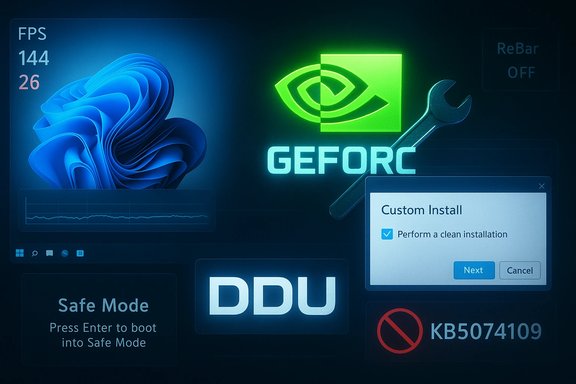
Futuristic UI collage featuring the GeForce logo, a custom install dialog, and glowing system panels.Background / Overview​

Microsoft’s January 13, 2026 cumulative update for Windows 11—published as KB5074109 and delivering OS builds 26200.7623 (25H2) and 26100.7623 (24H2)—is a routine security and quality rollup. It fixes dozens of security issues and some non‑security quality problems, but a subset of gaming rigs reported new symptoms after installing it: sustained FPS drops (commonly 10–30% in affected titles), momentary black‑screen freezes, nvlddmkm driver crashes, and degraded frame pacing. Microsoft’s KB entry documents the update contents and mitigations but does not list gaming performance as a documented known‑issue at the time of writing. Independent consumer reporting and forum threads show clusters of gamers linking degraded FPS and brief display freezes to KB5074109. Several outlets and community threads aggregated these reports and recommended practical mitigations (driver clean installs, temporary uninstall of the LCU, or toggling specific system features), while warning that removing a security cumulative is a stopgap that reduces system defenses. This pattern is not new: past Windows servicing cycles (for example, October 2025’s KB5066835) also produced heterogeneous GPU performance regressions for subsets of systems, and vendors (notably NVIDIA) have historically responded with targeted hotfix drivers to restore expected gaming performance while deeper triage continued. That October incident prompted NVIDIA to ship GeForce Hotfix 581.94 as a focused mitigation; the playbook for January follows much the same logic.

What’s happening and why it matters​

  • Symptom cluster: sudden average FPS drops, worse 1%/0.1% lows (stutter), periodic short black‑screen freezes, and occasional nvlddmkm or driver crash events. These generally appear only after the January 13 cumulative was applied. Reports are heterogeneous: not every machine is affected, and severity varies by GPU model, game, overlays, anti‑cheat drivers, BIOS settings (for example ReBAR), and background software.
  • Plausible engineering mechanisms: when Microsoft changes low‑level kernel or system servicing behavior, timing and scheduling semantics can shift in ways that affect driver submission/present paths, overlay hooks, or anti‑cheat interactions. That can lead to lower GPU utilization or disrupted frame pacing in particular workloads. Vendors typically approach this by adjusting driver behavior to align with the revised OS expectations; hotfix drivers are the rapid mitigation channel for that. Historical precedent (October 2025) shows this is an effective short‑term approach, but it is not a complete explanation until vendors publish a joint post‑mortem.
  • Practical impact: competitive players and streamers see the problem as high‑impact; casual players may encounter occasional stutter or lower average framerate. For IT admins, mass deployment of the January cumulative without pilot testing risks an increase in support incidents on affected machines.

Quick triage checklist (what to do first)​

  • Confirm the correlation.
  • Check Windows build: Settings → System → About and verify you are on a 24H2/25H2 build that matches KB5074109 (build 26100.7623 / 26200.7623).
  • Reproduce the symptom in a consistent scene/benchmark (same map, same settings) and record numbers (average FPS, 1%/0.1% lows, frametimes). Tools that help: CapFrameX, PresentMon, in‑game overlays or the Windows Game Bar. Recording before/after measurements avoids guesswork.
  • Reboot and test again.
  • Simple reboots have fixed transient cases; if the freeze or drop was a one‑off, don’t leap to radical changes. Community reports indicate a small percentage of cases resolve after one or more restarts.
  • Update GPU drivers (first line of vendor support).
  • Open the NVIDIA app (formerly GeForce Experience) or download the latest Game Ready / Hotfix driver from NVIDIA’s driver page. Install using Custom → Clean Install if available. Test again. If an NVIDIA hotfix addressing the Windows cumulative is published, it will be listed in the driver release notes. As of the first wave of reports, vendors advised installing the latest official driver while they evaluate targeted hotfixes.

In‑depth remediation: step‑by‑step​

Below are ordered steps starting from low‑risk to higher‑impact actions. Always create a restore point and note your current driver and Windows build before making changes.

1. Safe restart and overlays check​

  • Close overlays and background capture tools: GeForce/NVIDIA overlay, Discord overlay, Steam overlay, OBS/Streamlabs, Xbox Game Bar functions, and any third‑party frame capture tools.
  • Launch the game and benchmark. Overlays interact with the display stack and sometimes amplify regressions; disabling them is a low‑cost diagnostic.

2. Update NVIDIA driver (clean install)​

  • Download the latest driver package directly from NVIDIA or use the NVIDIA app.
  • Run the installer → choose Custom → Clean Install to remove driver remnants.
  • Reboot and retest your games.
  • If the driver installer fails or the update does not help, proceed to DDU (next step). Community testing shows driver reinstalls frequently resolve regression symptoms when vendors have released mitigations.

3. Perform a DDU clean uninstall and fresh driver install (Safe Mode)​

  • Download Display Driver Uninstaller (DDU) from a trusted source and extract it.
  • Boot Windows into Safe Mode (hold Shift while selecting Restart → Troubleshoot → Advanced → Startup Settings → Safe Mode).
  • Run DDU and choose GPU → NVIDIA → Clean and restart.
  • After reboot, immediately install the latest NVIDIA driver with Custom → Clean Install.
  • Reboot and retest benchmarks.
  • DDU is the most reliable way to remove potentially corrupted driver state and third‑party overlay hooks before a fresh install.

4. If driver reinstall does not help — temporary OS rollback (diagnostic only)​

  • Use Windows Update → Update history → Uninstall updates and look for “Security Update for Microsoft Windows (KB5074109)”; uninstall and reboot.
  • If the update does not appear in Settings, boot to Windows Recovery Environment → Troubleshoot → Advanced Options → Uninstall Updates → select the most recent quality update.
  • Command line: to uninstall the LCU package by package name, the Microsoft KB notes you can use DISM /online /remove‑package /packagename:<package> (use DISM /online /get‑packages to discover the exact package name). Note: combined SSU + LCU packages cannot be removed using wusa /uninstall when the SSU is present; Microsoft documents the proper DISM removal procedures.
IMPORTANT CAUTION: KB5074109 is a security cumulative. Uninstalling it removes many security fixes. Treat rollback as a temporary diagnostic/mitigation measure only, and re‑apply protections or re‑deploy the update when a vendor patch or KIR is available. Corporate fleets should follow staged pilot procedures and consult their security teams.

5. Wider system tweaks that can help in specific setups​

  • Toggle Hardware‑accelerated GPU Scheduling: Settings → System → Display → Graphics → Change default graphics settings → turn HAGS off (or on, test both). Some users saw improvements toggling this setting after large servicing changes.
  • Set NVIDIA Control Panel → Manage 3D settings → Power management mode → Prefer maximum performance.
  • Disable Resizable BAR (ReBAR) in BIOS temporarily if you use it—some reports show ReBAR interactions change behavior after Windows servicing; disabling it is a blunt workaround and can lower performance in other titles, so test carefully.
  • Use Clean Boot to eliminate third‑party services: msconfig → Services → Hide all Microsoft services → Disable all → Restart and test.

Verification: how to measure success​

  • Use PresentMon / CapFrameX / FrameView to capture:
  • Average FPS
  • 1% and 0.1% lows
  • Frame times and histograms
  • Run the identical scene multiple times and average results; compare before/after numbers. Don’t rely on a single in‑game counter—frametime spikes and low percentiles reveal frame‑pacing problems that average FPS hides.

Enterprise and tournament guidance​

  • Stage the update: pilot KB5074109 across a representative fleet before full deployment. If you’ve already observed regressions on representative hardware, hold the rollout until vendor mitigations are validated. Use Known Issue Rollback (KIR) options and Microsoft‑documented Group Policy mitigations if they become available.
  • Keep rollback images and tested recovery plans available for arena rigs and critical streaming workstations; hotfix drivers and Windows rollbacks are stopgaps and must be validated under competition conditions.

What vendors have said (and what they haven’t)​

  • Microsoft’s KB for KB5074109 lists the update contents and some known behavioral issues in enterprise scenarios; it does not list gaming performance as a confirmed known issue in the public KB at time of reporting. The KB does explain how the servicing stack and combined packages behave when attempting removals, which matters for rollbacks.
  • Vendor and community reporting (Windows Latest, Sportskeeda, Reddit and forum threads) documented user experiences of FPS drops and black screens after KB5074109; those sources have been the primary signal that prompted recommendations to update display drivers or perform a rollback.
  • NVIDIA historically responded to a similar October 2025 regression with GeForce Hotfix 581.94 and announced that hotfixes would be merged into subsequent WHQL Game Ready drivers. As of the first wave of January reports there was no widely published NVIDIA hotfix explicitly citing KB5074109; users should check NVIDIA’s official driver release notes for the most recent guidance and any hotfix that mentions KB5074109 by name. If NVIDIA does publish a targeted hotfix, it will be the preferable remediation for affected GeForce systems.
Flag: any claim that NVIDIA has already published a hotfix specifically for KB5074109 should be treated as unverified unless you can find the release note that names KB5074109. At the time of writing, community guidance recommends updating to the latest official drivers and, if necessary, performing a DDU clean re‑install or temporary uninstall of KB5074109 as a diagnostic.

Risks and trade‑offs — what you must understand before changing things​

  • Uninstalling a cumulative security update (KB5074109) removes dozens of security fixes and is not a long‑term solution. Use rollback only to confirm causation and only for short windows while you apply compensating controls and await a vendor fix. Document and re‑apply security mitigations promptly.
  • Hotfix drivers restore functionality faster but run a compressed QA cycle; they can introduce secondary edge‑case regressions. For mission‑critical rigs, stage a hotfix in a small pilot group first and keep a tested rollback image.
  • DDU removes all driver traces and third‑party overlay hooks. It is effective but disruptive—expect to reinstall other software (e.g., NVIDIA Control Panel settings, streaming overlays) after the driver reinstall. Back up profiles/settings if you rely on them.

If nothing here fixes it — escalation checklist​

  • Collect objective logs:
  • DxDiag, Event Viewer logs around the crash time, PresentMon/CapFrameX captures, and GPU‑utilization telemetry (GPU-Z / Task Manager).
  • Reproduce and record: capture a short video showing symptoms, record exact Windows and driver versions, and provide reproducible steps.
  • File vendor tickets: open a NVIDIA Support ticket with logs and a link to recorded data; include OS build, driver version, GPU model, BIOS version, and exact game and graphics settings.
  • If enterprise, open a coordinated partner case with Microsoft and NVIDIA and request telemetry triage and KIR guidance.

Practical recommended checklist (concise)​

  • Check Windows build (Settings → System → About).
  • Update NVIDIA driver to the latest Game Ready/WHQL/hotfix (prefer driver notes that mention fixes for Windows updates).
  • If the latest driver doesn’t help, use DDU in Safe Mode then clean‑install the driver.
  • Disable overlays and test.
  • If still broken and immediate recovery is required, temporarily uninstall KB5074109 (diagnostic only) and re‑test, then re‑apply security controls and monitor for an official fix.
  • Pilot any fixes across a representative set of systems before mass deployment.

Final analysis and verdict​

The January 2026 cumulative (KB5074109) correlates with a reproducible set of GPU‑related symptoms on a minority of configurations; community reports and forum threads provide credible, repeated signals that justify a pragmatic remediation path: update drivers first, perform clean reinstalls with DDU if needed, and only consider uninstalling the Windows cumulative as a short‑term diagnostic when driver changes fail. This mirrors vendor playbooks used through 2025: hotfix drivers are fast, targeted mitigations, not substitutes for a coordinated root‑cause fix.
The balance of risk falls to administrators and competitive players who must weigh temporary security exposure (rollback) versus immediate functional restoration. For the majority of home users, the least risky immediate step is a clean driver update and DDU reinstall; for enterprise fleets, stage and pilot the update and keep rollback playbooks available. As always, collect objective measurements before and after any change so you can make informed, reproducible decisions.
If vendors publish a hotfix that explicitly addresses KB5074109, that will be the preferred path. Until then, follow the ordered steps above, document results, and escalate with recorded telemetry so vendors can triage any remaining outliers.
Conclusion: methodical verification, a clean driver path (DDU → fresh install), and cautious use of rollback are the practical steps that restore playability for most affected NVIDIA rigs while keeping security choices explicit and time‑limited.

Source: Sportskeeda Tech https://tech.sportskeeda.com/gaming...gpu-fps-drop-due-windows-january-2026-update/
 

Microsoft’s January cumulative for Windows 11 — released January 13, 2026 as KB5074109 — was intended to harden the platform and fix dozens of security flaws, but it instead introduced a string of regressions that range from cosmetic wallpaper resets to enterprise‑crippling Azure Virtual Desktop authentication failures; Microsoft has since shipped out‑of‑band fixes and Known Issue Rollback tooling while some consumer problems remain under investigation.

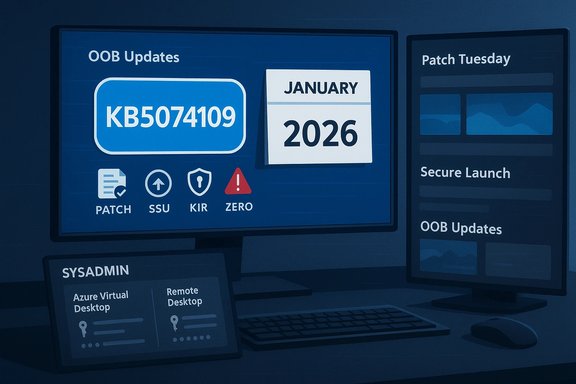
Blue IT dashboard highlights OOB Updates with KB5074109 and a January 2026 calendar.Background​

What KB5074109 was supposed to deliver​

KB5074109 was published on January 13, 2026 and advances Windows 11 builds to OS Build 26200.7623 (25H2) and 26100.7623 (24H2). The package combines security updates and quality improvements and was the first baseline cumulative update of the year for supported Windows 11 branches. Among its documented objectives were battery‑life improvements for devices with Neural Processing Units (NPUs) and preparatory work for Secure Boot certificate rotation due to certificates expiring later in 2026. Independent security trackers and industry outlets reported that the January rollup patched well over a hundred vulnerabilities — commonly reported as around 114 CVEs — and included three zero‑day issues that Microsoft prioritized for immediate remediation. That scope explains why many organizations considered the update urgent to deploy, despite the operational risk that any large baseline bundle carries.

Timeline: release and rapid remediation​

  • January 13, 2026 — Microsoft releases the January cumulative (KB5074109) to Windows 11 servicing branches.
  • January 14–16, 2026 — community reports, telemetry and enterprise ticketing reveal multiple regressions, including Remote Desktop sign‑in failures, brief black screen events, File Explorer desktop.ini regressions, Outlook Classic hangs for POP profiles, and a shutdown/hibernate regression on Secure Launch devices.
  • January 17, 2026 — Microsoft publishes out‑of‑band (OOB) cumulative updates (notably KB5077744 for 24H2/25H2 and KB5077797 for 23H2) that target the most disruptive regressions such as Remote Desktop authentication failures and the Secure Launch restart‑on‑shutdown bug; a Known Issue Rollback (KIR) was also made available to admins as an interim mitigation.

What users are seeing (symptoms and scope)​

Black screens, driver resets and wallpaper resets​

A class of visual regressions began appearing after the January update: short black screens or display freezes that last seconds, followed by desktop recovery; in other cases the desktop wallpaper is left as a plain black background after boot and requires re‑selecting the image in Settings > Personalization. Reports span systems with NVIDIA, AMD and Intel GPUs, with some community troubleshooting pointing to DisplayPort mode toggles and driver reinstalls as effective mitigations for certain configurations. These symptoms appear to be transient for most users but disruptive for those who rely on media playback, presentations or multi‑monitor setups.

File Explorer ignores desktop.ini LocalizedResourceName​

Multiple users reported that File Explorer no longer respects the LocalizedResourceName key inside desktop.ini on affected builds, which breaks localized folder names and certain hidden-folder behaviors (for example, Saved Games showing literal paths). This behavior seems to be a regression in how Explorer reads desktop.ini metadata following the update; it was widely reported in community forums and reproduced by independent outlets. Microsoft has not yet published a targeted fix for this cosmetic but persistent usability issue at the same cadence as the acute enterprise problems.

Outlook Classic (POP) appears to close but leaves process alive​

Classic Outlook users who have POP profiles are experiencing a different, productivity‑level regression: when they close Outlook it appears to exit, yet the outlook.exe process remains running in the background. Because the process never exits cleanly, attempts to restart Outlook fail until the process is forcibly terminated (for example, via Task Manager) or the device is rebooted. Microsoft has acknowledged this as an emerging known issue and placed the problem under active investigation; there is currently no permanent patch in the initial OOB releases, only a manual workaround.

Shutdown / hibernate restarts on Secure Launch devices (23H2)​

For devices running Windows 11 23H2 with System Guard Secure Launch enabled — a configuration common in enterprise and IoT images — selecting Shut down or Hibernate could cause the machine to reboot instead of powering off. This is a configuration‑dependent regression but a severe one for affected fleets because it interferes with scheduled maintenance, power‑sensitive workflows and imaging processes. Microsoft documented the issue and shipped KB5077797 as an out‑of‑band update to resolve it. Administrators were given an emergency command‑line workaround (shutdown /s /t 0) while the fix rolled out.

Azure Virtual Desktop / Windows 365 authentication failures (0x80080005)​

Enterprise Cloud PC users and Azure Virtual Desktop (AVD) customers reported credential prompt failures when attempting to establish remote sessions, often seeing an immediate error dialog with “An authentication error has occurred (Code: 0x80080005)”. The failure occurs in the authentication step prior to session creation, effectively preventing remote access. This problem led Microsoft to issue KIR guidance and subsequently publish OOB updates that restore normal authentication flows for affected Windows App and Remote Desktop clients.

Microsoft’s official response and fixes​

Out‑of‑band cumulative updates​

Microsoft moved quickly to publish OOB cumulative updates:
  • KB5077744 (January 17, 2026) — an OOB cumulative for Windows 11 24H2/25H2 that explicitly corrected Remote Desktop sign‑in failures introduced by KB5074109. The KB page lists the fix and the updated OS builds and includes a combined Servicing Stack Update (SSU).
  • KB5077797 (January 17, 2026) — an OOB cumulative for Windows 11 23H2 that addressed both Remote Desktop authentication failures and the Secure Launch restart‑instead‑of‑shutdown regression. This package also bundles an SSU and is cumulative over the January 13 baseline.
Microsoft also published Known Issue Rollback (KIR) guidance and administrators were advised to deploy KIR policies or the OOB patches depending on organizational update controls and risk tolerance. Community reporting and Microsoft’s support pages show most enterprise connectivity failures were fixed by applying the OOB updates or the KIR.

Outlook POP is ‘investigating’​

The Outlook engineering team marked the Classic Outlook POP hang as “investigating” rather than resolved; Microsoft’s support topic notes the symptom (Outlook appears closed but outlook.exe remains running) and documents the emerging nature of the issue. Until a fix is published, the practical workaround is to terminate outlook.exe in Task Manager after closing the UI, or to reboot the machine. This workaround must be repeated each time Outlook is closed, which is obviously suboptimal for productivity.

Technical analysis — what likely went wrong​

Patch surface area and regression risk​

Monthly baselines like KB5074109 are large, complex bundles that often combine the latest servicing stack (SSU) with the latest cumulative update (LCU). The SSU changes how updates are applied and persisted, which affects rollback mechanics and the timing of component initialization during boot and resume. When kernel and user‑mode components responsible for display pipelines, authentication flows or power intent change together, subtle timing regressions or mismatched assumptions in drivers and client apps can produce symptoms such as transient black screens, desktop state resets, or authentication handshakes failing. Microsoft’s OOB patches and KIRs aim to quickly disable or correct the specific change that introduces the regression without reverting the entire security baseline.

Display and GPU interaction​

The short, recoverable black screens and driver resets point to a driver‑OS interface timing regression rather than a complete kernel crash. When Explorer or DWM reinitializes a display pipeline and the driver does not respond within expected windows (or the OS changes the handshake semantics), the system may briefly lose the desktop draw and then recover. This explains why driver updates, clean driver installs, or toggling DisplayPort modes have helped some users. However, because the symptom can be intermittent and hardware‑dependent, producing a single, universal repro is challenging for vendors.

Authentication flow disruption in remote clients​

The 0x80080005 AVD/Cloud PC failures occurred during the client‑side authentication step for RDP‑type connections. Microsoft’s telemetry indicated the credential prompt flow terminated prematurely on affected builds; the quick deployment of KIR and OOB updates suggests a change in an authentication‑related component (client libraries or a security policy enforcement hook) produced the regression. Because the failure is client‑side, the underlying cloud infrastructure remained intact, which allowed Microsoft to restore behavior via client updates without rolling back server‑side change.

Where desktop.ini fit in​

Explorer’s decision to ignore LocalizedResourceName inside desktop.ini looks like a regression in the shell’s metadata parsing or in the precedence rules that decide when desktop.ini values are honored. Such regressions are subtle and often surface through localized folder names or hidden‑attribute semantics; they’re usually resolved with a targeted Explorer or Shell fix when traced to the exact changed component. Community reproductions helped surface the issue, but Microsoft’s initial OOB set prioritized the more severe authentication and power regressions.

Impact and risk assessment​

Home users​

Most consumer systems will not encounter the Secure Launch shutdown bug because Secure Launch is predominantly enabled in Enterprise or IoT images. However, home users with recent GPU drivers have reported brief black screens and wallpaper resets, plus the desktop.ini regression affects personalization. The Outlook POP issue impacts users who still use Classic Outlook with POP/SMTP mailboxes — a nontrivial group among power users and those running local PST archives. While none of these regressions directly compromise data confidentiality, they do degrade usability and productivity.

Small businesses and MSPs​

Small teams that rely on Classic Outlook POP profiles, or that use AVD/Windows 365 for remote desktops, felt the most acute operational pain. The AVD auth failures prevented staff from connecting to Cloud PCs, and the Outlook hangs impacted mail flow and support tickets. Managed Service Providers (MSPs) and small IT teams had to triage quickly: apply OOB patches where possible, deploy KIR policies for affected tenants, or temporarily roll back the baseline on mission‑critical systems.

Large enterprises​

Enterprises faced the dual challenge of patching a large number of CVEs (the January baseline closed around 114 flaws, including three zero‑days) while managing the risk of regression across heterogeneous fleets. Microsoft’s rapid KIR and OOB cadence helped blunt the worst availability impacts, but the incident highlights that even well‑tested baseline updates can trigger configuration‑specific regressions on features like Secure Launch, which are widely used in hardened enterprise images. The remediation path required staged validation and careful deployment to avoid reintroducing the problem.

Practical guidance — what to do now​

Quick checklist for home users​

  • Check Windows Update history to confirm whether KB5074109 is installed.
  • If you’re seeing black screens or wallpaper resets: update GPU drivers from the vendor (NVIDIA, AMD, Intel), consider switching monitor cables or DisplayPort mode, and test whether the symptoms persist. If persistent and disruptive, temporarily uninstall the January cumulative or pause updates while awaiting a fix.
  • If Classic Outlook POP appears closed but won’t restart: open Task Manager and end outlook.exe before relaunching, or reboot. Monitor Microsoft’s support topic for a permanent patch.

Quick checklist for IT admins and MSPs​

  • Inventory exposure: identify devices running Windows 11 23H2 with Secure Launch, and Windows 11 24H2/25H2 devices that host Cloud PC or AVD clients. Use Intune, SCCM or management tooling to discover configurations.
  • Apply OOB updates: for immediate remediation of AVD and Secure Launch regressions, deploy KB5077744 (24H2/25H2) or KB5077797 (23H2) to affected rings after pilot validation.
  • Known Issue Rollback (KIR): where policy or sequencing prevents immediate OOB deployment, use KIR via Group Policy / Intune to temporarily disable the offending change. Document and monitor the KIR deployment so it can be removed once permanent fixes are validated.
  • Communicate workarounds: advise help desk and users on the temporary task‑level workarounds — shutdown /s /t 0 for Secure Launch shutdown failures, Task Manager end‑process for Outlook POP hangs, and alternative RDP clients or the web‑based Windows App web client for AVD access until the OOB reaches all clients.

Recommended deployment policy adjustments​

  • Use at least one pilot ring for monthly baselines with a short (24–72 hour) monitoring window before broad deployment.
  • Maintain an emergency deployment plan for OOB patches and a documented rollback procedure that accounts for SSU persistence in combined packages (DISM Remove‑Package guidance).

What this means for Microsoft’s update strategy​

The January 2026 incident illustrates the tension between delivering broad security coverage quickly and ensuring absolute operational stability across billions of devices. Microsoft’s response — issuing KIR policies and targeted OOB updates within four days — shows that modern update systems can react quickly when telemetry indicates operational impact. The presence of SSUs and combined LCU/SSU packaging complicates rollback, increasing the importance of KIR and staged deployments for enterprises. The Secure Boot certificate rotation mentioned in the January baseline also signals that more behind‑the‑scenes maintenance work will require careful coordination in 2026.

Strengths and weaknesses of the response​

Notable strengths​

  • Speed of remediation: Microsoft published targeted OOB fixes (KB5077744 / KB5077797) and KIR options within days of the initial reports, which reduced the window of inoperability for AVD and Secure Launch customers.
  • Transparent KBs: Microsoft’s support pages clearly document the fixes and show which builds the OOBs target, enabling admins to make informed deployment choices.
  • Granularity of mitigation: Using KIR to toggle a problematic feature or change is a surgical way to restore availability without rolling back security fixes wholesale.

Persistent weaknesses and risks​

  • Regression exposure for niche configurations: Features used mainly in enterprise (Secure Launch) produced severe, visible failures, underscoring the difficulty of fully testing all configuration permutations.
  • Workarounds are painful: Some impacted users still rely on manual workarounds (ending processes, command‑line shutdown) — acceptable as a stopgap, but not a long‑term solution for production environments.
  • Perception and trust: Repeated incidents where baseline security updates cause user‑level regressions erodes confidence among administrators who must weigh security urgency against availability during each monthly cycle. Independent reporting and community pressure will push faster testing and better rollout telemetry, but it remains a complex engineering challenge.

Final assessment and practical takeaway​

The January 13, 2026 Windows 11 baseline (KB5074109) demonstrates why large, security‑first updates must be balanced with robust staged rollouts and quick rollback tooling. Microsoft patched a lengthy list of critical and zero‑day vulnerabilities — a necessary and high‑priority action — but the same release produced configuration‑specific regressions that harmed both consumer and enterprise experiences. Microsoft’s rapid OOB fixes and KIR mitigations mitigated the worst outcomes, particularly for Cloud PC and Secure Launch customers, but several user‑facing anomalies remain under investigation.
For individual users the pragmatic approach is simple: keep devices patched where possible, update GPU drivers, and apply OOB updates if you experience the most severe issues. For administrators, inventorying exposure, rapid pilot validation, and readiness to deploy KIR or OOB patches are the essential steps to preserve both security posture and operational continuity. The incident is also a reminder that security and stability are twin objectives that require conservative rollout planning, especially for changes that intersect with boot, power and authentication subsystems.
Microsoft’s update machinery worked — the company identified problems through telemetry and shipped fixes quickly — but the episode underscores that even routine Patch Tuesday activity can create disruptive fallout in complex, highly‑customized environments. Administrators and power users should treat the January cycle as a case study in cautious deployment and active monitoring: protect first, but stage and verify aggressively.
Source: Club386 January Windows 11 update is causing black screens and Outlook initialisation failures | Club386
 

Microsoft has confirmed that the January 2026 cumulative update for Windows 11 (KB5074109) is linked to a set of disruptive side effects — most notably classic Outlook freezing or failing to close properly for users with POP3 account profiles — and the fallout has forced rapid corrective action for other regressions while the Outlook team continues to investigate the root cause.

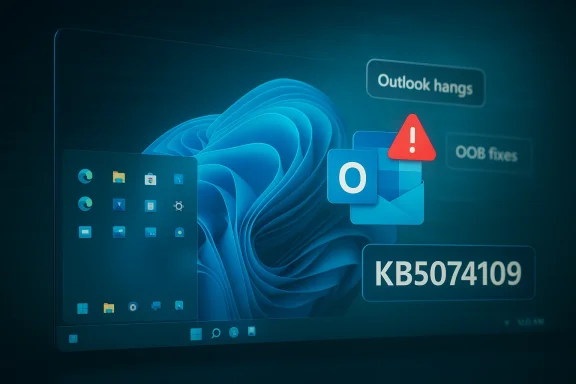
Windows-style desktop showing an Outlook warning and code KB5074109.Background / Overview​

The January Patch Tuesday rollout on January 13, 2026 delivered the monthly cumulative security update identified as KB5074109 for Windows 11 versions 24H2 and 25H2, advancing affected machines to OS builds 26100.7623 and 26200.7623 respectively. That single cumulative bundle carried dozens of security fixes and quality improvements intended to close actively exploited vulnerabilities and correct regressions reported earlier in 2026.
Within hours and days of broad deployment, enterprise telemetry and community reports surfaced multiple regressions tied to the same update: authentication and sign‑in failures for the Windows App (impacting Windows 365 and Azure Virtual Desktop), a shutdown/hibernate regression on certain Secure Launch configurations, desktop.ini / localized resource issues, and, importantly for many small businesses and ISP‑hosted mail users, classic Outlook configured with POP accounts that would hang, freeze, or refuse to exit cleanly.
Microsoft has posted an official advisory acknowledging the Outlook POP behavior as an “emerging issue” and marked it as investigating while the Outlook and Windows teams work together to determine the full fault profile and produce a remediation. For other regressions — most notably the Remote Desktop/Windows App sign‑in failures and the Secure Launch shutdown bug — Microsoft pushed out out‑of‑band (OOB) cumulative updates within days (January 17, 2026) to mitigate the disruption without requiring administrators to uninstall the January security rollup.

What users are seeing: symptoms and scope​

  • Primary symptom for Outlook POP users: Classic Outlook profiles using POP3 reportedly do not exit correctly after closing Outlook. The application appears to remain active in the background (stale OUTLOOK.EXE processes), preventing a normal restart of the app. Some users also report intermittent hangs or freezes when sending, receiving, or navigating mail folders in POP profiles.
  • Scope: The behavior has been observed on devices updated to KB5074109 (January 13, 2026) and appears specific to classic Outlook with POP account profiles — modern Microsoft 365 (Exchange/Graph) profiles and Outlook for Microsoft 365 in cloud‑native configurations are not widely reported as impacted.
  • Microsoft status: The issue is publicly acknowledged and listed as under investigation by Microsoft. No Microsoft‑issued hotfix for the Outlook POP hang had been published at the time of reporting; the teams indicated they are gathering telemetry and community reports to reproduce and diagnose the regression.
  • Workarounds reported in the community: Some administrators noted short‑term relief after uninstalling KB5074109, but Microsoft and security professionals strongly caution that uninstalling cumulative security updates exposes systems to the very vulnerabilities the patch was intended to correct.
These symptoms are disruptive in day‑to‑day workflows: inability to close and reopen Outlook cleanly can cause lost drafts or missing Sent items, force repeated reboots, and create helpdesk call volume within organizations that still rely on POP accounts.

Why a Windows update can break Outlook POP — a technical primer​

Classic Outlook’s POP experience is built on legacy code paths with tight coupling to local file handling and MAPI stacks. POP clients typically maintain mail in a local PST file and rely on Outlook’s process lifecycle and graceful shutdown hooks to flush caches, record Sent items and close file handles.
A cumulative update that touches low‑level OS components, shell libraries, or the Windows storage and I/O stack can create timing changes or regressions that surface in applications with legacy shutdown semantics. Examples of plausible, non‑proven interactions include:
  • Altered file‑I/O timing or caching behavior that leaves PST files locked when Outlook attempts to close.
  • Changes in COM / MAPI activation or apartment threading that prevent completion of shutdown callbacks.
  • Subtle race conditions introduced by servicing stack updates or new security mitigations that interfere with graceful termination of the Outlook process.
Those are reasonable technical hypotheses based on the symptom set and how Outlook handles legacy profiles, but they are inferences until engineering teams publish a root‑cause analysis or the vendor issues detailed release notes describing the exact regression. The vendor has confirmed the behavior as an “emerging issue” and is investigating rather than publishing a definitive cause at present.

The broader collateral damage: Remote Desktop and shutdown regressions​

KB5074109’s side effects were not limited to Outlook. The January cumulative triggered two other high‑impact regressions that prompted Microsoft to deliver out‑of‑band updates the following week:
  • Remote Desktop / Windows App sign‑in failures: After the January update was applied, some users experienced credential prompt failures and sign‑in errors when connecting via the Windows App, which impacted Windows 365 Cloud PC and Azure Virtual Desktop connections. The issue increased authentication traffic and caused service‑side congestion on connection handling layers, leading to failed connection attempts for some tenants.
  • Secure Launch / shutdown or hibernate failures: Certain devices configured with Secure Launch or similar platform protections were reported to restart instead of shutting down or entering hibernation after the January update.
Microsoft addressed these regressions by releasing out‑of‑band cumulative updates (examples issued on January 17, 2026) for affected branches which specifically included fixes for Remote Desktop authentication failures and Secure Launch shutdown behavior. Those OOB packages were intended as targeted corrections so organizations could retain the security benefits of KB5074109 while resolving functional regressions.

The security‑vs‑stability tradeoff: why uninstalling the patch is not a simple solution​

Several community posts flagged immediate improvement when KB5074109 was uninstalled. That is unsurprising: rolling back a change often removes the regression. However, removing a cumulative security update is a blunt instrument with clear downsides.
  • Security risk: The January cumulative closed numerous security vulnerabilities, including multiple high‑severity issues and zero‑day patches prioritized by Microsoft. Leaving those vulnerabilities unpatched increases the risk of compromise — in production environments this risk is usually greater than the operational inconvenience of a client application bug.
  • Update complexity: Many organizations rely on cumulative servicing models where later fixes depend on prior servicing stack updates; uninstalling a cumulative update can be complicated, may not be supported for combined SSU+LCU packages, and could disrupt future servicing.
  • Alternative path: Microsoft’s approach of shipping targeted out‑of‑band fixes for the most disruptive regressions — while leaving the main security update in place — is designed to preserve the security posture while restoring functionality.
For most users and administrators, the advisable pattern is: apply vendor OOB fixes and mitigations, implement documented workarounds, and retain the January security updates rather than broadly uninstalling them.

Practical, prioritized guidance for users and administrators​

The following is a pragmatic checklist tailored to both individual users and IT administrators to manage risk and restore productivity while preserving security posture.

For individual users (POP Outlook affected)​

  • Check for updates: Use Windows Update to ensure the system has received any out‑of‑band fixes or follow your organization’s update channel for the latest patches.
  • Restart to clear stuck processes: If Outlook refuses to close, open Task Manager, terminate any lingering OUTLOOK.EXE, then relaunch Outlook. Back up the PST first if possible.
  • Use webmail or alternate clients temporarily: If mail flow is critical, switch to Outlook Web Access (if available) or a third‑party mail client that supports POP or IMAP as a stopgap.
  • Back up PST files immediately: Copy the PST file(s) to a safe location. Repeated forced closures increase risk of PST corruption.
  • Repair Office: Run Quick Repair from Office settings or the Microsoft Support and Recovery Assistant tools to rule out add‑in or profile corruption as contributing factors.
  • Avoid uninstalling security updates: Refrain from uninstalling KB5074109 unless instructed by a trusted IT admin and the decision is paired with compensating controls.

For IT administrators and help‑desk teams​

  • Assess exposure: Inventory devices with POP profiles, prioritize endpoints used by knowledge workers and customer‑facing teams.
  • Deploy OOB updates quickly: Push the vendor’s out‑of‑band cumulative updates (the ones released to remediate Remote Desktop/sign‑in and shutdown regressions) through your update rings and verify build levels on pilot devices before wide deployment.
  • Enable Known Issue Rollback (KIR) where applicable: Use the vendor's KIR guidance or Group Policy to suppress specific problematic behavior if a KIR is available and documented for the affected scenario.
  • Test Outlook interactions in staging: Run regression tests for classic Outlook POP workflows whenever applying major cumulative updates to identify breakage early before broad deployment.
  • Communicate with users: Inform impacted users of temporary mitigations (webmail access, PST backups, quick restart guidance) and provide clear escalation paths.
  • Escalate to vendor support: Open support cases for high‑impact business users and collect actionable telemetry (dump files, process logs) to accelerate vendor triage.

Step‑by‑step checks: how to verify whether KB5074109 or an OOB patch is installed​

  • Open Settings → System → About → Windows specifications and check the OS Build number. KB5074109 corresponds to builds 26200.7623 (25H2) or 26100.7623 (24H2).
  • In elevated PowerShell, run: Get‑ComputerInfo | Select‑Object WindowsProductName, WindowsVersion, OsBuildNumber to confirm build.
  • To see installed updates, use: Get‑HotFix or check Settings → Update & Security → View update history and look for KB IDs (e.g., KB5074109, KB5077744, KB5077797).
  • For enterprise deployment status, consult your update management console (WSUS, ConfigMgr, Intune) and the Windows Release Health dashboard for published advisories and OOB releases.

Specific mitigations for Outlook POP users — what has worked in the field​

  • Short‑term community fixes have included force‑terminating OUTLOOK.EXE and restarting the machine, which clears the condition until the update is reinstalled.
  • Some help desks reported that creating a new Outlook profile or moving an account to IMAP/Exchange (where feasible) avoided the problem entirely, since modern profiles use different syncing logic and do not rely on the same legacy PST shutdown paths.
  • Backup and archive practices reduce risk: exporting important mail and contacts to secondary PSTs or cloud archives prevents data loss if PST corruption occurs.
  • Enterprise environments that cannot migrate away from POP should consider phasing in modern authentication and IMAP or migrating to hosted Exchange solutions to remove reliance on aging POP semantics.
Note: while some users reported that uninstalling KB5074109 resolved their Outlook hangs, that is a last‑resort, high‑risk option and not recommended as a general remedy.

Why POP still matters — and why regressions like this hurt​

POP remains in use in many small businesses, legacy ISP arrangements, and in regions where cloud migration is incomplete. Unlike cloud‑native mail profiles, POP stores mail locally in PST files and depends on predictable client lifecycle behavior. A regression that affects only a legacy path can dramatically disrupt users who still depend on it.
  • Operational impact: Lost productivity, higher helpdesk ticket volumes, and potential PST corruption if forced process termination repeats frequently.
  • Business continuity: Organizations without cloud archives or centralized mail retention will face greater risk of lost emails if client corruption occurs.
  • Migration friction: Small providers and users often lack the resources to migrate quickly to IMAP/Exchange, so stability of the POP client experience remains business‑critical.

What happened next and what to expect​

  • The vendor published an acknowledgment and marked the Outlook POP issue as investigating. For other regressions, targeted out‑of‑band fixes were released within days to restore Remote Desktop sign‑in and shutdown behavior for affected branches.
  • Expect the vendor to deliver a targeted fix for the Outlook POP issue in a subsequent update or an OOB package if the problem proves widespread and high risk. The engineering workflow typically proceeds from reproduction → root cause analysis → test fix → staged release (pilot rings → broad deployment).
  • Administrators should monitor the official release health and support advisories and apply vendor‑recommended patches and KIR guidance rather than wholesale rollback of security updates.

Risk analysis — long term implications for Windows servicing and enterprise patching​

This incident underscores several structural tensions in modern OS servicing:
  • Cumulative servicing model: Bundling many security and quality fixes into a single monthly cumulative update improves security but elevates the risk of collateral regressions — a single change in shared components can ripple into many unrelated workloads.
  • Testing matrix complexity: Legacy scenarios like classic Outlook POP profiles are harder to exercise in standard testing pipelines, increasing the chance that rare combos of device state, add‑ins, and local PST conditions will slip through.
  • Patch deployment discipline: Organizations that deployed the January security rollup promptly protected themselves from actively exploited vulnerabilities; those who delayed had less immediate protection but also avoided the short‑term functional regressions. Neither outcome is ideal: the goal is predictable, low‑risk patching.
  • Vendor response cadence: Rapid out‑of‑band fixes for Remote Desktop and shutdown problems indicate an improved operational posture to remediate high‑impact regressions quickly. The presence of an “emerging issue” advisory for Outlook POP shows the vendor’s awareness of more nuanced functional regressions but also highlights the need for deeper diagnosis and careful rollouts for legacy paths.

Final recommendations — concise action plan​

  • Keep security updates installed while applying vendor out‑of‑band fixes and KIR guidance where published.
  • Inventory and prioritize devices that still use POP profiles; treat those endpoints as higher risk for productivity impact.
  • Back up PST files immediately and encourage users to use webmail or alternate clients as short‑term mitigation.
  • Deploy OOB updates and monitor devices for both functionality and security telemetry; escalate any severe, reproducible cases to vendor support with logs and process dumps.
  • Plan migrations away from POP where feasible; IMAP and hosted Exchange eliminate many legacy failure modes and simplify support.

Microsoft’s January 2026 security update was a necessary collection of fixes and mitigations for actively exploited vulnerabilities, but the incident illustrates how tightly coupled core OS components and long‑lived client applications can produce surprising regressions. The coordinated response — public advisory for Outlook, targeted out‑of‑band fixes for other regressions, and ongoing investigation — is the correct operational approach. For administrators, the immediate priorities are protection (do not leave critical security holes unpatched), containment (apply OOB fixes and KIR where available), and mitigation (protect PSTs and provide alternate mail access). The Outlook POP hang remains under investigation: affected organizations should balance urgency and risk, protect their assets, and expect a vendor resolution in the near term while maintaining the updated security posture that protects against real‑world attacks.

Source: heise online Windows Update Problems: Outlook Freezes with POP Mail Accounts
 

The January 13, 2026 cumulative update for Windows 11, KB5074109, introduced important security and reliability fixes — and promptly produced a string of configuration‑dependent regressions including brief black screens on some PCs, Classic Outlook (POP) hangs, Remote Desktop / Azure Virtual Desktop authentication failures, and other oddities that have forced users and administrators into cautious mitigation and roll‑back strategies.

Windows desktop with server racks, keyboard, mouse, USB cables, and a shield icon for backup.Background​

KB5074109 was released as Microsoft’s January 2026 Patch Tuesday cumulative update for Windows 11 versions 24H2 and 25H2, advancing OS builds to 26100.7623 and 26200.7623 respectively. The package bundles a servicing stack update (SSU) with the latest cumulative update (LCU) and includes security fixes, an NPU power-mand staged Secure Boot certificate handling intended to prevent certificate expiry issues later in 2026. This combined SSU+LCU packaging is operationally important: once the SSU portion is committed to a device, it cannot be uninstalled using install command — removing or rolling back the LCU may require DISM with precise package identities or, for managed fleets, using Known Issue Rollback (KIR) artifacts. That technical detail directly affects remediation choices for administrators.

What went wrong — a concise symptom inventory​

The real‑world reports cluster into several distinct, reproducible symptom groups:
  • **Intermittent black screens and brief display systems with NVIDIA and some AMD GPUs described short blackouts (a few seconds up to around a minute) where the desktop disappears and then returns without a full reboot. Some systems also reported wallpaper resets to a plain black background until personalization was reapplied. These incidents are typically transient but disruptive, particularly during presentations or media playback.
  • Outlook (Classic) POP profile hangs and background processes that won’t exit. Users running Classic Outlook with POP profiles reported Outlook refusing to close (background Outlook processes remain), hangs on restart, and missing or deletes. Microsoft acknowledged the behavior and marked it as Investigating. Several outlets reported that uninstalling the update reverted Outlook to expected behavior for impacted devices. ktop (AVD) / Windows 365 authentication failures.** Launches from the Windows App sometimes failed at the credential prompt, producing authentication errors (commonly reported as 0x80080005), an outage pattern Microsoft mitigated by issuing a Known Issue Rollback (KIR) and out‑of‑band fixes.
  • File Explorer / desktop.ini LocalizedResourceName regression. Some users observed desktop.ini LocalizedResourceName entries being ignored — folders reverted to their physical names until the LCU was removed. This is primarily a usability/localization regression but can require targeted remediation in localized deployments.
  • Install/servicing failures and rollback messages. A subset of devices fail to apply the update cleanly and report common servicing error codes (for example 0x800f0922, 0x80070306, 0x80073712). These typically point to SSU sequencing issues, insufficient EFI/System partition space, or component-store corruption and often demand DISM /RestoreHealth, SFC, or image-based repair.
Taken together, these problems demonstrate that KB5074109’s platform‑level changes exposed several edge cases across device driver, firmware, and application interactions. Microsoft’s official KB makes the package ces clear, while community telemetry and independent reporting document the observed regressions and mitigations.

Deep technical analysis: why a cumulative update can trigger black screens​

SSU + LCU bundling and rollback complexity​

Combining an SSU with the LCU changes the rollback calculus. The SSU often modifies low-level servicing infrastructure and the update sequencer; once applied, it becomes persistent and cannot be undone by the usual uninstall method. That means when a packaged LCU triggers a device‑spinstalling the visible LCU may not restore the exact pre‑update environment. The result: mitigation can require surgical KIR delivery or image‑based reprovisioning.

Display-driver and firmware handshake timing​

The most plausible technical surface for the reported black screens is a timing or handshake regression between Windows display stack components (WDDM), GPU drivers, and firmware. When Microsoft updates kernel/user‑mode display code paths or power/initialization sequences, subtle timing changes can break assumptions in third‑party drivers or GPU firmware, causing the driver to momentarily reset the display adapter. The UI goes black while the driver reinitializes and then recovers — a behavior consistent with the observed short blackouts. Vendor driver updates or firmware (vBIOS/UEFI) adjustments are common resolutions in analogous historical incidents.
monitor link interactions
Some affected users noted changes in DisplayPort link behavior — toggling between DP 1.4 and 1.2 modes helped a few people. That anecdote reinforces the hypothesis that display‑link enumeration or power state negotiation between GPU and monitor can be sensitive to timing shifts introduced by an OS patch. These are hardware‑specific corner cases that tend to show up first in community telemetry.

Correlation ≠ causation — the importance of cross‑telemetry​

Community reports disproportionately highlight NVIDIA hardware because of user base distribution and reproducibility in those threads; however, AMD and other hardware have recorded related cosmetic issues. Until vendors publish telemetry or Microsoft identifies a single root cause, treat the vendor link as a plausible correlation supported by multiple reproa universally confirmed causal statement. Hardware drivers, OEM firmware, security agents, and custom images can all interact to produce similar symptoms.

Cross‑verification of the key claims​

  • Microsoft’s KB confirms KB5074109 was released on January 13, 2026, and documents the package contents, SSU bundling, and the release builds.
  • Independent outlets and community reporting (Windows Latest, Windows Report, Windows Central and other technical sites) corroborate the black screen and Outlook POP issues, and document Microsoft’s mitigations (KIR and targeted OOB fixes). These reports mirror community troubleshooting steps and Microsoft advisory status updates.
Because at least two independent technical sources (Microsoft’s KB and multiple technical press outlets) and diverse community telemetry agree on the update date, build numbers, and reported regressions, the high‑level claims in this article are verifiable and current. Where community reports suggest hardware‑specific behavior (for example a heavier incidence on NVIDIA GPUs), those remain correlations that require vendor telemetry to confirm causation.

Practical mitigations — step‑by‑step guidance​

The right mitigation depends on whether you’re a home user, a power user, or an IT administrator managing a fleet.

For home users and single‑PC owners​

  • Pause updates for 7–14 days if you rely on your PC for critical work and have not yet installed KB5074109. This avoids exposure to known vendors and Microsoft stabilize fixes.
  • If you already installed the update and see a short black screen:
  • Update your GPU driver to the latest WHQL or Studio/Game driver from NVIDIA, AMD, or Intel. Vendors often push hotfix drivers when new Windows builds land.
  • If the new driver does not help, roll back driver version.
  • Try toggling monitor DP modes (1.4 ↔ 1.2) as a temporary test if your monitor supports it.
  • If problems persist, consider uninstalling KB5074109 via Settings → Windows Update → Update history → Uninstall updates (note: SSU permanence caveats apply; the LCU can be removed but SSU remains).
  • If Classic Outlook with POP profiles hangs:
  • Use Outlook alternative mail client temporarily.
  • Collect Outlook logs (enable loggingg in Mail Setup) and Event Viewer entries before uninstalling the update.
  • If necessary, uninstall the cumulative updatenctionality — but be aware that doing so reduces security posture until a fix is applied.

For power users and enthusiasts​

  • If you use a test bench or spare machine, install KB5074109 there first and exercise your most important workloads (games, remote desktop, Outlook POP) for several days before allowing it on your daily driver.
  • Use DDU to perform a clean driver install only if you are comfortable with driver reinstallation and have backups or a system image available.

For IT administrators and enterprise operators​

  • Immediately pause wide‑scale deployments of KB5074109 in broad rings (Windows Update for Business, WSUS, Intune rings) and move to a narrow, representative pilot that includes: GPU variants, NPU-equipped devices, VDI/AVD clients, and common security agents.
  • Mdows release health dashboard and the KB support pages for KIR artifacts or official hotfixes. Apply Known Issue Rollback (KIR) packages where available rather than broad uninstalls; KIR surgically disables the offending change while preserving most security fixes.
  • If devices are experiencing AVD/Cloud PC authentication failures, apply Microsoft’s KIR guidance or use alternate access paths (AVD Web client / classic RDP client) as temporary measures. Collect CBS/DISM logs and escalate to Microsoft support with reprodare golden images and WinRE images for reprovisioning, because SSU permanence may make full restoration via uninstall impractical. Keep a documented rollback / reprovisioning playbook ready.

Security vs availability: an explicit risk assessment​

  • Security risk of not installing: KB5074109 addresses a large set of security vulnerabilitform fixes (including Secure Boot certificate staging). Delaying the update leaves systems exposed to known CVEs and potential exploitation.
  • Operational ri update introduced regressions that can materially impact productivity or device availability (Outlook outages, AVD access failures, and display interruptions). For some organizations the operational cost may outweigh the short‑term risk, particularly where the impacted components are mission‑critical.
Recommended posture: adopt a staged deployment strategy — pilot widely, monitor telemetry, and apply KIR when available rather than broad uninstalls. Where rollbacks are required, plan for image‑based reprovisioning and ensure recovery plans consider SSU permanence.

Strengths and weaknesses of Microsoft’s response​

Strengths​

  • Microsoft published the KB with clear release notes and acknowledged several issues quickly, including providing KIR artifacts and out‑of‑band fixes for the most severe regressions (AVD authentication failures and some shutdown behavior regressions). The KB also documents the SSU/LCU packaging behavior and recommended removal steps using DISM.
  • Known Issue Rollback is an effective tool for managed deployments because it allows surgical reversal of a problematic change without removing the entire security baseline. This preserves a firm security posture while addressing targeted regressions.

Weaknesses and risks​

  • The bundling of SSU with LCU — while operationally valid for servicing speed and integrity — increases complexity when unexpected regressions occur. SSU permanence reduces rollback flexibility and can force administrators into heavier‑weight recovery patterns like image restoration, which is costly for large fleets.
  • Community detection can outpace vendor mitigation. Although early public reports are valuable, they can over‑index on certain hardware vendors and scenarios; without vendor telemetry and Microsoft engineering confirmation, it’s difficult to assign a single root cause. That ambiguity complicates communication to non‑technical stakeholders.

What to watch next (monitoring checklist)​

  • Microsoft’s Windows release health dashboard for KIR artifacts and hotfix KBs tied to KB5074109.
  • GPU vendor (NVIDIA/AMD/Intel) driver release notes for targeted hotfixes addressing new Windows build compatibility.
  • Enterprise telemetry for authentication error patterns (0x80080005) and application hang reports tied to Classic Outlook POP profiles.
  • Community threads and vendor support pages for reproducible minidumps, nvlddmkm/amdkmpfd errors, and DisplayPort negotiation failures to accelerate vendor-level fixes.

Conclusion and final recommendations​

KB5074109 contains necessary security updates and platform fixes but—like many large cumulative updates that bundle SSUs and LCUs—exposed several configuration‑specific regressions across the Windows ecosystem. The most operationally visible problems are brief black screens on certain GPU configurations and Classic Outlook (POP) hangs, both of which have real productivity implications. Microsoft has acknowledged multiple issues and has begun delivering targeted mitigations (KIR and OOB fixes), while GPU vendors and administrators continue to supply telemetry and workarounds. Recommended baseline actions:
  • For critical systems, pause KB5074109 deployment until vendor fixes and KIR artifacts are confirmed and tested.
  • For systems that already show visual instability: update GPU drivers (or roll back), toggle DP modes for testing, collect driver logs, and uninstall the LCU only as a last resort after collecting diagnostics.
  • For enterprise environments: apply KIR where available, pilot widely, and prepare image‑based reprovisioning plans to handle SSU permanence.
These steps balance security and availability while acknowledging the real costs of large OS servicing changes. Community telemetry and independent reporting validate the problem set; administrators and users should treat the symptoms seriously, gather reproducible diagnostics, and apply vendor or Microsoft mitigations promptly when they become available.


Source: Inbox.lv New Failure: Windows Update Caused Black Screen
 

Microsoft’s January cumulative for Windows 11 (KB5074109) shipped crucial security and platform fixes — and immediately touched off a wave of real‑world regressions that, in some cases, broke business applications (including payroll clients) and degraded graphics workloads for gamers and creative professionals.

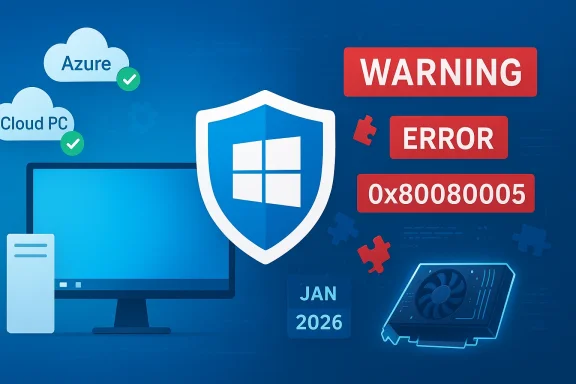
Cybersecurity illustration with Windows shield, Azure cloud, and a bold warning/error message.Background / Overview​

KB5074109 is the January 13, 2026 cumulative update for Windows 11 (applies to 24H2 and 25H2), delivered as a combined Servicing Stack Update (SSU) + Latest Cumulative Update (LCU). After installation affected devices report OS builds 26100.7623 (24H2) and 26200.7623 (25H2). The package bundles a heavy set of security fixes along with platform and quality improvements, including an NPU idle‑power fix and a staged mechanism to deliver new Secure Boot certificates to eligible devices. The update’s security scope is large — independent trackers and vendor summaries place the January fix count in the low hundreds (commonly reported in the region of roughly 112–114 CVEs when including related third‑party components) — which made deployment urgent for many security teams. At the same time, because KB5074109 touches kernel and platform surfaces (power management, WDDM-related interfaces, and service stacks), it also created a risk surface where driver and application edge cases could surface quickly after broad rollouts.

What shipped in KB5074109 (concise technical summary)​

  • Packaging: combined SSU + LCU (the SSU component persists after install and complicates simple uninstalls).
  • Build numbers: Windows 11 24H2 → 26100.7623; Windows 11 25H2 → 26200.7623.
  • Security fixes: broad set of CVEs across Windows components (elevation‑of‑privilege, RCE, information disclosure) with at least one DWM flaw flagged as actively exploited in the wild.
  • Notable quality changes:
  • Fix for NPUs remaining powered during idle (battery/thermal benefit for AI‑capable devices).
  • Staged Secure Boot certificate delivery for affected devices.
  • Removal of legacy modem drivers (agrsm64.sys/agrsm.sys and smserl64.sys/smserial.sys), a security‑first change that can break legacy telephony hardware.
These are legitimate, verifiable improvements — but the combination of platform-level changes and broad CVE remediation also increased the chance of compatibility regressions interacting with third‑party drivers and vertical applications.

The trouble that followed: two practically distinct problem classes​

After rollout, two high‑visibility failure classes emerged in the field:
  • Enterprise/Cloud desktop regressions — authentication and connection failures that blocked Azure Virtual Desktop (AVD) / Windows 365 Cloud PC sessions launched via the Windows App, typically showing an authentication error (commonly reported as 0x80080005). Microsoft acknowledged the regression and provided mitigations including a Known Issue Rollback (KIR) and an out‑of‑band patch to restore authentication flows.
  • Graphics and application regressions — community and support reports described brief black screens, frame‑rate losses, driver crashes, and silent hangs that impacted games and professional graphics applications (OpenGL/DirectX workloads), with reported concentration on certain NVIDIA configurations but not strictly limited to one vendor. Multiple consumer and pro workflows reported measurable performance loss and occasional application termination. Independent outlets and community threads tracked and reproduced a range of symptoms.
A separate but highly tangible effect reported by support forums and Q&A threads: line‑of‑business payroll and legacy business applications closing immediately after login or failing to operate following the update — a disruption that left some small businesses and payroll processors unable to complete time‑critical work. Those reports surfaced on vendor and Microsoft community channels, and several administrators confirmed temporary recovery only after uninstalling the LCU or applying mitigations.

Verified enterprise regression: AVD / Cloud PC authentication failures​

Symptoms and impact​

Shortly after KB5074109 began rolling out, organizations reported immediate failures when launching AVD or Cloud PC sessions via the Windows App. The common UX was an instant credential prompt failure — the session never negotiated and users saw authentication errors (including code 0x80080005). This is a client‑side regression in the credential/SSO flow, so the cloud backend was typically not the root cause. The practical result: mass unavailability for remote users relying on Cloud PC/AVD workflows.

Microsoft’s response​

Microsoft documented the issue on the KB page and published out‑of‑band fixes (for example KB5077744) and a Known Issue Rollback (KIR) artifact that administrators can deploy (via Group Policy / Intune) to temporarily disable the change that caused the regression while preserving the rest of the security baseline. Microsoft also recommended alternate connection paths — use of the classic Remote Desktop client (MSRDC) or the AVD web client — until the OOB patch or permanent LCU fix was applied. These mitigations allowed many enterprises to restore productivity without fully removing the security update.

What IT teams should do (short checklist)​

  • Evaluate the exposure of Cloud PC / AVD users in pilot rings before broad deployment.
  • If hit: deploy Microsoft’s KIR promptly or apply KB5077744 where appropriate; instruct users to use the web or classic RDP client as an interim path.
  • Avoid wholesale uninstall of the combined SSU+LCU unless you have image‑based recovery plans (the SSU persists after installation and complicates rollback).

Graphics, gaming and professional graphics breakages​

Reported symptoms​

Community threads, help sites, and independent outlets recorded a heterogeneous set of graphics‑related symptoms after KB5074109:
  • Brief black screens or display freezes lasting seconds, with automatic recovery.
  • Noticeable frame‑rate drops and worse 1%/0.1% lows in certain DirectX 12 titles; some users reported ~15–20 FPS losses in demanding scenes, or higher proportional degradation in pathological workloads.
  • Driver crashes (e.g., nvlddmkm / TDR events) and occasional application hangs in OpenGL/DirectX‑heavy workloads.
  • Some professional GPU (Quadro) users reported silent deadlocks during OpenGL contexts that only resolved after uninstalling the update.
These reports were workload‑dependent: modern titles with heavy draw‑call patterns and pro apps with large OpenGL contexts were disproportionately affected. Not every configuration was impacted — reports clustered by GPU generation, driver version, and certain display/monitor configurations (DisplayPort mode changes were mentioned in troubleshooting threads).

Vendor response and driver guidance​

Historically, vendor drivers (especially NVIDIA’s) have been the path to restoring performance when OS servicing changes alter scheduling or memory behavior. After the January rollup, affected users were advised to:
  • Update GPU drivers to the latest vendor release (watch for hotfixes that explicitly reference January Windows servicing).
  • If drivers don’t restore behavior, perform a clean driver reinstall (DDU + fresh driver) and test.
  • If the issue persists, consider the cautious option of uninstalling the LCU as a temporary mitigation, with awareness of the security trade‑off.

Practical mitigation for creative/professional workflows​

  • Test production workloads against KB5074109 in a pilot ring before wide deployment.
  • For high‑value workstations, deploy driver hotfixes from OEMs and validate complex OpenGL/DirectX workloads.
  • Maintain a disk image backup or system restore point to expedite rollback if needed (note: SSU persistence complicates simple rollbacks).

Reports of payroll and line‑of‑business apps breaking​

Multiple posts surfaced on Microsoft’s Q&A and enterprise support channels from payroll processors and business users reporting that their payroll application would close immediately after login or fail to operate after automatic Windows updates. Several administrators documented that uninstalling the January LCU restored the application, while others encountered uninstall errors (some devices reported servicing errors preventing removal). The user impact was high: payroll is a time‑sensitive, mission‑critical task with real operational and regulatory deadlines. Important context and caveats:
  • These reports are primarily community‑sourced and vendor helpdesk threads show multiple independent complaints, but the causality varies by application vendor, underlying runtime (e.g., older .NET frameworks, background drivers), and whether the app uses GPU acceleration or remote desktop plumbing. Community telemetry suggests that a small number of LOB applications that rely on legacy drivers or specific credential flows were the hardest hit.
  • Some payroll vendors advised affected customers to uninstall the LCU pending a fix; this is a legitimate emergency mitigation but introduces immediate security exposure and should be weighed against compliance and risk posture.
Because these are high‑impact business failures, administrators should coordinate with payroll software vendors to validate compatibility, gather repro telemetry, and request vendor‑recommended mitigations (hotfixes, compatibility updates, or supported workarounds) before rolling back security updates wholesale.

Installation and servicing caveats: SSU makes rollback non‑trivial​

KB5074109 is packaged as a combined SSU+LCU; once the SSU portion is committed the system no longer supports a simple wusa /uninstall on the combined package. Administrative rollback therefore often requires:
  • Using DISM /Remove‑Package with precise package names (more complex and error‑prone), or
  • Deploying Microsoft’s Known Issue Rollback (KIR) artifacts to surgically disable the change causing the regression while keeping other security fixes, or
  • Restoring from a pre‑update system image.
This packaging design is important to understand for any organization that uses image‑based recovery and staged deployments: the inability to trivially uninstall the SSU increases the importance of pre‑deployment validation and of the KIR pathway as a first‑line mitigation.

Timeline of Microsoft remediation activity​

  • January 13, 2026 — KB5074109 published to Windows Update (first cumulative of the year).
  • January 14–17, 2026 — rapid influx of community reports and enterprise tickets describing AVD sign‑in failures, brief black‑screen events, Outlook POP hangs, and desktop.ini LocalizedResourceName regressions. Microsoft acknowledged the most severe regressions.
  • January 17, 2026 — Microsoft released out‑of‑band fixes including KB5077744 (OOB patch that restores Remote Desktop sign‑in flows) and published KIR artifacts for administrators.
This sequence — patch, community telemetry, KIR/OOB patch — is Microsoft’s conventional triage path for high‑impact servicing regressions and is the approach that minimizes combined security and availability risk for enterprise fleets.

Risk analysis: why this happened and what it shows​

Root cause patterns (likely)​

  • Large cumulative updates that touch kernel, WDDM, power management, or system service stacks change timing, scheduling, and ABI behaviors. Those changes are generally invisible to most devices but can reveal edge‑case bugs in third‑party drivers and older application runtimes. The pattern seen with KB5074109 follows prior incidents where driver ↔ OS interaction windows triggered regressions on a subset of hardware/software configurations.
  • The SSU+LCU packaging model — while beneficial for security delivery — makes rapid removal of a problematic change more complicated for administrators, pushing Microsoft and vendors toward surgical mitigations (KIR, OOB patches) rather than broad uninstall guidance.

Strengths in Microsoft’s handling​

  • Rapid acknowledgement and targeted mitigations (KIR + OOB updates) allowed administrators to restore productivity without wholesale removal of the security baseline. This is preferable to forcing administrators into a security vs. availability binary choice.
  • Transparent KB documentation that lists build numbers, mitigations, and the staged Secure Boot certificate rollout gives IT teams the facts they need to evaluate risk.

Risks and shortcomings​

  • The initial visibility of community reports before vendor hotfixes highlights a persistent gap in pre‑release coordination between OS engineering, hardware vendors, and vertical app vendors. Faster pre‑release telemetry sharing or targeted pilot programs for known‑at‑risk configurations might reduce the frequency of these incidents.
  • The SSU persistence model, while secure, complicates rollbacks and raises the operational cost of emergency mitigations for smaller shops without image‑based recovery processes.
  • The severity of business impact (payroll app failures) underlines an important operational reality: certain vertical applications remain fragile in the face of platform servicing changes and require vendor‑assisted compatibility testing and explicit communications during major monthly rollups.

Clear, practical guidance for different audiences​

For IT administrators and MSPs​

  • Prioritize a fast triage on endpoints serving remote desktop and graphics‑heavy workloads. Validate AVD/Cloud PC user flows immediately.
  • If you see AVD authentication failures, apply Microsoft’s KIR artifact or KB5077744 (OOB patch) as appropriate; use web/classic RDP as stopgap.
  • For GPU‑sensitive endpoints, test key workloads against the new build. If you observe regressions, escalate to GPU vendor support and look for driver hotfixes. Use DDU + vendor driver reinstalls for deeper troubleshooting.
  • For business‑critical LOB apps (payroll, ERP, proprietary tools), coordinate with vendors for compatibility validation and request hotfixes; avoid broad uninstall without a clear mitigation plan.

For consumers, gamers, and creatives​

  • Keep systems current: the security fixes matter. But if you rely on gaming or pro apps, validate the update on one machine or pause automatic updates for a short window until drivers and fixes arrive. If you experience degraded GPU performance, try the latest GPU drivers or a clean reinstall; as a last resort consider temporary rollback with system image restore.

For small businesses running payroll clients​

  • If your payroll vendor instructs you to roll back KB5074109, coordinate with your IT support to ensure rollback is performed safely (and that data backups are in place). Report reproducible telemetry to Microsoft and the payroll software vendor so engineers can prioritize a targeted compatibility fix. Be cautious about leaving devices unpatched longer than necessary; balancing security and operational availability is essential.

What to watch next​

  • Vendor driver releases: watch NVIDIA/AMD/Intel release notes closely for hotfixes referencing January 2026 Windows servicing. Vendor hotfixes are the most likely path to restore gaming/professional workloads without removing security patches.
  • Microsoft servicing cadence: expect further targeted updates or expanded KIR artifacts as telemetry refines the regression footprint. Microsoft’s pattern is to issue OOB fixes for high‑impact regressions when necessary.
  • Vertical app vendor advisories: payroll and other LOB software vendors should publish compatibility statements and hotfixes where required; if you run critical LOB systems, insist on explicit vendor compatibility guidance before deploying large monthly rollups at scale.

Conclusion​

KB5074109 was a consequential January cumulative update: it closed a wide set of security holes and improved platform behavior in important areas, but its breadth of change also exposed fragile corners of the Windows ecosystem. The result was a challenging early‑year servicing cycle where administrators and users faced a trade‑off between maintaining security posture and preserving availability for mission‑critical workflows — from Azure Virtual Desktop access to payroll processing and graphics‑intensive workloads.
Microsoft’s rapid use of Known Issue Rollback and out‑of‑band patches reduced the need for wholesale uninstalls, but the episode reinforces a simple operational truth: for enterprise and pro workloads, staged validation remains essential, vendor coordination must be faster, and contingency plans (image backups, KIR readiness, alternate client paths) are no longer optional. The practical fix path is clear — deploy KIR/OOB updates for affected enterprise endpoints, install vendor driver hotfixes where available, and prioritize representative testing for business‑critical applications before broad rollout.
Acknowledgement: community telemetry and enterprise complaints drove the rapid investigative response to KB5074109; administrators should treat the combination of Microsoft KB notices and independent vendor guidance as the authoritative operational inputs while they plan and execute remediation.

Source: Neowin https://www.neowin.net/news/new-win...dly-breaks-payroll-and-graphics-applications/
 

Microsoft’s January cumulative update for Windows 11, shipped as KB5074109 on January 13, 2026, introduced important security and platform fixes — and promptly created a raft of configuration‑dependent regressions that left some users with brief black screens, a broken classic Outlook experience for POP/PST profiles, and authentication failures for Azure Virtual Desktop and Windows 365 customers. .

Software update KB5074109 in progress with Known Issue Rollback (KIR).Background / Overview​

KB5074109 was released as the January 2026 cumulative update for Windows 11 (affecting the 24H2 and 25H2 channels) and bundles a Servicing Stack Update (SSU) with the Latest Cumulative Update (LCU). The package advanced affected SKUs to OS builds 26100.7623 and 26200.7623 and contained a broad several quality improvements such as an NPU idle‑power correction and staged Secure Boot certificate handling. Shortly after rollout, multiple fault classes were reported in telemetry and community threads. Microsoft acknowledged high‑impact regressions and began issuing targeted out‑of‑band (OOB) fixes and Known Issue Rollback (KIR) artifacts, while leaving several issues under investigation. The faults fall into clear groups:
  • Intermittent black screens and wallpaper resets that temporarily blank the desktop.
  • Classic Outlook (Win32) POP/PST profile hangs where OUTLOOK.EXE remains running after the UI is call Desktop (AVD) and Windows 365 sign‑in/authentication failures, often surfacing as error code 0x80080005**.
  • Other usability regressions (desktop.ini / LocalizedResourceName) and a small set of servicing/install errors on specific images.
This article synthesizes the public guidance, independent reporting, and community telemetry; it verifies technical claims against Microsoft’s KB and support documentation and cross‑references independent coverage from reputable outlets. Where a claim remains only community‑corroborated (rather than officially confirmed), that uncertainty is explicitly flagged.

What shipped in KB5074109​

The intended fixes and package details​

KB507 notes show it was designed to deliver a wide security rollup (dozens to low‑hundreds of CVEs when aggregated with related components), a fix for NPUs that remained powered while idle, and improvements to the Secure Boot certificate deployment path. The update is shipped as a combined SSU+LCU, which improves servicing but also complicates simple rollback because the SSU component persists once committed to a device.

Why SSU+LCU bundling matters​

Combining SSU and LCU in one package reduces the number of reboots and streamlines future servicing, but it also means that the low‑level servicing stack changes (SSU) remain after an LCU uninstall. Practically, that raises the stakes for deployment testing: removing the LCU may not restore the exact pre‑update servicing environment, so administrators often need KIR or image‑based remediation install.

The regressions in detail​

Brief black screens and wallpaper resets​

A subset of users reported transient black screens — a sudden loss of desktop display for a few seconds to a minute before automatic recovery — and, in other cases, wallpapers being reset to a plain black background. These symptoms were reported across a variety of GPU configurations (NVIDIA and AMD were both re posts), which points to a likely display‑stack or driver interaction rather than a single‑vendor driver fault.
  • Typical behavior: display goes black momentarily while applications remain running, then the desktop returns; sometimes the background wallpaper does not restore until maReproductions: community threads and small‑scale repros show that rolling GPU drivers forward or back often clears the symptom; toggling DisplayPort mode (DP 1.4 ↔ 1.2) helped some users as a temporary test.
Caution: vendor correlation is currently a strong community signal but not an established causal fact. Until GPU vendors or Microsoft publish telemetry linking a specific driver handshake to the regression, treat NVIDIA/AMD as correlated factors rather than proven root causes.

Outlook Classic (POP/PST) hangs and process persistence​

One of the most operationally painful issues was the interactiand the classic Outlook desktop client for profiles using POP (and in some cases PSTs stored on OneDrive). After the update, affected users reported that closing Outlook did not terminate the process: OUTLOOK.EXE lingered in the background, preventing normal restarts and sometimes causing sent messages to fail to appear in Sent Items. Microsoft publicly marked this as Investigating and published support guidance while engineering worked on a fix. Practical observed symptoms:
  • Closing Outlook appears to succeed, but the process remains in Task Manager.
  • Attempts to re‑open Outlook fail with “Outlook is already running” or simply hang.
  • In some cases Outlook freezes during send/receive or fails to record Sent Items.
Short‑term workarounds recommended by Microsoft and the community include using webmail, moving PSTs out of OneDrive where applicable, or ending the lingering outlook.exe process in Task Manager before relaunching; these are stopgaps until a patch arrives. Uninstalling KB5074109 restores expected behavior on many affected machines, but that comes with security trade-offs.

Azure Virtual Desktop / Windows 365 sign‑in failures (0x80080005)​

Many Cloud PC and AVD users reported being unable to authenticate using the Windows App after KB5074109 installed, frequently seeing the 0x80080005 error during credential prompts. Microsoft traced the issue to a client‑side regression in the Wi flow and issued an out‑of‑band mitigation and KIR artifacts to disable the offending change while preserving the update administrators were directed to apply the relevant KIR Group Policy or install the OOB package (e.g., KB5077744 for 24H2/25H2) until a permanent correction is released.

Other shell and servicing oddities​

Community reports also documented:
  • File Explorer ignoring desktop.ini LocalizedResourceName entries (localized folder names reverting to physical names).
  • Servicing/install errors on a minority of devices (codes like 0x800f0922, 0x80070306), often tied to SSU sequencing, EFI partition space, or component store corruption.
These were lower in operational impact for most users but important for localized deployments and specialized enterprise images.

Timeline and Microsoft’s response​

  • January 13, 2026 — Microsoft publishes KB5074109 (Windows 11 24H2/25H2).
  • January 14–16, 2026 — community telemetry and enterprise reports surface black screens, Outlook POP hangs, AVD/Windows 365 sign‑in failures, and other anomalies.
  • January 17, 2026 — Microsoft releases out‑of‑band (OOB) fixes and begins distributing Known Issue Rollback artifacts for the credential‑prompt regression affecting AVD/Cloud PC. Administrators are provided with Group Policy/KIR guidance and MSI artifacts to deploy the rollback.
  • January 15–20, 2026 — Microsoft posts advisory pages (Outlook support and KB article) acknowledging the Outlook POP hang and the Remote Desktop/Cloud PC credential regression item as Investigating.
Independent outlets corroborated the sequence — reporting the initial update, user impact, and Microsoft’s OOB responses — while noting that the Outlook POP hang remained unresolved in early follow‑ups.

Technical analysis — why this happened​

Surface area of risk in large cumulative updates​

Cumulative security rollups frequently touch kernel, servicing, and user‑mode components that third‑party drivers and long‑lived applications depend on. When an LCU bundles an SSU, the update can change the platform servicing stack and low‑level timings, producing edge‑case interactions across drivers, firmware, security agents, and legacy application code paths. The observed mix of display resets (driver/firmware handshake), Outlook lifecycle hangs (file locking, MAPI/COM lifetimes), and credential‑handling regressions (win32/web auth broker interaction) illustrates how orthogonal changes can create multiple independent failure modes.

Display pipeline timing and driver handshakes​

The black scrent blanking with recovery rather than a kernel crash — is consistent with a driver‑level or WDDM handshake issue. A small change in display stack initialization or power negotiation timing can cause a driver to reset the adapter, producing the observed short blackout. In many historical cases, vendor driver updates or firmware patches correct such timing mismatches. Community tips such as toggling DisplayPort mode or swapping to HDMI work because they alter the monitor‑link negotiation path that exposes the timing fault. However, these are workarounds, not root‑cause fixes.

Outlook shutdown path (POP/PST) complexity​

Classic Outlook’s shutdown involves a complex interaction of MAPI, PST I/O, COM activation, and add‑in unload semantics. An OS change that affects file I/O timing, COM object lifetime, or the process exit sequence can block Outlook’s normal termination path, leaving background processes alive. Because POP/PST profiles use local PST handling and synchronous disk operations more heavily than modern Exchange/legacy flows are more sensitive to timing and file‑locking regressions. Microsoft’s advisory framed the issue in these terms and recommended mitigations consistent with a lifecycle/timing regression.

Practical mitigations — step‑by‑step guidance​

This section gives actionable steps for end users, power users, and IT administrators. Apply changes with caution and always weigh security trade‑offs before uninstalling security updates.

For single‑PC users and home users​

  • If you have not installed KB5074109 and your workflow is critical, pause updates for 7–14 days to allow patches and vendor drivers to settle.
  • If you installed the update and experience black screens:
  • Update GPU drivers to the latest vendor builds (WHQL/Studio/Game channels).
  • If the newest drivers don’t help, test rolling back to a prior stable driver.
    or link mode (DP 1.4 ↔ 1.2) or connect via HDMI to check if the issue is link negotiation related.
  • If Outlook refuses to exit:
  • Use Task Manager to end outlook.exe before re‑opening (acknowledge potential data loss if Outlook was mid‑write).
  • Use Outlook on the web or other mail clients as a temporary workaround.
  • If PSTs are stored in OneDrive, consider moving them off OneDrive temporarily.

For power users and enthusiasts​

  • Maintain a test bench and stage major cumulative updates on a spare machine first.
  • Use driver clean‑install tools (DDU) when switching GPU drivers to reduce leftover state issues — only if comfortable with a full . Keep image backups or system restore points before applying major cumulative updates.

For IT administrators and managed fleets​

  • Immediately pause broad deployments of KB5074109 in production rings and move to a representative pilot ring that includes GPU variants, devices with Secure Launch and NPUs, and Cloud PC/AVD clients.
  • Prefer deploying Known Issue Rollback (KIR) artifacts where Microsoft provides them, rather than wholesale uninstall of the LCU. KIR selectively disables only the offending change while preserving security updates. Microsoft published KIR/Group Policy artifacts and OOBs (for example, KB5077744), and administrators should follow Microsoft’s documented deployment steps.
  • If credential prompt failures block Azure Virtual Desktop or Windows 365 access, apply the KIR or the OOB fixe access paths (AVD web client or classic Remote Desktop client) to affected users.
  • Collect diagnostics: DISM/CBS logs, Outlook logs, minidumps, Event Viewer traces, anEscalate reproducible cases to Microsoft with logs attached.

Security vs. Availability — the trade‑off​

KB5074109 includes fixes for real vulnerabilities and a staged Secure Boot certificate process intended to prevent certificate expiry issues. Skipping or uninstalling the update entirely reduces exposure to those threats. Converste in place when it breaks critical user workflows (Outlook for POP users or Cloud PC sign‑ins) may be unacceptable for some organizations.
Recommended approach for enterprises:
  • Protect high‑risk endpoints (exposed servers, internet‑facing devices) with the security fixes if possible.
  • Use KIR to surgically remove only the faulty change where Microsoft provides it.
  • If KIR is not available and a rollback is necessary, plan a controlled uninstall with compensating controls (additional perimeter defense, increased monitoring) until the patched cumulative is released.

Strengths, weaknesses, and risks — critical analysis​

Notable strengths of Microsoft’s response​

  • Rapid acknowledgment and cries for the highest‑impact faults (Outlook advisory, KB support page, KIR guidance).
  • Deployment of OOB fixes and KIR artifacts within days for credential‑prompt failures that affected cloud desktop sign‑ins. This avoided broad uninstalls in many managed environments.

Systemic weaknesses and risk vectors​

  • The SSU+LCU packaging model, while operationally convenient in many cases, complicates rollback strategies and raises the cost of a misbehaving LCU. Administrators now need to be more cautious and invest in pilot rings and image hygiene.
  • Legacy application paths (classic Outlook with POP/PST; PSTs on OneDrive) remain brittle and poorly covered by modern validation suites. When platform changes impact those flows, large numbers of small‑business users can be hit hard.
  • Display pipeline regressions show that GPU vendor sign‑offs and driver ecosystem coordination still lag in some update scenarios; the diversity of hardware and firmware makes exhaustive regression testing Community telemetry flagged the issue more quickly than vendor telemetry did in some cases.

Unverifiable or still‑open claims​

  • Reports tying the black screens definitively to a single vendor (e.g., NVIDIA) are correlations in community threads and not formal root‑cause statements. Until vendors publish telemetry or Microsoft identifies a single driver handshake failure, treat the vendor link as probable but not proven.

Checklist for administrators — immediate priorities​

  • Identify devices with KB5074109 installed (DISM /online /get-packages; update history).
  • If AVD/Cloud PC sign‑ins fail, deploy Microsoft’s KIR or the OOB package (e.g., KB5077744) and instruct users to use browser or classic RDP clients in the interim.
  • Pause broad Windows Update rings and increase pilot windows until a patched LCU is released.
  • Collect and forward diagnostics (Event Viewer, minidumps, vendor logs) to Microsoft and vendors for repro.
  • Where possible, encourage migrations away from legacy POP/PST flows for business‑critical mail paths; modern IMAP/Exchange solutions avoid many PST lifecycle issues.

Conclusion​

KB5074109 was a necessary security and platform rollup that, like many large cumulative updates, exposed several configuration‑dependent regressions in the wild. Microsoft moved quickly to acknowledge the highest‑impact issues and deliver targeted rollbacks and out‑of‑band fixes, but the event underscores structural tensions in modern OS servicing: the need to patch critical vulnerabilities quickly versus the operational costs of platform‑level changes across a huge diversity of hardware, drivers, and legacy application code paths.
For consumers and administrators alike, the practical posture for the immediate future is clear:
  • Pause and pilot rather than push broad LCU deployments.
  • Prefer Microsoft’s KIR artifacts when they exist rather than uninstalling LCUs.
  • Keep vendor drivers and firmware current, and collect robust diagnostics where regressions occur.
  • Where legacy workflows depend on brittle components (classic Outlook POP/PST or specialized remote desktop stacks), plan migration or compensating mitigation to reduce exposure to future update regressions.
This incident is not unique — but it is instructive. Large OS updates will continue to be complicated, and the community, vendors, and Microsoft must continue to improve cross‑validation and telemetry sharing so that security and reliability advance together rather than in tension.
Source: Overclocking.com Windows update: black screen, broken Outlook client and other annoyances - Overclocking.com EN
 

Microsoft’s January cumulative for Windows 11, KB5074109, was intended to close security holes and fix a handful of nagging bugs — but its rollout on January 13, 2026 quickly produced a string of regressions that have left enterprise admins and everyday users juggling stability vs. security decisions across desktops, VDI, and cloud PC environments.

Split Windows desktop: left shows blue security shield with a checkmark, right shows red warning triangle.Background / Overview​

KB5074109 (OS Builds 26200.7623 and 26100.7623) is the cumulative security update Microsoft published on January 13, 2026 for Windows 11 versions 25H2 and 24H2. The package bundles the latest servicing stack update (SSU) together with the monthly cumulative LCU, and it contains a mix of security fixes and the non-security improvements that shipped in last month’s optional preview. Microsoft documents the release, the build numbers, and the ways the combined SSU + LCU are delivered via Windows Update, WSUS and media channels. Within hours and days of the release, Microsoft’s telemetry and community reporting showed multiple distinct failure modes: authentication/credential prompts during Remote Desktop and Azure Virtual Desktop sign-ins; a configuration-specific shutdown/hibernate regression on certain 23H2 systems with System Guard Secure Launch enabled; crashes and hangs in classic Outlook (Win32) when using POP profiles or PSTs stored on OneDrive; and a slew of GPU/display driver interactions that in some cases produced brief black screens or display freezes. Microsoft issued an out‑of‑band (OOB) cumulative — KB5077744 — on January 17, 2026 to address at least errors and related sign-in problems. At the same time, community threads and forum captures show widespread anecdotal reports of additional symptoms — from File Explorer ignoring desktop.ini settings to third‑party apps (Citrix components and some management tools) failing after the patch. These reports vary by hardware, driver versions, and enterprise configuration.

What the update changed — and why it matters​

What KB5074109 contained (brief, technical summary)​

  • A combined Servicing Stack Update and Latest Cumulative Update for Windows 11 versions 24H2 / 25H2 (OS Builds 26100.7623 / 26200.7623).
  • Security fixes for multiple vulnerabilities (as with every Patch Tuesday), plus non-security quality changes that included power/NPU behavior fixes and other platform improvements.
  • The combined packaging means the SSU is part of the delivered package; normal wusa.exe /uninstall semantics do not remove the SSU portion — removing the LCU requires use of DISM / Remove‑Package with the specific package name. Microsoft highlights this in the KB article.
Why this matters: when a cumulative update carries security fixes that are critical, Microsoft classifies the update as mandatory and many systems will install it automatically. That makes any serious reliability regression higher‑impact: organizations cannot simply “skip” the patch without exposing systems to the underlying vulnerabilities the LCU corrected.

The confirmed, high-impact regressions​

  • Remote Desktop / Azure Virtual Desktop credential prompt failures: some Remote Desktop connection attempts would not complete the authentication step when using the Windows App, causing sign-in failures and breaking AVD/Windows 365 cloud PC sessions. Microsoft shipped KB5077744 (OOB) to address the problem.
  • Shutdown / Hibernate regression (Windows 11 version 23H2): a configuration-dependent bug left some machines unable to shut down or enter hibernate; affected setups used System Guard Secure Launch. Microsoft mitigated this for many devices via Known Issue Rollback (KIR) and targeted updates; the problem was tied to KB5073455 on 23H2 in the verge.
  • Classic Outlook (Win32) POP/PST hang and send/save failures: Outlook profiles that use POP or store PSTs in OneDrive were reported to hang, not exit properly, or fail to show sent mail. Microsoft acknowledged the problem and listed it as “investigating”; recommended workarounds included using webmail, moving PSTs off OneDrive, or temporarily uninstalling the update for critical scenarios. A permanent fix was under active investigation as of the last published Microsoft advisory.
  • Display/graphics black screens and GPU instability: community reports point to brief display blackouts and driver crashes (notably issues). These manifested as intermittent black frames, freezes, or, in some cases, app hangs that recovered after a restart or driver reset. Microsoft documentation did not initially call this out as a confirmed known issue, but OEM and forum telemetry flagged it as a recurring pattern.
  • File Explorer ignoring desktop.ini entries and other shell oddities: users reported folder view and desktop shortcut behavior changes. Microsoft reportedly “looked into it” through Feedback Hub entries; at the time of reporting further investigation was ongoing.

Timeline: rollout, reactions, and patches​

  • January 13, 2026 — Microsoft publishes the January security rollup (KB5074109) for Windows 11 24H2/25H2 and related updates for 23H2 and server SKUs. The update is distributed via Windows Update and management channels.
  • Within 24–72 hours — reports emerge in community forums, Reddit threads, and enterprise incident channels of Remote Desktop sign-in failures, shutdown/hibernate problems on certain 23H2 machines, Outlook hangs for POP/PST users, and a smattering of graphics/display issues. Community troubleshooting points to the new builds (26100.7623 / 26200.7623) as the common denominator.
  • January 17, 2026 — Microsoft issues an out‑of‑band update KB5077744 (OS Builds 26200.7627 and 26100.7627) that explicitly addresses Remote Desktop sign-in failures and delivers quality improvements. Many affected organizations saw remote sign-in behavior restored after applying the OOB package.
  • Mid/late January 2026 — Microsoft posts Investigating / Known Issues pages for the Outlook POP/PST hang and other behavior; workarounds are suggested (webmail, moving PSTs out of OneDrive, uninstalling the update in critical cases). Microsoft continued to collect telemetry while engineering pursued a permanent resolution.
  • Community and independent reports indicated additional fixes or guidance may be rolled into subsequent cumulative updates or delivered on the next Patch Tuesday (February 10, 2026). Analysts and news outlets flagged the February Patch Tuesday as the next likely vehicle for remaining patches, though OOB releases remain possible for high‑impact regressions.

Cross‑referenced facts (verification)​

  • Microsoft’s official KB for KB5074109 confirms the release date (January 13, 2026), the affected builds, and the packaging details (SSU + LCU). The page explicitly documents the mitigation guidance for enterprise devices via Known Issue Rollback and references the Group Policy downloads and steps required for deploying the KIR. ([support.microsoft.com](January 13, 2026—KB5074109 (OS Builds 26200.7623 and 26100.7623) - Microsoft Support KB5077744 on January 17, 2026 as an out‑of‑band cumulative which included a specific Remote Desktop fix tied to KB5074109’s credential prompt regression. This is the authoritative remediation for the AVD / Windows 365 sign‑in issues.
  • Microsoft’s Outlook support pages explicitly list the POP/PST hang behavior after the January 13 updates, enumerate the symptoms, indicate affected platforms (Windows 11 25H2/24H2 with KB5074109 among others), and present temporary workarounds while the team investigates. This confirms Outlook Classic being directly impacted.
  • Independent reporting across major outlets (PCWorld, The Verge, Windows Central) and specialty tech sites corroborate the sequence: the January cumulative caused multiple regressions, Microsoft released OOB fixes for some problems, and further investigation and mitigation are ongoing. Those outlets also reported the real‑world complaints from users and admins.

Technical analysis: why these regressions happen​

Large cumulative updates are inherently complex: they touch kernel components, the servicing stack, drivers, telemetry, and user‑mode subsystems. When Microsoft bundles an SSU with an LCU, the combined package changes the update workf system components. That increases the surface area for regressions where:
  • A security or quality change alters an API behavior relied on by third‑party drivers (GPU drivers, virtualization toolchains).
  • Timing changes in package registration expose race conditions in the Shell or in UWP/XAML package loading for the Start/Taskbar/Explorer hosting processes.
  • Interactions with cloud sync products (OneDrive) and application data formats (Outlook PST files) reveal previously unexercised code paths.
  • Enterprise features like System Guard Secure Launch or specialized virtualization stacks create rare but severe configuration‑dependent failures (for example, inability to shut down).
The net effect is that a single cumulative can appear to “break” many different user scenarios even though the underlying regression might be a narrowly scoped behavioral change or newly introduced race condition. That’s also why Known Issue Rollback (KIR) and out‑of‑band patching are Microsoft’s primary mitigation tools: they let Microsoft target the change without a full uninstall path for the SSU.

Risks and tradeoffs: security vs. immediate stability​

  • Security exposure if you uninstall: removing KB5074109 (the LCU portion) is possible in many cases, but because the SSU is bundled in the delivered package, not all components can be rolled back with the casual wusa /uninstall approach. Microsoft explicitly documents how to remove the LCU with DISM / Remove‑Package if needed — but doing so can reintroduce the vulnerabilities the patch fixed. For many organizations, that’s an unacceptable risk.
  • Operational risk if you stay patched: for organizations that use POP-based Outlook profiles, those users may face productivity fallout — lost Sent items, hangs, repeated restarts — unless mitigations (webmail, move PSTs out of OneDrive, or targeted removals) are applied. Similarly, VDI/AVD customers who rely on remote sign‑in were temporarily blocked before the OOB fix.
  • The “who” question matters: consumer users and small businesses are more likely to suffer from driver interactions (GPU black screens), while large enterprises and managed images face the Launch shutdown behavior and Azure Virtual Desktop sign-in issues. The risk profile shapes the recommended response.

Practical guidance — what to do now (for home users and admins)​

Below are pragmatic, prioritized actions that reflect Microsoft’s guidance plus community best practices. These are listed as operational steps, not legal or compliance recommendations.

Immediate checks (everyone)​

  • Confirm whether KB5074109 or the later OOB (KB5077744) is installed: press Windows+R, type winver and check the OS build (26100.7623 / 26200.7623 for KB5074109; 26100.7627 / 26200.7627 for KB5077744).
  • If you depend on Remote Desktop / AVD / Windows 365 and were blocked from sign-ins, ensure KB5077744 is applied or that the workaround (alternate client/web client) is used while you update.

If you use classic Outlook with POP or PSTs​

  • Short-term mitigations:
  • Use webmail or the new Outlook app for Microsoft 365 while Microsoft investigates.
  • Move PSTs out of OneDrive or localize them to a non-synced folder if possible; this has been reported to reduce the hang behavior.
  • If you absolutely must restore Outlook behavior and cannot use the above, consider uninstalling the January cumulative only after assessing security impacts and institution policies; Microsoft documents how to remove the LCU using DISM if required.

For IT admins and enterprises​

  • Test in staging: block the January cumulative in your update rings until validation tests pass on representative images.
  • Apply Microsoft’s Known Issue Rollback (KIR) Group Policy et matches the affected configurations and Microsoft published a KIR for the regression you see. Microsoft’s KB lists the Group Policy names and deployment steps.
  • Use WSUS / WUfB to control deployment — delay broad deployment until OOB fixes and the February Patch Tuesday cumulative are validated in a test ring.
  • If you manage AVD/Cloud PC fleets, push KB5077744 to restore credential prompt behavior and instruct users on alternative clients if needed while the rollouts propagate. ([support.microsoft.com](January 17, 2026—KB5077744 (OS Builds 26200.7627 and 26100.7627) Out-of-band - Microsoft Support### If you experience black screens or graphics issues
  • Update GPU drivers to the latest vendor release (NVIDIA/AMD) before uninstalling Windows updates. If the issue began immediately after the Windows patch, test the vendor driver rollback or, as a last resort for isolated systems, uninstall the LCU and reapply a safe driver. Community threads indicate the problem often resolves after a driver update or OOB patch.

Known workarounds and their costs​

  • Known Issue Rollback (KIR): low intrusion for admins, targeted, recommended by Microsoft for enterprise-managed devices; requires Group Policy deployment and a device restart.
  • Uninstall the LCU: effective but removes security fixes and may not undo SSU changes. Use only as a last resort and only after risk assessment. Microsoft documents the DISM-based removal steps.
  • Use webmail / new Outlook: practical workaround for affected Outlook POP users; not viable for organizations that mandate the classic client or rely on local PST workflows.

Critical assessment — strengths and weaknesses of Microsoft’s response​

Strengths
  • Rapid reaction on clear, high-impact issues: Microsoft shipped an out‑of‑band cumulative (KB5077744) within days to address Remote Desktop sign‑in failures, demonstrating a willingness to move fast for cloud and enterprise scenarios. That OOB illustrates a proper emergency response capability when telemetry ties regressions to specific code paths.
  • Use of Known Issue Rollback for targeted mitigations: KIR gives admins a precise lever to neutralize problematic code paths without full package removal, which is a pragmatic tradeoff between stability and security. Microsoft documented Group Policy and deployment steps in the KB.
Weaknesses / Risks
  • Surface area of regressions: The number and variety of user-reported symptoms show that the test matrix didn’t catch many real-world interactions (drivers, OneDrive PST usage, Secure Launch configurations). This suggests gaps in telemetry-driven pre-release validation or incomplete driver/OEM test coverage for certain edge configurations.
  • The bundled SSU + LCU packaging complicates rollback: when an SSU is part of the package, casual uninstall paths are limited and many admins must resort to DISM operations — a higher technical hurdle for help desks and home users. Microsoft documents the steps, but the complexity raises operational risk.
  • Residual unknowns: Certain community‑reported behaviors (e.g., desktop.ini/Explorer oddities and some third‑party app failures) were still “under investigation” and had mixed signals between reproduced environments and user anecdotes. That uncertainty complicates decision-making for admins who must balance patching speed against potential service disruptions.

What to watch next​

  • Microsoft’s next Patch Tuesday on February 10, 2026 is the expected venue for a broader cumulative that will fold in additional fixes; remaining regressions (Outlook POP/PST hang, File Explorer desktop.ini behavior) may be addressed then if confirmed by Microsoft engineering. News outlets and community reporting flagged February 10 as the next likely date for follow‑on fixes, but Microsoft can still issue OOB updates if a regression is severe enough.
  • OEM driver releases: NVIDIA/AMD driver updates or hotfixes may mitigate certain black screen/display issues without needing to remove the Windows patch; watch vendor release notes and coordinate driver testing with OS patch testing.
  • Outlook remediation: Microsoft’s Outlook and Windows teams are actively investigating. The status of a permanent fix is iterative and depends on telemetry and reproduction windows; monitor Microsoft’s Outlook support advisories for an eventual KB or guidance.

Final analysis — a clear, realistic bottom line​

KB5074109 was a required security cumulative that contained useful fixes and improvements, but its January 13 rollout revealed the brittle edges of a complex ecosystem: interactions with drivers, cloud sync, and enterprise security features produced a set of real-world regressions across a mix of users and managed images. Microsoft responded quickly for the most visible and damaging failures (Remote Desktop sign‑in), but other issues — especially classic Outlook POP/PST hangs and some shell/file‑view oddities — remain under investigation and require cautious remediation by administrators.
For individual users: check your build, apply the KB5077744 OOB if you rely on Remote Desktop, and follow Outlook workarounds (use webmail or move PSTs off OneDrive) if you use POP/PST profiles. For IT admins: test before broad deployment, use Known Issue Rollback where Microsoft provides it, and prepare contingency plans (driver rollbacks, controlled uninstall via DISM where necessary) while balancing the security liabilities of removing a security cumulative.
The incident is a reminder that even with mature patching processes, complex OS updates can have outsized effects in the wild. The responsible path is measured: validate, stage, monitor telemetry, and apply targeted mitigations rather than wholesale removal of security fixes unless absolutely necessary. Microsoft has already demonstrated the ability to push targeted OOB fixes; the priority now is to close the remaining gaps and restore confidence in the monthly servicing cadence while preserving device security.
Source: PCWorld Windows 11's first update of the year is breaking all kinds of stuff
 

Microsoft’s January 13, 2026 cumulative update for Windows 11—KB5074109—has left a sizable number of users with unstable systems, prompting Microsoft and community support channels to treat uninstalling the patch as an acceptable short-term mitigation while the company works on permanent fixes.

Cracked Windows tiles with a red warning icon, beside an NVIDIA GPU badge.Background / Overview​

Microsoft released the January 13, 2026 cumulative update identified as KB5074109, which advances Windows 11 to OS builds 26200.7623 (25H2) and 26100.7623 (24H2). The update was intended to deliver routine security fixes, patch a range of reliability issues, and include a targeted power-related fix for devices that include a Neural Processing Unit (NPU). The official release notes and file lists are published on Microsoft’s support pages. Shortly after deployment, users across consumer and enterprise forums began reporting a range of regressions tied to the update. The highest-volume reports clustered around three visible problem classes: (1) display and black-screen incidents—often reported on systems using discrete NVIDIA GPUs; (2) app launch failures and Store/app licensing errors, including error 0x803F8001; and (3) hangs and instability in Classic Outlook when profiles include POP accounts or PST files stored on OneDrive. Independent reporting and Microsoft’s own guidance confirm the emergence and scope of these failures.

What users are seeing: symptoms and scope​

Black screens, display instability and GPU-linked crashes​

A significant number of user reports describe black screens or systems that fail to render the desktop after KB5074109 installs, with many of these incidents reported on machines using NVIDIA graphics hardware. In the worst cases, affected systems require recovery through Safe Mode or the Windows Recovery Environment (WinRE) to remove the update and restore normal boot behavior. These reports have been aggregated by community sites and mainstream tech outlets, which confirm the correlation between the update and display failures on diverse hardware. Microsoft has not broadly attributed the black-screen reports to a single driver or vendor in its global advisory notes.

App launch failures and license/Store errors (0x803F8001)​

Multiple users have reported that built-in Windows apps (Notepad, Snipping Tool) and third-party vendor utilities fail to launch, showing errors such as 0x803F8001 or file system error codes. Some diagnostic patterns suggest the Microsoft Store’s app registration or licensing validation is involved—either through corrupted registrations or a backend/service authentication mismatch—while others point to local app package registration breaks after the LCU installed. Reports are still under investigation; however, the timing and breadth of the incidents repeatedly point to KB5074109 as a common factor in affected environments.

Outlook Classic hangs: POP and PST-on-OneDrive interactions​

Microsoft has publicly acknowledged a specific regression that affects Classic Outlook profiles that use POP accounts and profiles containing PST files stored in OneDrive. Symptoms include Outlook showing “Not Responding,” failure to exit cleanly, inability to re-open without killing the background process, sent messages not appearing in Sent Items, and duplicate downloads. Microsoft’s guidance lists this as a recognized issue tied to the January 13 updates and includes recommended workarounds. This is one of the clearest, officially confirmed regressions linked to the KB5074109 release.

Other reported regressions: sleep/resume and power-state oddities​

A subset of users—particularly on older hardware using legacy S3 sleep states—have reported sleep or resume failures: machines appear to enter sleep, the screen goes blank but the device does not power down or resume reliably. Some users report the problem resolves after uninstalling the update. These power-state reports show variability by model and configuration and have not been universally acknowledged by Microsoft outside of the device-specific NPU fix described in the release notes. Because the evidence is mixed, treat these reports as plausibly linked but not yet fully validated at scale.

How Microsoft has responded​

Microsoft’s public response has followed a two-track approach: issue-specific advisories and emergency out-of-band (OOB) fixes where feasible, and recommend mitigations—including uninstalling the cumulative update—when users encounter breakage that prevents normal productivity.
  • Microsoft’s official KB/Release Notes list the package details, the OS builds involved, and the substantive fixes delivered in KB5074109 (including the NPU power fix). The release notes also explain removal options and technical removal methods (e.g., using DISM to remove packages).
  • For the Classic Outlook issue, Microsoft published an explicit advisory describing the problem, enumerating symptoms and affected platforms, and listing immediate workarounds: moving PST files off OneDrive, using Outlook for the web, or temporarily removing the problematic Windows update until a fix is delivered. Microsoft’s support page also notes that enterprise-targeted mitigations like Known Issue Rollback (KIR) and Group Policy configurations can be deployed for managed environments.
  • Where certain regressions were urgent—such as Remote Desktop credential prompt failures and particular shutdown issues affecting other Windows versions—Microsoft issued emergency out-of-band fixes (for example, KB5077744). These OOB updates addressed subsets of the reported failures, but they did not universally resolve all of the community-reported symptoms tied to KB5074109.
Microsoft community support channels (Microsoft Q&A and moderated replies) have also acknowledged that uninstalling KB5074109 is a supported troubleshooting step in affected cases, and Microsoft support moderators have described the uninstall path through Settings > Windows Update > Update history > Uninstall updates. That said, certain devices may report that the update is now a required component of the system build—blocking the uninstall option—and will instead require alternative recovery steps.

Should you uninstall KB5074109? Risks and trade-offs​

Uninstalling a security cumulative update is a trade-off: it may restore immediate functionality, but it also temporarily removes security hardening and fixes that Microsoft included in that release.
  • If your PC is currently stable and you have no signs of the regressions described above, the conservative recommendation is to leave the update installed to retain the latest security protections and fixes. Stability plus security usually outweighs the hypothetical benefit of rolling back.
  • If you experience one or more of the following immediately after installing KB5074109, then uninstalling the update is now widely cited as an acceptable mitigation by both Microsoft staff and independent support channels:
  • Persistent black screens or display instability that prevents normal use.
  • Built-in and third-party apps failing to launch with error codes like 0x803F8001.
  • Classic Outlook hangs affecting daily access to email, especially where PSTs are stored in OneDrive.
Weigh these technical and organizational trade-offs:
  • Security exposure: Rolling back a monthly security update re-exposes the system to any vulnerabilities patched in that update. For enterprise environments, this could be a compliance and risk-management issue.
  • Business impact: For users and organizations where productivity is blocked (e.g., Outlook unusable, critical apps won’t start, or machines won’t boot), operational continuity can take precedence, making rollback the pragmatic move.
  • Reinstallation risk: Windows Update may attempt to reinstall the update automatically; pausing updates or using deferral rings is necessary to prevent immediate reapplication.

How to uninstall or mitigate safely: step-by-step guidance​

Below is a practical checklist and sequential steps for end users and IT admins who decide that rollback is required to stabilize machines.

For individual users (non-enterprise)​

  • Pause updates first
  • Open Settings > Windows Update and set Pause updates for 7 days to prevent automatic reinstallation after rollback. This buys time to stabilize the device.
  • Try the normal uninstall path
  • Settings > Windows Update > Update history.
  • Scroll to Related settings and choose Uninstall updates.
  • Locate Security Update for Microsoft Windows (KB5074109) and select Uninstall. Restart when prompted.
  • If you cannot boot to desktop
  • Boot to Safe Mode or use the Windows Recovery Environment (WinRE):
  • In WinRE, choose Troubleshoot > Advanced options > Uninstall Updates. Choose the most recent quality update (LCU) to remove it.
  • If WinRE is unavailable, use a Windows recovery USB to access the same options.
  • If uninstall fails or the update is shown as required
  • Use System Restore to revert to a restore point before the update (if available).
  • As a last resort, use the Reset this PC recovery option with “Keep my files” (this is disruptive and should be a last-resort measure).
  • Advanced command-line options (if comfortable)
  • From an elevated Command Prompt, try:
  • wusa /uninstall /kb:5074109
  • If the LCU is combined with the servicing stack, DISM may be required to remove packages by name. Use DISM with caution and follow Microsoft guidance.

For IT administrators (enterprise & managed fleets)​

  • Consider Known Issue Rollback (KIR) and Group Policy deployments
  • Microsoft has published KIR and Group Policy guidance that can selectively disable the change causing the issue for managed devices without uninstalling the LCU universally.
  • KIR is the preferred enterprise path when available because it preserves the security update while mitigating the specific regression.
  • Use targeted patch rings and deployment deferral
  • Move potentially affected rings to paused or deferred deployment while applying OOB patches to critical endpoints. This reduces the blast radius.
  • Apply out-of-band (OOB) fixes where available
  • For certain regressions Microsoft released OOB updates (e.g., for Remote Desktop credential prompt failures). Review Microsoft’s update health guidance and apply OOB fixes to affected machines.
  • Communicate risk and remediation paths to stakeholders
  • Maintain an inventory of systems running Classic Outlook with POP/PST-on-OneDrive usage and prioritize applying any permanent patches when Microsoft confirms fixes.

Troubleshooting tips for specific symptoms​

  • If you see black screens after boot:
  • Attempt Safe Mode; use Device Manager to roll back or reinstall GPU drivers (especially NVIDIA).
  • If driver rollback doesn’t help, uninstall the KB via WinRE or System Restore.
  • If apps report 0x803F8001:
  • Try resetting the Microsoft Store cache (wsreset.exe).
  • Re-register store apps with PowerShell commands (use caution; back up data).
  • If broader app launch failures persist, uninstall the LCU and pause updates.
  • If Classic Outlook hangs and you have PSTs in OneDrive:
  • Move PSTs to a local folder outside OneDrive (copy and test).
  • Use Outlook for the web as a stopgap if mail access is critical.
  • Uninstall the LCU if the application is unusable and the other workarounds are not viable.

Why this matters: quality control, patch telemetry and Windows Update reliability​

The KB5074109 incident highlights enduring tensions in modern OS servicing: balancing rapid delivery of security fixes against the risk of regressions that affect diverse hardware and enterprise configurations. Microsoft notes improvements and telemetry-driven targeting (for example, phased Secure Boot certificate rollouts based on update success signals), but when regressions slip into widely distributed cumulative updates the consequences can be immediate and severe for users reliant on specific apps or hardware stacks. Two important takeaways for IT decision-makers:
  • Maintain a tested update ring that delays full deployment for a short period (7–14 days) to catch early regressions without falling excessively behind on security.
  • Keep robust recovery tooling and backups accessible (System Restore, WinRE recovery images, documented uninstall or KIR processes) so that rollback paths remain available when an update causes unexpected breakage.

What to expect next: patch timeline and monitoring​

Microsoft has already issued targeted OOB fixes for some regressions and acknowledged the Outlook POP/PST issue; its official pages promise additional updates in subsequent releases. For users and admins, the next practical milestones are:
  • Short-term OOB fixes for specific regressions where feasible.
  • A follow-up cumulative update that includes a permanent resolution for confirmed issues.
  • Updated guidance from Microsoft on uninstall limitations (some devices report the LCU as non-removable once it is required for the current build), and expanded enterprise mitigations via KIR and Group Policy packages.
Be cautious about definitive timelines: Microsoft’s public roadmap for fixes depends on reproduction, engineering triage, and quality validation across device telemetry streams. For organizations, plan to monitor Microsoft’s Windows release health pages and update history notes closely.

Practical checklist: immediate actions for Windows users​

  • If everything is fine: Leave KB5074109 installed and monitor for updates. Backups and system health checks should continue as normal.
  • If you have severe breakage: Pause updates, and if necessary uninstall KB5074109 using the Settings uninstall path or WinRE. Use System Restore or Reset-as-needed.
  • If Classic Outlook is affected: Move PST files out of OneDrive or use webmail until Microsoft publishes a permanent fix. Consider uninstalling the LCU if productivity is blocked.
  • For enterprise admins: Evaluate KIR and targeted Group Policy mitigations, apply OOB fixes where provided, and maintain communications with endpoint users about safe workarounds.

Conclusion​

KB5074109 was intended as a routine security and reliability rollup for Windows 11, but the January 13, 2026 release instead produced a patchwork of regressions that disrupted users ranging from consumers to enterprise customers. Microsoft has acknowledged specific issues—most notably the Classic Outlook POP/PST-on-OneDrive hang—and has rolled out emergency fixes for certain regressions while advising uninstall as an acceptable temporary mitigation in affected cases. The situation underlines the importance of defensive update practices: test and stage updates, keep recovery paths ready, and prioritize business continuity when weighing the trade-offs between the latest security fixes and operational stability. For now, affected users should stabilize their systems first—by following Microsoft’s uninstall or workaround guidance where appropriate—and then reapply updates only when Microsoft confirms corrected builds or provides proven mitigations.
Source: Notebookcheck Windows 11 KB5074109 update: Microsoft advises rollback
 

Microsoft’s January cumulative update for Windows 11, KB5074109, intended to deliver security and platform improvements, has triggered a wave of configuration-dependent regressions — most visibly brief black screens on some desktops and hangs in the classic (Win32) Outlook client — prompting Microsoft and third‑party outlets to advise cautious deployment and, in affected cases, removal of the update until targeted fixes arrive. c

Dim office setup with two monitors; left screen shows a large yellow warning badge: KB5074109, January 2026.Background​

Microsoft published KB5074109 as the January 13, 2026 cumulative security update for Windows 11, advancing affected SKUs to OS builds 26100.7623 (24H2) and 26200.7623 (25H2). The package is notable because it bundles a Servicing Stack Update (SSU) with the Latest Cumulative Update (LCU), and it contains fixes for a number of security issues plus quality changes such as an NPU idle‑power fix and a staged Secure Boot certificate delivery mechanism. Because the SSU portion with the LCU, rollback options for certain low‑level changes become more limited.
Shortly after rollout, community telemetry and technical outlets documented multiple regressions that correlate with the package. The most operationally visible problems reported were:
  • brief, transient black screens or display freezes on some systems (often noted on PCs with discrete GPUs);
  • classic Outlook (POP) hanging or refusing to close when PST files are stored in cloud‑synced folders such as OneDrive;
  • Remote Desktop / Azure Virtual Desktop credential prompt or authenticated in part by out‑of‑band updates and Known Issue Rollback artifacts);
  • installation/servicing failures on some devices producing error codes associated with component store or SSU sequencing problems.

What KB5074109 changes and why that matters​

SSU + LCU bn constraints​

KB5074109 is delivered as a combined Servicing Stack Update and Latest Cumulative Update. That packaging reduces the number of separate packages administrators must manage, but it also means the servicing stack changes persist after installation and are not easily removed with a simple uninstall of the cumulative patch. For administrators this matters: remediation may require Known Issue Rollback (KIR), targeted group‑policy KIR artifacts, the Microsoft Update Catalog, or more invasive servicing operations like DISM‑level work on images.

Security and quality fixes included​

Microsoft explained the update contains fixes for vulnerabilities and platform quality issues, plus a targeted fix to stop some Neural Processing Units (NPUs) from remaining powered in idle — a battery‑life improvement for AI‑capable devices. The package also implements a staged mechanism for Secure Boot certificate updates to reduce the risk of mass boot failures from certificate expiry. Those are legitimate, necessary fixes, which complicates the tradeoff between security and immediate stability when a regression is discovered in the field.

Reported symptoms: black screen, wallpaper resets, Outlook hangs, and more​

Brief black screens and display freezes​

Multiple users and outlets reported brief blackouts (desktop vanishes for a few seconds, then returns) and occasional wallpaper reset to a black background after KB5074109 installs. These events are typically transient — the system recovers without a full reboot — but they are disruptive when they occur during presentations, streaming, or gaming. Early community repros linked the behavior to systems using discrete GPUs from both NVIDIA and AMD, and to monitor link negotiation via DisplayPort in a subset of reports. The pattern is consistent with a timing/handshake regression between Windows display components and GPU drivers after the platform change.
Important context: Microsoft’s KB does not list a universal “black screen” as a documented known issue for all consumers, and Microsoft indicates the problems are more likely to affect managed or enterprise environments in specific configurations. That means most Home/Pro users may be unaffected, but the issue has surfaced often enough in the wild to merit caution.

Outlook (classic Win32) hangs and PST‑on‑OneDrive interactions​

A high‑impact regression that Microsoft acknowledged affects the classic Outlook client: when profiles use POP and PST files live in cloud‑synced folders (for example, OneDrive), Outlook may hang, refuse to close cleanly, or lose Sent Items state. For many small businesses and users who still use POP profiles or local PST files are painful. Microsoft’s interim mitigations included advising users to move PST files out of OneDrive, to use Outlook Web Access, or, in severe cases, to uninstall KB5074109 while a fix is developed.

Remote Desktop / Azure Virtual Desktop authentication failures​

Credential prompt failures appeared in the Windows App for Remote Desktop connections to Azure Virtual Desktop and Windows 365; Microsoft mitigated this with an out‑of‑band update (KB5077744) and/or KIR delivery for managed environments. These problems were significant for IT teams and virtualization users.

Servicing and install failures​

Some systems failed to install KB5074109 cleanly, rolling back with error codes such as 0x800f0922, 0x80070306, and related component‑store errors. These typically point to issues with the component store, an out‑of‑sequence SSU, or insufficient EFI/System partition space on some configurations. Standard remediation steps — reinstalling or updating the SSU first, running DISM /RestoreHealth and sfc /scannow, or using the Update Catalog / offline .msu install — have been helpful in many cases.

Technical analysis: plausible causes and limits of current evidence​

Why a cumulative update can trigger display anomalies​

When Microsoft updates kernel‑adjacent or platform components (power management, WDDM interfaces, boot/firmware interaction layers), timing and handshake assumptions implemented in GPU drivers and firmware can be broken. Display pipelines are sensitive to small changes in initialization, DPMS (Display Power Management Signaling) state, or die symptoms described — a temporary black screen while the desktop regains control — fit a driver/firmware reinitialization behavior rather than a full kernel panic. Community reproductions and anecdotal workarounds (toggling DisplayPort 1.4 ⇄ 1.2 or reinstalling GPU drivers) reinforce a driver/firmware interaction hypothesis. However, this remains a correlation until vendor telemetry or Microsoft traces confirm a single causal root.

The role of GPU drivers and firmware​

Vendor drivers (NVIDIA, AMD, Intel) and OEM UEFI/firmware implement complex negotiation with the OS at boot, resume, and driver handshake points. A platform change that adjusts timings, power‑down behavior, or certificate handling can expose latent assumptions in driver code. Historically, GPU vendors have sometimes fixed similar issues with driver hotfixes or firmware updates; in other incidents Microsoft has delivered KIRs that temporarily revert the problematic platform change while a permanent fix is developed. Expect a two‑track response: driver vendors publishing hotfixes and Microsoft pushing KIR/OOB updates for enterprise targeting.

Caveats and what we cannot confirm yet​

Community reporting has tended to highlight NVIDIA systems, but AMD and other devices have also appeared in anecdotal threads. Without vendor or Microsoft telemetry confirming device‑level failure modes, it is prudent to treat vendor attribution as tentative. Likewise, some user reps (requiring OS reinstallation) are extreme outliers and may involve additional variables such as third‑party security agents, custom images, or pre‑existing driver/firmware corruption. Where reproduction is inconsistent, treat claims aniversally representative.

How to respond: step‑by‑step mitigations for home users and IT admins​

The right action depends on whether you are a single‑PC user, a power user who can test safely, or an IT administrator managing many endpoints.

First (short checklist)​

  • Pause updates if you have not yet installed KB5074109 and you rely on your PC for critical tasks. Waiting 7–14 days lets vendor fixes and KIRs roll out.
  • If you already installed KB5074109 and see a brief black screen: update your GPU driver to the latest WHQL/Studio/Game release from the vendor; reboot and test. If the issue persists, try a clean reinstall of the driver using DDU in Safe Mode.
  • If your wallpaper resets to black, open Settings → Personalization and reselect the background; this often restores the cached wallpaper state.
  • If Outld you use POP/PST-on-OneDrive: temporarily move PST files out of OneDrive, use Outlook Web Access, or consider uninstalling KB5074109 until Microsoft provides a fix. Collect Event Viewer logs before uninstalling if you need diagnostics.
    install with servicing errors, run DISM /Online /Cleanup-Image /ScanHealth and /RestoreHealth, then sfc /scannow; if problems persist, use the Microsoft Update Catalog stand‑alone .msu install or consult Microsoft’s guidance.

For power users and enthusiasts (test plan)​

  • Maintain a test device or VM image and apply KB5074109 there first. Exercise your full workload (games, remote access, video capture, Outlook profiles) for several days.
  • If black screens occur, gather driver logs (DxDiag), GPU vendor logs, Event Viewer traces, and a reproduction script to feed to driver or Microsoft support. Try swapping connection types (DisplayPort ↔ HDMI) and toggling DP modes.
  • If you must remove the LCU in production, document the roll‑back, collect telemetry, and weigh the security trade‑off: uninstalling a cumulative security patch reduces your exposure to the CVEs fixed by the update until a replacement patch is released.

For IT administrators (recommended controls)​

  • Pause deployment rings or hold off broader rollout using Windows Update for Business, WSUS, or Intune rings until KIR/OOB mitigations are validated. Microsoft has published guidance and KIR artifacts for specific enterprise issues tied to KB5074109.
  • Apply Group Policy‑level KIR artifacts where Microsoft has published them; documentation and Group Policy downloads for targeted rollback are available from Microsoft support pages and are the least disruptive remediation for managed fleets.
  • If your fleet uses Outlook with PSTs in cloud‑synced folders, communicate mitigation steps (move PSTs out of cloud folders, use webmail temporarily) and collect logs for Microsoft if users are impacted.
  • Test vendor driver updates in a controlled ring and coordinate with hardware vendors for hotfix drivers or firmware updates where necessary. Record mitigation timelines and maintain an incident post‑mortem for future servicing cycles.

How Microsoft and vendors have responded so far​

Microsoft acknowledged several of the higher‑impact regressions linked to the January update, published the KB with details of the package and mitigations, and issued targeted out‑of‑band updates and KIRs for specific problems (notably AVD/RDC authentication failures). Third‑party tech outlets and community reporting amplified the issues and supplied practical workarounds (driver updates, DP mode changes, PST relocation). In some cases Windows Central and other outlets advised users to uninstall KB5074109 if severely impacted pending fixes. This mixed response — vendor hotfixes plus Microsoft KIRs and advice to uninstall for the worst cases — reflects an expected two‑track remediation for complex, platform‑level regressions.

Risk analysis and trade‑offs​

  • Security vs stability: KB5074109 contains genuine security fixes (numerous CVEs and an NPU power fix). Uninstalling it restores immediate stability for affected machines but reintroduces security risk until a replacement patch that retains the fixes without regressions is published. Adminiss carefully for high‑risk endpoints.
  • Operational impact: For organizations using legacy Outlook configurations (POP + PST in OneDrive), the application regression can directly impact productivity; the business impact of lost Sent Items or repeated Outlook hangs may outweigh the short‑term security tradeoff for those endpoints.
  • Diagnostic complexity: Because the failures are configuration‑dependent (drivers, firmware, third‑party agents), root cause analysis can be time‑consuming. Accurate reproduction requires logs from users and coordination with hardware vendors.

Practical recommendations (concise)​

  • Pause automatic installs for non‑test rings and pilot KB5074109 on a test bench before broad deployment.
  • Update or clean‑reinstall GPU drivers as the first mitigation for display anomalies; if necessary, test driver rollbacks.
  • For Outlook hangs, move PSTs out of OneDrive and use Outlook on the web until the issue is resolved. Collect logs before uninstalling the update.
  • For enterprise fleets, apply KIR artifacts and the Microsoft‑published Group Policy mitigations rather than indiscriminately uninstalling.

How to collect useful diagnostics (quick checklist)​

  • Capture Event Viewer logs around the time of the black screen or Outlook hang.
  • Run DxDiag and collect GPU driver versions, vBIOS/UEFI versions, and monitor EDID/link mode (DisplayPort/HDMI).
  • If Outlook hangs, enable Outlook logging (Mail Setup → Logging) and archive the PST file state before and after the fault.
  • If install errors occur, capture WindowsUpdate.log, CBS.log, and output from DISM /Online /Cleanup-Image /RestoreHealth.

Conclusion​

KB5074109 was released to address security and platform issues, including an important NPU idle‑power fix and Secure Boot certificate handling, but it also surfaced a set of configuration‑dependent regressions that range from transient black screens to application hangs that materially affect productivity for some users. The evidence available in vendor advisories and community telemetry points to a likely interaction between the update’s platform changes and GPU drivers/firmware in a subset of hardware, while Microsoft has already begun delivering mitigations via KIR and out‑of‑band patches for the most severe faults. Users and administrators should adopt a cautious stance: delay wide deployment until fixes/KIRs are validated, update GPU drivers and firmware where available, and follow Microsoft’s published guidance for enterprise rollouts and Known Issue Rollback artifacts. For affected systems, temporary removal of the LCU or relocating PST files can provide immediate relief, but these actions come with clear trade‑offs that must be managed and documented.
This is an active, evolving incident: where claims cannot yet be traced to a single causal root they are flagged as correlative rather than proven, and administrators should collect diagnostics and coordinate with hardware vendors and Microsoft support when widespread impact is observed.

Source: Inbox.lv New Failure: Windows Update Caused Black Screen
 

Back
Top