

Microsoft released new Windows 11 Release Preview builds on May 14, 2026, covering Windows 11 versions 24H2 and 25H2 with builds 26100.8514 and 26200.8514, plus the hardware-targeted Windows 11 version 26H1 with build 28000.2173. The announcement itself is brief, but the release notes are not. They show Microsoft using the Release Preview Channel less as a simple pre-patch staging lane and more as a controlled delivery system for Windows features, silicon policy, enterprise management, and security enforcement.
That matters because Release Preview is the Insider ring closest to general availability. When Microsoft lands changes here, the question is no longer whether an idea is experimental. The question is how soon users, admins, OEMs, and developers need to plan around it.
The Release Preview Channel has always occupied a slightly awkward space in the Windows Insider Program. Dev and Canary builds are where Microsoft can afford to break things in public. Beta is where it tests experiences that may or may not make the next production wave. Release Preview, by contrast, is where the company starts speaking in the language of deployment.
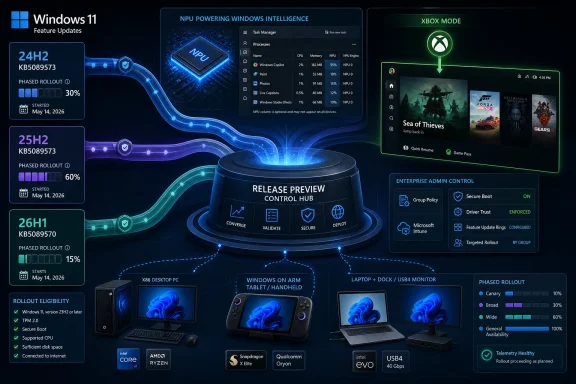
That is why this May 14 release deserves more attention than its short Insider Blog post suggests. The 24H2 and 25H2 update, distributed as KB5089573, brings builds 26100.8514 and 26200.8514 into testing. The 26H1 update, distributed as KB5089570, moves that branch to build 28000.2173. On paper, these are non-security preview updates. In practice, they are a preview of Microsoft’s Windows servicing model in 2026: multiple supported baselines, staggered feature delivery, and a growing dependency on hardware capabilities.
Microsoft’s release notes divide the updates into gradual rollout and normal rollout. That split is doing more work than it first appears. Gradual rollout means new features arrive in phases, and not every eligible device sees them at the same time. Normal rollout is the broader release vehicle for quality fixes and production-ready changes.
For Windows enthusiasts, that means screenshots from one machine may not match another, even when both systems report the same build number. For IT departments, it means build numbers alone are becoming a less complete answer to the old question: “What version of Windows are we running?” Feature state, rollout eligibility, policy configuration, and device targeting now matter nearly as much.
For most users and enterprises, 24H2 and 25H2 remain the operating center of gravity. Microsoft’s own messaging around 26H1 makes clear that it is not a conventional feature update for existing PCs. That leaves 24H2 and 25H2 to absorb the practical, day-to-day improvements that define Windows for the majority of the market.
This update’s 24H2 and 25H2 notes are full of those everyday changes. Shared audio arrives for supported Bluetooth LE Audio configurations, letting two people listen to the same PC audio stream at once. Magnifier gets clearer screen reader announcements and improved behavior in lens mode. Task Manager gains better visibility into NPU usage, which is exactly the kind of plumbing Windows needs if AI workloads are going to be more than marketing copy.
The camera stack also gets attention. Multi-App Camera mode allows multiple applications to access the camera stream simultaneously, while Basic Camera mode offers a simplified troubleshooting path when camera behavior becomes unstable. More importantly for managed environments, Microsoft is exposing camera mode configuration through Group Policy. That is a small but meaningful signal: Microsoft knows modern Windows experiences are only enterprise-ready when admins can govern them.
Performance and reliability changes round out the mainstream update. Microsoft says app launch and core shell experiences such as Start, Search, and Action Center are faster. USB4 docks and hubs should behave more reliably with attached displays, particularly after standby. Input, storage, desktop icons, Microsoft Store downloads, sign-in, lock screen reliability, File Explorer, touch gestures, and theme changes all get fixes or polish.
None of that makes for a flashy launch video. But for the people who support Windows fleets, these are the changes that matter. A faster Start menu is nice; a USB4 display that actually lights up after resume is the difference between a help desk ticket and a normal morning.
Task Manager now adds optional NPU and NPU Engine columns on the Processes, Users, and Details pages for PCs with NPUs. It also adds NPU dedicated and shared memory columns on the Details page, while neural engines that are part of a GPU appear on the Performance page. That turns AI hardware from an abstract checkbox into a measurable system resource.
This is not just about watching Copilot-adjacent processes. It is about operationalizing a new class of compute. Enterprises already monitor CPU, memory, disk, network, and GPU usage because those resources affect performance, battery life, user experience, and cost. NPU visibility suggests Microsoft expects AI acceleration to join that list.
The timing is important. Microsoft and OEMs have spent the last few years trying to make “AI PC” a meaningful purchasing category. But buyers do not manage slogans; they manage devices. Once Windows exposes NPU usage in familiar administrative surfaces, it becomes easier for IT teams to justify, test, and troubleshoot the hardware claims behind a new fleet purchase.
There is also a security and governance angle. Local AI workloads may reduce some dependency on cloud processing, but they do not remove the need for policy. If an app is running AI inference locally, admins still need to know how it behaves, whether it burns battery, whether it competes with business workloads, and whether it creates new support patterns. Task Manager is not a full governance layer, but it is a necessary first pane of glass.
That distinction is not academic. Windows 11 version 26H1 is intended for select new devices and is not being offered as an in-place update to existing 24H2 or 25H2 machines. Microsoft has said those mainstream branches remain the recommended releases for enterprise deployment. In other words, 26H1 may have the newer number, but it is not the universal successor.
This creates a subtle communications problem for Microsoft. Consumers have been trained to equate newer version numbers with forward motion. Enterprises have been trained to evaluate Windows releases as deployment candidates. 26H1 asks both groups to unlearn that instinct, at least temporarily. It is less “the next Windows for everyone” than “a Windows branch built for particular silicon.”
The first hardware context Microsoft has identified is Qualcomm’s Snapdragon X2 family. That makes 26H1 part of the larger Windows-on-Arm and AI PC story, even if the Release Preview notes do not turn every change into a silicon manifesto. A distinct Windows core for new hardware gives Microsoft and its partners more room to optimize, but it also introduces fragmentation that admins must track.
The tradeoff is familiar. Platform vendors want to move faster with new silicon, especially when AI acceleration, standby behavior, driver models, and power efficiency are central to the pitch. Enterprise IT wants fewer branches, fewer exceptions, and predictable lifecycle planning. 26H1 is Microsoft trying to satisfy both, but the burden of understanding the distinction will fall on the people buying and managing PCs.
This is the clearest consumer-facing sign that Microsoft wants Windows to behave less like one fixed desktop and more like a context-aware platform. A handheld gaming PC, a convertible tablet, a laptop docked at a desk, and a living-room mini PC all technically run Windows. They do not all want the same shell at the same moment.
The handheld PC market has already exposed the limits of traditional Windows UX. Windows has the game library, driver ecosystem, and store flexibility that Linux-based competitors often lack. But a desktop-first interface is awkward when the primary input device is a controller and the user is ten feet from the screen or holding a device in both hands.
Xbox mode is Microsoft’s answer to that pressure. It does not replace Windows, and it will not magically solve every friction point in the handheld gaming experience. But it shows Microsoft conceding that the shell must bend around usage modes. In 2026, that may matter as much as raw game compatibility.
It also fits the 26H1 hardware story. A version of Windows tuned for emerging device classes needs more than kernel and driver work. It needs visible modes that make the hardware feel intentional. Xbox mode is one of those signals: Windows is no longer just a desktop OS with some tablet affordances grafted on. It is becoming a collection of managed experiences that surface depending on the device and workload.
More importantly, Microsoft says View and Sort preferences are preserved in folders such as Downloads and Documents when apps launch File Explorer directly to those locations. Anyone who has repeatedly fought Explorer’s tendency to forget how a folder should look will understand why this matters. Small persistence fixes are not glamorous, but they reduce daily irritation.
The dark mode white flash fix is another example of Microsoft sanding off rough edges that have lingered too long. Dark mode in Windows has often felt like a renovation done room by room while the house remained occupied. Removing visual flashes when opening This PC or resizing the Details pane will not make headlines, but it makes the environment feel less bolted together.
Input improvements are broader. Haptic feedback effects can be felt on compatible pens and input devices during actions such as aligning objects in PowerPoint or snapping and resizing windows. Voice typing on the touch keyboard gets a cleaner design that avoids a full-screen overlay. The Arabic 101 Legacy keyboard layout returns as an option for users who preferred the older design.
These are not random features. They reflect the widening range of devices Windows must serve. Pen-first workflows, multilingual input, accessibility needs, controller-centric gaming, AI agents, and classic keyboard-and-mouse administration all live under the same Windows 11 brand. The OS has to become more adaptive without becoming incoherent.
That second item is especially notable because preinstalled app management remains one of Windows’ most persistent enterprise irritants. Admins have long wanted cleaner ways to remove consumer-oriented or unnecessary inbox apps without fragile scripts and post-imaging cleanup rituals. Microsoft’s policy-based removal approach is not entirely new, but a dynamic removal list makes it more flexible.
There is a catch: Microsoft says the dynamic list is not currently available in the Intune Settings Catalog and must be validated using Group Policy or custom OMA-URI. That is exactly the kind of footnote that separates a promising enterprise feature from a painless one. If the management path is uneven, adoption will be slower than the release note implies.
Kiosk mode also gets a practical refinement. Microsoft says configuration for allowed packaged apps is simplified when Microsoft Edge is one of the allowed apps. That may sound narrowly administrative, but kiosk deployments are common in retail, education, healthcare, manufacturing, and frontline environments where Windows needs to be locked down and boring.
Printing receives a smaller but symbolic change: a new icon indicates where a printer supports Windows Protected Print Mode. Microsoft has been trying to drag Windows printing away from its historically risky driver ecosystem. Making protected-mode support visible in settings helps users and admins understand which devices align with the newer security model.
That sentence has years of Windows security history behind it. Kernel-mode drivers remain one of the most powerful and dangerous categories of software on a PC. A poorly written driver can destabilize a machine. A malicious or abused driver can undermine security controls at a level ordinary applications cannot reach.
Microsoft’s approach is cautious rather than abrupt. The notes say Windows audits driver compatibility for at least 100 hours and three reboots before enabling enforcement. After enforcement, a small number of cross-signed drivers might be blocked. That phased approach suggests Microsoft knows the compatibility blast radius could be real, especially for older peripherals, specialized hardware, and enterprise environments with long-lived device dependencies.
Still, the direction is clear. Windows is becoming less tolerant of legacy trust paths. That is good security policy, but it shifts work onto vendors and admins. Hardware makers need WHCP-compliant drivers or explicit allow-listing. IT teams need to identify aging dependencies before enforcement turns a theoretical risk into an outage.
This is where Release Preview earns its name. Organizations that treat it as a curiosity may miss the early warning. Organizations that test representative hardware against these builds can find driver problems before they become production incidents. The difference is not academic; it is the difference between a controlled remediation plan and a Monday morning scramble.
This is a very Windows kind of security improvement. Batch files are ancient by modern platform standards, yet they remain embedded in administration, deployment, troubleshooting, and legacy business workflows. They are simple, powerful, and often dangerously trusted.
Preventing a batch file from changing while it runs addresses a class of tampering risk that feels obvious once stated. If a script begins execution in one form and can be modified underneath the running process, defenders lose confidence in what actually executed. Locking the file during use gives administrators a stronger integrity guarantee without demanding that every old workflow be rewritten overnight.
The feature also reflects Microsoft’s broader security posture: do not merely secure the newest stack; harden the old one because attackers still use it. PowerShell, Windows Terminal, modern management APIs, and cloud policy all matter. But cmd.exe and batch files are not gone, and pretending otherwise would be malpractice.
The challenge will be compatibility. Some legacy processes may expect to modify scripts dynamically or generate chained command behavior in ways that conflict with stricter locking. That is why making the behavior opt-in is sensible. It lets security-conscious organizations move first while giving everyone else time to audit.
That is a dense sentence, but the policy behind it is straightforward. Secure Boot certificate updates are too important to ignore and too risky to blast indiscriminately across the ecosystem. Firmware, bootloaders, recovery environments, dual-boot configurations, enterprise imaging processes, and device-specific behavior all complicate what might otherwise look like a simple trust update.
Microsoft’s answer is targeting and telemetry-informed phasing. Devices that show successful update signals become eligible. Coverage expands as confidence improves. This is the same logic behind gradual feature rollouts, applied to a security-sensitive area where a bad update could do more than annoy users.
For admins, the lesson is that Windows Update is increasingly becoming a decision engine, not a download mechanism. The service does not merely ask whether a device is on a supported version. It evaluates whether the device should receive a particular change at a particular time.
That has benefits. It can reduce the odds of catastrophic broad deployment failures. But it also makes Windows behavior less transparent from the outside. Two machines with the same nominal version may not have the same effective state, because Microsoft’s cloud-side targeting has made different decisions.
In the old model, a version number and patch level got you most of the way to understanding a Windows machine. In the new model, that information is necessary but insufficient. You need to know the release branch, the rollout phase, the device class, the hardware capabilities, the policy state, and sometimes whether Microsoft has decided the device is eligible for a specific feature or trust update.
That complexity is not purely Microsoft’s fault. The PC ecosystem itself has become more varied. Arm and x86 devices are diverging in meaningful ways. AI accelerators are entering client hardware. Gaming handhelds and hybrid form factors are stretching the shell. Enterprises want more control over inbox apps, roaming settings, driver trust, printing, and camera behavior. Accessibility improvements must reach users without waiting for a once-a-year monolithic release.
Still, Microsoft owns the user experience of that complexity. If it wants Windows to be both adaptive and manageable, it needs to make feature state easier to inspect. Release notes are not enough. Admin centers, Settings pages, PowerShell, Graph, and Windows Update reporting all need to expose what has actually landed on a device.
Otherwise, support becomes guesswork. A user says they do not see Shared audio. A developer says their agent does not appear on the taskbar. An admin says app removal policy behaves differently across two devices. A technician says a driver is blocked on one machine and allowed on another. In each case, “what build are you on?” is only the beginning.
Source: Microsoft - Windows Insiders Blog Announcing new Release Preview builds for 14 May 2026
That matters because Release Preview is the Insider ring closest to general availability. When Microsoft lands changes here, the question is no longer whether an idea is experimental. The question is how soon users, admins, OEMs, and developers need to plan around it.
 Release Preview Is Now Where Windows Becomes Real
The Release Preview Channel has always occupied a slightly awkward space in the Windows Insider Program. Dev and Canary builds are where Microsoft can afford to break things in public. Beta is where it tests experiences that may or may not make the next production wave. Release Preview, by contrast, is where the company starts speaking in the language of deployment.That is why this May 14 release deserves more attention than its short Insider Blog post suggests. The 24H2 and 25H2 update, distributed as KB5089573, brings builds 26100.8514 and 26200.8514 into testing. The 26H1 update, distributed as KB5089570, moves that branch to build 28000.2173. On paper, these are non-security preview updates. In practice, they are a preview of Microsoft’s Windows servicing model in 2026: multiple supported baselines, staggered feature delivery, and a growing dependency on hardware capabilities.
Microsoft’s release notes divide the updates into gradual rollout and normal rollout. That split is doing more work than it first appears. Gradual rollout means new features arrive in phases, and not every eligible device sees them at the same time. Normal rollout is the broader release vehicle for quality fixes and production-ready changes.
For Windows enthusiasts, that means screenshots from one machine may not match another, even when both systems report the same build number. For IT departments, it means build numbers alone are becoming a less complete answer to the old question: “What version of Windows are we running?” Feature state, rollout eligibility, policy configuration, and device targeting now matter nearly as much.
The 24H2 and 25H2 Branches Keep Carrying the Mainstream Windows Load
The most important thing about the 24H2 and 25H2 Release Preview update is not any single feature. It is that Microsoft continues treating these two versions as the mainstream Windows 11 path for the broad installed base. That is especially important now that 26H1 exists and can easily be mistaken for the “next” Windows release in the old annual-update sense.For most users and enterprises, 24H2 and 25H2 remain the operating center of gravity. Microsoft’s own messaging around 26H1 makes clear that it is not a conventional feature update for existing PCs. That leaves 24H2 and 25H2 to absorb the practical, day-to-day improvements that define Windows for the majority of the market.
This update’s 24H2 and 25H2 notes are full of those everyday changes. Shared audio arrives for supported Bluetooth LE Audio configurations, letting two people listen to the same PC audio stream at once. Magnifier gets clearer screen reader announcements and improved behavior in lens mode. Task Manager gains better visibility into NPU usage, which is exactly the kind of plumbing Windows needs if AI workloads are going to be more than marketing copy.
The camera stack also gets attention. Multi-App Camera mode allows multiple applications to access the camera stream simultaneously, while Basic Camera mode offers a simplified troubleshooting path when camera behavior becomes unstable. More importantly for managed environments, Microsoft is exposing camera mode configuration through Group Policy. That is a small but meaningful signal: Microsoft knows modern Windows experiences are only enterprise-ready when admins can govern them.
Performance and reliability changes round out the mainstream update. Microsoft says app launch and core shell experiences such as Start, Search, and Action Center are faster. USB4 docks and hubs should behave more reliably with attached displays, particularly after standby. Input, storage, desktop icons, Microsoft Store downloads, sign-in, lock screen reliability, File Explorer, touch gestures, and theme changes all get fixes or polish.
None of that makes for a flashy launch video. But for the people who support Windows fleets, these are the changes that matter. A faster Start menu is nice; a USB4 display that actually lights up after resume is the difference between a help desk ticket and a normal morning.
Microsoft’s AI PC Push Is Quietly Becoming an Admin Problem
The NPU additions in Task Manager are easy to overlook because they sound like enthusiast trivia. They are not. If Windows is going to normalize local AI workloads, administrators need visibility into what is running, where it is running, and how much silicon-specific capacity it consumes.Task Manager now adds optional NPU and NPU Engine columns on the Processes, Users, and Details pages for PCs with NPUs. It also adds NPU dedicated and shared memory columns on the Details page, while neural engines that are part of a GPU appear on the Performance page. That turns AI hardware from an abstract checkbox into a measurable system resource.
This is not just about watching Copilot-adjacent processes. It is about operationalizing a new class of compute. Enterprises already monitor CPU, memory, disk, network, and GPU usage because those resources affect performance, battery life, user experience, and cost. NPU visibility suggests Microsoft expects AI acceleration to join that list.
The timing is important. Microsoft and OEMs have spent the last few years trying to make “AI PC” a meaningful purchasing category. But buyers do not manage slogans; they manage devices. Once Windows exposes NPU usage in familiar administrative surfaces, it becomes easier for IT teams to justify, test, and troubleshoot the hardware claims behind a new fleet purchase.
There is also a security and governance angle. Local AI workloads may reduce some dependency on cloud processing, but they do not remove the need for policy. If an app is running AI inference locally, admins still need to know how it behaves, whether it burns battery, whether it competes with business workloads, and whether it creates new support patterns. Task Manager is not a full governance layer, but it is a necessary first pane of glass.
26H1 Is a Hardware Release Wearing a Windows Version Number
The 26H1 build is the more interesting branch because it breaks an old mental model. For years, Windows version numbers implied a sequence available, sooner or later, to the broader Windows population. 26H1 does not work that way. Microsoft describes it as a targeted release designed to support specific device hardware and silicon.That distinction is not academic. Windows 11 version 26H1 is intended for select new devices and is not being offered as an in-place update to existing 24H2 or 25H2 machines. Microsoft has said those mainstream branches remain the recommended releases for enterprise deployment. In other words, 26H1 may have the newer number, but it is not the universal successor.
This creates a subtle communications problem for Microsoft. Consumers have been trained to equate newer version numbers with forward motion. Enterprises have been trained to evaluate Windows releases as deployment candidates. 26H1 asks both groups to unlearn that instinct, at least temporarily. It is less “the next Windows for everyone” than “a Windows branch built for particular silicon.”
The first hardware context Microsoft has identified is Qualcomm’s Snapdragon X2 family. That makes 26H1 part of the larger Windows-on-Arm and AI PC story, even if the Release Preview notes do not turn every change into a silicon manifesto. A distinct Windows core for new hardware gives Microsoft and its partners more room to optimize, but it also introduces fragmentation that admins must track.
The tradeoff is familiar. Platform vendors want to move faster with new silicon, especially when AI acceleration, standby behavior, driver models, and power efficiency are central to the pitch. Enterprise IT wants fewer branches, fewer exceptions, and predictable lifecycle planning. 26H1 is Microsoft trying to satisfy both, but the burden of understanding the distinction will fall on the people buying and managing PCs.
Xbox Mode Signals a Windows That Adapts to the Device in Your Hands
The 26H1 feature list starts with Xbox mode, and that is not an accident. Microsoft says Xbox mode is available on Windows 11 PCs including laptops, desktops, and tablets, offering a streamlined full-screen interface inspired by the console experience. It can be entered from the Xbox app, Game Bar settings, or with Windows key + F11.This is the clearest consumer-facing sign that Microsoft wants Windows to behave less like one fixed desktop and more like a context-aware platform. A handheld gaming PC, a convertible tablet, a laptop docked at a desk, and a living-room mini PC all technically run Windows. They do not all want the same shell at the same moment.
The handheld PC market has already exposed the limits of traditional Windows UX. Windows has the game library, driver ecosystem, and store flexibility that Linux-based competitors often lack. But a desktop-first interface is awkward when the primary input device is a controller and the user is ten feet from the screen or holding a device in both hands.
Xbox mode is Microsoft’s answer to that pressure. It does not replace Windows, and it will not magically solve every friction point in the handheld gaming experience. But it shows Microsoft conceding that the shell must bend around usage modes. In 2026, that may matter as much as raw game compatibility.
It also fits the 26H1 hardware story. A version of Windows tuned for emerging device classes needs more than kernel and driver work. It needs visible modes that make the hardware feel intentional. Xbox mode is one of those signals: Windows is no longer just a desktop OS with some tablet affordances grafted on. It is becoming a collection of managed experiences that surface depending on the device and workload.
File Explorer and Input Get the Kind of Changes Users Actually Notice
The 26H1 update also continues Microsoft’s long, uneven rehabilitation of File Explorer. The new build expands archive support to include uu, cpio, xar, and NuGet packages. That sounds niche until you remember that File Explorer has become a front door for developers, power users, and admins who routinely encounter package and archive formats outside the ZIP comfort zone.More importantly, Microsoft says View and Sort preferences are preserved in folders such as Downloads and Documents when apps launch File Explorer directly to those locations. Anyone who has repeatedly fought Explorer’s tendency to forget how a folder should look will understand why this matters. Small persistence fixes are not glamorous, but they reduce daily irritation.
The dark mode white flash fix is another example of Microsoft sanding off rough edges that have lingered too long. Dark mode in Windows has often felt like a renovation done room by room while the house remained occupied. Removing visual flashes when opening This PC or resizing the Details pane will not make headlines, but it makes the environment feel less bolted together.
Input improvements are broader. Haptic feedback effects can be felt on compatible pens and input devices during actions such as aligning objects in PowerPoint or snapping and resizing windows. Voice typing on the touch keyboard gets a cleaner design that avoids a full-screen overlay. The Arabic 101 Legacy keyboard layout returns as an option for users who preferred the older design.
These are not random features. They reflect the widening range of devices Windows must serve. Pen-first workflows, multilingual input, accessibility needs, controller-centric gaming, AI agents, and classic keyboard-and-mouse administration all live under the same Windows 11 brand. The OS has to become more adaptive without becoming incoherent.
Enterprise Controls Are Catching Up With Windows’ Consumer Ambitions
The 26H1 notes include several changes that should catch the eye of enterprise administrators. Enterprise State Roaming can now be managed through Windows Backup for Organizations policies. Microsoft is also adding support for a dynamic app removal list to the “Remove Default Microsoft Store packages” policy for Enterprise and Education editions.That second item is especially notable because preinstalled app management remains one of Windows’ most persistent enterprise irritants. Admins have long wanted cleaner ways to remove consumer-oriented or unnecessary inbox apps without fragile scripts and post-imaging cleanup rituals. Microsoft’s policy-based removal approach is not entirely new, but a dynamic removal list makes it more flexible.
There is a catch: Microsoft says the dynamic list is not currently available in the Intune Settings Catalog and must be validated using Group Policy or custom OMA-URI. That is exactly the kind of footnote that separates a promising enterprise feature from a painless one. If the management path is uneven, adoption will be slower than the release note implies.
Kiosk mode also gets a practical refinement. Microsoft says configuration for allowed packaged apps is simplified when Microsoft Edge is one of the allowed apps. That may sound narrowly administrative, but kiosk deployments are common in retail, education, healthcare, manufacturing, and frontline environments where Windows needs to be locked down and boring.
Printing receives a smaller but symbolic change: a new icon indicates where a printer supports Windows Protected Print Mode. Microsoft has been trying to drag Windows printing away from its historically risky driver ecosystem. Making protected-mode support visible in settings helps users and admins understand which devices align with the newer security model.
Driver Trust Is Becoming Less Forgiving
The Windows Driver Policy update in 26H1 may be one of the most consequential changes in the release notes. Microsoft says Windows security is improving by changing how the kernel trusts third-party drivers. Default trust for cross-signed drivers is removed, while drivers from the Windows Hardware Compatibility Program and an allow list of trusted legacy drivers remain allowed.That sentence has years of Windows security history behind it. Kernel-mode drivers remain one of the most powerful and dangerous categories of software on a PC. A poorly written driver can destabilize a machine. A malicious or abused driver can undermine security controls at a level ordinary applications cannot reach.
Microsoft’s approach is cautious rather than abrupt. The notes say Windows audits driver compatibility for at least 100 hours and three reboots before enabling enforcement. After enforcement, a small number of cross-signed drivers might be blocked. That phased approach suggests Microsoft knows the compatibility blast radius could be real, especially for older peripherals, specialized hardware, and enterprise environments with long-lived device dependencies.
Still, the direction is clear. Windows is becoming less tolerant of legacy trust paths. That is good security policy, but it shifts work onto vendors and admins. Hardware makers need WHCP-compliant drivers or explicit allow-listing. IT teams need to identify aging dependencies before enforcement turns a theoretical risk into an outage.
This is where Release Preview earns its name. Organizations that treat it as a curiosity may miss the early warning. Organizations that test representative hardware against these builds can find driver problems before they become production incidents. The difference is not academic; it is the difference between a controlled remediation plan and a Monday morning scramble.
Batch Files Get a Security Feature That Speaks to Windows’ Past
One of the more interesting 26H1 changes concerns batch files and Command Prompt scripts. Administrators and Application Control for Business policy authors can enable a more secure processing mode that prevents batch files from changing during execution. The setting is controlled through a registry value called LockBatchFilesWhenInUse or through application control manifest policy.This is a very Windows kind of security improvement. Batch files are ancient by modern platform standards, yet they remain embedded in administration, deployment, troubleshooting, and legacy business workflows. They are simple, powerful, and often dangerously trusted.
Preventing a batch file from changing while it runs addresses a class of tampering risk that feels obvious once stated. If a script begins execution in one form and can be modified underneath the running process, defenders lose confidence in what actually executed. Locking the file during use gives administrators a stronger integrity guarantee without demanding that every old workflow be rewritten overnight.
The feature also reflects Microsoft’s broader security posture: do not merely secure the newest stack; harden the old one because attackers still use it. PowerShell, Windows Terminal, modern management APIs, and cloud policy all matter. But cmd.exe and batch files are not gone, and pretending otherwise would be malpractice.
The challenge will be compatibility. Some legacy processes may expect to modify scripts dynamically or generate chained command behavior in ways that conflict with stricter locking. That is why making the behavior opt-in is sensible. It lets security-conscious organizations move first while giving everyone else time to audit.
Secure Boot Certificate Targeting Shows the Value of Slow Delivery
Both the 24H2/25H2 and 26H1 release notes include a normal-rollout item for Secure Boot. Microsoft says Windows quality updates now include additional high-confidence device targeting data, increasing coverage of devices eligible to automatically receive new Secure Boot certificates. Devices receive those certificates only after demonstrating sufficient successful update signals.That is a dense sentence, but the policy behind it is straightforward. Secure Boot certificate updates are too important to ignore and too risky to blast indiscriminately across the ecosystem. Firmware, bootloaders, recovery environments, dual-boot configurations, enterprise imaging processes, and device-specific behavior all complicate what might otherwise look like a simple trust update.
Microsoft’s answer is targeting and telemetry-informed phasing. Devices that show successful update signals become eligible. Coverage expands as confidence improves. This is the same logic behind gradual feature rollouts, applied to a security-sensitive area where a bad update could do more than annoy users.
For admins, the lesson is that Windows Update is increasingly becoming a decision engine, not a download mechanism. The service does not merely ask whether a device is on a supported version. It evaluates whether the device should receive a particular change at a particular time.
That has benefits. It can reduce the odds of catastrophic broad deployment failures. But it also makes Windows behavior less transparent from the outside. Two machines with the same nominal version may not have the same effective state, because Microsoft’s cloud-side targeting has made different decisions.
The Same Build Number No Longer Means the Same Windows Experience
This is the uncomfortable theme running through the May 14 Release Preview builds. Windows is becoming more modular, more targeted, and more dependent on phased enablement. That is technically rational. It is also harder to explain, audit, and support.In the old model, a version number and patch level got you most of the way to understanding a Windows machine. In the new model, that information is necessary but insufficient. You need to know the release branch, the rollout phase, the device class, the hardware capabilities, the policy state, and sometimes whether Microsoft has decided the device is eligible for a specific feature or trust update.
That complexity is not purely Microsoft’s fault. The PC ecosystem itself has become more varied. Arm and x86 devices are diverging in meaningful ways. AI accelerators are entering client hardware. Gaming handhelds and hybrid form factors are stretching the shell. Enterprises want more control over inbox apps, roaming settings, driver trust, printing, and camera behavior. Accessibility improvements must reach users without waiting for a once-a-year monolithic release.
Still, Microsoft owns the user experience of that complexity. If it wants Windows to be both adaptive and manageable, it needs to make feature state easier to inspect. Release notes are not enough. Admin centers, Settings pages, PowerShell, Graph, and Windows Update reporting all need to expose what has actually landed on a device.
Otherwise, support becomes guesswork. A user says they do not see Shared audio. A developer says their agent does not appear on the taskbar. An admin says app removal policy behaves differently across two devices. A technician says a driver is blocked on one machine and allowed on another. In each case, “what build are you on?” is only the beginning.
The May 14 Builds Draw a Map of Microsoft’s Real Priorities
The concrete lesson from these Release Preview builds is that Microsoft is not waiting for a single grand Windows 11 milestone to move the platform. It is shipping the future in slices: some broad, some hardware-specific, some consumer-facing, some buried deep in policy.- Windows 11 versions 24H2 and 25H2 remain the practical mainstream branches for most existing PCs and enterprise deployments.
- Windows 11 version 26H1 is a targeted hardware release, not a conventional in-place feature update for the current installed base.
- Microsoft is using gradual rollout mechanics to deliver visible features, silicon-aware capabilities, and sensitive security changes in phases.
- NPU visibility, Xbox mode, taskbar agents, and haptic input show Windows adapting to AI PCs, gaming devices, and new interaction models.
- Driver trust changes, batch file locking, protected print visibility, and Secure Boot targeting show Microsoft tightening old attack surfaces without pretending compatibility no longer matters.
- Enterprise controls are improving, but some management paths still lag behind the neatness of the release notes.
Source: Microsoft - Windows Insiders Blog Announcing new Release Preview builds for 14 May 2026
