

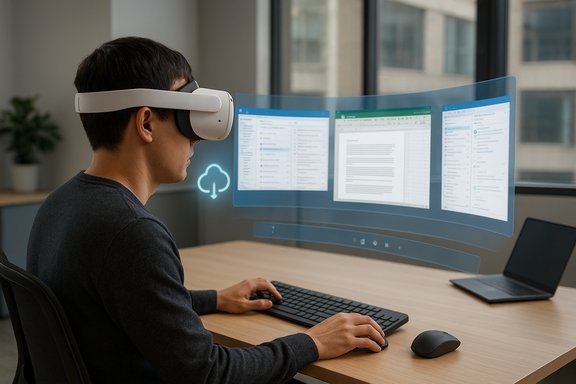
Microsoft and Meta quietly turned a long‑running mixed‑reality promise into a usable productivity feature: Windows 11 can now stream as a fully functional, multi‑monitor desktop into Meta Quest headsets via Mixed Reality Link and the new Windows App for Meta Quest, and the result changes the argument about what a modern XR productivity experience must look like.
Background / Overview
The collaboration between Microsoft and Meta has matured from demos and previews into a supported, generally available path for using a Meta Quest 3 or Quest 3S as a spatial display for a Windows 11 session. Rather than running a native port of Windows inside the headset, the Mixed Reality Link architecture streams a Windows desktop from a local PC or from a cloud endpoint (Windows 365 Cloud PC, Azure Virtual Desktop, Microsoft Dev Box) to the headset; the headset handles presentation, passthrough, and spatial layout while compute remains on the source machine or cloud VM. That approach keeps full Windows compatibility while letting users place multiple virtual monitors — or one massive curved ultrawide display — around their field of view. This move pushes accessibility of a spatial multi‑monitor workspace into mainstream territory: the feature set now includes quick pairing (look at your keyboard and tap Pair), multi‑monitor support, an immersive ultrawide/curved display mode, passthrough-aware workflows (so you can use your real keyboard and still retain virtual context), and Windows 365 integration for mobile cloud compute. The rollout is coordinated with Meta’s Horizon OS updates (the broad availability window is tied to the v81 family), and Microsoft’s Windows Experience Blog describes the release as “generally available.” These developments were the sort of feature enthusiasts speculated about for years: a low‑friction, first‑party bridge between Windows and consumer mixed reality that avoids the friction of third‑party hacks or complex tethering workflows. Community reaction — a mix of excitement and pragmatic caution — reflects just how consequential this could be for remote work, creators, and road warriors. The tone in tech coverage and commentary ranges from admiration at the execution to pointed questions about real‑world limits like latency, battery life, and enterprise readiness.What Mixed Reality Link actually delivers
Key features at launch
- Multi‑monitor virtual desktop — Place up to three independent high‑resolution virtual monitors, or opt for a single ultrawide curved workspace that wraps around your view. This reproduces familiar multi‑monitor workflows in MR/VR.
- Local and cloud endpoints — Stream from a local Windows 11 PC or from Windows 365 Cloud PC / Azure Virtual Desktop, letting users choose low‑latency local compute or cloud mobility.
- Passthrough-aware input — Use passthrough so you can see your physical keyboard and desk while working; quick gestures (double‑tap or the Quest 3S action button) let you momentarily view the real world without leaving the session.
- Simple pairing flow — Install the Mixed Reality Link client on Windows 11, update the Quest headset to the Horizon OS build that includes the Windows App, then look at your keyboard to trigger the pairing UI and tap “Pair.” Microsoft bills the experience as connecting in seconds.
- Workspace customization — New Horizon OS display controls let you resize, rescale and reposition windows; Meta raised concurrent app limits in recent OS builds, improving multitasking.
Minimum requirements and recommended conditions
Microsoft publishes baseline requirements: a Windows 11 PC running version 22H2 or later, a Meta Quest 3 or Quest 3S headset updated to the Horizon OS release that contains the Windows App, and the Mixed Reality Link app installed from the Microsoft Store. Network expectations are explicit — a robust, low‑latency Wi‑Fi (5 GHz or 6 GHz recommended) or wired PC connection will produce the best results, and some router ports must be open for discovery and streaming. Microsoft’s support documentation lists GPU guidance and network port requirements in detail.How to set it up (practical steps)
- Update your Meta Quest 3 / Quest 3S to the latest Horizon OS (the GA rollout is associated with v81).
- On your Windows 11 PC, confirm you’re on Windows 11, Version 22H2 or later.
- Install Mixed Reality Link from the Microsoft Store on the PC.
- Put on the headset, look at your keyboard or PC; the Windows App will show a pairing callout — tap Pair to complete the handshake.
- Choose local PC or Windows 365 Cloud PC as your session source, then lay out virtual monitors to taste and connect your keyboard and mouse.
Why this matters: meaningful, practical strengths
1) Truly mainstream integration
For the first time, a major OS vendor and a major consumer XR vendor shipped a first‑party, supported integration that works across a broad range of Windows 11 PCs and with cloud desktops. That eliminates much of the app‑hop and tinkering that previously limited VR desktop experiments to hobbyists and IT tinkerers. The simplicity of pairing and the cross‑platform (local + cloud) approach make it suitable for many real work scenarios.2) Preserves Windows app compatibility
Because the Windows session runs on the PC or in the cloud, you can run unchanged Windows applications — everything from Microsoft 365 to developer IDEs and legacy business apps. There’s no need to port or re‑engineer apps for a new platform, which is critical for enterprise adoption.3) Low cost to try
Compared to high‑end spatial headsets or a multi‑monitor hardware stack, the Meta Quest platform is relatively affordable. For many professionals, adding a Quest 3 / Quest 3S to an existing Windows 11 laptop or desktop is the most cost‑effective way to gain large virtual real estate on demand. This lowers the barrier for businesses to pilot mixed‑reality workstations.4) Cloud PC mobility
Windows 365 support matters: it lets organizations centralize compute and security while giving users a portable visual surface. For people who travel — consultants, journalists, remote engineers — this combination means heavy compute can remain in the cloud while the headset provides a full desktop experience anywhere with decent connectivity.Risks, trade‑offs, and the real‑world limits
This is powerful, but it’s not a silver bullet. Several practical and organizational risks deserve scrutiny.Latency, input fidelity, and workflow friction
Even with excellent Wi‑Fi or a wired PC, remote streaming introduces latency relative to native displays. For most office tasks — email, docs, spreadsheets, slides — this is manageable. For latency‑sensitive work (audio production, high‑frame‑rate gaming, precision video editing) the headset should be seen as a supplementary display, not a primary low‑lag monitor replacement. Real‑world latency depends on your router, local interference, and whether compute lives locally or in the cloud.Battery life and session length
Headset battery life remains a limiting factor for extended workdays. Meta’s Quest 3 and Quest 3S typically deliver roughly two to 2.5 hours of active use on a charge depending on workload, passthrough usage, and refresh rate — short of a full workday without external battery packs or tethered power. Practically, this makes headset‑based work ideal for focused bursts, meetings, and mobile sessions rather than eight‑hour shifts.Security and enterprise policy considerations
Streaming a Windows session into a headset raises fresh questions about secure boot chains, endpoint management, and policy enforcement when a session leaves the office. Enterprises must validate Windows 365 and VDI configurations, enforce conditional access policies, and consider how passthrough or spatially captured content might expose sensitive data. IT teams should pilot with strict telemetry and logging before wider rollout.Accessibility and ergonomics
A headset is a different ergonomic environment from a monitor array. Motion discomfort, prolonged headset wear, and accessibility for employees who rely on assistive hardware must be evaluated. While passthrough keeps hand‑eye contact with real input devices, organizations must still consider inclusivity and provide alternatives. Independent testing for prolonged use and accommodations will be important before widespread adoption.Compatibility complexity (PC hardware and Windows on Arm)
Microsoft’s support lists GPU and CPU guidance; historically, some users reported compatibility edge cases. Community testing and vendor updates extended unofficial Arm support to more devices, but enterprises should verify each endpoint. Recent community reports show Windows on Arm devices gaining better compatibility, but that’s still an area to validate in deployment plans.How this compares to Samsung’s Galaxy XR and the Android XR push
Samsung’s Galaxy XR and Google’s Android XR initiative represent a competing vision: an open Android‑centric XR platform that integrates AI features (Gemini, multimodal AI) and native Android apps in 3D. Samsung launched the Galaxy XR at roughly $1,799.99, positioning it as a premium, AI‑native mixed‑reality device built for productivity and content — and it’s being framed as the first device in a broader Android XR ecosystem. Galaxy XR’s hardware specs (4K micro‑OLED panels, Gemini integration, Snapdragon XR2+ Gen2) and its price point make it a different neck of the woods: more expensive than Meta’s Quest 3/3S, but designed to compete with Apple’s Vision Pro on image fidelity and developer reach. Where Microsoft + Meta focused on a pragmatic bridge — use an existing Windows PC or Cloud PC and stream your familiar Windows workspace — Samsung and Google aim to build native XR experiences and apps that live on Android XR. That difference is fundamental:- Microsoft + Meta = platform bridge for existing PC workflows, fast path to productivity.
- Samsung + Android XR = platform investment in native XR apps and multimodal AI experiences, with higher hardware cost and a longer‑term ecosystem play.
Where this sits relative to Apple Vision Pro
Apple’s Vision Pro emphasizes a tightly integrated hardware‑software ecosystem with premium displays and a spatial OS designed to extend macOS/iPadOS concepts into 3D. Microsoft + Meta’s approach more closely mirrors Apple’s concept of using headsets as an extension of a desktop (Vision Pro + Mac), but it does so without Apple’s vertical control: Microsoft leaves compute on PCs/clouds and Meta handles presentation.For consumers, the trade is clear: Vision Pro delivers unmatched display quality and a polished spatial OS at a high price; Meta + Microsoft delivers practicality and lower entry cost with broader immediate compatibility; Galaxy XR sits between those poles on price and ambition, promising native Android XR capabilities supported by Google’s AI investments. Each path signals a different bet about whether XR’s future is native apps or served desktops.
Enterprise and IT guidance — how to pilot responsibly
Organizations should treat Mixed Reality Link as a pilotable productivity option, not a mass‑rollout winner overnight. Recommendations for IT and procurement teams:- Inventory and validate endpoints: confirm Windows 11 versions, GPU compatibility, BLE and Wi‑Fi capability.
- Start with controlled pilots: small groups, instrumented telemetry, and feedback cycles to capture UX, battery, and heat concerns.
- Secure streaming paths: enforce conditional access, DLP policies, and evaluate passthrough implications for protected data.
- Test cloud vs local: compare latency and image quality between local PC sessions and Windows 365 Cloud PCs under real office and travel network conditions.
- Prepare accessories: plan for battery packs, comfortable straps, and docking workflows for users who must work longer than the native headset battery allows.
Developer and ecosystem implications
The Mixed Reality Link model emphasizes compatibility for existing Windows apps rather than forcing developers to adopt new paradigms. That’s both a short‑term win and a longer‑term mixed signal: developers who want to exploit spatial interactions and multimodal XR affordances will still need to build Volumetric Apps or Android/Meta native experiences to fully own the medium. Microsoft’s strategy reduces friction for adoption — users can get productivity uplift right away — while leaving a space for developers to build more spatially native tools that use 3D models, hand tracking, and advanced input.Expect three classes of developer response over the next 12–24 months:
- Fast adopters who create spatial UX affordances for existing Windows apps (plugins, extensions, companion spatial tools).
- Platform builders who craft native XR experiences for Meta, Android XR, or Vision Pro with richer 3D interactions.
- Tooling vendors that optimize remote streaming, compression, and input fidelity for VDI and Windows 365 scenarios.
What to watch next (and flagged uncertainties)
- Rollout completeness: while Microsoft declared general availability, Horizon OS distribution timing varies by region and carrier; some users may not see the Windows App until their headset receives the v81 family update. This is an area to monitor as device firmware rollouts are staggered.
- Windows on Arm and broad PC compatibility: community testing shows improvements in Arm device support, but enterprise validation is still needed. Treat any claim of universal Arm support as provisionally true until your specific SKU is tested.
- Security guidance and corporate policy updates: Microsoft’s documentation and community postings will evolve; IT teams should watch official guidance for VPN, conditional access, and DLP patterns that apply to streamed sessions.
- User comfort and long‑session ergonomics: headset comfort and battery tech are improving, but available headsets still favor sessions of a few hours. Organizations planning to use headsets for longer tasks should plan accessory and break strategies.
Final analysis — why this is a watershed moment for XR productivity
The Microsoft + Meta rollout of Mixed Reality Link represents a practical inflection point. It’s not the final vision of spatial computing, nor is it the highest‑fidelity XR experience on the market. What it is, however, is the first major example of a platform vendor and a headset maker shipping a supported, low‑friction bridge that enables real productivity workflows for a large installed base of Windows users.That pragmatic approach matters: organizations rarely rewrite their tooling for a single device, but they will experiment with a new display modality that requires no app rewrites. For end users, the ability to summon multiple virtual monitors — or a single ultrawide workspace — while traveling or in a cramped workspace is a compelling productivity multiplier. For competitors (Samsung, Google, Apple), Microsoft + Meta’s execution sends a clear message: seamless cross‑device workflows, cloud desktop compatibility, and low friction pairing are now expected features for XR productivity, not optional extras. The work ahead is not trivial. Enterprises must validate security, IT must iron out support flows, and hardware makers must keep improving battery life and comfort. Still, the gamble Microsoft placed on software interoperability — paired with Meta’s hardware scale — appears to be paying off: mixed reality is beginning to move from tinkering to usable augmentation of everyday work.
The future of work will likely be heterogeneous: some people will adopt native XR platforms like Samsung’s Android XR stack or Apple’s Vision Pro, while many more will gain value from streamed Windows workstations inside more affordable headsets. For Windows users today, Mixed Reality Link offers, for the first time at scale, a realistic and supported way to carry a multi‑monitor workstation in a headset.
Conclusion
Mixed Reality Link and the Windows App for Meta Quest make a bold, pragmatic statement: XR productivity need not wait for a single, perfect headset or a wholesale rewrite of apps. By streaming Windows 11 desktops — local or cloud — into Meta Quest headsets with simple pairing, multi‑monitor layouts, and passthrough‑aware input, Microsoft and Meta have delivered the most usable iteration of the “headset as portable workstation” concept yet. The approach preserves Windows compatibility, lowers pilot costs, and forces competitors to match the convenience bar. At the same time, realistic limits — latency, battery, security, and ergonomics — mean this is a powerful option for many workflows rather than a universal replacement for conventional displays. For enthusiasts and IT teams alike, the sensible next step is a measured pilot: validate compatibility, instrument user experience, and prepare for broader enterprise patterns once accessory ecosystems and security templates stabilize.
Source: Chrome Unboxed Windows 11 now officially has virtual desktops on Meta Quest, and I’m jealous
