

Microsoft’s next Windows 11 update is shaping up to be more of a polish pass than a flashy redesign, but that may be exactly what the operating system needs. The company is refining the Settings app, improving startup performance, surfacing key hardware details more clearly, and tightening the overall visual consistency of dialogs and device cards. At the same time, Microsoft is expanding accessibility features and smoothing some long-standing rough edges in File Explorer and account settings. The result is a broader signal that Windows 11 is moving toward coherence, not just feature count.
Windows 11 has spent much of its lifecycle in a familiar tension: Microsoft wants to modernize the system with a cleaner interface, while users keep asking for consistency, speed, and access to the controls they already know. The Settings app became the centerpiece of that effort years ago, but the migration from Control Panel has always been partial, uneven, and sometimes frustrating. Microsoft has steadily pulled more legacy controls into Settings, yet the process has often felt like a series of overlapping transitions rather than one clean handoff.
The latest update cycle suggests a more disciplined approach. According to Microsoft’s own release notes for recent Windows 11 preview builds, the Settings About page is being restructured for clarity, the device information card is being moved higher on the page, and the Settings home page is loading faster. Those are not glamorous changes, but they are the kinds of adjustments that users notice every day because they affect navigation, discovery, and trust in the interface. (blogs.windows.com)
What makes this update notable is the direction behind it. Microsoft appears to be reacting to customer feedback in a more explicit way, with design leadership describing the changes as aimed at making Windows feel “more polished and coherent.” That framing matters because Windows 11 criticism has rarely centered on one single missing feature. Instead, users often complain about friction: too many clicks, too much duplication, and too many places where the interface looks modern in one panel and dated in another.
The update also lands in a broader year of Windows quality messaging from Microsoft. The company has been talking more openly about reliability, recovery, accessibility, and better update behavior, while also continuing to push Copilot-centric experiences. That combination is important. Microsoft is trying to show that Windows can be both more intelligent and more usable, without forcing every improvement through a pure AI lens.
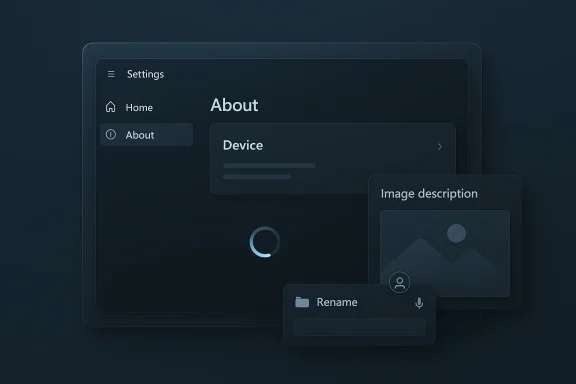
Microsoft’s changes to the About page are especially practical. The new structure makes device specifications easier to scan, and the card on the Settings home page now surfaces key device information more prominently. Microsoft also says the Settings home page now loads faster, which may sound modest, but a few hundred milliseconds shaved from a high-traffic system page can materially improve the sense that Windows is responsive. (blogs.windows.com)
In practical terms, the new home page should help with tasks such as:
Recent Microsoft notes reinforce that caution. The company has explicitly said it is still working on bringing more old Control Panel controls into Settings, while being careful not to break devices and drivers. That matters because compatibility is not a theoretical concern in Windows; it is the defining constraint. A poorly judged settings migration could affect printers, network adapters, audio devices, VPN stacks, and other components that remain essential in corporate environments.
That is why a seemingly small change like surfacing storage info on the About page matters. It is a low-risk way to make Settings more valuable without disrupting the underlying system model. It gives users quicker access to useful data while keeping the old compatibility machinery behind the curtain.
This is a smart direction strategically and ethically. Accessibility features tend to be strongest when they are available to as many users as possible, not just those with the latest hardware. By moving image descriptions into a Copilot-backed flow for all Windows 11 devices, Microsoft is turning a Copilot differentiator into a wider platform capability.
It also reflects a broader trend in Microsoft’s accessibility work:
Microsoft has been gradually making File Explorer less rigid and more task-oriented. New context menu clarity, better sharing, archive support, and image-related improvements all fit the same pattern. The application is no longer just a file browser; it is becoming a broader interaction hub for common system tasks.
It also hints at how Microsoft sees the future of the desktop:
The company’s emphasis on dialog consistency matters because the operating system still contains a surprising number of edges where older design patterns remain visible. Account settings, driver prompts, device management windows, and security flows can all expose old visual logic. When Microsoft modernizes those surfaces, it does more than improve aesthetics. It reduces the sense that users are moving between two eras of Windows at once.
That is why nothing fancy can still be meaningful. Microsoft’s own language suggests these changes are not dramatic, but in UI work, restraint is often a strength.
In earlier Windows cycles, Microsoft often tried to lead with major visual overhauls or bold platform narratives. Now it seems more interested in accumulating quality improvements that reinforce each other. Those changes might be less dramatic, but they are also less likely to alienate the users who simply want Windows to get out of the way and work.
So the new strategy appears to be:
For enterprise users, the story is more complicated and arguably more important. Microsoft’s caution around Control Panel migration, improved reliability in Settings, and broader accessibility support all matter in managed environments where consistency is a requirement, not a preference. Enterprises care less about visual refreshes and more about whether the new UI changes destabilize workflows or break admin assumptions.
Potential enterprise takeaways include:
This also helps Microsoft justify incremental work. A more polished About page or a better device info card may not look ambitious in isolation, but together they support the company’s larger promise: Windows should be easier to understand, easier to manage, and less visually disjointed. In other words, Microsoft is trying to turn the operating system into something that feels intentional every time the user opens a core panel.
That balancing act is why these changes matter even though they are modest. They show Microsoft is willing to improve the basics rather than only chase headline-grabbing AI features.
Microsoft is also threading a tricky needle between local functionality and cloud-backed Copilot services. That can be powerful, but it raises questions about latency, account dependencies, and the user’s level of control.
What to watch next is not only whether the Settings redesign arrives on schedule, but whether it is followed by similarly disciplined work in other parts of the OS. Microsoft has hinted repeatedly at broader modernization, and the real test will be whether it carries the same clarity-first approach into more complex surfaces like network settings, device management, and legacy compatibility panels.
In the end, the most interesting thing about the next Windows 11 update is not that it tries to dazzle anyone. It is that Microsoft seems to be remembering a very old truth about desktop software: users notice when the basics are easier, faster, and more consistent, and they reward that kind of care long after the launch event has faded.
Source: How-To Geek Next Windows 11 update will revamp Settings design
 Overview
Windows 11 has spent much of its lifecycle in a familiar tension: Microsoft wants to modernize the system with a cleaner interface, while users keep asking for consistency, speed, and access to the controls they already know. The Settings app became the centerpiece of that effort years ago, but the migration from Control Panel has always been partial, uneven, and sometimes frustrating. Microsoft has steadily pulled more legacy controls into Settings, yet the process has often felt like a series of overlapping transitions rather than one clean handoff.The latest update cycle suggests a more disciplined approach. According to Microsoft’s own release notes for recent Windows 11 preview builds, the Settings About page is being restructured for clarity, the device information card is being moved higher on the page, and the Settings home page is loading faster. Those are not glamorous changes, but they are the kinds of adjustments that users notice every day because they affect navigation, discovery, and trust in the interface. (blogs.windows.com)
What makes this update notable is the direction behind it. Microsoft appears to be reacting to customer feedback in a more explicit way, with design leadership describing the changes as aimed at making Windows feel “more polished and coherent.” That framing matters because Windows 11 criticism has rarely centered on one single missing feature. Instead, users often complain about friction: too many clicks, too much duplication, and too many places where the interface looks modern in one panel and dated in another.
The update also lands in a broader year of Windows quality messaging from Microsoft. The company has been talking more openly about reliability, recovery, accessibility, and better update behavior, while also continuing to push Copilot-centric experiences. That combination is important. Microsoft is trying to show that Windows can be both more intelligent and more usable, without forcing every improvement through a pure AI lens.
Why the Settings Refresh Matters
The most immediate significance of the Settings redesign is that it addresses a part of Windows that almost everyone uses, even if they don’t think about it often. Settings is where users change display scaling, manage storage, configure devices, check update status, and inspect system details. When that layer feels slow or cluttered, it creates the impression that the whole operating system is lagging behind user expectations.Microsoft’s changes to the About page are especially practical. The new structure makes device specifications easier to scan, and the card on the Settings home page now surfaces key device information more prominently. Microsoft also says the Settings home page now loads faster, which may sound modest, but a few hundred milliseconds shaved from a high-traffic system page can materially improve the sense that Windows is responsive. (blogs.windows.com)
A More Useful Home Page
This is where Microsoft’s recent design philosophy becomes visible. The company is not just swapping colors or moving icons around for visual novelty. It is trying to reduce the cognitive load of finding the right page, the right card, or the right shortcut within a settings hierarchy that has grown over many releases.In practical terms, the new home page should help with tasks such as:
- checking core device specs faster
- jumping to storage settings without extra navigation
- finding system-level details on the About page more intuitively
- reducing the sense that Settings is still a patchwork app
- making the first screen of Settings feel less like a dashboard and more like a control surface
Control Panel’s Slow Fade
The Control Panel versus Settings debate is one of the longest-running stories in modern Windows. Microsoft has been promising for years to move more legacy controls into the newer interface, and it has repeatedly said that the goal is not simply to rename old menus, but to preserve functionality while modernizing the surface. That migration has been slow because Windows has to support a huge range of hardware, drivers, and enterprise configurations.Recent Microsoft notes reinforce that caution. The company has explicitly said it is still working on bringing more old Control Panel controls into Settings, while being careful not to break devices and drivers. That matters because compatibility is not a theoretical concern in Windows; it is the defining constraint. A poorly judged settings migration could affect printers, network adapters, audio devices, VPN stacks, and other components that remain essential in corporate environments.
Why Microsoft Is Being Careful
This transition is not just about cleaning up the UI. It is also about preserving the enormous ecosystem of older hardware and software that still depends on Windows’ traditional configuration model. If Microsoft moves too fast, the company risks introducing instability in places where users expect reliability above all else.That is why a seemingly small change like surfacing storage info on the About page matters. It is a low-risk way to make Settings more valuable without disrupting the underlying system model. It gives users quicker access to useful data while keeping the old compatibility machinery behind the curtain.
Accessibility Gets a Bigger Role
One of the most important parts of the upcoming update is accessibility. Microsoft says Narrator will now work with Copilot on all Windows 11 devices to provide richer image descriptions, extending functionality that previously required Copilot+ hardware with an NPU. That is a meaningful change because it broadens an AI-assisted accessibility feature beyond a relatively small premium hardware segment. (blogs.windows.com)This is a smart direction strategically and ethically. Accessibility features tend to be strongest when they are available to as many users as possible, not just those with the latest hardware. By moving image descriptions into a Copilot-backed flow for all Windows 11 devices, Microsoft is turning a Copilot differentiator into a wider platform capability.
What This Means for Users
The practical benefit is straightforward. Users who rely on Narrator can get more detailed descriptions of images without waiting for special-device support, and without being locked into Copilot+ PCs. That reduces fragmentation and makes Windows accessibility feel less like a premium add-on.It also reflects a broader trend in Microsoft’s accessibility work:
- richer screen reader feedback
- more natural voice interaction
- better support for mixed hardware generations
- tighter integration between AI and assistive technologies
- more attention to reading and describing visual content
File Explorer Finally Gets a Few Quality Improvements
File Explorer may not be the headline feature in the update, but it is one of the surfaces most likely to affect daily satisfaction. Microsoft is adding voice typing support when renaming files and folders, a small feature that could have real value for accessibility, repetitive file management, and hands-busy workflows. The company is also continuing to polish reliability around unblocking files and other file handling tasks. (blogs.windows.com)Microsoft has been gradually making File Explorer less rigid and more task-oriented. New context menu clarity, better sharing, archive support, and image-related improvements all fit the same pattern. The application is no longer just a file browser; it is becoming a broader interaction hub for common system tasks.
Why Voice Typing Matters Here
Voice typing for renaming is a good example of how small UI changes can have outsized utility. For some users, it removes a repetitive keyboard step. For others, it reduces accessibility barriers. For the system as a whole, it reinforces the idea that Windows should let people interact in the way that is most natural for them.It also hints at how Microsoft sees the future of the desktop:
- fewer rigid input assumptions
- more speech and text flexibility
- more ambient assistive support
- more direct actions inside core apps
- more continuity between accessibility and productivity
Dark Mode and Dialog Consistency
Microsoft is also updating account dialogs in Settings to work better in dark mode and to match the modern Windows look. This is the kind of visual consistency work that users often only notice when it is missing. Mismatched dialogs stand out in an otherwise cohesive UI, especially in a system like Windows 11 where the design language is trying to balance rounded surfaces, subtle translucency, and modern typography. (blogs.windows.com)The company’s emphasis on dialog consistency matters because the operating system still contains a surprising number of edges where older design patterns remain visible. Account settings, driver prompts, device management windows, and security flows can all expose old visual logic. When Microsoft modernizes those surfaces, it does more than improve aesthetics. It reduces the sense that users are moving between two eras of Windows at once.
The Small Stuff Is the Big Stuff
This is a classic example of why interface quality is often cumulative. A single dialog redesign will not transform Windows 11 on its own. But if enough of those dialogs share the same visual grammar, the operating system starts to feel intentionally designed rather than assembled from successive generations of code.That is why nothing fancy can still be meaningful. Microsoft’s own language suggests these changes are not dramatic, but in UI work, restraint is often a strength.
The Broader Windows 11 Design Strategy
The current Windows 11 direction is not hard to see. Microsoft wants the OS to feel more polished, more assistant-driven, and less burdened by legacy fragmentation. That is why the company has spent time on Settings, on Copilot integrations, on better taskbar controls, and on a more coordinated update story across system apps.In earlier Windows cycles, Microsoft often tried to lead with major visual overhauls or bold platform narratives. Now it seems more interested in accumulating quality improvements that reinforce each other. Those changes might be less dramatic, but they are also less likely to alienate the users who simply want Windows to get out of the way and work.
From Feature Demos to Functional Confidence
The broader question is whether Microsoft can keep balancing two conflicting goals: making Windows feel innovative while making it feel dependable. AI features can help with discovery and automation, but they can also introduce new complexity if they are layered on top of a UI that still feels fragmented.So the new strategy appears to be:
- polish the system surfaces people see every day
- use AI to reduce search and support friction
- keep legacy support intact where compatibility is critical
- modernize only where the risk is manageable
- make the platform feel coherent rather than merely feature-rich
Enterprise Impact Versus Consumer Impact
For consumers, the update is mostly about convenience, speed, and visibility. A faster Settings home page, clearer device information, better dark mode dialogs, and voice typing in File Explorer all add up to a smoother day-to-day experience. These are the kinds of features that don’t always drive headlines, but they reduce annoyance in small, repeated moments.For enterprise users, the story is more complicated and arguably more important. Microsoft’s caution around Control Panel migration, improved reliability in Settings, and broader accessibility support all matter in managed environments where consistency is a requirement, not a preference. Enterprises care less about visual refreshes and more about whether the new UI changes destabilize workflows or break admin assumptions.
What Enterprise Customers Will Notice
Corporate IT teams will likely focus on the transition risks and the administrative upside. If Settings continues absorbing more legacy controls without creating compatibility problems, Microsoft will have made meaningful progress on one of Windows’ hardest design problems.Potential enterprise takeaways include:
- less dependency on legacy Control Panel paths
- more consistent policy and configuration flows
- better accessibility for diverse workforces
- lower support overhead if common tasks are easier to find
- more predictable UI behavior across devices and builds
Why This Update Fits Microsoft’s Current Messaging
Microsoft has been increasingly vocal about listening to feedback and improving Windows quality in response. That messaging is important because Windows users often feel that the product moves forward in bursts, not with a steady hand. By emphasizing customer input, Microsoft is trying to show that changes are being shaped by actual usage patterns rather than internal design theory alone.This also helps Microsoft justify incremental work. A more polished About page or a better device info card may not look ambitious in isolation, but together they support the company’s larger promise: Windows should be easier to understand, easier to manage, and less visually disjointed. In other words, Microsoft is trying to turn the operating system into something that feels intentional every time the user opens a core panel.
Feedback-Driven Design Has Limits
There is, however, a challenge here. Customer feedback often identifies pain points very well, but it does not always prescribe the best solution. Microsoft still has to decide which requests are broadly useful, which are too niche, and which could cause more complexity than they remove.That balancing act is why these changes matter even though they are modest. They show Microsoft is willing to improve the basics rather than only chase headline-grabbing AI features.
Strengths and Opportunities
The update’s biggest strength is that it focuses on the parts of Windows that users touch constantly. A smoother Settings app and better system dialogs can improve perceptions of Windows 11 without demanding new hardware or a learning curve.- Better daily usability through faster Settings navigation and more visible device info
- Broader accessibility reach by extending Narrator image descriptions to all Windows 11 devices
- Improved visual consistency in account dialogs and system panels
- Practical File Explorer enhancements like voice typing for renaming files
- Less UI fragmentation as Microsoft keeps absorbing Control Panel-era functions
- Stronger quality signal from Microsoft’s emphasis on polish and coherence
- Lower friction for support and troubleshooting when key information is easier to find
Risks and Concerns
The main concern is that Microsoft still has to prove it can modernize Windows without creating new layers of inconsistency. Every interface improvement adds value only if it does not confuse users who already know the old layout or rely on legacy paths.Microsoft is also threading a tricky needle between local functionality and cloud-backed Copilot services. That can be powerful, but it raises questions about latency, account dependencies, and the user’s level of control.
- Migration complexity may slow the replacement of remaining Control Panel functions
- Compatibility risks could affect devices and drivers if Settings absorbs the wrong controls too quickly
- AI dependency concerns may arise if Narrator features rely too heavily on Copilot services
- Feature fragmentation could persist if some improvements remain limited to certain hardware or regions
- User confusion may continue if familiar paths disappear before new ones feel complete
- Update instability remains a real concern given recent Microsoft rollbacks and patch issues
- Perception risk exists if the changes are seen as cosmetic rather than transformative
Looking Ahead
The next few Windows 11 updates will tell us whether Microsoft’s quality push is a one-off refinement pass or the start of a more sustained UI cleanup. If the company can keep shipping these kinds of improvements without introducing regressions, Windows 11 will feel significantly more mature by the end of the cycle. The company’s challenge is not just shipping features, but proving that the operating system is becoming more coherent release by release.What to watch next is not only whether the Settings redesign arrives on schedule, but whether it is followed by similarly disciplined work in other parts of the OS. Microsoft has hinted repeatedly at broader modernization, and the real test will be whether it carries the same clarity-first approach into more complex surfaces like network settings, device management, and legacy compatibility panels.
- Further Control Panel migration into Settings, especially around network and advanced device controls
- More dark mode consistency across older dialogs and account flows
- Additional Narrator and Copilot integration for accessibility features
- New File Explorer quality-of-life improvements beyond voice typing
- Ongoing performance tuning for Settings and other core shell experiences
In the end, the most interesting thing about the next Windows 11 update is not that it tries to dazzle anyone. It is that Microsoft seems to be remembering a very old truth about desktop software: users notice when the basics are easier, faster, and more consistent, and they reward that kind of care long after the launch event has faded.
Source: How-To Geek Next Windows 11 update will revamp Settings design
Last edited:
