

Windows 11’s latest Insider drop is less about flashy new toys and more about something users complain about every day: polish. With KB5083726 in Dev and KB5083728 in Beta, Microsoft is pushing build 26300.8276 and 26220.8271 with a narrow but telling set of changes centered on Settings, File Explorer, Windows Hello, clipboard history, and font rendering. The headline is not that Windows suddenly feels reinvented; it’s that Microsoft is trying to make the operating system feel more coherent, more dependable, and more understandable in small but important places. That matters because these are exactly the areas where user frustration tends to accumulate.
The new releases landed on April 17, 2026, and Microsoft is presenting them as parallel updates for the Dev and Beta channels. That alone is notable. In recent months, the company has been working to keep the two channels closer together, especially for Windows 11 version 25H2 preview flights, while still preserving the experimental nature of Insider testing. These builds fit that pattern neatly: same changes, same spirit, different channel labels. Microsoft’s own release notes say these updates are based on Windows 11, version 25H2, delivered through an enablement package. (blogs.windows.com)
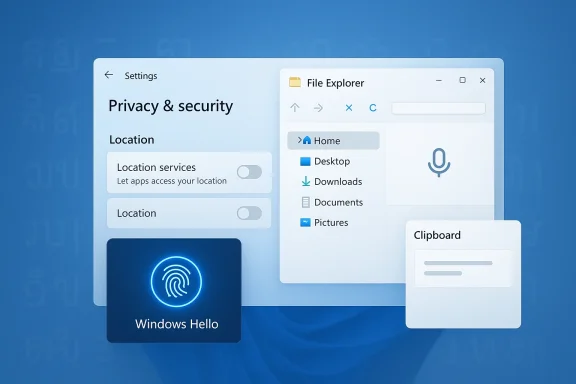
What makes this flight interesting is not the number of changes but the type of changes. Microsoft is not chasing a marquee feature here. Instead, it is correcting friction in places where the OS should already feel obvious: knowing when location settings are active, making Installed apps easier to reach reliably, keeping File Explorer visually consistent, and making accessibility paths less awkward for Voice Access users. Those are the kinds of fixes that rarely make a marketing splash but often shape whether people describe Windows as “finished” or “fussy.” (blogs.windows.com)
This is also a continuation of a broader quality push. Just weeks earlier, Microsoft publicly committed to improving performance, reliability, and craft across Windows, with File Explorer explicitly called out as an area of focus. That backdrop matters because KB5083726 and KB5083728 look very much like the practical side of that promise: less conceptual innovation, more experience cleanup. In other words, the company is trying to make the platform feel better by fixing the seams users touch most often.
There is also a strategic subtext to these builds. In Windows Insider land, small UI corrections can be stronger signals than large experiments. When Microsoft softens confusion in Settings or standardizes File Explorer across devices, it is not just polishing one dialog box. It is tightening consistency across the shell, which is especially important as Windows absorbs more AI-era features, accessibility upgrades, and cloud-connected behaviors. A more coherent baseline is what allows new capabilities to land without the rest of the product feeling chaotic. (blogs.windows.com)
That history helps explain why these April 17 builds matter even though the changes are modest. Microsoft has repeatedly used Insider builds to adjust the look and behavior of File Explorer, to refine Settings navigation, and to make accessibility experiences less brittle. Previous flights, for example, addressed File Explorer search-box issues, search performance, and text scaling support in file dialogs. The pattern is unmistakable: Microsoft is trying to turn the shell into a more dependable surface before the next major Windows release is locked down.
There is also a meaningful channel context. The Dev and Beta channels are now so closely aligned that the practical difference for many testers is less about features than about timing and risk tolerance. Microsoft has been explicit that many features are rolled out gradually using controlled feature rollout technology, which means two people on the same build may see different experiences at first. That is good for experimentation, but it also makes clarity in the UI even more important, because users need to understand what is available, what is disabled, and why. (blogs.windows.com)
A final piece of context is the company’s ongoing work on Windows quality messaging. In March 2026, Microsoft said it wanted to strengthen reliability signals and improve build quality before broader release. It specifically referenced performance and File Explorer responsiveness as a priority. The April 17 flight looks like a direct continuation of that philosophy: fix the everyday annoyances, especially the ones that can make the product seem inconsistent across hardware, languages, or assistive workflows.
And because Windows serves both enthusiasts and large enterprises, consistency is not just aesthetic. It affects support costs, documentation accuracy, accessibility compliance, and user confidence. A clearer interface reduces misconfiguration. A more reliable shell means fewer “it only happens on this machine” incidents. A better font rendering path matters more than it seems when your product has to work across dozens of scripts and regional deployments. (blogs.windows.com)
That is a smart fix because it turns a hidden dependency into a visible one. Microsoft’s own support documentation explains that Allow location override depends on Location services being turned on for both local and remote devices. In other words, the relationship already existed; the UI simply did not explain it clearly enough. A greyed-out state is not glamorous, but it is an honest state, and honest UI is often the best UI.
The second Settings improvement targets reliability when navigating to Installed apps. That sounds minor until you remember how often Settings has become the central place where users manage software, permissions, and system behavior. If navigation stumbles there, the entire “modern control panel” story weakens. Microsoft is not claiming a redesign; it is making the route less fragile, which is usually what users actually want. (blogs.windows.com)
For enterprises, the value is even larger. Location-related settings are frequently tied to policy, privacy posture, and device management decisions. Clearer dependency signaling can reduce misinterpretation when an admin is troubleshooting why a field appears inactive. The change does not alter policy mechanics, but it makes the UI a better narrator of policy state, which is exactly the kind of polish admins notice.
More importantly, Microsoft also says File Explorer reliability has been improved. This is where the real story sits. File Explorer is one of the most frequently launched parts of Windows, so even a small stability issue can shape the user’s overall impression of the OS. If Explorer is sluggish, flaky, or visually inconsistent, Windows feels unfinished no matter how many other improvements land elsewhere. (blogs.windows.com)
The additional tweak for Voice Access users is a reminder that accessibility and usability are increasingly overlapping disciplines. Making the navigation pane easier to use by voice is not just about compliance. It is about making the core shell less dependent on precise mouse interaction and more usable in alternate input modes. That matters in enterprise environments, for users with motor limitations, and for anyone who wants Windows to behave consistently across input surfaces. (blogs.windows.com)
That is especially relevant on mixed fleets. Enterprises rarely have a single PC model, a single display scaling configuration, or a single class of hardware. A UI element that looks “slightly off” on one machine but not another becomes a support question faster than anyone expects. Consistency is not just visual aesthetics; it is a supportability feature. (blogs.windows.com)
Microsoft says reliability and performance have been improved specifically in that wake-from-sleep scenario. That is exactly where biometric systems often show their flaws, because hardware state, power transitions, and sensor readiness all intersect. The company is not promising a redesigned Hello experience; it is removing a friction point that could otherwise make people fall back to PINs or passwords. (blogs.windows.com)
This kind of improvement has outsized value in business settings. A login flow that is fast after wake is not just convenient; it saves seconds every time a laptop opens, which adds up across a workday. It also lowers the odds that users assume the sensor is broken and change their habits around sign-in. (blogs.windows.com)
There is also a reliability dimension for managed devices. Wake-from-sleep transitions are common in mobile work, hybrid work, and VDI-adjacent use cases. Improving Hello’s behavior in that moment makes Windows feel more dependable in exactly the places where trust is easiest to lose. (blogs.windows.com)
The same logic applies to the broader input stack. Clipboard history, voice typing, and quick access to input surfaces are often used in bursty, repetitive workflows. If one of those surfaces hesitates, it interrupts the user’s rhythm. Microsoft has been steadily improving these sorts of interactions in Insider builds, which suggests it sees input responsiveness as a core quality metric rather than a cosmetic nice-to-have. (blogs.windows.com)
The interesting thing here is that performance gains in these components are hard to market but easy to feel. Users may not be able to quantify the milliseconds saved, but they can tell when a panel opens without hesitation. That subjective difference is crucial, because perceived speed often matters more than raw benchmark numbers in everyday desktop use. (blogs.windows.com)
This is a reminder that Windows quality is global, not just anglophone. Typography errors can make an interface feel broken even when every button technically works. Better glyph shaping and positioning can reduce visual noise, improve legibility, and make the system feel more native in markets where these scripts are used daily. (blogs.windows.com)
It also shows that Microsoft is still investing in the less visible layers of OS quality. Fonts are infrastructure. They support not only the shell but also apps, dialogs, and system surfaces where the user expects the typography to simply behave. When they do, the OS disappears into the background in the best possible way. (blogs.windows.com)
There is also a broader platform implication. As Windows grows more multilingual and more screen surfaces inherit the same font stack, consistency in rendering becomes a foundation for trust. If users see one family of text behaving properly in one area but not another, the whole system seems uneven. (blogs.windows.com)
At the same time, the company’s use of controlled feature rollout means that not every Insider will see every change immediately. That creates a layered experience where build number, rollout status, and feature toggle all matter. For enthusiasts, this can be exciting. For admins and analysts, it can be frustrating, because it complicates comparison and troubleshooting. That tension is baked into the Insider model. (blogs.windows.com)
Still, these releases reinforce the idea that Microsoft wants a common baseline of quality across the two channels. When Dev and Beta both get the same Settings and File Explorer tweaks, the user-facing message is clear: the company wants to verify shell polish broadly before layering on more experiments. That is a healthy sign, even if it feels incremental. (blogs.windows.com)
For users, that is reassuring. For competitors, it is a reminder that Windows’ moat is not just feature count but operational familiarity. A polished shell can be boring, but boring is often what enterprise customers buy. (blogs.windows.com)
That is why a build like this matters strategically. It does not launch a new category. It strengthens the foundation that supports categories: AI features, search improvements, accessibility, and cloud-connected workflows. A platform that feels coherent at the shell level can absorb change more gracefully than one that constantly surprises users in basic places.
The competitive angle is especially obvious in enterprise environments. Organizations evaluate not only raw functionality but also support burden, user acceptance, and the cost of training. If Microsoft can show that Windows 11 is getting cleaner, clearer, and more reliable in everyday operations, it reinforces the argument that staying on Windows remains the simplest path for most businesses. (blogs.windows.com)
There is also a broader signal here about the future shape of Windows development. Microsoft appears to be treating the shell as a living surface that must be continuously normalized across devices and input types. That means more work on consistency, more attention to the handoff between settings and behavior, and more visible respect for languages and accessibility modes that are easy to overlook in a US-centric product conversation. That is a good sign.
What to watch next:
Source: Windows Report https://windowsreport.com/windows-1...728-beta-improve-settings-file-explorer-more/
 Overview
The new releases landed on April 17, 2026, and Microsoft is presenting them as parallel updates for the Dev and Beta channels. That alone is notable. In recent months, the company has been working to keep the two channels closer together, especially for Windows 11 version 25H2 preview flights, while still preserving the experimental nature of Insider testing. These builds fit that pattern neatly: same changes, same spirit, different channel labels. Microsoft’s own release notes say these updates are based on Windows 11, version 25H2, delivered through an enablement package. (blogs.windows.com)What makes this flight interesting is not the number of changes but the type of changes. Microsoft is not chasing a marquee feature here. Instead, it is correcting friction in places where the OS should already feel obvious: knowing when location settings are active, making Installed apps easier to reach reliably, keeping File Explorer visually consistent, and making accessibility paths less awkward for Voice Access users. Those are the kinds of fixes that rarely make a marketing splash but often shape whether people describe Windows as “finished” or “fussy.” (blogs.windows.com)
This is also a continuation of a broader quality push. Just weeks earlier, Microsoft publicly committed to improving performance, reliability, and craft across Windows, with File Explorer explicitly called out as an area of focus. That backdrop matters because KB5083726 and KB5083728 look very much like the practical side of that promise: less conceptual innovation, more experience cleanup. In other words, the company is trying to make the platform feel better by fixing the seams users touch most often.
There is also a strategic subtext to these builds. In Windows Insider land, small UI corrections can be stronger signals than large experiments. When Microsoft softens confusion in Settings or standardizes File Explorer across devices, it is not just polishing one dialog box. It is tightening consistency across the shell, which is especially important as Windows absorbs more AI-era features, accessibility upgrades, and cloud-connected behaviors. A more coherent baseline is what allows new capabilities to land without the rest of the product feeling chaotic. (blogs.windows.com)
Background
Microsoft’s Insider program has spent much of the past year balancing two competing pressures. On one side, the company wants to push forward with new experiences tied to Copilot+ PCs, search, AI actions, and system integration. On the other, it has had to respond to the relentless, very unglamorous feedback that Windows still has too many rough edges. The result has been a steady drumbeat of quality-focused preview releases that fix specific pain points while larger features continue to mature.That history helps explain why these April 17 builds matter even though the changes are modest. Microsoft has repeatedly used Insider builds to adjust the look and behavior of File Explorer, to refine Settings navigation, and to make accessibility experiences less brittle. Previous flights, for example, addressed File Explorer search-box issues, search performance, and text scaling support in file dialogs. The pattern is unmistakable: Microsoft is trying to turn the shell into a more dependable surface before the next major Windows release is locked down.
There is also a meaningful channel context. The Dev and Beta channels are now so closely aligned that the practical difference for many testers is less about features than about timing and risk tolerance. Microsoft has been explicit that many features are rolled out gradually using controlled feature rollout technology, which means two people on the same build may see different experiences at first. That is good for experimentation, but it also makes clarity in the UI even more important, because users need to understand what is available, what is disabled, and why. (blogs.windows.com)
A final piece of context is the company’s ongoing work on Windows quality messaging. In March 2026, Microsoft said it wanted to strengthen reliability signals and improve build quality before broader release. It specifically referenced performance and File Explorer responsiveness as a priority. The April 17 flight looks like a direct continuation of that philosophy: fix the everyday annoyances, especially the ones that can make the product seem inconsistent across hardware, languages, or assistive workflows.
Why small fixes matter more than they sound
A lot of Windows criticism comes from cumulative friction rather than one catastrophic bug. A search box icon is slightly different on one PC than another. A settings page looks active even though the feature is disabled. A folder navigation pane is harder than it should be to operate with voice commands. None of that is dramatic, but together it creates the feeling that the operating system is almost coherent and never quite there. That is why these tiny changes deserve more attention than they usually get. (blogs.windows.com)And because Windows serves both enthusiasts and large enterprises, consistency is not just aesthetic. It affects support costs, documentation accuracy, accessibility compliance, and user confidence. A clearer interface reduces misconfiguration. A more reliable shell means fewer “it only happens on this machine” incidents. A better font rendering path matters more than it seems when your product has to work across dozens of scripts and regional deployments. (blogs.windows.com)
Settings: clarity over cleverness
The Settings changes are subtle, but they go directly at one of Windows’ recurring usability problems: users can reach a control, but the control does not always tell a coherent story. In this flight, Microsoft is changing the behavior of Location settings so that when Location services are turned off, options like Default location and Allow location override appear disabled. The point is simple: if the platform is not collecting location data, the related controls should look unavailable rather than merely ignored. (blogs.windows.com)That is a smart fix because it turns a hidden dependency into a visible one. Microsoft’s own support documentation explains that Allow location override depends on Location services being turned on for both local and remote devices. In other words, the relationship already existed; the UI simply did not explain it clearly enough. A greyed-out state is not glamorous, but it is an honest state, and honest UI is often the best UI.
The second Settings improvement targets reliability when navigating to Installed apps. That sounds minor until you remember how often Settings has become the central place where users manage software, permissions, and system behavior. If navigation stumbles there, the entire “modern control panel” story weakens. Microsoft is not claiming a redesign; it is making the route less fragile, which is usually what users actually want. (blogs.windows.com)
What this means for consumers and admins
For consumers, the visual cue reduces confusion and support-theory guessing. Users who see a greyed-out option are less likely to assume a bug, and more likely to understand that location must be enabled first. That is a small win, but small wins are often what stop people from diving into forums or restarting a device unnecessarily. (blogs.windows.com)For enterprises, the value is even larger. Location-related settings are frequently tied to policy, privacy posture, and device management decisions. Clearer dependency signaling can reduce misinterpretation when an admin is troubleshooting why a field appears inactive. The change does not alter policy mechanics, but it makes the UI a better narrator of policy state, which is exactly the kind of polish admins notice.
File Explorer: consistency is the real feature
Microsoft’s File Explorer changes are the kind of thing people may not notice consciously, but they absolutely notice subconsciously. The company says it has updated the iconography placement in the File Explorer search box to be more consistent across different PCs. That sounds cosmetic, yet consistency across hardware configurations is one of the easiest ways to reduce visual friction in a product as widely used as Windows. (blogs.windows.com)More importantly, Microsoft also says File Explorer reliability has been improved. This is where the real story sits. File Explorer is one of the most frequently launched parts of Windows, so even a small stability issue can shape the user’s overall impression of the OS. If Explorer is sluggish, flaky, or visually inconsistent, Windows feels unfinished no matter how many other improvements land elsewhere. (blogs.windows.com)
The additional tweak for Voice Access users is a reminder that accessibility and usability are increasingly overlapping disciplines. Making the navigation pane easier to use by voice is not just about compliance. It is about making the core shell less dependent on precise mouse interaction and more usable in alternate input modes. That matters in enterprise environments, for users with motor limitations, and for anyone who wants Windows to behave consistently across input surfaces. (blogs.windows.com)
Why the search box detail matters
Search is one of the most emotionally loaded features in Windows because users rely on it when they do not want to browse. If the search box looks different from system to system, or if its controls shift around across build variants, users feel that the shell is fragmented. Microsoft’s choice to standardize the search box icon placement is therefore a craft fix in the best sense: it reduces the number of tiny surprises. (blogs.windows.com)That is especially relevant on mixed fleets. Enterprises rarely have a single PC model, a single display scaling configuration, or a single class of hardware. A UI element that looks “slightly off” on one machine but not another becomes a support question faster than anyone expects. Consistency is not just visual aesthetics; it is a supportability feature. (blogs.windows.com)
Windows Hello: a practical trust upgrade
Windows Hello fingerprint performance after wake from sleep is one of those fixes that sounds tiny but touches a high-frequency workflow. Users increasingly expect biometric sign-in to be instant and reliable. When it hesitates after sleep, the problem is not just delay; it is the loss of trust in the authentication path. (blogs.windows.com)Microsoft says reliability and performance have been improved specifically in that wake-from-sleep scenario. That is exactly where biometric systems often show their flaws, because hardware state, power transitions, and sensor readiness all intersect. The company is not promising a redesigned Hello experience; it is removing a friction point that could otherwise make people fall back to PINs or passwords. (blogs.windows.com)
This kind of improvement has outsized value in business settings. A login flow that is fast after wake is not just convenient; it saves seconds every time a laptop opens, which adds up across a workday. It also lowers the odds that users assume the sensor is broken and change their habits around sign-in. (blogs.windows.com)
The enterprise angle
In enterprise environments, Hello is part of a broader security posture. If biometric sign-in is unpredictable after sleep, users are more likely to take shortcuts that reduce security hygiene. A fix here reinforces the passwordless story Microsoft has been telling for years without requiring a new interface or policy framework. (blogs.windows.com)There is also a reliability dimension for managed devices. Wake-from-sleep transitions are common in mobile work, hybrid work, and VDI-adjacent use cases. Improving Hello’s behavior in that moment makes Windows feel more dependable in exactly the places where trust is easiest to lose. (blogs.windows.com)
Clipboard history and input: small speed wins, real daily value
Microsoft says clipboard history now opens faster. That is a compact line item, but it matters because clipboard history is one of those utilities that people only notice when it is slow or broken. When the panel appears quickly, it feels like part of the system; when it lags, it feels bolted on. (blogs.windows.com)The same logic applies to the broader input stack. Clipboard history, voice typing, and quick access to input surfaces are often used in bursty, repetitive workflows. If one of those surfaces hesitates, it interrupts the user’s rhythm. Microsoft has been steadily improving these sorts of interactions in Insider builds, which suggests it sees input responsiveness as a core quality metric rather than a cosmetic nice-to-have. (blogs.windows.com)
The interesting thing here is that performance gains in these components are hard to market but easy to feel. Users may not be able to quantify the milliseconds saved, but they can tell when a panel opens without hesitation. That subjective difference is crucial, because perceived speed often matters more than raw benchmark numbers in everyday desktop use. (blogs.windows.com)
Sequentially, what improves the experience
- The clipboard panel opens faster, reducing the pause between copy and paste.
- The workflow feels more responsive under multitasking pressure.
- Fewer small delays make the OS seem more predictable.
- Faster input surfaces reduce the temptation to blame Windows for a bad user moment. (blogs.windows.com)
Fonts and global language support: the quiet infrastructure of polish
The font changes in this release are the most technically understated, but they may be among the most meaningful for affected users. Microsoft says it has updated the Leelawadee UI family for Thai, Lao, Khmer, and Lontara scripts to improve glyph sequencing, positioning, and rendering. That is the kind of change that most English-speaking users will never consciously detect, yet it can dramatically alter readability in localized environments. (blogs.windows.com)This is a reminder that Windows quality is global, not just anglophone. Typography errors can make an interface feel broken even when every button technically works. Better glyph shaping and positioning can reduce visual noise, improve legibility, and make the system feel more native in markets where these scripts are used daily. (blogs.windows.com)
It also shows that Microsoft is still investing in the less visible layers of OS quality. Fonts are infrastructure. They support not only the shell but also apps, dialogs, and system surfaces where the user expects the typography to simply behave. When they do, the OS disappears into the background in the best possible way. (blogs.windows.com)
Accessibility is part of rendering quality
Improved rendering is not purely a localization issue. It has direct accessibility consequences because dense or poorly shaped text strains reading comprehension and slows interaction. Clearer typography helps every user, but it matters especially when people rely on screen magnification, high-DPI displays, or fast scanning of dense UI. (blogs.windows.com)There is also a broader platform implication. As Windows grows more multilingual and more screen surfaces inherit the same font stack, consistency in rendering becomes a foundation for trust. If users see one family of text behaving properly in one area but not another, the whole system seems uneven. (blogs.windows.com)
Dev versus Beta: similar builds, different signals
The fact that Dev and Beta received matching improvement sets is a meaningful signal in itself. Microsoft is showing that these channels are not diverging wildly in the day-to-day shell experience, even if they remain distinct testing venues. That convergence can be good for users because it lowers the risk that one channel becomes a dead end for practical feedback. (blogs.windows.com)At the same time, the company’s use of controlled feature rollout means that not every Insider will see every change immediately. That creates a layered experience where build number, rollout status, and feature toggle all matter. For enthusiasts, this can be exciting. For admins and analysts, it can be frustrating, because it complicates comparison and troubleshooting. That tension is baked into the Insider model. (blogs.windows.com)
Still, these releases reinforce the idea that Microsoft wants a common baseline of quality across the two channels. When Dev and Beta both get the same Settings and File Explorer tweaks, the user-facing message is clear: the company wants to verify shell polish broadly before layering on more experiments. That is a healthy sign, even if it feels incremental. (blogs.windows.com)
What channel parity tells us
It suggests Microsoft is prioritizing stabilization alongside experimentation. It also suggests that features under active development are increasingly expected to survive in a coherent form across multiple Insider rings before they move outward. That makes the current cycle feel less like random flighting and more like deliberate refinement. (blogs.windows.com)For users, that is reassuring. For competitors, it is a reminder that Windows’ moat is not just feature count but operational familiarity. A polished shell can be boring, but boring is often what enterprise customers buy. (blogs.windows.com)
Competitive implications: polish as strategy
Microsoft’s rivals in desktop operating systems do not need to match every Insider tweak one-for-one to feel pressure from this release. What they need to match is the broader philosophy: UI consistency, reliability, and accessibility are no longer “nice-to-have” platform extras. They are central to user retention. Windows remains dominant in business computing largely because it keeps doing the small things broadly well enough to be dependable.That is why a build like this matters strategically. It does not launch a new category. It strengthens the foundation that supports categories: AI features, search improvements, accessibility, and cloud-connected workflows. A platform that feels coherent at the shell level can absorb change more gracefully than one that constantly surprises users in basic places.
The competitive angle is especially obvious in enterprise environments. Organizations evaluate not only raw functionality but also support burden, user acceptance, and the cost of training. If Microsoft can show that Windows 11 is getting cleaner, clearer, and more reliable in everyday operations, it reinforces the argument that staying on Windows remains the simplest path for most businesses. (blogs.windows.com)
Why rivals should pay attention
- Windows is tightening the visual language of core controls.
- Microsoft is treating accessibility as part of shell quality.
- Reliability fixes are landing in the exact places users touch most.
- Localization polish is improving alongside mainstream UX work.
- The company is showing a disciplined focus on craft, not just feature volume.
Strengths and Opportunities
Microsoft’s latest Insider flight does several things well at once. It improves visible clarity, reduces everyday friction, and continues the company’s recently stated commitment to reliability and responsiveness. Just as importantly, it does so without overpromising; the changes are practical, targeted, and easy to understand.- Cleaner Settings behavior makes disabled location options easier to interpret.
- More reliable Installed apps navigation should reduce one of the common frustration points in Settings.
- File Explorer consistency helps Windows feel more coherent across devices.
- Voice Access improvements strengthen accessibility in a core shell component.
- Windows Hello fingerprint tweaks improve trust in biometric sign-in after sleep.
- Faster clipboard history supports quick, repetitive work.
- Font rendering updates show that Microsoft still cares about localization and typography quality.
- Channel parity between Dev and Beta simplifies feedback and reduces fragmentation. (blogs.windows.com)
Risks and Concerns
The risk with quality-focused flights is that they can look underwhelming to users who want more visible innovation. If Microsoft does not clearly communicate why these changes matter, some Insiders may treat them as maintenance-only releases and ignore the broader direction. There is also always the possibility that gradual rollout masks uneven experiences between users on the same build.- Limited immediate visibility may make the update seem smaller than it is.
- Gradual rollout complexity can confuse testers who expect uniform behavior.
- Potential regression risk always exists whenever shell components are touched.
- Accessibility fixes may still leave edge cases unresolved for some users.
- Localization improvements can vary depending on app and display context.
- Channel similarities may blur the practical distinction between Dev and Beta for some testers.
- Small UI changes can be misread as inconsistency rather than improvement if rollout timing differs. (blogs.windows.com)
Looking Ahead
The most important thing to watch is whether Microsoft keeps tying its Insider releases to a consistent quality agenda. The April 17 builds suggest that the company is serious about the basics: clarity, reliability, accessibility, and typography. If that continues through the next few flights, it will reinforce the sense that Windows 11 is maturing in the right direction rather than merely accumulating features.There is also a broader signal here about the future shape of Windows development. Microsoft appears to be treating the shell as a living surface that must be continuously normalized across devices and input types. That means more work on consistency, more attention to the handoff between settings and behavior, and more visible respect for languages and accessibility modes that are easy to overlook in a US-centric product conversation. That is a good sign.
What to watch next:
- Whether File Explorer reliability continues to improve in subsequent Dev and Beta builds.
- Whether the Settings location-state clarification expands to other dependent controls.
- Whether clipboard history and Windows Hello gains hold up under broader testing.
- Whether font and localization work extends to additional script families.
- Whether Microsoft pairs quality releases with more transparent rollout messaging. (blogs.windows.com)
Source: Windows Report https://windowsreport.com/windows-1...728-beta-improve-settings-file-explorer-more/
