

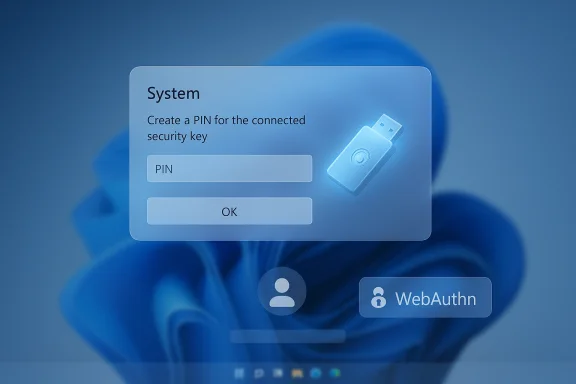
Microsoft has quietly changed how FIDO2 security keys behave on updated Windows 11 systems: after installing the September 29, 2025 preview update (KB5065789) and the later November 11, 2025 security rollup (KB5068861), users may be prompted to create or enter a PIN for a security key during authentication — even if that key was registered without a PIN and previously signed in with a simple touch.
The change is a deliberate platform update from Microsoft to align Windows’ WebAuthn/CTAP2 behavior with the Web Authentication (WebAuthn) specification. Historically, PIN or biometric setup for a FIDO2 security key was typically performed during registration (credential creation). After these updates, Windows now allows — and in some cases will prompt for — PIN setup during the authentication (assertion) flow when a Relying Party (RP) or Identity Provider (IdP) requests userVerification = "preferred" in the PublicKeyCredentialRequestOptions.
Put simply: when an RP asks for preferred user verification and the security key is capable of user verification but has no PIN/biometric enrolled, Windows can ask the user to provision a PIN in the middle of the sign‑in flow. Microsoft describes this as intended behavior to satisfy the RP’s preference and to make registration and authentication flows consistent.
Example if you want to force user verification:
The policy and technical mitigations are straightforward: explicit WebAuthn settings and clear user guidance. But the real work is operational — auditing sign-in flows, testing on representative hardware, and adjusting documentation and support channels so the next wave of passwordless adoption remains both secure and comprehensible.
Organizations that do the preparatory work now — inventorying device builds, testing critical RPs against updated clients, and communicating expected changes to users — will convert this short-term headache into a long-term improvement in authentication reliability and security.
Source: Windows Report Security Keys May Prompt for PIN Following KB5065789 Update, Microsoft Confirms
 Background and overview
The change is a deliberate platform update from Microsoft to align Windows’ WebAuthn/CTAP2 behavior with the Web Authentication (WebAuthn) specification. Historically, PIN or biometric setup for a FIDO2 security key was typically performed during registration (credential creation). After these updates, Windows now allows — and in some cases will prompt for — PIN setup during the authentication (assertion) flow when a Relying Party (RP) or Identity Provider (IdP) requests userVerification = "preferred" in the PublicKeyCredentialRequestOptions.Put simply: when an RP asks for preferred user verification and the security key is capable of user verification but has no PIN/biometric enrolled, Windows can ask the user to provision a PIN in the middle of the sign‑in flow. Microsoft describes this as intended behavior to satisfy the RP’s preference and to make registration and authentication flows consistent.
What changed, technically
The WebAuthn parameter at the center: userVerification
- The WebAuthn API exposes a PublicKeyCredentialRequestOptions option named userVerification which accepts three values:
- required — authentication must perform user verification (PIN/biometric); otherwise the operation fails.
- preferred — the RP prefers user verification if possible, but will accept the credential without it.
- discouraged — the RP does not want user verification; the platform should avoid it if possible.
- The default value for userVerification is preferred. That default is a hint to the client/platform to prefer UV-capable authenticators when available.
How Windows now behaves
- With the September 29, 2025 preview update (KB5065789) and the subsequent November 11, 2025 security update (KB5068861), Windows added or completed support for provisioning a security‑key PIN during authentication when:
- the RP/IdP sends an authentication request with userVerification: "preferred", and
- the authenticator is capable of user verification but currently has no PIN or enrolled biometrics.
- In that scenario, instead of silently proceeding with a touch-only assertion, the platform may surface a dialog that asks the user to create a PIN so the RP’s preference can be satisfied.
- Microsoft rolled this capability out gradually — initial deployment shipped in the September preview, and the client rollout was completed in the cumulative security update released on November 11, 2025. Administrators should check device build versions to determine whether affected builds are present in their environment.
Why Microsoft made the change
- The move closes a standards gap: WebAuthn treats preferred as a signal indicating the RP’s desire for user verification when available. Allowing the platform to provision UV (PIN) on-the-fly during authentication makes the behavior between registration and authentication consistent and reduces cases where an RP expects UV but the platform never prompts to obtain it.
- From a security posture perspective, prompting to set a PIN converts a possession-only factor (tap-only key) into a possession-plus-local-verifier factor for subsequent uses, improving key binding to a user gesture and reducing the risk that a stolen key can be used without the owner’s consent.
- From a UX and operational perspective, the change increases predictability for RPs that rely implicitly on preferred UV, but it also increases the potential for user confusion where sites and identity providers leave the default WebAuthn options unchanged.
Who is affected
- Individual consumers who use external FIDO2 keys (USB, NFC, Bluetooth) and who upgraded to the affected Windows builds may suddenly see a prompt to create or enter a PIN when previously their key required only a touch.
- Enterprises running passwordless flows or relying on security-key deployments for many users may see helpdesk tickets if users are unexpectedly asked to create PINs.
- Web developers and identity providers who left userVerification at the default of preferred may unintentionally trigger PIN setup for clients running these Windows builds.
- Device- and authenticator-specific differences come into play: behavior may vary by key vendor firmware, browser, platform authenticator type, and whether the authenticator supports CTAP2 PIN provisioning via the platform.
Practical impact — what users will see
- A user with a roaming security key that was registered without a PIN may be prompted by Windows to create a PIN when signing in to an RP that requests userVerification: "preferred".
- The prompt will typically be a system dialog asking to set up a PIN bound to that security key or to enter an existing PIN if one has already been configured.
- In most cases this is not a security incident; it is a platform-initiated UX step to satisfy the RP’s preference for UV.
- Some environments have reported differences in whether the prompt appears or how it behaves; results can vary by OS build, browser, and key model.
Verified technical references and confirmation
- The behavior is documented by Microsoft in their Windows support update notes accompanying the September 29, 2025 preview and the November 11, 2025 security rollup. The guidance describes the staged rollout and explicitly calls out the scenario when an RP sets userVerification to preferred and the key lacks a PIN.
- The WebAuthn specification and developer guidance from major FIDO vendors explain how userVerification is intended to be interpreted (preferred is a hint that a platform may try to satisfy) and warn that leaving the default preferred value can yield different UX on different platforms.
- Independent reporting from multiple reputable Windows and security outlets has corroborated Microsoft’s statement and the KB/build timeline; this is a standards-driven behavior rather than an accidental regression.
Recommended actions — for developers, admins, and users
For web developers and identity providers (RPs)
- Audit your WebAuthn flows and be explicit about the expected user verification behavior.
- If you want to avoid an in‑flow PIN setup and prefer tap-only authentication, set:
- userVerification: "discouraged"
- If you require strong assurance and want to force UV, set:
- userVerification: "required"
- Test sign-in flows on updated Windows clients (those with the September preview and November security update builds) and across major browsers to confirm actual user experience.
Code:
// Avoid prompting users to set up a PIN during authentication:
const assertion = await navigator.credentials.get({ publicKey: { challenge: challengeBuffer, allowCredentials: allowCredentials, // existing credential IDs userVerification: 'discouraged' }
});
Code:
const assertion = await navigator.credentials.get({ publicKey: { challenge: challengeBuffer, allowCredentials: allowCredentials, userVerification: 'required' }
});
For IT administrators and security teams
- Inventory affected machines and confirm Windows updates: check for KB5065789 (preview build 26200.6725 / 26100.6725) and KB5068861 (security cumulative update, builds 26200.7171 / 26100.7171). Devices that installed these or subsequent updates are likely to exhibit the new behavior.
- Update internal documentation and helpdesk scripts to explain the PIN prompt and walk users through:
- what a security-key PIN is,
- why Windows might ask to create one,
- how to reset or manage PINs in Settings > Accounts > Sign-in options > Security Key, and
- backup/recovery options (recovery codes, alternate sign-in methods, spare keys).
- If your organization needs tap-only keys for kiosk or shared workflows, coordinate with application owners to adjust the application’s WebAuthn request to explicitly set userVerification to discouraged, but evaluate the security trade-offs carefully.
- Consider enabling or configuring Windows PIN reset service and Windows Hello for Business features so users can recover or reset PINs when necessary.
For end users
- If prompted to create a PIN during sign-in, follow the on-screen guidance if you are willing to add an extra local verifier. A PIN bound to the key improves security against physical loss or theft.
- If you do not want to use a PIN for a particular service, contact that service’s support and ask whether their sign-in flow can be changed to avoid user verification (note: changing to discouraged reduces the verification strength).
- Keep a backup authentication method: store recovery codes, enable alternate passkeys, or register a second security key to avoid lockouts.
Security analysis — benefits and risks
Benefits
- Higher assurance: Requiring or offering to set a PIN binds a local verifier to the security key, adding an extra barrier if the key is lost or stolen.
- Standards fidelity: Aligning platform behavior with the WebAuthn hint semantics reduces unpredictable cross-platform differences over time.
- Parity between registration and authentication: Provisioning UV during authentication yields a more consistent security posture for RPs that expect user verification.
Risks and operational downsides
- User confusion and helpdesk churn: Users and operators who were accustomed to tap-only flows may file more support requests when asked to set a PIN unexpectedly.
- Compatibility fragmentation: Not all authenticators, browsers, and platforms provision or behave the same way when userVerification is preferred. That leads to inconsistent experiences and complicates testing matrices.
- Kiosk and shared-key workflows: Environments that intentionally rely on low-friction tap-only keys may have their workflows broken; remediation requires RP-side changes or policy exceptions.
- Potential for social engineering: Any new prompt presented during login could be mimicked by malicious sites or social engineers; users and admins should be made aware that legitimate prompts come from the OS/browser UI and not from the RP page content. (Users should confirm dialogs look like system-provided flows.
- Authenticator limitations: Some keys or vendor firmware may not support in-flow PIN provisioning or may implement vendor-specific behaviors, producing inconsistent outcomes across fleets.
Edge cases, vendor differences, and things we could not fully verify
- Some administrators and developers reported behavior variations across device models and browsers. Those differences appear to be caused by a combination of authenticator firmware, the browser’s CTAP/WebAuthn implementation, and the Windows build. While Microsoft documents the platform change, the exact UX on every authenticator and browser permutation is not uniform.
- A small number of reports indicated repeated PIN prompts in edge cases; this may be due to specific firmware or state issues with particular authenticators. These reports were not universally reproducible and appear to be device-dependent.
- Because individual security-key vendors may ship firmware that affects how PIN provisioning is exposed to the OS, organizations should test representative hardware in their environment. If you use a vendor that publicly documents CTAP/WebAuthn firmware behavior, consult that vendor’s guidance for specifics on PIN provisioning and firmware updates.
Long-term considerations and guidance
- RPs and identity providers should move away from implicit reliance on defaults. The WebAuthn spec’s default of preferred is a reasonable default for broad compatibility, but it is explicitly a hint and can produce platform-driven provisioning. For predictable behavior, be explicit: use required when you require strong local user verification, and discouraged when you need the lowest-friction tap-only path.
- Enterprises should update onboarding and incident-runbooks for passwordless deployments to include the possibility of PIN prompts and clear recovery mechanisms.
- Security-key vendors and large identity platforms should publish explicit compatibility notes and test matrices describing Windows 11 builds and browser versions that exhibit the in-flow PIN provisioning behavior, so customers can plan hardware refresh or firmware updates accordingly.
- Users should treat a security-key PIN as part of their security hygiene — choose a PIN that is memorable but not trivially guessable, and keep spare keys or recovery methods accessible.
Quick reference checklist
- Confirm whether affected Windows updates (KB5065789 preview; KB5068861 cumulative security) are installed on target devices.
- Developers: set userVerification explicitly in PublicKeyCredentialRequestOptions.
- Admins: update helpdesk documentation and test sign-in flows on updated Windows builds.
- Users: if prompted to set a PIN, consider accepting it to add an additional safeguard; register backup keys or recovery options.
- Organizations with tap-only workflows: coordinate app-level changes to set userVerification: "discouraged" where acceptable.
Final analysis — standards alignment with short-term friction
This Windows platform update is an example of standards-driven platform evolution: aligning implementation behavior with the WebAuthn semantics improves long-term interoperability and raises the baseline security for FIDO2 usage on Windows. However, that alignment introduces immediate operational friction for developers, administrators, and end users who relied on implicit tap-only behavior across environments.The policy and technical mitigations are straightforward: explicit WebAuthn settings and clear user guidance. But the real work is operational — auditing sign-in flows, testing on representative hardware, and adjusting documentation and support channels so the next wave of passwordless adoption remains both secure and comprehensible.
Organizations that do the preparatory work now — inventorying device builds, testing critical RPs against updated clients, and communicating expected changes to users — will convert this short-term headache into a long-term improvement in authentication reliability and security.
Source: Windows Report Security Keys May Prompt for PIN Following KB5065789 Update, Microsoft Confirms
