Windows 11 Password Sign‑in Icon Missing After August 2025 Preview Update — Fixes and Workarounds

  • Thread Author
Microsoft has confirmed that an August 2025 optional preview update left the password sign-in icon invisible on some Windows 11 lock screens — a small visual bug with outsized usability and accessibility impact that persisted for weeks until Microsoft rolled a fix into later cumulative updates.

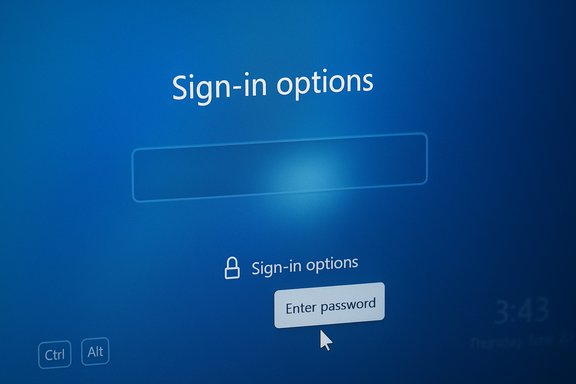
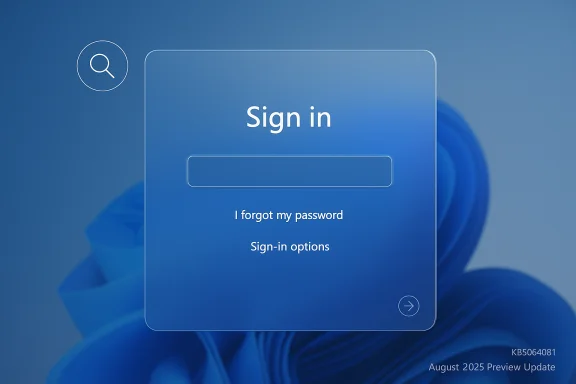
A blue Windows-style sign-in panel with a password field and options.Background / Overview​

The problem traces back to the August 29, 2025 non‑security preview update (identified as KB5064081) and subsequent updates on Windows 11 devices running version 24H2 and version 25H2. After installing the update, some users found the password icon in the lock screen’s Sign‑in options either missing or invisible. Functionally the button was still present — hovering the mouse over the blank area revealed the hidden control, and clicking the invisible placeholder opened the password text box — but the missing visual cue left many users confused and created a genuine accessibility regression for people who rely on consistent visual or assistive cues.
Microsoft acknowledged the issue in its release‑health documentation and listed the symptom, the limited workaround, and its intention to resolve the defect in a future update. The company subsequently included a fix for the rendering problem in later servicing updates that were distributed in the months after the August preview release.
This article unpacks what happened, who was affected, the practical workarounds while the bug persisted, the implications for everyday users and IT administrators, and sensible mitigation and testing guidance to avoid similar headaches with optional/preview updates.

What happened: symptoms and technical surface​

How the bug presented itself​

  • On affected machines running Windows 11 24H2 or 25H2 that had installed the August 2025 preview update (KB5064081) or later updates, the password icon in the lock screen’s Sign‑in options area would not render visually.
  • The underlying UI element remained clickable — hovering the cursor over the empty area reveals the hidden button — and selecting the invisible control would open the password entry field so users could sign in as usual.
  • Under normal behavior, Windows displays the dedicated password option only when multiple sign‑in methods are available (for example, PIN, fingerprint, security key, or password). The bug affected the icon’s visibility in that multi‑option scenario.

Scope and affected platforms​

  • The issue was documented for Windows 11, version 24H2 and version 25H2.
  • The visual regression was introduced after users installed the optional August 29, 2025 preview update KB5064081 or later updates that included the same underlying change.
  • Impact was primarily cosmetic and usability‑related — users were still able to sign in by clicking the invisible area — but the invisible control created confusion and potential barriers to access, especially for people using screen magnification, limited motor control, or other assistive technologies.

Microsoft’s official position and timeline​

  • Microsoft listed the missing password icon as a Known Issue in its Windows release health documents for affected updates and advised that the invisible button remained functional as a temporary workaround (hover over the blank space, click to reveal the password field).
  • Microsoft later included fixes for several issues introduced by the August previews in subsequent non‑security and cumulative updates released in September and October 2025; the lock‑screen rendering issue was specifically addressed in follow‑up servicing updates distributed after the original preview.
  • Microsoft advised users to install the latest updates to receive the resolution, and to check Windows Update for the patch when it appeared for their device.

Short‑term workarounds and practical steps​

While Microsoft worked on a permanent fix, affected users could use several simple techniques to sign in and reduce friction.

Quick immediates (for most users)​

  • Hover the cursor over the blank area where the password icon should be. The invisible password button is still present and will become selectable when hovered.
  • Click the invisible placeholder; the password text field will appear and you can type your password and sign in normally.
  • If you have an alternative sign‑in method configured (PIN, fingerprint, face, security key), use that method instead until a patch is installed.

If the mouse trick is awkward or unavailable​

  • Use any alternate sign‑in method already configured (Windows Hello PIN, fingerprint, face, or a connected security key). These remain the fastest way to bypass the visual glitch.
  • If you rely only on a password and your device is headless or difficult to interact with by mouse, check whether the lock screen shows the password field directly — sometimes Windows will show the password entry box by default if another sign‑in method is unavailable.

Installing the fix​

  • Open Settings > Windows Update. Select Check for updates and install any available updates. Microsoft’s follow‑up cumulative/preview releases included the fix; installing the latest servicing updates and restarting the device should restore normal behavior once the patch has reached the device.
  • If you manage updates centrally (WSUS, SCCM, Intune), verify that those channels have received the remedial update and plan a staged deployment.

When things are more severe​

  • If you encounter related authentication or third‑party agent problems after installing the preview update (for example, enterprise authentication agents that prevent login), follow the vendor guidance for those products; some vendors recommended not installing the preview on production machines or advised temporary workarounds such as disabling the agent or uninstalling the preview update until a KIR or patch was available.
  • IT admins should use caution with preview/optional updates on production endpoints. If necessary, uninstall the problematic update (Settings > Windows Update > Update history > Uninstall updates) and wait for Microsoft’s remedial patch via the normal servicing channels.

Why this matters: user experience, accessibility and security implications​

Usability and trust​

A missing icon is more than a UI quirk. Visual affordances (icons, labels, consistent placement) are how most users know where to click. Removing or hiding a key affordance without a clear alternative creates user confusion and undermines trust in the sign‑in experience — particularly for casual users or those who are not comfortable experimenting with invisible UI controls.

Accessibility impact​

This bug had a disproportionate impact on users relying on:
  • Screen magnifiers and high‑contrast themes, where invisible UI elements break expected visual flow.
  • Users who depend on consistent visual cues and predictable layouts.
  • People with motor impairments who cannot reliably 'search' for an invisible control and expect clear, large targets they can tab to or click.
Microsoft’s temporary workaround — hovering over the blank space — is a poor substitute for a properly rendered visual control, and it is not an adequate long‑term accessibility solution.

Security considerations​

Functionally, the bug did not change authentication mechanics — the password pathway still worked and no new attack vector was introduced simply by a missing icon. However:
  • Sign‑in confusion can lead users to attempt insecure workarounds (e.g., sharing credentials, enabling less secure sign‑in mechanisms, or leaving devices unlocked) if they are unable to authenticate normally.
  • For enterprise environments, interactions between third‑party authentication agents and the update stream created more serious login failures in isolated scenarios; IT teams must validate authentication workflows before broad deployments.

Enterprise implications and best practices​

Preview updates should not be treated as production updates​

Preview and optional updates (like KB5064081) are designed for testing and early feedback. Deploying them broadly in production without pilot testing can surface regressions that impact user productivity and, occasionally, authentication.
  • For production fleets, enable ringed rollouts: pilot a small group, measure impact, then proceed gradually.
  • Keep communication clear: if a preview is deployed to a pilot group, document expected behaviors and reported issues, and ensure helpdesk staff are briefed on temporary workarounds.

Monitor vendor guidance for third‑party agents​

Some third‑party enterprise products reported compatibility issues with the August preview updates; in at least one instance vendors warned that installing the preview could block all logins when their agent was present. IT teams should:
  • Subscribe to vendor advisories for authentication and security agents.
  • Test preview updates against critical authentication agents in a lab environment.
  • Have rollback procedures (uninstall updates, disable agents) validated before mass deployment.

Use Microsoft’s release health channels and KIR awareness​

  • Microsoft’s Release Health dashboard and Windows Update support pages list known issues and the updates that address them. IT administrators should use those pages to determine whether a visible problem is a known issue with a scheduled fix.
  • Microsoft can deploy Known Issue Rollback (KIR) for high‑impact regressions. KIR allows Microsoft to disable a specific change server‑side or via a targeted update, reducing disruption. However, KIR is not an immediate guarantee; organizations should still follow defensive deployment strategies.

How Microsoft resolved the problem (and what to expect)​

  • Microsoft documented the symptom and provisional workaround in its Windows release health notes.
  • The rendering issue was remedied in later servicing updates that rolled out in the weeks following the initial preview. Once the corrective update reached a machine, the password icon returned to normal behavior.
  • For end users: checking Windows Update and installing the latest updates and security cumulative updates is the recommended path to receive the fix.
  • For IT admins: plan a staged update deployment and validate sign‑in flows and third‑party agent compatibility before broad rollout.

Recommendations — what every user and admin should do now​

Home users and enthusiasts​

  • If you can sign in by hovering and clicking the invisible area, continue to do so until Windows Update offers the remedial patch.
  • If you have an alternate sign‑in method (PIN, fingerprint, face, security key), use it while you wait for the update.
  • Check Settings > Windows Update and install any available updates; restart after applying updates so fixes that require a reboot take effect.
  • Avoid uninstalling unrelated updates unless you experience a blocking problem and you know the exact update causing it.

Power users and IT administrators​

  • Treat preview/optional updates as test candidates, not production releases.
  • Deploy optional updates to a small pilot group first; observe for authentication, multimedia, and device‑driver regressions.
  • Monitor Microsoft’s Release Health and the vendor advisories for third‑party authentication software.
  • If you manage updates via WSUS/Intune/SCCM, stage the remedial update carefully and test login and authentication agents before broad rollout.
  • Prepare rollback instructions and train helpdesk teams in the temporary workarounds so end users are not left stranded.

Broader takeaways: why this incident matters for Windows update strategy​

The invisible password icon episode illustrates several enduring realities of modern OS servicing:
  • Complex ecosystems magnify risk. Windows ships across countless hardware and software environments; small UI regressions can create major customer pain when they intersect with authentication flows or accessibility needs.
  • Preview/optional updates accelerate feature rollout but raise the need for strong pilot testing, especially for endpoints that support critical authentication or specialized agents.
  • Communication is essential. Microsoft’s Known Issue listings and follow‑up remedial updates are useful, but administrators and support staff still need to translate that guidance into clear, actionable instructions for end users.
  • Accessibility must be a first‑class concern. UI regressions disproportionately affect users with disabilities; companies that ship large‑scale updates bear responsibility to maintain existing accessibility behavior or provide robust workarounds.

Final assessment and risk checklist​

  • The bug itself was a visual rendering regression: low risk to system integrity, but high risk to usability and accessibility.
  • Microsoft documented the issue and provided an interim user workaround — hover to reveal the invisible button — while working on a permanent fix.
  • Fixes were delivered through subsequent servicing updates; users and administrators should ensure devices are updated and validated.
  • Enterprise admins must exercise caution with preview updates, validate critical authentication software, and be ready to uninstall problematic previews or apply Known Issue Rollbacks where available.
  • Users with accessibility needs should be prioritized in testing rings and helped with alternative sign‑in methods until permanent fixes are installed.

This incident is a reminder that even small visual regressions can significantly disrupt everyday workflows and erode user trust. Keeping update processes staged, monitoring vendor and Microsoft advisories, and ensuring that helpdesk teams are briefed on simple, reproducible workarounds are the practical steps that will reduce downtime and confusion the next time an unexpected UI bug rolls out with an OS update.

Source: Windows Report Can't See Passworrd Icon in Lock screen Sign-in Options? Microsoft Says KB5064081 is to Blame
 

Microsoft has confirmed a Windows 11 visual regression that can make the password sign‑in icon invisible on the lock screen, forcing users to hunt for a hidden control to enter their password while reassuring that authentication itself remains intact.

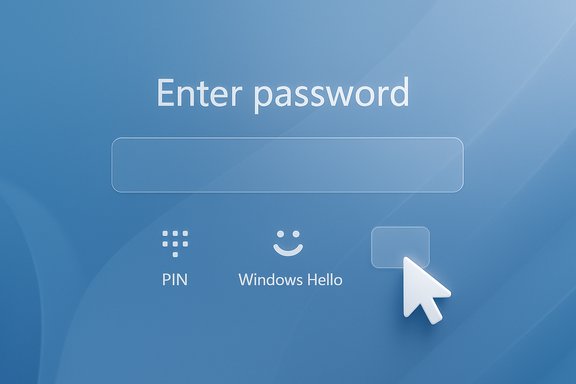
Blue Windows sign-in screen with a password field and Enter password button.Background / Overview​

The problem emerged after an optional preview update published on August 29, 2025 (identified as KB5064081) and was tracked through subsequent preview and cumulative releases on Windows 11 servicing branches 24H2 and 25H2. Microsoft recorded the symptom as a Known Issue in its release‑health documentation and advised a temporary hover/click workaround while engineers worked on a permanent fix.
At a technical level the defect is a UI rendering/regression: the small glyph that represents the password option in the lock screen’s “Sign‑in options” row is not drawn on some systems, but the underlying interactive control — the clickable hitbox that opens the password textbox — remains present and functional. In other words, the platform still accepts a password login, but the visual affordance that guides users to that option may be missing.
This piece unpacks the timeline, practical impact, verified KB references, accessibility and security considerations, step‑by‑step mitigation for users and administrators, and the broader lessons about update governance and accessibility testing for platform vendors.

What users actually see — symptom deep dive​

The visible symptom​

On affected systems the lock screen’s Sign‑in options row shows a blank gap where the password key icon (often a small key or password glyph) should appear. That blank space is visually obvious to anyone expecting to see the icon. Hovering the cursor across the empty spot typically reveals the hitbox and allows a click that opens the password field — the control is present but the glyph failed to render.

Why this matters beyond aesthetics​

A missing icon is more than a cosmetic annoyance. Visual affordances on a frequently used, safety‑critical surface like the sign‑in screen are essential for discoverability and accessibility. Users who rely on consistent visual cues — including people with low vision, those using screen magnifiers, or users with limited motor control — may be unable to find or reliably activate the invisible control. That creates a real operational and accessibility gap, and increases helpdesk load and frustration in shared or managed environments.

Authentication is not broken​

Crucially, this is a rendering problem, not an authentication vulnerability. The credential provider and authentication logic remain unchanged; selecting the invisible control still opens the password textbox and allows a normal password sign‑in. Nevertheless, the diminished usability can indirectly increase security risk if users adopt insecure workarounds (for example, sharing devices or disabling stronger sign‑in methods for convenience).

Timeline and confirmed KB references​

Multiple Microsoft KB/release‑health pages and independent reports tracked the regression from late August through October–November 2025. The most commonly referenced updates in public advisories and community reporting are:
  • KB5064081 — August 29, 2025 non‑security preview (regression origin).
  • KB5065789 — September 29, 2025 preview (follow‑up preview releases that still referenced the issue).
  • KB5066835 — October 14, 2025 cumulative.
  • KB5070773 — October 20, 2025 out‑of‑band (addressed other regressions in the same wave).
  • KB5067036 and KB5068861 — October–November 2025 preview/cumulative packages that continued to list the Known Issue.
Microsoft’s release‑health pages documented the symptom without publishing a device‑level headcount, and the company signalled that a fix was under development while recommending that users install follow‑on servicing updates when they become available. Independent outlets and community threads reproduced the symptom and echoed Microsoft’s hover/click guidance while noting the poor accessibility of that workaround.

Scope, impact and risk assessment​

Platforms affected​

The Known Issue was documented for Windows 11 versions 24H2 and 25H2 on devices that installed the August preview (KB5064081) or later cumulative/preview updates. Reports came from a variety of hardware configurations where Windows Hello methods and a password fallback are both configured.

Functional severity​

  • Severity to system integrity and authentication: Low. Core credential validation and sign‑in still function.
  • Severity to usability/accessibility and operational impact: High for affected users. The inability to see an expected control causes confusion and can block sign‑in attempts for people who cannot use the hover/click workaround.

Enterprise and operational consequences​

For IT administrators, this regression increased helpdesk tickets, complicated kiosk or shared‑device workflows, and raised the question of whether optional/preview updates should ever reach production rings without stricter controls. Organizations that push preview updates broadly risk exposing users to regressions in essential flows such as sign‑in and recovery.

Accessibility concerns​

Microsoft’s official temporary guidance — hover over the blank space and click the invisible control — is an inadequate accessibility mitigation. That workaround assumes pointer access, visual confirmation, and a level of dexterity that some users do not have. The absence of an accessible temporary path (keyboard/voice alternatives documented as the default mitigation) is a serious shortcoming.

Unverified or unknowns​

Microsoft’s public notes do not provide a precise count of affected devices, and regional rollout timing varies by servicing channel, so any estimate of scale would be speculative without telemetry numbers from Microsoft. That device‑count uncertainty should be treated explicitly when planning remediations or support outreach.

Practical guidance — what to do right now​

The bug is inconvenient but manageable. The following are verified, low‑risk steps for end users and administrators while waiting for a remedial update.

Immediate steps for end users​

  • If the password icon is invisible, hover the mouse slowly over the blank space in the Sign‑in options row; the invisible button is still clickable and will reveal the password textbox when selected.
  • Use an alternate sign‑in method if available — Windows Hello PIN, fingerprint, face, or a security key — which are unaffected by the rendering regression.
  • If you lack a mouse, open the Ease of Access tools on the lock screen (bottom‑right) to enable the On‑Screen Keyboard and use touch to select the blank spot, or attempt the Ctrl+Alt+Delete path which in some configurations exposes different sign‑in flows. Success can vary by device.

Steps for administrators and help desks​

  • Pause or stage preview/optional updates on production rings until you can pilot them in a representative test group. The August 2025 preview shows how regressions in optional updates can seep into production fleets when deployment controls are lax.
  • Prepare scripted support instructions for help desks that include the hover/click workaround and alternate sign‑in methods, and prioritize outreach to users who rely on assistive technologies.
  • Monitor Microsoft’s Release Health / Known Issue pages and plan a staged rollout of the remedial update once Microsoft releases it. For managed environments using WSUS, SCCM, or Intune, validate that the patch has been approved for your channel before broad deployment.
  • If necessary and acceptable within security policies, consider uninstalling the problematic preview update until a fix arrives (Settings → Windows Update → Update history → Uninstall updates). This has tradeoffs: you may re‑expose some systems to previously fixed vulnerabilities if uninstalling recent security updates. Use caution.

Technical analysis — what likely went wrong​

The public documentation identifies the issue as a rendering/regression on the sign‑in options component. While Microsoft did not publish a detailed root‑cause analysis in the KB advisories available to the public, common causes for this class of bug include:
  • Resource lookup failures (icon assets not found or incorrectly referenced at runtime).
  • DPI/scaling and high‑contrast theme rendering paths that were insufficiently covered by automated tests.
  • A regression in the compositor or the small UI component that draws glyphs for sign‑in options in the lock screen context.
  • A packaging or localization mismatch for a glyph font or glyph resource that results in a blank draw.
These are plausible technical mechanisms; however, the exact root cause and which one applied here remain unverified absent Microsoft’s in‑depth postmortem. The public Known Issue pages confirm the symptom and remediation status but do not include a detailed engineering postmortem or an ETA, so the above is an informed technical inference, not an authoritative statement of root cause. Treat it as plausible diagnostic reasoning rather than a confirmed explanation.

Why this should have triggered a different incident response​

There are two operational arguments about severity that point to faster, more accessible mitigation:
  • Sign‑in surfaces are a safety‑critical UX domain. Any regression that reduces discoverability or that blocks access for a subset of users should be triaged with higher urgency and an accessibility‑first mitigation strategy. The company’s decision to categorize this as a lower‑severity Known Issue delayed wide distribution of a user‑friendly temporary fix.
  • Temporary guidance relying on pointer hover is inadequate for users who cannot use a mouse. A better short‑term approach would have included explicit keyboard alternatives, voice access guidance, or a hotfix that restores the glyph resource quickly, ideally via an out‑of‑band KIR (Known Issue Rollback) where feasible. Microsoft has deployed out‑of‑band fixes for other regressions in the same update wave, showing the capability to respond rapidly when severity is judged higher.

Recommendations — best practices for users, admins and vendors​

For end users​

  • Enable Windows Hello (PIN/biometrics) where device support exists; this reduces reliance on the password fallback and improves resilience against UI regressions.
  • Keep systems patched with security updates; remedial fixes for this issue were rolled into later servicing releases, so installing the latest recommended updates is the right long‑term step.

For IT administrators​

  • Treat optional/preview updates conservatively: stage them through pilot rings that replicate accessibility and device diversity for your fleet.
  • Maintain clear help‑desk scripts and an accessibility escalation path. Proactively communicate with users who rely on assistive technologies to reduce frustration and downtime.
  • Track Microsoft Release Health/Known Issue pages and be ready to deploy a KIR or out‑of‑band remediation when Microsoft publishes one.

For platform vendors (including Microsoft)​

  • Embed accessibility‑first regression testing for lock‑screen and sign‑in surfaces. Visual regression tools should test glyph rendering across DPI, scaling, high‑contrast themes, and screen magnification scenarios.
  • When a Known Issue affects discoverability or accessibility, publish keyboard and assistive alternatives as part of the temporary mitigation rather than relying solely on pointer‑based workarounds.
  • Reassess the policy that allows optional previews to reach broad device populations without stricter pilot controls for critical flows like sign‑in and recovery.

How to check whether your PC is affected​

  • Open Settings → System → About and confirm your Windows 11 version (24H2 or 25H2) and OS build.
  • Check installed updates: Settings → Windows Update → Update history and look for KB5064081 or subsequent preview/cumulative KBs listed in Microsoft Known Issue pages.
  • Reproduce the symptom: at the lock screen, open Sign‑in options and look for the password icon. If the icon is missing but clicking the blank area opens the password field, your machine shows the documented symptom.
If you are responsible for a fleet, script these checks with PowerShell (Get‑ComputerInfo and Get‑HotFix) to identify devices on the impacted servicing path and prioritize communications to potentially affected users.

Final analysis and takeaways​

The invisible password icon episode is instructive for several reasons. First, it demonstrates that a seemingly small UI regression can have outsized operational and accessibility consequences when it touches fundamental user flows like sign‑in. Second, it highlights the tension between rapid preview testing and the need for conservative deployment in production environments; preview updates can carry regressions that affect day‑to‑day productivity. Third, it underlines the necessity of accessibility‑aware incident response: temporary mitigations must include accessible alternatives that work for keyboard‑only, voice, and assistive technology users.
Microsoft documented the issue publicly and advised the awkward but functional hover/click workaround while preparing a fix that later appeared in follow‑on servicing updates. The company’s decision to track the issue in Release Health was the right transparency move; the remaining test is whether the vendor improves pre‑release checks and emergency mitigations for discoverability regressions so that users with disabilities are not left to guess where to click.
For individual users and IT teams the immediate path is clear: prioritize Windows Hello and other alternative sign‑in methods, stage preview updates properly, prepare help‑desk guidance, and install the remedial cumulative updates once Microsoft publishes them for your servicing channel. For platform vendors, the episode should prompt a renewed emphasis on visual regression coverage, accessibility‑first mitigation playbooks, and stricter pilot control for updates that touch critical user journeys.

The invisible‑icon bug did not break passwords; it broke a promise of predictable, discoverable access. That distinction matters technically, legally and ethically: authentication remained secure, but the loss of a simple visual cue created real, avoidable barriers for people who depend on consistent interfaces. Addressing these failures requires both better technical testing and a stronger commitment to accessibility in emergency communications and temporary mitigations.

Source: Red Hot Cyber Windows 11 Password Issue: Microsoft Warns of Invisible Icon Bug
 

A recent Windows 11 servicing regression has left a small but highly visible piece of the sign‑in experience effectively invisible: after installing the August 29, 2025 preview update identified as KB5064081 (and some updates released after it), many users on Windows 11 version 24H2 and 25H2 report that the password sign‑in icon is missing from the lock screen. Microsoft has acknowledged the problem as a Known Issue, confirmed the missing icon is a UI rendering regression rather than a broken authentication flow, and published a limited workaround that relies on hovering or clicking the blank space where the icon should appear while engineers prepare a permanent fix.

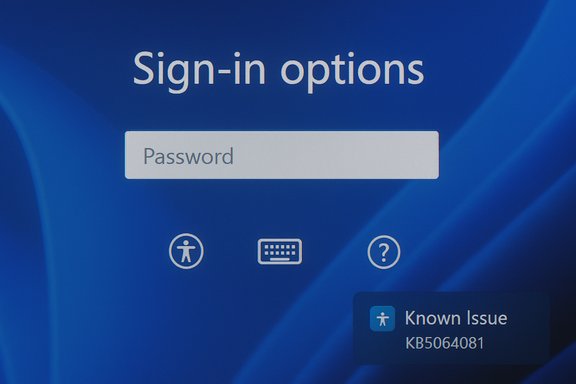
Windows sign-in screen featuring a Password field and a Known Issue KB5064081 notice.Background / Overview​

The symptom is straightforward but disconcerting: when multiple sign‑in methods are configured (for example, a Windows Hello PIN or biometric plus a password fallback), Windows 11 normally shows a small icon to select the password entry path. On affected devices that visual glyph either does not draw or renders as an empty gap; the clickable control remains present, but the visual cue that tells users where to click is missing. The practical result is that users who occasionally need their password instead of the default PIN or biometric method have to hunt for an invisible hitbox to open the password textbox. Microsoft’s official release‑health documentation describes the symptom and the temporary workaround (hover/click the blank area to reveal the password field). This regression traces back to the August 29, 2025 non‑security preview update KB5064081 and continued to appear in multiple follow‑on preview and cumulative releases through September–November 2025; Microsoft repeated the Known Issue wording in several KB pages as it tracked remediation. The problem has been widely reported across community forums, support threads, and independent tech outlets, which reproduced Microsoft’s hover/click guidance while warning about the accessibility impact for users who rely on visual affordances.

What happened — technical anatomy of the bug​

A rendering regression, not a credential failure​

At a technical level, this is a UI rendering regression on the lock screen’s Sign‑in options component. The credential providers and authentication flow remain intact: clicking the invisible control opens the password textbox and the password authentication itself functions normally. The missing icon is therefore a discoverability and accessibility issue rather than an authentication loophole. That distinction matters when evaluating both practical risk and severity.

Likely cause surface​

Microsoft’s public notes stop short of a detailed root‑cause postmortem, but the symptoms point to a failure to draw the glyph/resource used for the password icon, or a regression in the control’s visual‑layer composition. Possible technical triggers include:
  • Asset or resource lookup failure (missing or misaddressed glyph bitmap/vector in the theme/render pipeline).
  • A compositor/regression path that skips rendering of small UI glyphs under certain scaling, theme, or GPU driver conditions.
  • A style or CSS‑like change in the sign‑in options control that causes the icon’s foreground to be transparent or clipped.
Because the hitbox remains, the underlying input control is present and the problem sits squarely in the rendering path. Independent reporting and community deep dives reached the same conclusion: this is a cosmetic but high‑impact rendering regression.

Timeline and affected updates​

  • August 29, 2025 — KB5064081 published as a non‑security preview (optional); community reports tie the regression’s origin to this package.
  • September 2025 — Microsoft’s preview and cumulative releases (KB5065426, KB5065789, KB5068221) listed the icon issue in Known Issues sections as the company tracked remediation.
  • October–November 2025 — follow‑on cumulative and out‑of‑band updates repeated the Known Issue language while Microsoft prepared and staged fixes; some later servicing packages include notes about fixes for related regressions but the password‑icon wording reappeared until remediation reached all rings.
Microsoft’s KB pages remain the authoritative record for which servicing packages list the Known Issue; affected devices are documented as Windows 11 version 24H2 and 25H2 builds that installed the August preview or later servicing updates. Note that Microsoft’s advisory language deliberately avoids quantitative scope (it does not publish a device‑count for affected endpoints), which leaves the exact magnitude of the rollout ambiguous.

Broader context: this bug sits in a noisy update cycle​

The password icon regression did not occur in isolation. The late‑summer and autumn 2025 servicing cycles produced several other notable regressions and issues that required follow‑up updates, emergency patches, or workarounds. Key examples documented by Microsoft and independent outlets include:
  • Problems playing DRM‑protected content (black screens or playback failures in some Blu‑ray/DVD/DTV apps), which Microsoft addressed in follow‑on preview releases.
  • Streaming and low‑latency video issues for NDI/OBS workflows tied to the RUDP networking path after certain security updates; switchable workarounds (change NDI mode to TCP/UDP) were proposed while Microsoft investigated.
  • WSUS and SCCM deployment failures returning error 0x80240069 (svchost.exe_wuauserv crashes) in some enterprise rollout scenarios — an issue that prompted Known Issue Rollbacks and guidance for admins.
  • Other usability regressions affecting recovery tools and Windows Reset, which required emergency/patch‑cycle remediation.
The accumulated pattern matters: when multiple regressions appear in a concentrated servicing window, the perceived quality of the update process declines and IT professionals naturally pay closer attention to pilot and pilot‑to‑production deployment gates. Microsoft’s documentation and remediation cadence for each Known Issue has varied, but the public record shows multiple follow‑up KBs referencing the same set of problems across September–November 2025.

Immediate user impact and accessibility concerns​

  • For most desktop users with a mouse or touchpad, the temporary workaround is functional: hover over the empty spot in the Sign‑in options row and click the blank area; the password box will appear and signing in proceeds as normal. Microsoft documents this as the temporary guidance.
  • For users who rely on keyboard‑only navigation, screen readers, screen magnifiers, or headless/remote devices without pointer access, the missing visual affordance is a significant accessibility regression. The hover/click guidance is insufficient for keyboard‑only workflows and may create real operational barriers for users with disabilities. Community threads and helpdesk posts underscore that the real cost of this bug is borne disproportionately by users who need predictable visual or assistive cues.
  • The security risk is low in technical terms — authentication pathways remain unchanged — but the usability hit can indirectly increase risk if users adopt insecure workarounds (for example, reconfiguring sign‑in options to reduce friction, sharing credentials, or delaying updates). That interplay of usability and security is non‑trivial from an organizational governance perspective.

What to do right now — practical guidance​

If your device shows the missing password icon, follow these steps:
  • Hover the cursor over the blank area where the password icon should appear.
  • When the invisible control responds, click it to open the password textbox and sign in. This is Microsoft’s documented workaround.
If the hover trick is impractical or you cannot use a pointer:
  • Use an alternate sign‑in method if one is available (Windows Hello PIN, fingerprint, facial recognition, or a security key). These paths remain functional and are the least disruptive option until the fix reaches your device.
  • Check Windows Update: install available updates and restart the device. Microsoft’s subsequent servicing releases included fixes for some of the update‑cycle regressions; installing the latest cumulative and servicing stack updates is the recommended remediation path when a patch is publicly available for your machine.
  • For managed environments (WSUS, SCCM, Intune): verify whether remedial updates have been published to your management channel, stage deployments in pilot rings, and prepare rollback instructions. If your environment uses WSUS and you saw the 0x80240069 symptoms in previous months, follow Microsoft’s guidance for Known Issue Rollbacks and ensure your update metadata is current before broad deployment.
  • As a last resort: if the preview update created broader operational problems, administrators can uninstall the optional preview (Settings → Windows Update → Update history → Uninstall updates) and wait for Microsoft’s remedial cumulative update. Exercise caution: removing updates can expose devices temporarily, so balance the security posture with usability needs.

For IT teams — rollout and testing recommendations​

  • Treat preview/optional updates as truly optional for production rings. Use pilot rings that include representative accessibility configurations (high‑DPI, high‑contrast, magnification, assistive tech). Community reports show that the regression appeared in real‑world configurations that can be missed by narrow preflight testing.
  • Add focused visual/regression tests for sign‑in surfaces in automation: lock screen rendering, icon discovery, keyboard navigation, and screen reader compatibility are critical paths and deserve high priority in predeploy checks. The missing icon is a classic visual‑regression that automated UI tests can catch early if coverage targets the sign‑in surface.
  • Prepare clear helpdesk scripts and accessible guidance. If a fix is not yet available in your management channel, instruct users on the hover/click workaround and provide keyboard alternatives and escalation steps for users who cannot use pointer devices. Many community threads show that proactive communications reduce helpdesk load.
  • Monitor Microsoft’s release‑health pages and KB documentation for the Known Issue entries tied to your servicing path (24H2 vs 25H2) and track KB numbers referenced in remediation notes. Microsoft’s KB pages are the authoritative record for which updates list the Known Issue and which follow‑on packages promise remediation.

How Microsoft responded — critique and timeline​

Microsoft documented the symptom in multiple release‑health/Known Issue entries and offered the hover/click guidance as a temporary mitigation. That response is technically accurate but ergonomically thin: telling users to hover where the icon should be is a brittle workaround for a widely used, accessibility‑critical surface.
Strengths in Microsoft’s response:
  • Quick documentation of the Known Issue across affected KB pages and servicing notes. This made the problem visible to admins and helped coordinate follow‑on fixes.
  • Staged remediation in subsequent servicing releases; Microsoft iterated through preview, cumulative, and out‑of‑band updates to address multiple regressions that surfaced in the same time window.
Shortcomings and risks:
  • The initial workaround is pointer‑centric and excludes keyboard/screen‑reader users. For regressions affecting discoverability, temporary mitigations should include accessible alternatives (keyboard sequences, Narrator guidance, or voice/keyboard toggles). Community guidance repeatedly called for accessibility‑first temporary workarounds.
  • Microsoft’s KB wording does not quantify device impact; lack of telemetry disclosure leaves enterprises to estimate scope and build internal risk models. When high‑impact UI surfaces are affected, clearer scope and ETA guidance helps IT plan staged rollouts.

Broader lessons for modern OS servicing​

  • Visual affordances are not cosmetic extras. Sign‑in surfaces are safety‑critical and must have dedicated test coverage across display modes, scaling, and accessibility modes. When those affordances fail, the result is more than a cosmetic bug — it creates measurable operational friction and potentially increased support load.
  • Preview updates remain valuable for catching regressions, but organizations should avoid treating optional previews as production updates; pilot rings that represent users with assistive tech produce the best early warning signals.
  • Communication matters. Known Issue entries are necessary, but remediation plans that include keyboard and assistive‑tech workarounds help reduce harm in the window before a patch certificate arrives. The hover/click workaround is technically correct but ergonomically incomplete.

Verification and cross‑checks​

This report is grounded in Microsoft’s public release‑health/Known Issue documentation for affected updates and builds, and it cross‑references independent reporting and community thread analysis that reproduced the behavior and evaluated its accessibility impact. Major KB pages listing the Known Issue were consulted alongside independent coverage and community discussion to confirm:
  • The regression’s origin is traced to KB5064081 (August 29, 2025 preview).
  • Microsoft’s documented workaround is to hover or click the blank space to open the password textbox.
  • Related update cycle regressions (DRM playback, NDI/OBS stutter, WSUS 0x80240069) are documented in Microsoft KBs and corroborated by multiple independent outlets.
Where Microsoft does not publish telemetry (for example, the number of devices affected), that absence is explicitly noted: any claim about scope beyond Microsoft’s own advisories would be speculative and is therefore flagged as unverifiable in the public record.

Conclusion — the balancing act between speed and stability​

A seemingly small visual glitch — a missing password icon — exposed a large and ongoing truth about modern OS servicing: the interplay of rapid update cycles, a hugely diverse hardware/software ecosystem, and the central role of accessibility creates situations where a cosmetic regression can become a major everyday friction point for real people. Microsoft confirmed the defect, documented the Known Issue across affected KBs, and offered a temporary pointer‑based workaround while rolling remediation into follow‑on updates. That technically correct response was, however, ergonomically incomplete and highlighted the need for stronger accessibility‑first mitigations in emergency communications.
For everyday users the immediate checklist is simple: try the hover/click workaround, use Windows Hello alternatives where available, and install remediation updates when Microsoft publishes them to your management channel. For IT professionals, the incident is a reminder to stage preview updates conservatively, expand sign‑in surface test coverage to include accessibility scenarios, and prepare concise helpdesk instructions that work for everyone — pointer users and keyboard/screen‑reader users alike. The bug is a useful case study: it shows that when update cadence accelerates, quality assurance and communication must accelerate too — especially for critical surfaces such as sign‑in and recovery — because the human cost of a missing icon is not measured in lines of code but in every sign‑in that becomes harder for someone to complete.

Source: thedailyjagran.com Windows 11 Update Bug Hides Password Icon: Microsoft Issues Warning
 

Microsoft has confirmed a baffling but important rendering bug in recent Windows 11 updates: the small password icon in the lock-screen’s “Sign‑in options” can be invisible while the underlying password control still works, forcing users to hunt for an invisible target or resort to alternate sign‑in methods. The issue traces to an August 29, 2025 non‑security preview update (KB5064081) and persisted in later servicing releases for Windows 11 versions 24H2 and 25H2, with Microsoft documenting the symptom and advising a temporary hover/click workaround while engineering prepares a fix.

Dark screen with a sign-in options prompt, a search bar, and keyboard and magnifier icons.Background​

The Windows lock screen offers multiple sign‑in methods when configured: a PIN or Windows Hello biometric commonly appears as the default, while additional methods (password, security key, etc. are revealed through the Sign‑in options affordance. Beginning with the August 29, 2025 optional preview update identified as KB5064081, a small UI regression was introduced in some device configurations: the password glyph that normally appears among the Sign‑in options fails to render. The clickable hitbox for the password option remains present, so users can still sign in by hovering and clicking the blank space where the icon should be; however, the missing visual cue creates a real usability and accessibility problem. Microsoft has recorded this behavior as a Known Issue in its release‑health documentation and continues to track remediation work.
This is a rendering/regression problem, not an authentication failure. The credential provider and password verification flow remain intact; the defect affects visual rendering only. That distinction matters for security, but not for usability: on a daily basis, inability to see the password option can block or slow sign‑in for people who cannot rely on other sign‑in methods. Multiple independent outlets and community threads reproduced the symptom and relayed Microsoft’s public advisory, creating a consistent picture of the defect’s origin and the company’s short‑term guidance.

What changed — technical timeline​

  • August 29, 2025 — Microsoft published the optional, non‑security preview update KB5064081, which is the first public update tied to the rendering regression.
  • September–November 2025 — subsequent preview and cumulative updates carried the same change set in some builds; Microsoft’s release notes for multiple later updates reproduced the Known Issue entry about the missing password icon, indicating the regression persisted until follow‑on fixes were prepared.
Microsoft’s public notes explicitly describe the symptom: “After installing the August 2025 non‑security preview update (KB5064081) or later updates, you might notice that the password icon is not visible in the sign‑in options on the lock screen.” The vendor’s temporary mitigation is simply to hover or click the blank area where the icon should appear because the control’s hitbox remains functional. That text has appeared in release‑health and update pages for affected builds.

Who is affected​

  • Affected OS branches: Windows 11, versions 24H2 and 25H2 (those are the servicing branches Microsoft referenced).
  • Trigger: devices that installed KB5064081 (Aug 29, 2025) or later preview/cumulative updates that carried the same rendering change.
  • Typical conditions: the issue surfaces primarily in multi‑method sign‑in scenarios — where users have a PIN or biometric set up alongside a password. When only a password is configured, the password field may already be visible by default and the bug may not present.
Microsoft has not published public telemetry showing how many machines were affected, nor a per‑device breakdown. Independent reporting suggests the problem was noticeable enough to attract coverage across consumer and enterprise tech outlets, but the absence of vendor telemetry means any claim about the global scale of the issue is speculative. Treat estimates of “widespread” impact cautiously until Microsoft releases device‑level data.

Why this matters: beyond a petty UI glitch​

At first glance the defect sounds trivial: the password option still works. But the impact threads through several real‑world concerns:
  • Accessibility: people who use screen magnifiers, high‑contrast themes, keyboard‑only navigation, or other assistive technologies rely on predictable visual affordances. Removing the icon breaks discoverability and can create real barriers to access. Telling an affected user to “hover until something appears” is an unacceptable accessibility workaround.
  • Trust and support load: sign‑in is the primary, recurring moment of interaction with the OS. A regression on this surface invites confusion and spikes help‑desk calls, particularly in managed environments. Help desks will have to explain awkward workarounds or push alternate sign‑in methods.
  • Enterprise risk and update governance: optional/preview updates are meant for broader validation, but when they land on production systems they can cause operational headaches. Administrators who do not stage preview updates risk mass support issues across fleets.
  • User behavior and security: cumulative friction at sign‑in might push users toward insecure shortcuts (writing down passwords, disabling stronger sign‑in methods for convenience, or sharing devices), which can indirectly increase risk. Even cosmetic regressions can have downstream security impacts.

How to sign in right now — short‑term workarounds​

The practical options for end users are straightforward and require no third‑party tools:
  • Hover and click: move the mouse to the empty space in the Sign‑in options row where the password icon should be. The invisible hitbox is still present; clicking it will open the password textbox. This is Microsoft’s recommended temporary workaround.
  • Use alternate sign‑in methods: if you have a PIN or Windows Hello biometric configured, use that method instead until the fix arrives. Those methods are faster and — in many cases — more secure than a password.
  • On‑Screen Keyboard / Ease of Access: if you don’t have a pointing device, tap the Ease of Access control on the lock screen, open the On‑Screen Keyboard, and use touch to activate the invisible area. The password field will appear after the hidden control is clicked.
  • IT guidance for managed devices: communicate the issue to users, provide simple step‑by‑step instructions for the hover/click workaround, and prioritize remediation updates when Microsoft releases the fix. If you push preview updates in policy rings, consider rolling them back for wider cohorts until the issue is resolved.
These are workarounds, not cures. The hover/click method is awkward and unsuitable as a long‑term accessibility strategy. Organizations should treat the workaround only as a stopgap while waiting for Microsoft’s remediation.

Technical analysis: what likely happened​

Public reporting and Microsoft’s own wording point strongly to a visual asset/render path failing to draw in certain render conditions, while the UI control logic and hitbox remained intact. That pattern — a glyph or image failing to render — usually stems from one of a few underlying issues:
  • Resource selection or packaging error: a glyph asset referenced by the Sign‑in options UI may not be present in some language/locale or device configurations after the update packaging process. If the resource lookup falls back to a null entry, the hitbox remains but the glyph is missing.
  • Rendering pipeline regression: a change in the compositor or theme handling could cause a glyph layer to be clipped, drawn with zero alpha, or drawn behind another layer. Variations across GPU drivers, display scaling (DPI), and high‑contrast modes increase the surface area for this kind of failure.
  • Accessibility or theme interplay: high‑contrast or magnification settings change how glyphs are drawn; a regression might only reproduce under those specific settings, which would explain partial — rather than universal — exposure of the bug.
Because Microsoft’s advisory emphasizes a rendering/visibility problem and not authentication, any mitigation that reintroduces the visual resource or corrects the render path should fix the symptom. Microsoft’s release notes indicate their engineers tracked the issue and planned fixes in follow‑on servicing updates. Independent reporters later identified follow‑up updates that addressed related regressions, implying a code‑side fix was rolled or scheduled.
Caveat: absent full internal telemetry or a Microsoft postmortem, this is reasoned inference based on the symptom set and the company’s wording. Treat the above as a technically plausible explanation, not a confirmed root cause until Microsoft publishes a technical incident report.

Enterprise impact and recommended response​

For IT leaders and administrators, this incident exposes two practical risks: immediate user disruption and longer‑term update governance lessons.
Immediate actions to reduce disruption:
  • Confirm affected builds: check your update management console and device update history for devices that installed KB5064081 (Aug 29, 2025) or later preview/cumulative updates that Microsoft has flagged.
  • Communicate clear guidance: send a short step‑by‑step note to users describing the hover/click workaround and recommending the use of Windows Hello (PIN/biometrics) until remediation is applied. Provide screens and short gifs if needed to speed comprehension.
  • Adjust update rings: pause or restrict optional preview updates from broader deployment rings until the fix is validated in pilot groups. Use staging to ensure sign‑in surfaces are included in pilot QA.
  • Train help desks: prepare scripts for Level 1 support to triage lock‑screen icons and guide users through alternate sign‑in. Prioritize accommodations for assistive technology users who may not be able to “hover and discover.”
Policy and process recommendations:
  • Treat sign‑in and recovery surfaces as high‑impact must‑pass areas in pilot testing. Visual regression tests should be included under all theming, scaling, and accessibility permutations.
  • Expand automated visual regression testing to include lock‑screen flows and sign‑in options. Visual diffs on critical UI surfaces catch invisible glyph regressions earlier.
  • Strengthen preview governance: optional updates should be restricted to smaller cohorts until a robust telemetry response is confirmed.
  • Make accessibility mitigation part of Known Issue guidance: vendor advisories should include keyboard/voice alternatives, not pointer‑only workarounds, when visual affordances are degraded.

Accessibility critique: why “it still works” is not enough​

Vendor statements that “the button is still there” are technically accurate but fall short as accessibility guidance. Accessibility is about ensuring equal discoverability and operability for all users, not merely functional parity for those who can guess or improvise. In this case:
  • Keyboard-only users may find the Sign‑in options row non‑discoverable without clear focus states or textual cues.
  • Screen‑reader users need explicit accessible names and vocalized options; a missing glyph removes an expected, spoken option if the accessibility tree is not robust.
  • High‑contrast and magnification users may not perceive the invisible hitbox and rely on visual anchors that the regression removes.
Microsoft’s temporary instruction to “hover” is pointer‑centric and excludes several disability modalities; Known Issue advisories should include keyboard and assistive‑technology guidance by default. Organizations should prioritize alternative sign‑in registration (PIN or biometrics) and ensure assistive tech users have pathways to sign in while vendor fixes are deployed.

What Microsoft has said and what remains uncertain​

Microsoft documented the symptom in release‑health and update KB pages and advised the hover/click workaround. The vendor stated engineers are working to resolve the issue and that it originated with the August 29, 2025 preview update (KB5064081). Those points are reflected in the company’s public notes and repeated by multiple independent outlets.
What remains uncertain:
  • Scope and telemetry: Microsoft has not published device‑level telemetry or a percentage of affected machines. Any estimate of how many devices were impacted is therefore unverified. Independent reports indicate the issue was not universal and likely limited to certain configurations, but without vendor telemetry this cannot be quantified.
  • Exact root cause: while the symptom and likely class of bug (rendering asset or pipeline regression) are clear, Microsoft has not published a detailed postmortem that outlines the exact code change, driver interaction, or packaging error that produced the invisible glyph. Until Microsoft publishes such a breakdown, assertions about the precise root cause remain inferential.
Flagging these unknowns is mandatory: users and admins need transparent, data‑backed timelines for remedial patches and clear guidance about when to expect fixes and which KBs deliver them.

Longer‑term lessons for platform quality and update management​

This incident is a compact case study of the tension between speed and stability in modern OS servicing. Key lessons:
  • Sign‑in and recovery surfaces are high‑impact. They should be treated as critical in automated and manual testing, with broad permutations of DPI, theme, locale, and assistive technologies.
  • Preview waves are useful but must be carefully managed. Optional updates that touch fundamental flows should be restricted to smaller cohorts or given additional scrutiny in pilot rings.
  • Known Issue guidance should be accessibility‑aware. Temporary mitigations must include keyboard/voice alternatives and clear communication for users of assistive technologies.
  • Enterprises must maintain conservative policies for preview updates, and help desks need short, clear remediation scripts for login regressions to reduce end‑user friction and SLA impact.

Practical checklist — what to do now​

  • End users
  • If you’re affected, hover/click the blank area in Sign‑in options to reveal the password textbox and sign in.
  • Register a PIN or Windows Hello biometric if your device supports it; these methods offer faster and more secure sign‑in.
  • Check Windows Update and install remediation updates when Microsoft publishes them.
  • Administrators
  • Identify devices that installed KB5064081 (Aug 29, 2025) or subsequent preview/cumulative updates flagged by Microsoft.
  • Communicate the workaround and provide accessible guidance to assistive technology users.
  • Pause or restrict optional preview updates to pilot rings until fixes are verified.
  • Monitor Microsoft’s release‑health pages and apply remediation updates when available.
  • Help desks
  • Prepare a short script that explains the hover/click workaround and provides an alternative path (Windows Hello, On‑Screen Keyboard) for users who cannot use a mouse.

Conclusion​

A missing password icon on the Windows 11 lock screen is a deceptively small regression with outsized human impact. Functionally, authentication remains intact — the hidden password control still works — but usability, accessibility, and trust suffered while the issue persisted after the August 29, 2025 preview (KB5064081). Microsoft documented the behavior in its release‑health notes and advised the awkward hover/click workaround while engineers worked on remediation; independent reporting and community threads corroborated the vendor’s timeline and guidance.
The episode underlines essential practices for both vendors and IT organizations: prioritize sign‑in surfaces in test automation, include accessibility checks in Known Issue mitigations, and use conservative preview deployment strategies for critical flows. For users, the immediate practical advice is simple: use Windows Hello where possible, apply vendor updates when they appear, and follow help‑desk guidance if you encounter the invisible password icon. Until a vendor‑delivered remediation lands, the hover‑and‑click workaround — awkward as it is — remains the only direct path to the hidden password field.


Source: gHacks Technology News Windows 11: Password button may be missing on the lock-screen - gHacks Tech News
 

Microsoft confirmed a small but consequential UI regression in its Windows 11 preview channel: after installing the optional preview update identified as KB5064081, some devices running Windows 11 (versions 24H2 and 25H2) can no longer see the password sign‑in icon on the lock screen even though the password control itself remains functional.

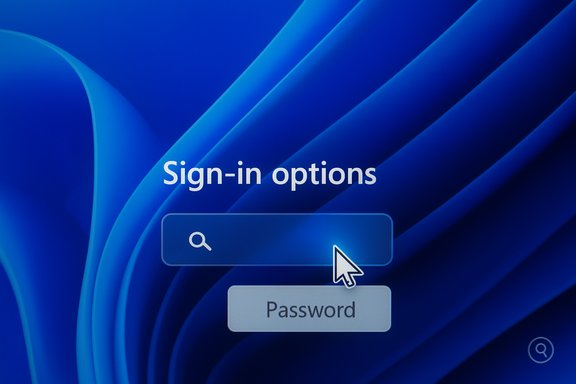
Sign-in options screen on a blue abstract background, with a cursor over the search box and a Password field.Background / Overview​

The Windows lock screen’s Sign‑in options area is a critical, high‑frequency surface: it presents the user’s primary credential input (PIN, biometric, or password) and offers alternate methods (password, security key, fingerprint). The visual cues in that area are not cosmetic — they are essential affordances that guide people to recovery paths when their primary method fails. Beginning with an August 29, 2025 preview update (KB5064081), Microsoft shipped a change that in some device configurations resulted in the password glyph not rendering, leaving a blank gap in the Sign‑in options even though the underlying clickable hitbox remained present. Microsoft listed the symptom as a Known Issue for the affected preview updates while engineering worked on a fix.
This is a classic example of a visual or rendering regression: the interactive control exists and functions, but the visual asset (the small key/password icon) fails to draw. That distinction — usability broken, authentication intact — reduces the security severity but elevates the accessibility and operational impact. Numerous independent outlets and community threads reproduced the symptom and reported Microsoft’s acknowledgement; the collective timeline ties the regression to KB5064081 and several follow‑on preview and cumulative releases.

What exactly happened (technical breakdown)​

The symptom, in plain terms​

On an affected Windows 11 machine configured with multiple sign‑in methods (for example, a PIN plus a password or biometric), the lock screen’s Sign‑in options row shows an empty slot where the password icon normally appears. The clickable area (the hitbox) for the password option is still present; hovering with a mouse reveals the responsive region, and clicking it opens the password text box so a user can type their password and sign in. In short: the password option is there but the icon that tells you where to click is invisible.

Why this is a rendering problem, not an authentication failure​

The underlying credential provider — the code path that accepts a typed password and authenticates it against the account — was not altered in the regression. Systems continue to accept passwords normally once the (invisible) control is activated. Microsoft explicitly characterized the issue as a UI rendering/visibility bug and listed the hover/click step as a workaround while a permanent fix was developed. That phrasing is important because it clarifies the threat model: this is an accessibility/usability regression rather than a break in authentication.

Where the regression surfaced​

Microsoft documented the problem for Windows 11 servicing branches version 24H2 and 25H2, and the problem was tied to the August 29, 2025 preview update KB5064081 and some subsequent updates that carried the same change set. Independent reporting and community threads tracked the regression through September–November updates while Microsoft tracked remediation in follow‑on releases.

Who’s affected and under what conditions​

  • Devices running Windows 11 version 24H2 or 25H2 that installed the preview wave beginning with KB5064081 (and in some cases later servicing updates) are the primary candidates.
  • The symptom appears only on systems with multiple sign‑in methods configured (e.g., PIN or Windows Hello biometrics coexisting with a password). If a device only uses a password (no Windows Hello method), the password box often appears by default and the issue is not visible.
  • Desktop and laptop users with a mouse can usually recover quickly via the hover/click workaround; users on headless devices, touch‑only systems, or keyboard‑only workflows may find the control effectively hidden and the workaround harder to use. Accessibility tool users (screen magnifiers, high‑contrast themes) are disproportionately impacted.
Important caveat: Microsoft has not published device‑level telemetry numbers for this regression, so any claim about the total number of affected PCs is speculative. Treat population estimates as unverified unless Microsoft publishes explicit telemetry.

The visible workarounds (for users)​

While Microsoft prepared a permanent resolution, the company published a crude but effective temporary workaround: hover or click the blank area where the password icon should appear — the invisible control is still present and will open the password textbox. For users with a mouse this is often enough, but it’s a poor substitute for an accessible solution. Here are practical steps and alternatives.

Quick steps to reach the password field​

  • Move the mouse pointer across the Sign‑in options area on the lock screen until the blank spot highlights.
  • Click the highlighted (but invisible) control to bring up the password textbox.
  • Type the password and press Enter.

If you don’t have a mouse​

  • Use Tab to cycle focus among controls on the lock screen and press Enter when the focus appears to trigger the (invisible) password control. Behavior can vary by build and device; this method can be finicky.
  • If Tab navigation fails, use any alternate sign‑in method already configured (PIN, fingerprint, face, or security key) to sign in and then address updates from within Windows.

If you are frequently an occasional or guest user​

Temporarily change sign‑in settings from an account that can sign in to prefer password entry by default (for example, disable other sign‑in methods until the fix is installed). That is clumsy and not ideal for security, so only use it as a short‑term measure for kiosks or lab machines.

Diagnosing the issue: how to tell if you’re affected​

  • On any affected machine, open Settings > System > About and confirm the Windows 11 version is 24H2 or 25H2.
  • Open Settings > Windows Update > Update history and look for previews or optional updates installed since late August 2025, especially KB5064081.
  • Lock the machine (Win+L) and inspect the Sign‑in options row: if there’s an empty gap where the password key should be and hovering over it reveals a clickable area, you’ve reproduced the reported symptom.
If you manage devices centrally (WSUS, Intune, SCCM), consult your update management console to identify which machines received the optional preview wave; Microsoft’s release‑health notes for specific KBs can be cross‑checked against your deployed builds.

How to avoid or remediate the issue​

If the missing icon is a problem for you or your users, here are practical ways to avoid the friction and get back to a predictable sign‑in experience.

Option A — Avoid the preview KB (prevention)​

  • Do not install optional preview updates on production machines unless you are running pilot rings designed to exercise edge cases and accessibility scenarios. Keep production systems on the standard cumulative update cadence. Microsoft’s preview channel is explicitly for early validation and not intended for broad deployment.

Option B — Roll back the preview update (if already installed)​

  • Sign in using the hover/click workaround or alternate method.
  • Open Settings > Windows Update > Update history > Uninstall updates.
  • Find the preview update (e.g., KB5064081) and uninstall it, then restart the device.
  • After rollback, defer preview/optional updates via Windows Update settings or your update management system.
Note: Uninstalling updates can have side effects and is not reversible for some servicing stack changes; administrators should test rollback procedures in a controlled pilot ring before broad remediation.

Option C — Install Microsoft’s remedial update (when available)​

Microsoft tracked the issue in Known Issues for affected updates and rolled fixes into later servicing updates. Check Windows Update and install any pending quality or cumulative updates; Microsoft’s follow‑on releases included patches that restored the icon rendering for many devices. Always install the latest cumulative updates recommended for your servicing channel.

Guidance for administrators and help desks​

This regression demonstrates how small visual bugs can create outsized support costs for organizations. Administrators should take these measures:
  • Pause optional preview updates on production rings. Only pilot preview builds on constrained pilot groups with active telemetry and accessibility testing.
  • Update help‑desk runbooks: provide scripts that instruct users how to use the hover/click workaround, Tab navigation, or an alternate sign‑in method. Document rollback steps and escalation paths.
  • Use Intune/WSUS/SCCM to ensure remedial cumulative updates are staged and deployed once Microsoft marks the Known Issue as fixed. Verify fixes on representative device models before broad rollout.
  • Prioritize accessibility validation in pilot testing: include screen magnifiers, keyboard‑only navigation, high‑DPI scaling, and visually constrained themes (high contrast) in automation and manual checks. The incident shows that sign‑in surfaces must be treated as mission‑critical UI for accessibility.

Accessibility and UX implications — why a missing icon matters​

At first glance the absent glyph might look trivial. In practice, it undermines the platform’s discoverability and trust. Accessibility advocates note several concrete harms:
  • Screen magnifier and low‑vision users rely on predictable visible affordances; an invisible control forces guessing or a chain of remedial steps that can be inaccessible.
  • Keyboard‑only users expect focusable elements with visible focus indicators; an invisible icon complicates tabbing strategies and can break discoverability for assistive tech.
  • Public labs, kiosks, and shared devices amplify the operational cost: staff must assist occasional users who don’t know the workaround.
From a UX and product management standpoint, the incident highlights an important principle: visual affordances on critical surfaces are not optional extras — they are fundamental accessibility and recoverability features and should be treated as such in test coverage and risk assessments.

Microsoft’s response and timeline (as documented)​

Microsoft acknowledged the rendering bug, listed it under Known Issues for the affected preview update(s), and advised the hover/click temporary workaround while engineering worked on a permanent fix. The regression was first linked to the August 29, 2025 preview KB5064081 and was visible in release notes for some follow‑on preview and cumulative updates across September–November 2025. Microsoft’s published guidance urged affected users to check Windows Update for the remedial patch and, if necessary, roll back the preview package.
Independent outlets and community threads reproduced the behavior and referenced Microsoft’s release‑health notes, which provides corroboration from multiple reporting vectors. However, Microsoft did not publish a device‑level impact number in those advisory pages, so the exact scope remains undisclosed publicly. Treat impact numbers as unverified until Microsoft provides telemetry.

Critical analysis — strengths, risks, and what this episode reveals​

Notable strengths​

  • Microsoft documented the issue in its Known Issues / release‑health pages and provided a direct, clearly described workaround: hover/click the blank area. That transparency is useful for administrators and support staff to triage and guide users.
  • Authentication itself remained intact. From a security standpoint, the credential provider and password flow were not compromised; the problem was visual, not an authentication vulnerability. That fact reduces the immediate security risk.

Key risks and failures​

  • Accessibility regression: the workaround is pointer‑centric and fails keyboard‑only and assistive technology scenarios. A temporary mitigation should have included keyboard and voice alternatives, not just mouse hover.
  • Operational fallout: preview updates reached devices in ways that impacted production workflows. The incident underscores the reluctance of some organizations to deploy preview waves broadly and the need for stricter staging and pilot testing.
  • Communication granularity: Microsoft correctly documented the issue, but the absence of device‑level telemetry or a firm remediation ETA left admins and users to rely on community reporting for scope and patch timing. Clearer timelines and per‑build “fixed in” annotations would reduce confusion.

Systemic lessons​

  • Sign‑in surfaces must be subject to visual regression and accessibility automation in pre‑release validation.
  • Preview waves should be constrained for flows that touch critical recovery/restore surfaces.
  • Vendor remediation guidance for accessibility regressions should include keyboard, voice, and screen reader stepwise workarounds — not only pointer workarounds.

Practical checklist: what users and admins should do now​

  • For end users:
  • If you installed an optional preview and see the missing password icon, use the hover/click trick or Tab navigation to activate the password field.
  • If you can’t reach the password field, sign in with an alternate method (PIN, Windows Hello, security key) and then either uninstall the preview update or wait for Microsoft’s fix.
  • For administrators:
  • Hold optional preview releases on production rings. Deploy to pilot groups that include assistive tech users.
  • Patch help‑desk runbooks with the workaround and rollback instructions.
  • Verify remedial updates from Microsoft before broad deployment; test on representative hardware and accessibility configurations.

Conclusion​

A missing password icon on the Windows 11 lock screen is a deceptively small regression with outsized consequences: sign‑in is the most frequent, critical interaction on a client OS, and hiding a visual affordance on that surface degrades usability and accessibility materially. Microsoft’s decision to document the issue and advise a hover/click workaround helped triage the problem, and the company moved to remediate the regression in follow‑on updates. Still, the incident is a practical reminder that preview channels can surface unexpected regressions on critical flows — and that automation and manual validation must explicitly include visual and accessibility checks for key surfaces like sign‑in.
For individual users, the safest immediate approach is to avoid installing optional preview updates on production machines and to use alternate sign‑in methods where possible until the fix is delivered. For administrators, the episode reinforces two enduring best practices: stage updates conservatively and broaden pilot testing to include accessibility scenarios. Those measures reduce user friction, lower help‑desk load, and keep the most critical interactions — signing into your device — predictable and reliable.

Source: extremetech.com Windows 11 Preview Update Makes Sign-In Tricky From the Lock Screen
 

Microsoft has confirmed that the August 29, 2025 non‑security preview update KB5064081 can make the password sign‑in icon invisible on the Windows 11 lock screen, forcing affected users to click the blank space where the icon should be to open the password field — a confirmed but cosmetic UI regression that does not break authentication itself.

Blue Windows sign-in screen showing Enter password with a password box and PIN/Windows Hello options.Background​

The problem surfaced after the optional preview update KB5064081 was made available to Windows 11 devices running the current servicing branches (notably Windows 11 24H2 and 25H2). Microsoft classifies KB5064081 as a non‑security preview (optional) update, meaning most users will only see it if they manually install preview patches or if preview/optional updates are enabled via update settings or Insider rings. The company has listed the symptom in its known‑issues section and provided a temporary workaround while it works on a permanent fix. This is a usability regression rather than an authentication failure: the underlying credential provider and password authentication path remain functional. The visible symptom is limited to the missing glyph — the clickable control (the hitbox) that activates the password text box is still present but not being drawn correctly. Hovering over the empty slot often reveals a responsive area, and clicking that area opens the password field so the user can type their password and sign in.

What KB5064081 changed (short overview)​

KB5064081 is a wide‑reaching preview update that bundles UI and platform changes as Microsoft continues to modernize internal libraries and expand feature surfaces. The update's release notes enumerate a collection of functional changes and technical adjustments, including:
  • Revisions to Windows Recovery processes and components.
  • Updates for the ReFS file system.
  • ARM64 performance optimizations for specific workloads.
  • Adjustments to Chinese input method behaviors.
  • New or expanded functionality in areas such as Recall, Click to Do, the taskbar, the Search environment, Widgets, File Explorer, and Windows Hello.
Because preview builds often carry experimental or early changes to system components, the chances of drawing a regression in some render path are higher than with broadly deployed cumulative security updates. The Microsoft release note for the preview explicitly documents several known issues and workarounds for side‑effects introduced by these changes.

Symptom in detail: what users are seeing​

  • On affected machines configured with multiple sign‑in options (for example, PIN plus password or biometrics), the Sign‑in options row on the lock screen can show an empty gap where the small password icon (key glyph) usually appears.
  • The control is not truly removed — its visual element fails to render while the control’s functionality remains intact. Clicking the blank area where the icon should be opens the password text box.
  • If a device is configured to use only a password (no PIN or Windows Hello), the password field will typically appear by default and the bug may not be visible. The issue primarily impacts users with multiple sign‑in methods where the UI draws a compact row of icons.

Practical consequences​

  • For most users this is an annoyance rather than a breakage: signing in still works once the password field is opened.
  • The user experience hit is disproportionate because the lock screen and sign‑in surface are used every session and are a safety‑critical UI.
  • In edge cases — users who rely on a password as a fallback because they’ve forgotten their PIN or lost biometric access — the invisible icon can cause confusion and wasted support calls.

Confirmations and scope — what Microsoft and independent reporters say​

Microsoft added the condition and workaround to the KB’s Known Issues: after installing KB5064081 (or later updates that include the same change set), the password icon might be missing or invisible in the lock screen sign‑in options. Microsoft’s guidance is to hover over and click the placeholder area to open the password text box; the company says it is working on a fix and will provide updates when available. Independent technology outlets and community forums verified the behavior in real world systems and echoed Microsoft’s comment that this is a UI rendering regression, not an authentication or security failure. Coverage from major outlets emphasized that the issue affects only those who installed the optional preview update and tends to appear when multiple sign‑in methods are enabled.

Why this happened (technical analysis)​

At a high level, the defect fits a common class of update regressions: a UI component or resource lookup failed to render under certain combinations of system libraries, language/input method configurations, or new drawing pipelines introduced by the update.
  • The update replaces or modernizes internal libraries and interfaces across several components (sign‑in surface, Shell, File Explorer, Windows Hello). A small rendering regression in a shared component can therefore show up in multiple places.
  • The control’s hitbox remaining functional while the glyph is invisible points to a rendering/resource failure — the UI element is present in the layout but its visual asset (glyph/font/bitmap) or the draw call fails under particular conditions.
  • Because the issue is cosmetic, authentication logic — credential providers, GINA/LSA hooks, and account validation — are untouched. This reduces technical severity but increases usability risk because sign‑in surfaces must be bulletproof.
Speculative theories that the issue was caused by AI‑generated code or specific new tooling have circulated on social media; these claims are unproven and should be treated as speculation until engineering postmortems become available.

Precedent: recent update regressions and the bigger picture​

This incident is one of several high‑visibility update regressions in recent months that exposed fragility in certain test coverage assumptions and rollout staging:
  • Windows Recovery Environment (WinRE) input failure — the October cumulative update KB5066835 caused USB keyboards and mice to stop functioning inside WinRE, preventing navigation of recovery options. Microsoft released an out‑of‑band emergency patch (KB5070773) to restore USB input in WinRE for affected servicing branches. That bug was far more serious because it impacted recovery tools rather than a cosmetic UI element.
  • Media Creation Tool (MCT) instability — a Windows 11 MCT build distributed around late September 2025 sometimes crashed immediately on Windows 10 hosts, blocking users making installation media at a crucial time. Microsoft documented and later corrected the MCT behavior in follow‑up updates.
  • Gaming performance regressions — October’s KB5066835 was also linked to dramatic frame‑rate drops in certain games on some hardware and driver stacks. NVIDIA issued a hotfix driver (GeForce Hotfix 581.94) to mitigate Windows‑triggered performance regressions for affected titles while vendor and Microsoft teams investigated underlying causes. This demonstrated how an OS update can ripple into third‑party stacks and require coordinated fixes.
These events underscore a reality: updating complex operating systems that integrate millions of lines of code, hardware drivers, and third‑party components can push latent combinations into failure. Preview updates are designed as a safety valve for catching such regressions early, but some preview failures still escape detection until broader deployment.

Practical guidance for users and administrators​

The KB5064081 password icon bug is not a security break, but it is irritating and could prompt avoidable helpdesk tickets. Here’s clear guidance for different audiences.

If you are an affected end user​

  • Workaround (temporary): Hover over and click the blank slot where the password icon should appear. The password text box will open and allow normal password entry. Microsoft documents this as the official temporary workaround.
  • Alternatives:
  • Use your PIN or Windows Hello (fingerprint/face) if those methods are available.
  • If you absolutely need the visual icon back and can’t tolerate the bug, uninstall the optional preview update (steps below).

If you are an IT pro or administrator​

  • Treat KB5064081 as an optional preview release. For production machines, avoid enabling preview/optional channels or automatically installing preview updates. Use Windows Update for Business, WSUS, or your management tooling to block or defer preview packages until validated.
  • If the update has already been applied widely and you see an uptick in support calls, consider uninstalling the preview update from symptomatic machines or pausing preview installations until Microsoft ships a fix. See the uninstall steps below.
  • Prioritize fixes and testing for more severe regressions (WinRE, Media Creation Tool, driver interactions) that could prevent recovery or disrupt operations.

How to uninstall the preview update (safe rollback)​

  • Open Settings → Windows Update → Update history.
  • Under Related settings, select Uninstall updates.
  • Locate the preview update (KB5064081 or later preview entries) in the list and click Uninstall.
  • Follow the prompts and restart when instructed.
  • If you cannot boot into Windows, use the Windows Recovery Environment: Troubleshoot → Advanced options → Uninstall Updates.
Note: not every update can be uninstalled indefinitely; rollback windows for feature updates are time‑limited and removal options depend on how long ago the update was applied and what Microsoft retains for rollback. Always keep backups and system images for enterprise scenarios.

Risk assessment​

  • Security: Low. The bug is cosmetic and does not disable authentication. Passwords still work and no elevated threat model is introduced by the missing glyph.
  • Usability/Support costs: Medium. Sign‑in UI regressions produce high volumes of surface‑level support incidents because most users are not inclined to try hidden click zones or diagnose preview update provenance.
  • Operational risk (enterprises): Low to Medium, depending on mixing preview channels in production environments. If preview updates are deployed broadly in mixed fleets, a UI bug can increase service desk volume; but it does not directly threaten enterprise identity, authentication, or data confidentiality.
  • Reputational risk for Microsoft / trust: Medium. Multiple regressions in a short time (WinRE, MCT, gaming performance interactions) erode confidence in update quality and staged rollout integrity. Rapid out‑of‑band fixes (for WinRE and MCT) show response capability but also spotlight test coverage gaps.
Any claim that a specific development practice (e.g., AI‑generated code) is the cause should be treated as unverified unless Microsoft or its engineering teams release an explicit postmortem. Publicly available evidence supports a rendering/regression root cause, not an agenda‑level attribution.

What Microsoft is doing and what to expect​

  • Microsoft has documented the issue in the KB’s Known Issues section and labeled the hover/click behavior as the temporary workaround while engineering works on a fix. The support entry states Microsoft will provide information when it becomes available but does not provide an explicit timeline for resolution.
  • For more serious regressions detected after monthly updates (for example, the WinRE USB input failure), Microsoft has demonstrated a capacity to issue out‑of‑band emergency updates (e.g., KB5070773) to reverse functionality losses. That same rapid‑response path exists for critical regressions; cosmetic issues typically follow less urgently but remain tracked in release health. Expect a fix via either a future preview update or a regular cumulative update if the change set is rolled into servicing pipelines.

Recommendations (short checklist)​

  • For home users:
  • If bothered by the invisible icon, click the blank space to open the password box, or uninstall the optional preview update following the Settings route.
  • Avoid installing optional preview updates unless you want to test new features.
  • For IT administrators:
  • Block or defer preview updates on production devices (policy/WSUS/WUfB).
  • Maintain a patch lab and smoke‑test builds that you will move to pilot rings before broader deployment.
  • Communicate clearly to helpdesk staff about the workaround to reduce support queue time.
  • For power users and enthusiasts:
  • Use System Restore, image backups, or virtualized test devices before applying preview updates broadly.
  • If gaming performance regressions or other functional breakages occur after unrelated updates, check vendor advisories (GPU vendors, OEMs) for hotfix drivers or mitigations.

Final analysis and takeaway​

The invisible password icon introduced by KB5064081 is a nuisance rather than a system‑breaking failure: the authentication mechanism remains intact and a simple hover/click workaround opens the password field. Microsoft’s public acknowledgement and listing in the Known Issues section is the correct process for a preview regression, and the absence of a firm timeline for the fix is consistent with how preview channel problems have been handled historically. However, the incident is also a reminder that modern Windows updates interact with a vast surface of UI, drivers, and third‑party components — and even cosmetic regressions can create disproportionate friction because they touch the lock screen, a daily user touchpoint. Recent history (WinRE failures, Media Creation Tool problems, and cross‑vendor gaming regressions) shows that optional or preview updates are the right place to catch such problems, but that they still occasionally escape test fences and require rapid follow‑up fixes or driver mitigations. For anyone running production systems, the sensible approach remains conservative: keep preview updates in test rings only, maintain reliable restore points, and educate end users about simple workarounds to reduce needless helpdesk churn.
The invisible password icon is an annoying but contained UI regression; the path to recovery is straightforward (hover and click, use other sign‑in methods, or uninstall the preview update). Microsoft has validated the issue and is tracking a fix — until then, the best defense is controlled deployment and clear communication to users and support teams.
Source: igor´sLAB Windows login irritates users: password field only accessible via blank space | igor´sLAB
 

Back
Top