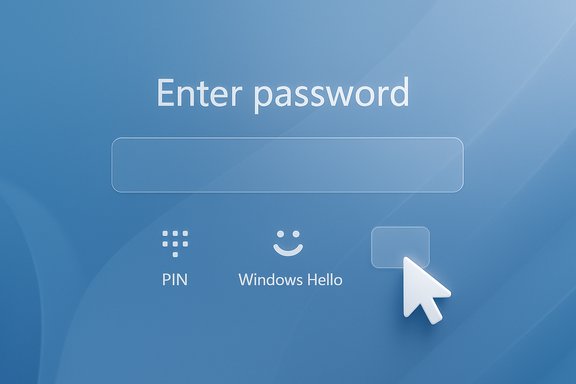
Microsoft has confirmed that an August 2025 optional preview update left the password sign-in icon invisible on some Windows 11 lock screens — a small visual bug with outsized usability and accessibility impact that persisted for weeks until Microsoft rolled a fix into later cumulative updates.
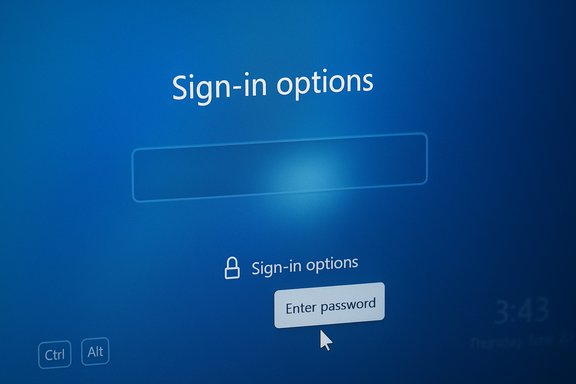
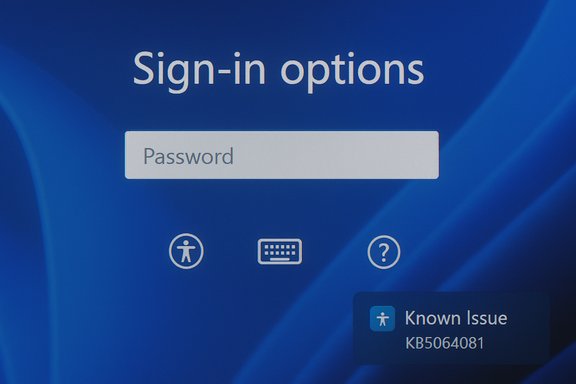
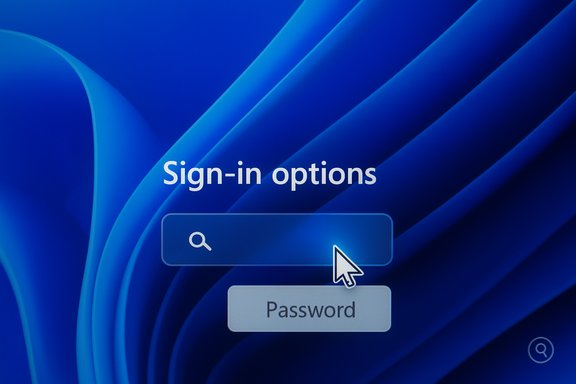
The problem traces back to the August 29, 2025 non‑security preview update (identified as KB5064081) and subsequent updates on Windows 11 devices running version 24H2 and version 25H2. After installing the update, some users found the password icon in the lock screen’s Sign‑in options either missing or invisible. Functionally the button was still present — hovering the mouse over the blank area revealed the hidden control, and clicking the invisible placeholder opened the password text box — but the missing visual cue left many users confused and created a genuine accessibility regression for people who rely on consistent visual or assistive cues.
Microsoft acknowledged the issue in its release‑health documentation and listed the symptom, the limited workaround, and its intention to resolve the defect in a future update. The company subsequently included a fix for the rendering problem in later servicing updates that were distributed in the months after the August preview release.
This article unpacks what happened, who was affected, the practical workarounds while the bug persisted, the implications for everyday users and IT administrators, and sensible mitigation and testing guidance to avoid similar headaches with optional/preview updates.
This incident is a reminder that even small visual regressions can significantly disrupt everyday workflows and erode user trust. Keeping update processes staged, monitoring vendor and Microsoft advisories, and ensuring that helpdesk teams are briefed on simple, reproducible workarounds are the practical steps that will reduce downtime and confusion the next time an unexpected UI bug rolls out with an OS update.
Source: Windows Report Can't See Passworrd Icon in Lock screen Sign-in Options? Microsoft Says KB5064081 is to Blame
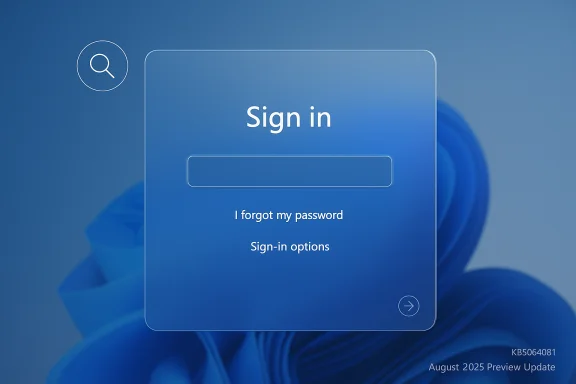 Background / Overview
The problem traces back to the August 29, 2025 non‑security preview update (identified as KB5064081) and subsequent updates on Windows 11 devices running version 24H2 and version 25H2. After installing the update, some users found the password icon in the lock screen’s Sign‑in options either missing or invisible. Functionally the button was still present — hovering the mouse over the blank area revealed the hidden control, and clicking the invisible placeholder opened the password text box — but the missing visual cue left many users confused and created a genuine accessibility regression for people who rely on consistent visual or assistive cues.Microsoft acknowledged the issue in its release‑health documentation and listed the symptom, the limited workaround, and its intention to resolve the defect in a future update. The company subsequently included a fix for the rendering problem in later servicing updates that were distributed in the months after the August preview release.
This article unpacks what happened, who was affected, the practical workarounds while the bug persisted, the implications for everyday users and IT administrators, and sensible mitigation and testing guidance to avoid similar headaches with optional/preview updates.
What happened: symptoms and technical surface
How the bug presented itself
- On affected machines running Windows 11 24H2 or 25H2 that had installed the August 2025 preview update (KB5064081) or later updates, the password icon in the lock screen’s Sign‑in options area would not render visually.
- The underlying UI element remained clickable — hovering the cursor over the empty area reveals the hidden button — and selecting the invisible control would open the password entry field so users could sign in as usual.
- Under normal behavior, Windows displays the dedicated password option only when multiple sign‑in methods are available (for example, PIN, fingerprint, security key, or password). The bug affected the icon’s visibility in that multi‑option scenario.
Scope and affected platforms
- The issue was documented for Windows 11, version 24H2 and version 25H2.
- The visual regression was introduced after users installed the optional August 29, 2025 preview update KB5064081 or later updates that included the same underlying change.
- Impact was primarily cosmetic and usability‑related — users were still able to sign in by clicking the invisible area — but the invisible control created confusion and potential barriers to access, especially for people using screen magnification, limited motor control, or other assistive technologies.
Microsoft’s official position and timeline
- Microsoft listed the missing password icon as a Known Issue in its Windows release health documents for affected updates and advised that the invisible button remained functional as a temporary workaround (hover over the blank space, click to reveal the password field).
- Microsoft later included fixes for several issues introduced by the August previews in subsequent non‑security and cumulative updates released in September and October 2025; the lock‑screen rendering issue was specifically addressed in follow‑up servicing updates distributed after the original preview.
- Microsoft advised users to install the latest updates to receive the resolution, and to check Windows Update for the patch when it appeared for their device.
Short‑term workarounds and practical steps
While Microsoft worked on a permanent fix, affected users could use several simple techniques to sign in and reduce friction.Quick immediates (for most users)
- Hover the cursor over the blank area where the password icon should be. The invisible password button is still present and will become selectable when hovered.
- Click the invisible placeholder; the password text field will appear and you can type your password and sign in normally.
- If you have an alternative sign‑in method configured (PIN, fingerprint, face, security key), use that method instead until a patch is installed.
If the mouse trick is awkward or unavailable
- Use any alternate sign‑in method already configured (Windows Hello PIN, fingerprint, face, or a connected security key). These remain the fastest way to bypass the visual glitch.
- If you rely only on a password and your device is headless or difficult to interact with by mouse, check whether the lock screen shows the password field directly — sometimes Windows will show the password entry box by default if another sign‑in method is unavailable.
Installing the fix
- Open Settings > Windows Update. Select Check for updates and install any available updates. Microsoft’s follow‑up cumulative/preview releases included the fix; installing the latest servicing updates and restarting the device should restore normal behavior once the patch has reached the device.
- If you manage updates centrally (WSUS, SCCM, Intune), verify that those channels have received the remedial update and plan a staged deployment.
When things are more severe
- If you encounter related authentication or third‑party agent problems after installing the preview update (for example, enterprise authentication agents that prevent login), follow the vendor guidance for those products; some vendors recommended not installing the preview on production machines or advised temporary workarounds such as disabling the agent or uninstalling the preview update until a KIR or patch was available.
- IT admins should use caution with preview/optional updates on production endpoints. If necessary, uninstall the problematic update (Settings > Windows Update > Update history > Uninstall updates) and wait for Microsoft’s remedial patch via the normal servicing channels.
Why this matters: user experience, accessibility and security implications
Usability and trust
A missing icon is more than a UI quirk. Visual affordances (icons, labels, consistent placement) are how most users know where to click. Removing or hiding a key affordance without a clear alternative creates user confusion and undermines trust in the sign‑in experience — particularly for casual users or those who are not comfortable experimenting with invisible UI controls.Accessibility impact
This bug had a disproportionate impact on users relying on:- Screen magnifiers and high‑contrast themes, where invisible UI elements break expected visual flow.
- Users who depend on consistent visual cues and predictable layouts.
- People with motor impairments who cannot reliably 'search' for an invisible control and expect clear, large targets they can tab to or click.
Security considerations
Functionally, the bug did not change authentication mechanics — the password pathway still worked and no new attack vector was introduced simply by a missing icon. However:- Sign‑in confusion can lead users to attempt insecure workarounds (e.g., sharing credentials, enabling less secure sign‑in mechanisms, or leaving devices unlocked) if they are unable to authenticate normally.
- For enterprise environments, interactions between third‑party authentication agents and the update stream created more serious login failures in isolated scenarios; IT teams must validate authentication workflows before broad deployments.
Enterprise implications and best practices
Preview updates should not be treated as production updates
Preview and optional updates (like KB5064081) are designed for testing and early feedback. Deploying them broadly in production without pilot testing can surface regressions that impact user productivity and, occasionally, authentication.- For production fleets, enable ringed rollouts: pilot a small group, measure impact, then proceed gradually.
- Keep communication clear: if a preview is deployed to a pilot group, document expected behaviors and reported issues, and ensure helpdesk staff are briefed on temporary workarounds.
Monitor vendor guidance for third‑party agents
Some third‑party enterprise products reported compatibility issues with the August preview updates; in at least one instance vendors warned that installing the preview could block all logins when their agent was present. IT teams should:- Subscribe to vendor advisories for authentication and security agents.
- Test preview updates against critical authentication agents in a lab environment.
- Have rollback procedures (uninstall updates, disable agents) validated before mass deployment.
Use Microsoft’s release health channels and KIR awareness
- Microsoft’s Release Health dashboard and Windows Update support pages list known issues and the updates that address them. IT administrators should use those pages to determine whether a visible problem is a known issue with a scheduled fix.
- Microsoft can deploy Known Issue Rollback (KIR) for high‑impact regressions. KIR allows Microsoft to disable a specific change server‑side or via a targeted update, reducing disruption. However, KIR is not an immediate guarantee; organizations should still follow defensive deployment strategies.
How Microsoft resolved the problem (and what to expect)
- Microsoft documented the symptom and provisional workaround in its Windows release health notes.
- The rendering issue was remedied in later servicing updates that rolled out in the weeks following the initial preview. Once the corrective update reached a machine, the password icon returned to normal behavior.
- For end users: checking Windows Update and installing the latest updates and security cumulative updates is the recommended path to receive the fix.
- For IT admins: plan a staged update deployment and validate sign‑in flows and third‑party agent compatibility before broad rollout.
Recommendations — what every user and admin should do now
Home users and enthusiasts
- If you can sign in by hovering and clicking the invisible area, continue to do so until Windows Update offers the remedial patch.
- If you have an alternate sign‑in method (PIN, fingerprint, face, security key), use it while you wait for the update.
- Check Settings > Windows Update and install any available updates; restart after applying updates so fixes that require a reboot take effect.
- Avoid uninstalling unrelated updates unless you experience a blocking problem and you know the exact update causing it.
Power users and IT administrators
- Treat preview/optional updates as test candidates, not production releases.
- Deploy optional updates to a small pilot group first; observe for authentication, multimedia, and device‑driver regressions.
- Monitor Microsoft’s Release Health and the vendor advisories for third‑party authentication software.
- If you manage updates via WSUS/Intune/SCCM, stage the remedial update carefully and test login and authentication agents before broad rollout.
- Prepare rollback instructions and train helpdesk teams in the temporary workarounds so end users are not left stranded.
Broader takeaways: why this incident matters for Windows update strategy
The invisible password icon episode illustrates several enduring realities of modern OS servicing:- Complex ecosystems magnify risk. Windows ships across countless hardware and software environments; small UI regressions can create major customer pain when they intersect with authentication flows or accessibility needs.
- Preview/optional updates accelerate feature rollout but raise the need for strong pilot testing, especially for endpoints that support critical authentication or specialized agents.
- Communication is essential. Microsoft’s Known Issue listings and follow‑up remedial updates are useful, but administrators and support staff still need to translate that guidance into clear, actionable instructions for end users.
- Accessibility must be a first‑class concern. UI regressions disproportionately affect users with disabilities; companies that ship large‑scale updates bear responsibility to maintain existing accessibility behavior or provide robust workarounds.
Final assessment and risk checklist
- The bug itself was a visual rendering regression: low risk to system integrity, but high risk to usability and accessibility.
- Microsoft documented the issue and provided an interim user workaround — hover to reveal the invisible button — while working on a permanent fix.
- Fixes were delivered through subsequent servicing updates; users and administrators should ensure devices are updated and validated.
- Enterprise admins must exercise caution with preview updates, validate critical authentication software, and be ready to uninstall problematic previews or apply Known Issue Rollbacks where available.
- Users with accessibility needs should be prioritized in testing rings and helped with alternative sign‑in methods until permanent fixes are installed.
This incident is a reminder that even small visual regressions can significantly disrupt everyday workflows and erode user trust. Keeping update processes staged, monitoring vendor and Microsoft advisories, and ensuring that helpdesk teams are briefed on simple, reproducible workarounds are the practical steps that will reduce downtime and confusion the next time an unexpected UI bug rolls out with an OS update.
Source: Windows Report Can't See Passworrd Icon in Lock screen Sign-in Options? Microsoft Says KB5064081 is to Blame