

 Windows 11’s PC Insights Explains System Status, but It Is Not a Root-Cause Diagnostician
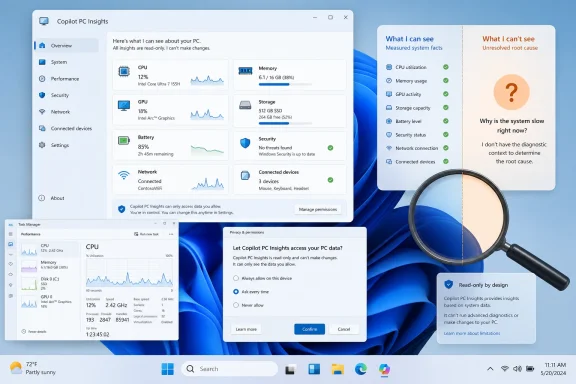
Microsoft’s gradual U.S. rollout gives consenting Copilot users a conversational way to check CPU, memory, graphics, storage, battery, security, firmware, network, and connected-device information. The read-only feature may simplify basic troubleshooting, but the available facts do not prove that it can identify the actual cause of a slowdown or name the process responsible.Microsoft is gradually rolling out PC Insights in the Windows 11 Copilot app in the United States. For users who receive it and grant permission, the feature can report selected information about the current state of a PC in conversational language.
That could be useful for people who do not know where Windows keeps hardware specifications, storage totals, resource graphs, or connected-device status. It is also narrower than “AI-powered diagnosis” may suggest. PC Insights can retrieve and explain supported system facts, but the information reported so far does not establish that it can diagnose root causes, identify a culpable process, or repair a problem.
Windows Latest reports that PC Insights is optional, opt-in, read-only, and not yet available on every PC. Copilot reportedly asks for permission when a question requires local system information, with “Ask every time” and “Always allow” as the available choices.
The useful idea is straightforward: Windows already holds much of this information, but it distributes the details across Task Manager, Settings, File Explorer, and other interfaces. PC Insights attempts to replace some of that navigation with a question-and-answer exchange.What Windows 11 users should do now
- Expect a gradual U.S. rollout. PC Insights may not appear on your PC yet.
- Treat it as an optional, read-only reporting feature, not an automatic repair tool.
- Choose “Ask every time” before testing it so each request for supported PC information remains visible.
- Start with limited questions such as current CPU usage, available storage, system specifications, or whether a device is detected.
- Verify important answers in Windows before changing, removing, or purchasing anything.
PC Insights Turns Windows System Information Into a Conversation
PC Insights is best understood as a translation layer between ordinary users and selected information available from Windows. Instead of asking someone to find a particular Settings page or interpret a Task Manager graph, Copilot can retrieve a supported value and describe it in plain language.According to support information reported by Windows Latest, PC Insights can access current CPU, RAM, and GPU usage. It can report available storage and total capacity, system specifications, BIOS information, battery health, and antivirus-protection status.
Its reported scope also includes Bluetooth and Wi-Fi status, network adapters, USB devices, external drives, printers, and webcams. That could make it useful as a lightweight inventory and initial triage interface.
Questions such as “Is my webcam detected?” or “Is my printer online?” are not advanced diagnostics, but they address a common support obstacle: the user does not know which Windows interface contains the relevant status.
The same principle applies to hardware information. A general-purpose chatbot can explain what RAM or a graphics processor does, but it cannot know the configuration of a particular PC unless the user supplies that information. With permission, PC Insights can reportedly answer supported questions using data from the current machine.
Live utilization requires more caution. A current CPU or memory percentage is an observation at a particular moment. It may help a user recognize that the system is busy, but it does not by itself reveal why the activity is occurring.
PC Insights should therefore be described as reporting and explaining the system’s current state—not as proving the root cause of poor performance. Nothing in the reported examples demonstrates that it can reliably attribute a slowdown to a specific process, driver, application, service, temperature problem, or hardware fault.
Windows-side verification steps
The following are standard Windows paths users can use to check important results. They are Windows-side verification steps, not confirmed descriptions of buttons or links that appear inside the PC Insights interface:| Information to verify | Windows-side path | What it can confirm |
|---|---|---|
| Live CPU, RAM, and GPU activity | Task Manager > Processes or Task Manager > Performance | Current utilization, process activity, and resource graphs |
| Storage capacity and free-space categories | Settings > System > Storage | Used and available capacity, plus storage categories |
| Processor, installed RAM, device name, and Windows specifications | Settings > System > About | Core device and operating-system specifications |
The Storage Example Shows Both the Value and the Limits
A reported example asks whether the PC has enough room for a large game. Windows Latest describes a machine with 87GB of available space and a question about installing GTA V, with the cited requirement exceeding 100GB.Those are the facts demonstrated by the example: 87GB is available, and the referenced requirement is above 100GB. Comparing the two shows that the machine does not have enough free capacity under that requirement.
PC Insights is potentially useful because it can place the local storage figure and the stated requirement into one conversation. The user does not have to locate the capacity page, remember the number, and perform the comparison separately.
The example should not be stretched beyond what it proves. Download size, final installed size, temporary unpacking space, future updates, optional content, and a prudent free-space buffer can all affect whether a game installation succeeds. Those are general software-installation caveats, not demonstrated PC Insights capabilities in the reported test.
Similarly, a recommendation to create additional room is general guidance. The example does not establish that PC Insights can calculate every stage of an installation, predict future update requirements, or certify that a particular amount of free space will be sufficient.
The feature can reportedly calculate file and folder sizes, including the size of Downloads and Documents. Microsoft’s described boundary is that Copilot cannot read individual file contents without explicit access, while metadata such as file and folder size may be used for supported questions.
That could help a user locate a broad source of storage pressure without granting content access. Knowing that Downloads occupies a large amount of space is different from opening and interpreting the files inside it.
Users should still review material manually before deleting it. Installers, archives, synchronized cloud files, application data, and old project folders may appear disposable while serving different purposes. Read-only access keeps PC Insights from turning a questionable recommendation into automatic data loss.
Read-Only Access Is a Sensible Safety Boundary
PC Insights currently operates as a read-only reporting layer. It can present information and make suggestions, but it cannot independently perform the repair described in its response.That limitation may disappoint users expecting a full Windows agent, but it reduces risk. Reporting that a drive is not detected is substantially different from changing a driver, restarting a service, modifying a device policy, repartitioning storage, or deleting files.
Windows troubleshooting often involves dependencies that are not obvious from a single status reading. A busy process may be completing legitimate work. A synchronization application may consume resources because the user recently changed many files. A disconnected network adapter may be intentional. A driver update that resolves one issue may introduce another.
Keeping the user in control provides a checkpoint between explanation and action. Copilot can report what it sees; the user can verify the observation and decide whether to open Settings, inspect Task Manager, reconnect hardware, contact support, or do nothing.
Any future expansion into system changes would require stronger safeguards, including a clear preview of each action, narrow permissions, explicit confirmation, useful logs, and a practical way to reverse changes. Those controls are not necessary to assess the current feature because the reported version is read-only.
The immediate question is simpler: can PC Insights retrieve supported facts accurately, describe their limits, and avoid presenting a momentary measurement as a proven diagnosis?
Consent Is Visible, but Users Should Still Review Privacy Settings
Microsoft says PC Insights is opt-in rather than an automatic background inspection system. When Copilot needs supported information from the PC, it prompts the user for permission.The reported choices are “Ask every time” and “Always allow.”
| Permission mode | How access begins | User friction | Practical privacy posture | Appropriate starting point |
|---|---|---|---|---|
| Ask every time | Copilot requests permission when relevant PC information is needed | Higher | Each access request remains visible and deliberate | Testing, shared PCs, and cautious users |
| Always allow | Previous approval permits later supported access without another prompt each time | Lower | The user relies more heavily on Copilot’s scope and indicators | Personal PCs after the user understands the behavior |
“Always allow” does not necessarily mean Copilot is continuously scanning the system. It does mean fewer moments at which the user is explicitly reminded that local PC information is being consulted.
Microsoft’s described privacy treatment distinguishes source data from conversation activity. Windows Latest reports that Microsoft says personal files and system information are not stored or used for model training, while prompts and responses may be used to improve the service depending on the user’s settings.
That distinction deserves careful attention. If a prompt includes a hardware detail, or if Copilot repeats a retrieved system fact in its answer, the resulting conversation can contain information derived from the PC even if the underlying source record is handled separately.
Permission and privacy are related but different controls. Permission determines whether Copilot may retrieve relevant local information. Account settings and service policies govern the treatment of conversation activity.
Most individual readings—such as a CPU percentage—may appear harmless. A broader system inventory can reveal device models, firmware details, security status, connected peripherals, network configuration, and storage patterns. Users should avoid assuming that every category of “PC information” carries the same sensitivity.
Reporting Resource Use Is Not the Same as Diagnosing a Slow PC
The strongest reason to temper expectations is that current utilization does not automatically identify causation.A high CPU reading can reflect a malfunction, but it can also reflect an update, a scan, compilation, media processing, application startup, or a task the user intentionally began. High memory use may indicate a leak, yet it may also represent active data or cached information Windows can reclaim.
GPU activity can be expected during gaming, video playback, rendering, desktop composition, browser acceleration, or local AI workloads. Even a process-level reading does not always reveal why that process is active.
A trustworthy PC Insights response should maintain a clear boundary between observations and interpretations:
- Observation: CPU usage is currently elevated.
- Observation: Available storage is 87GB.
- Observation: Windows currently detects a connected webcam.
- Interpretation: The PC may feel less responsive while resource use remains elevated.
- Unproven conclusion: A particular application is the root cause of the slowdown.
This does not make the feature useless. Many support interactions begin with basic evidence collection. A user who cannot locate system specifications or determine whether Windows sees an external device may be able to retrieve that information conversationally and share it with a technician.
Consequential details should still be checked through Windows. Task Manager can show whether the reported utilization persists and which processes are active. Storage settings can confirm capacity. The About page can confirm core specifications.
The goal should be faster access to evidence—not replacing evidence with confidence-sounding prose.
Copilot’s Own Resource Use Complicates the Pitch
There is an unavoidable tension in using a comparatively large application to explain resource pressure. Windows Latest observed Copilot using roughly 800MB of memory while idle and reported that its footprint could approach 1GB under the observed conditions.A Task Manager memory total does not prove that every displayed megabyte is active, irreclaimable, or responsible for poor performance. Windows manages memory dynamically, and browser-based applications may divide work among several processes. Usage can also vary with application state, open content, account configuration, and measurement timing.
Even with those qualifications, the reported footprint is relevant on PCs with limited memory. On a high-end desktop it may be inconsequential; on an entry-level Windows 11 machine already running a browser, security tools, synchronization software, communication applications, and productivity programs, it can become a noticeable part of the overall load.
Windows Latest also reports that Copilot includes a private Microsoft Edge package with Chromium components and its own
msedge.exe, supporting web content displayed inside the Copilot experience. Task Manager may consequently classify the application as a browser.Keeping pages within Copilot can preserve web context alongside the active conversation rather than sending every result to a separate browser window. However, it is reasonable to ask whether that functionality justifies the package size and memory footprint for users who primarily want short answers or basic system information.
Claims about duplicated code, servicing burden, or Microsoft’s architectural motives should be treated as analysis rather than established fact. Based on the reported private Edge package, it is reasonable to infer that Copilot carries additional application components that must be installed and maintained. The available reporting does not quantify that burden or prove how much of the package duplicates files already present elsewhere in Windows.
Likewise, it is reasonable to infer that an embedded browser environment can help Copilot retain page context and produce more consistent in-app behavior. That does not establish Microsoft’s complete rationale for choosing the design.
The practical concern is independent of motive: users should be able to compare the value of PC Insights with the resources consumed by the Copilot application that delivers it. Microsoft would strengthen the feature by minimizing idle use, making background behavior clear, and ensuring that Copilot releases resources appropriately when inactive.
Windows Information Needs Clear Labels and Timestamps
PC Insights combines several types of information that should not be presented as if they have equal certainty.In the GTA V example, the 87GB free-space figure is a local system measurement. The requirement above 100GB is product information brought into the comparison. The suggestion to clear additional space is a recommendation. Each has a different origin and a different chance of becoming outdated.
The same separation applies elsewhere:
| Information type | Example | Appropriate presentation |
|---|---|---|
| Local observation | Current CPU usage or available storage | Label as retrieved from the PC and include the observation time |
| Windows configuration | Installed RAM or BIOS version | Identify it as reported by Windows and provide a verification path |
| External information | A game’s current storage requirement | Identify it as externally sourced and potentially subject to change |
| AI interpretation | “This may affect responsiveness” | Present it as an explanation, not a measured fact |
| Recommendation | Free space, reconnect a device, or contact support | Explain risks and leave the decision to the user |
This fact-versus-inference boundary is more important than elaborate conversational language. A concise answer that identifies its sources and uncertainty is safer than a polished paragraph that blends measurements, external facts, and recommendations into one authoritative conclusion.
Enterprise IT Should Treat PC Insights as an Optional Consumer Feature
PC Insights may help employees collect basic device information before contacting support, but its gradual availability makes it unsuitable as a mandatory help-desk procedure. Two otherwise similar PCs may not expose the same capability during the rollout, and some managed environments may not provide the consumer Copilot app at all.Organizations should also avoid treating a conversational response as the source of record for inventory, security, or compliance. Existing endpoint-management and security systems remain the appropriate authority for managed-device status.
The reported ability to remove or block Copilot may give administrators a containment option, but deployment details can vary by Windows edition, update level, policy set, and management platform. Without a documented, tested policy path specific to the organization’s environment, IT teams should not assume that one universal Group Policy setting will remove every Copilot entry point or prevent future reinstallation.
The executable next step is therefore procedural: inventory where the Copilot app is present, test the organization’s existing application-control and removal policies on a representative Windows 11 device, and verify the result after servicing updates. Organizations needing authoritative controls should use Microsoft’s current administrative documentation for their Windows release and management platform rather than relying on a consumer feature description.
For environments where Copilot remains available, support documentation should treat PC Insights as optional evidence collection. Users can report an answer, but technicians should validate important information through Windows, scripts, endpoint management, or approved diagnostic tools.
A Useful First Step, Provided Microsoft Describes It Accurately
PC Insights addresses a real Windows usability problem. Basic system information is spread across several interfaces, and many users do not know where to find it or how to interpret it. A conversational layer can reduce that navigation burden.Its safest and most credible role is also its least sensational: retrieve supported facts, explain what they mean, and let the user decide what happens next.
Microsoft should resist presenting the feature as a system diagnostician until evidence shows that it can distinguish symptoms from causes consistently. Current CPU, RAM, GPU, storage, security, and device readings can support troubleshooting, but they do not automatically identify the responsible process or explain the chain of events behind a problem.
For now, users who receive PC Insights should begin with “Ask every time,” use narrowly framed questions, verify consequential answers in Task Manager or Settings, and treat recommendations as guidance rather than commands.
If Microsoft can keep the feature read-only, transparent about data access, precise about what was observed, and modest about what can be concluded, PC Insights could become a helpful front end for Windows system information. Its long-term value will depend less on how confidently Copilot speaks than on how clearly it separates a measured fact from an inferred explanation.
References
- Primary source: Windows Latest
Published: Sun, 12 Jul 2026 01:55:37 GMT
Windows 11 Copilot now tells you what’s slowing down your PC, while using 1GB RAM itself
Windows 11 Copilot can now tell you what’s slowing down your PC, while using 1GB of RAM itself (ironically). www.windowslatest.com
- Official source: blogs.windows.com
Windows 11 is the home for AI on the PC, with even more experiences available today
AI is changing the way we use our PCs. According to a new consumer AI report commissioned by Microsoft, nearly 60% of people report using generative AI for work and business purposesblogs.windows.com - Official source: support.microsoft.com
Click to Do: do more with what’s on your screen | Microsoft Support
Click to Do: do more with what’s on your screensupport.microsoft.com - Related coverage: pcworld.com
I tried making Windows 11's Copilot a habit. Here's what stuck (and what didn't) | PCWorld
Users can already utilise Copilot for texts, research, settings, and creative tasks. We demonstrate the possibilities and limitations.www.pcworld.com - Official source: learn.microsoft.com
Connect to the Microsoft Copilot Dashboard for Microsoft 365 customers | Microsoft Learn
Explains how to set up and use the Microsoft Copilot Dashboard, which provides various metrics to help you see how employees are using Copilot and the impact it could have on your organization.learn.microsoft.com - Official source: microsoft.com
- Official source: cdn-dynmedia-1.microsoft.com
- Official source: news.microsoft.com
- Related coverage: tomsguide.com
Microsoft's Copilot Vision AI can now see your whole desktop — here's what it does | Tom's Guide
Microsoft's Copilot Vision AI now has eyes on your entire screen as it rolls out an update to Windows Insiders on Windows 11 PCs.www.tomsguide.com - Related coverage: windowscentral.com
Microsoft scales back Copilot plans on Windows 11 | Windows Central
Originally announced in 2024, Microsoft's plan to integrate Copilot across various areas of the Windows 11 shell has been shelved as the company reevaluates its AI approach in the OS.www.windowscentral.com - Related coverage: techradar.com
Did Microsoft not hear about the RAM crisis? Windows 11's new Copilot app is quite the memory hog | TechRadar
Hands off my memory, Edge… I mean, Copilotwww.techradar.com - Related coverage: pcgamer.com
Microsoft's Copilot AI assistant can now optionally see your entire desktop—maybe it will be able to finally explain what Windows error code 0x8007002c means | PC Gamer
Oh, and you can make it look like Clippy, too...www.pcgamer.com - Related coverage: tomshardware.com
Microsoft is reportedly testing Copilot+ AI features with discrete GPUs instead of NPUs — a feature available on Windows App SDK with a Windows Insider Experimental Channel build and Developer Mode turned on | Tom's Hardware
Is this the beginning of the end for Copilot+ PCs?www.tomshardware.com
