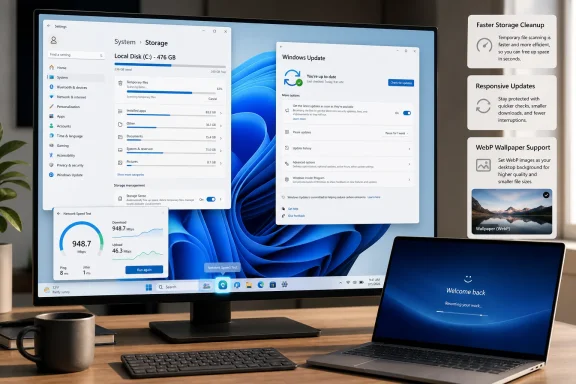
Microsoft’s recent Windows 11 preview builds, including February 2026 Release Preview builds for versions 24H2 and 25H2, shift attention from conspicuous AI branding toward practical efficiency changes such as taskbar network speed testing, improved taskbar overflow behavior, and faster resume from sleep. That does not make Windows 11 suddenly frictionless, nor does it erase years of user complaints about the Start menu, taskbar regressions, forced cloud tie-ins, and Copilot sprawl. But it does suggest Microsoft has rediscovered a basic truth about operating systems: for businesses, the best feature is often the one that removes a delay no one should have had to tolerate in the first place.
For much of the Windows 11 era, Microsoft’s public energy has been pointed at the spectacular. Copilot, Recall, AI-assisted search, cloud-backed recommendations, and “intelligent” experiences have been sold as the next interface layer for the PC. Some of that work is real, and some of it will almost certainly matter. But for many IT departments, the sales pitch has often sounded like a vendor describing a future workplace while the present one is still waiting for the taskbar to behave.
That is why the latest direction matters. The changes being tested are not the kind that dominate a keynote, but they are the kind that determine whether a user trusts the machine in front of them. A network speed test reachable from the taskbar, a less wasteful overflow behavior when many windows are open, and display-related improvements intended to reduce resume-from-sleep delays all land in the same category: small repairs to daily irritation.
Dave Taylor of Amshire IT is right to frame this as an efficiency story, especially for small and midsize businesses. In an SME environment, productivity is rarely transformed by one dramatic feature. It is improved by cutting away hundreds of tiny interruptions: the browser tab opened just to test a connection, the lost seconds hunting for the correct document window, the awkward pause before a laptop wakes in a meeting room.
Windows has always lived or died by those seconds. The operating system is not just a platform for applications; it is the traffic system between users, devices, networks, identity, files, and meetings. When that traffic system works, nobody praises it. When it stutters, the entire workday feels more expensive.
That is why taskbar changes, however small, deserve more scrutiny than their release-note size suggests. The built-in network speed test is not a fully native diagnostic console. It opens a browser-based test, and that distinction matters. Anyone expecting a deeply integrated Windows networking analyzer will be disappointed.
But the criticism should not obscure the usefulness of the entry point. In the real world, users already diagnose problems badly. They search for “speed test,” click a result, run whatever loads first, and send a screenshot to IT. Putting a Microsoft-curated path behind the network icon does not solve network troubleshooting, but it removes a little randomness from the first step.
For IT support teams, that can be enough. A helpdesk technician asking a remote worker to right-click the network icon and run a speed check is better than walking them through a search engine results page. It creates a common starting point, even if the test itself is not the final word on latency, packet loss, DNS behavior, VPN performance, Wi-Fi interference, or ISP congestion.
The more important taskbar fix may be the less glamorous one: improved behavior when the taskbar is set to uncombined and many windows from the same app are open. Windows 11 has spent years slowly clawing back taskbar functionality that many users felt should never have been removed. Better overflow handling for app windows is part of that long repair job.
For power users, that is underwhelming. For administrators, it may even raise policy questions. Some organizations will want to control whether users see or use that entry point, especially if it routes through services they do not want standardized in their environment. Windows features that appear simple to consumers often become another item on the Intune, Group Policy, and compliance checklist.
Still, a shortcut can be meaningful if it appears in the right place. Windows already depends on taskbar and system tray affordances as operational shortcuts: Wi-Fi, VPN, battery, volume, Bluetooth, Focus, accessibility, and display controls. Network speed belongs near network state because that is where users look when something feels broken.
The better critique is not that Microsoft added the shortcut. It is that Windows still lacks a modern, business-grade, user-friendly network diagnostics experience. The old Control Panel tools, Settings pages, command-line utilities, and event logs all expose pieces of the truth, but they remain fragmented. A speed test is a welcome front door; it should not be the whole house.
That distinction matters because Microsoft has a habit of shipping an entry point and treating it like a strategy. If the taskbar speed test becomes another Bing-shaped detour, it will feel like ad-tech furniture. If it becomes the first step toward clearer built-in diagnostics, it will look like Microsoft finally taking everyday support friction seriously.
Resume from sleep is one of those boundaries. A user opens a laptop because they need to do something now: join a call, present a deck, approve a document, check a ticket, respond to a customer, unlock a BitLocker-protected device, or sign into a line-of-business app. Every second of hesitation feels personal.
Microsoft’s preview notes point to display-related performance work intended to reduce resume-from-sleep time on heavily loaded systems and in other scenarios. That phrasing is careful, as it should be. Resume behavior depends on firmware, drivers, graphics hardware, docking stations, external monitors, power policies, security agents, Modern Standby behavior, and whatever else the enterprise image has accumulated.
But the direction is welcome because sleep and resume reliability are not luxury concerns. They are part of whether a Windows laptop feels like a professional tool or a temperamental appliance. In hybrid work, where users move between home docks, office hot desks, conference rooms, and travel setups, resume time is a daily referendum on device quality.
This is also where Windows competes less with another version of Windows than with user expectations shaped by phones, tablets, and Apple laptops. People have been trained to expect instant-on behavior. Windows does not need to mimic every design choice of those platforms, but it does need to stop making wake delays feel normal.
That is not entirely fair. Microsoft is responding to a real platform transition. Neural processing units are becoming standard on premium PCs, developers are experimenting with local models, and enterprise software vendors are embedding AI into workflows whether users asked for it or not. Windows has to participate in that shift or risk becoming a passive launcher for AI experiences controlled elsewhere.
The problem is sequencing. Users are more willing to accept a new assistant when the basics feel polished. They are less forgiving when AI features arrive alongside obvious rough edges in the shell, Settings, File Explorer, search, notifications, or update reliability. In that context, every Copilot button can feel like a billboard erected next to a pothole.
A more balanced Windows strategy would treat AI as an optional accelerant, not the operating system’s public personality. That means giving businesses clear controls, predictable defaults, privacy-respecting deployment models, and the ability to say no without feeling punished. It also means shipping improvements that do not require a Copilot+ PC or a subscription to appreciate.
The efficiency work in these preview builds hints at that better balance. It does not reject AI. It simply acknowledges that the OS still has obligations beneath the AI layer. That acknowledgement is overdue.
That makes practical OS efficiency unusually valuable in the SME market. A feature that saves a few clicks for one user may save support time for the person who informally acts as IT. A clearer taskbar behavior may prevent confusion for staff who are not interested in window management theory. A faster wake experience may make aging hardware feel less like a liability.
The key point is that small businesses do not experience Windows as an abstract platform roadmap. They experience it as the thing between payroll and the cloud app, between Teams and the client call, between the VPN and the file share. Efficiency is not a nice-to-have; it is the margin between “the computer is fine” and “can someone look at this?”
That is why Taylor’s emphasis on reliability and usability rings true. Businesses do not necessarily need Windows to feel futuristic. They need it to feel dependable. In many offices, the most successful OS feature is the one no one talks about because it quietly prevented a problem from becoming a ticket.
Microsoft should pay attention to that audience because it is less dazzled by novelty than consumers and less insulated than large enterprises. SMEs feel Windows design mistakes quickly. They also reward boring competence.
That caveat is especially important in 2026 because Windows versioning and channel behavior have become increasingly layered. Release Preview, Beta, Dev, Canary, and newer experimental tracks each carry different meanings, and features do not always map neatly to annual version numbers. A capability seen in one build may not tell administrators exactly when it will appear in production.
The taskbar speed test, overflow changes, and sleep-resume improvements are therefore best understood as signals. They show where Microsoft is spending effort, not a guarantee of how every managed Windows 11 device will behave next month. IT teams should watch the direction while resisting the temptation to build policy around unfinished behavior.
That is not cynicism; it is operational hygiene. Windows deployment is full of edge cases. A feature that works smoothly on a clean test laptop may interact differently with security agents, shell customizations, virtual desktop environments, accessibility tools, multilingual images, or strict browser policies. The preview channel is where enthusiasm should meet skepticism.
Still, the signal is meaningful. Microsoft is publicly documenting changes that target daily usability rather than only AI experiences or cloud account nudges. For a company that has sometimes seemed too willing to spend user patience, that is a notable correction.
The network speed test is a perfect example. A user-accessible diagnostic shortcut can reduce support friction. It can also create confusion if the result differs from enterprise monitoring, VPN tunnel performance, or synthetic tests run from managed tooling. A speed test tells you something, but it does not tell you everything.
The taskbar overflow improvement is less controversial, but it still reflects the larger challenge of Windows 11 management. Microsoft has been restoring and adjusting desktop behaviors after initial design decisions that narrowed user control. Administrators who standardize taskbar behavior across fleets need stability, not aesthetic churn.
Resume performance may be the most valuable enterprise improvement, but also the hardest to validate universally. A fleet with mixed OEMs, docks, displays, drivers, BIOS versions, and power policies will not experience one Microsoft fix evenly. The right conclusion is not “sleep is solved,” but “Microsoft is working on a class of delay that administrators already know is expensive.”
This is where Microsoft’s quality push has to become more than messaging. IT departments do not need a blog post telling them Windows is getting better. They need fewer regressions, clearer controls, better documentation, and a servicing model that does not turn routine patching into a monthly risk assessment.
Modern work is already fragmented. The typical business user moves between chat, email, browser tabs, spreadsheets, PDFs, password prompts, approval flows, video meetings, remote desktops, and cloud dashboards. An operating system that adds friction to that environment becomes part of the problem it is supposed to organize.
This is why “small” OS changes can have outsized business value. They reduce context switching. They make troubleshooting less performative. They keep users from narrating their computer’s failures in the middle of a meeting. They make the machine recede.
The best version of Windows 11 would not be the one with the most AI surfaces. It would be the one that understands when not to interrupt. Microsoft has spent years trying to make Windows more proactive. The harder discipline is making it less needy.
That discipline is visible in efficiency work. A cleaner taskbar behavior is not glamorous, but it respects attention. Faster resume is not futuristic, but it respects time. A taskbar network test is not revolutionary, but it respects the fact that users diagnose from where they are, not from where Microsoft’s product architecture says they should begin.
A network speed test can be a support feature, or it can be a traffic funnel. Widgets can be glanceable information, or they can be an ad surface. Copilot can be a tool, or it can be a persistent upsell. Start menu recommendations can be helpful, or they can feel like the OS has rented out the user’s attention.
Windows 11 efficiency will only feel real if Microsoft keeps the user’s intent at the center of these interactions. If a user clicks a network icon, they are trying to understand the network. If they open the Start menu, they are trying to launch or find something. If they wake a laptop, they are trying to resume work. The OS should not treat those moments as opportunities to redirect, promote, or educate beyond necessity.
This is especially true for business customers. Consumer Windows can perhaps absorb a certain amount of experimentation, though even there patience is thin. Business Windows needs restraint. A professional desktop should feel governed by policy and purpose, not by whatever growth metric is fashionable inside Redmond this quarter.
Microsoft knows this, at least in parts of the company. Windows has deep enterprise DNA, and its management stack remains one of its great advantages. But the shell sometimes behaves as if it is fighting a different battle: engagement rather than efficiency. The latest preview work is encouraging precisely because it looks like the efficiency side is getting a louder voice.
The operating system launched with a cleaner look but a less capable taskbar. It gained AI ambition before many users felt the desktop had regained parity with what came before. It asked for trust on privacy-sensitive features while still struggling to persuade skeptics that basic shell decisions were being made with their workflows in mind.
Now the pendulum appears to be moving. Not all the way, and not permanently, but enough to notice. The useful question is no longer whether Windows 11 can produce impressive demos. It is whether Microsoft can make the everyday PC feel less like a negotiation.
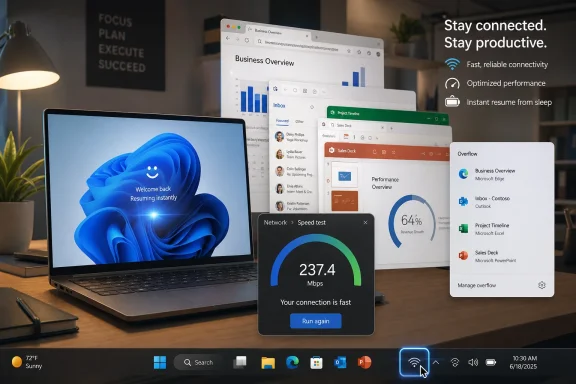 Microsoft Rediscovers the Value of Boring
For much of the Windows 11 era, Microsoft’s public energy has been pointed at the spectacular. Copilot, Recall, AI-assisted search, cloud-backed recommendations, and “intelligent” experiences have been sold as the next interface layer for the PC. Some of that work is real, and some of it will almost certainly matter. But for many IT departments, the sales pitch has often sounded like a vendor describing a future workplace while the present one is still waiting for the taskbar to behave.That is why the latest direction matters. The changes being tested are not the kind that dominate a keynote, but they are the kind that determine whether a user trusts the machine in front of them. A network speed test reachable from the taskbar, a less wasteful overflow behavior when many windows are open, and display-related improvements intended to reduce resume-from-sleep delays all land in the same category: small repairs to daily irritation.
Dave Taylor of Amshire IT is right to frame this as an efficiency story, especially for small and midsize businesses. In an SME environment, productivity is rarely transformed by one dramatic feature. It is improved by cutting away hundreds of tiny interruptions: the browser tab opened just to test a connection, the lost seconds hunting for the correct document window, the awkward pause before a laptop wakes in a meeting room.
Windows has always lived or died by those seconds. The operating system is not just a platform for applications; it is the traffic system between users, devices, networks, identity, files, and meetings. When that traffic system works, nobody praises it. When it stutters, the entire workday feels more expensive.
The Taskbar Is Still the Front Line of Windows Trust
The taskbar is a deceptively emotional part of Windows. It is just a strip of pixels, yet it carries decades of user muscle memory. When Microsoft changed it aggressively in Windows 11, it did more than redesign a control surface; it told experienced Windows users that familiarity was negotiable.That is why taskbar changes, however small, deserve more scrutiny than their release-note size suggests. The built-in network speed test is not a fully native diagnostic console. It opens a browser-based test, and that distinction matters. Anyone expecting a deeply integrated Windows networking analyzer will be disappointed.
But the criticism should not obscure the usefulness of the entry point. In the real world, users already diagnose problems badly. They search for “speed test,” click a result, run whatever loads first, and send a screenshot to IT. Putting a Microsoft-curated path behind the network icon does not solve network troubleshooting, but it removes a little randomness from the first step.
For IT support teams, that can be enough. A helpdesk technician asking a remote worker to right-click the network icon and run a speed check is better than walking them through a search engine results page. It creates a common starting point, even if the test itself is not the final word on latency, packet loss, DNS behavior, VPN performance, Wi-Fi interference, or ISP congestion.
The more important taskbar fix may be the less glamorous one: improved behavior when the taskbar is set to uncombined and many windows from the same app are open. Windows 11 has spent years slowly clawing back taskbar functionality that many users felt should never have been removed. Better overflow handling for app windows is part of that long repair job.
The Browser Shortcut Critique Misses Half the Point
It is easy to mock the speed test as “just a shortcut,” because in a literal sense that is close to true. Microsoft could have built a richer network panel that displays historical throughput, adapter details, Wi-Fi signal quality, VPN status, gateway reachability, DNS timing, and packet loss in a single view. Instead, the current preview behavior routes the user to a browser-based test.For power users, that is underwhelming. For administrators, it may even raise policy questions. Some organizations will want to control whether users see or use that entry point, especially if it routes through services they do not want standardized in their environment. Windows features that appear simple to consumers often become another item on the Intune, Group Policy, and compliance checklist.
Still, a shortcut can be meaningful if it appears in the right place. Windows already depends on taskbar and system tray affordances as operational shortcuts: Wi-Fi, VPN, battery, volume, Bluetooth, Focus, accessibility, and display controls. Network speed belongs near network state because that is where users look when something feels broken.
The better critique is not that Microsoft added the shortcut. It is that Windows still lacks a modern, business-grade, user-friendly network diagnostics experience. The old Control Panel tools, Settings pages, command-line utilities, and event logs all expose pieces of the truth, but they remain fragmented. A speed test is a welcome front door; it should not be the whole house.
That distinction matters because Microsoft has a habit of shipping an entry point and treating it like a strategy. If the taskbar speed test becomes another Bing-shaped detour, it will feel like ad-tech furniture. If it becomes the first step toward clearer built-in diagnostics, it will look like Microsoft finally taking everyday support friction seriously.
Faster Resume Is the Kind of Performance Users Actually Notice
Performance improvements are often discussed in abstract terms: benchmark scores, memory footprints, scheduler changes, boot metrics, and power efficiency curves. Those things matter, particularly at fleet scale. But the performance users notice most is the performance that appears at the boundary between intent and action.Resume from sleep is one of those boundaries. A user opens a laptop because they need to do something now: join a call, present a deck, approve a document, check a ticket, respond to a customer, unlock a BitLocker-protected device, or sign into a line-of-business app. Every second of hesitation feels personal.
Microsoft’s preview notes point to display-related performance work intended to reduce resume-from-sleep time on heavily loaded systems and in other scenarios. That phrasing is careful, as it should be. Resume behavior depends on firmware, drivers, graphics hardware, docking stations, external monitors, power policies, security agents, Modern Standby behavior, and whatever else the enterprise image has accumulated.
But the direction is welcome because sleep and resume reliability are not luxury concerns. They are part of whether a Windows laptop feels like a professional tool or a temperamental appliance. In hybrid work, where users move between home docks, office hot desks, conference rooms, and travel setups, resume time is a daily referendum on device quality.
This is also where Windows competes less with another version of Windows than with user expectations shaped by phones, tablets, and Apple laptops. People have been trained to expect instant-on behavior. Windows does not need to mimic every design choice of those platforms, but it does need to stop making wake delays feel normal.
AI Was Never the Problem; Priority Was
The past year’s Windows conversation has been dominated by AI, and not always to Microsoft’s benefit. Copilot in Windows, Copilot+ PCs, Recall, semantic search, image generation, and various forms of local and cloud-assisted assistance have all contributed to the sense that Microsoft was more interested in inserting intelligence than restoring confidence.That is not entirely fair. Microsoft is responding to a real platform transition. Neural processing units are becoming standard on premium PCs, developers are experimenting with local models, and enterprise software vendors are embedding AI into workflows whether users asked for it or not. Windows has to participate in that shift or risk becoming a passive launcher for AI experiences controlled elsewhere.
The problem is sequencing. Users are more willing to accept a new assistant when the basics feel polished. They are less forgiving when AI features arrive alongside obvious rough edges in the shell, Settings, File Explorer, search, notifications, or update reliability. In that context, every Copilot button can feel like a billboard erected next to a pothole.
A more balanced Windows strategy would treat AI as an optional accelerant, not the operating system’s public personality. That means giving businesses clear controls, predictable defaults, privacy-respecting deployment models, and the ability to say no without feeling punished. It also means shipping improvements that do not require a Copilot+ PC or a subscription to appreciate.
The efficiency work in these preview builds hints at that better balance. It does not reject AI. It simply acknowledges that the OS still has obligations beneath the AI layer. That acknowledgement is overdue.
Small Businesses Need Fewer Mysteries, Not More Magic
For large enterprises, Windows changes are filtered through rings, pilots, deployment tools, security baselines, application compatibility testing, procurement cycles, and change advisory boards. For small businesses, the process is often messier. The same person may be responsible for Microsoft 365 licensing, endpoint security, printer problems, router firmware, backup checks, and explaining why someone’s laptop joined the wrong Wi-Fi network.That makes practical OS efficiency unusually valuable in the SME market. A feature that saves a few clicks for one user may save support time for the person who informally acts as IT. A clearer taskbar behavior may prevent confusion for staff who are not interested in window management theory. A faster wake experience may make aging hardware feel less like a liability.
The key point is that small businesses do not experience Windows as an abstract platform roadmap. They experience it as the thing between payroll and the cloud app, between Teams and the client call, between the VPN and the file share. Efficiency is not a nice-to-have; it is the margin between “the computer is fine” and “can someone look at this?”
That is why Taylor’s emphasis on reliability and usability rings true. Businesses do not necessarily need Windows to feel futuristic. They need it to feel dependable. In many offices, the most successful OS feature is the one no one talks about because it quietly prevented a problem from becoming a ticket.
Microsoft should pay attention to that audience because it is less dazzled by novelty than consumers and less insulated than large enterprises. SMEs feel Windows design mistakes quickly. They also reward boring competence.
Preview Builds Are Promises, Not Policy
There is a danger in over-reading preview builds. Windows Insider releases are not contractual commitments, and features can change, roll out gradually, disappear, return, or arrive in altered form depending on telemetry and Microsoft’s release strategy. Anyone who has watched Windows development for more than a few months knows that “in testing” is not the same as “on every supported PC.”That caveat is especially important in 2026 because Windows versioning and channel behavior have become increasingly layered. Release Preview, Beta, Dev, Canary, and newer experimental tracks each carry different meanings, and features do not always map neatly to annual version numbers. A capability seen in one build may not tell administrators exactly when it will appear in production.
The taskbar speed test, overflow changes, and sleep-resume improvements are therefore best understood as signals. They show where Microsoft is spending effort, not a guarantee of how every managed Windows 11 device will behave next month. IT teams should watch the direction while resisting the temptation to build policy around unfinished behavior.
That is not cynicism; it is operational hygiene. Windows deployment is full of edge cases. A feature that works smoothly on a clean test laptop may interact differently with security agents, shell customizations, virtual desktop environments, accessibility tools, multilingual images, or strict browser policies. The preview channel is where enthusiasm should meet skepticism.
Still, the signal is meaningful. Microsoft is publicly documenting changes that target daily usability rather than only AI experiences or cloud account nudges. For a company that has sometimes seemed too willing to spend user patience, that is a notable correction.
The Enterprise Reading Is More Complicated
For enterprise administrators, efficiency improvements are welcome but never isolated. Every new shell feature raises questions: Can it be disabled? Is it documented? Does it respect default browser policy? Does it introduce another consumer-facing path into a managed environment? Does it alter helpdesk scripts, screenshots, training materials, or security expectations?The network speed test is a perfect example. A user-accessible diagnostic shortcut can reduce support friction. It can also create confusion if the result differs from enterprise monitoring, VPN tunnel performance, or synthetic tests run from managed tooling. A speed test tells you something, but it does not tell you everything.
The taskbar overflow improvement is less controversial, but it still reflects the larger challenge of Windows 11 management. Microsoft has been restoring and adjusting desktop behaviors after initial design decisions that narrowed user control. Administrators who standardize taskbar behavior across fleets need stability, not aesthetic churn.
Resume performance may be the most valuable enterprise improvement, but also the hardest to validate universally. A fleet with mixed OEMs, docks, displays, drivers, BIOS versions, and power policies will not experience one Microsoft fix evenly. The right conclusion is not “sleep is solved,” but “Microsoft is working on a class of delay that administrators already know is expensive.”
This is where Microsoft’s quality push has to become more than messaging. IT departments do not need a blog post telling them Windows is getting better. They need fewer regressions, clearer controls, better documentation, and a servicing model that does not turn routine patching into a monthly risk assessment.
The Real Efficiency Gain Is Cognitive
The most interesting thing about these changes is not the seconds they save in isolation. It is the cognitive load they remove. A user who knows where to check connection performance, who sees windows behave predictably, and who trusts a laptop to wake quickly has fewer reasons to mentally step outside the task at hand.Modern work is already fragmented. The typical business user moves between chat, email, browser tabs, spreadsheets, PDFs, password prompts, approval flows, video meetings, remote desktops, and cloud dashboards. An operating system that adds friction to that environment becomes part of the problem it is supposed to organize.
This is why “small” OS changes can have outsized business value. They reduce context switching. They make troubleshooting less performative. They keep users from narrating their computer’s failures in the middle of a meeting. They make the machine recede.
The best version of Windows 11 would not be the one with the most AI surfaces. It would be the one that understands when not to interrupt. Microsoft has spent years trying to make Windows more proactive. The harder discipline is making it less needy.
That discipline is visible in efficiency work. A cleaner taskbar behavior is not glamorous, but it respects attention. Faster resume is not futuristic, but it respects time. A taskbar network test is not revolutionary, but it respects the fact that users diagnose from where they are, not from where Microsoft’s product architecture says they should begin.
Microsoft’s Quality Turn Has to Survive Marketing
There is a familiar cycle in Windows development. Microsoft hears complaints, restores or improves practical features, earns cautious praise, and then risks burying the goodwill under another wave of promotions, account prompts, defaults changes, or branding experiments. The company’s challenge is not merely to build useful things. It is to resist contaminating them.A network speed test can be a support feature, or it can be a traffic funnel. Widgets can be glanceable information, or they can be an ad surface. Copilot can be a tool, or it can be a persistent upsell. Start menu recommendations can be helpful, or they can feel like the OS has rented out the user’s attention.
Windows 11 efficiency will only feel real if Microsoft keeps the user’s intent at the center of these interactions. If a user clicks a network icon, they are trying to understand the network. If they open the Start menu, they are trying to launch or find something. If they wake a laptop, they are trying to resume work. The OS should not treat those moments as opportunities to redirect, promote, or educate beyond necessity.
This is especially true for business customers. Consumer Windows can perhaps absorb a certain amount of experimentation, though even there patience is thin. Business Windows needs restraint. A professional desktop should feel governed by policy and purpose, not by whatever growth metric is fashionable inside Redmond this quarter.
Microsoft knows this, at least in parts of the company. Windows has deep enterprise DNA, and its management stack remains one of its great advantages. But the shell sometimes behaves as if it is fighting a different battle: engagement rather than efficiency. The latest preview work is encouraging precisely because it looks like the efficiency side is getting a louder voice.
The Practical Wins Are Finally Outnumbering the Gimmicks
The most concrete lesson from this round of Windows 11 changes is that Microsoft does not need to reinvent the PC to make it better. It needs to sand down the parts of the experience that create unnecessary drag. That sounds modest, but modesty is exactly what Windows 11 has often lacked.The operating system launched with a cleaner look but a less capable taskbar. It gained AI ambition before many users felt the desktop had regained parity with what came before. It asked for trust on privacy-sensitive features while still struggling to persuade skeptics that basic shell decisions were being made with their workflows in mind.
Now the pendulum appears to be moving. Not all the way, and not permanently, but enough to notice. The useful question is no longer whether Windows 11 can produce impressive demos. It is whether Microsoft can make the everyday PC feel less like a negotiation.
The Efficiency Test Windows 11 Now Has to Pass
The story here is not that Windows 11 has been fixed. The story is that Microsoft’s current preview work points toward the kind of fixes that actually matter in offices, helpdesks, and home workspaces. If these changes arrive broadly and behave predictably, they will be more valuable than their modest descriptions suggest.- Windows 11’s taskbar speed test is useful mainly because it gives users and support teams a shared first step for connection troubleshooting.
- Improved taskbar overflow behavior matters because window switching is core productivity infrastructure, not desktop decoration.
- Faster resume from sleep is a business feature because meetings, travel, docking, and hybrid work punish every unnecessary delay.
- Microsoft’s AI work will be easier to accept if Windows first proves that the underlying desktop is fast, predictable, and respectful of user intent.
- Administrators should treat preview features as directional signals until Microsoft documents production rollout, controls, and enterprise behavior clearly.
- The real measure of success is whether Windows 11 reduces interruptions without replacing them with new prompts, promotions, or policy headaches.
References
- Primary source: Marketing Stockport
Published: 2026-07-01T09:10:18.421307
Expert Opinion: Windows 11 efficiency is finally moving in the right direction - Marketing Stockport
Amshire IT's Dave Taylor explains some of the latest updates to Windows 11 that are offering important efficiency improvements for businesses.marketingstockport.co.uk - Related coverage: windowscentral.com
Windows 11 is finally rethinking the Start menu and Taskbar, and it might win back people who gave up on it | Windows Central
Microsoft rebalances Windows 11, adding more flexibility to the Taskbar and Start menu.www.windowscentral.com - Related coverage: techrepublic.com
Microsoft Adds Built-in Network Speed Test to Windows 11 Taskbar
Microsoft is testing a built-in network speed test in Windows 11’s taskbar, alongside Sysmon integration and other feature updates in preview builds.www.techrepublic.com
- Related coverage: allthings.how
Windows 11 KB5077241 brings internet speed tests and native Sysmon support
The February 2026 preview update adds taskbar network tools, Emoji 16.0, and pan-tilt camera controls.allthings.how - Related coverage: pcworld.com
Windows 11 is about to get a wealth of new features and changes | PCWorld
Look forward to a taskbar speed test, new emojis, webcam controls, Sysmon security, and more.www.pcworld.com - Related coverage: notebookcheck.net
Microsoft KB5077241: Windows 11 update adds native taskbar speed test and Sysmon support - Notebookcheck News
Microsoft’s optional Windows 11 update KB5077241 (24H2/25H2) adds a built-in internet speed test, native Sysmon support, and fixes aimed at improving wake from sleep and overall responsiveness. www.notebookcheck.net
- Related coverage: techspot.com
Windows 11 keeps adding small conveniences, including speed tests | TechSpot
Update: It should be noted that this new Windows 11 "speed test" isn't a native benchmarking tool but more of a shortcut. The taskbar button will simply...www.techspot.com - Related coverage: tweaktown.com
Windows 11 taskbar is getting a built-in speed test
Microsoft is rolling out a new Windows 11 update that adds new features while also improving performance and the overall user experience. www.tweaktown.com
- Related coverage: windowsreport.com
KB5077241 Adds Built-In Taskbar Network Speed Test, Sysmon Feature, Camera Controls & More to Windows 11
Windows 11 KB5077241 introduces a taskbar network speed test, native Sysmon, camera pan/tilt controls, and improvements across search, storage, and widgets. windowsreport.com
- Related coverage: pcgamer.com
Windows 11 is getting a handy internet speed test built right into the taskbar | PC Gamer
Plus a load of other quite welcome tweaks, fixes and enhancements.www.pcgamer.com - Related coverage: tomshardware.com
Microsoft's new Windows 11 speed test is just a link to Ookla's Speedtest via Bing — button housed in the taskbar in latest Insider Preview build | Tom's Hardware
It opens inside Bing in your default browser.www.tomshardware.com - Official source: support.microsoft.com
How to Multitask in Windows - Microsoft Support
Learn how to multitask in Windows with this comprehensive guide. Discover the best tips and tricks for using Alt+Tab, Task View (Win+Tab), multiple desktops, and the Snap feature to enhance your productivity and efficiently manage multiple tasks and applications. Whether you're a...support.microsoft.com - Related coverage: windowslatest.com
Windows 11 KB5077241 adds Internet speed test, direct download links for offline installers (.msu)
Windows 11 KB5077241 is now rolling out with new features, such as Emoji 16, which means you'll get a handful of new emojis. www.windowslatest.com
- Related coverage: windowsforum.com
Windows 11 Taskbar Speed Test: One-Click Internet Check via Bing Widget | Windows Forum
Microsoft is quietly putting a one‑click internet speed check where most Windows users already look for connectivity, adding a “Perform speed test” / “Test...windowsforum.com - Related coverage: tomsguide.com
Windows 11’s taskbar internet speed test is a real quality-of-life upgrade — now, where is Microsoft's AI dial back? | Tom's Guide
Microsoft just issued a Windows 11 Release Preview build that previews a bunch of new features coming to the OS. The team at Redmond has been doing this on a regular basis for months, but this one follows the company reportedly pulling back on stuffing Windows 11 with AI.www.tomsguide.com - Related coverage: techradar.com
Microsoft continues the good work on Windows 11, with tweaks to 'quiet' ads — and that big taskbar change is 'coming soon' | TechRadar
Useful changes for the widgets panel are in testingwww.techradar.com - Official source: news.microsoft.com
- Related coverage: ithelp.lincoln.ac.nz
- Related coverage: teachucomp.com
- Official source: blogs.windows.com
Releasing Windows 11 Builds 26100.7918 and 26200.7918 to the Release Preview Channel
[UPDATE 2/19] We are releasing Builds 26100.7921 and 26200.7921 (KBblogs.windows.com