

Windows 11 Pro can optimize battery life and performance on modern laptops by combining power modes, Energy Saver, hardware-aware scheduling, NPU offload, display controls, driver updates, graphics preferences, and storage maintenance across Intel Core Ultra, AMD Ryzen AI, and Snapdragon X-class PCs. The larger story is that tuning a Windows laptop is no longer about finding one magic switch. It is about letting the operating system cooperate with silicon that was designed to be selective, not merely fast. The best modern Windows experience comes when users stop treating performance and efficiency as enemies and start treating them as policy choices.
For years, Windows performance advice had a familiar rhythm: disable startup apps, choose the high-performance power plan, turn off visual effects, and hope the battery indicator did not collapse before lunch. That advice belonged to an era when CPUs were simpler, laptops were thermally constrained in more predictable ways, and battery life was often the tax paid for speed.
Modern Windows 11 Pro hardware breaks that bargain, or at least complicates it. Intel Core Ultra systems, AMD Ryzen AI laptops, and Snapdragon X machines are built around the idea that not every workload deserves the same silicon, the same wattage, or the same thermal budget. A Teams call, a browser tab, a Python build, a 4K export, and a background indexer should not all be treated as equal citizens demanding maximum power.
That is why the operating system matters more than ever. Windows 11 is not simply sitting above the hardware waiting for the user to choose “fast” or “slow.” It is increasingly part of the machine’s power architecture, deciding where work should run, when background activity should be restrained, and how aggressively the display, GPU, storage, and AI hardware should be used.
This does not mean Windows 11 Pro magically fixes poor battery life. A hot-running laptop with a bright OLED panel and a hungry dGPU will still drain quickly under load. But it does mean that the most useful optimizations are now less about superstition and more about matching the system’s behavior to the work in front of it.
That shift makes old-school tuning blunt. If every task is forced into a permanent maximum-performance posture, the laptop loses one of the main advantages of its design. The point of efficiency cores and low-power processing islands is not to make the benchmark chart prettier; it is to keep routine tasks from waking the entire machine into a higher-power state.
Windows 11 is built to work with that model. On Intel hybrid systems, for example, Thread Director provides hardware-level hints that help Windows schedule work more intelligently. The practical result is that foreground tasks can get responsive cores while background processes are pushed toward less power-hungry resources where appropriate.
That is the theory, at least. In practice, users will still notice differences between laptop vendors, firmware quality, cooling designs, and driver maturity. A premium machine with tuned firmware may feel dramatically better than a cheaper laptop using similar silicon on paper. Modern Windows optimization therefore starts with accepting that performance is now a partnership among Microsoft, the chip vendor, the OEM, and the user’s own settings.
For most users on modern laptops, Balanced remains the right default. It allows the system to respond quickly when work appears but avoids keeping the machine in a more aggressive power state all day. For email, web browsing, Office apps, light photo editing, messaging, and administrative work, Balanced is the mode that best reflects how modern hardware is intended to behave.
Best Performance has its place, but that place is narrower than many enthusiasts assume. It makes sense when compiling code, exporting video, running local virtual machines, analyzing large datasets, gaming, or doing work where completion time matters more than battery life. Leaving it enabled permanently on a laptop is less a mark of seriousness than an admission that the machine is being asked to ignore half of its own intelligence.
Best Power Efficiency is more useful than it used to be because today’s processors can still feel quick at lower power levels. On a recent ultrabook or Copilot+ PC, many daily tasks do not need the system’s highest boost behavior. The mode is especially useful during travel, meetings, note-taking, or long sessions away from a charger.
When enabled, Energy Saver reduces background activity and adjusts system behavior to stretch remaining battery life. That sounds modest, but background restraint is one of the most important battlegrounds in laptop efficiency. The enemy is not always the obvious foreground app; it is the updater, sync client, helper process, telemetry agent, browser extension, and vendor utility quietly waking the system throughout the day.
The best use of Energy Saver is situational. If the laptop is being used for writing, reading, meetings, or browser-based admin work, leaving Energy Saver on can be surprisingly tolerable. If the user is doing sustained creative work, gaming, local AI processing, or development tasks, it can become a drag.
Microsoft has also been experimenting with more adaptive approaches, where energy-saving behavior can respond to current usage rather than only battery percentage. That is the right direction. The best power feature is not one that makes the user micromanage every hour; it is one that understands the difference between a quiet Word document and a heavy render without making either experience worse.
For battery life, the answer can be yes, but with caveats. A Neural Processing Unit is designed to run certain AI workloads more efficiently than a general-purpose CPU or GPU. If an app can offload supported tasks to the NPU, the system may avoid waking more power-hungry silicon for work such as camera effects, background blur, voice features, image processing, transcription, or local model inference.
That does not mean the NPU makes every app faster. It also does not mean every “AI” feature automatically runs locally or efficiently. Software must be written to use the hardware, drivers must be mature, and Windows must expose the right platform capabilities. In this sense, the NPU is less like installing a faster SSD and more like adding a specialized lane that only some traffic currently knows how to use.
Still, the direction is important. Windows laptops have long struggled with the power cost of modern collaboration workflows: video calls, noise suppression, background effects, live captions, and browser-heavy productivity stacks. If more of those jobs move to specialized hardware, the user may feel the gain not as a dramatic benchmark leap, but as a laptop that stays cooler, quieter, and alive longer.
The honest answer is that both things can be true. A recent Windows 11 Pro laptop without a qualifying NPU can still be fast, secure, and efficient. It may simply lack access to some local AI features or run certain workloads less efficiently than a system with the required hardware.
That distinction matters for business buyers. Fleet managers should not buy AI PCs only because the sticker is fashionable. They should look at workload fit: collaboration-heavy users, mobile staff, executives on battery all day, developers testing local AI workflows, and creative teams using NPU-aware tools may benefit sooner than users whose work lives entirely in web apps and remote desktops.
For consumers, the advice is similar but simpler. Do not replace a perfectly good laptop just because it lacks an NPU. But if buying new in 2026, it is increasingly hard to justify ignoring NPU capability on a premium Windows machine. The hardware may not transform the experience on day one, but it is becoming part of the baseline for where Windows is headed.
Dynamic Refresh Rate is one of Windows 11’s more sensible answers to this problem. On supported hardware, Windows can shift refresh behavior depending on what the user is doing. Scrolling, inking, and animation can feel smoother, while static or less demanding work can run at a lower refresh rate to reduce power consumption.
This is the kind of optimization users should embrace because it does not demand much sacrifice. Manually locking a panel to 60Hz can save power, but it also makes an expensive display feel less premium. Dynamic behavior offers a better compromise: smoothness when it matters, restraint when it does not.
Brightness remains even more basic and even more powerful. Automatic brightness controls and content-adaptive brightness can extend runtime, especially indoors or during long document sessions. Some users dislike adaptive brightness because it can shift visibly, but the feature is worth testing before being dismissed. On a laptop, the cheapest watt is usually the one the screen never uses.
Windows 11 makes startup management straightforward through Settings, where apps can be sorted by startup impact. The obvious targets are game launchers, chat clients, cloud tools, printer utilities, vendor assistants, RGB controllers, and “helper” apps that provide little daily value. Each one may be small, but the collective effect can be meaningful.
The trap is overcorrection. Disabling everything can break useful workflows, remove update agents, interfere with security tools, or stop sync services that users actually rely on. A work laptop with OneDrive, VPN, endpoint protection, and device management agents is not “bloated” merely because it has background processes.
The better approach is deliberate pruning. If an app does not need to be ready the moment Windows starts, disable its startup entry and launch it manually when needed. The user gains a cleaner boot, fewer background wakeups, and a system that spends more time doing requested work rather than anticipating hypothetical work.
This is especially true for new platforms. Early Snapdragon X, Core Ultra, and Ryzen AI systems depend heavily on driver maturity and firmware tuning. A laptop released with merely adequate power behavior can improve over time as OEMs refine fan curves, sleep states, graphics switching, NPU support, and device compatibility.
Windows Update may deliver some of those improvements, including security fixes and driver updates. Optional updates can expose additional drivers, though they should not be treated as a magical upgrade bucket. If a system is stable, optional drivers are worth approaching carefully, especially in managed environments.
OEM support utilities and manufacturer websites still matter. Business-class systems from Dell, HP, Lenovo, Microsoft, and others often receive firmware packages through vendor tools or enterprise deployment channels. For IT departments, keeping those pipelines healthy is part of power management. A fleet with outdated BIOS versions can waste battery at scale.
Windows 11’s per-app graphics preferences are therefore more than a gaming tweak. They allow users to steer demanding applications toward high-performance graphics while keeping routine apps on power-saving hardware. Video editors, CAD tools, 3D apps, games, and GPU-accelerated workloads may deserve the dGPU. Browsers, messaging apps, note tools, and office suites usually do not.
This is another area where defaults vary by vendor. Some laptops handle GPU switching gracefully, while others are more eager to wake the discrete chip. Users who notice unexpected battery drain should check which GPU is active during ordinary work. A single misbehaving app can keep the system in a higher-power state for hours.
For IT pros, the lesson is policy. Creative teams may need profiles that prioritize performance for specific software. General productivity users need the opposite: predictable efficiency with high-performance graphics reserved for known workloads. Windows gives administrators and users more control than many realize, but the control only helps if someone uses it.
Windows 11’s Storage Sense can automatically remove temporary files and help keep clutter from accumulating. That matters because SSDs perform best when they have adequate free space for wear leveling, caching, updates, and temporary operations. A nearly full system drive can make a premium laptop feel strangely constrained.
The most important caution concerns the Downloads folder. Automated cleanup can be useful, but many users treat Downloads as a messy holding area for installers, invoices, archives, exports, and work-in-progress files. Letting Windows automatically purge that folder without understanding the setting can create an avoidable self-inflicted wound.
Cleanup recommendations are safer as a periodic review. They let users see large files, unused apps, temporary data, and other storage candidates before deleting them. This is not glamorous optimization, but it is real. A clean storage environment supports smoother updates, fewer failed installs, and less friction during daily use.
That is partly because Windows 11 was designed around a higher hardware baseline than Windows 10. TPM 2.0 and modern processor security features give the operating system assumptions it could not always make before. Hardware-backed identity, encryption, and platform integrity can operate in ways that are less intrusive than older software-heavy approaches.
For users, the practical advice is not to disable security features in pursuit of a vague speed gain. Turning off protections may produce a benchmark change in narrow cases, but it is usually a poor trade on a modern work laptop. The cost of a compromised device, exposed credentials, or stolen data dwarfs the minor performance advantage many users imagine they are gaining.
For administrators, the challenge is calibration. Security baselines should be tested against real workloads, especially for developers, virtualization users, and specialized software environments. But the default posture should be clear: modern Windows hardware exists to make strong protection normal, not optional.
But modern Windows 11 Pro optimization is less about fighting the operating system and more about setting boundaries. Choose the right power mode. Use Energy Saver when mobility matters. Keep startup apps honest. Let Dynamic Refresh Rate do its work. Update firmware. Assign graphics resources intentionally. Keep storage clean.
The operating system is now capable of making better decisions than a user who simply forces maximum performance everywhere. That is not an argument for blind trust. It is an argument for using Windows’ built-in controls before reaching for folklore.
The most efficient Windows laptop is not necessarily the one with the lowest power setting. It is the one that changes posture quickly and appropriately. It sips power while idle, wakes performance when needed, avoids unnecessary GPU use, offloads eligible AI work, and keeps the display from wasting energy on static content.
The enterprise challenge is that power policy sits at the intersection of user autonomy and central management. Lock systems too aggressively and employees complain that their expensive laptops feel slow. Leave everything to defaults and the fleet may waste power through inconsistent settings, OEM utilities, and unmanaged startup sprawl.
Windows Pro, management tools, and OEM platforms give IT departments enough levers to be intentional. They can define baseline power behavior, manage updates, standardize firmware, control startup apps, enforce security posture, and educate users about when to switch modes. The best organizations will not treat these settings as one-time imaging decisions. They will revisit them as hardware platforms and Windows builds evolve.
The AI PC transition adds another layer. IT buyers should validate whether NPU-enabled features matter for their users today, but they should also plan for software that may assume local acceleration tomorrow. The goal is not to chase branding. It is to avoid buying three-year fleet devices that miss the next platform baseline by one procurement cycle.
Windows performance tuning used to mean pushing the system harder; in 2026, it increasingly means teaching the system when restraint is the smarter move. As Intel, AMD, Qualcomm, Microsoft, and PC makers continue folding AI acceleration, hybrid scheduling, and hardware-backed security deeper into the platform, the Windows laptops that feel best will not simply be the ones with the highest specifications. They will be the ones whose software, firmware, and user policies let power flow only where it is needed, only when it is needed, and with as little waste as the platform can manage.
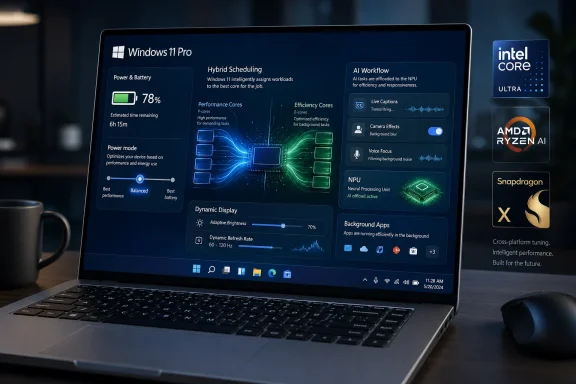 The Fastest Windows Laptop Is the One That Knows When Not to Sprint
For years, Windows performance advice had a familiar rhythm: disable startup apps, choose the high-performance power plan, turn off visual effects, and hope the battery indicator did not collapse before lunch. That advice belonged to an era when CPUs were simpler, laptops were thermally constrained in more predictable ways, and battery life was often the tax paid for speed.Modern Windows 11 Pro hardware breaks that bargain, or at least complicates it. Intel Core Ultra systems, AMD Ryzen AI laptops, and Snapdragon X machines are built around the idea that not every workload deserves the same silicon, the same wattage, or the same thermal budget. A Teams call, a browser tab, a Python build, a 4K export, and a background indexer should not all be treated as equal citizens demanding maximum power.
That is why the operating system matters more than ever. Windows 11 is not simply sitting above the hardware waiting for the user to choose “fast” or “slow.” It is increasingly part of the machine’s power architecture, deciding where work should run, when background activity should be restrained, and how aggressively the display, GPU, storage, and AI hardware should be used.
This does not mean Windows 11 Pro magically fixes poor battery life. A hot-running laptop with a bright OLED panel and a hungry dGPU will still drain quickly under load. But it does mean that the most useful optimizations are now less about superstition and more about matching the system’s behavior to the work in front of it.
Hybrid CPUs Made the Old Power Advice Look Crude
The defining change in modern laptop processors is not just more cores. It is different kinds of cores. Intel’s hybrid designs pair performance cores with efficiency cores, while other modern platforms use their own approaches to allocating work across CPU, GPU, NPU, and specialized accelerators.That shift makes old-school tuning blunt. If every task is forced into a permanent maximum-performance posture, the laptop loses one of the main advantages of its design. The point of efficiency cores and low-power processing islands is not to make the benchmark chart prettier; it is to keep routine tasks from waking the entire machine into a higher-power state.
Windows 11 is built to work with that model. On Intel hybrid systems, for example, Thread Director provides hardware-level hints that help Windows schedule work more intelligently. The practical result is that foreground tasks can get responsive cores while background processes are pushed toward less power-hungry resources where appropriate.
That is the theory, at least. In practice, users will still notice differences between laptop vendors, firmware quality, cooling designs, and driver maturity. A premium machine with tuned firmware may feel dramatically better than a cheaper laptop using similar silicon on paper. Modern Windows optimization therefore starts with accepting that performance is now a partnership among Microsoft, the chip vendor, the OEM, and the user’s own settings.
The Power Mode Slider Is a Policy Lever, Not a Speedometer
Windows 11’s power modes are often misunderstood because their names sound deceptively simple. Balanced, Best Power Efficiency, and Best Performance are not just vibes. They are policy bundles that influence how aggressively the system uses power, ramps clocks, limits background activity, and responds to workload changes.For most users on modern laptops, Balanced remains the right default. It allows the system to respond quickly when work appears but avoids keeping the machine in a more aggressive power state all day. For email, web browsing, Office apps, light photo editing, messaging, and administrative work, Balanced is the mode that best reflects how modern hardware is intended to behave.
Best Performance has its place, but that place is narrower than many enthusiasts assume. It makes sense when compiling code, exporting video, running local virtual machines, analyzing large datasets, gaming, or doing work where completion time matters more than battery life. Leaving it enabled permanently on a laptop is less a mark of seriousness than an admission that the machine is being asked to ignore half of its own intelligence.
Best Power Efficiency is more useful than it used to be because today’s processors can still feel quick at lower power levels. On a recent ultrabook or Copilot+ PC, many daily tasks do not need the system’s highest boost behavior. The mode is especially useful during travel, meetings, note-taking, or long sessions away from a charger.
Energy Saver Is No Longer Just the Panic Button at 20 Percent
Battery Saver used to feel like a warning light: the machine was nearly empty, the screen dimmed, and Windows began trimming its sails. Energy Saver in Windows 11 is a more interesting feature because it reflects a broader shift toward reducing unnecessary power use before the laptop is in crisis.When enabled, Energy Saver reduces background activity and adjusts system behavior to stretch remaining battery life. That sounds modest, but background restraint is one of the most important battlegrounds in laptop efficiency. The enemy is not always the obvious foreground app; it is the updater, sync client, helper process, telemetry agent, browser extension, and vendor utility quietly waking the system throughout the day.
The best use of Energy Saver is situational. If the laptop is being used for writing, reading, meetings, or browser-based admin work, leaving Energy Saver on can be surprisingly tolerable. If the user is doing sustained creative work, gaming, local AI processing, or development tasks, it can become a drag.
Microsoft has also been experimenting with more adaptive approaches, where energy-saving behavior can respond to current usage rather than only battery percentage. That is the right direction. The best power feature is not one that makes the user micromanage every hour; it is one that understands the difference between a quiet Word document and a heavy render without making either experience worse.
The NPU Is a Battery Story Before It Is an AI Story
The marketing around AI PCs has often been louder than the actual day-to-day benefit. Copilot+ PCs, NPUs, TOPS ratings, and on-device models have been sold as the next great platform transition, but for many users the immediate question is simpler: does any of this make the laptop better?For battery life, the answer can be yes, but with caveats. A Neural Processing Unit is designed to run certain AI workloads more efficiently than a general-purpose CPU or GPU. If an app can offload supported tasks to the NPU, the system may avoid waking more power-hungry silicon for work such as camera effects, background blur, voice features, image processing, transcription, or local model inference.
That does not mean the NPU makes every app faster. It also does not mean every “AI” feature automatically runs locally or efficiently. Software must be written to use the hardware, drivers must be mature, and Windows must expose the right platform capabilities. In this sense, the NPU is less like installing a faster SSD and more like adding a specialized lane that only some traffic currently knows how to use.
Still, the direction is important. Windows laptops have long struggled with the power cost of modern collaboration workflows: video calls, noise suppression, background effects, live captions, and browser-heavy productivity stacks. If more of those jobs move to specialized hardware, the user may feel the gain not as a dramatic benchmark leap, but as a laptop that stays cooler, quieter, and alive longer.
Copilot+ PCs Raise the Floor, but They Also Raise the Confusion
Copilot+ PCs are not simply “Windows 11 laptops with AI branding.” Microsoft’s definition includes a high-performance NPU, and many of the signature experiences are tied to that class of hardware. That creates a clearer platform target for developers, but it also leaves plenty of users wondering whether their recent non-Copilot+ machine is modern or already second-class.The honest answer is that both things can be true. A recent Windows 11 Pro laptop without a qualifying NPU can still be fast, secure, and efficient. It may simply lack access to some local AI features or run certain workloads less efficiently than a system with the required hardware.
That distinction matters for business buyers. Fleet managers should not buy AI PCs only because the sticker is fashionable. They should look at workload fit: collaboration-heavy users, mobile staff, executives on battery all day, developers testing local AI workflows, and creative teams using NPU-aware tools may benefit sooner than users whose work lives entirely in web apps and remote desktops.
For consumers, the advice is similar but simpler. Do not replace a perfectly good laptop just because it lacks an NPU. But if buying new in 2026, it is increasingly hard to justify ignoring NPU capability on a premium Windows machine. The hardware may not transform the experience on day one, but it is becoming part of the baseline for where Windows is headed.
The Display Is Still the Battery Villain Hiding in Plain Sight
Processors get the attention, but the display remains one of the biggest drains on a laptop battery. High-resolution panels, high refresh rates, HDR capability, touch layers, and bright OLED screens can all punish runtime. A beautifully smooth 120Hz display is a joy until the user realizes the laptop is spending energy redrawing a static document twice as often as necessary.Dynamic Refresh Rate is one of Windows 11’s more sensible answers to this problem. On supported hardware, Windows can shift refresh behavior depending on what the user is doing. Scrolling, inking, and animation can feel smoother, while static or less demanding work can run at a lower refresh rate to reduce power consumption.
This is the kind of optimization users should embrace because it does not demand much sacrifice. Manually locking a panel to 60Hz can save power, but it also makes an expensive display feel less premium. Dynamic behavior offers a better compromise: smoothness when it matters, restraint when it does not.
Brightness remains even more basic and even more powerful. Automatic brightness controls and content-adaptive brightness can extend runtime, especially indoors or during long document sessions. Some users dislike adaptive brightness because it can shift visibly, but the feature is worth testing before being dismissed. On a laptop, the cheapest watt is usually the one the screen never uses.
Background Apps Are the Tax Windows Users Forget They Pay
The most familiar Windows optimization advice still matters: stop unnecessary apps from launching at startup. The difference is that on modern hardware the goal is not merely a faster boot. It is fewer resident processes competing for wakeups, memory, network access, CPU time, and attention.Windows 11 makes startup management straightforward through Settings, where apps can be sorted by startup impact. The obvious targets are game launchers, chat clients, cloud tools, printer utilities, vendor assistants, RGB controllers, and “helper” apps that provide little daily value. Each one may be small, but the collective effect can be meaningful.
The trap is overcorrection. Disabling everything can break useful workflows, remove update agents, interfere with security tools, or stop sync services that users actually rely on. A work laptop with OneDrive, VPN, endpoint protection, and device management agents is not “bloated” merely because it has background processes.
The better approach is deliberate pruning. If an app does not need to be ready the moment Windows starts, disable its startup entry and launch it manually when needed. The user gains a cleaner boot, fewer background wakeups, and a system that spends more time doing requested work rather than anticipating hypothetical work.
Updates Are Performance Maintenance, Not Just Security Chores
Windows Update is often framed as the thing that interrupts productivity. That reputation is not imaginary, but it obscures a more important point: on modern laptops, firmware, drivers, microcode, graphics packages, Wi-Fi updates, and chipset software can materially affect performance and battery life.This is especially true for new platforms. Early Snapdragon X, Core Ultra, and Ryzen AI systems depend heavily on driver maturity and firmware tuning. A laptop released with merely adequate power behavior can improve over time as OEMs refine fan curves, sleep states, graphics switching, NPU support, and device compatibility.
Windows Update may deliver some of those improvements, including security fixes and driver updates. Optional updates can expose additional drivers, though they should not be treated as a magical upgrade bucket. If a system is stable, optional drivers are worth approaching carefully, especially in managed environments.
OEM support utilities and manufacturer websites still matter. Business-class systems from Dell, HP, Lenovo, Microsoft, and others often receive firmware packages through vendor tools or enterprise deployment channels. For IT departments, keeping those pipelines healthy is part of power management. A fleet with outdated BIOS versions can waste battery at scale.
Graphics Settings Turn Dual-GPU Laptops Into Negotiators
Many Windows 11 Pro laptops include both integrated graphics and a discrete GPU. That pairing can be excellent for users who need bursts of graphics power, but it can also be inefficient if apps wake the dGPU unnecessarily. The difference between integrated graphics and a discrete GPU can be the difference between an all-afternoon laptop and one that starts looking for a charger before the second meeting.Windows 11’s per-app graphics preferences are therefore more than a gaming tweak. They allow users to steer demanding applications toward high-performance graphics while keeping routine apps on power-saving hardware. Video editors, CAD tools, 3D apps, games, and GPU-accelerated workloads may deserve the dGPU. Browsers, messaging apps, note tools, and office suites usually do not.
This is another area where defaults vary by vendor. Some laptops handle GPU switching gracefully, while others are more eager to wake the discrete chip. Users who notice unexpected battery drain should check which GPU is active during ordinary work. A single misbehaving app can keep the system in a higher-power state for hours.
For IT pros, the lesson is policy. Creative teams may need profiles that prioritize performance for specific software. General productivity users need the opposite: predictable efficiency with high-performance graphics reserved for known workloads. Windows gives administrators and users more control than many realize, but the control only helps if someone uses it.
Storage Sense Is Housekeeping With Performance Consequences
NVMe SSDs have made storage feel boring in the best possible way. Even midrange laptops now boot quickly, launch apps fast, and move files at speeds that would have seemed luxurious a decade ago. But fast storage does not eliminate the need for maintenance.Windows 11’s Storage Sense can automatically remove temporary files and help keep clutter from accumulating. That matters because SSDs perform best when they have adequate free space for wear leveling, caching, updates, and temporary operations. A nearly full system drive can make a premium laptop feel strangely constrained.
The most important caution concerns the Downloads folder. Automated cleanup can be useful, but many users treat Downloads as a messy holding area for installers, invoices, archives, exports, and work-in-progress files. Letting Windows automatically purge that folder without understanding the setting can create an avoidable self-inflicted wound.
Cleanup recommendations are safer as a periodic review. They let users see large files, unused apps, temporary data, and other storage candidates before deleting them. This is not glamorous optimization, but it is real. A clean storage environment supports smoother updates, fewer failed installs, and less friction during daily use.
Security Is Part of the Performance Architecture Now
Windows 11 Pro’s security features are often discussed as enterprise checkboxes: BitLocker, TPM 2.0, Windows Hello, Microsoft Defender, virtualization-based protections, secure boot, and device encryption. But on modern hardware, security is increasingly woven into the performance story rather than bolted on afterward.That is partly because Windows 11 was designed around a higher hardware baseline than Windows 10. TPM 2.0 and modern processor security features give the operating system assumptions it could not always make before. Hardware-backed identity, encryption, and platform integrity can operate in ways that are less intrusive than older software-heavy approaches.
For users, the practical advice is not to disable security features in pursuit of a vague speed gain. Turning off protections may produce a benchmark change in narrow cases, but it is usually a poor trade on a modern work laptop. The cost of a compromised device, exposed credentials, or stolen data dwarfs the minor performance advantage many users imagine they are gaining.
For administrators, the challenge is calibration. Security baselines should be tested against real workloads, especially for developers, virtualization users, and specialized software environments. But the default posture should be clear: modern Windows hardware exists to make strong protection normal, not optional.
The Control Panel Era Is Over, but the Tuning Mindset Survives
There is a nostalgia among some Windows power users for the old ways: custom power plans, registry edits, stripped services, third-party debloaters, and elaborate startup rituals. Some of that history came from real frustration. Windows has not always been disciplined about background activity, OEMs have shipped plenty of junk, and users learned to defend their machines from their own software stacks.But modern Windows 11 Pro optimization is less about fighting the operating system and more about setting boundaries. Choose the right power mode. Use Energy Saver when mobility matters. Keep startup apps honest. Let Dynamic Refresh Rate do its work. Update firmware. Assign graphics resources intentionally. Keep storage clean.
The operating system is now capable of making better decisions than a user who simply forces maximum performance everywhere. That is not an argument for blind trust. It is an argument for using Windows’ built-in controls before reaching for folklore.
The most efficient Windows laptop is not necessarily the one with the lowest power setting. It is the one that changes posture quickly and appropriately. It sips power while idle, wakes performance when needed, avoids unnecessary GPU use, offloads eligible AI work, and keeps the display from wasting energy on static content.
Enterprise IT Should Treat Battery Life as a Managed Resource
For organizations, Windows 11 Pro power optimization is not merely a user preference. Battery life affects meeting reliability, travel productivity, hardware satisfaction, help desk load, and device replacement cycles. A fleet that consistently dies early feels older than it is.The enterprise challenge is that power policy sits at the intersection of user autonomy and central management. Lock systems too aggressively and employees complain that their expensive laptops feel slow. Leave everything to defaults and the fleet may waste power through inconsistent settings, OEM utilities, and unmanaged startup sprawl.
Windows Pro, management tools, and OEM platforms give IT departments enough levers to be intentional. They can define baseline power behavior, manage updates, standardize firmware, control startup apps, enforce security posture, and educate users about when to switch modes. The best organizations will not treat these settings as one-time imaging decisions. They will revisit them as hardware platforms and Windows builds evolve.
The AI PC transition adds another layer. IT buyers should validate whether NPU-enabled features matter for their users today, but they should also plan for software that may assume local acceleration tomorrow. The goal is not to chase branding. It is to avoid buying three-year fleet devices that miss the next platform baseline by one procurement cycle.
The Windows 11 Pro Battery Playbook Is Finally Specific Enough to Matter
The practical advice for modern Windows 11 Pro laptops is refreshingly concrete. Users do not need to believe in miracle optimizers, and administrators do not need to flatten every machine into a single high-performance profile. They need to align settings with the way current hardware actually works.- Balanced mode should be the default for most modern Windows 11 Pro laptops because it lets the system preserve responsiveness without burning unnecessary power all day.
- Best Performance should be reserved for sustained demanding workloads such as rendering, compiling, gaming, analysis, and other tasks where completion time matters more than runtime.
- Energy Saver is useful before the battery is nearly empty, especially for writing, browsing, meetings, and travel work where background activity is less important than endurance.
- Dynamic Refresh Rate, adaptive brightness, and sensible display settings can save meaningful power because the screen remains one of the largest energy consumers in a laptop.
- Startup app pruning is still worthwhile, but users should disable unnecessary convenience apps rather than critical security, sync, VPN, or device-management components.
- Firmware, driver, and Windows updates should be treated as part of performance maintenance because modern platforms often improve through post-launch tuning.
Windows performance tuning used to mean pushing the system harder; in 2026, it increasingly means teaching the system when restraint is the smarter move. As Intel, AMD, Qualcomm, Microsoft, and PC makers continue folding AI acceleration, hybrid scheduling, and hardware-backed security deeper into the platform, the Windows laptops that feel best will not simply be the ones with the highest specifications. They will be the ones whose software, firmware, and user policies let power flow only where it is needed, only when it is needed, and with as little waste as the platform can manage.
References
- Primary source: Windows Central
Published: 2026-06-12T01:10:10.047478
Optimize battery and performance on Windows 11 Pro for modern hardware | Windows Central
Windows 11 Pro includes built-in tools that help balance speed, efficiency, and battery life on today's hardware.www.windowscentral.com - Official source: support.microsoft.com
Power settings in Windows 11 | Microsoft Support
You can use Screen and sleep settings to save energy and make your battery last longer.support.microsoft.com - Official source: learn.microsoft.com
- Related coverage: makeuseof.com
What Is Dynamic Refresh Rate on Windows 11 and How Can You Enable It?
Windows 11 makes setting up your display easy with its dynamic refresh rate feature, but what is it and how does it work? www.makeuseof.com
- Related coverage: tomshardware.com
Windows 11 Will Feature Dynamic Refresh Rate on the Desktop | Tom's Hardware
But there are several caveatswww.tomshardware.com - Official source: microsoft.com
Copilot+ PCs and AI Features for Businesses | Microsoft
Discover Microsoft Copilot+ PCs for your business. Learn how these AI-powered computers and laptops deliver business solutions with Copilot+ PC AI features that streamline work.www.microsoft.com
- Related coverage: pcworld.com
Intel Core Ultra & Windows Copilot: What local AI can (and can't) do | PCWorld
Intel Core Ultra CPUs enable the operation of local AI solutions. This allows users to utilize AI solutions without having to send data to the cloud. Windows supports this with Copilot. This article explains what's behind it.www.pcworld.com - Related coverage: intel.com
- Official source: news.microsoft.com
