

Windows 11 Pro security alerts usually come from the Windows Security app, Microsoft Defender Antivirus, SmartScreen, or Smart App Control, and they are meant to push users toward a specific next action: re-enable protection, quarantine a file, review a blocked download, or stop an untrusted app from running. The practical problem is that Windows often explains the danger in the language of a control panel, not a human being. That gap is where users make bad choices: ignoring a real compromise, allowing a suspicious file because it is inconvenient, or disabling a protection layer because it blocked one installer. The alert is not the story; the decision that follows is.
Microsoft has spent years turning Windows Security from a humble antivirus interface into the front desk for the operating system’s defensive posture. On Windows 11 Pro, that front desk now includes Microsoft Defender Antivirus, firewall controls, reputation-based protection, SmartScreen, ransomware protections, device security signals, and newer enforcement systems such as Smart App Control.
That consolidation is useful, but it also means many different security events now arrive with the same visual grammar. A disabled antivirus engine, a quarantined Trojan, a blocked download, and an unsigned application can all feel like variants of the same red-banner emergency. They are not.
The first rule for reading Windows 11 security alerts is to identify which layer is speaking. Defender Antivirus is reacting to files and behaviors it believes are malicious. SmartScreen is warning about websites, downloads, and reputation. Smart App Control is making a harder trust decision about whether software should run at all. The alert text may be short, but the underlying mechanism matters.
Windows 11 Pro adds another wrinkle because its audience often includes power users and small-business administrators. These are the people most likely to install unsigned tools, remote management utilities, VPN clients, firmware updaters, scripting frameworks, and niche line-of-business applications. In other words, they are also the people most likely to meet Windows Security at its most suspicious.
There are innocent reasons for this alert. A third-party antivirus suite may have taken over responsibility from Microsoft Defender. A recent uninstall may have left Windows in a confused state. A troubleshooting session may have temporarily disabled Defender and never turned it back on. But the alert also deserves suspicion, because malware routinely tries to weaken or disable security tools before doing anything louder.
The correct response is not to panic-click through the warning; it is to confirm who is protecting the machine. Open Windows Security, go to Virus & threat protection, and check whether Defender is active or whether another antivirus provider is registered. If nothing credible is handling real-time scanning, turn protection back on immediately.
The trap is assuming that more antivirus is always better. If a third-party suite is legitimately installed and providing real-time protection, forcing Defender’s real-time engine back on can create conflicts, duplicate scans, performance issues, or confusing detections. The right answer is one active, healthy, updated protection stack — not two products fighting for the same files.
For administrators, this alert should also trigger a policy check. If Defender is supposed to be managed by Group Policy, Intune, Microsoft Defender for Endpoint, or another management plane, a local alert may indicate policy drift. On a personal PC, it is a user-facing inconvenience. On a fleet, it is a signal that configuration enforcement deserves a look.
The default move should be quarantine. Quarantine removes the file from normal use without immediately treating the user as a malware analyst. It preserves the option to review the detection, submit the file for analysis, or restore it later if there is strong evidence of a false positive.
The “Allow on device” option is where trouble begins. Windows exposes it because false positives exist and because professionals sometimes need to run specialized tools that look suspicious by design. But for ordinary users, allowing a detected threat is rarely a smart bet. If the file came from a cracked installer, an email attachment, a random download mirror, a Discord link, or a search-ad result masquerading as a vendor page, the alert is probably doing its job.
The correct workflow is boring and effective. Open Windows Security, review Protection history, inspect the item that triggered the alert, and choose a containment action. If the file is not essential, remove it. If it is essential, verify the source before even considering an allow action: check the publisher, download it again from the official vendor, compare hashes if the vendor publishes them, and make sure the file was not bundled through a third-party installer.
There is a cultural problem here. Many Windows users have been trained by decades of nuisance prompts to treat security warnings as obstacles. Modern attackers rely on that habit. The alert is not asking whether you are annoyed; it is asking whether you trust the file enough to give it a place inside your account, browser session, credential store, and network.
Quarantine is one of the more sensible defaults in consumer and small-business security because it reduces irreversible damage. Immediately deleting every suspicious file can break workflows or destroy evidence. Immediately allowing every file because “I needed that installer” is worse. Quarantine sits between those extremes.
A quarantined file should prompt two questions. First, do you recognize the file and its source? Second, do you still need it? If the answer to either question is no, removal is usually the right call. If the answer to both is yes, the next step is not blind restoration but verification.
The more interesting question is how the file arrived. A quarantined browser download is one kind of story. A file discovered in a temporary directory, startup path, archive extraction folder, or script cache is another. If Defender keeps finding related items after removal, the file may be a symptom rather than the root cause.
A “Threat blocked” alert is slightly different. Windows may have prevented or removed the item without asking for much input. That can be reassuring, but it should not end the investigation. If the blocked file came from a website or download attempt you initiated, change behavior. If it appeared without an obvious user action, scan more deeply and review recent installs, browser extensions, startup items, and scheduled tasks.
For IT pros, Protection history is not just a comfort screen. It is a timeline. It can show whether detections cluster around a specific user action, application, removable drive, browser session, or software deployment. The alert tells you what happened; the timeline helps explain why.
Users often read this as a failure of Windows Security. In practice, it is often a request for a second stage. Open Protection history, identify the item, and follow the available action. If Windows asks for a restart, restart. If it recommends additional action, take it. If the alert returns, escalate the response.
A full scan is a reasonable next step, but it is not always enough. Microsoft Defender Offline scan can be more useful when persistent malware is suspected because it runs outside the normal Windows session. That matters when the threat may be active, hooked into startup, or interfering with cleanup.
The user’s recent behavior is also part of the diagnostic record. A remediation failure after opening a malicious attachment, installing a dubious driver updater, running a cracked application, or plugging in an unknown USB device should be treated more seriously than a one-off detection inside a browser cache. Security alerts are technical events, but they live in human context.
This is also where backups matter. If Defender cannot complete remediation and the machine begins showing signs of compromise — new admin accounts, browser redirects, disabled security settings, unexplained outbound traffic, ransomware notes, or failed login alerts from online accounts — the problem has moved beyond clicking the next button in Windows Security. Disconnecting from the network, preserving evidence if needed, and restoring from known-good media may be the safer path.
That criticism is not entirely unfair, but it misses the security logic. SmartScreen is a reputation system. It looks at signals around sites, downloads, publishers, and known malicious behavior to help users avoid phishing pages, malware downloads, and files that lack a trustworthy history. The point is not to prove mathematical guilt; it is to interrupt the high-risk moment before the user executes the payload.
This is why SmartScreen warnings deserve more attention than they often get. A phishing site does not need admin rights. A malicious download does not need to look exotic. A fake installer for a popular app can do its damage precisely because the user believes they are doing something ordinary.
SmartScreen is also more bypassable than Smart App Control. A user can often continue past a warning or keep a blocked download after expanding additional options. That design preserves agency, but it also moves responsibility onto the person at the keyboard. If you bypass SmartScreen, you are making a trust decision Microsoft declined to make for you.
The sensible response to a SmartScreen website block is to stop and verify the destination. Do not rely on the look of the page, especially for banking, Microsoft account, cloud storage, crypto, payroll, or webmail logins. Navigate manually to the service, use a saved bookmark you trust, or search for the vendor through a known path while avoiding sponsored links that may be abused.
For downloads, the safest move is deletion unless you have a strong reason to proceed. If you do proceed, download from the official source, check the publisher signature, avoid repackaged installers, and consider submitting the file to a reputable scanning service or testing it in a disposable environment. SmartScreen is not perfect, but it is rarely wise to treat it as merely cosmetic.
That makes Smart App Control both valuable and frustrating. It is valuable because many attacks begin with code that should never have run in the first place. It is frustrating because legitimate software ecosystems are messy. Small developers, older utilities, internal tools, modding communities, hardware vendors, and niche professional applications do not always live inside the tidy world of strong code signing and broad reputation.
Microsoft’s bet is that cloud-backed reputation and signing signals can stop enough harmful software to justify the occasional hard block. For mainstream users, that is often a good trade. For power users and administrators, it can feel like Windows is enforcing a consumer trust model on machines that do real work.
The important distinction is that a Smart App Control block should not be treated like a normal antivirus false positive. If there is no per-app allow button, disabling the feature to run one installer is a major decision. Depending on the Windows build and policy state, turning it off may not be a reversible toggle in the way users expect, and Microsoft has historically tied Smart App Control availability to system state and trust assumptions.
This is where Windows 11 Pro users should be especially disciplined. If a blocked app is optional, skip it. If it is required, go back to the vendor and look for a signed, current build. If it is an internal tool, fix the software supply chain rather than training users to weaken the machine. If it is a hobby utility from an unknown publisher, run it somewhere expendable rather than on your daily driver.
Smart App Control’s bluntness also carries a message for developers. Signing, distribution hygiene, and reputation are no longer enterprise niceties. They increasingly determine whether software launches at all on a modern Windows PC. The operating system is moving trust decisions earlier in the execution chain, and unsigned code is becoming a liability even when it is harmless.
The correct posture is calibrated skepticism. Assume the alert is worth investigating. Assume your own certainty may be inflated. Then verify using evidence that does not come from the same risky source that produced the file.
The worst evidence is a forum comment saying “just disable Defender.” The second-worst evidence is the download page of the suspicious app insisting that antivirus warnings are normal. Sometimes that claim is true, especially for tools that manipulate memory, recover passwords, modify system files, or administer remote machines. It is also exactly what malware distributors say.
Good evidence looks different. A known vendor site provides a signed installer. The digital signature matches the publisher. The file hash matches the vendor’s published checksum. Other reputable sources discuss the same false positive. A newer version resolves the detection. The developer can explain the behavior that triggered the alert.
Windows 11 Pro users often occupy the gray zone where security tools are both necessary and annoying. The machine may need VPN clients, remote shells, hypervisors, packet analyzers, flashing utilities, and scripts. That makes process more important, not less. If your workflow requires risky-looking tools, keep them organized, documented, downloaded from official sources, and separated from casual browsing and email.
This is especially true for small offices running Windows 11 Pro without full enterprise endpoint tooling. The same user may be the buyer, administrator, help desk, and security approver. That arrangement makes convenience dangerous. A user searching the web for a PDF editor, remote access tool, or codec pack can accidentally become the procurement department for malware.
The safest software path is boring. Use vendor websites, Microsoft Store when appropriate, winget or managed package repositories where you trust the source, and documented internal deployment. Avoid mirrors, repackagers, cracked builds, “download now” portals, and search ads for software that should be obtained directly.
Administrators should also pay attention to alerts that appear after updates. A legitimate application can suddenly become suspicious if its signing certificate expires, its installer changes, it bundles a new component, or its update mechanism is compromised. Security tools are sometimes the first signal that a trusted vendor relationship has changed.
For home users, the same lesson applies in simpler terms. If Windows blocks something you downloaded while trying to fix another problem, stop. Malware often rides on the back of supposed fixes: driver updaters, activation tools, browser cleanup utilities, game mods, media converters, and fake security scanners. The cure is often the infection.
When an alert appears, read the exact wording. Open Windows Security from the Start menu rather than trusting a random pop-up or web page that claims to be Windows. Review Protection history or App & browser control, depending on the alert. Take the safest reversible action first: turn protection back on, quarantine the threat, delete the blocked download, or leave the app blocked.
Then ask how the event happened. Was it tied to a download? An email attachment? A USB drive? A software update? A browser redirect? A script? A new extension? Security alerts are not just cleanup prompts; they are breadcrumbs.
This habit also reduces alert fatigue. Users who know what each class of alert means are less likely to overreact to benign warnings and less likely to underreact to real threats. The goal is not to memorize every Windows Security screen. The goal is to avoid making irreversible trust decisions while surprised.
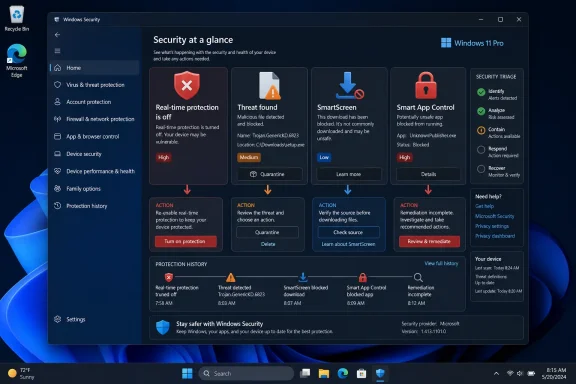 Windows Security Has Become the Front Door to the PC
Microsoft has spent years turning Windows Security from a humble antivirus interface into the front desk for the operating system’s defensive posture. On Windows 11 Pro, that front desk now includes Microsoft Defender Antivirus, firewall controls, reputation-based protection, SmartScreen, ransomware protections, device security signals, and newer enforcement systems such as Smart App Control.That consolidation is useful, but it also means many different security events now arrive with the same visual grammar. A disabled antivirus engine, a quarantined Trojan, a blocked download, and an unsigned application can all feel like variants of the same red-banner emergency. They are not.
The first rule for reading Windows 11 security alerts is to identify which layer is speaking. Defender Antivirus is reacting to files and behaviors it believes are malicious. SmartScreen is warning about websites, downloads, and reputation. Smart App Control is making a harder trust decision about whether software should run at all. The alert text may be short, but the underlying mechanism matters.
Windows 11 Pro adds another wrinkle because its audience often includes power users and small-business administrators. These are the people most likely to install unsigned tools, remote management utilities, VPN clients, firmware updaters, scripting frameworks, and niche line-of-business applications. In other words, they are also the people most likely to meet Windows Security at its most suspicious.
The Most Dangerous Alert Is the One That Says Protection Is Off
The “Turn on virus protection” or “Real-time protection is off” warning is not as cinematic as “Threat found,” but it may be the more urgent one. If real-time protection is disabled and no equivalent third-party antivirus is actively covering the machine, Windows has lost the layer that inspects files and activity as they happen.There are innocent reasons for this alert. A third-party antivirus suite may have taken over responsibility from Microsoft Defender. A recent uninstall may have left Windows in a confused state. A troubleshooting session may have temporarily disabled Defender and never turned it back on. But the alert also deserves suspicion, because malware routinely tries to weaken or disable security tools before doing anything louder.
The correct response is not to panic-click through the warning; it is to confirm who is protecting the machine. Open Windows Security, go to Virus & threat protection, and check whether Defender is active or whether another antivirus provider is registered. If nothing credible is handling real-time scanning, turn protection back on immediately.
The trap is assuming that more antivirus is always better. If a third-party suite is legitimately installed and providing real-time protection, forcing Defender’s real-time engine back on can create conflicts, duplicate scans, performance issues, or confusing detections. The right answer is one active, healthy, updated protection stack — not two products fighting for the same files.
For administrators, this alert should also trigger a policy check. If Defender is supposed to be managed by Group Policy, Intune, Microsoft Defender for Endpoint, or another management plane, a local alert may indicate policy drift. On a personal PC, it is a user-facing inconvenience. On a fleet, it is a signal that configuration enforcement deserves a look.
“Threat Found” Is a Decision Point, Not a Diagnosis
A “Threat found” or “Threat found — action needed” alert is where Windows Security becomes both useful and easy to misuse. Defender has identified something that matches a detection, behavior, or reputation signal. That does not mean every alert is a confirmed disaster, but it does mean the file should be treated as guilty until proven otherwise.The default move should be quarantine. Quarantine removes the file from normal use without immediately treating the user as a malware analyst. It preserves the option to review the detection, submit the file for analysis, or restore it later if there is strong evidence of a false positive.
The “Allow on device” option is where trouble begins. Windows exposes it because false positives exist and because professionals sometimes need to run specialized tools that look suspicious by design. But for ordinary users, allowing a detected threat is rarely a smart bet. If the file came from a cracked installer, an email attachment, a random download mirror, a Discord link, or a search-ad result masquerading as a vendor page, the alert is probably doing its job.
The correct workflow is boring and effective. Open Windows Security, review Protection history, inspect the item that triggered the alert, and choose a containment action. If the file is not essential, remove it. If it is essential, verify the source before even considering an allow action: check the publisher, download it again from the official vendor, compare hashes if the vendor publishes them, and make sure the file was not bundled through a third-party installer.
There is a cultural problem here. Many Windows users have been trained by decades of nuisance prompts to treat security warnings as obstacles. Modern attackers rely on that habit. The alert is not asking whether you are annoyed; it is asking whether you trust the file enough to give it a place inside your account, browser session, credential store, and network.
Quarantine Is the Operating System Buying You Time
“Threat quarantined” sounds like a conclusion, but it is really a pause. Defender has isolated a suspicious or malicious file so it cannot run normally. That buys time for the user or administrator to decide whether to delete it, investigate it, or — rarely — restore it.Quarantine is one of the more sensible defaults in consumer and small-business security because it reduces irreversible damage. Immediately deleting every suspicious file can break workflows or destroy evidence. Immediately allowing every file because “I needed that installer” is worse. Quarantine sits between those extremes.
A quarantined file should prompt two questions. First, do you recognize the file and its source? Second, do you still need it? If the answer to either question is no, removal is usually the right call. If the answer to both is yes, the next step is not blind restoration but verification.
The more interesting question is how the file arrived. A quarantined browser download is one kind of story. A file discovered in a temporary directory, startup path, archive extraction folder, or script cache is another. If Defender keeps finding related items after removal, the file may be a symptom rather than the root cause.
A “Threat blocked” alert is slightly different. Windows may have prevented or removed the item without asking for much input. That can be reassuring, but it should not end the investigation. If the blocked file came from a website or download attempt you initiated, change behavior. If it appeared without an obvious user action, scan more deeply and review recent installs, browser extensions, startup items, and scheduled tasks.
For IT pros, Protection history is not just a comfort screen. It is a timeline. It can show whether detections cluster around a specific user action, application, removable drive, browser session, or software deployment. The alert tells you what happened; the timeline helps explain why.
“Remediation Incomplete” Is Windows Admitting It Needs Help
The “Remediation incomplete” alert is the one that deserves respect because it says Defender tried to solve the problem and did not finish the job. That can happen when a file is locked, when malware resists removal, when a required restart has not occurred, when a detection involves multiple components, or when Defender lacks the context it needs to cleanly reverse a change.Users often read this as a failure of Windows Security. In practice, it is often a request for a second stage. Open Protection history, identify the item, and follow the available action. If Windows asks for a restart, restart. If it recommends additional action, take it. If the alert returns, escalate the response.
A full scan is a reasonable next step, but it is not always enough. Microsoft Defender Offline scan can be more useful when persistent malware is suspected because it runs outside the normal Windows session. That matters when the threat may be active, hooked into startup, or interfering with cleanup.
The user’s recent behavior is also part of the diagnostic record. A remediation failure after opening a malicious attachment, installing a dubious driver updater, running a cracked application, or plugging in an unknown USB device should be treated more seriously than a one-off detection inside a browser cache. Security alerts are technical events, but they live in human context.
This is also where backups matter. If Defender cannot complete remediation and the machine begins showing signs of compromise — new admin accounts, browser redirects, disabled security settings, unexplained outbound traffic, ransomware notes, or failed login alerts from online accounts — the problem has moved beyond clicking the next button in Windows Security. Disconnecting from the network, preserving evidence if needed, and restoring from known-good media may be the safer path.
SmartScreen Is a Reputation System Wearing a Warning Label
Microsoft Defender SmartScreen is often misunderstood because it looks like a browser nag. In Edge, it may block a suspicious website or stop a download. In Windows, it may warn about an unrecognized app. To the user, this can feel like Microsoft expressing an opinion about what software is popular enough to deserve trust.That criticism is not entirely unfair, but it misses the security logic. SmartScreen is a reputation system. It looks at signals around sites, downloads, publishers, and known malicious behavior to help users avoid phishing pages, malware downloads, and files that lack a trustworthy history. The point is not to prove mathematical guilt; it is to interrupt the high-risk moment before the user executes the payload.
This is why SmartScreen warnings deserve more attention than they often get. A phishing site does not need admin rights. A malicious download does not need to look exotic. A fake installer for a popular app can do its damage precisely because the user believes they are doing something ordinary.
SmartScreen is also more bypassable than Smart App Control. A user can often continue past a warning or keep a blocked download after expanding additional options. That design preserves agency, but it also moves responsibility onto the person at the keyboard. If you bypass SmartScreen, you are making a trust decision Microsoft declined to make for you.
The sensible response to a SmartScreen website block is to stop and verify the destination. Do not rely on the look of the page, especially for banking, Microsoft account, cloud storage, crypto, payroll, or webmail logins. Navigate manually to the service, use a saved bookmark you trust, or search for the vendor through a known path while avoiding sponsored links that may be abused.
For downloads, the safest move is deletion unless you have a strong reason to proceed. If you do proceed, download from the official source, check the publisher signature, avoid repackaged installers, and consider submitting the file to a reputable scanning service or testing it in a disposable environment. SmartScreen is not perfect, but it is rarely wise to treat it as merely cosmetic.
Smart App Control Is Microsoft’s Harder Line on Trust
Smart App Control is the sharpest edge in this discussion because it changes the tone from “are you sure?” to “no.” On supported Windows 11 systems, it can block malicious, untrusted, or unsigned applications from running. Unlike SmartScreen, it is not designed around easy per-app bypass.That makes Smart App Control both valuable and frustrating. It is valuable because many attacks begin with code that should never have run in the first place. It is frustrating because legitimate software ecosystems are messy. Small developers, older utilities, internal tools, modding communities, hardware vendors, and niche professional applications do not always live inside the tidy world of strong code signing and broad reputation.
Microsoft’s bet is that cloud-backed reputation and signing signals can stop enough harmful software to justify the occasional hard block. For mainstream users, that is often a good trade. For power users and administrators, it can feel like Windows is enforcing a consumer trust model on machines that do real work.
The important distinction is that a Smart App Control block should not be treated like a normal antivirus false positive. If there is no per-app allow button, disabling the feature to run one installer is a major decision. Depending on the Windows build and policy state, turning it off may not be a reversible toggle in the way users expect, and Microsoft has historically tied Smart App Control availability to system state and trust assumptions.
This is where Windows 11 Pro users should be especially disciplined. If a blocked app is optional, skip it. If it is required, go back to the vendor and look for a signed, current build. If it is an internal tool, fix the software supply chain rather than training users to weaken the machine. If it is a hobby utility from an unknown publisher, run it somewhere expendable rather than on your daily driver.
Smart App Control’s bluntness also carries a message for developers. Signing, distribution hygiene, and reputation are no longer enterprise niceties. They increasingly determine whether software launches at all on a modern Windows PC. The operating system is moving trust decisions earlier in the execution chain, and unsigned code is becoming a liability even when it is harmless.
False Positives Are Real, but So Is User Overconfidence
Every security system produces false positives. Defender can misclassify a tool. SmartScreen can distrust a new download because it has not seen enough installs. Smart App Control can block something legitimate because its signing or reputation story is weak. That reality does not mean users should flatten every alert into “Windows being Windows.”The correct posture is calibrated skepticism. Assume the alert is worth investigating. Assume your own certainty may be inflated. Then verify using evidence that does not come from the same risky source that produced the file.
The worst evidence is a forum comment saying “just disable Defender.” The second-worst evidence is the download page of the suspicious app insisting that antivirus warnings are normal. Sometimes that claim is true, especially for tools that manipulate memory, recover passwords, modify system files, or administer remote machines. It is also exactly what malware distributors say.
Good evidence looks different. A known vendor site provides a signed installer. The digital signature matches the publisher. The file hash matches the vendor’s published checksum. Other reputable sources discuss the same false positive. A newer version resolves the detection. The developer can explain the behavior that triggered the alert.
Windows 11 Pro users often occupy the gray zone where security tools are both necessary and annoying. The machine may need VPN clients, remote shells, hypervisors, packet analyzers, flashing utilities, and scripts. That makes process more important, not less. If your workflow requires risky-looking tools, keep them organized, documented, downloaded from official sources, and separated from casual browsing and email.
The Alert Is Also a Clue About Your Software Supply Chain
A single security alert is about one machine. A pattern of alerts is about a supply chain. If Windows repeatedly flags installers from the same download portal, browser extension family, driver utility, or “free” productivity bundle, the problem is not Defender sensitivity. The problem is where the software is coming from.This is especially true for small offices running Windows 11 Pro without full enterprise endpoint tooling. The same user may be the buyer, administrator, help desk, and security approver. That arrangement makes convenience dangerous. A user searching the web for a PDF editor, remote access tool, or codec pack can accidentally become the procurement department for malware.
The safest software path is boring. Use vendor websites, Microsoft Store when appropriate, winget or managed package repositories where you trust the source, and documented internal deployment. Avoid mirrors, repackagers, cracked builds, “download now” portals, and search ads for software that should be obtained directly.
Administrators should also pay attention to alerts that appear after updates. A legitimate application can suddenly become suspicious if its signing certificate expires, its installer changes, it bundles a new component, or its update mechanism is compromised. Security tools are sometimes the first signal that a trusted vendor relationship has changed.
For home users, the same lesson applies in simpler terms. If Windows blocks something you downloaded while trying to fix another problem, stop. Malware often rides on the back of supposed fixes: driver updaters, activation tools, browser cleanup utilities, game mods, media converters, and fake security scanners. The cure is often the infection.
Windows 11 Pro Needs an Alert Triage Habit
The best way to handle Windows Security alerts is to build a small triage habit before the alert arrives. That habit does not require paranoia or a security operations center. It requires slowing down long enough to distinguish between disabled protection, detected malware, blocked reputation, and hard application control.When an alert appears, read the exact wording. Open Windows Security from the Start menu rather than trusting a random pop-up or web page that claims to be Windows. Review Protection history or App & browser control, depending on the alert. Take the safest reversible action first: turn protection back on, quarantine the threat, delete the blocked download, or leave the app blocked.
Then ask how the event happened. Was it tied to a download? An email attachment? A USB drive? A software update? A browser redirect? A script? A new extension? Security alerts are not just cleanup prompts; they are breadcrumbs.
This habit also reduces alert fatigue. Users who know what each class of alert means are less likely to overreact to benign warnings and less likely to underreact to real threats. The goal is not to memorize every Windows Security screen. The goal is to avoid making irreversible trust decisions while surprised.
The Practical Map Through Microsoft’s Warning Maze
The core lesson is that Windows 11 Pro security alerts are not interchangeable. They point to different layers of Microsoft’s defense stack, and each layer demands a different response. Treating them all as generic warnings is how users end up either disabling useful protections or ignoring real compromises.- If Windows says real-time protection is off, confirm that a trusted antivirus engine is active and turn Defender back on if nothing else is protecting the PC.
- If Defender says a threat was found, quarantine first unless you have strong, independent evidence that the detection is wrong.
- If a threat was quarantined or blocked, review Protection history and investigate how the file reached the machine before assuming the incident is over.
- If remediation is incomplete, restart if prompted, run deeper scans, and escalate if the alert returns or the system shows signs of compromise.
- If SmartScreen blocks a site or download, verify the source outside the blocked page and delete the file unless there is a compelling reason to keep it.
- If Smart App Control blocks an application, look for a properly signed and reputable version rather than disabling the feature to satisfy one installer.
References
- Primary source: Windows Central
Published: Tue, 09 Jun 2026 16:24:34 GMT
Troubleshoot common Windows 11 Pro security alerts and what to do next | Windows Central
Windows 11 Pro keeps your PC safe through a sophisticated suite of tools. Here's how to respond to common alerts.www.windowscentral.com - Official source: support.microsoft.com
Smart App Control Frequently Asked Questions | Microsoft Support
Frequently asked questions (FAQs) about Smart App Control, a Windows feature designed to block malicious, untrusted, or potentially unwanted apps from running on your device.support.microsoft.com - Official source: learn.microsoft.com
Microsoft Defender SmartScreen overview | Microsoft Learn
Learn how Microsoft Defender SmartScreen protects against phishing or malware websites and applications, and the downloading of potentially malicious files.learn.microsoft.com - Official source: techcommunity.microsoft.com
Unable to Re-enable Smart App Control After Disabling It in Windows 11 - Any Solutions? | Microsoft Community Hub
I temporarily disabled Smart App Control to mount an ISO file but now find it impossible to turn it back on. Is there any method to resolve or bypass this... techcommunity.microsoft.com
- Related coverage: computerworld.com
Windows 11 Smart App Control explained – Computerworld
After an update, Microsoft's app gatekeeping feature is more flexible but still lacks granular controls. www.computerworld.com
- Official source: microsoft.com
Windows Security: Defender Antivirus, SmartScreen, and More | Microsoft Windows
Protect your privacy, identity, and devices with Windows Security. Explore Windows 11 security features like Microsoft Defender Antivirus that help keep you and your PC safe.www.microsoft.com
- Related coverage: techradar.com
Microsoft is fixing a huge problem with a nifty Windows 11 security feature that polices app installations | TechRadar
Smart App Control gets smarter in its implementation (in testing)www.techradar.com
