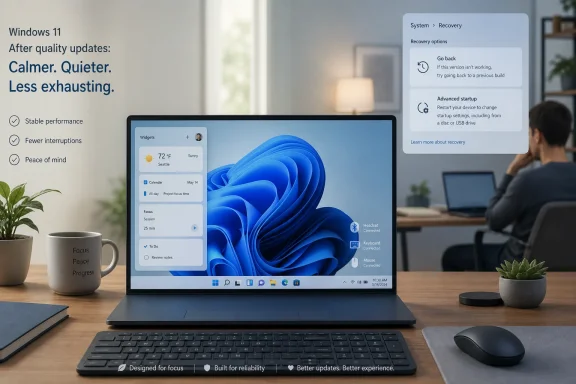
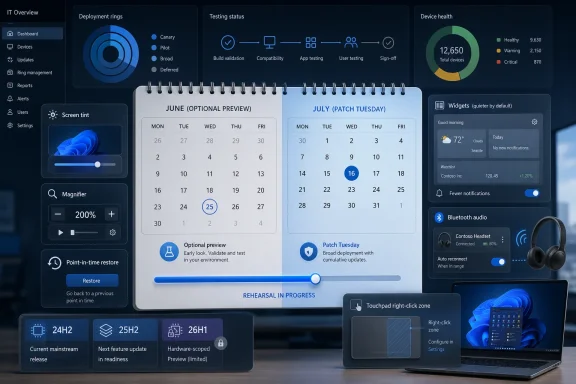
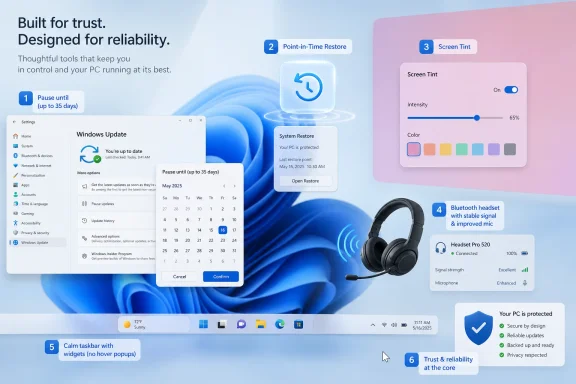
Microsoft’s June 12, 2026 Windows 11 Release Preview build 26100.8728/26200.8728 puts five unusually practical features on deck for mainstream PCs: quieter Widgets, calendar-based update pauses, point-in-time restore, Screen Tint, and a broad Bluetooth reliability sweep. The important part is not that Windows 11 is getting more features; it is that these are not Copilot demos, NPU showcases, or subscription hooks. They are the kind of unglamorous operating-system repairs users have been asking Microsoft to prioritize since Windows 11 launched. If they arrive broadly through the late-June optional preview and July Patch Tuesday path as expected, this may be remembered as one of the rare Windows 11 updates that improves daily life without asking users to believe in a platform vision.
For much of Windows 11’s life, Microsoft has treated the operating system as a stage for strategy. The Start menu was strategy. Widgets were strategy. Edge integration was strategy. Copilot, Recall, semantic search, and the Copilot+ PC branding push were strategy written in neon.
This update reads differently. Its best changes are not future-facing in the way Microsoft usually means that phrase. They are defensive, corrective, and almost humble: stop opening Widgets when the user merely brushes the taskbar, let people pause updates by choosing an actual date, give them a short-term system rollback when Windows or drivers misbehave, make screens easier to tolerate, and fix Bluetooth behavior that should never have felt unpredictable in the first place.
That is why the “no AI required” framing matters. Not because AI features are inherently useless, and not because Windows should remain frozen in 2009, but because Windows 11 has spent the last few years asking users to accept product priorities that often felt remote from their daily irritations. The desktop is still where meetings start, printers fail, headsets desync, update prompts interrupt, and File Explorer path handling can derail a workflow. Microsoft is at its best when it remembers that Windows is infrastructure before it is an innovation surface.
The Release Preview channel also gives this moment more weight than a Canary or Dev experiment. Release Preview is not a promise that every machine receives every feature on the same morning, but it is the lane where Microsoft tests changes that are close to general availability. In modern Windows servicing, the difference between “feature update” and “monthly update” has become increasingly blurry; the real question is whether the code is enabled, staged, and allowed to roll out.
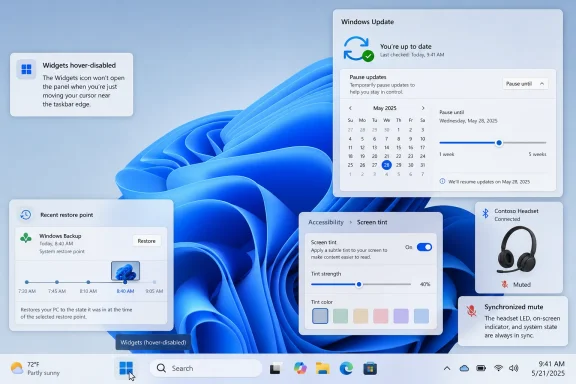
The coming change that stops Widgets from opening on hover by default is small in engineering terms and large in user-trust terms. Hover activation is one of those interface choices that looks efficient in a demo and feels hostile when it fires accidentally during real work. Microsoft has finally conceded that a panel filled with cards and badges should not leap into the foreground because a user was aiming for the Start button, a pinned app, or the taskbar edge.
The badge changes point in the same direction. Notification counts are being minimized by default, colors are being adjusted to match the Windows accent color, and badges clear once users leave a dashboard. This is not a wholesale reinvention of Widgets, but it is a meaningful retreat from the attention economy inside the shell.
Just as important is the new first-run behavior. First-time users are expected to land on the Widgets dashboard rather than the feed, and new lock screen users see Weather as the only default widget. The distinction matters because Windows has too often blurred the line between system utility and content funnel. A weather glance belongs on a lock screen; a crowded set of cards chosen for engagement does not.
There is still a larger unresolved issue here. Widgets can become a genuinely useful part of Windows only if Microsoft treats them as user-owned surfaces rather than distribution channels. Opening news links in the default browser was one step toward respecting user choice. Turning down hover behavior and badge noise is another. The question is whether Microsoft can resist the temptation to re-monetize the surface once the complaints quiet down.
The new calendar-based pause feature is therefore more than a nicer Settings page. Letting users choose an end date up to 35 days away makes update deferral legible. People do not plan around “five weeks” as an abstract unit; they plan around travel, exams, client deadlines, maintenance windows, and the end of a project sprint.
The more consequential change is that users can extend the pause by selecting another end date and re-pause as needed. Microsoft is not abandoning the 35-day window as a safety concept, but it is softening the old rhythm in which Windows eventually insisted on catching up on its own terms. That is a subtle but important philosophical change: the user is being trusted to keep choosing, rather than being granted one temporary reprieve before the machine reasserts control.
Enterprise administrators may look at this and shrug, because managed environments already have policy controls, rings, deadlines, deferrals, and tooling far beyond the consumer Settings app. But that misses the consumer and small-business reality. Many Windows PCs are important enough to break someone’s week but unmanaged enough to rely on defaults. For those machines, a calendar is a more honest interface than a vague pause button.
There is a risk, of course. Easier update pausing can become easier update avoidance. Microsoft’s challenge is to give users room to breathe without normalizing indefinite neglect. The company’s answer appears to be repeatable, explicit pauses rather than a hidden off switch, and that is probably the right compromise for unmanaged PCs.
The larger win is psychological. Windows users who fear updates tend to delay them in ad hoc ways, ignore prompts, or search for registry hacks. A visible calendar says: you can plan this, and Windows will remember the plan. That one UI change may do more for update compliance than another nag banner ever could.
The new recovery feature is designed to roll back the PC, including apps, settings, and personal files, to a recent automatic restore point. Microsoft’s notes describe it as a way to reduce downtime and simplify troubleshooting, which is corporate understatement for a very real pain. If a bad driver, app install, or update turns a working machine into a troubleshooting project, a recent snapshot can be the difference between a short recovery and an evening lost to forum searches.
The 72-hour retention window reportedly associated with the feature is not a substitute for backup, and Microsoft should be clear about that. A three-day rollback safety net is excellent for recovering from recent breakage. It is useless for discovering next month that an important folder was corrupted last quarter. Users must not confuse rollback with archival protection.
Still, the design makes sense for the problem Microsoft appears to be solving. Most update and driver disasters announce themselves quickly. Audio breaks after a driver. A login problem appears after a patch. A line-of-business app fails after a system change. In those cases, the useful restore point is not six months old; it is yesterday afternoon.
The fact that Point-in-time Restore works offline is also important. The modern consumer technology reflex is to move every recovery story into the cloud, where storage plans, account states, sync errors, and privacy questions become part of the experience. A local recovery feature is less glamorous but often more dependable in the exact moment a user needs it.
There will be implementation details to watch. Snapshot storage can consume disk space, and laptop users with small SSDs will notice if Windows is too aggressive. Administrators will want clarity on policy controls, encryption interactions, and how the recovery environment presents rollback choices. But the direction is right: Windows is finally acting as though update confidence requires a credible undo button.
Screen Tint applies a full-screen color overlay with adjustable intensity and preset or custom colors. That makes it different from Night Light, which primarily shifts color temperature warmer as evening approaches. Night Light is about blue-light reduction and circadian comfort; Screen Tint is about changing the entire visual field for readability, photosensitivity, or eye strain.
That distinction matters for people who use tinted glasses, struggle with bright white interfaces, or find certain color combinations uncomfortable. A full-screen overlay can make a display tolerable without requiring every app to implement perfect theme controls. In a Windows ecosystem where users move between legacy Win32 applications, web apps, Electron shells, games, and Microsoft’s own inconsistent settings surfaces, system-level tinting is the only layer that can cover everything.
The Magnifier improvements are less headline-friendly but equally practical. Letting users type a zoom percentage directly into the Magnifier window and adjust increments from the Magnifier bar removes friction from a tool that should never require a settings scavenger hunt. Accessibility tools fail when they are technically present but cumbersome during real use.
This is where Microsoft deserves credit for listening to workflows rather than merely checking compliance boxes. A person who relies on Magnifier does not want to leave the magnified context, open Settings, adjust a control, and return. They want the control where the need occurs. That is the difference between a feature existing and a feature being usable.
The timing is also notable. Microsoft’s Windows messaging has leaned heavily on intelligence, automation, and agentic help. Screen Tint and Magnifier refinements are reminders that not every meaningful improvement requires a model, a prompt, or a cloud service. Sometimes the smartest thing an operating system can do is let the user see the screen without discomfort.
The coming update addresses Bluetooth in a way that suggests Microsoft knows the complaints are systemic. The most visible change is microphone mute sync between the Windows audio mixer and the Hands-Free Profile used by Bluetooth headsets. That sounds obscure until you have joined a meeting with a headset mute button showing one state while Windows believes another.
Mute desynchronization is not merely annoying; it is socially risky. Users need to know whether they are audible. A headset button, an LED, the Windows mixer, and the conferencing app should not form a four-party negotiation over whether the microphone is live. If Microsoft can make the Windows side of that state consistent, it removes one of the small anxieties that make Bluetooth audio feel unreliable in professional settings.
The device-specific improvements are also telling. Faster AirPods visibility in pairing mode and better Beats Studio Pro microphone reliability acknowledge the reality of mixed ecosystems. A large number of Windows users own Apple-designed audio hardware because phones drive headphone purchases more than PCs do. Windows cannot treat those users as edge cases.
LE Audio also gets attention, including better recovery after connection loss and faster audio start when the microphone is in use. That matters because Microsoft has been adding modern Bluetooth audio features such as shared listening, but new capabilities are only as good as the baseline connection experience. A feature that works in a keynote and stutters in a conference room will be judged by the stutter.
Classic Bluetooth is not ignored either. Faster reconnects after hibernation and more reliable device removal are the sort of fixes that rarely earn applause but accumulate into trust. The “Remove failed” message has long represented a special kind of Windows absurdity: the user is trying to delete a device the system already cannot properly manage, and Windows still refuses to let go.
Phone Link audio routing gets a welcome dose of common sense. Keeping outgoing call audio on the phone while ringing, then transferring it to the PC only after the call is answered from Windows, matches human expectations. Suppressing incoming call ringing on the PC when Do Not Disturb is enabled is not innovation; it is Windows finally respecting its own quiet mode.
File Explorer’s address bar gaining better support for paths containing double backslashes and quotation marks sounds like a footnote until you are the developer, admin, or power user pasting paths all day. Windows is full of contexts where paths are wrapped, escaped, copied from terminals, pulled from scripts, or embedded in documentation. A file manager should be forgiving of the formats Windows users actually encounter.
The Start menu and taskbar reliability fixes land in the same bucket. A Start menu that reflects installed or removed apps without requiring a sign-out or restart is not a feature anyone should need to celebrate in 2026. Yet when the shell is unreliable, users experience the entire OS as unreliable, even if the kernel and servicing stack are doing their jobs.
Printing’s shift toward Internet Printing Protocol by default when supported is more strategically significant than it looks. Microsoft has been moving away from legacy third-party printer driver dependence, and IPP-based setup points toward a cleaner, more standardized future. Anyone who has supported Windows printing in offices knows that printer drivers are where optimism goes to die.
The touchpad right-click zone setting is another case of Microsoft exposing a practical control that should not depend on vendor utilities. Laptop touchpads are not all the same, and users do not all press them the same way. Letting people choose small, medium, or large right-click zones acknowledges that accidental right-clicks are a real ergonomic problem, not user error.
Even the emoji panel’s switch to GIPHY after Tenor deprecation has a place in this story. It is not an enterprise feature and will not change how admins image machines. But Windows is also a consumer OS, and small broken surfaces contribute to the impression that nobody is minding the details.
That matters because Windows 11’s AI push has often created a two-tier narrative. New PCs with NPUs get the shiny capabilities; existing PCs get compatibility questions, policy concerns, and occasional UI clutter. For enthusiasts and IT pros, the result has been a strange inversion: Microsoft’s most marketed Windows features are sometimes the least relevant to the installed base.
This update flips the emphasis. A 2021-era Windows 11 desktop, a work laptop without an NPU, or a family PC used for school and banking can benefit from quieter Widgets, update pause controls, rollback safety, accessibility improvements, and Bluetooth fixes. These are platform improvements in the old sense: they make the installed base better.
It also reveals something about user patience. People may argue loudly about Recall, Copilot, advertising, account requirements, telemetry, and the Start menu, but underneath those debates is a simpler demand. Users want Windows to respect their time, their defaults, their hardware, and their attention. AI does not exempt Microsoft from that contract.
If anything, AI raises the bar for the boring parts. A company promising intelligent agents inside Windows looks foolish when Bluetooth mute state is unreliable or a Widgets panel opens by accident. The more ambitious the platform story becomes, the less tolerance users have for paper cuts in the shell.
Microsoft seems to understand at least part of that. The company has recently talked more openly about quality, performance, and reliability work in Windows 11. This release wave is the sort of evidence that can make that message credible, provided the features arrive cleanly and do not regress under staged rollout complexity.
The movable taskbar is especially symbolic. Windows 11 launched by removing familiar taskbar flexibility, then spent years slowly rebuilding pieces of what users had lost. Restoring top, left, or right taskbar placement would not be a daring new feature so much as a delayed restoration of desktop agency.
The same is true for Start menu customization and Windows Search controls. Users have objected for years to search experiences that mix local results with web content, ads, Bing prompts, or cloud assumptions. If Microsoft is testing more ways to tune those behaviors, it is because the original Windows 11 bargain was too rigid.
Still, Microsoft should be careful not to overlearn the nostalgia lesson. Windows does not need to become Windows 10 with rounded corners. It needs to preserve user control while modernizing the parts that genuinely benefit from modernization. The problem with Windows 11 was never that it changed things; it was that too many changes felt like Microsoft’s priorities outranked the user’s.
That is why the current batch feels more promising. It is not a retreat from modern Windows servicing or a rejection of new capabilities. It is an admission that reliability, reversibility, accessibility, and calm defaults are innovation when they remove friction from hundreds of millions of machines.
 Microsoft Finally Ships the Features That Sound Like Apologies
For much of Windows 11’s life, Microsoft has treated the operating system as a stage for strategy. The Start menu was strategy. Widgets were strategy. Edge integration was strategy. Copilot, Recall, semantic search, and the Copilot+ PC branding push were strategy written in neon.This update reads differently. Its best changes are not future-facing in the way Microsoft usually means that phrase. They are defensive, corrective, and almost humble: stop opening Widgets when the user merely brushes the taskbar, let people pause updates by choosing an actual date, give them a short-term system rollback when Windows or drivers misbehave, make screens easier to tolerate, and fix Bluetooth behavior that should never have felt unpredictable in the first place.
That is why the “no AI required” framing matters. Not because AI features are inherently useless, and not because Windows should remain frozen in 2009, but because Windows 11 has spent the last few years asking users to accept product priorities that often felt remote from their daily irritations. The desktop is still where meetings start, printers fail, headsets desync, update prompts interrupt, and File Explorer path handling can derail a workflow. Microsoft is at its best when it remembers that Windows is infrastructure before it is an innovation surface.
The Release Preview channel also gives this moment more weight than a Canary or Dev experiment. Release Preview is not a promise that every machine receives every feature on the same morning, but it is the lane where Microsoft tests changes that are close to general availability. In modern Windows servicing, the difference between “feature update” and “monthly update” has become increasingly blurry; the real question is whether the code is enabled, staged, and allowed to roll out.
Widgets Learn the Value of Staying Out of the Way
The Widgets board may be one of Windows 11’s clearest examples of a reasonable idea damaged by intrusive defaults. A glanceable panel for weather, calendar-like context, and lightweight updates makes sense on a modern desktop. What users actually got too often felt like an MSN-adjacent drawer that opened when their cursor wandered too close.The coming change that stops Widgets from opening on hover by default is small in engineering terms and large in user-trust terms. Hover activation is one of those interface choices that looks efficient in a demo and feels hostile when it fires accidentally during real work. Microsoft has finally conceded that a panel filled with cards and badges should not leap into the foreground because a user was aiming for the Start button, a pinned app, or the taskbar edge.
The badge changes point in the same direction. Notification counts are being minimized by default, colors are being adjusted to match the Windows accent color, and badges clear once users leave a dashboard. This is not a wholesale reinvention of Widgets, but it is a meaningful retreat from the attention economy inside the shell.
Just as important is the new first-run behavior. First-time users are expected to land on the Widgets dashboard rather than the feed, and new lock screen users see Weather as the only default widget. The distinction matters because Windows has too often blurred the line between system utility and content funnel. A weather glance belongs on a lock screen; a crowded set of cards chosen for engagement does not.
There is still a larger unresolved issue here. Widgets can become a genuinely useful part of Windows only if Microsoft treats them as user-owned surfaces rather than distribution channels. Opening news links in the default browser was one step toward respecting user choice. Turning down hover behavior and badge noise is another. The question is whether Microsoft can resist the temptation to re-monetize the surface once the complaints quiet down.
The Calendar Pause Turns Update Control Into Something Humans Understand
Windows Update has always forced Microsoft to balance two truths that do not coexist peacefully. Unpatched PCs are a security risk to their owners and everyone else. Forced restarts, badly timed installs, and update anxiety are a productivity risk to the people who must live with Windows every day.The new calendar-based pause feature is therefore more than a nicer Settings page. Letting users choose an end date up to 35 days away makes update deferral legible. People do not plan around “five weeks” as an abstract unit; they plan around travel, exams, client deadlines, maintenance windows, and the end of a project sprint.
The more consequential change is that users can extend the pause by selecting another end date and re-pause as needed. Microsoft is not abandoning the 35-day window as a safety concept, but it is softening the old rhythm in which Windows eventually insisted on catching up on its own terms. That is a subtle but important philosophical change: the user is being trusted to keep choosing, rather than being granted one temporary reprieve before the machine reasserts control.
Enterprise administrators may look at this and shrug, because managed environments already have policy controls, rings, deadlines, deferrals, and tooling far beyond the consumer Settings app. But that misses the consumer and small-business reality. Many Windows PCs are important enough to break someone’s week but unmanaged enough to rely on defaults. For those machines, a calendar is a more honest interface than a vague pause button.
There is a risk, of course. Easier update pausing can become easier update avoidance. Microsoft’s challenge is to give users room to breathe without normalizing indefinite neglect. The company’s answer appears to be repeatable, explicit pauses rather than a hidden off switch, and that is probably the right compromise for unmanaged PCs.
The larger win is psychological. Windows users who fear updates tend to delay them in ad hoc ways, ignore prompts, or search for registry hacks. A visible calendar says: you can plan this, and Windows will remember the plan. That one UI change may do more for update compliance than another nag banner ever could.
Point-in-Time Restore Is the Safety Net Windows Should Have Had Years Ago
Point-in-time Restore is the most ambitious feature in this group because it attacks the old Windows dread directly: something changed, the PC is broken, and the user has no simple way back. Traditional System Restore has long been useful but limited, rolling back system files and registry settings while leaving much of the user’s actual environment outside the promise. Backup tools can be comprehensive but require planning, storage, accounts, or third-party discipline.The new recovery feature is designed to roll back the PC, including apps, settings, and personal files, to a recent automatic restore point. Microsoft’s notes describe it as a way to reduce downtime and simplify troubleshooting, which is corporate understatement for a very real pain. If a bad driver, app install, or update turns a working machine into a troubleshooting project, a recent snapshot can be the difference between a short recovery and an evening lost to forum searches.
The 72-hour retention window reportedly associated with the feature is not a substitute for backup, and Microsoft should be clear about that. A three-day rollback safety net is excellent for recovering from recent breakage. It is useless for discovering next month that an important folder was corrupted last quarter. Users must not confuse rollback with archival protection.
Still, the design makes sense for the problem Microsoft appears to be solving. Most update and driver disasters announce themselves quickly. Audio breaks after a driver. A login problem appears after a patch. A line-of-business app fails after a system change. In those cases, the useful restore point is not six months old; it is yesterday afternoon.
The fact that Point-in-time Restore works offline is also important. The modern consumer technology reflex is to move every recovery story into the cloud, where storage plans, account states, sync errors, and privacy questions become part of the experience. A local recovery feature is less glamorous but often more dependable in the exact moment a user needs it.
There will be implementation details to watch. Snapshot storage can consume disk space, and laptop users with small SSDs will notice if Windows is too aggressive. Administrators will want clarity on policy controls, encryption interactions, and how the recovery environment presents rollback choices. But the direction is right: Windows is finally acting as though update confidence requires a credible undo button.
Accessibility Gets a Feature That Doubles as Everyday Ergonomics
Screen Tint arrives under Accessibility, but it would be a mistake to treat it as a niche feature. Many of Windows’ best accessibility improvements eventually become mainstream comfort tools because the boundary between disability support, fatigue reduction, and personal preference is porous. Captions, magnification, focus modes, and contrast adjustments all began as accommodations for some users and became quality-of-life features for many more.Screen Tint applies a full-screen color overlay with adjustable intensity and preset or custom colors. That makes it different from Night Light, which primarily shifts color temperature warmer as evening approaches. Night Light is about blue-light reduction and circadian comfort; Screen Tint is about changing the entire visual field for readability, photosensitivity, or eye strain.
That distinction matters for people who use tinted glasses, struggle with bright white interfaces, or find certain color combinations uncomfortable. A full-screen overlay can make a display tolerable without requiring every app to implement perfect theme controls. In a Windows ecosystem where users move between legacy Win32 applications, web apps, Electron shells, games, and Microsoft’s own inconsistent settings surfaces, system-level tinting is the only layer that can cover everything.
The Magnifier improvements are less headline-friendly but equally practical. Letting users type a zoom percentage directly into the Magnifier window and adjust increments from the Magnifier bar removes friction from a tool that should never require a settings scavenger hunt. Accessibility tools fail when they are technically present but cumbersome during real use.
This is where Microsoft deserves credit for listening to workflows rather than merely checking compliance boxes. A person who relies on Magnifier does not want to leave the magnified context, open Settings, adjust a control, and return. They want the control where the need occurs. That is the difference between a feature existing and a feature being usable.
The timing is also notable. Microsoft’s Windows messaging has leaned heavily on intelligence, automation, and agentic help. Screen Tint and Magnifier refinements are reminders that not every meaningful improvement requires a model, a prompt, or a cloud service. Sometimes the smartest thing an operating system can do is let the user see the screen without discomfort.
Bluetooth Reliability Is the Unglamorous Fix That May Matter Most
Bluetooth on Windows has never been one problem. It has been a stack of irritations: pairing delays, headset profile weirdness, microphone quality drops, mute indicators that lie, devices that reconnect slowly after sleep, and settings pages that seem confident until they suddenly are not. Users often blame the headset, the PC vendor, Intel, Realtek, Teams, Zoom, Windows, or all of them in sequence, and they are not always wrong.The coming update addresses Bluetooth in a way that suggests Microsoft knows the complaints are systemic. The most visible change is microphone mute sync between the Windows audio mixer and the Hands-Free Profile used by Bluetooth headsets. That sounds obscure until you have joined a meeting with a headset mute button showing one state while Windows believes another.
Mute desynchronization is not merely annoying; it is socially risky. Users need to know whether they are audible. A headset button, an LED, the Windows mixer, and the conferencing app should not form a four-party negotiation over whether the microphone is live. If Microsoft can make the Windows side of that state consistent, it removes one of the small anxieties that make Bluetooth audio feel unreliable in professional settings.
The device-specific improvements are also telling. Faster AirPods visibility in pairing mode and better Beats Studio Pro microphone reliability acknowledge the reality of mixed ecosystems. A large number of Windows users own Apple-designed audio hardware because phones drive headphone purchases more than PCs do. Windows cannot treat those users as edge cases.
LE Audio also gets attention, including better recovery after connection loss and faster audio start when the microphone is in use. That matters because Microsoft has been adding modern Bluetooth audio features such as shared listening, but new capabilities are only as good as the baseline connection experience. A feature that works in a keynote and stutters in a conference room will be judged by the stutter.
Classic Bluetooth is not ignored either. Faster reconnects after hibernation and more reliable device removal are the sort of fixes that rarely earn applause but accumulate into trust. The “Remove failed” message has long represented a special kind of Windows absurdity: the user is trying to delete a device the system already cannot properly manage, and Windows still refuses to let go.
Phone Link audio routing gets a welcome dose of common sense. Keeping outgoing call audio on the phone while ringing, then transferring it to the PC only after the call is answered from Windows, matches human expectations. Suppressing incoming call ringing on the PC when Do Not Disturb is enabled is not innovation; it is Windows finally respecting its own quiet mode.
File Explorer, Printing, and Input Show the Same Pattern in Smaller Type
The five headline features are the story, but the surrounding changes reinforce the same editorial point. Microsoft is sanding off rough edges that made Windows 11 feel less mature than its version number suggested. These are not platform-defining changes, but they affect people who use Windows as a tool rather than a showcase.File Explorer’s address bar gaining better support for paths containing double backslashes and quotation marks sounds like a footnote until you are the developer, admin, or power user pasting paths all day. Windows is full of contexts where paths are wrapped, escaped, copied from terminals, pulled from scripts, or embedded in documentation. A file manager should be forgiving of the formats Windows users actually encounter.
The Start menu and taskbar reliability fixes land in the same bucket. A Start menu that reflects installed or removed apps without requiring a sign-out or restart is not a feature anyone should need to celebrate in 2026. Yet when the shell is unreliable, users experience the entire OS as unreliable, even if the kernel and servicing stack are doing their jobs.
Printing’s shift toward Internet Printing Protocol by default when supported is more strategically significant than it looks. Microsoft has been moving away from legacy third-party printer driver dependence, and IPP-based setup points toward a cleaner, more standardized future. Anyone who has supported Windows printing in offices knows that printer drivers are where optimism goes to die.
The touchpad right-click zone setting is another case of Microsoft exposing a practical control that should not depend on vendor utilities. Laptop touchpads are not all the same, and users do not all press them the same way. Letting people choose small, medium, or large right-click zones acknowledges that accidental right-clicks are a real ergonomic problem, not user error.
Even the emoji panel’s switch to GIPHY after Tenor deprecation has a place in this story. It is not an enterprise feature and will not change how admins image machines. But Windows is also a consumer OS, and small broken surfaces contribute to the impression that nobody is minding the details.
The Non-AI Update Is Also a Verdict on the AI Era
The striking thing about this release wave is not that it contains no AI at all. Some related voice access and voice typing improvements for Copilot+ PCs do use more advanced recognition and correction capabilities. The striking thing is that the broadly useful headline items do not require the user to buy into the Copilot+ hardware story.That matters because Windows 11’s AI push has often created a two-tier narrative. New PCs with NPUs get the shiny capabilities; existing PCs get compatibility questions, policy concerns, and occasional UI clutter. For enthusiasts and IT pros, the result has been a strange inversion: Microsoft’s most marketed Windows features are sometimes the least relevant to the installed base.
This update flips the emphasis. A 2021-era Windows 11 desktop, a work laptop without an NPU, or a family PC used for school and banking can benefit from quieter Widgets, update pause controls, rollback safety, accessibility improvements, and Bluetooth fixes. These are platform improvements in the old sense: they make the installed base better.
It also reveals something about user patience. People may argue loudly about Recall, Copilot, advertising, account requirements, telemetry, and the Start menu, but underneath those debates is a simpler demand. Users want Windows to respect their time, their defaults, their hardware, and their attention. AI does not exempt Microsoft from that contract.
If anything, AI raises the bar for the boring parts. A company promising intelligent agents inside Windows looks foolish when Bluetooth mute state is unreliable or a Widgets panel opens by accident. The more ambitious the platform story becomes, the less tolerance users have for paper cuts in the shell.
Microsoft seems to understand at least part of that. The company has recently talked more openly about quality, performance, and reliability work in Windows 11. This release wave is the sort of evidence that can make that message credible, provided the features arrive cleanly and do not regress under staged rollout complexity.
Insiders Still See the More Controversial Future First
The Release Preview changes should not be confused with the entire Windows roadmap. Insiders are testing other features that remain farther from broad release, including long-requested taskbar placement options and Start menu redesign work. Those changes are likely to generate louder debates because they touch identity, muscle memory, and the unresolved Windows 10-to-11 transition.The movable taskbar is especially symbolic. Windows 11 launched by removing familiar taskbar flexibility, then spent years slowly rebuilding pieces of what users had lost. Restoring top, left, or right taskbar placement would not be a daring new feature so much as a delayed restoration of desktop agency.
The same is true for Start menu customization and Windows Search controls. Users have objected for years to search experiences that mix local results with web content, ads, Bing prompts, or cloud assumptions. If Microsoft is testing more ways to tune those behaviors, it is because the original Windows 11 bargain was too rigid.
Still, Microsoft should be careful not to overlearn the nostalgia lesson. Windows does not need to become Windows 10 with rounded corners. It needs to preserve user control while modernizing the parts that genuinely benefit from modernization. The problem with Windows 11 was never that it changed things; it was that too many changes felt like Microsoft’s priorities outranked the user’s.
That is why the current batch feels more promising. It is not a retreat from modern Windows servicing or a rejection of new capabilities. It is an admission that reliability, reversibility, accessibility, and calm defaults are innovation when they remove friction from hundreds of millions of machines.
July’s Most Important Windows Features Are the Ones That Refuse to Perform
The practical advice for WindowsForum readers is not to treat this update as magic. Optional preview updates can still carry risk, and staged feature rollouts mean two machines on the same build may not behave identically on the same day. But the direction of travel is clear enough to matter.- Windows 11’s upcoming Widgets changes should reduce accidental openings, badge noise, and lock-screen clutter without removing customization for users who want it.
- The new Windows Update calendar pause gives unmanaged PCs a more human way to defer updates around real obligations, while still keeping the 35-day safety boundary visible.
- Point-in-time Restore looks like a short-term rollback safety net for recent breakage, not a replacement for proper backup or long-term file history.
- Screen Tint and Magnifier improvements are accessibility features that will likely help a wider group of users dealing with eye strain, readability issues, and daily display fatigue.
- The Bluetooth fixes target the exact meeting-room failures that make users distrust wireless headsets on Windows, especially mute sync, reconnection, LE Audio behavior, and Phone Link routing.
- The smaller File Explorer, printing, touchpad, taskbar, and Start menu refinements suggest Microsoft is spending real engineering time on the paper cuts that make Windows feel unfinished.
References
- Primary source: Windows Latest
Published: Mon, 22 Jun 2026 17:33:41 GMT
Microsoft reveals 5 long-overdue Windows 11 features arriving in 30 days, no AI required
Windows 11 is getting 5 good features in 30 days, including quieter Widgets, a calendar-based update pause, Point-in-time Restore, and more. www.windowslatest.com
- Related coverage: windowscentral.com
I dug through the Windows 11 Insider builds for June 2026 and found 7 features worth paying attention to | Windows Central
Microsoft's June Insider preview builds show a growing focus on polishing the OS experience across accessibility, updates, and performance.www.windowscentral.com - Official source: support.microsoft.com
Use a screen reader to back up and restore data on Windows | Microsoft Support
Use a screen reader to turn on Windows backup for apps and settings, and to restore backups created with the File History and Backup and Restore apps.support.microsoft.com - Related coverage: allthings.how
Windows 11 Build 26220.8680 quiets Widgets and adds Screen tint (Beta)
The Beta Channel flight trims Widgets memory use, calms taskbar alerts, and brings a new color overlay plus Magnifier and File Explorer fixes.allthings.how - Official source: learn.microsoft.com
Release Preview Build 26100.8728/26200.8728 - Windows Insider Program | Microsoft Learn
release notes for release preview build 26100.8728/26200.8728learn.microsoft.com - Related coverage: pcworld.com
Windows 11 26H2 is coming: Meet all the new features | PCWorld
Windows 11 26H2 is the next major free update for all Windows users. Among other things, it brings improvements to Explorer, camera control, and AI. Here's an overview.www.pcworld.com
- Related coverage: techradar.com
Microsoft is bringing AI features to more Windows 11 PCs — just in case you were under the impression that AI was being cut back | TechRadar
There's no need for an NPU for certain AI features now, as an Nvidia GPU will do the jobwww.techradar.com - Related coverage: woshub.com
How to Pause (Delay) Update Installation on Windows 11 and 10 | Windows OS Hub
In current Windows 10 and 11 builds, you can delay update installation for up to 35 days (or up to 7 days on Windows Insider builds). This delay period is…woshub.com - Official source: adoption.microsoft.com
- Official source: microsoft.com