

MakeUseOf published a Windows Search tuning guide on July 15 arguing that a few built-in indexing changes can make Start menu and File Explorer searches more useful. The practical advice is mostly sound, but its Bing-disabling registry step deserves caution on current Windows 11 builds.
The most useful change is switching Find my files from Classic to Enhanced under Settings > Privacy & security > Searching Windows. Classic focuses on the usual user-profile locations; Enhanced indexes across the PC, making files stored in custom folders, secondary drives, or project directories more likely to appear in results.
Microsoft’s Windows Search performance guidance confirms that users can exclude folders to control the database’s scope. That matters on machines with large source trees, VM folders, game libraries, backup archives, or development caches. Indexing those locations rarely improves day-to-day search, while it can increase disk activity and the size of the search database.
Enhanced indexing is therefore best treated as a targeted convenience setting, not a blanket recommendation for every system. Let the initial crawl finish before judging results; Microsoft says an index rebuild can take up to 24 hours in some cases.
Microsoft documents the same File Types control and notes that Search relies on handlers for particular formats. In practice, supported document types can benefit substantially, but not every proprietary format will expose searchable text. Content indexing also increases index size and gives the service more work after documents change.
For most PCs, start with the few formats that matter: Office documents, PDFs where supported, text files, and perhaps source-code extensions. There is little reason to enable content indexing indiscriminately for every extension.
Administrators managing supported editions should use the relevant Search policies rather than depend on an undocumented value. Microsoft’s policy documentation includes a “DoNotUseWebResults” setting for controlling whether Search can perform web queries, although policy availability and behavior can vary by Windows edition and management configuration.
Search filters such as
Start by excluding noisy folders and indexing the document types you actually search before touching registry settings.
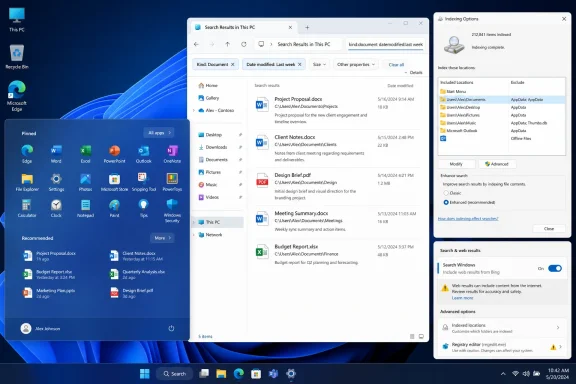 Broaden the index, selectively
The most useful change is switching Find my files from Classic to Enhanced under Settings > Privacy & security > Searching Windows. Classic focuses on the usual user-profile locations; Enhanced indexes across the PC, making files stored in custom folders, secondary drives, or project directories more likely to appear in results.Microsoft’s Windows Search performance guidance confirms that users can exclude folders to control the database’s scope. That matters on machines with large source trees, VM folders, game libraries, backup archives, or development caches. Indexing those locations rarely improves day-to-day search, while it can increase disk activity and the size of the search database.
Enhanced indexing is therefore best treated as a targeted convenience setting, not a blanket recommendation for every system. Let the initial crawl finish before judging results; Microsoft says an index rebuild can take up to 24 hours in some cases.
Content search is useful, but costs more
MakeUseOf also recommends changing selected file types from “Index Properties Only” to “Index Properties and File Contents” through Indexing Options > Advanced > File Types. That is the right control for people who routinely need to locate a document by text inside it rather than by filename.Microsoft documents the same File Types control and notes that Search relies on handlers for particular formats. In practice, supported document types can benefit substantially, but not every proprietary format will expose searchable text. Content indexing also increases index size and gives the service more work after documents change.
For most PCs, start with the few formats that matter: Office documents, PDFs where supported, text files, and perhaps source-code extensions. There is little reason to enable content indexing indiscriminately for every extension.
The Bing registry tweak is not a dependable fix
The article’s suggestion to createBingSearchEnabled under the current-user Search registry key reflects long-standing Windows 10-era advice. It may still alter behavior on some installations, but Microsoft does not present it as a supported consumer-facing Windows 11 switch, and reports from recent Windows 11 users show inconsistent results.Administrators managing supported editions should use the relevant Search policies rather than depend on an undocumented value. Microsoft’s policy documentation includes a “DoNotUseWebResults” setting for controlling whether Search can perform web queries, although policy availability and behavior can vary by Windows edition and management configuration.
Search filters such as
kind:document, kind:image, size:>10MB, and datemodified:last week remain the least risky recommendation in the guide, because they narrow File Explorer queries without rebuilding indexes or editing the registry.Start by excluding noisy folders and indexing the document types you actually search before touching registry settings.
References
- Primary source: MakeUseOf
Published: 2026-07-15T14:00:16+00:00
I changed these Windows Search settings and it finally stopped fighting me
Windows search is fixable. www.makeuseof.com
- Official source: learn.microsoft.com
Disable web search in the windows 11 Start menu - Microsoft Q&A
this is annoying when i use search in the start menu i want it to search applications and local files i do not want it using Bing and lunching edge I use Searx and Firefox and if i want to search the net I know how to open a browser and search is there a…learn.microsoft.com
