

Restart is usually the better choice when a Windows 11 PC is misbehaving because Microsoft’s Fast Startup feature can make “Shut down” preserve part of the operating system state, while Restart reloads Windows more completely from scratch. That distinction sounds like trivia until a flaky driver, half-applied update, odd peripheral, or phantom memory leak refuses to disappear after what looked like a clean power-off. The old household advice — “turn it off and on again” — still works, but on modern Windows the important word is increasingly restart. The power menu has become a small interface with surprisingly large consequences.
The AOL/BGR explainer gets the broad answer right: Shut Down and Restart are not interchangeable on a typical Windows 11 machine. But the deeper story is less about one menu option being virtuous and the other being suspect, and more about Microsoft’s long-running bargain with users. Windows was made to feel faster by blurring the line between shutdown and hibernation, and most people were never told that the word “off” had acquired an asterisk.
For decades, shutting down a PC meant something close to the intuitive meaning of the phrase. The operating system closed processes, unloaded the kernel, powered down hardware, and the next boot began with a comparatively fresh initialization path. That mental model still shapes how many users talk about their machines, especially when troubleshooting: shut it down, wait a few seconds, turn it back on.
Windows 8 changed that bargain with Fast Startup, and Windows 10 and Windows 11 inherited the same philosophy. The point was sensible enough at the time. PCs with mechanical hard drives were still common, boot times were a daily irritation, and tablets were teaching users to expect instant-on behavior from devices that looked less and less like beige boxes under a desk.
Fast Startup works by combining elements of shutdown and hibernation. Windows signs out the user session, closes user applications, and then saves the kernel session and driver state to disk so it can be restored more quickly the next time the PC powers on. The machine may look and feel powered down, but the next boot is not the same kind of clean start as a restart.
That design decision solved one problem and created another. It made Windows feel snappier on hardware that needed help, but it also made the everyday language of PC maintenance less accurate. A user can shut down every night and still go weeks without performing the kind of restart that actually reinitializes the core operating system.
That is not superstition. Drivers, services, firmware handoffs, and system components live below the level most users can see. When one of them gets into an odd state, the difference between restoring a saved kernel session and rebuilding one matters. A restart gives Windows a better chance to flush the condition that created the problem rather than merely preserving it in a more convenient form.
This is why “I shut it down last night” is not always a useful answer at the help desk. The technician’s follow-up — “Did you restart it?” — can sound pedantic, but on Windows 11 it is often the technically precise question. The user performed a power action; the technician is asking whether Windows performed a reset of the operating system state.
There is a cultural lag here. Users still associate the act of pressing a power button with a full reset because, physically, the machine stopped making noise and the screen went dark. Windows, meanwhile, has been optimizing for perceived responsiveness by preserving just enough state to make that assumption unreliable.
The trouble is that Fast Startup is at its worst precisely when users most need predictable behavior. Troubleshooting depends on known states. If the machine is crashing, failing to detect a USB device, showing broken networking, or behaving strangely after a driver update, the user wants confidence that Windows has actually rebuilt itself from the bottom up. A hybrid shutdown muddies that water.
The feature can also complicate dual-boot setups, disk access from other operating systems, firmware updates, and some hardware diagnostics. If Windows has preserved state with hibernation-like behavior, another operating system or utility may encounter a volume that was not left in the clean, old-fashioned shutdown condition the user expected. That is not the daily reality for every home user, but it is familiar territory for enthusiasts and admins.
This is where the AOL framing is useful but incomplete. The issue is not that Shut Down is “bad” or that Restart is always superior. The issue is that Shut Down can mean different things depending on one checkbox buried in legacy Control Panel power settings, firmware behavior, update state, and vendor configuration. The menu item looks universal; the behavior is conditional.
But Windows 11 overwhelmingly lives in the SSD era. Many systems now boot quickly enough that the practical advantage of Fast Startup is smaller than it once was. On a modern NVMe-equipped laptop, the difference between hybrid startup and a clean boot may be less important than the confidence gained by eliminating one more ambiguity from the troubleshooting chain.
That does not mean everyone should rush to disable Fast Startup. On some budget systems, older hardware, or machines with sluggish firmware, it may still deliver a noticeable convenience. The more accurate conclusion is that Fast Startup has become less essential as hardware has improved, while its downsides remain most visible to the people who care about system state.
For IT pros, that shifts the risk calculation. A home user who mostly browses, streams, and opens Office documents may never notice the distinction. A developer, gamer, sysadmin, repair technician, or dual-boot user is more likely to trip over the weird edge cases where “off” was not quite off enough.
The key is to separate power management from troubleshooting. Shut Down is a good way to stop a session. Restart is a better way to refresh Windows. Those are related ideas, but they are not identical.
There are also times when a full shutdown matters for reasons beyond Windows itself. If you are replacing hardware, opening a desktop case, disconnecting peripherals that do not tolerate surprise removal well, or preparing a laptop for travel, you want the machine powered down. In those cases, the question is not whether Restart is cleaner for Windows; it is whether the hardware should be electrically quiet.
Even then, advanced users may want to force a fuller shutdown when necessary. Holding Shift while selecting Shut down is commonly used to bypass Fast Startup for that shutdown, and disabling Fast Startup through power settings removes the ambiguity more permanently. The right tool depends on whether you need a one-time clean power-off or a policy change.
That is why “Update and restart” has historically felt more dependable than “Update and shut down,” even though the latter sounds more convenient at the end of the day. If a system needs to replace components that are in use, it may need a controlled restart path to finish the work. Powering off can be part of that process, but update logic has not always behaved in a way users found intuitive.
Microsoft has improved pieces of this experience over time, but the conceptual friction remains. Windows is trying to coordinate user convenience, security patching, driver state, firmware interaction, and uptime expectations through a power menu that most people treat as self-explanatory. It is not self-explanatory anymore.
This is one reason corporate IT departments still lean hard on scheduled restarts. They are not merely being authoritarian. They are forcing fleets into a known post-update state, reducing the number of machines that report patched but behave unpatched, installed but not fully applied, or “fine” until the next boot exposes the real problem.
This little detail is more than a curiosity. It exposes the mismatch between user perception and system behavior. If uptime does not reset after shutdown, then shutdown did not serve as the clean restart the user expected. A restart, by contrast, should reset that counter because Windows has actually begun a new session at the system level.
For support teams, uptime is a useful lie detector. If a user says they rebooted but Task Manager shows a month of uptime, the machine probably has not gone through the reset path being discussed. That does not mean the user is being dishonest. It means the vocabulary of Windows power states has become too subtle for the everyday words placed on the buttons.
The irony is that Microsoft added Fast Startup to make the PC feel less complicated. In one narrow sense it succeeded: the machine starts faster. In another sense, it made the power menu less honest to the people who rely on it when something breaks.
Sleep is designed for quick resumption. Hibernate is designed for longer pauses with lower power use. Shut Down is designed to end the session and power the device down. Restart is designed to reload Windows. Fast Startup blurs only one of those lines, but it lands in the middle of a laptop ecosystem already full of vendor power utilities and firmware-specific behavior.
That is why laptop troubleshooting often benefits from a restart first, then a full shutdown if the issue seems tied to hardware. A trackpad, Wi-Fi adapter, Bluetooth radio, USB-C dock, or external display chain may recover after a restart because drivers reload. A stubborn dock or embedded controller issue may require a true power-off, a charger disconnect, or even a vendor-specific reset procedure.
The common mistake is treating all power actions as escalating versions of the same thing. They are not. Sleep preserves the most state, Fast Startup shutdown preserves some core state, restart reloads the OS, and a full shutdown aims to remove power from the active session. Each has a role; none is a universal ritual.
But if the reason for shutdown is to guarantee a clean Windows state, Fast Startup changes the story. A hybrid shutdown is not equivalent to a restart for clearing kernel and driver state. It may still remove the machine from active use and reduce exposure, but it should not be oversold as a complete software reset.
Security teams care about this distinction because persistence, patch completion, and endpoint compliance all depend on reliable state transitions. A machine that has downloaded a security update but has not restarted may remain in a limbo that looks safer in dashboards than it feels in practice. Users, meanwhile, may believe they did their part by shutting down at the end of every day.
The better advice is conditional. Shut down unattended machines when power, physical security, or operational policy calls for it. Restart after updates, driver changes, unexplained instability, and security remediation. If the environment demands clean shutdown semantics, disable Fast Startup or document how users should bypass it.
That placement tells its own story about Windows. The operating system is modern on the surface and deeply historical underneath. Some of the most consequential behavior still lives in old administrative corners because Windows must carry decades of compatibility, enterprise policy, OEM customization, and user expectation.
For enthusiasts, the setting is easy enough to find once they know what to search for. For ordinary users, it may as well be hidden. They will see Shut down, Restart, Sleep, and maybe Hibernate, but not the explanation that shutdown may be hybridized by a separate system setting.
This is a design failure of communication more than engineering. Fast Startup may be defensible. Hiding the consequence from the power menu is harder to defend. If Windows is going to redefine shutdown, it should make that redefinition legible at the point where users make the choice.
That is especially true for hybrid work. Laptops leave the office, sleep through maintenance windows, connect to home Wi-Fi, dock and undock, and run on batteries at inconvenient moments. A user who shuts down every Friday may think they are being responsible, while the device misses update enforcement or comes back Monday needing a restart at the worst possible time.
The help-desk script has adapted accordingly. “Please reboot” is more precise than “turn it off and on.” Many support organizations also ask users not just whether they restarted, but when, and may verify uptime remotely. That is not pedantry; it is operational survival.
Fast Startup is therefore a small consumer convenience with enterprise consequences. It changes the meaning of a behavior that admins once treated as obvious. In a fleet, obvious behaviors are dangerous because they become assumptions, and assumptions become tickets.
The question is whether the same default makes the same sense on Windows 11 in 2026. SSDs are common. Firmware has improved. Users are more security-conscious. Updates are more frequent and more consequential. Remote work has made power-state ambiguity a daily management problem rather than an enthusiast footnote.
Defaults should evolve when the environment changes. A feature that was once a useful acceleration layer can become a source of confusion if its performance benefit shrinks and its diagnostic cost remains. Microsoft does not need to remove Fast Startup, but it could make Windows clearer about what each power action will actually do.
A more honest interface would not be difficult to imagine. Windows could distinguish “Shut down” from “Full shut down,” surface Fast Startup status in Settings, or explain after repeated uptime that shutdown is using a saved kernel state. The fact that power behavior still requires folklore is a sign that the interface has not kept up with the system underneath.
For users who want predictable behavior, disabling Fast Startup is a reasonable choice, especially on modern SSD-based systems where the boot-time penalty may be modest. For users who value the quickest possible startup and rarely troubleshoot hardware or driver issues, leaving it enabled is also defensible. The important thing is knowing which bargain you have accepted.
The AOL/BGR article lands on the right everyday rule: restart to clear hiccups, shut down to stop using the machine. But the WindowsForum audience should carry the rule one layer deeper. A restart is an operating-system reset; a shutdown is a power-management decision whose exact behavior depends on configuration.
The AOL/BGR explainer gets the broad answer right: Shut Down and Restart are not interchangeable on a typical Windows 11 machine. But the deeper story is less about one menu option being virtuous and the other being suspect, and more about Microsoft’s long-running bargain with users. Windows was made to feel faster by blurring the line between shutdown and hibernation, and most people were never told that the word “off” had acquired an asterisk.
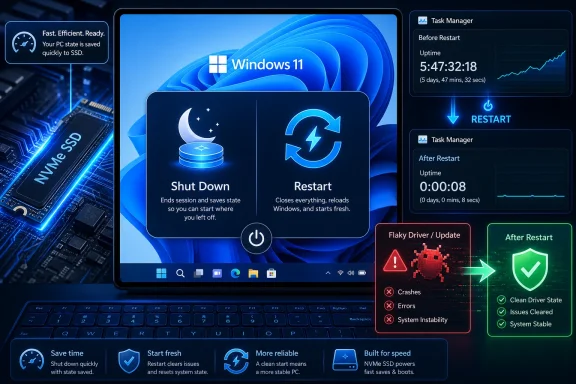 Microsoft Redefined “Off” in the Name of Speed
For decades, shutting down a PC meant something close to the intuitive meaning of the phrase. The operating system closed processes, unloaded the kernel, powered down hardware, and the next boot began with a comparatively fresh initialization path. That mental model still shapes how many users talk about their machines, especially when troubleshooting: shut it down, wait a few seconds, turn it back on.Windows 8 changed that bargain with Fast Startup, and Windows 10 and Windows 11 inherited the same philosophy. The point was sensible enough at the time. PCs with mechanical hard drives were still common, boot times were a daily irritation, and tablets were teaching users to expect instant-on behavior from devices that looked less and less like beige boxes under a desk.
Fast Startup works by combining elements of shutdown and hibernation. Windows signs out the user session, closes user applications, and then saves the kernel session and driver state to disk so it can be restored more quickly the next time the PC powers on. The machine may look and feel powered down, but the next boot is not the same kind of clean start as a restart.
That design decision solved one problem and created another. It made Windows feel snappier on hardware that needed help, but it also made the everyday language of PC maintenance less accurate. A user can shut down every night and still go weeks without performing the kind of restart that actually reinitializes the core operating system.
Restart Became the Real Clean Slate
The most important practical rule is simple: when you are troubleshooting Windows, choose Restart. Restart does not lean on Fast Startup in the same way. It is designed to close Windows and bring it back through a fuller initialization sequence, which is why update installers, driver packages, and enterprise management tools so often insist on it.That is not superstition. Drivers, services, firmware handoffs, and system components live below the level most users can see. When one of them gets into an odd state, the difference between restoring a saved kernel session and rebuilding one matters. A restart gives Windows a better chance to flush the condition that created the problem rather than merely preserving it in a more convenient form.
This is why “I shut it down last night” is not always a useful answer at the help desk. The technician’s follow-up — “Did you restart it?” — can sound pedantic, but on Windows 11 it is often the technically precise question. The user performed a power action; the technician is asking whether Windows performed a reset of the operating system state.
There is a cultural lag here. Users still associate the act of pressing a power button with a full reset because, physically, the machine stopped making noise and the screen went dark. Windows, meanwhile, has been optimizing for perceived responsiveness by preserving just enough state to make that assumption unreliable.
Fast Startup Is Not a Bug, But It Behaves Like One When You Forget It Exists
Fast Startup is not malware, a trick, or a mistake. It is a performance feature designed for a world where boot speed was a visible measure of quality. On many systems, especially older laptops and desktops with slower storage, it can still make startup feel meaningfully faster.The trouble is that Fast Startup is at its worst precisely when users most need predictable behavior. Troubleshooting depends on known states. If the machine is crashing, failing to detect a USB device, showing broken networking, or behaving strangely after a driver update, the user wants confidence that Windows has actually rebuilt itself from the bottom up. A hybrid shutdown muddies that water.
The feature can also complicate dual-boot setups, disk access from other operating systems, firmware updates, and some hardware diagnostics. If Windows has preserved state with hibernation-like behavior, another operating system or utility may encounter a volume that was not left in the clean, old-fashioned shutdown condition the user expected. That is not the daily reality for every home user, but it is familiar territory for enthusiasts and admins.
This is where the AOL framing is useful but incomplete. The issue is not that Shut Down is “bad” or that Restart is always superior. The issue is that Shut Down can mean different things depending on one checkbox buried in legacy Control Panel power settings, firmware behavior, update state, and vendor configuration. The menu item looks universal; the behavior is conditional.
The SSD Era Weakens the Case for the Trick
Fast Startup made its strongest argument when storage was slow. A hybrid boot could spare users the long grind of initializing Windows from scratch on a hard drive. In that context, shaving seconds off startup was not merely cosmetic; it changed how tolerant users felt toward the machine.But Windows 11 overwhelmingly lives in the SSD era. Many systems now boot quickly enough that the practical advantage of Fast Startup is smaller than it once was. On a modern NVMe-equipped laptop, the difference between hybrid startup and a clean boot may be less important than the confidence gained by eliminating one more ambiguity from the troubleshooting chain.
That does not mean everyone should rush to disable Fast Startup. On some budget systems, older hardware, or machines with sluggish firmware, it may still deliver a noticeable convenience. The more accurate conclusion is that Fast Startup has become less essential as hardware has improved, while its downsides remain most visible to the people who care about system state.
For IT pros, that shifts the risk calculation. A home user who mostly browses, streams, and opens Office documents may never notice the distinction. A developer, gamer, sysadmin, repair technician, or dual-boot user is more likely to trip over the weird edge cases where “off” was not quite off enough.
Shut Down Still Has a Job, Just Not the One People Assign to It
Shut Down remains the right choice when the goal is to stop using the PC and conserve power. If the machine is going into a bag, being left overnight, moved between offices, or powered down before a hardware change, shutdown is still part of normal PC hygiene. It reduces heat, saves battery, and lowers the chance that a system wakes unexpectedly when nobody is around to notice.The key is to separate power management from troubleshooting. Shut Down is a good way to stop a session. Restart is a better way to refresh Windows. Those are related ideas, but they are not identical.
There are also times when a full shutdown matters for reasons beyond Windows itself. If you are replacing hardware, opening a desktop case, disconnecting peripherals that do not tolerate surprise removal well, or preparing a laptop for travel, you want the machine powered down. In those cases, the question is not whether Restart is cleaner for Windows; it is whether the hardware should be electrically quiet.
Even then, advanced users may want to force a fuller shutdown when necessary. Holding Shift while selecting Shut down is commonly used to bypass Fast Startup for that shutdown, and disabling Fast Startup through power settings removes the ambiguity more permanently. The right tool depends on whether you need a one-time clean power-off or a policy change.
Windows Update Is the Place the Distinction Becomes Visible
Users most often encounter the difference between shutdown and restart during updates. Windows Update has spent years teaching people that some changes are not real until the reboot happens. The operating system can stage files, download packages, and prepare servicing operations in the background, but the final swap often requires a restart cycle.That is why “Update and restart” has historically felt more dependable than “Update and shut down,” even though the latter sounds more convenient at the end of the day. If a system needs to replace components that are in use, it may need a controlled restart path to finish the work. Powering off can be part of that process, but update logic has not always behaved in a way users found intuitive.
Microsoft has improved pieces of this experience over time, but the conceptual friction remains. Windows is trying to coordinate user convenience, security patching, driver state, firmware interaction, and uptime expectations through a power menu that most people treat as self-explanatory. It is not self-explanatory anymore.
This is one reason corporate IT departments still lean hard on scheduled restarts. They are not merely being authoritarian. They are forcing fleets into a known post-update state, reducing the number of machines that report patched but behave unpatched, installed but not fully applied, or “fine” until the next boot exposes the real problem.
The Uptime Counter Tells on Windows
One of the easiest ways to see the difference is Task Manager’s uptime display. Users often notice that their PC claims to have been running for days or weeks even after being shut down every night. That is usually Fast Startup revealing itself. The user powered off; the kernel session did not start from zero in the way they assumed.This little detail is more than a curiosity. It exposes the mismatch between user perception and system behavior. If uptime does not reset after shutdown, then shutdown did not serve as the clean restart the user expected. A restart, by contrast, should reset that counter because Windows has actually begun a new session at the system level.
For support teams, uptime is a useful lie detector. If a user says they rebooted but Task Manager shows a month of uptime, the machine probably has not gone through the reset path being discussed. That does not mean the user is being dishonest. It means the vocabulary of Windows power states has become too subtle for the everyday words placed on the buttons.
The irony is that Microsoft added Fast Startup to make the PC feel less complicated. In one narrow sense it succeeded: the machine starts faster. In another sense, it made the power menu less honest to the people who rely on it when something breaks.
Laptops Complicate the Advice
Desktop users tend to think in binary terms: on or off. Laptop users live among sleep, hibernate, lid close behavior, Modern Standby, battery preservation, docking stations, and travel routines. For them, shutdown versus restart is only one part of a more complicated power story.Sleep is designed for quick resumption. Hibernate is designed for longer pauses with lower power use. Shut Down is designed to end the session and power the device down. Restart is designed to reload Windows. Fast Startup blurs only one of those lines, but it lands in the middle of a laptop ecosystem already full of vendor power utilities and firmware-specific behavior.
That is why laptop troubleshooting often benefits from a restart first, then a full shutdown if the issue seems tied to hardware. A trackpad, Wi-Fi adapter, Bluetooth radio, USB-C dock, or external display chain may recover after a restart because drivers reload. A stubborn dock or embedded controller issue may require a true power-off, a charger disconnect, or even a vendor-specific reset procedure.
The common mistake is treating all power actions as escalating versions of the same thing. They are not. Sleep preserves the most state, Fast Startup shutdown preserves some core state, restart reloads the OS, and a full shutdown aims to remove power from the active session. Each has a role; none is a universal ritual.
Security Advice Needs More Precision Than “Shut It Down”
There is a popular security instinct that says a PC should be shut down when not in use. That advice is not wrong, but it is imprecise. A powered-off device is less exposed to network-based attack than one sitting awake and connected. It is also less likely to be tampered with remotely while unattended.But if the reason for shutdown is to guarantee a clean Windows state, Fast Startup changes the story. A hybrid shutdown is not equivalent to a restart for clearing kernel and driver state. It may still remove the machine from active use and reduce exposure, but it should not be oversold as a complete software reset.
Security teams care about this distinction because persistence, patch completion, and endpoint compliance all depend on reliable state transitions. A machine that has downloaded a security update but has not restarted may remain in a limbo that looks safer in dashboards than it feels in practice. Users, meanwhile, may believe they did their part by shutting down at the end of every day.
The better advice is conditional. Shut down unattended machines when power, physical security, or operational policy calls for it. Restart after updates, driver changes, unexplained instability, and security remediation. If the environment demands clean shutdown semantics, disable Fast Startup or document how users should bypass it.
The Control Panel Checkbox That Still Matters
One of the strangest parts of this story is where the important switch lives. Fast Startup is not front and center in the sleek Windows 11 Settings app in the way a modern user might expect. It is typically managed through the older Power Options path in Control Panel, under settings that decide what the power buttons do.That placement tells its own story about Windows. The operating system is modern on the surface and deeply historical underneath. Some of the most consequential behavior still lives in old administrative corners because Windows must carry decades of compatibility, enterprise policy, OEM customization, and user expectation.
For enthusiasts, the setting is easy enough to find once they know what to search for. For ordinary users, it may as well be hidden. They will see Shut down, Restart, Sleep, and maybe Hibernate, but not the explanation that shutdown may be hybridized by a separate system setting.
This is a design failure of communication more than engineering. Fast Startup may be defensible. Hiding the consequence from the power menu is harder to defend. If Windows is going to redefine shutdown, it should make that redefinition legible at the point where users make the choice.
Enterprise IT Already Knows the Button Is Not the Policy
In managed environments, the practical answer rarely comes from a user’s intuition. It comes from policy. Admins can configure power behavior, schedule restarts, manage update deadlines, disable hibernation features, and enforce compliance windows because relying on individual power-menu habits does not scale.That is especially true for hybrid work. Laptops leave the office, sleep through maintenance windows, connect to home Wi-Fi, dock and undock, and run on batteries at inconvenient moments. A user who shuts down every Friday may think they are being responsible, while the device misses update enforcement or comes back Monday needing a restart at the worst possible time.
The help-desk script has adapted accordingly. “Please reboot” is more precise than “turn it off and on.” Many support organizations also ask users not just whether they restarted, but when, and may verify uptime remotely. That is not pedantry; it is operational survival.
Fast Startup is therefore a small consumer convenience with enterprise consequences. It changes the meaning of a behavior that admins once treated as obvious. In a fleet, obvious behaviors are dangerous because they become assumptions, and assumptions become tickets.
Microsoft’s Trade-Off Was Rational, But the Defaults Deserve Reinspection
It is easy to mock Fast Startup as a relic, but Microsoft’s original trade-off made sense. Users hated slow boot times. PC makers wanted competitive resume behavior. Windows had to support enormous hardware variety. A hybrid shutdown was a clever way to improve perceived performance without requiring every customer to buy faster storage.The question is whether the same default makes the same sense on Windows 11 in 2026. SSDs are common. Firmware has improved. Users are more security-conscious. Updates are more frequent and more consequential. Remote work has made power-state ambiguity a daily management problem rather than an enthusiast footnote.
Defaults should evolve when the environment changes. A feature that was once a useful acceleration layer can become a source of confusion if its performance benefit shrinks and its diagnostic cost remains. Microsoft does not need to remove Fast Startup, but it could make Windows clearer about what each power action will actually do.
A more honest interface would not be difficult to imagine. Windows could distinguish “Shut down” from “Full shut down,” surface Fast Startup status in Settings, or explain after repeated uptime that shutdown is using a saved kernel state. The fact that power behavior still requires folklore is a sign that the interface has not kept up with the system underneath.
The Advice Windows Users Actually Need
The practical answer is not to panic about Fast Startup or to treat every shutdown as a lie. It is to choose the power action that matches the job. Windows 11 is reliable enough for many users to leave Fast Startup alone, but the moment the PC behaves strangely, Restart should be the first move, not an afterthought.For users who want predictable behavior, disabling Fast Startup is a reasonable choice, especially on modern SSD-based systems where the boot-time penalty may be modest. For users who value the quickest possible startup and rarely troubleshoot hardware or driver issues, leaving it enabled is also defensible. The important thing is knowing which bargain you have accepted.
The AOL/BGR article lands on the right everyday rule: restart to clear hiccups, shut down to stop using the machine. But the WindowsForum audience should carry the rule one layer deeper. A restart is an operating-system reset; a shutdown is a power-management decision whose exact behavior depends on configuration.
The Power Menu’s Small Print Is Now the Main Point
The old rule of thumb still works, but only after translation. “Turn it off and on again” now means “restart it” when the problem is Windows, drivers, updates, or performance weirdness. It means “shut it down” when the problem is power, travel, heat, battery, or leaving the machine unused.- Restart is the better first choice when troubleshooting Windows 11 instability, driver problems, update completion, or unexplained performance issues.
- Shut Down is still appropriate when you are finished using the PC, want to save power, or need the hardware powered off for travel or maintenance.
- Fast Startup can make a normal shutdown preserve the Windows kernel session, so it may not reset the system as completely as users expect.
- Holding Shift while selecting Shut down can be useful for a one-time fuller shutdown, while disabling Fast Startup is cleaner for users who want consistent behavior.
- Modern SSDs reduce the performance argument for Fast Startup, especially on enthusiast and professional systems where predictable state matters more than shaving seconds from boot.
References
- Primary source: aol.com
Published: Sat, 23 May 2026 22:20:03 GMT
Shut Down Vs. Restart: Which Is Better For Your Windows 11 PC? - AOL
Survey most avid computer users and a good amount of them will say they keep their PC powered on at all times, only turning it off once in a while.www.aol.com - Official source: learn.microsoft.com
Fast startup causes hibernation or shutdown to fail in Windows 10 or Windows 8.1 - Windows Client | Microsoft Learn
Provides help to solve an issue where the process fails when you try to shut down or hibernate the system on a computer.learn.microsoft.com - Official source: support.microsoft.com
Shut down, sleep, or hibernate your PC | Microsoft Support
Learn how to shut down, sleep, or hibernate your PCsupport.microsoft.com - Related coverage: pdq.com
Restart vs. shutdown: What's the difference on Windows PCs? | PDQ
To shut down or to restart? That is the question. Is one method better than the other? Let’s end the debate and find the best way to reboot your device.www.pdq.com - Related coverage: makeuseof.com
How to Turn Fast Startup On or Off in Windows 11
Turning off Fast Startup does have its benefits, but how do you do it on Windows 11? Here's how. www.makeuseof.com
- Related coverage: windowscult.com
Windows 11 Fast Startup Feature Explained (How to Enable/Disable)
Windows Fast Startup offers a convenient way to reduce boot times by utilizing hybrid shutdown technology that preserves the Windows kernel in a hibernation state.www.windowscult.com
- Related coverage: howtogeek.com
You're Shutting Down Wrong: How to Really Shut Down Windows
Think you're getting a clean OS reload when you power down your PC? You might not be---here's how to fix it. www.howtogeek.com
- Related coverage: techyorker.com
Windows 11 Restarts Instead of Shutting Down - TechYorker
×AIDiscover the way to a Faster PC - Chipps AI AssistantNew Update: Boost Your Device Performance Today with Chipps.Fix My... techyorker.com
- Related coverage: windowscentral.com
How to disable or enable fast startup on Windows 10 | Windows Central
If Windows 10 fast startup is not something you want to be enabled, you can disable it with relative ease.www.windowscentral.com - Related coverage: leyu.sg
- Related coverage: mywebuniversity.com
- Related coverage: opcug.ca
