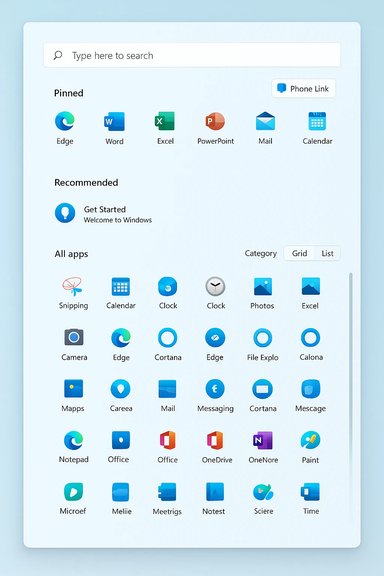
Windows 11’s Start menu has quietly morphed from a modest launcher into a commanding, scrollable workspace that can now cover the majority of a laptop screen — a deliberate redesign rolled into recent servicing updates that is already generating praise for discoverability and sharp criticism for its size, rollout method, and side effects.
Microsoft delivered a major refresh to the Start experience through its October 28, 2025 non‑security preview (KB5067036) and folded the same changes into the November 11, 2025 cumulative (KB5068861). Those KB entries explicitly describe a reworked Start menu that promotes the full All‑apps inventory onto a single, vertically scrollable canvas, adds new presentation modes, and engages tighter Phone Link integration. This was not a tiny cosmetic tweak: the new Start design collapses the separate "Pinned" + "All apps" model into a single surface and adapts its density and column counts to screen size and DPI. Microsoft shipped the bits in servicing updates while phasing enablement server‑side, meaning installing the KBs may be necessary but not always sufficient for the new UI to appear immediately on every device. That staged activation model is important to how users are experiencing — and complaining about — the change. Independent hands‑on testing and community reporting quickly showed two concrete outcomes: the Start canvas can be substantially taller than the previous centered launcher on many laptops, and new integration points — notably Phone Link — can further expand the panel to feel nearly full‑screen in practice. Those field observations were reproduced and summarized by multiple outlets.
The Start menu is company real estate: once its behavior changes, workflows and expectations shift. That means the real work now belongs to IT teams, power users, and Microsoft itself — to refine the experience, smooth the rollout, and ensure the redesign truly fits the broad diversity of Windows devices in the field.
Source: Inbox.lv New Problem: A Giant Start Menu Has Appeared in Windows
 Background
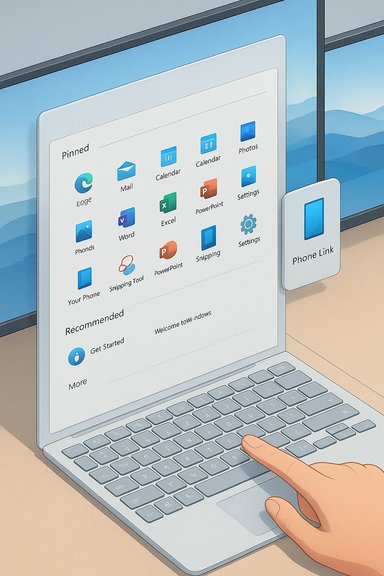
Microsoft delivered a major refresh to the Start experience through its October 28, 2025 non‑security preview (KB5067036) and folded the same changes into the November 11, 2025 cumulative (KB5068861). Those KB entries explicitly describe a reworked Start menu that promotes the full All‑apps inventory onto a single, vertically scrollable canvas, adds new presentation modes, and engages tighter Phone Link integration. This was not a tiny cosmetic tweak: the new Start design collapses the separate "Pinned" + "All apps" model into a single surface and adapts its density and column counts to screen size and DPI. Microsoft shipped the bits in servicing updates while phasing enablement server‑side, meaning installing the KBs may be necessary but not always sufficient for the new UI to appear immediately on every device. That staged activation model is important to how users are experiencing — and complaining about — the change. Independent hands‑on testing and community reporting quickly showed two concrete outcomes: the Start canvas can be substantially taller than the previous centered launcher on many laptops, and new integration points — notably Phone Link — can further expand the panel to feel nearly full‑screen in practice. Those field observations were reproduced and summarized by multiple outlets. What Microsoft changed — the technical essentials
A single, vertically scrollable Start canvas
- The Start interface now presents Pinned, Recommended, and All apps on one continuous surface instead of separating All apps on its own page. Scrolling exposes more content rather than switching to a new pane.
- The All‑apps region supports multiple views — Category, Grid, and List — allowing users to choose grouping or density behaviors. The UI remembers your selected view across sessions.
Responsive layout and Phone Link integration
- The layout responds to screen size and scale; larger monitors show more columns and items, while laptops and lower DPI settings produce denser vertical stacks. This adaptive behavior is by design and intended to make Start feel populated rather than sparse on high‑DPI displays.
- A Phone Link (mobile companion) control now appears beside the Start search field. When expanded, Phone Link surfaces messages, photos, and basic phone actions inside Start as a collapsible sidebar — increasing the Start panel's footprint if enabled.
Administrative controls and policy changes
- For IT, Microsoft added a Boolean option to the Configure Start Pins Group Policy that lets admins apply pinned layouts once (day‑0 provisioning) and then allow users to modify and persist their changes. This is significant for imaging and provisioning workflows.
- The update delivery model bundles the redesign into servicing packages (preview/cumulative KBs) while controlling exposure using server‑side gating — a deliberate distribution choice that reduces blast radius but creates mixed behavior across identical builds.
How big is “big”? Verifying the 90% claim
The most prominent complaint centers on perceived size: reporters on multiple sites measured the Start menu occupying roughly 90% of the vertical screen height on common 14‑inch 1920×1080 laptop configurations at 100% scaling after the November update, versus the prior 50–60% visible height. These numbers are environment‑dependent but were reproduced by independent outlets and community testing. When Phone Link is expanded, testers found Start approaches a full‑screen panel. Microsoft’s documentation does not publish a single pixel height for Start; instead, it describes adaptive layout rules and column counts. Therefore the "90%" figure is an empirical, contextual observation that accurately describes many real‑world laptop experiences but should not be treated as a universal constant across every resolution, display size, and scale combination. Treat the claim as reproducible in specific test configurations (14" 1080p, 100% scale) but subject to variation elsewhere.Why Microsoft made this change — the design case
Microsoft’s stated intent is pragmatic and defensible:- Improve discoverability. Putting the full apps inventory on the primary canvas reduces clicks to reach seldom‑used apps and surfaces recently used content more directly.
- Adapt to large and high‑DPI displays. The older centered, sparse Start felt empty on bigger screens; the new canvas scales to make better use of space.
- Offer flexible views for different mental models. Category and Grid views suit visual scanning and task-based discovery; List view preserves a compact, alphabetical workflow for keyboard-oriented users.
- Bring Phone Link closer to the launcher. Embedding mobile continuity inside Start shortens the path to cross‑device content and actions.
Real‑world impact: benefits and friction
Benefits
- Faster access to the full app inventory without an extra click.
- More customization — users can hide Recommended or choose List view to reduce vertical length.
- Better use of large monitors and docked workflows where Start no longer looks empty.
- Administrative provisioning control over pinned layouts helps enterprise deployments.
Friction and risks
- Screen real estate on laptops. On 13–15" 1080p systems the Start surface often consumes most of the visible workspace, creating the impression of a full page rather than a transient overlay. This disrupts workflows that relied on a compact, temporary Start pop‑up.
- Server‑side gating and inconsistent UX. Two identical machines might show different Start behavior after the same KB is installed, complicating help‑desk support and training.
- Associated regressions. The redesigned Start arrived alongside other shell changes and earlier optional previews reproduced regressions (for example, Task Manager leaving orphaned taskmgr.exe processes running) that were fixed later. Bundling UI changes with servicing updates increases the odds of collateral bugs.
- Limited rollback. There’s no simple consumer toggle to revert to the older Start if Microsoft enables the feature server‑side for your device. Rolling back may require uninstalling updates or waiting for a policy control from Microsoft. That lack of a straightforward user‑facing rollback is a real support pain point.
- Accessibility and muscle‑memory regressions. Any major reflow of the primary launcher risks breaking established keyboard, assistive‑technology, and muscle‑memory workflows unless thoroughly validated. Enterprises should include assistive testing in pilots.
Enterprise implications: testing, imaging, and policy
For IT teams the Start redesign is more than a cosmetic issue — it’s a change to a core entry point of the desktop experience. The critical operational notes:- Pilot before broad rollout. Treat this as a substantive UX change. Pilot on representative hardware (laptops, docked workstations, high‑DPI monitors) and test provisioning and imaging flows.
- Account for server‑side gating. Because Microsoft gates the feature, identical images may exhibit mixed Start behavior. Build support documentation that covers both experiences during the rollout window.
- Use the new Configure Start Pins boolean carefully. The added Group Policy control for applying pins once helps day‑0 provisioning but requires testing to ensure the behavior meets your onboarding and user personalization policies.
- Monitor Release Health and KB notes closely. Associated regressions (Task Manager duplication, File Explorer quirks) were discovered in early preview drops; keep an eye on Microsoft Release Health and the KB entries for acknowledged fixes and mitigations.
- Document accessibility impact. Include screen‑reader and keyboard navigation checks in acceptance tests and gather feedback from users reliant on assistive tech.
Practical guidance: how to make the Start menu less “giant”
If the new Start has arrived and feels intrusive, here are ordered, pragmatic steps (from safe to more advanced) that reclaim vertical space and restore a leaner workflow.- Hide Recommended content (safe, supported)
- Settings > Personalization > Start: disable “Show recently added apps,” “Show most used apps,” and “Show recommended files.”
- Effect: collapses the Recommended area, which is often a large contributor to Start’s vertical height.
- Switch All apps to List view (safe, supported)
- Open Start > Settings (gear) or Settings > Personalization > Start and choose the List view for the All apps area. List is the most compact presentation.
- Adjust display scaling (moderate)
- Settings > System > Display: experiment with Scale (e.g., 125%/150%) or resolution. Higher effective DPI compresses Start relative to the overall desktop.
- Caveat: scaling affects all UI and text; test app layouts and readability after change.
- Use an external monitor when possible (simple practical fix)
- Docked, high‑resolution monitors show more columns and feel less dominated by the Start surface. For laptop‑centric users, docking is a reasonable mitigant.
- Advanced / unsupported: community tools and feature flags
- Enthusiast communities have documented ViVeTool and similar techniques that toggle preview feature flags when the servicing binaries are present. These are inherently unsupported, can break with future updates, and may complicate imaging, so treat them as last‑resort troubleshooting only. Flag: unsupported.
- If you encounter orphaned Task Manager processes
- Use taskkill /im taskmgr.exe /f or End task in Task Manager’s Details view, and avoid closing via X if repros are present. Monitor Microsoft KB notes for the permanent fix.
UX critique: trade‑offs, accessibility, and muscle memory
The Start redesign is a textbook example of the tension between discoverability and transience:- On large or high‑resolution displays the new canvas is clearly superior: it fills empty space with meaningful content, offers multiple views, and reduces clicks. That is a measurable UX win for users with many installed apps and for touch/tablet workflows.
- For laptop users and people who prefer a fast, contextual overlay, the new default footprint can be disruptive. The design shifts the mental model from a transient launcher to a mini workspace, requiring users to re‑learn where things appear and how to dismiss them quickly. That friction is non‑trivial when the UI absorbs most of the screen visible area.
- Accessibility testing must be broad and early. Major reflows can introduce keyboard‑focus regressions, screen‑reader verbosity changes, and unexpected tab orders. Enterprises and Microsoft alike should ensure assistive tech users are included in acceptance testing before any broad mandate.
The rollout method: pros, cons, and the support burden
Microsoft’s choice to ship the redesign in servicing updates and gate the feature server‑side is a pragmatic engineering decision: it lets the company ship binaries quickly and then control the roll‑out to limit exposure. However, it creates practical issues for support teams:- Mixed experiences across identical builds: complicates knowledge bases and troubleshooting workflows.
- Hard to document definitive rollbacks: once enabled server‑side there’s no consumer toggle to revert, making remediation awkward in help‑desk scenarios.
- Correlated regressions from preview channels can land in servicing updates with wider reach, amplifying the perceived severity of UI changes. Early previews showed isolated regressions that required additional servicing fixes.
Verdict — who benefits, who should wait, and recommended next steps
- Beneficiaries: power users with large app libraries, IT environments that need better provisioning of pinned layouts, multi‑monitor and touch users, and anyone who values discoverability over minimalism. The new Start is a thoughtful modernization for these groups.
- Cautious adopters: laptop‑first users, accessibility‑focused users, and organizations that cannot tolerate inconsistent UX across identical hardware. These users should delay mass deployment until the rollout stabilizes and relevant fixes/policy controls are confirmed.
- Recommended actions now:
- Pilot the new Start across representative hardware and accessibility scenarios.
- Instruct help desks on both Start experiences and prepare quick remediation guidance (hide Recommended, switch to List view, scale changes).
- Monitor Microsoft Release Health and the KB entries for acknowledged fixes and administrative policy updates.
Closing analysis: deliberate design, imperfect delivery
Microsoft intentionally reimagined Start to be a more capable, discoverable launcher adapted for today’s range of device sizes and workflows. That boldness is a legitimate design choice. The problem lies less in the philosophy and more in the delivery: bundling a substantive UX rework into monthly servicing updates while relying on server‑side gating produced an uneven, and for some users, jarring exposure — especially on smaller laptop screens where the Start surface can feel overwhelmingly large. For most users the changes are manageable with supported settings (hiding Recommended, selecting List view, or adjusting scaling). For enterprises the change must be treated as a substantive desktop alteration and handled accordingly: pilot, document, and communicate. Microsoft’s approach solved one long‑standing complaint (discoverability) but introduced new trade‑offs (footprint and rollout complexity) that need careful, measured attention from both product teams and IT organizations.The Start menu is company real estate: once its behavior changes, workflows and expectations shift. That means the real work now belongs to IT teams, power users, and Microsoft itself — to refine the experience, smooth the rollout, and ensure the redesign truly fits the broad diversity of Windows devices in the field.
Source: Inbox.lv New Problem: A Giant Start Menu Has Appeared in Windows