

Microsoft has quietly pushed another round of incremental but consequential updates across the Windows 11 ecosystem — a Start menu redesign that changes how users find apps, stronger driver validation for Wi‑Fi 7 hardware, a new Microsoft Store multi‑app install flow, and a string of practical guides and tools for users who want to reclaim control from Copilot and other built‑in services. Together these developments illustrate Microsoft’s dual strategy: ship iterative UX and platform improvements via controlled feature rollouts, while nudging the Store and device drivers toward greater operational maturity — all of which carries both clear benefits and practical costs for everyday users and administrators.
Windows continues to evolve through a mix of enablement packages, preview quality updates, and server‑side feature flags rather than a single annual “big” release. That approach lets Microsoft test new UI ideas, deliver device‑level compatibility fixes, and expand the Microsoft Store’s utility with lower deployment risk — but it also produces an environment where features can appear inconsistently across devices and timelines. Understanding this context is essential before installing optional previews or making system‑level changes.
Where claims could not be directly and independently verified (for example, percentage of devices exposed to a particular server‑side flag on a given date), treat those as telemetry‑dependent details and validate against Microsoft’s published advisory or your own telemetry before making broad operational changes.
The landscape remains healthy: new UX experiments and platform readiness improvements are tangible wins. They carry the usual tradeoffs — staggered rollouts, occasional regressions, and management overhead — but those are manageable with careful planning, versioned driver strategies, and conservative adoption paths. In short: test, validate, and then deploy — and when in doubt, keep a restore point and a clear rollback plan.
Source: BetaNews https://betanews.com/series/best-wi...-wi-fi-and-bluetooth-drivers-for-windows-11/]
 Background
Windows continues to evolve through a mix of enablement packages, preview quality updates, and server‑side feature flags rather than a single annual “big” release. That approach lets Microsoft test new UI ideas, deliver device‑level compatibility fixes, and expand the Microsoft Store’s utility with lower deployment risk — but it also produces an environment where features can appear inconsistently across devices and timelines. Understanding this context is essential before installing optional previews or making system‑level changes.What changed: Start menu redesign and launcher rethink
A single, scrollable “All” surface
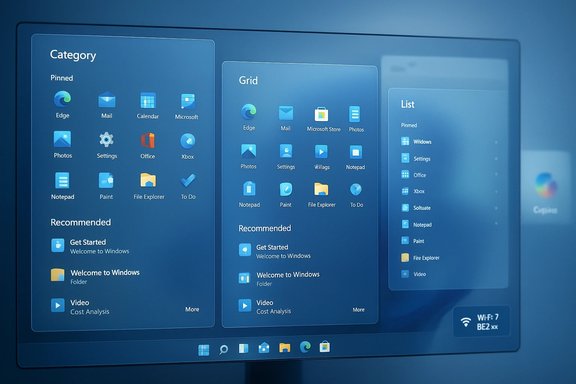
The Start menu overhaul moves Windows 11 away from the split-pane model toward a single, vertically scrollable canvas that integrates Pinned items, Recommended content, and the full All apps inventory. This mirrors modern mobile launchers and is intended to reduce clicks while improving discovery on larger and high‑DPI displays. Early preview notes and hands‑on coverage show the Start surface now adapts responsively to screen real estate and offers a more continuous navigation flow.Category, Grid, and List views
The redesign introduces three browsing modes:- Category view: Groups apps into topical buckets (Productivity, Games, Communication) and surfaces frequently used apps within each group.
- Grid view: A denser, tile‑style alphabetical grid for fast horizontal scanning.
- List view: The traditional alphabetic list for keyboard or power‑user workflows.
Why this matters
For users with extensive app catalogs or those who work on ultrawide and multi‑monitor setups, the single canvas and category grouping reduce friction and make app discovery faster. For smaller devices or users who prefer a compact launcher, the density tradeoffs will be a matter of preference — but Microsoft’s responsive layout aims to optimize the default experience for each form factor. Administrators should note that feature exposure is controlled by Microsoft and can be rolled out slowly, so installing the related preview package does not guarantee immediate availability.Practical implications and recommendations for the Start changes
- For power users: Test the new Start surface in a pilot environment first. Expect differences in keying and discoverability workflows — update internal documentation and training for helpdesk staff.
- For administrators: Treat the change as a UX update; stage it using phased deployment policies and validate compatibility with custom shell extensions and third‑party start menu replacements.
- For casual users: Try the different views and pin/hide sections (Pinned/Recommended) to regain a clean launcher that matches your habits.
Copilot: removal, neutralization, and the privacy tradeoffs
What users are doing
A steady stream of guides shows practical methods to hide, disable, or uninstall Copilot for users who find the assistant intrusive or unnecessary. Options range from the safe and reversible (hide the Copilot taskbar button) to more invasive approaches (PowerShell/Appx removal, Group Policy enforcement, or registry edits). Community reporting and aggregated how‑tos emphasize caution: package names and behaviors vary across builds, and future updates can reintroduce features or block uninstall paths.Safe, supported steps
- Hide the Copilot taskbar button: Settings → Personalization → Taskbar → turn off Copilot (preview). This removes the visual element without altering system packages.
- Uninstall via Settings → Apps → Installed apps when the UI offers an uninstall option. This removes the user‑facing package but may not remove deeper integrations.
- Group Policy (Pro/Enterprise/Education): Turn off Windows Copilot via User Configuration → Administrative Templates → Windows Components → Windows Copilot. This is the supported, managed approach and maps to a documented registry key for automation at scale.
Advanced methods and cautions
- PowerShell removal and Appx package uninstall can be effective but require exact package names and administrative care; wrong removals risk breaking dependent components.
- Registry edits can replicate Group Policy in Home editions but carry the same systemic risks as other registry changes.
- Community “one‑click” scripts exist but running untrusted code for system‑level changes is high risk — verify script content and signers, or avoid them entirely.
Risks to highlight
- Future Windows updates can reinstall or re‑provision Copilot components.
- Removing Copilot may impair contextual integrations in other Microsoft apps that expect its presence.
- Enterprise-managed devices may be governed by policies that override local changes.
Microsoft Store: multi‑app install and discovery changes
Microsoft copies features from the community — and does it in the Store
Microsoft has been quietly testing a multi‑app install feature in the Microsoft Store that mimics the convenience of tools like Ninite: users select multiple apps in a curated web interface, download a small launcher, and let the Store orchestrate the parallel installation of the chosen titles. The launcher is a pointer — it delegates downloads to the Store app rather than containing full installers — which improves safety and keeps transfer sizes small.What’s in the catalog and why it matters
Initial packs focus on mainstream productivity, creativity, and common utilities: Adobe tools, Microsoft Teams, popular consumer apps and a selection of community favorites. For new machine setup and casual provisioning, this feature reduces friction and helps users avoid manual downloads from disparate vendor pages. For admins, however, the Store remains a controlled catalog — curated and routed through Microsoft’s packaging pipeline — so it cannot yet fully replace enterprise image‑building workflows where precise version control is required.Recommendations
- Home users and enthusiasts: Use the Store multi‑app packs to speed initial setup and ensure you get Store‑validated packages.
- IT professionals: Reserve the Store packs for non‑critical installs or kiosk/education machines where ease-of-deploy matters more than deterministic packaging.
- Security teams: Monitor the Store packs’ composition and audit installed apps against corporate policies; don’t assume Store validation equals enterprise suitability.
Drivers and platform readiness: Intel’s Wi‑Fi and Bluetooth updates
What Intel shipped
Intel has refreshed its wireless stacks with validated driver packages that align client adapters to Windows 11’s evolving platform baseline. Recent packages in the 23.x and 24.x families explicitly call out support for Intel’s Wi‑Fi 7 BE2xx modules and validation for Windows 11, version 25H2. This step reduces one of the common upgrade friction points: incompatible wireless drivers that break functionality after a servicing update.Technical implications of Wi‑Fi 7 readiness
Wi‑Fi 7 (802.11be) brings significant capabilities — Multi‑Link Operation (MLO), wider channelisation, and multi‑gigabit throughput — but real world gains require end‑to‑end alignment: client adapter drivers, firmware, access point firmware, and the OS networking stack. Intel’s validation for Windows 11 25H2 and the specific BE2xx module support are necessary but not sufficient: enterprise APs and controllers must also be provisioned to expose the benefits.Practical advice
- Pre‑upgrade checklist: Confirm your client adapter is listed in the driver package notes; update firmware on managed APs before enabling MLO features.
- Enterprise pilots: Validate roaming, captive portal behavior, and Wi‑Fi sensing features — vendor guidance often recommends unpairing Bluetooth devices before upgrades on certain legacy combos.
- Home users: Install validated Intel packages from vendor pages when moving to major Windows servicing updates, and create a restore point in advance.
Windows 26H1 preview and the 25H2 baseline — what’s actually happening
Branching, enablement packages, and targeted features
Microsoft’s use of version identifiers (for example, 25H2 versus 26H1) has been a source of confusion. The company is using these branches to align platform enablement with specific silicon needs and scenario testing. Some preview builds labeled 26H1 focus on under‑the‑hood changes that enable next‑generation Arm and NPU‑centric SoCs, while 25H2 remains the primary servicing branch for mainstream features. The result is a landscape where visible features (Start redesign, File Explorer changes, taskbar refinements) are distributed through preview updates and server‑side flags rather than a single monolithic release.What made headlines
Preview packages and release notes have shown features like the Start menu redesign, File Explorer dark‑mode refinements, Full Screen Experience for handheld PCs, and some Copilot integrations landing behind Controlled Feature Rollout gates. Administrators should be careful: preview packages may be optional, and installing them does not guarantee immediate feature activation across all managed devices.Best Windows apps this week and the state of app discovery
Weekly roundups continue to be a practical way to discover high‑quality additions in the Microsoft Store. Recent selections emphasize both productivity (Dynamic Theme, Series Tracker) and casual, well‑designed games (Two Dots and others), illustrating that the Store still surfaces useful utilities and entertainment titles amid a noisy ecosystem. These curated lists remain valuable for users who want vetted picks and a sanity check before installing new software.Strengths, risks, and the operational calculus
Notable strengths
- Incremental delivery reduces blast radius: Microsoft’s approach of shipping binaries and enabling features selectively improves safety and gives time for telemetry‑driven adjustments.
- Better driver validation: Intel and other vendors aligning drivers to Windows servicing baselines reduces upgrade pain and hardware compatibility failures.
- Store modernization: Multi‑app install and a friendlier library UX lower friction for casual users and mainstream setups.
Key risks and downsides
- Inconsistent exposure: Server‑side gating means different users see different experiences at different times, complicating support and documentation.
- Feature reversal and re‑provisioning: System‑level removals (for Copilot or other inbox apps) can be undone or complicated by future updates.
- Security assumptions: Store validation improves safety but is not a substitute for corporate vetting and lifecycle management in enterprises.
Actionable guidance: what to do now
- Back up and pilot before enabling preview packages. Create system restore points and test in a controlled pilot ring for at least one week to monitor telemetry and compatibility.
- For privacy‑minded users: Use supported policies (Group Policy, Settings) to neutralize Copilot rather than brittle removals; document any deeper removals and recovery steps.
- When upgrading to Windows servicing updates: Check vendor driver pages for validated packages (especially for wireless and storage drivers) and update firmware on network infrastructure in tandem.
- Use Microsoft Store multi‑app packs for non‑critical installs: They’re convenient for new machines but not yet a full replacement for managed imaging in enterprises.
- Monitor feature flags and user complaints: Because experiences are gated, track support channels and Insider notes to anticipate staggered rollouts and known regressions.
Cross‑checks, verification and caveats
The platform stories summarized above are corroborated by multiple hands‑on and preview reports collected from rolling preview packages and vendor driver announcements. Reports on the Start redesign and KB preview packaging are consistent across preview coverage; guidance on Copilot removal is repeated across documented Group Policy and PowerShell approaches; and Intel’s driver refresh notes explicitly reference Windows 11 validation and Wi‑Fi 7 module support. Still, some specific numbers (exact driver subversions per adapter, enrollment percentages for feature rollouts) are not universally published and should be verified against vendor release notes or Microsoft’s official Insider blog for mission‑critical deployments.Where claims could not be directly and independently verified (for example, percentage of devices exposed to a particular server‑side flag on a given date), treat those as telemetry‑dependent details and validate against Microsoft’s published advisory or your own telemetry before making broad operational changes.
Final assessment
Microsoft’s recent flurry of controlled updates reflects a mature servicing strategy: decouple binary distribution from feature activation, validate hardware stacks with vendors, and broaden Store functionality to lower setup friction. For users, the changes mean a nicer Start menu and easier app discovery; for admins, they mean more things to test and coordinate (driver updates, group policies, feature flags). The practical takeaway is straightforward: embrace the conveniences when they help, but adopt a disciplined pilot‑then‑rollout posture and prefer supported, reversible controls for privacy or security‑sensitive modifications.The landscape remains healthy: new UX experiments and platform readiness improvements are tangible wins. They carry the usual tradeoffs — staggered rollouts, occasional regressions, and management overhead — but those are manageable with careful planning, versioned driver strategies, and conservative adoption paths. In short: test, validate, and then deploy — and when in doubt, keep a restore point and a clear rollback plan.
Source: BetaNews https://betanews.com/series/best-wi...-wi-fi-and-bluetooth-drivers-for-windows-11/]
