

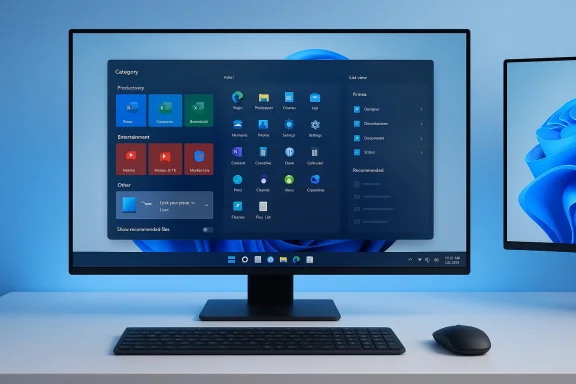
Microsoft’s phased, servicing‑update rollout of a redesigned Start menu for Windows 11 has quietly reached a much larger audience in recent weeks, arriving as part of the platform’s cumulative updates and optional servicing packages and accompanied by an explicit explanation from Microsoft about why the company changed a UI component many users thought was “done.” The new Start consolidates Pinned, Recommended and All apps into a single, vertically scrollable surface, introduces three presentation modes (Category, Grid, List), and tucks a collapsible Phone Link companion into the Start canvas — all meant to make apps and recent content easier to find while offering more personalization. What looks at first like a visual refresh is actually a deliberate rethinking of discoverability, cross‑device workflow and large‑screen ergonomics — and it brings both clear benefits and measurable trade‑offs for consumers, IT administrators and organizations that manage mixed fleets.
When Windows 11 launched, Microsoft moved the taskbar to the center and simplified the Start design to emphasize calm, focus and a reduced number of surface elements. That approach won praise for aesthetics but drew consistent feedback about discoverability, customization limits and the friction of moving between “Pinned” and a separate “All apps” view.
Microsoft signaled a shift in strategy in May of 2025, when the Windows Experience team told users that “Start is getting personal — with more options to customize and organize your apps,” and previewed a Start that would include a phone companion and a smarter “all apps” experience. Over the following months the company tested several variants in Insider channels and preview packages, and by November 2025 Microsoft folded the new Start UI into servicing updates distributed to mainstream channels. The code has been staged behind server‑side gates and phased rollout logic, which means many devices already had the binaries present for months but only saw the new Start enabled when Microsoft flipped the flag for additional rings.
That delivery model explains why users began reporting sudden appearances of a dramatically larger Start surface after November and why the experience widened further across devices during the January 2026 cumulative updates. Microsoft’s official update notes for the January 13, 2026 cumulative release explicitly call out that the redesigned Start is becoming available to more machines as rollout continues.
At the same time, complaints cluster around the Start’s physical dominance on the screen, the lack of granular toggles for Recommendation vs Explorer recents, and the patch‑gate delivery that creates temporary disparity across otherwise identical machines. In enterprise channels the headlines were less about aesthetics and more about manageability: admins want a supported, documented mechanism to opt devices out or to pin behavior with group policy, and they’re cautious about the additional helpdesk volume a UI change can generate.
That said, the redesign also exposes a critical lesson in platform design: changing core navigation — the thing users hit first when they want to run an app — must be done with very careful attention to manageability and to convenience for both consumers and enterprises. Microsoft’s use of staged, server‑side enablement helps reduce large‑scale regressions, but it also makes the change feel sudden to users who may not expect a different Start after a cumulative update.
The rollout strategy — shipping code in servicing updates and enabling features gradually — gives Microsoft the telemetry control to refine the experience but also forces administrators to treat Start as a managed update, not a cosmetic theme. If you manage Windows devices, test the new Start, educate your users, and use Group Policy and update controls where necessary. If you’re a consumer curious about the change, explore the new views and the Start personalization options first — and only disable recommendation tracking if you fully understand that Explorer’s Recent files and taskbar Jump Lists will be affected.
Change is inevitable for platform navigation. The important test for Microsoft will be whether it can preserve backward compatibility for workflows, provide enterprise control where it matters, and iterate quickly on friction points — especially the blunt coupling between Start recommendations and Explorer recent items. For now the redesigned Start is a meaningful step toward a more personal, phone‑aware Windows, but it is definitely not the final word on how Windows should land users where they want to go.
Source: ekhbary.com Microsoft Rolls Out Redesigned Windows 11 Start Menu, Explains Rationale Behind Changes
 Background: how we got here
When Windows 11 launched, Microsoft moved the taskbar to the center and simplified the Start design to emphasize calm, focus and a reduced number of surface elements. That approach won praise for aesthetics but drew consistent feedback about discoverability, customization limits and the friction of moving between “Pinned” and a separate “All apps” view.Microsoft signaled a shift in strategy in May of 2025, when the Windows Experience team told users that “Start is getting personal — with more options to customize and organize your apps,” and previewed a Start that would include a phone companion and a smarter “all apps” experience. Over the following months the company tested several variants in Insider channels and preview packages, and by November 2025 Microsoft folded the new Start UI into servicing updates distributed to mainstream channels. The code has been staged behind server‑side gates and phased rollout logic, which means many devices already had the binaries present for months but only saw the new Start enabled when Microsoft flipped the flag for additional rings.
That delivery model explains why users began reporting sudden appearances of a dramatically larger Start surface after November and why the experience widened further across devices during the January 2026 cumulative updates. Microsoft’s official update notes for the January 13, 2026 cumulative release explicitly call out that the redesigned Start is becoming available to more machines as rollout continues.
What changed — an anatomy of the new Start
The redesign isn’t a single tweak. It’s an architectural change to how Start surfaces content, with several concrete elements that change behavior and layout.Single, scrollable surface
- The Pinned, Recommended, and All apps sections now sit on one continuous vertical canvas. You no longer open Start then click “All apps” to reach the full app list; instead you press Start and scroll.
- The surface scales: on large screens the canvas will expand to present more columns and rows, while on smaller displays it compresses to fit but remains taller than the legacy Start.
Three presentation modes for all apps
- Category view: apps are grouped into buckets such as Productivity, Entertainment or Other. The system will create a category when at least three apps belong together, otherwise apps land in “Other.”
- Grid view: an alphabetical grid that resembles classic alphabetical lists but uses horizontal space more efficiently.
- List view: a compact, vertical alphabetical list for users who prefer scanning names.
Pinned apps and density controls
- Pinned apps remain at the top; users can expand or collapse pinned rows and can choose to show more pinned items by default.
- The layout adapts to display size, letting larger monitors show eight or more items per row, while smaller screens show fewer.
Recommended + Recent integration (and its trade‑off)
- The Recommended feed — the Start area that surfaces recently used files, suggested apps and contextually recommended items — is still present but can be disabled from Settings.
- Critically, the toggle in Settings for “Show recommended files in Start, recent files in File Explorer, and items in Jump Lists” controls the system’s single recent‑activity engine. Turning the toggle off removes the Recommended entries from Start but also disables Recent files in File Explorer and clears Jump List history. That coupling is deliberate and backed by the same telemetry store used across these UI surfaces.
Phone Link companion
- A collapsible Phone Link (phone companion) pane sits inside Start for paired phones, providing quick access to phone battery, recent photos, messages and call actions. The panel is optional and can be hidden; when present it’s meant to reduce context switching between PC and phone.
Delivery and enablement
- The new Start shipped inside servicing updates — optional preview packages and later as part of regular Patch Tuesday cumulatives (notably the November 2025 servicing bundles) — and has been enabled progressively using server‑side gating. For enthusiasts and testers some sites documented feature‑flag IDs that could be toggled with third‑party utilities to enable the experience early; Microsoft’s intended route is through the official update channels and flags it controls.
Why Microsoft says it redesigned Start
Microsoft’s public rationale is threefold:- User feedback and discoverability — customers asked for faster access to apps and less clicking between panes. By surfacing all apps on the Start home and offering category‑based sorting, Microsoft aims to reduce the mental and physical steps needed to launch software.
- Consistency with mobile and cross‑device workflows — the Category view is explicitly described by Microsoft as being reminiscent of your phone. Consolidating Phone Link into Start is a conscious effort to blur the boundaries between phone and PC workflows, letting users view essential phone data without leaving the desktop.
- Adaptation to modern hardware — Microsoft says the single surface benefits touch, pen and high‑DPI, large‑screen devices by making content more discoverable and readable, and by letting the UI scale to make better use of available pixels.
Strengths: what this redesign gets right
The new Start delivers several genuine improvements for common workflows.- Faster app discovery. With the full app inventory promoted to the Start surface, users can find applications without a second click. For people who install lots of apps or have complex toolsets, the Category view can surface relevant groups faster than alphabetic lists.
- Better use of large displays. On modern laptops and external monitors, the Start surface can now use horizontal space to present multiple columns and reduce vertical scrolling when necessary.
- More personalization. Giving users control over pinned density, view mode and the ability to hide the Recommended feed answers longstanding requests for more Start customizability.
- Cross‑device convenience. The Phone Link companion is a smart integration for users who routinely switch between phone and PC. Quick access to messages and photos from Start reduces context switches in workflows such as research, content creation and hybrid work.
- Transparent toggle for Recommended content. While not granular, the single toggle to hide recommendations is a clear, user‑accessible control that was sorely missing in earlier Windows 11 builds.
Risks and trade‑offs: what users and admins should watch for
A major redesign inevitably introduces friction. The changes Microsoft made are not neutral for every user or environment.1) Visual dominance and muscle‑memory disruption
Many users report the Start surface feels huge — in some tests the Start canvas can occupy the majority of a screen’s height. For people used to a compact Start that appears as an overlay, the new tall, scrolling surface can feel intrusive and break muscle memory. This is especially true on small laptops where the Start may feel totemic rather than ephemeral.2) Coupled recent activity behavior
The Settings toggle that disables Recommended items also disables recent files in File Explorer and clears Jump List history. That coupling is frustrating for users who want to remove recommendations from Start but keep recent items in Explorer. The reason is technical — multiple surfaces read from one recent‑activity engine — but the user impact is real: one toggle changes behavior in three different UI areas.3) Patch‑driven variability and management headaches
Because Microsoft shipped the new Start inside servicing updates and uses server‑side gating for enablement, machines with identical images and update levels may show different Start experiences. That unpredictability complicates imaging, training, and support in enterprise environments. Administrators need to plan for mixed fleets and staggered user education.4) Early activation via unsupported tools
Communities quickly published feature‑flag identifiers and commands that enable the UI before Microsoft’s gates flip. Utilities that flip internal feature flags can expose users to instability and are unsupported by Microsoft; they can also cause later mismatches when feature IDs change. Enterprises should disallow those tools and prefer official update controls.5) Accessibility and keyboard navigation
Any visual rework must preserve keyboard, screen‑reader and switch‑access workflows. Early hands‑on testing suggests the Start remains accessible, but tall scrolling surfaces can complicate single‑handed keyboard navigation and require careful testing with assistive tech.6) Enterprise policy implications
Organizations that depend on Jump List history or File Explorer’s Recent files for training, compliance workflows, or helpdesk triage may be surprised if the Recommended toggle gets flipped. The coupling means that turning off recommendations (or applying the underlying “no recent docs” policy) will disable data that other processes or scripts expect.Practical guidance: options for users and administrators
If you’re seeing the new Start and want to manage the experience, here are practical, tested steps and considerations.For everyday users — quick settings and controls
- Open Settings > Personalization > Start.
- Use the “Show recommended files in Start, recent files in File Explorer, and items in Jump Lists” toggle to hide recommendations — but be aware this also affects File Explorer and Jump Lists.
- In the same area you can switch All apps view between Category, Grid and List to suit your muscle memory.
- Collapse or expand the Pinned area and use the “Show all” control if you want more or fewer pinned items visible.
For IT administrators — deployment, policy and rollback
- Treat the new Start as a functional UX update that can be enabled via servicing updates and server gates. Don’t assume an in‑place image is sufficient; plan for staged appearance across user devices.
- Use update rings and testing: validate the new Start in a pilot ring before allowing broad deployment. Use Windows Update for Business, WSUS or Update Compliance to stagger rollouts.
- To preserve Jump List and Explorer recent‑item behavior while preventing end users from changing it, apply Group Policy controls. The Group Policy path to consider is:
- User Configuration > Administrative Templates > Start Menu and Taskbar > Do not keep history of recently opened documents — enabling this prevents recent‑item tracking.
- If you need to remove the Recent Items menu entirely or control its behavior centrally, consult the ADMX Start Menu policy settings and the registry value HKCU\Software\Microsoft\Windows\CurrentVersion\Explorer\Advanced\Start_TrackDocs (0 = off, 1 = on) — but test thoroughly. These policies will also affect Jump Lists and Explorer behavior.
- Do not rely on third‑party flag‑flipping utilities in managed fleets. Tools that enable hidden feature flags are unsupported and can create inconsistent states and helpdesk overhead.
Recovery: reverting to the previous Start
- There is no single supported “undo” button; the practical options are:
- Use the Settings toggle to remove Recommended items (with side effects).
- Defer the update or exclude the servicing package via your update management system; this requires patch management discipline and may not be feasible after Microsoft ships the cumulative update that includes the binaries.
- For consumers, some community workflows used feature‑flag utilities, but those are unsupported and risk future instability. Avoid them on production machines.
Early user reception: mixed but informative
The response from the Windows community has been instructive. Enthusiast sites and forum communities broadly applaud Microsoft’s willingness to respond to feedback — the ability to hide Recommended content and the addition of multiple app views are repeatedly called long‑overdue improvements. Power users who maintain many apps report the Category view and promoted All apps list reduce time to find tools.At the same time, complaints cluster around the Start’s physical dominance on the screen, the lack of granular toggles for Recommendation vs Explorer recents, and the patch‑gate delivery that creates temporary disparity across otherwise identical machines. In enterprise channels the headlines were less about aesthetics and more about manageability: admins want a supported, documented mechanism to opt devices out or to pin behavior with group policy, and they’re cautious about the additional helpdesk volume a UI change can generate.
Security, privacy and telemetry considerations
Microsoft’s design emphasizes personalization and “automatic grouping” based on usage. That necessitates local telemetry or aggregated signals to infer categories and prioritize apps. Microsoft documents that these UI behaviors are driven by local usage signals and system services; the Recommended feed is powered by recent‑activity stores that aggregate file and app use. Two important takeaways:- If you or your organization have strong privacy or regulatory concerns, treat the recommended engine and Phone Link features as surfaces to audit. The Phone Link integration requires explicit pairing and permissions to access SMS, calls and media; the companion pane does not auto‑enable mobile access without consent.
- Turning off the Recommended toggle removes that local recent‑activity surface, but it’s a blunt instrument that also disables Explorer recent items and Jump Lists, which may alter expected forensic or compliance artifacts. Administrators should plan accordingly.
What this means for Windows’ long‑term design trajectory
Microsoft’s decision to fold the all‑apps list into the Start home and to add device companion panels is a signal: the company is pursuing a unified, discoverable, cross‑device posture for Windows 11 rather than a conservative, minimalist Start that hides complexity. The new model favors adaptability (multiple views), discoverability (single surface) and connected workflows (Phone Link), and it aligns with the broader direction Microsoft has telegraphed for Windows — more personalization, deeper on‑device AI hooks, and tighter device continuity.That said, the redesign also exposes a critical lesson in platform design: changing core navigation — the thing users hit first when they want to run an app — must be done with very careful attention to manageability and to convenience for both consumers and enterprises. Microsoft’s use of staged, server‑side enablement helps reduce large‑scale regressions, but it also makes the change feel sudden to users who may not expect a different Start after a cumulative update.
Recommendations — practical checklist
For end users- Explore Settings > Personalization > Start to select the view that matches your workflow.
- If Start feels too large, try Grid or List view to reduce vertical real estate usage.
- Avoid third‑party feature‑flag tools unless you accept the risk and can restore the machine if needed.
- Evaluate the new Start in a test ring and measure helpdesk impact.
- Use update management tools (Windows Update for Business, WSUS, Configuration Manager) to control exposure.
- If you must prevent recent‑item telemetry across surfaces, use the documented Group Policy under Administrative Templates > Start Menu and Taskbar to control “Do not keep history of recently opened documents” — but document the downstream impact on Jump Lists and Explorer.
- Communicate changes to users and provide quick reference on how to switch views and hide Recommended content.
- If you want the redesign before Microsoft’s gate opens, be aware community‑published feature‑flag IDs exist — but they are unsupported and can complicate future updates. Prefer waiting for the official rollout unless you can restore the system quickly.
Conclusion
Microsoft’s redesigned Start menu is not a shallow skin change — it’s a structural update that reflects explicit design goals: discoverability, personalization, and cross‑device harmony. For many users, especially those on large screens or those who juggle many apps and phone tasks, the new Start will improve productivity and reduce friction. For organizations and users sensitive to changes in recent‑item behavior, or to visual dominance on small screens, the redesign brings trade‑offs that require planning and communication.The rollout strategy — shipping code in servicing updates and enabling features gradually — gives Microsoft the telemetry control to refine the experience but also forces administrators to treat Start as a managed update, not a cosmetic theme. If you manage Windows devices, test the new Start, educate your users, and use Group Policy and update controls where necessary. If you’re a consumer curious about the change, explore the new views and the Start personalization options first — and only disable recommendation tracking if you fully understand that Explorer’s Recent files and taskbar Jump Lists will be affected.
Change is inevitable for platform navigation. The important test for Microsoft will be whether it can preserve backward compatibility for workflows, provide enterprise control where it matters, and iterate quickly on friction points — especially the blunt coupling between Start recommendations and Explorer recent items. For now the redesigned Start is a meaningful step toward a more personal, phone‑aware Windows, but it is definitely not the final word on how Windows should land users where they want to go.
Source: ekhbary.com Microsoft Rolls Out Redesigned Windows 11 Start Menu, Explains Rationale Behind Changes
