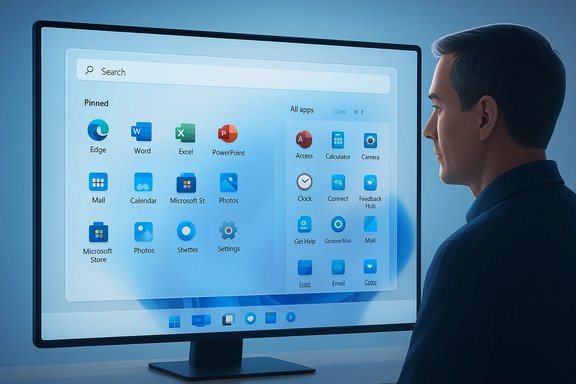
If you booted your PC recently and found a much larger, unfamiliar Start menu waiting for you, that sudden change is not a bug — it’s the new, redesigned Windows 11 Start rolling out to users now, delivered via optional servicing packages and staged feature flags that can make the appearance feel sudden and inconsistent across devices.
Microsoft has reworked the Windows 11 Start menu into a single, vertically scrollable surface that places your pinned apps, recent/recommended items, and the full “All apps” inventory on one canvas. The redesign introduces three distinct browsing modes for the All section — Category, Grid, and List — tighter Phone Link integration, and a responsive layout that scales with screen resolution and DPI. The change first appeared in preview packages distributed in late October 2025 and was included in Patch Tuesday servicing in November 2025; Microsoft is enabling the experience gradually via server-side gating, so installing the update does not always mean you’ll see the change immediately. This piece summarizes what changed, how to get it (and how to avoid it), what’s new under the hood, practical impacts on users and administrators, and the trade-offs — plus the safe workarounds and mitigation steps if the rollout causes trouble in your environment.
Practically, the safest approach for most people is measured curiosity: try the preview in a controlled environment, test toggles that affect recent-file surfaces, and be cautious about using community tools on production machines. For those who need exact legacy behavior now, trusted third-party Start replacements remain the pragmatic path — but they come with long-term trade-offs around compatibility and manageability.
The shift is significant: Microsoft has moved Start toward a modern launcher model that borrows mobile-style discovery and cross-device continuity. That is a net positive in concept, but the execution — especially around rollout, size heuristics, and side-effect interactions — will determine whether this redesign becomes widely loved or just another polarizing Windows update.
If your PC woke up with an unfamiliar Start menu, check Windows Update for KB5067036 or the November cumulative (KB5068861), review the Start toggles in Settings → Personalization → Start, and pilot the change before rolling it out across important systems.
Source: Windows Central "What happened to my Start menu?" The Windows 11 redesign is here.
 Background / Overview
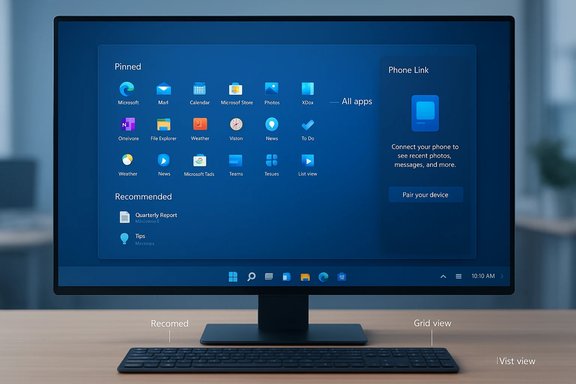
Microsoft has reworked the Windows 11 Start menu into a single, vertically scrollable surface that places your pinned apps, recent/recommended items, and the full “All apps” inventory on one canvas. The redesign introduces three distinct browsing modes for the All section — Category, Grid, and List — tighter Phone Link integration, and a responsive layout that scales with screen resolution and DPI. The change first appeared in preview packages distributed in late October 2025 and was included in Patch Tuesday servicing in November 2025; Microsoft is enabling the experience gradually via server-side gating, so installing the update does not always mean you’ll see the change immediately. This piece summarizes what changed, how to get it (and how to avoid it), what’s new under the hood, practical impacts on users and administrators, and the trade-offs — plus the safe workarounds and mitigation steps if the rollout causes trouble in your environment.What changed — the headline features
The redesigned Start shifts from a compact, centered launcher plus a separate “All apps” page to a continuous, scrollable canvas. Key visible differences include:- Single scrollable surface: Pinned, Recommended (optional), and All apps now appear on one page, reachable by scrolling rather than by opening a separate All apps pane.
- Three All apps views: Category (auto-grouped buckets like Productivity, Games, Creativity), Grid (dense, alphabetical tiles), and List (classic A→Z). The Start menu remembers your last chosen view.
- Pinned area improvements: Two default rows of pins (each row can hold up to eight pins on larger screens), with an option to show all pins by default and to collapse/expand the pins area.
- Hideable Recommended section: If you prefer a purely app-centric launcher, Microsoft added explicit toggles in Settings → Personalization → Start to hide Recommended content (recent files, promoted apps). Note: disabling some Recommended toggles can also affect recent-file surfaces elsewhere in the OS.
- Phone Link integration: A mobile-phone panel (Phone Link) can be expanded from Start to surface recent calls, messages, photos, and quick phone actions for paired devices; it’s collapsible but contributes to a larger Start footprint when open.
- Responsive sizing: The Start UI adapts to resolution and scaling; on many common laptop configurations it now occupies far more vertical space than the previous centered launcher. Multiple outlets reproduced Start occupying up to roughly 90% of vertical screen height in some configurations — an environment-dependent observation, not a fixed rule.
Why Microsoft made the change
This redesign addresses persistent feedback since Windows 11 first shipped: users wanted easier discoverability and fewer clicks to reach installed apps. By promoting the All apps index to the main Start canvas, providing multiple viewing modes, and folding in phone continuity features, Microsoft aims to make app discovery faster and the launcher more useful on larger and touch-capable displays. The rollout approach — shipping binaries in servicing updates and enabling features through staged server-side flags — lets Microsoft observe behavior and limit the blast radius of regressions.How the redesign is being delivered (what to install, and what to expect)
- Microsoft pushed the Start redesign bits as part of an optional, non-security preview package identified as KB5067036 (late October 2025 preview builds) and folded the changes into November cumulative servicing (for example, KB5068861 in the November 2025 Patch Tuesday rollup). The updated Start is therefore associated with those servicing drops.
- Important distribution detail: installing the KB often places the necessary binaries on your PC, but the Start experience may remain dormant until Microsoft flips a server-side feature flag for your device. That is why some people see the change immediately and others do not, even on identical builds.
- If you want the redesigned Start immediately, options include:
- Install the optional preview update (KB5067036) from Settings → Windows Update or Microsoft Update Catalog and wait for Microsoft’s staged enablement.
- Opt into Release Preview / Beta Insider channels when those builds are available.
- Use community tools (e.g., ViVeTool) to flip feature flags locally — supported by enthusiasts but unsupported by Microsoft and carrying risk. Follow the vendor guidance and back up the system before using such tools.
- If you prefer to avoid the redesign:
- Do not install the optional preview packages and wait for the wider cumulative release, or
- Delay updates via your update ring policies (businesses) until the redesign is broadly validated, or
- Disable the feature via ViVeTool if you enabled it and want to revert quickly (again: unsupported).
Hands-on details: what you’ll see and how to use it
Layout and navigation
- The Start menu is now a vertically scrollable canvas. Press the Windows key and scroll down to move from Pinned apps into Recommended (if enabled) and into All apps.
- The Pinned area sits at the top. By default you get two rows; larger displays will show more icons per row, up to eight. You can expand/collapse the pinned grid.
- The Recommended area shows recent files and suggested store apps. There’s a single toggle to hide recommended files and related suggestions — but beware of side effects (see next section).
All apps modes
- Category view: Apps are auto-grouped by function (Productivity, Games, Developer Tools). It’s designed for discovery when you remember a task or category rather than an exact name.
- Grid view: Alphabetical tile grid, denser and better for horizontal scanning.
- List view: Traditional A→Z list for keyboard-driven workflows.
- The Start menu remembers the view you last used.
Keyboard and power-user workflows
- List view preserves classic, deterministic alphabetical ordering for fast keyboard navigation (Win key → type first letters → Enter).
- Switching views is a few clicks (or taps) away in the All section; the OS restores your last choice so workflows remain stable across sessions.
Known friction points and reported regressions
The staged rollout helped limit widespread impact, but early adopter and testing reports found several pain points and bugs worth noting:- Some installers that create Start Menu folders (e.g., multi-shortcut application folders) may not have their shortcuts appear immediately in the redesigned Start until Explorer or the system is restarted. That has been reproduced by multiple testers. This is an operational annoyance for installers and imaging workflows.
- The larger vertical footprint is jarring on laptops: multiple outlets measured Start taking a far greater portion of screen height (reports of ~90% exist), and when Phone Link is expanded Start can approach full-screen. Those numbers vary with resolution, scaling, and whether Phone Link is visible. Treat “90%” as an observed sample, not a guaranteed measurement for every device.
- Disabling the Recommended toggles can also disable Recent files in File Explorer and the Recent items in Jump Lists — a trade-off that some users may not expect. If your workflow depends on cross-app recent-file surfaces, test the toggle before committing.
- Early preview builds also surfaced unrelated regressions that were addressed in follow-up servicing (for example, a Task Manager background process bug that was later fixed in November updates). That illustrates the risk of optional preview packages on production machines.
Security, privacy, and telemetry considerations
- The redesigned Start includes promoted app slots (Microsoft Store suggestions) and recommended files that can surface cloud-backed suggestions. Users who dislike recommendations can toggle most of these off, but, as noted, some toggles have broader side effects (File Explorer jump lists).
- From an enterprise compliance standpoint, staged server-side feature flags mean that device exposure may differ across a fleet even when builds are identical. Admins should account for feature variability when documenting and training users.
Practical tips: how to get the new Start (or hide it) — step-by-step
- Check Windows Update for optional preview updates:
- Settings → Windows Update → Check for updates. If KB5067036 (or the newer monthly cumulative that folds it in) appears as an optional preview update, install it. Reboot and wait — Microsoft may enable the feature after the device is selected in the staged rollout.
- If you want to accelerate exposure:
- Toggle “Get the latest updates as soon as they’re available” or opt into Release Preview/Beta Insider channels where preview builds and staged features appear sooner. This may be labeled differently depending on your Windows Update settings and Insider membership. Be aware that this moves you into preview update behavior.
- Use ViVeTool (unsupported, community method):
- Download ViVeTool, open an elevated Command Prompt in the ViVeTool folder and enable the relevant feature IDs reported by communities. Example commands widely circulated for earlier previews are similar to: vivetool /enable /id:XXXXXXX. Exact IDs differ across builds; verify the IDs for your OS build before using ViVeTool. This method can produce UI instability and is not recommended for production machines.
- To revert or avoid:
- Uninstall the optional preview package (if possible) or disable the feature with ViVeTool if you previously enabled it. For enterprises, hold updates in your update ring and perform targeted pilots.
Third-party options and why some users will still switch away
For users who prefer full control over Start appearance and behavior, third-party replacements remain popular. Tools such as Start11, StartAllBack, Open‑Shell, and shell-tweak utilities offer immediate customization and legacy Windows styles that Microsoft’s Start no longer supports.- Pros of third-party launchers:
- Fine-grained layout and size control.
- Recovery of legacy Start behaviors (classic Start Menu, exact alphabetical lists).
- Faster rollback to an older experience on production PCs.
- Cons and risks:
- Compatibility with future Windows updates can be brittle.
- Some commercial tools are paid; open-source alternatives may require more technical setup.
- Third-party hooks into shell components can complicate troubleshooting and enterprise support.
Assessment: strengths, trade-offs, and who benefits most
Strengths (what Microsoft got right)
- Reduced clicks to reach installed apps. Making the All apps inventory visible on the main canvas addresses a long-standing usability complaint and speeds discovery, especially for users with large app libraries.
- Flexible browsing models. Category, Grid, and List views give different mental models for discovery, which helps diverse user types (task-oriented vs. name-oriented vs. keyboard-centric).
- Device-aware scaling and Phone Link continuity. The adaptive layout and phone sidebar are logical steps toward a productivity-centric, continuity-first desktop.
Trade-offs and risks
- Size and density decisions are fixed. Users cannot set arbitrary Start height; the UI adapts by heuristics tied to resolution and DPI, which some find too large. This removes an element of user control many power users valued.
- Staged enablement causes inconsistency. With server-side gating, identical machines may show different UIs, complicating support and documentation in organizations.
- Feature toggles have surprising side effects. Hiding Recommended content can inadvertently disable recent-file surfaces elsewhere in the OS, which is a real workflow regression for some users. Test before you toggle.
- Preview risks remain real. Optional preview packages can include regressions; pilot thoroughly before broad deployment.
Enterprise guidance: rollout checklist
- Pilot the update in a representative device ring (at least one imaging and one application-provisioning scenario).
- Validate installer behavior for apps that create Start Menu folders and confirm explorer shell refresh behavior.
- Document the new Settings → Personalization → Start toggles and test the interactions with File Explorer recent lists and Jump Lists.
- Update support documentation and internal training to reflect the new Start behaviors and the locations of common commands and system actions.
- If you manage updates centrally, hold the optional preview from broad distribution until validated; consider using Microsoft Update Catalog and staged enablement controls with feature management.
Final verdict
The Windows 11 Start redesign is a meaningful, defensible response to years of feedback about discoverability and click friction. For many users — especially those on larger displays, touch devices, or who like task-oriented discovery — the new single-surface Start will feel faster and more useful. For power users, enterprise admins, and anyone invested in precise UI control, the redesign introduces friction: unexpected size, limited manual sizing, toggle side effects, and a phased rollout that can make fleet behavior inconsistent.Practically, the safest approach for most people is measured curiosity: try the preview in a controlled environment, test toggles that affect recent-file surfaces, and be cautious about using community tools on production machines. For those who need exact legacy behavior now, trusted third-party Start replacements remain the pragmatic path — but they come with long-term trade-offs around compatibility and manageability.
The shift is significant: Microsoft has moved Start toward a modern launcher model that borrows mobile-style discovery and cross-device continuity. That is a net positive in concept, but the execution — especially around rollout, size heuristics, and side-effect interactions — will determine whether this redesign becomes widely loved or just another polarizing Windows update.
If your PC woke up with an unfamiliar Start menu, check Windows Update for KB5067036 or the November cumulative (KB5068861), review the Start toggles in Settings → Personalization → Start, and pilot the change before rolling it out across important systems.
Source: Windows Central "What happened to my Start menu?" The Windows 11 redesign is here.