

If you want a reliable, secure file share on your LAN, Windows Server can do the job quickly — whether you're running a single home server or a small‑office file server. This guide walks through creating and managing shared folders and entire volumes on Windows Server 2022 (GUI), explains the difference between share and NTFS permissions, shows the command‑line and PowerShell methods for automation, and covers security, performance, backup, and troubleshooting practices every admin should know.
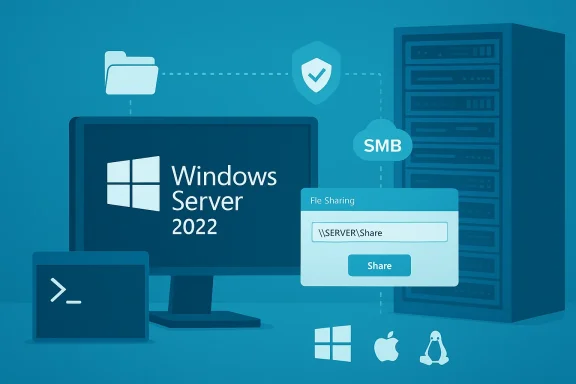
Windows file sharing uses the SMB (Server Message Block) family of protocols (CIFS/Samba compatibility) so clients across Windows, macOS, and Linux can connect using UNC or smb:// paths. The Explorer GUI still covers most basic scenarios, while PowerShell and legacy net commands provide the scripting and automation surface required for repeatable deployments. The same two permission layers — share permissions and NTFS (Security) permissions — control network access and local file system behavior; understanding both is essential to avoid accidental exposure or unexpected "Access denied" errors.
PowerShell (recommended modern approach):
Source: AddictiveTips A Complete Guide to Hosting Files on Windows Server
 Background / Overview
Windows file sharing uses the SMB (Server Message Block) family of protocols (CIFS/Samba compatibility) so clients across Windows, macOS, and Linux can connect using UNC or smb:// paths. The Explorer GUI still covers most basic scenarios, while PowerShell and legacy net commands provide the scripting and automation surface required for repeatable deployments. The same two permission layers — share permissions and NTFS (Security) permissions — control network access and local file system behavior; understanding both is essential to avoid accidental exposure or unexpected "Access denied" errors.Planning a file share: Requirements and decisions
Before you create any shares, decide on these core items:- Storage location: a dedicated volume (recommended) or a folder on C:. Place high‑traffic shares on non‑OS disks when possible.
- Permissions model: will you use domain authentication (AD) or local server accounts? Domain service accounts simplify scheduled jobs and backups in AD environments.
- Network design: wired Gigabit or 10GbE for heavy transfers; retain separate management paths and backups.
- Backup & retention: where will backups live? Use a 3‑2‑1 approach (three copies, two media, one offsite) for critical data.
- Windows Server with an administrative account.
- Target folder or formatted volume (NTFS recommended).
- Network reachability (test with UNC path or Test‑NetConnection to port 445).
- Firewall rules for File and Printer Sharing allowed on the server’s network profile.
How to create a shared folder in the GUI (step‑by‑step)
Creating a share via the Explorer GUI is the most approachable method for many admins and is similar to Windows desktop behavior.- Open File Explorer and go to This PC. Select the drive where you want the share and create a folder (for example, C:\Sharing).
- Right‑click the new folder → Properties → Sharing tab → Advanced Sharing…. Check Share this folder and optionally change the share name and simultaneous user limit.
- Click Permissions and set the network share access. Common options:
- Give Everyone Read or Read/Write (fast but broad).
- Add specific user accounts or groups for tighter control.
- After share permissions, confirm Security (NTFS) tab settings to ensure local filesystem permissions match your intent. Remember: effective permissions are the most restrictive intersection of share and NTFS rules.
- Use the Share wizard for quick home setups, but prefer Advanced Sharing + NTFS controls for production workloads.
Sharing an entire drive
You can share a whole volume from Explorer: right‑click the drive under This PC → Properties → Sharing → Advanced Sharing (or Share…). This exposes the entire root of the volume — be careful: root shares are powerful and increase risk if permissions are too permissive. Consider creating a top‑level folder and sharing that instead to reduce attack surface.Accessing shares from clients (Windows, macOS, Linux)
- Windows: open File Explorer and enter the UNC path in the address bar, e.g.
\SERVERNAME\ShareName. Map the share as a drive for convenience (This PC → Map network drive). - macOS / Linux: use a file manager or mount with
smb://server/ShareName. Modern macOS and Linux distros use SMB2/3 by default; specify SMB if an older device requires CIFS.
Share permissions vs NTFS permissions — know the difference
Two distinct permission layers apply:- Share permissions (configured on the Sharing tab): control what authenticated network users can do over the network — Read, Change, Full Control.
- NTFS (Security) permissions (Security tab): control what accounts can do locally on the filesystem — Read, Write, Modify, Full Control.
- For simple environments, set Share permissions to Everyone: Full Control and enforce restrictions with NTFS — this simplifies share access while using NTFS for real access control.
- For environments requiring strict network-level access control, lock down Share permissions and align NTFS rules to match.
Command line and PowerShell: scripting shares and permissions
For repeatable deployments, use PowerShell or net commands.PowerShell (recommended modern approach):
- Create an SMB share:
New-SmbShare -Name "MyShare" -Path "D:\Data\MyShare" -FullAccess "DOMAIN\Admins" -ChangeAccess "DOMAIN\ServiceAccount"
This cmdlet creates the share and assigns share-level access. UseGrant-SmbShareAccessfor fine updates.
- net share MyShare="D:\Data\MyShare" /GRANT:"DOMAIN\User",CHANGE
Useful in scripts compatible with older Windows versions. Ensure correct account syntax (ComputerName\User or Domain\User).
- Use
icaclsto view and set NTFS permissions:
icacls "D:\Data\MyShare" /grant "DOMAIN\ServiceAccount M)"
M)"
CombineGet-Acl/Set-Aclin PowerShell for programmatic ACL management.
- Confirm Server service (lanmanserver) is running and that Windows listens on port 445:
sc query lanmanserverandTest-NetConnection -ComputerName SERVER -Port 445. These checks pinpoint common causes of unreachable shares.
Mapping drives and credential handling (practical patterns)
Options:- File Explorer → Map network drive (GUI) for end users; tick Reconnect at sign‑in.
- net use (command line):
net use Z: \Server\Share /user:DOMAIN\User /persistent:yes
Good for scripts and legacy automation, but avoid putting plaintext passwords into files.- PowerShell New‑PSDrive (modern):
New-PSDrive -Name Z -PSProvider FileSystem -Root \Server\Share -Persist -Credential (Get-Credential)
UseExport-Clixmlto store encrypted credentials via DPAPI (machine + user bound) for scheduled automation.
- Credential collisions: Windows can only use one credential per remote host. Disconnect existing sessions (
net use * /delete) before connecting with alternate credentials. Use dedicated service accounts for scheduled tasks to avoid collisions. - UAC/elevation visibility: Mapped drives created in an elevated session may not be visible in the non‑elevated interactive session. Map drives in the context that needs them or use persistent mappings at user logon rather than elevation.
Security hardening: what to enable, what to avoid
Security should be the top concern for any network share exposed to more than a tiny trusted LAN.- Disable SMBv1. Do not enable SMB 1.0/CIFS unless you absolutely require a legacy device — SMB 2.x/3.x is more secure and performant.
- Enforce SMB Signing and, where possible, SMB Encryption for sensitive shares. SMB signing helps mitigate some man‑in‑the‑middle risks; SMB 3.x supports encryption for link‑level confidentiality.
- Use password‑protected sharing and avoid adding Everyone with Full Control in production. For home labs, Everyone may be acceptable on an isolated private LAN, but always understand the tradeoff.
- Keep File and Printer Sharing firewall rules limited to the Private profile and specific server IPs when possible. Confirm port 445 is reachable only where it should be.
- Consider encrypting the target volume with BitLocker if the physical device may be stolen, and enable encryption at rest on NAS devices where available.
- Use AD accounts and Kerberos where available (avoid NTLM/guest).
- Turn on password protected sharing.
- Remove Guest account and anonymous access.
- Use strong unique passwords and rotate service account credentials.
- Monitor SMB access logs and look for anomalous patterns.
Performance and capacity planning
File server performance depends on network, disk, and SMB settings.- Network: Wired Gigabit is baseline for responsive transfers; 10GbE dramatically improves large file operations. Use SMB Multichannel and NIC teaming on capable hardware to scale throughput.
- SMB features: SMB compression (Windows Server 2022) can reduce transfer time for compressible data over constrained links; test with your payload. SMB Multichannel and offload features reduce CPU overhead.
- Storage: Prefer NTFS/ReFS on large volumes and choose RAID or Storage Spaces depending on your resilience/performance needs. For Windows Server 2022, Storage Spaces Direct and high memory/CPU limits support heavy workloads.
- Quotas and deduplication: Use NTFS quotas and Windows Server deduplication to control growth and save space for certain file types. Test dedup before deploying on production mixes.
Backup and recovery strategies for a file server
Protecting the share is as important as creating it.- File History (for clients) and File Server backups are complementary. File History gives versioned recoveries for user files; system images or WBAdmin support full system restore.
- WBAdmin and Robocopy:
- Use wbadmin for scheduled image backups to a network share or local target. It supports automation and image-level restores.
- Use Robocopy for robust file‑level replication with /MIR, multithreading, and logging; schedule with Task Scheduler for continuous or nightly syncs. Beware /MIR deletes mirror deletions.
- Test restores regularly. A backup that cannot be restored is not a backup. Validate by recovering random files and, for images, doing test restore into a spare drive or VM.
- Daily File History or Robocopy snapshots to a secondary server.
- Weekly full system image with wbadmin to a network share.
- Monthly offsite copy (cloud or physical) for disaster recovery.
Troubleshooting common problems
Problem: "Network path not found" or cannot see the server- Ensure both client and server are on the same network and set to Private profile. Verify network discovery and file sharing turned on. Use the server’s IP in UNC if name resolution fails.
- Check both share permissions and NTFS permissions. Confirm the client is authenticating as an account with write access. Use
icaclsandGet-SmbShareAccessto verify.
- Confirm
lanmanserveris running (sc query lanmanserver) and that port 445 is listening (Test-NetConnection -ComputerName SERVER -Port 445ornetstat -an | findstr 445). Check firewall rules: File and Printer Sharing for the active profile must be enabled.
- If mapped with GUI, ensure Reconnect at sign‑in is checked. For scheduled tasks and scripts, map in the user context that will use the drive; avoid creating mappings only in an elevated session.
net shareandGet-SmbShareoutputGet-SmbShareAccess -Name 'ShareName'icaclsfor ACLs- Event Viewer (System and Security logs) for server/service-related errors.
Example: Secure, automated share creation script (pattern)
- Create folder D:\Shares\Finance.
- Set NTFS permissions for DOMAIN\FinanceGroup with Modify.
- Create SMB share with limited change access to DOMAIN\ServiceAccount.
- Schedule Robocopy/backup service to copy to a backup target.
- New-Item -Path 'D:\Shares\Finance' -ItemType Directory
- $acl = Get-Acl 'D:\Shares\Finance'; $rule = New-Object System.Security.AccessControl.FileSystemAccessRule('DOMAIN\FinanceGroup','Modify','ContainerInherit,ObjectInherit','None','Allow'); $acl.AddAccessRule($rule); Set-Acl -Path 'D:\Shares\Finance' -AclObject $acl
- New-SmbShare -Name 'Finance' -Path 'D:\Shares\Finance' -ChangeAccess 'DOMAIN\ServiceAccount' -FullAccess 'DOMAIN\Administrators'
- Schedule a Robocopy job or wbadmin script with a service account credential.
Hardening checklist before going live
- Disable SMBv1; enforce SMB2/3.
- Enable SMB signing and consider per‑share SMB encryption for sensitive data.
- Restrict firewall rules to the necessary network profile and limited IP ranges.
- Use AD/Kerberos authentication where possible; avoid guest/anonymous access.
- Configure monitoring and alerts for share access anomalies; review Event Viewer and SMB audit logs.
- Apply least privilege to service accounts and rotate credentials regularly.
When to consider a different architecture
Windows Server file shares are excellent for many use cases, but consider alternatives for these scenarios:- Very large multi‑tenant storage needs: enterprise NAS or SAN solutions with snapshots and role‑based multitenancy.
- Global remote access with security controls: use SMB over VPN or hybrid cloud services (Azure File Sync, Azure Backup) rather than exposing SMB over the internet. Windows Server 2022 has stronger hybrid features to integrate with Azure.
- Immutable retention and ransomware protection: enterprise NAS with snapshots or backup appliances that support immutable copies and air‑gapped retention.
Final recommendations and practical next steps
- Start small with one share and verify access from Windows, macOS, and Linux clients. Use UNC and smb:// tests.
- Harden by disabling SMBv1, enabling SMB signing, using AD accounts, and restricting firewall access.
- Automate share creation and permission assignment with PowerShell scripts (New‑SmbShare, icacls) to reduce human error.
- Implement a backup strategy using File History for clients and Robocopy/wbadmin for server and image backups. Test restores regularly.
- Monitor and log SMB activity, limit writeable targets, and keep the file server disconnected from direct internet exposure.
Source: AddictiveTips A Complete Guide to Hosting Files on Windows Server


