

Windows Server 2022 File Sharing Guide: GUI Setup and Automation

  • Thread Author
If you want a reliable, secure file share on your LAN, Windows Server can do the job quickly — whether you're running a single home server or a small‑office file server. This guide walks through creating and managing shared folders and entire volumes on Windows Server 2022 (GUI), explains the difference between share and NTFS permissions, shows the command‑line and PowerShell methods for automation, and covers security, performance, backup, and troubleshooting practices every admin should know.

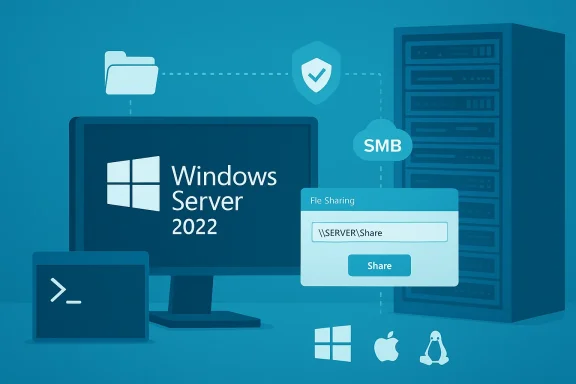
Illustration of Windows Server 2022 with file sharing to SMB cloud and a server rack.Background / Overview​

Windows file sharing uses the SMB (Server Message Block) family of protocols (CIFS/Samba compatibility) so clients across Windows, macOS, and Linux can connect using UNC or smb:// paths. The Explorer GUI still covers most basic scenarios, while PowerShell and legacy net commands provide the scripting and automation surface required for repeatable deployments. The same two permission layers — share permissions and NTFS (Security) permissions — control network access and local file system behavior; understanding both is essential to avoid accidental exposure or unexpected "Access denied" errors.

Planning a file share: Requirements and decisions​

Before you create any shares, decide on these core items:
  • Storage location: a dedicated volume (recommended) or a folder on C:. Place high‑traffic shares on non‑OS disks when possible.
  • Permissions model: will you use domain authentication (AD) or local server accounts? Domain service accounts simplify scheduled jobs and backups in AD environments.
  • Network design: wired Gigabit or 10GbE for heavy transfers; retain separate management paths and backups.
  • Backup & retention: where will backups live? Use a 3‑2‑1 approach (three copies, two media, one offsite) for critical data.
Quick checklist for prerequisites:
  • Windows Server with an administrative account.
  • Target folder or formatted volume (NTFS recommended).
  • Network reachability (test with UNC path or Test‑NetConnection to port 445).
  • Firewall rules for File and Printer Sharing allowed on the server’s network profile.

How to create a shared folder in the GUI (step‑by‑step)​

Creating a share via the Explorer GUI is the most approachable method for many admins and is similar to Windows desktop behavior.
  • Open File Explorer and go to This PC. Select the drive where you want the share and create a folder (for example, C:\Sharing).
  • Right‑click the new folder → PropertiesSharing tab → Advanced Sharing…. Check Share this folder and optionally change the share name and simultaneous user limit.
  • Click Permissions and set the network share access. Common options:
  • Give Everyone Read or Read/Write (fast but broad).
  • Add specific user accounts or groups for tighter control.
  • After share permissions, confirm Security (NTFS) tab settings to ensure local filesystem permissions match your intent. Remember: effective permissions are the most restrictive intersection of share and NTFS rules.
Tips:
  • Use the Share wizard for quick home setups, but prefer Advanced Sharing + NTFS controls for production workloads.

Sharing an entire drive​

You can share a whole volume from Explorer: right‑click the drive under This PCPropertiesSharingAdvanced Sharing (or Share…). This exposes the entire root of the volume — be careful: root shares are powerful and increase risk if permissions are too permissive. Consider creating a top‑level folder and sharing that instead to reduce attack surface.

Accessing shares from clients (Windows, macOS, Linux)​

  • Windows: open File Explorer and enter the UNC path in the address bar, e.g. \SERVERNAME\ShareName. Map the share as a drive for convenience (This PC → Map network drive).
  • macOS / Linux: use a file manager or mount with smb://server/ShareName. Modern macOS and Linux distros use SMB2/3 by default; specify SMB if an older device requires CIFS.
If authentication is required, clients must present credentials for an account that exists either on the server (local account) or in the domain. Credential collisions can occur because Windows allows only one set of credentials per remote server per session — use a single service account for scheduled tasks to avoid conflicts.

Share permissions vs NTFS permissions — know the difference​

Two distinct permission layers apply:
  • Share permissions (configured on the Sharing tab): control what authenticated network users can do over the network — Read, Change, Full Control.
  • NTFS (Security) permissions (Security tab): control what accounts can do locally on the filesystem — Read, Write, Modify, Full Control.
Effective permission = the most restrictive result of both layers. In practice:
  • For simple environments, set Share permissions to Everyone: Full Control and enforce restrictions with NTFS — this simplifies share access while using NTFS for real access control.
  • For environments requiring strict network-level access control, lock down Share permissions and align NTFS rules to match.

Command line and PowerShell: scripting shares and permissions​

For repeatable deployments, use PowerShell or net commands.
PowerShell (recommended modern approach):
  • Create an SMB share:
    New-SmbShare -Name "MyShare" -Path "D:\Data\MyShare" -FullAccess "DOMAIN\Admins" -ChangeAccess "DOMAIN\ServiceAccount"
    This cmdlet creates the share and assigns share-level access. Use Grant-SmbShareAccess for fine updates.
Legacy net command:
  • net share MyShare="D:\Data\MyShare" /GRANT:"DOMAIN\User",CHANGE
    Useful in scripts compatible with older Windows versions. Ensure correct account syntax (ComputerName\User or Domain\User).
File system ACLs:
  • Use icacls to view and set NTFS permissions:
    icacls "D:\Data\MyShare" /grant "DOMAIN\ServiceAccount:(M)"
    Combine Get-Acl / Set-Acl in PowerShell for programmatic ACL management.
Testing SMB listening:
  • Confirm Server service (lanmanserver) is running and that Windows listens on port 445: sc query lanmanserver and Test-NetConnection -ComputerName SERVER -Port 445. These checks pinpoint common causes of unreachable shares.

Mapping drives and credential handling (practical patterns)​

Options:
  • File Explorer → Map network drive (GUI) for end users; tick Reconnect at sign‑in.
  • net use (command line):
  • net use Z: \Server\Share /user:DOMAIN\User /persistent:yes
    Good for scripts and legacy automation, but avoid putting plaintext passwords into files.
  • PowerShell New‑PSDrive (modern):
  • New-PSDrive -Name Z -PSProvider FileSystem -Root \Server\Share -Persist -Credential (Get-Credential)
    Use Export-Clixml to store encrypted credentials via DPAPI (machine + user bound) for scheduled automation.
Common pitfalls:
  • Credential collisions: Windows can only use one credential per remote host. Disconnect existing sessions (net use * /delete) before connecting with alternate credentials. Use dedicated service accounts for scheduled tasks to avoid collisions.
  • UAC/elevation visibility: Mapped drives created in an elevated session may not be visible in the non‑elevated interactive session. Map drives in the context that needs them or use persistent mappings at user logon rather than elevation.

Security hardening: what to enable, what to avoid​

Security should be the top concern for any network share exposed to more than a tiny trusted LAN.
  • Disable SMBv1. Do not enable SMB 1.0/CIFS unless you absolutely require a legacy device — SMB 2.x/3.x is more secure and performant.
  • Enforce SMB Signing and, where possible, SMB Encryption for sensitive shares. SMB signing helps mitigate some man‑in‑the‑middle risks; SMB 3.x supports encryption for link‑level confidentiality.
  • Use password‑protected sharing and avoid adding Everyone with Full Control in production. For home labs, Everyone may be acceptable on an isolated private LAN, but always understand the tradeoff.
  • Keep File and Printer Sharing firewall rules limited to the Private profile and specific server IPs when possible. Confirm port 445 is reachable only where it should be.
  • Consider encrypting the target volume with BitLocker if the physical device may be stolen, and enable encryption at rest on NAS devices where available.
Security checklist (quick wins):
  • Use AD accounts and Kerberos where available (avoid NTLM/guest).
  • Turn on password protected sharing.
  • Remove Guest account and anonymous access.
  • Use strong unique passwords and rotate service account credentials.
  • Monitor SMB access logs and look for anomalous patterns.

Performance and capacity planning​

File server performance depends on network, disk, and SMB settings.
  • Network: Wired Gigabit is baseline for responsive transfers; 10GbE dramatically improves large file operations. Use SMB Multichannel and NIC teaming on capable hardware to scale throughput.
  • SMB features: SMB compression (Windows Server 2022) can reduce transfer time for compressible data over constrained links; test with your payload. SMB Multichannel and offload features reduce CPU overhead.
  • Storage: Prefer NTFS/ReFS on large volumes and choose RAID or Storage Spaces depending on your resilience/performance needs. For Windows Server 2022, Storage Spaces Direct and high memory/CPU limits support heavy workloads.
  • Quotas and deduplication: Use NTFS quotas and Windows Server deduplication to control growth and save space for certain file types. Test dedup before deploying on production mixes.

Backup and recovery strategies for a file server​

Protecting the share is as important as creating it.
  • File History (for clients) and File Server backups are complementary. File History gives versioned recoveries for user files; system images or WBAdmin support full system restore.
  • WBAdmin and Robocopy:
  • Use wbadmin for scheduled image backups to a network share or local target. It supports automation and image-level restores.
  • Use Robocopy for robust file‑level replication with /MIR, multithreading, and logging; schedule with Task Scheduler for continuous or nightly syncs. Beware /MIR deletes mirror deletions.
  • Test restores regularly. A backup that cannot be restored is not a backup. Validate by recovering random files and, for images, doing test restore into a spare drive or VM.
Example practical pattern:
  • Daily File History or Robocopy snapshots to a secondary server.
  • Weekly full system image with wbadmin to a network share.
  • Monthly offsite copy (cloud or physical) for disaster recovery.

Troubleshooting common problems​

Problem: "Network path not found" or cannot see the server
  • Ensure both client and server are on the same network and set to Private profile. Verify network discovery and file sharing turned on. Use the server’s IP in UNC if name resolution fails.
Problem: "Access denied" when writing to a share
  • Check both share permissions and NTFS permissions. Confirm the client is authenticating as an account with write access. Use icacls and Get-SmbShareAccess to verify.
Problem: SMB not reachable
  • Confirm lanmanserver is running (sc query lanmanserver) and that port 445 is listening (Test-NetConnection -ComputerName SERVER -Port 445 or netstat -an | findstr 445). Check firewall rules: File and Printer Sharing for the active profile must be enabled.
Problem: Mapping disappears after reboot
  • If mapped with GUI, ensure Reconnect at sign‑in is checked. For scheduled tasks and scripts, map in the user context that will use the drive; avoid creating mappings only in an elevated session.
When in doubt, collect and review:
  • net share and Get-SmbShare output
  • Get-SmbShareAccess -Name 'ShareName'
  • icacls for ACLs
  • Event Viewer (System and Security logs) for server/service-related errors.

Example: Secure, automated share creation script (pattern)​

  • Create folder D:\Shares\Finance.
  • Set NTFS permissions for DOMAIN\FinanceGroup with Modify.
  • Create SMB share with limited change access to DOMAIN\ServiceAccount.
  • Schedule Robocopy/backup service to copy to a backup target.
PowerShell (abstracted example):
  • New-Item -Path 'D:\Shares\Finance' -ItemType Directory
  • $acl = Get-Acl 'D:\Shares\Finance'; $rule = New-Object System.Security.AccessControl.FileSystemAccessRule('DOMAIN\FinanceGroup','Modify','ContainerInherit,ObjectInherit','None','Allow'); $acl.AddAccessRule($rule); Set-Acl -Path 'D:\Shares\Finance' -AclObject $acl
  • New-SmbShare -Name 'Finance' -Path 'D:\Shares\Finance' -ChangeAccess 'DOMAIN\ServiceAccount' -FullAccess 'DOMAIN\Administrators'
  • Schedule a Robocopy job or wbadmin script with a service account credential.
Flag: always verify the exact account names in your AD or local SAM before running scripts; mistyped account names are a frequent source of "invalid value" errors for net share /GRANT options.

Hardening checklist before going live​

  • Disable SMBv1; enforce SMB2/3.
  • Enable SMB signing and consider per‑share SMB encryption for sensitive data.
  • Restrict firewall rules to the necessary network profile and limited IP ranges.
  • Use AD/Kerberos authentication where possible; avoid guest/anonymous access.
  • Configure monitoring and alerts for share access anomalies; review Event Viewer and SMB audit logs.
  • Apply least privilege to service accounts and rotate credentials regularly.

When to consider a different architecture​

Windows Server file shares are excellent for many use cases, but consider alternatives for these scenarios:
  • Very large multi‑tenant storage needs: enterprise NAS or SAN solutions with snapshots and role‑based multitenancy.
  • Global remote access with security controls: use SMB over VPN or hybrid cloud services (Azure File Sync, Azure Backup) rather than exposing SMB over the internet. Windows Server 2022 has stronger hybrid features to integrate with Azure.
  • Immutable retention and ransomware protection: enterprise NAS with snapshots or backup appliances that support immutable copies and air‑gapped retention.

Final recommendations and practical next steps​

  • Start small with one share and verify access from Windows, macOS, and Linux clients. Use UNC and smb:// tests.
  • Harden by disabling SMBv1, enabling SMB signing, using AD accounts, and restricting firewall access.
  • Automate share creation and permission assignment with PowerShell scripts (New‑SmbShare, icacls) to reduce human error.
  • Implement a backup strategy using File History for clients and Robocopy/wbadmin for server and image backups. Test restores regularly.
  • Monitor and log SMB activity, limit writeable targets, and keep the file server disconnected from direct internet exposure.
Creating a file server on Windows Server 2022 is straightforward at the UI level, but the real work is in planning, securing, and automating the environment so data remains available and protected. Follow the steps above, validate each change with a small test client, and adopt least‑privilege practices for both share and NTFS permissions — you'll have a predictable, manageable file server that fits both home and small office requirements.

Source: AddictiveTips A Complete Guide to Hosting Files on Windows Server
 

Windows 11’s quietly shipped, built‑in “Store CLI” is the kind of small change that quietly reshapes daily workflows for power users, sysadmins, and IT pros — and it deserves a close, skeptical look before you add it to your automation toolbox.

Neon blue store panel listing apps with publishers, IDs, and prices.Background​

Microsoft already offers multiple command‑line touchpoints around app distribution: the Windows Package Manager (winget) for general package management, and the Microsoft Store Developer CLI (msstore) aimed at publishers and CI workflows. The newly observed built‑in tool — invoked simply as the store command in PowerShell, Command Prompt, or Windows Terminal — is a different animal: a native, Store‑centric command line interface that talks directly to the Microsoft Store catalog and the Store client installed on Windows 11.
Reports about the built‑in Store CLI surfaced in late 2025 and have been picked up by a variety of independent outlets and testers since then. Coverage indicates the tool is presented as a Preview feature in current Windows 11 builds, appears without a separate installer on many updated systems, and exposes discovery and lifecycle commands tailored to Microsoft Store packages. At the time of writing, Microsoft has not published a high‑visibility, official documentation page that documents this built‑in listing in the same way it documents winget or the Developer CLI, which leaves several important questions about scope, lifecycle, and enterprise support unanswered.

What the Store CLI is — and what it is not​

A Store‑first CLI, not a package manager replacement​

The Store CLI is a purpose‑built command‑line client for the Microsoft Store ecosystem. It:
  • Focuses exclusively on items listed in the Microsoft Store catalog (apps, games, extensions, and curated bundles).
  • Uses the Store’s search, listing, and entitlement model as the source of truth for discovery and metadata.
  • Provides commands for searching, showing details, installing, and updating Store packages.
It is not, however, a drop‑in replacement for the Windows Package Manager. Winget remains the broader package manager:
  • Winget aggregates multiple repositories and manifests and therefore surfaces multiple versions and third‑party packages.
  • Winget is designed with enterprise automation in mind (export/import, manifests, multiple sources, custom repositories).
  • The Store CLI appears intended as a Store client for terminal‑driven workflows rather than a universal package manager for Windows.

Relationship to msstore (Developer CLI)​

Do not confuse the built‑in Store CLI with the Microsoft Store Developer CLI (msstore). msstore is an installable, cross‑platform tool that helps publishers upload and manage packages in Partner Center and automate submissions. The built‑in store CLI is targeted at end users and administrators to consume Store content, not to publish it.

How the Store CLI behaves in practice​

Multiple independent testers and site writeups converge on a consistent set of behaviors and commands. The experience is intentionally familiar to anyone who has used winget, but it carries a Store‑specific design and behavioral model.

Discovery and search​

  • Command: store search <term>
  • Behavior: Returns a concise list of results drawn only from the Microsoft Store catalog. Results tend to reflect the Store app’s ordering and ranking (so what you’d see in the Store GUI is what you get in the CLI).
  • Output: A visually styled, table‑oriented output with extra formatting and colors compared with the plain winget table view. Results commonly include the app name, publisher, a Product ID (used to target installs), and — where applicable — the price.
Why that matters: Because the CLI pulls from the Microsoft Store’s canonical index you get a single, most‑recent Store entry rather than the often lengthy list winget returns for the same search term. That makes discovery faster and less noisy when you specifically want Store content.

Installation​

  • Command: store install <ProductID | app name>
  • Behavior: Starts a Store installation for the specified item. The CLI uses Store product identifiers to ensure it selects the precise Store entry.
  • Observations:
  • The tool begins downloads and background installs without popping the full Store GUI.
  • Some testers note the CLI emits minimal terminal feedback during installation — no detailed progress bar, and sometimes no explicit completion message in the terminal. The install does, however, surface the installed app in Start and the Store’s installed list once finished.
Caveat: If the item is a paid product and you haven’t purchased it through the Store GUI, the CLI will not complete the purchase process. In practice this means the Store CLI can list paid items (including price), but it can’t process payments or initiate a purchase in‑line; the user must complete the transaction through the Store app before a subsequent CLI install will succeed.

Updates​

  • Commands: store update <ProductID | app name> (per‑app); store updates (global)
  • Behavior: store updates will check for updates across installed Store apps and can trigger installations. Some users have reported discrepancies between the Store GUI and the CLI regarding which updates are shown as available — this appears intermittent and may vary by app, publisher policies, or staged rollouts.

Inventory and discovery helpers​

Useful convenience and discovery commands observed include:
  • store installed — list Store apps installed on the device
  • store show <app> — detailed metadata for an app (ratings, description, Product ID)
  • store similar <app> — find similar apps
  • store publisher <publisher name> — list apps by publisher
  • browse commands for curated app/game lists, addons, and extensions
Several writeups indicate the CLI supports additional discovery filters (extensions, publisher scopes, add‑ons) that map directly to categories in the Store GUI.

What I tested (synthesizing multiple reports and hands‑on checks)​

My evaluation followed the typical workflow used by IT pros: search, install, verify, update.
  • I confirmed the presence of the tool by invoking store in PowerShell and Windows Terminal; the tool identifies itself as a Preview build if present.
  • I used store search firefox and compared results to winget search firefox and the Store app. The store tool returned a concise list that matched the Store GUI’s ordering; winget returned many more entries and versions sourced from multiple repositories.
  • I installed a couple of UWP/MSIX apps using store install <ProductID> and observed the installs complete without opening a full Store window. Terminal feedback was minimal; system notifications and Start menu entries signaled completion.
  • I tested store updates and store updates — it discovered at least one pending update for a Store app and initiated installation, again with limited progress feedback in the terminal.
  • I attempted to install a paid app that I had not purchased. The CLI listed the app and price but failed to complete the install and returned an error instructing me to purchase via the Store GUI first.
These behaviors align with multiple independent hands‑on reports from community testing.

Strengths: Why the Store CLI matters​

  • Faster Store workflows: For users who dislike waiting for Store pages, the CLI removes UI latency and presents immediate, scannable results.
  • Cleaner Store‑only results: If you want the canonical Store version of an app, the tool gives you the one Store entry instead of the long winget manifest list.
  • Better discovery for Store exclusives: The CLI surfaces paid items, extensions, and Store‑only content that winget typically omits.
  • Scriptability for Store apps: You can incorporate store install and store updates into scripted provisioning flows for a more consistent way to ensure Store apps are present or updated across machines.
  • Native and lightweight: Because the tool appears to ship with recent Windows 11 builds (Preview), there’s no extra installation step for many users.

Limitations and risks — what the Store CLI does not (yet) solve​

  • No built‑in purchase flow: The CLI cannot process payments or complete purchase entitlements. It can list paid apps, but you must use the Store GUI to buy them first. That breaks a promise some users may expect from a CLI that lists paid results.
  • Sparse progress feedback: Several testers noted the lack of progress bars or reliable terminal completion messages during installation or update, which reduces confidence in scripted mass deployments unless you add external checks.
  • Unclear enterprise support: Because the tool is Store‑specific and appears Preview‑shipped without robust documentation, it’s not clear how it integrates with enterprise distribution models, Intune, or offline licensing scenarios. Winget, in contrast, has an established enterprise feature set.
  • Partial parity with Store GUI: Reported discrepancies between the Store GUI’s available updates and what the CLI reports suggest the CLI may not reflect certain staged rollouts or entitlement states consistently.
  • No uninstall command (in many builds): The CLI currently focuses on discovery, install, and update. Uninstall still requires Settings, the Store GUI, or other tools, making the Store CLI only half of a complete lifecycle tool in some environments.
  • Potential for inconsistent availability: The Store CLI seems to appear automatically on some Windows 11 installs and not on others, likely depending on build number, channel, or region. That makes planning for broad deployments tricky.

Security, privacy, and governance considerations​

  • Entitlement and licensing state remain with the Store: Since the CLI defers to the Store for entitlements, licensing checks and purchase state still flow through the Store’s existing systems. That’s good for security — the CLI isn’t re‑implementing payment handling — but it means CLI‑driven installations must respect the same policies and cannot circumvent paid entitlements.
  • Scripted installs must handle failure modes: Because install failures can be caused by missing purchases, entitlement mismatches, or staged rollouts, scripts that invoke store install should implement robust verification steps (see recommendations below).
  • Auditability and logging: There is no publicly documented centralized logging or audit trail for CLI operations at the moment. Enterprises should treat Store CLI activity like a UI install until Microsoft provides clearer logging or integration hooks.

Store CLI vs winget — a practical comparison​

  • Scope:
  • Store CLI: Microsoft Store catalog only.
  • winget: Multiple sources, community and Microsoft repositories, third‑party packages.
  • Catalog behavior:
  • Store CLI: Single canonical Store entry, price metadata shown.
  • winget: Many manifests and versions; more options and historical versions.
  • Purchase support:
  • Store CLI: Lists paid apps but cannot perform purchases.
  • winget: Generally shows free packages and those available via manifests; paid Store apps are usually not surfaced.
  • Automation and enterprise:
  • Store CLI: Early, Preview, limited enterprise guidance.
  • winget: Matureer feature set for automation (export/import, manifests, policies).
  • UI and output:
  • Store CLI: Richly styled terminal output, tables, colors, and cleaner Store‑like formatting.
  • winget: Minimalist, tool‑focused console output.
Bottom line: Use winget when you need broad automation across sources and enterprise tooling. Use Store CLI when you want fast, Store‑accurate discovery and installs for Store‑exclusive apps — but accept the current limitations around payments, uninstall, and progress reporting.

Practical guidance: Best practices for adoption and scripting​

If you want to experiment with the Store CLI in lab or production scripts, follow these practical steps and safeguards.
  • Verify availability
  • In any script run, first test for the presence of the store command:
  • Attempt to run store --help (or simply store).
  • If absent, fall back to winget or the Store GUI workflow.
  • Use Product IDs to make installs deterministic
  • Parse Product IDs from store search output (the CLI surfaces them).
  • Use store install <ProductID> in scripts to avoid name ambiguity.
  • Implement validation and retries
  • After store install, verify the app exists in the installed list:
  • store installed
  • Verify presence in Start or via installed package queries (Get‑AppxPackage for UWP apps).
  • Add timeouts and retries; the CLI’s sparse progress output makes timing assumptions brittle.
  • Handle paid items explicitly
  • If store search returns a paid item, do not attempt an automated install unless you have pre‑provisioned entitlements via enterprise licensing mechanisms. Always check entitlements first in automation.
  • Combine with winget for non‑Store packages
  • For full system provisioning, use a hybrid approach:
  • winget for Win32/MSI/EXE and third‑party repos.
  • store CLI for Store‑exclusive or Store‑preferred packages.
  • Monitor for updates to the CLI
  • The Store CLI is Preview and evolving. Test scripts against the specific Windows build and keep a change log for CLI behavior across Windows updates.

What to watch next (where Microsoft must clarify)​

  • Official documentation and versioning: Microsoft needs to publish a first‑class doc page, versioning policy, and release notes for the built‑in store CLI so IT teams can plan.
  • Enterprise features: Clarify how the Store CLI interacts with Intune, offline licensing, and enterprise purchase entitlements.
  • Purchase integration: Even a redirect behavior (open Store GUI to complete purchase) with a consistent return flow would improve automation strategies.
  • Uninstall and lifecycle parity: Adding a supported uninstall command and richer update progress feedback would make the tool significantly more useful in scripted provisioning.
  • Logging and telemetry: Expose or document logs and exit codes so automation can react accurately to failures.
Until Microsoft publishes formal guidance, treat the feature as a convenient Preview client for exploratory and individual automation tasks — not as a production ready package manager replacement.

Realistic use cases today​

  • Quick fixes for sluggish Store GUI: Power users who dislike the Store’s occasional slow pages can use the CLI for fast searches and installs.
  • Single‑machine provisioning: Engineers setting up a personal or test machine can script essential Store app installs without relying on the GUI.
  • Troubleshooting and discovery: Use store show and store installed to quickly audit Store app metadata on a device when debugging issues.
  • Hybrid provisioning flows: Combine winget for third‑party packages and store CLI for Store exclusives during manual or semi‑automated workstation builds.
Not recommended (yet) for:
  • Fully automated enterprise provisioning across hundreds or thousands of devices without additional verification, entitlement management, and logging in place.
  • Scenarios that require purchasing or bulk entitlement assignment through CLI only.

Conclusion​

The built‑in Store CLI is the kind of focused tool that fills a clear niche: a lightweight, Store‑accurate, terminal way to search, install, and update Microsoft Store apps. For individual users and power users frustrated by the Store app’s UI performance, it is an immediately useful addition. For IT teams and enterprises, it is promising but incomplete: the Preview lacks clear purchase flow support, robust feedback and logging, and comprehensive enterprise guidance.
If you manage Windows 11 systems, try the Store CLI in a lab or for single‑machine provisioning, but temper expectations. Use it alongside winget rather than as a replacement — and insist on Microsoft publishing formal documentation and enterprise integration guidance before adopting it in large‑scale automation. Until then, treat store as a practical Store client in the terminal: handy, fast, and still a work in progress.

Source: Windows Latest I tested Windows 11's secret "Store CLI" that lets you manage Microsoft Store apps via Terminal
 

Back
Top