

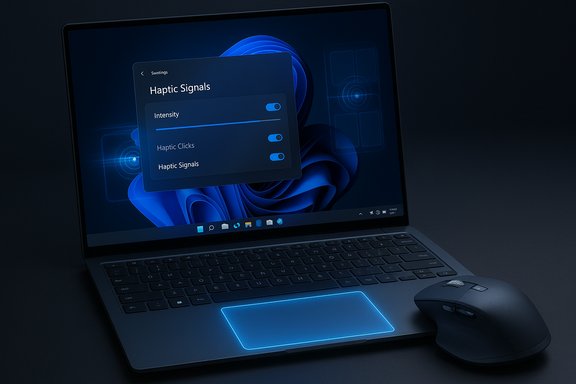
Microsoft appears to be preparing a system-level haptics option in Windows 11 Settings that will let the operating system trigger subtle vibrations for common UI actions — snapping windows, aligning objects, dragging files between windows and other micro-interactions — with a user-adjustable intensity slider and per-class toggles for things like haptic clicks versus haptic “signals.” The setting was first flagged in preview builds by community sleuths (notably an X account known as PhantomOfEarth) and has been independently referenced in follow-up reporting; the UI string found in the build reads, in essence, “Feel subtle vibrations when you snap windows, align objects, and more.” At the moment the control is hidden behind Insider build flags and not generally functional for most testers, and Microsoft has not published an official announcement or ship date.
Caveat: the presence of UI strings in preview builds is a strong indicator, but not proof of imminent general availability. Microsoft frequently stages UI and Settings entries in Insider builds while the underlying drivers, OEM firmware and power policies are finalized; feature flags and server-side gating mean a Settings string can exist long before the capability ships broadly. Treat discovered strings as “planned and in progress,” not guaranteed roadmaps.
That said, the rollout will be hardware- and driver-dependent, and the final quality of the experience will hinge on OEM cooperation, driver robustness, sensible power defaults, and careful attention to accessibility. For now, the feature should be read as planned and under test: a promising UX refinement with clear benefits, but one that requires careful engineering, consistent OEM adoption, and solid manageability before it becomes a broadly useful part of the Windows 11 experience.
Source: Windows Report Windows 11 to Soon Get Haptic Feedback Setting
 Background
Why haptics, and why now
Haptics have moved beyond phones and game controllers into laptops and peripherals because short, well-tuned tactile cues provide immediate non-visual confirmation of actions without adding screen clutter or sound. Over the past several years OEMs and peripheral makers have shipped haptic trackpads and mice that can create precise, low-latency vibrations for discrete UI events; Microsoft has built APIs and documentation for tactile/pen haptics for multiple input classes, which paves the way for system-level integration across devices. The recent discovery in preview builds — a Settings page string plus sliders and toggles — is consistent with a platform-level feature that maps UI events to haptic patterns while letting users control intensity and scope.What surfaced in preview builds
Community investigators found a new Settings entry describing a global “haptic signals” option, a slider to adjust intensity, and separate toggles for haptic clicks versus other haptic signals. The wording explicitly references snapping windows and aligning objects, suggesting Microsoft wants tactile confirmation for Snap Layouts, alignment guides, drag boundaries and similar multi-window interactions. The control has been observed in Dev/Beta preview branches but remains hidden and not working on most devices; it appears to be gated by feature flags and hardware capability detection.What Microsoft appears to be adding
The user-facing controls
From the strings and UI fragments found in previews, expect the following Settings-level surface:- A global toggle to enable or disable system-level haptic signals
- A slider to set intensity (from subtle to stronger)
- Separate toggles or sections for haptic clicks (touchpad “click” simulation) and haptic signals (event-driven vibrations)
- Possibly per-device or per-app overrides exposed later via Settings or driver utilities
Example triggers Microsoft appears to target
The Settings strings explicitly mention:- Snapping windows (Snap Layout completion)
- Aligning objects (alignment guides or pixel-snapping)
- Drag boundary crossing (dragging a file between windows)
These kinds of events are quick, discrete, and benefit from a short tactile confirmation rather than a visual or audio cue.
Hardware support and the MX Master 4
Peripheral makers already shipping haptics
Haptic hardware is not theoretical — OEM laptops with haptic trackpads and third-party peripherals already include tactile motors or piezo modules. Logitech’s MX Master 4 is a high-profile example: the mouse ships with a “Haptic Sense” panel in the thumb area and exposes vibration controls in the Logi Options+ app, and multiple retailer pages and reviews document the feature and its customization options on Windows 11. That means Windows-level haptic signals could map to either built-in laptop haptics (precision trackpads or dedicated response engines) or to peripheral haptics exposed by vendor drivers.What that means practically
- If you own a device like a Surface Laptop with a haptic trackpad or a Logitech MX Master 4, the hardware is already present to generate the tacts Windows would request.
- The OS must be able to detect haptic-capable devices via drivers and expose capabilities to Settings; manufacturers must provide drivers that map the OS-level haptic patterns to the device’s actuators.
- Some peripherals (e.g., MX Master 4) already limit haptics to device-specific overlays or Options+ actions — OS-level support would broaden the set of triggers if Logitech (and other vendors) expose the needed hooks.
Technical underpinnings: APIs, drivers and mapping
Platform-level haptics already exist
Microsoft has been building haptic support for years, especially around pen input and precision touchpads. The platform exposes abstractions that let drivers and apps advertise haptic capabilities and receive mapped haptic events. Implementation at scale requires three cooperating layers:- Hardware/firmware that can generate haptic patterns (piezo actuators, linear resonant actuators, eccentric rotating mass motors).
- Device drivers that advertise capabilities to Windows and expose a programmatic interface for haptic commands.
- OS components that map UI events (snap, drag, align) to tactile patterns and expose user controls in Settings.
Developer and OEM responsibilities
- Developers can choose to send app-specific haptic cues or suppress OS-level signals for their own interactions to avoid duplicated feedback.
- OEMs and peripheral vendors must implement drivers that correctly advertise haptic capabilities (and handle intensity scaling and power constraints).
- Power management must respect battery/power states — haptics should default to conservative behavior on battery unless overridden by the user.
UX implications: benefits and real-world use
Where haptics help
- Instant non-visual confirmation: When snapping windows or repositioning objects across multiple monitors, a short vibration can confirm completion faster than visual cues.
- Polish and perceived responsiveness: Well-tuned haptics add a tactile “snap” that makes interactions feel more intentional and high-quality.
- Assistive benefits: Tactile cues supplement visual and audio channels for low-vision users or in noisy/quiet environments where sound feedback is undesirable.
Potential positive scenarios
- Dragging a file from a maximized window to a snapped tile could produce a micro-bump when the file crosses the border — immediate confirmation without shifting focus.
- Align guides in creative apps or the OS snap grid could trigger a subtle pulse when objects snap into alignment, assisting precise layouts without forcing attention to the cursor.
Risks, fragmentation and accessibility concerns
Fragmented experiences
Because haptics require device-level hardware and driver support, the same setting could feel very different across laptops and mice. If OEMs implement different default intensities or patterns, the user experience may vary substantially from one machine to another, risking inconsistent sensory affordances. Microsoft’s platform-level guidance helps, but consistency depends on adoption and driver quality.Driver regressions and stability
Adding another interaction pathway increases the driver surface area. Poorly implemented drivers or firmware bugs could produce dropped signals, stuck vibrations, or crashes. Early Insider reports and community threads warn of potential regressions during preview testing; enterprise pilots should validate drivers thoroughly before broad deployment.Battery and thermal trade-offs
Haptics consume power. On ultraportables and fanless devices, repeated haptic events could meaningfully affect battery runtime or thermal profiles if defaults aren’t conservative. Expect Windows to throttle haptic intensity on battery or provide profiles, but vendors must honor these policies correctly.Accessibility caveats
Haptics can improve accessibility, but if not implemented thoughtfully they can confuse people who rely on predictable cues. Accessibility teams must be involved in designing the signals, ensuring that haptics are paired with clear Settings labels, and providing alternative feedback channels (sound/visual) as needed.Enterprise, IT and manageability considerations
Group policy and MDM
Enterprises will want a way to enforce defaults or disable system haptics across fleets. At present, the preview fragments do not show final Group Policy or MDM CSP names; IT admins should watch for new policy entries and driver/firmware version dependencies before rolling this out at scale. Lack of centralized controls in initial releases would be a legitimate manageability concern.Pilot testing is essential
- Identify a small pilot group with haptic-capable devices (Surface, tested OEMs, or peripherals like MX Master 4).
- Validate driver and firmware versions from OEMs and peripheral vendors.
- Test haptics in both AC and battery scenarios, in call/meeting contexts, and with assistive tech enabled.
- Collect feedback and be ready to roll back if drivers show instability.
How to check for (and test) haptic settings today
Insider builds and feature gating
- Early sightings have been tied to Dev/Beta preview builds in recent build ranges; community reporting placed them in the 26120–26200 series, but feature flags and server-side toggles control visibility. If you’re on an Insider channel you may see the Settings strings or hidden pages, but the capability may not work until drivers and OEM support arrive.
Where the UI might appear
- Reports show the haptic controls being tested under Settings > Bluetooth & devices (Touchpad) and possibly under Accessibility pages — Microsoft has been relocating input controls into Settings, which explains some variance in early reports. If you don’t see the UI in those locations, the feature is probably still gated.
A note on enabling hidden features
Community utilities can toggle hidden features in Insider builds, but this carries risk. Tools that flip feature flags can cause instability and are not recommended on production devices. Use virtual machines or test hardware if you want to poke at hidden toggles, and keep backups.Cross-check: independent verification and what’s already public
Two independent reporting threads converge on the same conclusion: code and strings in preview builds indicate Microsoft is adding system-level haptic signals, and reputable insiders have confirmed aspects of the feature. The community discovery by PhantomOfEarth — showing the Settings string and slider — was followed by reporting that cited sources familiar with Windows development (confirmation that the feature is designed for haptic trackpads and similar hardware). At the hardware level, Logitech’s MX Master 4 clearly ships with a haptic actuator and exposes customization on Windows, so peripherals already exist that can take advantage of OS-level haptic requests.Caveat: the presence of UI strings in preview builds is a strong indicator, but not proof of imminent general availability. Microsoft frequently stages UI and Settings entries in Insider builds while the underlying drivers, OEM firmware and power policies are finalized; feature flags and server-side gating mean a Settings string can exist long before the capability ships broadly. Treat discovered strings as “planned and in progress,” not guaranteed roadmaps.
Practical takeaways and recommendations
- For everyday users: If you own a device with a haptic trackpad or a peripheral like the MX Master 4, expect richer tactile options in Windows in a future update — but keep the feature off by default until drivers and behaviors land in stable releases. Start with low intensity and test haptics during calls and recordings to avoid unwanted noise or vibration bleed.
- For enthusiasts/Insiders: Watch Dev and Beta channels for UI changes, but avoid toggling hidden flags on critical machines. Use test hardware or VMs to trial experimental features.
- For IT and procurement: Add haptic-capable devices to pilot inventories and require OEM/driver validation before mass deployment. Validate policy controls for enabling/disabling haptics in your MDM/Group Policy environment.
- For developers: Review Windows’ haptic/tactile APIs and plan to avoid duplicate signals (app-level + OS-level). Offer per-app user preferences and respect system-wide intensity settings.
Conclusion
The appearance of a dedicated “haptic signal” control in Windows 11 preview builds signals Microsoft’s next step toward making tactile feedback a first-class system affordance rather than a device-specific novelty. The core idea is simple and well-founded: use a second sensory channel to confirm and refine everyday interactions like snapping windows and aligning objects. The platform pieces are in place — haptic-capable trackpads and peripherals already exist, Microsoft’s haptic APIs have been evolving for years, and the Settings fragments show the company intends user control and intensity tuning.That said, the rollout will be hardware- and driver-dependent, and the final quality of the experience will hinge on OEM cooperation, driver robustness, sensible power defaults, and careful attention to accessibility. For now, the feature should be read as planned and under test: a promising UX refinement with clear benefits, but one that requires careful engineering, consistent OEM adoption, and solid manageability before it becomes a broadly useful part of the Windows 11 experience.
Source: Windows Report Windows 11 to Soon Get Haptic Feedback Setting
