

Passkeys are finally moving out of browser silos and into Windows itself, and for Windows 11 users that means a far simpler, more consistent way to create, save, sync and use passkeys — with 1Password among the first third‑party vaults to plug in as a system‑level passkey manager.
Passkeys are the modern replacement for passwords: FIDO2/WebAuthn credentials that pair a public key stored by a website with a private key kept on a user’s device, unlocked by biometrics or a PIN. Those cryptographic details are meant to be invisible to everyday users, but the UX overhead — deciding where a new passkey should live and how to access it across devices — has been a real obstacle to widespread adoption.
Microsoft’s recent updates to Windows 11 introduce a passkey provider plugin model in the operating system. That change lets packaged credential managers register themselves with Windows as the system passkey provider, so when a website or native app asks to create or use a passkey, Windows can hand that request to the registered provider instead of only offering the built‑in Windows store. The local user verification still happens via Windows Hello (face, fingerprint, PIN), while the third‑party manager handles storage, discovery and cross‑device sync.
1Password shipped a Windows client that leverages this API, and others (including Bitwarden) are rolling out preview or beta builds. At a practical level, that means you can create a passkey on a website and choose to save it directly into 1Password, then use your 1Password‑synced vault to access that passkey on other devices without complex QR pairing or mobile relays.
The feature is not a silver bullet: packaging rules, recovery planning and enterprise policy considerations mean organizations and individual users must plan and test before flipping the switch on large numbers of accounts. But for anyone ready to embrace passkeys, the new Windows provider model makes the transition far more convenient and—critically—more resilient in the real world where people use multiple devices, browsers and native apps every day.
Adopt passkeys thoughtfully: configure Windows Hello, install the MSIX provider from a vendor you trust, validate recovery paths, and start with low‑risk accounts while you build confidence. When done correctly, this change brings the promise of a passwordless future into practical reach for millions of Windows 11 users.
Source: ZDNET Windows 11 users just got a more convenient way to store passkeys - here's how it works
 Background / Overview
Passkeys are the modern replacement for passwords: FIDO2/WebAuthn credentials that pair a public key stored by a website with a private key kept on a user’s device, unlocked by biometrics or a PIN. Those cryptographic details are meant to be invisible to everyday users, but the UX overhead — deciding where a new passkey should live and how to access it across devices — has been a real obstacle to widespread adoption.Microsoft’s recent updates to Windows 11 introduce a passkey provider plugin model in the operating system. That change lets packaged credential managers register themselves with Windows as the system passkey provider, so when a website or native app asks to create or use a passkey, Windows can hand that request to the registered provider instead of only offering the built‑in Windows store. The local user verification still happens via Windows Hello (face, fingerprint, PIN), while the third‑party manager handles storage, discovery and cross‑device sync.
1Password shipped a Windows client that leverages this API, and others (including Bitwarden) are rolling out preview or beta builds. At a practical level, that means you can create a passkey on a website and choose to save it directly into 1Password, then use your 1Password‑synced vault to access that passkey on other devices without complex QR pairing or mobile relays.
What changed in Windows 11
The new OS‑level passkey plumbing
- Windows now exposes a plugin API so passkey providers — password managers packaged as MSIX or compliant desktop apps — can register with the OS.
- The WebAuthn create/assertion flows initiated by browsers and apps can be routed to the registered provider. The provider performs discovery and returns the cryptographic response to the app; Windows Hello still performs the final user verification locally.
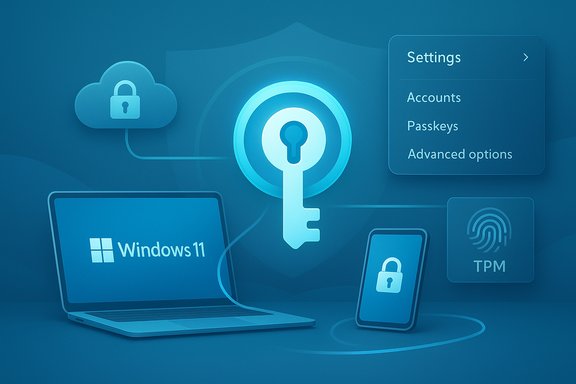
- Settings > Accounts > Passkeys received a redesign and an Advanced options section that lists registered passkey providers; toggling a provider on requires a Windows Hello confirmation to prevent unauthorized registration.
Who’s participating now
- 1Password: released a Windows build that registers as a system passkey provider when installed as the MSIX package. The app adds an onboarding toggle and an Autofill setting called Show passkey suggestions that connects into Windows Settings.
- Bitwarden: published beta/preview builds for power users to test the same system provider path while stable builds catch up.
- Microsoft Password Manager (Edge): the Microsoft passkey store operates as a native system plugin as well, giving users a built‑in option that leverages Microsoft’s cloud protections for sync.
How the 1Password + Windows flow works (step‑by‑step)
- Install or update to the latest Windows 11 cumulative build that includes the passkey provider feature and reboot if required.
- Ensure Windows Hello is configured (PIN, fingerprint or facial recognition). A TPM and Secure Boot are strongly recommended to preserve hardware‑backed protections.
- Install the MSIX build of the 1Password app for Windows (the packaged MSIX build is required for system registration).
- Open 1Password and go to Settings > Autofill. Enable Show passkey suggestions (the app may present onboarding to walk you through this).
- When prompted, or manually via Windows Settings, navigate to Settings > Accounts > Passkeys > Advanced options. Authenticate with Windows Hello and toggle 1Password to the On position.
- Visit a passkey‑enabled website and choose to create a passkey. Windows will offer your registered providers; select 1Password to save the passkey into your vault. Confirm the action with Windows Hello when requested.
- Use 1Password’s cross‑device sync to access your passkeys on other devices or browsers where 1Password is available.
Why this matters for everyday users
Simpler passkey creation and discovery
Previously, passkeys were often tied to a browser store or device‑local authenticator. That worked on an individual device but made cross‑device use clumsy. With a system passkey provider:- New passkeys can be saved directly into a password manager you already use, eliminating the need to choose between “save in browser” or “save in device.”
- Native apps and PWAs, not just browsers, can trigger passkey flows and surface your registered provider.
Consistency across apps and browsers
Because Windows routes WebAuthn flows through the system provider, the same vault will be available to Edge, Chrome (when integrated with the OS), Firefox, and native apps — removing browser‑specific fragmentation and reducing the need for extensions or workarounds.Better security posture with existing protections
Windows Hello continues to gate the private key operations, preserving local biometric/PIN verification and TPM protections. The passkey provider handles storage and sync, but the private key use still requires a confirmation bound to the device hardware or Hello verifier.Benefits for power users and organizations
- Choice and control: Users can pick a vault that matches their threat model (Microsoft’s cloud sync, a third‑party manager with its recovery model, or enterprise‑managed vaults).
- Enterprise manageability: Packaged apps and ADMX/group policy support (already being added by some vendors) let IT admins control deployment and compliance.
- Recovery and sync: Established password managers already have mature cross‑device sync and recovery features. When they manage passkeys, those same systems can include passkeys under an existing recovery policy — making passkey usage practical for mainstream employees.
Critical technical constraints and requirements
- MSIX packaging: System registration currently requires the app to be packaged in MSIX (or otherwise register as a system provider via supported packaging). Unpackaged EXE/MSI installers may not be able to register reliably. This matters for both consumers and IT deployment strategies.
- Windows build and updates: The passkey provider surface appeared with the recent Windows feature updates; if you don’t see Settings > Accounts > Passkeys > Advanced options, check for the latest cumulative updates and reboot.
- Windows Hello: Passkey usage requires Windows Hello. Devices without Hello configured, or without TPM/hardware protections, lose the hardware‑backed security guarantees of passkeys.
- Vendor support lag: While major password managers are moving quickly, some features remain in preview or beta. Expect staged rollouts and occasional UI quirks while the ecosystem matures.
Security analysis: strengths, limitations, and risks
Strengths
- Phishing resistance: Passkeys eliminate shared secrets sent to servers, removing credential phishing and replay attacks common with passwords.
- Reduced attack surface: Private keys never leave a device or the managed vault, and signing requests require local user verification via Windows Hello.
- Choice without fragmentation: The system provider model reduces browser‑specific lock‑in and simplifies cross‑app passkey discovery.
Limitations and risks
- Trust centralization: You’re trusting your chosen password manager with passkey storage and sync. If that vault is compromised or the vendor has an implementation bug, attackers may gain access to passkeys stored there.
- Recovery complexity: Passkey account recovery can be tricky. If you lose access to your passkey vault and lack a recovery method, you may be locked out. Vendors’ recovery methods vary — some may use cloud‑backed envelopes while others rely on secret sharing — making it essential to understand the provider’s recovery model and keep backup options.
- Platform interoperability: Passkeys stored in a vendor’s vault are portable across platforms where the vendor is present, but cross‑OS parity isn’t guaranteed. A passkey saved to 1Password on Windows will be available in 1Password’s ecosystem, but native macOS or iOS OS‑level integration differs between vendors and platforms.
- Enterprise policy friction: MSIX packaging or Windows policy may prevent registration of third‑party providers in locked‑down environments. IT teams must plan packages and test the behavior under group policy, AppLocker, Intune, or SCCM.
- New attack surfaces: Adding a plugin surface increases the attack surface area — both in the provider implementation and in the OS‑provider interface. Vendors and Microsoft must maintain secure, audited implementations to minimize the risk.
Practical guidance and best practices
For everyday Windows 11 users
- Enable Windows Hello and make sure your device has TPM and Secure Boot enabled if available to enjoy hardware‑backed protections.
- Install the MSIX build of your chosen password manager if you want system‑level passkey integration; follow the app’s onboarding to enable passkey suggestions.
- Keep at least one recovery method for each account that you convert to passkeys (recovery codes, linked trusted devices, or vendor‑offered recovery flows).
- Start by converting less critical accounts to passkeys first to validate the workflow and recovery path before moving high‑value accounts (banking, primary email).
For power users and admins
- Audit your device fleet for Hello/TMP readiness and identify systems where MSIX packaging may be blocked by policy.
- Pilot the passkey provider integration with a small group of users and validate:
- Provider registration and toggle visibility in Settings > Accounts > Passkeys > Advanced options.
- Cross‑browser behavior in Edge, Chrome, and Firefox.
- Recovery and device migration workflows.
- Review vendor ADMX templates and group policy options (some vendors are adding enterprise policies to control passkey behavior and provisioning).
- Document and distribute recovery instructions and test them — account recovery is the most likely operational pain point.
Migration and backup considerations
- Passkeys are not human‑readable secrets and cannot be manually exported in the same way as passwords. Your chosen vault’s sync and backup model is the practical recovery avenue.
- Maintain at least one alternate sign‑in method for critical accounts (e.g., a hardware security key stored securely) until you have validated your passkey and recovery setup.
- If you plan to switch providers later, verify the export/import capabilities for passkeys with both providers — some managers support migrating passkeys between vaults using secure export formats; others do not yet.
Real‑world UX: what to expect day‑to‑day
- When creating a passkey, Windows will show your registered providers as save targets. If you’ve enabled 1Password as the system provider, the save dialog will offer 1Password alongside other options.
- Signing in is similar to current Hello workflows: the prompt asks you to authenticate with fingerprint, face, or PIN; behind the scenes, the provider returns the assertion to the site or app.
- Because the provider integrates at the OS level, the same passkey can be discovered by native apps, PWAs and multiple browsers without additional QR pairing or mobile-based relays.
Compatibility and what’s coming next
- Expect more password managers to implement the system passkey provider model in the months ahead. Vendors that prioritize cross‑platform parity will make passkeys available across Windows, macOS and mobile platforms in their own ecosystems.
- Microsoft’s own Password Manager is now a native plugin route, offering an integrated sync option for users preferring Microsoft’s cloud. Enterprises and privacy‑conscious users should weigh the differences between vendor recovery models and cloud protections.
- Browser integration will continue to evolve; expect browsers to increasingly rely on the OS provider surface for consistent passkey flows.
Pitfalls to watch for
- Don’t assume passkeys magically replace account recovery planning. Fully passwordless setups require careful backup planning to avoid lockout.
- Verify the packaging model before deploying widely: MSIX is required for reliable system registration in many cases; older installers won’t register the provider.
- In regulated or tightly managed environments, vendor registration may be blocked by security controls; coordinate with IT to enable or plan packaged deployments.
Conclusion
The arrival of a Windows 11 system passkey provider API is a significant step toward practical, mainstream passwordless authentication. By letting third‑party managers like 1Password register at the OS level, Windows gives users choice — the ability to save passkeys to the vault they trust while preserving Windows Hello’s hardware‑backed confirmation. That combination reduces friction, improves security against phishing and makes passkeys easier to use across apps and browsers.The feature is not a silver bullet: packaging rules, recovery planning and enterprise policy considerations mean organizations and individual users must plan and test before flipping the switch on large numbers of accounts. But for anyone ready to embrace passkeys, the new Windows provider model makes the transition far more convenient and—critically—more resilient in the real world where people use multiple devices, browsers and native apps every day.
Adopt passkeys thoughtfully: configure Windows Hello, install the MSIX provider from a vendor you trust, validate recovery paths, and start with low‑risk accounts while you build confidence. When done correctly, this change brings the promise of a passwordless future into practical reach for millions of Windows 11 users.
Source: ZDNET Windows 11 users just got a more convenient way to store passkeys - here's how it works
