Windows 11 Agentic AI: Copilot on the Taskbar and Autonomous Agents

  • Thread Author
Microsoft’s push to make Windows 11 an “agentic” operating system took a visible step forward this week as Copilot and new AI agents were shown moving from background concept to taskbar-first features that users — and attackers — will watch closely.

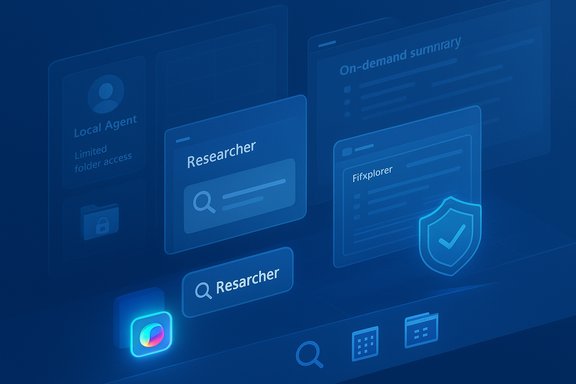
Blue, futuristic UI with floating panels labeled 'Researcher' and 'Fixplorer', plus a shield icon.Background: the shift to an agentic Windows​

Microsoft used Ignite and recent Microsoft 365 announcements to outline a significant change in how Windows 11 will expose AI: agents that run autonomously on behalf of users and surface directly in the taskbar via Ask Copilot. These agents are more than chat windows — they run in a dedicated agentic workspace, can interact with apps and files in parallel to the user session, and will appear as taskbar icons that show status and progress. This architecture is intended to make long-running or multi-step workflows feel native to Windows and to let Copilot and third-party makers automate repetitive or research-heavy tasks without commandeering the primary desktop. At the same time, Microsoft is introducing refinements to Copilot itself: a new Ask Copilot composer on the taskbar that accepts voice, text, and vision inputs; tag-to-invoke semantics (type “@” to call specific agents); and tighter integration with Microsoft 365 Copilot, File Explorer, and Notification Center. Many of these features are being introduced to Windows Insiders first and will reach customers in staged previews and rollouts.

What Microsoft announced (clear, summarized)​

  • Ask Copilot on the taskbar becomes a single composer for voice and text queries and the starting point for agents. You’ll be able to call Copilot instantly via voice or the taskbar UI.
  • Agents on the taskbar: long-running agents like Researcher will appear as taskbar icons, showing progress cards when hovered, and offering controls to pause, cancel, or take manual control. Agents can be invoked via the composer or by typing “@” in the Ask Copilot box.
  • Agentic workspace (technical containment): agents run in a separate workspace or sandbox with their own local agent accounts and limited access to user folders when enabled. This is an opt-in feature that administrators must enable.
  • File Explorer integration: hover over files in File Explorer Home to get on-demand summaries and assistance powered by Copilot. Microsoft says this will roll out before the end of the year.
  • Agenda view in Notification Center: a compact, interactive schedule view that integrates Calendar and Copilot actions is scheduled for preview in December.
  • Windows 365 for Agents & Copilot Studio: Microsoft is offering enterprise-grade plumbing — Windows 365 streamed environments and Copilot Studio controls — for building, monitoring, and securing agents at scale.
These items together represent a move to make AI agents first-class citizens inside Windows, not just cloud services invoked via a browser or app.

How agents will behave on the taskbar: a practical picture​

Invoking and monitoring agents​

The taskbar composer — Ask Copilot — acts as the front door. A single waveform-style button replaces separate Vision and Voice buttons and opens a compact composer that accepts typed prompts, voice, and visual captures. Typing “@” inside the composer lists installed agents; selecting one launches it into an agent workspace where it executes steps on your behalf. While running, the agent appears on the taskbar like any other running app. Hovering that taskbar icon surfaces a progress card with a short status, the resources the agent is accessing, and quick controls.

Parallel operation and user control​

Agents are designed to operate in parallel — they can click through apps, open files, and perform background tasks without immediately interrupting the primary user session. However, Microsoft emphasizes transparency: agents must produce activity logs, explain planned multi-step actions, and ask for confirmation for decisions that have significant effects. Those safeguards are part of Microsoft’s stated design principles for agentic experiences.

Local agent accounts and file access​

A key technical detail: when the experimental agentic features are enabled, Windows will create local agent accounts with limited access to the user profile directory. If an agent is granted access, Windows will allow read/write access to common user folders such as Documents, Downloads, Desktop, Pictures, Videos, and Music. Microsoft frames this as controlled access, but the practical effect is that agents — if permitted — can read and edit your files while operating in their workspace. This behavior is enabled only via an admin toggle and is off by default.

Copilot updates: what changes for daily use​

Microsoft is continuing to fold Copilot deeper into the Windows UX while expanding its capabilities:
  • A single composer on the taskbar that blends local search hits with Copilot suggestions and the option to open a fuller Copilot chat. The composer prioritizes quick local results first, then Copilot for more complex reasoning.
  • Voice improvements: “Hey Copilot” and Win+C voice hotkeys provide press-to-talk and wake-word options for conversational interaction. Microsoft is rolling voice features across its platforms and tying that capability into the taskbar composer.
  • File-level assistance in File Explorer Home to surface summaries, context, or suggested next steps without leaving the file context. This aims to save time for people managing large numbers of documents.
  • Enterprise features through Windows 365 for Agents and Copilot Studio, which include analytics, logging, XPIA protections, and admin controls for agent behavior. These are aimed at organizations that will deploy and govern agents at scale.

Security and privacy: the central tension​

Bringing autonomous agents into an operating system creates a new attack surface. Microsoft explicitly acknowledges novel threats such as cross-prompt injection (XPIA) — where malicious content embedded in files, apps, or UI elements could override agent instructions — and other prompt-injection style attacks that can cause data exfiltration or unintended downloads. Microsoft’s documentation and blog posts warn that agentic features are off by default, require an admin to enable, and that agents will need to be observable and produce tamper-evident logs. Independent coverage and security analyses echo the warning: researchers point out that agents with the ability to access files and interact with apps can be tricked into performing harmful actions if prompt integrity is not secured. The practical risks include malware installation by a compromised agent, accidental data exposure, and the potential for sophisticated “zero-click” prompt-injection exploits that chain multiple vectors to bypass protections. Recent academic work and incident reports have shown that prompt injection is not theoretical; it has been exploited in real-world settings.

Safeguards Microsoft plans to include​

Microsoft’s stated mitigations include:
  • Opt-in admin control: agentic features are disabled by default and require an administrator to enable them for the device.
  • Sandboxed agentic workspace: agents run in a separate workspace with limited privileges and their own local accounts.
  • Activity logs and tamper-evident auditing: agents must produce logs of their activities, and Windows will maintain tamper-evident audit trails.
  • Runtime protections and XPIA defenses: Copilot Studio and Microsoft’s defensive stack include real-time protection and classifiers that aim to block cross-prompt injection attempts. Teams and Microsoft Defender elements are being extended to detect suspicious agent interactions.
Despite those safeguards, security professionals and independent outlets emphasize that the risk cannot be eliminated entirely: defensive systems reduce likelihood but do not remove the possibility of sophisticated bypasses. The lesson here is risk reduction, not risk elimination.

Critical analysis: benefits, friction, and systemic risks​

The benefits — real productivity wins​

  • Multitasking at scale: Agents can run research, prepare drafts, or aggregate data in the background while users continue interactive work. This reduces context switching and time lost to repetitive tasks.
  • Deeper file intelligence: File Explorer integration and on-demand summaries can dramatically speed up triage of documents and media, especially for knowledge workers.
  • Enterprise orchestration: Windows 365 for Agents and Copilot Studio give IT more control, making agent deployment manageable in complex environments. For businesses, this can unlock automation use cases while centralizing governance.

The friction — UX and control tradeoffs​

  • Complex consent model: Agents need access to files and apps; balancing transparency with convenience requires thoughtful UX. Too many prompts will cause fatigue; too few will open doors to abuse. Microsoft must find the middle ground.
  • Administrative overhead: Enabling, configuring, and auditing agents across fleets introduces operational work for IT teams, including new policies, logging, and training.

Systemic risks — why this matters beyond a single laptop​

  • New class of vulnerabilities: Agentic features transform prompt-injection from a product-specific nuisance into an OS-level security risk. An exploit here can reach beyond one app to the broader system and, potentially, corporate networks. Real-world research has shown that prompt injection can be chained to bypass defenses.
  • Supply-chain and third-party agent risk: Microsoft envisions third-party agents running in this model. Each additional agent provider increases the trust surface and the number of potential weaknesses. Ensuring third-party agents meet security expectations will be a constant effort.
  • User understanding and consent: Many users will not fully grasp the implications of granting an agent the ability to read and write files. The effectiveness of audit logs and prompts depends on clear, accessible UI and user education.

What IT admins and power users should do now​

  • Treat agentic features as a security project. Do not flip the admin toggle for agentic features without planning: map the expected use cases, define who can create agents, and decide which devices should be allowed to opt in.
  • Enable principle-of-least-privilege for agents. Only grant agents the access they need; avoid blanket read/write grants to all user folders. Configure policies that limit agent permissions where possible.
  • Require tamper-evident logging and review logs regularly. Make agent logs part of routine security monitoring and retention policies to enable post-incident analysis.
  • Update endpoint defenses to understand agent behavior. Ensure Microsoft Defender and SIEMs have rules to flag unusual agent actions, such as unexpected downloads or mass file accesses.
  • Pilot first with non-critical workloads. Use Windows Insiders and isolated test fleets or Windows 365 for Agents to trial agent workflows before broad deployment. Monitor for UX friction and security signals.
Administrators who treat this as a phased adoption and who pair rollout with updated monitoring, policy, and user training will minimize the odds of surprises.

Developer and vendor implications​

Third-party developers and ISVs planning to ship agents will need to prioritize secure-by-design models and be ready for increased scrutiny. That includes:
  • Building agents that explicitly enumerate required resources and provide clear, human-readable action plans before execution.
  • Using Copilot Studio and Windows 365 for Agents for secure testing and policy integration so enterprise customers can adopt with confidence.
  • Implementing robust input sanitization and XPIA defenses; relying on platform protections alone will not be sufficient against determined adversaries.

What we verified and what remains uncertain​

Verified with official Microsoft communications and multiple independent outlets:
  • Windows 11 will introduce a taskbar-based Ask Copilot composer and support invoking agents directly from the taskbar.
  • Agents will run in an "agentic workspace" and Microsoft plans to provide local agent accounts and controlled access to common user folders; this feature is off by default and requires an admin to enable.
  • Microsoft explicitly warns about cross-prompt injection (XPIA) and other novel risks and is building protections in Copilot Studio and related services.
Items that are less certain or time-dependent:
  • Exact release timing for consumer rollout: Microsoft’s statements point to staged previews (Insiders and targeted pre-release channels) with some Explorer and Agenda features slated for preview or rollout before the end of the year or in December. These timelines are subject to change and may vary by region and device. Treat published rollout timelines as provisional until Microsoft confirms device-by-device availability.
  • Third-party agent availability and ecosystem readiness: Microsoft listed early agent partners and enterprise scenarios, but wide availability of vetted third-party agents depends on developer readiness and marketplace governance, which is still in early stages. Exercise caution when relying on third-party agents for mission-critical workflows.
Where claims in third-party reporting could not be independently verified (for example, any leaked timelines or feature screenshots not published by Microsoft), those should be treated as provisional. Vendors and admins will want to rely on Microsoft’s official documentation and the Windows Insider release notes for authoritative details.

Bottom line: configurable power with new responsibility​

Microsoft’s move to place AI agents on the Windows 11 taskbar and to bake agentic workflows into the OS represents a tectonic shift from helper tools to autonomous actors inside the operating system. The potential productivity gains — background research, document summarization, and automated multi-step workflows — are real and compelling. But they come with real and novel security risks that cannot be ignored.
For consumers, the initial posture is cautious: these agentic features are off by default and will appear first in preview channels. For businesses, the promise of Windows 365 for Agents and Copilot Studio gives a safer route for deployment, but only if organizations treat agents like any other privileged automation: plan, harden, monitor, and audit.
The next year will show whether Microsoft can make agentic Windows both useful and safe at scale. For now, administrators should approach agentic features as a controlled capability to be adopted gradually, while users should expect a more active Copilot presence on the taskbar — a convenience that demands attention to permissions and awareness of the new security model built around agentic AI.
Source: Mezha Windows 11 will get AI agents on the taskbar and new Copilot features
 

Microsoft’s Ignite announcements have quietly — and decisively — turned the Windows 11 taskbar from a static app launcher into a living control surface for autonomous AI assistants, embedding long‑running agents, a revamped "Ask Copilot" composer, and a new containment model that aims to let AI work in the background while you keep using your PC. This is not a minor UI tweak: Microsoft is reframing Windows as an “agentic” operating system where Copilot and third‑party agents can be started from the taskbar, show real‑time status and progress, and act on files and apps within constrained sandboxes.

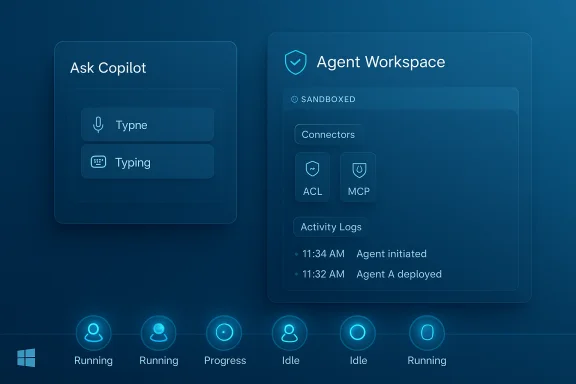
Dark blue UI panels show Ask Copilot and Agent Workspace with activity logs and agent statuses.Background / Overview​

For several years Microsoft has folded Copilot features into Windows and Office, but Ignite 2025 marks a clear platform move: AI is no longer merely a cloud‑backed helper behind an app window — it is being given persistent presence and runtime inside the OS itself. The visible change users will first notice is the Ask Copilot composer in the taskbar and the appearance of taskbar agents that behave like running apps but report progress, need attention, or complete long jobs while you continue working. Behind the scenes are new platform components — notably a Model Context Protocol (MCP) implementation and a dedicated Agent Workspace runtime — that let agents discover tools, access sanctioned resources, and execute multi‑step workflows under governance. Microsoft positions this as a productivity play: fewer context switches, delegated background work (summaries, file transformations, repetitive automation), and faster outcomes when Copilot or a specialized agent does the heavy lifting. The company is also making enterprise management a first‑class consideration with a control plane for agent governance and new admin tools for authorizing, auditing, and quarantining agents.

What Microsoft actually announced​

Taskbar — Ask Copilot and visible agents​

  • The traditional taskbar search pill is being augmented (or replaced for those who opt in) by an Ask Copilot composer that accepts:
  • typed prompts,
  • voice input or wake word,
  • vision/screen capture shortcuts.
  • Agents launched from Ask Copilot or Copilot chat will appear as taskbar icons while they run, complete with badge states and hover cards that show status, progress, or requests for user input. That means long‑running tasks (for example, summarizing a folder of documents or batch converting media) can be monitored at a glance without opening a dedicated window.

Agent Workspace — runtime isolation and agent accounts​

  • Agents execute inside a dedicated Agent Workspace — a sandboxed desktop session that isolates agent activity from the primary user session. Each agent can run under a distinct, low‑privilege agent account so its file and app access is auditable and limited by ACLs and policies. Microsoft describes this as lighter than a VM but stronger than in‑process automation.
  • Sensitive actions require explicit prompts and are logged; administrators can set policies governing which agents may run and what resources they may touch. The overall design emphasizes transparency and revocability.

Model Context Protocol (MCP) & connectors​

  • Microsoft is adopting the Model Context Protocol (MCP) — a standard that lets agents discover and call out to “MCP servers” (apps, services, or connectors). MCP provides a predictable contract for tools so agents can safely use features exposed by apps and services while keeping a mediated permission and audit layer. This is critical to letting third‑party agents interoperate with the OS and common enterprise services.

Copilot & Microsoft 365 agent expansion​

  • Microsoft 365 Copilot gains specialized agents for Word, Excel, PowerPoint and new “Agent Mode” integrations, enabling document‑centric agents to create, edit, and iterate with deterministic workflows. These agents are being rolled out through preview and enterprise programs.

Copilot+ PCs and hardware acceleration​

  • Microsoft’s Copilot+ PC tier (devices equipped with high‑performance NPUs) is explicitly called out to accelerate local inference for on‑device models and privacy‑sensitive tasks. The Copilot+ spec targets NPUs capable of 40+ TOPS for richer local AI experiences. That hardware‑gated tier is intended to offload latency‑sensitive or private workloads from the cloud.

How the system works — a technical breakdown​

1. Front door: Ask Copilot composer and @-invocation​

Ask Copilot is the user’s low‑friction entry point. It mixes fast local search (indexed results) with generative responses and provides tag‑to‑invoke semantics (type “@” or an agent name to launch a specific agent). The composer also surfaces quick command buttons for vision and voice inputs, enabling multimodal starts to agent workflows. This design keeps trivial lookups local and routes compositional, multi‑document reasoning to Copilot or appropriate agents.

2. Agent lifecycle and monitoring​

When a user launches an agent:
  • the agent is instantiated in the Agent Workspace,
  • it appears in the taskbar with a live badge,
  • a hover card exposes progress, steps taken, and any requests for clarification or permission,
  • the user can pause, stop, or take over the workflow at any time.
This lifecycle aims to make automation visible and interruptible rather than opaque.

3. Tooling and context sharing via MCP​

MCP is the plumbing that lets an agent ask “what can you do?” and find available tools (an email API, a connector to Jira, a file‑processing service) with clearly defined inputs and outputs. Agents use MCP servers and local connectors to carry out actions while policy layers mediate access. This standardization reduces fragile, ad‑hoc integrations and makes auditing and governance tractable.

4. Containment, identity, and auditing​

Agent accounts create a separation of privilege: actions show up in logs under agent identities, ACLs can be tailored, and enterprises can apply familiar Windows policy tooling to agent principals. The Agent Workspace provides runtime isolation and a bounded file access model; common folders (Documents, Desktop, Downloads) may be available only when explicitly granted. These choices are meant to shrink the blast radius when an agent behaves unexpectedly.

Why this matters — productivity, UX, and platform strategy​

  • Reduced context switching. Users can delegate multi‑step tasks and keep working while agents run jobs in the background. That’s a measurable productivity pattern for workflows that previously required manual copying between apps.
  • Visibility and control. Taskbar icons, progress badges, and hover cards aim to curb the “silent automation” problem by making agents observable and interruptible.
  • Platform expansion. Positioning agents as first‑class OS citizens opens a developer and vendor ecosystem: Copilot Studio, MCP connectors, Windows 365 for Agents, and Copilot+ hardware all form a cohesive platform play.
For enterprises, the story includes centralized governance (Agent 365 / Agent Control) and the ability to audit or quarantine agents — an explicit nod to IT concerns as AI grows in the stack.

Risks, trade‑offs, and unanswered questions​

Privacy and data exposure​

Even with an Agent Workspace and agent accounts, agents often need access to user files to perform useful work. Microsoft’s model permits scoped access to “known folders” when the user consents, but that still means an agent could read/write files in Documents, Desktop, or Downloads if granted permission. Users and IT must carefully consider default settings and consent flows. Early previews and reporting highlight these concerns and recommend caution before enabling experimental agentic features.

Attack surface and malware vectors​

Treating agents as first‑class OS principals introduces new attack surfaces: compromised agent code, rogue third‑party agents, or malicious connectors could attempt to exfiltrate data or perform unauthorized actions. Microsoft’s proposed mitigations — cryptographic signing, allow‑lists, agent quarantine, and per‑operation consent — are necessary but not sufficient; real‑world security will depend on robust vetting, telemetry, and rapid revocation mechanisms.

User control and cognitive overload​

For users who prize a minimal, static UI, a living taskbar full of agent icons and hover notifications risks becoming noisy or confusing. Microsoft’s opt‑in toggle is critical here: many will want the ability to disable agentic features entirely or to strictly limit which agents can run. Early Insider builds expose an “Experimental agentic features” toggle — but broad discoverability and clear controls are essential before a mainstream rollout.

Accuracy, hallucinations, and trust​

When agents act autonomously (editing documents, composing emails, making scheduling changes), verifying the agent’s outputs becomes a human responsibility. Enterprises must plan for validation steps and add auditing to workflows where incorrect agent behavior could have real consequences. Microsoft’s agent logs and progress cards help, but they don’t eliminate the need for human review.

Commercial and vendor lock‑in concerns​

Microsoft is designing a broad ecosystem — Copilot Studio, Work IQ, Windows 365 for Agents, Copilot+ hardware — which can deliver great integration for Microsoft‑centric organizations. But organizations should consider vendor lock‑in, cross‑platform portability of agents, and how MCP‑based integrations from different vendors will interoperate across heterogeneous environments.

What IT admins and power users should know now​

  • Experimental features are being staged through Windows Insider rings and enterprise previews; they are opt‑in by design. Administrators can control rollout and require explicit consent for agent creation and folder access.
  • Microsoft has announced Agent 365 (a management/control plane) and additional governance tools for enterprises to authorize and quarantine agents across fleets — organizations should evaluate these tools during pilot deployments.
  • For secure deployments:
  • Start with a limited pilot group and a whitelist of trusted agents.
  • Configure agent policies and logging so actions are auditable.
  • Establish human validation gates for high‑impact automation (finance approvals, legal edits, external communications).
  • Train users on consent prompts and how to revoke agent permissions.

Practical user guidance — how to manage or disable agentic features​

  • The previews show an explicit toggle path in Settings (reported as Settings → System → AI components → Agent tools → Experimental agentic features). Keep the toggle off on shared or unmanaged devices and only enable it for personal or vetted preview devices.
  • When an agent requests folder access, carefully review permission scopes. Prefer read‑only access where feasible and revoke write access until the agent’s behavior is validated.
  • Use account‑level controls and, for enterprises, apply group policy or MDM profiles to prevent unauthorized agent installation or execution. Microsoft’s Agent 365 and Copilot Control System are designed for this purpose; evaluate them in pilot phases.

Timeline, availability, and what to expect next​

  • Many features were announced at Ignite 2025 and are entering staged preview pipelines: Ask Copilot on the taskbar and agentic features are being previewed to Windows Insiders and enterprise preview programs first. Microsoft describes much of this as opt‑in and gated by server‑side entitlements rather than an immediate consumer ship.
  • Copilot+ PC features and hardware‑accelerated local models are already shipping on qualifying devices; the Copilot+ PC spec (including the 40+ TOPS NPU requirement) was published earlier and underpins richer on‑device experiences. Expect richer local capabilities on devices meeting that spec and slower rollout to legacy hardware.
  • Watch the preview channels for refinement of consent dialogs, auditing UX, and enterprise policy controls. The broad availability cadence will depend on Insider telemetry and enterprise feedback.

Independent verification and cautionary notes​

  • Microsoft’s own blog and product pages lay out the architecture and the intent for agents, Ask Copilot, MCP, and Agent Workspace. Those posts are the canonical descriptions of the features and controls Microsoft intends to ship.
  • Independent reporting and early hands‑on coverage (Insider builds and technical analysis) corroborate the presence of an experimental agent toggle and the taskbar/hover UX, while also raising privacy and security questions that merit caution before enabling experimental features on production devices. Treat projections and vendor‑cited adoption forecasts (for example, market predictions about the number of agents by 2028) as vendor‑backed estimates rather than immutable facts.

Final assessment — strengths, weaknesses, and where this could go​

Strengths​

  • The taskbar integration is elegant from a discovery and UX perspective: agents live where users already look, reducing friction to delegate work.
  • Native OS support for agent identity, auditing, and MCP‑based connectors creates an enterprise‑grade foundation for trustworthy integrations.
  • Copilot+ hardware support gives Microsoft a pathway to on‑device privacy and low‑latency inference for sensitive workflows.

Weaknesses and risks​

  • Any OS‑level agent capability raises legitimate privacy and security concerns; the guardrails are promising but require rigorous vetting, telemetry, and fast revocation mechanisms to be effective in the wild.
  • User control and discoverability of consent dialogs are essential; a crowded taskbar of agent icons and notifications could degrade usability if not managed carefully.
  • Vendor and platform lock‑in risk is real: the deepest integration favors organizations committed to Microsoft’s Copilot and Windows ecosystems. Evaluate cross‑platform needs before folding critical workflows into agentic automation.

Microsoft’s taskbar upgrade represents a major step toward an agentic desktop: it makes AI a first‑class part of the shell rather than a feature inside an app. That architectural decision will accelerate productivity for users and enterprises that adopt it thoughtfully, but it also places novel responsibilities on IT and individual users to manage permissions, verify outputs, and guard against new attack surfaces. The next months of Insider testing and enterprise pilots will determine whether the promise of background, auditable AI assistance outweighs the practical risks of adding autonomous agents into the heart of the operating system.
Source: samaa tv Windows 11’s taskbar upgrade is pure AI magic - Check here
 

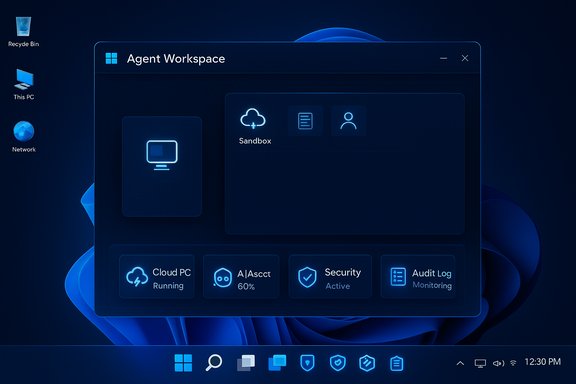
A futuristic dark blue Agent Workspace dashboard on a Windows desktop.
Microsoft has begun turning the Windows 11 taskbar into an active control plane for autonomous AI assistants by surfacing AI agents directly in the taskbar, introducing an updated Ask Copilot composer, and shipping a new Agent Workspace and related governance plumbing that let agents run background workflows without stealing the foreground window.

Background​

Windows has long treated the taskbar as the fastest route to apps, search, and system state. Microsoft’s Ignite 2025 announcements and subsequent Insider preview notes reframe that same strip of pixels as a live roster of AI assistants — short- or long-running processes that can be summoned, monitored, and managed from the taskbar without forcing a full app switch. That shift is part of a broader strategy to make Windows an “agentic OS,” where agents are first-class citizens able to take multi-step actions on behalf of users under defined policy controls. The major platform pieces Microsoft described at Ignite and in follow-up engineering posts include:
  • Ask Copilot: a taskbar composer that blends local Windows Search with Copilot chat and direct invocation of agents via an @ syntax or tools menu.
  • Taskbar agents: agents appear as icons on the taskbar while they run, with hover cards showing status, progress, and requests for attention.
  • Agent Workspace: a sandboxed, contained desktop session where an agent executes UI automation and file operations while the user’s main session continues uninterrupted. Agents run under dedicated, low‑privilege “agent accounts” to enable auditability and access control.
  • Model Context Protocol (MCP) adoption: a standardized way for agents to discover and call tools/connectors so agent-to-tool interactions are discoverable and governable.
  • Windows 365 for Agents / Cloud PC runtimes: a cloud-scaled option to host enterprise-grade agents and scale compute for agent workloads.
These primitives are being delivered through staged Insider previews, gated server-side entitlements, and opt‑in settings; Microsoft emphasizes the features are experimental and disabled by default for typical users.

What changed in the taskbar — the user-facing details​

Ask Copilot becomes a composer and agent launcher​

The traditional Windows search pill can be replaced with an Ask Copilot composer that accepts typed prompts, voice activation, and vision inputs. This composer returns a blended surface: immediate indexed results (apps, files, settings) paired with Copilot-generated suggestions and a direct path to launch agents. Users can summon agents by typing “@” and the agent name or by using the composer’s tools menu or voice input. This experience is opt‑in in current preview builds.

Agents live and work in the taskbar​

When an agent runs — for example, a “Researcher” agent that pulls together notes from multiple files — it behaves like a running app on the taskbar but with richer affordances:
  • A visible icon appears on the taskbar while the agent runs.
  • Hovering the icon surfaces a compact progress/summary card showing what the agent is doing and whether it needs attention.
This design allows users to delegate long-running work while continuing with other tasks and to pause, cancel, or take over if the agent requests input or tries to perform a sensitive action.

Agent invocation and monitoring flows​

The flow is intentionally low friction:
  1. Type a natural-language instruction or use voice in the Ask Copilot composer.
  2. Select a recommended agent from the tools menu or by typing “@agentName”.
  3. The agent begins work; its icon appears on the taskbar and progress can be inspected via hover cards.
  4. If the agent needs access to more data or permission for a sensitive step, it prompts the user — the user can approve, deny, or take manual control.

The platform and enterprise side: containment, credentials, and governance​

Agent Workspace and agent accounts​

Instead of executing actions directly in the signed-in user’s desktop, Microsoft routes agent activity into an Agent Workspace — a contained desktop session that’s lighter than a full VM but stronger than in-process automation. Each agent typically runs under its own dedicated Windows account with least-privilege rights. That separation:
  • Makes agent actions distinct in logs and ACLs.
  • Lets IT apply familiar identity and policy controls to agents as principals.
  • Provides per-action prompts for sensitive operations.
Microsoft has stated the initial access scope will be conservative, limiting agents to known user folders (Desktop, Documents, Downloads, Pictures) and requiring explicit consent for broader access during the preview.

Model Context Protocol (MCP) and connectors​

Windows’ MCP integration gives agents a standardized registry and discovery mechanism to find tools, connectors, and local capabilities. The goal is to make calls between agents and apps auditable and governed rather than ad hoc. In enterprise scenarios, MCP servers and connector manifests will need signing and policy controls to avoid supply‑chain or poisoning attacks.

Windows 365 for Agents​

Where enterprise scale or always‑available compute is required, Microsoft proposes Windows 365 for Agents — Cloud PCs tuned for agent workloads. This permits organizations to run agents on managed, policy-controlled cloud hardware rather than on each endpoint, simplifying governance and offloading heavy model inference. Several early agent builders and ISVs are already experimenting with this route.

Security, privacy, and threat surface: what to worry about​

The idea of agents that can act across apps, see your screen, and touch files is appealing — and it expands the threat model in ways that both defenders and attackers will notice.

New attack surfaces​

  • Prompt injection and cross-prompt injection (XPIA): agents that interpret untrusted content are vulnerable to malicious payloads embedded in documents or web content. Microsoft has warned about adversarial attacks like XPIA and is rolling out mitigations such as stepwise confirmation prompts and tamper-evident logs. These are real risks that need careful engineering and monitoring.
  • Tool/connector poisoning: because agents can call registered tools via MCP, a compromised connector or a malicious third-party agent could escalate actions or exfiltrate data if the connector registry is not tightly controlled.
  • Agent account abuse and lateral movement: although agents run as low‑privilege accounts, misconfigured privileges or signed agent software from an untrusted source could perform persistent or damaging actions. Proper signing, revocation, and monitoring are essential.

Privacy exposures​

  • Screen awareness & Vision: Copilot Vision can analyze selected windows or a shared desktop region; if misused, this capability can leak sensitive on‑screen data. Microsoft’s preview enforces session-bound permissions, but the potential for accidental exposure is higher than with a traditional chat-only model.
  • Always‑on voice spotters: “Hey, Copilot” wake-word features use a local spotter and short audio buffers, but any always-listening surface requires scrutiny and clear defaults. Microsoft’s current approach is opt‑in to reduce unintended activation, but organizations should treat such inputs as configurable risk vectors.

Operational and governance burdens​

For IT teams, agentic Windows means:
  • Updating policy frameworks to manage agent identities, manifests, and entitlements.
  • Extending audit and telemetry to capture agent actions, progress logs, and user approvals.
  • Including adversarial testing for prompt‑injection, tool‑poisoning, and escalation scenarios in CI/CD and threat models.
Microsoft has baked in several design choices to reduce exposure — opt‑in defaults, signing and revocation, agent accounts, and auditable logs — but these are foundational controls, not a complete mitigation pack. Real safety will require rigorous operational practice, independent verification, and third-party security tooling.

Cross-checking the claims: what’s verified and where caution is warranted​

Several of the most load-bearing claims have direct, verifiable sources:
  • Microsoft’s Ignite 2025 blog and follow-up Windows Experience posts describe Ask Copilot on the taskbar, Agent Workspace, MCP adoption, and Windows 365 for Agents. These product-level claims are documented by Microsoft’s own posts and engineering notes.
  • Independent reporting from outlets that covered Ignite confirms the taskbar agent UX (icons, hover cards, @ invocation) and the opt‑in preview model, corroborating Microsoft’s narrative.
Points that still require cautious treatment or verification:
  • Timelines for broad rollout. Microsoft has said many features are in preview for Insiders and will be staged; specific consumer or enterprise release dates are not fully pinned down and may slip. Treat any specific calendar dates as provisional unless Microsoft issues an explicit general availability (GA) statement.
  • Third‑party ecosystem behavior. Microsoft published platform plumbing (MCP and connectors), but actual third‑party adoption, security maturity, and how agent stores will be curated remain to be proven in the field. These aspects are emerging and will depend heavily on partner practices and marketplace governance.
  • Vendor claims about local model performance on Copilot+ PCs. Microsoft is promoting Copilot+ hardware and on‑device inference; independent benchmarks and hands‑on tests will be required to validate latency, accuracy, and privacy claims at scale. Until such benchmarks are widely available, treat model-performance claims as vendor propositions.

Practical guidance: what users and IT teams should do now​

Microsoft’s agentic roadmap provides big productivity potential, but realizing it safely requires discipline. The following are pragmatic steps to adopt the technology deliberately.

For individual users (non‑enterprise)​

  • Keep agentic features off by default unless you understand the implications; use the Settings toggle (Experimental agentic features) only if you’re comfortable granting scoped access and reviewing activity.
  • Limit agent file permissions during early testing. Allow access to specific folders only when the agent’s purpose requires them.
  • Validate any outputs from agents before acting on them — agents can make procedural errors or hallucinate content, particularly when synthesizing from diverse files.

For IT and security teams​

  1. Pilot in low‑risk domains: HR templates, approved document summarization, or curated reporting tasks.
  2. Require agent signing and attestation for any third‑party agent before allowing it on managed devices. Use MCP registries and signing to gate what connectors and tools agents may discover.
  3. Enforce least privilege for agent accounts; treat agents as principals in identity and access systems.
  4. Instrument robust logging and retention for agent activity (stepwise logs, tamper‑evidence, and replay where practical).
  5. Add prompt‑injection and tool‑poisoning tests to standard security assessments and CI pipelines.

For procurement and policy​

  • Update procurement contracts to explicitly state telemetry practices, processing locations, revocation windows, and responsibilities for third‑party agents.
  • Require vendors to publish their threat models and remediation practices for prompt‑injection and connector security.
  • Plan for lifecycle management: how agents are revoked, updated, and audited across fleets.

Developer, ISV, and partner implications​

The taskbar-as-agent control plane creates new opportunities and responsibilities for developers:
  • Build connectors and agent manifests that are secure-by-design and signable.
  • Support MCP best practices: clear tool manifests, secure registration, robust failure modes, and explicit user consent flows.
  • Provide transparent failure logging and deterministic replay where possible to help users and auditors reconstruct actions.
Independent ISVs and integrators will need to invest in secure deployment testing and CE/CD pipelines that include adversarial scenarios specific to agentic workflows. The firms that do this well will be the preferred partners for cautious enterprises.

Strengths and clear upsides​

  • Discoverability and low friction: putting agents in the taskbar drastically lowers the cognitive cost of invoking automation for routine tasks.
  • Parallelism without disruption: Agent Workspace allows agents to run complex background workflows without commandeering the user’s primary desktop.
  • Enterprise-aware design: Microsoft’s agent accounts, signing, and opt‑in defaults show the company is designing with governance in mind from day one.
  • Platform standardization: MCP promises a more orderly, auditable way for agents to discover and call tools, reducing fragile, ad hoc integrations.

The risks that could limit adoption​

  • Adversarial attacks and prompt injection are non-trivial and well-understood in research — agents increase the attack surface compared with chat-only assistants.
  • Ecosystem trust: a poorly curated agent store or lax connector registration could enable malicious agents to proliferate.
  • Operational load: enterprises must invest in policy changes, logging, and telemetry to avoid surprises.
  • User mental models: users must learn when it’s safe to delegate actions to an agent and when they must remain in control; poor affordances or ambiguous prompts risk accidental data exposure.

Final analysis — what this means for Windows​

Microsoft’s move to put AI agents in the taskbar represents a coherent, platform-level gamble: Windows is no longer aiming to be merely a host for apps and widgets, it is positioning itself as an orchestration surface for autonomous assistants. The initial implementation balances capability with basic governance — opt‑in controls, Agent Workspace containment, agent accounts, and MCP — and the staged preview approach is a prudent way to gather telemetry and refine controls. If executed well, this architecture can reduce context switches, automate repetitive cross-app workflows, and make on‑device AI genuinely useful. If executed poorly, it could become a source of privacy leaks, supply‑chain headaches, and new classes of automation-driven incidents. The decisive factors will be:
  • How strictly Microsoft and partners enforce signing, revocation, and connector security.
  • How effectively enterprises update policies and telemetry to treat agents as principals.
  • Whether independent researchers and red teams can rapidly surface and help fix adversarial weaknesses in the agent model.
For users and administrators planning next steps, the prudent path is deliberate piloting, careful permissioning, and insistence on transparency from any third‑party agent vendors. The taskbar as an AI control plane is a powerful idea; its success depends less on the novelty of the UI and more on the discipline of governance that surrounds it.

Microsoft’s agentic Windows marks a major inflection point in desktop computing: the taskbar has become more than a launcher — it is the front door to a new class of supervised autonomy. The coming months of Insider testing, enterprise pilots, and independent security scrutiny will determine whether that autonomy becomes a productivity boon or an operational headache.
Source: TechPowerUp Microsoft Puts AI Agents in Windows 11 Taskbar
 

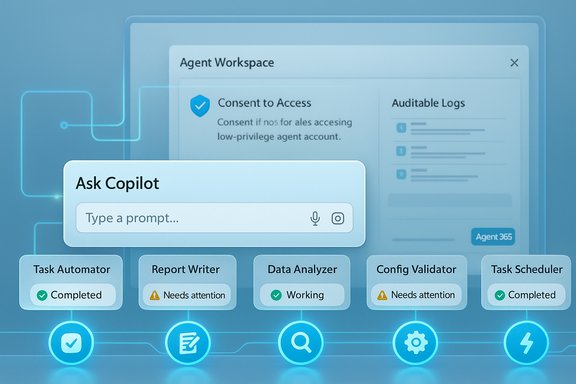
AI Copilot UI showing tasks like Task Automator, Report Writer, and Data Analyzer.
Microsoft has quietly moved a major piece of its AI strategy into the most visible strip of the desktop: Windows 11’s taskbar now hosts live AI agents that can be launched from an upgraded Ask Copilot composer, run in a contained Agent Workspace, and surface progress and requests directly as taskbar icons — a shift Microsoft calls part of an “agentic OS” strategy that blends on-device inference, cloud models, and new governance plumbing for enterprises.

Background / Overview​

Microsoft’s Copilot journey over the past two years has been incremental and demonstrative: from Copilot in the cloud to Copilot app features, voice/vision inputs, and tighter Office integration. At Ignite 2025 the company reframed the approach — treating AI not as a feature inside apps but as first-class, auditable agents that live in the OS shell. The visible elements users will notice first are the Ask Copilot composer in the taskbar and taskbar-visible agents that behave like running apps with status badges and hover summaries. Under the hood, Microsoft layered platform-level primitives for agent behavior:
  • Agent Workspace — a sandboxed runtime where agents execute UI automations and multi-step workflows, designed to isolate agent activity from the main user session.
  • Agent accounts — distinct, low-privilege Windows accounts for agents so actions are auditable and constrained by ACLs and enterprise policies.
  • Model Context Protocol (MCP) — a standardized discovery/connector protocol that lets agents find and call tools or services safely.
  • Windows 365 for Agents / Cloud scaling — cloud-hosted options to scale agent compute when needed.
Those primitives are being delivered as staged, opt-in previews to Windows Insiders and enterprise pilots; Microsoft emphasizes the experimental nature, admin gating, and audit-first design.

What’s new in the Windows 11 taskbar​

Ask Copilot composer: the new low-friction entry point​

Ask Copilot transforms the taskbar search pill into a compact composer that accepts:
  • Typed prompts (natural language search and commands),
  • Voice activation (wake word “Hey, Copilot” / Win + C),
  • Vision inputs (screen capture to ask questions about what’s shown).
The composer blends fast, indexed Windows Search hits with generative Copilot responses, and provides a direct path to launch agents via a tools menu or by typing an @ tag to pick a named agent. This design aims to reduce context switches: ask for an outcome, pick an agent, and let the agent run while you continue working.

Taskbar agents: visible, manageable, and interruptible​

When an agent runs, it appears on the taskbar like any other running app, but with agent-specific affordances:
  • Status badges that indicate “needs attention”, “working”, or “completed” states.
  • Hover cards that show progress, short summaries (chain-of-thought summaries in preview), and user prompts required for consent.
  • Floating interaction windows for deeper interaction without forcing a full desktop takeover.
Long-running tasks — e.g., summarizing a folder, batch converting media, filling out forms across multiple apps — can be monitored at a glance and paused or canceled if needed. This visible presence is an explicit design choice to make automation transparent rather than hidden.

The Agent Workspace and security model​

Containment that sits between scripts and full VMs​

Microsoft positions the Agent Workspace as stronger than in-process automation but lighter than a virtual machine. Agents run inside a contained desktop session and execute UI automation (clicks, keystrokes, file operations) under a dedicated, low-privilege agent account. The separation allows:
  • Access scoping to designated folders (Desktop, Documents, Downloads, Pictures by default),
  • Per-operation consent prompts for sensitive actions,
  • Tamper-evident logging and auditable activity trails.
This model is intended to balance usability (agents can operate where APIs are missing) with enterprise governance (agent actions are auditable principals in the security model).

Model Context Protocol (MCP): standardized tool discovery​

MCP is a contract that lets agents discover and call MCP servers — apps, services, or connectors that expose capabilities. By standardizing how agents find and call tools, MCP aims to reduce ad-hoc integrations and provide a mediator for permissioning and audit. Microsoft’s adoption of MCP into Windows enables agents to interface with first- and third-party services more predictably, while the OS enforces mediation and logging.

Copilot Actions, Microsoft 365 agents, and developer tooling​

Copilot Actions: natural language → UI actions​

“Copilot Actions” translate a user’s natural-language outcome into a sequenced set of UI interactions and tool calls that execute inside the Agent Workspace. Actions are designed to be:
  1. Interruptible — users can pause, stop, or take over mid-flow.
  2. Auditable — logs of each step are recorded.
  3. Permissioned — sensitive steps trigger explicit consent.
Examples shown in previews include extracting table data from PDFs into Excel, batch resizing or transforming images, compiling research briefs from multiple documents, and automating repetitive admin tasks.

Microsoft 365 agents and Office integration​

Microsoft 365 Copilot is being expanded with domain-specific agents for Word, Excel, and PowerPoint and an “Agent Mode” that enables iterative, document-centric agent workflows within Office apps. Microsoft also announced Agent 365 as a control plane to manage and secure agent deployments at scale for enterprises. These integrations make Copilot a surfaced entry point for agent-driven workflows across productivity tools.

On-device AI, Copilot+ PCs, and hybrid routing​

Microsoft’s agent vision embraces a hybrid compute model: some reasoning and model inference will happen in the cloud; other tasks will be routed to on-device models when the hardware supports it. The company continues to promote Copilot+ PCs — devices with NPUs and local acceleration — for richer on-device capabilities and lower-latency experiences.
Be cautious about precise hardware claims: Microsoft’s general guidance about tiers and NPUs is explicit, but exact TOPS thresholds, model sizes, and which models run locally vs. in the cloud vary by feature and OEM implementation. Treat numeric hardware claims as guidance rather than guarantees until independent benchmarks validate them.

Enterprise governance: control plane and admin tooling​

Microsoft framed agent deployment as enterprise-first in many of its Ignite announcements. Key governance features include:
  • Agent 365 — a control plane for authorizing, auditing, and quarantining agents.
  • Agent accounts and ACLs — enabling IT to treat agents as principals with policy controls.
  • Opt-in, server-gated rollout — experimental features are off by default and require administrator enablement in preview.
  • Auditable logs — agents produce activity logs intended to be tamper-evident for compliance.
For enterprise IT teams, these additions are meaningful: they create familiar constructs (accounts, ACLs, control planes) to govern new automation styles. However, they also widen the attack surface and operational responsibilities that security and compliance teams must manage.

Risks, attack surfaces, and what Microsoft acknowledges​

New threat vectors the industry is already flagging​

Visible expert reporting and Microsoft’s own guidance call out specific risks:
  • Cross-Prompt Injection Attacks (XPIA) — malicious inputs embedded within data could manipulate an agent’s prompt or instruction stream.
  • Privilege escalation through automation — a misconfigured agent with file system write access could be abused to exfiltrate data or persist malicious payloads.
  • Supply-chain and model-poisoning risks — third-party agents and connectors increase dependency on external code and services.
  • Telemetry and data residency concerns — whether reasoning happens locally or in the cloud affects compliance and privacy.
Windows Central and Microsoft security commentary emphasize that agentic features will be disabled by default and that Microsoft is publishing mitigation guidance; nonetheless, organizations must assume these are early-stage controls that require rigorous validation.

Practical security steps for organizations​

  • Pilot agentic features in isolated test environments before enabling them on production endpoints.
  • Require signed agent manifests and validated MCP registrations.
  • Enforce least-privilege policies for agent accounts, and restrict default access to only essential folders.
  • Instrument logging and centralize telemetry to detect anomalous agent behavior.
  • Update incident response playbooks to include agent-forensics and step-replay analysis.
These are not optional mitigations; they will be core to safe adoption.

How users will experience agents (UX walkthrough)​

  1. Click or invoke the Ask Copilot composer from the taskbar (or say “Hey, Copilot”).
  2. Type a request (e.g., “Summarize the notes in this folder and draft a one-page brief”) or tag an agent with “@Researcher”.
  3. Pick the agent and grant scoped permissions when prompted (read/transform files in Desktop/Documents).
  4. The agent spawns in the Agent Workspace and shows a taskbar icon with a progress badge.
  5. Hover the icon to see a concise progress preview and chain-of-thought snapshot; interact to provide clarification or stop the job.
This workflow is intentionally low-friction but requires deliberate consent at crucial points — per Microsoft’s preview descriptions, the system will request permission before certain write-back or cross-app operations.

Developer and ISV implications​

For developers and ISVs, the MCP and agent APIs are opportunities and obligations:
  • They can expose tools and connectors that agents use, opening new integration surfaces and value propositions.
  • They must sign manifests, implement secure MCP endpoints, and plan for prompt-injection defenses.
  • Test suites must include adversarial scenarios such as tool-poisoning and malicious file injections.
  • Enterprise offerings will need clear SLAs, telemetry contracts, and data-handling guarantees.
The commercial model will likely blend metered agent compute, marketplace distribution of agents, and subscription plans for enterprise control planes. Microsoft’s messaging about Agent Factory, Copilot Studio, and Windows 365 for Agents points to a managed ecosystem for agent development and deployment.

What’s confirmed and what remains uncertain​

What independent sources and Microsoft documentation confirm:
  • Taskbar Ask Copilot composer and agent-centric taskbar UX are rolling out in preview.
  • Agent Workspace and agent accounts exist as preview primitives in the Windows Insider program.
  • MCP adoption and the intent to standardize agent-tool discovery are real platform priorities.
What requires caution or is not yet fully verifiable:
  • Exact split of which models (by name or size) run locally vs. in Microsoft’s cloud for specific features. Microsoft lists model families and mentions on-device routing, but per-feature model choices remain fluid. Treat specific model claims as tentative until Microsoft provides explicit, machine-level documentation or independent benchmarks validate them.
  • Hardware performance numbers (e.g., specific TOPS thresholds) and end-user latency for on-device scenarios will vary by OEM hardware; independent testing will be necessary to validate on-device claims.
  • Third-party agent ecosystem timelines and marketplace moderation rules remain cloudy; availability of robust third-party agents will depend on vetting and governance mechanisms that are still being defined.
When content or numeric claims couldn’t be independently corroborated, those sections are flagged as tentative in this coverage.

Strategic implications: users, admins, and the market​

For consumers and prosumers​

The agentic taskbar promises genuine convenience: fewer context switches, faster multi-step automation, and integrated multimodal inputs (voice/vision). Users should, however, be mindful of which agents they trust and keep default settings (agentic features off) unless there is clear benefit and an understanding of consent flows.

For IT and security teams​

This is a platform-level shift that changes governance responsibilities. Agents introduce new identity principals, file-access patterns, and telemetry requirements. Enterprise adoption should follow a staged pilot path, with clear policies for signing/approval and enhanced monitoring.

For device OEMs and vendors​

Copilot+ PC differentiation and on-device models create an opportunity for premium device tiers. OEMs that provide validated NPU performance and transparent telemetry will earn trust faster. Independent hardware benchmarks and third-party validation will become differentiators.

For developers and vendors​

MCP, Agent 365, and Windows 365 for Agents open routes for new products and services, but the ecosystem will reward those who embed rigorous security controls, clear data handling policies, and deterministic behavior for auditing.

Final analysis and recommendations​

Microsoft’s decision to put AI agents in the Windows 11 taskbar is more than a UI tweak — it is a platform-level redefinition of how an operating system helps users get work done. The move is coherent: visible taskbar agents, an Agent Workspace with agent accounts, MCP for tool discovery, and enterprise-facing control planes solve many of the immediate usability and governance questions introduced by agentic automation.
That said, the shift also elevates responsibility across the ecosystem. The most important guardrails for safe adoption are:
  • Conservative, staged pilots that validate real-world agent behavior.
  • Strict signing, manifest validation, and revocation controls for agents and MCP connectors.
  • Centralized auditing and tamper-evident logs tied to agent accounts.
  • Clear privacy and data-residency commitments from agents and from any cloud components they use.
For end users, the pragmatic approach is simple: keep agentic features off by default, enable them only in trusted contexts, and validate the outputs of automated workflows before acting on them. For enterprises, the prudent path is to test, instrument, and require vendor accountability before broad deployment. Windows’ agentic future can deliver real productivity gains, but success will depend on discipline — in design, in governance, and in independent validation.

Microsoft’s preview ushers in a new kind of desktop: one where agents live where you already look — the taskbar — and where automation is visible, monitored, and governed. The next months of Insider testing, OEM validation, and independent security analysis will determine whether the promise of an “agentic OS” becomes a trusted everyday platform or an early-adopter headache.

Source: TechPowerUp Microsoft Puts AI Agents in Windows 11 Taskbar | TechPowerUp}
 

Back
Top