

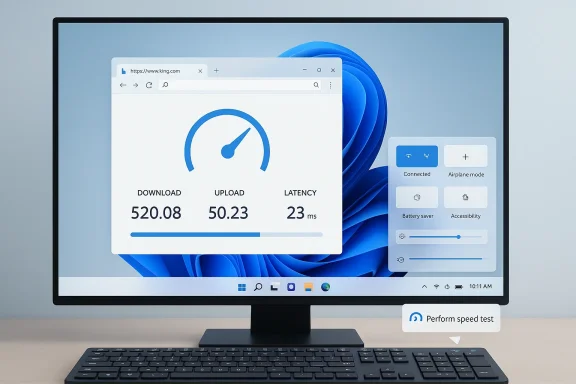
Microsoft is quietly putting a one‑click internet speed check where most Windows users already look for connectivity: the taskbar’s network menu. The change appears in the Release Preview builds of Windows 11 (KB5077241, builds 26100.7918 and 26200.7918) and surfaces a Perform speed test / Test internet speed control in the system tray and Wi‑Fi quick settings — a small UX convenience that opens a browser‑based speed test for Ethernet, Wi‑Fi, and cellular connections. ([blogs.windows.cows.com/windows-insider/2026/02/17/releasing-windows-11-builds-26100-7918-and-26200-7918-to-the-release-preview-channel/))
Background
Windows 11 continues to evolve through incremental Insider channel rollouts and scheduled non‑security updates. The March 2026 non‑security preview delivered under KB5077241 bundles a bevy of modest but practical features and reliability fixes: the taskbar speed‑test shortcut, native Sysmon support (disabled by default), camera pan/tilt controls in Settings, support for .webp wallpapers, a curated subset of Emoji 16, improved restore/backup behavior for Cloud PCs and enterprise scenarios, and a collection of display and resume‑from‑sleep reliability improvements for docked laptops. These items are rolling to Release Preview Insiders first, with a phased availability plan typical of Microsoft’s Controlled Feature Rollout approach. (blogs.windows.com)What Microsoft shipped in KB5077241 — at a glance
- Taskbar network speed test: New menu entries in the taskbar network icon and Wi‑Fi quick settings that launch a browser‑based speed test for Ethernet, Wi‑Fi, and Cellular connections. (blogs.windows.com)
- Built‑in Sysmon: Sysinternals Sysmon functionality is now an optional, built‑in Windows feature (disabled by default) and can be enabled via Settings or DISM. (blogs.windows.com)
- Camera pan & tilt controls: PTZ (pan/tilt/zoom) basic controls exposed in Settings > Bluetooth & devices > Cameras for supported webcams and cameras. (blogs.windows.com)
- .webp wallpaper support: You can set .webp images as desktop backgrounds from Settings or the File Explorer context menu. (blogs.windows.com)
- Emoji 16 (curated): A small, conservative set of Emoji 16 glyphs is available in the emoji panel. (blogs.windows.com)
- Backup/restore improvements: First sign‑in restore integrated into Windows Backup for Organizations for Microsoft Entra hybrid‑joined devices, Cloud PCs, and multi‑user environments. (blogs.windows.com)
- Reliability fix for docked laptops: Improved resume from sleep when a laptop is docked with the lid closed and AC power connects. (blogs.windows.com)
The taskbar speed test: what it is and how it behaves
What you’ll see and where
Interact with the network icon in the system tray (system tray context menu) or open the Wi‑Fi quick settings (the network flyout) and you should find a new Perform speed test or Test internet speed entry. Selecting it opens the test in your default browser and runs measurements for download, upload, and latency across the current connection type (Ethernet, Wi‑Fi, or Cellular). The UI element is small, intentionally simple, and aimed at rapid troubleshooting rather than continuous monitoring. (blogs.windows.com)It’s a browser‑launched test
Crucially, Microsoft’s implementation is a launcher: the taskbar control opens a web‑based speed test in your default browser rather than initiating a native, in‑OS measurement engine. Early evidence and Microsoft’s own release notes confirm the test opens in the default browser. Practically, that means the actual measurement is performed by the web widget/service the browser loads (in Microsoft’s Windows Insider discovery it points to Bing’s speed test widget). (blogs.windows.com)Why that matters
There’s nothing wrong with using a browser‑hosted tester — many endpoints and support teams already use Speedtest, Fast.com, or similar web tools — but the architecture raises several implications:- Accuracy and reproducibility can vary depending on browser choice, browser extensions, and local policy configuration.
- The test may rely on external providers or CDN endpoints (Ookla or other backends) whose selection, routing, and load can influence results.
- For enterprises, launching a browser to run a test introduces variables around managed browsers, third‑party filters, PAC files, or browser security policies that can skew results.
- The path of data during the test (what gets sent to the remote measurement service) and any telemetry collection associated with the test will be governed by the web service’s privacy and telemetry controls, not solely by local Windows telemetry settings.
The engineering tradeoffs: convenience vs. control
Microsoft’s decision to expose a web‑based speed test via a taskbar shortcut is an intentional tradeoff. Web UIs are easy to update, maintain, and evolve independently of OS servicing cadence. They allow Microsoft to avoid bundling and supporting a separate native measurement engine within Windows while still giving users a one‑click path to check their network.Benefits:
- Low development and maintenance cost for Microsoft — web service updates don’t require OS servicing.
- Immediate discoverability for non‑technical users: the taskbar is where users already look for connectivity status.
- Flexibility to adjust the underlying tester or provider without pushing a Windows update.
- Less deterministic results compared with a controlled, native measurement (CLI tools like iperf3 or native telemetry can be more reproducible).
- Privacy/telemetry surface: opening an external web endpoint introduces dependency on the remote provider’s data practices.
- Enterprise suitability: admins may prefer a native, auditable diagnostic that can be controlled via Group Policy or endpoint management and produce local logs rather than sending data to external servers.
Privacy and telemetry: what to watch for
The taskbar test opens a web endpoint to run the actual measurement, so you should think about:- What data leaves your machine? Typical speed tests exchange IP, client info, and measurement probes. If your browser is managed, telemetry could be influenced by extensions, captive portal handling, or enterprise proxies.
- Which provider hosts the test? Reporting indicates the shortcut surfaces Bing’s speed test widget (which has historically used third‑party backends). That means both Microsoft and the backend provider’s policies may apply.
- Is any Windows diagnostic telemetry associated with the action? Microsoft’s release notes don’t claim that the taskbar action itself creates additional OS telemetry for the speed test, but broader Windows diagnostic telemetry settings still govern what the OS collects. If you manage devices for an organization, validate your telemetry and privacy baseline before enabling any feature you don’t want devices to expose. (blogs.windows.com)
- Disable the quick‑settings or system tray entry via managed policies if/when Microsoft exposes a policy for it (the feature may be controlled by CFR and MDM settings over time).
- Block or allow the web endpoint(s) used by the test via proxy or firewall rules to prevent accidental external calls.
- Document expected behavior for support teams: if users report poor speeds, instruct technicians to run reproducible native tests (see section below).
Alternatives for power users and IT teams
For reproducible diagnostics, power users and IT professionals still rely on native or network‑aware tools:- iperf3 (client and server) — best for on‑LAN throughput tests and reproducible measurements.
- Speedtest CLI (Ookla) — scriptable, consistent when used against configured servers.
- mtr/traceroute and ping — for latency and route diagnostics.
- PowerShell cmdlets and Windows Performance Monitor — for longer‑term telemetry and baseline comparison.
Other headline features in KB5077241 and why they matter
Built‑in Sysmon (disabled by default)
Sysmon (System Monitor) has been a staple in incident response and threat hunting for years, historically distributed as a Sysinternals download. Making Sysmon an optional, built‑in feature reduces friction for defenders and standardizes access to high‑fidelity telemetry in the Windows Event Log. Because the feature is disabled by default and requires explicit enabling through Settings or DISM, organizations retain control over enablement and configuration. This change simplifies large‑scale rollouts and long‑term management for security teams, but administrators should treat it as another piece of telemetry to account for in logging pipelines and storage planning. (blogs.windows.com)Camera pan and tilt controls in Settings
Bringing basic PTZ controls into Settings reduces reliance on vendor utilities for everyday adjustments — helpful for teams deploying external conference room cameras or advanced webcams that expose PTZ APIs. Note that this is a basic control set; advanced camera features will still require vendor drivers/software for full functionality. (blogs.windows.com).webp as desktop background
Support for .webp wallpapers modernizes the personalization stack and saves disk space for high‑quality images. For administrators managing locked‑down desktops, consider whether desktop imagery policies need updating to allow .webp via provisioning scripts or MDM profiles. (blogs.windows.com)Emoji 16 (curated subset)
Unicode rollouts can be jarring at scale because fonts and renderers must be stabilized; Microsoft’s conservative, curated approach reduces risk. Expect a hand‑picked set of Emoji 16 glyphs rather than full Unicode 16 coverage. (blogs.windows.com)Backup and first‑sign‑in restore changes
Tighter integration of the first sign‑in restore into Windows Backup for Organizations simplifies device refresh scenarios, particularly for Microsoft Entra hybrid joined devices and Cloud PCs. For enterprise deployments, this can streamline provisioning workflows but also requires alignment with organizational backup policies and identity configurations. (blogs.windows.com)Reliability fixes with practical user value
Among the many small fixes shipped in KB5077241, a few stand out for real‑world impact:- Docked laptop resume: Laptops used with docking stations while the lid is closed may resume from sleep more reliably when AC power connects, without requiring the lid to be opened. This fix addresses a long‑standing pain point for users who keep laptops in docking stations as desktop replacements. (blogs.windows.com)
- Resume time improvements: Display performance improvements reduce resume‑from‑sleep time on heavily loaded systems. Those seconds-to-seconds improvements add up in large fleets and improve perceived stability. (blogs.windows.com)
Rollout expectations and compatibility
Microsoft is deploying KB5077241 to Release Preview Insiders first. As the Insider post explains, the update uses both gradual rollouts (features delivered in phases via Controlled Feature Rollout) and normal rollouts for broadly available changes. That means you may see the speed test and other features at different times depending on device hardware, region, and whether the device is enterprise‑managed. Expect a typical timeline: Release Preview → staged GA → broad availability via Windows Update and monthly servicing. (blogs.windows.com)Compatibility notes:
- Some features require hardware capabilities (e.g., camera PTZ support depends on camera APIs and driver support).
- Sysmon built‑in requires explicit enablement and may require uninstalling any pre‑existing Sysmon installs before enabling the built‑in variant. (blogs.windows.com)
Practical guidance: what to do now
For everyday users- Try the taskbar speed test if you need a quick check; remember results reflect the browser‑based service you launched.
- For reproducible troubleshooting, pair the one‑click test with a native test (e.g., Speedtest CLI or iperf3) and note the test conditions (time of day, wired vs. wireless, VPN or proxy).
- Evaluate whether the one‑click speed test should be allowed in your environment; if not, plan to block the web endpoint or disable the UI via forthcoming Group Policy/MDM controls.
- Review Sysmon enablement: plan configuration, log collection, and storage before enabling built‑in Sysmon at scale.
- Update device provisioning and wallpaper policies to account for .webp support if you adopt .webp assets.
- Communicate to end users that the new taskbar test is a quick diagnostic, not a replacement for documented troubleshooting procedures.
Critical analysis: strengths, risks, and unanswered questions
Strengths
- User‑centric convenience: Putting a speed test one click away in the taskbar matches how people think about connectivity and solves an everyday friction point.
- Practical platform improvements: Built‑in Sysmon and camera PTZ controls are tangible benefits for security and device management.
- Incremental quality work: The collection of reliability fixes improves user experience in places that matter (resume, printing, file explorer behaviors).
Risks and concerns
- Opacity of the measurement backend: Because the test opens a web widget, the exact backend and endpoints involved may change over time, leading to inconsistent results or shifting privacy boundaries. Microsoft’s release notes confirm the test opens in a browser but don’t document the backend provider(s) or any telemetry specifics. That leaves unanswered questions about data handling. (blogs.windows.com)
- Enterprise governance: Organizations that require tight control over outbound connections or external telemetry may object to a test that, by default, relies on external web services. Administrators should expect to need controls to manage or block the behavior.
- Perception vs. reality: Casual users might treat the one‑click test as definitive. Support teams must communicate the test’s limitations and recommend standardized tests for troubleshooting.
Unverifiable or evolving claims
- Microsoft’s CFR model means feature availability will vary; absolute availability dates or precise rollout percentages are not disclosed and can change. Any claims about when every user will see the feature should be treated as estimates until Microsoft marks the update as generally available. (blogs.windows.com)
Final verdict
KB5077241 is a pragmatic, utility‑oriented release: a handful of well‑selected user conveniences and several meaningful platform improvements that collectively raise Windows 11’s polish and manageability. The taskbar speed test is a tidy UX win for quick checks, but because it launches a browser‑based tester it’s not a substitute for reproducible diagnostics or enterprise‑grade network troubleshooting. Organizations and power users should plan how they want to govern and instrument the feature, and security teams will welcome the lowered barrier to enabling Sysmon — provided they map the operational and storage consequences first.For everyday users, the new speed test will be a welcome convenience. For IT, it’s a reminder that even small OS UI shortcuts can have nontrivial operational and privacy implications; treat them like any other managed capability: evaluate, document, and control.
Quick reference: where to read more and next steps
- The Windows Insider blog post detailing the builds and feature list provides the authoritative changelog and enablement steps for built‑in features like Sysmon and .webp wallpaper support. (blogs.windows.com)
- Independent coverage and hands‑on summaries from reputable Windows coverage sites have walked the change set and provided rollout context and practical observations about the speed test behavior.
Source: PC Gamer Microsoft is adding an internet speed test right into the Windows 11 taskbar, plus a bunch of other tweaks
