Windows 11 Taskbar Gets One Click Internet Speed Test in Release Preview

  • Thread Author
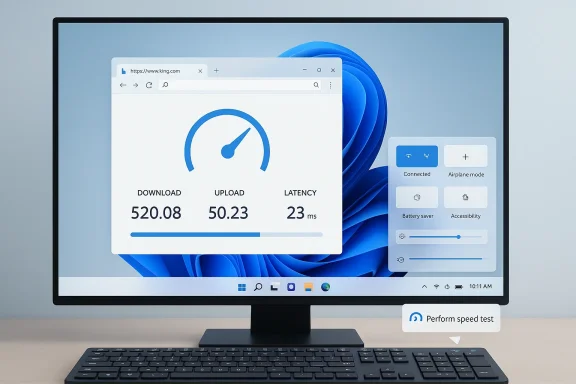
Desktop monitor shows a speed test result: 520.08 Mbps down, 50.23 Mbps up, 23 ms latency.
Microsoft is quietly putting a one‑click internet speed check where most Windows users already look for connectivity: the taskbar’s network menu. The change appears in the Release Preview builds of Windows 11 (KB5077241, builds 26100.7918 and 26200.7918) and surfaces a Perform speed test / Test internet speed control in the system tray and Wi‑Fi quick settings — a small UX convenience that opens a browser‑based speed test for Ethernet, Wi‑Fi, and cellular connections. ([blogs.windows.cows.com/windows-insider/2026/02/17/releasing-windows-11-builds-26100-7918-and-26200-7918-to-the-release-preview-channel/))

Background​

Windows 11 continues to evolve through incremental Insider channel rollouts and scheduled non‑security updates. The March 2026 non‑security preview delivered under KB5077241 bundles a bevy of modest but practical features and reliability fixes: the taskbar speed‑test shortcut, native Sysmon support (disabled by default), camera pan/tilt controls in Settings, support for .webp wallpapers, a curated subset of Emoji 16, improved restore/backup behavior for Cloud PCs and enterprise scenarios, and a collection of display and resume‑from‑sleep reliability improvements for docked laptops. These items are rolling to Release Preview Insiders first, with a phased availability plan typical of Microsoft’s Controlled Feature Rollout approach. (blogs.windows.com)

What Microsoft shipped in KB5077241 — at a glance​

  • Taskbar network speed test: New menu entries in the taskbar network icon and Wi‑Fi quick settings that launch a browser‑based speed test for Ethernet, Wi‑Fi, and Cellular connections. (blogs.windows.com)
  • Built‑in Sysmon: Sysinternals Sysmon functionality is now an optional, built‑in Windows feature (disabled by default) and can be enabled via Settings or DISM. (blogs.windows.com)
  • Camera pan & tilt controls: PTZ (pan/tilt/zoom) basic controls exposed in Settings > Bluetooth & devices > Cameras for supported webcams and cameras. (blogs.windows.com)
  • .webp wallpaper support: You can set .webp images as desktop backgrounds from Settings or the File Explorer context menu. (blogs.windows.com)
  • Emoji 16 (curated): A small, conservative set of Emoji 16 glyphs is available in the emoji panel. (blogs.windows.com)
  • Backup/restore improvements: First sign‑in restore integrated into Windows Backup for Organizations for Microsoft Entra hybrid‑joined devices, Cloud PCs, and multi‑user environments. (blogs.windows.com)
  • Reliability fix for docked laptops: Improved resume from sleep when a laptop is docked with the lid closed and AC power connects. (blogs.windows.com)
Independent reporting on the update has summarized the same highlights and added context on rollout timing and practical implications for home and enterprise users.

The taskbar speed test: what it is and how it behaves​

What you’ll see and where​

Interact with the network icon in the system tray (system tray context menu) or open the Wi‑Fi quick settings (the network flyout) and you should find a new Perform speed test or Test internet speed entry. Selecting it opens the test in your default browser and runs measurements for download, upload, and latency across the current connection type (Ethernet, Wi‑Fi, or Cellular). The UI element is small, intentionally simple, and aimed at rapid troubleshooting rather than continuous monitoring. (blogs.windows.com)

It’s a browser‑launched test​

Crucially, Microsoft’s implementation is a launcher: the taskbar control opens a web‑based speed test in your default browser rather than initiating a native, in‑OS measurement engine. Early evidence and Microsoft’s own release notes confirm the test opens in the default browser. Practically, that means the actual measurement is performed by the web widget/service the browser loads (in Microsoft’s Windows Insider discovery it points to Bing’s speed test widget). (blogs.windows.com)

Why that matters​

There’s nothing wrong with using a browser‑hosted tester — many endpoints and support teams already use Speedtest, Fast.com, or similar web tools — but the architecture raises several implications:
  • Accuracy and reproducibility can vary depending on browser choice, browser extensions, and local policy configuration.
  • The test may rely on external providers or CDN endpoints (Ookla or other backends) whose selection, routing, and load can influence results.
  • For enterprises, launching a browser to run a test introduces variables around managed browsers, third‑party filters, PAC files, or browser security policies that can skew results.
  • The path of data during the test (what gets sent to the remote measurement service) and any telemetry collection associated with the test will be governed by the web service’s privacy and telemetry controls, not solely by local Windows telemetry settings.

The engineering tradeoffs: convenience vs. control​

Microsoft’s decision to expose a web‑based speed test via a taskbar shortcut is an intentional tradeoff. Web UIs are easy to update, maintain, and evolve independently of OS servicing cadence. They allow Microsoft to avoid bundling and supporting a separate native measurement engine within Windows while still giving users a one‑click path to check their network.
Benefits:
  • Low development and maintenance cost for Microsoft — web service updates don’t require OS servicing.
  • Immediate discoverability for non‑technical users: the taskbar is where users already look for connectivity status.
  • Flexibility to adjust the underlying tester or provider without pushing a Windows update.
Drawbacks:
  • Less deterministic results compared with a controlled, native measurement (CLI tools like iperf3 or native telemetry can be more reproducible).
  • Privacy/telemetry surface: opening an external web endpoint introduces dependency on the remote provider’s data practices.
  • Enterprise suitability: admins may prefer a native, auditable diagnostic that can be controlled via Group Policy or endpoint management and produce local logs rather than sending data to external servers.
These tradeoffs are not new — many OS vendors ship convenience shortcuts that rely on web services — but putting the shortcut in the taskbar increases usage and therefore the importance of clear admin controls and transparency.

Privacy and telemetry: what to watch for​

The taskbar test opens a web endpoint to run the actual measurement, so you should think about:
  • What data leaves your machine? Typical speed tests exchange IP, client info, and measurement probes. If your browser is managed, telemetry could be influenced by extensions, captive portal handling, or enterprise proxies.
  • Which provider hosts the test? Reporting indicates the shortcut surfaces Bing’s speed test widget (which has historically used third‑party backends). That means both Microsoft and the backend provider’s policies may apply.
  • Is any Windows diagnostic telemetry associated with the action? Microsoft’s release notes don’t claim that the taskbar action itself creates additional OS telemetry for the speed test, but broader Windows diagnostic telemetry settings still govern what the OS collects. If you manage devices for an organization, validate your telemetry and privacy baseline before enabling any feature you don’t want devices to expose. (blogs.windows.com)
If you are an IT admin and want stricter control, consider these mitigations:
  • Disable the quick‑settings or system tray entry via managed policies if/when Microsoft exposes a policy for it (the feature may be controlled by CFR and MDM settings over time).
  • Block or allow the web endpoint(s) used by the test via proxy or firewall rules to prevent accidental external calls.
  • Document expected behavior for support teams: if users report poor speeds, instruct technicians to run reproducible native tests (see section below).

Alternatives for power users and IT teams​

For reproducible diagnostics, power users and IT professionals still rely on native or network‑aware tools:
  • iperf3 (client and server) — best for on‑LAN throughput tests and reproducible measurements.
  • Speedtest CLI (Ookla) — scriptable, consistent when used against configured servers.
  • mtr/traceroute and ping — for latency and route diagnostics.
  • PowerShell cmdlets and Windows Performance Monitor — for longer‑term telemetry and baseline comparison.
For everyday users who like the one‑click convenience but want less external exposure, a bookmarked, privacy‑conscious tester or an internal, company‑hosted speed test page can provide the balance between convenience and control.

Other headline features in KB5077241 and why they matter​

Built‑in Sysmon (disabled by default)​

Sysmon (System Monitor) has been a staple in incident response and threat hunting for years, historically distributed as a Sysinternals download. Making Sysmon an optional, built‑in feature reduces friction for defenders and standardizes access to high‑fidelity telemetry in the Windows Event Log. Because the feature is disabled by default and requires explicit enabling through Settings or DISM, organizations retain control over enablement and configuration. This change simplifies large‑scale rollouts and long‑term management for security teams, but administrators should treat it as another piece of telemetry to account for in logging pipelines and storage planning. (blogs.windows.com)

Camera pan and tilt controls in Settings​

Bringing basic PTZ controls into Settings reduces reliance on vendor utilities for everyday adjustments — helpful for teams deploying external conference room cameras or advanced webcams that expose PTZ APIs. Note that this is a basic control set; advanced camera features will still require vendor drivers/software for full functionality. (blogs.windows.com)

.webp as desktop background​

Support for .webp wallpapers modernizes the personalization stack and saves disk space for high‑quality images. For administrators managing locked‑down desktops, consider whether desktop imagery policies need updating to allow .webp via provisioning scripts or MDM profiles. (blogs.windows.com)

Emoji 16 (curated subset)​

Unicode rollouts can be jarring at scale because fonts and renderers must be stabilized; Microsoft’s conservative, curated approach reduces risk. Expect a hand‑picked set of Emoji 16 glyphs rather than full Unicode 16 coverage. (blogs.windows.com)

Backup and first‑sign‑in restore changes​

Tighter integration of the first sign‑in restore into Windows Backup for Organizations simplifies device refresh scenarios, particularly for Microsoft Entra hybrid joined devices and Cloud PCs. For enterprise deployments, this can streamline provisioning workflows but also requires alignment with organizational backup policies and identity configurations. (blogs.windows.com)

Reliability fixes with practical user value​

Among the many small fixes shipped in KB5077241, a few stand out for real‑world impact:
  • Docked laptop resume: Laptops used with docking stations while the lid is closed may resume from sleep more reliably when AC power connects, without requiring the lid to be opened. This fix addresses a long‑standing pain point for users who keep laptops in docking stations as desktop replacements. (blogs.windows.com)
  • Resume time improvements: Display performance improvements reduce resume‑from‑sleep time on heavily loaded systems. Those seconds-to-seconds improvements add up in large fleets and improve perceived stability. (blogs.windows.com)
These changes aren’t headline‑grabbing, but they improve day‑to‑day usability — the kind of small wins that IT teams and frequent users notice quickly.

Rollout expectations and compatibility​

Microsoft is deploying KB5077241 to Release Preview Insiders first. As the Insider post explains, the update uses both gradual rollouts (features delivered in phases via Controlled Feature Rollout) and normal rollouts for broadly available changes. That means you may see the speed test and other features at different times depending on device hardware, region, and whether the device is enterprise‑managed. Expect a typical timeline: Release Preview → staged GA → broad availability via Windows Update and monthly servicing. (blogs.windows.com)
Compatibility notes:
  • Some features require hardware capabilities (e.g., camera PTZ support depends on camera APIs and driver support).
  • Sysmon built‑in requires explicit enablement and may require uninstalling any pre‑existing Sysmon installs before enabling the built‑in variant. (blogs.windows.com)

Practical guidance: what to do now​

For everyday users
  • Try the taskbar speed test if you need a quick check; remember results reflect the browser‑based service you launched.
  • For reproducible troubleshooting, pair the one‑click test with a native test (e.g., Speedtest CLI or iperf3) and note the test conditions (time of day, wired vs. wireless, VPN or proxy).
For IT admins and security teams
  • Evaluate whether the one‑click speed test should be allowed in your environment; if not, plan to block the web endpoint or disable the UI via forthcoming Group Policy/MDM controls.
  • Review Sysmon enablement: plan configuration, log collection, and storage before enabling built‑in Sysmon at scale.
  • Update device provisioning and wallpaper policies to account for .webp support if you adopt .webp assets.
  • Communicate to end users that the new taskbar test is a quick diagnostic, not a replacement for documented troubleshooting procedures.

Critical analysis: strengths, risks, and unanswered questions​

Strengths​

  • User‑centric convenience: Putting a speed test one click away in the taskbar matches how people think about connectivity and solves an everyday friction point.
  • Practical platform improvements: Built‑in Sysmon and camera PTZ controls are tangible benefits for security and device management.
  • Incremental quality work: The collection of reliability fixes improves user experience in places that matter (resume, printing, file explorer behaviors).

Risks and concerns​

  • Opacity of the measurement backend: Because the test opens a web widget, the exact backend and endpoints involved may change over time, leading to inconsistent results or shifting privacy boundaries. Microsoft’s release notes confirm the test opens in a browser but don’t document the backend provider(s) or any telemetry specifics. That leaves unanswered questions about data handling. (blogs.windows.com)
  • Enterprise governance: Organizations that require tight control over outbound connections or external telemetry may object to a test that, by default, relies on external web services. Administrators should expect to need controls to manage or block the behavior.
  • Perception vs. reality: Casual users might treat the one‑click test as definitive. Support teams must communicate the test’s limitations and recommend standardized tests for troubleshooting.

Unverifiable or evolving claims​

  • Microsoft’s CFR model means feature availability will vary; absolute availability dates or precise rollout percentages are not disclosed and can change. Any claims about when every user will see the feature should be treated as estimates until Microsoft marks the update as generally available. (blogs.windows.com)

Final verdict​

KB5077241 is a pragmatic, utility‑oriented release: a handful of well‑selected user conveniences and several meaningful platform improvements that collectively raise Windows 11’s polish and manageability. The taskbar speed test is a tidy UX win for quick checks, but because it launches a browser‑based tester it’s not a substitute for reproducible diagnostics or enterprise‑grade network troubleshooting. Organizations and power users should plan how they want to govern and instrument the feature, and security teams will welcome the lowered barrier to enabling Sysmon — provided they map the operational and storage consequences first.
For everyday users, the new speed test will be a welcome convenience. For IT, it’s a reminder that even small OS UI shortcuts can have nontrivial operational and privacy implications; treat them like any other managed capability: evaluate, document, and control.

Quick reference: where to read more and next steps​

  • The Windows Insider blog post detailing the builds and feature list provides the authoritative changelog and enablement steps for built‑in features like Sysmon and .webp wallpaper support. (blogs.windows.com)
  • Independent coverage and hands‑on summaries from reputable Windows coverage sites have walked the change set and provided rollout context and practical observations about the speed test behavior.
If you’re responsible for a fleet of Windows devices, add KB5077241 to your test matrix, update internal troubleshooting playbooks to reflect the browser‑based speed test’s role, and plan how you’ll manage built‑in Sysmon and any telemetry it produces. For everyone else: enjoy one fewer bookmark to memorize — but keep your favorite reproducible tools handy when you need precise numbers.

Source: PC Gamer Microsoft is adding an internet speed test right into the Windows 11 taskbar, plus a bunch of other tweaks
 

Microsoft has quietly added a one‑click internet speed test to Windows 11’s taskbar for select Insiders — but it’s important to understand exactly what Microsoft shipped, why it matters, and where this small convenience could create outsized security, telemetry, and accuracy trade‑offs.

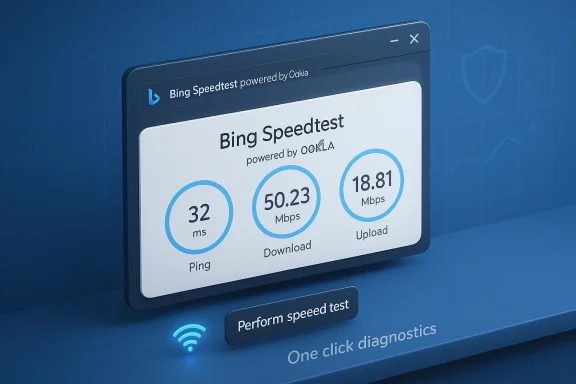
Bing Speedtest UI shows ping 32 ms, download 50.23 Mbps, and upload 18.81 Mbps.Background / Overview​

Microsoft’s latest Release Preview / Insider servicing wave (packaged as part of recent cumulative updates) surfaces a new Perform speed test (or Test internet speed) control in the network area of the taskbar. The affordance appears both when you right‑click the network icon in the system tray and inside the Wi‑Fi / Cellular quick settings flyout. Activating the control launches the default browser and opens a Bing‑hosnce powered by Ookla’s Speedtest engine, measuring latency (ping), download, and upload throughput on the active connection.
The feature is currently visible to a limited cohort of Windows Insiders running thelineage of the Windows 11 servicing channel and is reported inside builds tied to KB5077241 (notably build numbers that map to the 24H2 and 25H2 servicing branches). Microsoft’s rollout is staged and server‑gated, meaning presence in elease notes does not guarantee immediate visibility to every Insider on those builds.

What exactly is in the UI — and how to use it​

  • The control is surfaced where users already look for connectivity status: the network icon in the taskbar’s system tray and the Wi‑Fi / Cellular quick settings panel.
  • Interaction model:
  • Right‑click the network icon (or open the Wi‑Fi quick settings).
  • Select Perform speed test or Test internet speed from the menu.
  • Windows opens your default browser and loads Bing’s speed test interface (which is powered by Ookla).
  • Measured metrics: ping (latency), download speed, and upload speed — the same primary numbers users expect from existing web‑based speed testers.
This is a lightweight launcher, not a new measurement engine baked into the networking stack. The test runs entirelses the Bing/Ookla pathway rather than any local OS‑level throughput tool. That design choice is intentional: it gives Microsoft a low‑risk way to add functionality without shipping a new native subsystem and allows the web component to be updated independently of OS servicing.

Verification: builds, KB, and rollout status​

Reliable community reporting and Microsoft’s release notes for the recent preview servicing wave consistently name the feature and tie it to the Release Preview updates that include KB5077241 and builds in the 26100.xxxx / 26200.xxxx families. Community threads maintained by Insider watchers and multiple independent outlets confirm the same behavior: the taskbar entry opens a Bing speed test rather than performing an in‑OS measurement.
Two independent tech outlets walked through the UI and reached the same conclusion: the shortcut is convenient but functionally a link to Bing’s web speed tester (which itself uses Ookla). That convergence across independent observers is important: the feature is not a rumor, it’s a verified change in staged Insider flights.

Why Microsoft chose a browser‑backed launcher (the rationale)​

There are clear engineering and product reasons to prefer a browser‑hosted implementation for a small diagnostic flow:
  • Low engineering cost and fast iteration: the web experience can be updated independently of Windows servicing schedules.
  • Consistent user experience across browsers and devices: Bing’s widget is available to any default browser on the PC.
  • Partnership leverage: Microsoft’s Bing surface already includes a Speedtest partnership with Ookla, so surfacing that experience reduces duplication.
From a product‑management perspective, surfacing frequent tasks where users already look (the taskbar and quick settings) improves discoverability and reduces support friction for helpdesks and everyday users setting up networks or troubleshooting latency. But the architectural decision carries consequences that warrant scrutiny.

Benefits: what users and IT teams gain​

  • Frictionless access: A one‑click path to an internet speed check can save time for users who otherwise must remember a URL, open a browser, and navigate to a third‑party page. The placement in the network menu makes the check discoverable.
  • Helpdesk efficiency: Basic connectivity triage steps (is the connection slow or is it my machine?) become quicker. Helpdesk agents can ask users to run the taskbar test and report the metrics without walking them through a long sequence of steps.
  • Cross‑connection support: The test runs over any active interface — Wi‑Fi, Ethernet, or mobile data — because it uses the active route in the browser. That’s useful for mobile‑connected PCs or tethered setups.
  • Maintenance‑free for Microsoft: Because the test is web‑hosted, Microsoft can iterate the UX and backend independently of Windows cumulative updates.

Risks, limitations, and practical concerns​

It’s not a native diagnostic — accuracy and consistency implications​

Because the measurement runs in the browser, it inherits browser and system constraints. Browser‑based speed tests can under‑report throughput relative to dedicated native clients because of CPU scwork stack behavior, or hardware acceleration differences. Multiple hands‑on reports and community observations show variable results between browser tests and native apps, sometimes materially so on high‑speed links. This matters for power users, sysadmins, and benchmarking use cases where repeatability and precision matter.
  • Real‑world implication: users testing gigabit links or diagnosing subtle ISP issues may see inconsistent results versus vendor‑supplied apps or command‑line iperf3 tests.
  • Actionable note: treat the taskbar testck rather than a formal benchmark.

Privacy, telemetry, and data‑flow concerns​

The launch funnels a locally triggered diagnostic to a web service owned and operated outside local IT control (Bing/Ookla). That flow raises several questions:
  • What telemetry does Microsoft add when it launches the browser for the test?
  • Does the request include device or OS identifiers (beyond what the browser sends) that could be stitched into diagnostics?
  • How will enterprise policies control or audit this flow?
Insider threads and reporting flag these concerns; however, specific telemetry details for the taskbar launcher are not published in the build notes and are not yet publicly documented. That makes this an area where enterprise administrators should ask for clarity or rely on telemetry auditing tools until Microsoft publishes more detail.

Enterprise control and manageability (an open question)​

Insider documentation for this particular feature does not yet describe Group Policy or MDM controls to block or audit the test. Microsoft often provides enterprise controls for visible features, but as of the current preview the state of policy control for the taskbar speed test is not clearly documented in the release notes. Administrators concerned about uncontrolled outbound connections or external measurement invocation should treat the feature as potentially server‑gated and ask their Microsoft support channels for guidance. This is a verifiable gap — admins should not assume enterprise controls are present.

The “built‑in” label is partly semantic​

Calling the feature “built‑in” may mislead some users into expecting an OS‑level diagnostic engine. In reality, Microsoft implemented a lightweight launcher that opens a web test. That’s a deliberate design decision — and a reasonable one — but the semantics matter when people equate “built‑in” with “runs locally and under enterprise control.” The current implementation does not meet that expectation.

Potential UX and trust issues​

  • Redirecting to Bing’s widget could be perceived as promotional placement by Microsoft, regardless of product rationale.
  • Users on locked‑down enterprise machines may open the taskbar test and find it blocked by security posture, resulting in a confusing false‑negative UX.
  • The user’s default browser controls how the experience appears and performs; this can create fragmentation in support instructions.

Accuracy: browser test vs native app — what reports show​

Hands‑on tests and community reports show that browser‑hosted speed tests can produce lower or more variable numbers than a native Speedtest app. There are multiple explanations:
  • Browser networking layers and sandboxing can limit throughput compared with a native client.
  • CPU bottlenecks and lack of hardware‑accelerated networking paths in the browser can create artifacts on high‑speed links.
  • Different server selectionethodologies can affect peak throughput numbers.
Observed differences mean Windows’ taskbar launcher is useful for quick checks (e.g., “is my link generally healthy?”), but it’s not a replacement for rigorous testing with native clients or controlled iperf3 runs when you need repeatable diagnostics. Reports comparing browser vs app results reinforce this caution.

Security surface and third‑party dependencies​

Microsoft’s launcher relies on external measurement infrastructure (Ookla) via its Bing integration. Third‑party dependencies create two practical security considerations:
  • Supply‑chain and integrity: if the external web resource is compromised or reskinned, users invoking the test are routed outside the OS’s curated update system.
  • Browser extensions and security: previously, the Speedtest browser extension ecosystem has had incidents and removals from extension stores, underlining that third‑party browser components can be a weak link. The browser becomes the attack surface for the measurement, not the OS.
Given these realities, organizations that require strict egress control or in‑OS diagnostics should request native measurement tools or a vetted, enterprise‑controlled alternative.

What Microsoft could (and shrent implementation is reasonable as a quick sanity check, but there are clear ways Microsoft could strengthen the feature for broader trust and enterprise suitability:​

  • Provide explicit Group Policy / MDM controls to disable or route the test through a corporate proxy or internal measurement endpoint. (Currently undocumented — admins should press for a policy.)
  • Publish a short technical note explaining telemetry and what gets sent when users invoke the speed test.
  • Offer an optional native measurement mode for power users and admins that uses in‑OS measurement logic (or an opt‑in “Enterprise Speedtest” that uses internal servers and controlled endpoints).
  • Expose the test as an API or PowerShell command for automation and scripting in helpdesk workflows.
  • Make the launcher configurable to use an enterprise‑supplied measurement endpoint for organizations that want internal control.
Those changes would close the gap between convenience and manageability, and they would remove ambiguity about what “built‑in” means in an e--

Practical guidance for end users and administrators​

For everyday Windows users​

  • Use the taskbar test as a fast sanity check: it’s convenient for determining whether your connection is functioning generally.
  • For benchmarking or high‑bandwidth troubleshooting, use a dedicated native client or commands like iperf3 that measure under controlled conditions.

For IT administrators​

  • Treat the taskbar test as a web call that your endpoint management and proxy infrastructure should monitor.
  • If you require control, confirm whether Group Policy or MDM options are available before permitting the feature in managed fleets. If not, contact Microsoft support for guidance and escalate via your usual enterprise channels.
  • Audit telemetry from test invocations if possible; log the browser launches and any outbound destinations tied to the test to ensure compliance with corporate egress policies.

Quick checklist: Whenpeed test​

  • Quick sanity check during home setup or when connecting to a new Wi‑Fi hotspot.
  • First step in a troubleshooting script before escalating to deeper network analysis.
  • For non‑technical users who need a low‑friction way to produce numbers for a helpdesk.

The broader product strategy this change illustrates​

Microsoft continues to migrate lightweight diagnostics and utility flows to web‑backed, easily updated experiences surfaced by the OS. The taskbar speed test is consistent with a pattern: avoid heavyweight OS changes for small utilities and instead surface web experiences in discoverable places. That approach reduces OS surface area and lets Microsoft iterate quickly, but it creates a tension between instantaneous convenience and the expectations of native control and enterprise governance.
This approach has trade‑offs across other recent Windows changes (e.g., Copilot integrations and web‑hosted configuration flows) and signals deliberate platform direction: keep the OS lean while offering user‑facing features via cloud and web partners.

Critical analysis: strengths versus risks​

Strengths​

  • High discoverability: A visible taskbar entry lowers friction for everyday connectivity checks.
  • Low maintenance: Web hosting lets Microsoft and partner services update the measurement experience faster than an OS release cadence.
  • Partnership efficiency: Leveraging Ookla through Bing avoids reinventing a reliable speed‑test backend and consolidates testing under a known brand.

Risks​

  • Perception mismatch: Marketing the feature as “built‑in” risks misleading admins and power users who expect in‑OS, policy‑governed diagnostics.
  • Telemetry opacity: The lack of explicit telemetry documentation for the launcher is a governance gap that needs to be closed for enterprise adoption.
  • Accuracy limitations: Browser‑based measurements can differ from native apps on high throughput links, which undermines the test’s usefulness as a standalone benchmark.
  • Third‑party dependency: Relying on a third‑party web experience increases the attack and supply‑chain surface, which matters for security‑sensitive environments.

Where this feature fits in your troubleshooting playbook​

  • Stage 1: Use the taskbar speed test for immediate confirmation of whether an internet route is functional.
  • Stage 2: If results are poor or inconsistent, run a browser‑based Speedtest (explicitly) and a native Speedtest app for comparison.
  • Stage 3: If discrepancies persist, use controlled tests with iperf3 to isolate LAN vs WAN throughput and consult modem/router logs.
  • Stage 4 (enterprise): If you require repeatable, auditable tests, deploy an internal measurement appliance or an enterprise‑approved tool chain and document the difference in methodology for support teams.

Final takeaways​

Microsoft’s taskbar speed‑test launcher is a clear win for usability and a logical stopgap that brings a common diagnostic exactly where users expect to look for connectivity hints. The implementation — a browser‑backed experience hosted on Bing and powered by Ookla — reduces engineering lift and leverages existing partnerships. That makes it fast to ship and easy to iterate.
However, the feature’s current design produces important trade‑offs: it is not a native measurement engine, it introduces third‑party and browser variability into a diagnostic that some users may treat as authoritative, and enterprise controls and telemetry details are not yet clearly documented. Those gaps should be closed before organizations adopt the taskbar test as an official diagnostic step in managed environments.
If you’re a consumer, use the feature as a quick check. If you’re an IT pro, treat it as a convenience that requires validation in your environment and, where necessary, insist on documented policies or a native alternative before relying on it for formal troubleshooting or compliance reporting.

Microsoft’s small addition to the taskbar illustrates a broader platform choice: convenience via web‑backed services at the OS surface, traded off against the expectations of precision, control, and privacy that administrators and power users demand. Watch for further documentation, Group Policy guidance, and any optional native mode before accepting the taskbar speed test as more than a handy one‑click check.

Source: extremetech.com Microsoft Releases Built-In Internet Speed Test to Select Windows Insiders
 

Microsoft has quietly added a built‑in internet speed test to Windows 11’s taskbar, turning a once-manual diagnosis step into a one‑click check for anyone running the latest Release Preview builds (KB5077241) in the Windows Insider program.

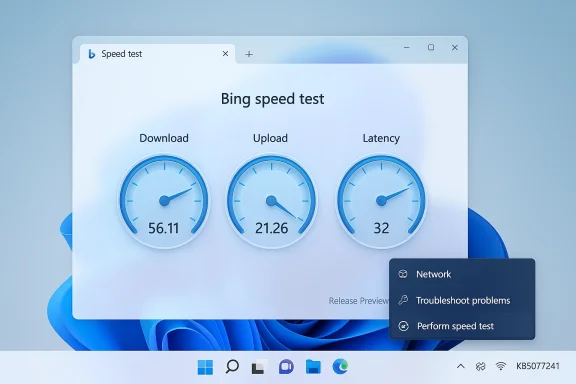
Bing speed test dashboard displaying download, upload, and latency gauges on Windows.Background / Overview​

Microsoft included the feature in Release Preview builds identified as Build 26100.7918 and Build 26200.7918, delivered as part of the KB5077241 preview servicing wave. The change surfaces a new entry in the network controls: when you right‑click the network icon in the system tray (or use the Wi‑Fi/Cellular Quick Settings), a Perform speed test / Test internet speed control appears. Selecting it launches the system’s default browser and opens a web‑hosted speed‑test widget (the Bing speed test, which in turn leverages a widely used measurement backend) to measure download, upload, and latency for the connection in use: Ethernet, Wi‑Fi, or cellular.
This capability is rolling out as a controlled feature rollout via the Release Preview channel and the Windows Insider program, so not every test device receives it simultaneously. Microsoft packaged the taskbar launcher alongside several other changes in KB5077241, including a Quick Machine Recovery improvement, additional pan and tilt controls for compatible cameras, updated emoji support, and enhanced backup/restore behavior for sign‑in and cloud/enterprise environments.
What Microsoft shipped here is a UX convenience: a highly discoverable launcher that points to a browser‑based speed test. It is not a native, kernel‑level network measurement engine embedded within the OS networking stack. That design choice has important implications for accuracy, privacy, logging, and enterprise management — all of which we unpack below.

What the new speed test does — and does not — do​

What you get with one click​

  • A simple right‑click or Quick Settings tap exposes Perform speed test.
  • The action opens your default browser and loads a Bing‑hosted speed‑test widget.
  • The widget reports the usual trio: download throughput, upload throughput, and latency (ping).
  • The test can be performed on Ethernet, Wi‑Fi, and cellular interfaces (the widget detects the connection in use).

What it is not​

  • It is not an always‑on monitor or a background telemetry agent that continuously samples throughput.
  • It does not run a proprietary Windows measurement engine directly inside the OS; the measurement runs inside a browser context and is subject to browser constraints.
  • It does not provide built‑in, exportable logs for automated diagnostics (unlike dedicated CLI tools or enterprise measurement suites).

Why Microsoft chose a browser‑launched approach​

Microsoft’s team appears to have favoured a pragmatic route: deliver a discoverable UX affordance that brings users one click closer to a trustworthy speed test, rather than investing engineering time to build and maintain an in‑OS measurement system. That approach offers several advantages:
  • Rapid deployment and updates: the measurement UI and backend can be changed or improved without shipping an OS update.
  • Familiar interface: most users already know what a web speed test looks like, and that familiarity reduces support friction.
  • Low engineering surface: a small amount of code delivered in a servicing update creates a high‑impact user convenience.
At the same time, that architecture creates trade‑offs around measurement fidelity, repeatability, and enterprise control — topics that matter to IT pros and technically curious users.

Technical and practical limitations — what to watch for​

The browser‑based design means the speed test result is affected by many variables beyond raw ISP performance. Consider these factors:
  • Browser overhead and background processes can influence measured throughput and latency.
  • Browser extensions, content blockers, or privacy tools can interfere with the test.
  • VPNs, proxy servers, captive portals, or corporate traffic filters will change or block the test’s behavior.
  • Wireless conditions — signal strength, channel congestion, and router quality — can dramatically alter results compared with a wired test.
  • The test relies on the web widget’s backend server selection; the chosen test server’s load and location affect results.
  • Lack of native logging: there’s no built‑in exportable report the OS keeps for repeated diagnostics or helpdesk records.
These are not showstoppers, but they matter for how the feature should be used: it’s ideal for quick sanity checks and first‑contact troubleshooting, but insufficient as the final word for advanced diagnostics.

Who benefits — and who should be cautious​

Winners​

  • Non‑technical users who need a fast way to check whether “the internet is slow” and want immediate numbers.
  • Helpdesk agents doing remote troubleshooting who need callers to run a quick check and report numbers.
  • New PC setups and casual users who want occasional validation that their ISP is delivering expected throughput.

Use with care​

  • IT administrators in controlled environments where browser access to external services is restricted or logged; the speed test may fail or provide misleading results.
  • Network engineers and power users who need precise, repeatable measurements, multi‑server tests, and logs; they should stick to CLI tools and lab instruments.
  • Privacy‑conscious users who do not want to open external web services via their default browser without awareness of telemetry/third‑party involvement.

How to use the taskbar speed test — step‑by‑step​

  • Right‑click the network icon in the taskbar system tray (or click the network indicator to open Quick Settings).
  • Select Perform speed test or Test internet speed if that option appears.
  • Your default browser will open and load the Bing speed‑test widget; wait for the widget to select a test server.
  • Click the test button if the widget does not start automatically; observe download, upload, and latency.
  • Repeat the test at different times or with different profiles (wired vs. wireless, VPN vs. no VPN) to build a picture of performance.
Tips:
  • For the most accurate result, run the test with other devices and heavy traffic on your network turned off.
  • Prefer wired Ethernet for the most deterministic measurement when comparing to ISP‑promised speeds.
  • If you suspect Wi‑Fi issues, run tests in multiple rooms to observe signal degradation and interference.

Interpreting results and practical troubleshooting steps​

A single speed result is a snapshot. Use multiple tests and the following checklist to diagnose slow connections effectively:
  • Compare wired vs. wireless: If wired speed is good but Wi‑Fi is poor, look at router placement, interference, or outdated AP hardware.
  • Test at different times: ISP congestion often shows up during peak hours.
  • Observe latency and jitter: High ping or variable ping indicates contention or upstream congestion; packet loss suggests lower‑level link problems.
  • Check multiple endpoints: Test to another local device with iperf3 to separate ISP issues from internal network problems.
  • Rule out the device: Run the test on another device to see whether only one client is slow.
  • Examine router/modem logs: Reboots, errors, or firmware updates may explain performance drops.
  • Consider DNS: Slow name resolution can mimic slow browsing even when throughput is adequate.
Advanced steps:
  • Run Speedtest CLI or iperf3 to controlled servers for reproducible measurements.
  • Use traceroute and mtr to identify congestion points between your device and external servers.
  • Temporarily disable VPNs, proxies, or content filters that might be throttling or rerouting traffic.

Alternatives for repeatable and enterprise‑grade measurements​

For IT professionals who need verifiable, repeatable results and logs, browser tests aren’t enough. Consider these tools:
  • Speedtest CLI (by the same backend used by many web widgets): scriptable and can produce CSV or JSON logged outputs.
  • iperf3: point‑to‑point throughput testing inside your LAN or to a controlled public iperf server.
  • MTR/traceroute: continuous route tracing to locate packet loss/congestion.
  • Network performance monitors (NPM) and synthetic transaction tools (commercial solutions) for long‑term telemetry and alerting.
These tools provide the exportable logs and controlled‑server comparisons that enterprises require for SLAs and carrier escalations.

Privacy and telemetry — what happens when you run the test?​

Because the taskbar control opens a web widget, the network test is subject to the web service’s privacy and telemetry policies. Running the taskbar launcher will:
  • Launch the default browser and perform an HTTP(S) connection to the web test.
  • Potentially share client IP, device headers, and connection metrics with the test provider.
  • Generate cookies or site data in the browser unless run in a private window.
If privacy or corporate policy prevents connections to public testing endpoints, administrators can block access at the network layer or advise users to run internal tools. For high‑security environments, consider documenting an approved internal test method and training helpdesk personnel.

Enterprise considerations and admin guidance​

The feature’s controlled rollout and browser‑based nature mean enterprise admins need to decide whether to embrace or restrict it:
  • Controlled rollout: availability may be gated server‑side; not all machines will see the control immediately even after installing the KB.
  • Group Policy & MDM: admins should evaluate whether to permit the underlying web endpoint or to block it through web filtering.
  • Documentation: update internal troubleshooting runbooks and helpdesk scripts to reflect the new quick test and its limitations.
  • Telemetry: review group policies and privacy settings if you’re uncomfortable with external web‑hosted tests being launched from corporate endpoints.
  • Training: ensure frontline support staff know to ask whether a VPN, proxy, or captive portal is in use when users report anomalous results.
If your environment requires more deterministic measurement, enforce standard operating procedures that use in‑house tools (iperf3 servers, managed NPM systems) rather than the browser test.

Other KB5077241 improvements worth noting​

KB5077241 isn’t just the taskbar speed test. Admins and users should be aware of these simultaneous changes:
  • Quick Machine Recovery (QMR): QMR was expanded to enable faster recovery options on consumer and Pro devices that are not domain‑joined and not enterprise‑managed. Domain‑joined or enterprise‑managed devices continue to respect organizational policies.
  • Camera pan and tilt controls: Basic pan/tilt (PTZ) controls for supported webcams are surfaced in Settings > Bluetooth & devices > Cameras.
  • WebP desktop background support: Users can now set .webp images as backgrounds more reliably.
  • Emoji updates: Emoji 16.0 additions were integrated into the emoji panel.
  • Sysmon as optional feature: Sysmon (System Monitor) is now integrable as an optional Windows feature, useful for advanced telemetry and security monitoring when enabled.
These broader changes make KB5077241 a modest feature update with a handful of quality‑of‑life additions and enterprise‑oriented enhancements.

The update that hurt: KB5077181 and the reminder that Windows updates can break things​

Only weeks before this Release Preview wave, another servicing update — KB5077181 — caused widespread reports of boot loops, DHCP failures, and sign‑in errors on some systems. Symptoms included repeated restarts during or after installation, System Event Notification Service (SENS) sign‑in failures, and network loss due to DHCP problems. Those incidents serve as a reminder that:
  • Even well‑tested updates can produce regressions on specific hardware, driver stacks, or regional configurations.
  • Administrators should defer non‑urgent updates and test on pilot devices before broad deployment.
  • If hit by a problematic update, the two practical mitigations are uninstalling the offending update via the Windows Recovery Environment (WinRE) or using tools like Safe Mode and command line to remove specific packages; Microsoft typically issues a follow‑up patch once a root cause is identified.
For individuals affected by boot loops, recovery steps are documented by Microsoft and community outlets; enterprise teams should prepare rollback procedures and communication templates for end users.

Practical recommendations — what ordinary users and admins should do now​

For end users:
  • Try the taskbar speed test for a quick sanity check, especially if you’re troubleshooting basic connectivity complaints.
  • Run tests in multiple contexts (wired/wireless, with/without VPN) before concluding the ISP is at fault.
  • Use dedicated tools if you need logs or proof for ISP escalation.
For helpdesk teams:
  • Add the taskbar test to your first‑contact checklist but require follow‑up testing with CLI tools for escalations.
  • Train support staff to ask about VPNs, proxies, captive portals, and device roles that might skew the browser test.
For IT administrators:
  • Pilot the KB5077241 update on a representative subset of devices before wider rollout.
  • Decide on a policy for web tests in your environment; if blocking is necessary, publish approved internal tests and procedures.
  • Update internal knowledge base articles and support scripts to reflect the new quick test and known caveats.

Why this matters: small change, outsized UX impact​

This taskbar speed‑test launcher reflects a broader design philosophy: prioritize discoverability and reduce friction for common user tasks. For many users and entry‑level support scenarios, saving two clicks and a manual browser navigation is meaningful. It reduces the cognitive overhead for users who don’t know where to look, and it gives support teams a common starting point.
At the same time, the implementation underscores a critical lesson for modern OS design: convenience features that call web services need clear expectations and documentation. Users and admins must understand when a result is a quick sanity check and when they must escalate to reproducible, loggable measurements.

Balance of risk vs. reward​

  • Reward: Immediate user convenience; helps reduce simple helpdesk calls; low engineering cost; easy to iterate on the web side.
  • Risk: Potential privacy or telemetry concerns; misleading results in complex network setups; reliance on third‑party backend selection; limited value for troubleshooting complex or intermittent issues.
For most consumers, the feature is a net positive. For managed environments and advanced diagnostics, it is a helpful complement — not a replacement — for established toolchains.

Final assessment​

The taskbar internet speed test in Windows 11 is a pragmatic, user‑facing convenience that does exactly what it promises: put a basic connectivity check one click away. Delivered as part of KB5077241 in Release Preview builds (Builds 26100.7918 and 26200.7918), it’s an undeniably useful micro‑feature for everyday users and helpdesks.
That said, its browser‑hosted nature and limited telemetry make it unsuitable as a single point of truth for professional network diagnostics. Organizations should treat it as a first‑look tool: helpful for a quick confirmation but always followed by repeatable, logged tests for escalation. Administrators will want to decide whether to allow or restrict access in tightly controlled environments and to update internal troubleshooting documentation accordingly.
Designed for convenience more than instrumentation, the taskbar speed‑test launcher is a small but welcome addition to Windows 11 — provided users and IT teams understand both its utility and its limits.

Source: Medianews.az A new feature has arrived in Windows 11 - Your internet speed has increased
 

Back
Top