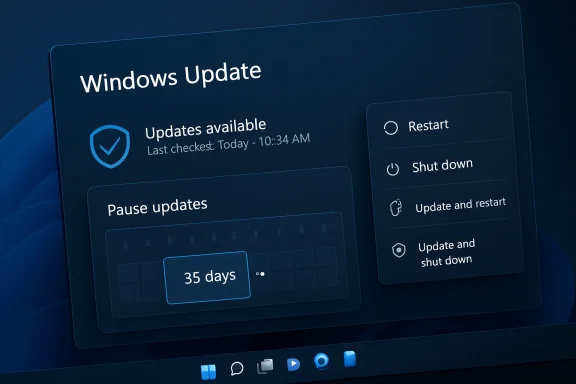
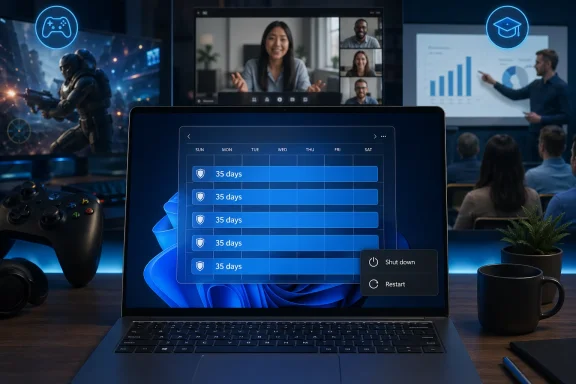
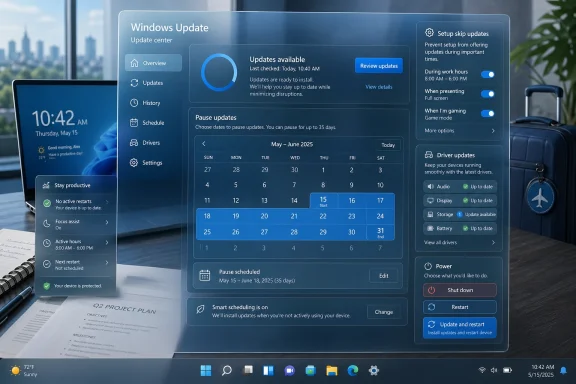
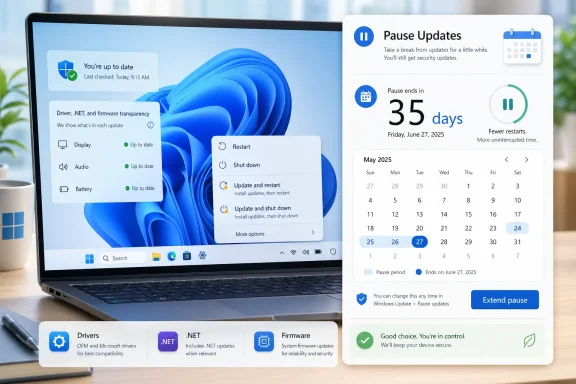
Microsoft’s latest Windows 11 update-policy overhaul is not just another Settings-page tweak; it is a direct concession to one of the longest-running complaints in modern PC computing. The company is now testing a model that lets users repeatedly pause updates in 35-day blocks, choose ordinary Restart and Shut down commands even when patches are pending, and skip updates during first-run setup. For Windows users who have spent years planning meetings, exams, gaming sessions, lab work, travel, or production deadlines around the whims of Windows Update, the message is unmistakable: Microsoft finally appears ready to make the PC feel less like a managed appliance and more like a machine the owner controls.
Windows Update has always lived at the intersection of security, reliability, and user autonomy. In the Windows XP and Windows 7 eras, many users ignored updates for months or years, creating a huge attack surface that malware authors exploited with ruthless efficiency. Microsoft’s later shift toward more automatic patching was born from a real security need, not simply from corporate stubbornness.
That security-first philosophy hardened with Windows 10, where Microsoft treated continuous updating as a core part of “Windows as a service.” The upside was obvious: more devices received monthly security fixes, driver improvements, and platform updates without depending on users to remember Patch Tuesday. The downside was equally obvious: Windows developed a reputation for interrupting people at exactly the wrong moment.
Windows 11 inherited that tension. Microsoft improved update sizes, added smarter active hours, polished notifications, and tried to make restarts less intrusive. Yet the core frustration remained: when Windows had an update ready, the power menu could make a simple shutdown feel like a negotiation.
This is why the new approach matters. It does not remove Windows Update, and it does not pretend security is optional. Instead, it shifts the interface toward explicit consent, giving users clearer choices about when updates install and when a restart is just a restart.
The second major change is the separation of regular power actions from update actions. Users should always see standard Restart and Shut down options, even when updates are waiting. The update-specific options, such as Update and restart or Update and shut down, remain available when appropriate, but they no longer monopolize the power menu.
That shift from “pause for a number of weeks” to “pause until this date” makes Windows Update feel more like a planning tool. It also reduces the cognitive load for users who simply know they cannot risk disruption until after a specific day.
Under the new model, Windows should always present ordinary power actions. If the user selects Shut down, Windows shuts down. If the user selects Restart, Windows restarts. The update path remains available, but it becomes a deliberate choice rather than a surprise consequence.
When Windows overloads those commands with update behavior, it undermines trust. The new policy is therefore less about the menu label and more about restoring predictability to the operating system’s contract with the user.
That design reflects Microsoft’s balancing act. A permanent off switch would be simple, but it would also invite millions of unmanaged PCs to drift into dangerous territory. A renewable pause gives power users and ordinary consumers more room while still nudging them back to Windows Update at regular intervals.
The limitation is that users must remember to renew the pause. That is intentional friction. Microsoft is effectively saying: you can delay updates for as long as you need, but Windows will keep asking whether you really mean it.
This is a subtle but important change. Users often do not care whether the reboot comes from Windows itself, a device driver, a firmware package, or a framework update. They experience all of it as “the computer needs to restart again.”
The move also acknowledges that Windows is no longer a single operating-system binary. It is a stack of components, services, drivers, runtimes, security features, and device-specific firmware. Coordinating those pieces is hard, but it is necessary if Microsoft wants Windows 11 to feel modern.
Clearer labels can help users make better decisions, particularly when an optional driver appears. A graphics driver update carries a different risk profile from a Bluetooth driver, and a firmware-adjacent component is different from an audio enhancement. Naming matters because it affects trust.
For less technical users, labels can reduce anxiety. A driver update called Intel Corporation - Extension - 31.x.x tells an average person almost nothing. A title that identifies the hardware class is not perfect, but it is a step toward human-readable maintenance.
Microsoft’s new setup behavior gives users a choice. They can install updates immediately and begin with the latest fixes, or they can reach the desktop faster and update later. That is a reasonable trade-off, provided the choice is clearly explained.
There are sensible exceptions. Some devices may need updates to function properly, and commercial devices managed by IT may follow administrator policy rather than consumer choice. That distinction is important because a school laptop, corporate endpoint, or kiosk is not the same as a privately owned home PC.
This matters for Windows 11 adoption. Many people still judge new Windows releases through the lens of past annoyances, and forced restart stories have become part of the platform’s cultural baggage. A calmer update model could help Microsoft rebuild goodwill.
The change also respects the reality that users understand their own schedules better than an algorithm does. A photographer on location, a researcher running a multi-day analysis, or a streamer preparing for a live event may have legitimate reasons to delay even a security update briefly.
Microsoft has indicated that more commercial guidance is coming. That matters because enterprises do not want consumer convenience to undermine compliance, vulnerability management, or audit requirements. A user-controlled indefinite pause could be unacceptable in regulated sectors unless administrators can constrain it.
Enterprise Windows has always required a different balance. A hospital workstation, factory controller, legal office laptop, and developer workstation all need update flexibility, but they also sit inside organizational risk models. Microsoft must let admins decide where user choice ends.
The company’s challenge is to make postponement safe enough for normal use without normalizing neglect. That means better reminders, clearer severity signals, and smarter distinctions between routine updates and emergency patches. Not every update deserves the same urgency.
This is where Microsoft’s broader Secure Future Initiative becomes relevant. The company has spent recent years emphasizing secure-by-default engineering, faster remediation, and resilience after high-profile security failures across the industry. Windows Update remains one of the most visible places where that philosophy meets daily user experience.
Windows is harder because it serves nearly every category at once. It runs on gaming rigs, budget laptops, medical carts, point-of-sale systems, school devices, developer workstations, creative studios, and corporate fleets. One update model cannot perfectly satisfy all of them.
Microsoft’s move suggests it understands that Windows 11 must become less demanding if it wants to remain the default productivity platform. Copilot integration, cloud accounts, security prompts, and feature updates all add surface area. Reducing update irritation is one way to give users breathing room.
The larger question is whether Microsoft treats this as a one-time concession or the beginning of a broader rethink. Windows Update needs more than a better pause button. It needs clearer severity ratings, better rollback confidence, stronger driver quality control, and a more respectful notification model.
The deeper lesson is that reliability is not only about code quality; it is also about respecting context. A secure operating system must patch quickly, but a useful operating system must understand that users have deadlines, travel plans, fragile workflows, and moments when “not now” is the only acceptable answer. Microsoft’s new Windows 11 update controls do not solve every servicing problem, but they move the platform toward a healthier bargain: keep PCs protected, keep users informed, and let a restart mean exactly what the user asked it to mean.
Source: Mint Microsoft is finally letting you pause Windows 11 updates indefinitely and ‘restart on your own terms’ | Mint
 Background
Windows Update has always lived at the intersection of security, reliability, and user autonomy. In the Windows XP and Windows 7 eras, many users ignored updates for months or years, creating a huge attack surface that malware authors exploited with ruthless efficiency. Microsoft’s later shift toward more automatic patching was born from a real security need, not simply from corporate stubbornness.That security-first philosophy hardened with Windows 10, where Microsoft treated continuous updating as a core part of “Windows as a service.” The upside was obvious: more devices received monthly security fixes, driver improvements, and platform updates without depending on users to remember Patch Tuesday. The downside was equally obvious: Windows developed a reputation for interrupting people at exactly the wrong moment.
Windows 11 inherited that tension. Microsoft improved update sizes, added smarter active hours, polished notifications, and tried to make restarts less intrusive. Yet the core frustration remained: when Windows had an update ready, the power menu could make a simple shutdown feel like a negotiation.
The feedback finally broke through
The new policy changes are framed as a response to recurring user feedback about untimely disruption and insufficient control. Microsoft says it reviewed thousands of direct comments, and the themes are familiar to anyone who has used Windows on a deadline. People are not necessarily angry that updates exist; they are angry when the operating system chooses the moment.This is why the new approach matters. It does not remove Windows Update, and it does not pretend security is optional. Instead, it shifts the interface toward explicit consent, giving users clearer choices about when updates install and when a restart is just a restart.
What Microsoft Is Changing
Microsoft’s update-policy refresh centers on a deceptively simple idea: Windows should not surprise users when they are trying to start, stop, or resume work. The headline change is the ability to pause Windows 11 updates repeatedly, up to 35 days at a time, with no stated limit on how often the pause can be extended. That effectively creates an indefinite pause mechanism, though one that still requires users to renew the pause periodically.The second major change is the separation of regular power actions from update actions. Users should always see standard Restart and Shut down options, even when updates are waiting. The update-specific options, such as Update and restart or Update and shut down, remain available when appropriate, but they no longer monopolize the power menu.
The four-part control model
Microsoft is packaging the update experience around several concrete user-facing changes. Each one addresses a different point in the update lifecycle, from initial setup to monthly servicing.- Skip updates during setup so new PCs can reach the desktop faster.
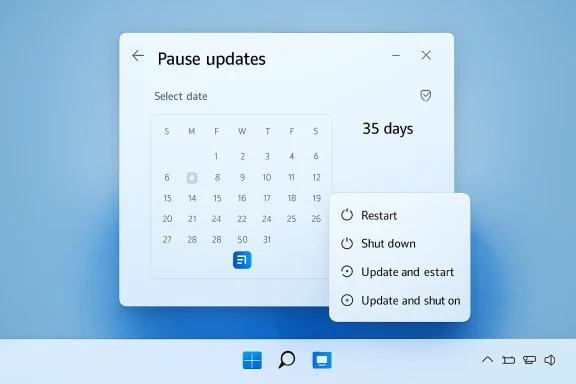
- Pause updates through a calendar interface for a specific date up to 35 days away.
- Extend the pause repeatedly in additional 35-day windows.
- Restart or shut down without updating when pending updates are waiting.
- See clearer driver update names that identify hardware categories.
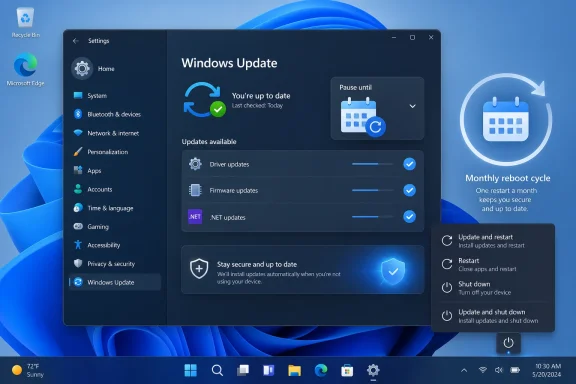
- Get fewer reboot prompts as driver, .NET, and firmware updates align more closely with monthly quality updates.
Why the calendar matters
The calendar interface is more than cosmetic. A drop-down pause menu measured in fixed weeks is useful, but a date picker maps better to real life. People plan around conferences, payroll periods, project launches, exams, flights, field work, and customer visits.That shift from “pause for a number of weeks” to “pause until this date” makes Windows Update feel more like a planning tool. It also reduces the cognitive load for users who simply know they cannot risk disruption until after a specific day.
The End of the Forced Power-Menu Trap
Few Windows behaviors have generated more irritation than opening the power menu and discovering that the obvious choices have been replaced by update commands. For a user packing a laptop before boarding a train, shutting down before a presentation, or restarting to clear a driver issue, Update and shut down can feel less like maintenance and more like coercion. Microsoft’s new approach directly targets that pain point.Under the new model, Windows should always present ordinary power actions. If the user selects Shut down, Windows shuts down. If the user selects Restart, Windows restarts. The update path remains available, but it becomes a deliberate choice rather than a surprise consequence.
Predictability is the real feature
This change matters because power commands are among the most basic promises an operating system makes. A restart should mean the device comes back quickly. A shutdown should mean the machine powers off so it can be moved, stored, or unplugged.When Windows overloads those commands with update behavior, it undermines trust. The new policy is therefore less about the menu label and more about restoring predictability to the operating system’s contract with the user.
- Restart should be a fast maintenance action when the user needs it.
- Shut down should not unexpectedly begin a long installation sequence.
- Update and restart should be clearly identified as a servicing action.
- Update and shut down should remain available for users who are ready.
- Pending updates should not turn every power decision into a gamble.
Why 35-Day Pauses Are Both Big and Limited
The phrase indefinite pause sounds dramatic, but the implementation is more nuanced. Microsoft is not adding a single “never update this PC” switch. Instead, it is allowing users to keep extending the pause date, up to 35 days at a time, as often as needed.That design reflects Microsoft’s balancing act. A permanent off switch would be simple, but it would also invite millions of unmanaged PCs to drift into dangerous territory. A renewable pause gives power users and ordinary consumers more room while still nudging them back to Windows Update at regular intervals.
A safety valve, not an escape hatch
For many users, this will be enough. Someone traveling for six weeks can pause once, then extend once. A student in exam season can delay updates until the end of the term. A content creator rendering a large project can avoid a maintenance window without diving into Group Policy or registry hacks.The limitation is that users must remember to renew the pause. That is intentional friction. Microsoft is effectively saying: you can delay updates for as long as you need, but Windows will keep asking whether you really mean it.
Where the new pause helps most
The new pause system should be particularly useful in scenarios where stability matters more than immediate feature delivery. The key is not avoiding updates forever; it is choosing the right time to absorb change.- Travel periods, when bandwidth, time zones, and battery life are unpredictable.
- Academic deadlines, when students cannot risk a stalled laptop before exams.
- Live production work, where audio, video, and graphics drivers must remain stable.
- Small business operations, where a single point-of-sale PC may be mission-critical.
- Gaming events, where shader compilation, drivers, and anti-cheat tools can be sensitive.
- Remote work sprints, where a bad update can block access to collaboration tools.
Fewer Reboots Through Unified Servicing
Microsoft is also moving to reduce the number of times Windows asks for a reboot in a given month. The company says it is coordinating driver, .NET, and firmware updates more closely with the monthly Windows quality update. The goal is to collapse more servicing activity into a single coordinated restart.This is a subtle but important change. Users often do not care whether the reboot comes from Windows itself, a device driver, a firmware package, or a framework update. They experience all of it as “the computer needs to restart again.”
Monthly rhythm beats random interruption
A predictable monthly rhythm is easier to plan around than scattered update prompts. Enterprises already understand this, which is why patch windows and maintenance rings exist. Bringing more of that logic to consumer Windows could make the platform feel calmer.The move also acknowledges that Windows is no longer a single operating-system binary. It is a stack of components, services, drivers, runtimes, security features, and device-specific firmware. Coordinating those pieces is hard, but it is necessary if Microsoft wants Windows 11 to feel modern.
- Driver updates can affect graphics, audio, networking, storage, and battery behavior.
- .NET updates can matter for business apps, developer tools, and legacy software.
- Firmware updates can improve stability but may require careful restart sequencing.
- Monthly quality updates already serve as the anchor for security servicing.
- Optional updates still need clear user intent, especially when they change hardware behavior.
Clearer Driver Names Could Prevent Bad Decisions
Another practical improvement is the plan to label driver updates with clearer device classes, such as display, audio, battery, or other relevant categories. This sounds minor, but driver titles have long been one of the least understandable parts of Windows Update. Many users have seen vague vendor strings and version numbers with little clue about what hardware is being changed.Clearer labels can help users make better decisions, particularly when an optional driver appears. A graphics driver update carries a different risk profile from a Bluetooth driver, and a firmware-adjacent component is different from an audio enhancement. Naming matters because it affects trust.
Transparency lowers support risk
For enthusiasts, clearer driver names make troubleshooting easier. If audio breaks after an update, the user can more quickly connect the failure to a recent audio driver. If battery drain appears after a power-management update, the update history becomes more useful.For less technical users, labels can reduce anxiety. A driver update called Intel Corporation - Extension - 31.x.x tells an average person almost nothing. A title that identifies the hardware class is not perfect, but it is a step toward human-readable maintenance.
- Display labels help gamers, creators, and multi-monitor users understand GPU-related changes.
- Audio labels help diagnose microphone, speaker, and conferencing problems.
- Battery labels matter for laptops, tablets, and hybrid devices.
- Storage labels can warn users that a more sensitive subsystem is involved.
- Network labels help remote workers understand Wi-Fi or Ethernet changes.
- Firmware-related labels should be treated with extra care because rollback may be harder.
Setup Skips Make New PCs Less Painful
The ability to skip updates during the out-of-box experience may be one of the most appreciated changes for everyday buyers. New PC setup can already feel long, especially with account prompts, privacy settings, device configuration, app restores, cloud syncing, and manufacturer utilities. Adding a full update cycle before the user reaches the desktop can sour the first impression of a new machine.Microsoft’s new setup behavior gives users a choice. They can install updates immediately and begin with the latest fixes, or they can reach the desktop faster and update later. That is a reasonable trade-off, provided the choice is clearly explained.
First impressions matter
The first hour with a new PC is disproportionately important. If Windows makes a user wait through a long update before they can even verify the keyboard, Wi-Fi, display, or apps, the experience feels hostile. If Windows lets the user get oriented first, the update becomes a planned task.There are sensible exceptions. Some devices may need updates to function properly, and commercial devices managed by IT may follow administrator policy rather than consumer choice. That distinction is important because a school laptop, corporate endpoint, or kiosk is not the same as a privately owned home PC.
- Reach the desktop quickly when immediate productivity matters.
- Confirm hardware and account setup before committing to a long update.
- Install updates later when power, network, and time are available.
- Avoid first-run frustration that makes a new device feel slow or broken.
Consumer Impact: More Control Without Registry Tricks
For home users, the most important change is emotional as much as technical. Windows Update has often made consumers feel that they are borrowing time from their own PCs. Giving them ordinary shutdown and restart choices restores a sense of ownership.This matters for Windows 11 adoption. Many people still judge new Windows releases through the lens of past annoyances, and forced restart stories have become part of the platform’s cultural baggage. A calmer update model could help Microsoft rebuild goodwill.
Power users get legitimacy
For years, advanced users have used Group Policy, metered connection settings, service toggles, registry edits, third-party tools, and other workarounds to delay updates. Some of those methods work, but they can also create fragile systems that fail later in confusing ways. By making repeatable pauses official, Microsoft reduces the incentive for risky hacks.The change also respects the reality that users understand their own schedules better than an algorithm does. A photographer on location, a researcher running a multi-day analysis, or a streamer preparing for a live event may have legitimate reasons to delay even a security update briefly.
- Home users gain simpler control through Settings instead of obscure tools.
- Gamers can avoid driver churn before tournaments or major releases.
- Students can protect exam periods and project deadlines.
- Creators can preserve stable production environments during active work.
- Remote workers can avoid update surprises during travel or meetings.
- Family tech supporters can give clearer advice without explaining Group Policy.
Enterprise Impact: Admins Will Want the Fine Print
Commercial customers will read Microsoft’s announcement differently from consumers. In managed environments, update timing is already governed by tools such as Windows Update for Business, Intune, Autopatch, WSUS in some legacy environments, and other endpoint-management platforms. The question for IT is not whether users can pause updates; it is how those controls interact with policy.Microsoft has indicated that more commercial guidance is coming. That matters because enterprises do not want consumer convenience to undermine compliance, vulnerability management, or audit requirements. A user-controlled indefinite pause could be unacceptable in regulated sectors unless administrators can constrain it.
Policy alignment is the test
The enterprise version of this story will depend on defaults, policy precedence, reporting, and enforcement. If administrators can define whether the new pause options appear, how long they last, and when deadlines override them, the changes could improve user satisfaction without weakening security. If the controls are ambiguous, IT departments will resist.Enterprise Windows has always required a different balance. A hospital workstation, factory controller, legal office laptop, and developer workstation all need update flexibility, but they also sit inside organizational risk models. Microsoft must let admins decide where user choice ends.
- Policy precedence must be clear when user settings conflict with management profiles.
- Compliance reporting should show when devices are paused and why.
- Deadline enforcement must remain available for critical security updates.
- User notifications should explain whether an action is blocked by IT policy.
- Autopatch integration should preserve ring-based deployment strategies.
- Rollback and recovery data should improve when updates fail after deferral.
Security Trade-Offs Microsoft Cannot Ignore
The uncomfortable truth is that update flexibility always creates some security risk. Attackers move quickly when vulnerabilities become public, and delaying patches can leave systems exposed during the most dangerous window. Microsoft knows this, which is why the new pause system stops short of a simple permanent disable switch.The company’s challenge is to make postponement safe enough for normal use without normalizing neglect. That means better reminders, clearer severity signals, and smarter distinctions between routine updates and emergency patches. Not every update deserves the same urgency.
The difference between control and avoidance
A well-informed user delaying updates for two weeks during travel is not the same as a neglected PC missing six months of security fixes. Microsoft’s design should reflect that difference. The system can respect user timing while still escalating when a critical vulnerability is being actively exploited.This is where Microsoft’s broader Secure Future Initiative becomes relevant. The company has spent recent years emphasizing secure-by-default engineering, faster remediation, and resilience after high-profile security failures across the industry. Windows Update remains one of the most visible places where that philosophy meets daily user experience.
- Critical security updates may need stronger prompts than routine quality fixes.
- Exploit activity should influence how urgently Windows communicates risk.
- Paused devices need clear status indicators so users understand exposure.
- Failed updates should recover automatically where possible.
- Low-bandwidth devices need smaller downloads and more reliable resumes.
- Long-offline systems should receive special handling when they reconnect.
Competitive Implications for Windows 11
This update-policy shift arrives as Microsoft faces pressure on multiple fronts. Apple controls macOS updates tightly but generally benefits from a smaller hardware matrix. ChromeOS updates are highly automated and often less visible. Linux distributions offer everything from conservative long-term servicing to rolling-release control, depending on the user’s appetite.Windows is harder because it serves nearly every category at once. It runs on gaming rigs, budget laptops, medical carts, point-of-sale systems, school devices, developer workstations, creative studios, and corporate fleets. One update model cannot perfectly satisfy all of them.
Microsoft is trying to modernize trust
The competitive issue is not simply update speed. It is whether users feel the platform respects their time. In 2026, people compare operating systems not only by features, but by friction: setup friction, notification friction, reboot friction, account friction, and AI-feature friction.Microsoft’s move suggests it understands that Windows 11 must become less demanding if it wants to remain the default productivity platform. Copilot integration, cloud accounts, security prompts, and feature updates all add surface area. Reducing update irritation is one way to give users breathing room.
- macOS benefits from a more controlled device ecosystem but still faces update timing complaints.
- ChromeOS hides much of the update process but offers less traditional PC flexibility.
- Linux gives advanced users control but can require more manual responsibility.
- Windows must serve both unmanaged consumers and heavily managed enterprises.
- Gaming PCs make driver stability a uniquely sensitive Windows issue.
- Business PCs make predictable reboots more valuable than flashy features.
Strengths and Opportunities
Microsoft’s new Windows Update approach has the potential to improve daily PC life precisely because it targets small moments of frustration that accumulate over years. The changes are not glamorous, but they address the kind of operating-system behavior people remember when something goes wrong. The opportunity is to rebuild trust through consistency, transparency, and restraint.- Stronger user agency through repeatable 35-day pause windows and date-based planning.
- Clearer power behavior because restart and shutdown no longer have to imply updating.
- Better first-run experience by allowing users to skip setup updates when appropriate.
- Reduced reboot fatigue through more unified monthly servicing.
- Improved driver transparency with hardware-class labels in update titles.
- Less reliance on risky workarounds such as registry edits, service disabling, or unsupported tools.
- More credible feedback loop if Microsoft continues turning user complaints into visible product changes.
Risks and Concerns
The same flexibility that makes the new model attractive also creates new failure modes. Users may pause too long, misunderstand security exposure, or assume that “indefinite” means harmless. Microsoft must design the experience so control does not quietly become neglect.- Security lag could grow if users repeatedly defer critical patches without understanding risk.
- Notification fatigue may return if Windows nags users too aggressively after each pause period.
- Enterprise ambiguity could frustrate administrators until Microsoft documents policy controls.
- Inconsistent rollout behavior may confuse users if Insider features take months to reach stable builds.
- Driver bundling risks remain if optional hardware updates are still recommended too casually.
- Emergency updates may test whether Microsoft truly respects ordinary restart choices.
- User trust could erode quickly if power-menu promises are violated by edge cases.
Looking Ahead
The immediate question is how quickly these changes move from Insider testing into mainstream Windows 11 builds. Microsoft is beginning with test channels, which is prudent given how deeply update behavior touches setup, servicing, power management, notifications, and device policy. A small bug in this area can have outsized consequences.The larger question is whether Microsoft treats this as a one-time concession or the beginning of a broader rethink. Windows Update needs more than a better pause button. It needs clearer severity ratings, better rollback confidence, stronger driver quality control, and a more respectful notification model.
What to watch next
Several signals will show whether Microsoft is serious about making Windows Update calmer and more predictable. The details will matter more than the announcement.- Stable-channel timing for when ordinary Windows 11 users receive the new controls.
- Commercial policy documentation explaining how IT admins can allow, limit, or block pauses.
- Emergency patch behavior when a critical security update conflicts with a user pause.
- Driver update quality after clearer labels arrive in Windows Update.
- User feedback trends from Insider channels, especially around power-menu reliability.
The deeper lesson is that reliability is not only about code quality; it is also about respecting context. A secure operating system must patch quickly, but a useful operating system must understand that users have deadlines, travel plans, fragile workflows, and moments when “not now” is the only acceptable answer. Microsoft’s new Windows 11 update controls do not solve every servicing problem, but they move the platform toward a healthier bargain: keep PCs protected, keep users informed, and let a restart mean exactly what the user asked it to mean.
Source: Mint Microsoft is finally letting you pause Windows 11 updates indefinitely and ‘restart on your own terms’ | Mint