

For most Windows 11 upgrades, use Windows Update first, use the Windows 11 Installation Assistant when an eligible PC has not yet been offered the upgrade but you want to install it on the device you are currently using, and use installation media or an ISO when you need repair, repeatability, or a clean install. That is the practical answer. The trap is treating all three paths as interchangeable download buttons. They are not; they solve different problems and carry different risks.
Microsoft offers three common Windows 11 installation paths for individual users: Windows Update, the Windows 11 Installation Assistant, and installation media. On paper, that looks like simple user choice. In practice, it is a hierarchy.
Windows Update is the conservative route. It waits for Microsoft’s rollout and compatibility logic to decide that your machine is ready, then offers the upgrade through Settings. For an ordinary consumer PC, that is usually the right answer precisely because it is boring.
The Windows 11 Installation Assistant is the impatient-but-still-official route. Microsoft describes it as the best option for installing Windows 11 on the device you are currently using, while also recommending that users wait until Windows Update says the upgrade is ready for their device. That tension is the whole story: the Assistant is not the reckless path, but it is the path that asks you to step ahead of the normal offer.
Installation media is the technician’s route. It can upgrade a running Windows installation, reinstall Windows, or boot a machine into setup for a fresh copy. That power is why it is useful, and why it is the easiest of the three to misuse.
WindowsForum users tend to run into trouble when those differences blur. One user asking how reliable the “Windows Upgrade Assistant” is for moving to Windows 11 was really asking a broader question: is the Assistant a safer shortcut or just a faster way to meet the same compatibility problems? Another user with a Lenovo Yoga 720 reported that PC Health Check said the system was compatible, TPM and Secure Boot were enabled, and the update downloaded and began installing, yet the Windows 11 upgrade still failed. Those are not edge-case anxieties. They are exactly why the method matters.
If you are upgrading your own supported home PC and Windows Update offers Windows 11, take Windows Update. The exact path depends on where you are starting:
If Windows Update does not yet offer the upgrade but the PC meets Windows 11 requirements and you are comfortable moving early, use the Windows 11 Installation Assistant. Download it from Microsoft’s Windows 11 download page, run it on the PC you want to upgrade, allow it to check eligibility, choose Accept and install if offered, and restart when prompted. If it asks for PC Health Check, run that first, then return to the Assistant and refresh its status.
If Windows Update is stuck, the upgrade repeatedly fails, or you need a more controlled in-place repair, use installation media from within Windows. Create Windows 11 installation media, insert the USB drive or mount the ISO, run setup.exe, and choose Keep personal files and apps if you want an in-place upgrade rather than a wipe. This can be the better repair move because Windows Setup runs from known-good installation files instead of relying entirely on the existing update pipeline.
If you want a clean install, use installation media and boot from it. That path can wipe the drive, erase apps, and remove local data, so back up anything important first. It is the right tool for a rebuild, not a casual “maybe this will help” upgrade click.
For consumers, this is why Windows Update should remain the first stop. The path is clear:
The value is not just convenience. Windows Update is where Microsoft can hold back an upgrade for a device class, driver situation, or compatibility issue before the user has to diagnose it. You may never know which brake was being applied, but that is exactly the point of a measured rollout.
For the average supported PC, the right answer is therefore simple: wait until Windows Update offers the upgrade unless you have a specific reason not to wait. That advice is not timid. It is the least dramatic way to avoid turning a normal feature update into a support project.
WindowsForum’s old Windows 10 Update Assistant discussions show the same pattern in earlier form. The Assistant was described as helping customers whose machines were not yet updated to a latest release, with rollout initially limited to a targeted set of customers. The important lesson is not that Windows 10 and Windows 11 are identical; it is that Microsoft has long used staged availability, and users have long looked for official tools when their own PC was not first in line.
The procedure is intentionally straightforward. Go to Microsoft’s Windows 11 download page, download the Windows 11 Installation Assistant, run it on the device you want to upgrade, and follow the prompts. If the Assistant determines the PC meets Windows 11 hardware requirements, it offers the installation flow; choose Accept and install, then restart when the Assistant prompts you.
If the Assistant needs more information, it may direct you to run the PC Health Check app. That extra loop matters because the Assistant is still supposed to respect Windows 11 eligibility. After PC Health Check runs, return to the Assistant and refresh its status.
The Assistant’s best use case is the supported consumer or enthusiast PC that is eligible, stable, backed up, and simply not yet being offered the feature update through Windows Update. It is also a reasonable choice when you are upgrading one machine and do not need reusable media. It is less attractive when you are managing many machines, troubleshooting a damaged Windows installation, or trying to standardize a deployment process.
That distinction matters because “best option” on Microsoft’s download page is scoped to installing Windows 11 on the device you are currently using. It should not be inflated into “best method for every manual upgrade.” If the current Windows installation is unhealthy, if you need repeatable media, or if you are supporting several PCs, the Assistant may be the wrong tool even though it is official.
WindowsForum users have repeatedly circled around this question. A WindowsForum guide described the Windows 11 Update Assistant, also known as the Windows 11 Installation Assistant, as a fast, official, user-friendly way to move an eligible PC to Windows 11. Another user simply asked how reliable it was to upgrade using the Windows Upgrade Assistant. Those posts illustrate the same practical concern: users are not just asking where the download button is. They are asking what kind of risk they accept when they skip waiting for the Windows Update offer.
For an in-place upgrade, sign in to Windows, insert the Windows 11 USB media or mount the ISO, and run setup.exe. If the autoplay prompt appears, choose the setup option. If it does not, open File Explorer, go to This PC, open the media, and run setup manually.
The crucial screen is Ready to install. In an in-place upgrade, setup may offer to keep personal files and apps, but the Change what to keep link exposes the real consequences. You can keep personal files and apps, keep personal files only, or keep nothing.
That last choice is not a troubleshooting flourish. It is a destructive path. If you choose nothing, your personal files, apps, and Windows settings are removed, so the backup needs to happen before the click, not after the regret.
Booting from installation media is more severe still. It is the correct route for a fresh Windows 11 installation, a machine with a broken existing OS, or a deliberate rebuild. It is not the right answer for someone who merely wants the newest feature update a little early.
This is where a lot of forum confusion starts. “Use the ISO” can mean at least three different things: mount the ISO and run setup to keep apps and files, mount it and choose a more destructive keep option, or boot from it and perform a clean install. Those are not interchangeable. They are different operations that happen to begin with the same file.
Do not overread that into a claim about every possible loophole, bypass, registry edit, ISO behavior, or media trick. The practical guidance is narrower and stronger: if the device does not meet Windows 11 requirements, Microsoft’s recommendation is to stay on Windows 10 rather than treating another installer path as a blessing.
For enthusiasts, this is where the technical challenge and the practical recommendation diverge. There is a long tradition of making Windows do things Microsoft would rather not bless. But a daily-driver operating system is not a benchmark stunt; it is the thing that stores documents, launches work apps, receives updates, and recovers from failure.
If the Assistant says the PC does not meet requirements, that is not a prompt to try every other door until one opens. It is the decision point. Stay on Windows 10 where appropriate, replace the hardware, or accept that any unsupported path is outside Microsoft’s recommended Windows 11 upgrade plan.
This is especially important for family PCs and small-business machines where “it boots” is not the same as “it is maintainable.” Unsupported upgrade adventures often become someone else’s support burden months later.
WindowsForum has seen adjacent versions of this problem for years. One user trying to move from Windows 7 Ultimate 64-bit to Windows 10 through an assistive-technologies upgrade path reported that the download completed but setup failed with missing DLL errors. That was not a Windows 11 hardware-requirement case, but it illustrates a recurring support reality: once a machine is outside the clean, expected path, the problem quickly stops being “which upgrade button should I press?” and becomes “what exactly is broken on this installation?”
Start with Windows Update if the offer is present. Install any pending updates for the current Windows version first, restart, and check again. Microsoft’s own Windows Update flow notes that available updates for the current version may need to be installed before the Windows 11 upgrade appears or proceeds.
If Windows Update keeps failing on an otherwise supported machine, the Installation Assistant is a reasonable next step when the existing Windows installation is healthy enough to run it. The Assistant downloads the required files and runs a guided upgrade on the current device. It is the simplest official escalation for a one-off PC.
If the failure smells deeper — repeated setup rollbacks, damaged update components, or a machine that needs a repair-style pass — installation media becomes more appealing. Running setup.exe from freshly created Windows 11 media can perform an in-place upgrade while keeping files and apps. That can succeed where the Windows Update route stalls because the setup source and upgrade path are different enough to matter.
But there is a line. If you boot from media and choose a fresh installation, you have moved from upgrade troubleshooting to rebuild. That may be exactly the right move for a lab machine, a malware-suspect system, or a PC with years of accumulated Windows problems. It is a poor first response to a normal feature update delay.
WindowsForum user reports make this distinction concrete. The Lenovo Yoga 720 case, where PC Health Check passed and Windows Update still failed during the upgrade process, is the kind of scenario where methodical escalation makes sense: confirm firmware settings such as TPM and Secure Boot, install pending updates, disconnect unnecessary peripherals, make a full backup, then consider the Assistant or in-place setup from media. By contrast, a user reporting that Opera froze and then uninstall/reinstall attempts cascaded into a broader Windows 11 update problem may be dealing with application corruption, profile damage, store or installer trouble, or system-file issues. In that situation, the upgrade tool is only one part of the diagnosis.
A stuck upgrade should also make you ask what changed recently. Did a driver update land? Is third-party security software interfering? Is the disk nearly full? Is the system already unstable? Is BitLocker recovery information backed up? Is there a current image backup? The installer path matters, but it cannot compensate for a machine that is already in bad shape.
For normal consumer upgrades, Windows setup is designed to preserve the corresponding edition path rather than turning a Pro installation into Home. If you are on a Pro edition, you should expect the Windows 11 Pro path unless you deliberately install with media or licensing choices that change the outcome. The important practical advice is to check the current edition before upgrading: on Windows 10, go to Settings > System > About and look under Windows specifications. On Windows 11, go to Settings > System > About.
The same applies to language, architecture, and keep options. If you use Windows Update or the Installation Assistant, the experience is guided. If you use installation media, you have more chances to choose incorrectly. That does not make media bad. It makes it a tool that asks you to pay attention.
This is another reason to avoid treating ISO-based installs as the “expert” answer for everyone. Experts like media because they understand what each setup screen implies. Casual users may not realize that one wrong keep option changes an upgrade into a partial migration or a wipe.
Managed environments need control over timing, rings, rollback planning, app compatibility testing, user communication, and help-desk load. Windows Update may still be involved, but in a managed context it should be part of policy, not a user’s lunchtime decision. Installation media may also be useful, but more as a support or imaging artifact than as the primary rollout mechanism.
There is also a support optics issue. If an IT department tells users to run the Installation Assistant, it has effectively delegated upgrade timing to the least predictable layer of the organization: whoever clicks first. That may be fine for a ten-person shop with identical laptops and a forgiving application stack. It is a risky posture for anything larger.
For sysadmins, the right question is not “which button upgrades fastest?” It is “which path preserves the most control while producing the fewest surprises?” In most managed estates, that answer is not the Installation Assistant.
A small business without dedicated management tooling still needs a version of this discipline. Pick a pilot machine first. Confirm line-of-business apps, printers, VPNs, security tools, and backup software. Document the rollback plan. Only then expand the rollout. The fact that the Assistant can upgrade one PC interactively does not make it a deployment strategy.
That is why the Installation Assistant occupies such an odd middle ground. Microsoft presents it as the best option for installing Windows 11 on the device you are currently using, yet also recommends waiting for Windows Update first. The apparent contradiction disappears if you treat the Assistant as the best Microsoft-provided tool for a local, interactive install on the current eligible PC — not as the default answer for every scenario.
The ISO and media path is even easier to misunderstand. Many enthusiasts use “ISO” as shorthand for control, cleanliness, and independence from Windows Update. Those are real virtues, but they come with sharper edges. Media can preserve everything, preserve only files, or preserve nothing; the difference is a setup-page choice with enormous consequences.
WindowsForum’s own upgrade discussions cluster around the same anxieties: whether the Assistant is reliable, what happens when a Windows 11 update stalls, why a compatible PC still fails setup, and which edition or setup behavior a user should expect. Those are not beginner-only questions. They are symptoms of Microsoft spreading the answer across product pages, setup screens, and rollout notes rather than giving users a single decision framework.
So here is the framework: Windows Update is for ordinary readiness, the Assistant is for eligible impatience on the current device, media is for control or repair, and unsupported hardware should stay with Microsoft’s recommendation rather than being treated as a puzzle to defeat. Everything else is commentary.
For a home user with one PC, that means patience is not cowardice. For an enthusiast, it means the Assistant is useful when the machine is eligible and backed up, not when you are trying to outrun a compatibility hold you do not understand. For IT, it means consumer tooling should not replace deployment discipline.
The practical choices reduce to a handful of rules:
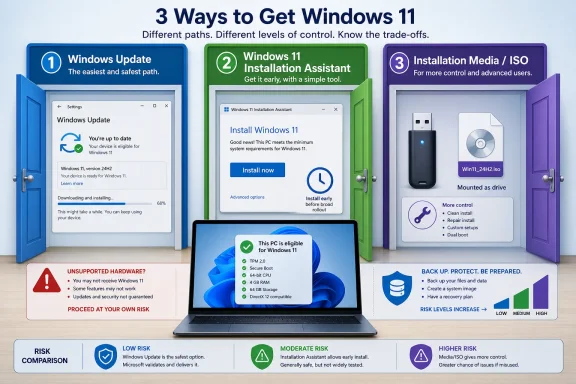 Microsoft’s Three Doors Hide Three Different Upgrade Philosophies
Microsoft offers three common Windows 11 installation paths for individual users: Windows Update, the Windows 11 Installation Assistant, and installation media. On paper, that looks like simple user choice. In practice, it is a hierarchy.Windows Update is the conservative route. It waits for Microsoft’s rollout and compatibility logic to decide that your machine is ready, then offers the upgrade through Settings. For an ordinary consumer PC, that is usually the right answer precisely because it is boring.
The Windows 11 Installation Assistant is the impatient-but-still-official route. Microsoft describes it as the best option for installing Windows 11 on the device you are currently using, while also recommending that users wait until Windows Update says the upgrade is ready for their device. That tension is the whole story: the Assistant is not the reckless path, but it is the path that asks you to step ahead of the normal offer.
Installation media is the technician’s route. It can upgrade a running Windows installation, reinstall Windows, or boot a machine into setup for a fresh copy. That power is why it is useful, and why it is the easiest of the three to misuse.
WindowsForum users tend to run into trouble when those differences blur. One user asking how reliable the “Windows Upgrade Assistant” is for moving to Windows 11 was really asking a broader question: is the Assistant a safer shortcut or just a faster way to meet the same compatibility problems? Another user with a Lenovo Yoga 720 reported that PC Health Check said the system was compatible, TPM and Secure Boot were enabled, and the update downloaded and began installing, yet the Windows 11 upgrade still failed. Those are not edge-case anxieties. They are exactly why the method matters.
The Fast Decision Matrix Is Simpler Than Microsoft Makes It
| Situation | Best first path | Why |
|---|---|---|
| Consumer PC where Windows 11 is already offered | Windows Update | It is the lowest-friction route and reflects Microsoft’s normal readiness checks. |
| Eligible PC not yet offered the upgrade | Windows 11 Installation Assistant | It is intended for installing Windows 11 on the device you are currently using, provided the device meets requirements. |
| Repair, rebuild, or repeated upgrade failure | Installation media or ISO launched from within Windows | It gives you a fresh setup source and more control over whether apps and files are kept. |
| IT-managed rollout | Managed deployment process, not ad hoc user clicks | Timing, testing, policy, rollback, and help-desk load need central control. |
- On Windows 10, open Settings > Update & Security > Windows Update, then select Check for updates.
- On Windows 11, open Settings > Windows Update, then select Check for updates.
If Windows Update does not yet offer the upgrade but the PC meets Windows 11 requirements and you are comfortable moving early, use the Windows 11 Installation Assistant. Download it from Microsoft’s Windows 11 download page, run it on the PC you want to upgrade, allow it to check eligibility, choose Accept and install if offered, and restart when prompted. If it asks for PC Health Check, run that first, then return to the Assistant and refresh its status.
If Windows Update is stuck, the upgrade repeatedly fails, or you need a more controlled in-place repair, use installation media from within Windows. Create Windows 11 installation media, insert the USB drive or mount the ISO, run setup.exe, and choose Keep personal files and apps if you want an in-place upgrade rather than a wipe. This can be the better repair move because Windows Setup runs from known-good installation files instead of relying entirely on the existing update pipeline.
If you want a clean install, use installation media and boot from it. That path can wipe the drive, erase apps, and remove local data, so back up anything important first. It is the right tool for a rebuild, not a casual “maybe this will help” upgrade click.
Windows Update Is the Default Because Delay Is a Feature
The most overlooked fact about Windows Update is that “not offered yet” does not necessarily mean “broken.” Microsoft’s rollout language for Windows 11 feature updates emphasizes measured availability. That matters because availability is a signal, not just a calendar event.For consumers, this is why Windows Update should remain the first stop. The path is clear:
- From Windows 10: Settings > Update & Security > Windows Update > Check for updates.
- From Windows 11: Settings > Windows Update > Check for updates.
The value is not just convenience. Windows Update is where Microsoft can hold back an upgrade for a device class, driver situation, or compatibility issue before the user has to diagnose it. You may never know which brake was being applied, but that is exactly the point of a measured rollout.
For the average supported PC, the right answer is therefore simple: wait until Windows Update offers the upgrade unless you have a specific reason not to wait. That advice is not timid. It is the least dramatic way to avoid turning a normal feature update into a support project.
WindowsForum’s old Windows 10 Update Assistant discussions show the same pattern in earlier form. The Assistant was described as helping customers whose machines were not yet updated to a latest release, with rollout initially limited to a targeted set of customers. The important lesson is not that Windows 10 and Windows 11 are identical; it is that Microsoft has long used staged availability, and users have long looked for official tools when their own PC was not first in line.
The Installation Assistant Is the Official Way to Move Ahead on One Eligible PC
The Windows 11 Installation Assistant exists for the user who does not want to wait for the Windows Update offer but still wants to stay inside Microsoft’s own upgrade tooling. It is not the same thing as grabbing a random ISO from a mirror, and it is not a magic bypass for Windows 11’s requirements. It is an official assistant for upgrading the PC in front of you.The procedure is intentionally straightforward. Go to Microsoft’s Windows 11 download page, download the Windows 11 Installation Assistant, run it on the device you want to upgrade, and follow the prompts. If the Assistant determines the PC meets Windows 11 hardware requirements, it offers the installation flow; choose Accept and install, then restart when the Assistant prompts you.
If the Assistant needs more information, it may direct you to run the PC Health Check app. That extra loop matters because the Assistant is still supposed to respect Windows 11 eligibility. After PC Health Check runs, return to the Assistant and refresh its status.
The Assistant’s best use case is the supported consumer or enthusiast PC that is eligible, stable, backed up, and simply not yet being offered the feature update through Windows Update. It is also a reasonable choice when you are upgrading one machine and do not need reusable media. It is less attractive when you are managing many machines, troubleshooting a damaged Windows installation, or trying to standardize a deployment process.
That distinction matters because “best option” on Microsoft’s download page is scoped to installing Windows 11 on the device you are currently using. It should not be inflated into “best method for every manual upgrade.” If the current Windows installation is unhealthy, if you need repeatable media, or if you are supporting several PCs, the Assistant may be the wrong tool even though it is official.
WindowsForum users have repeatedly circled around this question. A WindowsForum guide described the Windows 11 Update Assistant, also known as the Windows 11 Installation Assistant, as a fast, official, user-friendly way to move an eligible PC to Windows 11. Another user simply asked how reliable it was to upgrade using the Windows Upgrade Assistant. Those posts illustrate the same practical concern: users are not just asking where the download button is. They are asking what kind of risk they accept when they skip waiting for the Windows Update offer.
Installation Media Is Not Just an ISO, It Is a Different Level of Control
Installation media is where the upgrade conversation stops being consumer-friendly and starts becoming operational. A USB installer or mounted ISO can upgrade the current Windows installation, preserve files and apps, or perform a clean installation depending on how it is launched and what options are chosen. That flexibility is why technicians reach for it when Windows Update is unhelpful.For an in-place upgrade, sign in to Windows, insert the Windows 11 USB media or mount the ISO, and run setup.exe. If the autoplay prompt appears, choose the setup option. If it does not, open File Explorer, go to This PC, open the media, and run setup manually.
The crucial screen is Ready to install. In an in-place upgrade, setup may offer to keep personal files and apps, but the Change what to keep link exposes the real consequences. You can keep personal files and apps, keep personal files only, or keep nothing.
That last choice is not a troubleshooting flourish. It is a destructive path. If you choose nothing, your personal files, apps, and Windows settings are removed, so the backup needs to happen before the click, not after the regret.
Booting from installation media is more severe still. It is the correct route for a fresh Windows 11 installation, a machine with a broken existing OS, or a deliberate rebuild. It is not the right answer for someone who merely wants the newest feature update a little early.
This is where a lot of forum confusion starts. “Use the ISO” can mean at least three different things: mount the ISO and run setup to keep apps and files, mount it and choose a more destructive keep option, or boot from it and perform a clean install. Those are not interchangeable. They are different operations that happen to begin with the same file.
Unsupported Hardware Should Not Be Treated as a Puzzle to Solve
The most tempting misuse of installation media is the unsupported-PC upgrade. Microsoft’s own installation guidance says Windows 11 is intended for devices that meet the minimum system requirements, and for devices that do not meet those requirements Microsoft recommends remaining on Windows 10. That is the key point users should take from the unsupported-hardware discussion.Do not overread that into a claim about every possible loophole, bypass, registry edit, ISO behavior, or media trick. The practical guidance is narrower and stronger: if the device does not meet Windows 11 requirements, Microsoft’s recommendation is to stay on Windows 10 rather than treating another installer path as a blessing.
For enthusiasts, this is where the technical challenge and the practical recommendation diverge. There is a long tradition of making Windows do things Microsoft would rather not bless. But a daily-driver operating system is not a benchmark stunt; it is the thing that stores documents, launches work apps, receives updates, and recovers from failure.
If the Assistant says the PC does not meet requirements, that is not a prompt to try every other door until one opens. It is the decision point. Stay on Windows 10 where appropriate, replace the hardware, or accept that any unsupported path is outside Microsoft’s recommended Windows 11 upgrade plan.
This is especially important for family PCs and small-business machines where “it boots” is not the same as “it is maintainable.” Unsupported upgrade adventures often become someone else’s support burden months later.
WindowsForum has seen adjacent versions of this problem for years. One user trying to move from Windows 7 Ultimate 64-bit to Windows 10 through an assistive-technologies upgrade path reported that the download completed but setup failed with missing DLL errors. That was not a Windows 11 hardware-requirement case, but it illustrates a recurring support reality: once a machine is outside the clean, expected path, the problem quickly stops being “which upgrade button should I press?” and becomes “what exactly is broken on this installation?”
A Stuck Upgrade Is a Diagnostic Problem, Not a Reason to Mash Every Button
A machine that downloads the upgrade, starts installing, reboots, and then fails is not asking for a different brand of impatience. It is presenting a diagnostic problem. The right escalation is to change the method deliberately, not randomly.Start with Windows Update if the offer is present. Install any pending updates for the current Windows version first, restart, and check again. Microsoft’s own Windows Update flow notes that available updates for the current version may need to be installed before the Windows 11 upgrade appears or proceeds.
If Windows Update keeps failing on an otherwise supported machine, the Installation Assistant is a reasonable next step when the existing Windows installation is healthy enough to run it. The Assistant downloads the required files and runs a guided upgrade on the current device. It is the simplest official escalation for a one-off PC.
If the failure smells deeper — repeated setup rollbacks, damaged update components, or a machine that needs a repair-style pass — installation media becomes more appealing. Running setup.exe from freshly created Windows 11 media can perform an in-place upgrade while keeping files and apps. That can succeed where the Windows Update route stalls because the setup source and upgrade path are different enough to matter.
But there is a line. If you boot from media and choose a fresh installation, you have moved from upgrade troubleshooting to rebuild. That may be exactly the right move for a lab machine, a malware-suspect system, or a PC with years of accumulated Windows problems. It is a poor first response to a normal feature update delay.
WindowsForum user reports make this distinction concrete. The Lenovo Yoga 720 case, where PC Health Check passed and Windows Update still failed during the upgrade process, is the kind of scenario where methodical escalation makes sense: confirm firmware settings such as TPM and Secure Boot, install pending updates, disconnect unnecessary peripherals, make a full backup, then consider the Assistant or in-place setup from media. By contrast, a user reporting that Opera froze and then uninstall/reinstall attempts cascaded into a broader Windows 11 update problem may be dealing with application corruption, profile damage, store or installer trouble, or system-file issues. In that situation, the upgrade tool is only one part of the diagnosis.
A stuck upgrade should also make you ask what changed recently. Did a driver update land? Is third-party security software interfering? Is the disk nearly full? Is the system already unstable? Is BitLocker recovery information backed up? Is there a current image backup? The installer path matters, but it cannot compensate for a machine that is already in bad shape.
Edition Questions Are Normal, but They Are Not a Reason to Switch Tools
One WindowsForum user asked a practical question after receiving Windows 11 version 24H2 through Windows Update on a PC running Windows 10 Pro: which Windows 11 edition would be installed? That is a good example of a user concern that is not really about the Assistant, media, or Windows Update at all. It is about upgrade expectations.For normal consumer upgrades, Windows setup is designed to preserve the corresponding edition path rather than turning a Pro installation into Home. If you are on a Pro edition, you should expect the Windows 11 Pro path unless you deliberately install with media or licensing choices that change the outcome. The important practical advice is to check the current edition before upgrading: on Windows 10, go to Settings > System > About and look under Windows specifications. On Windows 11, go to Settings > System > About.
The same applies to language, architecture, and keep options. If you use Windows Update or the Installation Assistant, the experience is guided. If you use installation media, you have more chances to choose incorrectly. That does not make media bad. It makes it a tool that asks you to pay attention.
This is another reason to avoid treating ISO-based installs as the “expert” answer for everyone. Experts like media because they understand what each setup screen implies. Casual users may not realize that one wrong keep option changes an upgrade into a partial migration or a wipe.
IT-Managed Rollouts Should Resist the Consumer Tooling Temptation
For IT departments, the Windows 11 Installation Assistant is usually the wrong center of gravity. It is built for the device you are currently using. That phrasing is consumer-simple and admin-revealing: the Assistant is a local, interactive, one-machine tool.Managed environments need control over timing, rings, rollback planning, app compatibility testing, user communication, and help-desk load. Windows Update may still be involved, but in a managed context it should be part of policy, not a user’s lunchtime decision. Installation media may also be useful, but more as a support or imaging artifact than as the primary rollout mechanism.
There is also a support optics issue. If an IT department tells users to run the Installation Assistant, it has effectively delegated upgrade timing to the least predictable layer of the organization: whoever clicks first. That may be fine for a ten-person shop with identical laptops and a forgiving application stack. It is a risky posture for anything larger.
For sysadmins, the right question is not “which button upgrades fastest?” It is “which path preserves the most control while producing the fewest surprises?” In most managed estates, that answer is not the Installation Assistant.
A small business without dedicated management tooling still needs a version of this discipline. Pick a pilot machine first. Confirm line-of-business apps, printers, VPNs, security tools, and backup software. Document the rollback plan. Only then expand the rollout. The fact that the Assistant can upgrade one PC interactively does not make it a deployment strategy.
The Upgrade Tool Should Match the Job
Microsoft’s Windows upgrade strategy has moved away from one big universal moment and toward staged delivery. That does not make every rollout painless, but it changes what a sensible user should do. The fastest path is not automatically the best path when compatibility holds, rollout gates, and device readiness are part of the delivery model.That is why the Installation Assistant occupies such an odd middle ground. Microsoft presents it as the best option for installing Windows 11 on the device you are currently using, yet also recommends waiting for Windows Update first. The apparent contradiction disappears if you treat the Assistant as the best Microsoft-provided tool for a local, interactive install on the current eligible PC — not as the default answer for every scenario.
The ISO and media path is even easier to misunderstand. Many enthusiasts use “ISO” as shorthand for control, cleanliness, and independence from Windows Update. Those are real virtues, but they come with sharper edges. Media can preserve everything, preserve only files, or preserve nothing; the difference is a setup-page choice with enormous consequences.
WindowsForum’s own upgrade discussions cluster around the same anxieties: whether the Assistant is reliable, what happens when a Windows 11 update stalls, why a compatible PC still fails setup, and which edition or setup behavior a user should expect. Those are not beginner-only questions. They are symptoms of Microsoft spreading the answer across product pages, setup screens, and rollout notes rather than giving users a single decision framework.
So here is the framework: Windows Update is for ordinary readiness, the Assistant is for eligible impatience on the current device, media is for control or repair, and unsupported hardware should stay with Microsoft’s recommendation rather than being treated as a puzzle to defeat. Everything else is commentary.
The Upgrade Button You Choose Should Match the Failure You Can Tolerate
The real decision is not which Windows 11 installer is newest or most powerful. It is which failure mode you are prepared to handle. A failed Windows Update attempt is usually recoverable and familiar; a botched clean install is a self-inflicted outage.For a home user with one PC, that means patience is not cowardice. For an enthusiast, it means the Assistant is useful when the machine is eligible and backed up, not when you are trying to outrun a compatibility hold you do not understand. For IT, it means consumer tooling should not replace deployment discipline.
The practical choices reduce to a handful of rules:
- Use Windows Update first when the PC is supported, stable, and the upgrade is offered in Settings.
- On Windows 10, find that path at Settings > Update & Security > Windows Update.
- On Windows 11, find it at Settings > Windows Update.
- Use the Windows 11 Installation Assistant when the PC meets Windows 11 requirements, you want to upgrade the device you are currently using, and you accept moving before Windows Update offers it.
- Use installation media from within Windows when you need an in-place upgrade, repair-style reinstall, or more control over what is kept.
- Boot from installation media only when you want a fresh installation and have already backed up important data.
- Do not treat the Assistant, ISO, or USB media as a Microsoft-endorsed escape hatch for hardware that does not meet Windows 11 requirements.
Frequently Asked Questions
Should I use Windows Update or the Windows 11 Installation Assistant?
Use Windows Update first if it offers the upgrade. It is the simplest and most conservative path. Use the Windows 11 Installation Assistant when the PC is eligible, Windows Update has not yet offered the upgrade, and you specifically want to install Windows 11 on the device you are currently using.Is the Windows 11 Installation Assistant safer than an ISO?
It is safer in the sense that it is a guided Microsoft tool for the current PC and does not ask you to make as many setup choices. It is not a cure-all. If the PC is unhealthy, unsupported, short on disk space, or blocked by a compatibility issue, the Assistant may still fail.When should I use installation media?
Use installation media when you need more control: an in-place repair upgrade, a repeatable USB installer, a clean install, or a rebuild. If you launch setup from inside Windows, you can usually choose whether to keep apps and files. If you boot from the media, you are much closer to clean-install territory and should assume data is at risk unless you have backed it up.Can I upgrade unsupported hardware with the Assistant or ISO?
Microsoft’s recommendation for devices that do not meet Windows 11 requirements is to remain on Windows 10. Do not treat another install method as proof that the upgrade is supported. If the device fails the requirements check, that is the decision point, not an invitation to keep trying every installer.Why has Windows Update not offered Windows 11 yet?
It may be normal staged availability, a compatibility hold, a missing prerequisite update, a driver issue, or another readiness signal. “Not offered yet” does not automatically mean the PC is broken. Check for current updates, restart, confirm eligibility, and avoid forcing the upgrade unless you understand the risk.What if Windows Update downloads Windows 11 but the installation fails?
Install pending updates for the current Windows version, restart, free disk space, disconnect unnecessary peripherals, and try again. If the PC is eligible and otherwise healthy, the Installation Assistant can be a reasonable next step. If failures continue, an in-place upgrade using installation media may be more appropriate than repeatedly pressing the same Windows Update button.Will Windows 10 Pro upgrade to Windows 11 Home?
A normal upgrade path should preserve the corresponding edition, so Windows 10 Pro should move to Windows 11 Pro. Before upgrading, confirm your current edition in Settings > System > About. Be more careful when using installation media, because manual setup choices can introduce more room for mistakes.Is the Installation Assistant a good tool for business rollouts?
Usually not as the main rollout method. It is designed for a local, interactive install on the device being used. IT-managed environments need staged deployment, testing, policy control, rollback planning, and user communication. The Assistant can be useful for an individual machine, but it should not replace deployment discipline.References
- Primary source: support.microsoft.com
Ways to install Windows 11 | Microsoft Support
Learn how to install Windows 11, including the recommended option of using the Windows Update page in Settings.support.microsoft.com - Independent coverage: microsoft.com
Download Windows 11
www.microsoft.com
- Primary source: WindowsForum
Windows 10 Update Assistant | Windows Forum
This troubleshooter assists customers whose machines are not yet updated to the latest release, Windows 10 Version 1607. This update will initially be...windowsforum.com
