

Windows users seeing the volume bar repeatedly appear or remain stuck on screen are usually dealing with one of three things: a stuck hardware control, a misbehaving audio device, or third-party software repeatedly sending volume commands to Windows. The symptom is small, but the diagnostic trail matters because the Windows volume overlay is not an independent app so much as a visible consequence of something else. Treating it as a cosmetic bug is the fastest way to miss the real fault.
That is why the right fix is not to hunt for a magical “hide volume bar” setting. The right fix is to find out who keeps touching the volume controls: Windows, a driver, a keyboard, a headset, a mouse wheel, an audio utility, or a background service. In practice, the boring steps — rebooting, unplugging devices, running the audio troubleshooter, installing updates, and clean booting — are boring because they are the ones that separate signal from guesswork.
The Windows volume bar is supposed to appear when the system receives a volume-up, volume-down, mute, or unmute command. On Windows 11, that overlay is part of the modern shell experience, and under normal conditions it should disappear shortly after the adjustment is complete. If it keeps returning, Windows is usually responding to repeated input rather than spontaneously deciding to advertise your speaker level.
That distinction changes the troubleshooting strategy. A stuck keyboard key, a flaky USB headset, a Bluetooth device reconnecting badly, or a vendor audio app can all create the same visible result. The overlay looks like a Windows problem because Windows draws it, but the trigger may be entirely external.
This is also why the problem often appears “random.” A keyboard with a slightly jammed volume key may behave after a reboot, then act up again when the chassis warms or the desk is bumped. A headset dongle may spam media-key events only after waking from sleep. A third-party equalizer may behave until a driver update changes the audio stack underneath it.
The practical lesson is simple: do not start with registry edits, shell replacements, or aggressive debloating. Start by proving whether Windows is receiving repeated commands, and then work outward from the simplest causes to the least visible ones.
If the volume bar disappears after a reboot and never returns, the problem was probably temporary. Windows shell components, audio services, and device drivers are not immune to bad state, especially on machines that spend days moving between sleep, hibernation, docks, Bluetooth peripherals, and external displays. The reboot does not explain the bug, but it tells you whether the system was stuck in a temporary condition.
If the bar comes back immediately after restart, the clue is stronger. Something that loads at boot, connects at startup, or exists physically on the machine is likely responsible. That is when keyboards, headsets, mice, docks, startup utilities, and vendor audio services move to the top of the suspect list.
A restart should be the first move, not because it is sophisticated, but because it cheaply divides the problem into two categories. One is a temporary Windows state problem. The other is a recurring input, driver, or software conflict.
This does not mean every update is a blessing. IT admins know very well that “install updates” is both a support recommendation and, occasionally, the origin story of a new support ticket. But when the machine is already misbehaving, running behind on cumulative updates or device drivers leaves too many known variables unresolved.
For home users, the path is straightforward: open Settings, go to Windows Update, check for updates, install what is offered, and restart. For managed systems, the advice is more conditional. Follow your organization’s update rings, but confirm whether the affected machine is missing a deployed driver, firmware, or cumulative update that peers have already received.
The important thing is not blind faith in updates. It is reducing the chance that you are troubleshooting a problem Microsoft or an OEM has already patched.
For this particular symptom, the audio troubleshooter may or may not directly stop the volume overlay from appearing. That is not a failure. Its value is that it checks parts of the audio path that users often overlook: output device selection, muted devices, disabled endpoints, driver irregularities, and audio service state.
The normal route is through Settings, then System, then Troubleshoot, then Other troubleshooters. From there, run the audio troubleshooter if it is listed, or follow the Get Help flow if Windows sends you there. If Windows identifies a specific output device or configuration issue, apply the recommended fix and restart before judging the result.
Treat the troubleshooter’s conclusion carefully. “No problem found” does not mean no problem exists. It means Windows did not detect one of the conditions that troubleshooter is designed to detect. That still leaves hardware inputs, USB devices, Bluetooth controls, OEM hotkey utilities, and third-party audio software very much in play.
This is especially common on laptops, compact keyboards, and older membrane boards. A key does not need to be visibly depressed to misbehave. Debris under the cap, liquid residue, wear in the switch, or a compressed function key can create intermittent input that looks like a software bug.
The quickest test is physical. Press the volume keys several times and make sure they spring back cleanly. Check whether the Fn key is stuck on a laptop. Disconnect an external keyboard and use the built-in keyboard, or connect a different keyboard and see whether the overlay stops appearing.
For desktops, do not forget wireless keyboards. Low batteries, damaged receivers, and crowded USB hubs can create strange behavior that users do not instinctively associate with media keys. If the problem vanishes when the keyboard is unplugged or powered off, Windows was not the offender; it was the messenger.
That makes unplugging devices one by one one of the most effective tests. Start with the obvious audio hardware: USB headsets, external speakers, DACs, audio interfaces, monitor audio over HDMI or DisplayPort, and Bluetooth dongles. Then expand to less obvious devices, including docks, keyboards, mice, stream decks, webcams, and game controllers.
The cleanest version of the test is to shut down, disconnect nonessential peripherals, boot with only keyboard, mouse, display, and power, and then wait. If the volume bar no longer appears, reconnect devices one at a time. The device that brings the problem back becomes the primary suspect.
Bluetooth deserves special skepticism. A headset with physical volume controls can reconnect after sleep in a confused state, and Windows may receive repeated volume events during the handshake. Removing the device from Bluetooth settings, pairing it again, and checking for firmware updates from the manufacturer can be more effective than toggling Bluetooth off and on.
Most of these tools are legitimate. Many are useful. The problem is that they often overlap in responsibility, especially on gaming laptops and enthusiast desktops that may have Realtek software, OEM tuning tools, headset utilities, GPU audio drivers, communication apps, and streaming software installed at the same time.
The first test is simple: close third-party audio programs from the system tray and Task Manager. Do not just close the visible window; check whether the utility leaves a background process running. Then watch whether the volume overlay stops appearing.
If closing the app fixes the problem, update it before uninstalling it. Vendor utilities frequently lag behind Windows changes, and a newer version may restore compatibility. If the problem returns after the app relaunches, decide whether the utility is essential or whether Windows’ built-in sound controls are sufficient.
The standard process uses System Configuration. Open the Run dialog, type
The “Hide all Microsoft services” checkbox is not a decorative detail. It is the guardrail that keeps users from disabling core Windows services while trying to isolate third-party conflicts. On a personal PC, this is important; on a work PC, it is essential.
If the volume bar stops appearing in a clean boot, re-enable services and startup items in batches until the problem returns. The last batch contains the culprit. From there, narrow it down to a specific utility, driver helper, updater, hotkey service, headset suite, or OEM control process.
This is slower than guessing, but it produces an answer. And in Windows troubleshooting, an answer beats another afternoon spent uninstalling random apps because a forum post sounded confident.
If you reach this stage, focus on the devices most closely tied to the symptom. Check “Sound, video and game controllers,” “Audio inputs and outputs,” “Human Interface Devices,” and keyboards. A USB headset, HID-compliant consumer control device, vendor hotkey component, or audio driver may be more relevant than the speaker endpoint itself.
Updating drivers through Windows Update is usually the safer first move. For OEM machines, the manufacturer’s support app or driver page may be the better source, particularly for laptops where hotkey handling, audio tuning, and power management are tightly integrated. For custom desktops, motherboard vendors and headset manufacturers may provide newer control software or firmware.
Uninstalling a device and letting Windows redetect it can help when configuration state is corrupted. But do it deliberately, restart afterward, and avoid deleting driver packages unless you know you have a replacement. The goal is to restore a clean device state, not to turn an annoying overlay into a no-audio emergency.
A restart is still the first fix. Signing out and back in can also reset shell state without a full reboot. Restarting Windows Explorer from Task Manager may help in some shell-related cases, though it is less direct than a full restart and can disrupt open File Explorer windows and taskbar behavior.
If the stuck overlay appears only after certain apps run full-screen, after waking from sleep, or after switching displays, pay attention to GPU drivers and overlay-heavy software. Game overlays, media players, screen recorders, streaming tools, and vendor performance dashboards can all interact awkwardly with system UI elements.
This is where patience matters. A shell glitch that happens once a month is hard to diagnose; a glitch that happens every time a particular headset utility launches is easy. Write down what was open, what device changed, and whether the machine had just slept, docked, undocked, or switched audio outputs.
The support value is in pattern recognition. If one user has the problem, troubleshoot the device. If ten users on the same laptop model report it after the same driver update, the problem is no longer a nuisance; it is a deployment issue. The same applies to offices standardized on a particular USB headset, dock, or conferencing peripheral.
Clean booting every affected machine is not scalable, but collecting startup software, driver versions, device models, and recent update history is. If the reports cluster around a vendor hotkey service or headset utility, IT can test a rollback, update, or policy change before the help desk burns hours on individualized rituals.
There is also a user-training angle. Employees should be encouraged to report the conditions around the symptom: after docking, after Teams calls, after sleep, after plugging in a headset, after a Windows update, or only on battery. That context turns a vague annoyance into a reproducible bug.
The volume overlay is useful when it behaves. Disabling the machinery around it may hide the evidence while leaving the underlying input or driver problem intact. Worse, aggressive changes can break media keys, accessibility expectations, audio controls, or OEM laptop functions.
Registry edits are especially suspect here. Unless a change comes from a documented vendor fix or a controlled enterprise baseline, it is usually a way to trade a visible annoyance for an invisible maintenance liability. The same goes for uninstalling broad audio components without first identifying the device or service responsible.
A better rule is this: fix the thing that is sending or mishandling the volume command. Do not punish the overlay for reporting it.
That complexity is why the volume bar can become a meeting point for unrelated failures. A stuck key, a buggy utility, and a confused Bluetooth headset may produce the same visible symptom, even though the fixes are entirely different. Windows is the common stage, not always the playwright.
Microsoft’s move toward Get Help-based troubleshooters reflects the same reality. The old Control Panel-era model assumed users could be sent to a known applet and told to click through a fixed sequence. Windows 11 increasingly treats troubleshooting as a guided flow because the underlying environment is less predictable.
That is not an excuse for rough edges. Users should not need to become HID-event detectives to make a volume overlay disappear. But it is a reminder that “Windows problem” is often shorthand for an ecosystem problem involving Microsoft, OEMs, peripheral makers, driver vendors, and utilities all sharing the same user experience.
That order matters because each step teaches you something. If unplugging a headset fixes the issue, there is no need to spend an hour in
It also matters because users often remember the last step, not the diagnostic path. If a clean boot temporarily fixes the symptom, that does not mean clean boot is the permanent solution. It means a disabled service or startup item was involved, and the next job is to identify it.
Good troubleshooting narrows the field. Bad troubleshooting merely changes the scenery.
That is why the right fix is not to hunt for a magical “hide volume bar” setting. The right fix is to find out who keeps touching the volume controls: Windows, a driver, a keyboard, a headset, a mouse wheel, an audio utility, or a background service. In practice, the boring steps — rebooting, unplugging devices, running the audio troubleshooter, installing updates, and clean booting — are boring because they are the ones that separate signal from guesswork.
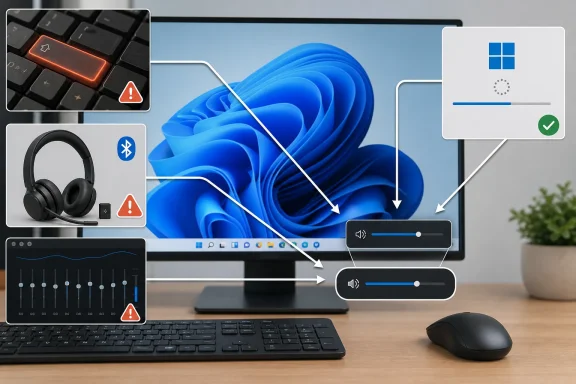 The Volume Bar Is a Symptom, Not the Culprit
The Windows volume bar is supposed to appear when the system receives a volume-up, volume-down, mute, or unmute command. On Windows 11, that overlay is part of the modern shell experience, and under normal conditions it should disappear shortly after the adjustment is complete. If it keeps returning, Windows is usually responding to repeated input rather than spontaneously deciding to advertise your speaker level.That distinction changes the troubleshooting strategy. A stuck keyboard key, a flaky USB headset, a Bluetooth device reconnecting badly, or a vendor audio app can all create the same visible result. The overlay looks like a Windows problem because Windows draws it, but the trigger may be entirely external.
This is also why the problem often appears “random.” A keyboard with a slightly jammed volume key may behave after a reboot, then act up again when the chassis warms or the desk is bumped. A headset dongle may spam media-key events only after waking from sleep. A third-party equalizer may behave until a driver update changes the audio stack underneath it.
The practical lesson is simple: do not start with registry edits, shell replacements, or aggressive debloating. Start by proving whether Windows is receiving repeated commands, and then work outward from the simplest causes to the least visible ones.
The Reboot Is Not a Cure, but It Is a Useful Lie Detector
Restarting the PC is the least glamorous fix in Windows support, which is also why people skip it. In this case, skipping it is a mistake. A restart clears transient shell glitches, reloads audio services, resets driver state, and breaks whatever loop a misbehaving process may have entered.If the volume bar disappears after a reboot and never returns, the problem was probably temporary. Windows shell components, audio services, and device drivers are not immune to bad state, especially on machines that spend days moving between sleep, hibernation, docks, Bluetooth peripherals, and external displays. The reboot does not explain the bug, but it tells you whether the system was stuck in a temporary condition.
If the bar comes back immediately after restart, the clue is stronger. Something that loads at boot, connects at startup, or exists physically on the machine is likely responsible. That is when keyboards, headsets, mice, docks, startup utilities, and vendor audio services move to the top of the suspect list.
A restart should be the first move, not because it is sophisticated, but because it cheaply divides the problem into two categories. One is a temporary Windows state problem. The other is a recurring input, driver, or software conflict.
Windows Update Is the Unfashionable Fix That Still Matters
The next step is to make sure Windows is current. That advice can sound perfunctory, but audio problems are exactly the sort of issue that accumulate around driver packages, shell components, OEM utilities, and platform updates. Windows Update may deliver operating system fixes, driver updates, firmware-adjacent packages from manufacturers, or servicing changes that alter how audio devices behave.This does not mean every update is a blessing. IT admins know very well that “install updates” is both a support recommendation and, occasionally, the origin story of a new support ticket. But when the machine is already misbehaving, running behind on cumulative updates or device drivers leaves too many known variables unresolved.
For home users, the path is straightforward: open Settings, go to Windows Update, check for updates, install what is offered, and restart. For managed systems, the advice is more conditional. Follow your organization’s update rings, but confirm whether the affected machine is missing a deployed driver, firmware, or cumulative update that peers have already received.
The important thing is not blind faith in updates. It is reducing the chance that you are troubleshooting a problem Microsoft or an OEM has already patched.
Microsoft’s Troubleshooter Is Better as a Triage Tool Than a Miracle Worker
Windows 11 still includes built-in audio troubleshooting, though Microsoft has increasingly routed some troubleshooting flows through the Get Help app. The exact presentation may vary by build, but the intent is the same: run diagnostics against common sound problems, check configuration, and attempt repairs where possible.For this particular symptom, the audio troubleshooter may or may not directly stop the volume overlay from appearing. That is not a failure. Its value is that it checks parts of the audio path that users often overlook: output device selection, muted devices, disabled endpoints, driver irregularities, and audio service state.
The normal route is through Settings, then System, then Troubleshoot, then Other troubleshooters. From there, run the audio troubleshooter if it is listed, or follow the Get Help flow if Windows sends you there. If Windows identifies a specific output device or configuration issue, apply the recommended fix and restart before judging the result.
Treat the troubleshooter’s conclusion carefully. “No problem found” does not mean no problem exists. It means Windows did not detect one of the conditions that troubleshooter is designed to detect. That still leaves hardware inputs, USB devices, Bluetooth controls, OEM hotkey utilities, and third-party audio software very much in play.
The Keyboard Is the First Physical Suspect
If the volume bar keeps popping up, the keyboard deserves immediate attention. Dedicated volume keys, function-row media controls, laptop hotkeys, and programmable macro keys can all generate the commands that summon the overlay. If one of those keys is stuck, contaminated, electrically flaky, or being pressed by a case, sleeve, cable, or monitor stand, Windows will obediently keep showing the volume indicator.This is especially common on laptops, compact keyboards, and older membrane boards. A key does not need to be visibly depressed to misbehave. Debris under the cap, liquid residue, wear in the switch, or a compressed function key can create intermittent input that looks like a software bug.
The quickest test is physical. Press the volume keys several times and make sure they spring back cleanly. Check whether the Fn key is stuck on a laptop. Disconnect an external keyboard and use the built-in keyboard, or connect a different keyboard and see whether the overlay stops appearing.
For desktops, do not forget wireless keyboards. Low batteries, damaged receivers, and crowded USB hubs can create strange behavior that users do not instinctively associate with media keys. If the problem vanishes when the keyboard is unplugged or powered off, Windows was not the offender; it was the messenger.
External Audio Gear Can Spam Windows With Good Intentions
Headsets, speakers, audio interfaces, monitors, docking stations, microphones, webcams, and even some mice can send media or volume commands. Many modern peripherals are not passive audio endpoints. They contain buttons, firmware, HID interfaces, companion apps, and sometimes their own idea of what the system volume should be.That makes unplugging devices one by one one of the most effective tests. Start with the obvious audio hardware: USB headsets, external speakers, DACs, audio interfaces, monitor audio over HDMI or DisplayPort, and Bluetooth dongles. Then expand to less obvious devices, including docks, keyboards, mice, stream decks, webcams, and game controllers.
The cleanest version of the test is to shut down, disconnect nonessential peripherals, boot with only keyboard, mouse, display, and power, and then wait. If the volume bar no longer appears, reconnect devices one at a time. The device that brings the problem back becomes the primary suspect.
Bluetooth deserves special skepticism. A headset with physical volume controls can reconnect after sleep in a confused state, and Windows may receive repeated volume events during the handshake. Removing the device from Bluetooth settings, pairing it again, and checking for firmware updates from the manufacturer can be more effective than toggling Bluetooth off and on.
Audio Utilities Are Useful Until They Start Fighting the Shell
Third-party audio software is another common source of this class of problem. Equalizers, virtual surround packages, headset control panels, sound “enhancement” suites, motherboard audio utilities, capture-card mixers, streaming tools, and vendor hotkey services all sit near the same controls Windows uses to manage sound.Most of these tools are legitimate. Many are useful. The problem is that they often overlap in responsibility, especially on gaming laptops and enthusiast desktops that may have Realtek software, OEM tuning tools, headset utilities, GPU audio drivers, communication apps, and streaming software installed at the same time.
The first test is simple: close third-party audio programs from the system tray and Task Manager. Do not just close the visible window; check whether the utility leaves a background process running. Then watch whether the volume overlay stops appearing.
If closing the app fixes the problem, update it before uninstalling it. Vendor utilities frequently lag behind Windows changes, and a newer version may restore compatibility. If the problem returns after the app relaunches, decide whether the utility is essential or whether Windows’ built-in sound controls are sufficient.
Clean Boot Turns Guesswork Into Evidence
When unplugging hardware and closing obvious apps does not solve the issue, a clean boot is the next serious diagnostic step. A clean boot starts Windows with essential Microsoft services while disabling third-party services and startup items, making it easier to identify background software conflicts. It is not the same thing as Safe Mode; it is a controlled way to boot normal Windows with fewer outside actors.The standard process uses System Configuration. Open the Run dialog, type
msconfig, open the Services tab, check “Hide all Microsoft services,” and then disable the remaining third-party services. Then open Task Manager from the Startup tab and disable startup items that might be involved. Restart and test.The “Hide all Microsoft services” checkbox is not a decorative detail. It is the guardrail that keeps users from disabling core Windows services while trying to isolate third-party conflicts. On a personal PC, this is important; on a work PC, it is essential.
If the volume bar stops appearing in a clean boot, re-enable services and startup items in batches until the problem returns. The last batch contains the culprit. From there, narrow it down to a specific utility, driver helper, updater, hotkey service, headset suite, or OEM control process.
This is slower than guessing, but it produces an answer. And in Windows troubleshooting, an answer beats another afternoon spent uninstalling random apps because a forum post sounded confident.
Device Manager Is a Scalpel, Not a Hammer
It is tempting to jump into Device Manager and start uninstalling audio devices. Sometimes that is necessary, especially when a driver is clearly broken or an audio endpoint appears duplicated, missing, or disabled. But Device Manager should come after simpler tests, because removing drivers can create new variables.If you reach this stage, focus on the devices most closely tied to the symptom. Check “Sound, video and game controllers,” “Audio inputs and outputs,” “Human Interface Devices,” and keyboards. A USB headset, HID-compliant consumer control device, vendor hotkey component, or audio driver may be more relevant than the speaker endpoint itself.
Updating drivers through Windows Update is usually the safer first move. For OEM machines, the manufacturer’s support app or driver page may be the better source, particularly for laptops where hotkey handling, audio tuning, and power management are tightly integrated. For custom desktops, motherboard vendors and headset manufacturers may provide newer control software or firmware.
Uninstalling a device and letting Windows redetect it can help when configuration state is corrupted. But do it deliberately, restart afterward, and avoid deleting driver packages unless you know you have a replacement. The goal is to restore a clean device state, not to turn an annoying overlay into a no-audio emergency.
The Overlay That Will Not Disappear May Be a Shell Problem
Most recurring volume-bar cases are caused by repeated input. But a volume overlay that appears once and then refuses to go away can point closer to Windows Shell behavior. In that situation, the system may not be receiving constant volume commands; instead, the visual component may be stuck.A restart is still the first fix. Signing out and back in can also reset shell state without a full reboot. Restarting Windows Explorer from Task Manager may help in some shell-related cases, though it is less direct than a full restart and can disrupt open File Explorer windows and taskbar behavior.
If the stuck overlay appears only after certain apps run full-screen, after waking from sleep, or after switching displays, pay attention to GPU drivers and overlay-heavy software. Game overlays, media players, screen recorders, streaming tools, and vendor performance dashboards can all interact awkwardly with system UI elements.
This is where patience matters. A shell glitch that happens once a month is hard to diagnose; a glitch that happens every time a particular headset utility launches is easy. Write down what was open, what device changed, and whether the machine had just slept, docked, undocked, or switched audio outputs.
Enterprise IT Should Treat This as an Endpoint Signal
For sysadmins, a volume bar popping up may sound too minor to deserve process. But repeated UI anomalies are often how endpoint problems first surface. A user reports “the volume thing keeps appearing,” and buried underneath is a failing keyboard, a bad dock firmware revision, a headset driver conflict, or an OEM utility deployed across an entire model fleet.The support value is in pattern recognition. If one user has the problem, troubleshoot the device. If ten users on the same laptop model report it after the same driver update, the problem is no longer a nuisance; it is a deployment issue. The same applies to offices standardized on a particular USB headset, dock, or conferencing peripheral.
Clean booting every affected machine is not scalable, but collecting startup software, driver versions, device models, and recent update history is. If the reports cluster around a vendor hotkey service or headset utility, IT can test a rollback, update, or policy change before the help desk burns hours on individualized rituals.
There is also a user-training angle. Employees should be encouraged to report the conditions around the symptom: after docking, after Teams calls, after sleep, after plugging in a headset, after a Windows update, or only on battery. That context turns a vague annoyance into a reproducible bug.
The Wrong Fixes Can Make a Small Problem Larger
The internet is full of advice for hiding Windows UI elements, disabling services, modifying registry keys, or removing shell packages. Some of it may be well intentioned. Much of it is the wrong response to this symptom.The volume overlay is useful when it behaves. Disabling the machinery around it may hide the evidence while leaving the underlying input or driver problem intact. Worse, aggressive changes can break media keys, accessibility expectations, audio controls, or OEM laptop functions.
Registry edits are especially suspect here. Unless a change comes from a documented vendor fix or a controlled enterprise baseline, it is usually a way to trade a visible annoyance for an invisible maintenance liability. The same goes for uninstalling broad audio components without first identifying the device or service responsible.
A better rule is this: fix the thing that is sending or mishandling the volume command. Do not punish the overlay for reporting it.
A Small Overlay Exposes the Messy Reality of Modern PC Audio
The modern Windows audio experience is more complicated than the volume slider suggests. A single machine may route sound through internal speakers, Bluetooth earbuds, HDMI monitors, USB headsets, conferencing apps, virtual cables, game capture software, browser tabs, and per-app volume controls. Each layer has its own driver, service, permissions model, and update cadence.That complexity is why the volume bar can become a meeting point for unrelated failures. A stuck key, a buggy utility, and a confused Bluetooth headset may produce the same visible symptom, even though the fixes are entirely different. Windows is the common stage, not always the playwright.
Microsoft’s move toward Get Help-based troubleshooters reflects the same reality. The old Control Panel-era model assumed users could be sent to a known applet and told to click through a fixed sequence. Windows 11 increasingly treats troubleshooting as a guided flow because the underlying environment is less predictable.
That is not an excuse for rough edges. Users should not need to become HID-event detectives to make a volume overlay disappear. But it is a reminder that “Windows problem” is often shorthand for an ecosystem problem involving Microsoft, OEMs, peripheral makers, driver vendors, and utilities all sharing the same user experience.
The Fix Is a Sequence, Not a Single Trick
The most reliable approach is to move from obvious to hidden causes without skipping steps. Restart first. Update Windows. Run the audio troubleshooter. Check physical controls. Remove external devices. Close third-party audio tools. Clean boot only when the simpler tests fail.That order matters because each step teaches you something. If unplugging a headset fixes the issue, there is no need to spend an hour in
msconfig. If a clean boot fixes it, the answer is probably not a stuck laptop key. If the problem appears only after a specific app launches, the app has just volunteered for questioning.It also matters because users often remember the last step, not the diagnostic path. If a clean boot temporarily fixes the symptom, that does not mean clean boot is the permanent solution. It means a disabled service or startup item was involved, and the next job is to identify it.
Good troubleshooting narrows the field. Bad troubleshooting merely changes the scenery.
The Five Clues That Usually Solve the Case
Before reaching for more invasive fixes, reduce the problem to a few concrete observations. The volume overlay is noisy, but the clues around it are usually precise.- If the volume bar appears immediately after startup, a startup utility, connected device, or stuck hardware control is likely involved.
- If the problem stops when a keyboard or headset is unplugged, Windows is probably receiving repeated input from that device or its companion software.
- If the audio troubleshooter finds device or configuration problems, apply those fixes before testing third-party apps.
- If closing an equalizer, headset suite, hotkey utility, or audio enhancement app stops the overlay, update or remove that software.
- If a clean boot stops the problem, re-enable services and startup items gradually until the conflicting component reveals itself.
- If the overlay appears once and stays frozen rather than repeatedly popping up, investigate Windows shell state, display changes, sleep transitions, and overlay-heavy apps.
References
- Primary source: Guiding Tech
Published: 2026-06-30T13:37:15.507981
Volume Bar Keeps Popping Up in Windows? Here’s How to Fix It - Guiding Tech
Windows volume bar keeps popping up? There are a few reasons this could happen, and we’ve got some troubleshooters to help make it disappear again.www.guidingtech.com
- Official source: support.microsoft.com
Fix sound or audio problems in Windows | Microsoft Support
Find out how to fix sound or audio problems in Windows.support.microsoft.com - Related coverage: techadvisor.com
How To Fix Windows 11 Audio Not Working - Tech Advisor
Not getting any sound from your device or unable to connect to speakers or headphones? Here are seven potential solutions.www.techadvisor.com - Official source: learn.microsoft.com
Troubleshooting audio problems in Windows 11 - ARTICLE - Microsoft Q&A
Technical Level: Intermediate. Applies to: All Windows 11 editions. Revision: 1.0. In this community guide, I will show you various methods to troubleshoot, in case if audio is not working properly on your system. The common audio problems you might see…learn.microsoft.com - Related coverage: windowscentral.com
How to use msconfig on Windows 11 (System Configuration) | Windows Central
On Windows 11, you can use the System Configuration (msconfig) tool to manage various aspects of the boot settings and troubleshoot issues.www.windowscentral.com - Official source: answers.microsoft.com
Audio troubleshooter doesn’t work. - Microsoft Q&A
When I try to troubleshoot my audio it says “this file does not have an app associated with it for preforming this action.” And I wanted to know how I could download an app like the one it’s talking about and I also wanted to know to associate it with…answers.microsoft.com
- Official source: microsoft.com
Windows Help & Support: Find Quick Answers & Helpful Resources | Microsoft Windows
Find the Windows help and support you need. From account setup to device support, search for quick answers and helpful resources so you can get the most out of Windows.www.microsoft.com - Related coverage: techrepublic.com
How to clean boot your Windows 11 computer - TechRepublic
Troubleshooting a problem computer requires patience, know-how, and a lot of trial and error. Booting your PC in a clean configuration can help automate the process.www.techrepublic.com
- Related coverage: techyorker.com
How to run audio troubleshooter in Windows 11 - TechYorker
×AIDiscover the way to a Faster PC - Chipps AI AssistantNew Update: Boost Your Device Performance Today with Chipps.Fix My... techyorker.com
- Related coverage: cceboston.org
- Related coverage: anysitesolutions.com
- Related coverage: merging.com
