

Windows 11 remains the lower-risk gaming choice for competitive anti-cheat titles and broad compatibility, while Linux is viable as the only operating system when every essential game, device, and supporting tool passes a hands-on test. If only part of your library works, install Linux on a separate SSD and retain Windows for the exceptions.
At 1440p, Windows produced 149 FPS in Cyberpunk 2077, compared with 140 FPS on Fedora. In Arc Raiders, Windows reached 145 FPS against Linux’s 133 FPS. Its 1% low was 131 FPS on Windows and 94 FPS on Linux.
That last result matters to players who notice stutter or use high-refresh-rate displays. Average FPS measures overall throughput; the 1% low helps expose the slowest portions of the run. Linux may deliver excellent application performance while a particular Windows installation still provides steadier delivery in an essential game.
The same test exposed a harder compatibility limit: Fortnite did not launch under Fedora because of its anti-cheat configuration. Installing another compatibility-layer version cannot guarantee access to a game that its publisher does not support in that environment.
WindowsForum’s Ryzen AI 9 365 performance discussion likewise reported major Linux gains in selected workloads, while the forum’s coverage of PassMark’s early-2025 CPU dip showed how benchmark trends can shift with platform conditions. For a gaming decision, test the same title, preset, ray-tracing setting, upscaler, and comparable driver generation on your own GPU.
Linux is especially practical for libraries centered on verified single-player, indie, emulated, or Linux-native games. It can also suit users who already prefer Linux for development, containers, administration, or workstation tasks.
Use a reversible trial:
Before starting, back up important files, save the Windows device-encryption or BitLocker recovery key, and create recovery media.
Keep separate game installations unless a launcher and shared file system explicitly support cross-platform reuse.
Treat GPU controls, capture tools, tuning programs, and peripheral managers as individual dependencies rather than universal Windows advantages. If a particular utility is essential and lacks an acceptable Linux replacement, that alone can justify Windows or dual-booting.
A July 25, 2025 ComputerBase comparison across 21 games used a Ryzen 7 9800X3D, GeForce RTX 5070 Ti, Radeon RX 9070 XT, Windows 11, and EndeavourOS. Radeon gaming under Linux was strong without ray tracing, while GeForce showed a clearer Linux deficit.
That creates a useful branch in the decision:
For a fair comparison:
Linux is ready to stand alone for a fully verified library. Dual-booting is the practical bridge when even one essential game or tool remains Windows-only, while Windows should remain primary for must-play competitive anti-cheat titles, broad access, or frame-time requirements that Linux does not meet on the reader’s hardware.
At-a-glance decision
Is Fortnite or another must-play anti-cheat game required?
- Full Linux: Every essential game—including protected multiplayer—works, and your required peripherals and utilities pass testing.
- Dual-boot: One or more games, launchers, hardware tools, or work applications still require Windows.
- Windows primary: Competitive anti-cheat access, broad game availability, or proven frame-time stability is non-negotiable.
- Yes: Stay on Windows or dual-boot.
- No: Test Linux.
 Make the Decision in Five Steps
- List the games you actively play. Include upcoming purchases, launchers, downloadable content, mods, private servers, and multiplayer modes—not everything sitting unused in your library.
- Mark every non-negotiable title. One blocked game is enough to justify keeping Windows, even if dozens of other games run perfectly on Linux.
- Separate launching from working. A single-player campaign reaching the main menu does not prove that protected matchmaking, voice chat, updates, or multiplayer services work.
- Inventory reader-specific dependencies. Test any GPU settings, capture functions, streaming tools, tuning software, RGB controls, mouse profiles, headset processing, firmware utilities, and accessibility tools you actually use. Do not assume either operating system covers them.
- Choose the least disruptive result. Use Linux only after all essentials pass; dual-boot for a mixed result; retain Windows as primary when compatibility and consistency outweigh experimentation.
Why the Latest Benchmark Matters
A same-hardware Windows 11-versus-Fedora KDE comparison published July 15, 2026, showed Linux leading the Geekbench CPU testing and all three Blender scenes. Windows 11, however, won every game benchmark in that test.At 1440p, Windows produced 149 FPS in Cyberpunk 2077, compared with 140 FPS on Fedora. In Arc Raiders, Windows reached 145 FPS against Linux’s 133 FPS. Its 1% low was 131 FPS on Windows and 94 FPS on Linux.
That last result matters to players who notice stutter or use high-refresh-rate displays. Average FPS measures overall throughput; the 1% low helps expose the slowest portions of the run. Linux may deliver excellent application performance while a particular Windows installation still provides steadier delivery in an essential game.
The same test exposed a harder compatibility limit: Fortnite did not launch under Fedora because of its anti-cheat configuration. Installing another compatibility-layer version cannot guarantee access to a game that its publisher does not support in that environment.
WindowsForum’s Ryzen AI 9 365 performance discussion likewise reported major Linux gains in selected workloads, while the forum’s coverage of PassMark’s early-2025 CPU dip showed how benchmark trends can shift with platform conditions. For a gaming decision, test the same title, preset, ray-tracing setting, upscaler, and comparable driver generation on your own GPU.
Verify Every Essential Linux Game
Check each game in several places before installing Linux:- ProtonDB: Search for recent reports matching your GPU vendor, distribution, game mode, and Proton version. Give more weight to current reports than old ratings.
- Are We Anti-Cheat Yet?: Check whether protected multiplayer is reported as supported, broken, denied, or untested. Treat an uncertain status as a reason to retain Windows until verified.
- The game’s Steam store page: Look for native Linux availability and Steam Deck compatibility information. A Deck rating is useful context, but it is not proof that your desktop hardware or multiplayer mode will work.
- PCGamingWiki: Check launcher requirements, save locations, known fixes, controller behavior, and recurring technical problems.
- Publisher and developer support pages: Look for an explicit platform statement, especially for anti-cheat, competitive modes, third-party accounts, and launchers.
- Current WindowsForum and game-community reports: Use these to identify regressions and test cases, not as a substitute for your own verification.
- [ ] Installs without manual file copying or unsafe workarounds.
- [ ] Launches repeatedly after a cold boot.
- [ ] Reaches gameplay—not merely the launcher or main menu.
- [ ] Loads an existing save and synchronizes cloud data correctly.
- [ ] Completes at least one representative single-player session.
- [ ] Joins protected matchmaking and completes several multiplayer matches.
- [ ] Voice chat, text chat, invitations, overlays, and friends lists work.
- [ ] Controller, mouse profiles, audio routing, and HDR or variable refresh features work as required.
- [ ] Mods and downloadable content load correctly.
- [ ] Average FPS, 1% lows, and visible stutter are acceptable.
- [ ] The game still works after an update and a suspend/restart cycle.
Who Can Switch Completely to Linux Now?
A full move is reasonable when every essential game passes the checklist, no required competitive title is blocked, and the surrounding hardware and software work acceptably.Linux is especially practical for libraries centered on verified single-player, indie, emulated, or Linux-native games. It can also suit users who already prefer Linux for development, containers, administration, or workstation tasks.
Use a reversible trial:
- Back up saves, configuration files, recovery keys, and irreplaceable data.
- Install Linux on a separate SSD rather than erasing Windows.
- Apply distribution updates and the recommended graphics driver.
- Install your normal clients and compatibility tools.
- Run the per-game checklist for every essential title.
- Test displays, sleep, audio, streaming, voice chat, controllers, and required device controls.
- Use Linux normally for several days and repeat tests after updates.
Install a Separate-SSD Dual Boot
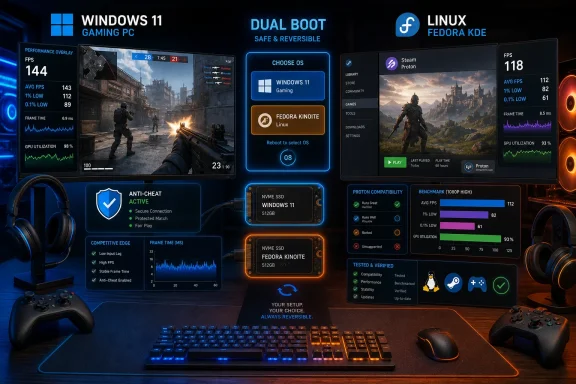
Dual-booting is appropriate when Linux covers most activities but one or more games or tools still require Windows. A separate SSD reduces partitioning risk and makes rollback simpler.Before starting, back up important files, save the Windows device-encryption or BitLocker recovery key, and create recovery media.
- Identify both disks in Windows. Open Disk Management, note the Windows SSD’s capacity and model, and record the capacity and model of the empty Linux target SSD. Labeling the drives physically can prevent mistakes.
- Prepare the target. Move anything valuable off the Linux SSD. Do not delete or resize partitions on the Windows disk.
- Create Linux installation media. Write the chosen distribution’s ISO to a USB drive using its documented imaging method, then reboot.
- Open the firmware boot menu. Use the PC maker’s one-time boot key and select the USB entry marked UEFI.
- Start the installer and confirm UEFI mode. When asked about disk layout, choose Manual partitioning, Custom, Something else, or the distribution’s equivalent—not an automatic option that might use the Windows disk.
- Select the target by model and capacity. Verify that the device name corresponds to the empty Linux SSD recorded earlier. Disk identifiers such as
/dev/nvme0n1can change, so do not rely on the number alone. - Leave Windows partitions untouched. Do not format, delete, resize, or repurpose the Windows EFI System, Microsoft Reserved, Windows data, recovery, or OEM partitions.
- Partition only the Linux SSD. Let the installer create its recommended Linux layout there, or create an EFI System Partition and Linux root partition according to the distribution’s documentation. Confirm that every partition marked for formatting belongs to the target SSD.
- Place the Linux boot files on the Linux SSD. If the installer offers a bootloader-device selector, choose the target Linux disk or its EFI partition—not the Windows SSD.
- Review the final summary. Stop if any Windows partition is listed for formatting or deletion. Approve installation only when all destructive changes are confined to the Linux SSD.
- Reboot and test Linux. Remove the USB drive, boot Linux, apply updates, and restart once more.
- Verify Windows independently. Open the firmware’s one-time boot menu and select Windows Boot Manager on the Windows SSD. Confirm that Windows starts and its files are intact.
- Verify Linux independently. Reboot, use the same firmware menu, and select the Linux SSD or Linux boot entry.
- Set the preferred default. Change firmware boot order only after both entries work independently.
Keep separate game installations unless a launcher and shared file system explicitly support cross-platform reuse.
Who Should Stay on Windows 11?
Keep Windows primary if you regularly play competitive anti-cheat games, need Fortnite, require broad access with minimal troubleshooting, or have demonstrated better frame-time behavior in your essential titles.Treat GPU controls, capture tools, tuning programs, and peripheral managers as individual dependencies rather than universal Windows advantages. If a particular utility is essential and lacks an acceptable Linux replacement, that alone can justify Windows or dual-booting.
A July 25, 2025 ComputerBase comparison across 21 games used a Ryzen 7 9800X3D, GeForce RTX 5070 Ti, Radeon RX 9070 XT, Windows 11, and EndeavourOS. Radeon gaming under Linux was strong without ray tracing, while GeForce showed a clearer Linux deficit.
That creates a useful branch in the decision:
- Radeon owner who does not use ray tracing: You may be a stronger Linux candidate, subject to per-game and peripheral testing.
- GeForce owner, or anyone relying on ray tracing: Test the exact games and settings before moving; do not extrapolate from Radeon results.
Evaluate Frame-Time Stability
Set your threshold before testing. If Linux’s average FPS and 1% lows remain within a range you cannot distinguish during play, performance need not block migration. If an essential competitive game develops visible dips, input inconsistency, or repeatable stutter, retain Windows for that game.For a fair comparison:
- Use identical resolution, preset, ray tracing, and upscaling settings.
- Run the same repeatable scene at least three times.
- Record average FPS and 1% lows.
- Note shader-compilation and traversal stutter separately.
- Reboot each operating system before its test.
- Match display refresh rate, power limits, recording state, and driver generation.
Frequently Asked Questions
Is Linux now faster than Windows 11 for gaming?
Not universally. Linux can lead in CPU, rendering, and selected game tests, while Windows can lead in other games and frame-time results. Verify your exact titles and settings.Can Proton solve every Windows game compatibility problem?
No. Proton runs many Windows games, but publisher-controlled anti-cheat, launchers, and online services can still block launching or protected multiplayer.Is dual-booting better than running Windows games in a virtual machine?
Dual-booting provides a native Windows installation and is the documented route in this guide. Verify any alternative against the game publisher’s support and anti-cheat requirements rather than assuming equivalent compatibility.Should Radeon owners automatically switch to Linux?
No. Radeon owners who avoid ray tracing may be stronger candidates based on the cited ComputerBase test, but every essential game, peripheral, and required utility still needs verification.Linux is ready to stand alone for a fully verified library. Dual-booting is the practical bridge when even one essential game or tool remains Windows-only, while Windows should remain primary for must-play competitive anti-cheat titles, broad access, or frame-time requirements that Linux does not meet on the reader’s hardware.
References
- Primary source: phoronix.com
- Independent coverage: computerbase.de
Benchmarks Linux vs. Windows 11 auf Radeon & GeForce - ComputerBase
Wie steht es um die Gaming-Performance von Linux auf GeForce und Radeon (Mesa 26) im Vergleich zu Windows 11? Der Benchmark-Test!www.computerbase.de
- Independent coverage: pcworld.com
Linux users surge on Steam, doubling in a year | PCWorld
The Steam Deck is a huge part of that, obviously... but it's a smaller factor in the total Linux number than you might think.www.pcworld.com - Independent coverage: notebookcheck.net
Windows vs. Linux gaming: Test reveals clear winner, but community disagrees - Notebookcheck News
Linux has evolved into a serious alternative for PC gamers in recent years. However, a new comparison by Meta PCs shows that while the open-source operating system can outperform Windows in some productivity workloads, Windows 11 still holds the lead in gaming performance and compatibility. www.notebookcheck.net
- Independent coverage: itsfoss.com
Linux Market Share Statistics [March 2026 Report]
Curious to know the latest market share percentage for Linux desktop? You don't have to do the research, we've done it for you. itsfoss.com
- Independent coverage: techspot.com
New benchmarks show Linux gaming nearly matching Windows on AMD GPUs | TechSpot
A recent benchmark from PC Games Hardware suggests that, at least for some games, Proton has nearly eliminated the performance cost of running Windows code on Linux....www.techspot.com
