

Microsoft began rolling out Xbox mode for Windows 11 PCs on April 30, 2026, as part of the KB5083631 preview update for versions 24H2 and 25H2, with the same changes expected to flow into the May 12 Patch Tuesday security release. The headline is simple enough: Windows can now boot gamers into a console-style, full-screen Xbox interface that reportedly trims background activity and can free up to about 2GB of memory. The bigger story is that Microsoft is no longer treating “Windows gaming” as a window on the desktop. It is trying, belatedly but seriously, to make Windows behave like a purpose-built gaming platform when the moment calls for it.
For three decades, the Windows desktop has been both Microsoft’s superpower and its tax. It is flexible, familiar, extensible, and astonishingly tolerant of weird hardware, old software, overlays, launchers, drivers, anti-cheat systems, RGB daemons, and vendor utilities that should probably have been uninstalled years ago. It is also noisy.
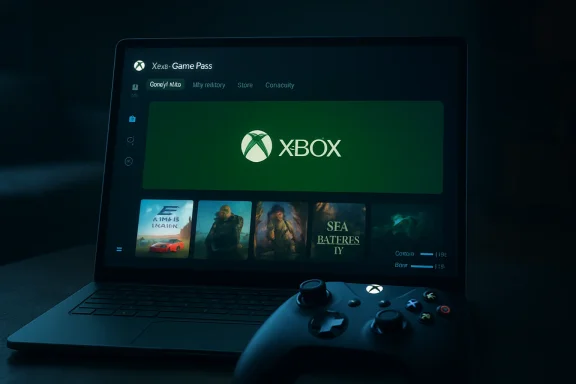
Xbox mode is Microsoft’s latest attempt to quiet that noise. The feature presents a full-screen, controller-friendly Xbox app experience on laptops, desktops, and tablets, with games pushed to the foreground and the rest of Windows made less visible. Users can enter it from the Xbox app, Game Bar settings, or with Windows logo key + F11, while the Settings app also exposes the experience under Gaming on supported systems.
That sounds cosmetic, and in part it is. A full-screen launcher does not magically turn a Windows PC into an Xbox Series X. But the important word in Microsoft’s own description is not “Xbox”; it is minimizing. The company says the mode reduces background distractions, and early reporting around the feature has emphasized memory savings of roughly 1GB to 2GB depending on the device and configuration.
That matters most on the machines Windows has struggled to serve elegantly: handheld gaming PCs, living-room boxes, and modest laptops with 16GB of RAM split between system memory and integrated graphics. A 2GB recovery on a 64GB desktop workstation is trivia. A 2GB recovery on a handheld with shared memory can be the difference between stutter and stability.
Windows is not reallocating a hidden reserve of gaming RAM. It is reducing the amount of memory consumed by desktop-facing components, background activity, and shell-adjacent clutter that is less relevant when a user has picked up a controller and wants to launch a game. In other words, Xbox mode is not a GPU upgrade. It is a discipline mechanism for Windows itself.
That distinction is important because gamers will test this feature the way gamers test everything: by watching frame-time graphs and arguing in comment sections. Some games may benefit, especially those constrained by memory pressure, shader compilation behavior, integrated graphics allocations, or background task contention. Others may show no measurable improvement at all, because the bottleneck is GPU horsepower, CPU scheduling, storage throughput, network latency, or the game’s own engine.
The most honest interpretation is that Xbox mode is a floor raiser, not a ceiling raiser. It is designed to make Windows less likely to sabotage the gaming session, not to make a midrange GPU perform like a flagship card. That is still a worthwhile engineering target, especially for Windows handhelds where Microsoft has been visibly chasing SteamOS and its console-like simplicity.
Microsoft had all the ingredients and still moved slowly. It owned Windows, Xbox, DirectX, Game Pass, Game Bar, the Microsoft Store, and one of the biggest gaming brands in the world. Yet for years, PC gaming on Windows remained a federation of launchers and half-overlapping interfaces. Xbox on PC often felt like a subscription portal strapped to an operating system rather than a coherent gaming front end.
Xbox mode is a concession to the obvious: gaming PCs are no longer only deskside towers with mechanical keyboards and monitors. They are handhelds, couch devices, tablets with controllers, mini PCs under televisions, and laptops connected to hotel-room HDMI ports. In those contexts, the desktop is not a productivity environment. It is an obstacle course.
That is why the console metaphor matters. Microsoft does not need to make every Windows PC into an Xbox. It needs to make Windows capable of stepping out of the way when the user’s intent is plainly gaming. If Xbox mode succeeds, it will be because it makes Windows feel less like a general-purpose OS during the hour when general-purpose behavior is exactly what the user does not want.
File Explorer gets several small but welcome improvements. Microsoft is expanding archive support to include uu, cpio, xar, and NuGet package files, continuing the slow erosion of the “install another utility for that” reflex. View and Sort preferences are now preserved more consistently when apps open common folders such as Downloads and Documents directly, and a dark-mode white flash when opening This PC or resizing the Details pane has been addressed.
Those are not keynote features. They are the kind of fixes that make Windows feel less frayed at the edges. Explorer remains the emotional center of Windows for many users, and Microsoft’s long modernization campaign has too often left it feeling caught between eras. Faster, quieter, more reliable Explorer behavior is mundane in the way plumbing is mundane: nobody applauds until it breaks.
The update also improves explorer.exe reliability more broadly, including around sign-in, taskbar menus, Task View, and Quick Access interactions. For sysadmins, that matters because explorer.exe is not just a file manager process in ordinary user perception. It is the shell. When it misbehaves, users do not say “Explorer crashed.” They say Windows is broken.
This is a small UI feature with a large strategic message. Microsoft is trying to make agentic work feel like a normal OS-level activity, not just a chat pane inside an app. The taskbar has always shown what is open. Now Microsoft wants it to show what is working on your behalf.
That is a subtle but important shift. A progress indicator for an AI report is not conceptually different from a file copy dialog, a print queue, or a download bar. Microsoft’s bet is that users will increasingly dispatch work to software agents and then expect the operating system to track those jobs. The taskbar becomes not merely a launcher, but a dashboard for delegated computing.
The risk is clutter and trust. Windows users already live with enough notification spam, background badges, and “helpful” nudges. If agent status becomes another channel for Microsoft 365 upsell energy, users will rebel. If it is restrained, transparent, and useful, it could make AI feel less like a chatbot gimmick and more like part of the operating system’s job-control model.
That is classic Microsoft: careful, staged, and haunted by the knowledge that some old driver somewhere is still keeping a business-critical device alive. Driver trust is one of the hardest places to modernize Windows because the OS’s compatibility promise collides with the kernel’s security boundary. Bad drivers can destabilize systems, weaken protections, and create attack paths that are painfully difficult for normal users to understand.
The batch-file change is similarly pragmatic. Administrators and Application Control for Business policy authors can enable a hardened processing mode that prevents batch files from changing while they are executing. It is configurable through a registry value under the Command Processor key or via an application manifest control.
Batch files are ancient, ugly, and still everywhere. They sit in deployment scripts, login routines, admin toolkits, vendor installers, and forgotten automation folders. Hardening them is not glamorous, but Windows security is often won or lost in the old plumbing rather than the shiny new interface.
That caveat will annoy some admins, but the direction is right. Windows inbox-app management has long been a battleground between Microsoft’s desire to ship experiences and enterprise IT’s desire to ship a predictable desktop. A dynamic removal list gives organizations a more granular way to define what belongs on managed devices.
Enterprise State Roaming can now be managed through Windows Backup for Organizations policies, which should simplify configuration for IT administrators. Kiosk configuration also gets attention, particularly around packaged apps when Microsoft Edge is one of the allowed apps. These are not features consumers will notice, but they are the sorts of changes that reduce friction in managed environments.
Microsoft is also warning about Secure Boot certificate expiration beginning in June 2026 and the need for updated certificates. KB5083631 includes additional high-confidence targeting data for devices eligible to receive new Secure Boot certificates, and Microsoft notes that a limited number of devices may experience an additional restart during installation as part of that process. That is the kind of detail enterprises need to plan around, especially when BitLocker and Secure Boot interactions are involved.
Voice typing on the touch keyboard gets a simpler presentation, dropping a more intrusive full-screen overlay in favor of animation on the dictation key. That is a small design correction, but a sensible one. Dictation should not feel like Windows has seized the screen just because the user wants to enter a sentence.
Microsoft is also adding the Arabic 101 Legacy keyboard layout, aimed at users who preferred the older design before more recent AltGr-related changes. This is the sort of regional input feature that rarely makes splashy headlines but matters intensely to the people affected. Operating systems succeed globally through thousands of these local accommodations.
Drag Tray, meanwhile, becomes Drop Tray and moves its settings to System > Multitasking. Microsoft says the feature now uses a smaller peek view, is less likely to open unintentionally, and should be easier to dismiss. The rename is less important than the behavioral tuning: Windows features that appear while dragging files must be very careful not to feel like a jump scare.
In 2026, FAT32 is not glamorous. It is the compatibility file system of cameras, embedded devices, firmware updaters, old consoles, weird appliances, car stereos, and cross-platform sneakernet. The fact that Microsoft is still fixing this tells you something about Windows’ real-world job: it must work not only with the future, but with every awkward device the future forgot to replace.
This change will not affect most users every day. But when it matters, it will matter immediately. Formatting a large removable volume without hunting for a third-party utility is precisely the sort of boring competence Windows should have had years ago.
The broader pattern is clear. KB5083631 does not present a single grand redesign. It presents dozens of small decisions where Microsoft is reducing unnecessary friction: fewer Explorer annoyances, fewer background distractions for gaming, fewer policy gaps for admins, fewer compatibility workarounds for storage, fewer insecure legacy assumptions around drivers and scripts.
This is good engineering and bad messaging. Phased rollouts reduce blast radius when something breaks, and Windows’ hardware diversity makes that caution rational. But users experience it as confusion. One person sees Xbox mode; another installs the same KB and does not. One admin reads about a feature and then has to explain why it is absent from a pilot device.
That tension is now baked into modern Windows. Microsoft ships the OS as a service, lights features progressively, and increasingly decouples visible experiences from old-school version numbers. The result is safer than the monolithic service-pack era, but harder to explain.
For enthusiasts, the lesson is patience. For IT pros, the lesson is validation. A Windows feature being “released” now often means “entering availability,” not “present on every eligible system you touch this afternoon.”
That is why the 2GB number should be understood as a proxy for a deeper ambition. Microsoft is trying to make Windows context-aware. Work mode, gaming mode, tablet mode, kiosk mode, Copilot agent monitoring, enterprise-managed state, and security posture are all different expressions of the same idea: the OS should reshape itself around intent.
Windows has attempted versions of this before, not always successfully. Tablet Mode in Windows 10 was clumsy. Game Mode was useful but often invisible. Game Bar became powerful yet busy. The difference now is that Microsoft has external pressure from SteamOS handhelds, internal pressure from Xbox, and strategic pressure from AI agents that need OS-level surfaces.
Xbox mode is therefore not just a feature for Game Pass subscribers. It is a test of whether Microsoft can make Windows less monolithic without making it feel fragmented. If the company can pull that off for gaming, it may apply the same pattern elsewhere.
Home users will ask whether Xbox mode is worth enabling. The answer is: try it if you use a controller, play from a couch, run a handheld-style PC, or have a system where memory pressure is noticeable. Do not expect universal frame-rate miracles. Expect a cleaner gaming surface and, on some machines, more breathing room.
Admins should pay more attention to the driver trust change, batch-file hardening option, BitLocker known issue conditions, Secure Boot certificate work, and app-removal policy additions. The consumer headline may be gaming, but the operational weight of this release sits in security and manageability. A feature that frees RAM is nice; a driver policy change that blocks an old dependency can create a ticket storm.
Developers should watch the taskbar agent integration. Microsoft is quietly creating a pattern for long-running AI work to surface through Windows itself. If that pattern catches on, it could become one of the more important shell integrations of the Copilot era.
Source: Windows Central https://www.windowscentral.com/micr...ed-with-11-powerful-features-you-cant-ignore/
 Microsoft Finally Admits the Desktop Is Not Always the Destination
For three decades, the Windows desktop has been both Microsoft’s superpower and its tax. It is flexible, familiar, extensible, and astonishingly tolerant of weird hardware, old software, overlays, launchers, drivers, anti-cheat systems, RGB daemons, and vendor utilities that should probably have been uninstalled years ago. It is also noisy.Xbox mode is Microsoft’s latest attempt to quiet that noise. The feature presents a full-screen, controller-friendly Xbox app experience on laptops, desktops, and tablets, with games pushed to the foreground and the rest of Windows made less visible. Users can enter it from the Xbox app, Game Bar settings, or with Windows logo key + F11, while the Settings app also exposes the experience under Gaming on supported systems.
That sounds cosmetic, and in part it is. A full-screen launcher does not magically turn a Windows PC into an Xbox Series X. But the important word in Microsoft’s own description is not “Xbox”; it is minimizing. The company says the mode reduces background distractions, and early reporting around the feature has emphasized memory savings of roughly 1GB to 2GB depending on the device and configuration.
That matters most on the machines Windows has struggled to serve elegantly: handheld gaming PCs, living-room boxes, and modest laptops with 16GB of RAM split between system memory and integrated graphics. A 2GB recovery on a 64GB desktop workstation is trivia. A 2GB recovery on a handheld with shared memory can be the difference between stutter and stability.
The 2GB Claim Is a Signal, Not a Benchmark
The phrase “reclaims 2GB of RAM” is irresistible because it sounds like a cheat code. Flip a switch, gain memory, play better. The reality is less dramatic and more useful.Windows is not reallocating a hidden reserve of gaming RAM. It is reducing the amount of memory consumed by desktop-facing components, background activity, and shell-adjacent clutter that is less relevant when a user has picked up a controller and wants to launch a game. In other words, Xbox mode is not a GPU upgrade. It is a discipline mechanism for Windows itself.
That distinction is important because gamers will test this feature the way gamers test everything: by watching frame-time graphs and arguing in comment sections. Some games may benefit, especially those constrained by memory pressure, shader compilation behavior, integrated graphics allocations, or background task contention. Others may show no measurable improvement at all, because the bottleneck is GPU horsepower, CPU scheduling, storage throughput, network latency, or the game’s own engine.
The most honest interpretation is that Xbox mode is a floor raiser, not a ceiling raiser. It is designed to make Windows less likely to sabotage the gaming session, not to make a midrange GPU perform like a flagship card. That is still a worthwhile engineering target, especially for Windows handhelds where Microsoft has been visibly chasing SteamOS and its console-like simplicity.
Steam Big Picture Was the Warning Shot Microsoft Ignored Too Long
Valve understood this problem years ago. Steam Big Picture was not perfect, but it recognized that the PC gaming experience changes when the keyboard and mouse disappear. SteamOS went further by treating the gaming shell as the main operating environment rather than an app pretending to be one.Microsoft had all the ingredients and still moved slowly. It owned Windows, Xbox, DirectX, Game Pass, Game Bar, the Microsoft Store, and one of the biggest gaming brands in the world. Yet for years, PC gaming on Windows remained a federation of launchers and half-overlapping interfaces. Xbox on PC often felt like a subscription portal strapped to an operating system rather than a coherent gaming front end.
Xbox mode is a concession to the obvious: gaming PCs are no longer only deskside towers with mechanical keyboards and monitors. They are handhelds, couch devices, tablets with controllers, mini PCs under televisions, and laptops connected to hotel-room HDMI ports. In those contexts, the desktop is not a productivity environment. It is an obstacle course.
That is why the console metaphor matters. Microsoft does not need to make every Windows PC into an Xbox. It needs to make Windows capable of stepping out of the way when the user’s intent is plainly gaming. If Xbox mode succeeds, it will be because it makes Windows feel less like a general-purpose OS during the hour when general-purpose behavior is exactly what the user does not want.
KB5083631 Is Bigger Than the Gaming Toggle
The April 30 preview update is not a single-feature release. KB5083631 is a broad Windows 11 quality update for versions 24H2 and 25H2, with the usual Microsoft mixture of visible polish, enterprise controls, security hardening, input improvements, and File Explorer fixes. The May 12 security update is expected to carry these production-quality changes forward for a wider audience.File Explorer gets several small but welcome improvements. Microsoft is expanding archive support to include uu, cpio, xar, and NuGet package files, continuing the slow erosion of the “install another utility for that” reflex. View and Sort preferences are now preserved more consistently when apps open common folders such as Downloads and Documents directly, and a dark-mode white flash when opening This PC or resizing the Details pane has been addressed.
Those are not keynote features. They are the kind of fixes that make Windows feel less frayed at the edges. Explorer remains the emotional center of Windows for many users, and Microsoft’s long modernization campaign has too often left it feeling caught between eras. Faster, quieter, more reliable Explorer behavior is mundane in the way plumbing is mundane: nobody applauds until it breaks.
The update also improves explorer.exe reliability more broadly, including around sign-in, taskbar menus, Task View, and Quick Access interactions. For sysadmins, that matters because explorer.exe is not just a file manager process in ordinary user perception. It is the shell. When it misbehaves, users do not say “Explorer crashed.” They say Windows is broken.
The Taskbar Is Becoming a Status Board for AI Work
One of the more revealing additions in KB5083631 is support for monitoring AI agents from the taskbar. Microsoft says the first adopter is Researcher in the Microsoft 365 Copilot app, where Windows can show report-generation progress through the taskbar and notify the user when the work is complete. Developers can integrate with the relevant Windows shell task APIs.This is a small UI feature with a large strategic message. Microsoft is trying to make agentic work feel like a normal OS-level activity, not just a chat pane inside an app. The taskbar has always shown what is open. Now Microsoft wants it to show what is working on your behalf.
That is a subtle but important shift. A progress indicator for an AI report is not conceptually different from a file copy dialog, a print queue, or a download bar. Microsoft’s bet is that users will increasingly dispatch work to software agents and then expect the operating system to track those jobs. The taskbar becomes not merely a launcher, but a dashboard for delegated computing.
The risk is clutter and trust. Windows users already live with enough notification spam, background badges, and “helpful” nudges. If agent status becomes another channel for Microsoft 365 upsell energy, users will rebel. If it is restrained, transparent, and useful, it could make AI feel less like a chatbot gimmick and more like part of the operating system’s job-control model.
Security Hardening Arrives in the Same Package as Gaming Polish
The update’s security changes deserve as much attention as Xbox mode, even if they are less likely to dominate social feeds. Microsoft is changing how the Windows kernel trusts third-party drivers by removing default trust for cross-signed drivers while continuing to allow drivers from the Windows Hardware Compatibility Program and a trusted legacy allow list. Windows will audit driver compatibility for at least 100 hours and three reboots before enforcement.That is classic Microsoft: careful, staged, and haunted by the knowledge that some old driver somewhere is still keeping a business-critical device alive. Driver trust is one of the hardest places to modernize Windows because the OS’s compatibility promise collides with the kernel’s security boundary. Bad drivers can destabilize systems, weaken protections, and create attack paths that are painfully difficult for normal users to understand.
The batch-file change is similarly pragmatic. Administrators and Application Control for Business policy authors can enable a hardened processing mode that prevents batch files from changing while they are executing. It is configurable through a registry value under the Command Processor key or via an application manifest control.
Batch files are ancient, ugly, and still everywhere. They sit in deployment scripts, login routines, admin toolkits, vendor installers, and forgotten automation folders. Hardening them is not glamorous, but Windows security is often won or lost in the old plumbing rather than the shiny new interface.
The Enterprise Story Is Control, Not Excitement
For IT departments, the more interesting parts of KB5083631 may be policy changes rather than consumer-facing polish. Microsoft is extending the “Remove Default Microsoft Store packages” policy with support for a dynamic app removal list on Windows Enterprise and Education. Administrators can specify additional MSIX and APPX package family names for removal through Group Policy, though Microsoft says the dynamic list is not currently available in the Intune Settings Catalog.That caveat will annoy some admins, but the direction is right. Windows inbox-app management has long been a battleground between Microsoft’s desire to ship experiences and enterprise IT’s desire to ship a predictable desktop. A dynamic removal list gives organizations a more granular way to define what belongs on managed devices.
Enterprise State Roaming can now be managed through Windows Backup for Organizations policies, which should simplify configuration for IT administrators. Kiosk configuration also gets attention, particularly around packaged apps when Microsoft Edge is one of the allowed apps. These are not features consumers will notice, but they are the sorts of changes that reduce friction in managed environments.
Microsoft is also warning about Secure Boot certificate expiration beginning in June 2026 and the need for updated certificates. KB5083631 includes additional high-confidence targeting data for devices eligible to receive new Secure Boot certificates, and Microsoft notes that a limited number of devices may experience an additional restart during installation as part of that process. That is the kind of detail enterprises need to plan around, especially when BitLocker and Secure Boot interactions are involved.
The Update Also Chips Away at Everyday Irritations
A cluster of input and interaction changes rounds out the release. Haptic feedback can now be triggered on compatible input devices for actions such as snapping or resizing windows and aligning objects in PowerPoint. Surface Slim Pen 2, ASUS Pen 3.0, and MSI Pen 2 are listed among supported devices, with future support expected for additional hardware such as select Logitech mice as partners release updates.Voice typing on the touch keyboard gets a simpler presentation, dropping a more intrusive full-screen overlay in favor of animation on the dictation key. That is a small design correction, but a sensible one. Dictation should not feel like Windows has seized the screen just because the user wants to enter a sentence.
Microsoft is also adding the Arabic 101 Legacy keyboard layout, aimed at users who preferred the older design before more recent AltGr-related changes. This is the sort of regional input feature that rarely makes splashy headlines but matters intensely to the people affected. Operating systems succeed globally through thousands of these local accommodations.
Drag Tray, meanwhile, becomes Drop Tray and moves its settings to System > Multitasking. Microsoft says the feature now uses a smaller peek view, is less likely to open unintentionally, and should be easier to dismiss. The rename is less important than the behavioral tuning: Windows features that appear while dragging files must be very careful not to feel like a jump scare.
FAT32 at 2TB Is a Reminder That Old Limits Linger
One of the strangest and most welcome changes is the command-line format tool’s expanded FAT32 support, raising the formatting limit from 32GB to 2TB. FAT32 itself has supported far larger volumes than the old Windows formatting cap suggested, but Windows’ built-in tooling kept an artificial ceiling that pushed users toward third-party tools or alternative file systems.In 2026, FAT32 is not glamorous. It is the compatibility file system of cameras, embedded devices, firmware updaters, old consoles, weird appliances, car stereos, and cross-platform sneakernet. The fact that Microsoft is still fixing this tells you something about Windows’ real-world job: it must work not only with the future, but with every awkward device the future forgot to replace.
This change will not affect most users every day. But when it matters, it will matter immediately. Formatting a large removable volume without hunting for a third-party utility is precisely the sort of boring competence Windows should have had years ago.
The broader pattern is clear. KB5083631 does not present a single grand redesign. It presents dozens of small decisions where Microsoft is reducing unnecessary friction: fewer Explorer annoyances, fewer background distractions for gaming, fewer policy gaps for admins, fewer compatibility workarounds for storage, fewer insecure legacy assumptions around drivers and scripts.
Controlled Rollouts Make Windows Feel Uneven by Design
There is one complication users should expect: not everyone will see everything at once. Microsoft uses Controlled Feature Rollout technology to phase features across eligible devices, which means two PCs on the same Windows version and update level may not expose the same switches on the same day.This is good engineering and bad messaging. Phased rollouts reduce blast radius when something breaks, and Windows’ hardware diversity makes that caution rational. But users experience it as confusion. One person sees Xbox mode; another installs the same KB and does not. One admin reads about a feature and then has to explain why it is absent from a pilot device.
That tension is now baked into modern Windows. Microsoft ships the OS as a service, lights features progressively, and increasingly decouples visible experiences from old-school version numbers. The result is safer than the monolithic service-pack era, but harder to explain.
For enthusiasts, the lesson is patience. For IT pros, the lesson is validation. A Windows feature being “released” now often means “entering availability,” not “present on every eligible system you touch this afternoon.”
The Console Mode Worth Caring About Is the One That Disappears
The best version of Xbox mode will not feel like a new Windows feature. It will feel like the absence of Windows annoyances. No accidental desktop detours, no tiny UI targets across the room, no launcher hunt, no update prompt stealing focus, no background service deciding that now is the perfect time to consume memory.That is why the 2GB number should be understood as a proxy for a deeper ambition. Microsoft is trying to make Windows context-aware. Work mode, gaming mode, tablet mode, kiosk mode, Copilot agent monitoring, enterprise-managed state, and security posture are all different expressions of the same idea: the OS should reshape itself around intent.
Windows has attempted versions of this before, not always successfully. Tablet Mode in Windows 10 was clumsy. Game Mode was useful but often invisible. Game Bar became powerful yet busy. The difference now is that Microsoft has external pressure from SteamOS handhelds, internal pressure from Xbox, and strategic pressure from AI agents that need OS-level surfaces.
Xbox mode is therefore not just a feature for Game Pass subscribers. It is a test of whether Microsoft can make Windows less monolithic without making it feel fragmented. If the company can pull that off for gaming, it may apply the same pattern elsewhere.
The May Patch Tuesday Release Will Be the Real Proving Ground
The April 30 KB5083631 update is optional and non-security. The May 12 security update is where many more users and organizations will encounter these changes, either immediately or through staged deployment. That is when the rough edges become operational realities.Home users will ask whether Xbox mode is worth enabling. The answer is: try it if you use a controller, play from a couch, run a handheld-style PC, or have a system where memory pressure is noticeable. Do not expect universal frame-rate miracles. Expect a cleaner gaming surface and, on some machines, more breathing room.
Admins should pay more attention to the driver trust change, batch-file hardening option, BitLocker known issue conditions, Secure Boot certificate work, and app-removal policy additions. The consumer headline may be gaming, but the operational weight of this release sits in security and manageability. A feature that frees RAM is nice; a driver policy change that blocks an old dependency can create a ticket storm.
Developers should watch the taskbar agent integration. Microsoft is quietly creating a pattern for long-running AI work to surface through Windows itself. If that pattern catches on, it could become one of the more important shell integrations of the Copilot era.
The Windows 11 Gaming Update Has a Longer Tail Than Its Headline
The concrete facts are straightforward, but the implications are broader than the marketing phrase “Xbox mode” suggests.- Windows 11 KB5083631 began rolling out on April 30, 2026, for versions 24H2 and 25H2 as an optional preview update, with the same wave expected in the May 12, 2026 security update.
- Xbox mode brings a full-screen, controller-friendly Xbox experience to Windows 11 PCs and can be launched from the Xbox app, Game Bar settings, or Windows logo key + F11.
- The memory savings claim should be treated as workload- and device-dependent, with the biggest practical upside likely on handhelds, compact PCs, and systems with constrained shared memory.
- File Explorer gains expanded archive support, more consistent folder view behavior, dark-mode polish, and reliability improvements around explorer.exe.
- Enterprise IT should evaluate the driver trust changes, batch-file locking option, Secure Boot certificate work, BitLocker known issue, and dynamic app-removal policy before broad deployment.
- Microsoft is using the same update to advance a larger Windows strategy: a shell that can become a gaming console, an AI work monitor, and a more tightly managed enterprise endpoint depending on context.
Source: Windows Central https://www.windowscentral.com/micr...ed-with-11-powerful-features-you-cant-ignore/
