• Thread Author
Microsoft’s 2025 cleanup of Windows reached deep into the operating system this year, touching everything from long‑standing network services to small in‑box consumer apps — and in many cases the company didn’t just deprecate functionality, it removed binaries from fresh images or published firm removal timelines tied to Windows 11, version 24H2 and Windows Server 2025. The changes are broad, security‑driven, and deliberate: expect fewer legacy runtimes, older authentication paths gone for good, and a smaller set of in‑box utilities maintained going forward.

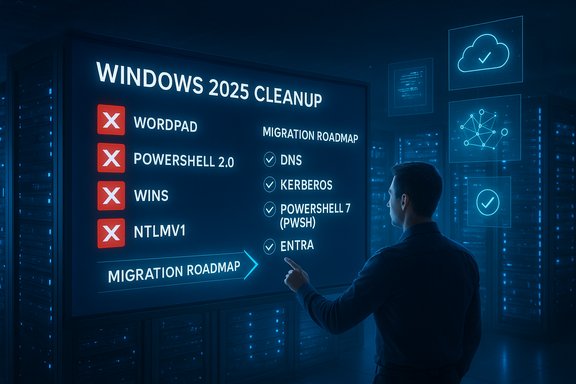
A man reviews a Windows 2025 Cleanup board with cleanup items and a migration roadmap.Background​

How Microsoft handles deprecation and removal​

Microsoft’s lifecycle for old features follows a predictable arc: a feature is first documented as deprecated (no new development, customers are warned), then discouraged (recommendations and migration options issued), and finally removed (binaries and APIs stripped from new images or the feature is disabled). In 2025 several features reached that terminal stage — often tied to specific OS releases so enterprises and administrators had a defined migration runway. Many of the most visible removals were scheduled around Windows 11, version 24H2 and Windows Server 2025.

Why this matters now​

Removal of in‑box components is more than cosmetic. When Microsoft strips a binary, disables an API, or ends availability of a legacy client, it can break automated scripts, management workflows, appliances using old auth schemes, and niche admin tooling — particularly in brownfield environments. Administrators must therefore treat 2025’s list as operational risk: inventory dependencies, test migrations, and apply mitigation plans well before rolling new images into production.

Overview: The headline removals and deprecations in 2025​

Below is a concise catalog of the most consequential items Microsoft removed or placed into formal retirement timelines during 2025. Each entry summarizes status, reason, and practical migration advice.
  • WordPad — Removed
    Status: WordPad binaries (wordpad.exe, wordpadfilter.dll, write.exe) were removed from fresh Windows 11 24H2 and Windows Server 2025 images. Impact: any scripts or management tools that launch wordpad.exe will fail on clean installs. Migration: use Microsoft Word for rich text formats or Notepad / third‑party viewers for plain text; update automation to use file associations or higher‑level libraries.
  • Windows PowerShell 2.0 engine — Removed
    Status: The legacy PowerShell 2.0 engine (long deprecated) was removed from Windows 11 24H2 and Windows Server 2025 images during mid‑2025; Microsoft published KB guidance for migration. Impact: scripts that explicitly call a v2 engine (powershell.exe -Version 2) will break on new images. Migration: convert scripts to PowerShell 5.1 or PowerShell 7.x (pwsh); use the compatibility guidance and any Microsoft‑provided stopgap installers sparingly.
  • WINS (Windows Internet Name Service) — Removal tied to Server 2025
    Status: Microsoft formalized that Windows Server 2025 is the last LTSC release to ship WINS; the WINS server role and management interfaces will not be included in post‑2025 server images. Impact: legacy devices and appliances that rely on NetBIOS/WINS short‑name resolution must be migrated or replaced. Migration: move to DNS-based naming, use DNS suffixes/conditional forwarding, or provide interim DNS wrappers for legacy endpoints. Microsoft’s articles and KBs explain the timeline and migration steps.
  • NTLMv1 and legacy NTLM elements — Removed / Deprecated
    Status: NTLMv1 was explicitly removed starting with Windows 11 24H2 and Windows Server 2025, and the broader NTLM family has been marked deprecated in many contexts. Impact: appliances or applications that only support NTLMv1 will fail authentication against updated clients/servers. Migration: move to Kerberos, modern NTLMv2 as a short stopgap, or — ideally — modern identity: Microsoft Entra (Azure AD), OAuth/OIDC and conditional access.
  • Classic Microsoft Teams (desktop client) — End of availability
    Status: Microsoft enforced the transition to the New Teams client and declared the classic client unavailable as of July 1, 2025. Impact: organizations still on the classic client needed to migrate meeting integrations, add‑ins, and training to avoid disruption. Microsoft supplied migration tooling and web/new‑client fallbacks.
  • Windows Mixed Reality & AllJoyn — Removed / Retired
    Status: Mixed Reality components and Microsoft’s AllJoyn implementation were removed or retired in the 24H2/2025 timeframe, reflecting low adoption. Impact: applications dependent on these runtimes must be replatformed. Migration: adopt modern cross‑platform AR/VR toolchains or cloud alternatives.
  • Suggested Actions, Paint 3D, and other low‑usage features — Deprecated or removed
    Status: A collection of lower‑usage features were deprecated or removed during 2024–2025, including Suggested Actions and Paint 3D. Impact: usability changes for end users and potential loss of lightweight tools; Microsoft often offers replacements (e.g., Snipping Tool video capture replacing Steps Recorder).
  • IIS 6 Management Console, SMTP Server, WMIC, Computer Browser, DirectAccess and assorted server/legacy tools — Deprecated or removed
    Status: Several legacy server roles and management tools were removed or deprecated in Server 2025 (IIS 6 MMC removed, SMTP server discontinued, WMIC deprecated). Impact: organizations still depending on vintage management consoles or protocols need to adopt modern equivalents or alternate tooling.

Deep dives: what changed, why, and how to migrate​

WordPad — small app, outsized friction​

WordPad’s removal was notable mostly for user sentiment; it was a staple small editor that millions used for quick RTF edits. The practical consequence is script and tool breakage where processes called wordpad.exe directly. For most users, the migration path is straightforward — use a modern word processor or a lightweight editor — but at scale (imaging labs, education deployments) administrators must update deployment images and training materials.

PowerShell 2.0 — closing the downgrade attack vector​

PowerShell v2 lacks modern defensive integrations like AMSI, script‑block logging, and constrained language modes. Microsoft’s decision to remove the legacy engine targets security: leaving an old engine in images is an enduring downgrade vector for attackers. Migration is nontrivial only when scripts rely on legacy CLR hosting semantics; the recommended path is to test and port scripts to PowerShell 5.1 or the cross‑platform PowerShell 7.x (pwsh). Microsoft reportedly provided guidance and a temporary reinstall package for extremely constrained cases, but that option is a stopgap not a long‑term solution. Administrators should inventory calls to powershell.exe -Version 2 and plan conversion projects.

WINS — the final chapter for NetBIOS short names​

WINS removal is a classic enterprise migration problem: WINS solved short‑name discovery in the IPv4-era LAN, and many embedded devices and legacy apps still assume NetBIOS semantics. By declaring Windows Server 2025 the last LTSC to ship WINS, Microsoft gave organizations a long runway (the Server 2025 lifecycle extends many years), but the end state is clear: native WINS support will not be present in post‑2025 server images. Migration strategies include DNS mapping, RFC‑compliant DNS deployment with conditional forwarders and suffixes, and interim DNS wrappers for unmanaged appliances. The stated rationale is stability, RFC alignment, scale and security — DNS supports DNSSEC and modern operational capabilities that WINS cannot offer.

NTLMv1 and NTLM changes — compatibility versus security​

NTLMv1’s removal reflects a long push to rid the platform of weak authentication. NTLMv1 is vulnerable to credential capture and relay attacks; removing it forces legacy systems to adopt safer protocols. Enterprises must inventory authentication flows (service accounts, appliances, SMB shares) and test compatibility with Kerberos and modern token‑based identity mechanisms. Where impossible, NTLMv2 can be an interim measure but is not a long‑term cure. Modern identity systems (Entra/Azure AD and OAuth/OIDC) are Microsoft’s recommended destination.

Classic Teams — enforced client consolidation​

For organizations still using the classic Teams client, Microsoft’s July 1, 2025 cutoff required accelerated rollouts or fallback to the web client. The operational work here is classic change‑management: validate integrations, repackage add‑ins where needed, ensure meeting join flows work with the new client, and prepare end‑user communications. Microsoft supplied deployment tooling to help large fleets.

Consumer niceties: Suggested Actions, Paint 3D, Steps Recorder​

These removals reflect telemetry‑driven decisions. Features with low usage — Suggested Actions, Paint 3D — were deprecated or removed, and Microsoft has reallocated development to higher‑impact features. In many cases modern alternatives exist (e.g., Snipping Tool with video capture supplanting Steps Recorder), but the loss of convenience can be felt by users who relied on small, in‑box tools. Administrators should communicate changes to users and ensure acceptable replacement tools are available in managed fleets.

Server tooling and management — moving toward modern consoles and APIs​

IIS 6 tooling, SMTP server role, WMIC deprecation, and other server updates are part of a long arc moving administrators to more secure, modern toolchains: IIS newer management APIs, Exchange/SMTP modern replacements, and PowerShell or Microsoft Graph API replacements for WMIC and legacy modules. These transitions often require testing of automation and third‑party management integrations.

Why Microsoft made these choices — strengths and the logic​

  • Security first — Many removals close known attack vectors: PowerShell v2, NTLMv1 and legacy TLS settings are all risk reductions that allow Microsoft to bake stronger defaults into the platform. This reduces the platform's long‑tail exposure to known exploits.
  • Lower maintenance surface — Fewer in‑box components simplifies testing matrices and reduces regression risk across rapid‑release cycles. That helps Microsoft invest engineering resources on higher‑value features (Copilot integrations, Notepad improvements, New Teams client).
  • Standards alignment — Moving services to RFC‑backed standards (DNS vs. WINS) improves cross‑vendor interoperability and enables modern defenses like DNSSEC. It brings Windows into line with networking best practices.
  • Predictable timelines — Tying removals to OS releases (24H2 / Server 2025) gives enterprises measurable windows to migrate, rather than sudden cutoffs. This is better for planning, although the migration work itself can be heavy.

Risks, friction points, and what to watch for​

  • Brownfield environments are the hardest hit — Industrial control systems, point‑of‑sale appliances, and other embedded devices often lack easy firmware or software updates. If those devices rely on WINS, NTLMv1, or other deprecated features, remediation can be costly or require hardware replacement.
  • Undocumented dependencies — Scripts that invoke removed binaries, management tooling relying on legacy MMC snap‑ins, or third‑party apps using unsupported APIs are common and often undocumented. The discovery phase is time‑consuming but essential.
  • Operational windowing complexity — Multiple deprecations across client, server, and cloud (e.g., Teams, Office lifecycle intersections, Windows 10 EOL) create calendar complexity for lifecycle managers. Coordinated cross‑team planning is required to avoid overlap issues.
  • Perception and user experience — End users can feel that "useful" utilities are being snatched away. The risk is morale and increased helpdesk loads when users can no longer find small tools like WordPad or Suggested Actions. Proper communication and easy replacements mitigate this.

Practical migration checklist — a prioritized plan for IT​

  • Inventory and discovery
  • Run a rapid dependency scan across endpoints and servers for: calls to wordpad.exe or write.exe, powershell.exe -Version 2, NetBIOS traffic / WINS usage, NTLM auth flows, classic Teams clients, and any lingering IIS 6/SMTP/WMIC dependencies. Use AD logs, NAC tooling, and endpoint telemetry.
  • Triage risk by business impact
  • Categorize findings: mission‑critical systems requiring custom remediation, replaceable devices, and low‑impact consumer feature gaps. Prioritize mission‑critical items first.
  • Build test plans and emulation
  • Create labs that replicate legacy dependencies. Test migration to Kerberos/Entra (for auth), DNS mapping (for WINS), and PowerShell 7 compatibility. Validate third‑party vendor compatibility and obtain vendor roadmaps for embedded devices.
  • Apply mitigations and stopgaps
  • Where immediate migration is impossible, use interim measures: DNS wrappers for WINS lookups, conditional Kerberos fallback strategies, or controlled use of Microsoft’s limited stopgap installers (where Microsoft provides them). Treat stopgaps as temporary.
  • Communicate and train
  • Notify end users of changes to small utilities (WordPad, Suggested Actions), provide alternatives, and prepare helpdesk scripts. For large projects (Teams migration), run pilot groups and create training materials.
  • Schedule rollouts aligned with OS lifecycle windows
  • Time migrations with image refresh cycles — the OS release‑tied removals give a predictable runway, so align upgrade projects with release and patch schedules.

Cross‑checks and cautions about specific claims​

The items cataloged above are drawn from Microsoft lifecycle documentation and community reporting consolidated during 2024–2025. Some lists and Knowledge Base numbers (for example, reports referencing KB IDs for PowerShell 2.0 removal or WINS removal) were circulated in vendor posts and community threads; administrators should verify exact KB and lifecycle text on Microsoft’s official support and lifecycle pages before executing final remediation plans. If a specific KB or timeline is critical to your compliance or change windows, confirm the number and wording on Microsoft’s support site because article text or change logs can be updated over time.

Final assessment — what this means for Windows adoption moving forward​

Microsoft’s 2025 cleanup is, in many ways, a necessary modernization: it reduces attack surface, shrinks the in‑box maintenance burden, and forces migration to standards and modern identity. For administrators who planned ahead, the changes are predictable and manageable. For organizations with significant legacy dependencies, the work will be real and at times expensive — but predictable timelines and published guidance mean the pain can be scheduled and mitigated.
The net effect should be a leaner, more secure platform that is easier to maintain and integrate with cloud services and modern toolchains. The tradeoff is migration cost and the loss of some convenient in‑box tools for users, which must be handled with good change management and clear communication. The operational imperative for 2026 is simple: inventory everything, prioritize the risky legacy paths (auth and name resolution), and treat removal timelines as hard deadlines for migration planning.

(If any specific detail — a KB number, exact support‑end date, or the presence of a particular binary in a given build — is mission critical for your compliance calendar or deployment freeze, verify that single fact on Microsoft’s official lifecycle and support pages before finalizing your project schedule.

Source: Neowin https://www.neowin.net/amp/every-windows-feature-microsoft-removed-or-deprecated-in-2025/
 

Four years after its debut, Windows 11 is at a crossroads: users, journalists and IT teams are naming the same recurring faults — sluggish everyday performance, a bumpy 24H2 rollout that exposed fragile driver and middleware dependencies, uneven gaming performance, an aggressive AI/Copilot push that many find intrusive, and an unwelcome proliferation of in‑OS promotional content — all of which help explain why large numbers of PCs either remain on Windows 10 or delay upgrading.

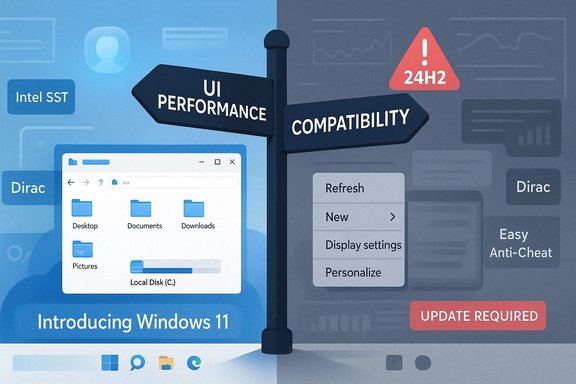
A split infographic comparing UI performance and compatibility for Windows 11, with update alerts.Background​

Windows 11 launched in October 2021 promising a modernized UI and an OS architecture ready for tighter cloud and AI integration. Adoption steadily grew, and by mid‑2025 many analytics outlets reported Windows 11 passing the 50% mark in some datasets — but the adoption curve has been uneven, and many users and enterprises remain reluctant to upgrade because of compatibility and stability concerns. StatCounter and industry reporting show the market split is close; depending on the dataset and month you consult, Windows 11’s lead over Windows 10 is narrow and has fluctuated. The semi‑annual feature cadence (24H2, 25H2, etc. and monthly cumulative updates give Microsoft flexibility to ship features fast, but these faster cycles also increase surface area for platform regressions — especially when low‑level drivers or OEM middleware make strict assumptions about Windows internals. The 24H2 rollout became the clearest stress test of this dynamic, producing a wave of compatibility holds, targeted safeguards, and public remediation work between Microsoft and hardware vendors.

What TechPress and Community Voices Are Saying — Overview​

Journalism and community reporting over the past year have converged on five headline complaints:
  • Perceived sluggishness in basic interactions — File Explorer, search and context menus feel slower to many users.
  • Gaming regressions and compatibility pain — stuttering, crashes and anti‑cheat conflicts have hit some titles and hardware combos.
  • A troubled 24H2 rollout that revealed fragile driver/middleware dependencies and led to targeted upgrade blocks.
  • An aggressive AI/Copilot push that users feel is being promoted before core stability issues are solved.
  • Excessive in‑OS advertising and product nudges inside a paid operating system.
Those five themes appear repeatedly in independent coverage and forum evidence, and they anchor the deeper analysis below.

Performance and Everyday Sluggishness​

The complaint​

The most visceral criticism is simple: Windows 11 “feels” slower in routine tasks compared with Windows 10 on the same hardware. The most visible symptoms reported across forums and reviews are:
  • Delayed File Explorer launches and laggy folder navigation.
  • Slow or missed context‑menu responses.
  • Noticeable stutters when opening or switching windows.
  • Sluggish Windows Search and occasional UI “jank.”
These reports are not restricted to a single hardware tier; they include low‑end laptops and high‑end systems alike, which makes the issue particularly damaging to perceptions of quality.

Why it matters​

Perceived responsiveness is a primary metric for any desktop OS. When everyday interactions accumulate milliseconds of latency, users feel that the product is inferior — and that feeling is very sticky. For business customers, the perceived performance regression feeds risk‑aversion and delays to migration projects.

Root causes and plausible technical drivers​

Performance regressions are rarely one single bug; they’re often emergent behavior from many small design choices and integrations:
  • UI complexity and new visual layers — polished animations and additional UI composition can increase render work on the UI thread.
  • Cloud and service integrations on hot paths — OneDrive, built‑in AI actions and deeper telemetry hooks sometimes add I/O or background work to operations that historically were purely local.
  • Blocking I/O or third‑party shell extensions that run on File Explorer’s process path can still stall the UI if not carefully isolated.

What Microsoft and partners have done so far​

Microsoft has shipped targeted fixes and toggles, increased telemetry in Insider channels, and in some cases backported patches that reduce File Explorer latency. But fixes have been iterative rather than transformational — the change many users want is a measurable SLO (service‑level objective) for UI responsiveness and a clearer performance telemetry schema that can be audited.

The 24H2 Rollout: A Cautionary Tale of Interoperability​

What happened​

Windows 11 version 24H2 introduced several architectural and servicing changes (checkpoint updates, modularized UI packages) designed to make servicing lighter and faster. In practice, those changes exposed a class of failures when tightly coupled vendor code — drivers, firmware, or OEM middleware — made assumptions about initialization timing or component registration. The result: compatibility holds, unbootable configurations, silent audio endpoints and other high‑impact breakages on a subset of devices.

Notable incidents​

  • Intel Smart Sound Technology (Intel SST) — Certain Intel SST driver versions on 11th‑gen CPUs triggered blue screens or blocked upgrades; Microsoft placed a safeguard until Intel issued updated drivers. Official advisories and OEM bulletins detailed the affected file names and driver versions and recommended specific update versions to restore compatibility.
  • Dirac audio middleware (cridspapo.dll) — Several OEMs ship Dirac audio tuning middleware. A timing/regression in 24H2 caused that DLL to fail initialization, producing total audio loss on affected systems. Microsoft used a targeted safeguard hold to prevent the 24H2 offer on impacted devices until vendor drivers were rebuilt and published. The issue was tracked and later marked resolved after driver distribution.
  • Easy Anti‑Cheat and game anti‑cheat drivers — Anti‑cheat drivers are kerneladjacent and sensitive to platform changes. Microsoft documented conflicts between older Easy Anti‑Cheat driver builds and 24H2 on certain Intel Alder Lake+/vPro systems; safeguards were applied while game publishers rolled out fixes. Microsoft’s Release Health dashboard lists these items and their safeguard IDs.
  • Weird, high‑impact artifacts — users reported an 8.63GB residual cache, disappearing mouse cursors in Chromium fields, Task Manager reporting zero processes, drive space misreports and connectivity anomalies — all symptoms of a rollout that had more visible edge cases than typical. Community triage and Microsoft’s patching cycle addressed many but not all of these in different waves.

Lessons from the 24H2 saga​

  • Modern Windows servicing requires deeper, coordinated OEM testing and better telemetry for pre‑flight detection of timing regressions.
  • Compatibility safeguards (blocking updates from being offered to certain devices) are a correct tool, but they are reactive and depend on vendor cooperation.
  • When kernel‑level or middleware components fail on initialization, the user impact can be severe and visible, eroding trust more than quieter bugs.

Gaming: Promises vs. Reality​

Windows 11 shipped with gamer‑facing features — Auto HDR, DirectStorage and other I/O optimizations were pitched as major wins. In practice, the experience is mixed.
  • DirectStorage is promising, but it produces its biggest gains only when titles are recoded to the new model; many games still fall back to legacy I/O.
  • Driver interactions and scheduling — 24H2 introduced subtle changes in I/O and GPU scheduling that, in combination with buggy drivers, resulted in stutters, black screens or crashes for some titles.
  • Anti‑cheat conflicts — as noted above, some anti‑cheat stacks caused BSODs on particular CPU/driver combinations, blocking upgrades or degrading gaming sessions.
For players this means vigilance: update GPU and anti‑cheat drivers, monitor game patches, and consider delaying feature‑drop installs until the ecosystem catches up.

AI, Copilot and the UX Politics of “Always‑On” Features​

The gripe​

Many coverage pieces and community posts criticize Microsoft for emphasizing an AI story across Windows before core stability and usability issues were fully solved. The criticism has two main facets:
  • Perceived imposition: Copilot and AI surfaces have been integrated across the taskbar, File Explorer and shell flows, leading many users to say Microsoft is “pushing AI” into every UI nook.
  • Privacy and telemetry fears: Users worry about increased telemetry and opaque defaults when AI features rely on cloud connectivity and account links.
Tech commentary argues Microsoft’s AI rollout should be opt‑in by default and avoid disrupting basic flows for users who neither want nor need the feature set yet.

Microsoft’s response and reality check​

Microsoft positions Copilot and related AI tools as productivity features that help many users. There are legitimate productivity gains to be had. The core engineering point, however, is that launching broad, agentic features while stability complaints persist creates a perception problem: users judge whether Windows “works” first, then whether it’s “smart.”

In‑OS Advertising and Product Nudges​

Windows 11 includes a variety of promotional placements: suggestions to try Microsoft 365, prompts to use Edge/Bing, and UI tips that sometimes feel like ads. For a paid OS, many users find this unacceptable.
There are toggles to reduce some of these prompts — disabling “Get tips and suggestions when using Windows” and turning off personalized ad IDs helps — but the sheer presence of monetizable nudges in primary workflows damages the company’s reputation with power users and enterprise customers. Community guides and long forum threads show how users are forced into manual cleanup to reclaim a neutral desktop experience.

The Support and QA Strategy Problem​

Multiple reporters and analysts have argued Microsoft’s QA and rollout strategy needs recalibration. Key friction points:
  • A faster cadence increases the number of platform configurations that must be tested.
  • Third‑party middleware and OEM customizations are not fully under Microsoft’s control, so bugfixes often require vendor coordination.
  • Safeguards and staged rollouts protect many users, but they also create fragmented experiences where identical machines might receive different feature sets depending on driver versions and update timing.
The practical implication: enterprises must treat feature upgrades as projects again — validate images, test representative hardware rings, and coordinate driver/firmware updates with OEMs rather than assuming a seamless push.

Practical Guidance: What Users and IT Admins Should Do Now​

  • Backup before large feature updates (24H2/25H2).
  • Check Microsoft’s Release Health dashboard and the OEM support pages for safeguard notices before forcing an update.
  • For suspected audio issues, verify vendor audio/middleware drivers (Dirac) and install any OEM updates before upgrading.
  • For Intel‑based systems on 11th‑gen CPUs, ensure Intel SST drivers are the versions Microsoft/OEMs recommend before offering 24H2. If you see IntcAudioBus.sys with older problematic versions, don’t proceed.
  • Gamers should: update GPU drivers, ensure anti‑cheat components are current, and if you experience instability, pause major feature updates until game vendors issue compatibility patches.
  • If you dislike in‑OS ads or AI prompts, disable suggestion/ad toggles in Settings and review privacy/telemetry switches; for enterprises, deploy configuration profiles to lock down these defaults.

Strengths and Notable Improvements (What Windows 11 Does Right)​

  • Visual modernization and accessibility improvements — many users appreciate refined visuals, dark‑mode consistency and accessibility investments.
  • Platform modernization goals — modularized servicing and checkpoint updates are technically sound long‑term strategies to reduce update size and accelerate fixes.
  • Security enhancements — hardware‑backed security features and tighter virtualization options remain industry leading.
  • AI productivity potential — when it’s optional and well‑integrated, Copilot and AI features can legitimately speed common workflows.
These strengths explain why many organizations and consumers still plan to migrate — the features are valuable once platform stability and compatibility are predictable.

Risks and Open Questions​

  • Erosion of trust: repeated high‑impact regressions are reputationally costly and increase upgrade inertia; trust is slow to rebuild.
  • Vendor dependency: Microsoft’s architecture still requires close OEM and driver cooperation; delays in vendor fixes can stall entire upgrade waves.
  • Monetization vs. product experience: continued visible promotional content may push advanced users and some businesses to seek alternatives or hold on to older images.
  • AI timing: bundling generative/agentic AI into core workflows before core reliability is widely restored risks negative first impressions that could endure.
Where claims about adoption, timing and vendor responsibility are specific (for example, claims that a certain driver version causes a crash), those are verifiable via Microsoft Release Health advisories and OEM support pages; when a public record is absent for a particular OEM attribution, that should be treated with caution.

What Microsoft Should Prioritize (A Short Roadmap)​

  • Publish and commit to measurable UI performance SLOs for common interactions (open Start, open File Explorer, right‑click menus).
  • Expand targeted pre‑flight telemetry sharing with OEMs so vendors can reproduce timing regressions earlier in Canary/Beta flights.
  • Make AI/Copilot opt‑in by default for new feature flags and avoid surface changes that alter fundamental workflows unless the device is known to be healthy.
  • Reduce promotional nudges in the paid SKU baseline and provide enterprise‑grade toggles to remove monetization elements in managed deployments.
These are specific steps that would be both technically and politically meaningful in restoring confidence among power users and IT administrators.

Conclusion​

Windows 11 is not a dead platform — its architecture, security posture and long‑term vision remain strong — but in 2024–2025 the operating system suffered from a sequence of high‑impact regressions and UX choices that have damaged user trust. The 24H2 rollout exposed how brittle the ecosystem can become when vendor middleware, anti‑cheat kernels, or driver stacks hit timing or initialization mismatches with core OS changes. Microsoft’s safeguards and the collaborative vendor fixes prevented catastrophic widescale failure for many users, yet the pattern of repeatable, visible regressions (slow File Explorer, gaming anomalies, audio blackouts) means the company must prioritize reliability, transparent telemetry and user control over monetization.
For users and admins the practical stance remains conservative: test, verify drivers and firmware, pause major feature installs on production fleets until safeguards are lifted, and apply the configuration controls available to remove unwanted AI prompts and promotional nudges. If Microsoft adopts clear performance targets, tightens its pre‑release coordination with partners, and treats AI features as optional enhancements rather than defaults, Windows 11’s promise can still be realized — but rebuilding trust will take measurable, visible progress, not only feature announcements.
Source: Inbox.lv The Main Problems of Windows 11 Have Been Named
 

Microsoft’s quiet decision to retire Windows 11 SE — the pared‑down, education‑focused edition Microsoft pitched as a Chromebook rival — will leave SE devices permanently locked on version 24H2 and without security or feature servicing after October 13, 2026, forcing K–8 school districts and education IT teams to plan urgent migrations or replacements.

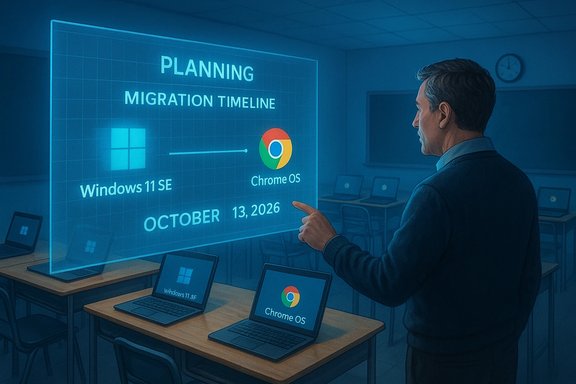
A man presents a blue holographic plan to migrate from Windows 11 SE to Chrome OS on Oct 13, 2026.Background​

Windows 11 SE launched in late 2021 as a purpose‑built edition for K–8 classrooms, paired with low‑cost hardware such as the Surface Laptop SE (starting at $249) and OEM devices from Acer, Dell, HP and others. The goal was familiar: deliver a simpler, more manageable Windows experience that could compete with Chrome OS in price, manageability and classroom suitability. Microsoft framed SE as a “web‑first,” tightly managed environment where administrators control app installs and security settings to reduce distractions and operational overhead. The SE experiment borrowed lessons from earlier Microsoft attempts — Windows 10 in S Mode and the shelved Windows 10X project — but added a stricter device‑level management model and a curated app environment aimed at classrooms. That constraint was both SE’s selling point and, ultimately, a structural weakness: schools often needed software exceptions and performance on the lowest‑end silicon sometimes lagged behind what Chromebooks delivered.

What Microsoft announced (the facts)​

  • Final feature release: Windows 11 SE will not receive any new feature updates after version 24H2; the SE edition is excluded from the 25H2 update cadence.
  • End of support / security updates: Microsoft’s lifecycle guidance places the retirement date for SE’s 24H2 servicing on October 13, 2026 — after that date the edition stops receiving security hotfixes, technical assistance, and software updates.
  • Devices continue to boot: Machines running Windows 11 SE will continue to function after the end‑of‑support date but will become increasingly risky to operate on production school networks without OS security patches.
Those points are not a rumor: Microsoft’s product lifecycle documentation lists SE specifically as tied to version 24H2 as its last supported release, and multiple tech outlets picked up the updated lifecycle entry and public support guidance.

Why this matters to schools (practical implications)​

The retirement of Windows 11 SE is not merely a naming change — it creates a hard compliance and security problem for districts that purchased SE hardware with the expectation of a multi‑year lifecycle.
  • Security risk: When the OS stops receiving security updates, devices become susceptible to newly discovered kernel and driver vulnerabilities that cannot be patched by Microsoft. In a classroom environment handling student data and testing infrastructure, that increases regulatory and privacy risk.
  • Budgetary squeeze: Many districts bought SE devices expecting a long tail of support. With an end date set for October 13, 2026, procurement cycles now have to be accelerated or reallocated — either to bring existing hardware up to a supported Windows edition (if possible) or to buy replacement devices.
  • Management and compatibility: SE’s locked‑down model meant many schools standardized on specific management workflows, imaging and app catalogs. Migrating to a full Windows 11 edition, Chromebooks, or other platforms requires revisiting device management, licensing, and classroom software compatibility.
  • Operational disruption risk: Testing, pilot deployments and classroom validation take months; the retirement shortens the runway for safe, staged transitions and raises the prospect of emergency refreshes close to the deadline.

What went wrong (analysis of strengths and weak points)​

Windows 11 SE had clear strengths: a simplified UI, admin‑centric controls, and a lower procurement barrier when paired with the Surface Laptop SE and OEM partners. That combination made sense on paper for cash‑constrained education budgets. But three consistent factors limited SE’s long‑term viability.
  • Performance mismatch on budget silicon. SE was marketed as “lightweight,” but it remained a Windows variant with the platform overhead that budget Celeron‑class chips struggled to hide. Chromebooks — purpose‑built around a lightweight Linux/ChromeOS stack — often delivered better battery life and perceived responsiveness in low‑cost units.
  • Management friction from a locked app model. Admin approval for every app reduced student‑initiated distractions but also increased IT overhead for exception handling and broke many teacher workflows that relied on niche Windows apps. That undermined the central promise of simplicity.
  • Market momentum favors Chrome OS in K–12. Chromebooks achieved deep penetration in U.S. K–12, bringing a mature management ecosystem and teacher familiarity. SE arrived late into a market that already had institutional lock‑in and partner channels optimized for high‑volume, low‑price procurement.
Microsoft’s public lifecycle update does not provide a narrative explanation for the decision; the company’s documentation simply marks the edition as retired after 24H2 and recommends transitioning to another Windows edition. That silence leaves interpretation to market observers and district IT planners. Absent an explicit Microsoft statement about why SE was retired, any attribution of motive should be treated as analysis, not a declared fact.

Technical realities: can existing SE devices be upgraded?​

Districts’ options depend on the device models and OEM policies. Key technical and policy constraints include:
  • Hardware requirements for full Windows 11: A device must meet Windows 11 minimums — UEFI with Secure Boot, TPM 2.0, compatible CPU generation, 4 GB RAM and 64 GB storage — to run the mainstream Windows 11 editions. Microsoft’s system requirements and security guidance make TPM 2.0 and Secure Boot a baseline for supported Windows 11 installs.
  • OEM firmware locks and reimaging policies: Some SE devices are sold with OEM provisioning that prevents installing a different Windows edition or disables key features; others support reimaging. Confirm with the OEM whether the device can be reimaged to Windows 11 Home / Pro / Education and whether drivers exist for the full edition.
  • Performance tradeoffs: Even when reimaging is possible, low‑end CPUs, limited RAM and eMMC storage can significantly degrade the experience on full Windows 11. For many classroom use cases the result is a worse user experience than SE delivered.
Microsoft’s official guidance and platform requirements are explicit: Windows 11’s security posture relies on hardware features that older or ultra‑budget devices may not expose or enable by default. Districts must treat reimaging as a feasibility exercise, not an assumption.

Migration strategies and practical checklist for IT teams​

Districts should act now. The timeline may seem generous, but procurement cycles, pilot validation, and classroom rollout require time. Use the checklist below to build a defensible plan.
  • Inventory and classify devices
  • Catalog all SE devices by model, serial number, CPU, RAM, storage and firmware version.
  • Flag devices that are likely non‑upgradable due to missing TPM 2.0, non‑UEFI firmware, or closed OEM imaging policies.
  • Assess upgradeability
  • Check OEM documentation and contact partners to confirm whether each model can be reimaged to a standard Windows 11 edition and whether OEM drivers exist for that edition.
  • Use Microsoft’s PC Health Check and OEM tools to verify TPM and Secure Boot status.
  • Prioritize by risk
  • Replace or reimage devices that hold sensitive data, run high‑stakes testing software, or access administrative networks first.
  • Defer lower‑risk classroom devices to phase‑2 where appropriate.
  • Define the target platform
  • Decide whether to reimage to Windows 11 Education/Pro, move to Chromebooks, or adopt a hybrid fleet (Windows for labs and Chromebooks for general use).
  • Model total cost of ownership (TCO) — include licensing, device management, teacher training and lifecycle support.
  • Pilot and validate
  • Run small pilots for each migration path: reimaging, Chromebook adoption, and mixed fleet management.
  • Test critical apps, assessment software compatibility, and marker‑testing platforms.
  • Communicate and budget
  • Present clear options to district leadership and school boards with costs, timelines and educational tradeoffs.
  • Explore trade‑in, refurbishment and leasing programs to smooth procurement costs.
  • Decommission securely
  • Wipe and retire replaced devices per student‑data retention policies and local privacy rules.
  • Consider recycling and repair programs to recover value and reduce e‑waste.

Options districts should evaluate (advantages and tradeoffs)​

  • Reimage to Windows 11 Education/Pro
  • Pros: Preserves Windows‑based workflows, avoids retraining, retains full compatibility with legacy Windows applications.
  • Cons: Not all SE hardware will run well; may require driver/workflow workarounds and could be more expensive than Chromebook alternatives.
  • Procure Chromebooks
  • Pros: Lower cost of ownership in many deployments, longer battery life on cheap hardware, mature EDU management ecosystem and teacher familiarity.
  • Cons: Migration costs for Windows‑specific tools and potential vendor lock‑in to Google services for some districts.
  • Hybrid approach
  • Pros: Use Windows devices for labs and specialty applications; Chromebooks for general classroom tasks — optimizes cost vs capability.
  • Cons: Increased management complexity, multiple admin consoles, and more elaborate asset management.
Each district’s choice should be informed by a careful TCO analysis and the software and assessment requirements that are non‑negotiable in that district’s classroom environment.

Financial planning: how to budget the transition​

Schools typically work within annual or biennial procurement cycles. The SE retirement compresses that planning window.
  • Build a 3‑year migration budget that includes:
  • Hardware replacement or reimaging costs
  • Licensing (Windows 11 Education / Chrome OS management)
  • MDM platform costs and refresh of imaging/provisioning scripts
  • Teacher and staff training, pilot support
  • Contingency for emergency replacements
  • Explore financing and leasing options:
  • EdTech vendors and OEM partners often offer education financing and trade‑in credit to stretch budgets.
  • Refurbished enterprise hardware may be cost‑effective for certain teacher or lab roles.
  • Seek state and federal grants:
  • Many jurisdictions maintain broadband and device funding programs; align procurement cycles to available grant windows.
Delaying planning increases the risk of last‑minute emergency purchases at unfavorable prices. Early, phased budgeting preserves instructional continuity.

Security and compliance guidance (short‑term measures)​

For districts that cannot upgrade or replace immediately:
  • Isolate high‑risk SE devices: Restrict network access for devices that hold sensitive data; consider VLAN segmentation and strict firewall policies.
  • Harden endpoints: Ensure Microsoft Defender/antivirus definitions are current and use application allow‑lists to limit attack surface.
  • Patch management for apps and firmware: While the OS may stop receiving patches after October 13, 2026, keep third‑party apps, browsers and firmware patched where vendor updates exist.
  • Plan for an air‑gapped or limited internet mode for devices used offline only — but recognize that this imposes heavy operational constraints and is not a long‑term fix.
These measures buy time but are not substitutes for a fully supported OS. The only sustainable solution is migrating to a supported platform.

Strategic lessons for vendors and IT buyers​

  • Platform clarity matters. Microsoft’s pattern of launching constrained Windows SKUs (S Mode, 10X, SE) shows the difficulty of making a Windows derivative compete with purpose‑built OS alternatives. Vendors should make lifecycle commitments clear in procurement contracts and be wary of single‑vendor platform experiments.
  • Procurement should prioritize upgrade paths. When buying low‑cost devices, require clear OEM support for reimaging and driver availability for mainstream Windows editions or explicit end‑of‑life dates.
  • Invest in management and training. Technology adoption in education fails when teacher workflows are not considered; the best device is the one that supports instruction with minimal friction.

What this means for Microsoft’s education strategy​

Ending Windows 11 SE is a strategic pivot. Microsoft appears to be consolidating support around mainstream Windows 11 editions and leaning on its broader Education feature sets, cloud services, and OEM partners rather than a separate, lightweight OS variant. That choice reduces fragmentation but concedes ground in the ultra‑low‑cost classroom segment that Chromebooks historically dominated.
Microsoft’s lifecycle documentation is explicit about the dates and technical boundaries; what remains unclear is whether Microsoft will introduce a different approach to low‑cost education devices (for example, a cloud‑centric Windows image, renewed partnerships, or enhanced Windows 11 Education packaging). Until Microsoft publicly articulates the next phase of its education story, districts must assume SE’s retirement is final and plan accordingly. Microsoft has not published a narrative explanation tying this decision to sales figures or market share; any such linkage is speculative absent a formal statement.

Bottom line and recommended next steps (executive summary)​

Windows 11 SE’s retirement — final feature release at version 24H2 and support end on October 13, 2026 — is official and actionable. Districts should:
  • Start inventory and upgradeability assessments immediately.
  • Create a prioritized migration plan that balances cost, instructional impact and technical feasibility.
  • Pilot reimaging and Chromebook migrations now; do not treat this as a last‑minute scramble.
  • Budget for replacements or licensing changes in the next fiscal cycle and explore trade‑in or lease programs.
  • Harden remaining SE devices and segment them on the network as an interim security measure.
Microsoft’s updated lifecycle guidance leaves little ambiguity on dates, but it leaves districts with hard choices about cost, compatibility and classroom continuity. The technical reality — Windows 11’s reliance on TPM 2.0, Secure Boot and modern CPU generations — means not every SE device will be a candidate for a simple in‑place reimage; plan for mixed outcomes.
Windows 11 SE’s retirement is a reminder that procurement decisions in education are strategic commitments. The clock to October 13, 2026 is real, and the most prudent districts will treat this as a multi‑phase migration project rather than an administrative footnote.
Source: Digital Trends Microsoft to end support for Windows 11 SE in 2026
 

Microsoft has confirmed that Windows 11 SE — the pared‑down, education‑focused edition it launched to compete with Chromebooks — will reach the end of its supported lifecycle in October 2026, with Windows 11, version 24H2 designated as the edition’s final feature release. This quietly posted lifecycle change leaves SE devices frozen on 24H2 and removes Microsoft’s promise of ongoing security patches, non‑security fixes, and technical assistance after 13 October 2026, forcing school districts and IT teams to plan for migration, replacement, or containment well before that deadline.

Students work on laptops in a classroom beneath a Windows 11 SE 24H2 banner.Background​

Windows 11 SE was introduced in 2021 as a purpose‑built edition for K–8 classrooms. It paired a tightly managed, web‑first operating model with low‑cost hardware such as the Surface Laptop SE and OEM devices from major vendors, aiming to combine Windows compatibility with Chromebook‑style manageability and price. From a technical and policy perspective, SE emphasized:
  • Curated app control — only administrators could approve and install applications; traditional win32 executables were heavily restricted.
  • Web and PWA prioritization — Progressive Web Apps and browser‑based learning tools were the primary delivery model.
  • Simplified UI and management — built to reduce teacher friction and minimize student distraction.
Microsoft positioned SE as a successor to earlier simplified Windows efforts (Windows 10 S Mode, the abandoned Windows 10X experiment), promising a simpler, more secure experience for budget‑constrained education buyers. The result was a modest catalog of devices and, initially, tangible interest from districts hoping to avoid Chromebook lock‑in.

What Microsoft has announced — the hard facts​

Microsoft updated its lifecycle documentation to state explicitly that Windows 11 SE will not receive a feature update after version 24H2, and that support — including security updates and technical assistance — will end in October 2026. The company’s Surface and Windows lifecycle pages reflect this change and advise customers to transition to other Windows 11 editions to maintain security and support. Key dates and takeaways:
  • Final SE feature release: Windows 11 SE — 24H2.
  • End of full support for Windows 11 SE (security fixes, technical assistance): 13 October 2026.
  • SE devices will continue to boot after end‑of‑support but will no longer receive OS‑level patches. Microsoft recommends moving to a device that supports another Windows 11 edition.
Multiple independent outlets reported and analyzed the change when the lifecycle entry first appeared, confirming Microsoft’s wording and the absence of a 25H2 upgrade path for SE devices. These reports corroborate the Microsoft documentation and provide context on market implications.

Why this matters: security, compliance, and classroom risk​

When a vendor stops shipping security updates for an OS, the operational and regulatory implications are immediate and cumulative. Unsupported systems cannot receive fixes for newly discovered kernel, driver, or platform vulnerabilities; each new exploit announced after the cutoff becomes a permanent exposure unless mitigated by other compensating controls.
For schools the consequences are concrete:
  • Student data and privacy risk: Many K–12 environments are subject to privacy laws, contracts, and district policies. Running unpatched OS builds raises compliance and liability exposure.
  • Testing and assessment infrastructures: Standardized testing applications and proctoring clients often require recent OS updates and signed drivers; incompatibilities can disrupt assessment windows.
  • Network risk: A fleet of unpatched endpoints increases the attack surface for lateral movement and ransomware in a school network.
These real‑world risks are why Microsoft’s guidance to transition to another Windows edition is not a mild suggestion but a practical requirement for maintaining secure, compliant classroom operations.

What Windows 11 SE delivered — strengths and trade‑offs​

Windows 11 SE was not a bad idea in concept: it targeted a genuine pain point for schools — the need for low‑cost, manageable devices that reduce teacher overhead and student distraction. Its core strengths included:
  • Simplicity for early learners: a reduced interface and predictable workflows made it easier for teachers and younger students to use devices for focused instruction.
  • Administrative control: administrators could lock down app installs and enforce policies via Intune for Education and other management tools, lowering the risk of student‑installed malware.
  • Lower procurement barrier: bundled with low‑cost hardware like the Surface Laptop SE (priced attractively at launch), SE offered an entry point for 1:1 programs.
However, those benefits came with notable trade‑offs:
  • Performance on budget silicon: SE ran on inexpensive processors and eMMC storage that sometimes struggled with the base Windows platform overhead, producing a less snappy experience than comparable Chromebooks.
  • Restricted app model: while administrative app control reduced incidental distractions, it also created friction when teachers needed a specific win32 tool that wasn’t on the curated list. That administrative overhead undercut the promise of reduced management burden.
  • Ecosystem and procurement momentum: Chromebooks already had deep channel relationships, management tooling, and teacher familiarity in many districts, making late market entry for SE an uphill battle.
These factors explain why Microsoft’s SE effort gained pockets of adoption but never achieved the market momentum needed to sustain a long‑term, separate OS variant in education. Independent reporting also highlights that SE’s constrained surface was an iterative answer to recurring Microsoft experiments (S Mode, 10X), but it faced the same structural challenges.

The technical reality: can SE devices be upgraded to full Windows 11?​

Before deciding whether to reimage or replace an SE device, districts must confirm whether the hardware meets Windows 11 minimum requirements. Microsoft’s published minimums remain firm: a compatible 64‑bit processor, 4 GB RAM, 64 GB storage, UEFI with Secure Boot, and TPM 2.0 are required for a supported Windows 11 installation. Practical constraints that commonly stop an in‑place migration:
  • OEM provisioning or firmware locks that prevent installing a different Windows SKU.
  • Hardware resource limits (4 GB RAM and eMMC storage) that produce poor performance on full Windows 11 builds.
  • Missing or disabled TPM 2.0, or inability to enable Secure Boot on a given device. (Many devices can enable TPM in firmware, but not all.
Because SE devices were optimized for cost, a non‑trivial share will fail at least one of these checks, making a simple reimage impossible or impractical. That reality increases the probability of fleet replacement rather than in‑place upgrades for many districts.

Migration and mitigation: a practical playbook for education IT​

The timeline to October 13, 2026 is real and actionable. Districts should treat the SE retirement as a multi‑phase project and begin work immediately. Below is a prioritized playbook designed for IT leaders and procurement teams.

Phase 1 — Inventory and assessment (0–30 days)​

  • Inventory every device running Windows 11 SE (model, serial number, BIOS/UEFI version, RAM, storage, current Windows build).
  • Create a hardware eligibility matrix: mark devices that meet Windows 11 minimums (TPM 2.0, Secure Boot, 4 GB RAM, 64 GB storage) and those that do not. Use Microsoft’s compatibility guidance to validate.
  • Contact OEMs for explicit reimaging and driver support policies for each model. Some vendors will provide kernels/drivers for full Windows 11; others may not.

Phase 2 — Prioritization and pilot (1–3 months)​

  • Prioritize devices that handle sensitive data or critical workflows for upgrade/replacement first.
  • Run small pilots to reimage upgradable hardware to Windows 11 Education/Pro, validating imaging workflows, MDM enrollment, and application compatibility (Office, LMS, test clients).
  • For devices that fail hardware checks, test Chromebooks or other replacements in a pilot classroom to compare performance and management burden.

Phase 3 — Procurement and budgeting (3–9 months)​

  • Evaluate total cost of ownership comparisons: reimaging vs replacement (new Windows 11 devices or Chromebooks), factoring in licensing, management tooling, and training.
  • Explore education pricing, leasing, or trade‑in programs to smooth capital impact. Many OEMs and resellers offer education refresh programs.

Phase 4 — Interim hardening and segmentation (until 13 Oct 2026)​

  • For SE devices that must remain in use temporarily, apply compensating controls:
  • Strict network segmentation and VLANs to isolate unpatched devices.
  • Up‑to‑date endpoint protection (Microsoft Defender/third‑party AV) and application allow‑lists.
  • Limit access to sensitive systems and enforce multi‑factor authentication on cloud services.
  • Keep third‑party apps and firmware patched where vendor updates exist.

Phase 5 — Decommissioning and secure disposal​

  • Wipe and retire replaced devices following district data protection policies.
  • Use recycling or trade programs to recoup part of the refresh cost and reduce electronic waste.

Options districts should weigh​

  • Reimage to Windows 11 Education/Pro: preserves Windows‑centric workflows and investments, but only viable where hardware and OEM support allow.
  • Replace with managed Chromebooks: strong contender for general classroom use due to battery life, low admin cost, and entrenched management ecosystems.
  • Hybrid strategy: keep capable Windows hardware for labs and specialized software while using Chromebooks for everyday student devices.
  • Refurbished or low‑cost Windows devices: can be cost‑effective if sourced with modern hardware that meets Windows 11 requirements.
Each option has trade‑offs in licensing, app compatibility, classroom continuity, and procurement timelines; decisions should be grounded in pilot data and total cost projections.

What this says about Microsoft’s education strategy​

Microsoft’s quiet retirement of SE signals a strategic consolidation rather than a dramatic withdrawal from education. By folding support back into mainstream Windows editions and Microsoft 365 Education services, the company is effectively prioritizing a single Windows 11 platform over maintaining a separate, lightweight OS variant. That reduces OS fragmentation but concedes the ultra‑low‑cost bracket where Chromebooks historically excelled.
It is important to distinguish verifiable facts from interpretation:
  • Fact: Microsoft set 24H2 as SE’s final release and published an October 2026 end‑of‑support date.
  • Speculation: motives such as sales performance, channel momentum, or technical constraints likely influenced the decision. These inferences are plausible and widely discussed by analysts, but Microsoft has not published a formal rationale tying the retirement to specific sales numbers or market share metrics — treat such claims as analysis, not company‑stated fact.

Risks and secondary effects for districts and vendors​

  • Budget compression: Many K–12 procurement calendars run yearly; an unexpected large‑scale refresh compresses planning windows and may force difficult funding decisions.
  • Vendor reputation and procurement trust: Districts that standardized on SE may question platform lifecycle commitments; future procurement language should require explicit lifecycle and upgrade guarantees.
  • Operational disruption: Testing and validating replacements across thousands of devices is time consuming and can affect classroom continuity if rushed.
  • Security posture erosion: Any delay in migration increases the window where unpatched devices exist on sensitive networks, raising cybersecurity insurance and compliance concerns.

A checklist for immediate action (executive summary)​

  • Inventory every SE device now and publish a migration timeline tied to the 13 October 2026 cutoff.
  • Validate hardware eligibility against Microsoft’s Windows 11 system requirements (TPM 2.0, Secure Boot, 4 GB RAM, 64 GB storage).
  • Pilot reimages and replacements before committing to a district‑wide strategy.
  • Harden and segment SE devices that must stay online during transition; do not assume endpoint AV alone is enough.
  • Engage procurement and finance to model replacement costs and capture education discounts or leasing options.

Conclusion​

Microsoft’s confirmation that Windows 11 SE will be retired after version 24H2 with support ending in October 2026 is a clear, date‑driven inflection point for K–12 IT. The technical facts are straightforward and documented: SE will not receive 25H2, SE devices are locked to 24H2, and security servicing ends on 13 October 2026. For schools, the task is practical and urgent: inventory now, pilot migration paths, and budget for replacements where reimaging is infeasible. The retirement of SE closes one chapter in Microsoft’s long experiment with constrained Windows SKUs; the next chapter will be whether Microsoft doubles down on mainstream Windows 11 for education or introduces a different, clearer play for ultra‑low‑cost classroom devices. Until Microsoft provides an explicit roadmap beyond SE’s lifecycle entry, districts must plan on a finite runway and act accordingly.

Source: Tech Edition Microsoft confirms support for Windows 11 SE will end in 2026
 

Back
Top