

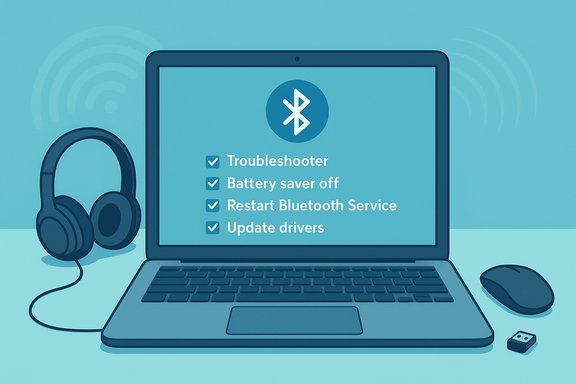
Bluetooth dropouts are rarely mysterious — they’re usually the result of one of a handful of predictable causes (power‑savings, drivers, service state, interference or profile/codec mismatches) — but fixing them reliably requires a methodical checklist, a few diagnostic commands, and awareness of trade‑offs (battery life vs reliability, OEM drivers vs generic Windows drivers).
Background / Overview
Bluetooth is the default short‑range wireless link for headsets, mice, keyboards, gamepads and quick file transfers on Windows systems. Microsoft’s support guidance for the common “Bluetooth keeps disconnecting” symptom focuses on four fast, high‑leverage fixes: run the built‑in troubleshooter, disable Battery Saver, turn off adapter power‑savings in Device Manager, and restart the Bluetooth Support Service. Those steps are accurate and intentionally low‑risk, and will resolve many consumer cases quickly. That Microsoft checklist intentionally prioritizes safe, reversible actions before driver or system repairs — a sensible playbook for general users — but it leaves out several deeper causes and practical workarounds that enthusiasts and IT teams will want to try next (driver rollbacks, OEM driver installs, codec/profile adjustments, interference mitigation, and advanced diagnostics). Community troubleshooting and independent how‑to guides expand the toolbox with those next steps and explain why each step works.Why Bluetooth connections drop: a technical primer
Bluetooth on Windows is not a single component — it’s an ecosystem made of the OS Bluetooth stack, chipset firmware, chipset vendor drivers (Intel, Qualcomm, Realtek, Broadcom, etc., peripheral firmware (headset/keyboard), and radio‑environment factors like Wi‑Fi interference. A failure in any of these links will produce the same symptom: disconnects or frequent re‑pairing.- Power management: Windows (and OEM drivers) can suspend USB or radio devices to save battery, which can silently drop Bluetooth sessions. Unchecked, this is probably the most common cause on laptops.
- Driver/stack mismatch: Generic Windows drivers may lack critical firmware interfaces or audio offload features. OEM or chipset vendors sometimes publish newer or alternative drivers that restore expected behavior.
- Service or stack state: Bluetooth requires background services (Bluetooth Support Service et al. to be running. A stopped or crashed service can break discovery or reconnection flows.
- Interference and range: Bluetooth shares 2.4 GHz with Wi‑Fi and many consumer devices. Heavy congestion, USB 3.0 noise, or physical obstructions will drop packets and create audio stutters or reconnects.
- Profile/codec negotiation (audio): Legacy Bluetooth Classic used A2DP for stereo and HFP for calls; activating a mic could force a lower‑quality profile (mono voice), seemingly “breaking” audio. Newer LE Audio (LC3 / IS0) aims to resolve this, but LE Audio requires end‑to‑end support (OS build + driver + chipset + headset firmware). A Bluetooth 5.x radio alone does not guarantee LE Audio support.
- Firmware/OS update regressions: Occasionally a Windows cumulative update or vendor firmware update introduces regressions that only manifest on specific hardware combos. These are device‑specific and should be treated as such until confirmed by vendor advisories.
What Microsoft recommends — and what that actually fixes
Microsoft’s published quick steps for “Bluetooth keeps disconnecting” emphasize:- Run the automated Bluetooth troubleshooter in Get Help or Settings (safe, first step).
- Turn off Battery Saver / Energy Saver mode — battery saver can throttle radios.
- In Device Manager, open the Bluetooth adapter → Power Management tab and uncheck “Allow the computer to turn off this device to save power.” This prevents Windows from suspending the radio.
- Restart the Bluetooth Support Service (services.msc → Bluetooth Support Service → Restart).
A deeper troubleshooting checklist (organized low → high effort)
Follow this sequence; stop when the problem is solved. Each step is short and reversible unless noted.- Quick sanity checks (1–5 minutes)
- Ensure the Bluetooth device is charged, paired only to the target host (or temporarily unpair on other hosts), and within 10 m with clear line of sight.
- Toggle Bluetooth off/on in Quick Settings (Win + A) or Settings → Bluetooth & devices.
- Restart the peripheral (power cycle headphones/keyboard).
- Run Settings → System → Troubleshoot → Other troubleshooters → Bluetooth → Run.
- Power‑management fixes (5 minutes)
- Turn off Battery Saver/Energy Saver from the taskbar battery icon.
- Device Manager → Bluetooth → adapter → Power Management → uncheck “Allow the computer to turn off this device to save power.” Repeat for Bluetooth HID and headset entries where present.
- Service and system checks (5–10 minutes)
- services.msc → Restart Bluetooth Support Service. Confirm Startup type is Manual (Trigger) or Automatic where appropriate.
- Reboot after these changes and retest.
- Driver housekeeping (10–20 minutes)
- Device Manager → Bluetooth → Update driver → Search automatically. If Windows finds nothing, download the OEM/chipset vendor driver (Intel, Qualcomm, Realtek, Broadcom) and install manually — prefer vendor drivers for audio stacks and LE Audio features.
- If a recent driver or Windows update caused the issue, use Driver tab → Roll Back Driver (if available). If rollback is not available or fails, uninstall the Bluetooth adapter (Device Manager → Uninstall device) and reboot to let Windows reinstall. Back up OEM drivers first.
- Audio‑specific tweaks (headphones / earbuds)
- If stereo collapses when the mic activates (legacy A2DP/HFP behavior), consider disabling Hands‑Free Telephony for the device to force A2DP stereo for media (this disables headset mic system‑wide). For calls, use a separate mic until LE Audio is fully supported.
- Disable audio enhancements and set a stable default sample rate under Sound settings → device properties → Advanced. Also disable Exclusive Mode to reduce audio routing conflicts.
- Interference and hardware isolation (5–30 minutes)
- Move away from crowded 2.4 GHz sources (Wi‑Fi routers, USB 3.0 ports/cables, microwave).
- If using a USB Bluetooth dongle, move it to a front or extended USB port using a short extension cable to improve line‑of‑sight. Test with a known‑good dongle to separate hardware issues from system issues.
- Advanced repair and diagnostics (30–90 minutes)
- Run sfc /scannow and DISM /Online /Cleanup-Image /RestoreHealth to repair corrupted system files. This is low risk but takes time.
- Use Event Viewer (Windows Logs → System) and record the timestamp of disconnects to find driver/service errors. Generate a powercfg /energy report to identify power anomalies. These artifacts are useful if you escalate to OEM or IT.
- If the problem started after a Windows update (escalation)
- Use Settings → System → Recovery → Advanced startup → Troubleshoot → Advanced options → Uninstall Updates, or use System Restore if a suitable restore point exists. Coordinate with IT on enterprise machines before rolling back updates.
Advanced technical notes: LE Audio, codecs, and why “Bluetooth 5.x” isn’t a guarantee
LE Audio (LC3 + Isochronous Channels) changes the rules: it allows high‑quality stereo audio and high‑bandwidth mic streams simultaneously without the old A2DP→HFP tradeoff. However, LE Audio requires all layers to support it:- Windows build and Bluetooth stack must expose LE Audio features and UI toggles (e.g., Use LE Audio when available).
- The Bluetooth radio must implement Isochronous Channel hardware/firmware and drivers must expose that capability.
- The headset must have LE Audio/LC3 firmware.
Practical examples: how to test and isolate the fault
- Known‑good device test: Pair the headset with a phone. If it is stable there, the headset is probably fine and the issue lies with the Windows PC (drivers, stack, or RF environment).
- Known‑good host test: Use a different PC (or a USB Bluetooth dongle) with your headset. If the dongle works, suspect the internal adapter or chipset firmware.
- Process of elimination checklist (ordered): toggle Bluetooth → re‑pair device → run troubleshooter → restart Bluetooth services → disable power‑saver on adapter → update or roll back drivers → test with USB dongle. This sequence minimizes unnecessary invasive steps early.
Risk assessment and cautions
- Driver rollbacks and uninstalling cumulative updates are valid escalation steps but carry risk: you may temporarily lose Bluetooth (or other) functionality and can complicate managed enterprise environments. Always back up drivers and coordinate with IT for corporate machines.
- Third‑party driver updater tools are risky and can install mismatched stacks. Prefer official OEM/chipset vendor packages (Intel Driver & Support Assistant, Realtek downloads, laptop vendor download portals).
- Claims that a specific Windows update “broke Bluetooth for everyone” are often anecdotal. Regressions can be real, but they are usually device‑specific; verify against vendor advisories and your exact model/build before applying a universal rollback.
A condensed copy‑and‑paste repair script (for power users)
- Open an elevated command prompt and run:
- net stop bthserv
- net start bthserv
- sfc /scannow
- DISM /Online /Cleanup-Image /RestoreHealth
- Open Device Manager:
- Expand Bluetooth → right‑click adapter → Properties → Power Management → uncheck “Allow the computer to turn off this device to save power.”
- If audio problems: Sound control panel → Playback device → Properties → Enhancements → Disable all enhancements. Advanced → set Default Format to 16 bit, 44100 Hz (or 48000 Hz). Disable Exclusive Mode.
- Update drivers:
- Run Windows Update.
- If no driver appears, download latest from chipset/OEM site and install.
- If still failing: uninstall adapter in Device Manager → reboot → let Windows reinstall. If the issue began after an update, consider Uninstall Updates or System Restore as a last resort.
Preventive practices and long‑term recommendations
- Keep headset firmware and PC Bluetooth drivers updated from the manufacturer; Windows Update might not always carry the latest vendor packages.
- Disable aggressive power savings for Bluetooth and HID devices on laptops used as primary audio hosts. The battery penalty is typically small compared to repeated reconnects.
- Maintain a wired or USB microphone fallback for mission‑critical calls until LE Audio support is verified across your device ecosystem.
- Document and keep local copies of known‑good driver packages (especially on business devices) to simplify rollbacks.
What Microsoft’s article gets right — and where community guidance adds value
Microsoft’s support article is concise and correctly targets the highest‑value, lowest‑risk steps first (troubleshooter, battery saver, device power management, Bluetooth service restart). It’s the right place to start for most users. Community and third‑party guidance fills in the intermediate to advanced steps: driver rollbacks, OEM driver installation, interference mitigation, audio profile handling (Hands‑Free Telephony vs A2DP), and LE Audio considerations. These add practical detail and explain root causes, but they require users to make trade‑offs and sometimes coordinate with vendors or IT. For power users and IT pros, the community playbook is essential.Final checklist — a technician’s short flow
- Toggle Bluetooth and restart peripheral.
- Run Windows Bluetooth troubleshooter.
- Disable Battery Saver and adapter power‑savings.
- Restart Bluetooth Support Service.
- Update or roll back Bluetooth and audio drivers from OEM/vendor.
- Test with another device and with a USB dongle to isolate hardware.
- If unresolved, run SFC/DISM, check Event Viewer, generate powercfg /energy report, and consider uninstalling the most recent quality update or using System Restore. Escalate to OEM/IT with diagnostic artifacts.
Bluetooth disconnects are almost never a single‑button fix; they’re a systems problem that benefits from a checklist approach. Start with Microsoft’s safe, high‑value steps and then escalate through power settings, driver housekeeping, and diagnostics. When you combine Microsoft’s quick fixes with the community’s deeper toolset — driver management, interference control, and LE Audio awareness — most users will restore stable Bluetooth behavior without invasive repairs.
Source: Microsoft Support Bluetooth keeps disconnecting in Windows - Microsoft Support
