

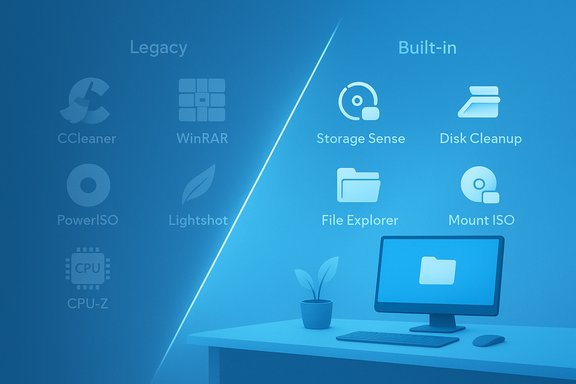
For years we installed the same handful of tiny utilities on every fresh Windows setup; today many of those classics are redundant because Windows has quietly absorbed their core functions — and keeping them around is mostly clutter.
Windows has been steadily adding capabilities that once required third‑party tools: automated cleanup, basic archive handling, native ISO mounting, hardware overviews, built‑in screenshot and OCR, and a hardened built‑in antivirus. The result is a new calculus for maintenance: rather than reflexively reinstalling “must‑have” utilities, users should evaluate whether a tool still provides unique value or simply duplicates functionality now offered by the OS. This trend has been visible across community troubleshooting and cleanup guides, which now recommend leaning on Windows’ native features before adding more apps.
The rest of this feature drills into six widely used legacy utilities, verifies what Windows actually offers today, explains where third‑party apps still win, and gives a practical, risk‑aware path to decluttering a PC without losing capability.
What Windows now does
What independent testing says
Windows has matured into a platform where convenience and security increasingly favor built‑in tools. That doesn’t render every classic utility obsolete — it redefines their purpose. The best outcome is a lean system tailored to your real needs: fewer background services, fewer update headaches, and the confidence that when you do install a third‑party tool, it’s because it truly delivers capabilities Windows cannot.
Source: How-To Geek These old favorite apps are just cluttering up your Windows PC
 Background / Overview
Windows has been steadily adding capabilities that once required third‑party tools: automated cleanup, basic archive handling, native ISO mounting, hardware overviews, built‑in screenshot and OCR, and a hardened built‑in antivirus. The result is a new calculus for maintenance: rather than reflexively reinstalling “must‑have” utilities, users should evaluate whether a tool still provides unique value or simply duplicates functionality now offered by the OS. This trend has been visible across community troubleshooting and cleanup guides, which now recommend leaning on Windows’ native features before adding more apps.The rest of this feature drills into six widely used legacy utilities, verifies what Windows actually offers today, explains where third‑party apps still win, and gives a practical, risk‑aware path to decluttering a PC without losing capability.
Why the shift matters
Windows’ built‑in alternatives reduce attack surface, simplify updates, and spare disk space and background services that otherwise run without you noticing. That doesn’t mean third‑party tools are obsolete — many still offer advanced options that power users, IT pros, and creators need. The smart approach is selective removal: keep what adds measurable value, ditch what duplicates Windows’ built‑in features, and always back up before you prune. Community guides and forum threads covering debloating, Storage Sense, and “cleanup recommendations” reflect this pragmatic shift.CCleaner: what it used to do — and why Windows now covers it
CCleaner made a name by removing temporary files, cleaning browser caches, and clearing leftover installer cruft. That single goal — reclaiming disk space and removing temporary items — is now largely covered by Windows.- Storage Sense (Windows 10/11) can automatically remove temporary files, empty the Recycle Bin, and offload unused OneDrive content on a schedule or when disk space runs low. It’s configurable and can run daily, weekly, or only when space is scarce. This is Microsoft’s supported automation for “set it and forget it” cleanup.
- Disk Cleanup / Cleanup Recommendations remain available for targeted manual cleanup of things like DirectX shader caches, temporary Internet files, and previous Windows installations. Disk Cleanup persists as a deeper, more explicit cleanup tool for advanced or cautious users.
- If you rely on CCleaner’s registry cleaning, scheduled browser‑by‑browser profiles, or its more aggressive file scavenging routines, the built‑ins may feel too conservative.
- CCleaner’s automation and batch‑cleanup UI can be convenient for technicians who manage many machines.
- If you only used it for basic free space recovery or occasional temp file removal, enable Storage Sense and run Disk Cleanup manually instead — you’ll get similar results without extra software.
- Review Storage Sense settings: Settings > System > Storage > Configure Storage Sense. Turn on and set cadence.
- Run Disk Cleanup (cleanmgr.exe) or use Settings > System > Storage > Cleanup recommendations for a one‑off deep clean.
- Create a Windows restore point before uninstalling CCleaner, and verify there are no scheduled CCleaner tasks left running.
WinRAR and archive tools: the nuance behind “Windows can extract archives now”
For decades WinRAR and 7‑Zip were essential. Recent Windows updates have narrowed the gap, but the picture is nuanced.What Windows now does
- Modern Windows 11 builds expanded explorer archive handling beyond plain ZIP in several feature updates; work on better archive support (and Explorer improvements) has been ongoing. Microsoft added broader archive handling and improvements to File Explorer across 23H2+ feature drops.
- Some outlets and insiders reported native RAR opening support rolled into certain Windows 11 feature updates, and coverage from mainstream Windows sites celebrated that capability arriving in specific builds.
- At the same time, Microsoft community threads and user reports show that RAR handling is inconsistent across builds and that proprietary RAR features (passworded multi‑volume archives, advanced compression options, rare archive formats) still require third‑party tools like WinRAR or 7‑Zip. If you rely on split volumes, encryption modes specific to WinRAR, or advanced repair features, the native options are not a complete replacement.
- For basic one‑file extraction and everyday ZIP/TAR/GZ work, Windows Explorer generally suffices.
- Keep WinRAR, 7‑Zip, or similar if you:
- Work with split archives, encrypted RARs, or legacy formats (CAB, UUE) often.
- Need features like repair records, fine‑grained compression preferences, or command‑line scripting for complex batch jobs.
- Try opening your common archive types in Explorer (right‑click > Extract all) to verify built‑in behavior.
- If you encounter RARs, passworded archives, or split volumes that fail, install 7‑Zip (free) or WinRAR (paid) as needed.
- If you keep WinRAR, set file associations only for formats you need to retain third‑party handling for.
CPU‑Z vs Task Manager: how much hardware detail do you actually need?
CPU‑Z and similar tools (Speccy, HWiNFO, GPU‑Z) provide micro‑level hardware reporting — SPD timings, microcode revisions, exact clocks per core, memory timings, and more. Windows Task Manager and the Settings/System information tools have improved substantially and now provide everything most users need:- Task Manager (Performance tab) shows CPU model, current clock speeds, core/thread counts, overall CPU/memory/disk usage and historical graphs, network stats, and basic device memory details. It’s a fast, integrated way to check whether your CPU or RAM is under load.
- System Information and Settings show installed memory, storage, and device model details for inventory tasks. For everyday troubleshooting (Is my CPU pegged? How much RAM is in use? Which disk is busy?, these built‑ins are enough.
- Memory timings and SPD readout: CPU‑Z exposes CAS, tRCD, tRP, and other raw SPD fields which are essential when tuning RAM or diagnosing compatibility.
- Micro‑architecture and microcode: CPU‑Z reports CPU stepping, microcode versions, and fine timing details that are useful for enthusiasts and overclockers.
- Component validation: When you need to validate that a new module is running at XMP profile speeds or to record precise system specs for warranty/benchmarks, CPU‑Z is the right tool.
- Rely on Task Manager and Settings for everyday monitoring and quick diagnostics.
- Keep CPU‑Z (or HWInfo) if you overclock, tune memory timings, or need authoritative component-level reporting.
PowerISO and ISO tools: mounting is built in, editing and bootable USB creation still matter
Modern Windows (10 and 11) can mount ISO files directly from File Explorer (double‑click or right‑click > Mount), and it exposes burn and mount operations in the ribbon — so you no longer need a helper just to mount or inspect an ISO. How‑To‑Geek and utility sites document this simple, no‑install workflow. Where PowerISO remains useful- Create/edit ISO files without full extraction, convert obscure image formats, and build bootable USBs with custom boot parameters.
- Bootable USB creation: While Windows includes command‑line ways to prepare install media, tools such as Rufus, Ventoy, and PowerISO make painless, reliable multiboot or customized installation drives. PowerISO advertises a long feature list including editing ISO contents, converting many image types, and building Windows USB media.
- PowerISO installers and older versions have attracted user reports of bundled PUPs or flagged installers; always download from the vendor and uncheck any extras during setup — or prefer open‑source tools like Rufus/7‑Zip where possible. Community reports have flagged questionable extras in some installers, so caution is warranted.
- Uninstall PowerISO if all you do is mount ISOs. Use File Explorer’s Mount/Eject flow.
- Keep a lightweight tool like Rufus or Ventoy when you need robust, customizable bootable USBs or multi‑image drives.
- If you must edit ISOs frequently, retain a dedicated ISO editor — but prefer tools from reputable sources and verify installer contents during setup.
Antivirus: Microsoft Defender vs third‑party suites
Arguably the biggest historical reason to install third‑party software was antivirus. Today, Microsoft Defender is a mature, fully integrated antivirus solution with real‑time scanning, cloud‑based protections, ransomware mitigation, and periodic independent lab wins.What independent testing says
- Recent AV‑Test and AV‑Comparatives reports show Microsoft Defender scoring highly in protection metrics and usability in multiple test cycles, often within a hair of top paid suites. AV‑Test’s “Top Product” lists have repeatedly included Microsoft Defender among top performers in consumer tests. AV‑Comparatives’ real‑world protection tests also show Defender doing well in many comparisons. These lab results support the basic premise: Defender provides strong baseline protection for most users.
- You want additional bundled extras: VPN, secure backup, identity theft protection, or advanced parental controls.
- You manage many endpoints and require centralized management, specialized EDR features, or platform‑agnostic consoles beyond Microsoft’s Defender for Business/Endpoint offerings.
- You need cross‑browser protections beyond what Edge provides natively, or you prefer the UI/features of a paid suite.
- For typical home users who practice safe browsing, maintain Windows Update, and avoid risky downloads, Microsoft Defender is sufficient and avoids the friction of paid renewals and extra background services.
- If you adopt a paid AV, weigh whether the extra features are worth the recurring costs and possible system impact; check current independent lab scores before committing.
Lightshot → Snipping Tool: screenshots, OCR, and recording without extra installs
Lightshot and other screenshot utilities were popular for quick annotated screenshots and easy uploads. Windows’ Snipping Tool has grown into a capable, built‑in alternative:- Capture and annotate: The Snipping Tool handles region/window/fullscreen snips, annotation, and simple editing.
- Screen recording: Modern Snipping Tool builds include a screen recording feature that saves MP4 files (note: some builds don’t record system audio; if you need audio capture, keep a dedicated recorder).
- OCR / Extract text from images: Snipping Tool now offers “Text actions” / OCR to extract selectable text from screenshots, with a “Copy all text” option and formatting helpers — a direct replacement for many PowerToys workflows or lightweight OCR apps. This is rolling into Windows builds and the Insider channels and is available broadly on updated Windows 11 installations.
- If you rely on Lightshot’s automatic upload workflows, cloud annotations, or specific keyboard hotkeys integrated into a cross‑platform workflow, it may still be warranted.
- For advanced annotation, GIF creation, or integrated cloud sharing, third‑party tools can still be more full‑featured.
- Try Snipping Tool’s capture, text extraction, and screen recording features on your machine first. If they meet your needs, uninstall Lightshot — you’ll reduce background processes and avoid third‑party upload/privacy implications.
A practical, safe declutter checklist
Uninstalling or replacing decades‑old tools is liberating — but do it safely.- Inventory: Open Settings > Apps > Installed apps. Sort by last used or size and note candidates for removal.
- Backup: Create a System Restore point and back up any configuration or exported profiles (for WinRAR compression presets, CCleaner settings, etc..
- Test built‑ins:
- Storage Sense: Enable and configure.
- Explorer archive handling: Try extracting archives you normally work with.
- Mount ISO: Right‑click > Mount or double‑click an ISO.
- Snipping Tool: Try Capture → Text actions and Record.
- Task Manager: Check Performance tab for CPU/memory basics.
- Uninstall one app at a time: Verify system behavior for 24–48 hours after each removal.
- Keep replacements ready: Have portable copies (7‑Zip, Rufus, CPU‑Z portable) on a USB stick for occasional advanced needs.
- Reinstall if needed: If a workflow breaks, you can reinstall the app. Keep license keys and installers handy.
Critical analysis: strengths and risks of relying on built‑ins
Strengths- Reduced attack surface: fewer installers and background services mean fewer potential vulnerabilities.
- Integration and updates: built‑ins update through Windows Update, reducing version fragmentation and compatibility issues.
- Simplicity for most users: fewer decisions, less maintenance, and zero‑cost protection and utilities.
- Feature trade‑offs: built‑ins are intentionally generalist. Advanced users lose features like split‑volume archive creation, deep ISO editing, minute hardware telemetry, sophisticated registry housekeeping, and premium AV extras.
- Inconsistent rollout: new features (RAR handling, Snipping Tool OCR) can vary by Windows build and channel; what’s available on one system may not be on another. Always validate on your specific Windows build before removing an app relied on for critical work.
- Enterprise constraints: corporate devices may be managed by MDM/GPO; removing vendor software or replacing security products without IT approval can violate policy and break support contracts. Community guides repeatedly emphasize caution in managed environments.
- Some reporting around the precise extent of native RAR support is inconsistent across outlets and user reports; this is a case where test on your machine beats broad claims. If you depend on a RAR‑specific workflow, assume you still need WinRAR/7‑Zip until you verify extraction and creation operations work exactly as you need.
Final recommendations (short and actionable)
- Uninstall: Lightshot, old ISO‑mounters, and general “cleanup” utilities if you only used them for the basic features that Windows now provides.
- Replace: CCleaner → enable Storage Sense + use Disk Cleanup/Storage settings for occasional deep cleans.
- Keep: WinRAR/7‑Zip for advanced archive formats, CPU‑Z for hardware tuning, and PowerISO or Rufus only if you need advanced ISO editing or specialized USB‑creation workflows.
- Trust Defender: For most home users, Microsoft Defender is adequate; consider a paid suite only for specific advanced protections or extra bundled services. Verify current independent lab results if you have high‑stakes security needs.
- Audit periodically: Make decluttering part of a routine (every 3–6 months): run Storage Sense, check Installed Apps, and confirm you’re not auto‑reinstalling unwanted software via OEM packages.
Windows has matured into a platform where convenience and security increasingly favor built‑in tools. That doesn’t render every classic utility obsolete — it redefines their purpose. The best outcome is a lean system tailored to your real needs: fewer background services, fewer update headaches, and the confidence that when you do install a third‑party tool, it’s because it truly delivers capabilities Windows cannot.
Source: How-To Geek These old favorite apps are just cluttering up your Windows PC
