

Windows Hello promised to make passwords optional by replacing typed secrets with biometrics — a face, an iris, or a fingerprint — and the early demos that paired Windows 10 builds with Intel’s RealSense depth cameras made that promise visible and tangible for everyday users.
Windows Hello arrived as part of Microsoft’s broader push toward passwordless authentication, tightly integrated with Microsoft Passport (later described as part of the Passport/Passport for Work / Microsoft Passport family of device-bound credentials). The design goal was straightforward: move verification from server-stored passwords to device-bound credentials unlocked by something you are (biometrics) or something you have (a TPM-backed key), improving resistance to phishing and large-scale credential theft. Microsoft’s developer documentation and early platform posts lay out the model: local biometric verification releases a device-bound key which authenticates the user to Windows and to apps without sending biometric templates to servers. Early public attention focused on facial recognition because it is the most visible and photogenic of the options. But unlike basic webcams that capture 2D images, Windows Hello’s face recognition relied on depth-aware infrared/NIR sensors to build a 3D map of the face — a core anti-spoofing requirement that separates Hello from naive photo-based systems. That hardware requirement also became Windows Hello’s adoption bottleneck: not every laptop or USB camera provided the right combination of sensors and drivers, and that limited who could test or use face-based sign-in in the early Windows 10 era.
Source: BetaNews Here's how Windows Hello login works in Windows 10
 Background / Overview
Windows Hello arrived as part of Microsoft’s broader push toward passwordless authentication, tightly integrated with Microsoft Passport (later described as part of the Passport/Passport for Work / Microsoft Passport family of device-bound credentials). The design goal was straightforward: move verification from server-stored passwords to device-bound credentials unlocked by something you are (biometrics) or something you have (a TPM-backed key), improving resistance to phishing and large-scale credential theft. Microsoft’s developer documentation and early platform posts lay out the model: local biometric verification releases a device-bound key which authenticates the user to Windows and to apps without sending biometric templates to servers. Early public attention focused on facial recognition because it is the most visible and photogenic of the options. But unlike basic webcams that capture 2D images, Windows Hello’s face recognition relied on depth-aware infrared/NIR sensors to build a 3D map of the face — a core anti-spoofing requirement that separates Hello from naive photo-based systems. That hardware requirement also became Windows Hello’s adoption bottleneck: not every laptop or USB camera provided the right combination of sensors and drivers, and that limited who could test or use face-based sign-in in the early Windows 10 era. How Windows Hello actually works
The architecture in plain language
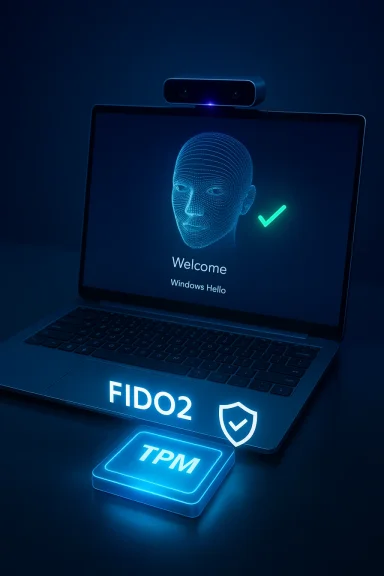
Windows Hello is less a single app and more an authentication stack that combines hardware, firmware, and OS-level cryptography:- A biometric sensor (fingerprint reader or IR depth camera) captures a biometric sample.
- That sensor or a secure driver layer converts the sample into a template or a match/no-match decision.
- The template or matching logic is stored and executed locally — typically protected by the Trusted Platform Module (TPM) where available — so biometric data never needs to leave the device.
- Successful biometric verification releases a locally stored credential (a private key) that signs an authentication assertion. That assertion is used by the OS and by Microsoft Passport / FIDO2-style flows to authenticate to services.
Biometric modes and anti‑spoofing
- Facial recognition: Uses an infrared or near‑infrared camera and depth sensing to detect three‑dimensional face geometry and active liveness signals (for example, angle changes and depth maps). This is why a plain RGB webcam is insufficient; depth plus IR allows the system to distinguish a live face from a photograph or simple video.
- Fingerprint: Modern implementations use match-on-chip or secure enclave designs where the sensor pre-processes and compares the fingerprint, returning a signed yes/no result instead of exposing the raw image.
- PIN (Windows Hello PIN): A device-bound PIN is used as an alternative or fallback; the PIN is local-only and is not the same as your Microsoft account password. In TPM-capable devices the PIN unlocks TPM-protected keys — making a short PIN often safer than a password reused across sites.
The Intel RealSense F200 demo and the early experience
The demo that made Hello feel real
In mid‑2015, a wave of demos showed Windows Hello facial login using Intel RealSense’s short‑range depth camera, the F200. Media demos recorded with build 10166 of Windows 10 showed Windows Hello setup walking users through face enrollment and fast unlocks with a glance — a compelling UX moment that crystallized Microsoft’s vision for passwordless sign-in. Publications that covered the demo emphasized how the RealSense camera combines multiple streams — IR, RGB, and depth — to build the biometric input Hello requires. The BetaNews write‑up that summarized the public demo explicitly noted that the F200 was the camera Joe Belfiore referenced when introducing Windows Hello, and it highlighted how early adopters used the camera to try out facial sign-in in preview builds. That coverage helped push the conversation from theory to practice: the feature worked and it worked quickly when paired with compatible hardware.Practical realities shown by the demos
- Enrollment was fast: the camera scans the face for a few seconds and creates a template.
- Unlock speed was low-latency — one of Hello’s most praised attributes.
- Demos also exposed the hardware dependency problem: only PCs or external cameras with the special IR/depth sensors would unlock with face recognition.
Hardware, drivers, and long-term support: the F200 case study
What the RealSense F200 offered
The Intel RealSense F200 was an early consumer‑facing depth camera designed for short‑range facial capture (roughly up to 1.5 meters), combining RGB and infrared depth sensors to create the three‑dimensional data Windows Hello used. For users who bought compatible external cameras or devices shipped with RealSense modules, the experience was strong and convincing. Technical posts and community documentation from Intel clarified that the F200 required Intel’s Depth Camera Manager (DCM) and an SDK aligned to the camera’s era (2015/2016), and that the RealSense 2016 SDK is what supported the F200.Driver and platform fragility
Over time, the F200 and its SR300 successor fell into an uneasy maintenance state: the depth drivers and the DCM that enabled Hello support were sensitive to OS updates. Intel’s support notes and subsequent community threads documented instances where Windows updates would break compatibility, requiring driver reinstallation or special DCM fixes — and, in some cases, the F200 became unsupported in newer SDKs. Intel’s own troubleshooting guidance warns that Windows upgrades can disable Hello support for SR300/F200-class cameras unless the proper DCM and drivers are present. Practical implication: a camera that worked for Windows 10 preview builds might fail after cumulative platform updates, and patch cycles raise the risk that older external cameras stop functioning as Windows authentication sensors. Community discussion and Microsoft Q&A threads show real users encountering this problem years after the initial demos.What this means for buyers and IT managers
- If buying hardware today to rely on Hello face recognition, prefer vendors that ship integrated IR/depth sensors with active vendor support and updated drivers.
- External cameras from discontinued product lines (for example, some older RealSense F200 models) can work but may need specific legacy driver packages and are more likely to break after major OS updates.
- For enterprises, integrated solutions on supported laptops or certified peripherals reduce the long-term maintenance burden.
Security analysis: strengths and limits
Clear strengths
- Local-first privacy model: Biometric templates are stored on-device and are not transmitted to Microsoft, which greatly reduces the attack surface from server-side credential breaches. The use of TPM-bound keys means the authenticator can resist remote credential replay.
- Phishing resistance: Because Hello releases cryptographic keys rather than shared passwords, classic phishing and credential-stuffing attacks lose effectiveness.
- Speed and user adoption: Lower friction frequently results in better user security posture — more auto-locks, more frequent locks, and less password reuse.
Known limits and risks
- Hardware dependency: The face-mode requires special cameras with depth/IR sensors and robust drivers. Without properly maintained drivers, the feature can fail unpredictably after OS updates. The F200 experience is a cautionary example.
- Edge cases and recoverability: Loss of the enrolled device or failed biometric enrollment can complicate recovery flows. Microsoft’s guidance attempts to address this with PIN fallbacks, account recovery, and enterprise provisioning, but the user experience can still be brittle unless IT policies are well-designed.
- Supply-chain and lifecycle: Camera vendors may discontinue older models, and SDKs may drop backward compatibility. That means hardware chosen years ago might not be supportable today. Community reports show users losing F200 face functionality after platform updates. Flag: this is a real-world compatibility risk that organizations should consider.
Deployment guidance: practical advice for enthusiasts and administrators
For consumers and hobbyists
- Choose hardware with current vendor support (many modern laptops from OEMs include “Windows Hello” cameras that are supported).
- If using an external camera, prefer models specifically marketed as Windows Hello compatible and check for driver updates before major Windows feature upgrades.
- Set up a strong recovery path: configure a TPM-backed PIN, add a secondary biometric (e.g., fingerprint), and ensure you know your Microsoft account password or recovery methods.
- Test OS upgrades in a controlled way if you rely on external cameras: create a system image or recovery plan so you can revert if camera drivers break.
For IT and enterprise teams
- Standardize on hardware models with verified Hello compatibility and a vendor commitment to driver updates.
- Use Windows Hello for Business (the enterprise flavor of Hello that integrates with Azure AD and certificate/PKI flows) with policy-driven lifecycle management.
- Maintain a fallback authentication policy to ensure users aren’t locked out if biometric hardware fails — for example, enforce PIN fallback plus recovery keys or support desks trained in Hello recovery flows.
- Factor driver lifecycle into procurement: prefer integrated sensors or cameras that have a warranty window that matches the organization’s refresh cycles.
- TPM support on the device
- OEM-certified IR/depth camera for Hello face
- Enterprise-grade driver update strategy
- Centralized recovery and account management policies
Real-world lessons from the F200 era
The RealSense F200 demo era taught two complementary lessons:- UX matters: a fast, reliable biometric unlock dramatically improves the sign-in experience and demonstrably drives better user behavior, such as leaving auto-lock enabled.
- Lifecycle matters: a great demo is not a guarantee of long-term reliability. The early RealSense cameras powered excellent demos but later revealed maintenance challenges as Windows evolved — a reminder that sustained vendor support is as important as the initial wow factor.
The current landscape and what to buy now (short, practical summary)
- If buying a new Windows laptop or desktop today and you want face unlock, buy a device explicitly marketed with Windows Hello support and a current vendor driver program.
- For dedicated webcam users, choose modern USB cameras that advertise Windows Hello or FIDO2 passkey support; avoid legacy RealSense F200 models unless you are ready to manage driver and OS compatibility actively.
- Consider fingerprint readers as a widely supported, lower-maintenance biometric option for many workflows.
Conclusion
Windows Hello delivered on its promise in a technical sense: it showed that passwordless, biometric-first sign-in could be fast, private, and integrated with cryptographic device credentials. Early demos — including those using Intel’s RealSense F200 camera in Windows 10 preview builds — made the idea tangible by showing quick, simple face unlock flows. But the F200 story is a reminder that platform-level security features depend on a healthy ecosystem: hardware sensors, vendor drivers, and continuous compatibility testing. The most important lesson for consumers and IT teams is to treat biometric authentication not as a single feature to check off, but as a combined hardware + software + support commitment. Buy supported sensors, build robust recovery plans, and treat vendor lifecycles as a first-class part of your security procurement process. Windows Hello remains a practical, secure step toward a passwordless future — but the experience is only as reliable as the hardware and support behind it.Source: BetaNews Here's how Windows Hello login works in Windows 10
